Dell Data Security Shield 模式
摘要: 本文讨论 Dell Data Security(以前称为 Dell Data Protection)盾牌模式。
本文适用于
本文不适用于
本文并非针对某种特定的产品。
本文并非包含所有产品版本。
症状
受影响的产品:
- Credant Mobile Guardian
- Dell Encryption Enterprise
- Dell Data Protection | Enterprise Edition
- Dell Encryption External Media
- Dell Data Protection | External Media Edition
- Dell Encryption Personal
- Dell Data Protection | Personal Edition
- Dell Data Protection | Security Tools
- Dell Encryption Enterprise for Server
- Dell Data Protection | Server Edition
受影响的平台:
- Windows
基于策略的 Dell Data Security(以前称为 Dell Data Protection)软件使用屏蔽模式标识符进行产品分类。
原因
警告:
- 盾牌模式在产品安装时确定,不能手动修改。
- 盾牌模式仅用于对产品类型或状态进行故障处理。
解决方案
Dell Data Security 产品的保护模式包括:
| ID | 模式 | 产品 |
|---|---|---|
| 0 | 未知/未初始化 | 未初始化/未配置1 |
| 1 | 企业模式 | Dell Encryption Enterprise\Dell Data Protection Enterprise Edition Shield |
| 2 | 独立模式 | Credant Mobile Guardian |
| 3 | 仅企业 EME 模式 | Dell Encryption External Media \ Dell Data Protection |External Media Edition |
| 4 | 本地管理模式 | Dell Encryption Personal\Dell Data Protection |个人版 |
| 5 | Essentials 模式 | Dell Data Protection |安全工具2 |
| 6 | 服务器加密模式 | Dell Encryption Enterprise for Server \ Dell Data Protection |服务器加密 |
| 7 | Saas 模式 | Dell Encryption Enterprise Shield |
1所有 Dell Data Protection 产品在激活之前均保持未调配状态。
2基本模式仅在安装 Dell Data Protection |安全工具。
要找到 Shield Mode:
警告:带您进入 Windows 注册表:
- 编辑注册表可能会导致计算机在下次重新启动时无响应。
- 如果您对于执行此步骤感到担忧,请拨打 Dell Data Security 国际支持电话号码联系相关人员以获得帮助。
- 右键单击Windows开始菜单,然后选择Run(运行)。
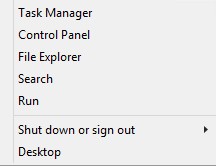
图 1:(仅英文)运行
- 在“运行”用户界面 (UI) 中,键入 regedit ,然后按 确定。
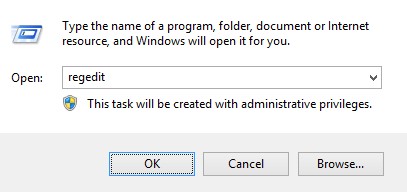
图 2:(仅限英文)键入 regedit
- 转至 HKEY_LOCAL_MACHINE\SOFTWARE\Credant\CMGShield。
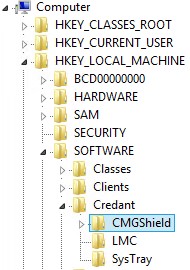
图 3:(仅限英文) CMGShield
- 找到 DWORD 密钥 SM。
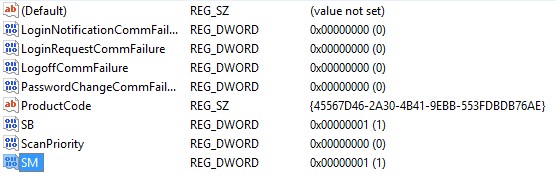
图 4:(仅限英文)Sm
提醒:在示例中,SM 键设置为 1。这将标识盾牌模式企业版。
要联系支持部门,请参阅 Dell Data Security 国际支持电话号码。
转至 TechDirect,在线生成技术支持请求。
要获得更多见解和资源,请加入戴尔安全社区论坛。
受影响的产品
Dell Encryption文章属性
文章编号: 000132837
文章类型: Solution
上次修改时间: 19 4月 2026
版本: 11
从其他戴尔用户那里查找问题的答案
支持服务
检查您的设备是否在支持服务涵盖的范围内。