DSA-2025-053에 나열된 교정된 ControlVault3 버전의 설치를 확인하는 방법
摘要: 이 문서에서는 DSA-2025-053에 나열된 교정된 ControlVault3 버전의 설치를 확인하는 방법에 대한 정보를 제공합니다.
本文适用于
本文不适用于
本文并非针对某种特定的产品。
本文并非包含所有产品版本。
说明
목차
장치 관리자를 사용하여 ControlVault3 버전 확인
ControlVault 드라이버 패키지 버전을 조회하는 가장 좋은 방법은 디바이스 관리자에서 ControlVault 버전을 찾는 것입니다.
- 다음을
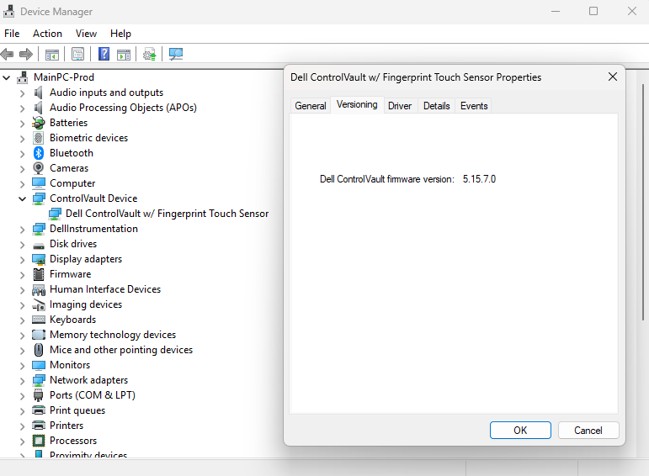
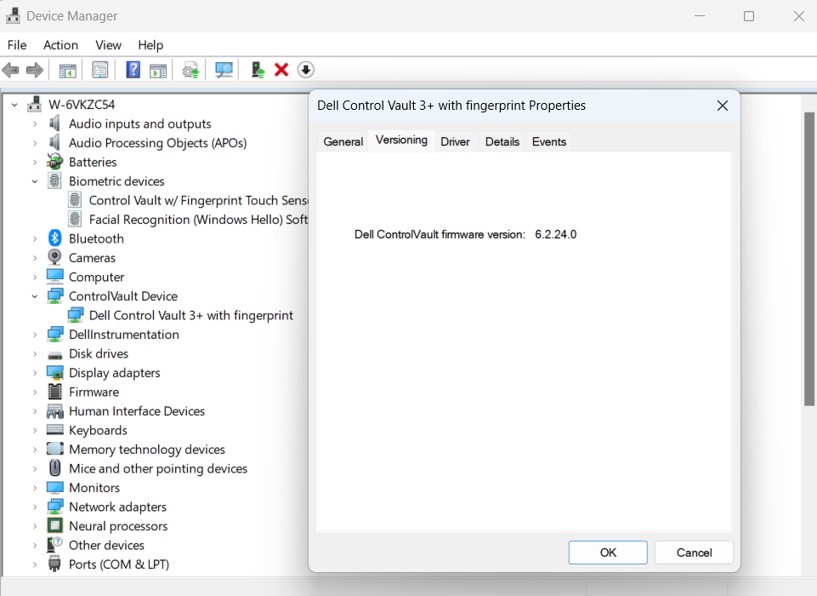
devmgmt.msc검색 또는 실행 표시줄에서 Enter 키를 누릅니다. - ControlVault 디바이스를 찾아 확장하고 Dell ControlVault를 마우스 오른쪽 버튼으로 클릭한 다음 속성을 선택하고 버전 관리 탭으로 이동합니다.
참고: 디바이스에 지문 터치 센서 없이 ControlVault 가 나열되어 있을 수 있습니다.
- 펌웨어 버전이 ControlVault3의 경우 5.15.7.0 이고 ControlVault3+의 경우 6.2.24.0인지 확인합니다.
PowerShell 스크립트를 사용하여 ControlVault3 버전 확인
이러한 지침은 아래 PowerShell 스크립트를 사용하여 테스트 중인 컴퓨터에서 직접 실행하기 위한 것입니다.
- 이 문서의 맨 아래에 있는 스크립트를 사용하여 다음과 같은 파일을 만듭니다.
Verify_ControlVault_dsa-2025-053_Standalone_V1.ps1- 이 스크립트의 특징은 다음과 같습니다.
- Dell Control Vault 드라이버가 컴퓨터에 설치되어 있는지 확인하고 결과를
$ControlVaultDriver - Control Vault 드라이버가 발견되면
CVFirmwareUpgradeLog.txtFW(firmware) 개정을 CV3 및 CV3+에 필요한 DSA의 FW 개정과 비교합니다. 필요한 펌웨어가 충족되면 콘솔로 출력
- Dell Control Vault 드라이버가 컴퓨터에 설치되어 있는지 확인하고 결과를
- 이 스크립트의 특징은 다음과 같습니다.
- PowerShell을 엽니다.
- Windows 키 + R을 누르고 다음을 입력합니다.
PowerShell를 누르고 Enter
또는, - 시작 메뉴에서 PowerShell을 검색하고 선택합니다.
- Windows 키 + R을 누르고 다음을 입력합니다.
- PowerShell은 컴퓨터의 정책에 따라 스크립트를 차단할 수 있습니다. 이 스크립트를 복사하여 PowerShell에 붙여넣고 Enter 키를 눌러 이 제한을 일시적으로 변경해야 합니다.
Set-ExecutionPolicy -Scope Process -ExecutionPolicy Bypass
- cd를 사용하여 스크립트가 저장된 디렉토리를 변경합니다. 예를 들면 다음과 같습니다.
cd “C:\Users\UserName\Documents\Scripts"
- 다음 내용을 복사하여 PowerShell에 붙여넣고 Enter 키를 눌러 스크립트를 실행합니다.
.\Verify_ControlVault_dsa-2025-053_Standalone_V1.ps1
- 다음 결과 중 하나가 반환됩니다.
- ControlVault 펌웨어를 업데이트해야 합니다.
- 최신 ControlVault 펌웨어에는 DSA-2025-053에 대한 완화 조치가 포함되어 있습니다.
- 컴퓨터에 ControlVault가 없습니다.
- 컴퓨터를 재부팅해야 합니다.
- 스크립트가 펌웨어 버전을 해석할 수 없는 경우 오류 발생
<#PSScriptInfo
.VERSION V1.0 - 8/14/2025
#>

<#
.DESCRIPTION
	This script is intended to verify a Dell system against the vulnerabilities disclosed here https://www.dell.com/support/kbdoc/000276106/dsa-2025-053
	and is not intended to be supported/updated
	It is not intended to be used for keeping ControlVault firmware or drivers up-to-date
	Checks if Dell Control Vault Driver is installed on System and returns result to $ControlVaultDriver
	If Control Vault Driver is found, pull the last line from CVFirmwareUpgradeLog.txt and compare the FW revision to the
	required FW revision from DSA for CV3 and CV3+.  If required firmware meet, output to console

.USEAGE
	This script, Verify_ControlVault_dsa-2025-053_Standalone_V1.ps1 is intended to be run directly on the system intended for testing.
	Verify_ControlVault_dsa-2025-053_inTune_XX.ps1 still in development intended to be run for multiple device compliance reporting through Intune

	RETURNS: ControlVault firmware should be updated.
	RETURNS: Verification Success: ControlVault firmware includes mitigations for DSA-2025-053
	RETURNS: Verification Success: Your computer does not have ControlVault
	RETRUNS: ControlVault maybe updated but needs to complete firmware update validation, Please reboot computer
	RETRUNS: There appears to be an issue parsing the CVFirmwareUpgradeLog.txt; this is likely caused by the last entry of this log not containing the expected data
#>

# Static variables with firmware versions with remediation for ControlVault3 and ControlVault3+
$cv3_required_FWver = [Version]"5.15.7.0"
$cv3plus_required_FWver = [Version]"6.2.24.0"

# Static variables for messaging
$DSA_URL = "https://www.dell.com/support/kbdoc/000276106/dsa-2025-053"
$checkmark = [char]0x2705
$xmark = [char]0x2612
$CVoutofdate = "$xmark ControlVault firmware should be updated. Please refer to $DSA_URL"
$CVcompliant = "$checkmark Verification Success: ControlVault firmware includes mitigations for DSA-2025-053"
$CVnotfound = "Verification Success: Your computer does not have ControlVault"
$CVerror = "There appears to be an issue parsing the CVFirmwareUpgradeLog.txt; this is likely caused by the last entry of this log not containing the expected data"
$CVreboot = "ControlVault maybe updated but needs to complete firmware update validation, Please reboot computer"

# Checks if Dell Control Vault Driver is installed on System and returns result to $ControlVaultDriver
$controlVaultDriver = Get-WmiObject Win32_PnPSignedDriver | Where-Object { $_.DeviceName -like "*Control Vault*" }
$resultstatus = 3

# Find the last entry of the firmwareupgrade log and determine if the firmware version is greater than the firmware version required
if ($ControlVaultDriver){
	$matchingLines = Get-Content "c:\Windows\System32\CVFirmwareUpgradeLog.txt" | Where-Object { $_ -match "Will not update ControlVault firmware from" -or $_ -match "Updating ControlVault firmware from" }
	$lastLine = $matchingLines | Select-Object -Last 1

	if ($lastLine -match "Updating ControlVault firmware from") {
		$resultstatus = 5
		Write-Host "$CVreboot"
	}
	else{
		if ($lastLine -match "Will not update ControlVault firmware from\s+(\d+\.\d+\.\d+\.\d+)") {
			$versionStr = $matches[1]
			$version = [Version]$versionStr

			if (($version.Major -eq 5 -and $version -ge $cv3_required_FWver) -or
				($version.Major -eq 6 -and $version -ge $cv3plus_required_FWver)) {
				$resultstatus = 4
				Write-Host "$CVcompliant"
			}
			else{
				$resultstatus = 2
				Write-Host "$CVoutofdate"
			}
		}
		else{
			$resultstatus = 3
			Write-Host "$CVerror"
		}
	}
}
else{
	$resultstatus = 1
	Write-Host "$CVnotfound"
}


# Create result object
$result = [PSCustomObject]@{
    ComputerName = $env:COMPUTERNAME
    Timestamp = Get-Date -Format "yyyy-MM-dd HH:mm:ss"
    ControlVaultInstalled = $null -ne $controlVaultDriver
	Resultstatus = $resultstatus
    DriverDetails = if ($controlVaultDriver) {

		$controlVaultDriver | Select-Object DeviceName
    } else {
        $null
    }
}

# Return as JSON
$result | ConvertTo-Json -Depth 3
其他信息
여러 디바이스 규정 준수를 위해 inTune을 통해 실행할 또 다른 스크립트를 개발 중이며, 이 문서는 사용 가능해지면 해당 세부 정보로 업데이트됩니다.
자세한 내용은 DSA-2025-053 을 참조하십시오.
受影响的产品
Dell Pro Max 14 MC14250, Dell Pro Max 16 MC16250, Dell Pro 13 Plus PB13250, Dell Pro 14 Plus PB14250, Dell Pro 16 Plus PB16250, Dell Pro Rugged 13 RA13250, Dell Pro Rugged 14 RB14250, Latitude 7030 Rugged Extreme Tablet, Latitude 7200 2-in-1
, Latitude 7210 2-in-1, Latitude 7220EX Rugged Extreme Tablet, Latitude 7220 Rugged Extreme Tablet, Latitude 7230 Rugged Extreme Tablet, Latitude 5300 2-in-1, Latitude 5300, Latitude 5310 2-in-1, Latitude 5310, Latitude 5320, Latitude 5330, Latitude 5340, Latitude 5350, Latitude 7300, Latitude 7310, Latitude 7320, Latitude 7320 Detachable, Latitude 7330, Latitude 7330 Rugged Extreme, Latitude 7340, Latitude 7350, Latitude 7350 Detachable, Latitude 9330, Latitude 5400, Latitude 5401, Latitude 5410, Latitude 5411, Latitude 5421, Latitude 5430 Rugged, Latitude 5431, Latitude 5440, Latitude 5450, Latitude 7400 2-in-1, Latitude 7400, Latitude 7410, Latitude 7420, Latitude 7430, Latitude 7440, Latitude 7450, Latitude 9410, Latitude 9420, Latitude 9430, Latitude 9440 2-in-1, Latitude 9450 2-in-1, Latitude 5500, Latitude 5501, Latitude 5510, Latitude 5511, Latitude 5520, Latitude 5521, Latitude 5530, Latitude 5531, Latitude 5540, Latitude 5550, Latitude 7520, Latitude 7530, Latitude 9510, Latitude 9520, Latitude 7640, Latitude 7650, Latitude 5420, Latitude 5430, Precision 3470, Precision 3480, Precision 3490, Precision 5470, Precision 5480, Precision 5490, Precision 3540, Precision 3541, Precision 3550, Precision 3551, Precision 3560, Precision 3561, Precision 3570, Precision 3571, Precision 3580, Precision 3581, Precision 3590, Mobile Precision 3591, Precision 7540, Precision 7550, Precision 7560, Precision 5680, Mobile Precision 5690, Precision 7670, Precision 7680, Precision 7740, Precision 7750, Precision 7760, Precision 7770, Precision 7780
...
文章属性
文章编号: 000353975
文章类型: How To
上次修改时间: 20 10月 2025
版本: 5
从其他戴尔用户那里查找问题的答案
支持服务
检查您的设备是否在支持服务涵盖的范围内。