PowerVault: ML6000 - How To Update Drive Firmware Using the Web Interface RMU
摘要: Information about how to update the firmware of the present tape drives in your Dell PowerVault ML6000 tape library.
本文章適用於
本文章不適用於
本文無關於任何特定產品。
本文未識別所有產品版本。
說明
This article provides information about how to update the firmware of the present tape drives in your Dell PowerVault ML6000 tape library.
Note: This article is part of the Dell PowerVault knowledge Helpful Support Articles for Dell PowerVault products
Table of Contents:
1. Firmware Versions
For the latest firmware release, go to the ML6000 Drivers and Download page to select the correct firmware.
In the Category window, select Tape Automation.
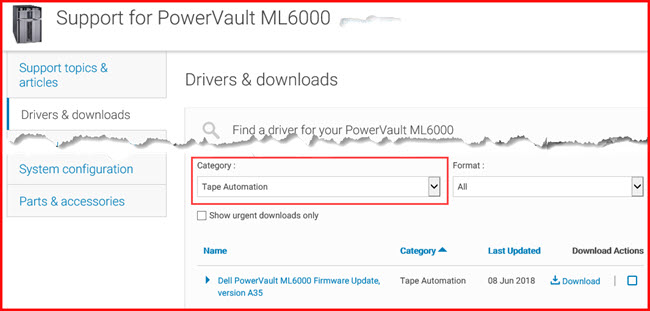
For updating your Tape Drive, search Dell.com for the model drive installed in your ML6000 tape Library.
Once you are on the LTO Drive page select the Drivers, and Download section and select the firmware package for your specific drive.
Then under Category selects Tap Drives to see the Firmware package, download the Firmware and follow the instructions in Section 2.
Here is and example for the LTO7 Tape Drive.
Search Dell.com for the PowerVault LTO7 drive to take you to the correct page.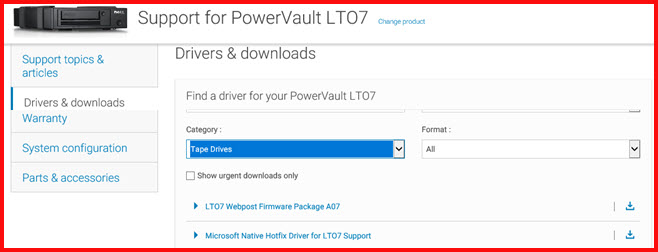
2. How-To Update Tape Drive Firmware
Note: The ML6000 remote management interface must be configured and must answer ping requests from your system.
Note: To browse the update, please make sure that no backup process is in progress and that all the back-up software services are stopped.
Note: The update process can take a few minutes. The tape drive and the management interface of the tape library will not be available during that time.
Note: Files containing _fc in the filename have to be used only on Fiber Channel tape drives. (FC corresponds to Fiber Channel, for example: drf93GPFMR and drf93GP_FC.FMR)
Steps:
- Launch your Internet browser and connect to the ML6000 web management interface using its IP address.
- Enter the login and the password (by default: Admin and password)
- Once on the main window, click Tools and then on Drive Operations. (See image below.)
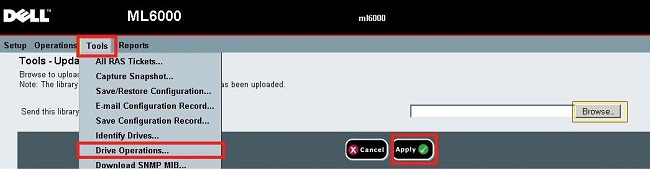
Figure 1: Drive Operations
- Select Update tape drive firmware using a firmware image file and click Next.
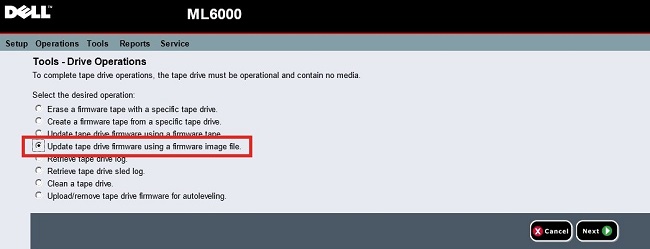
Figure 2: Choose update by firmware image
- If the ML6000 has several types of tape drives, choose the one to update and click Next (in this case LTO3 is selected).
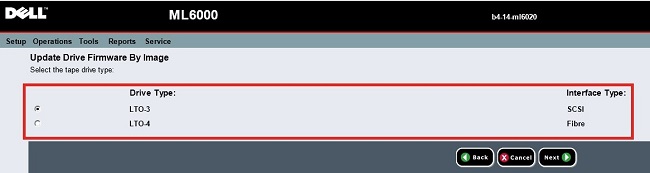
Figure 3: Choose drive type
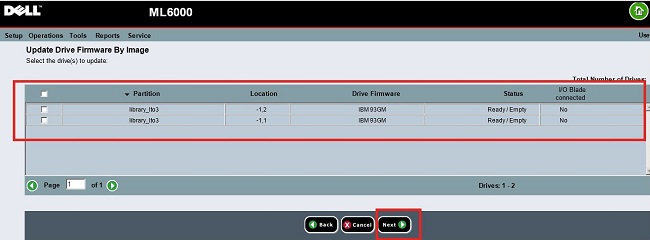
Figure 4: Choose drive to update
- Select the update file by clicking Browse.

Figure 5: Select update package
- In the extracted file, open folder Drive and then select the type of tape drive (here LTO3).
- Click Apply to start the tape drive update.
- A confirmation message is displayed once the update is done.
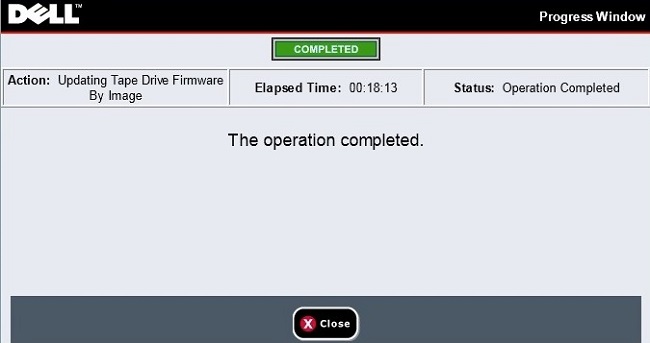
Figure 6: Confirmation message
受影響的產品
PowerVault ML6000文章屬性
文章編號: 000125267
文章類型: How To
上次修改時間: 29 7月 2025
版本: 8
向其他 Dell 使用者尋求您問題的答案
支援服務
檢查您的裝置是否在支援服務的涵蓋範圍內。