How to Update Killer Wireless Firmware on Ubuntu Systems
Summary: Learn how to update Killer Wireless firmware on Ubuntu systems. Follow our guide for updating the Linux Firmware package or installing the specific Killer Wireless driver.
This article applies to
This article does not apply to
This article is not tied to any specific product.
Not all product versions are identified in this article.
Symptoms
Cause
No cause information is available.
Resolution
Updating the Killer Wireless in Ubuntu
There are two ways to update the drivers for the Killer Wireless card. The simplest method is to update the Linux Firmware package as a whole, which is outlined in the first section below.
If you only want the specific Killer Wireless driver, you can pull that from the Linux Firmware and install it as well, which has been outlined in the second section below.
Table of Contents:
Linux Firmware Package
Update your system with the following commands:
cd ~ && mkdir linux-firmware && cd linux-firmwarewgethttps://mirrors.edge.kernel.org/ubuntu/pool/main/l/linux-firmware/linux-firmware_1.187_all.debsudo dpkg -i *.debsudo modprobe -r ath10k_pci && sudo modprobe ath10k_pci
Note: To determine the current linux-firmware package available go to: https://mirrors.edge.kernel.org/ubuntu/pool/main/l/linux-firmware/ 
Killer N1535 Wireless Manual Firmware Update
The following is the Killer N1535 manual firmware update process.
- In a Terminal, confirm the QCA6174 with this command:
sudo lspci | grep –i qca6174
- Download the latest firmware and extract the contents: https://codeload.github.com/kvalo/ath10k-firmware/zip/master
- Or you can Download the ZIP and save it with the browser at this url as shown: https://github.com/kvalo/ath10k-firmware
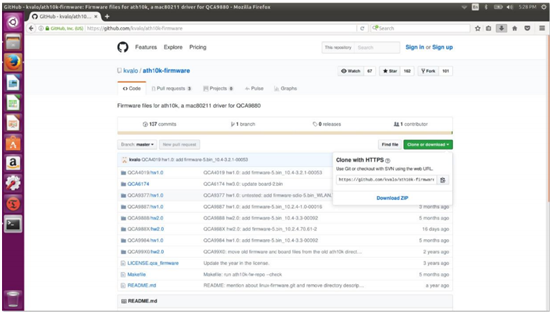
- Open the Downloads folder, then Right Click the ath10k-firmware-master.zip and extract here.
- Confirm the contents of the extracted folder as shown. You should see the "QCA6174" folder.
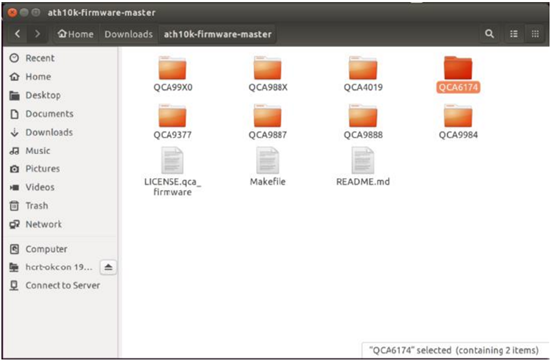
- Back in Terminal, type
sudo nautilusto open a root privilege file manager.Sudo nautilus- Click Computer.
- Click folder lib.
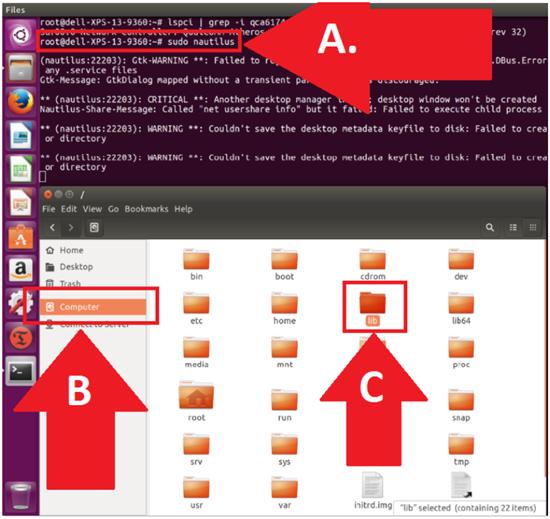
- Go to the QCA6174 firmware directory.
- Click Firmware
- Click to open ath10k
- Right-click and Delete the QCA6174 directory (we are removing everything).
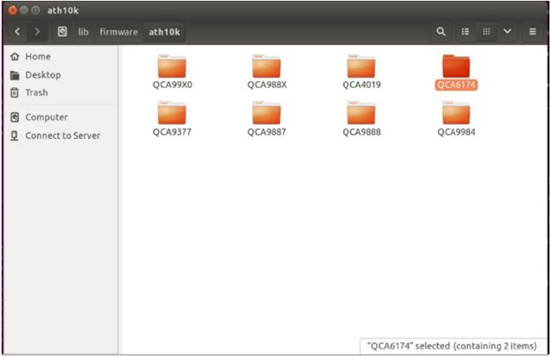
- Go to your other file manager window where your extracted download folder is:
- Confirm your new source file location in Downloads/auth10k-firmware
- Confirm your new destination file location in ../firmware/ath10k
- Copy and paste the QCA6174 directory with all its contents into the destination directory as shown. The path should be: /lib/firmware/ath10k/
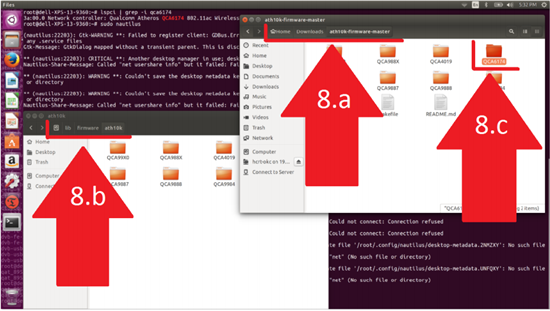
- Open /lib/firmware/ath10k/QCA6174/HW3.0 and rename the file: firmware-4.bin_WLAN.RM.2.0-00180-QCARMSWPZ-1 To: firmware-4.bin
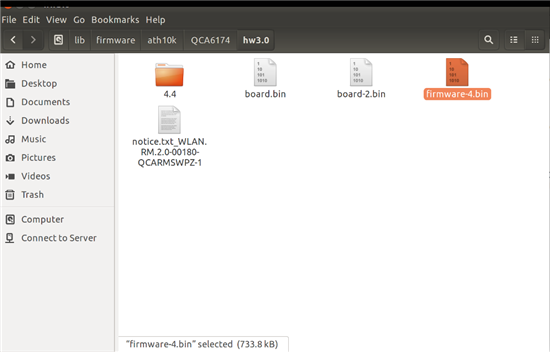
- Now reboot and test the new Killer Wi-Fi firmware.
Affected Products
XPS 13 9360, XPS 13 9370Article Properties
Article Number: 000144425
Article Type: Solution
Last Modified: 22 8月 2025
Version: 8
Find answers to your questions from other Dell users
Support Services
Check if your device is covered by Support Services.