Alienware Command Center Version 6.2.7 Error - Update Button Fails to Start Upgrade Process
摘要: Information about the update button in Alienware Command Center (AWCC) version 6.2.7 global settings does not initiate the update process. When a new update is available and a User tries to install it by clicking the "Check for Update" button, the installation process does not start, even when the new version is detected. ...
本文章適用於
本文章不適用於
本文無關於任何特定產品。
本文未識別所有產品版本。
症狀
The Alienware Command Center application's global settings show that a new version is available, but clicking the "Update" button does not start the installation process.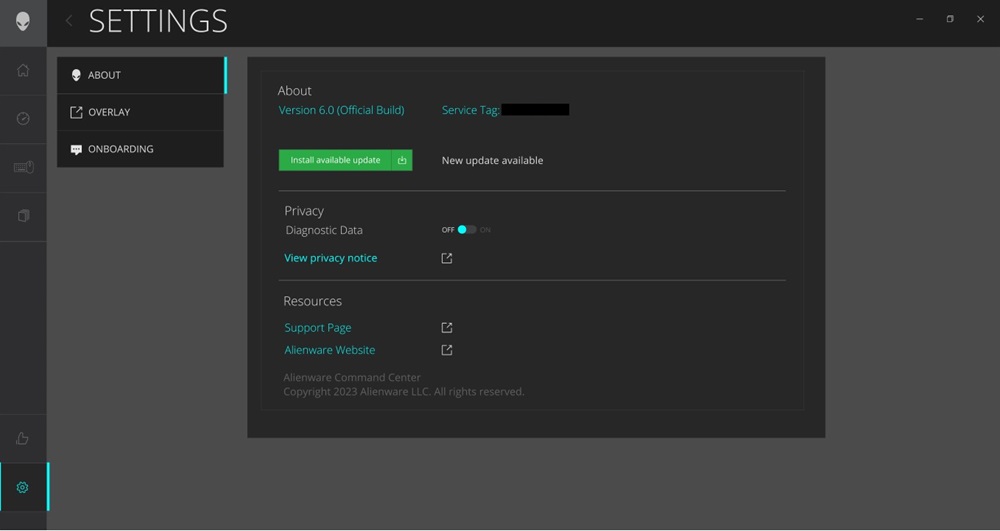
原因
Clicking the "Install available Update" button is not triggering the action to initiate the Alienware Command Center Package Manager.
The link between the button (Install available Update) and the corresponding action (to trigger the IM upgrade) is broken because of some renaming actions in the control. These fixes were made to fix certain other narrator issues.
解析度
Other Alienware Command Center Update Methods
It is recommended to use other update methods until the issue is fixed in the next release:
- Use Task Scheduler to do an automatic weekly upgrade.
- No further actions are needed. The task schedule will automatically update the Alienware Command Center to its newest version.
- Use Alienware Update:
- Launch the Alienware Update software.
- Click the Check button.
- Ensure that Alienware Command Center is selected in the list of programs to install.
- Click Install.
- It may take at least 10 to 17 minutes to complete the download and install the new application. Wait for the installation to be completed.
- The Alienware Command Center (Version 6.0) installation manager automatically removes the old version.
- For the best experience, you must restart the computer after the installation has been completed.
- The Alienware Command Center application can now be found listed under the Start Menu.
- Do a Manual Update from the Dell Drivers & Downloads site.
- Go to the Dell Drivers & Downloads site.
- Open the Support tab.
- Select Drivers & Downloads.
- Open Browse all Products.
- Find your System from the list.
- Find Alienware Command Center 6.X in the list of available programs.
- Click download.
- After downloading, launch the installation file, and follow the install manager instructions.
- Use Driver Flow updates (upon connecting supported Alienware peripherals).
受影響的產品
Alienware Aurora R15, Alienware Aurora R16, Alienware Command Center, Alienware m15 R7, Alienware m16 R2, Alienware m17 R5 AMD, Alienware m18 R2, Alienware x14, Alienware x14 R2, Alienware x15 R2, Alienware x16 R2, Alienware x17 R2, Alienware m16
, Alienware m18, Alienware x14, Alienware x16, Dell G15 5530, Dell G16 7630
...
文章屬性
文章編號: 000225126
文章類型: Solution
上次修改時間: 24 9月 2025
版本: 2
向其他 Dell 使用者尋求您問題的答案
支援服務
檢查您的裝置是否在支援服務的涵蓋範圍內。