AMD-Based SQL Server Day One Best Practices
Performance Best Practices
VMware ESXi: Round Robin Path Policy
PowerMax: Adding Storage Groups
How storage is configured can directly influence database performance. This best practice validates the number of storage groups required to optimize database performance.
|
Category |
PowerMax Storage |
|
Product |
PowerMax |
|
Type of best practice |
Performance Optimization |
|
Day and value |
Day 1, Highly recommended |
Overview
To determine if a best practice provides value, we tested it against a baseline configuration of the database to validate performance. All database files for the first of four databases were located under the parent storage group ParsleyDB1. The name of the best practice program was Parsley so the same name was used for the databases. By incrementing the number in the parent group name, ParsleyDB<#>, the Database Administrator (DBA) team created three additional copies of the first database for load tests. This storage configuration minimizes the number of PowerMax storage groups, which eases management but is not an optimized configuration. The following table shows the baseline storage group configuration:
Table 1: Baseline storage group configuration
|
Parent storage group |
Child storage group |
Number of LUNs |
VMware volumes |
Volume size (GB) |
Notes |
|
|
ParsleyDB1 |
|
1 |
Parsley_DB1 |
750 |
All database files |
|
|
ParsleyDB2 |
|
1 |
Parsley_DB2 |
750 |
All database files |
|
|
ParsleyDB3 |
|
1 |
Parsley_DB3 |
750 |
All database files |
|
|
ParsleyDB4 |
|
1 |
Parsley_DB4 |
750 |
All database files |
|
Using multiple storage groups for the most active portion of an SQL Server database has many benefits. The primary benefit of using multiple storage groups is that the operating system creates an I/O queue path per storage group. The following table shows the optimized PowerMax storage configuration for the SQL Server database:
Table 2: Optimized PowerMax storage configuration
|
Parent storage group |
Child storage group |
Number of Volumes |
VMware volumes |
Volume size (GB) |
Notes |
|
ParsleyDataDB1 |
Data |
4 |
DB1_Data1 |
300 |
Data files |
|
DB1_Data2 |
300 |
|
|||
|
DB1_Data3 |
300 |
|
|||
|
DB1_Data4 |
300 |
|
|||
|
Log |
1 |
DB1_Log1 |
300 |
|
|
|
ParsleyTempDB
|
Data |
4 |
TempDB1_Data |
300 |
|
| TempDB2_Data |
300 |
|
|||
| TempDB3_Data |
300 |
|
|||
| TempDB4_Data |
300 |
|
|||
| Log |
4 |
TempDB1_Log |
250 |
|
|
| TempDB2_Log |
250 |
|
|||
| TempDB3_Log |
250 |
|
|||
| TempDB4_Log |
250 |
|
The goal of the optimized configuration was to expand the number of child storage groups to create more I/O paths, thereby optimizing storage performance. In terms of the naming convention, two large storage groups were created: ParsleyDataDB1 and ParsleyTempDB.
- Under the parent group ParsleyDataDB1 there were two child groups.
- On the Data volumes four VMFS volumes were created
- On the Log volumes there was one VMFS volume created
- Under the parent group ParsleyTempDB there were two child groups
- In the Data volumes four VMFS volumes were created
- The naming convention uses was TempDB<n>_Data
- The <n> indicate the database.
- The naming convention uses was TempDB<n>_Data
- In the Log volumes four VMFS volumes were created
- The naming convention uses was TempDB<n>_Log
- The <n> indicate the database.
- The naming convention uses was TempDB<n>_Log
- In the Data volumes four VMFS volumes were created
Compared to the baseline storage group configuration, the optimized storage configuration has one more parent group and four more child storage groups. The optimized storage configuration improves the number of I/O paths and also benefits actions like performance monitoring, storage snapshots, and replication. In terms of monitoring storage, the enterprise will have the ability to view metrics for each part of the database with the optimized configuration. This provides the capability to continually scale capacity and performance as the database grows.
Not all parts of the SQL Server database are needed for snapshots. Using this optimized configuration, the DBA can granularly select what to snapshot, which saves storage capacity. The same is true with storage replication, as the DBA can select the parts of the database that require protection. By replicating only part of the database, the enterprise benefits from using less network bandwidth.
Recommendation
Results from validating the best practice of adding additional storage groups showed a significant performance improvement. The following metrics showed significant performance gains:
- New Orders per Minute (NOPM)
- Transactions per Minute (TPM)
- PowerMax IOPS
- SQL Server Total Reads
- SQL Server Batch Requests per Second (BRPS)
The following metrics showed minor performance gains:
- SQL Server Total Writes
- PowerMax Average Read Response Time
- PowerMax Average Write Response Time
- Server CPU utilization
Test findings showed that the PowerMax storage array served substantially more IOPS with the optimized storage configuration. The SQL Server total read and write performance metrics are related to total IOPS. As this OLTP workload is weighted heavily on reads, the expectation is to see a healthy increase in the SQL Server total reads. Results show total reads substantially increased, which aligns with the increase in total IOPS.
The average read response times increased as the volume of reads increased. Generally, an increase in read response times indicates a potential performance issue. However, in this case the number of reads per second is a better indicator of overall performance. The PowerMax array was able to support more reads per second with the optimized storage configuration, indicating that performance increased.
SQL Server total writes showed a minor performance increase. This is because the OLTP workload did not generate enough writes to show a marked improvement. As there were significantly fewer writes, the PowerMax response time for writes increased very slightly.
The overall IOPS and read performance increases accelerated TPM and NOPM. Both TPM and NOPM saw substantial performance improvements with the optimized storage configuration.
Batch Requests per Second (BRPS) is a counter that records the number of T-SQL command batches received by the database engine. In testing the optimized storage configuration, the results showed that the number of BRPS that the database engine received increased. The increase in BRPS was similar to the increases in Transactions per Second and New Orders per Second.
Finally, the test results showed a minor increase in CPU utilization. This was likely due to the increase in storage performance and may indicate that the processors are more effectively utilized.
Implementation Steps
Perform the following steps to create volumes on PowerMax:
- Navigate to the Storage group sub-section within the Storage section of Unisphere. Click “Create”.
- On the screen that appears – describe the number of Volumes and Child groups within this new Storage Group with the “+ “toggle as visible in the screen shot below:
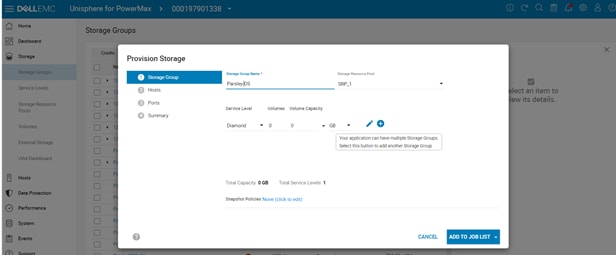
- Click “NEXT”.
- Select the hosts to map to as seen in the screen shot below:
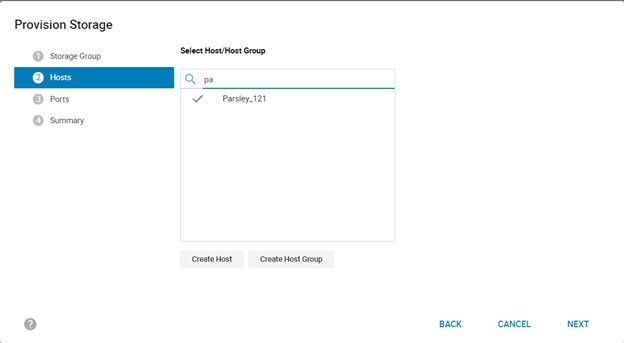
- Click “NEXT” to select the Port Group(s) for the target Host.
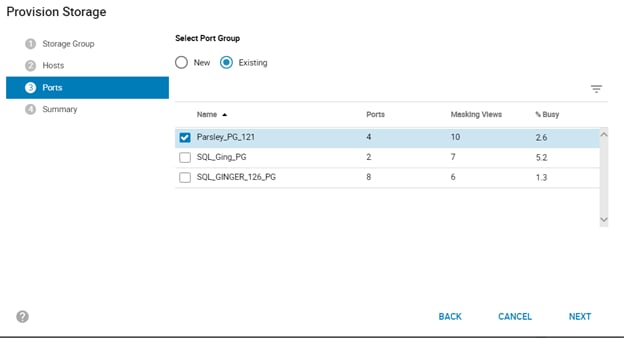
- Click “NEXT” and subsequently “FINISH” to complete creation of storage groups and volumes as required.
- Repeat these steps as required for each storage group.
Creating A VMFS Datastore:
Once storage groups and volumes are created on the PowerMax, create respective VMFS datastores on the vSphere client by following steps mentioned here.
When the disks are attached and visible on the OS, run the following script to mount all the disks onto the system.
cat post_mssql.sh
#!/bin/bash -e
#
#
# Post install script for RHEL Server 7.6
# created by Mahesh Reddy
##################################
# Start RHEL_DISK Configuration script #
##################################
#Current Partition list
echo current parttion list....
cat /proc/partitions
#Make partition and create ext4 filesystem using parted
echo creating parttion using parted....
for disk in /dev/sd{b,c,d,e,f} ; do
echo $disk
parted $disk mklabel gpt
parted $disk mkpart primary 2048s 100%
partprobe $disk
mkfs.xfs ${disk}1
done
#Create directories
echo creating all required directories....
rm -rf /opt/db/*
sudo mkdir -p /opt/db/{data1,log,backup,tempdata,templog}
#Get the UUID number for each device
echo getting the all UUID numbers....
for disk in /dev/sd{b,c,d,e,f} ; do
if [[ "${disk: -1}" == "b" ]];then
mntp='/opt/db/data1'
elif [[ "${disk: -1}" == "c" ]];then
mntp='/opt/db/log'
elif [[ "${disk: -1}" == "d" ]];then
mntp='/opt/db/backup'
elif [[ "${disk: -1}" == "e" ]];then
mntp='/opt/db/tempdata'
elif [[ "${disk: -1}" == "f" ]];then
mntp='/opt/db/templog'
else
echo "wrong disk"
exit
fi
UUID=`blkid ${disk}1 |awk '{print $2}'|sed 's/"//g'`
sed -i "/$UUID/d" /etc/fstab
echo "${UUID} $mntp xfs auto,user,rw 0 0" >>/etc/fstab
done
#change ownership to below directories
echo changing ownership to below directories as msssql...
chown mssql:mssql /opt/db/{data1,log,backup,tempdata,templog}
#Mount the all directories
echo mounting all directories....
mount -a
export PATH=/opt/mssql/bin:/opt/mssql-tools/bin:$PATH
Additional Resources
This best practice was referenced from the Deployment Best Practices for SQL Server Database with Dell EMC PowerMax.
PowerMax: Storage Directors Ports and Interface Emulations
The two validation tests for the PowerMax Storage Directors were combined into one best practice. The first test involved configuring the PowerMax Director to use only those interfaces used by the business. The second test involved increasing the number of front-end connections to improve bandwidth between the PowerMax storage and PowerEdge servers. These best practices were combined as they both apply to configuring the PowerMax Directors.
|
Category |
PowerMax Storage |
|
Product |
PowerMax front-end connections |
|
Type of best practice |
Performance Optimization |
|
Day and value |
Day 1, Highly recommended |
Overview of Optimizing Director Interfaces
PowerMax storage arrays use bricks that enable customers to add power, performance, and capacity to an existing array. Each PowerMax brick has two engine directors. These directors support multiple functions including front-end I/O modules. The front-end I/O modules provide connectivity to the array using various interfaces including Fibre Channel SCSI, Fibre Channel NVMe, iSCSI, and others. In the best practice validation tests, we used only the Fibre Channel interface, thus providing the ability to disable unused interfaces such as Fibre Channel NVMe and iSCSI.
Unused interfaces on the directors consume processor resources even if running in an idle state. By disabling interfaces, the business can direct more processing power to the interfaces that are heavily used. The goal is to optimize the director interfaces to support only those used by the business, thus optimizing performance.
The origin of this best practice is from Dell EMC support. We highly recommend working with support to validate whether this director interface optimization will work for your business.
Overview of Adding Director Front-end I/O Modules
There are four front-end I/O modules per director. In the baseline configuration, we used one of the total four front-end I/O modules/director. The following table shows; each port 1 of the four directors was used. The two other front-end modules on director 4 were reserved for replication. Each front-end module was a 32 Gbps Fibre Channel connection and the baseline connection consisted of six modules.
Table 1: Directors and front-end I/O modules used
|
Director number |
Port number |
Connected |
HBA number and port |
|
1 |
1 |
Connected |
HBA 1, Port 1 |
|
2 |
|
|
|
|
3 |
|
|
|
|
4 |
|
|
|
|
2 |
1 |
Connected |
HBA 1, Port 2 |
|
2 |
|
|
|
|
3 |
|
|
|
|
4 |
|
|
|
|
3 |
1 |
Connected |
HBA 2, Port 3 |
|
2 |
|
|
|
|
3 |
|
|
|
|
4 |
|
|
|
|
4 |
1 |
Connected |
HBA 2, Port41 |
|
2 |
|
|
|
|
3 |
Reserved for replication |
|
|
|
4 |
Reserved for replication |
|
For this best practice, we added one front end I/O port (2) on each director for a total of eight connections to the server. The following table shows the ports that were added (marked in light gray):
Table 2: Directors and ports added
|
Director number |
Port number |
Connected |
HBA number and port |
|
1 |
1 |
Connected |
HBA 1, Port 1 |
|
2 |
Connected |
HBA 2, Port 3 |
|
|
3 |
|
|
|
|
4 |
|
|
|
|
2 |
1 |
Connected |
HBA 1, Port 2 |
|
2 |
Connected |
HBA 2, Port 4 |
|
|
3 |
|
|
|
|
4 |
|
|
|
|
3 |
1 |
Connected |
HBA 1, Port 1 |
|
2 |
Connected |
HBA 2, Port 3 |
|
|
3 |
|
|
|
|
4 |
|
|
|
|
4 |
1 |
Connected |
HBA 1, Port 2 |
|
2 |
Connected |
HBA 2, Port 4 |
|
|
3 |
Reserved for replication |
|
|
|
4 |
Reserved for replication |
|
The additional front-end ports used in this best practice showed the greatest improvement of all the storage recommendations. Doubling the connections to the database server provided substantial improvements.
Recommendation
The combination of the PowerMax Directors in two tests, removing unused interfaces, and connecting additional front-end I/O modules provided a substantial performance boost. Performance improvements were shown in the following metrics:
- New Orders per Minute (NOPM)
- Transactions per Minute (TPM)
- Server CPU utilization
- PowerMax IOPS
- PowerMax Average Read Response Time
- PowerMax Average Write Response Time
Both TPC-C metrics (NOPM and TPM) showed a substantial improvement: the number of orders completed and transactions processed increased significantly. Correspondingly, array IOPS also increased significantly. The PowerMax average read and write times dropped significantly, indicating faster responses from storage.
Server CPU utilization increased, which is a positive indication of more efficient use of the cores in the server. Until this best practice was implemented, processors were likely waiting on read and write I/Os from the storage array. Now that the average read and write response times are faster, the processors are processing more data and so are being more efficiently used.
Overall, the best practice of adding PowerMax directors and front-end I/O modules and disabling unused interfaces in the director can significantly improve performance. We recommend implementing this best practice as a Day 1 activity, as it is a highly recommended configuration that optimizes database performance.
Implementation Steps
- To remove unused partitions, login to the Unisphere console with appropriate credentials:
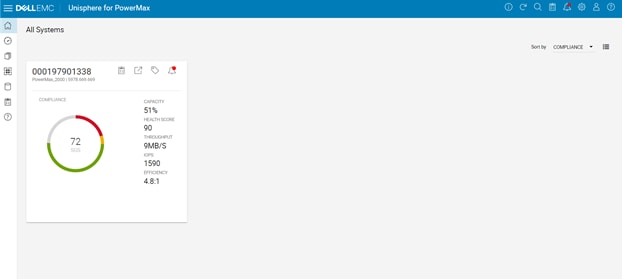
- Select the storage and navigate to the System panel and navigate to Hardware
- Click on the Manage Emulation button:
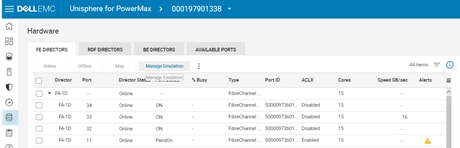
- Click Remove Director Emulation, click “NEXT”. Select the emulation to be removed on the next pane. Review your changes and click “FINISH”.
- If there are no conflicts, the change should go through. If you encounter any errors in need of rectification, please contact PowerMax support.
- To add front-end FC I/O ports to directors, firstly make the required FC connections from the storage ports to the switches and zone them appropriately, that is, make sure the updated zoning maps the new ports to the host (server) ports. Please contact DellEMC Connectrix support for any issues for the same.
- Once zoned, navigate to the Hosts pane in the Unisphere and select the sub-option for Port Groups.
- Select your port group and click the Modify button. Select the ports to add to the port group and click on the arrow button next to “ADD TO JOB LIST” and click Run Now:
Additional Resources
This best practice was referenced from the Deployment Best Practices for SQL Server Database with Dell EMC PowerMax.