AMD-Based SQL Server Day Three Best Practices
Performance Best Practices
VMware ESXi: HBA Queue Depth
Increasing the HBA queue depth can increase storage performance, which optimizes data across the connections to storage. In this best practice, we increased HBA queue depth to optimize performance.
|
Category |
PowerMax Storage |
|
Product |
VMware ESXi: HBA Queue Depth |
|
Type of best practice |
Performance Optimization |
|
Day and value |
Day 3, Fine-tuning |
Overview
Relational database management servers, like SQL Server, servicing high throughput online transaction processing applications create bursts of disk I/O activity that benefit from careful design of the complete I/O path between server memory and permanent storage. When using Fibre Channel networking for access to shared storage, the SQL Server database server will include one or more host bus adapter (HBA) cards. In Fibre Channel networking, HBAs provide the same type of services to the host that a network interface controller (NIC) would for TCP/IP networks.
A key configuration parameter available on HBA cards is the HBA queue depth. The availability of an I/O buffer or queue on the HBA allows the host operating system to pass an I/O request on the HBA, even if the target storage device is unable to process the request immediately. This reduces the potential for blocking threads at the operating system level that would have to wait for the target to be ready for new I/Os. However, building up a significant number of queued I/Os on the HBA can create a large burst of I/Os to the storage target that could overwhelm the capability of the I/O ports and/or the storage controllers on the shared array.
When several hosts connect to a single shared storage array, the storage administrators may request or require that server administrators decrease the HBA queue depth settings on connected servers, especially database servers. This helps alleviate resource contention concerns that can occur when hosts are saturating the storage front-end ports or controller processors with too many simultaneous requests. Our best practices development environment was dedicated to a single database server host, so this was not a concern for this project.
We focused on answering the question of whether increasing the HBA queue depth would have a beneficial impact on workload performance. The default queue depth of most HBA cards is 32, pending I/Os. Check with your vendor to verify the setting for your equipment and use the management API or application to confirm that the setting has not been changed from the default before proceeding with testing or use in production.
Recommendation
Changing the HBA queue depth showed slight performance improvements in the following:
- New Orders per Minute (NOPM)
- Transactions per Minute (TPM)
- Server CPU utilization
- PowerMax IOPS
- SQL Server Total Reads
- SQL Server Total Writes
- SQL Server Batch Requests per Second (BRPS)
These performance parameters showed no performance gains:
- PowerMax Average Read Response Time
- PowerMax Average Write Response Time
The Emulex LightPulse HBA cards used in our testing lab had a default queue depth of 32. We tested a scenario with the queue depth increased to 64 and found slight performances increases in NOPM and TPM, and slightly increased server CPU utilization.
Implementation Steps
To update the default value for the Emulex cards to 64; follow the procedure mentioned below:
Login to ESXi host shell and perform the following commands:
esxcli system module parameters set -p lpfc_lun_queue_depth=64 -m lpfc
for i in `esxcfg-scsidevs -c |awk '{print $1}' | grep naa.600009700001979`; do esxcli storage core device set -d $i -O 64; done
Verify the setting is updated using the command below:
esxcli system module parameters list -m lpfc | grep lpfc_lun lpfc_lun_queue_depth int 64 Max number of FCP commands we can queue to a specific LUN
Results can be verified as shown in the screenshot below:
Additional Resources
VMware vSphere: Virtual Machine Latency Sensitivity
VMware Storage I/O Control: Threshold
PowerMax: Adding PVSCSI controllers
Paravirtual SCSI (PVSCSI) controllers can provide greater throughput and overall lower CPU utilization. In this best practice, we tested adding multiple PVSCSI controllers to improve storage performance.
|
Category |
PowerMax Storage |
|
Product |
PowerMax |
|
Type of best practice |
Performance Optimization |
|
Day and value |
Day 3, Fine-tuning |
Overview
In the baseline configuration, we used one Paravirtual SCSI controller to connect the virtual machine to the PowerMax storage array. The PVSCSI is popular because it provides optimal throughput while using fewer CPU cycles to manage storage I/O. Before implementing multiple PVSCSI controllers we optimized the storage group configuration. The optimal storage group configuration consisted of adding multiple child storage groups for data, TempDB data, and TempDB log to create more I/O paths.
Using multiple I/O paths via the optimal storage configuration, combined with multiple PVSCSI controllers, should provide better performance. In this best practice, three additional PVSCSI controllers were added to each virtual machine for a total of four per VM.
Recommendation
Results from validating the best practice of adding additional PVSCSI controllers showed no performance gains for these metrics:
- New Orders per Minute (NOPM)
- Transactions per Minute (TPM)
- Server CPU utilization
- PowerMax IOPS
- SQL Server Total Reads
- SQL Server Total Writes
- SQL Server Batch Requests per Second (BRPS)
- PowerMax Average Read Response Time
- PowerMax Average Write Response Time
The OLTP test demonstrated no significant gains in performance in adding more PVSCSI controllers. While there were no gains in performance for this test, other workloads might benefit. For example, workloads like data warehouses and business intelligence depend upon throughput and could benefit from additional PVSCSI controllers.
Implementation Steps
This change can be made from the vCenter user interface. To add PVSCSI controllers:
- From vCenter, select the VM and click Edit Settings-> Add Devices-> SCSI controller.
- Add three more SCSI controllers, SCSI controller 1-3, with these settings:
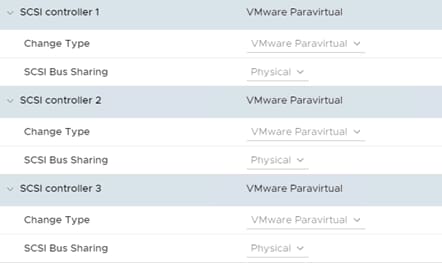
- Re-map all existing volumes to the new controllers by selecting Edit Settings -> Virtual Device Node -> on each VM.
- Select the appropriate SCSI controller from the dropdown menu. Spread out the volumes across all four controllers as evenly as possible.
Additional Resources
Configuring disks to use VMware Paravirtual SCSI (PVSCSI) controllers (1010398)