Dell AppSync Integration with Microsoft SQL Server
Executive Summary
Introduction
Dell AppSync provides an efficient and simple backup and recovery solution for Microsoft SQL Server. See the current AppSync Support Matrix for the versions supported with AppSync. AppSync facilitates and automatically creates disk-based copies of Microsoft SQL Server databases on various supported Dell storage systems that are used for protection and repurposing.
Audience
This white paper is written for the following audience:
- Microsoft SQL Server or Storage administrators responsible for implementing AppSync in a SQL Server environment
- Dell Technologies internal and field personnel who assist customers with implementing AppSync in Microsoft SQL Server environment
We value your feedback
Dell Technologies and the authors of this document welcome your feedback on this document. Contact the Dell Technologies team by email.
Authors: Animesh Tamrakar, Andrew Sirpis, and Dominick DeQuarto
Note: For links to other documentation for this topic, see the AppSync Info Hub.
Revisions
|
Date |
Description |
|
January 2022 |
Content update |
Note: This document may contain language from third-party content that is not under Dell Technologies’ control and is not consistent with current guidelines for Dell Technologies’ own content. When such third-party content is updated by the relevant third parties, this document will be revised accordingly.
Creating SQL Server Database Copies
Prerequisites and restrictions
The following list includes prerequisites and restrictions for this solution:
- The SQL Server database(s) must be online during the AppSync protection process. If several databases that are subscribed to a service plan are offline during the service plan run, protection does not fail. It creates copies only for the databases that are online. AppSync dynamically checks for the database status during the service plan run and protects all the databases that are online at the time of the run. The protection fails if all the databases that are subscribed to the service plan are offline during service plan run. It applies to SQL repurposing workflows too.
- System databases cannot be protected and are not listed post-discovery. The system databases must NOT reside on the same storage volume as user databases or logs. If a user database copy is restored, it might inadvertently get overwritten.
- The SQL Server database and its transaction logs must be on disks in the same storage array. AppSync can truncate transaction logs using log backups with log truncation that is enabled in SQL Server service plans. AppSync must have the Full SQL Server backup type selected in order to truncate transaction logs.
- Full-text catalogs, that are associated with a filegroup, are included as part of the copy. If the full-text catalogs are not on supported storage, protection fails. When using full-text catalogs, ensure that the storage device where the catalog is located does include data that is related to the database only.
- When a copy of a database mirror is created, the copy fails with an error indicating that the database is not in a valid state.
- In Hyper-V environments, AppSync requires the storage for SQL databases and log files to be on iSCSI direct attached devices, Virtual Fiber Channel (NPIV), or SCSI pass-through devices. SCSI Command Descriptor Block (CDB) filtering must be turned off in the parent partition for SCSI pass-through. It is turned on by default. It is true for SQL cluster servers as well.
SQL Server backup types
The following backup types are supported: Full, Copy, Non-VDI, and Crash-Consistent.
- Full: Protects the database and the active part of the transaction log. This copy type is used when the copy is considered a backup of the database. It is also used when a copy is mounted, to be used as a third-party product to create a backup of the database. It allows restoring of transaction logs to bring the database forward to a time newer than the copy, assuming those transaction logs have a backup. AppSync uses the Microsoft SQL Server VDI snapshot feature to create this type of copy. Full backup type is not supported for Secondary databases in SQL Always On Availability Group (AAG) environment.
Note: Since Full backup type changes the transaction log sequence, it is necessary that you have only one service plan creating full copies of a SQL database. No other third-party backup applications should create “full” copies of the same SQL database.
- Copy: Protects the database and the active part of the transaction log without affecting the sequence of backup. It helps DBAs create a copy without interfering with third-party backup applications that may create full or differential backups of the SQL Server databases or both. AppSync uses the VDI snapshot feature of Microsoft SQL Server to create this type of copy, similar to Full. Copy backup type is supported for secondary databases in AAG environment.
- Non-VDI: Creates crash-consistent copies of SQL using only the Microsoft VSS freeze or thaw framework against the file system without using the VDI snapshot feature of Microsoft SQL Server.
- Crash-Consistent: Protects the database without any agent involvement. Both Microsoft VSS Framework and Microsoft VDI snapshot features are not used. This backup type creates true crash-consistent copies of the SQL databases using array-level features only. Storage array level pre-requisites that are listed below are required for successfully creating crash-consistent copies of SQL databases:
- If SQL databases are hosted on XtremIO, PowerMax, RecoverPoint, VPLEX with XtremIO and SC Series arrays, there are no restrictions.
- If SQL databases are hosted on PowerStore, PowerFlex, VNX, VNXe, Dell EMC Unity, and VPLEX with Dell EMC Unity, all underlying LUNs must be in a consistency group and must belong to the same consistency group.
Efficiency
Subscribing multiple SQL Server databases across instances to the same SQL Server service plan, to create copies of multiple databases in parallel, is supported. There is a multithreaded approach in the AppSync host plug-in that enables application-consistent backups of multiple databases in parallel. It provides a performance boost. AppSync divides the subscribed databases into efficiency groups. By default, each group must not have more than 35 databases per instance on a host. This grouping avoids flooding the host plug-in with requests and ensures load balancing during the copy creation process.
For two instances on the same host, a group can have a maximum of 70 databases altogether, with a maximum of 35 databases per instance. While the first group is being protected, the other groups that belong to the same host wait until the protection of the former group are completed. In an instance, the number of databases that are protected together is restricted by setting the Maximum number of SQL databases option in Advanced Plan Settings under the Define the Copy step of the SQL Server service plan.
Salient features
The following items are the key features:
- Dynamic discovery of databases: AppSync can dynamically add or remove databases from a protection plan as they are added or removed from the instance on the SQL Server. It uses create copy with plan for the User Databases folder of a SQL Server instance in the Microsoft SQL Server copies page. It prevents you from adding any new databases to the existing service plan individually.
- Dynamic discovery of database components: AppSync dynamically discovers database components and creates copies accordingly. For example, a user may add or delete some file groups to a SQL Server database in the production environment. AppSync accommodates such changes and creates a copy that is up to date with the production database.
- Operations for deleted databases: Databases that are removed from a production SQL Server instance but still have a copy in AppSync, are marked with a database could not be found flag in the AppSync console. Choose to mount or restore such database copies is supported. These databases, however, are no longer considered during subsequent protection cycles. The “database could not be found” flag does not apply to database components like log files and filegroups. If intending to add or remove individual database components, select the copy for restore carefully. Optionally, mount a copy to check whether all the wanted data is available in that backup before performing a restore.
- Precopy script: To perform preparatory steps before creating a copy, specify a precopy script and parameters in the service plan Scripts step. The precopy script runs as per the schedule set in the Plan Startup phase. Valid script formats are .bat, .exe, and .ps1 (PowerShell scripts). Optionally enter credentials to run the script as a specific user. The script runs as Local System by default. The default location of the script is %ProgramData%\EMC\AppSync\scripts\ on the application host. Exact parameters depend upon the specific script. Parameters with spaces must be enclosed in double-quotes. This phase can be enabled or disabled (default). This operation requires the Service Plan Administrator role in AppSync.
- Postcopy script: To perform cleanup or other postcopy steps after creating a copy, specify a postcopy script and parameters in the service plan Scripts step. The script runs on successful completion of the Create copy phase. Valid script formats are .bat, .exe, and .ps1 (PowerShell scripts). Optionally enter credentials to run the script as a specific user. The script runs as Local System by default. The default location of the script is %ProgramData%\EMC\AppSync\scripts\ on the application host. Exact parameters depend upon the specific script. Parameters with spaces must be enclosed in double-quotes. This phase can be enabled or disabled (default). This operation requires the Service Plan Administrator role in AppSync.
Truncating the transaction log
Besides scheduling online backups, it is also possible to create a maintenance plan for the transaction logs so they are truncated regularly. If log entries are never deleted from the transaction logs, the logical logs grow until they consume all available space on the disks holding the physical log files. At some point, old log records that are no longer necessary for recovering or restoring a database must be deleted to make way for new log records. The process of deleting these log records, to reduce the size of the logical log, is seen as truncating the log.
A maintenance plan should be created using the AppSync Transaction Log backup feature. It should occur at regular intervals that keep the transaction log from growing past the wanted size. It means that the sequence of log backups must contain every log record that was written since the database backup. When a sequence of transaction log backups is maintained, no log record can be truncated until after it has been written to a log backup. Do not confuse with active logs(.ldf) and transaction log backups. The latter is a production of backing up the former. Only the transaction log backup can be used in the roll-forward procedure.
SQL Server transaction log backup
Overview
Every SQL Server database has a transaction log. AppSync supports SQL Server transaction log backups.
AppSync writes the log backups to the SQL Server default backup directory by default. It can be customized in the service plan menu. For database log backups in a failover cluster environment, use shared storage or a network share so the log backups are written to the same location.
Transaction log backups can be used during the recovery of a production database, or when making a copy of a production database. Depending on the database recovery model, the transaction log volume can become full. In order to prevent the accumulation of logs, regularly run transaction log backups with the Truncate the logs option enabled.
AppSync can also back up transaction logs in Always On Availability Group (AAG) environments. AppSync can backup the primary or secondary database copy. When truncation is enabled, initiate the truncation process by backing up either the primary or secondary database transaction log.
Transaction log backups are supported using streaming backup only - they are not supported using VSS hardware snapshot technology. AppSync backs up transaction logs to a file. The file can be written to a local volume or network share using a UNC path; specified in the Backup path option.
Note: AppSync Supports UNC Paths on a network share only if both machines are in the same domain.
Configure AppSync to enable transaction log backups for a SQL Server service plan. Select the Enable log backup checkbox on the Create the Copy options page. The Transaction Log Backup Options dialog box is enabled as depicted in the following figure, where the Truncate the logs option is selected. Several other options to customize are available based on the environment.
Note: Transaction log backups always run sequentially.
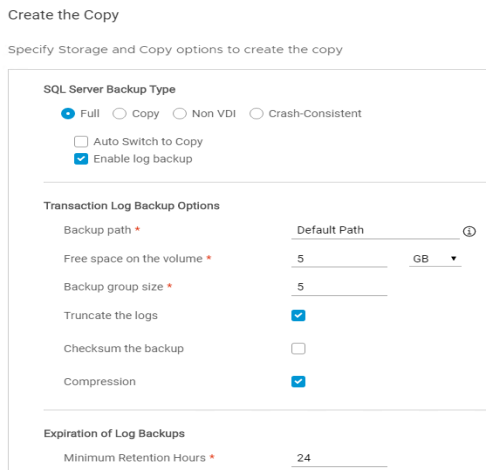
Figure 1. Transaction log backup options
Restrictions
The following items are the restrictions:
- To back up a transaction log, the database recovery model must be either Full or Bulk-logged. AppSync skips backing up the log for any database with the simple recovery model.
- To create any log backups with log truncation, first create at least one full database backup.
- To truncate transaction logs, AppSync must have a Full database backup copy type selected.
- Subscribe a database to only one service plan with log backup enabled.
- To truncate logs in an AAG environment, subscribe only one copy of a database to a service plan. It must be configured for Full database backups and transaction log backups with log truncation.
- To back up transaction logs for databases that belong to an availability group, alter the schedule. It prevents different copies of the database from getting backed up simultaneously.
Log backup expiration
AppSync expires log backups when the service plan runs to create a new log backup. During expiration, AppSync deletes the log backup file and removes information about the backup from the AppSync database. Log backups are eligible for expiration when the following conditions occur:
- The log backup is older than the service plan’s Minimum Retention Hours setting.
- All older database backups are expired. The database backups that are in this check depend on the SQL Server Backup Type.
- If the log backup service plan has the SQL Server Backup Type set to Full, it considers Full database backups that any service plan creates.
- If the log backup service plan has SQL Server Backup Type set to Copy, it considers only database backups that the service plan creates, while looking for older database backups.
Restoring SQL Server Database Copies
Introduction
This section describes the methods for restoring a SQL Server database. The restore granularity for SQL Server database copies created by AppSync is based on the LUN or consistency group level. Careful planning of the database layout is desirable to avoid any affected entities. See the section titled Affected entities during restore for more detailed information.
Restoring from the copy
Before restoring a database, we recommend backing up the current transaction logs first. This action minimizes the amount of data that is lost. AppSync can back up the transaction logs before the restore by using the SQL Server Restore wizard.
Select Yes if you want AppSync to initiate a transaction log backup. Enter a location to copy the logs, and check other available options. Use one of the SQL Server management tools to restore, after the database has been restored. It allows for specific transaction logs to be replayed.
The Recovery, No Recovery, and Standby options are available when restoring the full database copy model. You may also restore from an AppSync SQL database copy when:
- The production database has been lost or deleted.
- The production database has been corrupted.
- The production database must be rolled back.
Again, be aware of the restore implications that may arise due to the storage layout of the databases. See the section titled Affected entities during restore for more detailed information.
Depending upon the recovery type selected, either Standby or Recovery, AppSync performs database recovery post completion of a storage level restore. If No Recovery is selected, the database is attached to the production instance but left in a nonoperational mode. Next, manual intervention is required to fully recover the database.
AppSync only supports the No Recovery mode during a restore of a SQL database if the copy was taken using Non-VDI or Crash Consistent backup types. Restoring with recovery or standby when the copy was taken using Non-VDI or Crash Consistent copy types is not supported.
The following table depicts different restore scenarios and their preferred recovery types.
Table 1. SQL Server Recovery Types
|
Recovery Type |
Purpose |
|
Recovery |
Recovers the database after a restore. Additional backups cannot be restored post-recovery, that is transaction logs cannot be rolled forward. |
|
Standby |
Leaves the database in a standby state, where the database is available for limited read-only access. It rolls back uncommitted transactions but saves the undo actions in a standby file so that recovery results can be reverted. |
|
No Recovery |
Leaves the database in the restoring state and does not roll back the uncommitted transactions. This behavior allows the transaction log backups to be restored in the current recovery path. |
Affected entities during restore
An affected entity is data that resides along with data that must be protected, on the production host, which becomes part of the copy. In order to restore data items from a copy, a prompt appears to acknowledge other items to restore; besides the ones selected earlier.
Be careful while planning the data layout for databases, and ensure that only those databases that are closely related and can be restored together are protected within the same copy.
If there are affected entities in your underlying storage configuration, the Restore Wizard notifies you of these items. Restore cannot proceed further without you acknowledging the list of affected entities. If required, take the necessary steps to detach affected databases and then proceed with the restore.
The following scenarios produce affected entities that require you to acknowledge that additional items are restored:
- If the databases are in the same consistency group, they become affected entities when the other database is protected.
- If the databases are on the same LUN (no consistency group involved), they become affected entities when one of the databases from the same LUN is protected.
If the affected entity is protected along with a database that is selected for restore, AppSync restores it. Any other database that is not protected, but is an affected entity, is also overwritten.
AppSync calculates affected entities for consistency groups and LUNs of databases that are selected for restore. If one or more affected databases partially resides on other consistency groups or LUNs, AppSync does not calculate affected entities on those consistency groups or LUNs. Depending on the type of affected entity, AppSync detaches the affected databases if they are protected in the same service plan as the service plan of the databases to be restored. For databases not protected in the same service plan as the databases to be restored, you must manually detach them from the SQL Server instance.
The following figure depicts the two types of affected entities that are seen during restore.
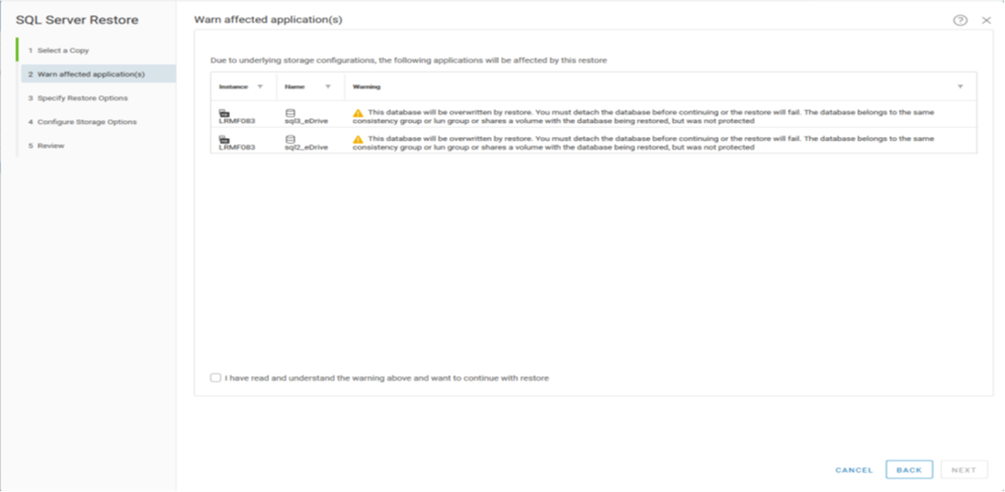
Figure 2. Affected entities Restore Warning
Affected entities are calculated only for the SQL Server instances where the credentials are configured. AppSync does a fresh database discovery for all these instances before calculating the affected entities. It is recommended not to share storage across databases that belong to different SQL Server Instances.
Back up of transaction logs
It is highly recommended to back up transaction logs before performing a restore. Every SQL Server database has a transaction log that records all transactions, and modifications for each transaction. Optionally, choose to backup transaction logs before a restore in AppSync by specifying a location, including specifying a file prefix and an extension. This backup can be used to recover the database in case the database is restored with either the Norecovery or Standby options. If the database is damaged, select the Database is damaged option to facilitate a tail log backup. See the Restoring damaged databases section.
Optionally, choose to truncate the transaction logs and overwrite existing backup files. If the database is damaged, these options are not available.
The following table explains the UI combination options that are selected to achieve the correct BACKUP LOG command as needed, for taking transaction log backups during restore.
Table 2. AppSync UI options with Backup Transaction Logs
|
Database is Damaged |
Truncate the transaction logs |
Overwrite existing backup files |
Sample BACKUP LOG command |
|
Checked |
N/A- Not Selectable |
WITH NO_TRUNCATE/WITH CONTINUE_AFTER_ERROR |
|
N/A- Not Selectable |
Checked |
Cleared |
None |
|
N/A- Not Selectable |
Checked |
Checked |
WITH INIT, SKIP
|
|
N/A- Not Selectable |
Cleared |
Checked |
WITH NO_TRUNCATE, INIT, SKIP |
If you choose not to back up the transaction logs before the restore operation, other recovery options such as Leave databases ready to use (RESTORE WITH RECOVERY) and Overwrite the existing databases (WITH REPLACE) appear in the user interface. The latter should be selected if intending to erase and replace the existing database with the backed up or restored data. It must be done carefully, otherwise, it may result in data loss or corruption.
Restoring damaged databases
Damaged databases may have a datafile missing or damaged with their log files still intact. Tail log backups capture the tail of the log even if the database is offline, damaged, or has a missing datafile. AppSync can take tail log backups for damaged databases. A damaged database must not contain bulk-logged changes, and it must not be in an OFFLINE state.
If the production database is damaged and the Database is damaged check box is selected, AppSync backs up the tail log of the damaged database before proceeding with the restore. A damaged database can be in a RECOVERY_PENDING or SUSPECT state. AppSync first tries to detach the database by setting EMERGENCY mode. If AppSync fails to set the EMERGENCY mode on the database, it drops the database, and then proceeds with the restore. Once the restore operation is successful, continue to recover the database manually using the tail log backup.
For this case, the BACKUP LOG statement is run with either NO_TRUNCATE or with CONTINUE_AFTER_ERROR option. The Truncate the transaction logs and Overwrite existing backup files options are not available when you select the Database is damaged option.
For cases where there are other ONLINE affected databases that were protected along with the damaged database, AppSync does not apply the damaged database scenario on any of them. Instead, they are taken offline, detached, and then restored. The BACKUP LOG statement is run with the NO_TRUNCATE option for all such databases.
Restore restrictions
The following are the restrictions for a restore:
- The database to be restored must not be a snapshot database.
- A database snapshot is a read-only, static view, of a SQL Server database (the source database). The database snapshot is consistent transaction-wise with the source database as of the moment of the snapshot creation. A database snapshot always resides on the same server instance as its source database. As the source database is updated, the database snapshot is updated.
- The database to be restored must not have snapshot databases.
- The database to be restored must not be mirrored. This means it should not have an active mirroring session.
- A database is not restored if it is part of an Availability Group. AppSync removes the database from the Availability Group as part of the restore process but does not put the database back into the Availability Group after the restore process completes.
Mounting SQL Server Database Copies with Recovery
Introduction
The mount host must have Microsoft SQL Server installed for recovering databases from the mounted copy. If the mount host is a virtual machine, the vCenter server must be registered within AppSync. This action is required to mount RDMs and VMware virtual disks.
Mount and production host version compatibility
The following list includes compatibility scenarios:
- If a major version of the SQL Server instance on the production host is newer than the instance of the mount host, recovery fails for all databases belonging to that instance. For example: SQL database from production SQL Server 2014 (version: 12.3.6108.1, having major version: 12, minor version: 3) is mounted with recovery on mount host with SQL Server 2012 (version: 11.1.3128.0 having major version: 11, minor version: 1), the recovery would fail.
- If the major version of the SQL Server instance on the production host is older than that of the mount host, recovery succeeds only if the recovery type is either RECOVERY or NORECOVERY. Recovery fails if the recovery type is STANDBY. Example: When mounting the SQL database from production SQL Server 2012 (version: 12.3.6108.1) on mount host with SQL Server 2014 (version: 14.0.1000.169), if the recovery type selected is Standby, recovery would fail. But if recovery is attempted with RECOVERY or NORECOVERY selected, it will be successful.
- If the major version of the SQL Server instance on the production host is the same as of the mount host, but the minor version is newer, recovery fails for all databases belonging to that instance.
- If the major version of the SQL Server instance on the production host is the same as the instance of the mount host, but the minor version is older, recovery succeeds only if the recovery type is either RECOVERY or NORECOVERY. Recovery fails if the recovery type is STANDBY.
- If the version of SQL Server instance on the mount host is newer than the instance of the production host, the database version is upgraded on recovery. However, in Dell RecoverPoint, the changes are discarded when the bookmark is dismounted.
- If the SQL database is upgraded to another version while mounting to another SQL Server instance, the above version compatibility rules for major and minor versions are performed on mounting the same SQL database to any other SQL server instances. Example: Suppose a SQL database from production instance with SQL Server 2012 instance (version: 11.1.3128.0) is mounted to another SQL Server 2017 instance (version: 14.0.1000.16), the SQL database version is upgraded. If the database is unmounted and mounted again on another SQL Server 2014(version:12.3.6108.1), the recovery fails.
Mount SQL Server database copy as a clustered resource
- It is possible to mount and recover both databases from stand-alone SQL Server instances and databases from a Clustered SQL Server instance as a clustered resource on an alternate Clustered SQL Server instance.
- To mount a copy from a production cluster to an alternate cluster, as a clustered resource, select Mount and recovery copy and then select a clustered SQL server instance of the alternate cluster under the Recovery Instance drop-down menu.
- Mounting to a mount point (example: I:\mountpoint, where I:\ is a clustered disk) on the clustered mount host is supported. Specify the alternate mount path in the Mount path options or specify different mount paths for each file system by selecting Mapped Path in Mount on Path option and setting Target path for each file system for Source Host in the Path Settings section. The root disk for the alternate mount point must be a clustered disk, and the SQL Server must have a dependency on that clustered disk.
- Multiple copies of the same database can be mounted to an alternate cluster simultaneously.
- All recovery types are supported.
- Manually disable automount by running diskpart at a command prompt, and entering automount disable at the Diskpart prompt.
- When performing, Mount and recover copy as a clustered resource to a clustered production server the below considerations must be noted. The clustered SQL instance requires briefly being stopped and started along with any other dependent service by AppSync. AppSync adds the newly introduced clustered disks as dependencies for the clustered SQL service while mounting, which requires it to offline the clustered SQL service, and any dependent service. This is required to ensure that the clustered disks are moved to the new node, along with clustered services, and are brought online before the services are brought online, in case failing over to another node is required.
Special considerations for mount to production cluster
- Mounting to a stand-alone instance on any production cluster node using the original path is not supported.
- For Mount and recover copy as a clustered resource to a production virtual server, consider the following:
- Mounting to a different clustered SQL server instance is supported.
- Mounting to the same clustered SQL server instance is not supported.
- Mounting to an alternate mount point is supported, if the root disk for the alternate mount point is a clustered disk (must be added as a dependency to SQL server).
- Mounting as Same as original path is not supported.
- Performing a RecoverPoint mounted restore while the copy is mounted to a production cluster is not supported.
- Mounting a Crash-Consistent or RecoverPoint APIT copy of a clustered SQL database, as a clustered resource, to another SQL instance residing on a production cluster, or any participant node of that production cluster, is not supported. This reason is because there is no VSS metadata that is generated for these backup types, and the first mount itself is a VDS mount which is unable to perform a disk re-signature. This scenario leads to a mount failure.
Supported mount recovery types
The following list includes mount recovery types:
- RECOVERY: Instructs the recovery operation to roll back any uncommitted transactions. After the recovery process, the database is ready for use.
- NORECOVERY: Instructs the recovery operation not to roll back any uncommitted transactions. When in NORECOVERY mode, the database is unusable. This option is useful when the Database Administrator must restore one or more transaction log backups. The database is attached to the instance selected for recovery and is left in the RESTORING state.
- STANDBY: Recovers files and opens the database in a read-only mode. Next, the Database Administrator can manually apply additional transaction log backups.
Note: RECOVERY, NO RECOVERY, and STANDBY modes are not supported for Non-VDI and crash-consistent copies.
If recovering a database from an older version of SQL server onto a newer version of SQL, do not use standby mode. By using standby mode, the upgrade to the newer version cannot be supported and thus results in a failure of the operation.
- ATTACH DATABASE: Mounts the file system on which the database files are located and attaches the database to the SQL Server. The Attach Database Recovery Type option is only available for Non-VDI and Crash Consistent copies. More steps for full recovery of the database may be required.
Note: Attach Database is NOT SUPPORTED for Full or Copy SQL copies.
Mounting copies using path mapping
The Mount on Path > Mapped Path > Path Settings option mounts the copy to a host using a path-mapping table set to user-defined locations. For a path-mapping table, there is more control over where the data is located. Configure path-mapping where the source file system and the target mount point are specified.
The following figure shows a sample path-mapping table. The first two target paths G:\ and H:\ drives are used, rather than D:\ and L:\ from the source host, because a mount host is used for several source hosts using the same source drives.
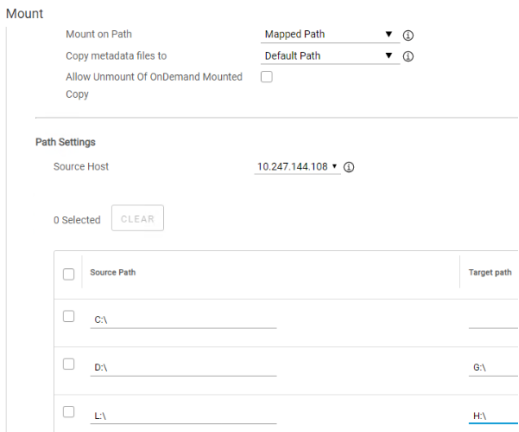
Figure 3. Path-mapping settings
Notes:
- If a target path is not provided for a source path, it is mounted as the same as the source path.
- Ensure that the absolute mount path on the target host is specified, otherwise, if the path is invalid, the mount fails.
- Mount Copy Overrides becomes unavailable if selecting the Mapped Path option.
If one of the entered paths is invalid, the VSS import fails. Hence, the entire mount fails. Partially failed scenarios are not supported for Windows mount operations. - Nested target mount points are not supported.
- Path Mapping is not applicable to metadata paths.
Mounting copies from multiple production hosts to a single mount host
Multiple SQL Server instances across hosts can be subscribed to the same service plan. When the service plan runs, it groups the database instances by host, and creates copies for all such groups. The database copies are grouped by hosts. These groups may further get divided based on the load on each instance (see the Efficiency section for more details). A single mount host may be chosen for mounting, and optionally recovering, all such copies. Be sure to avoid any conflicting mount points or database names across hosts.
To avoid conflicting mount paths, choose the Mapped Path as the mount option, and provide different mount paths for each file system by setting the Path Settings. Mount Copy Overrides are not available with the Mapped Path option. Alternatively, choose the host level mount overrides to specify a different mount path for all databases that are protected on that host.
To avoid conflicting database names on the mount host in case production database names are the same across hosts, choose to rename the suffix for all databases that are protected on a production host. A database name conflict can only occur when intending to recover the database's post mount.
Failure to avoid such conflicts may result in partially mounted or recovered copies. Choosing separate mount hosts, one for each of the involved production hosts, helps to avoid any conflicts. This result can be achieved by overriding the mount host / recovery SQL Server Instance for each of the production hosts. For details on configuring mount overrides, see the Overriding mount settings in a service plan section in the AppSync User and Administration Guide.
Mounting multiple database copies existing on same production LUNs or consistency groups
This scenario may occur when the file systems that are being mounted, are already mounted for another set of databases in the same service plan run. If several databases share the same storage LUNs or Consistency Group, and the databases get split due to the restriction on the number of databases per run (see the Efficiency section for more details), only one of the resulting groups is mounted successfully. The group that gets mounted first will mount successfully and the next ones will fail and a warning explaining the reason will be displayed.
The option Maximum number of SQL databases, in the service plan Advanced Plan Settings section under Define the copy step, can be set to a higher value (default recommended value of 35). It is done to force all databases in a single group to be copied together. We do not recommend this action from a performance point of view. Careful planning of the storage layout of databases in advance may prevent this issue from occurring.
Partial recovery of mounted databases
AppSync partially recovers databases during a mount operation. It means that the entire mount operation does not fail if one or more databases fail to recover. For example, if trying to mount 10 SQL Server databases, and three have name collisions with databases that are already present on the target SQL Server instance, AppSync fails recovery for only those three databases. The remaining seven are recovered successfully.
Unmounting SQL Server Database Copies
Introduction
For a clustered unmount from a Clustered SQL instance, AppSync is required to briefly stop the clustered SQL services and any dependent services on it, to properly remove the clustered disks from the clustered instance.
Custom shutdown script before unmounts
Before an unmount, if you want to perform a customized shutdown of the database, you can place a script at the following location: %ProgramData%\EMC\AppSync\script\. The script name must be in this format:
<ServicePlanName>_<host_ProductionInstanceName OR ProductionInstanceName>_ShutdownSQL.bat
Where:
- ServicePlanName is the name of the service plan to which the database is subscribed.
- host_ProductionInstanceName OR ProductionInstanceName:
- In host_ProductionInstanceName, replace host with another name.
- The ProductionInstanceName is needed irrespective of whether there are different SQL instances or not.
- Use ProductionInstanceName in the default production instance being equal to the host name.
- Using the _ as a separator in the script file name is mandatory.
It is recommended to run the script as a Windows user. To run the script as a SQL Server user in an SQL Server environment, the Local System user must have the sysadmin role. The latter may vary depending on the versions that are implemented in that specific environment.
The same customized Shutdown script must be present on all the participant nodes of an SQL clustered instance in a clustered mount.
In the absence of a customized script, AppSync performs a shutdown of the databases before unmounting. It is not a configurable option in the UI, and AppSync looks for this script during the unmount operation. If the script is present and does not have proper access, or executable permissions, AppSync displays a warning and initiates the shutdown and unmount operation.
SQL Server Always On Integration with AppSync
Introduction
AppSync provides protection of databases residing in both Always On Failover Cluster and Always On Availability Groups environments. Failover cluster instances are only supported on single subnets.
Always On Failover Cluster Instances
SQL Server can be configured with Microsoft Always On Failover Cluster Instances, wherein a clustered SQL Server instance is associated with Virtual Server. If one of the owner nodes in the cluster shuts down, the clustered SQL Server instance fails over to the other available node.
AppSync can create and restore copies of clustered databases in a failover clustered instance. AppSync also automatically recognizes the node on which the clustered SQL Server instance is available; in case the instance has failed over to another node. It can also:
- Mount and recover copies of clustered databases as a clustered resource an alternate clustered instance of a production cluster or an alternate cluster.
- Mount and recover copies of clustered databases as stand-alone databases to alternate nonclustered instances of any node in the production or alternate cluster.
- Mount and recover copies of clustered databases to stand-alone servers.
- Mount and recover copies from stand-alone servers as stand-alone databases to cluster nodes or as clustered resources to clustered instances.
Note: See the AppSync User and Administration Guide for more information.
Protecting databases in clustered instances
AppSync communicates with the SQL Server virtual server rather than individual nodes. The AppSync Host Plug-in is required on each of the cluster nodes first, the virtual server must be registered.
To begin protecting databases in clustered instances, follow these steps:
- Install the AppSync Host Plug-in by adding each node of the cluster to AppSync, or by first manually installing the software on each node and registering the host within AppSync. This step must be completed before moving to the next step.
- Add the SQL Server virtual server to AppSync. AppSync discovers only the Clustered SQL Server instances and clustered file systems if applicable.
The SQL Server virtual server is the IP address or FQDN name that is registered as an IP address or network name in the cluster registry, respectively, and is directly associated with the SQL Server Role.
- Enter the SQL Server connection settings by clicking the SQL Server instance on the Microsoft SQL Server protection page. Use either SQL Server or Windows authentication as applicable. AppSync discovers the user databases that belong to the instance.
- Subscribe databases to a service plan to protect them, or subscribe the User Databases folder to a service plan to dynamically protect user databases. AppSync protects any new user databases and stops protecting any deleted or offline databases using this method.
Note: Manually delete any AppSync copies of deleted databases.
Always on availability groups
Availability Groups can be part of clustered, and nonclustered, SQL Server instances. An Availability Group is a set of SQL Server databases that fail together. Each availability group supports a set of primary databases and up to eight secondary replicas, each with a replica on a different node in a failover cluster.
AppSync can create and restore copies of databases in availability groups by:
- Protecting databases in availability groups that are part of clustered or non-clustered instances
- Protecting primary or secondary databases
- Creating Full or Copy backups of primary databases
- When creating Copy backups of readable secondary databases, readable secondary databases must be set to “Yes” or “Read-intent only” in the Availability Replica Properties dialog box.
Protecting databases in availability groups
- Install the AppSync Host Plug-in by adding the node to AppSync that must be protected, or manually install the software on the node and register it within AppSync.
It is not necessary to install the AppSync Host Plug-in on all the nodes that are part of the availability group. The plug-in must be only installed on the node that hosts the databases that AppSync protects.
If an instance is clustered, the plug-in must be installed on all the nodes for which the instance can failover. The virtual server must be added to AppSync as described in the Protecting databases in clustered instances section. If an instance is not clustered, ensure that the node on which the instance is installed is registered to AppSync.
The following figure is an example of how to protect databases in a three-node cluster with one clustered instance of SQL Server and one non-clustered instance. Lrmj183 and Lrmj182 are the possible owners of the clustered instance. Lrmj185 is the virtual server network name of the clustered instance. Lrmj181 hosts a non-clustered instance of SQL Server. Protecting databases on any node in the cluster, the cluster nodes Lrmj183 and Lrmj182 are added to AppSync and the host plug-ins are installed. Then Lrmj185, the virtual server, is added.
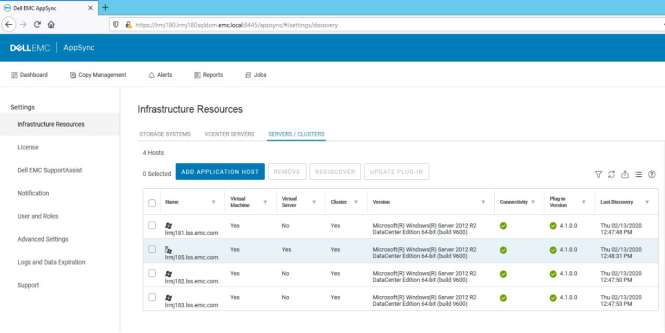
Figure 4. Protecting databases in availability groups
- From the Microsoft SQL Server protection page, select the SQL Server instance that owns the database replica and is to be protected. Enter the SQL Server connection settings, using either a SQL Server login or Windows authentication as applicable. AppSync discovers the user databases that belong to the instance and displays information about the availability groups that they belong to.
The following figure shows the clustered instance LRMJ185 and the non-clustered instance LRMJ183\AG_STANDALONE.
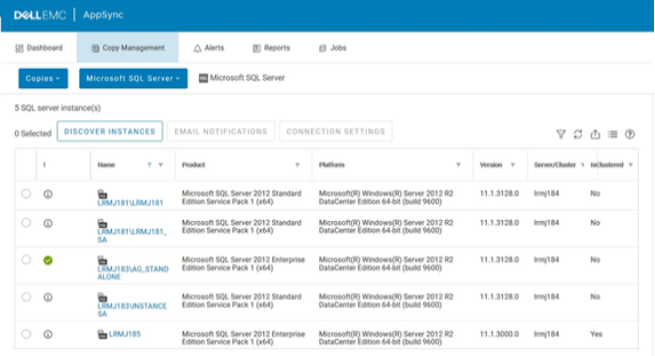
Figure 5. SQL Server Protection page
- Choose to either subscribe a primary or secondary database to a service plan so that AppSync protects that database replica. If the role changes from primary to secondary or the opposite way, AppSync continues to protect the same database replica. AppSync protects databases by SQL Server instance, not by role.
Enabling Auto Switch to Copy, ensures that AppSync automatically switches to the Copy backup type when the service plan is configured to do a Full backup and the database is a secondary replica.
Figure 6 and Figure 7 show the information that AppSync gathers for databases in availability groups and if the database role is primary or secondary. If the role is secondary, the type of commit that is configured is also shown. The Database Status column shows if the database is online, and if AppSync can protect it. When Online, readable is displayed, AppSync protects the secondary database. When Online, not readable is displayed, and the secondary database’s Readable Secondary option is not set to Yes within SQL Management Studio, the secondary database is not protected by AppSync. Read-intent only is not supported with AppSync 4.3 and lower. See Figure 8 for an example of the Readable Secondary options. AppSync 4.4 and greater will protect secondary databases if Readable, Secondary is set to Yes or Read-intent only. The secondary databases will show Online, read-intent only as the database status, for databases which have the Readable Secondary option set to Read-intent only. In case of failover, the primary database would be skipped from the service plan protection, and its status will be shown as offline in the AppSync user interface.
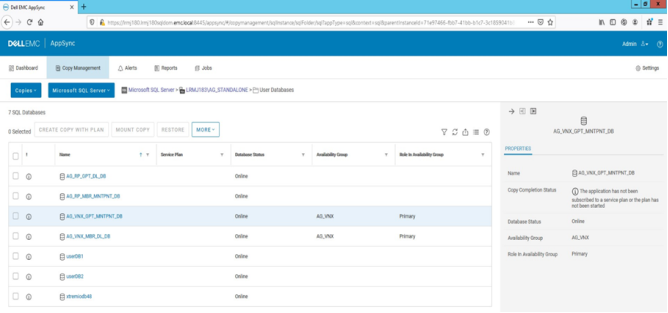
Figure 6. Primary user database status
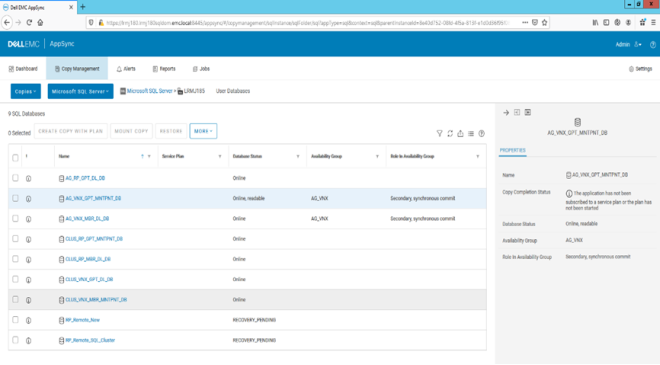
Figure 7. Secondary user database status
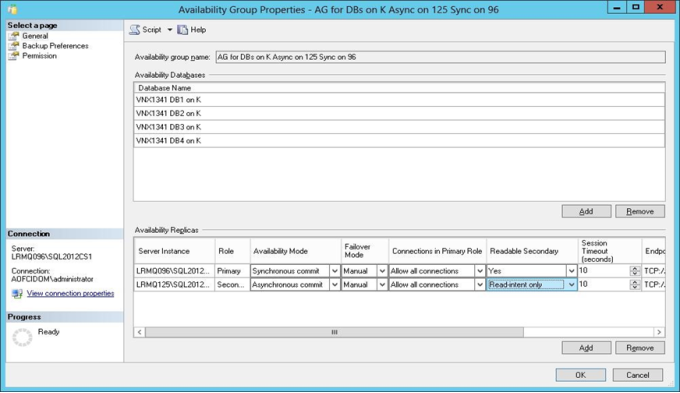
Figure 8. Readable Secondary Options
Important notes regarding secondary replicas or databases
The ability to Skip non-readable Secondary Database Protection is possible in AppSync version 4.2 and greater. The checkbox is available when configuring the Microsoft SQL service plan options and is shown below in the Create the Copy section of the wizard.
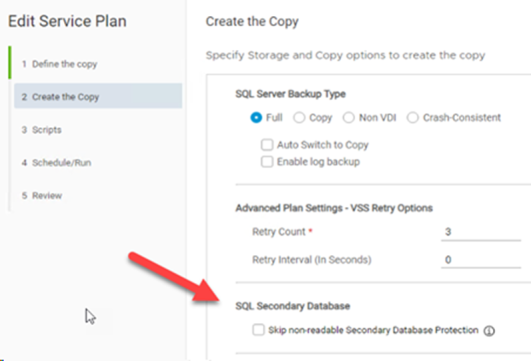
To use the feature, the user needs to subscribe the service plan to all User Databases and not just a single database, as shown below.
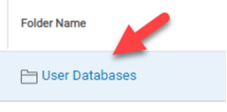
When the Skip box is checked, all secondary SQL AAG databases whose Readable, Secondary option is set to No will be excluded from protection dynamically. Running service plans with this feature enabled, allows end-users to complete their plans without error events so that organizational compliance reports and dashboards show positive results.
Restoring databases in availability groups
AppSync can restore a database from a copy that is taken from the primary or secondary replica. These general guidelines apply:
- The database being restored must be removed from the availability group before it is restored. AppSync does it automatically, however, it must be added back to the availability group, once the recovery is complete.
- Usually, while the primary replica is restored, the secondary replica must be re-seeded.
- If restoring to a secondary replica, which is to be re-seeded to the other replicas, first use the option to fail over the primary replica. Once recovery is complete, use the restored replica to reseed the other database replicas.
- AppSync restores to the server (or SQL Server virtual server) that was used to create the copy.
- Restores are at the volume level, so all databases on the volume are impacted.
- If the databases were protected together, an option is presented for restoring and recovering the other databases.
- If the databases were not protected together, the other databases are overwritten, but not recovered. Detaching them from SQL Server before running the restore is required.
Details of restoring to a primary replica
The following explains the steps that AppSync performs when restoring to a primary replica, and the steps that you should perform after the restore is complete.
While restoring to a primary replica, AppSync performs the following:
- Suspends data movement for all replicas
- Removes the database and all its replicas from the availability group
- If the replica being restored is a secondary replica and option Failover the Availability Group if the current role is Secondary, is selected, AppSync will failover the availability group.
Note: The other database replicas in the availability group must be healthy, or the restore does not take place.
- Takes the database offline and detaches it.
- Restore the volumes to the recovery state selected from the Restore wizard: RECOVERY, NORECOVERY, or STANDBY. If there are transaction log backups that must be restored, use NORECOVERY or STANDBY.
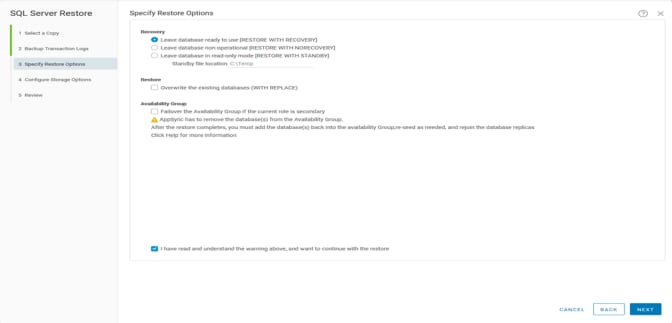
Figure 9. SQL Server restore options
After AppSync recovers the database, manually perform the following steps:
- Restore any log backups that are required, and recover the database.
- To re-seed secondary databases using the Add Database to Availability Group wizard full synchronization option, delete the secondary databases.
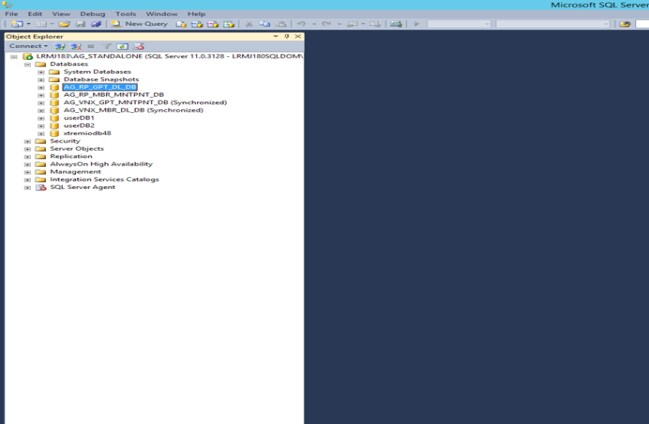
Figure 10. SQL Management studio restoring
- Add the primary database back into the availability group using the SQL Server Management Studio.
- Connect to the server instance hosting the primary replica.
- Expand the Always On High Availability node and the Availability Groups node.
- Right-click the availability group and select Add Database to launch the Add Database to Availability Group wizard.
- Select the database on the Select Databases page. If a database does not meet all the prerequisites, the Status hyperlink provides a brief explanation of why the database is not eligible. For more information, click the hyperlink.
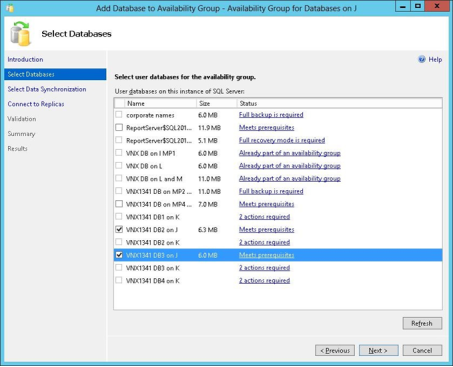
Figure 11. Select databases for availability group
- Select the data synchronization preference on the Select Initial Data Synchronization page.
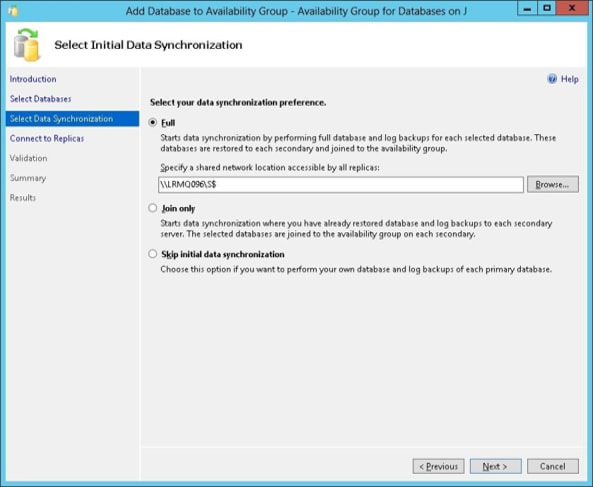
Figure 12. Select data synchronization
- Connect to the secondary SQL Server instances on the next page and click Next.
- If the validation is successful, click Next, else correct the problem, and click Re-run Validation.
- Review the summary and click Finish.
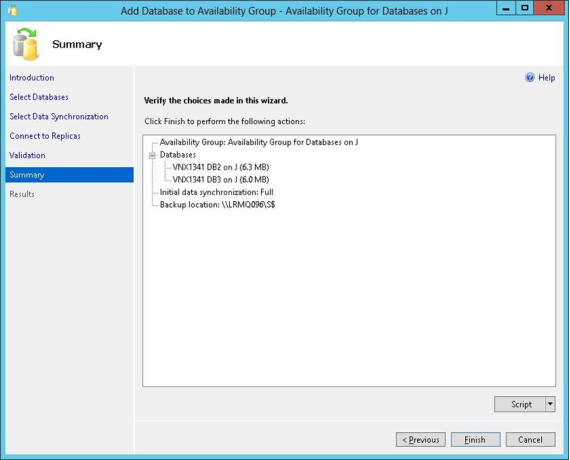
Figure 13. Add Database to Availability Group summary
- If selecting the Full or Join only synchronization options, the primary and secondary databases should be added again to the availability group. If selecting to Skip initial data synchronization, see Books Online for SQL Server for details on how to start data movement to the secondary database.
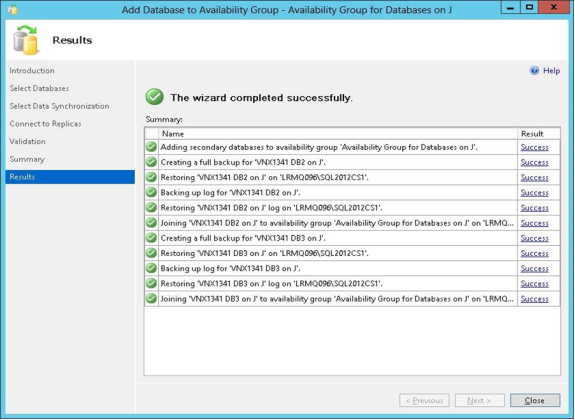
Figure 14. Add Database to Availability Group results
Details of restoring to a secondary replica
The following explains the steps that AppSync performs when restoring a secondary replica and the steps that must be performed after the restore is complete. Restoring a secondary replica is useful if the replica is too far behind in synchronization with the primary.
If the replica being restored is currently a secondary replica, and the Failover the Availability Group if the current role is Secondary option is selected, see the Details of Restoring to a Primary Replica section.
When restoring to a secondary replica, AppSync:
- Suspends data movement of the selected secondary replica.
- Removes the selected secondary database from the availability group.
- Restores the volume(s) to the recovery state selected from the Restore wizard. For secondary replicas, use NORECOVERY. Leave the database in this state so that it can rejoin the availability group.
After AppSync restores the database, perform the following steps manually:
- Restore any log backups that are required, and leave the database in the NORECOVERY state.
- Join the secondary database back to the availability group using the following T-SQL statement:
ALTER DATABASE [AAGName] SET HADR AVAILABILITY GROUP = [DBName];
SQL Server databases on VMware virtual disks
AppSync protects, mounts, and restores SQL Server databases residing on VMware virtual disks. The SQL Server instance can be clustered or non-clustered.
Prerequisites and restrictions
Following are the prerequisites and restrictions:
- For successful mapping, the vCenter must be added to the AppSync server and discovery must be performed.
- For successful protection, both the log and database files must reside on virtual disks. There cannot be a combination of physical and virtual storage.
- Nonpersistent virtual disks are not supported.
- NFS datastores are not supported.
- Protection of SQL Server databases across virtual machines sharing the same datastore is not supported.
- If the ESXi version is less than 5.0:
- Mounting a copy of a non-clustered SQL database to the production server, or cluster, is not supported.
- Mounting a copy of a clustered SQL database to the production server is supported only from second mount onwards. The copy has been previously mounted outside of production clustered.
- When mounting virtual disks in ESXi 5.x and RecoverPoint 4.0 environments, disable hardware acceleration to ensure successful virtual access type mounts. For more details, see the VMware Knowledge Base article 2006858.
Other information
The following is the additional information about creating, mounting, and restoring AppSync copies of virtual disks.
Using VSS
Although SQL Server VDI API is used to create application-consistent copies, VSS is also used to flush I/O’s and create shadow copies of the volumes. If the ESXi version is less than 5.0, VSS is not used.
Restore
All the databases residing on the same datastore are displayed as affected entities. Restoring of virtual disks restores the entire datastore. If multiple databases are protected alongside the database being restored, they are displayed as affected entities and can be optionally recovered. Otherwise, manually detach the databases so the restore can overwrite them. They can be attached at a crash-consistent recovery.
If RecoverPoint is used, restore is at the consistency group level. If there is another datastore in the same consistency group, it is also restored. If AppSync detects any databases on that datastore, they are displayed as affected entities. If restoring in a clustered environment, ensure that all nodes of the cluster are added to AppSync. This action is done so AppSync can remove the source virtual disk from all the VMs in the cluster.
Repurposing SQL Server database
AppSync allows you to create copies of your SQL Server database for application testing and validation, test and development, reporting, data masking, and data analytics. AppSync identifies copies that are created from a repurpose action as first-generation and second-generation copies. The source of a second-generation copy is a first-generation copy. You can create multiple second-generation copies from a first-generation copy.
Types of repurposing
- Native array Repurposing: The first-generation copy is a copy of the source database. For example, an array-based snapshot of the source is the first-generation copy.
- RecoverPoint bookmark Repurposing: The first-generation copy is a copy of the LUN at the local or remote replication site in the RecoverPoint consistency group. The first-generation copy is the array LUN taken from the LUN which is used by RecoverPoint as an intermediary step.
Additional information about repurposing
- The first-generation copy can be used as source for multiple second-generation copies.
- Both first- and second-generation repurposed copies can be either on-demand or scheduled.
- Restoring second-generation copies is not supported. Only first-generation copies are restored.
- Restoring a first-generation copy is not supported for RecoverPoint bookmark repurposing.
- Restoring a first-generation copy is not supported in remote VMAX operations. Remote VMAX copies cannot be restored.
- The first-generation copy of a database is generally an application-consistent copy. It includes application discovery, mapping, and database freeze or thaw, with options to use Non-VDI or Crash-Consistent as shown in the following figure.
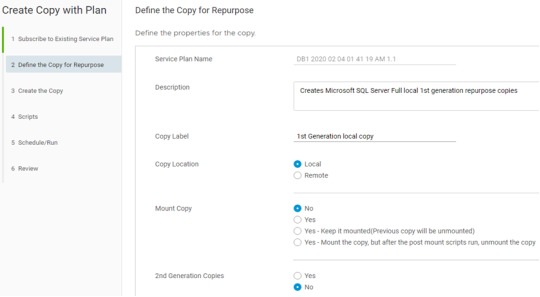
Figure 15. Repurpose SQL-specific copy options
- VSS Retry Options can be configured by clicking the Advanced Plan Settings. This configuration includes a VSS retry count and a retry interval in seconds for freeze/thaw operations using the repurposing workflow. VSS retry options are not applicable when creating Crash-Consistent SQL copies.
- Second-generation copies are created using the first-generation copy as the source, without impacting the application. They do not include application discovery, mapping, nor application freeze/thaw. If a first-generation copy is mounted with recovery when the second-generation copy is refreshed, the second-generation copy might not be recoverable after the mount.
- Refreshing mounted Crash-Consistent or Recover Point APIT copies of clustered SQL databases, which are mounted to a production cluster, are not supported. VDS mounts fail due to disk signature conflicting with production disks.
- Log backups are not supported as part of repurposing.
Note: Repurposing multiple SQL databases together is not supported.
AppSync and Transparent Data Encryption
AppSync 4.3 patch 1 and higher includes support for SQL Transparent Data Encryption (TDE).
For a TDE encrypted database copy to be recoverable on a different SQL instance, a Master Key and its Certificate, along with the Private key must be exported from the source SQL instance and imported into the target instance you will be recovering to.
The following are requirements for AppSync support of TDE databases:
- A backup of the server certificate and private key from the source SQL Server copied to the same location on the target server.
- Creation of a new Master Key on the target server.
- Re-creation of the Server Certificate from the backup certificate on the target server.
For more detailed information, see the Microsoft article: https://docs.microsoft.com/en-us/sql/relational-databases/security/encryption/move-a-tde-protected-database-to-another-sql-server?view=sql-server-ver15
Conclusion
This white paper discusses using AppSync to support backup, recovery, and repurposing workflows for Microsoft SQL Server stand-alone and clusters. This white paper discusses features like dynamic discovery of databases during the protection phase and the usage of prescripts and postscripts. It also explains various options and scenarios for mounting, restoring, and repurposing SQL Server database copies.
References
The following documentation provides additional and relevant information:
- AppSync Installation and Configuration Guide
- AppSync User and Administration Guide
- AppSync REST API Reference
Note: All documents can be found on the Dell Support page. Search for AppSync.