Dell PowerMax Cybersecurity
Executive summary
Introduction
Revisions
We value your feedback
Cybersecurity with Dell PowerMax
Cybersecurity with Dell PowerMax
Cybersecurity with Dell PowerMax
Cybersecurity with Dell PowerMax
Secure snaps
Secure snaps
Dell TimeFinder SnapVX provides space-saving and efficient local replication in PowerMax arrays. SnapVX snapshots are a pointer-based structure that preserves a point-in-time view of a source volume. Snapshots provide the ability to manage consistent point-in-time copies for storage groups and are created with a user-defined name and optional expiration date (time-to-live), and without the use of a target volume. Host-accessible target volumes can be linked if a point-in-time snapshot needs to be accessed. Writing to a linked target does not affect the point-in-time of the snapshot.
SnapVX snapshots can be set as secure snaps. Secure snaps are snapshots that cannot be deleted, accidentally or intentionally. They are retained in resource-limited situations in which conventional snapshots are placed in a failed state to release resources.
Secure snaps must be created with a time-to-live retention period. The snapshot cannot be terminated before the retention time, and all termination attempts are rejected. When the retention time is reached, the snapshot is terminated.
The retention period on a secure snap can be extended in situations where the snapshot is needed longer than originally planned; however, reducing the retention time is not allowed. A traditional snapshot can be converted to a secure snap, but a secure snap cannot be converted to a traditional snapshot. All other SnapVX operations and rules apply to secure snaps.
When implementing secure snaps, a user should determine how many snapshots on an array must be secure. Users should consider using secure snaps only on certain critical volumes, or only on a subset of the snapshots to capture points-in-time that are critical to the business and for how long the secure snaps should be retained. As always, proper planning and system sizing is crucial, no matter the types or number of snapshots that will exist in an environment.
The following figure shows an example of creating secure snaps with a retention time of five days.
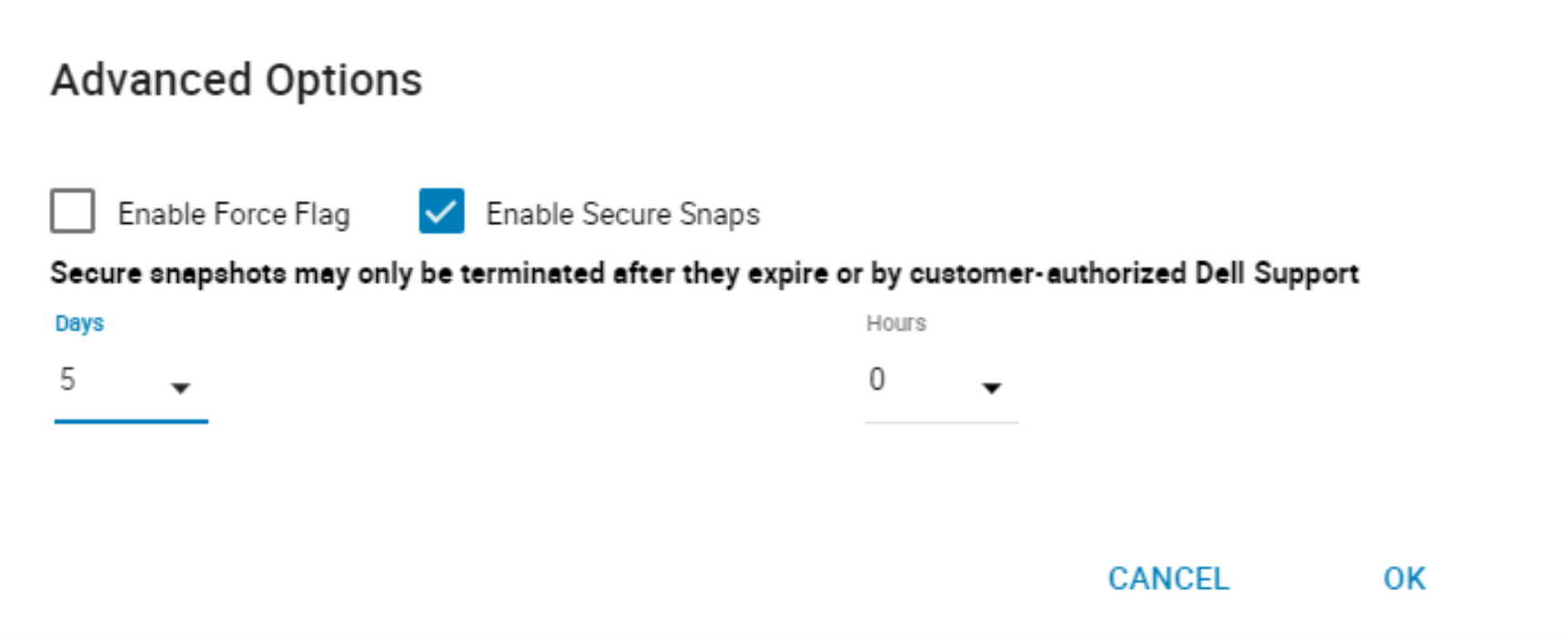
Figure 1. Secure snap creation
Dell AIOps
Overview
Cybersecurity in Dell AIOps
Cybersecurity in Dell AIOps monitors and compares the configuration of the PowerMax system to a set of user-selected, security-related evaluation tests. Upon identifying a deviation between the actual and desired configuration setting, CloudIQ proactively notifies users of the violation and provides remediation steps to correct the issue. Based on NIST 800-53 R5 standards and Dell best practices, Cybersecurity in Dell AIOps quickly and automatically ensures that the storage infrastructure is secure, to comply with the industry’s best practices.
Cybersecurity in Dell AIOps can be set to provide proactive notifications to the user in the event of an infrastructure security risk. The Security Advisories section of the Cybersecurity feature notifies users of relevant Dell and Security Advisories. Users quickly see a summary of vulnerabilities specific to their systems and versions along with links to remediation details.
Dell AIOps uses machine learning and predictive analytics to identify any anomalies.
- Performance metrics are compared with historical values to determine any deviation outside of normal ranges.
- Performance impacts are also analyzed to identify any increases in latency against other metrics, such as IOPS and bandwidth. The analysis is designed to determine if the latency increase is caused by workload characteristics or any other competing resource, and to identify the origin of the impact.
- Capacity anomaly detection uses hourly analysis of usage to identify any surges of capacity utilization.
The following figure shows an example of latency anomaly detection.
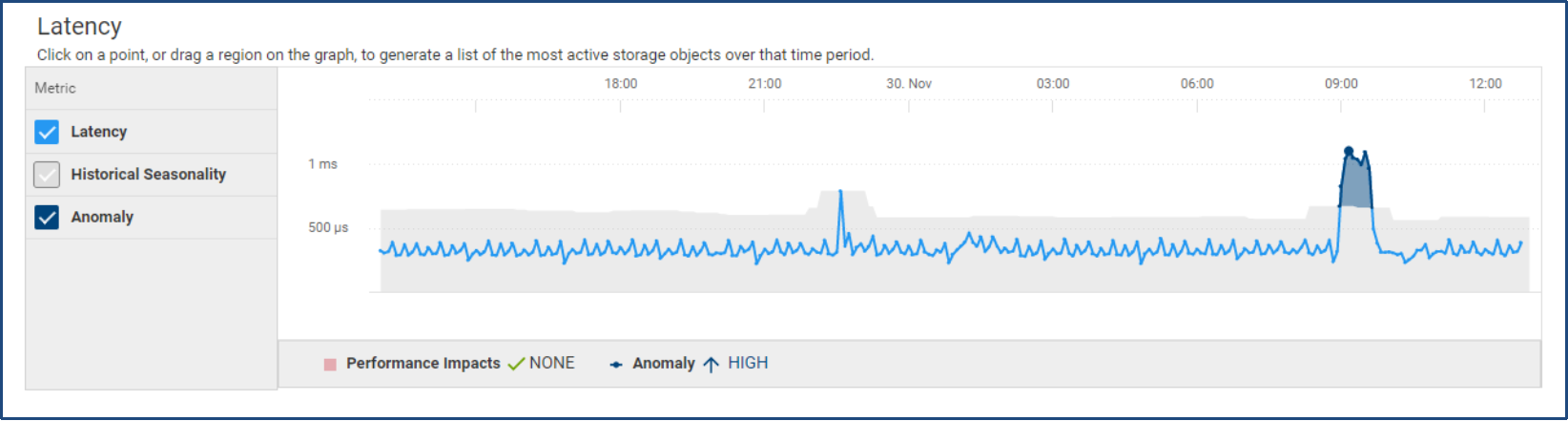
Figure 3. Dell AIOps latency anomaly
System Risk
System Risk is the multisystem view for cybersecurity. This page displays all systems that are enabled for cybersecurity along with the risk level, percentage of tests enabled in the Evaluation Plan, and summary of Issues. For systems that have an active ransomware incident, Dell AIOps displays a red ransomware incident banner in the card view. The Risk Level provides an overall assessment for the system based on the enabled evaluation tests, and has one of the following values:
- Normal
- No active Cybersecurity issues.
- Low
- One or two active Low severity Cybersecurity issues.
- There are at least five enabled tests and the number of enabled tests is greater than 70%.
- Medium
- One to five active non-High severity Cybersecurity issues with at least one being Medium and number of enabled tests greater than five.
- Greater than two active Low severity Cybersecurity issues and the number of enabled tests is greater than five.
- High
- One or more active High severity Cybersecurity issues and the number of enabled tests is greater than five.
- More than five non-High active issues where at least one issue is Medium severity and the number of enabled tests is greater than five.
- Unknown
- Evaluation Plan is disabled.
- The number of enabled tests is less than or equal to five.
- There are no active Cybersecurity issues and the number of enabled tests is less than 70%.
- There are one or two active Low severity Cybersecurity issues and the number of enabled tests is less than 70%.
The following figure shows the System Risk page:
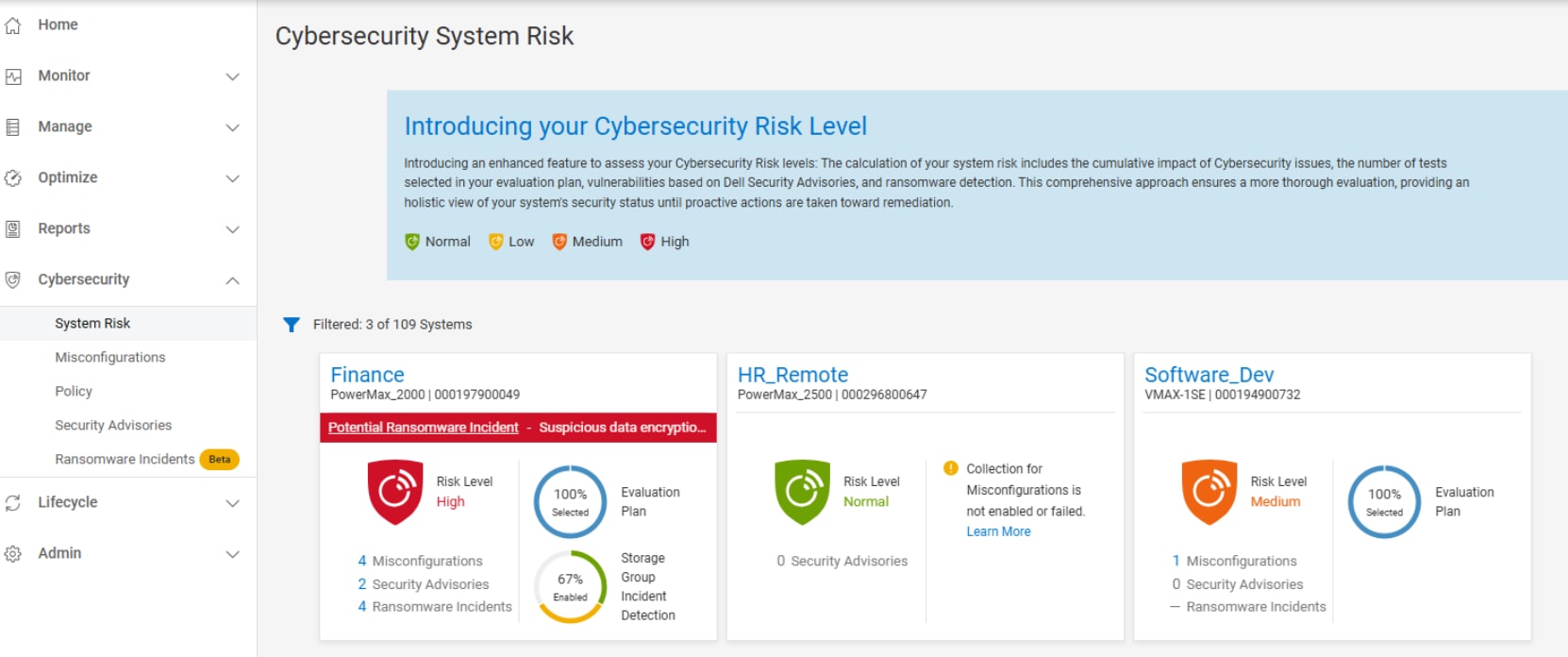
Figure 4. Cybersecurity System Risk page in Dell AIOps
Misconfigurations
Misconfigurations provides an overall listing of cybersecurity issues that have been identified in the environment. The Active tab lists out all active issues and provides the severity, issue name, associated system, and when it was created. Expanding the issue provides the issue description and the recommended remediation, creation timestamp, security control family, and evaluation test. The Resolved tab lists out all issues that have been corrected and the timestamp for when the issue was resolved.
The following figure shows the Misconfigurations page:
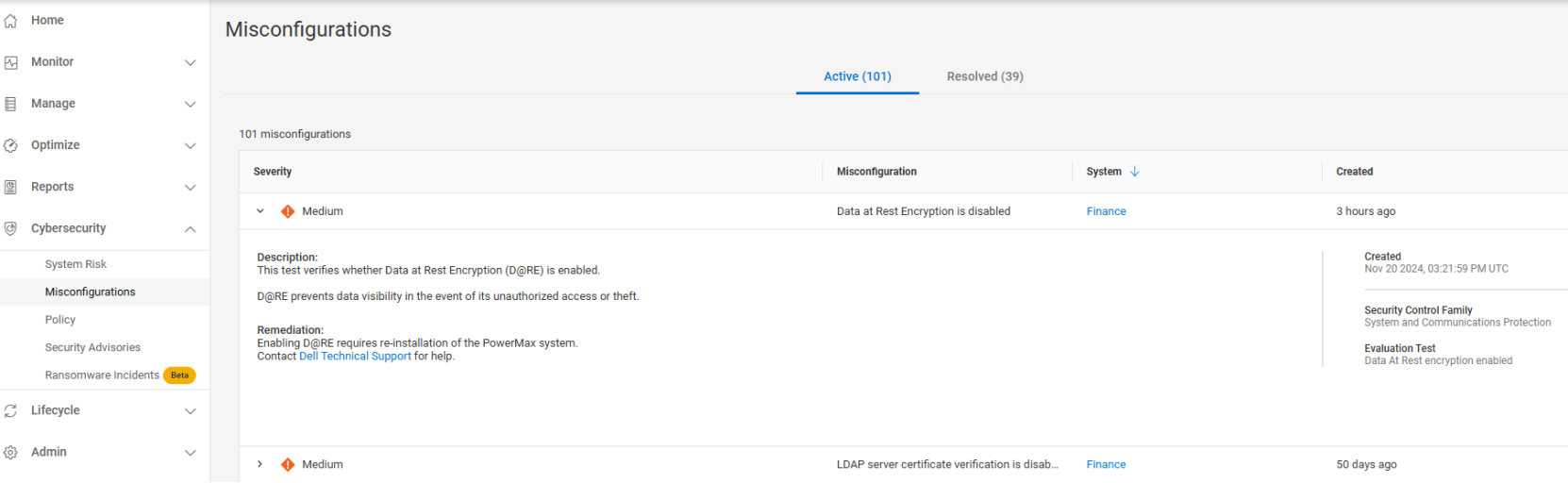
Figure 5. Cybersecurity Misconfigurations page in Dell AIOps
Policy
Policy is where users enable, disable, and configure the tests in the Evaluation Plan. This can be done by creating individual evaluation plans for each system or by creating a template and applying it to multiple systems.
The Policy page lists the cybersecurity enabled systems. It also includes information such as the associated template, status of the evaluation, number of selected tests, custom tags, and the last time the evaluation plan was updated. Cybersecurity admins can assign or unassign templates to systems, enable or disable the evaluation plan for systems, or edit the evaluation plan for an individual system.
The following figure shows the Policy page
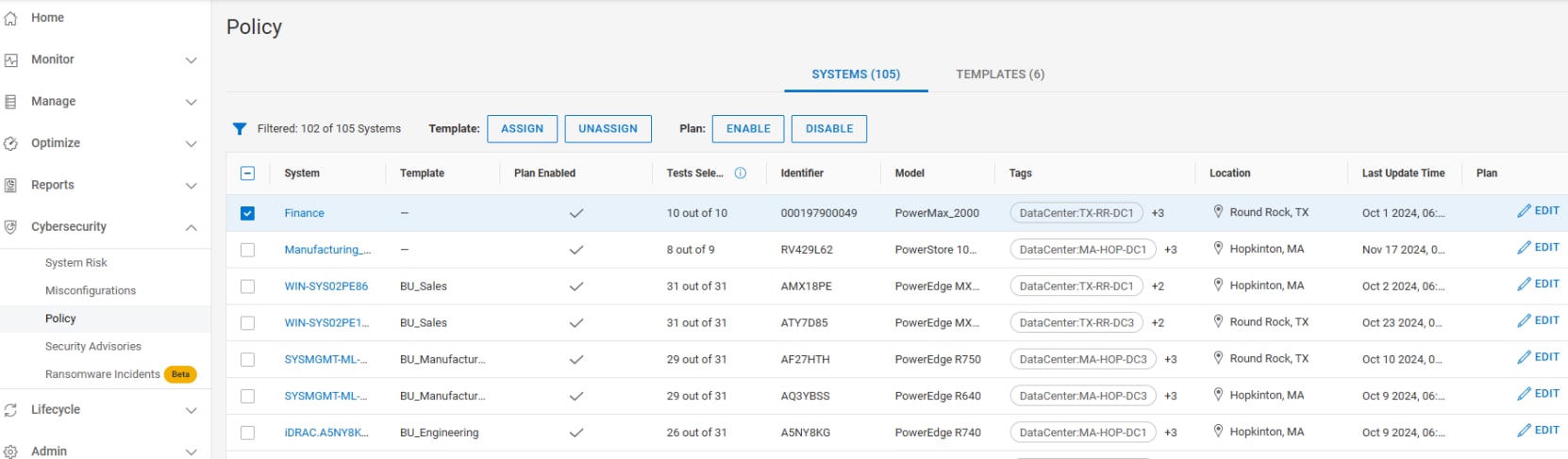
Figure 6. Policy page of Cybersecurity in Dell AIOps
Policies can be edited to add and remove tests from the evaluation plan to set a policy for each individual system. The possible evaluation tests are listed and grouped by Security Control Family (based on NIST 800-53 R5). Each test can be selected or cleared for inclusion in the Evaluation Plan. Selecting the Details icon provides a detailed description of the test.
The following figure shows the Evaluation Plan edit screen:
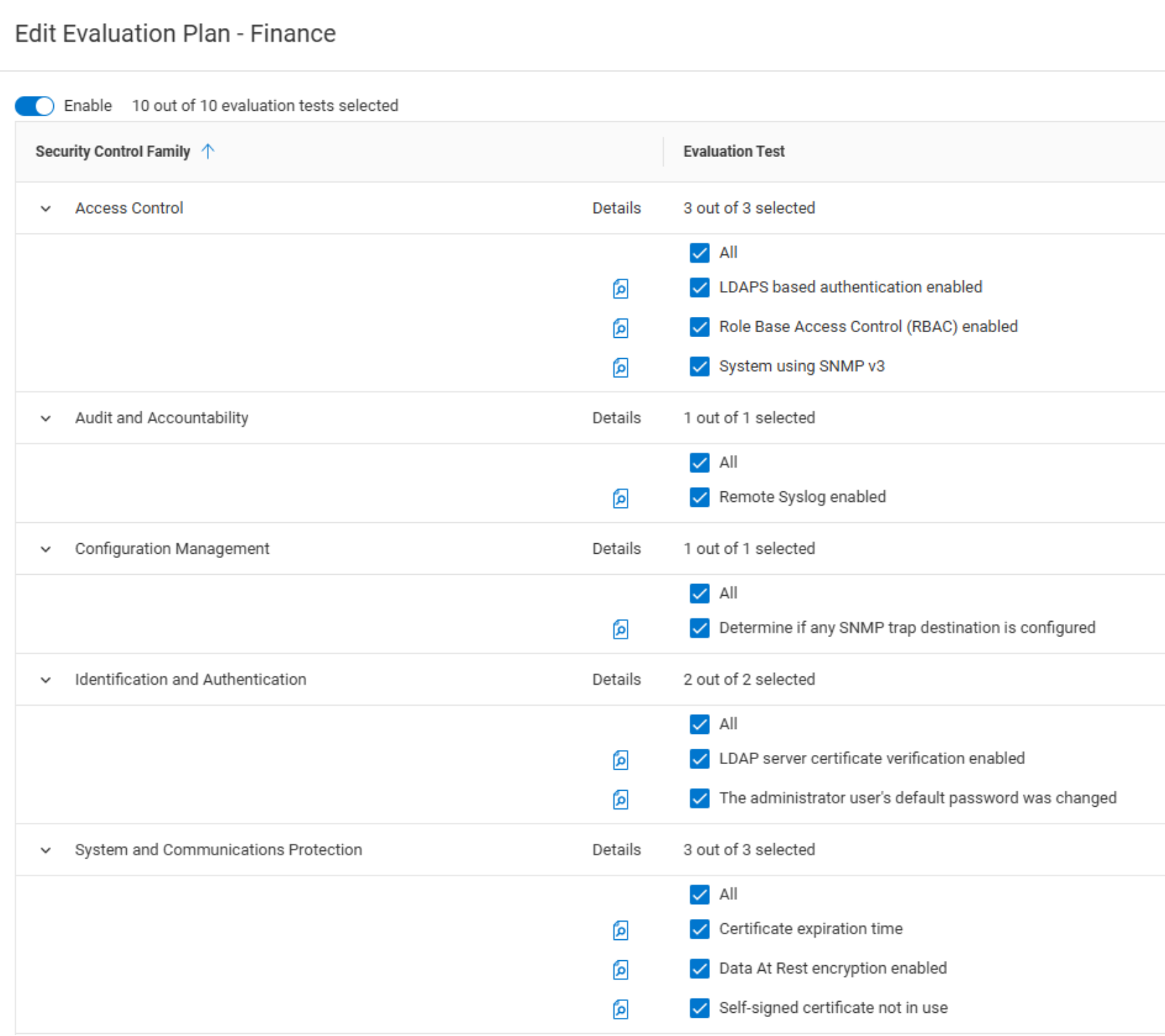
Figure 7. Evaluation Plan for Cybersecurity Policy
Security Advisories
Security Advisories provides a full list of applicable security advisories along with their impact, a synopsis, component, number of impacted systems, and publish date. Clicking the View Article hyperlink opens the article details on the Dell support page.
Clicking the Advisory ID hyperlink opens a window providing a list of all affected systems, affected component, and current version of that component. This window also shows additional information about the security advisory including the list of Common Vulnerabilities and Exposures (CVEs) addressed by the security advisory. There is also capability to export the security advisories to a CSV file.
The following figure shows the Security Advisories:
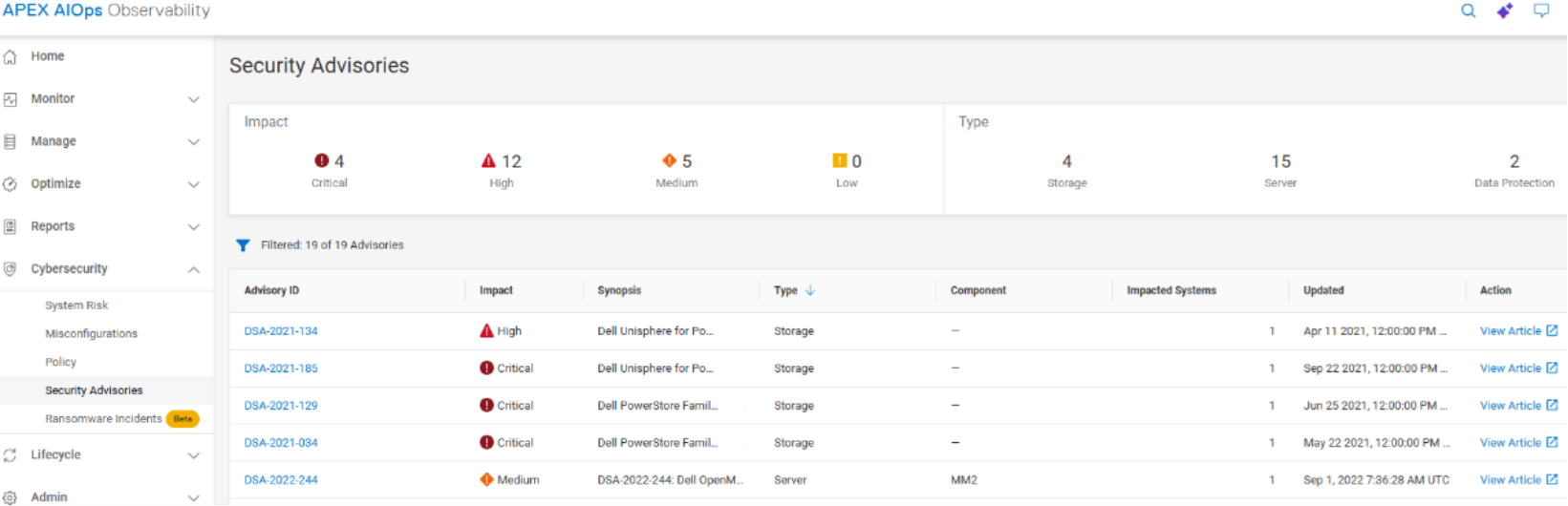
Figure 8. Security Advisories in Cybersecurity of Dell AIOps
Ransomware Incidents
Ransomware Incidents enables PowerMax users to identify cybersecurity ransomware incidents in near real time.
Ransomware attacks are typically encoded user data using asymmetrical encryption. Since encrypted data is nonreducible, PowerMax systems can use Dell AIOps to monitor and analyze data reduction data. When enabled on a storage group, ransomware incidents will enter a learning phase where it will analyze data patterns and establish an expected range of reducible/unreducible data. Once the 2-week learning phase is complete the storage group will switch to the detecting phase. When the Increases in the amount of unreducible data can represent suspicious activity or a potential ransomware threat. Proactive alerts can be set to notify users of the increased unreducible data that could represent data being encrypted, which would provide early detection that could minimize exposure.
The Ransomware Incidents page shows all identified incidents and puts them in one of three categories: New, Investigate, or Closed. When an incident is first identified, it appears in the New tab. Each incident has an incident ID, a confidence level, the system identifier, the location, the number of affected storage groups, and the created and updated times. There is also the ability to add notes to each incident. When the incident is ready to be analyzed, the user can select it and click Acknowledge & Investigate.
The following figure shows the Ransomware Incidents page:
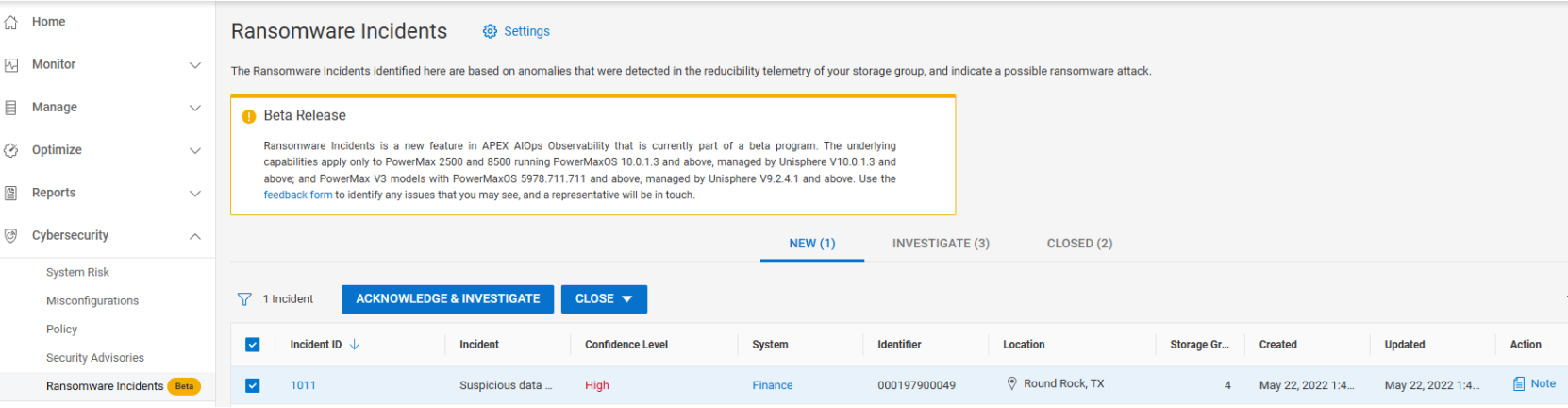
Figure 9. Ransomware Incidents main page
Note: At the time of this publication, the Ransomware Incidents feature is considered Beta. Support and feedback are accomplished through the feedback form link in the main page.
Once the incident is under investigation, any new anomalies will trigger a new incident. While in the investigate state, the user can look at the potentially affected hosts and applications to determine if the incident is a true ransomware attack.
To help investigate, users can click the incident ID link and see the details of which storage groups experienced anomalies and when the anomalies were created and last updated.
The following figure shows an incident under investigation:
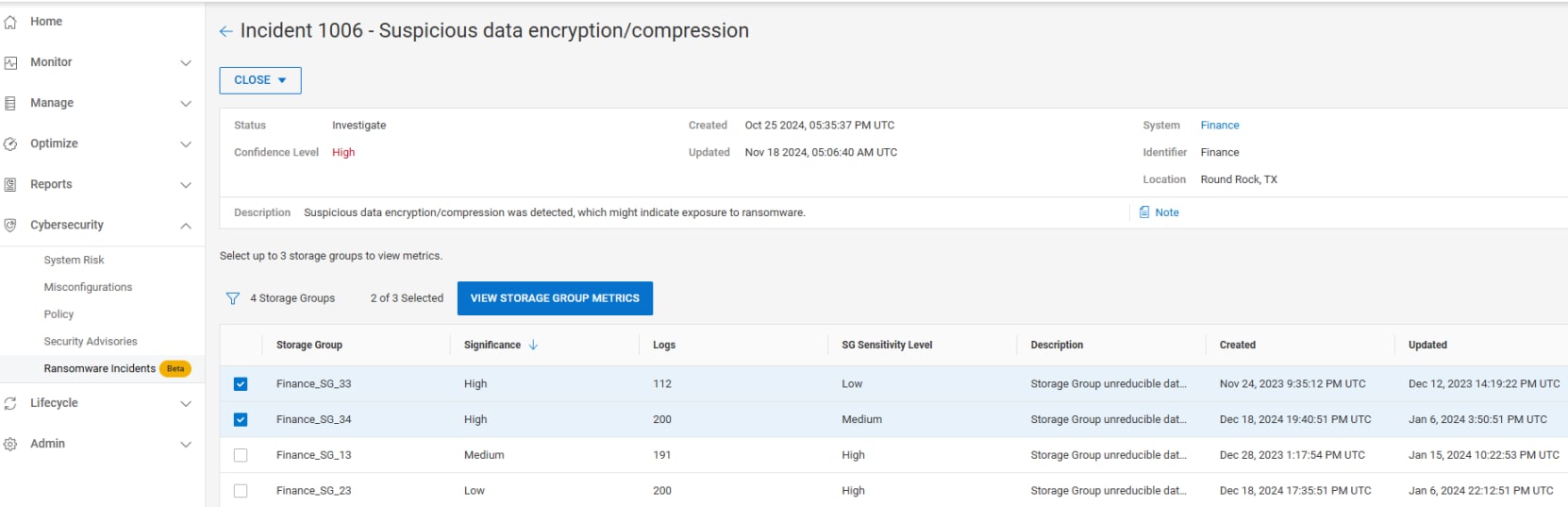
Figure 10. Incident under investigation
Within the investigation screen, the user can view the storage group metrics. The metrics contain charts of the reducible data, historic seasonality, and anomalies. Up to three storage groups can be viewed at once.
The following figure shows the storage group metrics:
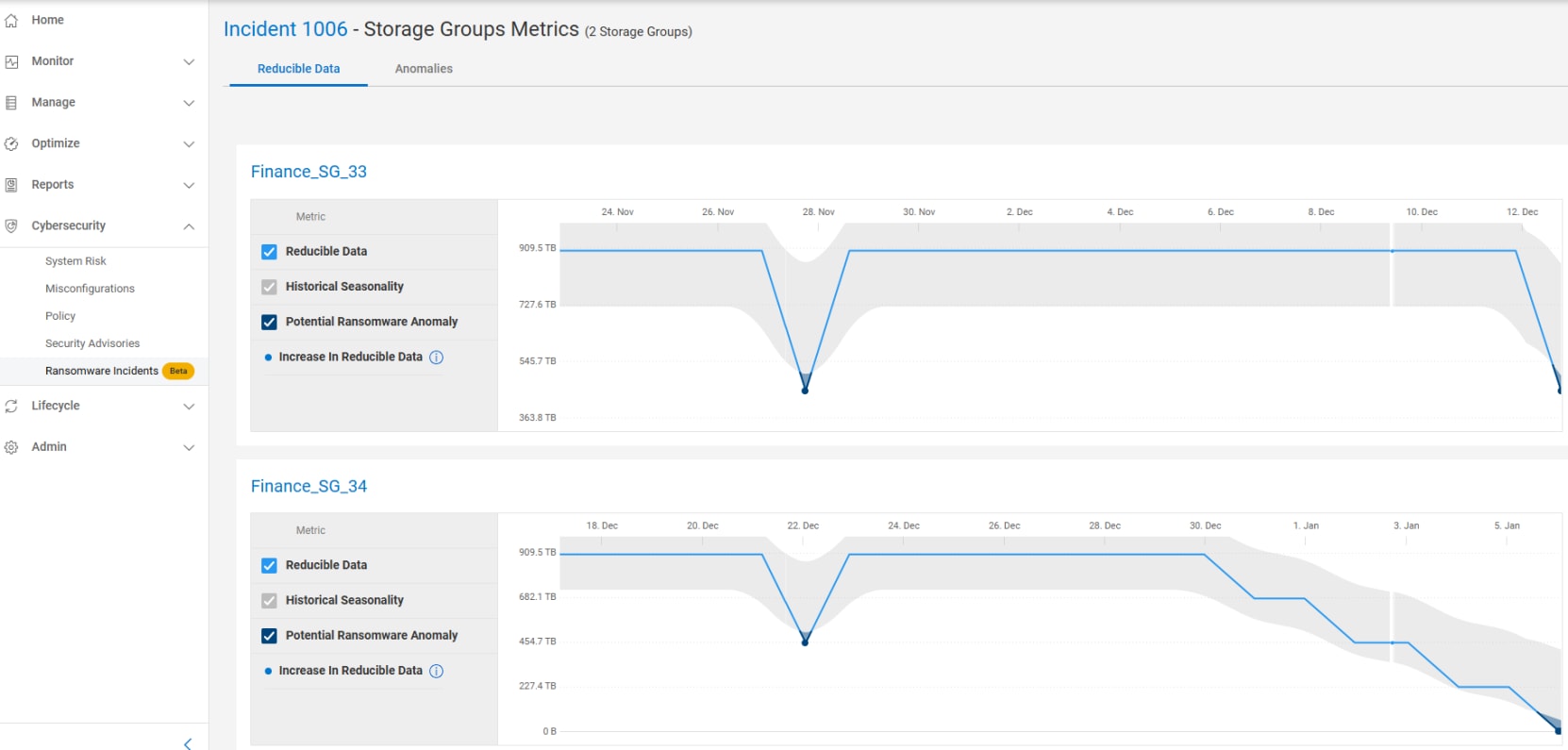
Figure 11. Storage group metrics
The Anomalies tab provides a list of each identified reducible data anomaly with timestamps.
The following figure shows the reducible data anomalies:
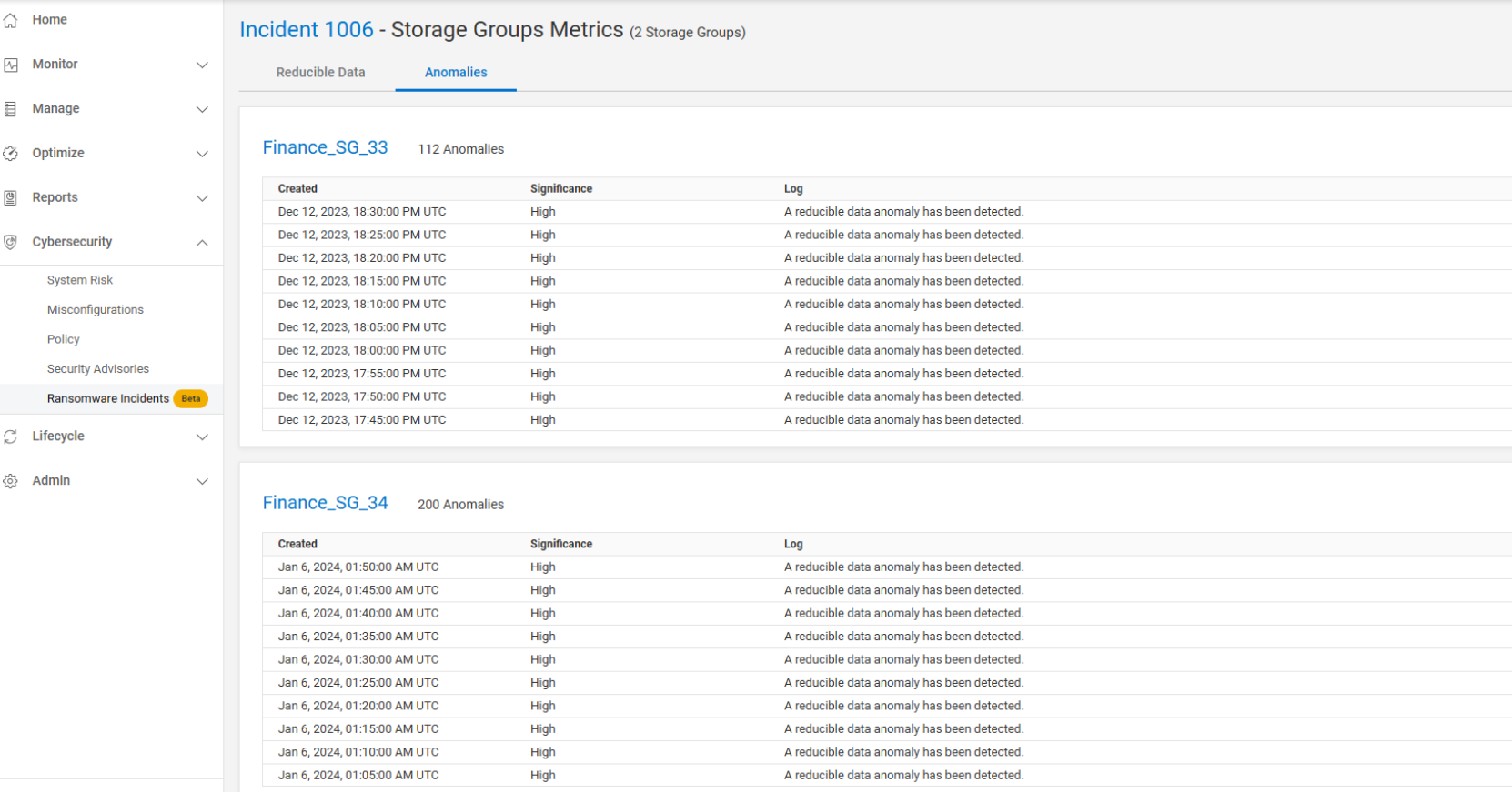
Figure 12. Anomalies tab within a ransomware incident
Once the investigation is complete, the user determines if the incident was a valid ransomware attack that was resolved or a false incident. Selecting an incident and then clicking Close gives the user the option to close it with either of the two options.
The following figure shows closing an incident:
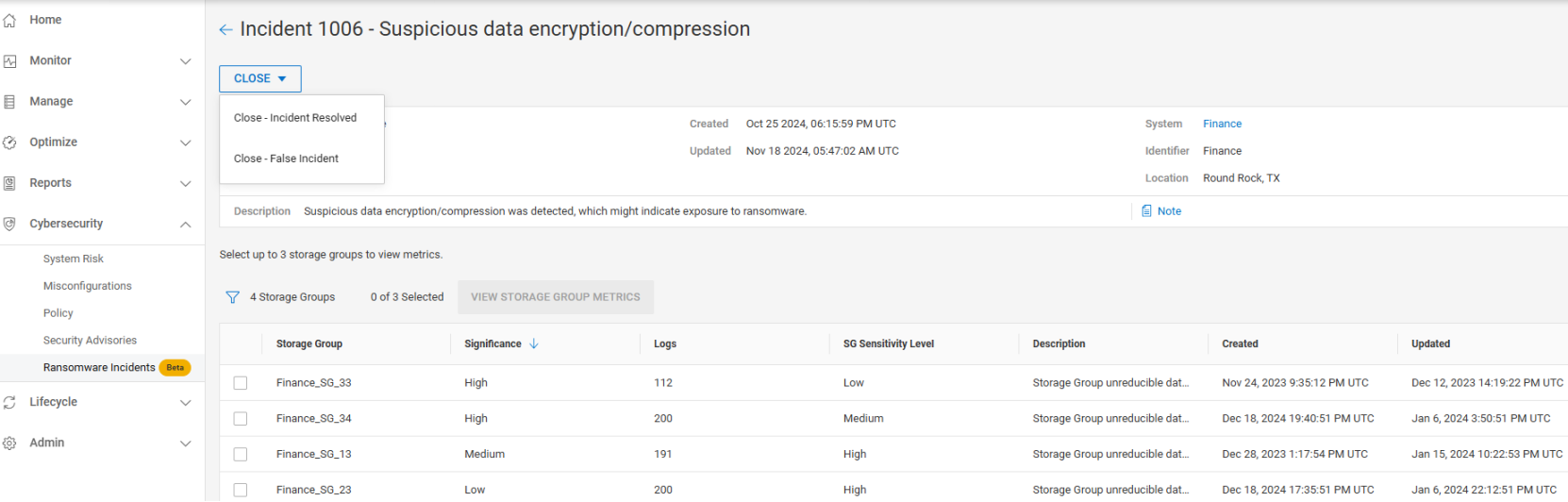
Figure 13. Closing a ransomware incident.
See Appendix B: Ransomware Incident Management Troubleshooting Guide for more information or in event there may be suspicion of a ransomware event.
Dell AIOps
Overview
Cybersecurity in Dell AIOps
Cybersecurity in Dell AIOps monitors and compares the configuration of the PowerMax system to a set of user-selected, security-related evaluation tests. Upon identifying a deviation between the actual and desired configuration setting, CloudIQ proactively notifies users of the violation and provides remediation steps to correct the issue. Based on NIST 800-53 R5 standards and Dell best practices, Cybersecurity in Dell AIOps quickly and automatically ensures that the storage infrastructure is secure, to comply with the industry’s best practices.
Cybersecurity in Dell AIOps can be set to provide proactive notifications to the user in the event of an infrastructure security risk. The Security Advisories section of the Cybersecurity feature notifies users of relevant Dell and Security Advisories. Users quickly see a summary of vulnerabilities specific to their systems and versions along with links to remediation details.
Dell AIOps uses machine learning and predictive analytics to identify any anomalies.
- Performance metrics are compared with historical values to determine any deviation outside of normal ranges.
- Performance impacts are also analyzed to identify any increases in latency against other metrics, such as IOPS and bandwidth. The analysis is designed to determine if the latency increase is caused by workload characteristics or any other competing resource, and to identify the origin of the impact.
- Capacity anomaly detection uses hourly analysis of usage to identify any surges of capacity utilization.
The following figure shows an example of latency anomaly detection.
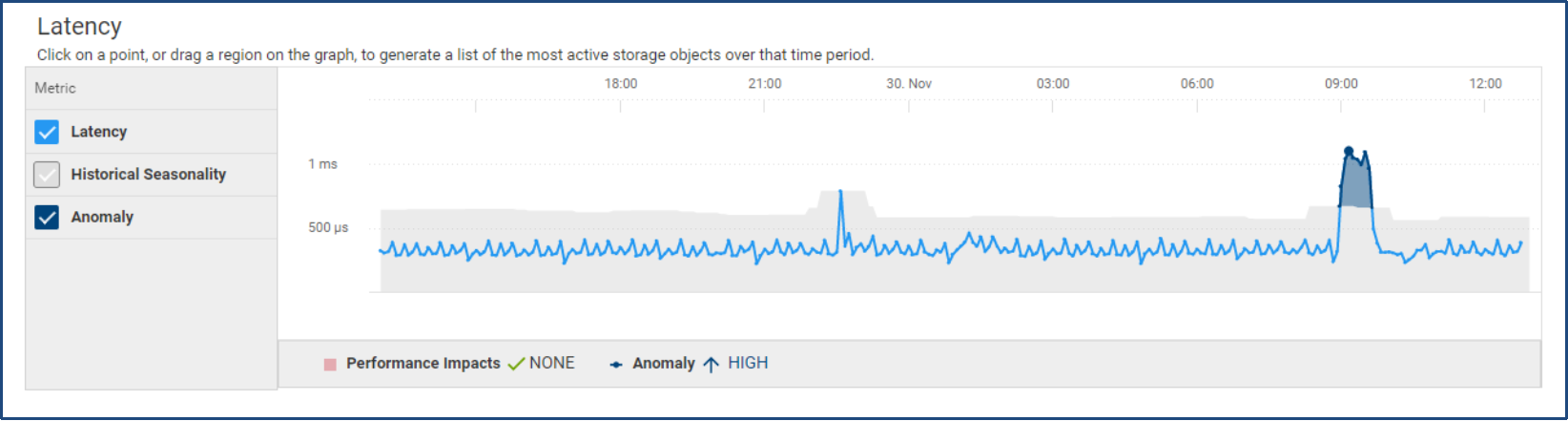
Figure 3. Dell AIOps latency anomaly
System Risk
System Risk is the multisystem view for cybersecurity. This page displays all systems that are enabled for cybersecurity along with the risk level, percentage of tests enabled in the Evaluation Plan, and summary of Issues. For systems that have an active ransomware incident, Dell AIOps displays a red ransomware incident banner in the card view. The Risk Level provides an overall assessment for the system based on the enabled evaluation tests, and has one of the following values:
- Normal
- No active Cybersecurity issues.
- Low
- One or two active Low severity Cybersecurity issues.
- There are at least five enabled tests and the number of enabled tests is greater than 70%.
- Medium
- One to five active non-High severity Cybersecurity issues with at least one being Medium and number of enabled tests greater than five.
- Greater than two active Low severity Cybersecurity issues and the number of enabled tests is greater than five.
- High
- One or more active High severity Cybersecurity issues and the number of enabled tests is greater than five.
- More than five non-High active issues where at least one issue is Medium severity and the number of enabled tests is greater than five.
- Unknown
- Evaluation Plan is disabled.
- The number of enabled tests is less than or equal to five.
- There are no active Cybersecurity issues and the number of enabled tests is less than 70%.
- There are one or two active Low severity Cybersecurity issues and the number of enabled tests is less than 70%.
The following figure shows the System Risk page:
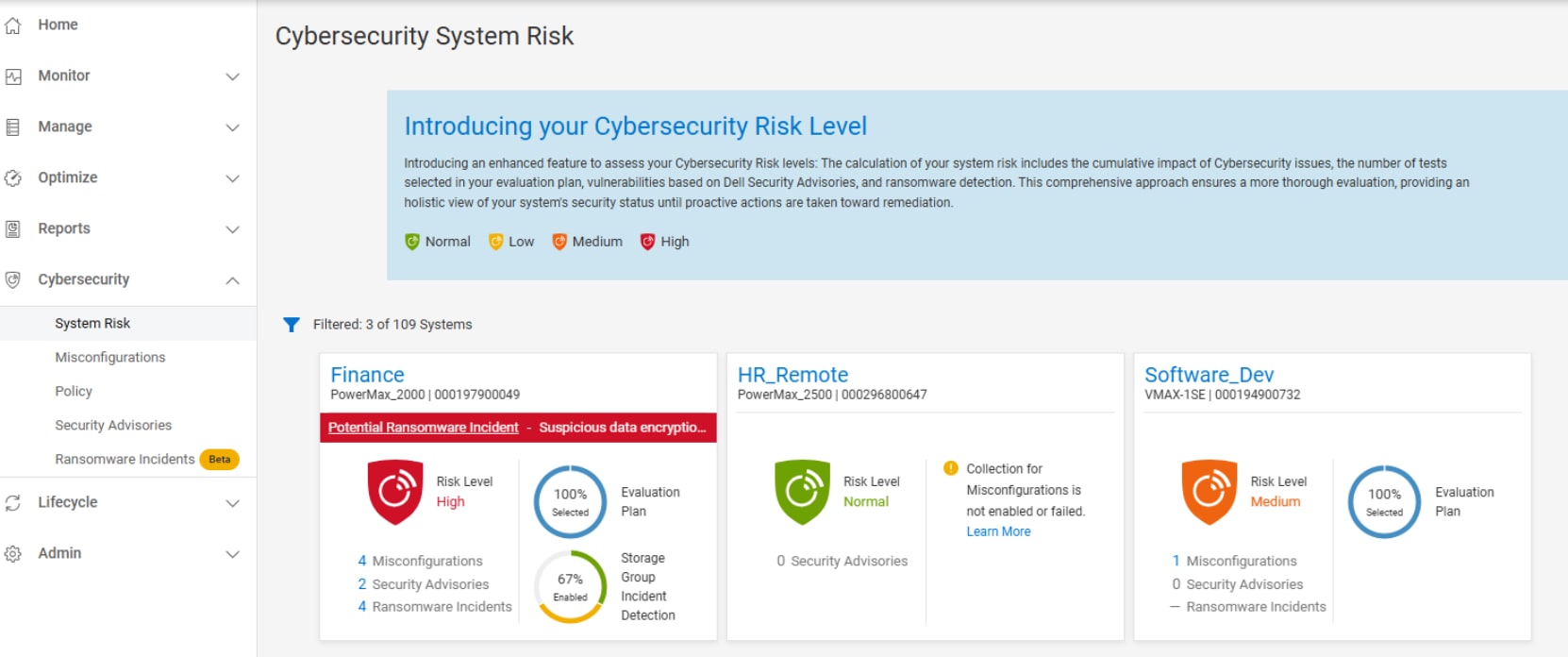
Figure 4. Cybersecurity System Risk page in Dell AIOps
Misconfigurations
Misconfigurations provides an overall listing of cybersecurity issues that have been identified in the environment. The Active tab lists out all active issues and provides the severity, issue name, associated system, and when it was created. Expanding the issue provides the issue description and the recommended remediation, creation timestamp, security control family, and evaluation test. The Resolved tab lists out all issues that have been corrected and the timestamp for when the issue was resolved.
The following figure shows the Misconfigurations page:
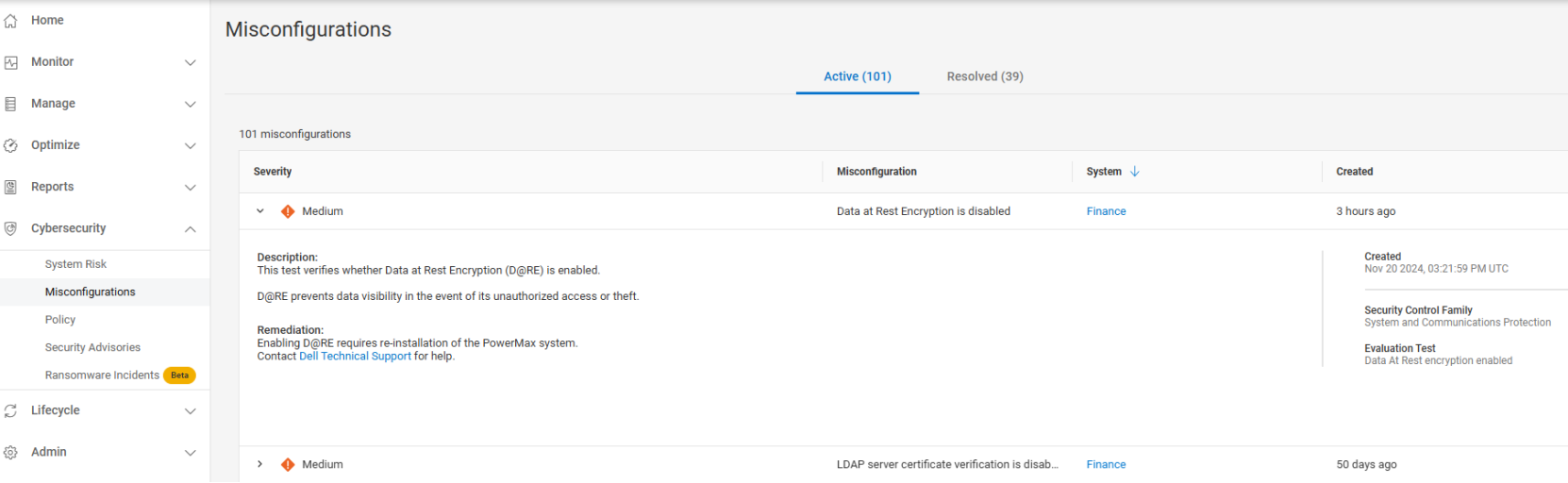
Figure 5. Cybersecurity Misconfigurations page in Dell AIOps
Policy
Policy is where users enable, disable, and configure the tests in the Evaluation Plan. This can be done by creating individual evaluation plans for each system or by creating a template and applying it to multiple systems.
The Policy page lists the cybersecurity enabled systems. It also includes information such as the associated template, status of the evaluation, number of selected tests, custom tags, and the last time the evaluation plan was updated. Cybersecurity admins can assign or unassign templates to systems, enable or disable the evaluation plan for systems, or edit the evaluation plan for an individual system.
The following figure shows the Policy page
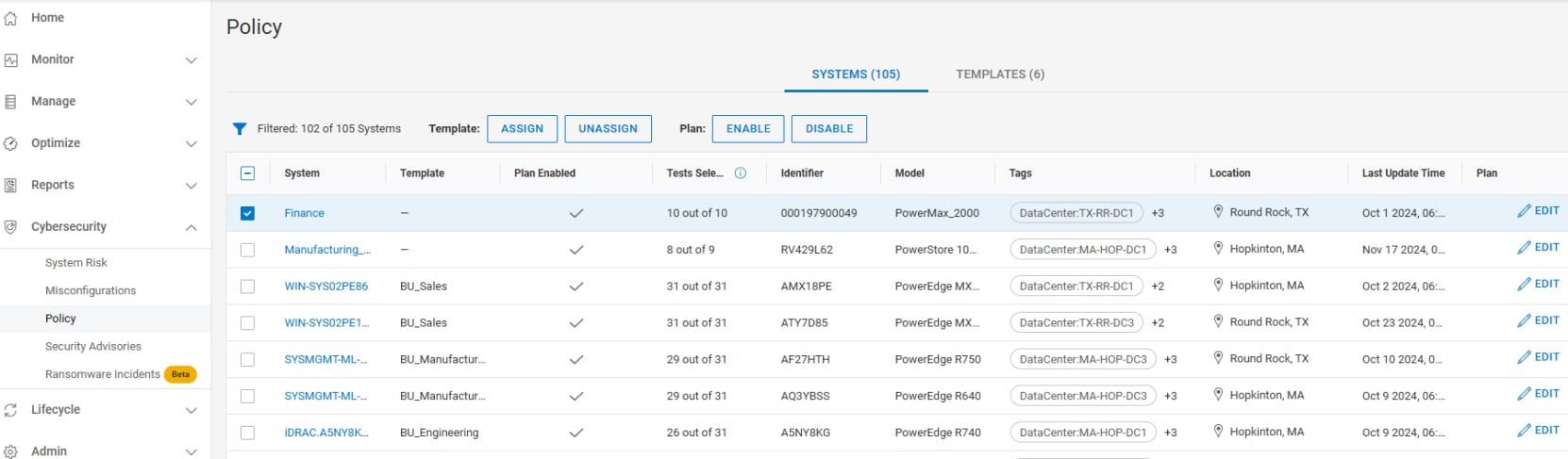
Figure 6. Policy page of Cybersecurity in Dell AIOps
Policies can be edited to add and remove tests from the evaluation plan to set a policy for each individual system. The possible evaluation tests are listed and grouped by Security Control Family (based on NIST 800-53 R5). Each test can be selected or cleared for inclusion in the Evaluation Plan. Selecting the Details icon provides a detailed description of the test.
The following figure shows the Evaluation Plan edit screen:
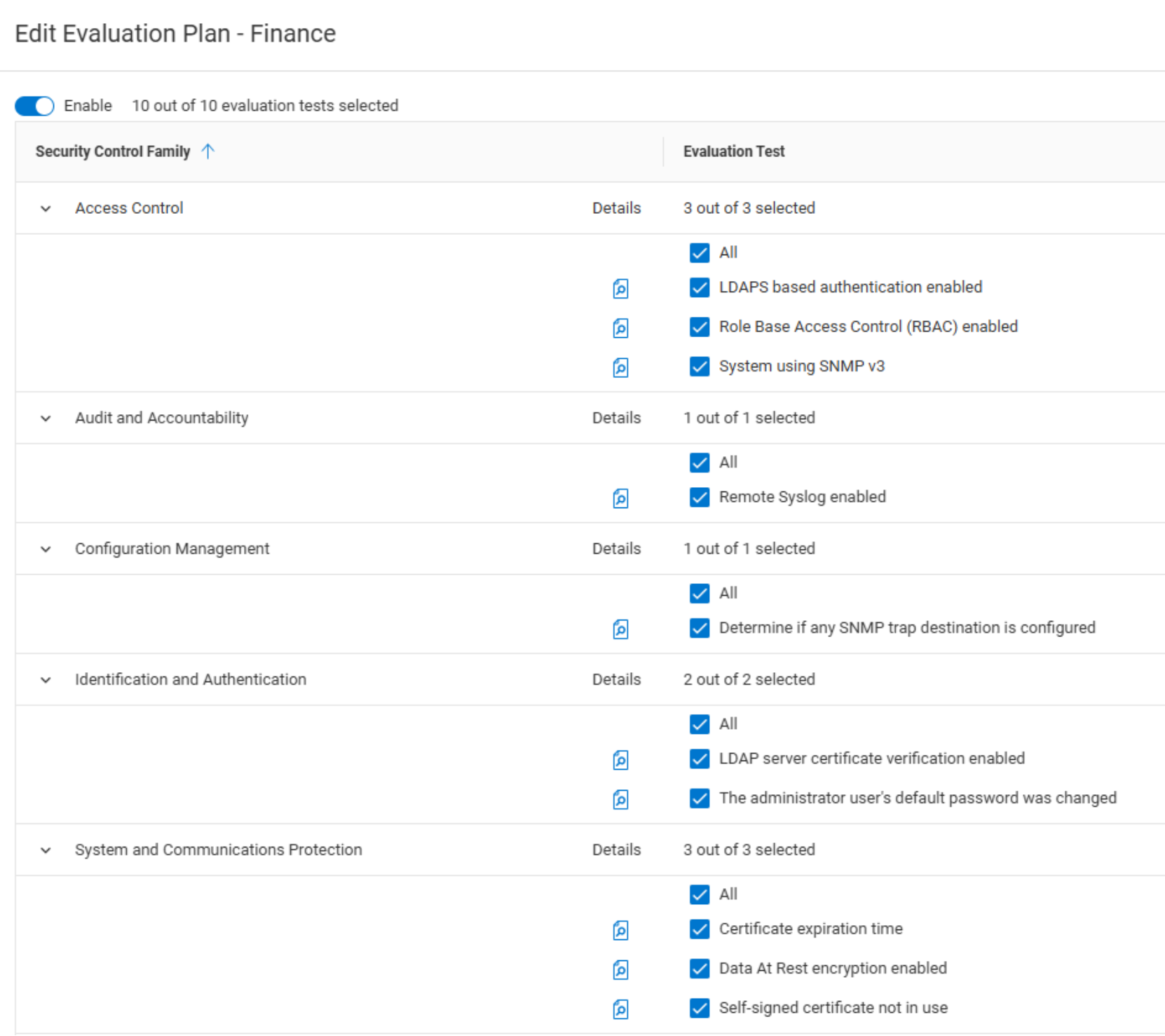
Figure 7. Evaluation Plan for Cybersecurity Policy
Security Advisories
Security Advisories provides a full list of applicable security advisories along with their impact, a synopsis, component, number of impacted systems, and publish date. Clicking the View Article hyperlink opens the article details on the Dell support page.
Clicking the Advisory ID hyperlink opens a window providing a list of all affected systems, affected component, and current version of that component. This window also shows additional information about the security advisory including the list of Common Vulnerabilities and Exposures (CVEs) addressed by the security advisory. There is also capability to export the security advisories to a CSV file.
The following figure shows the Security Advisories:
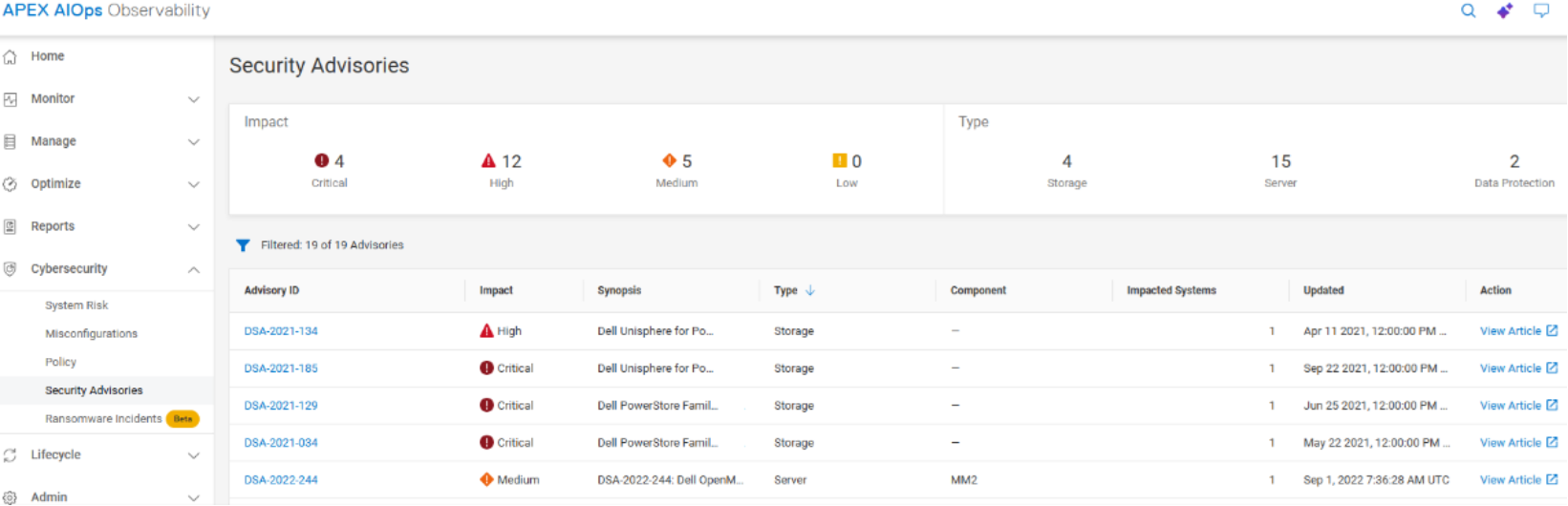
Figure 8. Security Advisories in Cybersecurity of Dell AIOps
Ransomware Incidents
Ransomware Incidents enables PowerMax users to identify cybersecurity ransomware incidents in near real time.
Ransomware attacks are typically encoded user data using asymmetrical encryption. Since encrypted data is nonreducible, PowerMax systems can use Dell AIOps to monitor and analyze data reduction data. When enabled on a storage group, ransomware incidents will enter a learning phase where it will analyze data patterns and establish an expected range of reducible/unreducible data. Once the 2-week learning phase is complete the storage group will switch to the detecting phase. When the Increases in the amount of unreducible data can represent suspicious activity or a potential ransomware threat. Proactive alerts can be set to notify users of the increased unreducible data that could represent data being encrypted, which would provide early detection that could minimize exposure.
The Ransomware Incidents page shows all identified incidents and puts them in one of three categories: New, Investigate, or Closed. When an incident is first identified, it appears in the New tab. Each incident has an incident ID, a confidence level, the system identifier, the location, the number of affected storage groups, and the created and updated times. There is also the ability to add notes to each incident. When the incident is ready to be analyzed, the user can select it and click Acknowledge & Investigate.
The following figure shows the Ransomware Incidents page:
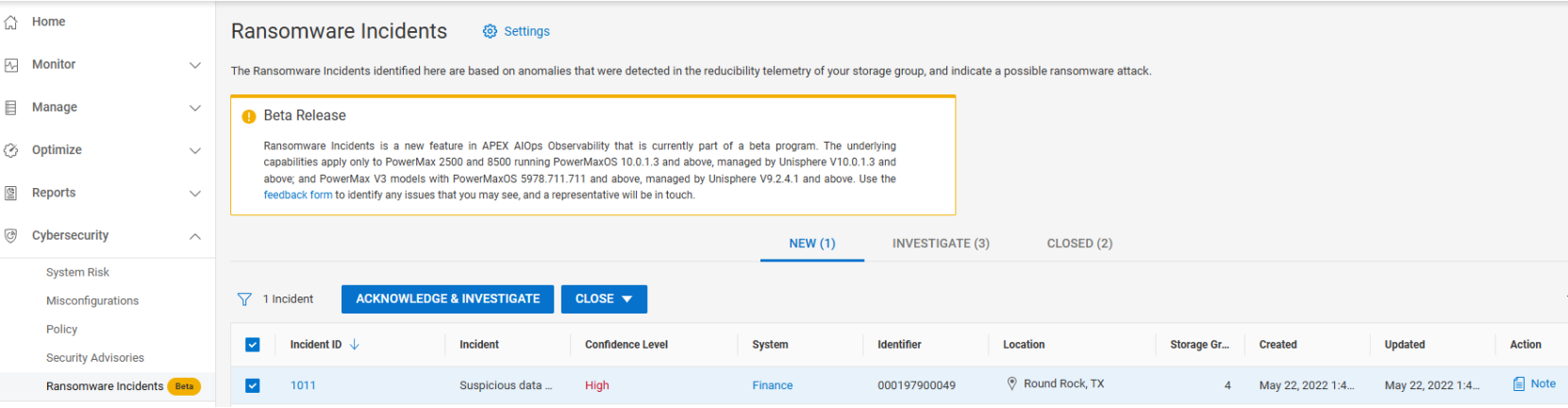
Figure 9. Ransomware Incidents main page
Note: At the time of this publication, the Ransomware Incidents feature is considered Beta. Support and feedback are accomplished through the feedback form link in the main page.
Once the incident is under investigation, any new anomalies will trigger a new incident. While in the investigate state, the user can look at the potentially affected hosts and applications to determine if the incident is a true ransomware attack.
To help investigate, users can click the incident ID link and see the details of which storage groups experienced anomalies and when the anomalies were created and last updated.
The following figure shows an incident under investigation:
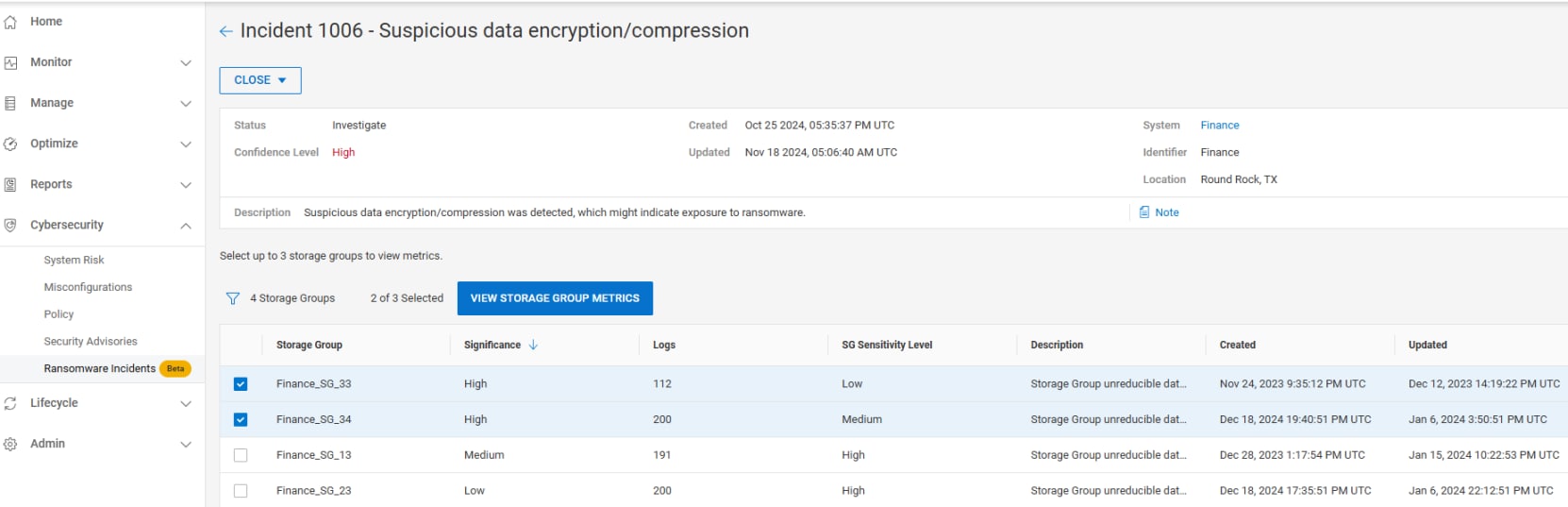
Figure 10. Incident under investigation
Within the investigation screen, the user can view the storage group metrics. The metrics contain charts of the reducible data, historic seasonality, and anomalies. Up to three storage groups can be viewed at once.
The following figure shows the storage group metrics:
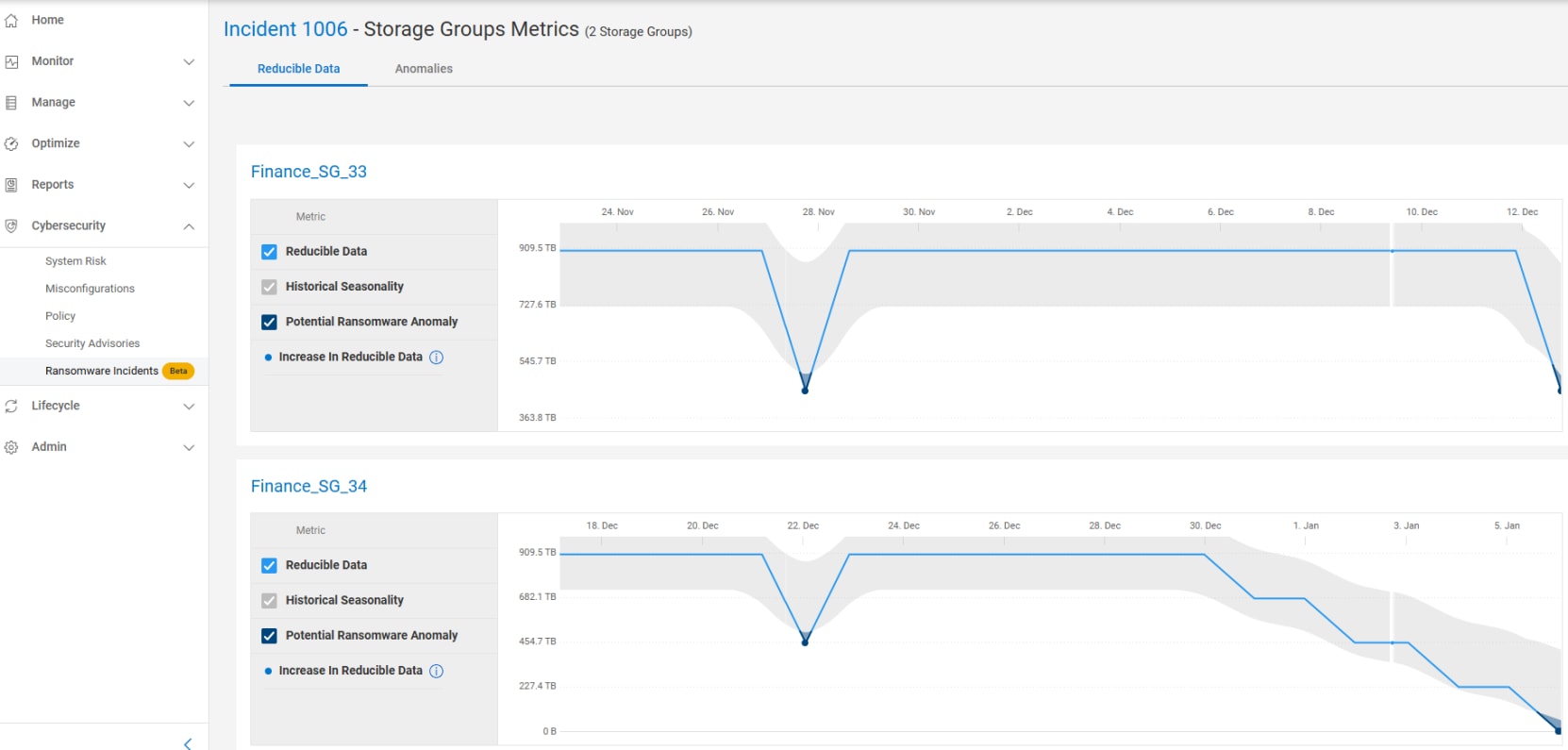
Figure 11. Storage group metrics
The Anomalies tab provides a list of each identified reducible data anomaly with timestamps.
The following figure shows the reducible data anomalies:
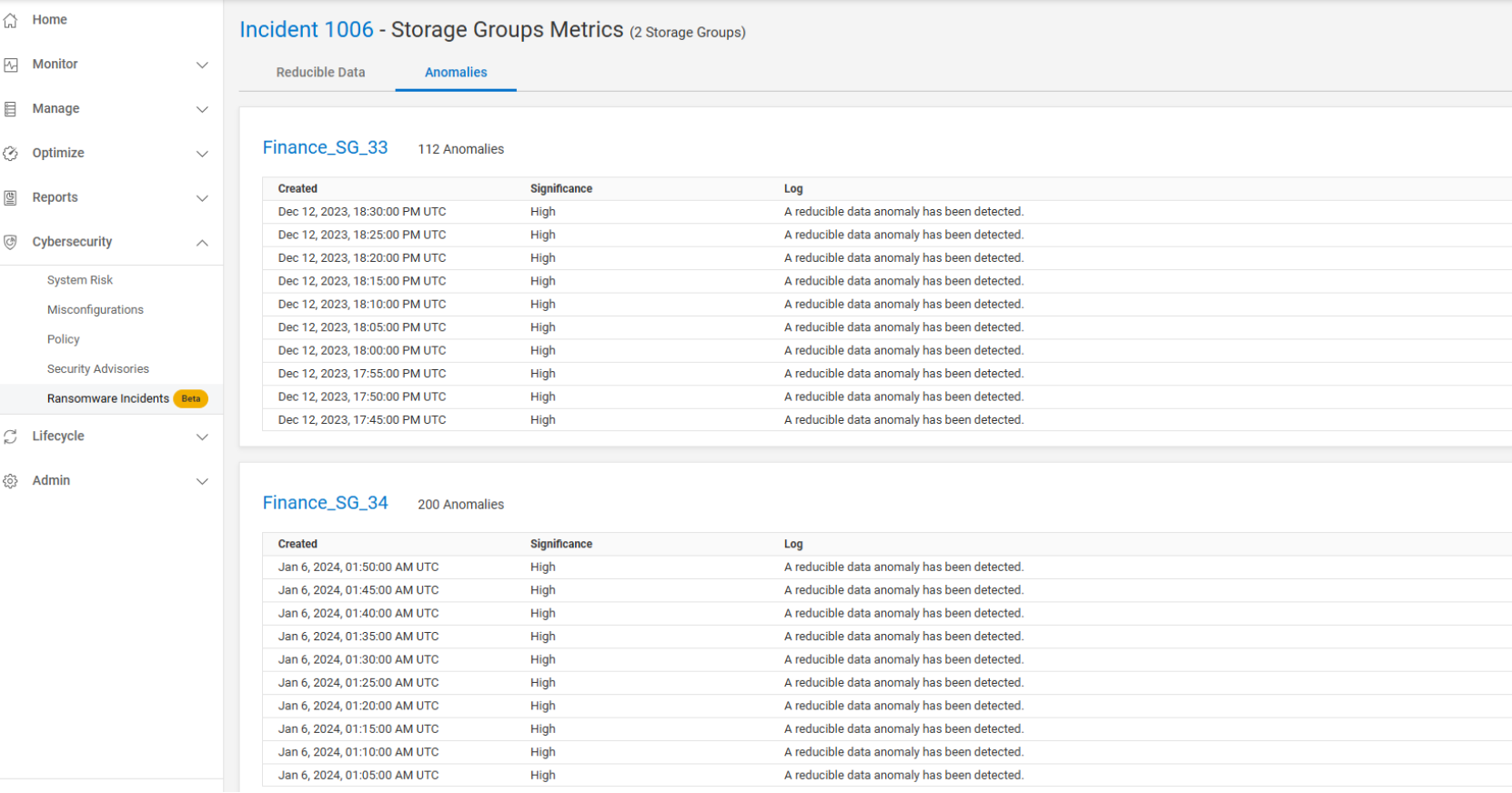
Figure 12. Anomalies tab within a ransomware incident
Once the investigation is complete, the user determines if the incident was a valid ransomware attack that was resolved or a false incident. Selecting an incident and then clicking Close gives the user the option to close it with either of the two options.
The following figure shows closing an incident:
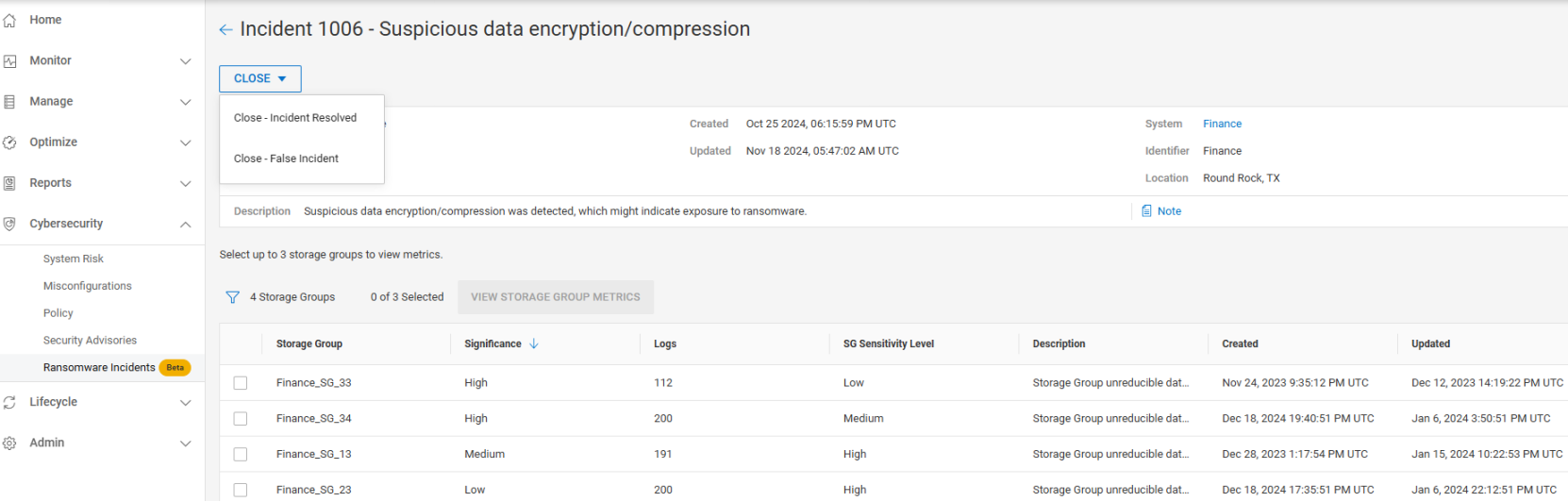
Figure 13. Closing a ransomware incident.
See Appendix B: Ransomware Incident Management Troubleshooting Guide for more information or in event there may be suspicion of a ransomware event.
Snapshot policies
Overview
Snapshot policies provide automated scheduling of SnapVX snapshots on PowerMax arrays. Policies are customizable with rules that specify when to take snapshots, how many to take, and how long to keep them. Compliance requirements can also be specified to send alerts if the rules of a policy are not being met. Snapshot policies create and retain snapshots according to the rules of each policy. Snapshot policies support up to 1,024 snapshots per source device and 65 million snapshots per PowerMax array.
Snapshot policies are applied to storage groups (SGs) to protect applications with consistent regularly scheduled snapshots. Applications can be protected by multiple policies with differing schedules and retention parameters, according to requirements. A single policy can protect multiple applications. Manual snapshots are supported along with snapshot policies to satisfy any on-demand requirements.
Parameters defined within each policy are as follows:
- Policy Name—One to 32 characters containing letters, numbers, dashes, and underscores
- Policy Type—Local or cloud
- Snapshot Type—Traditional or secure
- Recovery Point Objective—Interval or offset
- Snapshots to Keep—Timeframe or snapshot count
- Compliance Alerting—Based on snapshot count and scheduled interval
Note: All parameters are defined during creation and can be changed on active policies except for Policy Type and Secure Snaps options.
The following figure shows an example of creating a snapshot policy.
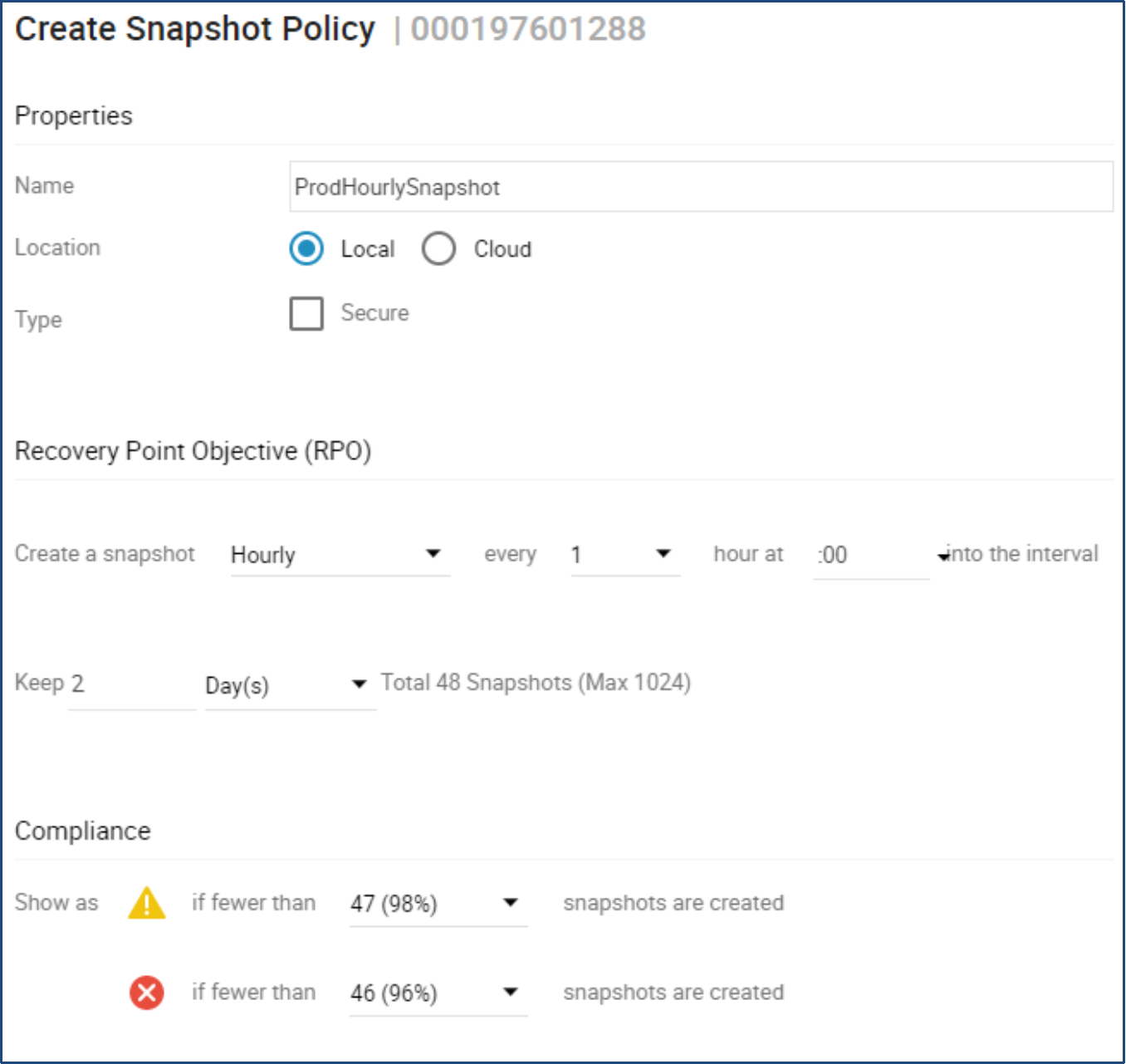
Figure 2. Snapshot policy
See Appendix A: Mitigating ransomware attacks using Snapshot Policies for more information on how to leverage secure snaps with snapshot policies for ransomware protection.
IO based anomaly detection
PowerMax 2500 and 8500
PowerMax 2500 and 8500 arrays use device level monitoring to detect unusual IO patterns. These pattern deviations could be an indication of a ransomware attack.
The following IO patterns are being monitored:
- Track Flip (FLIP) - An existing track that is reducible is re-written as unreducible.
- Write after read (WAR) - Write to cache where the data was already in cache and been brought there by a read.
AI anomaly detection learns a normal FLIP and WAR rate for each device. If there is a significant deviation outside the normal, an event will be posted in the symevent log. These events in the symevent log are searchable using the symevent Solutions Enabler command.
The following figure shows an example of the output of the symevent command.
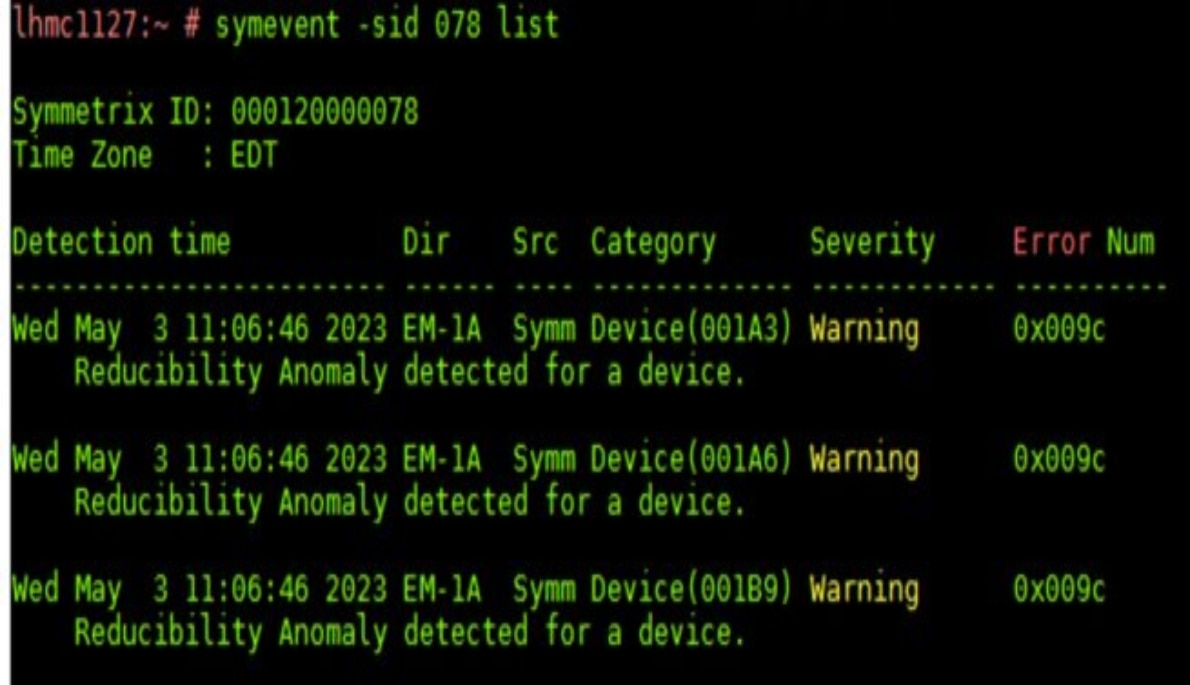
Figure 14. Symevent log output
IO based anomaly detection
PowerMax 2500 and 8500
PowerMax 2500 and 8500 arrays use device level monitoring to detect unusual IO patterns. These pattern deviations could be an indication of a ransomware attack.
The following IO patterns are being monitored:
- Track Flip (FLIP) - An existing track that is reducible is re-written as unreducible.
- Write after read (WAR) - Write to cache where the data was already in cache and been brought there by a read.
AI anomaly detection learns a normal FLIP and WAR rate for each device. If there is a significant deviation outside the normal, an event will be posted in the symevent log. These events in the symevent log are searchable using the symevent Solutions Enabler command.
The following figure shows an example of the output of the symevent command.
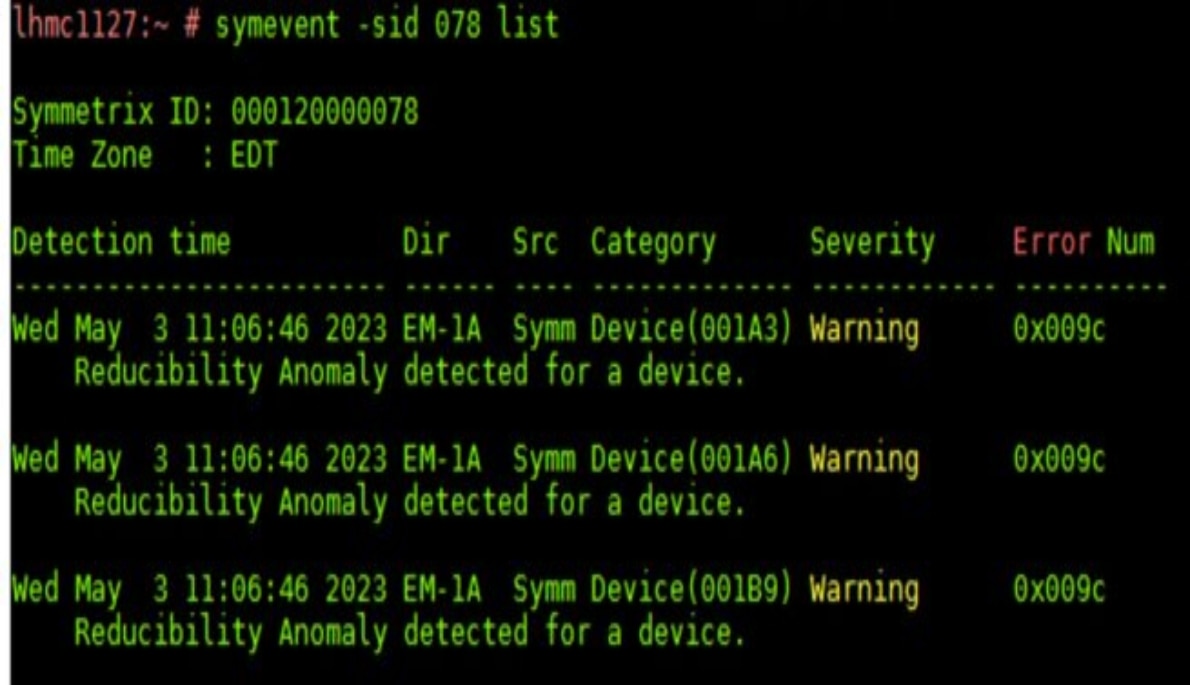
Figure 14. Symevent log output
Multi-factor authentication
Multi-factor authentication for SecurID
Dell Unisphere for PowerMax uses authentication authority for multi-factor authentication (MFA) with Dell SecurID. SecurID provides time-sensitive tokens that are combined with a user password to verify identity during the authentication process.
Unisphere for PowerMax authenticates SecurID Authentication Manager with the SecurID token. If SecurID Authentication Manager validates the token, Unisphere for PowerMax then authenticates against Local Directory, Windows Active Directory, or LDAP for two-factor authentication.
MFA with SecurID is supported on all PowerMax arrays using external management with the following versions:
- SecurID Authentication Manager 8.5.0 OVA
- Unisphere 10
- Solutions Enabler 10
The following figure shows the settings for enabling MFA with SecurID:
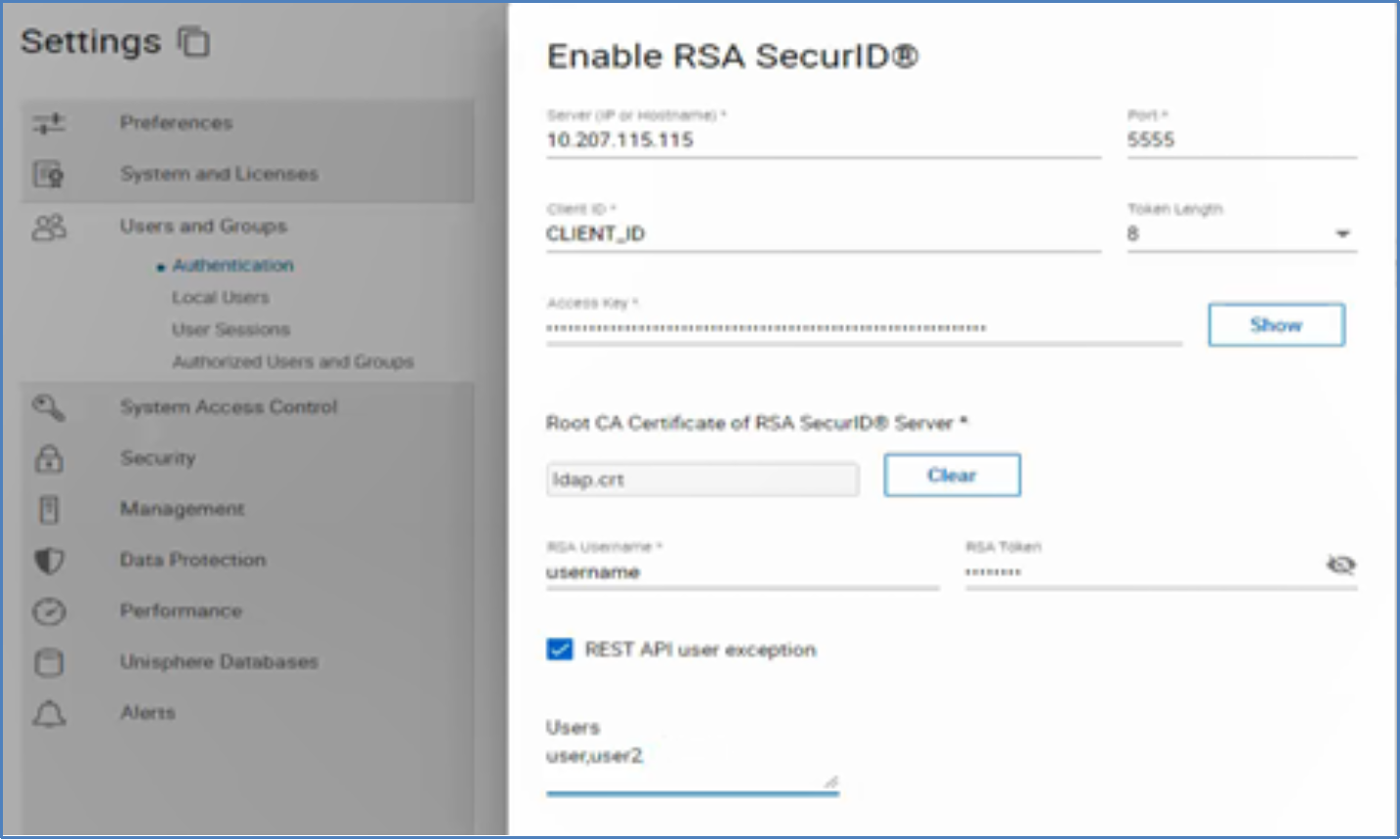
Figure 15. Enabling MFA with SecurID
YubiKey multi-factor authentication
YubiKey is a physical hardware device that is used for authentication and one-time passwords for MFA on configured devices. It provides a unique cryptographic key that is combined with a user password to verify identity during the authorization process.
YubiKey can be integrated with Unisphere for PowerMax for enhanced security through MFA. Once a Unisphere user account is registered with a YubiKey, the user password and YubiKey key are used for authorization. Unisphere verifies the cryptographic key from YubiKey and authenticates against Local Directory, Windows Active Directory, or LDAP for two-factor authentication.
YubiKey MFA is supported on the following storage arrays:
- PowerMax 2500/8500 with embedded and external Unisphere 10.2
- PowerMax 2000/8000 with 10.2 based external Unisphere
The following figure shows configuring YubiKey in Unisphere:
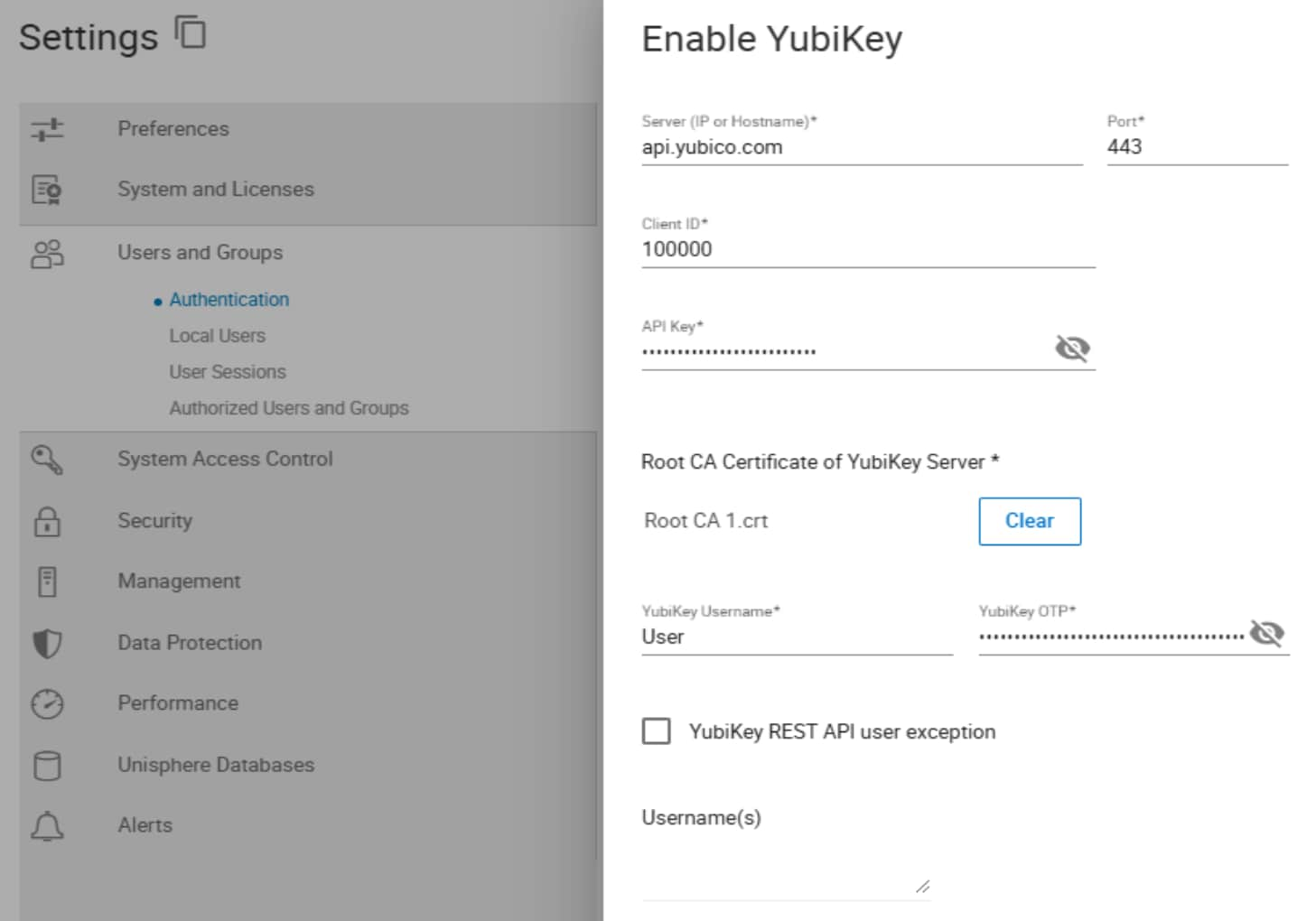
Figure 16. Registering YubiKey with Unisphere
Note: YubiKey and RSA MFA are mutually exclusive and cannot be used together.
Multi-factor authentication
Multi-factor authentication for SecurID
Dell Unisphere for PowerMax uses authentication authority for multi-factor authentication (MFA) with Dell SecurID. SecurID provides time-sensitive tokens that are combined with a user password to verify identity during the authentication process.
Unisphere for PowerMax authenticates SecurID Authentication Manager with the SecurID token. If SecurID Authentication Manager validates the token, Unisphere for PowerMax then authenticates against Local Directory, Windows Active Directory, or LDAP for two-factor authentication.
MFA with SecurID is supported on all PowerMax arrays using external management with the following versions:
- SecurID Authentication Manager 8.5.0 OVA
- Unisphere 10
- Solutions Enabler 10
The following figure shows the settings for enabling MFA with SecurID:
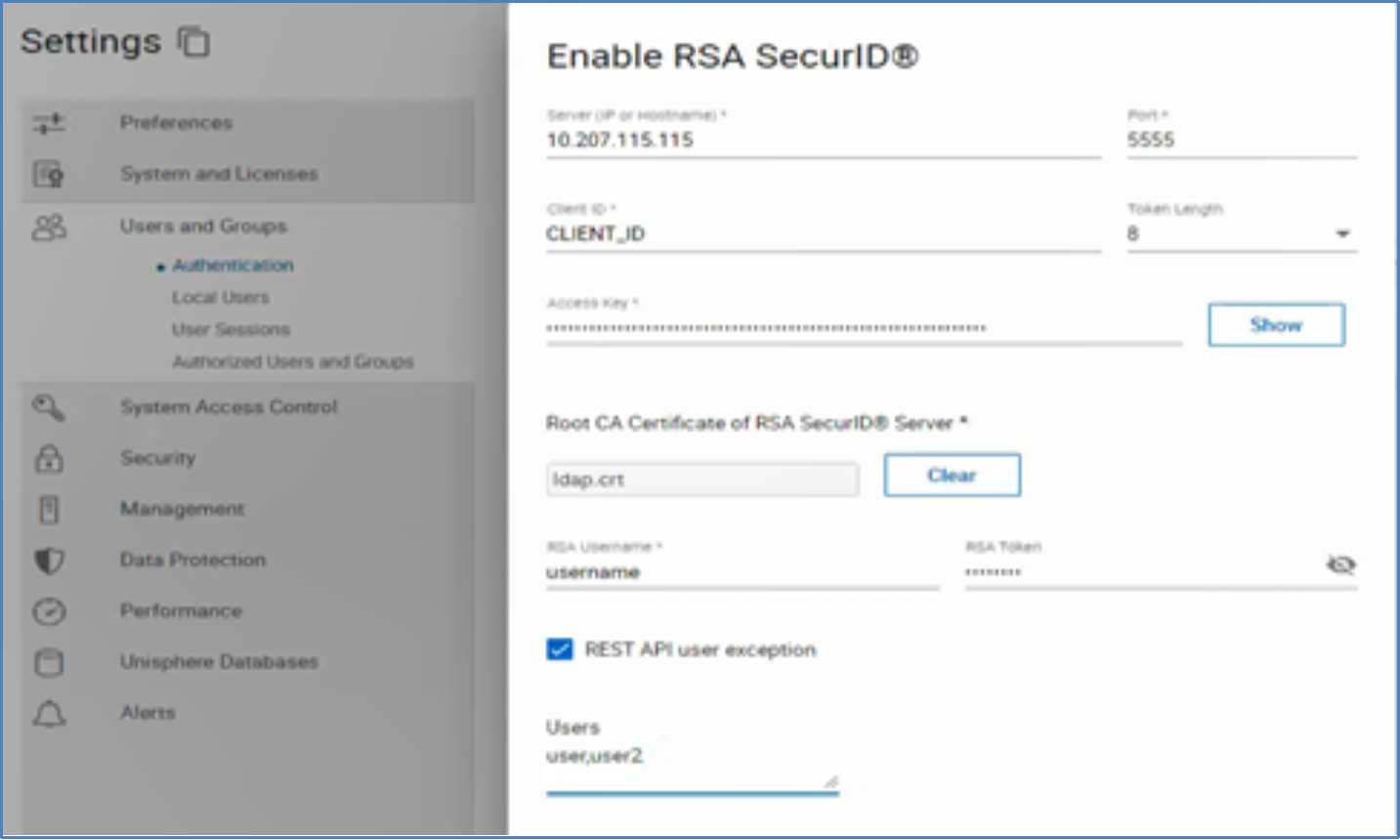
Figure 15. Enabling MFA with SecurID
YubiKey multi-factor authentication
YubiKey is a physical hardware device that is used for authentication and one-time passwords for MFA on configured devices. It provides a unique cryptographic key that is combined with a user password to verify identity during the authorization process.
YubiKey can be integrated with Unisphere for PowerMax for enhanced security through MFA. Once a Unisphere user account is registered with a YubiKey, the user password and YubiKey key are used for authorization. Unisphere verifies the cryptographic key from YubiKey and authenticates against Local Directory, Windows Active Directory, or LDAP for two-factor authentication.
YubiKey MFA is supported on the following storage arrays:
- PowerMax 2500/8500 with embedded and external Unisphere 10.2
- PowerMax 2000/8000 with 10.2 based external Unisphere
The following figure shows configuring YubiKey in Unisphere:
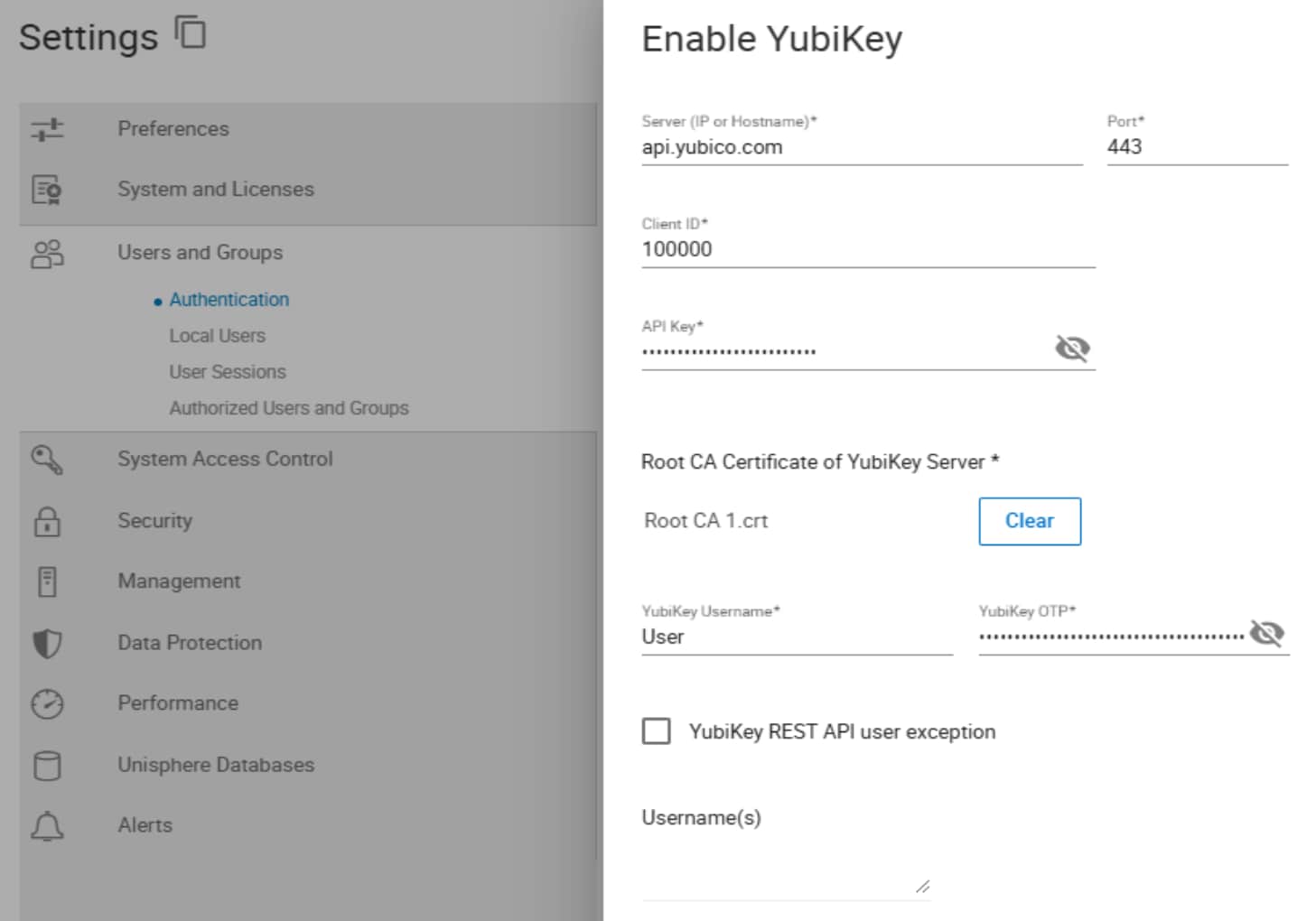
Figure 16. Registering YubiKey with Unisphere
Note: YubiKey and RSA MFA are mutually exclusive and cannot be used together.
Single Sign-on
Single Sign-on
PowerMax Single sign-on (SSO) authentication enables logging in to multiple devices or sites with one set of credentials. With Unisphere for PowerMaxOS 10.3, Microsoft Entra ID SSO is supported, with OpenID Connect (OIDC) authorization code flow.
Enabling EntraID SSO also activates OIDC access token authentication for REST API. After the access token is validated, Unisphere performs a cryptographic verification to ensure that the token is bound to the intended service. To support this verification, the token must include a specific claim, called the Access Token Authentication Claim, with a predefined expected value that is configured during setup. The EntraID Administrator must provide this claim information to the Unisphere security administrator.
When SSO is successfully enabled, the Unisphere login page allows credential-free login by enabling the OK button, even if the username and password are not provided. After clicking OK, the user is redirected to the IdP for authentication and is then redirected back to Unisphere only on successful authentication, that is based on the IdP authentication methods that are enabled for this OIDC client ID.
Note: SSO should not be enabled if native RSA SecurID or Yubikey are also enabled. The Entra ID Identity Provider (IdP) administrator can still enable any MFA authentication methods.
The following figure shows enabling SSO.
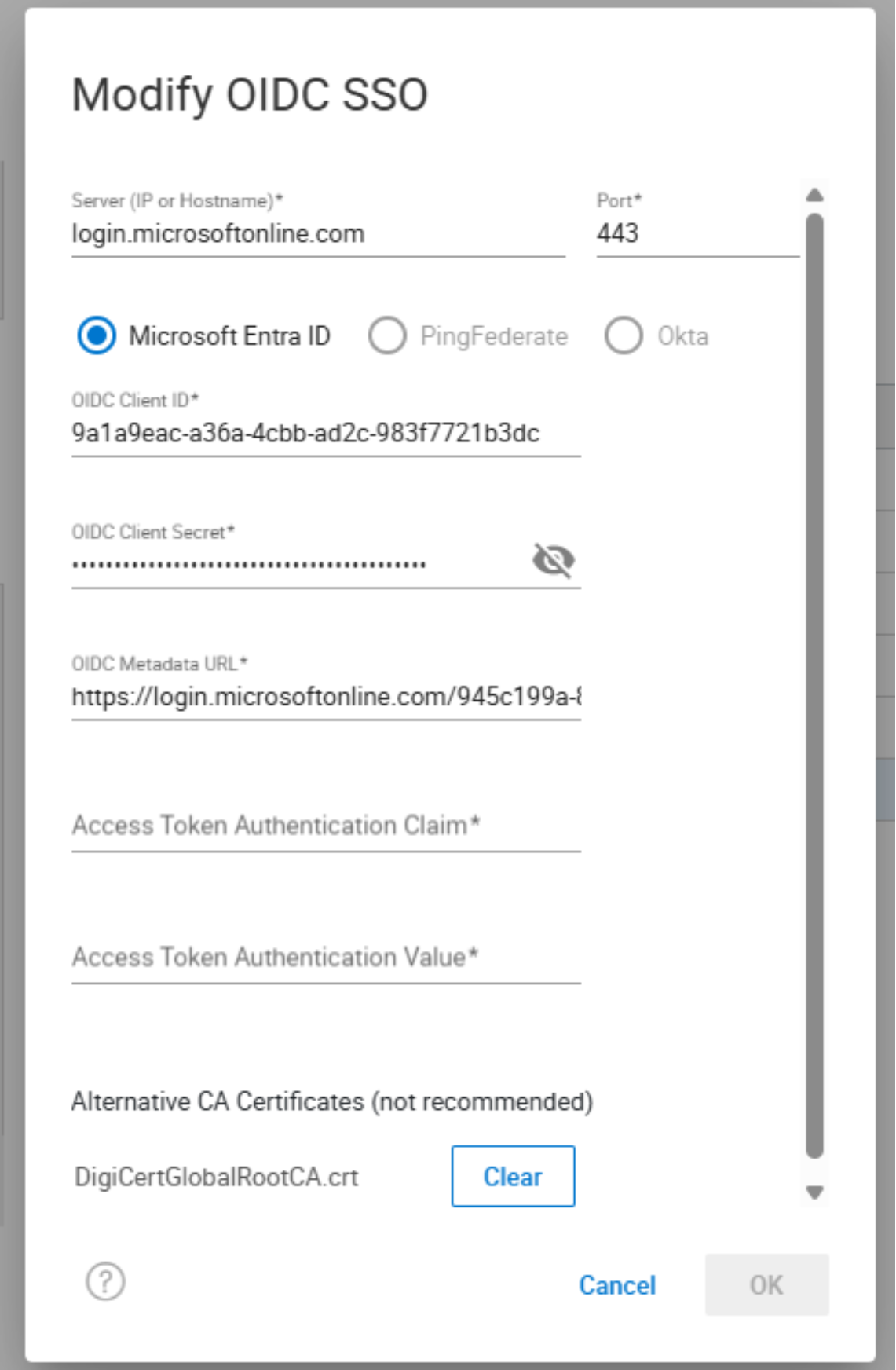
Figure 17. Enabling SSO
Single Sign-on
Single Sign-on
PowerMax Single sign-on (SSO) authentication enables logging in to multiple devices or sites with one set of credentials. With Unisphere for PowerMaxOS 10.3, Microsoft Entra ID SSO is supported, with OpenID Connect (OIDC) authorization code flow.
Enabling EntraID SSO also activates OIDC access token authentication for REST API. After the access token is validated, Unisphere performs a cryptographic verification to ensure that the token is bound to the intended service. To support this verification, the token must include a specific claim, called the Access Token Authentication Claim, with a predefined expected value that is configured during setup. The EntraID Administrator must provide this claim information to the Unisphere security administrator.
When SSO is successfully enabled, the Unisphere login page allows credential-free login by enabling the OK button, even if the username and password are not provided. After clicking OK, the user is redirected to the IdP for authentication and is then redirected back to Unisphere only on successful authentication, that is based on the IdP authentication methods that are enabled for this OIDC client ID.
Note: SSO should not be enabled if native RSA SecurID or Yubikey are also enabled. The Entra ID Identity Provider (IdP) administrator can still enable any MFA authentication methods.
The following figure shows enabling SSO.
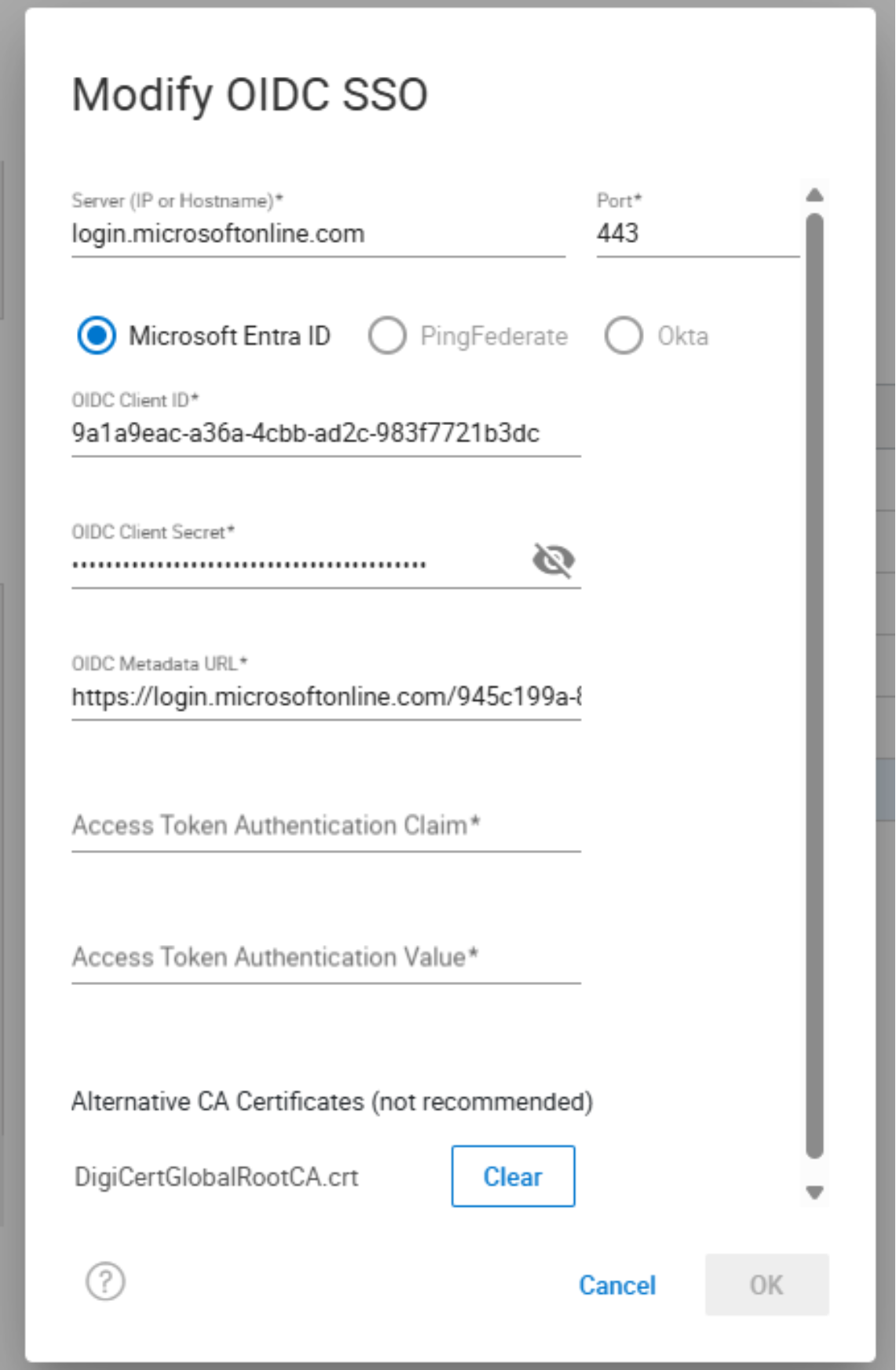
Figure 17. Enabling SSO
Ignition key
Ignition key
Ignition key
Ignition key
PowerMax cyber vault
PowerMax cyber vault
PowerMax cyber vault offers a simplified orchestrated cyber recovery solution that is built using SRDF and snapshot technologies.
The basic cyber vault operating model connects production and secondary PowerMax arrays. The secondary array, which is an isolated PowerMax storage array, is known as the vault. The connection between the arrays is closed, creating an operational air gap and removing access to the vault array devices.
PowerMax cyber vault provides a secure copy of production data in the vault based on a policy. The air gap is opened periodically to push production snapshots to the vault using SRDF's adaptive copy mode. An immutable secure copy with a retention lock is created. The air gap is closed when the secure snapshot copy is taken on the vault. The snapshot pushes from the production system to the vault are incremental.
If a cyberattack occurs at the production site, secure copies at the vault site are used to recover the data or can be used directly from the vault. The vault maintains multiple copies of the production data based on the policy.
The cyber vault solution features include:
- Automated operations leveraging an automation and orchestration engine:
- Turn on ports to connect arrays
- Close air gap and allow array transmission
- Take snapshot on Production array and link source volume
- Start replication
- Suspend replication when complete
- Take snapshot of copied data on vault array
- Shut down ports
- Open air gap and close transmission
- Secure snaps in vault
- Support for up to 16 storage groups
The cyber vault suite is installed and configured on an external vault host, which can be a server or virtual machine (VM). It has access to Dell Unisphere on the vault site and the production site. The cyber vault suite uses a REST API to communicate with Unisphere for all automation by using a policy managed by the cyber vault configuration file.
PowerMax cyber vault is supported on:
- PowerMax 2000/8000
- PowerMax 2500/8500
- Unisphere 9.2 or later
Note: PowerMax cyber vault is a professional services offering. Please contact Dell Professional Services for implementation.
Note: The cyber vault solution is for FBA devices only.
The following figure shows the PowerMax cyber vault solution architecture.
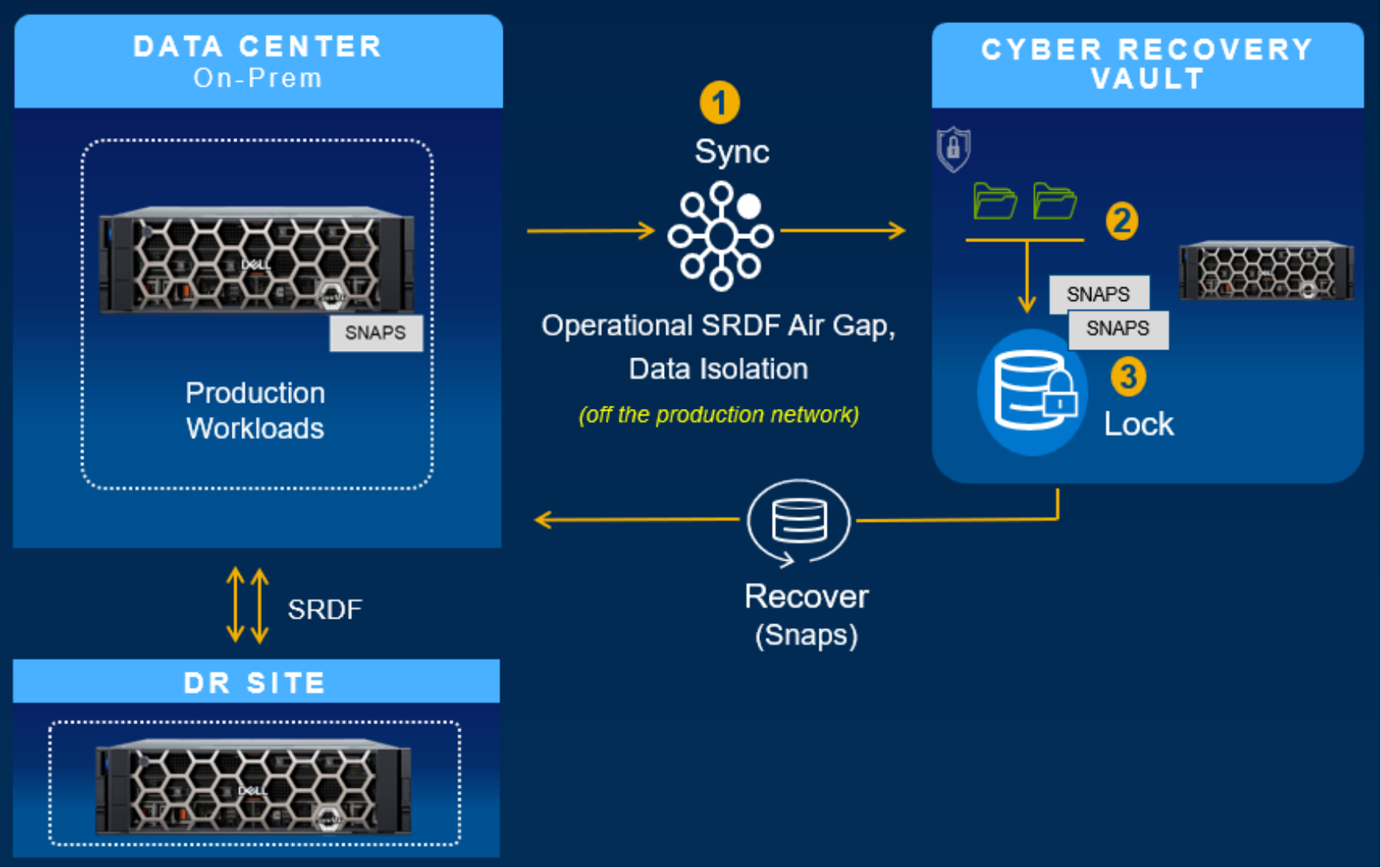
Figure 18. PowerMax cyber vault architecture
Transport layer security
Transport layer security
PowerMax 2500 and 8500
PowerMax 2000 and 8000
Transport layer security
Transport layer security
PowerMax 2500 and 8500
PowerMax 2000 and 8000
Data at Rest Encryption
PowerMax 2000, PowerMax 8000, and VMAX
Dell Data at Rest Encryption (D@RE) provides hardware-based, on-array, back-end encryption for PowerMax arrays. D@RE provides back-end encryption using IO modules that incorporate 256 AES-XTS data encryption and is FIPS 140-2 validated. The IO modules encrypt data as it is being written to the drives and decrypt the data as it is being read. All configured drives in the array are encrypted, including data and spare drives, using a unique Data Encryption Key (DEK).
D@RE can be deployed with either an embedded, set-it-and-forget-it key manager or with external key management.
With embedded key management, D@RE is integrated with Dell Key Trust Platform (KTP). Dell KTP establishes a pervasive and secure infrastructure for all key generation, distribution, and management capabilities required for D@RE.
The following figure shows the embedded key management architecture:
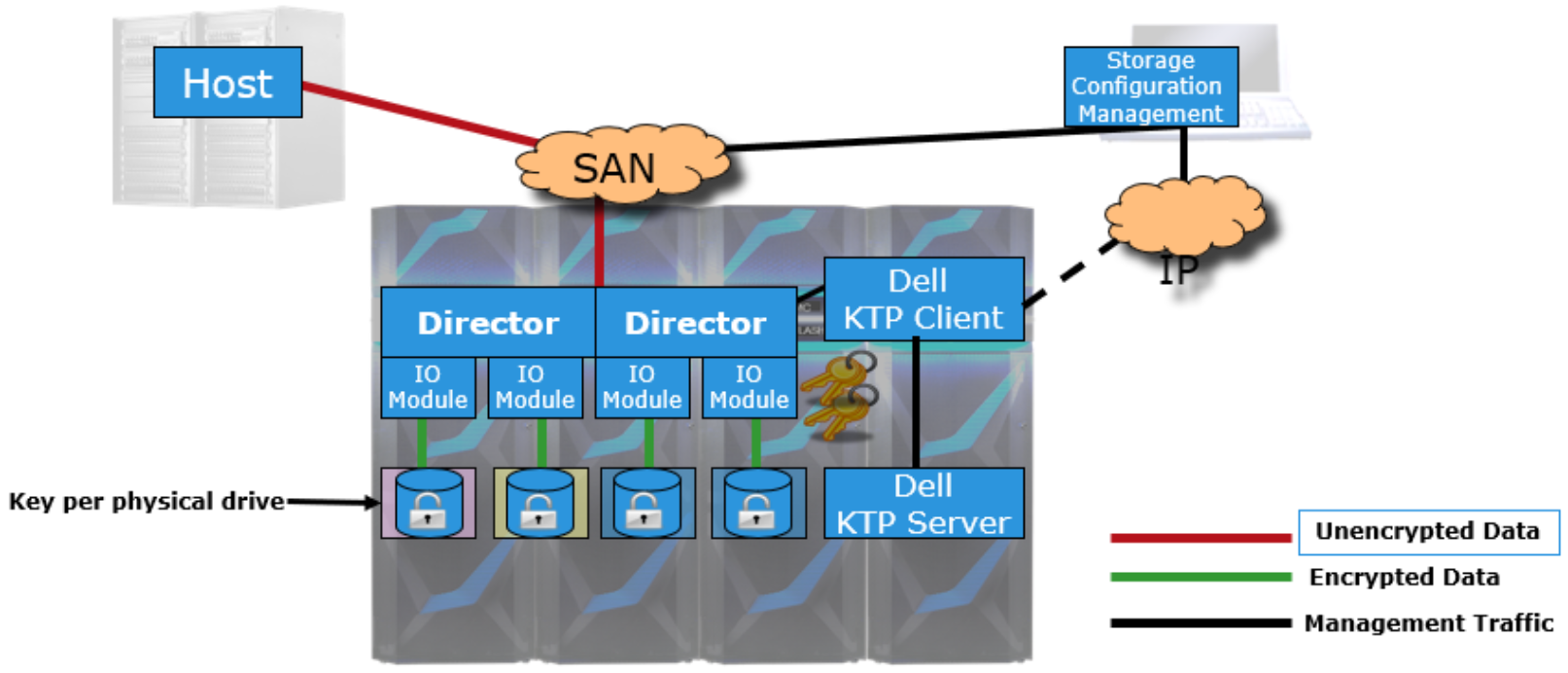
Figure 19. Embedded key manager
External key management uses OASIS Key Management Interoperability Protocol (KMIP). KMIP allows for separation of key management from PowerMax arrays. An external key manager provides external centralized and consolidated key storage and management and allows integration between PowerMax arrays and the existing key management infrastructure.
The following figure shows the external key management architecture:
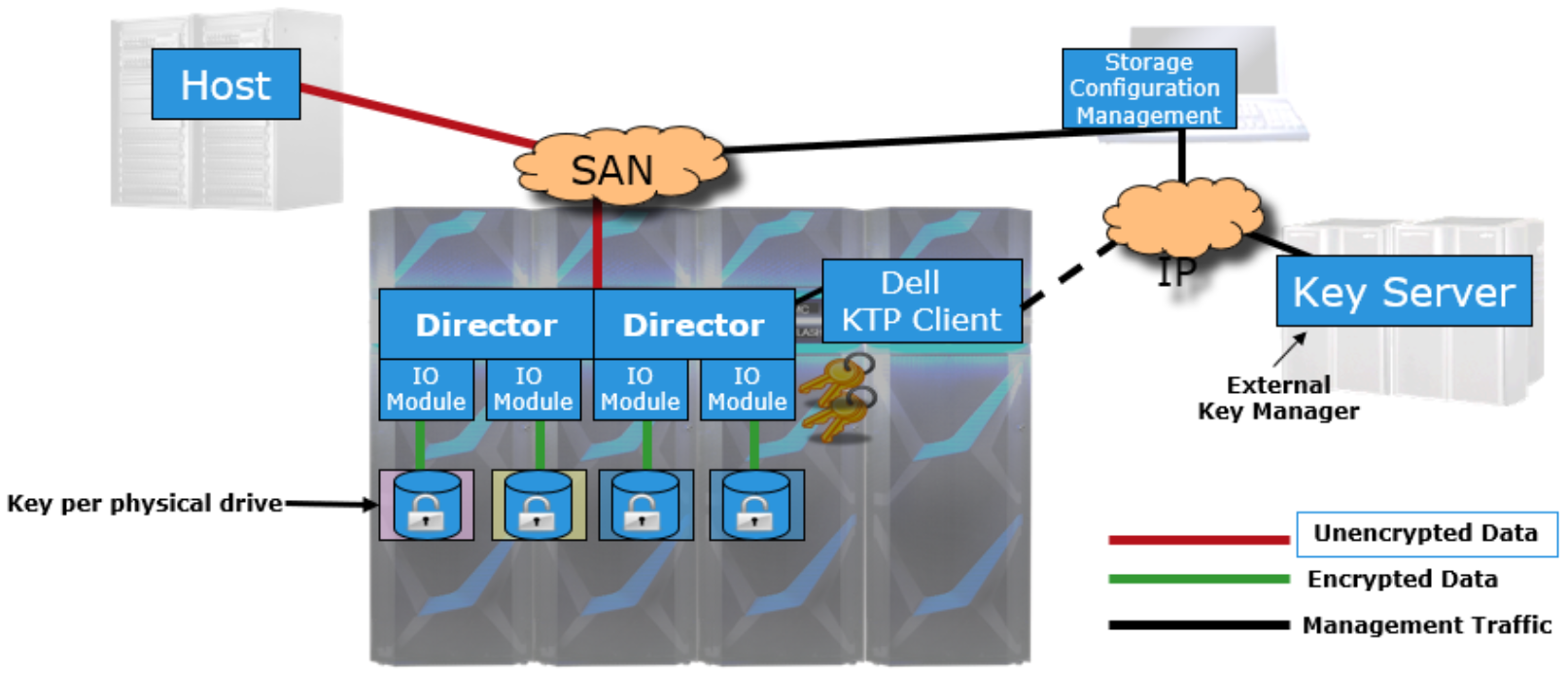
Figure 20. External key manager
PowerMax 2500 and 8500
D@RE for PowerMax 2500 and 8500 provides full on-array, back-end encryption using Dell qualified, industry-standard self-encrypting drives (SEDs). SEDs are FIPS 140-2 and FIPS 140-3 validated as well as NVMe/TCG standard compliant. SEDs contain their own data encryption keys (DEKs) that are managed internally within the drives. Because the keys on the SED are self-managed, D@RE key management infrastructure generates and manages authentication keys (AKs), which are used to unlock the drives for reads and writes.
D@RE incorporates Dell Key Trust Platform (KTP) for integrated, set-and-forget embedded key management. Dell KTP establishes a pervasive and secure infrastructure for all key generation, distribution, and management capabilities required for D@RE.
The following figure shows PowerMax 2500/8500 embedded key manager architecture:
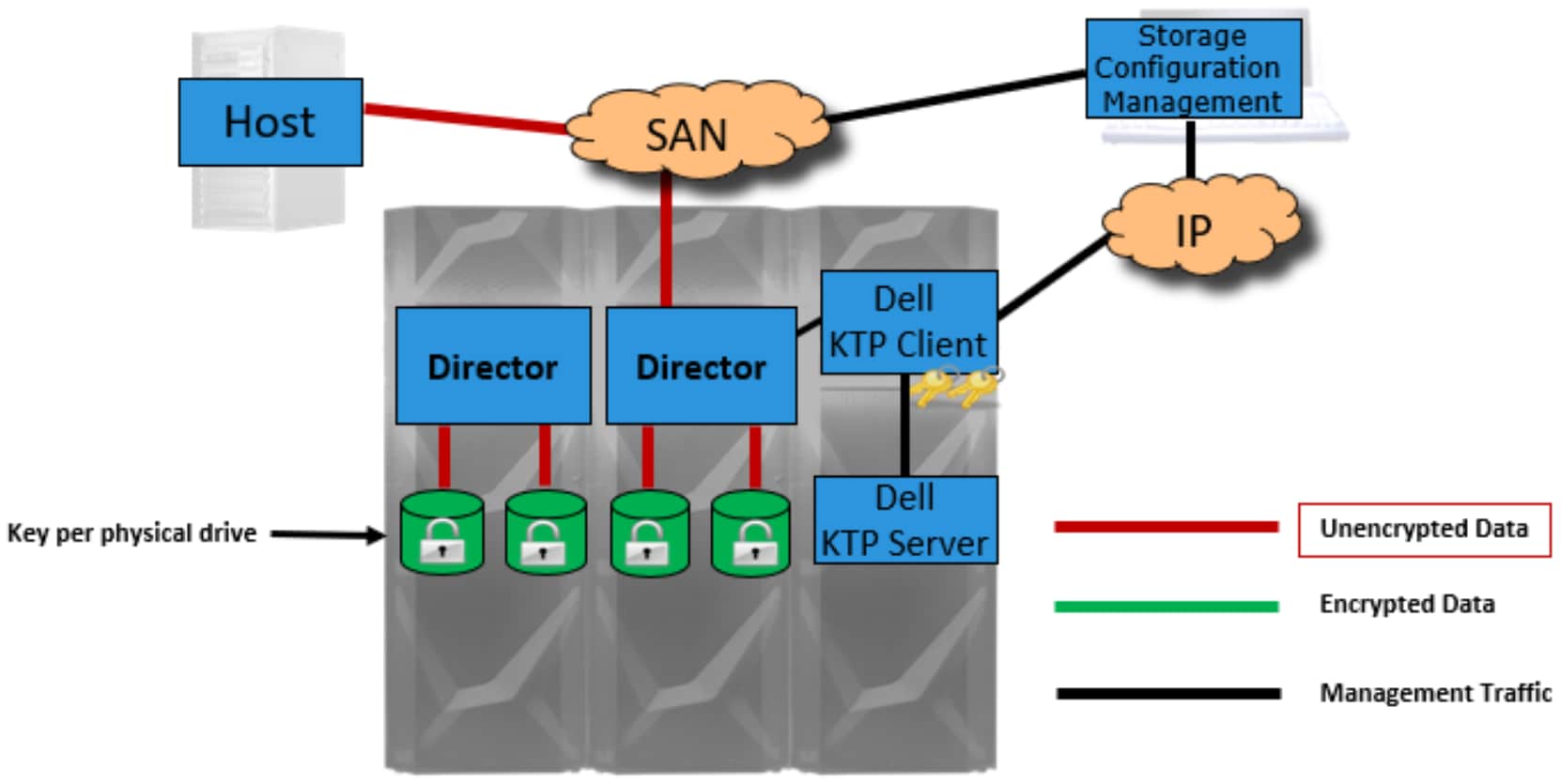
Figure 21. Embedded D@RE architecture
D@RE can also be deployed with an external key manager using OASIS Key Management Interoperability Protocol (KMIP). This provides external centralized key storage and management that simplifies key generation and recovery management for PowerMax and other KMIP-compatible encryption solutions.
The following figure shows PowerMax 2500/8500 external key manager architecture:
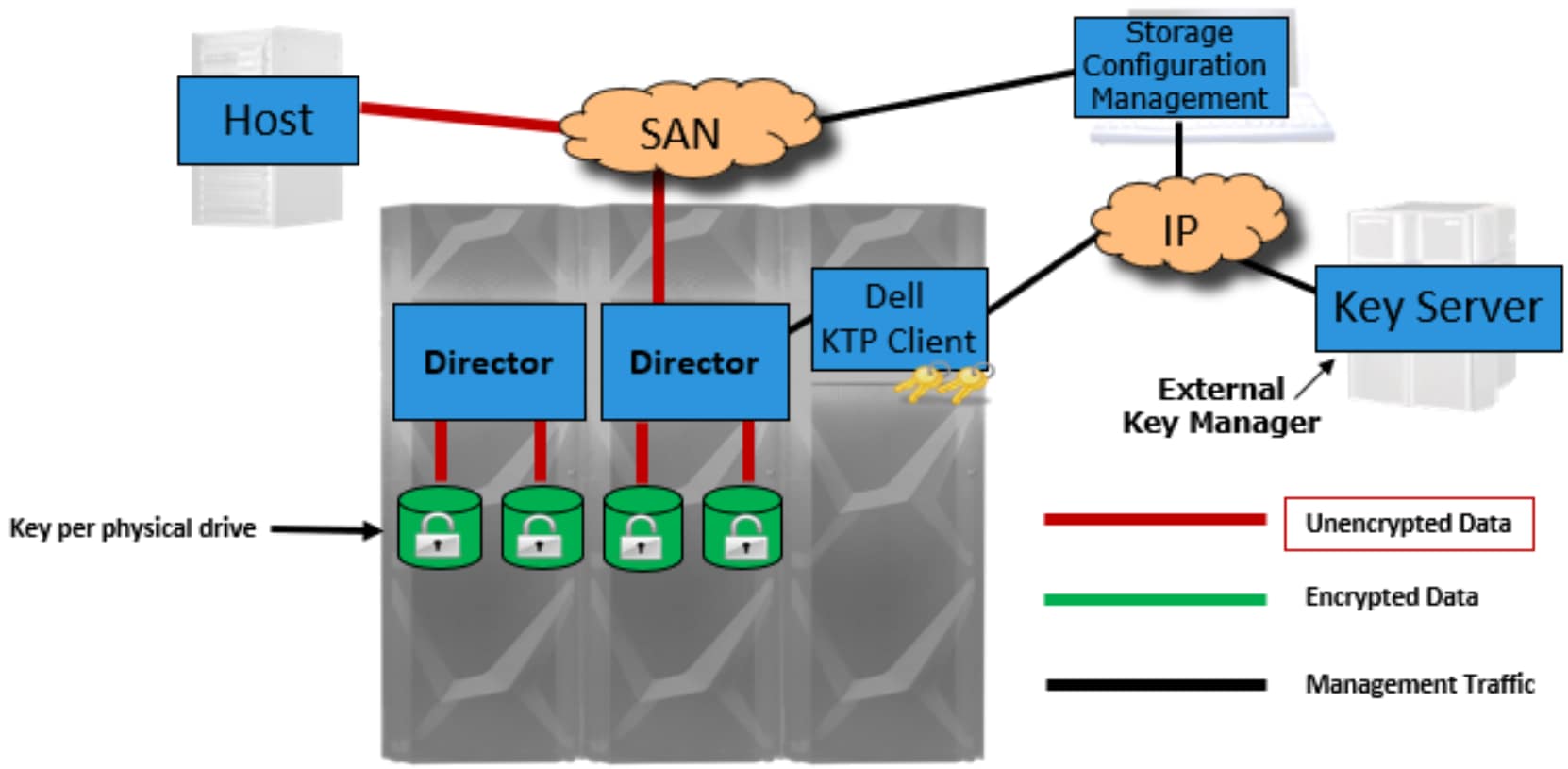
Figure 22. External key manager architecture
Secure SMTP Authentication
Secure SMTP Authentication
Unisphere for PowerMax provides the capability for email alert notifications. With PowerMaxOS 10.3 release, these alerts can be set secure with Simple Mail Transfer Protocol Secure (SMTPS). SMTPS provides an additional layer of security by encrypting email messages, using TSLv1.2 (or later), and authenticating the identity of the mail server and email client.
Secure SMTP Authentication supports:
- Authenticated and non-authenticated mode
- SMTPS with username/password for client authentication to email server
- Multiple target email addresses
- Maximum of 20 destination email addresses
- Setting severities of Critical, Error, Warning, Notice, and Info
The following figure shows enabling secure alerts in Unisphere.
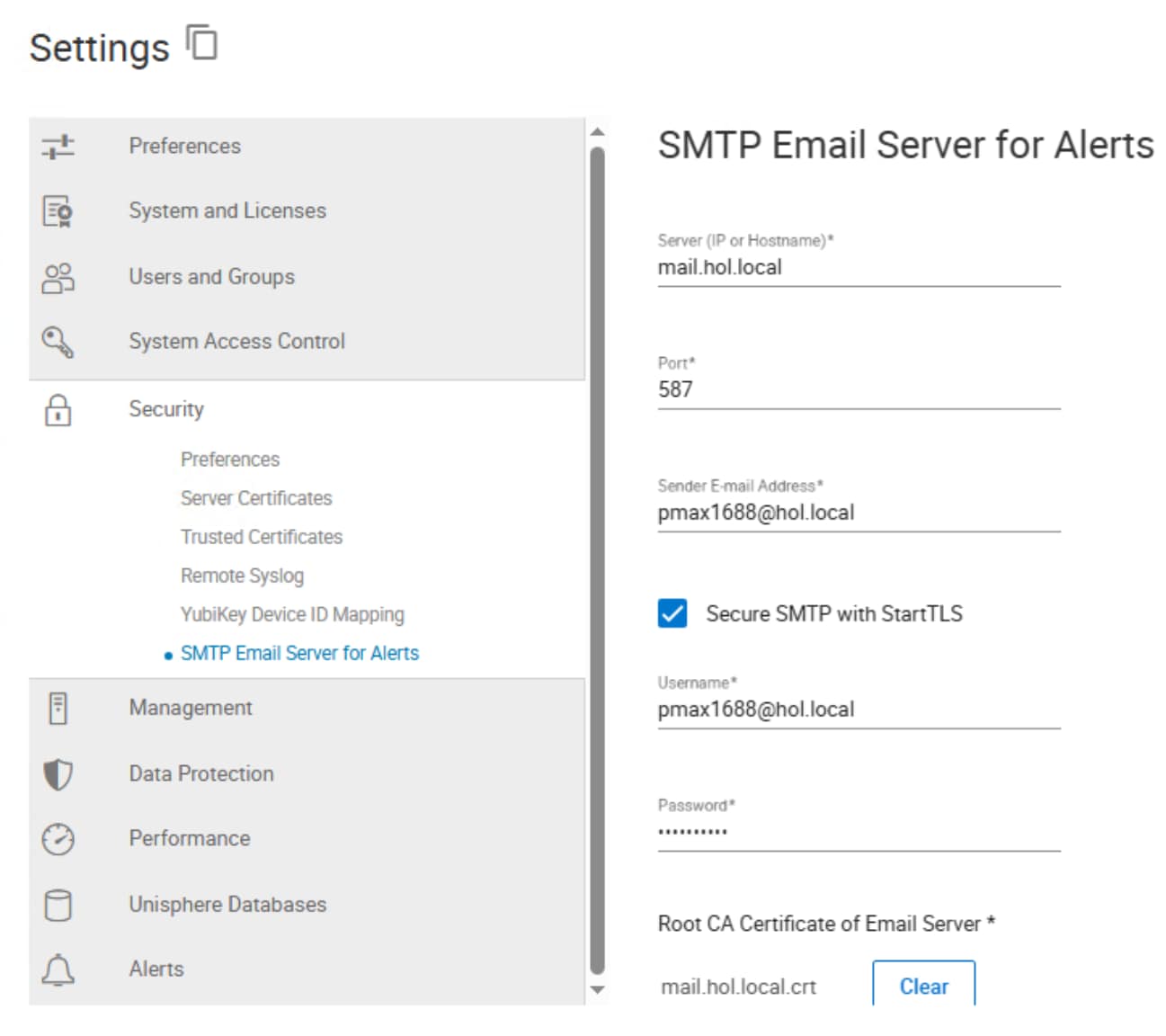
Figure 25. Enabling secure alerts in Unisphere
Secure SMTP Authentication
Secure SMTP Authentication
Unisphere for PowerMax provides the capability for email alert notifications. With PowerMaxOS 10.3 release, these alerts can be set secure with Simple Mail Transfer Protocol Secure (SMTPS). SMTPS provides an additional layer of security by encrypting email messages, using TSLv1.2 (or later), and authenticating the identity of the mail server and email client.
Secure SMTP Authentication supports:
- Authenticated and non-authenticated mode
- SMTPS with username/password for client authentication to email server
- Multiple target email addresses
- Maximum of 20 destination email addresses
- Setting severities of Critical, Error, Warning, Notice, and Info
The following figure shows enabling secure alerts in Unisphere.
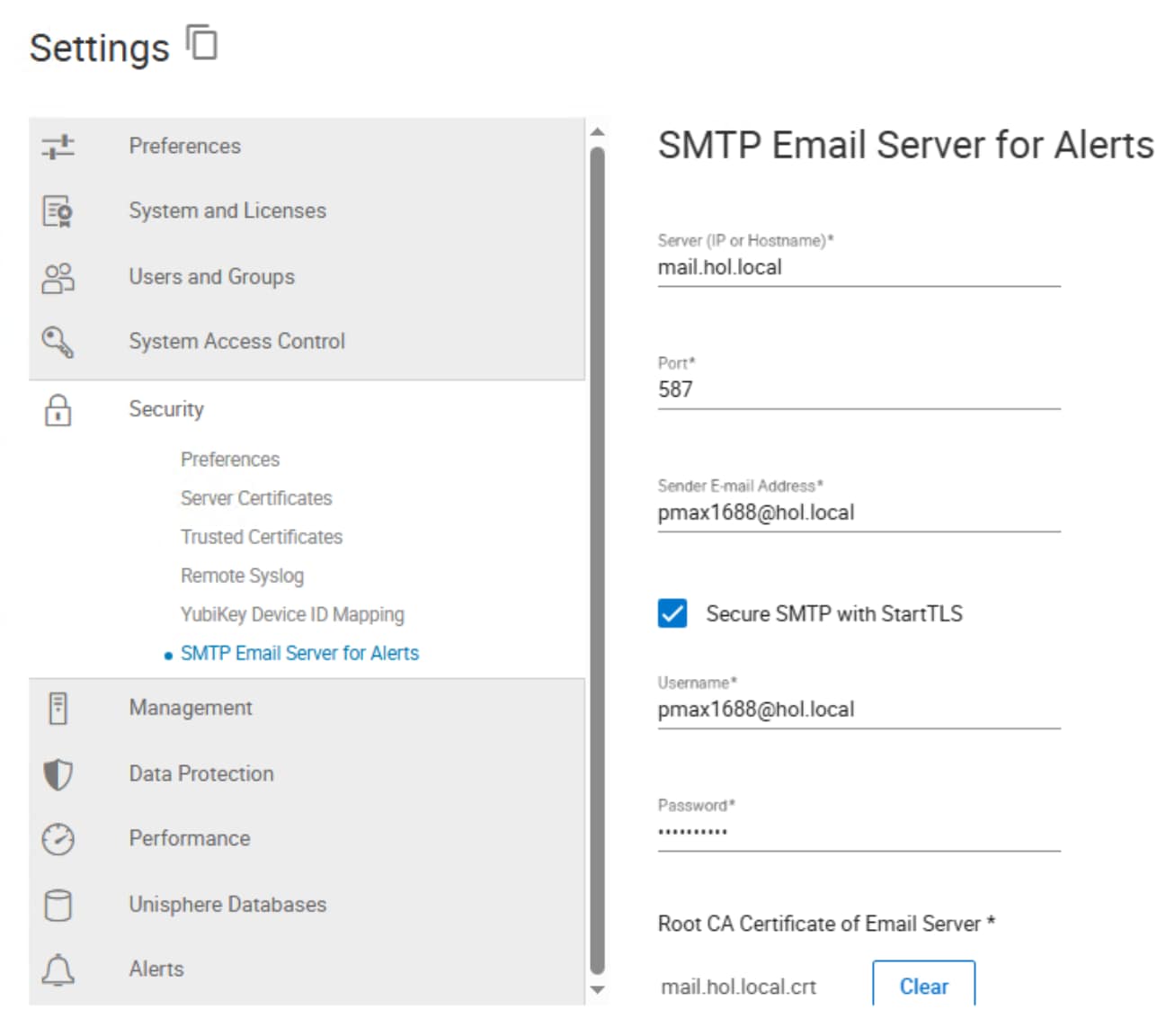
Figure 25. Enabling secure alerts in Unisphere
Role Based Access Control
Role Based Access Control
Role Based Access Control (RBAC) gives administrators the ability to restrict management operations that users or groups of users can perform on PowerMax arrays. RBAC consists of various roles that define the operations that can be performed. Users can be assigned their own login and password with a single role or a combination of roles. Each role can further be restricted to specific storage groups.
RBAC is a hierarchy of roles, and each role has specific privileges:
- Administrator—Performs all operations
- Storage Administrator—Performs all management operations. Cannot perform security operations.
- Security Administrator—Performs all security operations
- Local Replication—Performs local replication operations involving snapshot creation. Device Manager is also required to restore a snapshot and only needed to link target devices. Secure snaps require Storage Administrator rights.
- Remote Replication—Performs SRDF operations involving device pairs. Create, modify, or deletion of SRDF groups requires Storage Administrator rights.
- Device Manager—Performs control and configuration operations on devices. Storage Administrator rights are required to create, expand, or delete devices.
- Performance Monitor—Can set performance alerts and thresholds
- Auditor—Grants the ability to view, but not modify, security settings. Minimum role to view audit logs.
- Monitor—Performs read-only operations excluding access to audit logs
- None—Has no permissions
The following figure shows the hierarchy of RBAC:
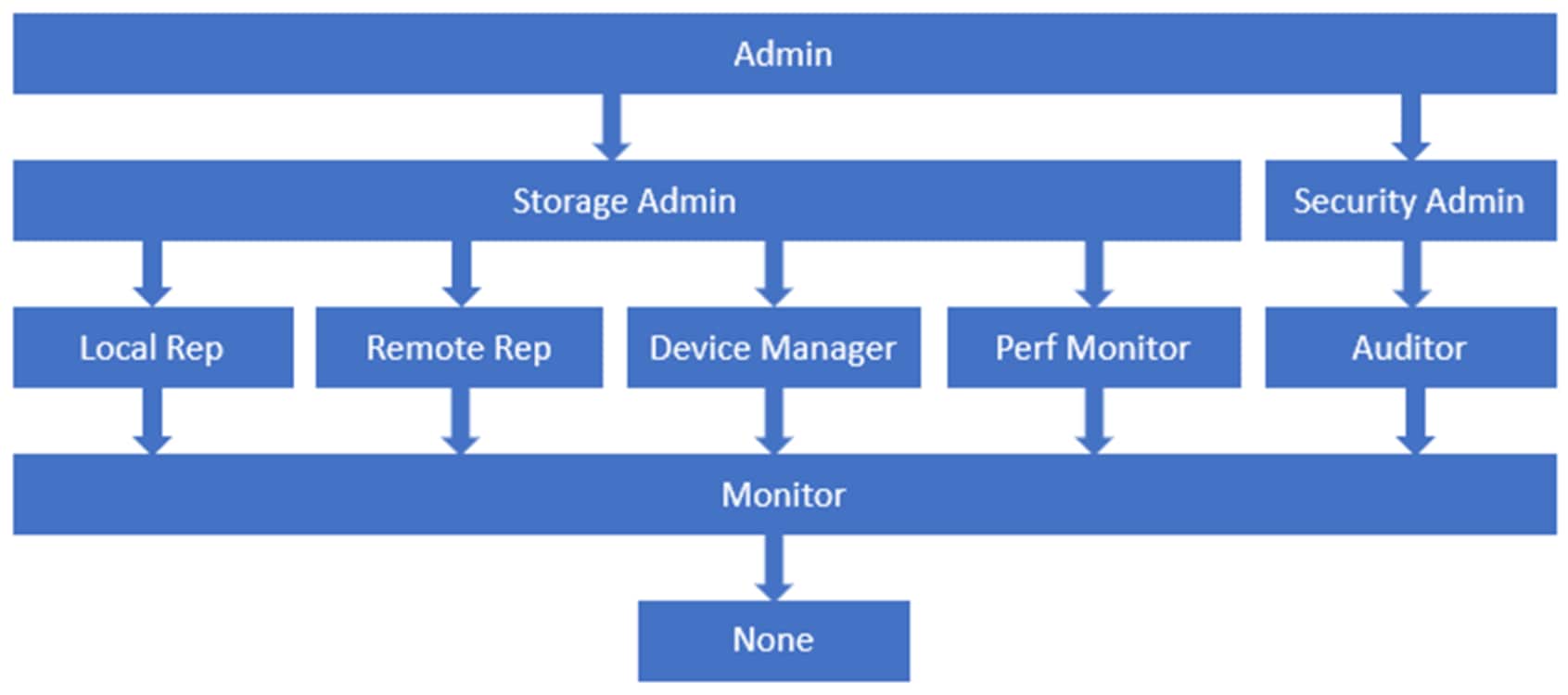
Figure 23. RBAC role hierarchy
Shredder security standards
Shredder security standards
Shredder is a service that securely erases data prior to the decommissioning of a PowerMax system. The erasure has a validation process to verify that the data on the drives has been erased. The validation is a user input percentage value of the drive to verify. The array then validates the input percentage on all the drives and upon success generates a certificate. If any non-zero data is found, the process fails.
The following is an example of a Shedder certificate:
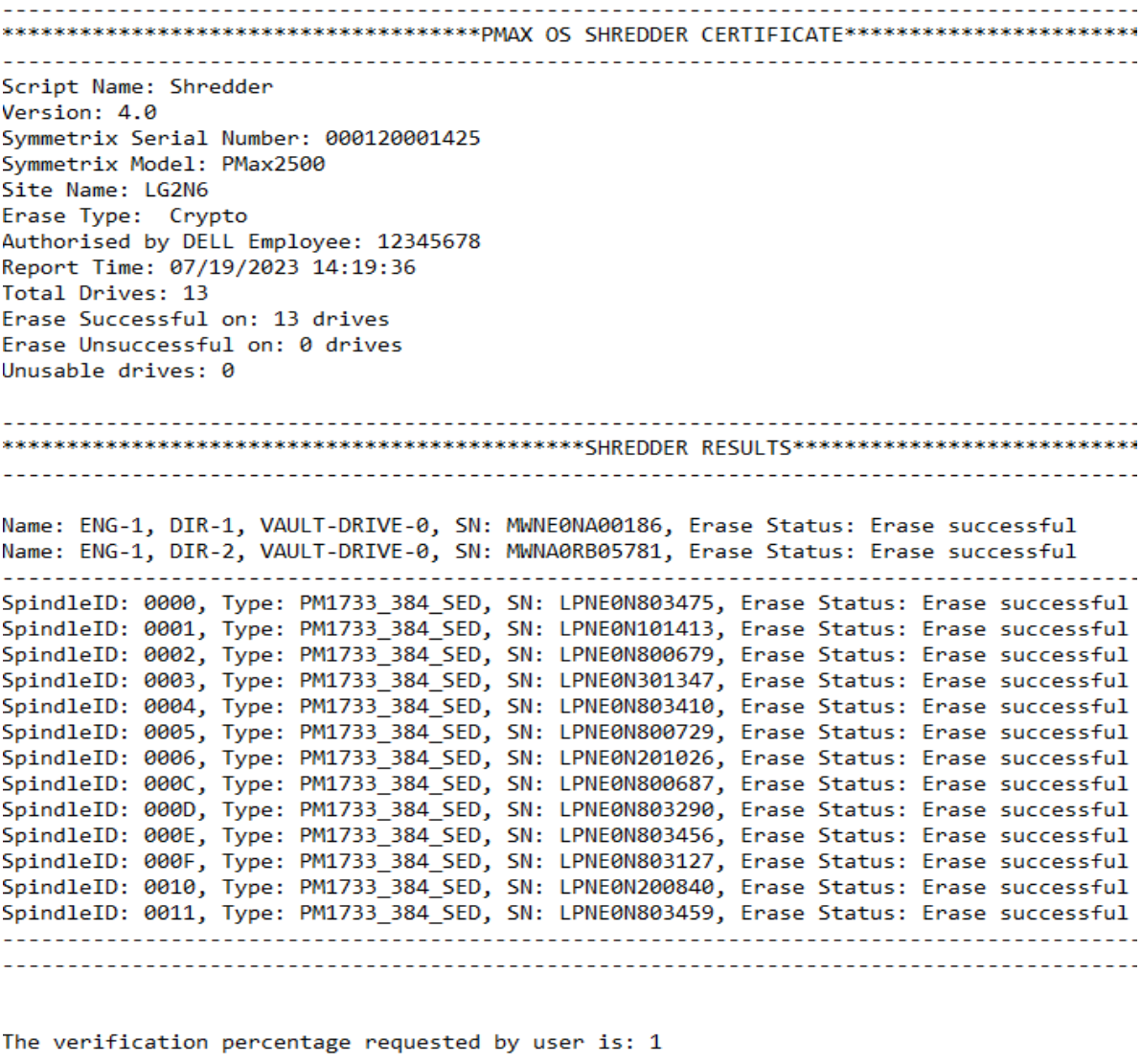
Figure 26. Shredder certificate
Note: Shredder security standards require a Dell Professional Services engagement.
Shredder security standards
Shredder security standards
Shredder is a service that securely erases data prior to the decommissioning of a PowerMax system. The erasure has a validation process to verify that the data on the drives has been erased. The validation is a user input percentage value of the drive to verify. The array then validates the input percentage on all the drives and upon success generates a certificate. If any non-zero data is found, the process fails.
The following is an example of a Shedder certificate:
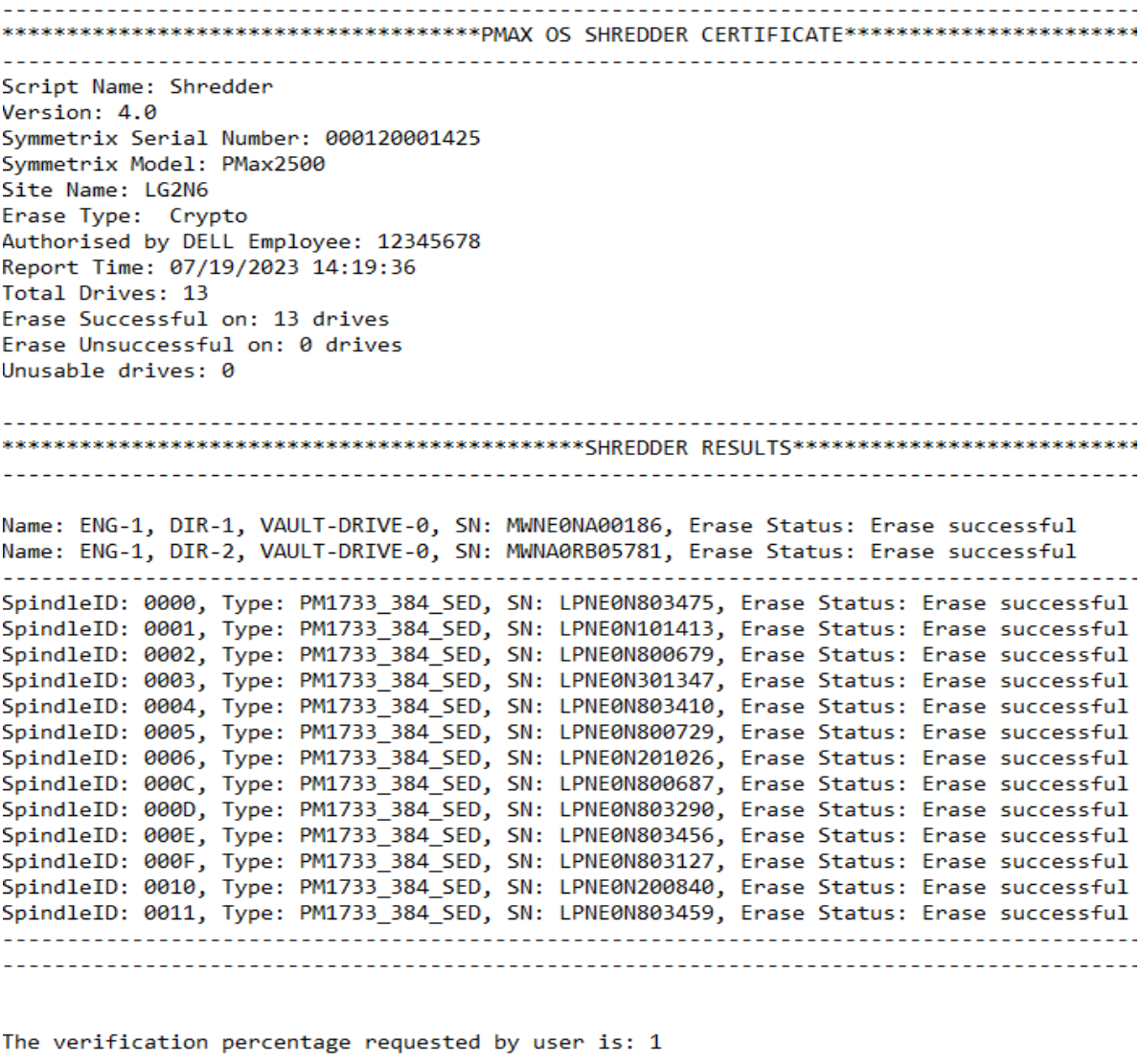
Figure 26. Shredder certificate
Note: Shredder security standards require a Dell Professional Services engagement.
Tamper-proof audit logs
Tamper-proof audit logs
Tamper-proof audit logs are secure historical system records of all actions and operations performed on a PowerMax array. The secure logs are internal to the array itself and include information such as configuration changes, service operations, and security-relevant actions. The logs cannot be tampered with, modified, edited, or deleted by any user with any level of access.
Relevant information recorded in the audit logs includes:
- Time and date of operation
- Operation type and category
- User and user type
- Hostname
- Application
The audit logs have advanced filtering and search capabilities. Filtering and searching can be done by specific timeframe as well as by the foregoing parameters to help determine what operation was performed, where the operation came from, and by whom the operation was performed.
Records can be expanded to show more detailed information and can be exported as a .log file.
The following figure shows an example of an audit log filtered by username and a searched action code of delete.
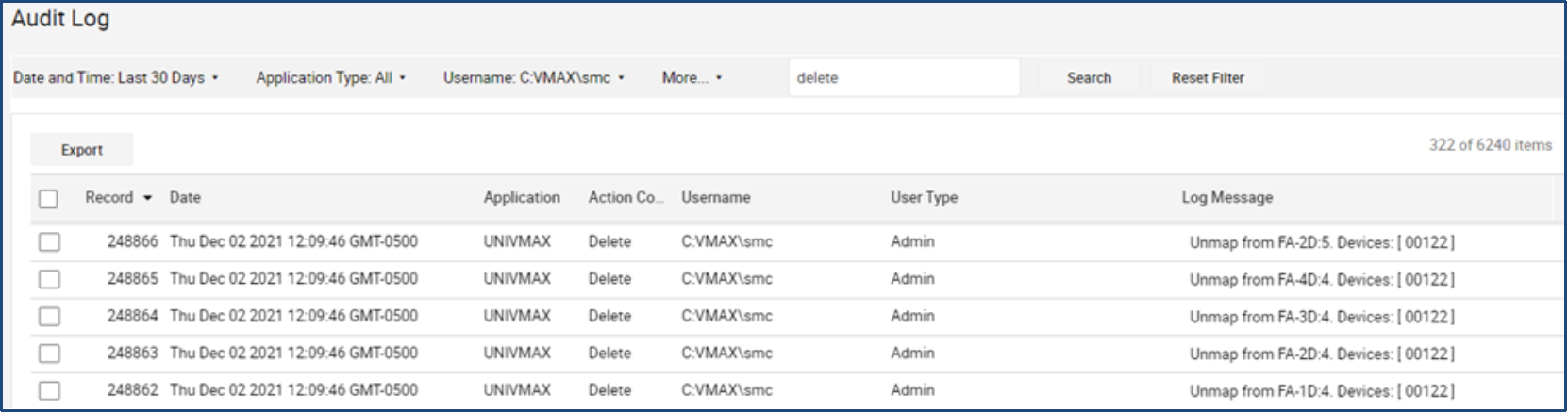
Figure 24. Tamper-proof audit log
Security and compliance
Security and compliance
Security and compliance
Security and compliance
Hardware Root of Trust
Overview
Secure Boot and Measured Boot
Secure firmware upgrade
Appendix A: Mitigating ransomware attacks using Snapshot policies
Appendix A: Mitigating ransomware attacks using Snapshot policies
SnapVX snapshots with snapshot policies allow for 1,024 snapshots per source device and 65 million per PowerMax array. Users can take advantage of the frequency and large snapshot scale in policy-driven snapshots to provide enhanced data resiliency.
Because secure snaps cannot be maliciously or accidentally deleted before any planned expiration date, they can be used to preserve multiple point-in-time copies from which data can be recovered if a malware or ransomware attack occurs. Snapshot policies can be automated to take secure snaps with a high frequency and a short retention duration for fine granularity, with a lower frequency and longer retention for added security, or a mixture of both. If an attack occurs, the user can review the secure snaps to determine which point in time has the most relevant and up-to-date copy of data without malware impact. When the precise point in time is identified, restoring critical data can be done almost instantaneously by bringing application data back to the original state before any attack.
Secure snaps also provide an additional layer of security in the case of multiple attacks and can be used for forensic work to help determine what happened during the attack and when it originally occurred. With the lower frequency and longer retention period, secure snaps can be used to validate data and data change rate to help identify any suspicious activity.
Traditional snapshots can be set with a scheduling frequency rate and retention policy that works best for the organization. These snapshots can be used for daily business continuity, such as development, operations, and data analytics. They can also assist in any forensic analysis and can be compared against secure snaps to help determine what changed and when the change began. Unlike secure snaps, traditional snapshots can be deleted or fail in array resource constraint situations. However, the data on an existing snapshot cannot be changed and could be used for additional recovery options.
Both secure and traditional snaps are a powerful tool that can be used to help protect and restore data rapidly, to minimize any impact of a malware or ransomware attack. The large scalability of snapshots can be easily managed using snapshot policies for scheduling frequency and retention time duration to fit any size organization.
The following list is an operational example of the frequency, retention, and scale out of the value of SnapVX secure snaps. The numbers are based on an average of 5,000 production volumes in a PowerMax array.
- Secure snaps every 10 minutes with a 48-hour retention
- 288 per volume point-in-time copies
- Fine-grain protection and recovery
- Secure snaps every 60 minutes with a 7-day retention
- 168 per volume point-in-time copies
- Extended protection and data validation
Total = 2,040,000 secure point-in-time copies
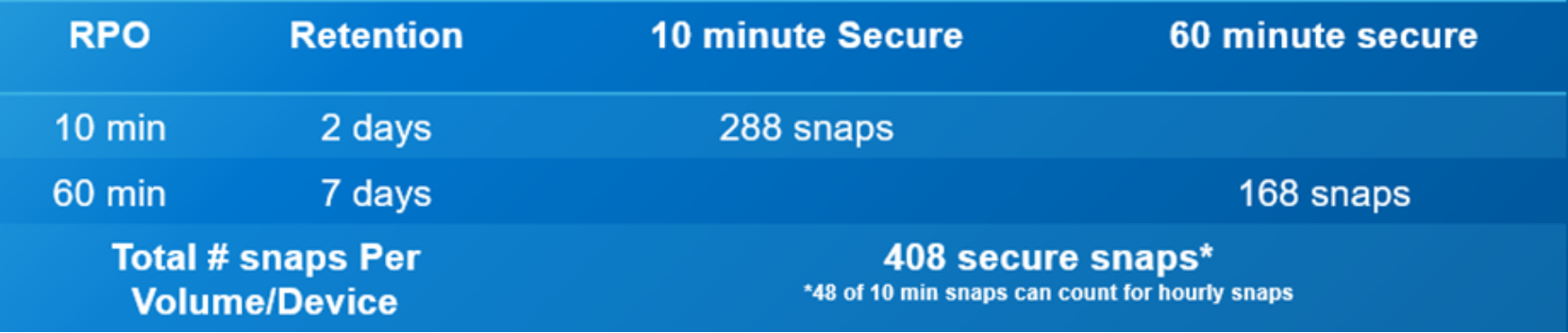
Figure 27. Frequency, retention, and scale out of secure snaps
Appendix A: Mitigating ransomware attacks using Snapshot policies
Appendix A: Mitigating ransomware attacks using Snapshot policies
SnapVX snapshots with snapshot policies allow for 1,024 snapshots per source device and 65 million per PowerMax array. Users can take advantage of the frequency and large snapshot scale in policy-driven snapshots to provide enhanced data resiliency.
Because secure snaps cannot be maliciously or accidentally deleted before any planned expiration date, they can be used to preserve multiple point-in-time copies from which data can be recovered if a malware or ransomware attack occurs. Snapshot policies can be automated to take secure snaps with a high frequency and a short retention duration for fine granularity, with a lower frequency and longer retention for added security, or a mixture of both. If an attack occurs, the user can review the secure snaps to determine which point in time has the most relevant and up-to-date copy of data without malware impact. When the precise point in time is identified, restoring critical data can be done almost instantaneously by bringing application data back to the original state before any attack.
Secure snaps also provide an additional layer of security in the case of multiple attacks and can be used for forensic work to help determine what happened during the attack and when it originally occurred. With the lower frequency and longer retention period, secure snaps can be used to validate data and data change rate to help identify any suspicious activity.
Traditional snapshots can be set with a scheduling frequency rate and retention policy that works best for the organization. These snapshots can be used for daily business continuity, such as development, operations, and data analytics. They can also assist in any forensic analysis and can be compared against secure snaps to help determine what changed and when the change began. Unlike secure snaps, traditional snapshots can be deleted or fail in array resource constraint situations. However, the data on an existing snapshot cannot be changed and could be used for additional recovery options.
Both secure and traditional snaps are a powerful tool that can be used to help protect and restore data rapidly, to minimize any impact of a malware or ransomware attack. The large scalability of snapshots can be easily managed using snapshot policies for scheduling frequency and retention time duration to fit any size organization.
The following list is an operational example of the frequency, retention, and scale out of the value of SnapVX secure snaps. The numbers are based on an average of 5,000 production volumes in a PowerMax array.
- Secure snaps every 10 minutes with a 48-hour retention
- 288 per volume point-in-time copies
- Fine-grain protection and recovery
- Secure snaps every 60 minutes with a 7-day retention
- 168 per volume point-in-time copies
- Extended protection and data validation
Total = 2,040,000 secure point-in-time copies
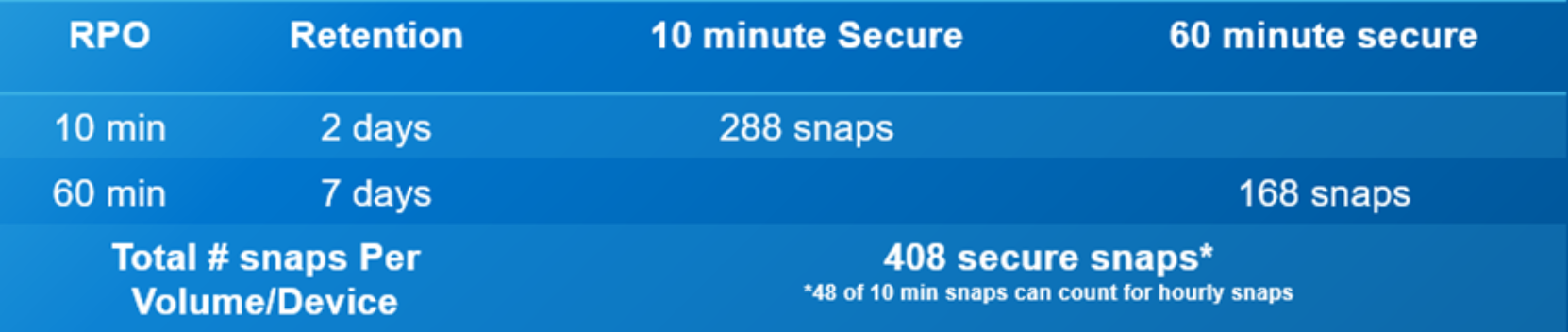
Figure 27. Frequency, retention, and scale out of secure snaps
Appendix B: Ransomware incident management troubleshooting guide
Appendix B: Ransomware incident management troubleshooting guide
Key terminology
Incident investigation steps
Use the following steps to investigate the incident:
- Review Detection Details
- Confidence Level: Prioritize investigations based on confidence level (High > Medium > Low), which reflects the likelihood of malicious encryption.
- Storage Groups Affected: Review the number of Storage Groups showing anomalies.
- Timestamp Review: Check Created and Updated times to monitor incident progression.
- Assess Incident Significance
- Significance Level: Focus on high-significance incidents first, indicating a strong deviation from normal data behavior.
- Log Analysis: The Logs column tracks anomaly frequency. Higher log counts may signal ongoing encryption.
- Analyze Reducible Data and Seasonality
- Compare reducible data metrics to historical seasonality to detect significant deviations.
- Anomaly Logs: Identify the specific date and time anomalies began to trace any corresponding system behavior.
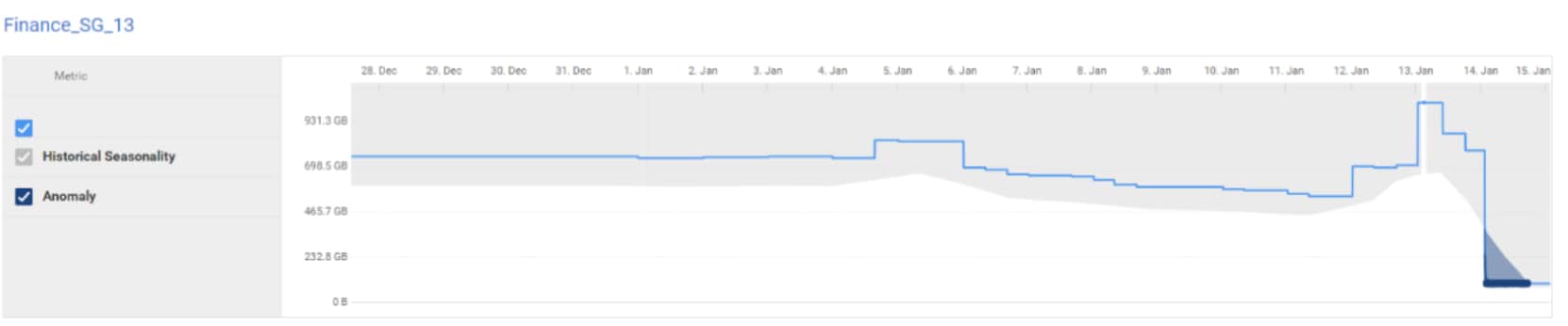
Figure 28. Reducible data metrics and historical seasonality
- Check Origin of Anomaly
- Identify the host or service likely responsible for the change (for example a single host showing increased write throughput across multiple LUNs).
- Consider multi-host involvement, which may indicate broader compromise.
False positive triggers to consider
Validation steps
Confirmed ransomware incident response
Recommendations for minimizing false alerts
Additional notes and resources
Appendix B: Ransomware incident management troubleshooting guide
Appendix B: Ransomware incident management troubleshooting guide
Key terminology
Incident investigation steps
Use the following steps to investigate the incident:
- Review Detection Details
- Confidence Level: Prioritize investigations based on confidence level (High > Medium > Low), which reflects the likelihood of malicious encryption.
- Storage Groups Affected: Review the number of Storage Groups showing anomalies.
- Timestamp Review: Check Created and Updated times to monitor incident progression.
- Assess Incident Significance
- Significance Level: Focus on high-significance incidents first, indicating a strong deviation from normal data behavior.
- Log Analysis: The Logs column tracks anomaly frequency. Higher log counts may signal ongoing encryption.
- Analyze Reducible Data and Seasonality
- Compare reducible data metrics to historical seasonality to detect significant deviations.
- Anomaly Logs: Identify the specific date and time anomalies began to trace any corresponding system behavior.
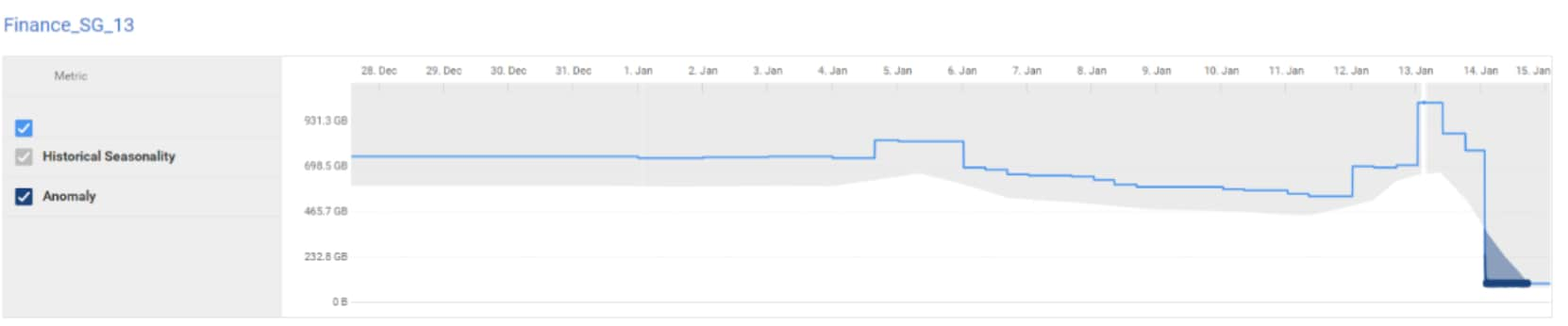
Figure 28. Reducible data metrics and historical seasonality
- Check Origin of Anomaly
- Identify the host or service likely responsible for the change (for example a single host showing increased write throughput across multiple LUNs).
- Consider multi-host involvement, which may indicate broader compromise.
False positive triggers to consider
Validation steps
Confirmed ransomware incident response
Recommendations for minimizing false alerts
Additional notes and resources
Appendix C: Enabling Single Sign-on
Appendix C: Enabling Single Sign-on
Enabling walkthrough
The following is a walkthrough of configuring SSO with an existing Entra instance.
View from the Entra ID overview page
- Take note of the Application (Client) ID.
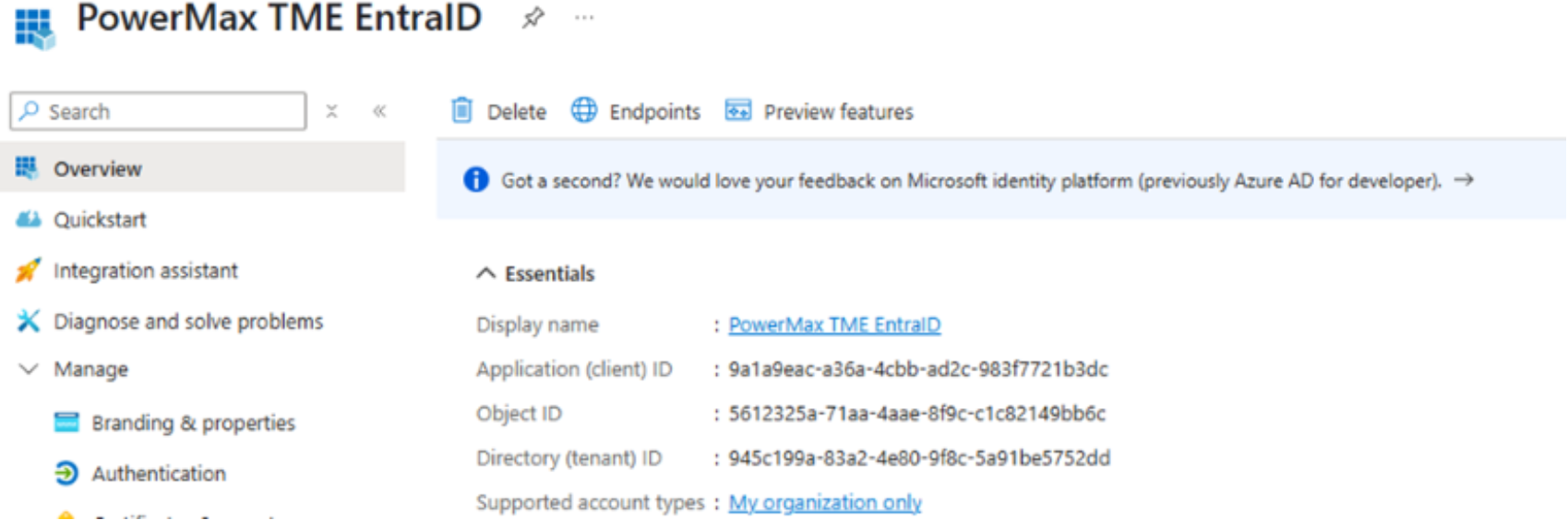
Figure 29. Entra ID overview page
Clink Endpoints
- Make note of the OpenID Connect metadata document endpoint.
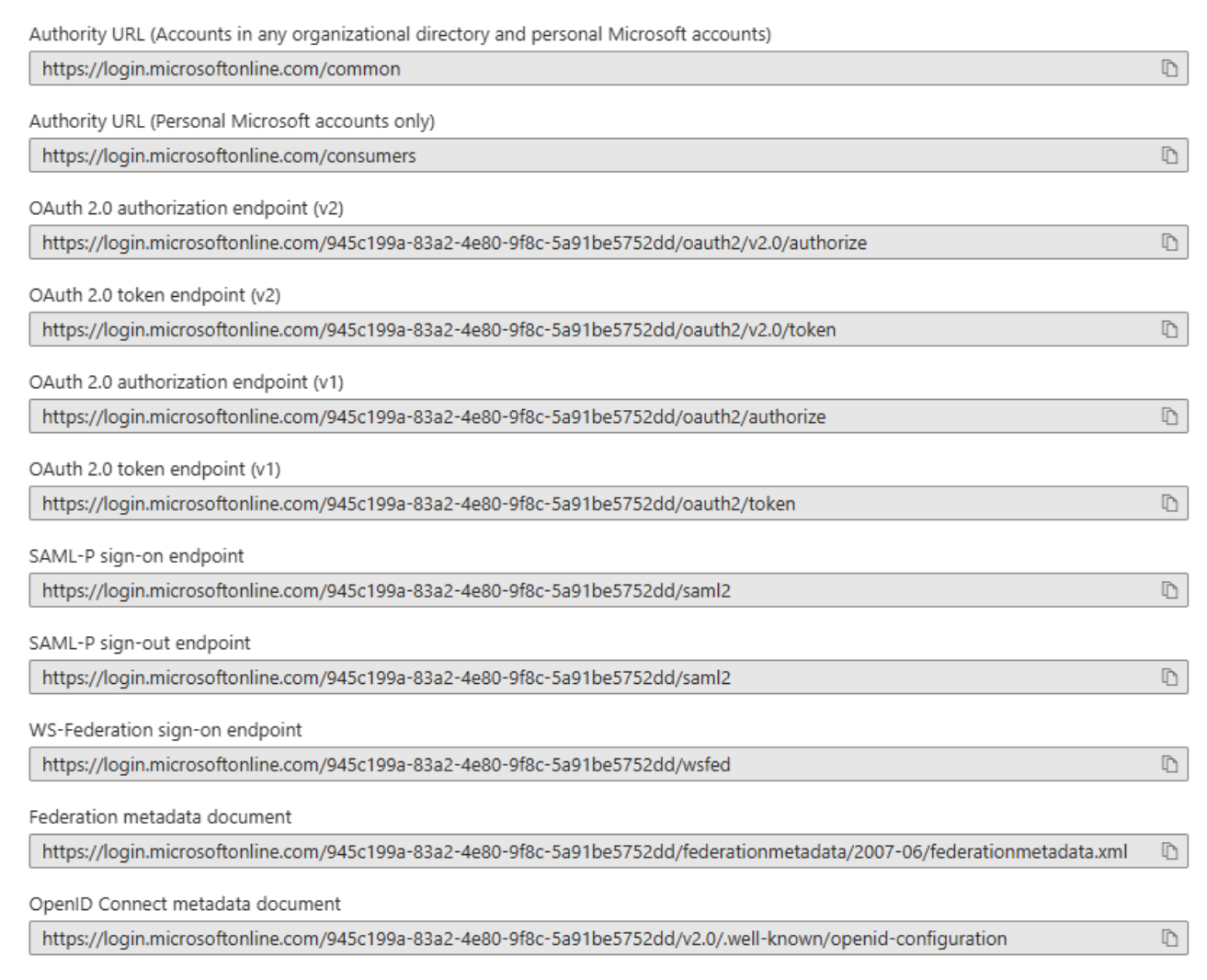
Figure 30. Endpoints
Create Client Secret
- Copy Secret Value to a safe place – will get hidden once navigated off page.
Note: SSO with Unisphere does not support Certificates.
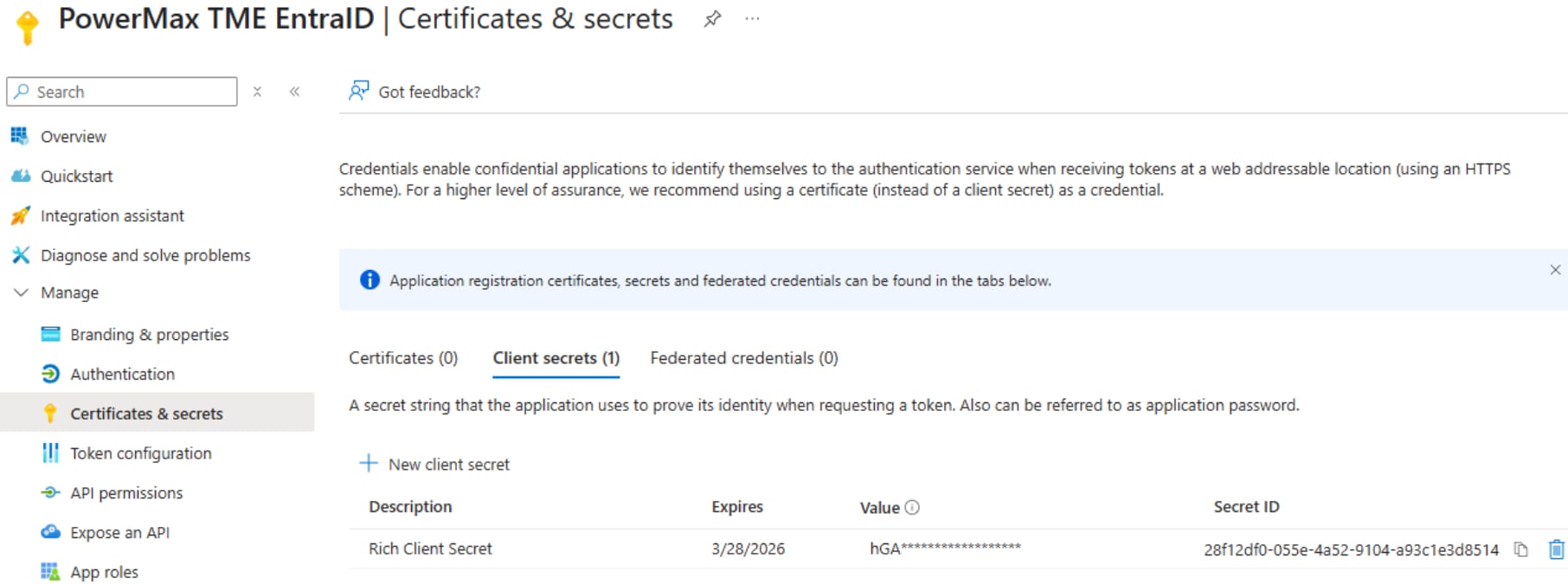
Figure 31. Certificate and secrets page
Within the Authentication page, add a redirect URL.
- IP or hostname of the Unisphere instance
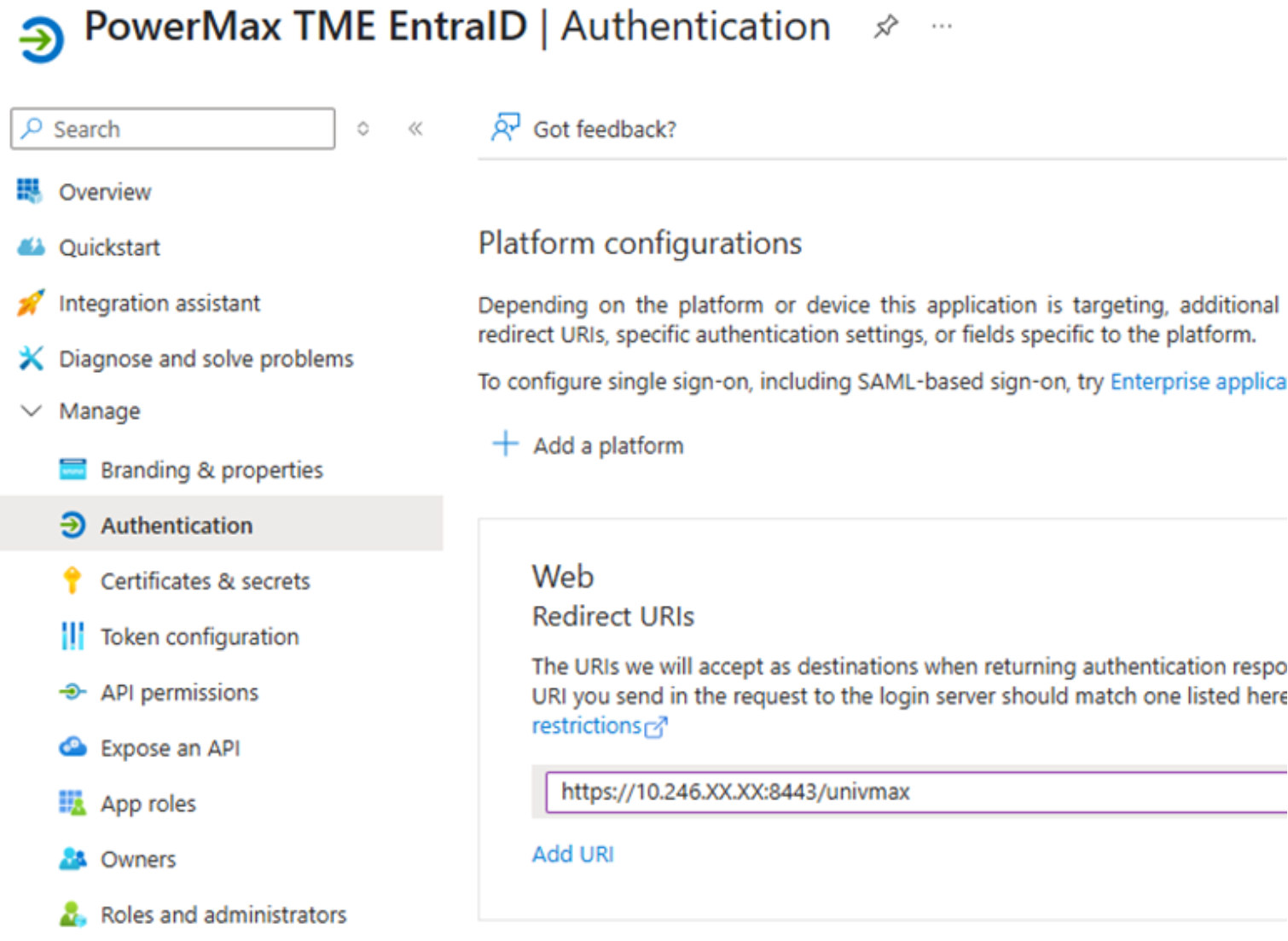
Figure 32. Authentication page
Create API permissions for access token.
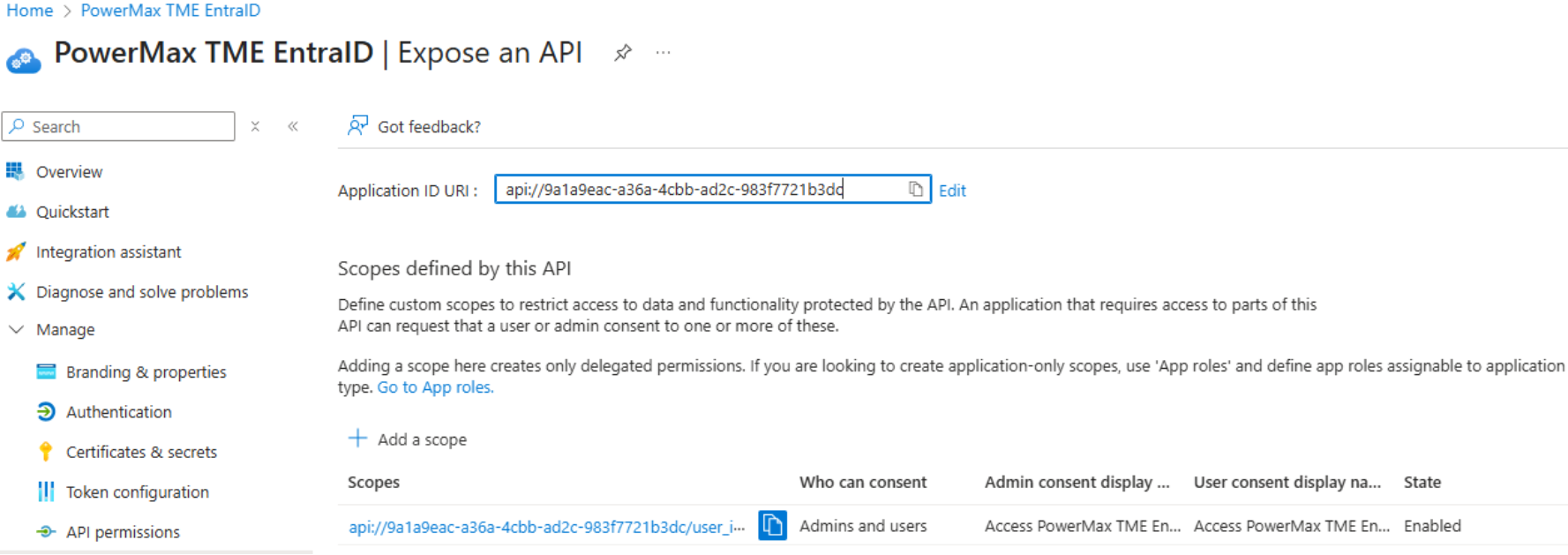
Figure 33. API Permissions
Add users to the Users and groups page.
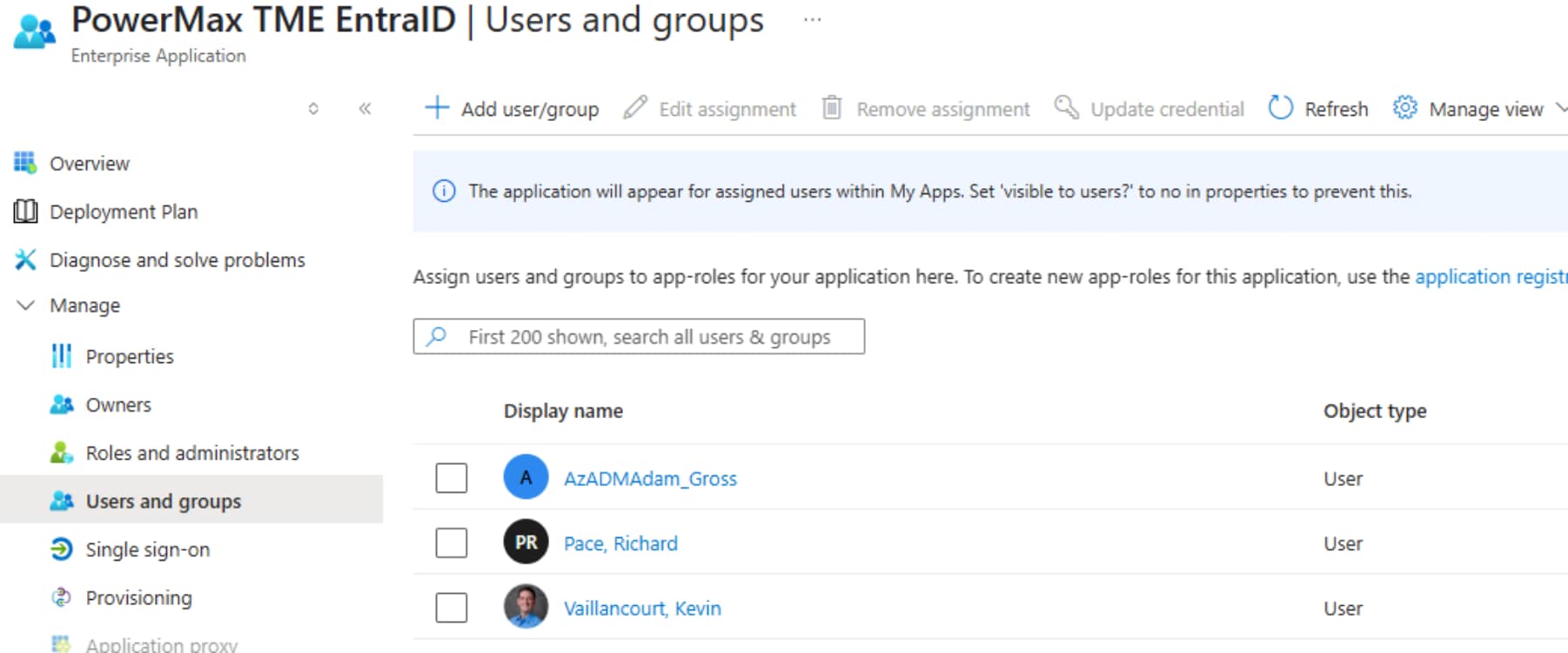
Figure 34. Users and groups page
Log in to Unisphere as an Admin
- Enabling SSO must be done by an Admin or Security Admin
View user roles by clicking the User Details
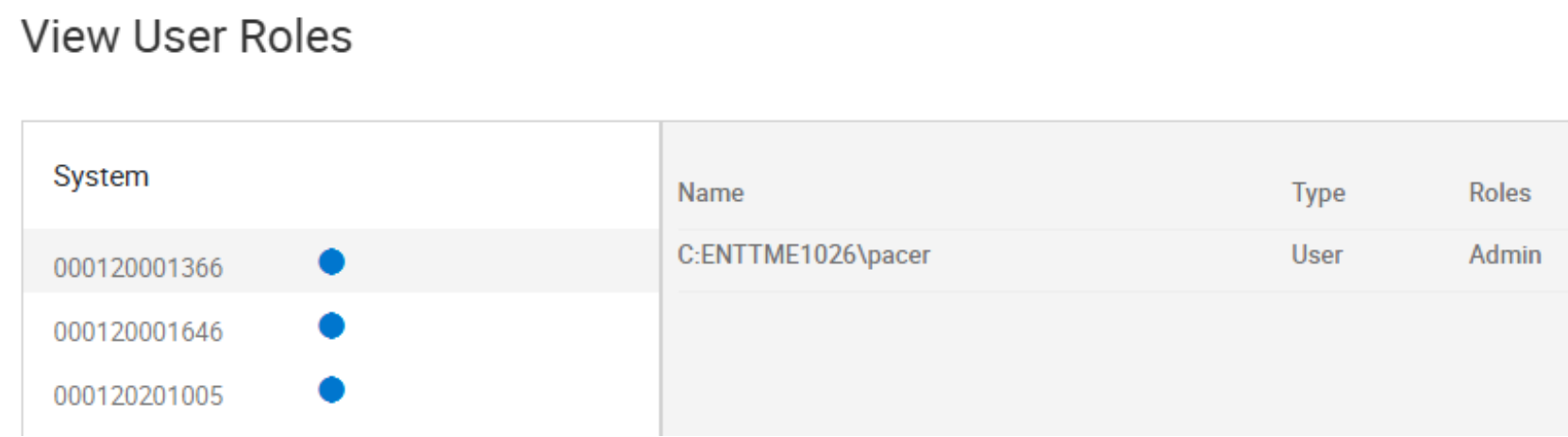
Figure 35. User roles
To enable SSO, go to Settings > Users and Groups > Authentication.
- Input the relevant information from Entra ID instance
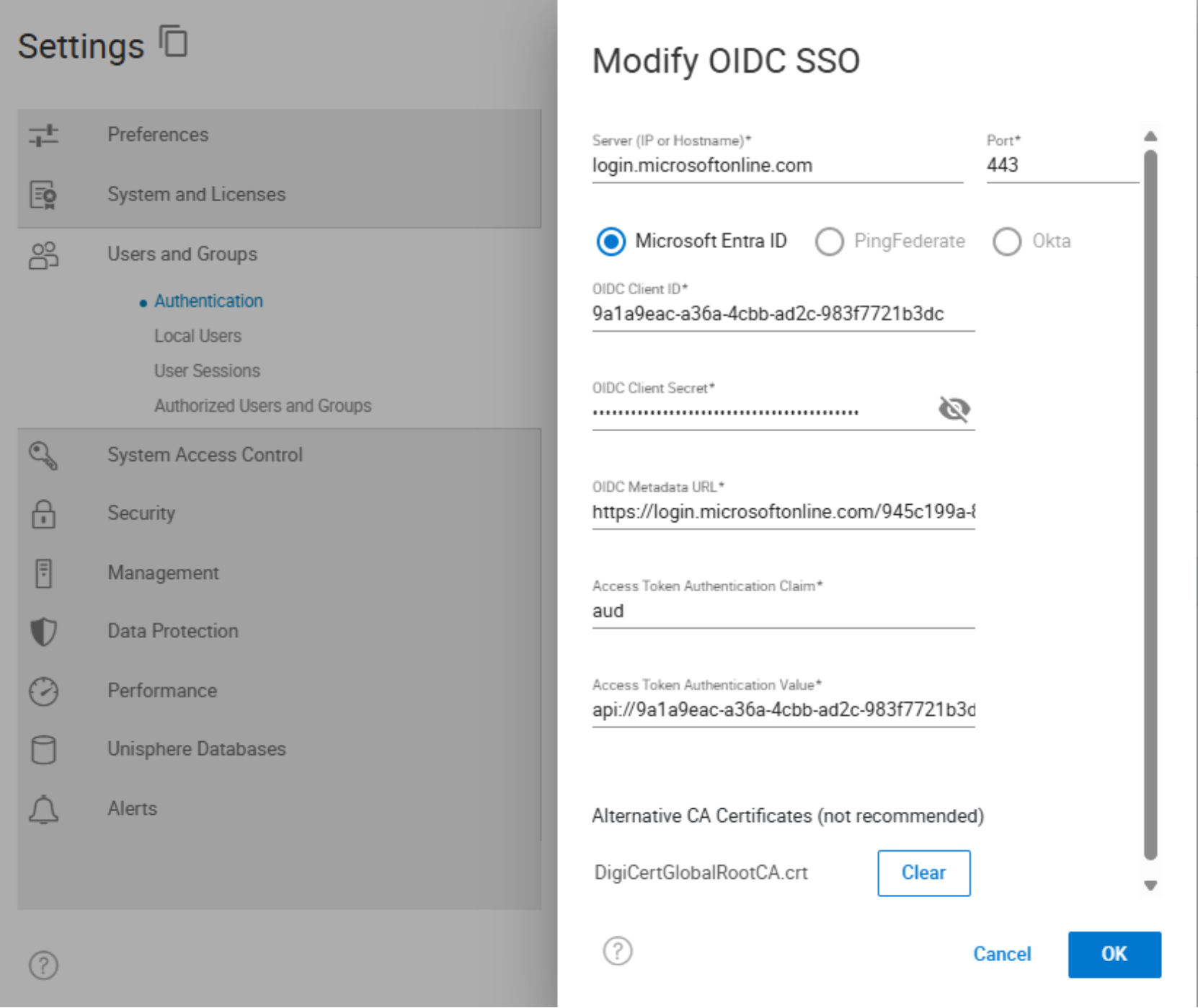
Figure 36. Enabling SSO
Create an authorized user, go to Settings > Users and Groups > Authorized Users and Groups.
- User created with SSO authority using email (claim) to authenticate identity.
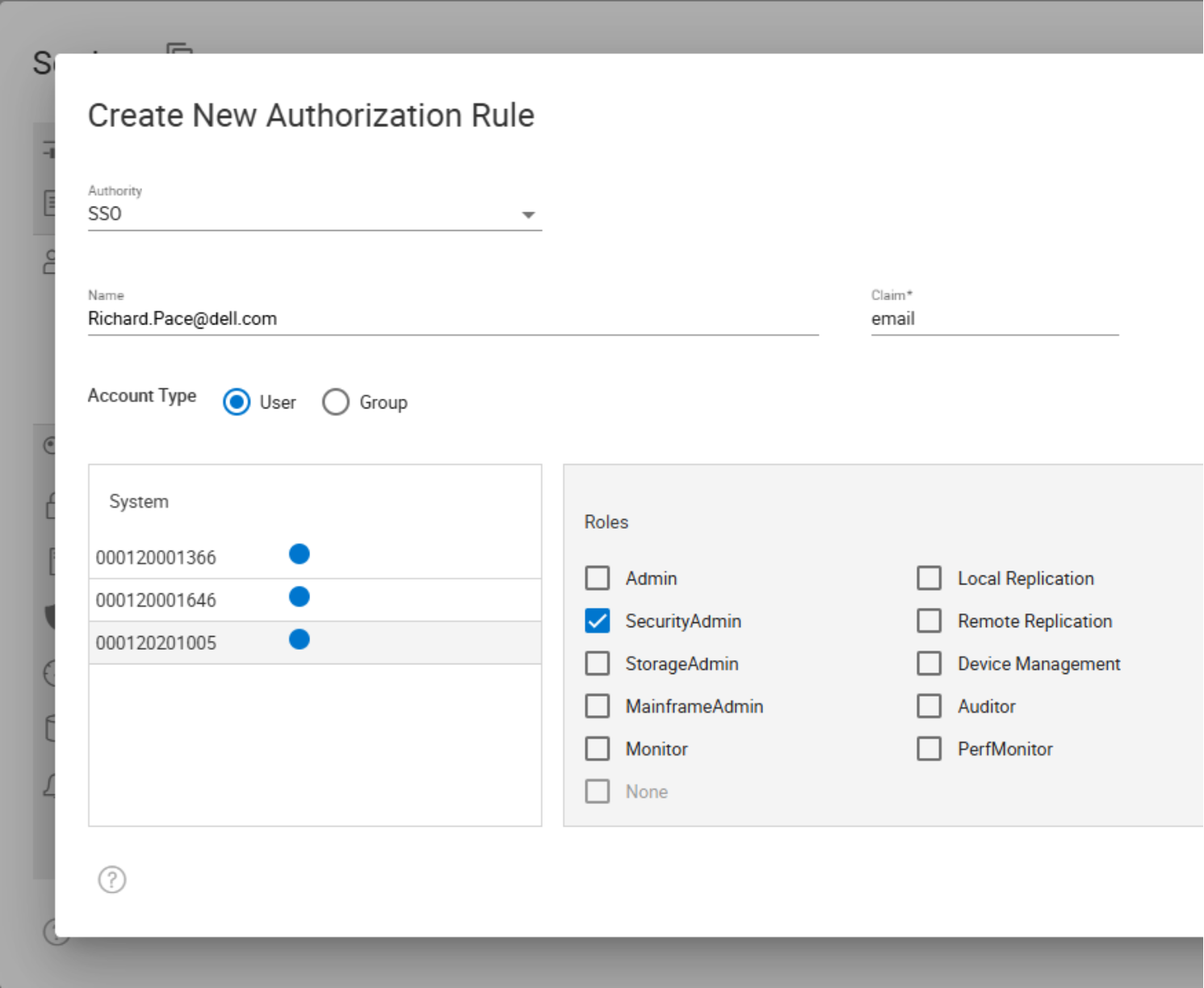
Figure 37. Creating authorized user
Once SSO is enabled and user is created, log in to Unisphere.
- Leave User Name and Password blank
- Click Login
Click User Details to view logged in User Roles.
- User authenticated with Entra ID using the authorized user role
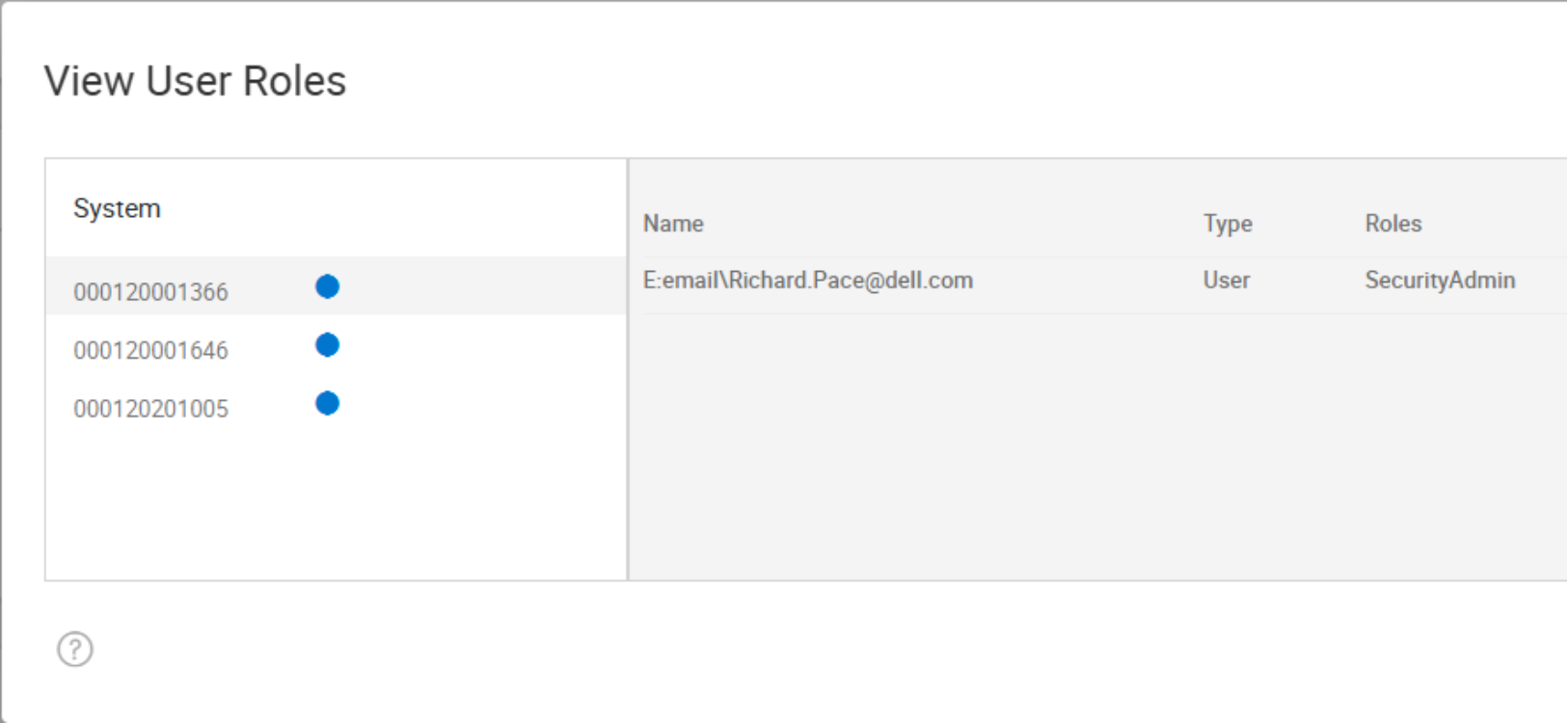
Figure 38. User roles
Appendix C: Enabling Single Sign-on
Appendix C: Enabling Single Sign-on
Enabling walkthrough
The following is a walkthrough of configuring SSO with an existing Entra instance.
View from the Entra ID overview page
- Take note of the Application (Client) ID.
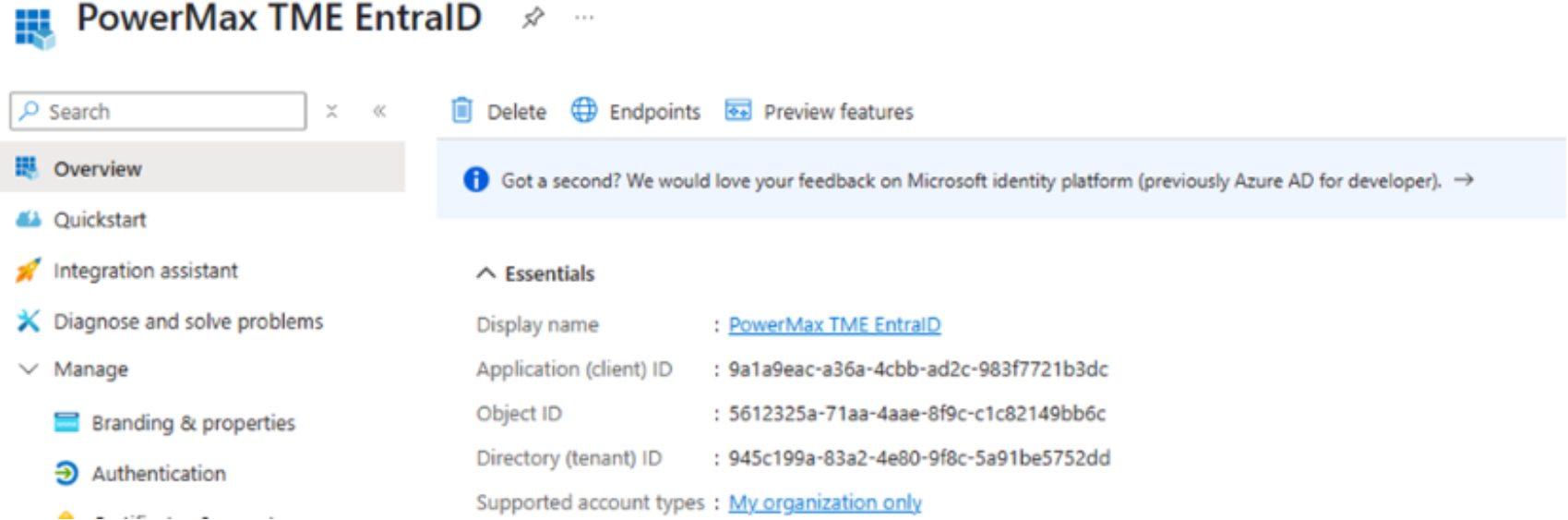
Figure 29. Entra ID overview page
Clink Endpoints
- Make note of the OpenID Connect metadata document endpoint.
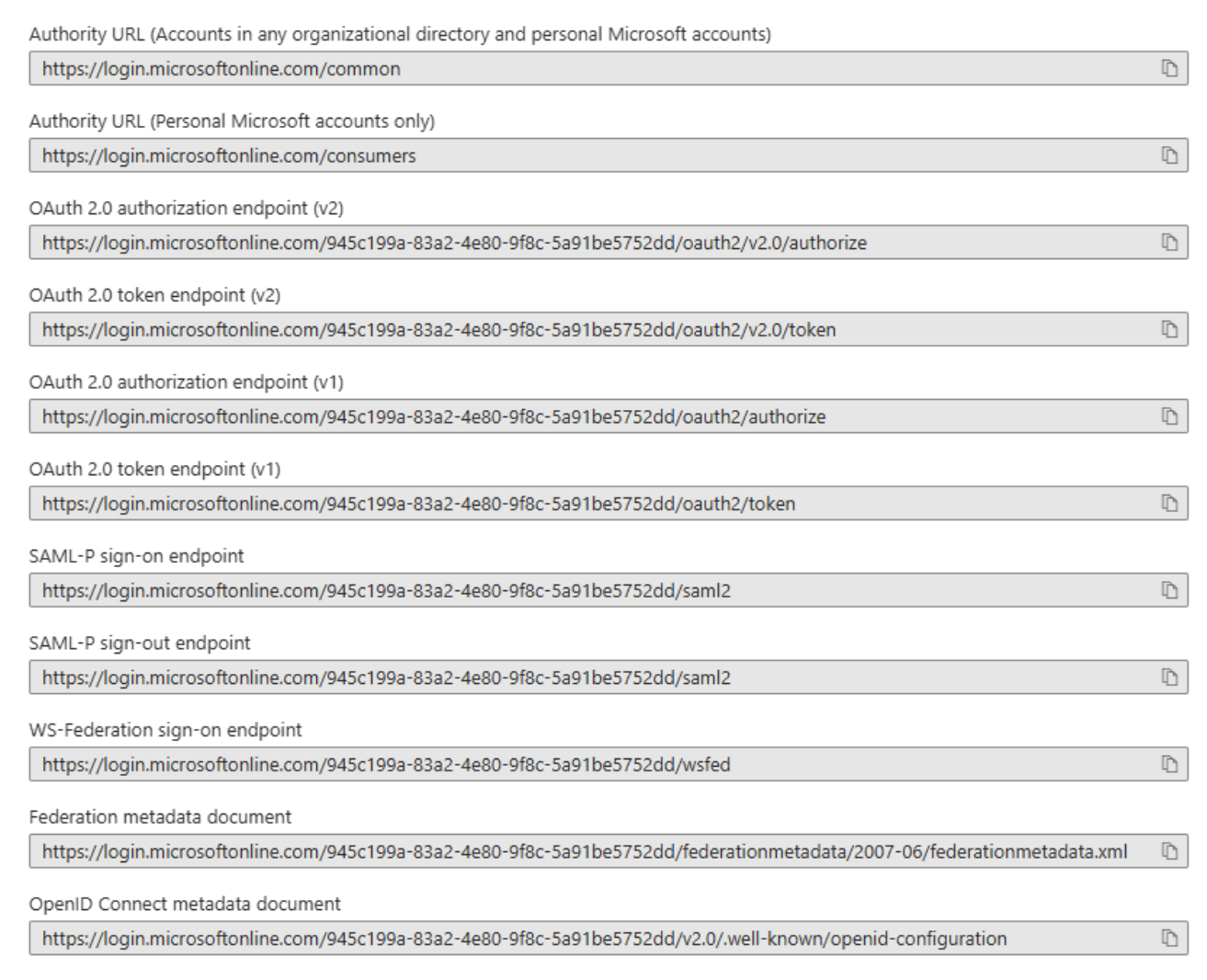
Figure 30. Endpoints
Create Client Secret
- Copy Secret Value to a safe place – will get hidden once navigated off page.
Note: SSO with Unisphere does not support Certificates.
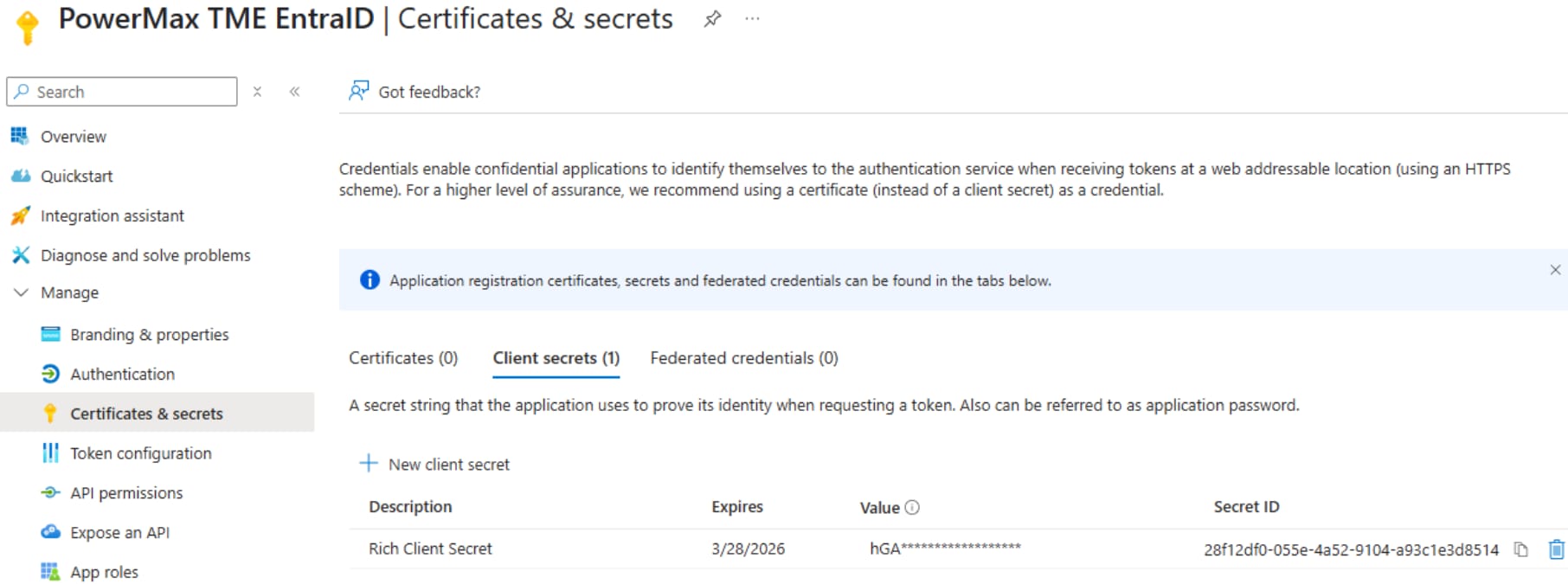
Figure 31. Certificate and secrets page
Within the Authentication page, add a redirect URL.
- IP or hostname of the Unisphere instance
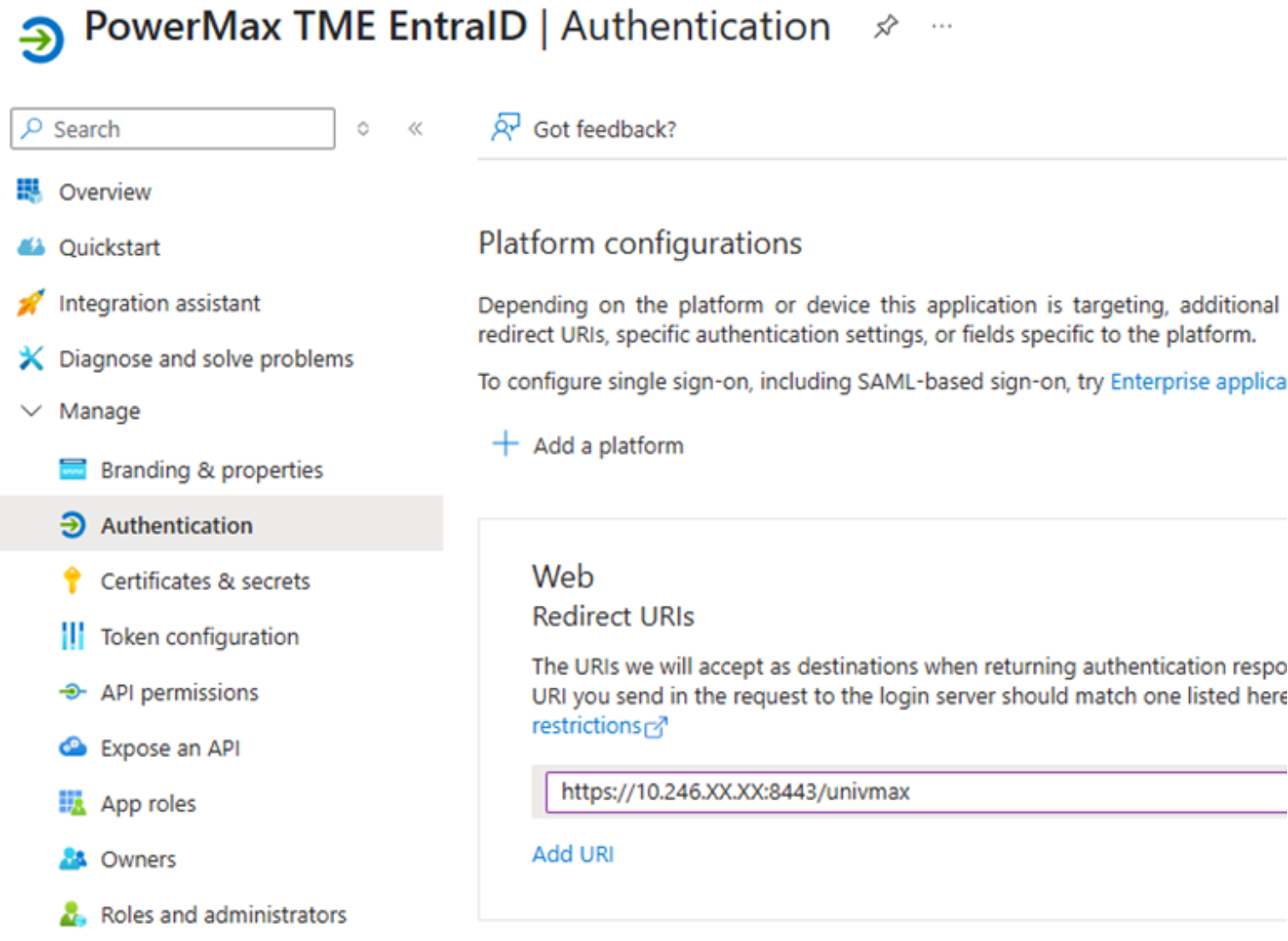
Figure 32. Authentication page
Create API permissions for access token.
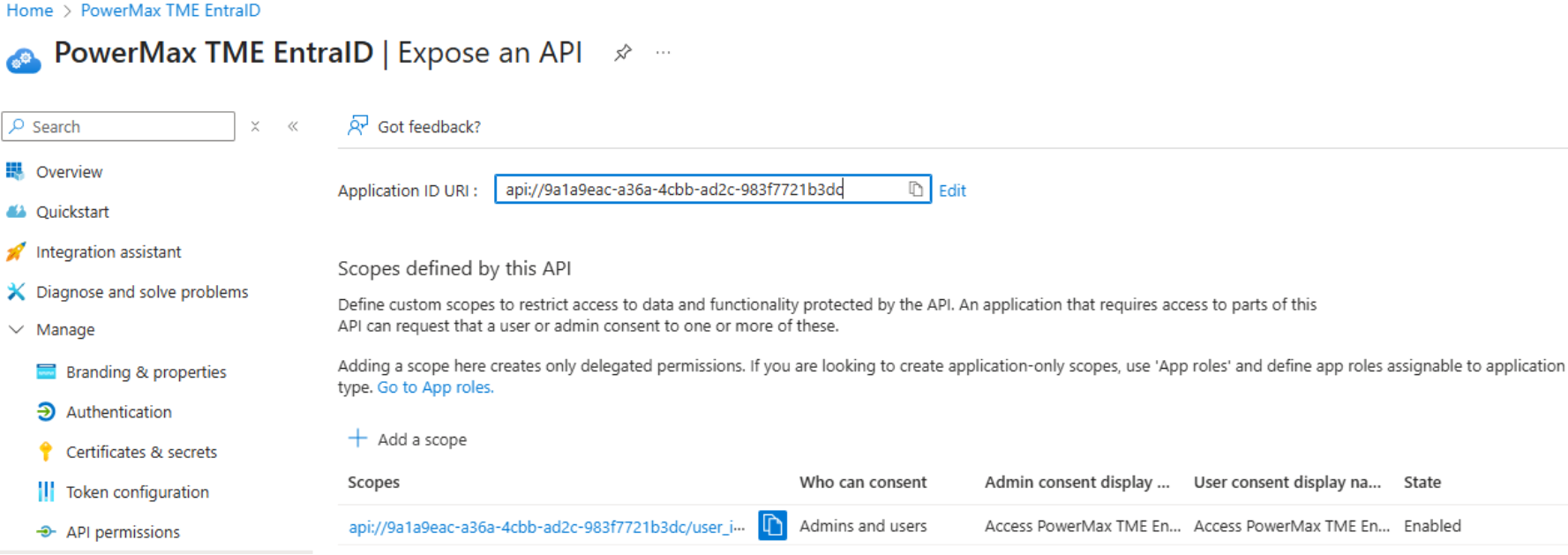
Figure 33. API Permissions
Add users to the Users and groups page.
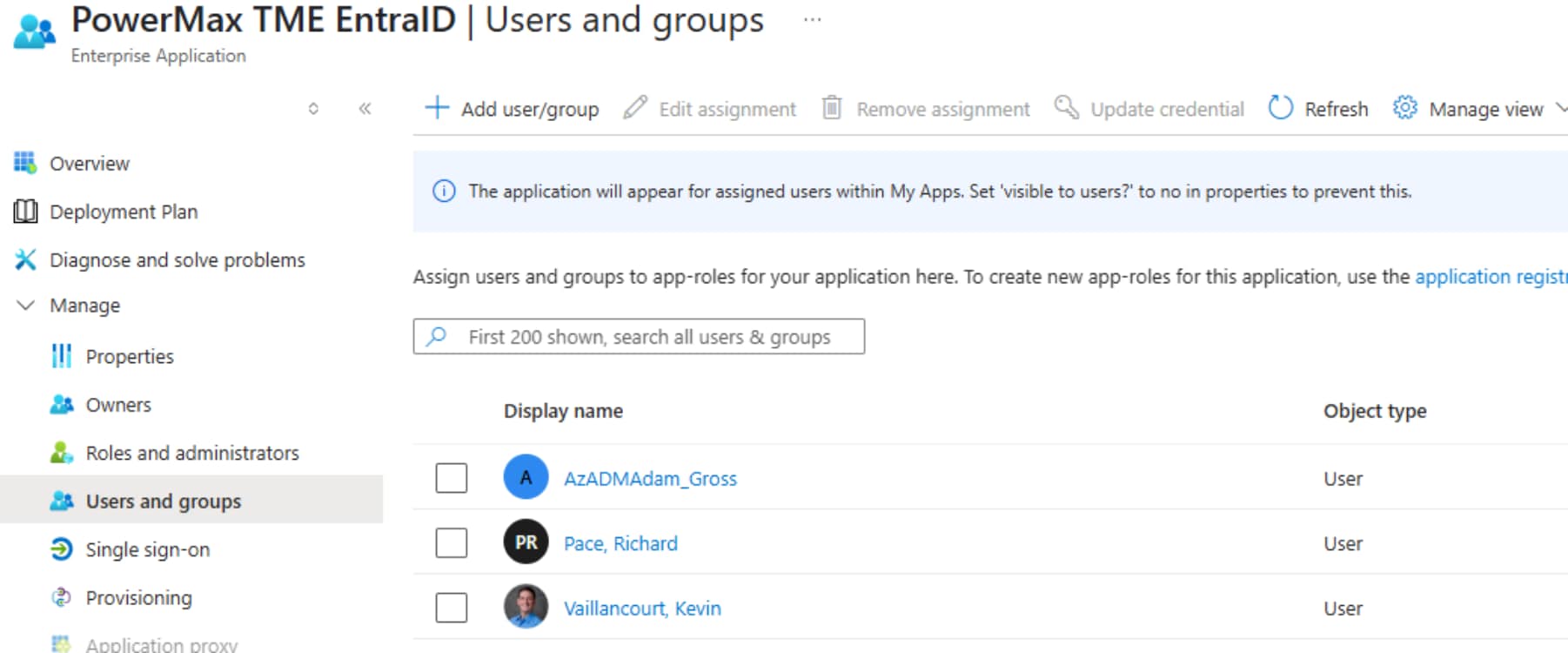
Figure 34. Users and groups page
Log in to Unisphere as an Admin
- Enabling SSO must be done by an Admin or Security Admin
View user roles by clicking the User Details
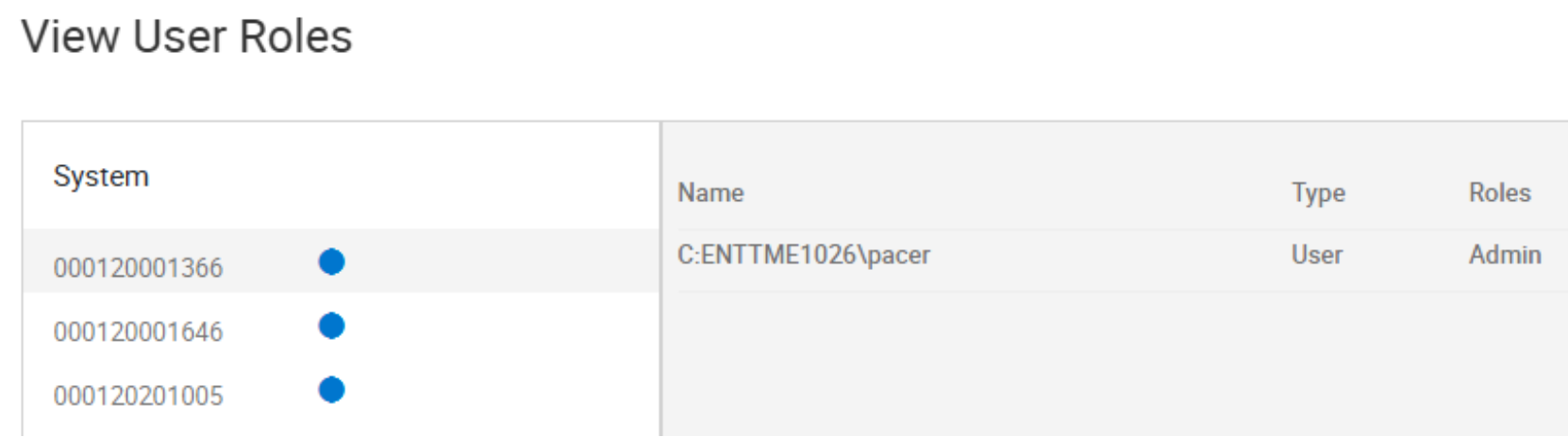
Figure 35. User roles
To enable SSO, go to Settings > Users and Groups > Authentication.
- Input the relevant information from Entra ID instance
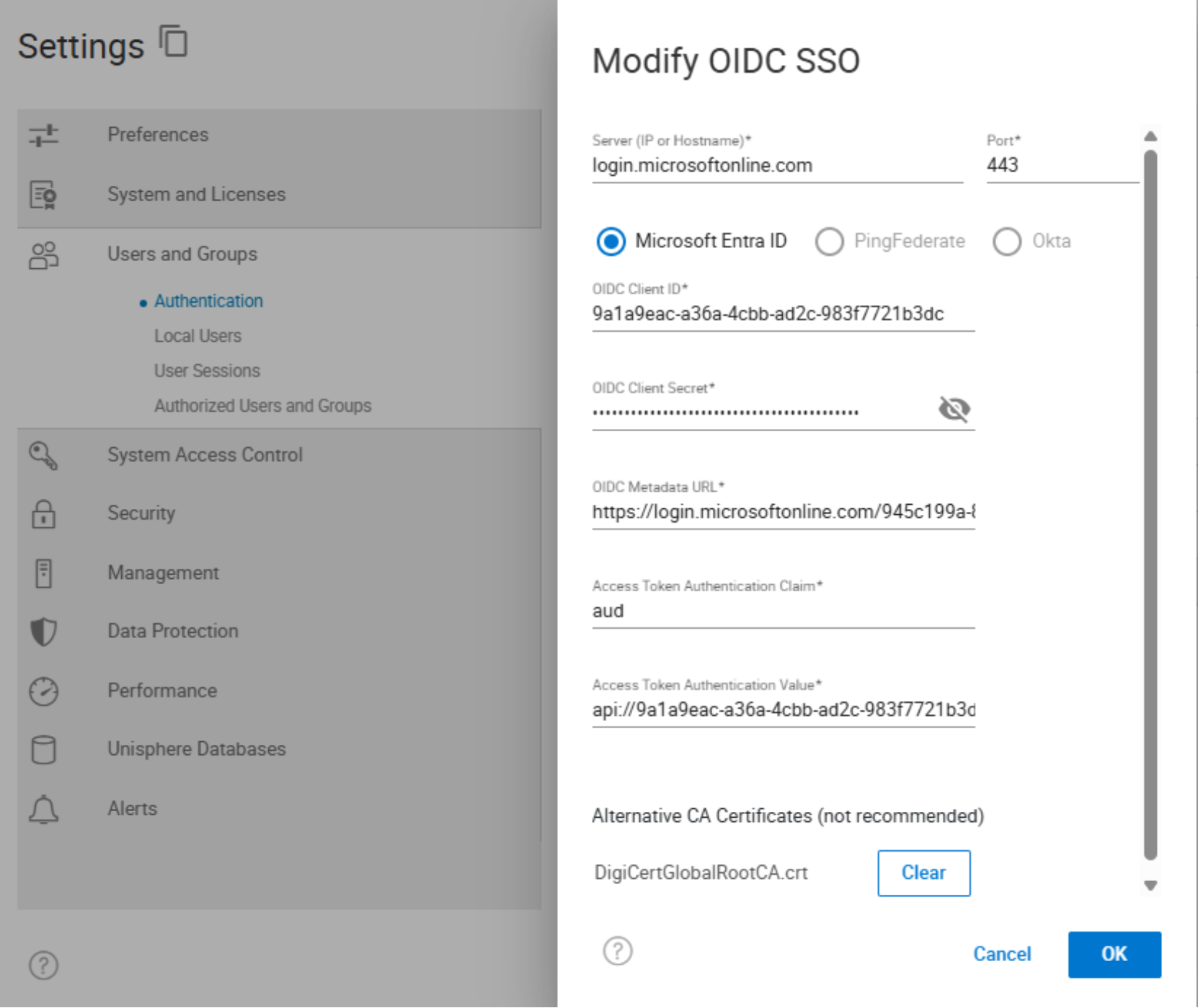
Figure 36. Enabling SSO
Create an authorized user, go to Settings > Users and Groups > Authorized Users and Groups.
- User created with SSO authority using email (claim) to authenticate identity.
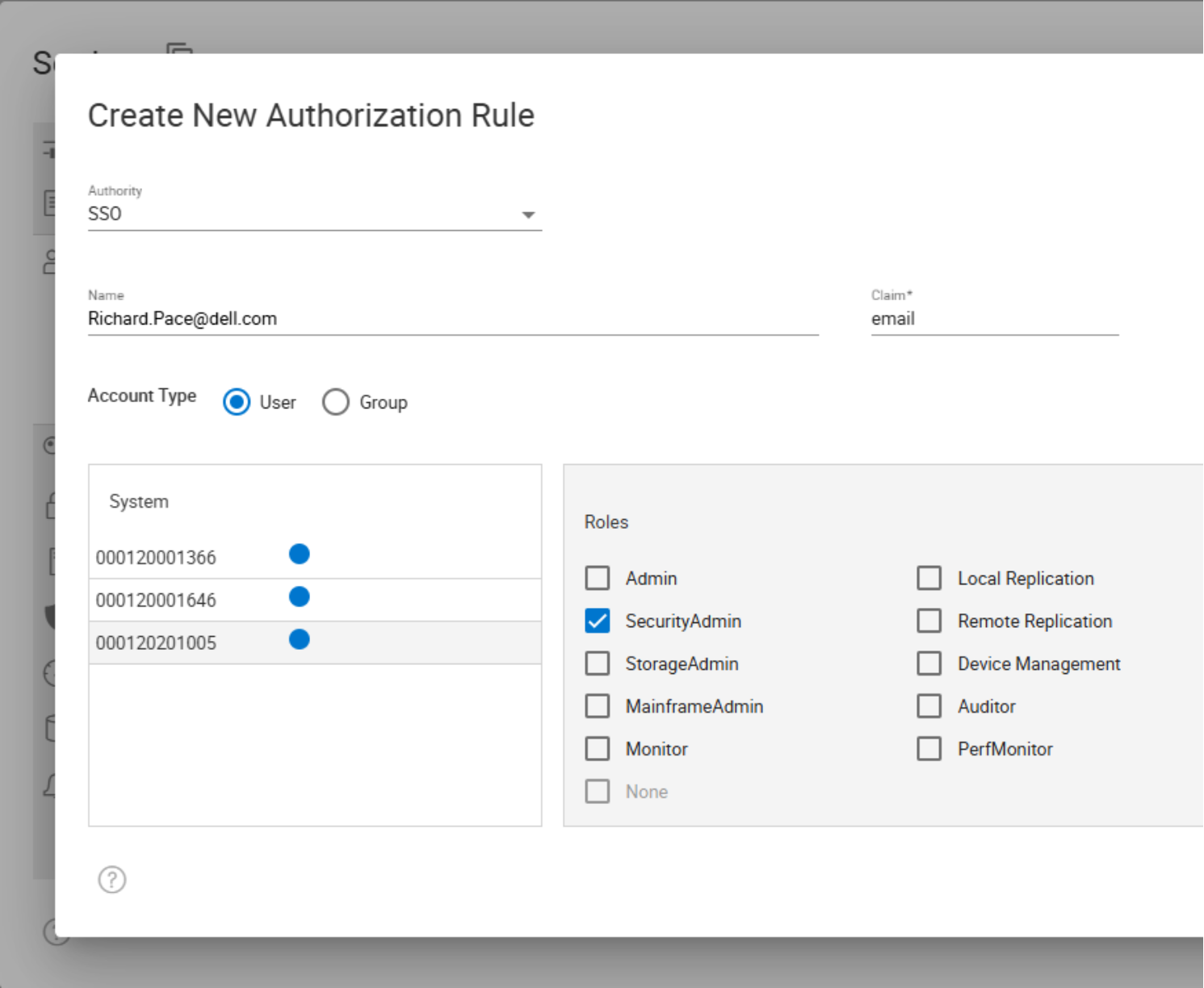
Figure 37. Creating authorized user
Once SSO is enabled and user is created, log in to Unisphere.
- Leave User Name and Password blank
- Click Login
Click User Details to view logged in User Roles.
- User authenticated with Entra ID using the authorized user role
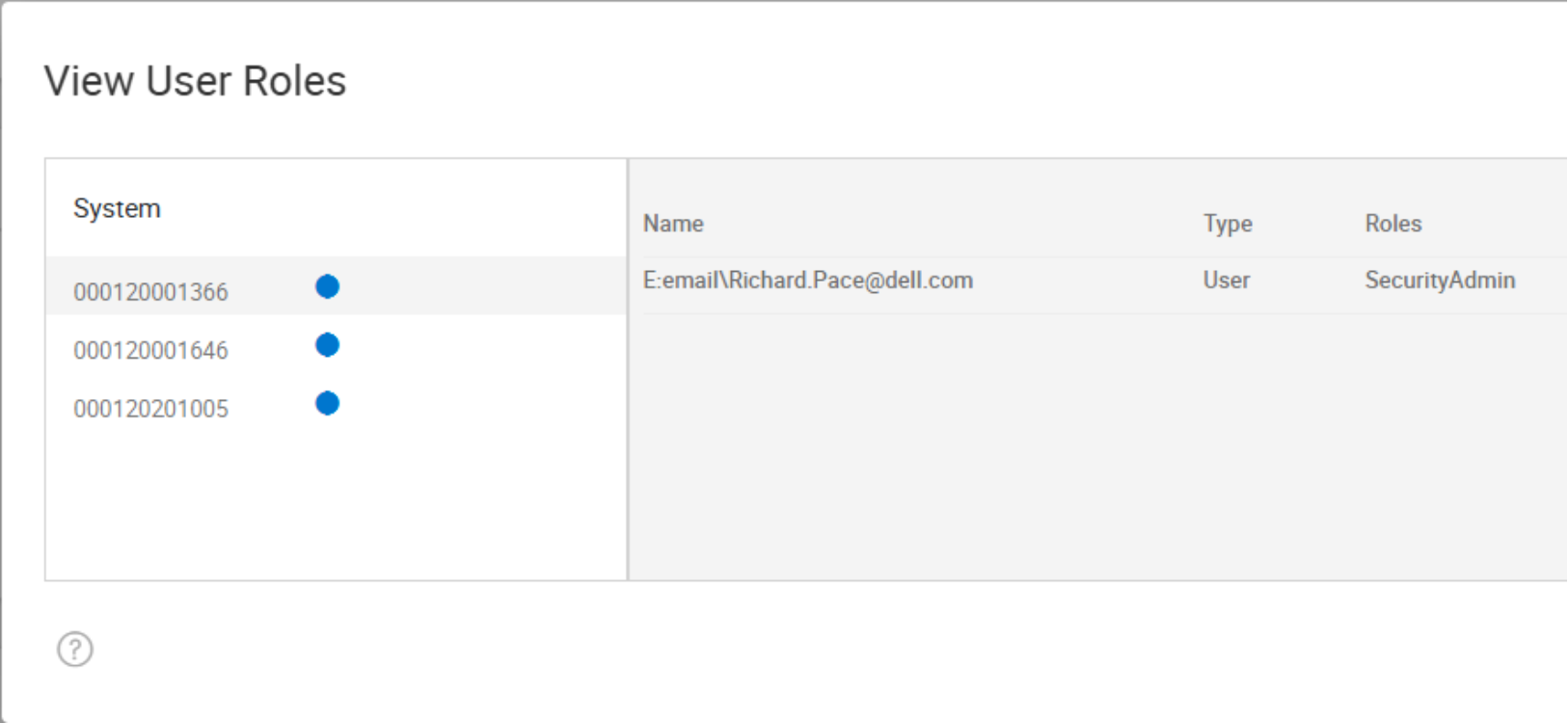
Figure 38. User roles