Dell PowerScale and Cloudera Data Platform Private Cloud Data Services
Executive summary
Overview
Audience
Revisions
We value your feedback
Overview
Overview
The PowerScale OneFS scale-out network-attached storage (NAS) platform provides CDP clients with direct access to big data through a Hadoop Distributed File System (HDFS) protocol interface. A PowerScale cluster powered by the OneFS distributed file system delivers a scalable pool of storage with a global namespace.
CDP compute clients can access the data that is stored on a PowerScale OneFS cluster by connecting to any node over the HDFS protocol. All nodes that are configured for HDFS provide NameNode and DataNode functionality. Each node boosts performance and expands the cluster capacity. For Big Data analytics, the PowerScale scale-out distributed architecture minimizes bottlenecks, rapidly serves big data, and optimizes performance for Big Data processing jobs.
CDP Private Cloud Data Services is an on-premises offering of CDP that brings many of the benefits of the public cloud to your data center. It is the framework on top of CDP Private Cloud Base that lets you deploy and use the collection of Cloudera data services such as Cloudera Data Warehouse (CDW), Cloudera Machine Learning (CML), and Cloudera Data Engineering (CDE). These data services can cater to your data-lifecycle goals.
In the below figure, the Cloudera distribution is stored on a separate compute cluster, and individual clients connect directly to the PowerScale OneFS cluster to store and access data. OneFS handles HDFS file-data exchange as a protocol to store and retrieve the data to match the client's requirements.
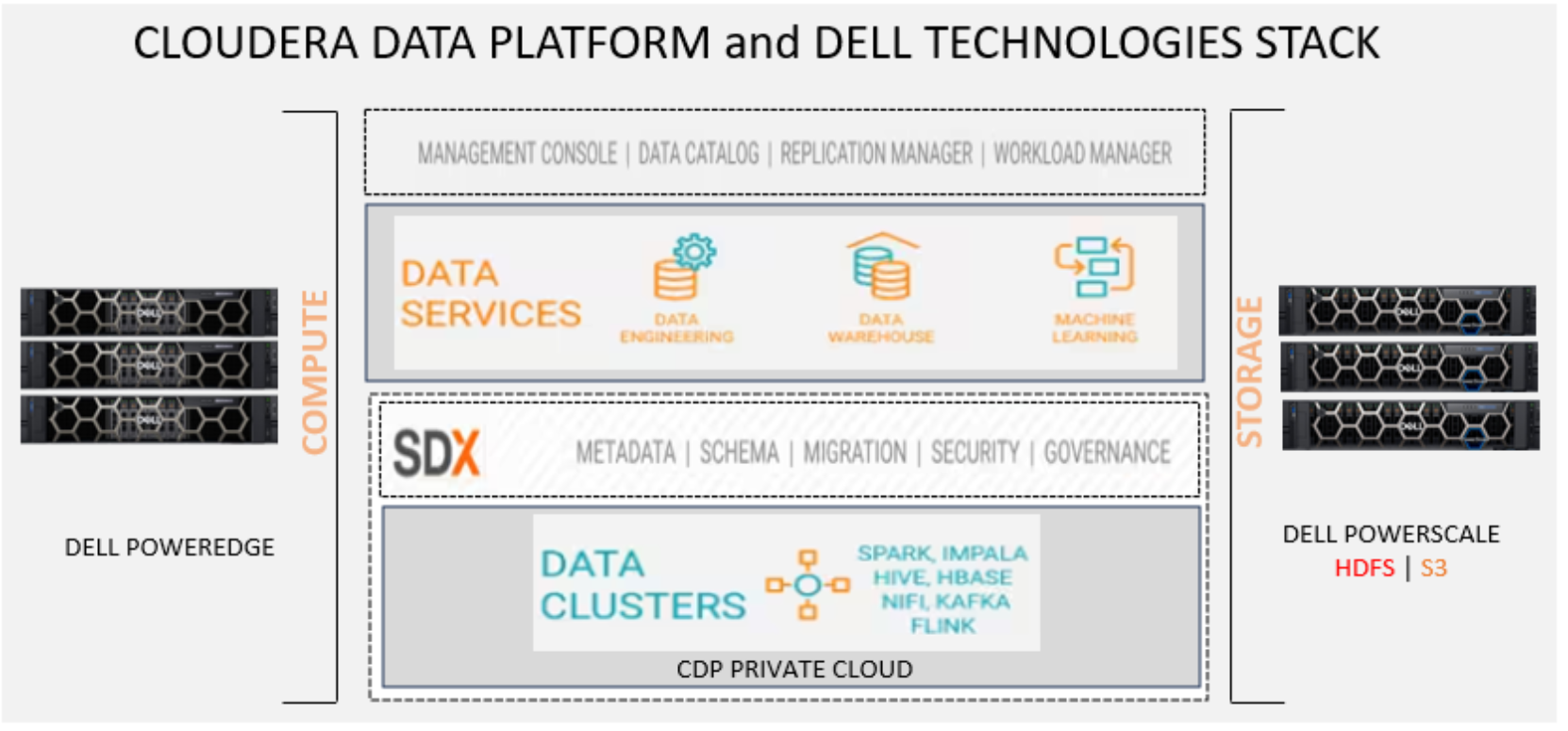
Figure 1. Cloudera Data Platform Base and Data Services with Dell PowerScale OneFS
Prerequisites
Info regarding PowerScale and Hadoop
Supported Cloudera and Hadoop versions
Cloudera Data Platform Base
Configuring LDAP users
Installing Data Services using Cloudera Manager
Data Services Installation Requirements
CDP Private Cloud Base Software Requirements
Bind User Requirements
Networking
Additional requirements using PowerScale OneFS
Ozone is inherently used to store the CDE job logs, however PowerScale OneFS S3 can be used in its place. A post-installation task to configure a bucket for the logs can be implemented before creating a CDE virtual service or CML workspace.
PowerScale OneFS is not automatically identified by the Control Plane so an additional property (hdfs_client_config_safety_valve) must be added via the Cloudera Manager user interface to the Dell PowerScale CSD Service. This will allow CDP Data Services to interact with the PowerScale WebHDFS API.
<property><name>dfs.namenode.http-address</name><value>cdp.solarch.lab.com:8082</value></property>
Where ‘cdp.solarch.lab.com’ is the PowerScale OneFS SmartConnect zone name.
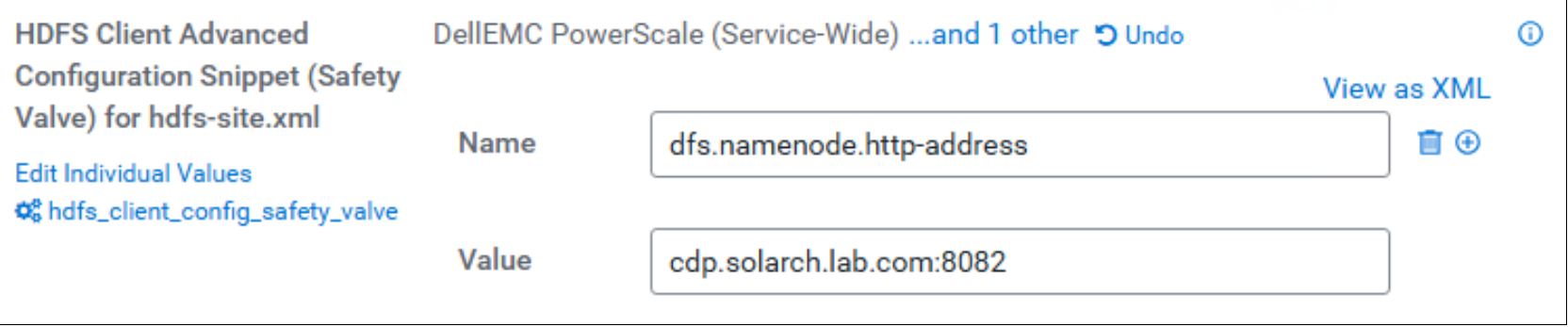
Figure 2. Add configuration property to the PowerScale CSD
Note: The value in the above figure is the same SmartConnect Zone URL which was entered when configuring the PowerScale CSD during the CDP Private Cloud Base installation. The two service principals that were created when enabling Kerberos on PowerScale OneFS are also required. Reference the Dell PowerScale and Cloudera Data Platform Private Cloud Base installation guide for details.
Additional manual user configuration is required on PowerScale OneFS when using the Hue file browser with the CDP Private Cloud Base Data Services Virtual Warehouse:
- Create a directory for each additional user in the PowerScale OneFS access zone that requires access.
For example:
mkdir /ifs/<access zone>/hadoop-root/user/dwxdevuser
chmod dwxdevuser:supergroup /ifs/<access zone>/user/dwxdevuser
- Add a proxy user to PowerScale OneFS that can login to the HUE Web Interface
For example:
isi hdfs proxyusers modify hive --zone <access zone> --add-user dwxdevuser
Install CDP Data Services
Note: this document installed a containerized cluster using the Embedded Container Service (ECS) and the default configuration which installs embedded docker repository, vault, and database. Hence some installation screens are not shown in the below steps.
Step 1: Data Services can be installed from the Cloudera Manager by choosing ‘Data Services’ from the left navbar:
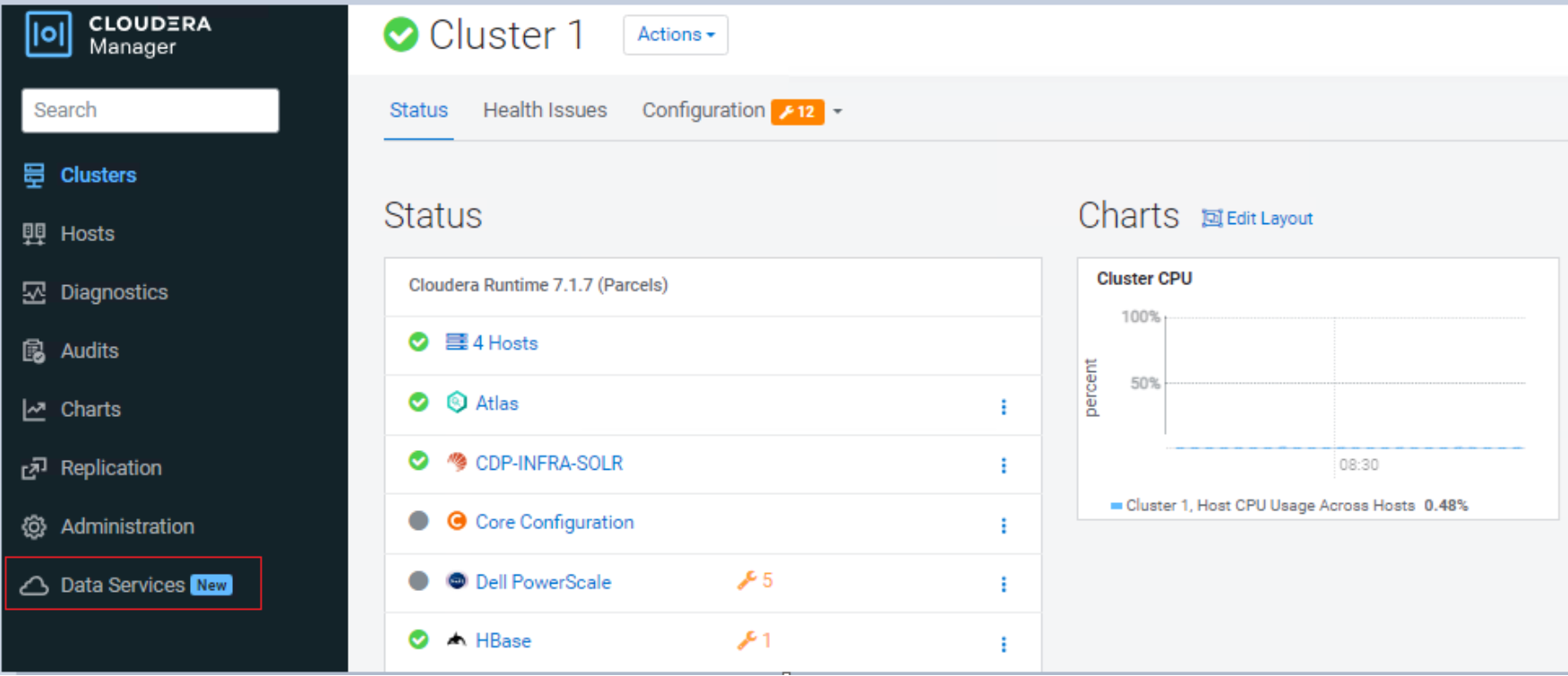
Figure 3. Deploy Data Services from Cloudera Manager
The Add Private Cloud Containerized Cluster page appears. Click the continue button.
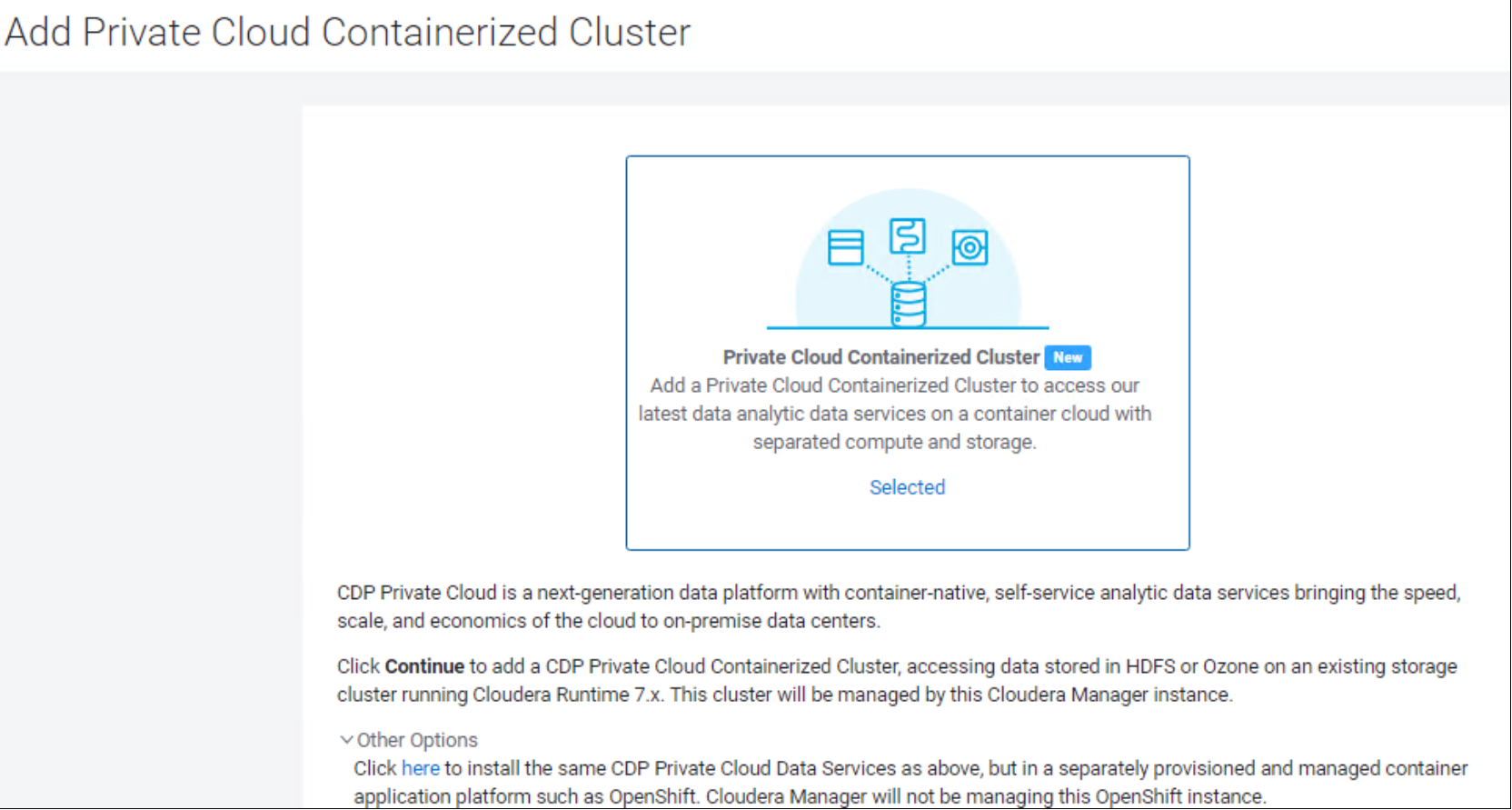
Figure 4. Add a Private Cloud Containerized cluster
Step 2 On the Getting Started page of the installation wizard, select Internet or Air Gapped as the Install Method and the repository, then click the Continue button.
Note: The latest Data Services version that is shown may not be certified with PowerScale. If this is the case, then click the ‘Custom Repository button and add the version that is certified or modify the URL directly. Reference the Hadoop Distributions and Products supported by OneFS document for compatible versions.
We used Data Services version 1.5.1 for this validation because our CDP Base version is 7.10.1.
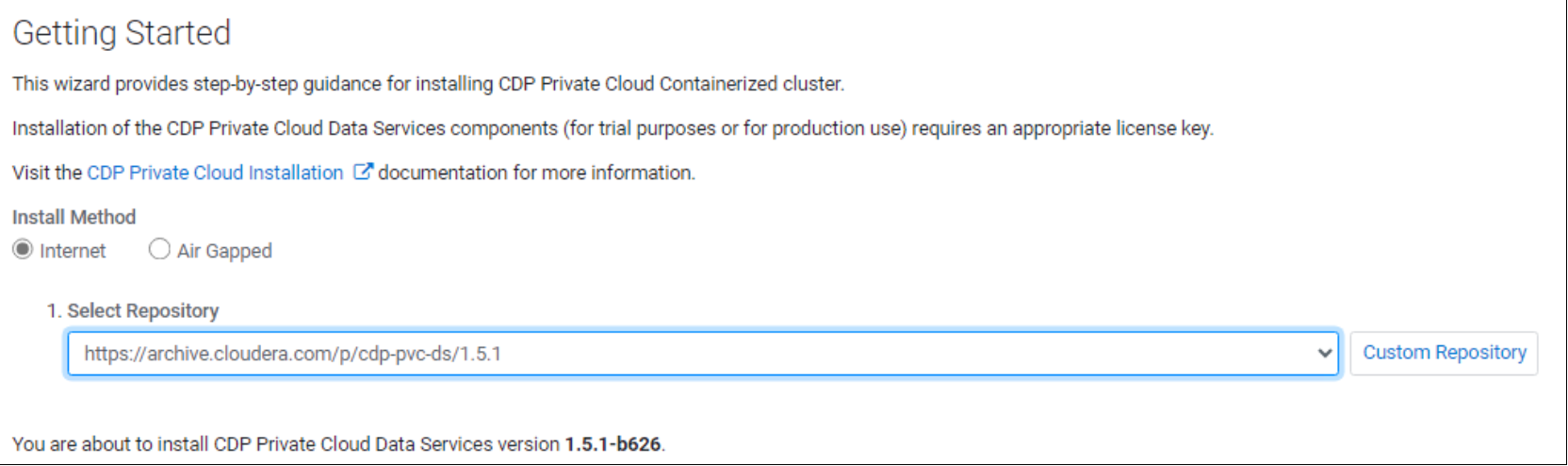
Figure 5. Select the install method and repository
Step 3: Type a name for the Data Services Cluster and select the Base cluster that has the PowerScale OneFS and the SDX services to connect with.
On the Cluster Basics page, type a name for the Private Cloud cluster that you want to create in the Cluster Name field. From the Base Cluster drop-down list, select the cluster that has the storage and SDX services that you want this new Private Cloud Data Services instance to connect with. Click the Continue button.
Note: You have the option to use a default configuration. This includes an embedded Docker Repository, vault, and Database. This is not recommended for Production environments however this example chose to enable it for documentation purposes since it does not affect PowerScale.
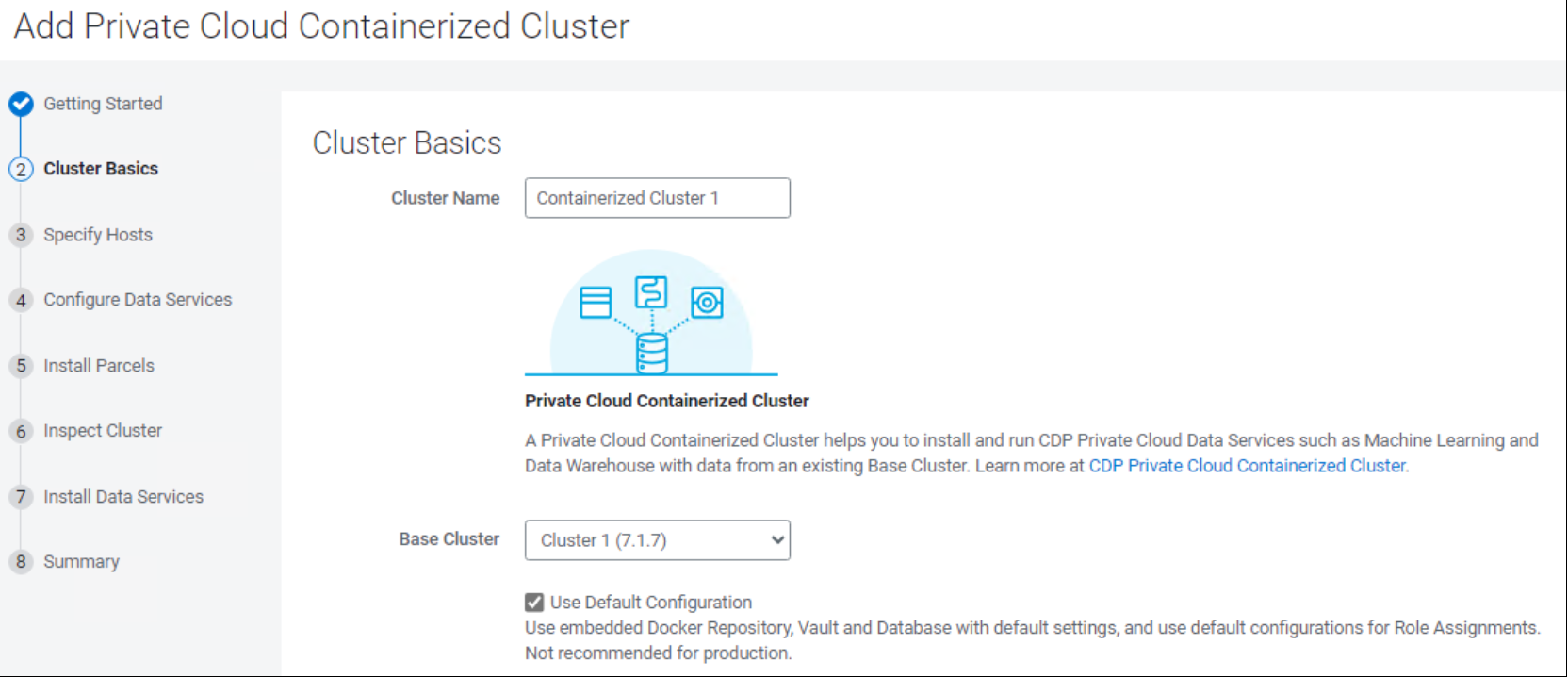
Figure 6. Provide a name for the containerized cluster and select the base cluster to use.
Step 4: Specify the hosts to form the Data Services Cluster by entering the FQDN of each host and clicking the Search button. Then click the Continue button.
Note: You can also click the New Hosts tab to specify one or more hosts that have not been added to Cloudera Manager.
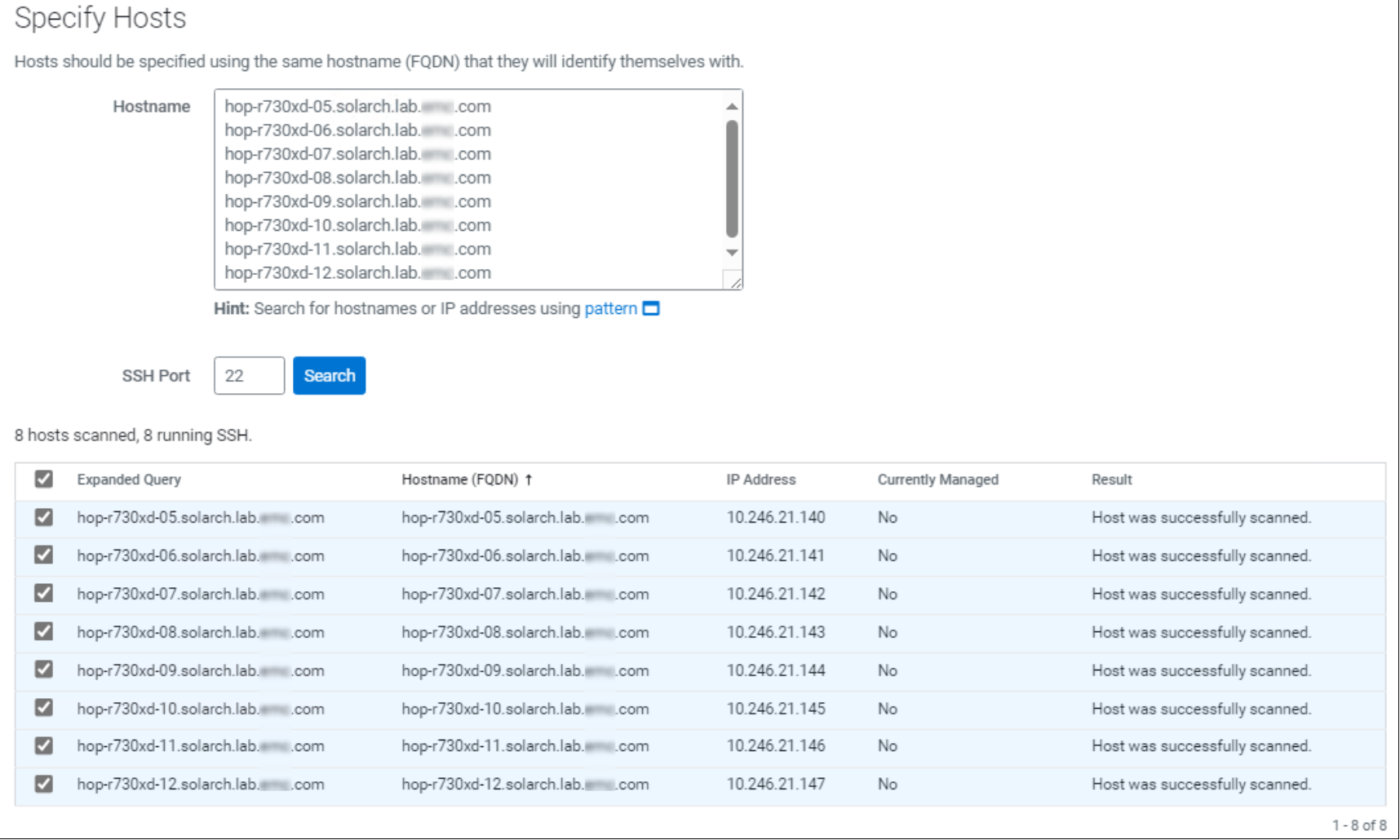
Figure 7. Select the hosts to install the containerized cluster on
Step 5: On the Select JDK page, select any one from the below options then click the Continue button.
- Manually manage JDK
- Install a Cloudera-provided version of OpenJDK
- Install a system-provided version of OpenJDK
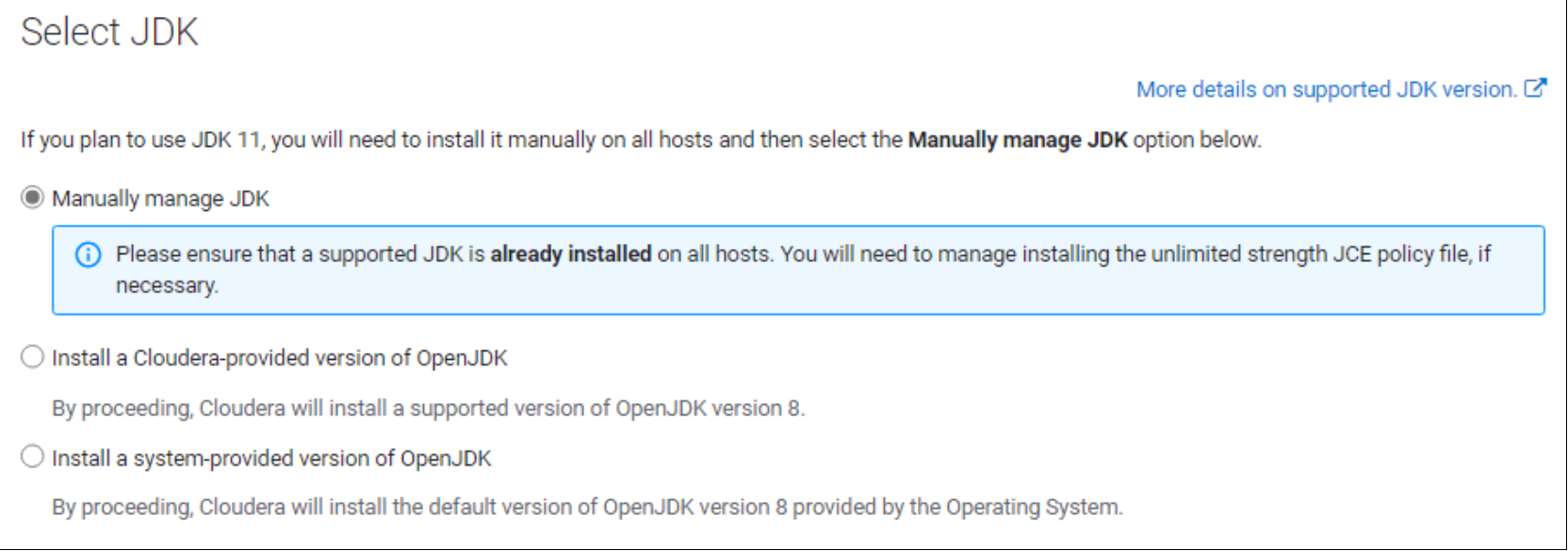
Figure 8. Select the JDK version
Step 6: Login Credentials page.
Enter the login credentials for the Data Services hosts. This could be Password or Private Key based the click the Continue button.
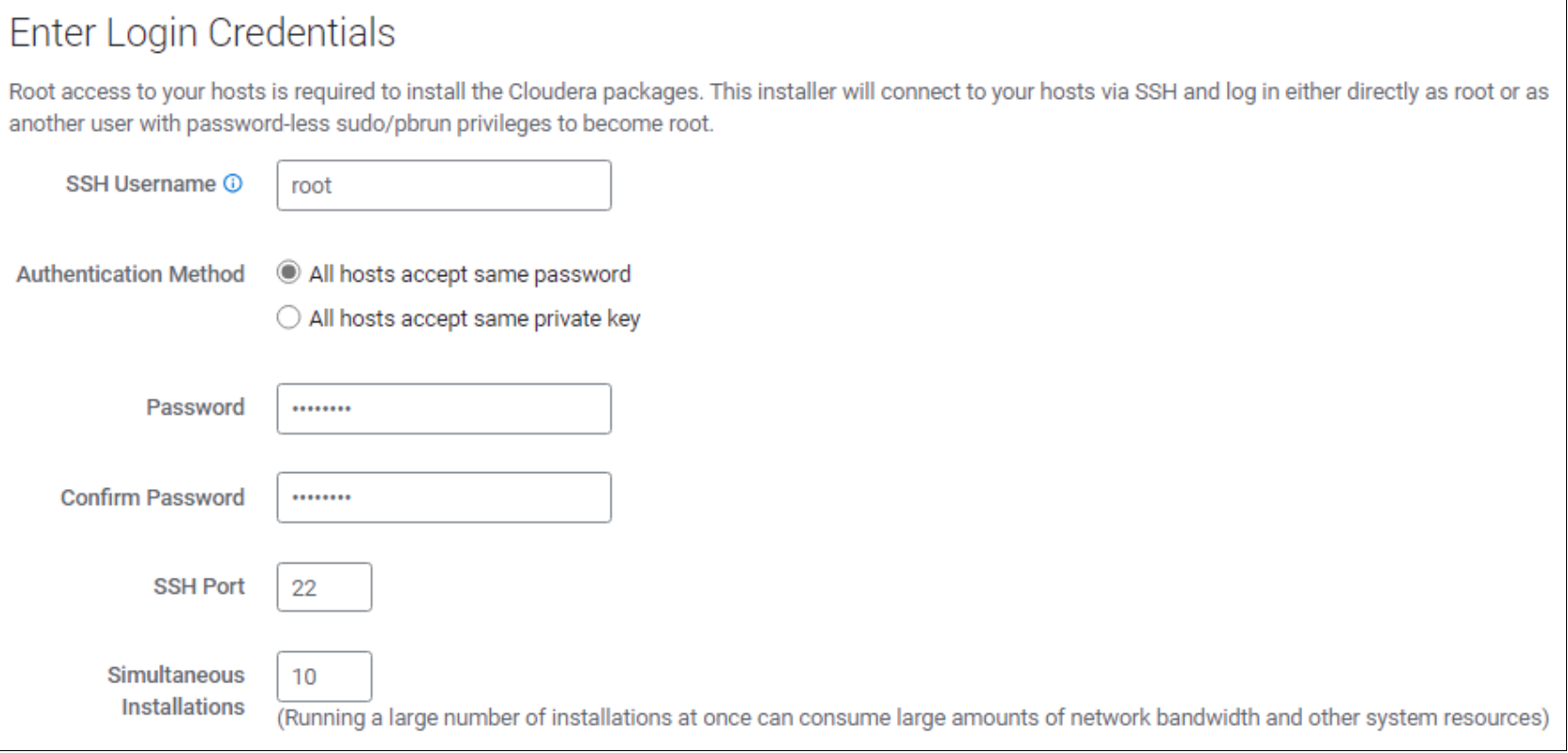
Figure 9. Enter the host login credentials
Step 7: Cloudera Manager will install the Agents on each host.
Note: Cloudera will automatically proceed to the next step if successful.
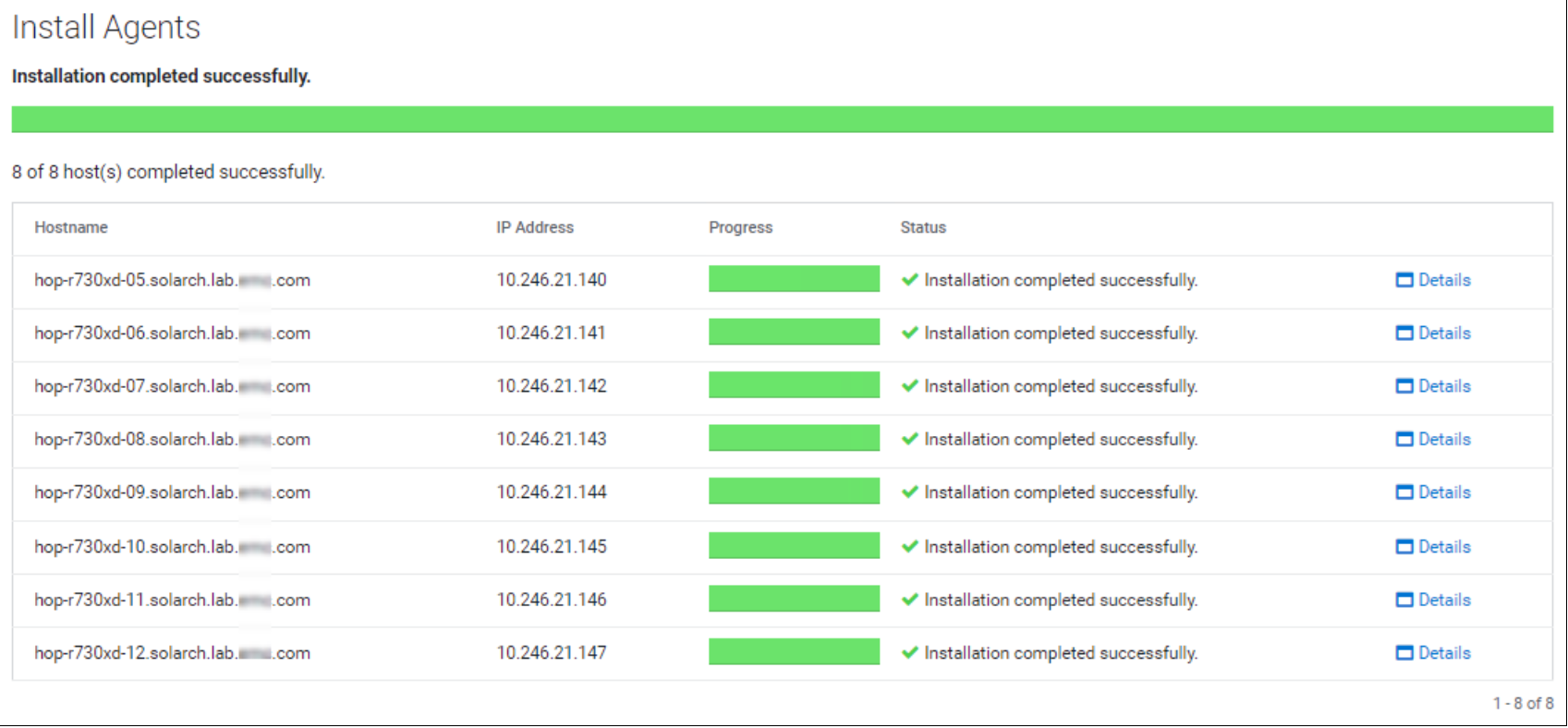
Figure 10. Cloudera agents successfully installed on each host
Step 8: Configure Data Services
The Private Cloud Containerized Cluster needs to act as a TLS/SSL Server. By default, Cloudera Manager generates a self-signed certificate and uses it for all communication for example from the browser to the Private Cloud Containerized Cluster using TLS.
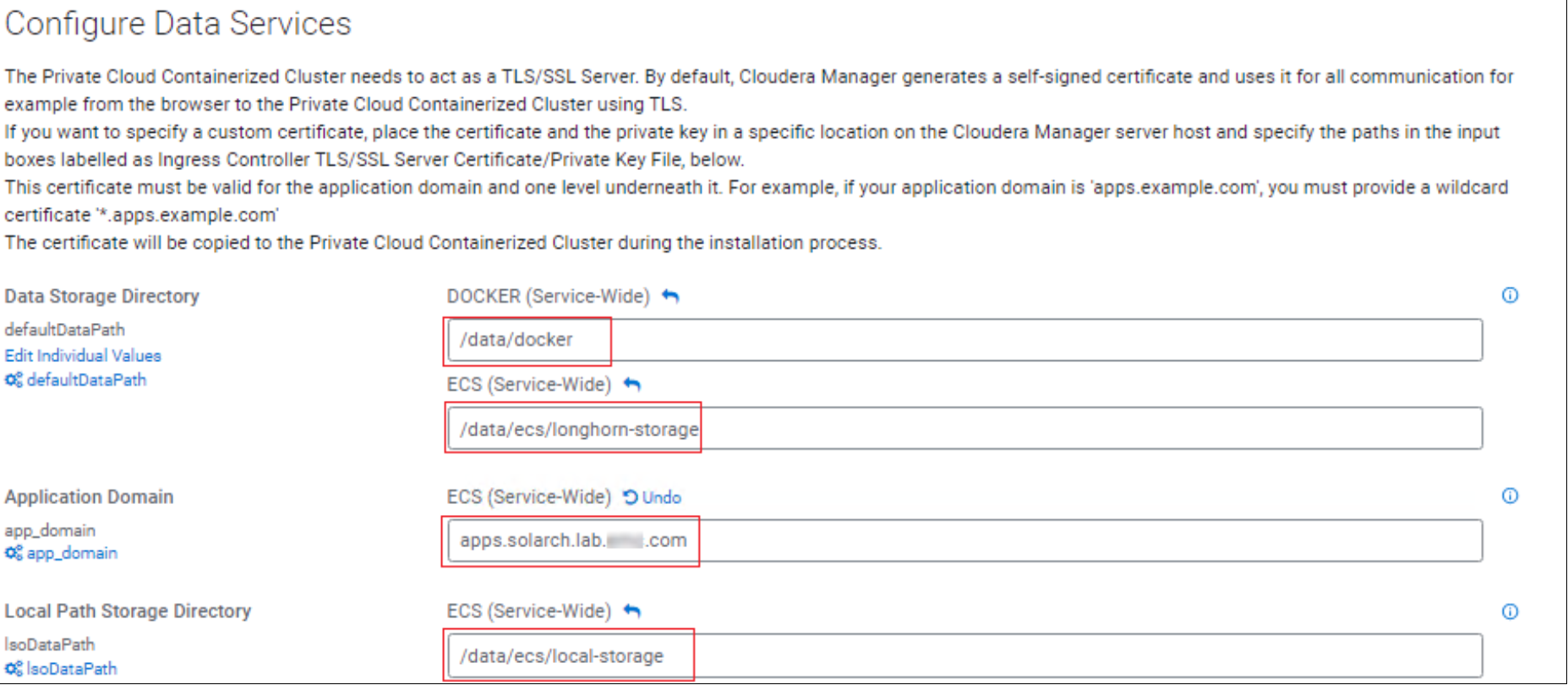
Figure 11. Configure Data Services
Storage Directory
Cloudera Manager detected the Storage disk to use for the Docker Repository and Local Path Storage Directory.
Application Domain
Add the wildcard domain to use for Applications. For example:
Add a CNAME to DNS that points to the Control Plane node.

Step 9: Parcel Installation
The parcels will be distributed, unpacked, and activated to each host in the cluster.
Note: Cloudera will automatically proceed to the next step if successful.
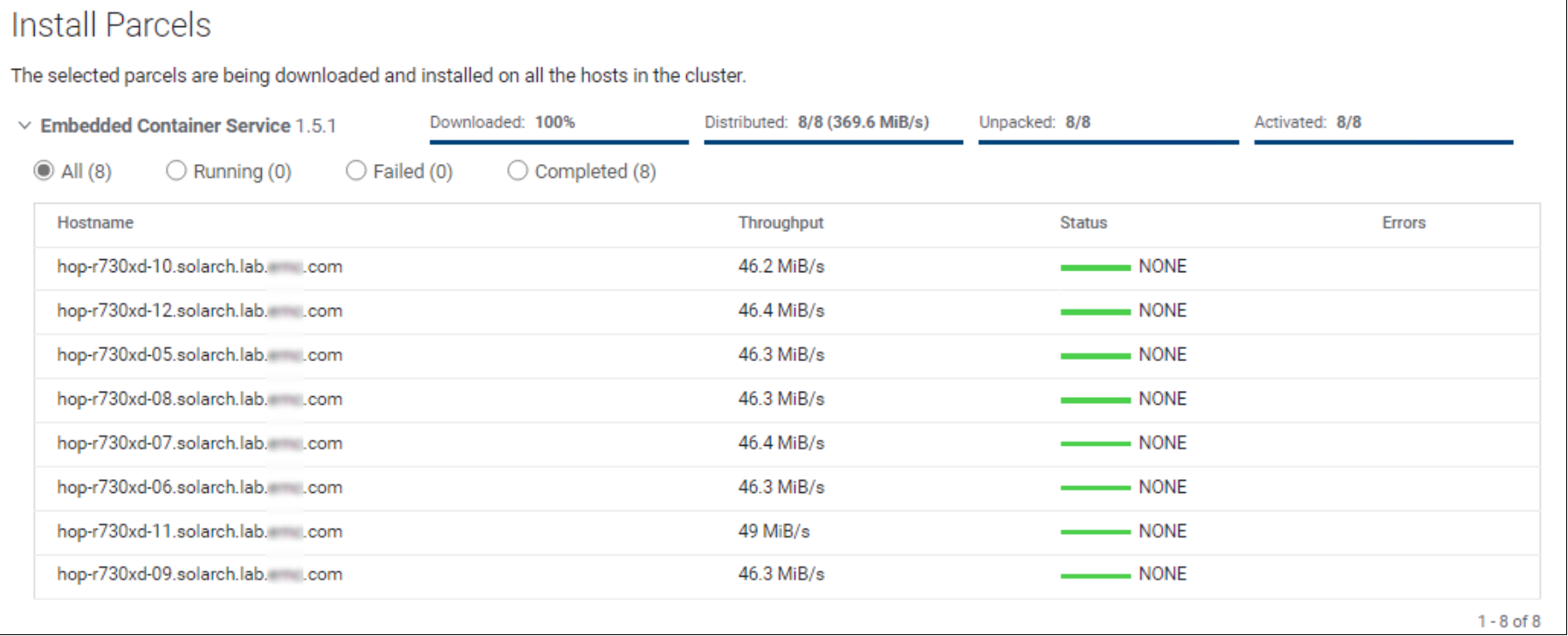
Figure 12. Install parcels on each host in the containerized cluster
Step 10: Cluster Inspection
Cloudera recommends that you run the following inspections. For accurate measurements, Cloudera recommends that they are performed sequentially. Click the Continue button once tests successfully pass.
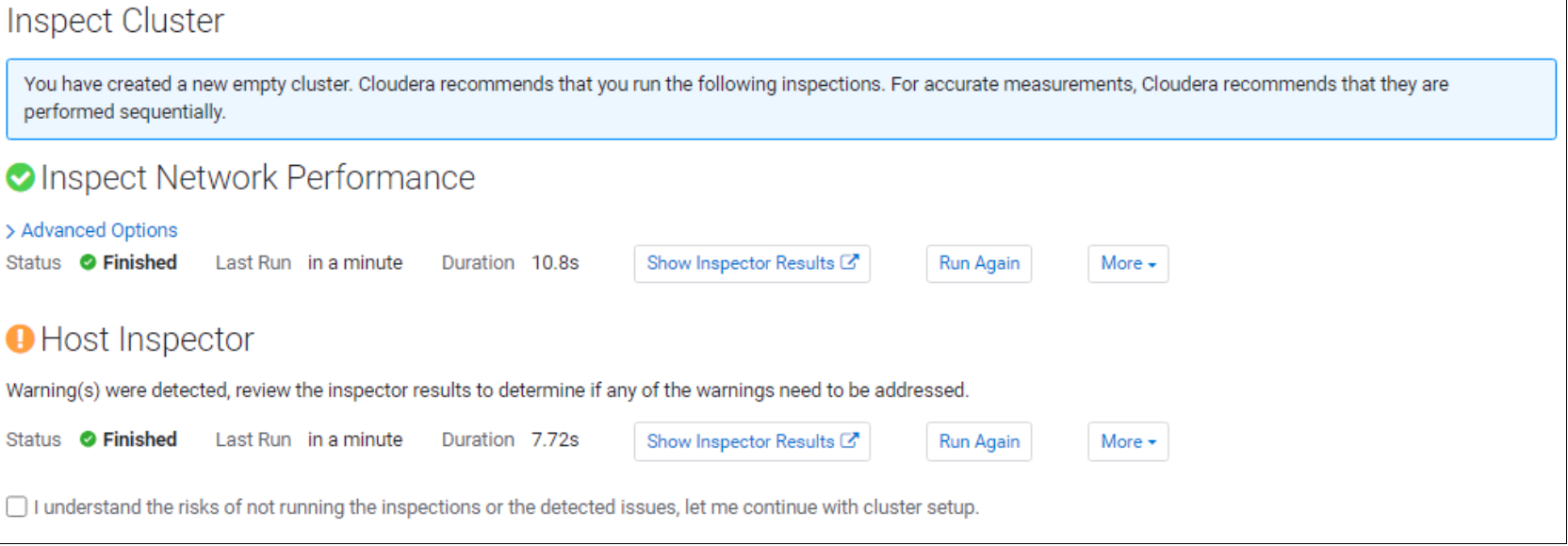
Figure 13. Inspect the containerized cluster hosts
Note: We choose to ignore the following warning since our hosts did not have Nvidia drivers installed.
Step 11: Data Services Installation
The installation progress is displayed on the Install Data Services page. Click the Continue button when all services are successfully installed.
Note: This process may take some time when pulling images to the Docker Repository from the Internet.
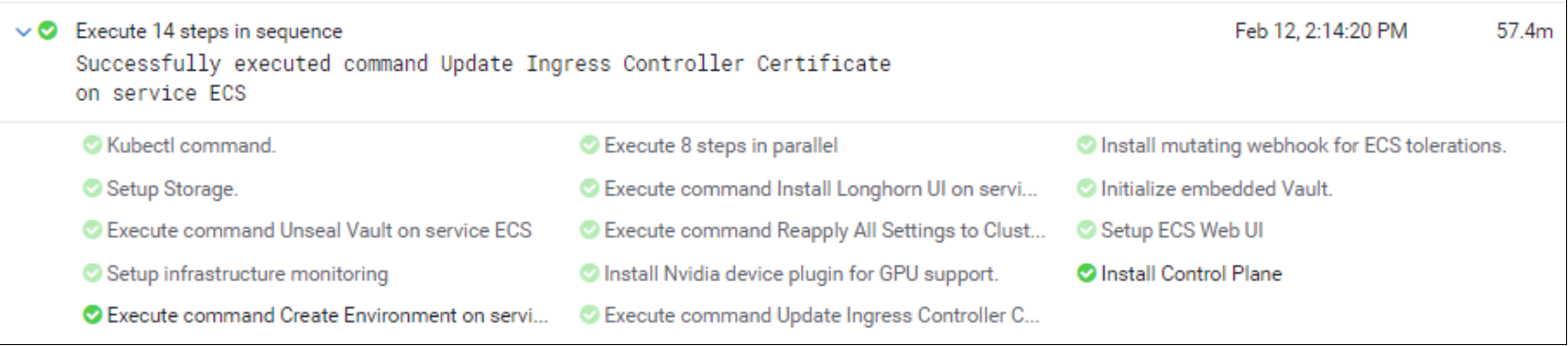
Figure 14. Data Services Installation
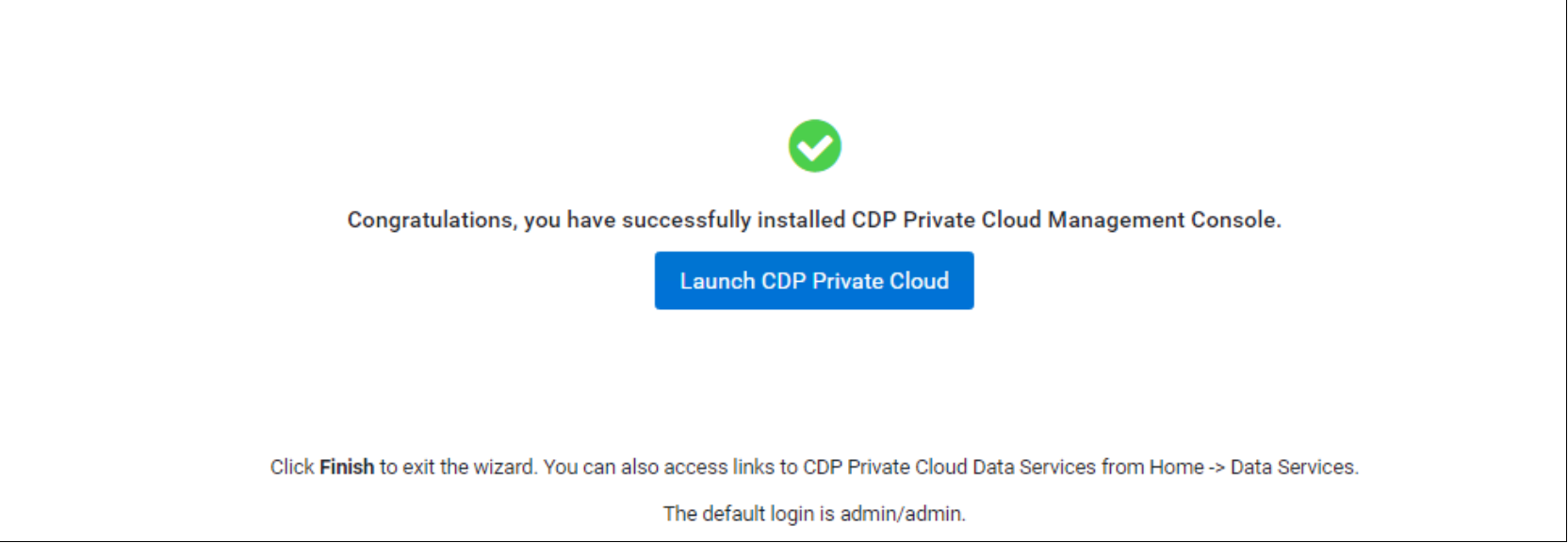
Figure 15. The containerized cluster has been successfully installed
Post-installation steps
Configure an S3 bucket to store logs
The CDE archive logs would normally be stored in an Ozone bucket. Use the following steps to use a PowerScale OneFS S3 bucket instead.
Step 1: Create a user in the access zone being used for CDP
1. Navigate to Access>Membership and roles
2. Select the Access zone and Provider and create a new user

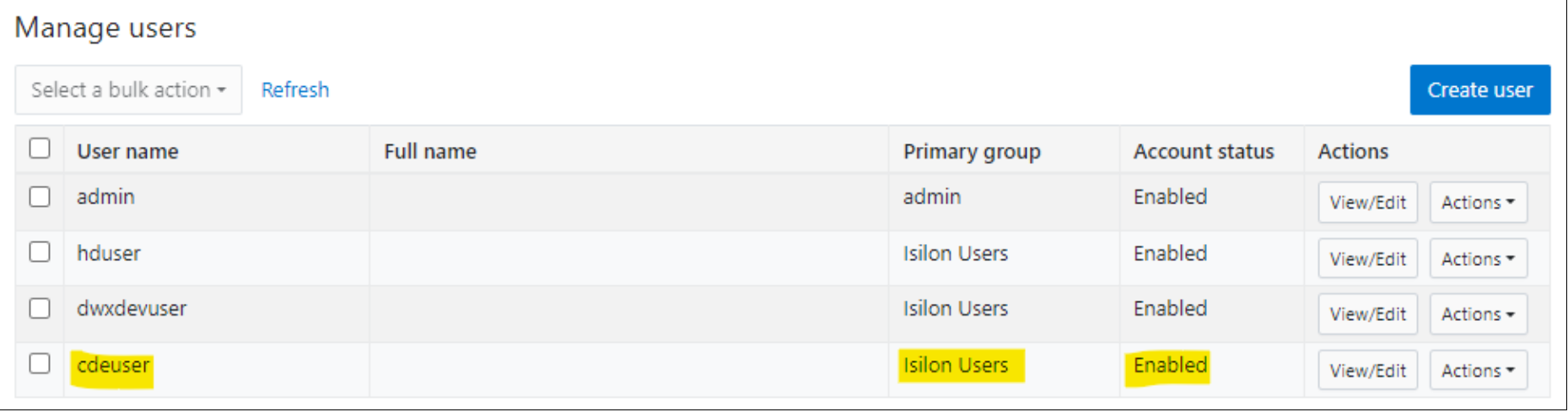
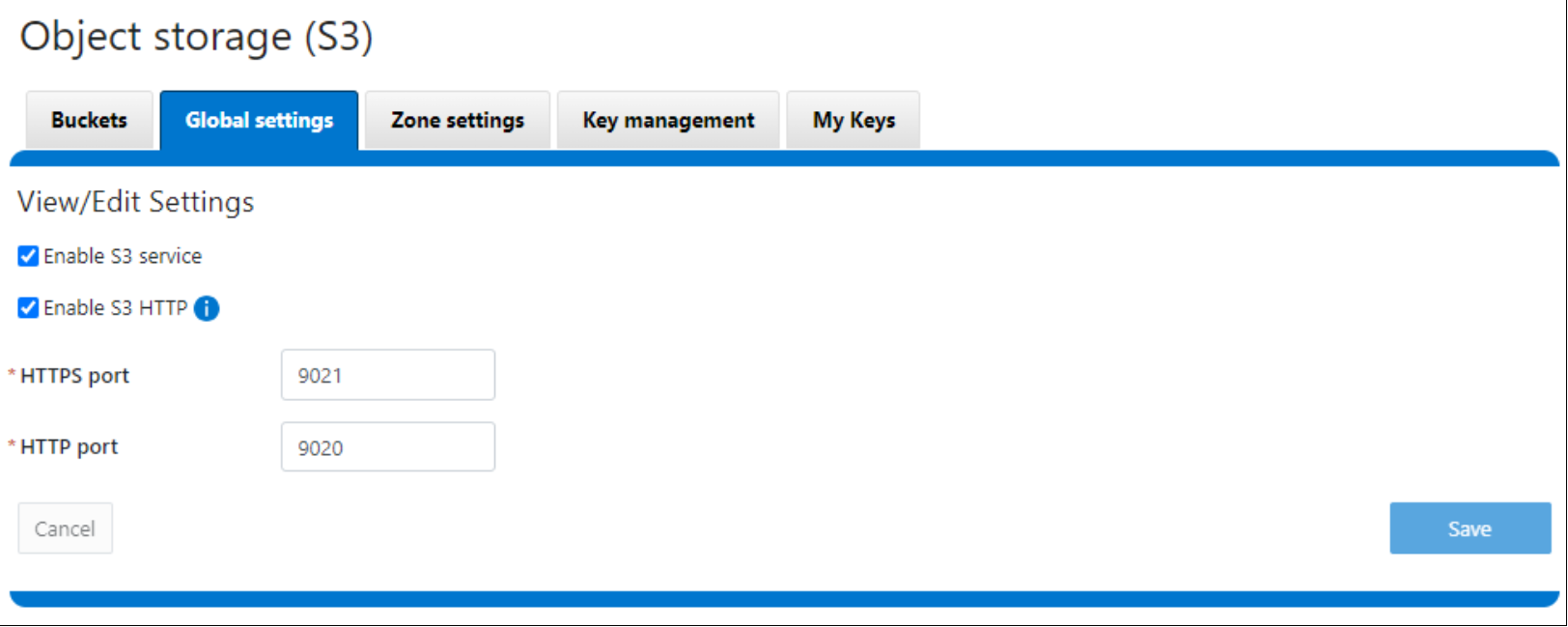
Step 2: Enable the S3 Service
1. Navigate to Protocols>Object storage (S3)
2. From the Global Settings tab, enable the S3 service and S3 HTTP
Step 3: Create access and secret key credentials
1. Click the Key management tab, select the access zone and choose the cdeuser we previously created, then click ‘Create a key’
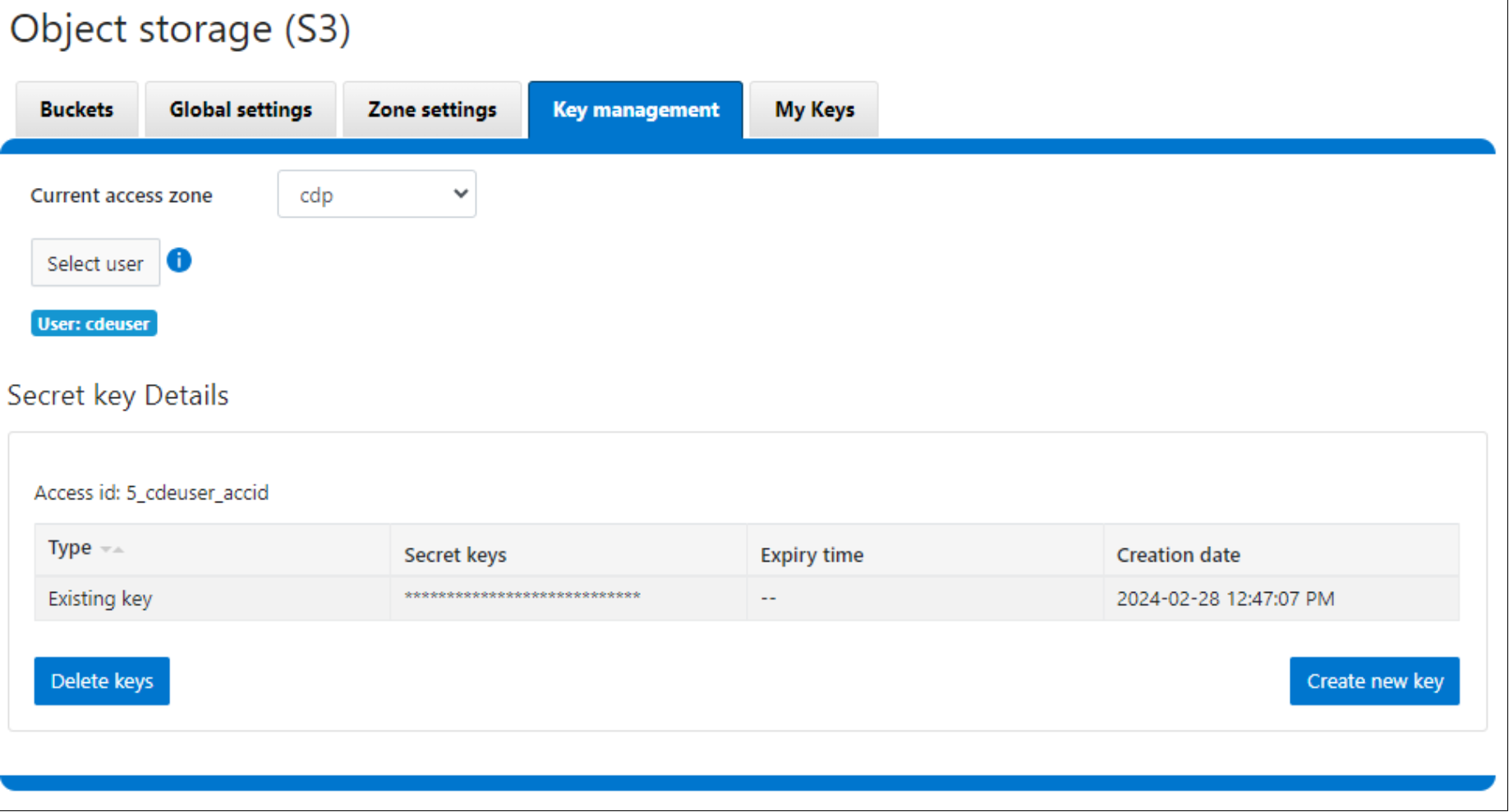
Note: Copy the Secret key and store it in a safe place as this is the only opportunity it will be displayed.
In the above screenshot our access key is 5_cdeuser_accid (5 refers to the zone id)
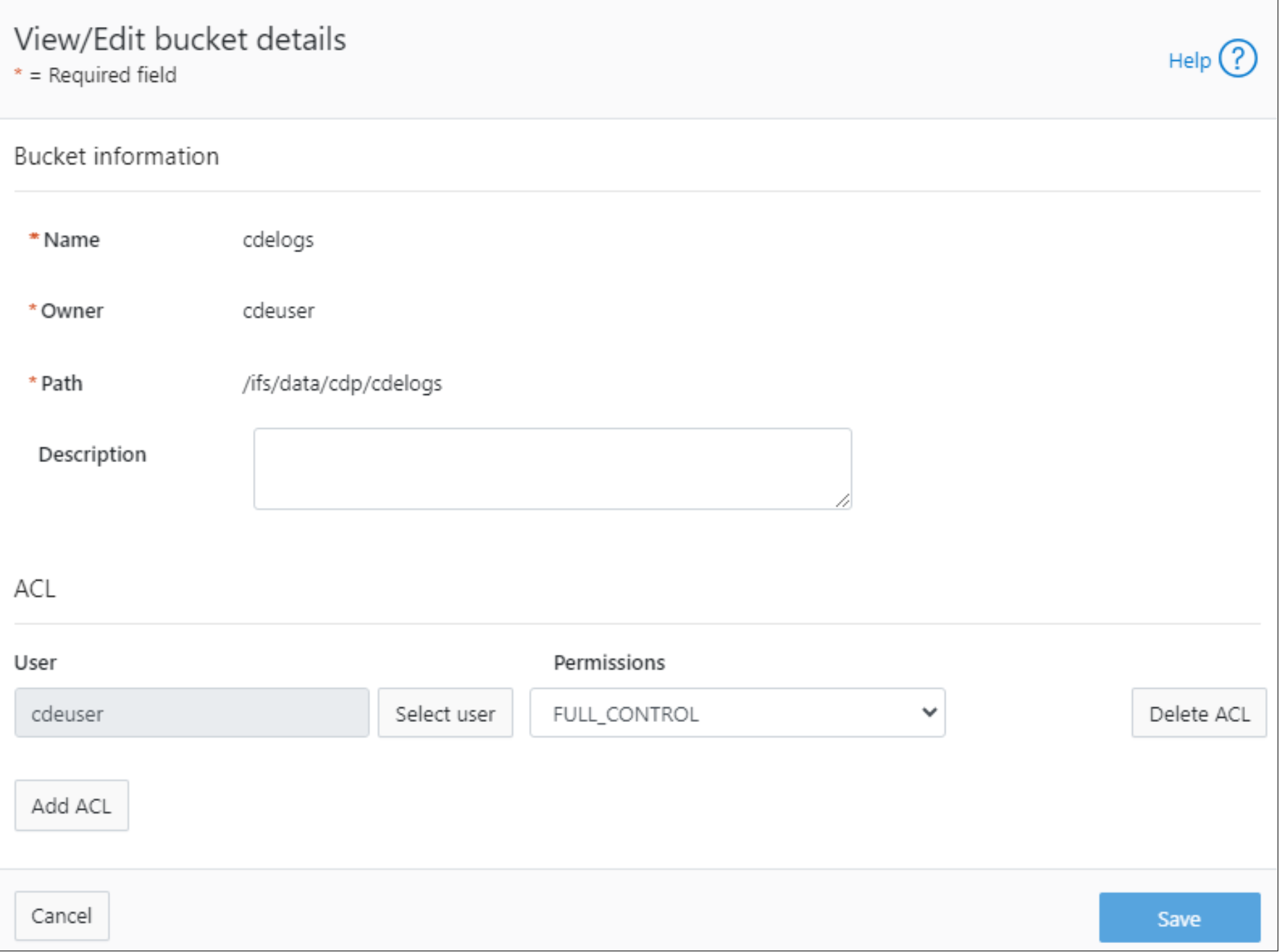
Step 4: Create an S3 bucket
Navigate to the ‘Buckets’ tab and click ‘Create bucket’
Name: Enter the name of the bucket to create
Owner: Select the user who will own the bucket (for example: cdeuser)
Path: The path where the bucket will be created (Note: the path must be created under the access zone path. For example, the access zone path used here is /ifs/data/cdp so the bucket is created as /ifs/data/cdp/cdelogs).
Step 5: Configure the S3 bucket on CDP to store the CDE virtual service logs
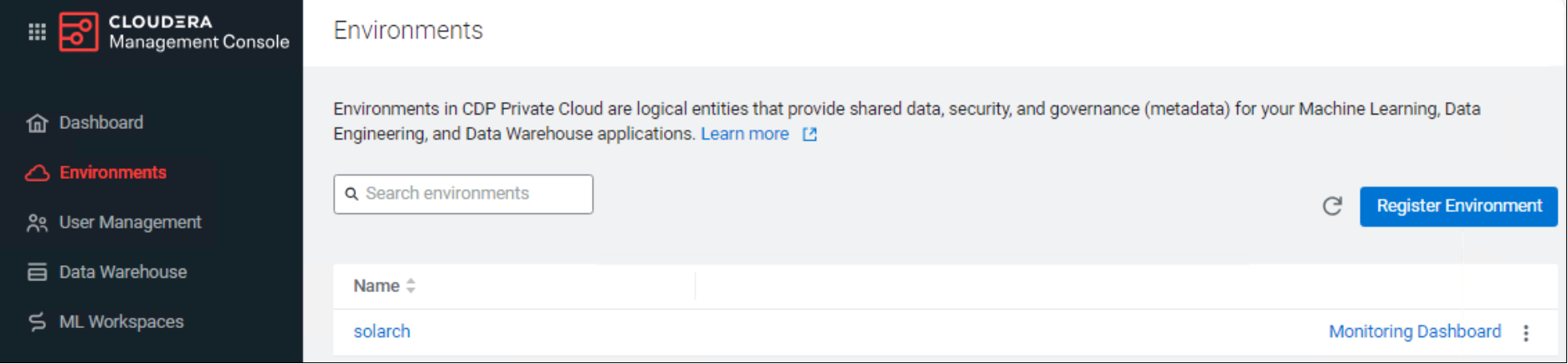
Verify that an Environment was created during the installation process by navigating to the Environments tab on the left navbar of the Management Console.
Right-click on the Management Console page and select ‘Inspect’.
Note: The browser you use may require a different way to Inspect the page
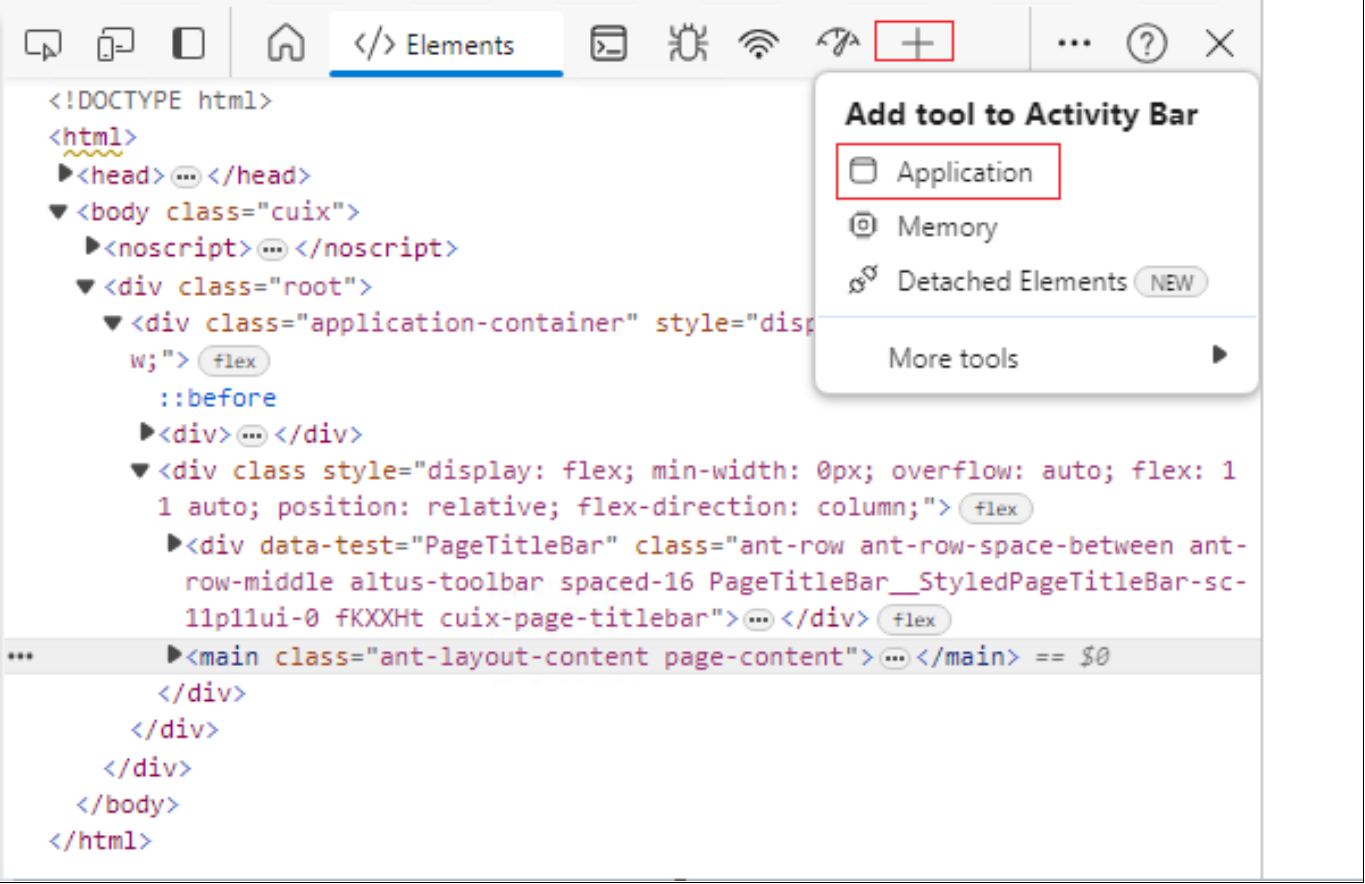
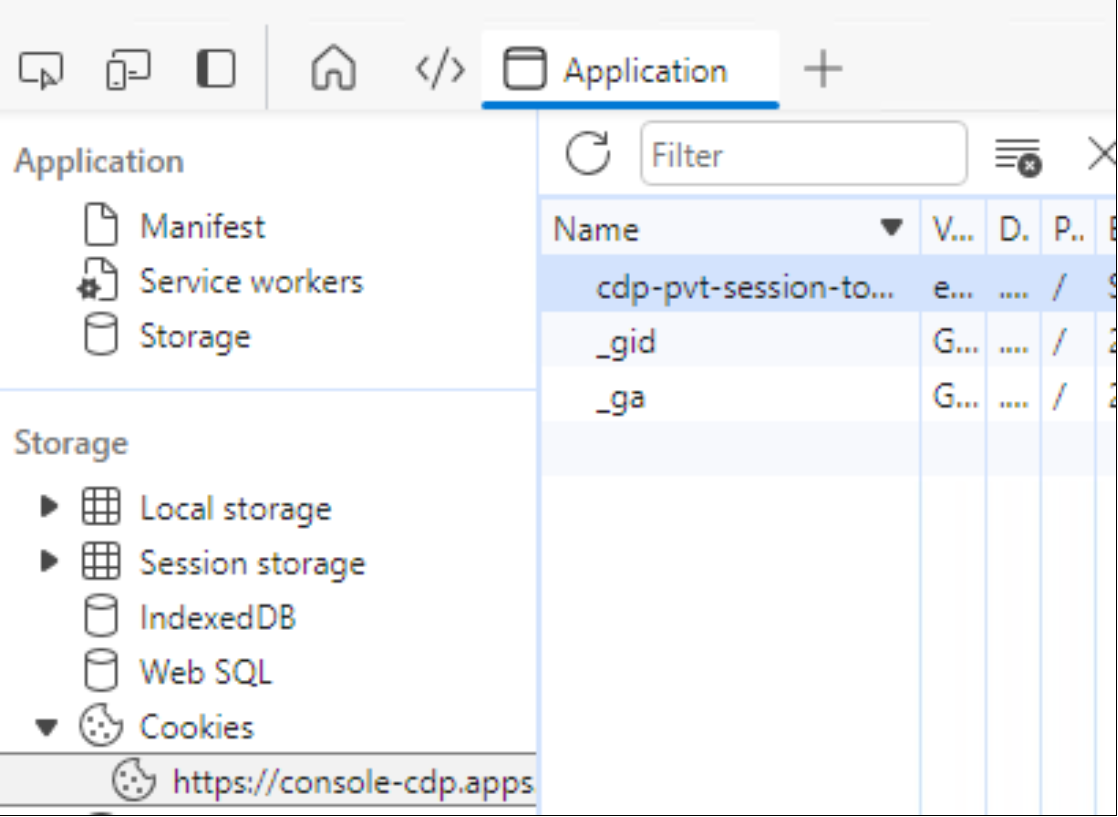
Select the Console URL under ‘Cookies’ and copy the ‘cdp-pvt-session-token’ Cookie value from the lower section of the page. Close the Browser Inspection tool
Run the following Curl command to configure the OneFS S3 bucket to store logs.
curl -v '<CP-URL>/api/v1/environments2/setEnvironmentSetting' -H 'Content-Type: application/json' -H \
'Cookie: cdp-pvt-session-token=<CDP-Private-Token>; _gat=1' --data \
'{"environmentName": "<Env-Name>", "settings": \
{"logType":"OZONE","ozoneLogsPath":"/logs","ozoneLogsBucket":"<Bucket-Name>" \
,"ozoneS3Secret":"<S3-SecretKey>","ozoneS3Key":"<S3-Accesskey>","ozoneS \
3RestUrl":"<S3-EndPointUrl>"} }' --compressed –insecure
Where:
CP-URL: Control plane URL
CDP-Private-Token: Private session token
Env-Name: Data Service Environment name
Bucket-Name: S3 bucket name
S3-SecretKey: Secret key to access S3 bucket
S3-AccessKey: Access key to access S3 bucket
S3-EndPointUrl: Endpoint URL to access the S3 bucket
Verify you see an HTTP/1.1 200 OK after running the command.
* upload completely sent off: 249 out of 249 bytes
< HTTP/1.1 200 OK
< Date: Tue, 13 Feb 2024 17:37:43 GMT
< Content-Type: application/json
< Transfer-Encoding: chunked
< Connection: keep-alive
< x-cdp-request-id: c25325cc-c3f9-4ad1-b72c-5dc5adab1bc8
< x-altus-request-id: c25325cc-c3f9-4ad1-b72c-5dc5adab1bc8
Verify log data is being uploaded to OneFS S3
Using OneFS as an External NFS Server for CML Workspaces
OneFS can be used to store the metadata and project information for a CML workspace. Reference detailed instructions on Using an External NFS Server on Cloudera Documentation website.
Step 1: Create a folder under the Access Zone on OneFS
For example. The access zone is located at /ifs/data/cdp
cd /ifs/data/cdp
mkdir -p cml/nfs-external
chown -R 8536:8536 cml
chmod -R 775 cml
hop-ps-f-1# ls -al /ifs/data/cdp/cml
total 96
drwxrwxrwx 3 8536 8536 30 Mar 7 13:58 .
drwxr-xr-x 6 root wheel 97 Mar 6 10:54 ..
drwxr-xr-x 9 8536 8536 174 Mar 12 09:02 nfs-external
Step 2: Create an NFS Export on OneFS
1. Navigate to Protocols>Unix Sharing (NFS)
2. Select the Access zone and Click ‘Create Export’
Enter the path that was created in Step 1 in the ‘Directory paths’ field
Click the check box ‘Enable mount access to subdirectories’
Add the clients that require read/write access (Note: The below example allows access for the entire subnet, it’s more secure to allow individual host IPs).
Click the ‘Save’ button
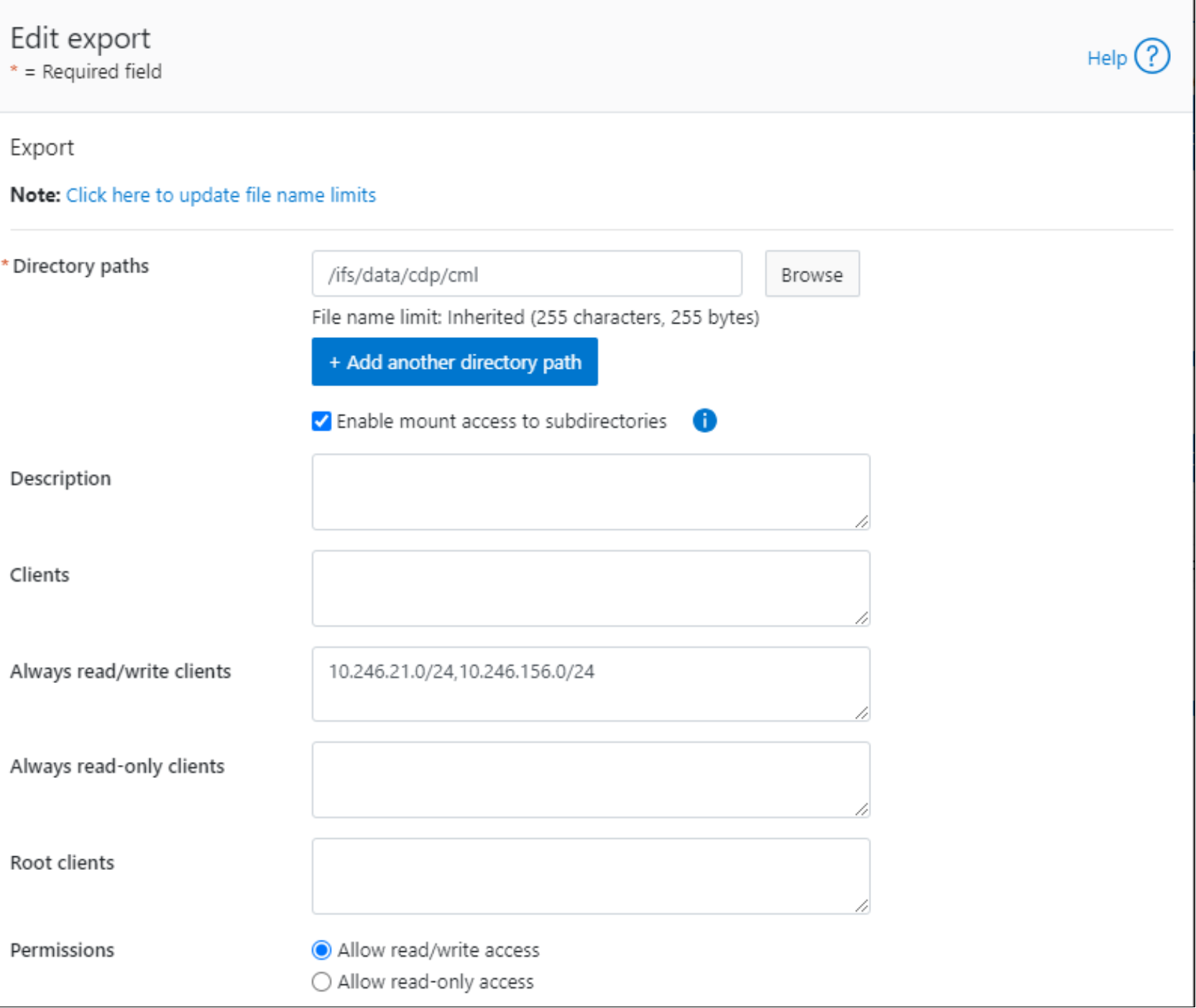
Figure 16. Create an NFS export on OneFS
Step 3: Create the CML workspace using the External Server option
Select the ‘NFS External’ radio button
Specify the SmartConnect zone name and complete path in the ‘Existing NFS’ field.
For example: nfs://cdp.solarch.lab.com:/ifs/data/cdp/cml/nfs-external
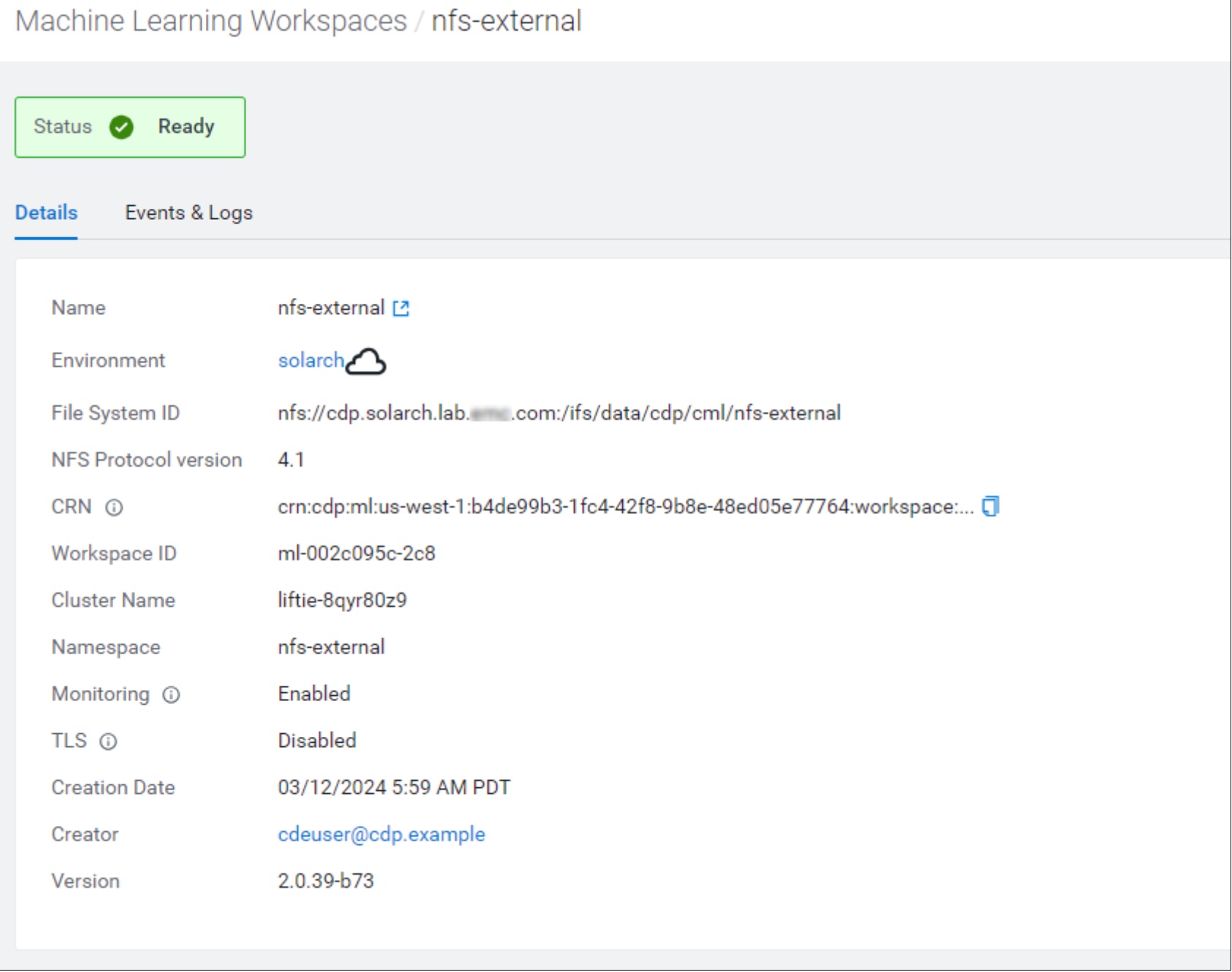
Figure 17. Create a CML workspace using OneFS as the External NFS Server
Verify that data is written to PowerScale OneFS
Data Services Examples
Cloudera Data Engineering
Cloudera Data Engineering (CDE) is a serverless service for Cloudera Data Platform that allows you to submit batch jobs to auto-scaling virtual clusters.
Pre-requisites
- Configure an OneFS S3 bucket to store the CDE archive logs.
- Follow the document to Configure LDAP users.
- Login to the Data Services console as an LDAP user that has the appropriate roles to perform tasks for this service.
Step 1: Enable a CDE service to manage the virtual clusters
Step 2: Create a virtual cluster
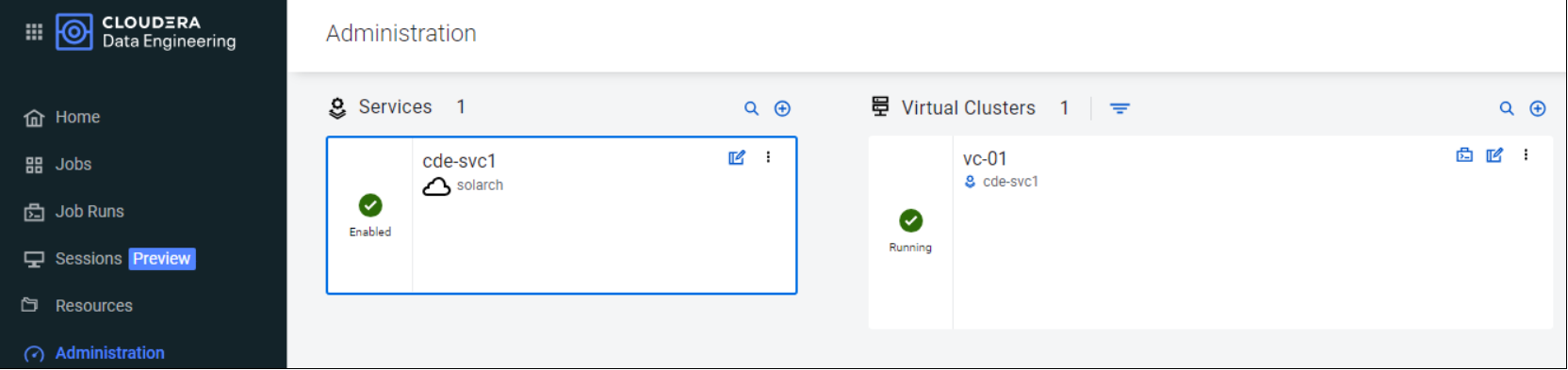
Figure 18. Cloudera Data Engineering Service and Virtual Cluster
Step 3: Click jobs. This action will take the user to the virtual cluster page.
From here you have the option to load the example jobs or create a new one.
Step 4: Click the ‘Load Example Jobs’ button to load the example jobs.
A dialog will be displayed asking the user to cancel or confirm. Click ‘Confirm’
Step 5: Run one of the example jobs. For example, the example-scala-pi job.
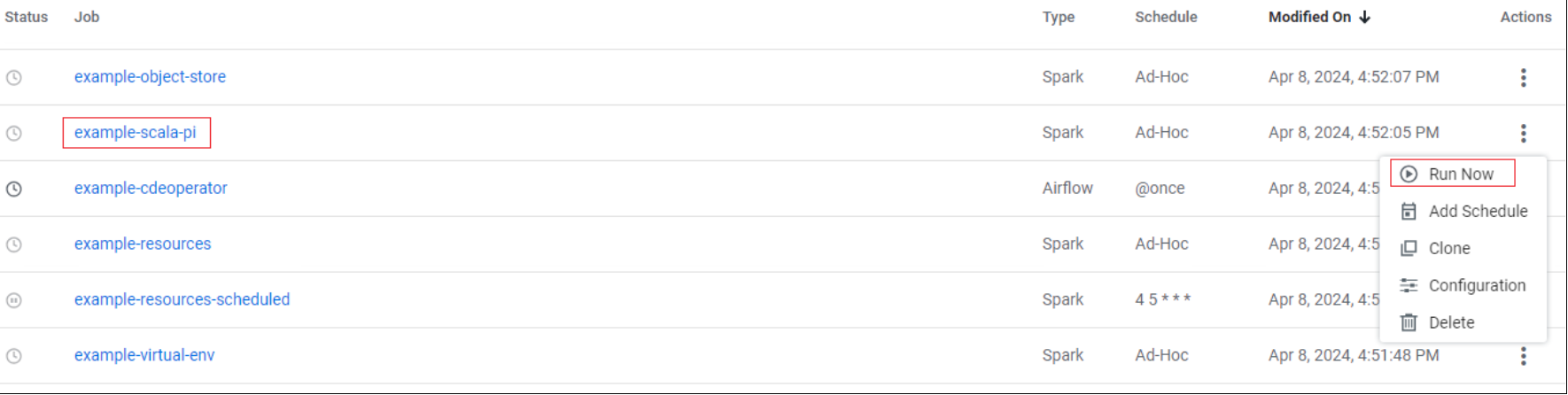
Figure 19. Run an example Cloudera Data Engineering job
Step 6: Verify that the job was successful executed
Navigate to Job Runs on the left navbar and verify that the job succeeded

Figure 20. The example job succeeded
Click Logs to verify the output of the job:
24/04/09 13:51:41 INFO TaskSchedulerImpl: Removed TaskSet 0.0, whose tasks have all completed, from pool
24/04/09 13:51:41 INFO DAGScheduler: ResultStage 0 (reduce at SparkPi.scala:38) finished in 12.073 s
24/04/09 13:51:41 INFO DAGScheduler: Job 0 is finished. Cancelling potential speculative or zombie tasks for this job
24/04/09 13:51:41 INFO TaskSchedulerImpl: Killing all running tasks in stage 0: Stage finished
24/04/09 13:51:41 INFO DAGScheduler: Job 0 finished: reduce at SparkPi.scala:38, took 12.144749 s
Pi is roughly 3.1415941552700706
Cloudera Data Warehouse
Cloudera Data Warehouse (CDW) Data Service is a containerized application for creating highly performant, independent, self-service data warehouses in the cloud which can be scaled dynamically and upgraded independently.
Note: CDP Private Cloud data Services version 1.5.1 requires that you secure the network connection between the default Database Catalog Hive MetaStore (HMS) in Cloudera Data Warehouse (CDW) and the relational database hosting the base cluster’s HMS using SSL encryption.
Pre-requisites
- Review the Securing the Data Warehouse documentation.
- This example utilizes a delegation username and password to impersonate authorization requests from Hue to the Impala engine during environment activation through an LDAP service account.
- For this example, we are logged in as the dwxdevuser which was created in the Additional requirements using PowerScale OneFS section of this document, this user must also have the appropriate roles to perform CDW tasks.
- Cloudera cannot interact with PowerScale OneFS directly to create users, groups, and directories. This means directories must be created manually on PowerScale OneFS when registering a new Environment in CDP Private Cloud Data Services.
Step 1: If registering a new environment in CDP Private Cloud Data Services.
- Register/Create a new the Data Services environment from the Management Console.
- Check the running commands from Cloudera Manager to verify the name of the folder that needs to be manually created on OneFS. The tool tip will specify the folder that must be created. For this example, the folder cdp-env-1f9b47 is required to be manually created.
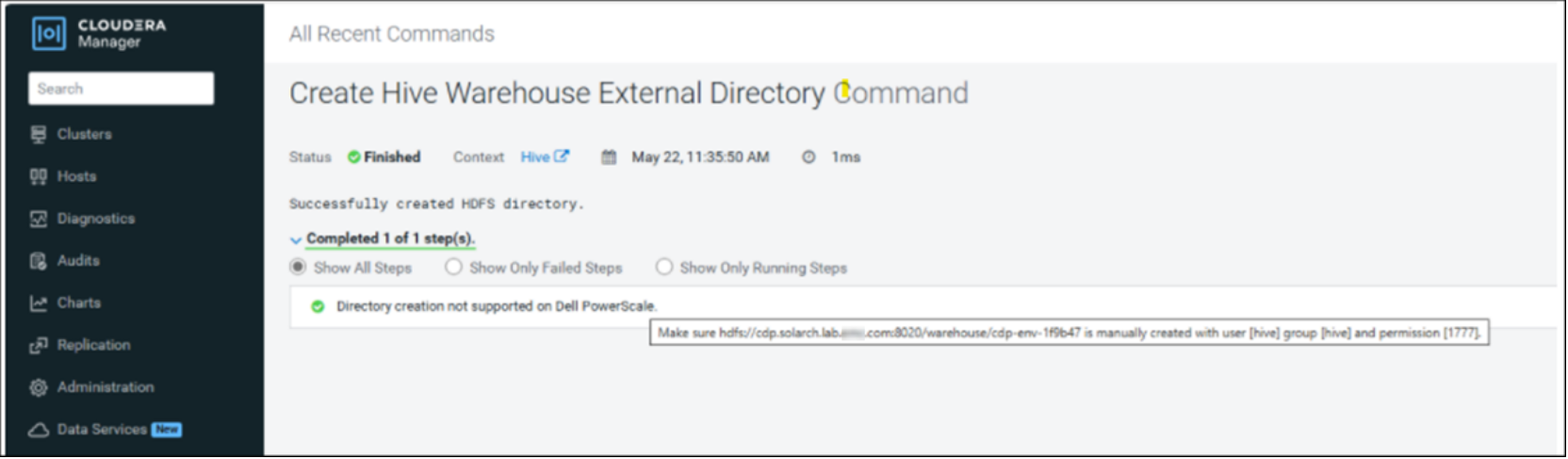
Create the folder on PowerScale OneFS with the correct ownership and permissions (see the appendix for an example of the commands to use).
Step 2: Note that the environment must be activated prior to creating the Database Catalog and Virtual Warehouse

Figure 21. Cloudera Data Warehouse Database Catalog and Virtual Warehouse
Step 3: Once the Virtual Warehouse is running, click the Hue button.
Step 4: Optionally install the data examples. From the Hue browser, click the username icon in the lower left side and select Administer Server. In Step 3 of the quick start, install some data examples.
Step 5: Click ‘Done’ to return to the main Hue browser page, click the databases icon, then the refresh icon. Here you will see the data examples which were installed.
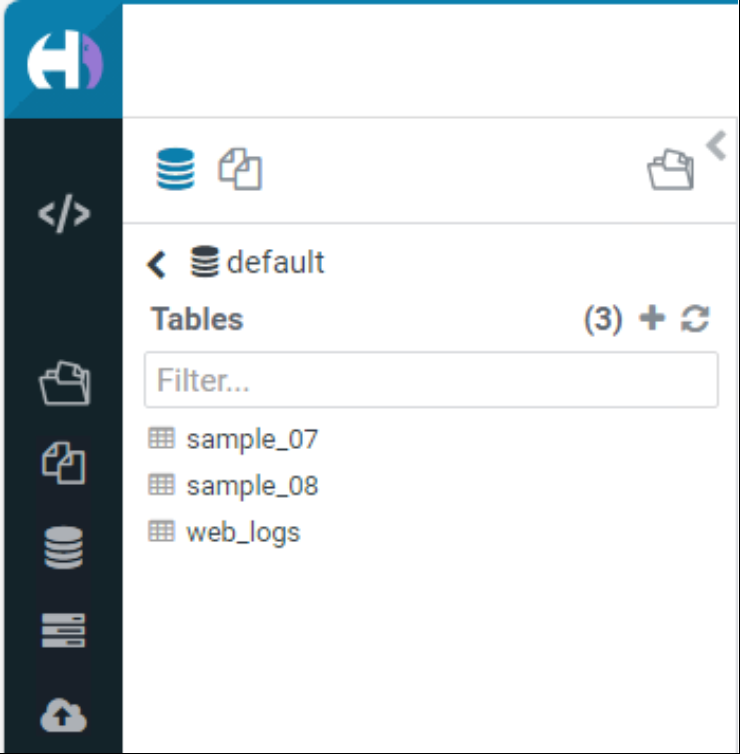
Figure 22. The default database with data examples
Using the OneFS Web Portal’s File System Explorer, we see the data examples that were installed in the Hive warehouse.

Figure 23. OneFS File System explorer showing the data examples installed from CDW
Step 6: Run a simple select statement on one of the example datasets. For example:
use default database;
select * from sample_07 limit 10;
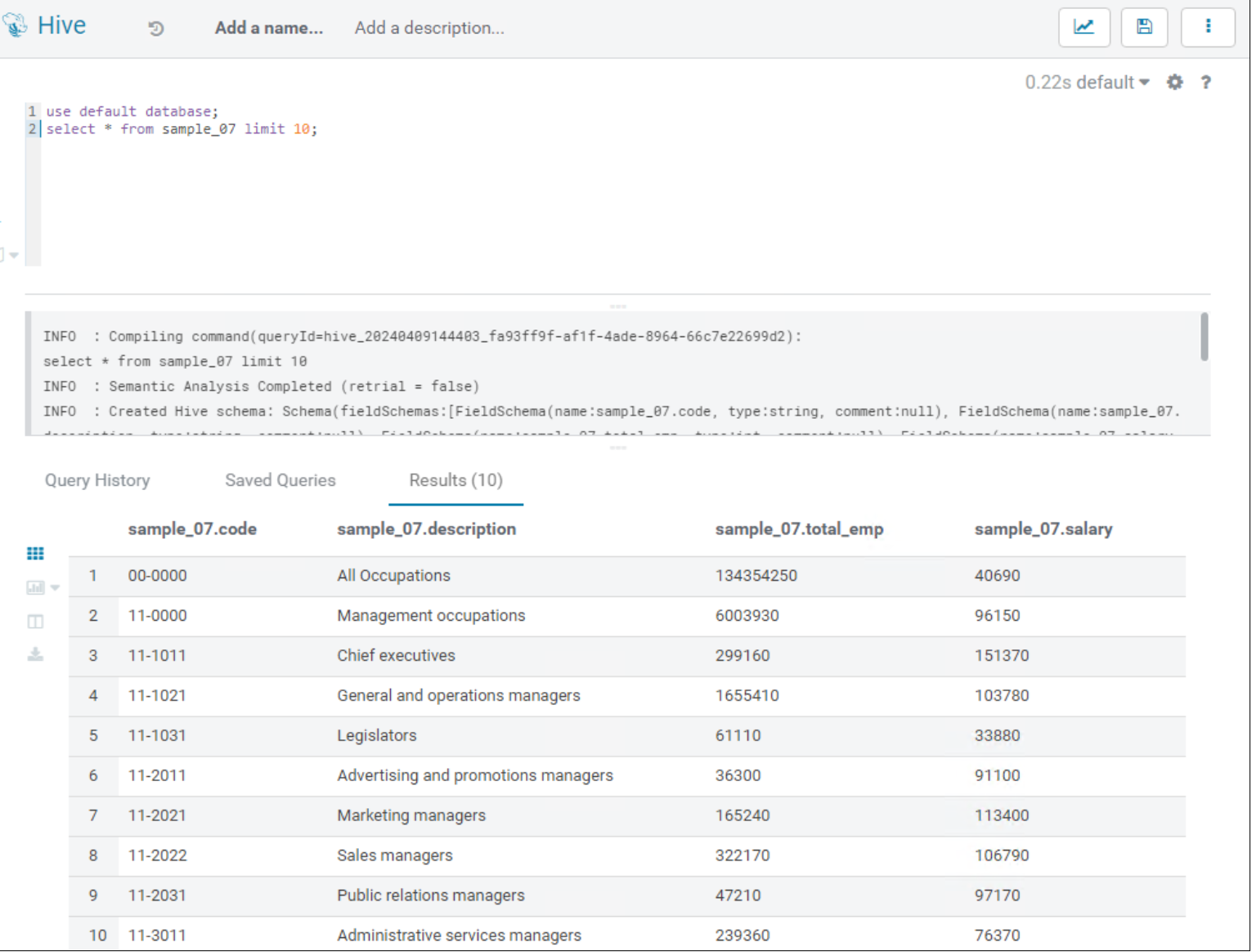
Figure 24. Query one of the Hive example datasets using Hue
Cloudera Machine Learning
Cloudera Machine Learning (CML) is a web application that provides a UI that simplifies the action of managing workloads and resources for data scientists. It offers users a convenient way to deploy and scale their analytical pipeline and collaborate with their colleagues in a secure compartmentalized environment.
Step 1: Provision a new workspace by clicking the ‘Provision Workspace’ button on the CML Workspaces page. Provide a workspace name and select the environment. Reference the Cloudera Machine Learning documentation for detailed options.
Click the ‘Provision Workspace’ button to proceed.

Figure 25. Cloudera Machine Learning Workspace
Step 2: Click the Workspace Name of the newly provisioned workspace to begin using the workspace and provide the Kerberos authentication details for the user by navigating to ‘User Settings > Hadoop Authentication.
Step 3: Deploy the ‘Churn Modeling with scikit-learn’ AMP to our workspace by clicking on the AMP and then clicking the ‘Configure Project’ button.
Applied ML Prototypes (AMPs) provide reference example machine learning projects in Cloudera Machine Learning. More than simplified quickstarts or tutorials, AMPs are fully developed expert solutions created by Cloudera’s research arm, Fast Forward Labs.
Note: You can also view the code and project details by clicking the ‘View on GitHub’ link.
Step 4: The next page allows you to modify the environment and runtime variables. We’re going to leave everything with the default values except for enabling Spark.
Click the ‘Launch Project’ button to proceed.
CML will run a series of steps to ingest, train and deploy the model.
Using the OneFS File System explorer, we see that the dataset to be trained was uploaded to PowerScale OneFS.
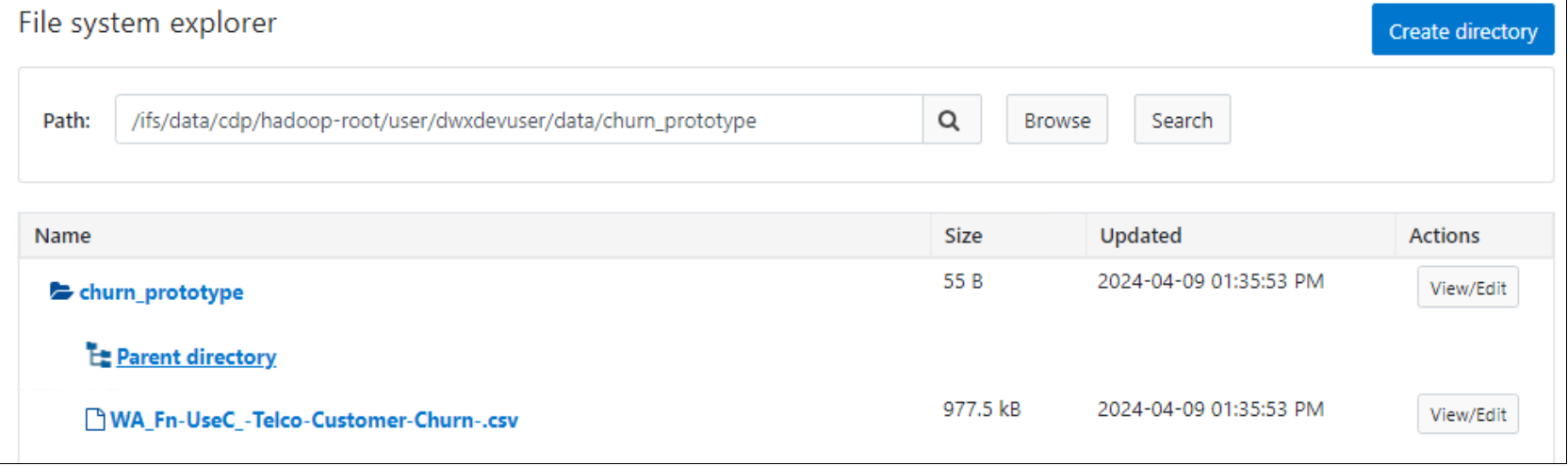
Figure 26. Dataset to be trained for an AMP is uploaded to OneFS
Step 5: Once the project is deployed, open the App by either clicking on ‘Open’ in Step 7 of the AMP deployment or Click the ‘Applications’ link in the left navbar.

Figure 27. The deployed AMP application is ready
You can drill into a line item and dynamically update the data.
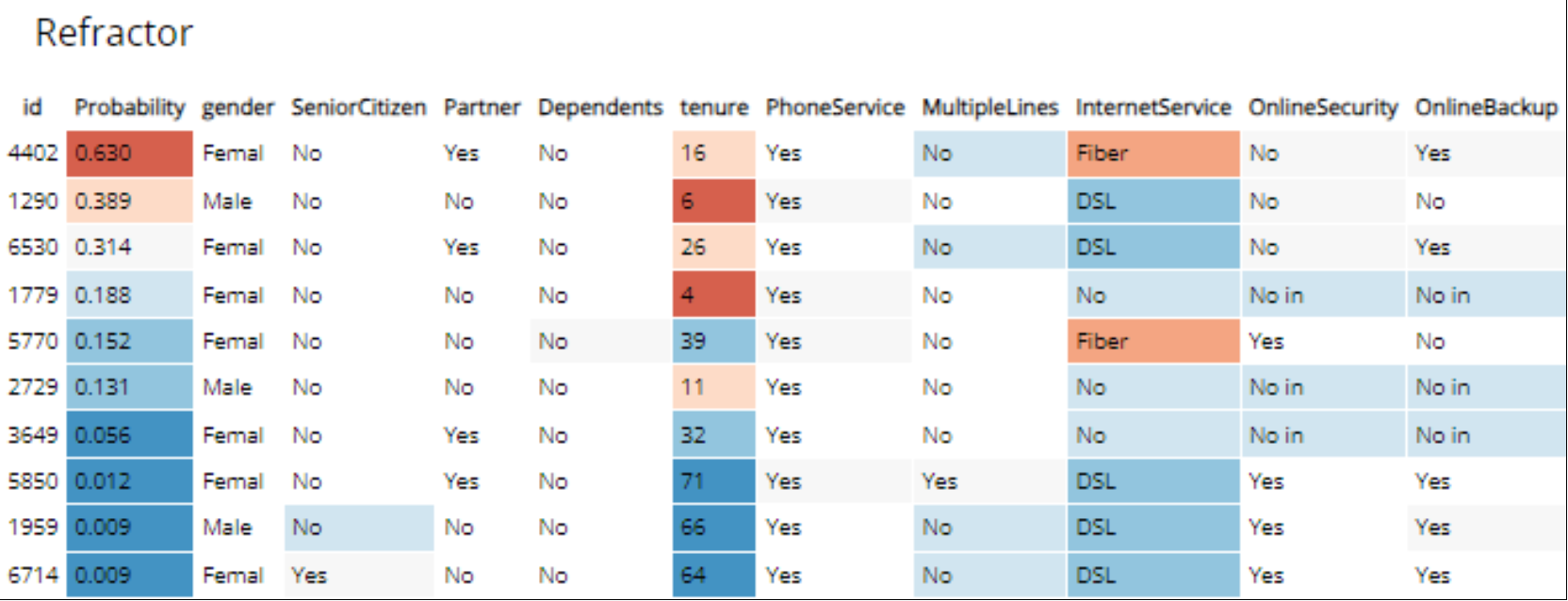
Figure 28. The Churn Modeling with scikit-learn AMP application