Deployment and Operations Guide with Switchless Networking
This deployment and operations guide focuses on using Microsoft Azure portal or ARM template to deploy an HCI solution with a switchless storage design. The system is built on validated and certified AX nodes from Dell Technologies with Azure Stack HCI OS 24H2
CAUTION: Many PDF editors and viewers add a line break to the end of each line of text in a PDF. As a result, when you copy commands that wrap across multiple lines in a PDF, the copied command is in the wrong format. It contains erroneous line breaks that might cause the script to fail.
To address this known limitation, do one of the following:
Paste the copied commands into a text editor and remove the line breaks.
Use the HTML version of this document when you are copying commands.
Revision history
Revision history
The revision history of the document is listed in the following table.
Table 1. Revision history
Date
Document revision
Description of changes
June 2026
8
Minor updates across the document for 2606 release
April 2026
7
Added the chapter "Solution Deployment with Local Identity"
Removed "preview" from "Configurator app" in "Register machines with Azure Arc" topic
Removed "which is in preview" from the note in "Register machines with Azure Arc" topic
Added a new section "Drift detection for Azure Local" in "Register machines with Azure Arc" topic
Updated the “Adapter requirements” section in the “Solution integration and network connectivity” topic to reflect support for configuring Network ATC intents using the Azure portal or ARM templates, starting with Azure Local Solution version 2603.
April 2026
6
Removed bullet that is related to Windows Server in “Audience and scope” topic
Removed first sentence and updated SBE version number to 4.1.2505.1501 in “Download Connector” topic
Added note to “SBE package update prerequisites” topic
Added two notes to steps in Basics section in “Deploy Azure Local Instance using Azure portal” topic
Substantial revisions to "Configuration to prepare node" topic
Removed table and revised information and references in "Antivirus exclusions" topic
Updated procedure of "Restart a cluster node or take a cluster node offline" topic and added link to current Microsoft procedures and renamed the topic to “Suspend and resume a cluster node"
Removed "Azure portal-based" from the doc title and revised the abstract to include Azure Arc template deployment method
Renamed "About using this guide" to "About copying commands from this guide"
Removed any references to Azure Stack HCI 23H2 operating system as it is no longer possible to deploy the 23H2 version
Step 3: Networking of "Deploy Azure Local instance using Azure portal" topic
Step 19 of "Deploy an Azure Local instance using the Microsoft ARM template" topic
Revised the "GPU Integration" chapter
Updated "Add node to a chassis" topic to include info about racks
Revised "Add a node to the chassis" to include information about adding nodes to racks
Updated table in "Prerequisites for repairing machine in Azure Local instance"
Revised command in the note for the first step in "Add repaired machine to Azure Local instance"
Added step to "Verify the health of Azure Local instance" procedure
Added text with link re data disks to "Install operating system on repaired machine" procedure
Minor updates throughout the document
October 2025
5
Added a topic "Check Azure Arc registration after reboot"
Added a QoS table regarding network priorities to "Deploy Azure Local instance using Azure portal" in Step 3: Networking and to "Deploy an Azure Local instance using the Microsoft ARM template" in Step 19.
Changed "Switchless network connectivity" to "Switchless storage network connectivity"
In “Install Windows Admin Center” topic, removed high-availability content, and updated figure. Windows Admin Center no longer supports it from release 2410 onwards
In "Prerequisites before deploying Azure Local instance using Microsoft ARM template" section, removed all topics because they are no longer needed from Azure Local release 2507 onwards
In “Configuring iDRAC and BIOS” section, added “Configure NVIDIA (Mellanox) NICs” topic
In “Configure host networking” topic, added note with caution and link about an optional deployment script that automates the operating system configurations
In "Register machine with Azure Arc" section, added note regarding PowerShell modules, and added link to a corrected Microsoft page regarding registering deployments with Azure Stack HCI OS version 23H2, an added information about the Configurator app
Removed "OverrideQoSPolicy" from the JSON snippet example in Step 19 in "Deploy an Azure Local instance using the Microsoft ARM template" procedure
In the "Deploy an Azure Local instance using the Microsoft ARM template" procedure, revised two lines of code in the JSON snippet example
Deleted a duplicate topic under "Best practices and recommendations"
In "Prerequisites for managing AX nodes," updated references to OMIMSWAC guides to version 3.4
Added note to the first step in "Add repaired machine to Azure Local instance" procedure
In "Repairing machines in Azure Local instances" added reference to a relevant Microsoft article
Split "Update SBE package using PowerShell" into two separate topics for online and offline solutions
Minor updates across document
August 2025
4
Changed references to the Azure Stack HCI operating system from 23H2 to 24H2 where required
Removed the "Update the page file settings" section
Removed the "Expanding the Azure Local Instance" section
Removed the "Install roles and features" section
Added new section for "Repair machine"
Updates across the document
May 2025
3
Added the "Download Connector" section
Rebranded solution for 16th generation onwards:
Change "Integrated System for Microsoft Azure Stack HCI" to "AX System for Azure Local" and "AX System for Microsoft Windows Server"
Changed product name from "Azure Stack HCI" to "Azure Local" where appropriate
Changed "cluster" to "Azure Local instance" and "node" to "machine" where appropriate
Minor changes across the document
May 2025
2
Added support for four-node switchless storage-network configuration
Minor changes across the document
May 2024
1
Initial publication
Deployment Introduction
Deployment Introduction
Document overview
The Dell AX Solutions for Microsoft product family includes:
Dell AX System for Azure Local (based on Azure Stack HCI operating system)
Dell AX System for Microsoft Windows Server (Not described in this guide)
This end-to-end deployment and operations guide provides an overview of Dell AX System for Azure Local with switchless networking. The guide includes:
Guidance on how to integrate solution components
Instructions for preparing and deploying the solution infrastructure
Note: This guide applies only to infrastructure that is built using the validated and certified AX nodes from Dell Technologies and Azure Stack HCI OS.
Audience and scope
The audience for this document includes systems engineers, field consultants, partner engineering team members, and customers with knowledge about deploying hyperconverged infrastructures (HCIs) with the Azure Stack HCI operating system, Hyper-V, and Storage Spaces Direct. Customers who do not have Volume License agreements with Microsoft can order AX nodes from Dell Technologies with a factory-installed operating system and OEM license or as a bare-metal installation.
An Azure Local instance can be deployed in the following ways:
Dell Technologies Services-led—Certified deployment engineers ensure accuracy, speed, and reduced risk and downtime.
Customer led—Customers who have the qualified level of technical expertise follow the instructions in this guide.
Assumptions
This guide assumes that deployment personnel understand the following technologies and tasks:
AX nodes from Dell Technologies
Deploying and configuring BIOS and integrated Dell Remote Access Controller (iDRAC) settings
Dell AX System for Azure Local include various configurations of AX nodes from Dell Technologies. These AX nodes power the primary compute and storage cluster that is deployed as a hyperconverged infrastructure (HCI). The HCI uses a flexible solution architecture rather than a fixed component design.
For information about supported AX nodes and operating-system support for each of the AX nodes, see the Azure Local Support Matrix.
Dell AX System for Azure Local offers the following types of cluster infrastructure deployments:
Switchless storage networking
Scalable infrastructure
Switchless storage networking
The Dell AX System for Azure Local infrastructure type offers two to four machines in a switchless configuration for storage traffic. The infrastructure can be implemented using any of the validated and supported AX nodes from Dell Technologies.
The switchless storage configuration has been validated with the following configurations for storage connectivity:
Two-machine (back to back) connections
Three-machine single-link or dual-link topology
Four-machine dual-link topology
The following figure shows an Azure Local instance with a four-machine configuration and switchless storage networking that includes Out-of-Band (OOB) management to the data center network and the Azure Local instance.
Figure 1. Switchless storage networking
Solution integration and network connectivity
Each of the variants in Dell AX System for Azure Local supports a specific type of network connectivity. The type of network connectivity determines the solution integration requirements.
For switchless storage networking, install the server cabling according to the instructions in Cabling instructions.
Adapter requirements
Azure Local requires using the same adapter card vendor and model for the machines in an instance that supports instance operations. The ports that are used by the same Network ATC intent must use the same vendor, model, and speed.
Starting with Azure Local Solution version 2603, Azure Local instances that require NIC-level high availability can use the Azure portal or ARM templates to configure Network ATC intents. These intents can use NIC ports from adapters that share the same PCIe Vendor ID and Device ID. This capability enables ports from both an OCP NIC and a PCIe riser NIC to be included in a single Network ATC intent, provided the adapters are the same NIC model.
CAUTION: If you use optics or cables from one vendor with an adapter card from another, Dell cannot guarantee the configuration works as expected. Before mixing vendor equipment in an Azure Local instance, consult the Dell Technologies cable and optics in the Support Matrix.
Switchless storage-network connectivity
In a switchless storage-network configuration, storage traffic uses a dedicated set of physical network adapters that are connected back to back. A separate set of network adapters is used for management, VM, and other traffic classes.
Solution Deployment
Solution Deployment
Solution deployment introduction
You can deploy Dell AX System for Azure Local by manually installing the operating system on AX node from Dell Technologies.
Each deployment has its own prerequisites, including configuring network switches, as described in this guide.
Note: Instructions in this deployment guide are applicable to the Azure Stack HCI operating system, version 24H2.
Each task in this deployment guide requires running one or more PowerShell commands. Dell Technologies recommends using these commands to complete the deployment tasks.
Deployment prerequisites
Dell Technologies assumes that the management services that are required for the operating-system deployment and cluster configuration are in the existing infrastructure where the Azure Local instance is being deployed.
The following table describes the management services:
Table 2. Management services
Management service
Purpose
Required or optional
Azure
Deploy and manage
Required
Active Directory
User authentication
Required
Domain Name System
Name resolution
Required
DHCP
Hosts get IPs before and after host configuration
Optional
Install Windows Admin Center
You can download the latest version of Windows Admin Center from Microsoft Windows Admin Center and install it on a supported operating system.
You can install Windows Admin Center directly on a managed machine to manage itself. You can also install Windows Admin Center on other machines in the infrastructure or on a separate management station to manage the AX nodes remotely.
The Windows Admin Center installer wizard performs the configuration tasks that are required for Windows Admin Center functionality. Tasks include creating a self-signed certificate and configuring trusted hosts for remote machine access. Optionally, you can supply the certificate thumbprint that is already present in the target machine local certificate store. By default, Windows Admin Center listens on port 443. You can change the port during the installation process.
Note: The automatically generated self-signed certificate expires in 60 days. If you intend to use Windows Admin Center in a production environment, ensure that you use a certificate-authority-provided SSL certificate.
For complete guidance about installing Windows Admin Center on supported operating systems with desktop experience or Server Core, see Install Windows Admin Center.
After the installation is complete, you can access Windows Admin Center at https://managementstationname:<PortNumber> as shown in the following figure.
Figure 2. Windows Admin Center All connections window
Install Dell OpenManage Integration with Microsoft Windows Admin Center
To install Dell OpenManage Integration with Microsoft Windows Admin Center (OMIMSWAC), do the following:
Ensure that you have Windows Admin Center installed.
Note: Dell Technologies recommends that you ensure that you have installed the latest online version of the OMIMSWAC extension, which contains the latest published OMIMSWAC payload.
In Windows Admin Center, go to Settings > Extensions.
Under the Available extensions tab, select and install Dell OpenManage Integration.
When it is installed, you can access OMIMSWAC on the left panel on the cluster manager under Extensions.
Registering a Partner Admin Link (PAL) for Azure related solutions
Partner Admin Link (PAL) is a simple telemetry-based capability that is built into Microsoft Azure. PAL enables Microsoft to track partner involvement in Azure related technical engagements.
Adding a Dell Partner ID to the Service Principal does not provide Dell with additional access to the customer system and does not change any Azure Role-Based Account Controls (RBACs).
Note: Adding a Dell Partner ID to the Service Principal associates Dell to the customer entity, which is persistent. This means that changes in customer system administrators do not break this association.
Dell Technologies employees can add a PAL using the user ID associated with either the subscription or Service Principal that is used for Arc or for Azure Local registrations. During a deployment, the customer creates the Service Principal for their system.
Example: az managementpartner create --partner-id 913990
az managementpartner create --partner-id <Partner ID>
The following figure shows an example of a completed registration in Azure CLI.
Figure 3. Successful addition of Partner ID to customer tenant
Alternatively, you can verify the registration, either using the following CLI command or in the Azure portal. This command displays a similar output to the az managementpartner create command used in the previous step.
az managementpartner show
Note: If there is an error when you add the Dell Partner ID, use the following command to correct the registration:
az managementpartner update --partner-id <Partner ID>
The PAL is now registered.
Add a PAL through the Azure portal using the subscription user ID
You can register the Partner Admin Link (PAL) with the subscription user ID through the Azure portal.
Note: Portal-based registrations tie the PAL association with the customer user entering the information. If the customer user changes roles, the portal-based PAL association also ends.
The portal-based update is not audit-log tracked, while the CLI-based update is tracked.
If possible, Dell Technologies recommends that you use the user ID associated with the Service Principal for PAL registration.
To add a PAL to a customer user account using the subscription user ID, do the following:
From Portal Settings, under Useful links, select Microsoft partner network.
Figure 5. Microsoft partner network link under Portal Settings
Note: If multiple directories are listed, confirm the Azure tenant, and then use the tenant that is associated with Arc registration.
In the Link to a partner ID view, for the Microsoft partner ID, enter the Microsoft Partner Network (MPN) identifier that is associated with the country of the engagement. The available country MPNs are listed in the table in Dell Technologies Partner IDs for Partner Admin Link.
Figure 6. Microsoft partner ID field
To activate it, click Link to a partner ID.
The PAL is now registered.
Dell Technologies Partner IDs for Partner Admin Link
The following table provides a list of Microsoft Partner Network (MPN) partner IDs for Dell Technologies that can be used for Partner Admin Link (PAL) registration with Microsoft.
Note: For a country whose MPN partner ID is not listed in the following table, contact the applicable Strategic Partnerships email for help:
Table 3. Dell Technologies MPN partner IDs for PAL use
Country
MPN ID
Argentina
1973856
Australia
1576776
Austria
1444496
Belgium
1447258
Brazil
1563635
Canada
742767
Chile
2389235
China
2580218
Colombia
1736279
Czech Republic
1980606
Denmark
1449600
Finland
1993462
France
892181
Germany
1449416
Greece
3679221
Hong Kong Sar
2790298
India
2419713
Indonesia
2834572
Ireland
1447272
Italy
1446223
Japan
578508
Korea
2153293
Malaysia
2731874
Mexico
724848
Netherlands
1446198
New Zealand
1872429
Norway
1446238
Panama
1477223
Poland
3697305
Portugal
1552205
Romania
1735552
Russia
4543982
Singapore
2773797
Slovakia
3812320
South Africa
1970176
Spain
1004323
Sweden
1449417
Switzerland
1449592
Taiwan
5097219
Thailand
2345177
Turkey
3396579
United Arab Emirates
3159758
United Kingdom
1447267
United States
913990
Predeployment configuration
Before deploying AX nodes, complete the required predeployment configuration tasks.
Complete the following predeployment configuration before deploying the Dell AX System for Azure Local solution.
Configuring network switches
Based on the selected network topology, configure the ToR network switches to enable VM and management traffic.
The switchless storage-networking deployment model requires configuration of switches that are deployed for host management and OOB traffic only. Storage traffic uses full-mesh connectivity between the machines.
Note: Management network redundancy is a combination of either iDRAC or operating system DNS/IP resolution. Dell Technologies recommends that you deploy a network topology that supports a dual-control plane while sharing a single-data plane. Virtual Link Trunking (VLT) is Dell Technologies proprietary technology that provides network resiliency for data I/O.
Configuring switch VLT redundancy with Virtual Router Redundancy Protocol (VRRP) provides a virtual floating IP address that any machine can reference as a gateway. If a switch fails, the virtual IP address is transferred to a peer switch.
VRRP is an active/standby first-hop redundancy protocol (FHRP). When used with VLT peers, VRRP becomes an active/active protocol. The VRRP virtual MAC address is the local destination address in the forwarding information base (FIB) table of both VLT peers. Using this method, the backup VRRP router forwards intercepted frames that have a destination MAC address that matches the VRRP virtual MAC address.
A standard Storage Spaces Direct deployment requires the following basic network types:
OOB management
Host management
Compute
Storage
The number of network ports (two or four) that are used in the storage configuration determines whether you have two or four fault domains.
AX nodes from Dell Technologies are factory-configured with optimized system BIOS and iDRAC settings.
Note: Dell Technologies recommends that you verify that the settings you want to use for iDRAC and BIOS align with the configuration recommendations. You can do this verification either before deployment through the iDRAC and BIOS settings or after deployment through the Compliance window in the Dell OpenManage Integration extension.
The iDRAC in AX nodes can be configured to obtain an IP address from a DHCP server or can be assigned a static IP address. When the Out-of-band (OOB) network is not configured to obtain IP addresses from a DHCP server, you must manually set a static IPv4 address on each iDRAC network interface. You can use KVM or other means to access the physical server console and set the addresses.
Verify iDRAC pass-through IP address subnet mask on AX-670 and AX-770 servers
Verify and configure the OS to iDRAC Pass-through USB NIC subnet mask on 17th-generation servers, including Dell AX-670 and Dell AX-770, to ensure proper in-band communication between the host operating system and Integrated Dell Remote Access Controller (iDRAC).
To verify the correct setting of the USB NIC, do the following:
Log in to iDRAC
Go to iDRAC Settings > Connectivity > Network > OS to iDRAC Pass-through.
The OS to iDRAC Pass-through window is displayed.
If USB NIC Subnet Mask is not already set to 255.255.255.0, change the field to this value.
Click Apply.
To confirm that the IP is accessible and the link is established between iDRAC and the host operating system, click Test Network Configuration.
Configure BIOS settings including the IPv4 address for iDRAC
You must configure the IPv4 address for iDRAC. You can also configure any additional BIOS settings.
To configure the IPv4 address for iDRAC, do the following:
During the system boot, press F2.
At System Setup Main Menu, click iDRAC Settings.
Under iDRAC Settings, select Network.
Under IPV4 SETTINGS, at Enable IPv4, choose Enabled.
Enter the static IPv4 address details.
Click Back, and then click Finish.
Configure Intel E810 or E823 NICs
The Intel E810 or E823 network adapter supports both iWARP and RoCE v2 RDMA protocols.
Ensure that the network card or port is enabled for RDMA traffic.
To configure the Intel E810 or E823 network adapter for each port, do the following:
During system startup, to enter system setup, press F2 and then select Device Setting.
From the list of adapters, select Intel network adapter.
Click Device Level Configuration.
(Optional) Set Virtualization Mode to SR-IOV to enable the prerequisite capability that allows tenant virtual machines to use the Azure Accelerated Networking option.
Click Back.
In the Main Configuration window, for NIC + RDMA Mode select Enabled.
To save the settings, select Back > Finish > Yes.
To return to the Device Settings window, click Yes.
Select the next port of the Intel adapter and repeat the previous steps.
To return to the System Setup window, click Finish.
To reboot the system, click Finish.
Configure NVIDIA (Mellanox) ConnectX-6 NICs
To enable support for SR-IOV in the operating system and virtual machines, you must configure the NVIDIA (Mellanox) ConnectX-6 NICs for each port.
Ensure that the network card or port is enabled for RDMA traffic.
To configure the NVIDIA (Mellanox) ConnectX-6 NIC (network adapter), do the following:
During system startup, to enter the system setup, press F2, and then select System Setup.
Select Device Settings.
From the list of adapters, select NVIDIA ConnectX-6 adapter.
NIC+RDMA is set to Enabled.
Click Device Level Configuration.
(Optional) Set Virtualization Mode to SR-IOV to enable the prerequisite capability that allows tenant virtual machines to use the Azure Accelerated Networking option.
To return to the main configuration window, click Back. To save your changes, on the main configuration page, click Finish.
Repeat the steps for all NVIDIA adapters.
Configure Broadcom 57504 NICs
The Broadcom 57504 network adapter supports only RoCE v2 RDMA protocol and can be configured on both converged and hyperconverged deployments. Both OCP and PCIe cards are available.
Ensure that the network card or port is enabled for RDMA traffic.
To configure the Broadcom 57504 network adapter for each port, do the following:
During system startup, to enter System Setup, press F2, and then select Device Settings.
From the list of adapters, select Broadcom network adapter.
Select Device Level Configuration, and from the menu choose the DCBX Mode option, and then choose Enabled (IEEE Only).
(Optional) Set Virtualization Mode to SR-IOV to enable the prerequisite capability that allows tenant virtual machines to use the Azure Accelerated Networking option.
Click Back.
In the Main Configuration window, set NIC + RDMA Mode to Enabled. To save the settings, click Finish.
To return to the Device Settings window, click Yes.
Select the next port of the Broadcom adapter and repeat the previous steps.
To return to the System Setup window, click Finish.
To reboot the system, click Finish.
Cabling instructions
When deploying a switchless interconnect, follow these cabling best practices.
Dell Technologies populates PCIe network adapters consistently, but the slot enumeration sequence depends on platform and riser configuration. PCIe slot identification is labeled on the chassis, and Port 1 and Port 2 are physically labeled on the PCIe NIC adapter bracket.
Note: PCIe riser orientation may change the port orientation on each network adapter. Therefore, some network adapters may have a physically reversed orientation depending on which PCIe slot the network adapter is installed. Check the orientation of Port 1 and Port 2 on each network adapter, as shown in the following figure.
Figure 7. Port orientation
Two-machine, back-to-back connected architecture
The following figure shows the two storage networks that are required to create a dual-link direct interconnect between two machines that will be clustered (also known as back-to-back). The numbered blue lines indicate the recommended cabling order, beginning with the network adapter in the lowest slot number (port 1). After cabling storage, connect all machines, LOM/rNDC/OCP, and ports 1 and 2 to a management or compute network.
Note: The two- machine, back-to-back storage topology supports all available RDMA-based network adapters that are supported in the solution.
Figure 8. Two- machine dual-link direct cabling
Three-machine, single-link full mesh switchless interconnect
The following figure shows an example of a three-machine configuration (to be clustered) that is configured with a single-link storage network interconnect. External network traffic uses the LOM/rNDC/OCP integrated network adapter. Storage network traffic uses one RDMA-capable PCIe network adapter for each server node. If there is a storage network connectivity (cable or port) failure, the management network offers some redundancy.
The three storage networks are required to create a single-link full-mesh interconnect between three clustered machines. The numbered blue lines indicate the recommended cabling order, beginning with the RDMA-capable PCIe network adapter in the lowest slot number, Port 1.
Note: In the following examples, the RDMA-capable network adapter is installed on Slot #6. Depending on the chassis configuration, the ports may be reversed.
After cabling storage, you must connect all machines, LOM, rNDC, and OCP, and Ports 1 and 2 to a management or compute network.
Figure 9. Three-machine, single-link full mesh cabling
The following figure shows the cabling topology of a Dell AX-4520c three-node instance that is configured in a single-link full mesh, enabling direct node-to-node connectivity.
Figure 10. Dell AX-4520c three-node, single-link full mesh cabling
The following table lists the port link connections and their details
The following figure shows an example of a three-machine configuration (to be clustered) that is configured with a dual-link full-mesh storage-network interconnect. External network traffic uses the LOM-, rNDC-, or OCP-integrated network adapter, while storage network traffic uses two RDMA-capable PCIe adapters for each server machine. In this case, each clustered machine has redundant storage network connectivity to every other machine in the Azure Local instance.
The following figure also shows six storage networks that are required to create a dual-link full-mesh interconnect between three clustered machines. The numbered blue lines indicate the recommended cabling order, beginning with the RDMA adapter in the lowest slot number (Port 1). After cabling storage, connect all machines, LOM, rNDC, or OCP, and Ports 1 and 2 to a management or compute network.
Figure 11. Three-machine, dual-link full-mesh cabling for switchless interconnect
The following figure shows the cabling topology of a Dell AX-4520c three-machine instance that is configured in a dual-link full mesh, which enables direct machine-to-machine connectivity.
Figure 12. AX-4520c, three-machine, dual-link full mesh cabling
The following table lists the port link connections for a Dell AX-4520c three-machine instance with dual-link full-mesh cabling.
The following figure shows an example of a four-machine instance that is configured with a dual-link full-mesh storage-network interconnect. External network traffic uses the LOM-, rNDC-, and OCP-integrated network adapter, while storage network traffic uses three RDMA-capable PCIe adapters for each server machine. In this case, each machine has redundant storage network connectivity to every other machine in the instance.
The following figure also shows the twelve storage networks that are required to create a dual-link full-mesh interconnect between four clustered machines. The numbered blue lines indicate the recommended cabling order, beginning with the RDMA adapter in the lowest slot number (Port 1). After cabling storage, connect all machines, LOM , rNDC, and OCP, and Ports 1 and 2 to a management or VM network.
Figure 13. Four-machine, dual-link full-mesh cabling for switchless interconnect
The following table lists the port-link connection details for a Dell AX-4520c four-machine instance with dual-link full-mesh cabling.
Table 6. Port-link connections
Name
Network adapter name
Physical machine
IPv4 address CIDR
VLAN ID
Connection ID
StorageNetwork1
Slot 3 Port 1
Node 1
192.168.11.1/30
711
1
Node 2
192.168.11.2/30
711
1
Node 3
192.168.11.6/30
711
2
Node 4
192.168.11.10/30
711
3
StorageNetwork2
Slot 3 Port 2
Node 1
192.168.11.5/30
711
2
Node 2
192.168.11.25/30
711
7
Node 3
192.168.11.26/30
711
7
Node 4
192.168.11.30/30
711
8
StorageNetwork3
Slot 6 Port 1
Node 1
192.168.11.9/30
711
3
Node 2
192.168.11.29/30
711
8
Node 3
192.168.11.41/30
711
11
Node 4
192.168.11.42/30
711
11
StorageNetwork4
Slot 6 Port 2
Node 1
192.168.11.13/30
711
4
Node 2
192.168.11.14/30
711
4
Node 3
192.168.11.18/30
711
5
Node 4
192.168.11.22/30
711
6
StorageNetwork5
Slot 7 Port 1
Node 1
192.168.11.17/30
711
5
Node 2
192.168.11.33/30
711
9
Node 3
192.168.11.34/30
711
9
Node 4
192.168.11.38/30
711
10
StorageNetwork6
Slot 7 Port 2
Node 1
192.168.11.21/30
711
6
Node 2
192.168.11.37/30
711
10
Node 3
192.168.11.44/30
711
12
Node 4
192.168.11.45/30
711
12
The following figure shows the cabling topology of a Dell AX-4520c four-machine instance that is configured in a dual-link full mesh, which enables direct machine-to-machine connectivity.
Figure 14. Dell AX-4520c four-machine instance with dual-link full-mesh cabling
The following table lists the port link connections for four-machine, dual-link full-mesh cabling for Dell AX-4520c.
Table 7. Port link connections for Dell AX-4520c
Name
Network adapter name
Physical machine
IPv4 address CIDR
VLAN ID
Connection ID
StorageNetwork1
Slot 3 Port 1
Node 1
192.168.11.1/30
711
1
Node 2
192.168.11.2/30
711
1
Node 3
192.168.11.6/30
711
2
Node 4
192.168.11.10/30
711
3
StorageNetwork2
Slot 3 Port 2
Node 1
192.168.11.5/30
711
2
Node 2
192.168.11.25/30
711
7
Node 3
192.168.11.26/30
711
7
Node 4
192.168.11.30/30
711
8
StorageNetwork3
Slot 3 Port 3
Node 1
192.168.11.9/30
711
3
Node 2
192.168.11.29/30
711
8
Node 3
192.168.11.41/30
711
11
Node 4
192.168.11.42/30
711
11
StorageNetwork4
Slot 6 Port 1
Node 1
192.168.11.13/30
711
4
Node 2
192.168.11.14/30
711
4
Node 3
192.168.11.18/30
711
5
Node 4
192.168.11.22/30
711
6
StorageNetwork5
Slot 6 Port 2
Node 1
192.168.11.17/30
711
5
Node 2
192.168.11.33/30
711
9
Node 3
192.168.11.34/30
711
9
Node 4
192.168.11.38/30
711
10
StorageNetwork6
Slot 6 Port 3
Node 1
192.168.11.21/30
711
6
Node 2
192.168.11.37/30
711
10
Node 3
192.168.11.44/30
711
12
Node 4
192.168.11.45/30
711
12
Operating-system deployment
The following instructions are for manual deployment of the Azure Stack HCI OS version 24H2 on AX nodes from Dell Technologies.
Unless otherwise specified, do the steps on each physical machine in the infrastructure that is part of the Azure Local instance.
Note: The command output that is shown in the following sections might show only Mellanox ConnectX-4 LX adapters as physical adapters. The output is shown only as an example.
Note: Before creating a cluster through the Azure Portal, for Azure Stack HCI OS version 24H2 and later, you must use Dell golden-image ISO for all deployments .
Manually deploy operating system using Dell golden-image ISO
You must use a Dell provided Azure Local golden-image ISO to install the baseline operating system image for Azure Local instances.
The golden image includes the Azure Stack HCI operating system, Microsoft operating system image customization, Azure Arc extensions, LCM service, registration modules, and Dell customization. Customization includes device drivers that align with the Dell support matrix for Azure Local.
For an Azure Local solution version 2503 and later, you must use a Dell provided Azure Local golden-image ISO. To download the latest Dell provided golden-image ISO, go to Azure Local Support Matrix, and then click Azure Local Support Matrix (Version X) > Azure Local Golden Images (Version X).
Note: To access any of the Dell provided Azure Local golden-image ISOs, you must have a Dell Support account.
Before you deploy the Azure Local instance using the Azure Portal or an ARM template, you must install the golden-image ISO on all machines that are part of the Azure Local instance. You can use the iDRAC virtual media feature to mount the golden-image ISO.
Open the iDRAC interface for the node and re-create the virtual disk on the BOSS-N1 controller where the host operating system is located. If the BOSS virtual disk is in a good state, you can choose to clean the drive, install the operating system on it, and then go to step 2.
Optionally, if the existing BOSS virtual disk is degraded, you can do the following:
Open iDRAC virtual console and mount the golden-image ISO.
Boot the system from the golden-image ISO. Because no other operating system is installed on the host, it should automatically boot from the ISO without requiring you to select a boot device.
Note: You must delete any previously created partitions on the boot drive during the deployment procedure.
Configure host networking
Identify the network interface controllers to be used for the management or compute traffic and assign the IP address to the first port.
Note: If you have a DHCP server in your environment, skip the procedure.
Ensure that the hosts are assigned IPs in the correct VLAN.
Note: The host IP, DNS, and gateway addresses that are used throughout the guide are examples. You must use the relevant IPs that are based on your environment.
Note: You can use the optional 1_AzLocal.ps1 script from Dell ProSupport GSE on GitHub to automate the operating-system configurations for host networking, rename the computer name, and register with Azure. You must still do firmware updates before the deployment. Dell Technologies Engineering has not validated this code. Use at your own risk.
To log in to the host console of each system using the iDRAC virtual console and assign host IPs and respective VLANs, do the following:
To disable the DHCP on all adapters (NICs) except the NDIS NIC (iDRAC passthrough NIC), run the following command:
#Configure time source using NTP server FQDN address w32tm /config /manualpeerlist:"<NTP Server 1 FQDN> <NTP Server 2 FQDN>" /syncfromflags:manual /update
#Check time source w32tm /query /status
#Optionally configure the machine to accept remote management and allow pings for troubleshooting purposes.
By default, the operating-system deployment assigns a random name as the host system name. For easier identification and uniform configuration, Dell Technologies recommends that you change the hostname to something that is relevant and identifiable.
CAUTION: The computer and cluster names cannot be more than 15 characters. If the name exceeds the character limit, the deployment will fail when the system tries to encrypt the volume.
To change the hostname, run the following Rename-Computer command:
Rename-Computer -NewName Node01 -Restart
Note: The command induces an automatic restart at the end of the renaming operation.
Verify and update firmware and software compliance
Dell AX System for Azure Local solutions are validated and certified with firmware versions that are related to the solution infrastructure components.
To ensure that the solution infrastructure remains supported and delivers optimal performance, and to avoid a partially installed SBE 4.0.0.0 version, use the validated firmware and software that is specified in the Azure Local Support Matrix.
You can verify compliance and update the machines with an Azure Stack HCI online or offline catalog by using Dell OpenManage Integration with Windows Admin Center (OMIMSWAC).
Note: To update the firmware using OMIMSWAC, the local admin credentials on the Windows Admin Center system and target machines must be the same and should be a member of the administrator group.
To check and update firmware using Windows Admin Center, do the following:
In Windows Admin Center, in the left pane, click Add.
In the Windows Server tile, click Add.
Enter the machine name and click Add.
Under All connections, select the server, and then click Manage as.
Select use another account for this connection, and then provide the credentials in the hostname\username format.
Click Confirm.
In the Connections window, click the server name.
In Windows Admin Center, in the left pane, under EXTENSIONS, click Dell OpenManage Integration.
To accept the terms of the license agreement, review the Dell Software License Agreement and Customer Notice and then select the checkbox.
Click View > Compliance. When another menu appears, select Hardware Updates.
Click Check compliance, and then select either online catalog or offline catalog.
To update the machine, click Fix Compliance, and then select update.
Alternatively, you can use the Dell DART script available on GitHub from DellProSupportGse/Tools to update each node before deployment. This script is not validated by Dell Engineering and should be used at your own discretion.
For Azure Stack HCI operating system, configure firewall settings for outbound endpoints and internal rules and ports. For more information about configuring the firewall settings, see Firewall requirements for Azure Local.
Deploy Azure Local Instance with Azure Stack HCI OS 24H2 or later
Deploy Azure Local Instance with Azure Stack HCI OS 24H2 or later
Note: Ensure that you unmount any virtual media from the iDRAC.
Management services
Dell Technologies assumes that the management services that are required for the operating-system deployment and cluster configuration are in the existing infrastructure where the Azure Local instance is being deployed.
The following table describes the management services:
Table 8. Management services
Management service
Purpose
Required or optional
Azure
Deploy and manage
Required
Active Directory
User authentication
Required only for AD-based deployments
Domain Name System
Name resolution
Required
DHCP
Hosts get IPs before and after host configuration
Optional
Review requirements
Before starting the deployment, ensure that the following requirements are met:
The network configuration is in order.
Internet connectivity on the machines is good.
The Azure subscription is registered with the required resource providers. Only the owner or contributor of the subscription can register the resources provider. For the most up-to-date list of required resource providers, see Assign required permissions for Azure Local deployment.
(Optional) A resource group is created either before or when you register the machines to Azure Arc. To create a resource group, follow the steps in Create resource groups.
Before registering the machines with Azure Arc, if you have an Azure Arc gateway requirement in your environment, to understand the prerequisite requirements, see About Azure Arc gateway for Azure Local.
Note: Manual installation of PowerShell modules is no longer required. The registration procedure changed with the introduction of golden images (10.2503) or Microsoft-provided composed images.
You can use one of the following options to register the Azure Local machines with Azure Arc using PowerShell commands. For details, see:
ProxyServer is an optional parameter while registering the machine with Azure Arc.
If you register machines without a proxy configuration, you must set the no_proxy environment variable to specify the proxy-bypass list.
(Optional) If you prefer to use a guided UI-based workflow instead of the Arc script, you can select the Via Configurator App tab on the Microsoft pages that are listed above.
Note: Dell Technologies has validated the registration of machines using the Configurator app. However, Dell Technologies does not officially support this functionality. If users encounter any issues, they must contact Microsoft directly.
Drift detection for Azure Local
For identifying configuration related deviations or troubleshooting issues in your Azure Local environment, see Drift Detection for Azure Local. You can run drift detection either before or after the cluster is created.
Check Azure Arc registration after reboot
During Azure Arc registration, when the update phase completes, if the system reboots, check the Arc registration status on the system after the reboot completes.
When registering Azure Arc on machines that are imaged with a specific Golden image (operating system customization 12.2506.0.3136), a required update triggers a reboot.
To check the Azure Arc registration, do the following:
Note: If you are using the latest Dell Golden-image ISO, you can ignore the following message if the message appears during the ARC registration process: "You are not running the latest Azure Local version. Older versions can only be deployed using the ARM template. Deployment using the Azure Portal cloud wizard is not supported."
To monitor the reboot registration status, run the following command:
(Get-ArcBootstrapStatus).Response.Status
If the system completes registration and returns a status of:
Succeeded, no further action is required.
Failed, rerun the Invoke-AzStackHciArcInitialization command.
(Optional) After a successful registration, run azcmagent.exe on the Azure Local machine.
# Expect a status of Connected and a recent Last Heartbeat

azcmagent.exe show 'Agent Status' 'Agent Version' 'Agent Last Heartbeat'
Sample output
Agent Version: 1.58.03228.2572
Agent Status: Connected
Agent Last Heartbeat: 2026-01-27T14:49:58Z
SBE package installation
When you use the Dell provided golden image to image a node, the SBE files are automatically placed in the C:\SBE directory. The SBE package is installed as part of the cluster deployment.
Deploy the Azure Local instance
Deploy the Azure Local instance using the Azure portal, a manual ARM template, or an Azure portal Quickstart Template deployment.
You can deploy an Azure Local instance in the following ways:
Azure portal deployment with Quickstart Template (template deployment), which uses the UI in the Azure portal to deploy ARM templates. This method is not documented in this guide.
Deploy Azure Local instance using Azure portal
The Azure portal wizard guides you through steps to create an Azure Local instance.
You can use the wizard to define all instance‑level and machine‑level configuration settings. The wizard guides you through the following windows:
Basics
Configuration
Networking
Management
Security
Advanced
Tags (optional)
Validation
Review and create
To create an Azure Local instance:
Go to Home > Azure Local.
Under Get Started, in Deploy Azure Local, select Create instance, and then do the following steps in the wizard:
Note: Deployments using Azure portal only support two-machine switchless configurations.
Step 1: Basics
Specify the Subscription name, Resource group, and Instance name.
Select the machines to be added to the cluster. Click Add machines.
Note: Before deployment, the machines must not be joined to Active Directory.
The required extensions are automatically installed during this step.
When the extensions are installed and the status shows as Ready, click Validate selected machines.
Figure 15. Validating machines
Click Create a new key vault, as shown in the following figure.
Note:
If a previously created key vault for a decommissioned cluster exists with the same name, the previous key vault must be deleted and purged first.
Azure Local does not support deploying a cluster by using an existing Azure key vault that has private endpoints enabled.
To provide details for the Azure Local instance, select New Configuration. For more information, see Specify the deployment settings.
Click Next: Networking.
Step 3: Networking
To specify the network settings for a switchless network topology, choose No switch for storage, as shown in the following figure.
Figure 17. Choose "no switch for storage option"
To configure network topology with storage traffic on physical network adapters, Under Group network traffic types by intent, for Networking pattern, choose the Group management and compute traffic option, as shown in the following figure.
Figure 18. Choose Group management and compute traffic
The following figure shows an example of deploying a network configuration with storage traffic on physical network adapters. This example shows a two-machine switchless storage configuration. For the network intents or network adapters, you must provide intent details.
Figure 19. Provide intent details
To update the Data Center Bridging settings and adapter properties such Jumbo frame size and RDMA protocol, click Customize network settings on each network intent and, if applicable, each network adapter.
CAUTION: For management network intents, RDMA must be disabled. Ensure that the frame size is set to 1514 for the management intent.
For storage network intents, you can select RDMA from the available options. Dell Technologies recommends RoCEv2 for Mellanox network cards and either iWARP or RoCEv2 for Intel network cards. Select 9014 as the Jumbo frame size for the storage intent.
The following table shows the Quality of Service (QoS) flow priorities for each network type:
Table 9. QoS priorities for network intents
Traffic class
Purpose
QoS flow
ETS bandwidth allocation
3
RDMA (SMB Direct)
Enabled
50 percent
7
Cluster network
Disabled
10 GbE equals 2 percent
Greater than 25 GbE equals 1 percent
0-2, 4-6
0 - Best-effort traffic
Disabled
Remaining percentage distributed across the traffic classes
The following figure shown an example of customized network values:
Figure 20. Customize network values
Provide an IP address pool for the system and services, as shown in the following figure:
Figure 21. Allocate IP addresses
For more information, see Specify network settings.
Click Next: Management.
Step 4: Management
To identify the system when creating resources, Active Directory details, and Deployment account details, under Specify a custom location name, enter the location name, as shown in the following figure:
Figure 22. Management window
For an Azure Local instance with two machines, you must create a storage account. To create a storage account, click Create New. The Create a storage account window appears.
In the Create a storage account window, enter a storage account name, and select the region and redundancy. To create the storage account, click Create, as shown in the following figure.
Figure 23. Create a storage account
Continue to specify Active Directory and deployment account details.
Note: A cluster witness is mandatory for an Azure Local instance with two machines.
Click the Advanced tab. Under Create workload and infrastructure volumes, for Volumes, choose Create one workload volume and storage path per machine, and one required infrastructure volume per system (Recommended), as shown in the following figure.
After applying any optional tags, click Validation.
Step 8: Validation
Create an Azure Local instance resource object and its components.
Validate the system readiness for an Azure Local instance deployment, as shown in the following figure:
Figure 26. Validation of system readiness
For more information, see Validate and deploy the system.
Click Next: Review + create.
Step 9: Review + create
This window shows all the configuration information that you have selected so far to create the Azure Local instance. To view all configuration information and then create the Azure Local instance, do the following:
After the system verifies the settings, click Review + create. The Azure Local instance deployment starts. For more information, see Validate and deploy the system.
To view the deployment progress in the Azure portal, go to <Azure Local instance name> > Deployments.
To see the latest status, click the Refresh icon. When the deployment is complete, the status for all the tasks show as Success, as shown in the following figure:
Figure 27. Deployment status
To access your Azure Local instance remotely or from Windows Admin Center, enable remote desktop access:
Use the iDRAC console to log in to the machine.
If not already open, run the sconfig command.
Choose one of the following options:
For Remote Desktop, select option 7.
To enable RDP, choose (E)nable.
To allow only NLA-secured clients, choose option 1 again.
Deploy an Azure Local instance using the Microsoft ARM template
Deploy an Azure Local instance using the Microsoft Azure Resource Manager (ARM) template.
Before using the Microsoft Azure Resource Manager (ARM) template to deploy an Azure Local instance, you must complete the prerequisite procedures. Procedures are correct at publication but are subject to change without notice. For the most current details, see Deploy Azure Local via Azure Resource Manager deployment template > Prerequisites.
In the Azure portal, from Home, click Create a Resource.
Click Template deployment (deploy using custom templates) .
Under Start with a quickstart template or template spec, choose Quickstart template.
Figure 28. Custom deployment - selecting a template
From the Quickstart template list, choose azurestackhci/create-cluster, and then click Select template.
For a three-machine switchless single-link deployment, select create-cluster-3Nodes-Switchless-SingleLink.
For a three-machine switchless dual-link deployment, select create-cluster-3Nodes-Switchless-DualLink.
From the Basics tab, select the resource group where the Arc enabled servers are registered for the deployment.
Select Region, and then, in Deployment Mode, select Validate.
Enter the Key Vault Name, Diagnostic Storage Account Name, and Cluster Name.
Select Witness Type, and then enter Cluster Witness Storage Account Name.
Note: For an Azure Local instance with two machines, a witness is mandatory.
Enter Local Admin Username and Azure Stack LCM Admin Username credentials.
Enter the Azure Stack HCI Resource Provider Object ID from information collected in Deployment prerequisites.
To collect Arc Machine Resource IDs, run (Get-AzConnectedMachine -ResourceGroupName "<your-resource-group>").Id on one of the machines. Enter the IDs in Arc Machine Resource IDs.
Enter the Domain FQDN, Naming prefix, and Active Directory OU path.
Enter the following:
Subnet Mask
Default gateway
Starting IP address
Ending IP address
DNS Servers IP
Note: An Azure Local instance deployment requires six IP addresses for the system and services.
Under Physical machines Settings, enter the Hostname and IP addresses for the machines, for example:
For an Azure Local instance deployment with a single machine, select SingleServerDeployment.
For an Azure Local instance with two or more machines that are using a switched-network topology, select SwitchedMultiServerDeployment.
For an Azure Local instance with two or more machines that are using a switchless topology, select SwitchlessMultiServerDeployment.
Under Networking Pattern, choose one of the following options:
Select Hyperconverged to Group all traffic: Choose this option if you are configuring a fully converged network topology.
Select ManagementCompute to Group management and compute traffic: Choose this option if you want to configure a network topology with storage traffic on physical network adapters.
Set Storage Connectivity Switchless to True for switchless networking or to False for switched networking.
Click Edit Parameters.
Note: For an example of a parameter file that shows the format of various inputs, see azuredeploy.parameters.json on GitHub.
Edit network intent details based on the network topology that you are using for the deployment.
The following table shows the Quality of Service (QoS) flow priorities for each network type:
Table 10. QoS priorities for network intents
Traffic class
Purpose
QoS flow
ETS bandwidth allocation
3
RDMA (SMB Direct)
Enabled
50 percent
7
Cluster network
Disabled
10 GbE equals 2 percent
Greater than 25 GbE equals 1 percent
0-2, 4-6
0 - Best-effort traffic
Disabled
Remaining percentage distributed across the traffic classes
The following JSON snippet shows an example of the multi- machineManagementCompute network topology.
Note: If you have Intel E810 or E823 cards, you can choose between iWarp or RoCEv2 protocols for SMB Direct traffic that is based on your data-center standards. Dell Technologies does not have a recommendation about using one over the other.
Save the parameters file. Leave all remaining parameters set to their default values.
CAUTION: When doing a manual deployment using an ARM template, you must use the entire JSON parameter file. The examples in this document are partial excerpts that are provided for illustrative purposes only and do not constitute the complete parameter file that is required for a successful deployment.
This step validates the deployment and creates the prerequisites that are required for the deployment.
When validation is complete, click Redeploy.
Select Edit parameters, load the parameter JSON file, and then click Save.
Select the Resource Group.
Change Deployment Mode from Validate to Deploy.
To begin the deployment, select Review + create, and then click Create.
To check the deployment progress, open a new browser window, go to the resource group, and then click the Azure Local instance resource. Go to Settings > Deployment and then click Refresh .
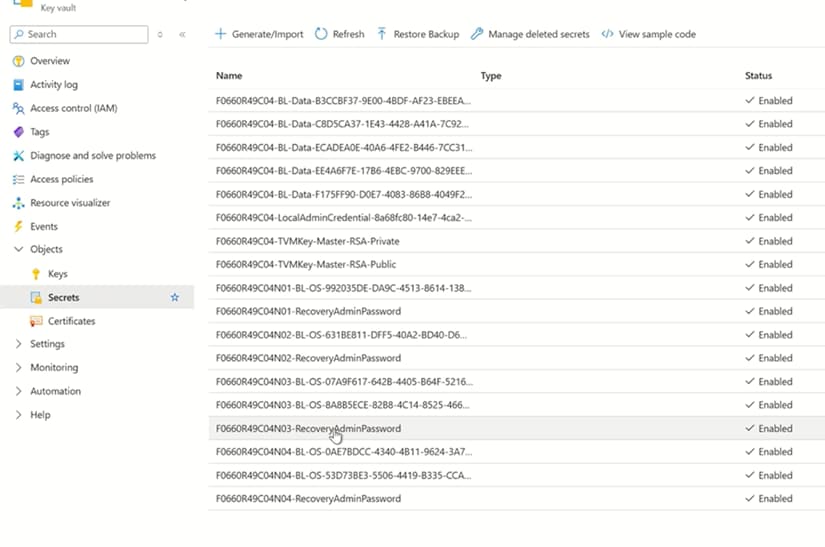
Deploy Azure Local using Local Identity with Azure Key Vault
Deploy Azure Local using Local Identity with Azure Key Vault
This chapter describes the additional requirements, configuration differences, and deployment considerations for deploying an Azure Local instance using Local Identity with Azure Key Vault (also known as AD‑less deployment).
This chapter does not replace the standard Azure Local deployment workflow. Unless explicitly stated otherwise, all deployment steps follow the procedures that are described in:
Chapter 3: Solution Deployment
Chapter 4: Deploying Azure Local Instance with Azure Stack HCI OS, version 24H2 or later
About Local Identity with Azure Key Vault
Overview
Azure Local can be deployed without Active Directory by using a local identity model with Azure Key Vault, previously known as AD-less deployment. This deployment option is available starting with Azure Local version 2411 and later.
In a local identity deployment:
A dedicated local administrator account is used on each machine.
Certificate‑based authentication is configured cluster‑wide.
Azure Key Vault is used to securely back up secrets such as BitLocker keys and other critical configuration data that is required for secure cluster operation.
Benefits of local identity with Azure Key Vault (without Active Directory)
Minimal edge infrastructure: Enables secure identity and secret handling in environments that do not use Active Directory.
Secure secret store: Azure Key Vault stores sensitive items such as BitLocker keys and node passwords, reducing the risk of unauthorized access and improving overall security.
Simplified management: Consolidates deployment and local identity secrets in a single vault, making them easier to manage and retrieve.
Simplified deployment: Azure portal workflows store required secrets in Azure Key Vault, reducing reliance on Active Directory and helping simplify Operational Technology network firewall configurations.
Key differences from Active Directory–based deployments
Table 11. Key differences between Active Directory–based and Local Identity–based Azure Local deployments
Area
Active Directory deployment
Local Identity deployment
Identity provider
Active Directory
Local administrator account
Authentication
AD objects
Certificate‑based authentication
Secret storage
Cluster and AD
Azure Key Vault
Domain join
Required
Not supported
AD preparation
Required
Not applicable
Deployment prerequisites for Azure Local deployment using local identity
Dell Technologies assumes that the management services that are required for the operating system deployment and Azure Local instance configuration are in the existing infrastructure where the instance is deployed.
Create a local user and add to the local Administrators group
Create a dedicated local administrative user on each Azure Local node for deployment and cluster management operations.
Azure Local deployments that use local identity require a non built-in local administrator account. This account is used for cluster-wide management operations, such as adding or repairing nodes, and must be consistent across all nodes in the Azure Local instance.
Note: You are responsible for life cycle management of this account, including expiration, rotation, and security. The default local policy sets a maximum password age of 42 days. This can be modified using PowerShell or by changing the underlying password policy configuration.
Use the same username and password on all machines. The password must meet Azure complexity requirements and include at least 14 characters with a combination of lowercase letters, uppercase letters, numbers, and special characters.
On each Azure Local node, create a new local user account, and update the $AdminUser value accordingly.
Note: Do not use the built-in Administrator account.
# Add user to local admin group Add-LocalGroupMember -Group 'Administrators' -Member $AdminUser
# Optional: Validate the new user account Get-LocalGroupMember -Group administrators # The output should include the user account specified by $AdminUser. # If it is not listed, the account was not created or added successfully.
Deploy the Azure Local instance using local identity with Azure Key Vault
You can deploy an Azure Local instance in the following ways:
Azure portal deployment with Quickstart Template (template deployment), which uses the UI in the Azure portal to deploy ARM templates. This method is not documented in this guide.
Deploy Azure Local Instance using Azure portal
The Azure portal wizard guides you through steps to create an Azure Local instance.
You can use the wizard to define all instance‑level and machine‑level configuration settings. The wizard guides you through the following windows:
Basics
Configuration
Networking
Management
Security
Advanced
Tags (optional)
Validation
Review and create
To create an Azure Local instance:
Go to Home > Azure Local.
Under Get Started, in Deploy Azure Local, select Create instance, and then do the following steps in the wizard:
Note: Deployments using Azure portal only support two-machine switchless configurations.
Step 1: Basics
Specify the Subscription name, Resource group, and Instance name.
Instance name = Cluster Name Object (CNO)
For Cluster options, select Standard.
For Identity provider, select Local identity with Azure Key Vault.
Select the machines to be added to the cluster. Click Add machines.
Note: Before deployment, the machines must not be joined to Active Directory.
The required extensions are automatically installed during this step.
When the extensions are installed and the status shows as Ready, click Validate selected machines.
Figure 29. Validating machines
Click Create a new key vault, as shown in the following figure.
Note:
If a previously created key vault for a decommissioned cluster exists with the same name, the previous key vault must be deleted and purged first.
Azure Local does not support deploying a cluster by using an existing Azure key vault that has private endpoints enabled.
Figure 30. Create a new key vault
Click Create.
Click Next: Configuration.
The following figure shows an example of a cluster with four machines:
Figure 31. Example of four-machine cluster details
To specify the network settings for a switchless network topology, choose No switch for storage, as shown in the following figure.
Figure 32. Choose "no switch for storage option"
To configure network topology with storage traffic on physical network adapters, Under Group network traffic types by intent, for Networking pattern, choose the Group management and compute traffic option, as shown in the following figure.
Figure 33. Choose Group management and compute traffic
The following figure shows an example of deploying a network configuration with storage traffic on physical network adapters. This example shows a two-machine switchless storage configuration. For the network intents or network adapters, you must provide intent details.
Figure 34. Provide intent details
To update the Data Center Bridging settings and adapter properties such Jumbo frame size and RDMA protocol, click Customize network settings on each network intent and, if applicable, each network adapter .
The following table shows the Quality of Service (QoS) flow priorities for each network type:
Table 13. QoS priorities for network intents
Traffic class
Purpose
QoS flow
ETS bandwidth allocation
3
RDMA (SMB Direct)
Enabled
50 percent
7
Cluster network
Disabled
10 GbE equals 2 percent
Greater than 25 GbE equals 1 percent
0-2, 4-6
0 - Best-effort traffic
Disabled
Remaining percentage distributed across the traffic classes
Note: For management network intents, RDMA must be disabled.
The following figure shown an example of customized network values:
Figure 35. Customize network values
Provide an IP address pool for the system and services, as shown in the following figure:
Figure 36. Allocate IP addresses
For more information, see Specify network settings.
Click Next: Management.
Step 4: Management
To identify the system when creating resources, and Deployment account details, under Specify a custom location name, enter the location name, as shown in the following figure:
Figure 37. Management window
For an Azure Local instance with two- machine , you must create a storage account. To create a storage account, click Create New.
In the Create a storage account window, enter a storage account name, and select the region and redundancy. To create the storage account, click Create, as shown in the following figure.
Figure 38. Create a storage account
Note: A cluster witness is mandatory for an Azure Local instance with two machines, and configuring a witness for an Azure Local instance with four machines requires an ARM template. Dell Technologies recommends configuring a cluster witness for four-machine Azure Local instances.
Under Create workload and infrastructure volumes, for Volumes, choose Create one workload volume and storage path per machine, and one required infrastructure volume per system (Recommended), as shown in the following figure.
After applying the optional tags, click Validation.
Step 8: Validation
Create an Azure Local instance resource object and its components, and validate the system readiness for an Azure Local instance deployment. The following figure shows an example of successful validation and system readiness for an Azure Local instance deployment.
Figure 41. Example of successful validation
This window shows all the configuration information that you have selected so far to create the Azure Local instance. To view all configuration information and then create the Azure Local instance, do the following:
After the system verifies the settings, click Review + create.
To view the deployment progress in the Azure portal, go to <Azure Local instance name> > Deployments.
To see the latest status, click the Refresh icon.
When the deployment is complete, the status for all tasks shows as Success, as shown in the following figure:
Figure 42. Deployment status
To access the Azure Local instance remotely or from Windows Admin Center, enable remote desktop access:
Use the iDRAC console to log in to the machine.
If not already open, run the sconfig command.
Choose one of the following options:
For Remote Desktop, select option 7.
To enable RDP, choose option 1.
To allow only NLA-secured clients, choose option 1 again.
Deploy an Azure Local instance using the Microsoft ARM template
Deploy an Azure Local instance using the Microsoft Azure Resource Manager (ARM) template.
Before using the Microsoft Azure Resource Manager (ARM) template to deploy an Azure Local instance, you must complete the prerequisite procedures. Procedures are correct at publication but are subject to change without notice. For the most current details, see Deploy Azure Local via Azure Resource Manager deployment template > Prerequisites.
In the Azure portal, go to Home, and then click Create a Resource.
Under Template deployment (deploy using custom templates) , click Create.
From the Start with a quickstart template or template spec, select Quickstart template as the template source.
Figure 43. Custom deployment window > Select a template
From the Quickstart template (disclaimer) list, select the Azure Local AD‑less cluster template, quickstarts/microsoft.azurestackhci/create-adless-cluster-external-dns-public-preview, and then click Select template.
On the Basics tab, select the resource group where the Arc-enabled servers are registered for the deployment.
Select Region, and then, in Deployment Mode, select Validate.
Enter the Key Vault Name, Diagnostic Storage Account Name, and Cluster Name.
Select Witness Type, and then enter cluster Witness Storage Account Name.
Note: For a two- machinecluster, a witness is mandatory.
To collect Arc Machine Resource IDs, run (Get-AzConnectedMachine -ResourceGroupName "<your-resource-group>").Id on one of the machines. Enter the details in Arc Machine Resource IDs.
Enter the following:
Subnet Mask
Default gateway
Starting IP address
Ending IP address
DNS Servers IP
Note: Azure Local deployment requires six IP addresses for the system and services.
Under Physical Machine Settings, enter the Hostname and IP addresses for the machines, for example:
Under Networking type, select SwitchlessMultiServerDeployment.
Under Networking Pattern, choose one of the following options:
Select Hyperconverged to Group all traffic: Choose this option if you are configuring a fully converged network topology.
Select ManagementCompute to Group management and compute traffic: Choose this option if you want to configure a network topology with storage traffic on physical network adapters.
Set Storage Connectivity Switchless to True for switchless networking.
Click Edit Parameters.
Note: For an example of a parameter file that shows the format of various inputs, see azuredeploy.parameters.json on GitHub.
Edit Network intent details based on the network topology that you are using for the deployment.
The following table shows the Quality of Service (QoS) flow priorities for each network type:
Table 14. QoS priorities for network intents
Traffic class
Purpose
QoS flow
ETS bandwidth allocation
3
RDMA (SMB Direct)
Enabled
50 percent
7
Cluster network
Disabled
10 GbE equals 2 percent
Greater than 25 GbE equals 1 percent
0-2, 4-6
0 - Best-effort traffic
Disabled
Remaining percentage distributed across the traffic classes
The following script shows an example from the ARM template and demonstrates how the Local Identity (with Azure Key Vault) deployment differs from the Active Directory deployment. The configuration that is shown corresponds to one of the possible network patterns “convergedManagementCompute.”
For readability, unrelated sections are not shown and are marked with dots (....).
For more information, see Full Azure Local/Azure Stack HCI 'create-cluster' template and parameter examples that are published in the Azure Quickstart Templates GitHub repository.
Save the parameters file. Leave all remaining parameters set to their default values.
CAUTION: When doing a manual deployment using an ARM template, you must use the entire JSON parameter file. The examples in this document are partial excerpts that are provided for illustrative purposes only and do not constitute the complete parameter file that is required for a successful deployment.
Management tool compatibility for Azure Local with Azure Key Vault
Management tooling support varies across the Azure Local ecosystem for environments that use Azure Key Vault for identity management.
Management tools
The following table provides the management tools that are supported for Azure Local environments that use Azure Key Vault for identity management:
Table 15. Management tools
Category
Tools
Notes
Supported
PowerShell
Azure Monitor
Azure portal
Fully supported for typical management and monitoring workflows.
Unsupported/Limited support
Windows Admin Center
System Center Virtual Machine Manager (SCVMM)
Not supported or only partially supported - avoid relying on these as primary management tools.
Mixed compatibility
Microsoft Management Consoles (MMCs)
Compatibility varies by scenario.
Some MMC tools such as Hyper-V Manager, and Failover Cluster Manager may not work in all the scenarios.
Test critical workflows before using MMCs in production.
Updating Azure Local instances using SBE package
Updating Azure Local instances using SBE package
Download Connector
Download Connector is a component in the Solution Builder Extension (SBE) package that automates the download of new SBE bundles as they become available for your Azure Local instance.
When an SBE that includes the Download Connector is installed on your instance, manual downloading and importing of subsequent versions is no longer required. The update service automatically retrieves the next available SBE, similar to how solution updates are handled.
Download Connector is part of SBE version 4.1.2505.1501 and later. These versions also feature system and update health checks that proactively verify connectivity to the required remote resource before downloading the next SBE. System health checks run daily, while update health checks occur at the beginning of the update process.
Download Connector firewall requirements
The Solution Builder Extension (SBE) Download Connector requires outbound Internet access to retrieve update bundles and catalogs.
The SBE Download Connector that runs on the Azure Local instance must periodically connect to Internet resources to enable Download Connector to download SBE bundles for your instance. The following table lists the outbound connectivity that is required:
Table 16. Outbound connectivity for SBE Download Connector
You can apply solution updates to your Azure Local instance using the Dell Solutions Builder Extensions (SBE) package. You can update your instance either by:
Downloading offline solution updates
Discovering online solution updates and then applying the updates
You must ensure that:
You have a functioning Azure Local instance with Azure Stack HCI operating system, version 24H2. The instance is registered to Azure.
You have access to the online solution update package or offline solution update package download.
You can do these updates either by:
Using PowerShell
Using Azure Update Manager service from the Azure portal
Note: You must run the Get-SolutionUpdateEnvironment PowerShell command. If the SBE package (latest version is 4.0.0.0) is only partially installed, complete the installation by following the procedures that are outlined in Download Connector – Automated download of future SBE release > Installation in the Azure Local Dell Solution Builder Extensions Release Notes (Dell 2512) on GitHub.
Update SBE package using PowerShell (online)
The process for updating the SBE package using PowerShell in online mode can be used for both multi-machine or single-machineAzure Local instances.
To perform an online solution update, do the following:
Depending on your deployment configuration, ensure that your Azure Local instance single-machine has or your multi-machines have good Internet connectivity.
To verify that the update service discovers the solution update, run the following command:
Get-SolutionUpdate | Format-Table DisplayName, State
To install the solution update, run the following command:
Get-SolutionUpdate | Start-SolutionUpdate
Updating SBE package using PowerShell (offline)
The process for updating the SBE package using PowerShell in offline mode can be used for both multi-machine or single-machine Azure Local instances.
CAUTION: Before proceeding, verify that sufficient space is available on the selected Cluster Shared Volume (CSV).
Azure Update Manager allows you to apply, view, and manage updates for your Azure Local instancemachines.
Before the updates start, Azure Update Manager checks the cluster readiness and lists available updates. You can also monitor the status of the updates that are being applied.
To identify and install updates, do the following:
Go to Azure Update Manager. In the left panel, under Resources, click Azure Local.
Alternatively, you can perform the procedure by going to Azure Arc > Azure Local, and then clicking Azure Local ClusterUpdates.
Select one or more clusters from the list, and then click one-time update.
The Install Updates window appears and lists available updates.
Figure 44. Updates window
On the check readiness tab, review the checks and their results. When verified, click Next.
On the Select updates tab, select the available update or updates that you want to install, and then click Next.
On the Review + install tab, verify the previously selected options, and then click Install.
To monitor the update progress, go to Azure Update Manager > Azure Local. Select Azure Local Instance. In the left panel, under Operations, select History. The clusters with updated statuses appear.
Select the update run from the list of In-progress tasks.
Review the results in the Download updates tab, and then click Next.
From the Install tab, review the updates in progress. When the updates are complete, you see results similar to the following figure:
Figure 45. Successful installation of updates on a cluster
Note: You must order AX nodes that are preconfigured for GPU integration, or converted for GPU use, including the required components.
Guidelines for installing GPU hardware
For deployed Azure Local instance, or Windows Server 2025 (or later instance before performing any GPU hardware changes, place the target machine into maintenance mode (pause and drain).
Use Dell Support to follow the platform-specific GPU installation procedure for your server model.
For model-specific GPU slot or riser matrices and riser configuration options, see the applicable Dell installation and service manual sections for your platform, including:
You can use Discrete Device Assignment (DDA) on supported GPUs so that the Azure Stack HCI and Windows Server 2025 and later operating system servers contain GPU-enabled clustered VMs.
The package contains the required driver for the virtual machine to use a GPU that is assigned through Discrete Device Assignment (DDA). With DDA (full device passthrough), you install the NVIDIA driver that enables GPU functionality in the guest virtual machine. In the DDA workflow, the NVIDIA guest driver is not required on the host. If no vendor display driver is installed, the host can show the GPU as a 3D Video Controller.
You can do DDA with either Windows Admin Center (WAC) or PowerShell. Dell Technologies recommends using WAC to reduce user error and to conform to best practices.
Note: Before configuring DDA, to make the GPU available for assignment to the virtual machine, you must disable and dismount the GPU from the host-management operating system.
If you are using Windows Admin Center (WAC) to configure GPU assignment, WAC automatically performs the required disable and dismount operations as part of the workflow, so you do not have to complete this step manually. This automation is one of the reasons that Dell Technologies recommends that you use WAC for GPU-related actions. For more information about configuring and performing a DDA, see Use GPUs with Discrete Device Assignment in clustered VMs.
When DDA is complete and the GPU is assigned to the virtual machine, install the NVIDIA guest driver inside the guest virtual machine so that the virtual machine can use the GPU.
Note: For Windows guests, the driver is in the Guest_Drivers folder of the archive and has an .exe extension.
When the guest driver is installed, your virtual machine is ready to use the DDA GPU. For NVIDIA software licensing requirements, modes, and license-server configuration guidance, see the NVIDIA Virtual GPU Software Client Licensing User Guide.
GPU partitioning
On the Azure Stack HCI or Windows Server 2025 or later operating-system servers, you can use GPU partitioning (GPU-P) for different workloads, such as artificial intelligence. To avoid mistakes and for a streamlined visual experience, Dell Technologies recommends that you use Windows Admin Center (WAC) for GPU-P.
Dell Technologies servers do not come with a GPU-P driver. The GPU-P driver requires separate licensing from NVIDIA. For more information about licensing options and the benefits of GPU-P, see: NVIDIA Virtual GPUs.
Note: For GPU-P to work, you must have both a host driver and a GPU-P enabled guest (VM) driver and the correct activated license.
Download and install host and guest drivers
For GPU partitioning (GPU-P) to work, you must have both a host driver and a GPU-P enabled guest (VM) driver and the correct activated license.
To download and install host and guest drivers, do the following:
Dell OpenManage Integration with Windows Admin Center
Dell OpenManage Integration with Windows Admin Center
Overview of Dell OpenManage Integration with Windows Admin Center
Dell OpenManage Integration with Windows Admin Center (OMIMSWAC) simplifies the tasks of IT administrators by remotely managing the AX nodes from Dell Technologies and Windows Server cluster throughout their life cycle.
Note: For Storage Spaces Direct Ready nodes, if you want to use the Cluster Aware Update premium feature to update the cluster using the Dell OpenManage Integration extension, contact a Dell Technologies sales representative to get an Azure Local license.
Prerequisites for managing AX nodes
The prerequisites for managing AX nodes from Dell Technologies are:
You have installed the following:
Windows Admin Center version 2410 GA or any later supported version and you are logged in as a gateway administrator
Dell OpenManage Integration with Microsoft Windows Admin Center extension
Microsoft failover cluster extension is version 3.0 release or later
There is a Dell OpenManage Integration with Microsoft Windows Admin Center premium license on each AX node.
You have added the hyperconverged infrastructure cluster connection in Windows Admin Center.
You have enabled remote desktop on your cluster with Azure Stack HCI operating system 24H2.
You can access the Windows Admin Center remotely using domain administrator credentials. Otherwise, use local administrator credentials to access the Windows Admin Center locally. For more information, see What type of installation is right for you?
Managing Microsoft HCI-based clusters
To review the license agreement and enable cluster management, do the following:
In Windows Admin Center, from the menu, select Cluster Manager.
In the Cluster Connections window, click the cluster name.
In the left pane of Windows Admin Center, under EXTENSIONS, click Dell OpenManage Integration.
Review the Dell Software License Agreement and Customer Notice, and then, to accept the terms of the license agreement, select the checkbox.
Monitoring clusters through the Overview window
After enabling cluster management, you can use the cluster management options in the Dell OpenManage Integration extension to view and take action as required.
In the Dell OpenManage Integration extension, select View > Overview. The Overview window displays the following cluster-level information:
Overview
HCP Compliance
Security
Resources
Quick task
For more information about each section, see the following:
Overview
Overview provides high-level cluster information including the following:
Number of clustermachines
Health of a cluster that includes total number of components with health as critical across nodes or, if all components are healthy, displays Health Ok .
Green: Healthy
Yellow: Warning
Red: Critical
Grey: Unknown
Secure core status:
Green: Enabled when all BIOS features are enabled on all nodes.
Yellow: Partially enabled when one or more nodes do not have all BIOS features enabled.
Red: Disabled when no node has all BIOS features enabled.
Compliance status:
Green: Compliant when all clustermachines are compliant with all Dell policies.
Yellow: Warning when one or more cluster nodes are not compliant with any optional policy.
Red: Error when a cluster node is not compliant with the Dell Hardware Symmetry Policy.
Grey: Unknown when any cluster node is not reachable.
Warranty status:
Green: Active
Red: Expired or Critical
HCP Compliance
When the Dell OpenManage Integration extension loads for the first time, the HCP and firmware compliance section remains empty. When you generate reports from the Action menu, the section is populated.
HCP Compliance displays the compliance status of an HCI cluster number of components for each status:
Green: Components are compliant with Dell policies.
Yellow: Warning when components are not compliant with any optional policy.
Red: Error when components are not compliant with the Dell Hardware Symmetry Policy.
Security
You can view the following:
Secure core status:
Green: Enabled when all BIOS features are enabled on all nodes.
Yellow: Partially enabled when one or more nodes do not have all BIOS features enabled.
Red: Disabled when no node has all BIOS features enabled.
Infrastructure lock status:
Green: Enabled when all nodes of the cluster are locked.
Yellow: Partially enabled when one or more nodes of the cluster are unlocked.
Grey: Unknown when unable to connect the cluster nodes.
Resources
Resources shows:
The current storage details, such as used storage and available storage
The current CPU core details, such as current cores and available cores
Quick task
Quick task provides direct links to perform different actions using the Dell OpenManage Integration extension. If an action has a dependency on another action, the action may be disabled .
Prerequisite checks
In the Dell OpenManage Integration with Microsoft Windows Admin Center extension (Dell OpenManage Integration extension), you can use standalone prerequisite checks to verify if the connection meets the requirements for monitoring and management operations.
To verify the hardware and software requirements, when you perform any operation using the Dell OpenManage Integration extension, the extension automatically runs the prerequisite checks. If any prerequisite check fails, View Details appears in the respective window. To see how to resolve the issues before performing the operation, you can click View Details.
The Dell OpenManage Integration extension also provides a standalone Prerequisite Checks option. To verify server or cluster readiness, before you run any operation using the extension, you must run Prerequisite Checks. For a seamless monitoring and management experience, you use this check to identify and fix any problems for all operations.
If any of the prerequisite checks fail, you can resolve the issue either manually or automatically depending on the nature of the check:
For checks that are listed in the Auto Fix category, you can resolve the issue by clicking Resolve in the Dell OpenManage Integration extension.
For checks that are listed in the Manual Fix, the Dell OpenManage Integration extension displays recommendations about how to resolve issues manually.
When the prerequisite checks are all compliant, you can use the Dell OpenManage Integration extension to perform server or cluster management operations.
To run the prerequisite checks and fix any issue using one of the methods that are listed previously, do the following:
In the Dell OpenManage Integration extension, click View > Prerequisite Checks.
To select the operations on which you want to run the prerequisite checks, click Select Operation. By default, all operations are selected.
Note:Check in the next step is only available after you click Select Operations in this step.
To run the prerequisite checks for the selected operations, click Check.
When the prerequisite checks are complete, View Details appears next to Select Operation.
To see the prerequisite check report, click View Details.
To fix any prerequisite issues:
With Auto Fix, ensure that the failed prerequisites are selected, and then click Resolve.
With Manual Fix, ensure that the failed prerequisites are selected, and then view the recommendations about how to resolve the issues manually.
To view the overall health of a cluster or node, do the following steps:
In the Dell OpenManage Integration extension, to view the overall cluster health status and the health status of each node and its components, click View: Health.
The Health window appears. The system checks the inventory prerequisites. If all prerequisites are compliant, the window displays the health status of all hardware components, as shown in the following figure. If one or more checks are not compliant, an error message appears.
Figure 48. Health window
To see the prerequisites that have failed, click View Details.
To fix the issues that are in the Auto Fix category, click Resolve .
For issues that are in the Manual Fix category, see the recommendations about how to resolve them. For more information about inventory prerequisites checks, see Prerequisite checks.
To view the latest health information, click Refresh.
Overall Health Status
A doughnut chart displays the overall health status of a cluster using the following color code:
Green color indicates that the cluster is healthy.
Yellow color indicates that the cluster is not in recommended state.
Red color indicates that the cluster is in critical state.
Grey color indicates that indicates that the cluster nodes are not reachable and status is unknown.
The number of nodes in the doughnut chart indicates the number of cluster nodes that have the same health status as the cluster.
Different color codes show the respective health status of several nodes. To filter the health status of a node and its components, in the doughnut chart, click the respective color code. For example, to see the node and its components that are in critical health status, click the red color in the doughnut chart.
Inventory
The Inventory window lists the servers that are part of the cluster.
In the Dell OpenManage Integration extension, select View > Inventory.
The Inventory window appears and provides a list of inventory prerequisite checks. If all prerequisites are compliant, the window displays the hardware and firmware information for the clustermachines. If one or more checks are not compliant, an error message appears.
To see which prerequisites have failed, click View Details.
To fix issues that belong to the Auto Fix category, click Resolve.
To fix issues that belong to the Manual Fix category, see the recommendations about how to resolve them.
To view the latest hardware or firmware information, click Refresh.
Clicking a server name on the inventory list provides details about the following components:
System
Firmware
CPUs
Memory
Storage controllers
Storage enclosures
Network devices
Hard drives
Power supplies
Fans
Locating hard drives and viewing their status
The Blink and Unblink feature of Windows Admin Center enables you to locate hard drives (physical disks) or view drive status.
Under the Inventory tab, from the Components list, select Physical Disks.
For each hard drive, select Blink or Unblink to control the drive's LED.
Enabling hardware alerts for Azure Local instance
Ensure that all checks are successful.
Ensure that Alerts is enabled on iDRAC. Go to Configuration > System Settings > Alerts.
iDRAC allow you to set alerts and actions for components that have any deviation from the predefined conditions. The alerts feature allows you to receive hardware alerts from iDRAC for each node. You can configure alerts by selecting the various categories and severities:
System Health
Storage
Updates
Configuration
Audit
Critical
Warning
Informational
After you configure the hardware alerts, an option to clear alert configurations appears.
To manage alerts, do the following:
To configure the alerts, log in to Windows Admin Center and launch the Dell OpenManage Integration extension in the Azure Local instance.
Go to either:
View: Configure > Hardware Alert
Action > Hardware Alert
Select Configure Alert.
Options appear that allow you to select categories and severities.
Choose the relevant options, and then click Configure, as shown in the following figure.
Figure 49. Configure alerts
To view the alerts, if you are already logged in, skip this step, otherwise, log in to Windows Admin Center and launch the Dell OpenManage Integration extension for the Azure Local instance.
Go to either:
View: Configure > Hardware Alert
Action > Hardware Alert
If the alerts are already configured, you can see the alerts that are generated in the duration selected. You can change the duration from a few hours to last 30 days.
To refresh the alerts, click Refresh, as shown in the following figure.
Figure 50. iDRAC Alerts window
To remove the configured alerts, if you are already logged in, skip this step, otherwise, log in to Windows Admin Center and run the Dell OpenManage Integration extension for the Azure Local instance.
Go to either:
View: Configure > Hardware Alert
Action > Hardware Alert
Click Clear Alert Configuration.
When the prompt appears, the configured alerts are cleared.
Secure cluster with Secured-core
A malicious hacker who has physical access to a system can tamper with the BIOS. A tampered BIOS code poses a high security threat and makes the system vulnerable to further attacks. With the Secured-core feature, Dell OpenManage Integration with Microsoft Windows Admin Center (OMIMSWAC) ensures that your cluster boots using only Dell Technologies trusted software.
Note: For 24H2 installations, Secured-core is enabled by default.
The Secured-core feature is supported on the following configurations:
AMD processor types:
AMD Milan with cluster nodes BIOS version 2.3.6 or later
Intel processor types:
cluster nodes BIOS version 1.3.8 or later
Note: Intel E-23 series and Intel Pentium SKUs, such as G6605, G6505, G6505T, G6405, and G6405T, processor types are not supported for the Secured-core feature.
Operating system versions:
Azure Stack HCI operating system 24H2 or later
TPM V2.0 module must be installed with firmware 7.2.2.0 or later
OMIMSWAC premium license must be installed on each cluster node
Note: To ensure proper functioning of the System Guard operating system feature, ensure that the TPM Hierarchy under System Security section is enabled in the BIOS settings.
The Secured-core feature includes enabling BIOS and operating system security features. To protect infrastructure from external threats, Dell Technologies and Microsoft recommend that you enable the BIOS security features and operating system security features respectively. In Windows Admin Center, to enable BIOS security features, use the Dell OpenManage Integration extension. To enable the operating system security features, use the Security extension.
Secured-core features are enabled by default for Azure Local instancemachines. For more information about the security features, see Security features for Azure Local.
To enable BIOS security features, do the following:
Log in to Windows Admin Center and launch the Dell OpenManage Integration extension.
Select View > Security.
From the list menu, select Secured Core. Alternatively, go to the Action menu, under Security and select Secured Core.
If prompted, specify Manage as credentials.
If the following prerequisites are fulfilled on the target or cluster nodes, OMIMSWAC validates:
Supported platform and processor types
Supported BIOS version
Supported operating system version
Installed OMIMSWAC Premium License
If one or more prerequisites are not fulfilled, OMIMSWAC displays the list of prerequisites and its overall status and recommendation.
Review the recommendations with the status showing as unfulfilled and resolve the prerequisites.
To see the prerequisites to be fulfilled for each cluster node, switch to Show Machine Level Details.
After resolving the prerequisites, to display the overall status, return to Security > Secured-core.
If all prerequisites are fulfilled, the Dell OpenManage Integration extension displays the Secured-core status for both BIOS and operating system. The overall BIOS and operating system status is the summary of all BIOS and operating-system feature configuration statuses for the entire cluster.
If the infrastructure lock is enabled, click Disable.
Note: Before enabling the BIOS configurations, you must disable the infrastructure lock.
Review all BIOS feature statuses and corresponding operating-system feature statuses.
A consolidated view of all BIOS and operating system feature configuration statuses is displayed in the Cluster-level BIOS Features and Status and Cluster-level OS Features and Status sections.
The following table lists the BIOS and operating system features with security functionalities:
Table 17. BIOS and operating system features with security functionality
BIOS feature
Security function
Corresponding operating-system features
Other information
Virtualization Technology
Assists with enabling the BIOS processor-virtualization features (such as protecting against exploits in user-mode drivers and applications) and provides virtualization support to the operating system through the DMAR table.
Hypervisor-Protected Code Integrity (HVCI)
Virtualization-Based Security (VBS)
N/A
Kernel DMA Protection
When enabled, both the BIOS and operating system protect devices from Direct Memory Access attacks in early boot by using the Input/Output Memory Management Unit (IOMMU).
Boot DMA Protection
N/A
Secure Boot
Secure Boot ensures that the device boots with trusted, Dell signed software.
Secure Boot
N/A
Trusted Platform Module (TPM) 2.0
TPM PPI Bypass Provision
TPM PPI Bypass Clear
TPM2 Algorithm Selection
TPM is a dedicated microprocessor that is designed to secure hardware by integrating cryptographic keys into devices. Software can use TPM to authenticate hardware devices.
Trusted Platform Module (TPM) 2.0
System Guard
Note: To ensure proper functioning of the System Guard operating-system feature, ensure that the TPM Hierarchy under the System Security section is enabled in the BIOS settings.
Note: If the TPM firmware version is earlier than 7.2.2.0, ensure that Enable BIOS Configuration is disabled. You must replace the hardware with hardware that has TPM firmware version 7.2.2.0 or later.
Note: TPM2 Algorithm Selection is set to SHA256.
(AMD) Dynamic Root of Trust Measurement (DRTM)
Enables AMD DRTM and AMD secure-encryption features such as Secure Memory Encryption (SME) and Transparent Secure Memory Encryption (SME)
N/A
This feature is available for AMD-based processors.
(Intel) Trusted Execution Technology (TXT)
Enhances platform security by using Virtualization Technology, TPM Security, and TPM2 Algorithm (must be SHA256). Intel TXT provides security against hypervisor, BIOS, firmware, and other pre-launch software-based attacks by establishing a "root of trust" during the boot process.
N/A
This feature is available for Intel-based processors.
To configure Secured-core for all BIOS attributes, click Enable BIOS Configuration.
To apply the BIOS configuration, perform one of the following actions:
Apply and Reboot Now: Applies the BIOS configuration changes in all cluster nodes and reboots the cluster using Cluster-Aware Updating without impacting the workload.
Apply at Next Reboot: Saves the changes and applies the BIOS configuration in all cluster nodes at the next reboot.
CAUTION: If you choose the Apply at Next Reboot option, before performing any cluster management operations, you must exit the Dell OpenManage Integration extension and restart the cluster using Windows Admin Center .
When finished, click Apply.
Note: The operation enables CredSSP. To improve security, after the operation is complete, disable CredSSP.
To see the status of the BIOS configuration changes at node level, click View Details.
Enable operating system features
Before you begin, you must ensure that the chipset drivers are installed as shown in the following table:
Note: Always confirm and download the latest drivers and firmware as listed in the Azure Local Support Matrix.
Table 18. Chipset required by AX node server model
Chipset
AX node
Intel chipset DUP, version 10.1.19879.8585 and later
Dell AX-650, Dell AX-750
Intel chipset DUP, version 10.1.19913.8607 and later
Dell AX-660, Dell AX-760
Intel chipset DUP, version 10.1.19928.8615 and later
Dell AX-4510c, Dell AX-4520c
Intel chipset DUP, version 10.0.26100.6725 and later
Dell AX-670, Dell AX-770
AMD chipset DUP, version 6.02.22.100 and later
Dell AX-7525
Warning: To protect the infrastructure from external threats, Dell Technologies and Microsoft recommend that you enable Secured-core. Secured-core includes both the infrastructure and Microsoft operating system features for Dell AX System for Azure Local and Windows Server 2022 or Windows Server 2025.
Operating-system settings can be enabled manually by modifying the registry settings or by using the Windows Admin Center Security extension. To enable operating system features, do the following:
If using the registry settings:
Run the following commands on each machine in a cluster:
After the settings are enabled and each machine is restarted, the Secured-core section on each machine must show all features with the On status, as shown in the following figure.
Figure 52. Secured-core machine status
To verify the BIOS and operating-system settings, open the Dell OpenManage Integration extension window.
Select View > Security > Secured-core.
Protect your infrastructure with infrastructure lock
Infrastructure lock (also known as iDRAC lockdown mode or system lockdown mode) helps to prevent unintended changes after a system is provisioned. Infrastructure lock is applicable to both hardware configuration and firmware updates. When the infrastructure is locked, any attempt to change the system configuration is blocked. If any attempts are made to change critical system settings, an error message is displayed.
Enabling infrastructure lock also blocks server or cluster firmware updates using the Dell OpenManage Integration extension in Windows Admin Center.
The following table lists the functional and nonfunctional features that are affected when the infrastructure lock is enabled:
Table 19. Functional and nonfunctional features affected by infrastructure lock
Disabled
Remains functional
Full stack update on clusters
Individual server update and Cluster-Aware Updating on clusters
Managing CPU cores on servers and clusters
Integrated deploy and update clusters
Preparing machines for cluster expansion
Secured core
Retrieving health, inventory, and iDRAC details
Blinking and unblinking server LEDs
Enable or disable infrastructure lock
Infrastructure lock is applicable to both hardware configuration and firmware updates, and it helps prevent unintended changes after a system is provisioned.
For better security, to use the infrastructure lock option, do the following:
To enable or disable the Infrastructure lock in the Dell OpenManage Integration extension, go to View > Security.
From the list menu, select Infrastructure Lock, and then click Enable or Disable, as shown in the following figure:
Figure 53. Enable infrastructure lock
The infrastructure lock can also be disabled during server or cluster management operations such as server update, CAU, full stack update, manage CPU cores, and so on.
If the lock is already enabled, Dell OpenManage Integration with Microsoft Windows Admin Center (OMIMSWAC) displays an error during the management operation and gives you an option in the same window to disable the lock and proceed.
To allow OMIMSWAC to automatically lock the infrastructure after the operation is complete, select Allow OMIMSWAC, which re-enables the infrastructure lock after the operation is complete.
Note: You cannot use OMIMSWAC to maintain cluster homogeneity by enabling or disabling the infrastructure lock for individual servers that are part of a cluster.
Manage CPU cores in Azure Local instances
Ensure that the Azure Local instance contains homogenous machines. For example, the machines must have the CPUs either from Intel or AMD and from the same processor family.
Note: Having machines that include CPUs from both Intel and AMD or from different processor families is not supported.
Dell OpenManage Integration with Microsoft Windows Admin Center (OMIMSWAC) Premium License for Microsoft HCI Solutions must be installed on each Azure Local instancemachine.
To manage workload demands, power consumption, and licensing costs, you can change the number of CPU cores that are allocated to a Azure Local instance by using the Update CPU core feature. You can use this feature to optimize CPU cores in Azure Local instances to keep the Total Cost of Ownership (TCO) at an optimal level.
To configure and manage CPU cores, do the following:
In Windows Admin Center, connect to a Azure Local instance.
In Windows Admin Center, under Extensions, click Dell OpenManage Integration.
In Dell OpenManage Integration, select View > Configure. Another menu list appears. Select CPU Core.
To manage CPU cores, click Update CPU Core.
The Update CPU Core wizard appears.
Based on workloads, in the Update CPU Core wizard, select the number of cores to be used.
You can configure the cores, which are based on the CPU core manufacturer (Intel or AMD), as shown in the following table. To maintain an Azure Local instance homogeneity, Dell OpenManage Integration applies the same configuration across all machines in the Azure Local instance.
CAUTION: Changing the number of cores impacts the overall core count of the Azure Local instance. To maintain the balance between power and performance, ensure that you are using the correct number of cores.
Table 20. CPUs
CPU type
Instructions
Intel CPU
Select the number of cores that you want to enable per CPU.
Minimum number of cores that can be enabled is four. To manage workloads, you can enable all the cores that you need.
AMD CPU
N/A
To apply the changes and reboot machines, select one of the following options:
If you want to immediately apply the changes and reboot the Azure Local instancemachines, select Apply and Reboot Now.
Dell Technologies recommends using this option because the machines are rebooted automatically by using the Cluster-Aware feature to take care of the workloads.
If you want to apply the changes immediately and reboot the Azure Local instancemachines later, select Apply at Next Reboot.
To apply the CPU core changes, ensure that you reboot the Azure Local instancemachines later. Before rebooting the machines, take care of the workloads.
Note:CredSSP must be enabled before you can run Apply and Reboot Now. To improve security, disable CredSSP after the CPU configuration changes are complete.
To apply the changes, click Confirm.
Validate and remediate Azure Local instances
By using the HCI Configuration Profile (HCP) Compliance feature, you can see the Azure Local instance compliance using HCP Compliance checks, see recommendations, and remediate the non-compliant components.
Before you begin, the cluster:
Must be a Dell AX System for Azure Local system
Nodes must have a valid Dell OpenManage Integration with Microsoft Windows Admin Center (OMIMSWAC) premium license installed
To run an HCP compliance check in the Dell OpenManage Integration extension, perform the following steps by selecting the single-node cluster in the Cluster Manager:
Go to View > Compliance. When another menu appears, select HCP .
The Compliance Summary window appears. If Check Compliance is already enabled, go directly to step 3.
If Check Compliance is disabled, ensure:
All the prerequisites are met.
Required inputs are provided in the Configure Cluster Settings tab.
If not, to save the settings for future use, choose the network topology and the deployment model, and then click Save. To generate compliance for Dell Operating System Configuration policies, the following settings are required:
Network topology
Fully-converged: All storage ports from the server are connected to the same network fabric. Within the host operating system, the NIC ports are used for both storage and management or VM traffic.
Non-converged-Physical: Storage traffic is on the physical storage network adapter ports and management or VM traffic through a SET that is created using network ports of the server rNDC.
Non-Converged-Set: Storage traffic uses virtual adapters in the host operating system that is connected to a SET.
Deployment model
Scalable model supports from 2 to 16 nodes in a cluster and uses top-of-rack (ToR) switches for management and storage traffic networking.
Switchless model uses full mesh connections between the cluster nodes for storage traffic and supports from 2 to 4 nodes in a cluster
Stretched clusters with Azure Stack HCI operating system consist of nodes residing at two different locations or sites, with each site having two or more nodes, replicating volumes either in synchronous or asynchronous mode.
To view HCP Compliance Summary, click Check Compliance.
Optional: If Internet connection is not available, to run HCP check in offline mode, do the following:
Copy and paste into a browser the URL to the asHCISolutionSupportMatrix.json file from the location that is listed in the following table that is based on the AX node model:
Place the files in C:\Users\Dell\HCPMetaData folder in the gateway system where Windows Admin Center is installed.
Run the HCP Compliance check.
The Dell OpenManage Integration extension fetches the applicable policies, validates the cluster node attributes against the policy attributes, and displays the compliance summary.
To fix non-compliant policies, click Fix Compliance.
Warning: If the Dell Hardware Symmetry Policy is non-compliant with a Critical error, Fix Compliance is disabled. You are not allowed to remediate other policies until the error is resolved.
Before proceeding to the next step, to resolve the error, review the recommendations, view the details, and then contact Dell Support if required. The critical error states that this aspect of the node configuration is not supported. You must correct the error before you can deploy a symmetric HCI cluster.
Manual Fixes includes policies that require physical interventions and recommendations that can be remediated manually.
Note: Ensure that the cluster is compliant with Dell Hardware Symmetry Policy and Dell Operating System Configuration Policies; otherwise, the cluster performance is not guaranteed.
Automatic Fixes includes policies that can be remediated using the Dell OpenManage Integration extension.
To apply the configurations, if any of the policies fixing requires a cluster reboot, select the reboot option by restarting the cluster in Cluster-Aware Updating mode.
Choose from:
Apply and Reboot Now: Immediately applies BIOS, NIC, and iDRAC attributes concurrently to all the cluster nodes and restarts the cluster in Cluster-Aware Updating mode.
Apply at Next Reboot: Applies BIOS, NIC, and iDRAC attributes concurrently to all clustermachines when the clustermachines are restarted at the next maintenance window.
Note: If you choose to apply the changes at the next reboot, before the next reboot starts, ensure that you disable the infrastructure lock.
Click the Schedule Reboot checkbox to schedule the date and time when BIOS, NIC, and iDRAC attributes are applied concurrently to all the cluster nodes and restart the clusters in Cluster-Aware Updating mode.
If the infrastructure lock is enabled, a window appears to allow you to disable the lock and then proceed. To allow the Dell OpenManage Integration extension to automatically lock the infrastructure after the operation is complete, select Allow OMIMSWAC.
To trigger the updates, click Apply.
If Kernel Soft Reboot is enabled for the cluster, the Dell OpenManage Integration extension ignores the trigger and performs a full reboot to apply all BIOS-related settings. For more information, see When to use Kernel Soft Reboot.
The operation enables CredSSP. To improve security, after the operation is complete, disable CredSSP.
To see the update status and progress at node level, click View Details.
When the status finishes, the Dell OpenManage Integration extension rechecks the compliance and displays the updated compliance summary.
To export the HCP Compliance report to a Microsoft Excel spreadsheet, which can be useful when contacting the Dell Technologies support team, click Export compliance summary.
View HCP compliance summary
Dell OpenManage Integration with Microsoft Windows Admin Center (OMIMSWAC) computes the compliance using different types of Dell HCI Configuration Profile policies, including the following, and displays the report.
Dell Infrastructure Lockdown policy checks whether the Azure Localcluster infrastructure is locked.
Dell Hardware Symmetry policy checks whether clustermachines have validated and supported hardware components and have symmetrical hardware configurations.
Dell HCI Hardware Configuration policy checks whether clustermachines have Dell Technologies recommended BIOS, NIC, and iDRAC configurations.
Dell OS Configuration policy checks whether clustermachines have Dell Technologies and Microsoft recommended operating-system configurations.
If the compliance summary is already generated, the last report is displayed with a timestamp. In this case, Re-Check Compliance is enabled. You can click Re-Check Compliance to see the latest compliance report.
The compliance summary is divided into three sections:
Overall Compliance shows the overall compliance of the cluster such as compliance percentage, number of policies compliant, and total number of policies from the displayed policy types.
Overall Compliance State shows overall compliance of the cluster using a doughnut chart and color codes. The color codes indicate different compliance types. You can select different color codes, if any, to filter the respective policy details and its clustermachines. For example, when you select the red color code, policies that are not compliant and their respective clustermachines are displayed. The color codes are as follows:
Compliant: Shows all clustermachines are compliant with all Dell policies.
Errors: Shows if any clustermachine is not compliant with Dell Hardware Symmetry policy.
Warnings: Shows if any clustermachine is not compliant with any optional policies.
Unknown: Shows if any clustermachine inventory could not be retrieved when the machine is down or not reachable.
The Policy Summary shows compliance of each clustermachine and its components for each policy type:
Policy Name: Name of Dell policies.
Description: Description of Dell policies.
Overall Status: Overall status of compliance of the cluster for each policy type.
Overall State: How many policies are compliant out of the total number of policies and its percentage.
Errors: Number of policies that are non-compliant and must be fixed.
Warnings: Number of policies that are non-compliant and must be fixed.
Unknown: Number of unknown issues, or unable to run or fetch the data.
Details: See more information about each machine and its components and their compliance status.
Onboard Dell policies to Azure Arc from Windows Admin Center
To monitor the compliance of Azure Local instances, deploy Dell HCI Configuration Profile (HCP) policies in Azure Arc from Windows Admin Center.
Cluster must be Dell AX System for Azure Local.
Dell OpenManage Integration with Microsoft Windows Admin Center (OMIMSWAC) premium license must be installed on each cluster node.
The target servers that you want to manage must have Internet connectivity to access Azure.
Deploying Azure policies requires that you have administrator rights on the target Windows machine or server to install and configure the agent. Also, you must be a member of the Gateway access roles.
Azure Local instance and Windows Admin Center gateway must be registered in Azure and use the same account to sign in with the resource group with edit rights. For more information about Azure registration, see Register Windows Admin Center with Azure.
In all cluster nodes, Dell Technologies recommends that you ensure that all RDMA -enabled network adapters are connected to the same NIC ports.
Azure Arc is one of the primary management tools for managing resources for cloud and hybrid platforms. Dell Technologies recommends using Dell HCP policies in Azure Arc to maintain compliance with Dell Technologies recommended configurations throughout the life cycle of the Azure Local instance or host.
By using Dell OpenManage Integration for Microsoft Windows Admin Center, you can deploy Dell HCP policies to Azure Arc. And then use these policies in Azure Arc to monitor your cluster. In addition, if multiple clusters are onboarded under the same Azure subscription, you can use the same policy to manage and monitor multiple clusters in the Azure Arc.
To deploy Dell HCP policies to Azure Arc, do the following:
Log in to Windows Admin Center.
From the All connections window, select a cluster to connect to it.
Click Sign In. A window appears where you can log in to the Azure account.
Specify your Azure subscription account details.
When finished, the button changes to Signed-in.
Go to the Onboarding Checklist section. The Dell OpenManage Integration extension verifies and displays the list of prerequisites and shows recommendations if prerequisites are not met.
To see the list of prerequisites, status, and recommendations if prerequisites do not match, click Show Details. You cannot move to the next step until all the prerequisites match the requirements.
To see the prerequisites with and updated status, click Refresh Checklist.
In the Onboard Policies section:
Click View Subscription Details to see the Azure account subscription details.
To edit network topology and deployment model settings, click Edit Cluster Settings, specify the details.
To save the settings for future use, click Save.
Choose from:
If policies are not onboarded to Azure Arc, to see the details of applicable Dell HCP policies for onboard and go to the next step, click Onboard Policies.
If policies are already onboarded to Azure Arc, to see the details about already onboarded policies, click View Details. To export the onboarded policies in a CSV format, click Export Details.
The Onboard Dell HCI Configuration Profile policies for Azure window displays the available policies for onboarding or updating. The window also shows the version of the previously onboarded policy, if any. All the mandatory policies are selected by default and you cannot change it. You can clear the optional policies, if any.
To onboard or update the onboarded policies, click Onboard.
After the policies are onboarded, the policy onboarding status appears beside Onboard Policies.
To see the Policy Onboarding Status window that displays the status of each policy that was onboarded to the Azure Arc, click View Details.
To export the onboarded policies in a CSV format, click Export Details.
After the policies are onboarded, to monitor your cluster using Dell HCP policies, log in to Azure portal (Azure Arc) using the same subscription account. To find the resources you want to manage, click Resource Groups.
cluster node details display.
To check the cluster compliance, under Settings, click Policies.
The Policy window displays the cluster compliance and lists all the applicable policies including the default policies.
Note: Ignore the policy details of the Dell Exempted Policy, which only helps with tracking policy versions of onboarded Dell HCP policies and does not impact cluster performance or compliance.
In Search, to find the policies that are onboarded from the Dell OpenManage Integration extension, enter Dell. To see more details of the compliance for a particular policy, select the policy.
The following recommendations, using OpenManage Integration with Microsoft Windows Admin Center (OMIMSWAC) extension, enable you to prepare machines for expanding Azure Local instance storage.
The cluster must be Dell AX System for Azure Local
The Azure Localmachines must have installed valid OMIMSWAC premium licenses.
In an Azure Localcluster, you can expand storage by adding drives on the available slots on the clustermachines. Expanding storage adds storage capacity to the cluster and improves storage performance.
Using the Expand Storage feature, you can view recommendations that are based on HCI Configuration Profile (HCP) policies that enable you to prepare machines for expanding cluster storage.
In Windows Admin Center, under Extensions, click Dell OpenManage Integration > Select View > Expand Cluster. From the list menu, select ADD Storage.
If the cluster meets the prerequisites, the Dell OpenManage Integration extension validates the storage configuration of the cluster nodes against HCP policies (Dell Hardware Symmetry Policy rules) and displays the cluster-level status and drives details for each cluster node.
If Expand Storage is enabled. To see the latest storage configuration details of the clustermachines, click Refresh Storage Inventory.
If Expand Storage is disabled:
The cluster may not fulfill all prerequisites. See the banner message and ensure that the prerequisites mentioned are met. Refresh the cluster inventory, and then try again.
The cluster may be noncompliant if its storage configuration does not comply with all critical Dell Hardware Symmetry Policy rules. To make the cluster compliant, go to the HCP Compliance tab, follow the recommendations, and then try again.
In the Storage Expansion Summary wizard, view the summary about the cluster storage configuration:
Cluster name
Machine counts
Available slot count where storage expansion is possible in that cluster.
If any of the clustermachines has SAS or SATA drives, the available slots display a warning. The exact number of empty slots for drives with media types such as hard drives or solid-state drives may not be derived.
Note: Available empty slots are calculated using the total available slots and total connected drives. Calculated slots may not match the number of empty slots for the hard drives or solid-state drives because these drives are embedded in the server chassis.
Used storage
Available storage
If the cluster is noncompliant with a warning, follow the recommendations to make the cluster storage symmetric. The Recommendation section includes the following details:
The Dell HCP policy rule that does not comply with your cluster
The drive details that must be added or replaced to make your cluster compliant
When the cluster is compliant ( cluster storage is symmetric), to see storage-expansion recommendations, go back to Step 1 and follow the instructions.
If the cluster is compliant, to see the storage-expanding recommendations, choose one of the storage-expansion options, specify the storage size, and then click Refresh Recommendation. Choose from:
Increase overall capacity: Overall capacity indicates the sum of all disk-storage capacity in a cluster. To increase the overall capacity of the cluster, specify the storage size as available.
Increase usable capacity: Usable capacity indicates the actual storage size that the cluster uses after reserving some storage for fault tolerance (resiliency). Specify the overall usable capacity as available for the entire cluster.
The Recommendation section includes the following information:
Storage displays machine name and number of drives that are required, with recommended media type, and the recommended storage capacity of each drive.
Supported models
Note:AGN MU in the model description indicates that the model is vendor agnostic and mixed use.
Manufacturer
Endurance
Actual capacity
Bus protocol
Cache to capacity ratio (only available for hybrid machines)
Note:
Recommendations are derived based on possible empty slots present in the machines. For non-uniform media types across the cluster, you may see some warnings, even after following the recommendations.
To order drives, Dell Technologies recommends that you use the bus protocol, model, size that is mentioned in the storage column, and endurance information to identify compatible drives for storage expansion.
Insert the recommended drives, and then run HCP compliance to check the updated storage configuration. For any issues, contact Dell Support.
View node-level storage configuration details
The cluster-level status includes the types of cluster storage configuration (whether single-media type or hybrid-media type), total number of drives in all cluster nodes, and the compliance status.
The following table lists the details of the storage configuration compliance statuses:
Table 22. Compliance statuses for storage configuration
Status icon
Status name
Status description
Compliant
The cluster is compliant for storage expansion as it meets all the prerequisites. Expand Storage is enabled.
Warnings
The cluster is noncompliant as its storage configuration does not comply with the Dell Hardware Symmetry Policy rules. You can continue to view recommendation for storage expansion. However, before doing a storage expansion, Dell Technologies recommends that you make the cluster compliant by following the recommendations.
Errors
The cluster is non-compliant as its storage configuration does not comply with some of the critical Dell Hardware Symmetry Policy rules. Expand Storage is disabled. You cannot do a storage expansion. Dell Technologies recommends that you make the cluster compliant by following the recommendations, and then doing the storage expansion.
The following list shows drive details for each cluster node that is displayed.
Node status:
Green: Compliant, when there is no critical error or warning
Yellow: Non-compliant but not critical, there is some warning
Red: Non-compliant (Critical), there is critical error
Serial number
Slot number (if applicable)
Media type
Bus protocol
Model: If present, AGN MU in the model description indicates that the drive is vendor agnostic and of mixed use.
Manufacturer
Capacity
Endurance
Used for cache or capacity type
Cache or capacity ratio (available only for hybrid media types)
Post-deployment Updates and Maintenance
Post-deployment Updates and Maintenance
Post-deployment best practices
Dell Technologies recommends that you follow the guidelines that are described in this section.
Antivirus exclusions
As part of best practices, Dell Technologies and Microsoft recommend that you plan appropriate antivirus exclusions.
Azure Local instance machines by default are deployed and configured with security features including Microsoft Defender Antivirus.
If you prefer to use non-Microsoft antivirus and security software, Dell Technologies and Microsoft recommend that your vendor has validated your preferred software for Azure Local.
In an Azure Local instance, expanding storage by adding drives on the available slots on the instance machines adds storage capacity to the instance and improves storage performance. Before the storage expansion, ensure that all drive types and the amount in each drive are the same and are equal to that of the drive in use.
Do not combine different drive types in the same Azure Local instance or machine. For example, you cannot combine SATA and SAS hard drives or solid-state drives.
The following options for expanding the storage capacity of the cluster are supported:
Option 1: Expand the storage with the same drive manufacturer, capacity, endurance, latest model, and latest firmware. Determine if the drive is available on the AX node model that is listed in the Support Matrix.
Option 2: Expand the storage with a different drive manufacturer, model, firmware, and the same capacity and endurance. Determine if the drive is available on the AX node model that is listed in the Support Matrix.
When drives are added to extend the overall storage capacity per machine, the Azure Local instance starts claiming the hard drives into an existing storage pool.
After the drives are added, they are shown as available for pooling (CanPool is set to True) in the output of the Get-PhysicalDisk command.
In a few minutes, the added drives are claimed in the existing pool, and then Storage Spaces Direct starts the rebalance job. To verify that the new drives are a part of the existing pool, you can run the following command and see the listed results:
After all available drives are claimed in the storage pool, the CapacityPhysicalUnpooled is 0 B.
The storage rebalance job might take a few minutes. You can monitor the process by running the Get-StorageJob command.
Repairing machines in Azure Local instances
If the operating system cannot be recovered due to hardware or operating system failures, you can initiate a machine repair in your Azure Local instance.
If you use a golden image for your Azure Local instances that are running with Solution version 10.2503 or later, you can repair machines in your Azure Local instances.
Click the link for the release version that is compatible with the solution version of your existing Azure Local instance.
In the release version window, click the link to the Azure Local Golden Images <release> window.
In the Azure Local Golden Images <release> window, find the compatible golden image, as shown in the following table, and then click the golden-image name. The link opens the golden-image download page on dell.com. You must be logged in to view the contents.
Table 23. Examples of compatible solution versions and golden image versions
Existing Azure Local instance solution version
Golden image version to download for machine repair
11.2510.1002
11.2510.*.*
12.*.1002
12.2510.*.*
To download the golden image, click Download.
To verify the registration status of each machine:
Ensure that all machines are connected, and then run the following command:
Get-AzureStackHCI
In the output, locate RegistrationStatus. The field status should display as Registered.
For more information about prerequisites for repairing a machine, see Prerequisites > Repair a node
After completing all prerequisites, you can reinstall the operating system and repair the faulty machine.
Install operating system on repaired machine
You must ensure that the prerequisites for repairing the machine in the Azure Local instance are met.
To install the operating system onto the machine using the golden image that you downloaded during the prerequisites, do the following:
Note: You must clean the operating system installation drive (BOSS) during setup.
During setup, to clean the BOSS drive, do the following:
Boot from the golden image ISO.
After the system boots into the Installer, to launch a Command Prompt window, press the Shift and F10 keys together.
In the Command Prompt window, enter diskpart and click Enter.
To view the available drives, enter list disk and click Enter.
Identify which drive is the BOSS. In the example shown in the following figure, Disk 4 is the BOSS.
CAUTION: Ensure that you correctly identify the drive that is the BOOT; the output might differ.
Figure 54. Example of BOSS identification and cleaning
To select the drive that you want to clean, enter select disk [number], for example select disk 4, and then press Enter.
To clean the selected drive (BOSS in this case), enter clean, and then press Enter.
Exit diskpart and proceed with installing the operating system on the BOSS.
Note: When performing the step "Register the node with Arc" that is listed in Repair a node on Azure Local, you must run the following command and specify the version that matches the existing Azure Local instance:
Verify that the identity used by the cluster (managed identity or service principal) has Get, List, and Backup permissions for secrets in the Azure Key Vault. Also, assign the Key Vault Secrets Officer role on the Key Vault to the nodes’ managed identity (Azure Arc–enabled server resources).
Log in to an existing Azure Local instancemachine using the Lifecycle Management (LCM) user credentials (Deployment user).
To repair a machine using a local administrator credential for the repaired machine, run the following command:
#provide the local admin credentials of the repaired node.
$Cred = Get-Credential
Repair-Server -Name "<Name of the new node>" -LocalAdminCredential $Cred
Note: Save the Action Plan Instance ID of the machine to use in the next step.
To monitor the machine progress, use the Action Plan Instance ID that you saved to run the following command:
After the repaired machine is added to the Azure Local instance, to verify the status of the rebalancing process, run the following command:
Get-VirtualDisk | Get-StorageJob
When the rebalancing process is finished, the command does not display any results.
To sync the node to Azure portal, run the following command:
Sync-AzureStackHCI
After the machine is added to the Azure Local instance, you must verify the Azure Local instance health.
Verify the health of Azure Local instance
After you repair a machine on an Azure Local instance, you must verify the health of the instance.
Ensure that the Repair-Server cmdlet for the repaired machine is completed successfully.
Upon successful completion of the repair procedure, run the following post‑repair health checks to verify that the Azure Local instance is stable and operating correctly.
To verify the registration status of each machine and to ensure that all machines are connected, run the following command:
Get-AzureStackHCI
To ensure that the storage pool is in a healthy state, run the following command:
Get-StoragePool
To verify that no current issues are reported on the Azure Local instance, run the following command on any of the existing machines:
Get-HealthFault
To verify that the addition of the repaired machine to the Azure Local instance, go to the Azure portal to view the information in the Extensions window, as shown in the following figure.
Note: It may take some time for you to see the addition of the repaired machine reflected in the Extensions window.
To view the status of the repaired machine, run the following command:
Get-ClusterNode
To view the status of the physical disks across the Azure Local Instance, run the following command:
Get-PhysicalDisk
# Expected result: OperationalStatus = OK and HealthStatus = Healthy
Verify that the secrets for the repaired machine are updated in Azure Key Vault by doing the following:
In the Azure portal, open the associated Key Vault and go to Secrets.
For each secret related to the repaired machine, open the latest version and check the Created/Updated timestamp to confirm that the secret was backed up recently.
This section provides an overview of the steps involved in operating system recovery on Dell AX System for Azure Local.
Note: Ensure that the RAID 1 virtual disk created on the BOSS M.2 drives is reinitialized.
Note: To help reduce repair times when the machine is added back to the same cluster after recovery, do not reinitialize or clear the data on the disks that were a part of Storage Spaces Direct storage pool.
Manual operating system recovery
For manually deployed machines, you can recover the operating system on the machine by using any of the methods that were used for operating system deployment.
Install iDRAC Service Module (iSM) for AX nodes and Storage Spaces Direct Ready nodes
The iDRAC Service Module (iSM) is a lightweight software module that you can install on AX nodes from Dell Technologies to complement the iDRAC interfaces—the user interface (UI), RACADM CLI, Redfish, and Web Services-Management (WS-Man)—with additional monitoring data.
To install iSM on the operating system, do the following:
Note: The ISM application package is installed as part of firmware and driver updates using the Azure Local catalog.
Go to iDRAC > iDRAC Settings > Settings > iDRAC Service Module Setup.
Start the virtual console.
Log in to the host operating system as an administrator.
From the device list, to start the installation, select the mounted volume that is identified as SMINST, and then click the ISM_Win.bat script.
After the installation is complete, iDRAC indicates that the iSM is installed and specifies the latest installation date.
FullPowerCycle
FullPowerCycle is a calling interface function that provides a way to reset the server auxiliary power. An increasing amount of server hardware runs on server auxiliary power. Troubleshooting some server issues requires you to physically unplug the server power cable to reset the hardware running on auxiliary power.
The FullPowerCycle feature enables the administrator to connect or disconnect auxiliary power remotely without visiting the data center. This feature is supported on AX nodes and on Storage Spaces Direct Ready machines.
The relevant commands to run in the PowerShell console are:
To request FullPowerCycle on your system: Invoke-FullPowerCycle -status request
To get the status of FullPowerCycle on your system: Invoke-FullPowerCycle -status Get
To cancel FullPowerCycle on your system: Invoke-FullPowerCycle -status cancel
Secure connect gateway
Secure connect gateway
Secure connect gateway (SCG) is an enterprise monitoring technology that is delivered as an appliance and a stand-alone application. It monitors your devices and proactively detects hardware issues that may occur. Depending on your service contract, it also automates support request creation for issues that are detected on the monitored devices. When a hardware issue is detected, SCG automatically collects the telemetry that is required for troubleshooting the issue. The collected telemetry helps technical support to provide a proactive and personalized support experience.
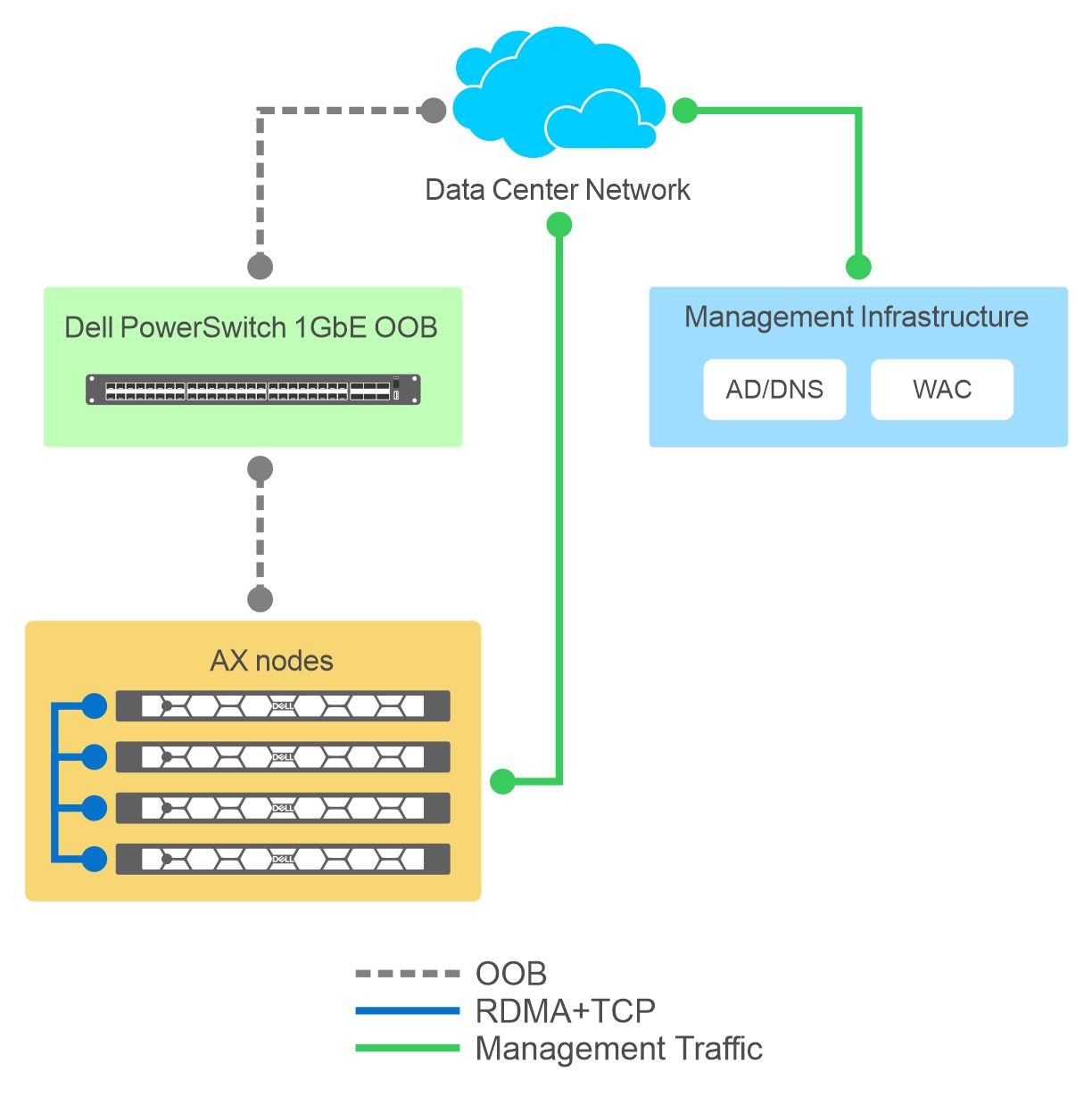

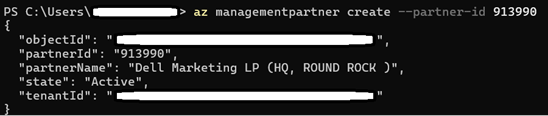

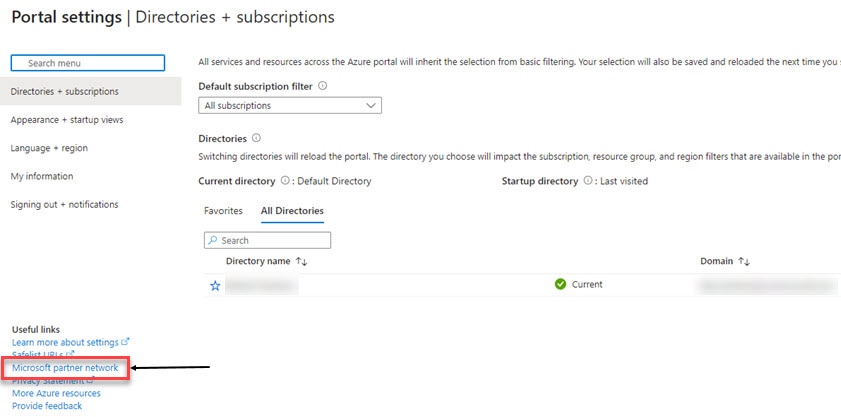
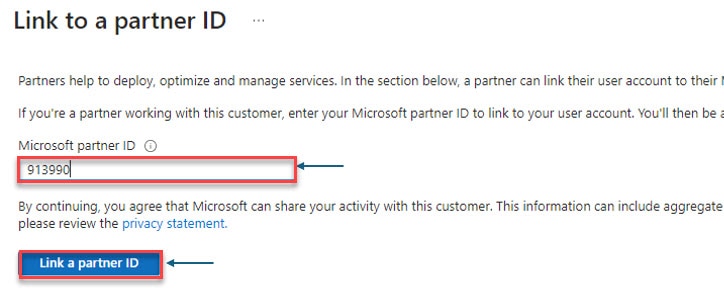
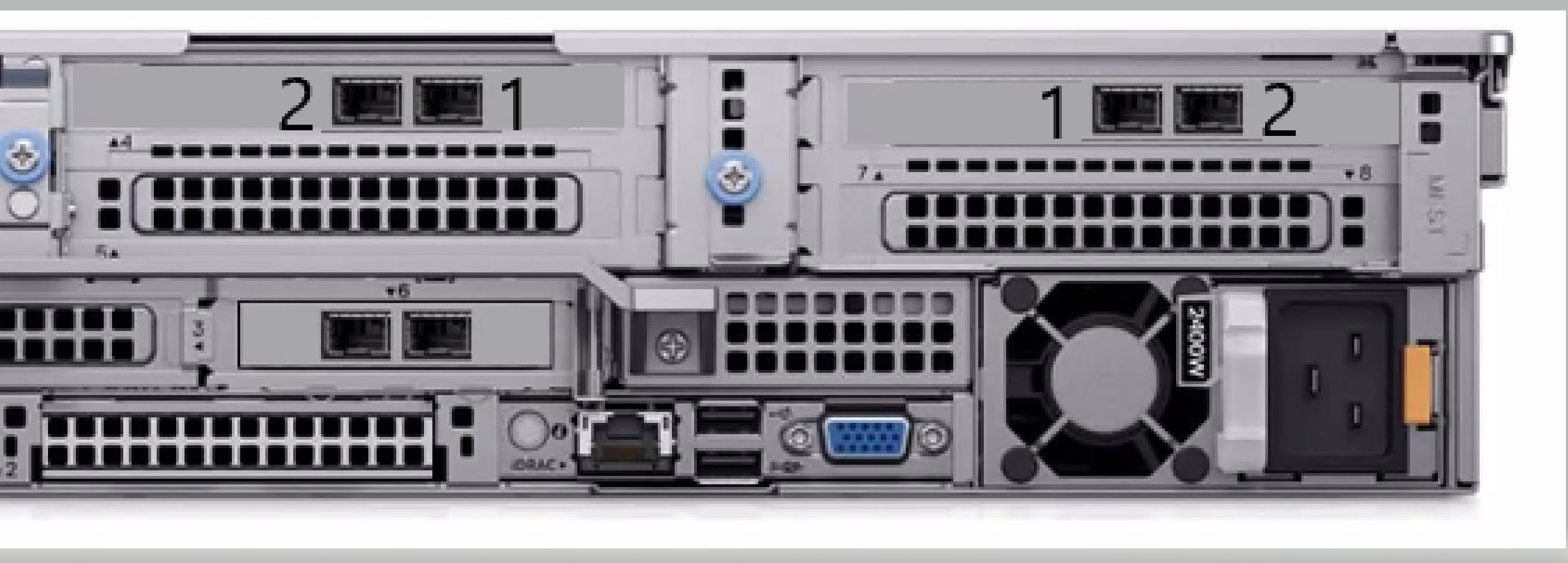
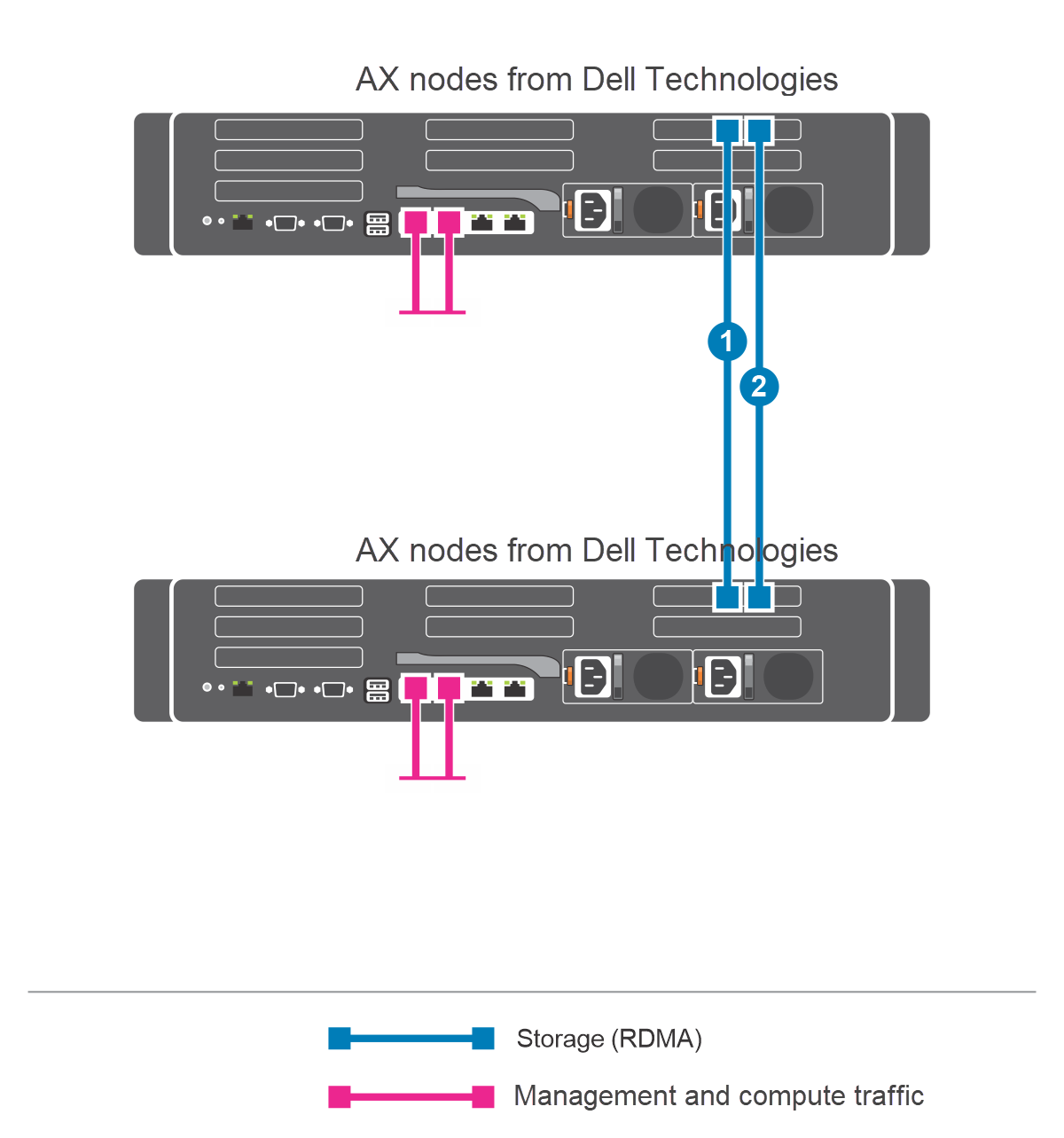
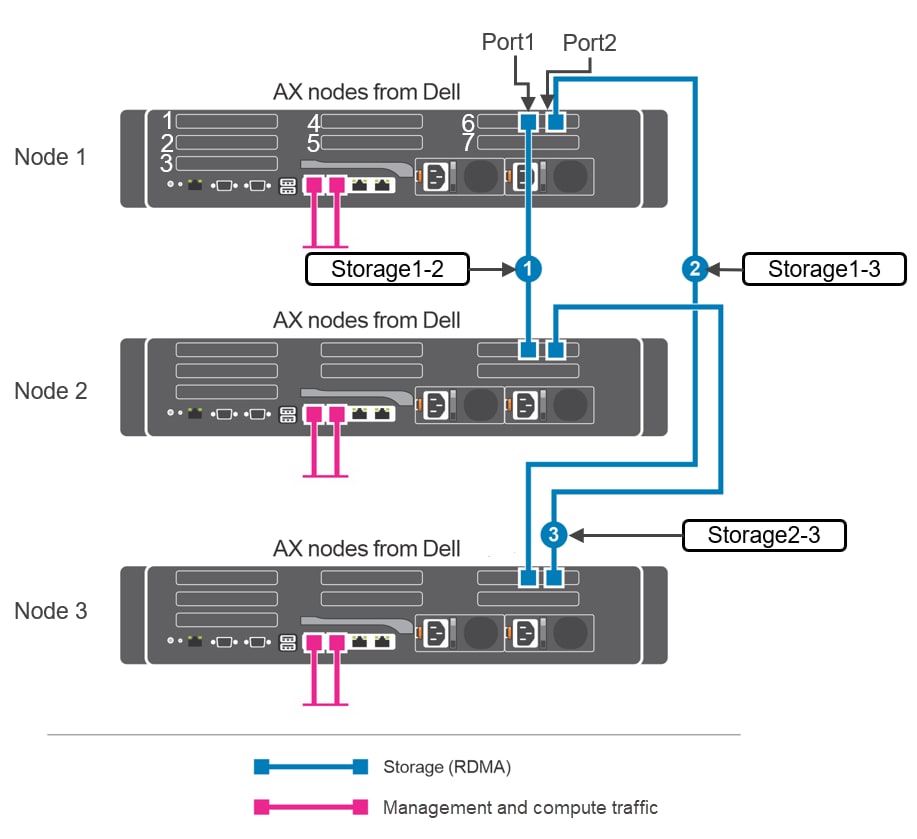
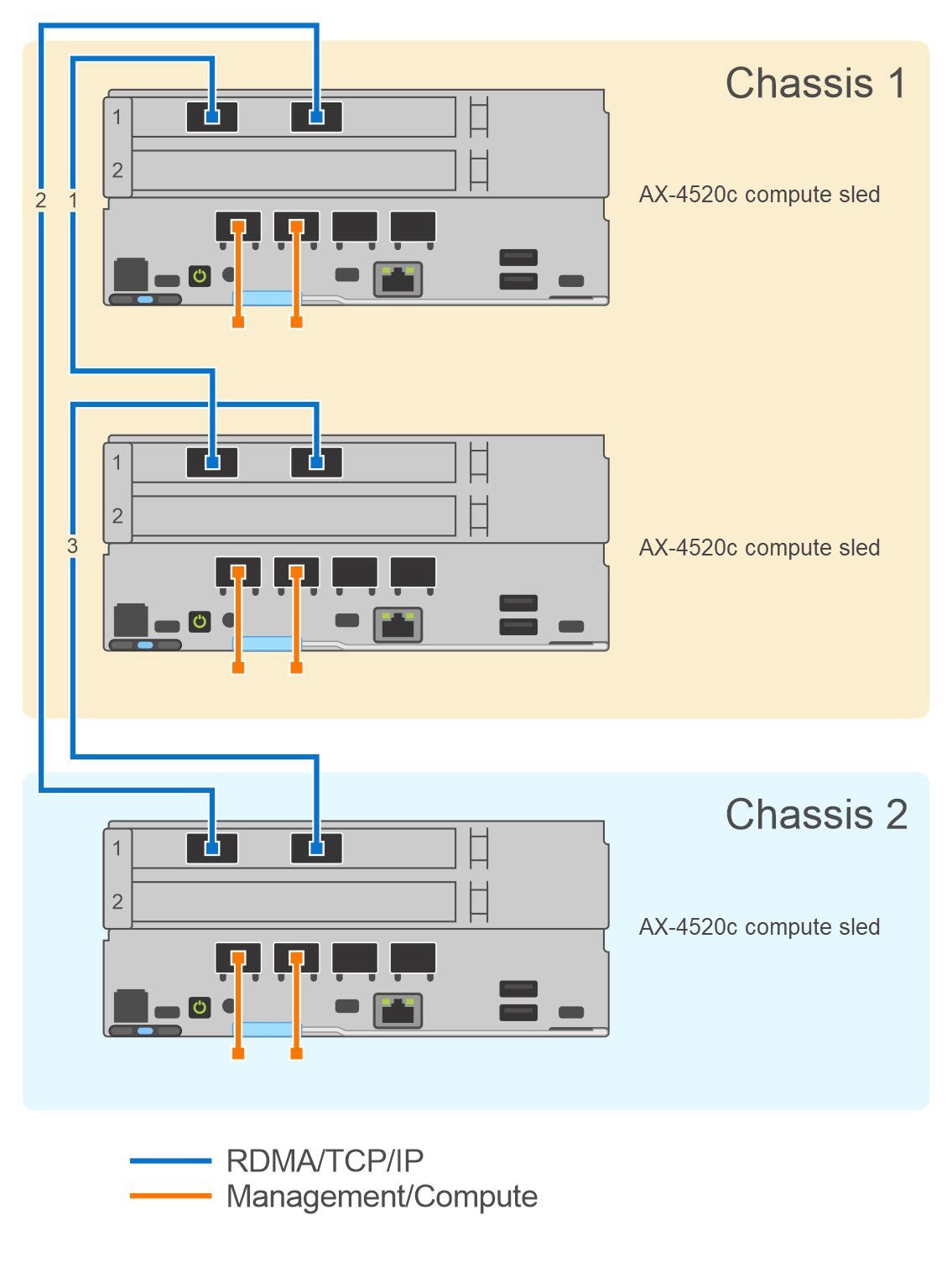
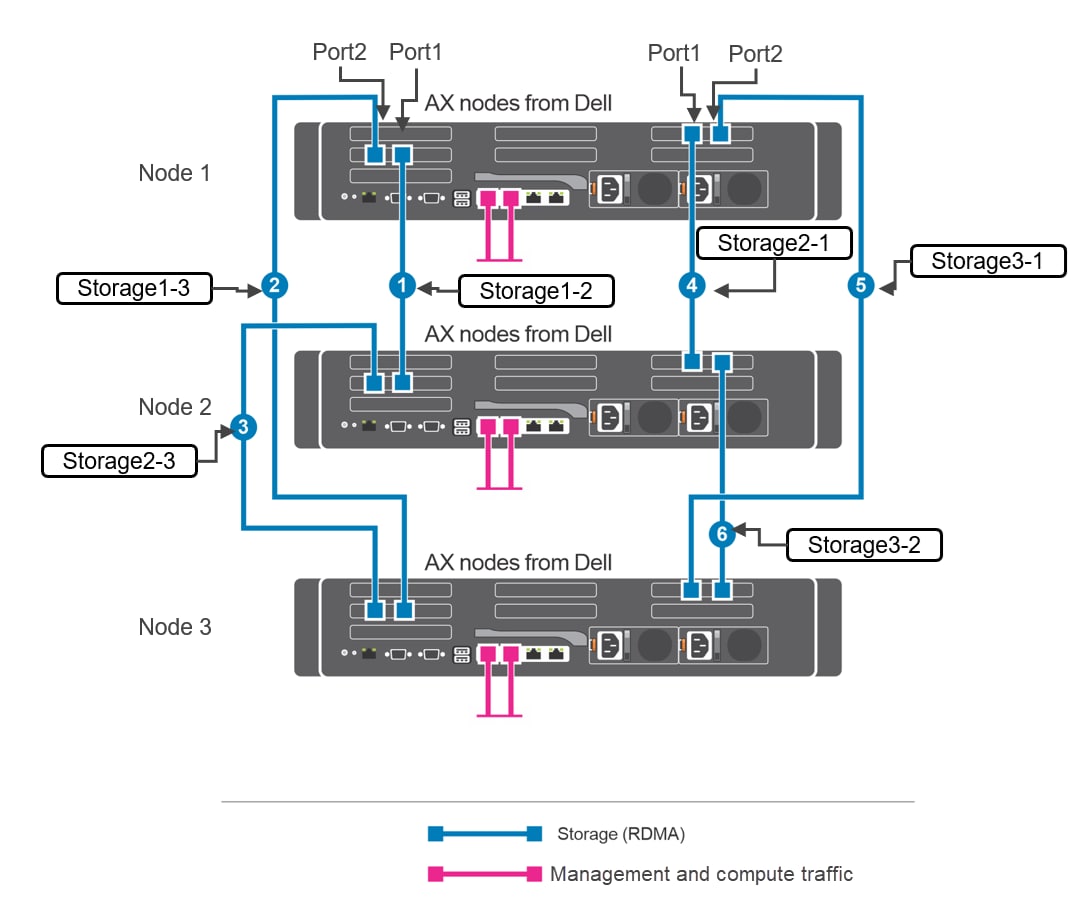
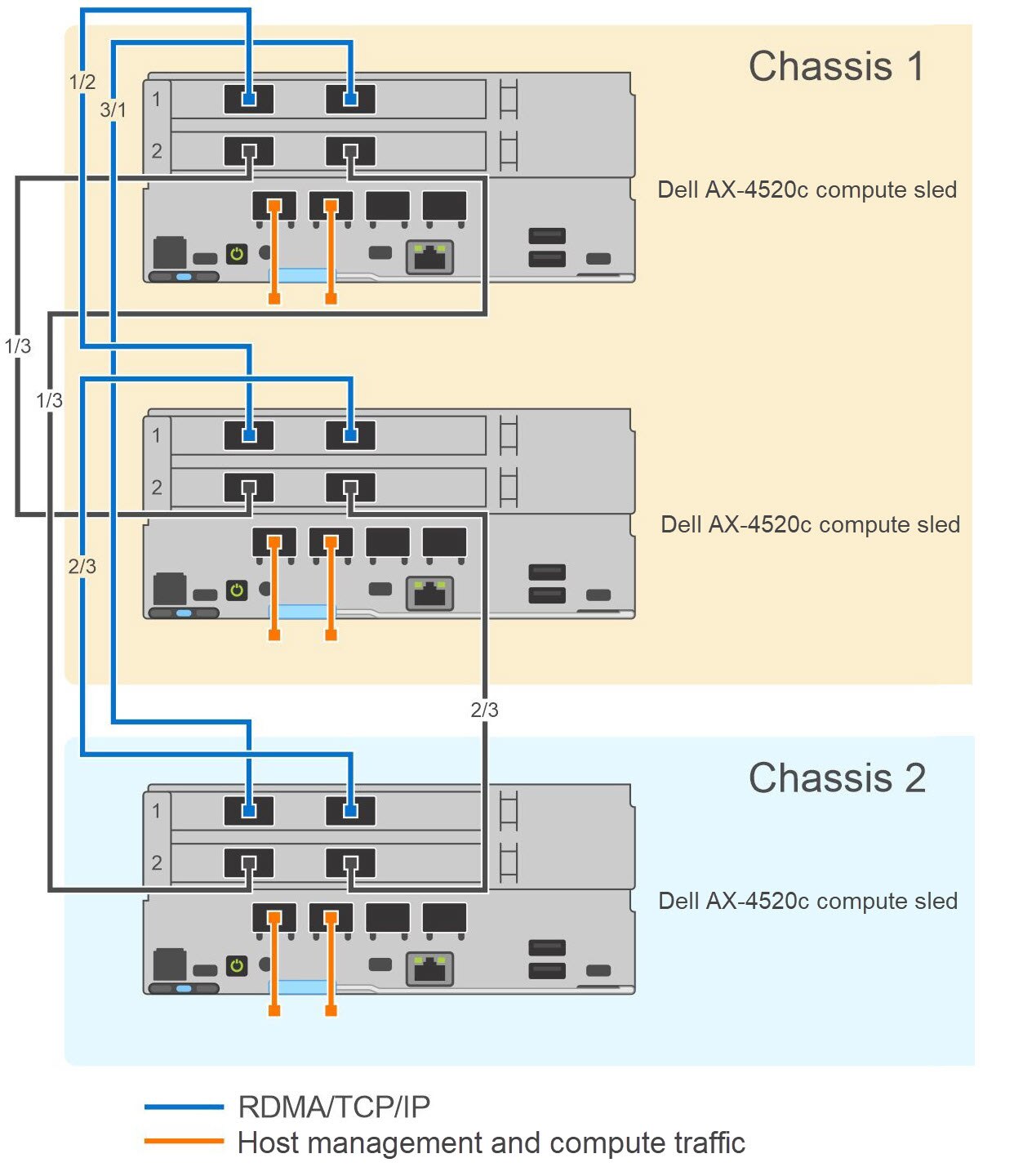
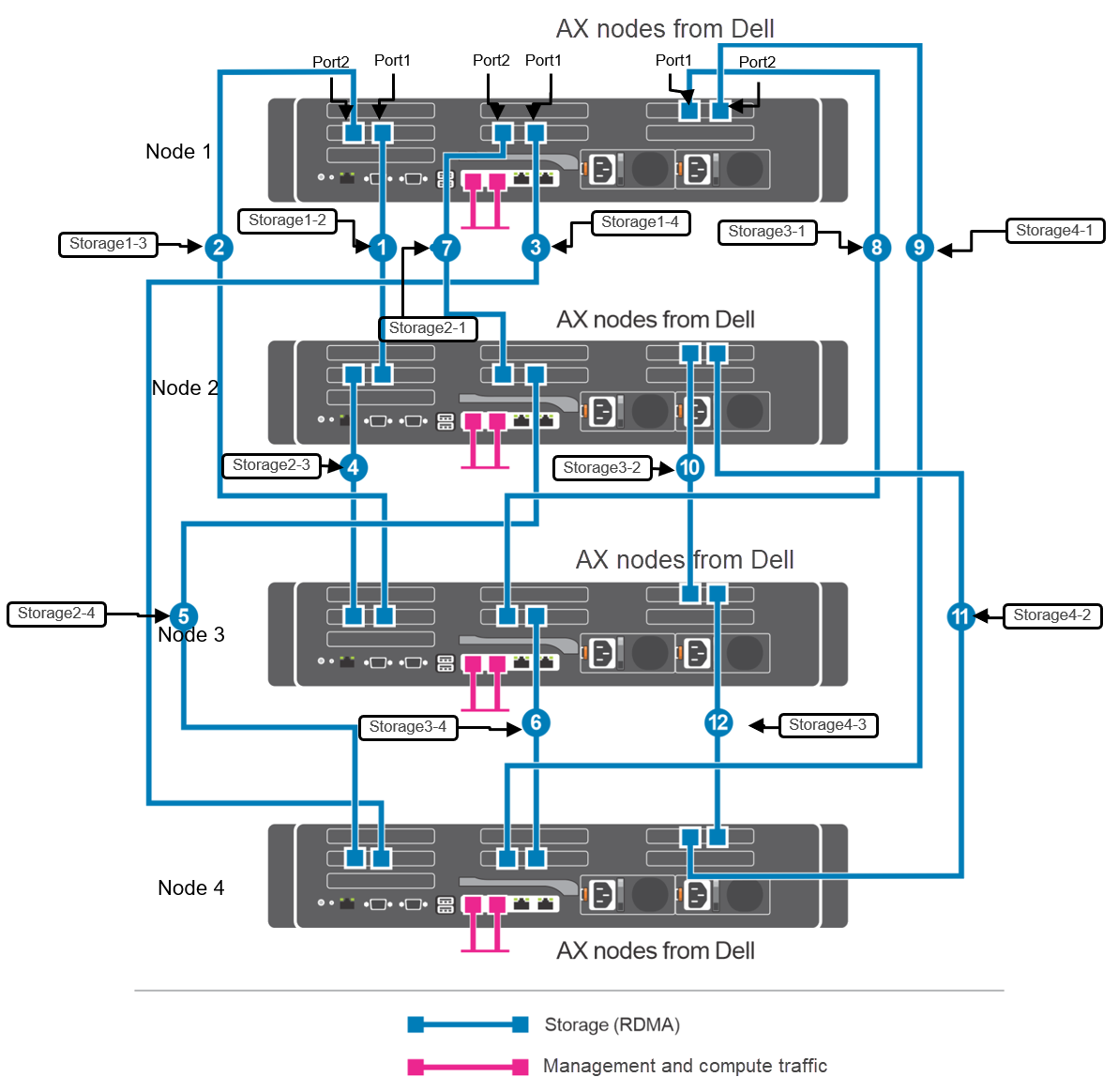
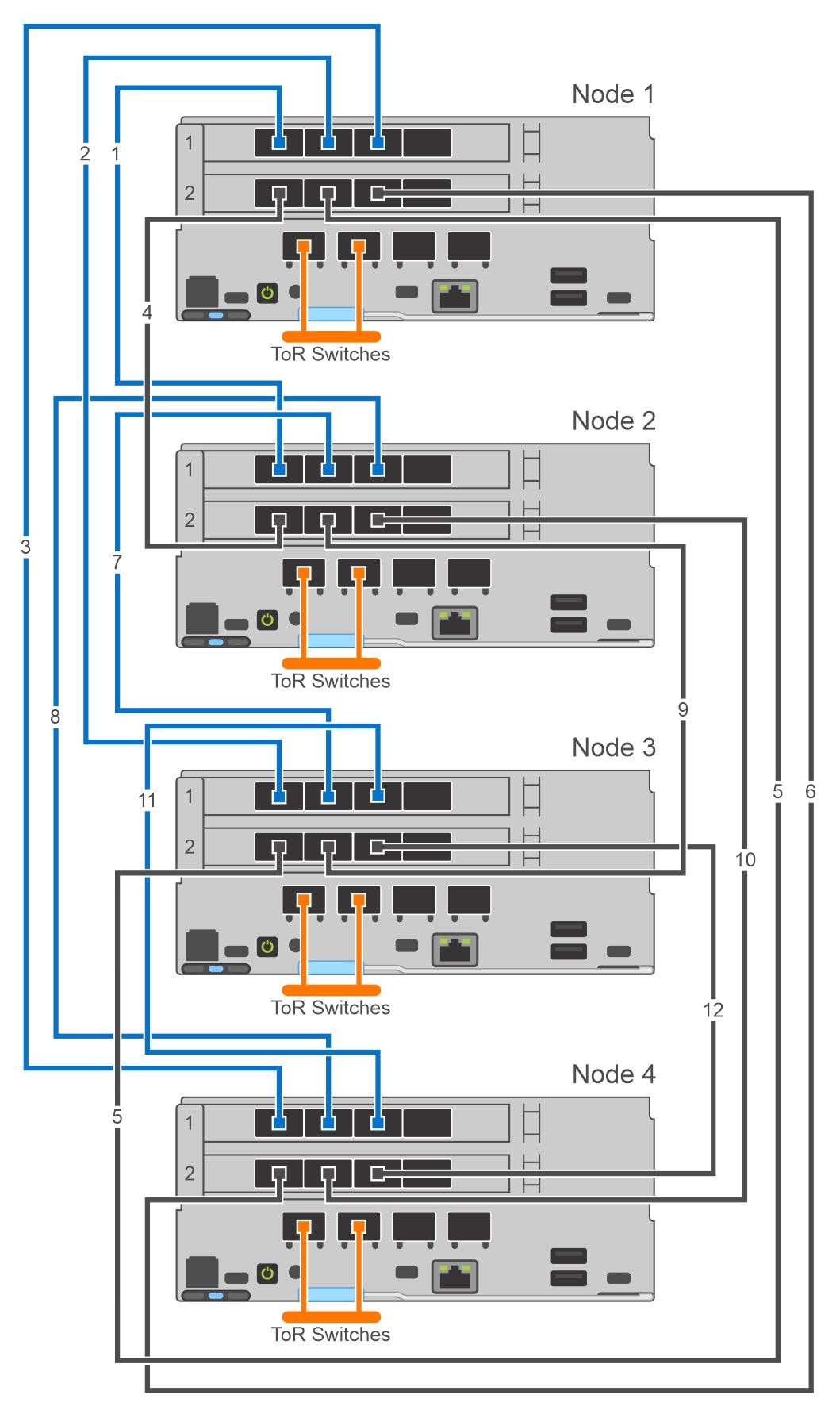
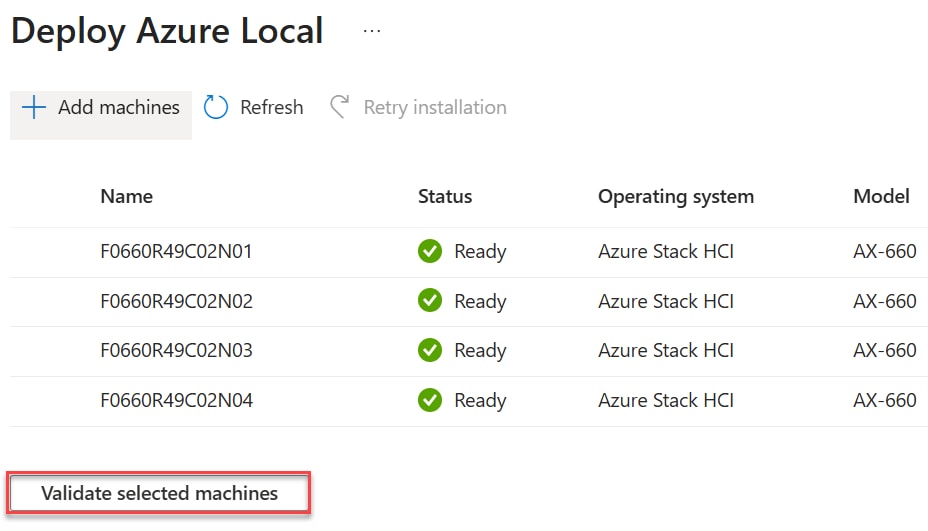
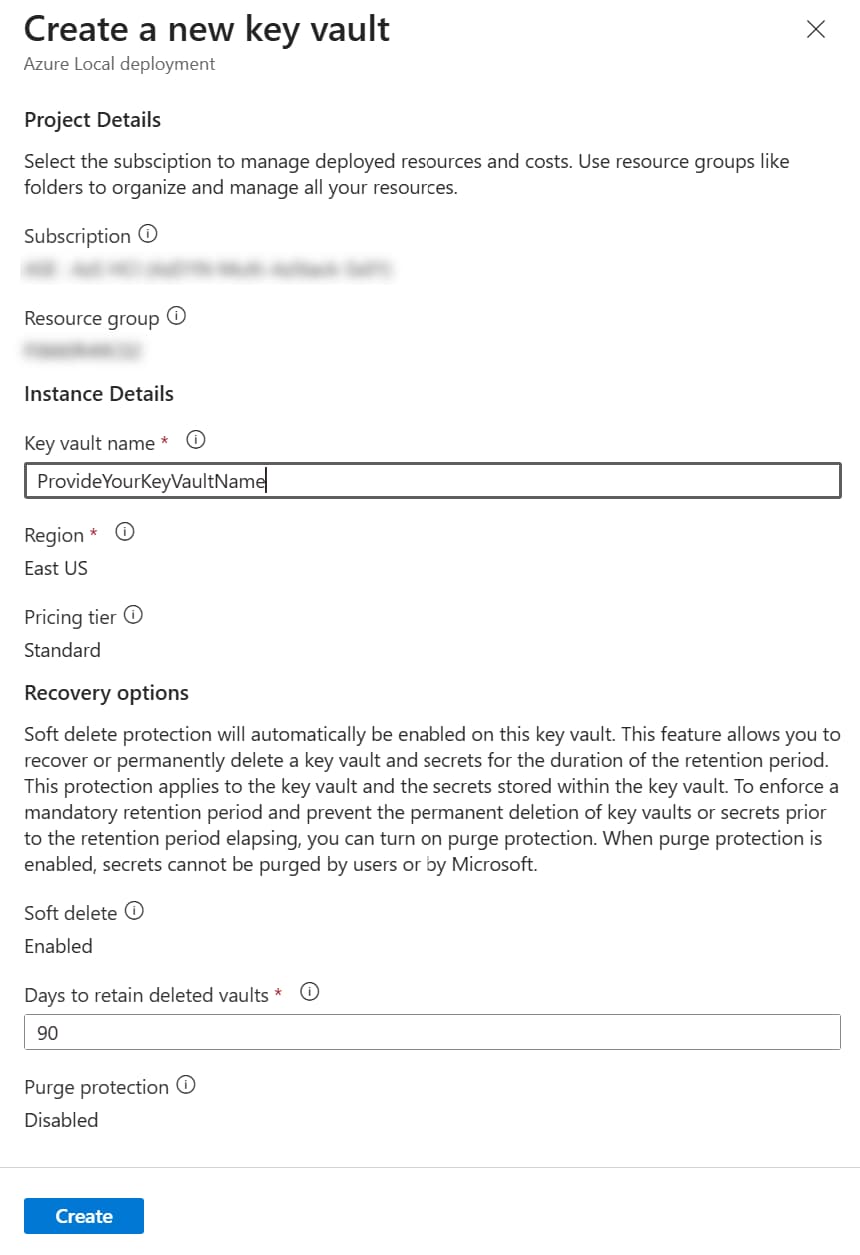
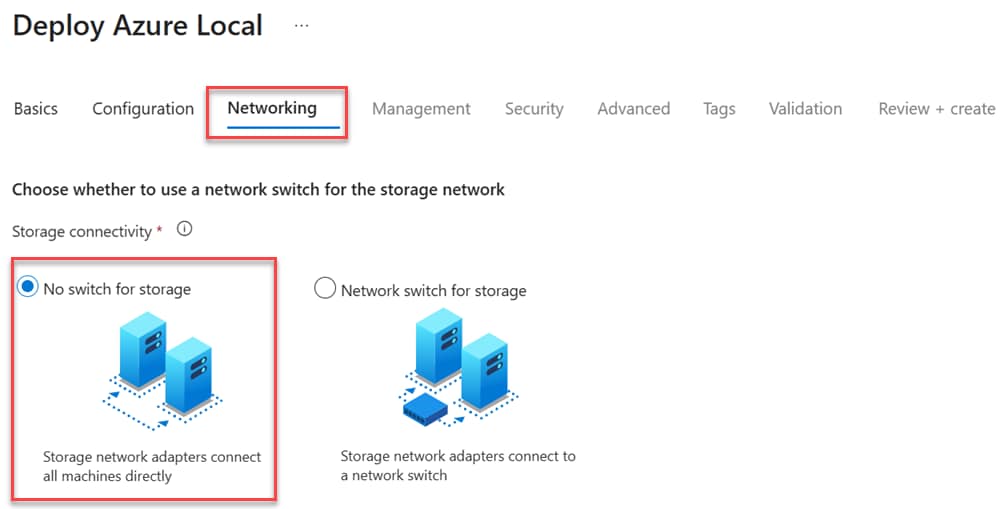
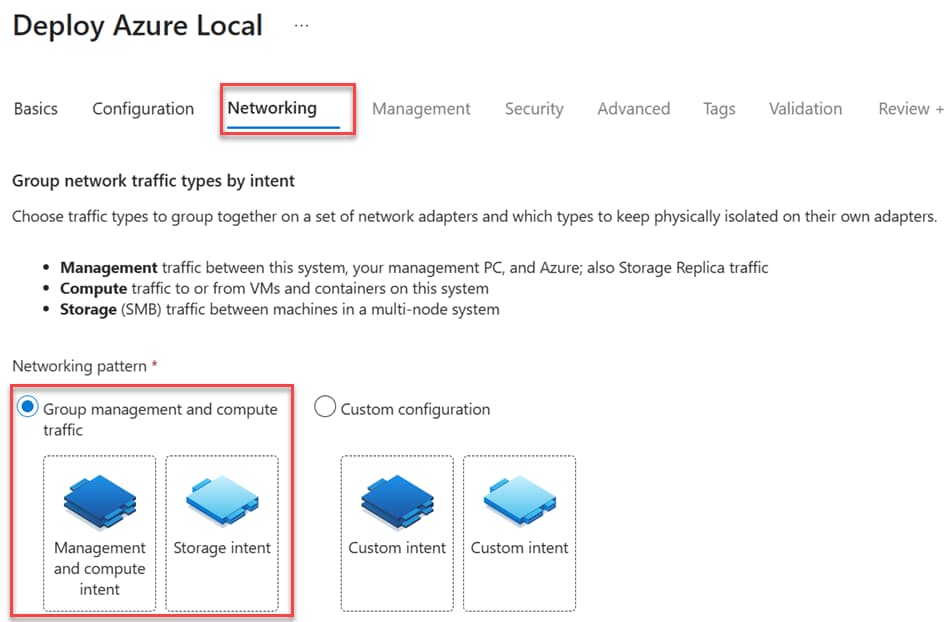
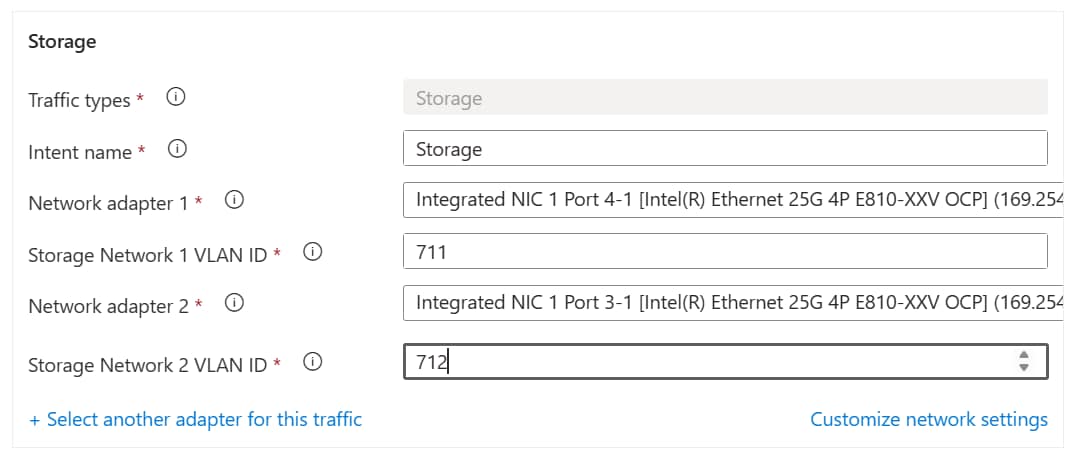
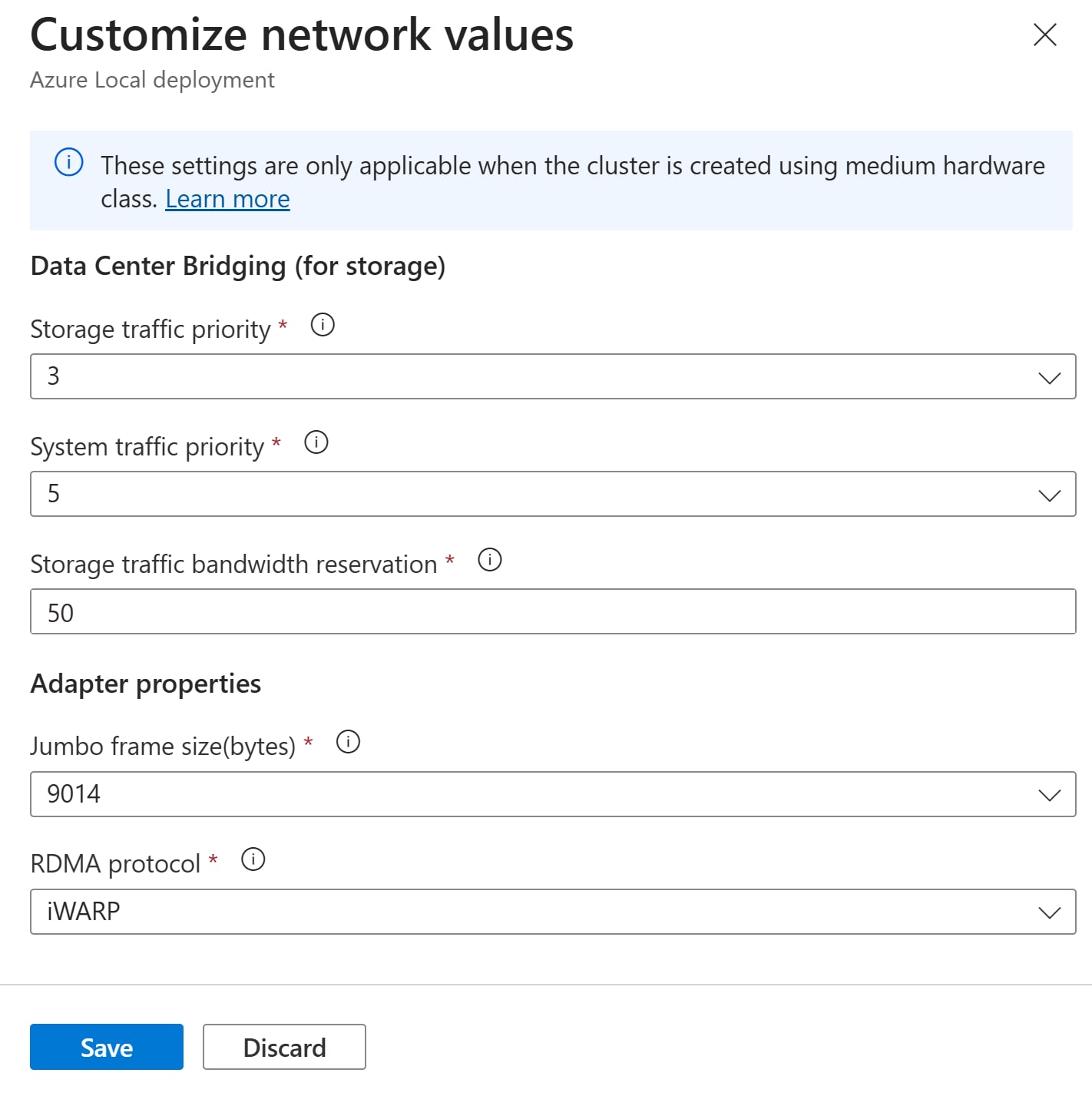
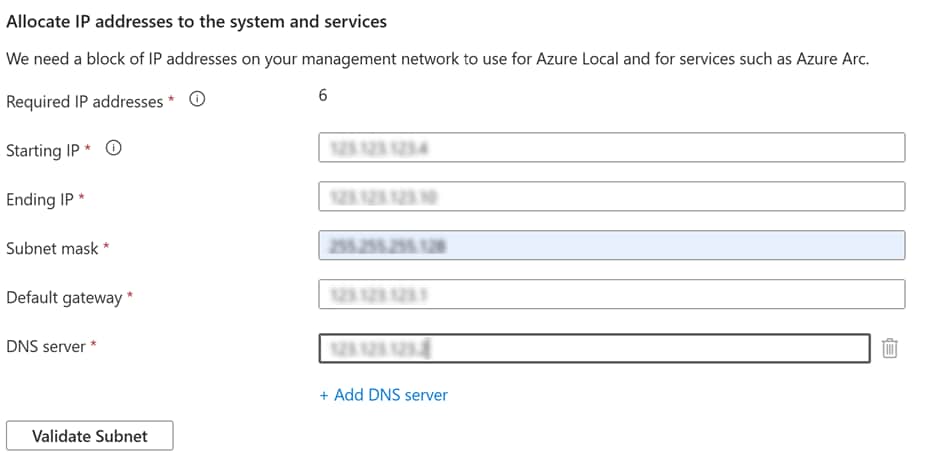
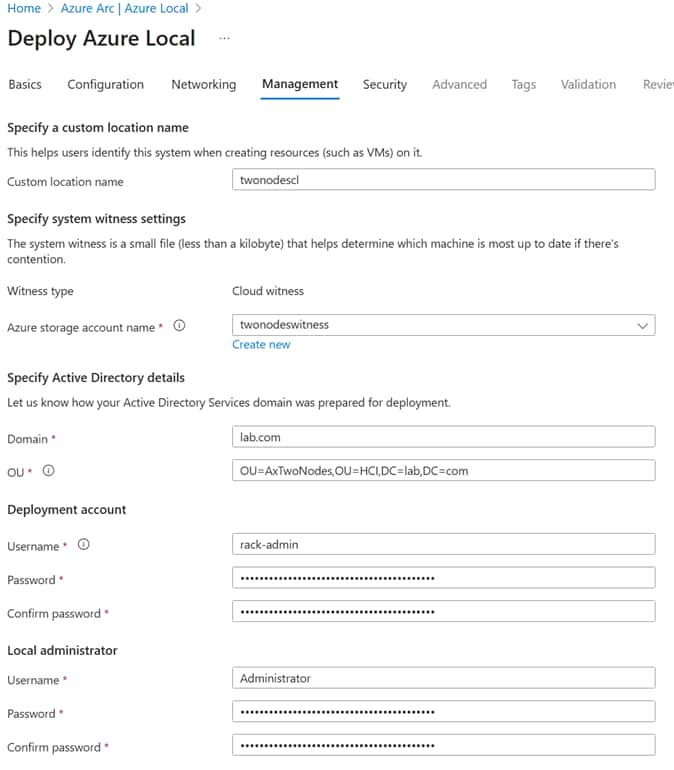
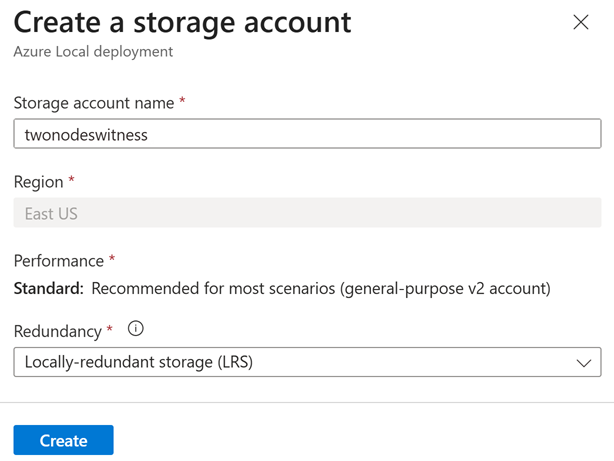
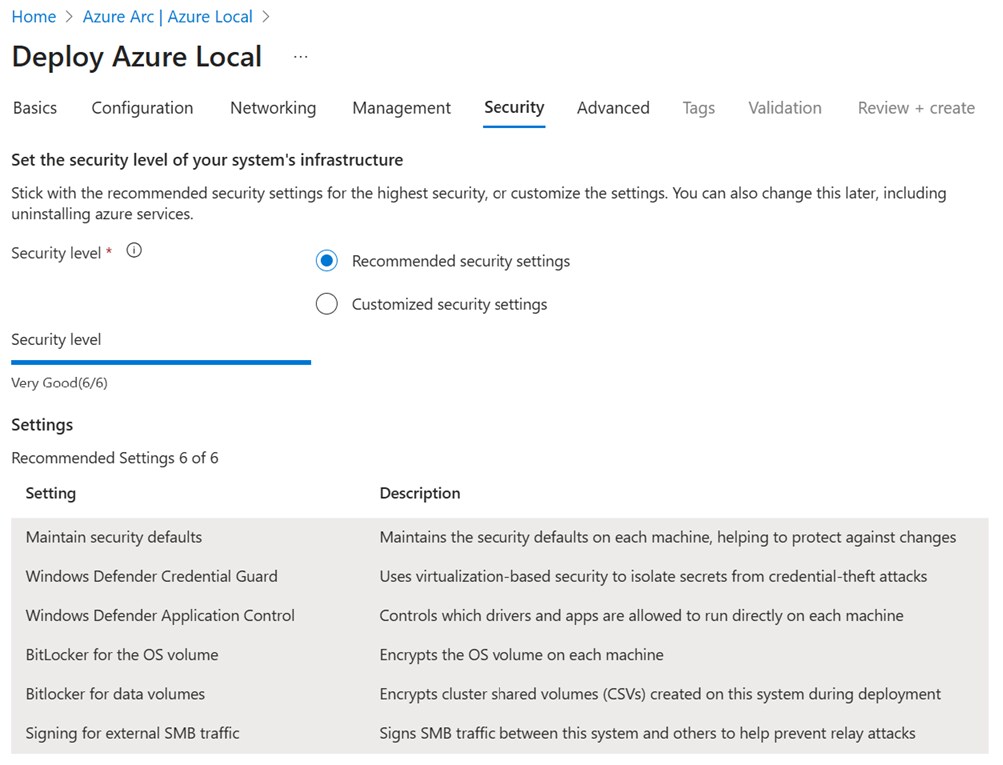 Note: For maximum security, choose Recommended security settings.For more information, see Set the security level.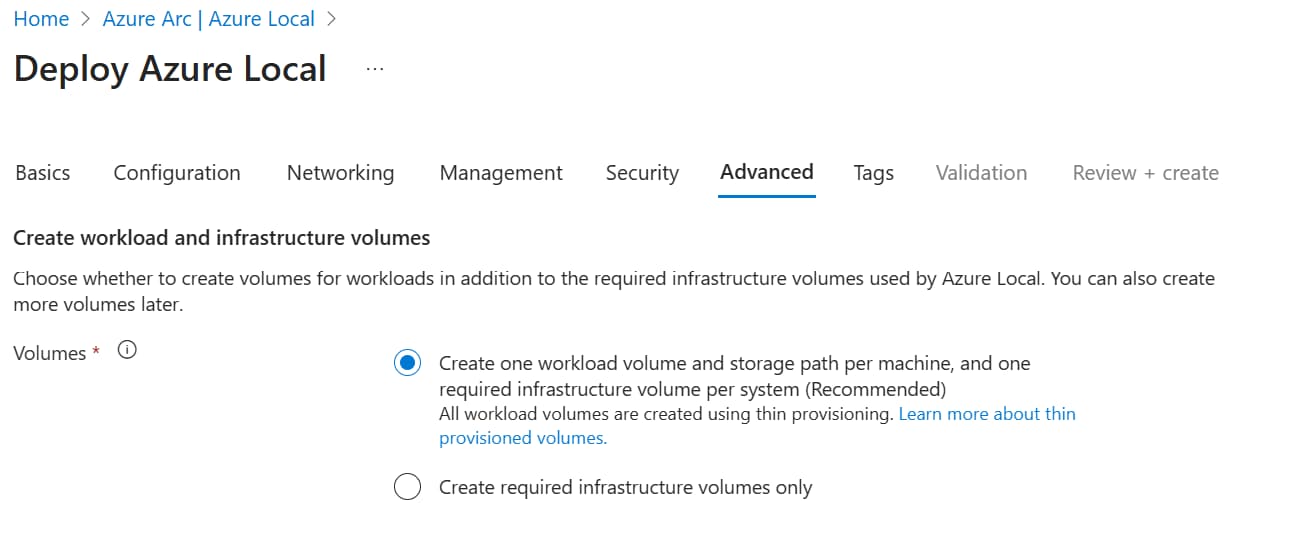
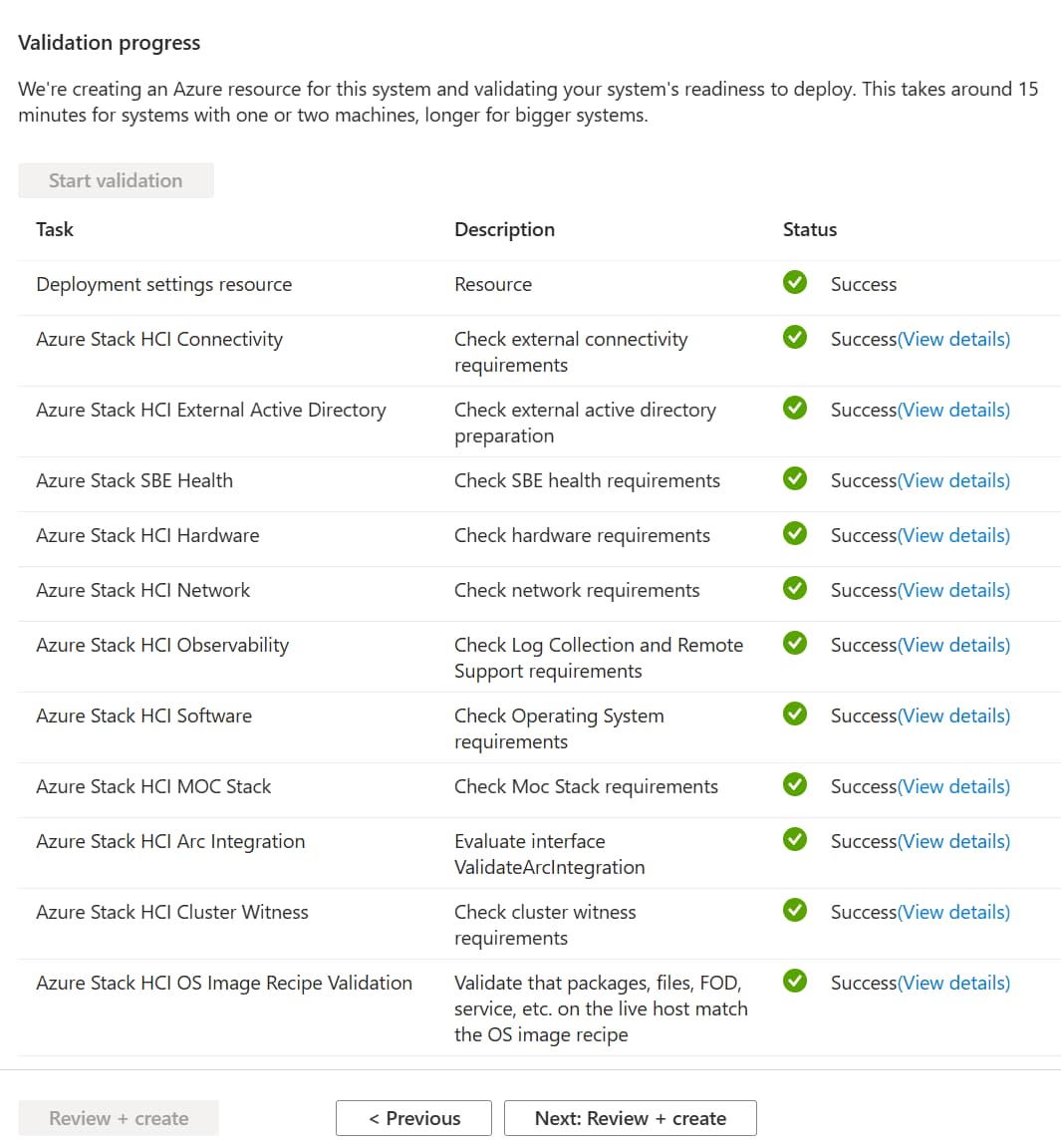
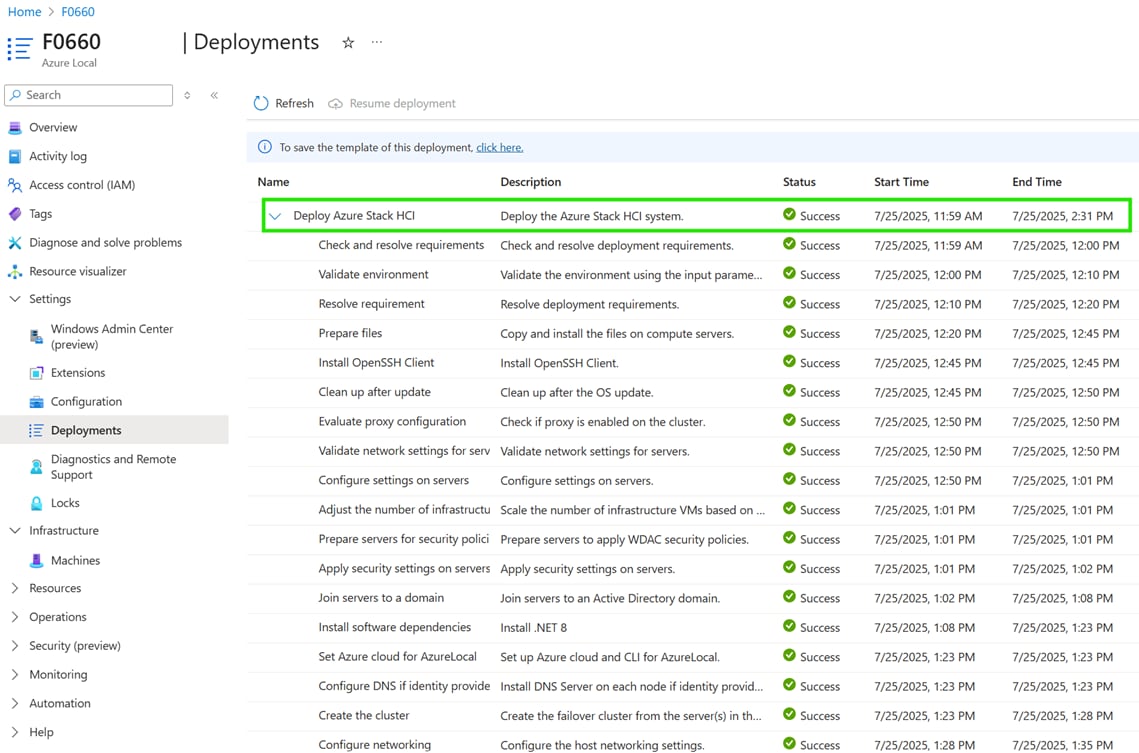
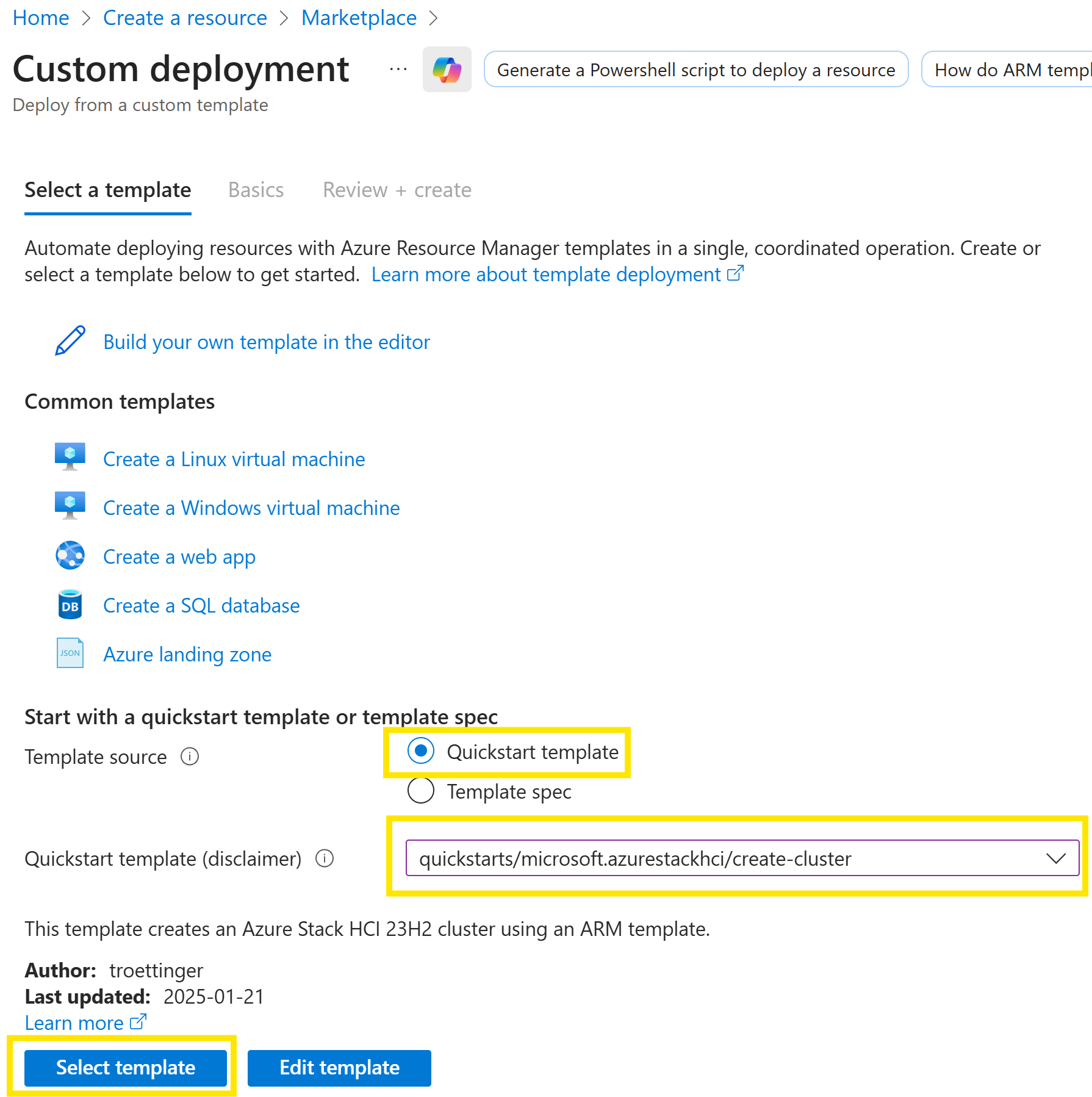
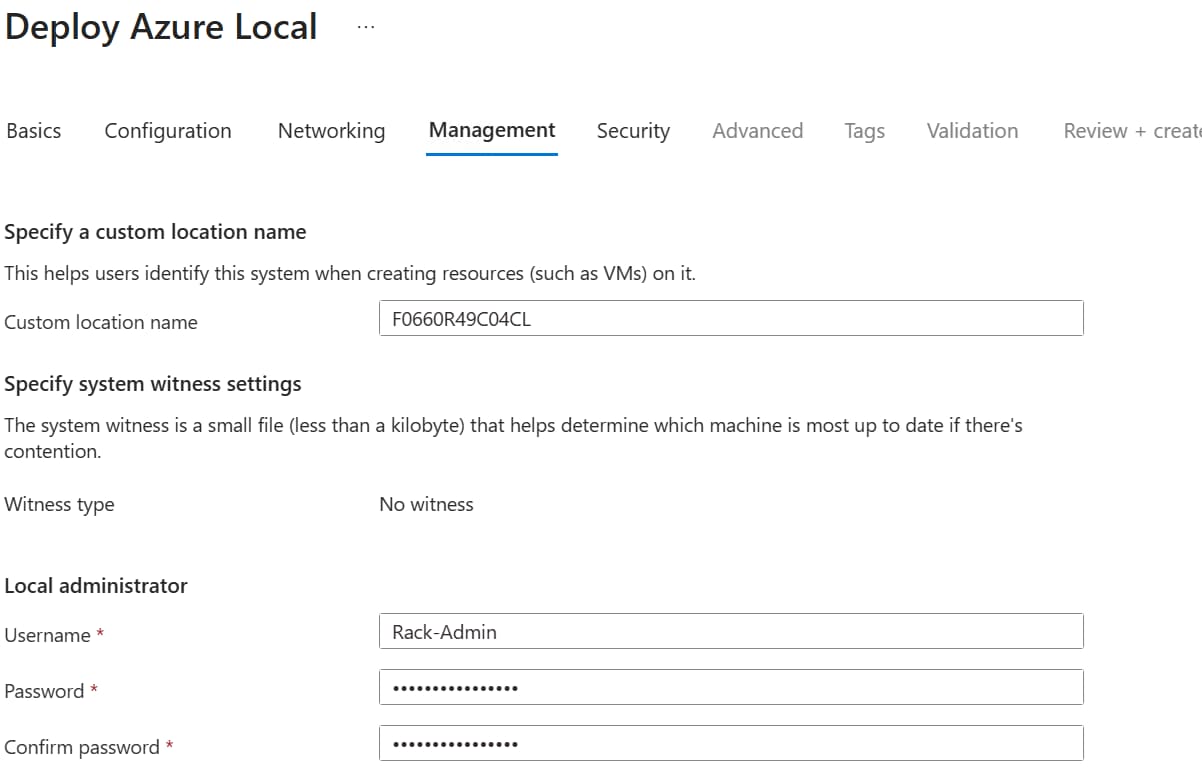
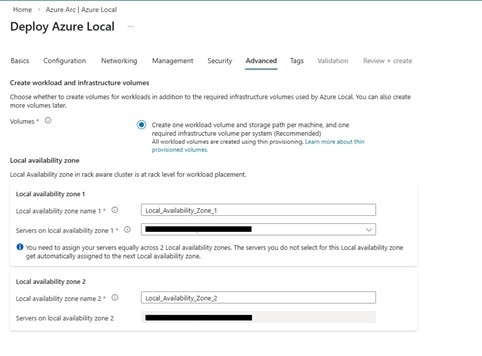
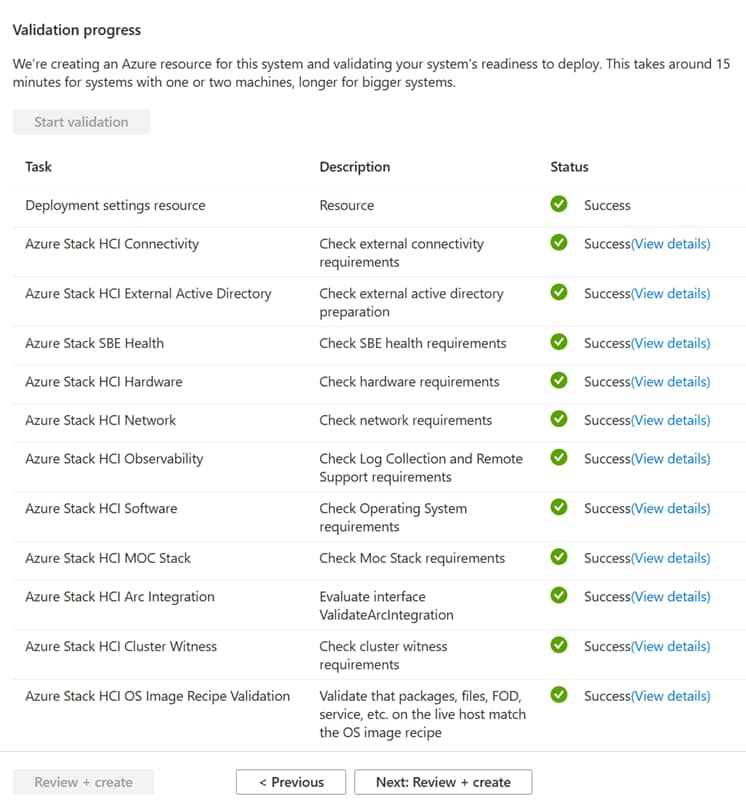
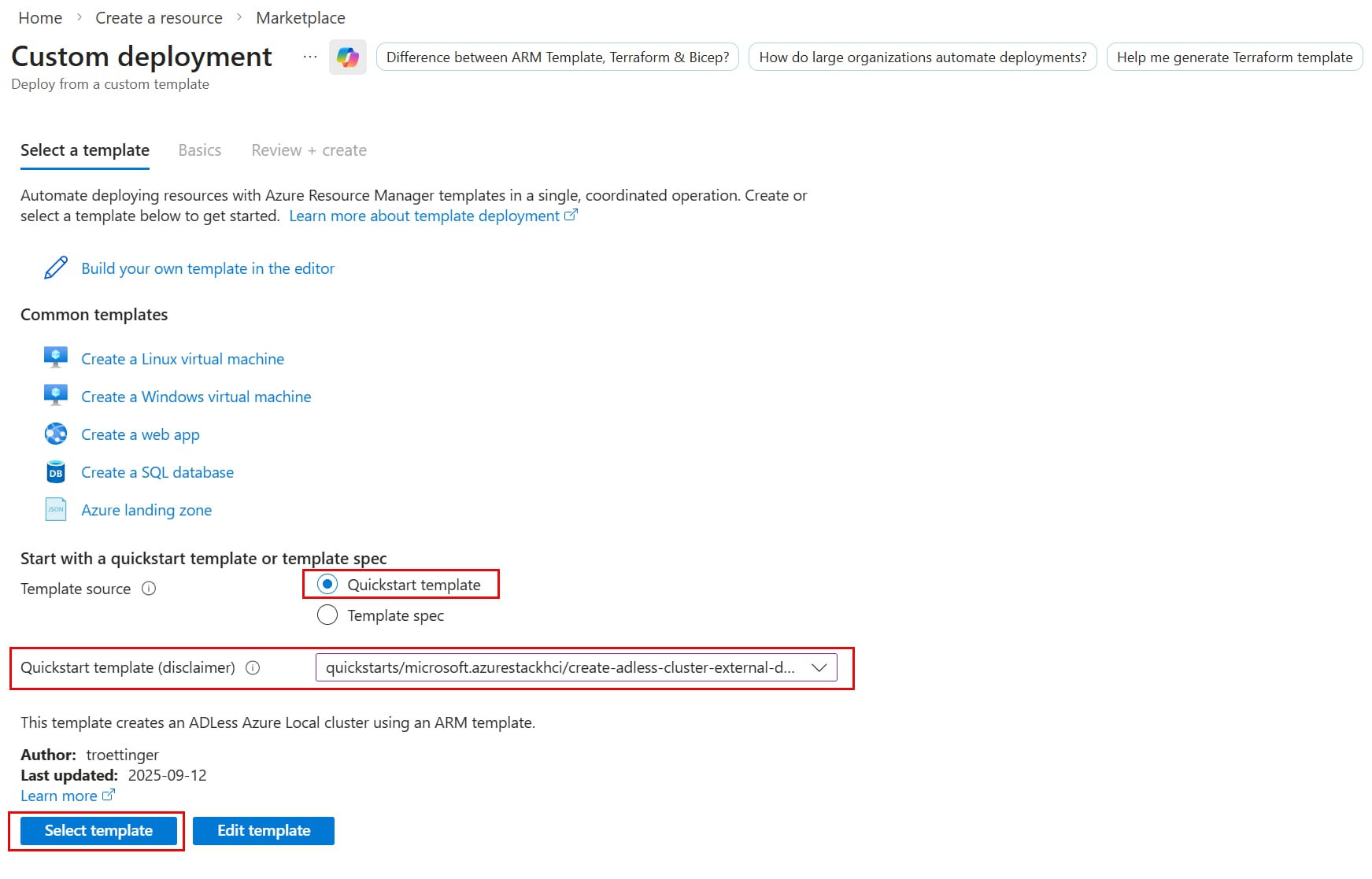
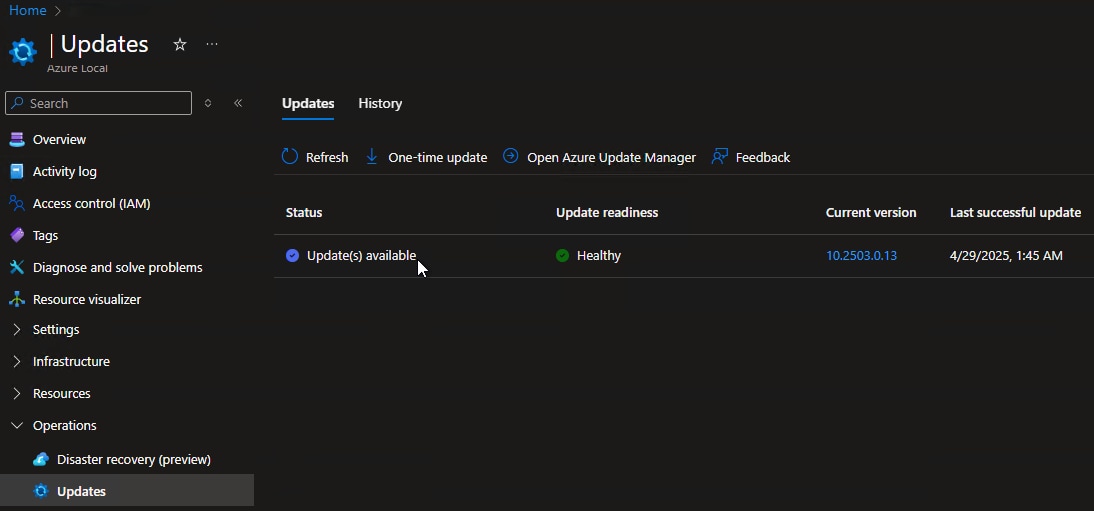
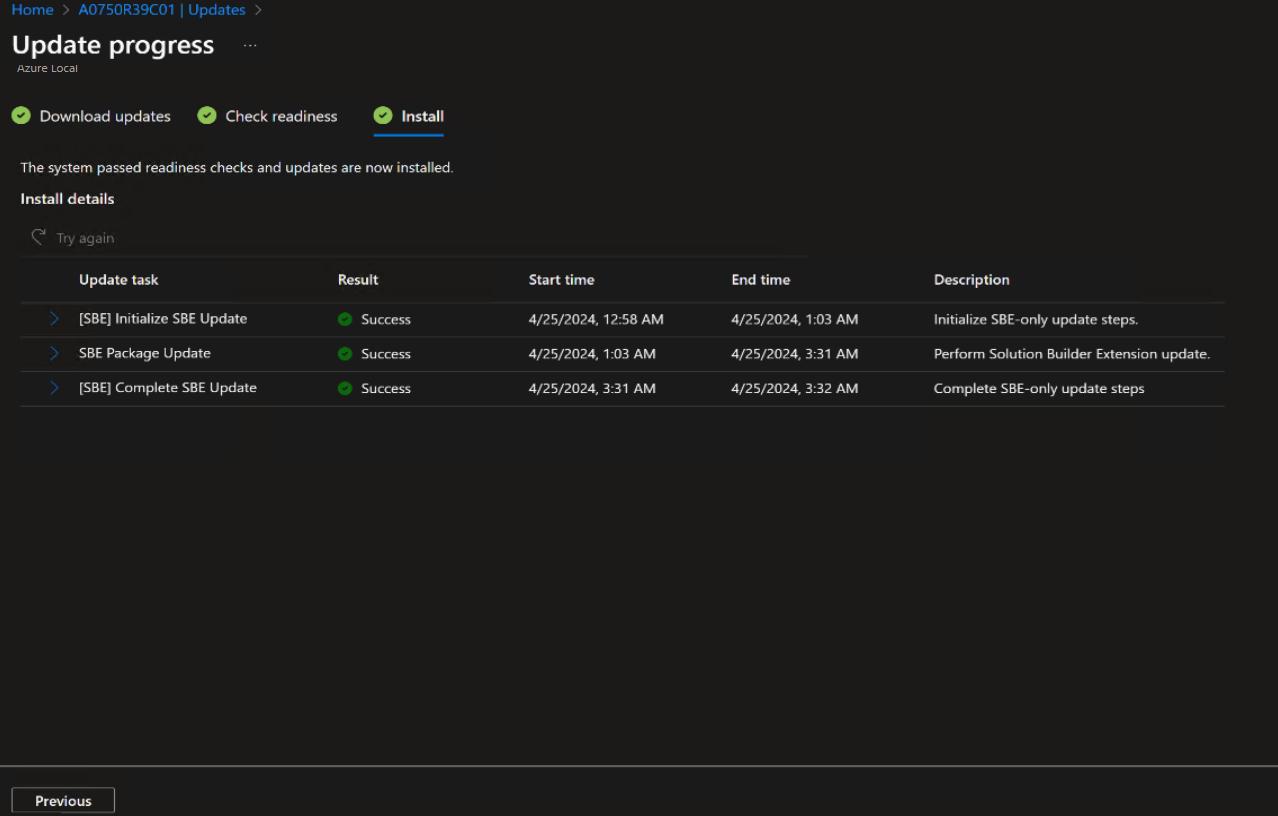

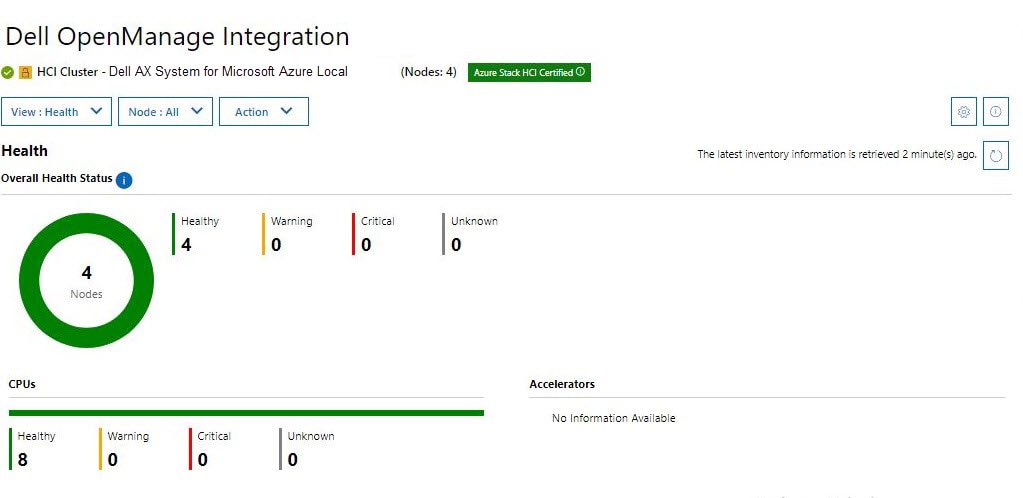
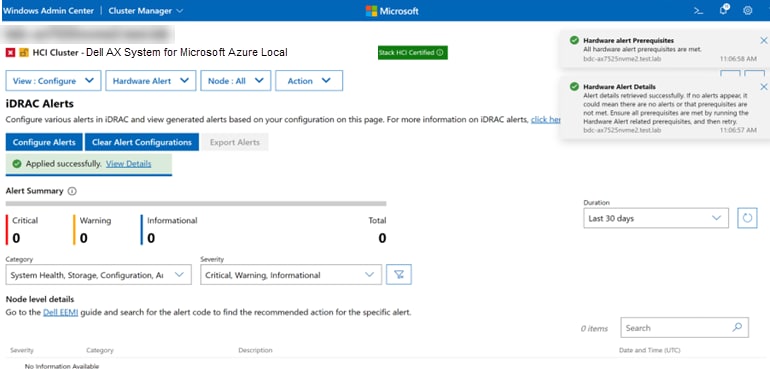
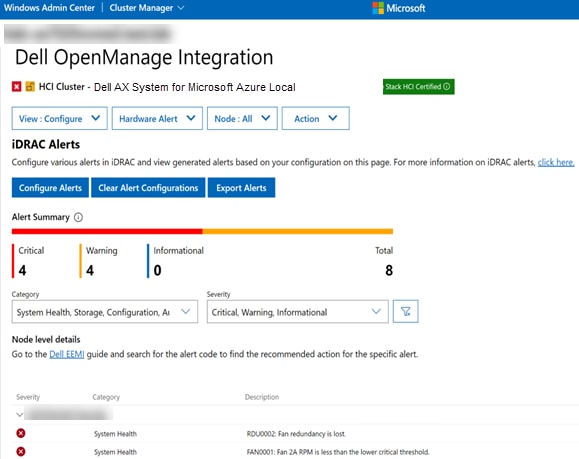
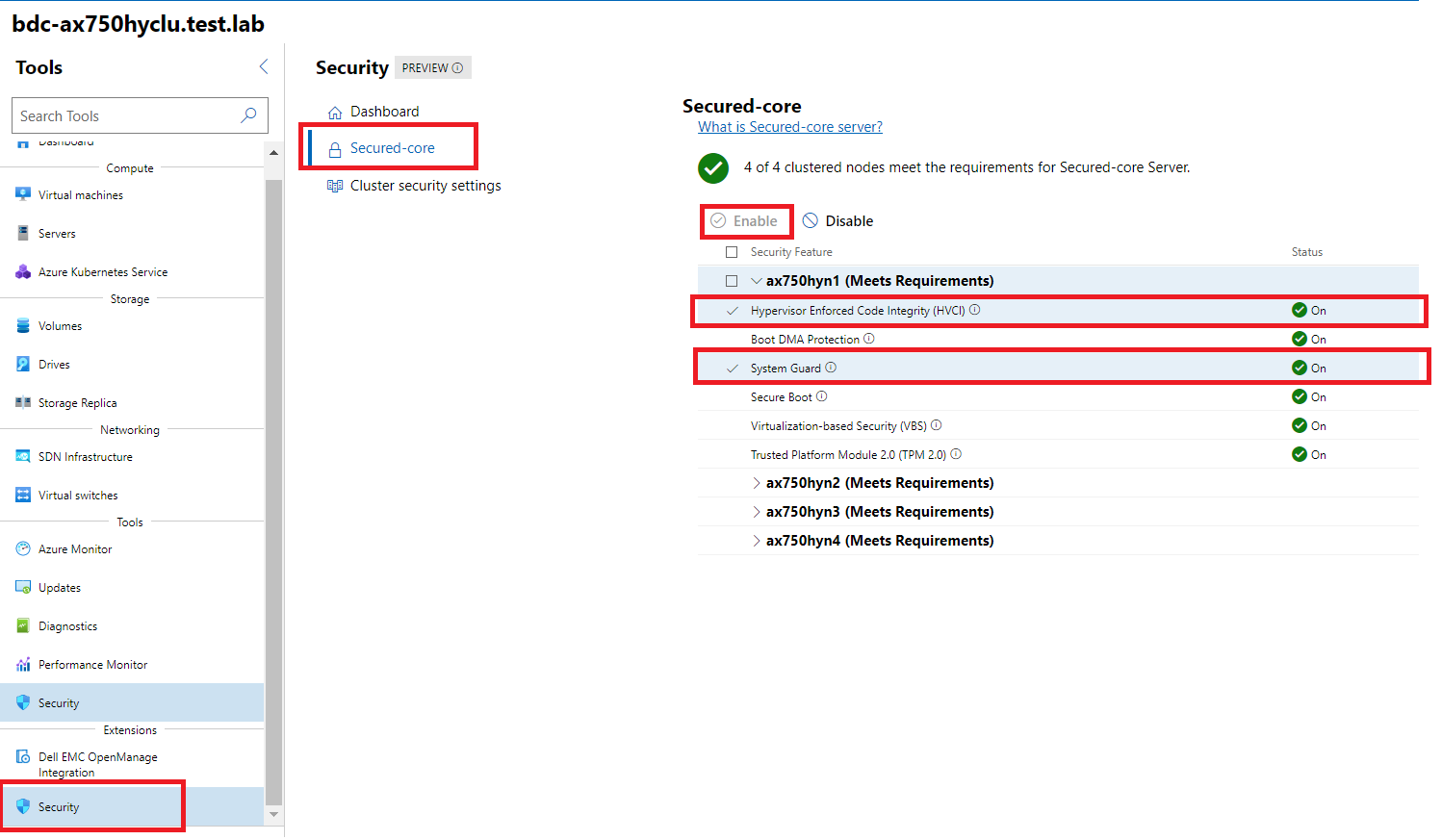
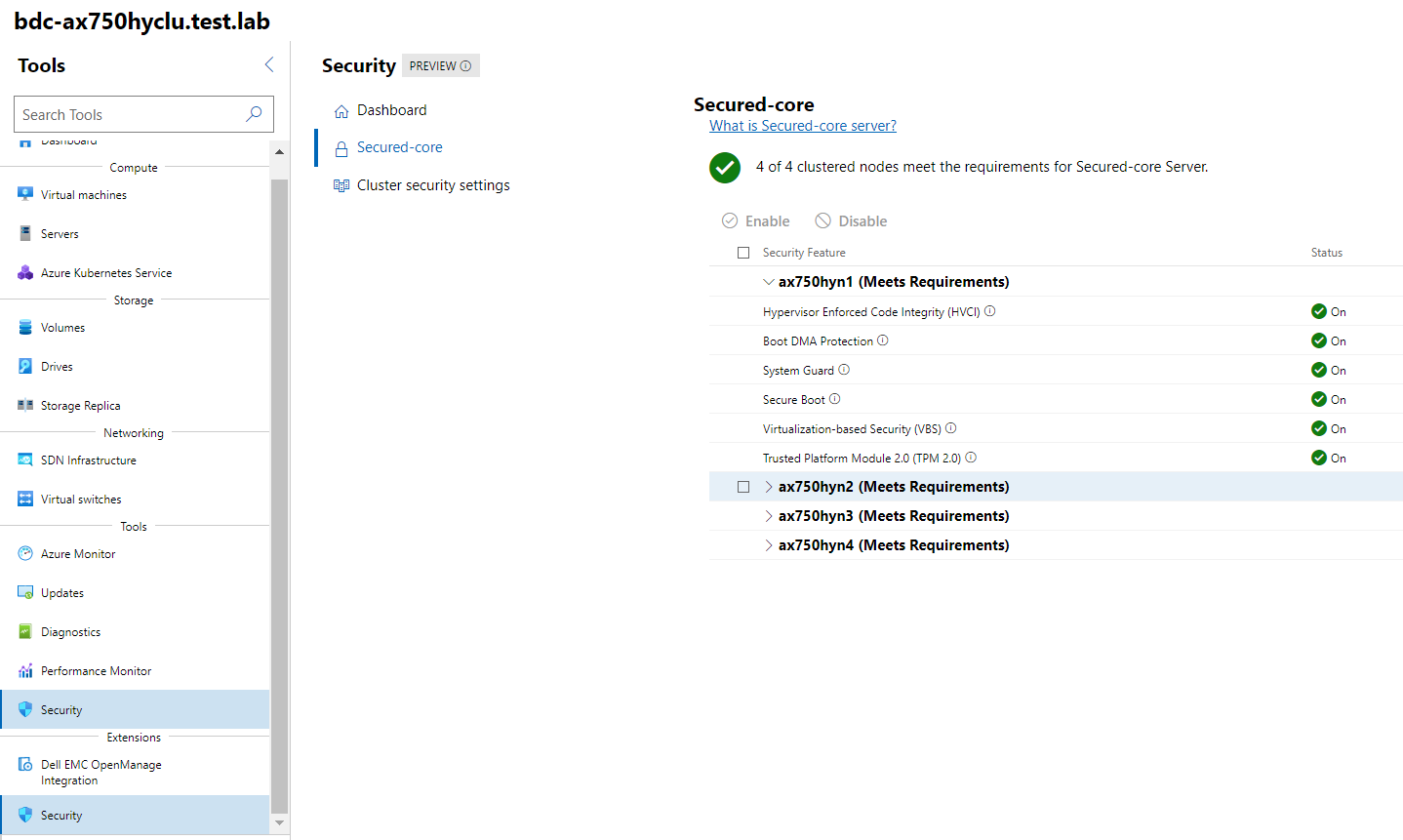
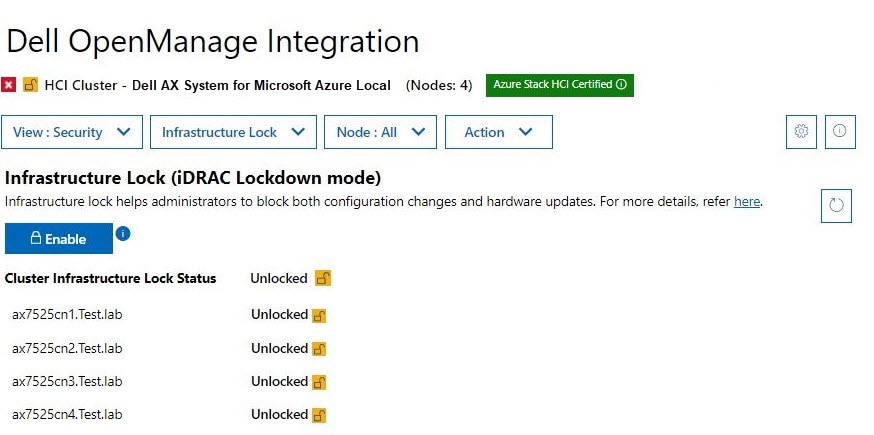
 Compliant: Shows all cluster machines are compliant with all Dell policies.
 Errors: Shows if any cluster machine is not compliant with Dell Hardware Symmetry policy.
 Warnings: Shows if any cluster machine is not compliant with any optional policies.
 Unknown: Shows if any cluster machine inventory could not be retrieved when the machine is down or not reachable.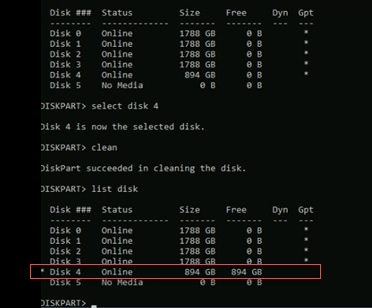
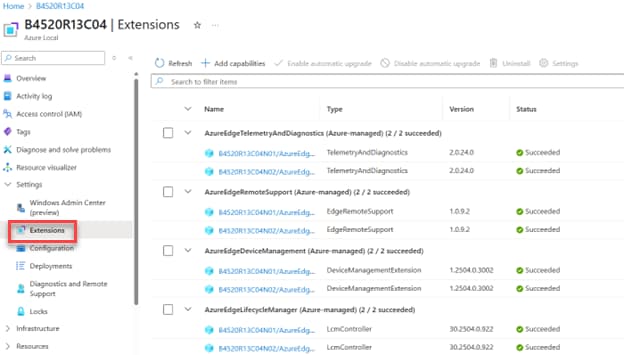 Note: It may take some time for you to see the addition of the repaired machine reflected in the Extensions window.