Design Guide—Ready Bundle for Microsoft SQL Server 2016

Oct 20, 2026
Design Guide—Ready Bundle for Microsoft SQL Server 2016 This design guide describes the architecture, design principles, configuration best practices, and sizing guidelines for a SQL Server 2016 solution with Hyper-V on Windows Server 2016, PowerEdge R740 servers, and Unity 400 Hybrid Flash storage.

Overview

About this guide

This guide is for database administrators, system engineers, IT managers, system administrators, storage administrators, and architects who design and maintain database infrastructures. Readers should have some knowledge of Microsoft Windows Server, Microsoft SQL Server, Dell EMC PowerEdge servers, Dell EMC storage, and Dell EMC networking products.

This guide describes the architecture, design principles, configuration best practices, and sizing considerations for the Dell EMC Ready Bundle for Microsoft SQL Server 2016 solution.

Overview

Microsoft SQL Server 2016 is a relational database platform that brings a new set of technologies, features, and services to SQL Server. SQL Server 2016 supports mission-critical applications such as analytics, in-memory databases, business intelligence (BI), and online transaction processing (OLTP).

SQL Server 2016 includes database innovations that deliver new levels of efficiency, performance, security, and availability. It includes new features such as Always Encrypted, In-Memory OLTP, distributed query processing, and advanced data mining capabilities. SQL Server provides a robust solution for critical enterprise workloads at any scale. Scale-up solutions that provide partitioning enable IT to isolate disparate workloads and production, development, and testing environments on a single server platform. Reducing the number of databases and server platforms simplifies IT operations and reduces operating and licensing costs as well. 

Dell EMC’s enterprise products provide high performance, energy efficiency, and high availability. The 14th generation of Dell EMC™ PowerEdge™ servers, along with Dell EMC storage and networking products, help customers virtualize, consolidate, and migrate their distributed legacy environments.

Dell EMC Ready Bundle for Microsoft SQL Server 2016 is a pre-architected, validated, end-to-end solution for implementing a virtualized infrastructure for SQL Server 2016. The solution is enabled by Microsoft Hyper-V virtualization on Microsoft Windows Server 2016, PowerEdge R740 servers, and Dell EMC Unity™ 400 storage.

Based on Microsoft and Dell EMC best practices, this Ready Bundle solution provides exceptional performance and scalability, delivers faster time to value, and increases return on investment.

We value your feedback

Dell EMC and the authors of this document welcome your feedback on the solution and the solution documentation. Contact EMC.Solution.Feedback@emc.com with your comments.

Authors: Sanjeev Ranjan, Karen Johnson

Solution Components

Introduction

Components in this Ready Bundle solution include:

  • Dell EMC hardware products
  • Brocade Fibre Channel (FC) storage area network (SAN) switch
  • Microsoft software products

Dell EMC hardware products

Introduction

Dell EMC offers a wide range of enterprise products and solutions, including servers, storage, networking, software, and services. These enterprise products and solutions are designed for reliability and scalability. They are engineered to handle the most demanding business applications and workloads, such as enterprise resource planning, database, BI, high-performance computing, and collaboration.

Dell EMC PowerEdge R740

The PowerEdge R740 server is designed to run complex workloads in mid-sized and large enterprises, all in a 2U footprint. The R740 2-socket server:

  • Features the Intel Xeon Scalable processor family with up to 28 cores
  • Uses highly scalable memory, I/O, and network options
  • Provides up to 80 TB of internal storage with sixteen 2.5 in drives or eight 3.5 in drives—ideal for database and BI applications

Table 1 lists the technical specifications of the PowerEdge R740.

Table 1.            PowerEdge R740 technical specifications

Component

Specifications

Form factor

2U

Processor

Intel Xeon Scalable processor family with up to 28 cores per processor

Processor sockets

2

Chipset

Intel C620 series

Memory

Up to 3 TB (24 DIMM slots): 8/16/32/64/128 GB DDR4 with up to 2,666 MT/s

I/O slots

Riser options with up to 8 PCIe Gen 3 slots; maximum of 4 x 16 slots

Storage controllers

  • Internal controllers: PERC H330, H730p, H740p, HBA330, Software RAID (SWRAID) S140
  • Boot Optimized Storage Solution (BOSS) subsystem: Hardware RAID 2 x M.2 solid-state drives (SSDs) 120 GB, 240 GB
  • External PERC (RAID): H840
  • External HBA (non-RAID): 12 Gb/s SAS

Network interface

4 x 1 GB, 4 x 10 GB, 2 x 10 GB + 2 x 1 GB, or 2 x 25 GB Network Daughter Card

Dell EMC storage

Dell EMC storage is designed to meet the storage needs of organizations of all sizes, from large global data centers to local small businesses. Designed and optimized for Flash storage, it is ideal for large-scale systems, high-end workload performance, and distributed enterprise environments. It supports multiple SSD tiers to optimize write-intensive and read-intensive SSDs as well as hard disk drives (HDDs).

Dell EMC storage supports the following features:

  • Automated intelligent data tiering that dynamically places hot data on high-performance drives and cold data on high-capacity drives
  • Data progression that enables performance-optimized Flash storage at the price of a hard‑disk solution
  • Intelligent deduplication and compression
  • Enhanced virtualization and encryption
  • Space-efficient snapshots and remote synchronous/asynchronous replication 

This Ready Bundle solution features Dell EMC Unity 400 Hybrid Flash as the storage option. Table 2 lists the technical specifications of Unity 400 Hybrid Flash storage.

Table 2.            Unity 400 Hybrid Flash technical specifications

Component

Specifications

Controllers per array

2 (active/active)

Operating system

Unity OE v4.2.1.9535982

Maximum drives supported

250 per array

Maximum raw capacity

3.9 PB per array

Storage media

  • SAS and NL-SAS drives; different drive types, transfer rates, and rotational speeds can be mixed in the same system
  • SSDs: Write-intensive, read-intensive
  • HDDs: 15k, 10k, 7.2 k rpm

Array enclosures

2 versions:

  • 2U disk processor enclosure (DPE) with 25 x 2.5-in drives
  • 2U DPE with 12 x 3.5-in drives

Drive enclosures

Support for:

  • 2U 25-drive trays for 2.5-in drives
  • 3U 15-drive trays for 3.5-in drives
  • 3U 80-drive trays for 2.5-in drives

RAID options

1/0, 5, 6

Embedded SAS I/O ports per array

4 x 4 lane 12 Gb/s SAS ports for back-end connectivity

Embedded CNA ports per array

4 ports: 8/16 Gb FC, 10 Gb IP/iSCSI, or 1 Gb RJ45

Embedded 10GBASE-T ports per array

4

Maximum FC ports per array

20

Maximum SAN hosts

1,024

Maximum LUN size

256 TB

Dell EMC Networking S4048-ON 

Dell EMC Networking S4048-ON 10/40 GbE is a top-of-rack, high-density 1U switch with 48 10 GbE uplinks. It offers ultra-low latency and line-rate performance that is optimized for data centers.

Brocade 6505 switch

The Brocade 6505 is a Gen 5 (16 Gb/s) FC switch, sold and supported by Dell EMC. It combines flexibility, simplicity, and enterprise-class functionality in an entry-level switch that provides exceptional price/performance value. Designed to enable maximum flexibility and reliability, the Brocade 6505 is configurable in 12 or 24 ports and supports 2, 4, 8, or 16 Gb/s FC speeds in an efficiently designed 1U package. With a simplified deployment process and a point-and-click user interface, the Brocade 6505 is both powerful and easy to use. Moreover, the Brocade 6505 offers low-cost access to industry-leading Gen 5 FC technology while providing “pay-as-you-grow” scalability to meet the needs of an evolving storage environment.

The Brocade 6505 provides access to Brocade Fabric Vision technology, an optional software feature that simplifies monitoring, maximizes network availability, and dramatically reduces operational costs. Featuring innovative monitoring, management, and diagnostic capabilities, Fabric Vision technology enables administrators to avoid problems before they affect operations, helping them meet service-level agreements (SLAs).

Microsoft software components

Windows Server 2016

Windows Server 2016 is a cloud-ready operating system that provides enhanced security, built-in containers, and support for new software-defined capabilities for modern data centers. Key features include:

  • Resilient File System (ReFS)—Enables faster placement of virtual machines (VMs) on the file system
  • Software-defined networking—Includes enhanced policies to control both physical and virtual networks
  • Hyper-V—Supports nested virtualization

For a complete list of new features in Windows Server 2016, see the Microsoft article What's new in Windows Server 2016.

Microsoft Hyper-V

The Hyper-V server role in Windows Server enables the creation of a virtualized server-computing environment. Within this environment, users can create and manage VMs. These VMs, which are isolated from one another, can run different operating systems on the same physical computer. Key features in the Hyper-V server role in Windows Server 2016 include:

  • Discrete device assignment—Provides VMs with direct and exclusive access to some PCIe hardware devices
  • Host resource protection—Prevents a VM from using more than its share of resources
  • Hot addition/removal of resources—Allows addition/removal of network adapters and adjustments to the amount of memory while the VM is running
  • Increased amount of resources per VM—Support for up to 12 TB of memory and 240 virtual CPUs (vCPUs) for generation 2 VMs

SQL Server 2016

SQL Server 2016 includes new encryption features, greater support for in-memory OLTP and column store indexes, and a new end-to-end BI solution. Key features of SQL Server 2016 include:

  • Memory optimized tables—Provides enhanced compute resource utilization, optimized query plans, and extended functionality for in-memory OLTP
  • Mobile BI platform—Captures insights from online or offline data
  • MAXDOP, Parameter Sniffing, and Hotfixes settings—Can now be configured at a database level
  • R Services feature—Can now be integrated directly into the SQL Server database
  • Temporal tables—Provides historical view of tables and their values
  • Query Store—Provides comparison of different queries over time

For more information about SQL Server 2016 and a complete list of its features, see the Microsoft article What's new in SQL Server 2016.

Solution Architecture and Design

Solution design

Because databases are mission-critical for organizations, high availability and service-level agreements are essential elements of OLTP database design. Customers today also demand faster response time and better optimization of hardware resource utilization.

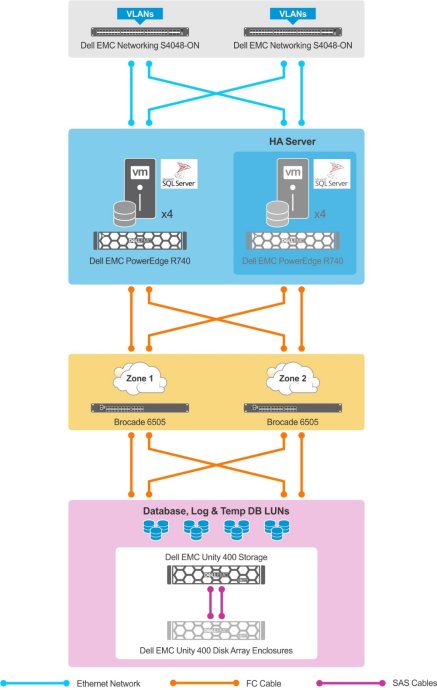
Dell EMC Ready Bundle for SQL Server 2016 provides high availability through failover clustering. The design uses the cluster failover concept, stacking solution components as primary and secondary. RAID for storage drives, dual controllers, and multiple I/O paths provides storage high availability. Multiple FC HBAs and FC switches between the SQL Server infrastructure and the storage network build resiliency in network connectivity.

Figure 2 illustrates the design of this Ready Bundle solution.

Figure 2.         Solution design

Solution Configuration Best Practices and Sizing

Server configuration

The following outlines the Dell EMC recommended practices for configuring the servers:

  • Use the latest BIOS and firmware for Dell EMC PowerEdge servers.
  • Use the latest vendor-subscribed HBA drivers.
  • Enable Intel Hyper-Threading, which doubles the number of available cores and enables SQL Server to make best use of compute resources and deliver better performance.
  • Configure the power plan as follows:
  • In the system firmware:

i             Go to System Setup > System BIOS > System Profile Settings, and select Performance Per Watt Optimized (DAPC) from the drop-down list.

ii            Go to System Setup > System BIOS > Processor Settings > Dell Controlled Turbo, and select Enabled.

  • In the operating system: Go to Control Panel > Power Plans Scheme, and select High Performance Plan.

Network configuration

High availability

Configure high availability for all of the following:

  • Network interface card (NIC)
  • NIC port
  • Network switch
  • FC port
  • FC card
  • FC switch

Local area network

Best practices for configuring the LAN include:

  • Use two 10 GbE S4048-ON network switches for end-to-end client traffic to prevent a single point of failure.
  • Use VLAN tagging to sustain switch failure, and use NIC teaming to provide multitier network high availability.
  • Use NIC teaming to provide high availability at the NIC port level.
  • Use NIC teaming for virtual and physical network connections.
  • Use a minimum of two network cards to provide high availability and prevent a single point of failure. Use two Emulex LightPulse LPE31002 cards to enable connectivity between the SQL Server host and external network.

Storage area network

Best practices for designing the SAN include:

  • Use redundant Brocade 6505 switches to prevent a single point of failure.
  • Use two Emulex LightPulse LPE31002 cards for high availability.
  • Make crisscross cable connections between redundant FC HBA cards and redundant FC switches to enable high availability.
  • Use name zoning of end devices (FC HBAs) and Storage Center virtual ports while creating zones. Name zoning provides better flexibility because it does not tie the devices and virtual ports to specific physical ports on either the switch or the storage array.

Storage configuration

Introduction

Unisphere storage management is a web-based solution that provides an interface for storage management and configuration tasks. The configuration depends on performance and capacity needs, preferred type of server connectivity, performance in terms of IOPS and MB/s, as well as future growth needs for both performance and capacity. This section provides guidance and best practices for storage management and configuration.

Storage pools: General recommendations

Dell EMC generally recommends that you use fewer storage pools within Unity storage to reduce complexity and increase flexibility. However, you might want to configure multiple storage pools to do the following:

  • Separate workloads with different I/O profiles.
  • Separate pools where Dell EMC FAST™ Cache is and is not active.
  • Dedicate resources to meet specific performance goals.
  • Separate resources for multitenancy.
  • Create smaller failure domains.

Storage pools must maintain free capacity to operate properly. By default, Unity storage raises an alert if a storage pool has less than 30 percent free capacity. It also automatically begins to invalidate snapshots and replication sessions if the storage pool has less than 5 percent free capacity. Dell EMC recommends that storage pools always have at least 10 percent free capacity.

Hybrid pools

Hybrid pools contain HDDs (SAS or NL-SAS drives) and can contain more than one type of drive technology. Hybrid pools typically provide greater capacity at a lower cost than all-Flash pools. They also typically have lower overall performance and higher response times. Use hybrid pools for applications that do not require consistently low response times or that have large amounts of mostly inactive data.

Dell EMC recommends provisioning a Flash tier in hybrid pools. The minimum recommended Flash capacity is at least 5 percent of the pool capacity. The Flash tier helps enable pool performance efficiencies and improves response times when using snapshots or replication, or both.

You can improve hybrid pool performance by increasing the amount of capacity in the Flash tier, so that more of the active dataset resides on and is serviced by the Flash drives.

Hybrid pools can have up to three tiers—Extreme Performance, Performance, and Capacity. Dell EMC recommends using a single drive speed, size, and RAID width within the tier of a hybrid pool, as follows:

  • Extreme Performance tier—Use 800 GB SAS Flash 2 drives, and configure them all with RAID 5 (8+1).
  • Performance tier—Use 1.2 TB SAS 10 k rpm drives, and configure them with RAID 5 (4+1).
  • Capacity tier—Use 6 TB NL-SAS drives, and configure them all with RAID 6 (6+2).

FAST VP

FAST VP accelerates performance of a specific storage pool by automatically moving data within that pool to the appropriate drive technology, based on data access patterns. FAST VP is only applicable to hybrid pools within a Unity hybrid system.

The default and recommended FAST VP policy for all storage objects is “Start High then Auto-tier.” This policy places initial allocations for the storage object in the highest tier available and monitors activity to this storage object to determine the correct placement of data as it ages.

FAST VP is most effective if data relocations occur during or immediately after normal daily processing. Dell EMC recommends scheduling FAST VP relocations to occur before backups or nightly batch processing. For applications that are continuously active, consider configuring FAST VP relocations to run constantly.

Dell EMC recommends maintaining at least 10 percent free capacity in storage pools, so that FAST VP relocations can occur efficiently. FAST VP relocations cannot occur if the storage pool has no free space.

FAST Cache

FAST Cache is a single global resource that can improve performance of one or more hybrid pools within a Unity hybrid system. You can create FAST Cache with SAS Flash 2 drives only, and it is only applicable to hybrid pools. Dell EMC recommends that you place a Flash tier in the hybrid pool before you configure FAST Cache on the pool.

Enable FAST Cache on the hybrid pool if the workload in that pool is highly transactional and has a high degree of locality that changes rapidly.

For applications that use larger I/O sizes, have lower skew, or do not change locality as quickly, increasing the size of the Flash tier rather than enabling FAST Cache might be more beneficial.

FAST Cache can increase the IOPS achievable from the Unity system, and it will most likely result in higher CPU utilization to service the additional I/O. Before enabling FAST Cache on additional pools or expanding the size of an existing FAST Cache, monitor the average system CPU utilization to determine if the system can accommodate the additional load.

Drive selection

Dell EMC storage offerings use multiple drive types, with varying capacities and performance levels, and attempt to match data with the optimal drive type based on storage pools. Typically, mission-critical data is stored on high-performance drives, while less-critical data is moved to high-capacity drives.

While every environment is unique, an OLTP workload generally consists of small, random reads and writes. The required number of IOPS primarily determines the sizing of a storage system that services an OLTP workload. Different drive types have different performance capabilities. Faster-spinning drives can provide more IOPS with lower latency than slower-spinning drives. For best performance, Dell EMC recommends SSD drives for OLTP workloads.

The following factors affect drive selections:

  • Type of the workload
  • Expected IOPS, latency, and throughput
  • Database size

Calculate the number of disks for capacity by using the following formula:

Number of disks = (Required Capacity / Capacity per disk)

Calculate the number of disks for performance by using the following formula:

Number of disks = (Read IOPS + [Write IOPS x RAID performance overhead]) / IOPS per disk

Setting I/O paths

FC zoning enables the partitioning of the FC fabric into multiple subsets called zones. A zone includes FC initiators and targets, and enables communication between the initiators and targets.

Best practices for setting the I/O paths include:

  • Single-initiator, multiple-target zoning—Creates each FC zone with a single initiator (HBA port) and multiple targets (front-end ports). Therefore, each HBA port requires a separate FC zone with front-end ports. Create independent zones for each HBA installed in the host.
  • World Wide Name (WWN) zoning—Contains only the host HBA port and the front‑end primary ports. In most cases, including the front-end reserve ports is unnecessary because they are not used for volume mapping. Dell EMC recommends creating zones by using a single initiator host port and multiple Storage Center ports.
  • Multipathing—Designates how many of the Dell EMC storage front-end ports that the system allows the volume to be mapped through. Dell EMC recommends the use of the Dell EMC PowerPath™ Multipathing utility for designating the ports.

Volume provisioning and mapping

Create a server cluster for high availability and map the volumes to the server cluster. Map the volumes by using Storage Center Console or Enterprise Manager Console.

For optimal performance, Dell EMC recommends the following:

  • Place tempdb, database, and log files on separate LUNs.
  • Allow for data growth and avoid exceeding 80 percent capacity of the LUNs for database files.
  • Configure end-to-end multipathing by using PowerPath software for availability/redundancy and throughput optimization.
  • Use multiples of 64K size as allocation unit for SQL Server volumes.
  • Ensure that I/O is distributed across both controllers. For best results, use the same number of volumes on each controller.

Hyper-V storage design

For Hyper-V storage design, Dell EMC recommends the following:

  • Provision a Cluster Shared Volumes (CSV) store and a cluster quorum disk on Dell EMC storage. Map the quorum disk and CSV volumes to the cluster nodes to enable faster failover of the SQL Server VM without the need for dismounting the drive, changing ownership, or remounting the volume.
  • Create a virtual SAN by grouping WWNs of virtual FC adapters hosted in PowerEdge servers and Dell EMC storage. Configure the VMs that are hosting SQL Server with direct access to the storage LUNs.

Windows OS configuration

Best practices for configuring the Windows OS include:

  • Use an allocation unit size of 64 KB to format the volume that stores the database files.              
  • Enable the Windows Lock Pages in Memory (LPIM) policy by adding an account with privileges to run sqlservr.exe. The LPIM policy determines which accounts can use a process to keep data in physical memory. The policy prevents the Windows OS from paging out a significant amount of data from physical memory to virtual memory on disk.

Hyper-V 2016 configuration

Best practices for configuring the Hyper-V host and deploying VMs include:

  • Do not overcommit resources. Hyper-V allows overcommitting resources such as CPU and network. However, overcommitting leads to performance degradation when the resource usage exceeds the available resources.
  • Provision static or dynamic memory. For information, see SQL Server 2016 Memory settings.
  • Provision compute resources. A vCPU is a representation of the physical core of a processor or threads/logical processors in the core. In Hyper-V, you can adjust the relative weights and reserves for a VM by going to Settings > Processor. If CPU resources are overcommitted, setting the weights and reserves optimizes the way these resources are used. You can prioritize or deprioritize specific VMs based on your needs.
  • Use fixed-size virtual hard disks for the OS. Dell EMC recommends using fixed virtual hard disks (VHD/VHDX) for production workloads. Using dynamic virtual hard disks can result in occasional pauses during disk resizing. Use dynamic disks for noncritical test environments or nonproduction environments.
  • Use separate storage LUNs for data and log files. To rule out disk contention, Dell EMC recommends using separate LUNs. For best performance, create distinct LUNs for SQL Server data files and SQL Server log files.

SQL Server 2016 optimization

Memory settings

For SQL Server 2016, you can assign memory for a VM either dynamically or statically. To choose between dynamic and static memory, consider the following factors:

  • How frequently you monitor your database
  • The VM size (size of the processors, memory, and other resources) as compared to the size of a single non-uniform memory access (NUMA) node on the host’s physical architecture
  • Preference between performance and levels of scalability

In general, choose dynamic memory when VMs are unmonitored and are relatively small, and when scalability is preferred over performance. For larger production VMs that are reasonably monitored, choose static memory for better and more consistent performance.

For dynamically assigned memory, see Running SQL Server with Hyper-V Dynamic Memory in the Microsoft Development Network Library.

Best practices for dynamic memory include:

  • Determine startup RAM and minimum memory values based on your needs. Microsoft recommends leaving the max server memory value at its default setting, which allows SQL Server to manage memory dynamically. However, Dell EMC recommends that you change this value, as needed, if one or both of the following apply:
  • You are running multiple applications on the VM.
  • You can reasonably ascertain the maximum amount of memory that you want to assign to SQL Server.
  • Set the min server memory value (default value is zero) based on usage and performance considerations because dynamic memory is enabled for the VM.
  • When using dynamic memory, set the reserves for the VM by using the Memory Buffer option. Base the amount of memory reserved on the min server memory value that is set for SQL Server, and the memory that is required for any other applications and the OS.

Recommendations for static memory allocation include:

  • To maximize performance, assign a particular amount of memory to a VM based on its virtual and physical NUMA architecture.
  • To ensure optimal performance, disable the NUMA Spanning option for the Hyper‑V host, so that a single physical NUMA node supports a single virtual NUMA node.

Note: Use this option with caution because Hyper-V does not start, restore, or accept a live migration for a VM if the hypervisor is unable to map each virtual NUMA node to a physical NUMA node.

  • Set max server memory and min server memory values based on the amount of memory you want to reserve for the operating system, typical requirements of your SQL Server, and other performance considerations. For more information about memory settings, see Blitz Result: Memory Dangerously Low or Max Memory Too High.

Parallelism settings

For SQL Server parallelism settings, consider the following:

  • The SQL Server configuration option max degree of parallelism controls the number of processors that are used for the parallel execution of a query. If the SQL Server VM in question migrates from hosts with different core configurations, leave this setting at 0. However, if that is not the case, use another value.
  • The SQL Server configuration option cost threshold for parallelism specifies a threshold at which query plans run in parallel. Dell EMC recommends that you change the value of this setting from its default value of 5 to 50. You can adjust this number further.

For more information about parallelism settings, see MAXDOP of Confusion.
Solution sizing

Each SQL Server environment has distinct system requirements and must be sized according to the instance-specific demands and the workload deployed. Workload characteristics in a SQL Server deployment include the nature of transactions, the expected user load, the required number of transactions per second, and the permissible levels of latency per transaction. SQL Server is a storage-intensive workload and requires high availability. The significant sizing considerations are server and storage.

For server sizing:

  • Determine the type of processor that is best suited for handling the SQL Server workload requirements.
  • Determine the size of memory required and allocate the DIMMs to the processor memory channels to take advantage of full memory bandwidth.
  • Select the appropriate host network adapters.

For storage sizing and disk selection requirements, see Storage configuration.

Sample lmplementation

Sample implementation: OLTP workload

This chapter provides a sample implementation of this solution, including architectural design, sizing, and configurations.

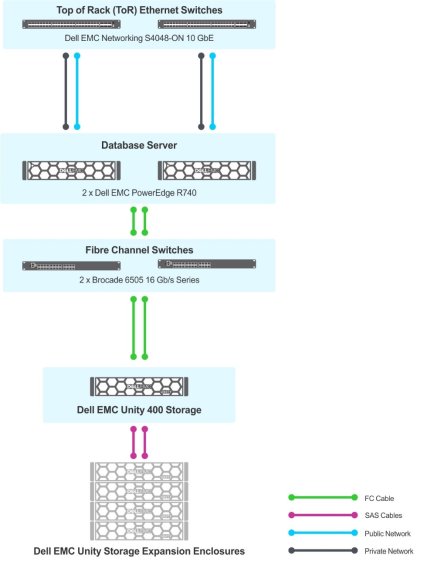
This sample implementation is for an OLTP workload supporting up to 10,700 transactions on a database size of up to 2.4 TB. Figure 3 shows the architecture for this sample implementation.

Figure 3.         Workload solution architecture

Table 3 lists the components for this implementation.

Table 3.            Workload solution components

Component

Specifications

Servers

2 x Dell EMC PowerEdge R740

Network switches

2 x Dell EMC Networking S4048-ON

FC switches

2 x Brocade 6505

External storage

  • 1 x Dell EMC Unity 400 Hybrid Flash
  • 4 x Dell EMC Unity storage expansion enclosure

Unity 400 Hybrid Flash storage details

  • Storage pools: 1
  • Mirrored Fast Cache: 5 x 200 GB SAS Flash 2 (includes hot spare)
  • Extreme Performance tier: 26 x 200 GB SAS Flash 2 (includes hot spare)
  • Performance tier: 24 x 600 GB SAS 15 k rpm (includes hot spare)
  • Capacity tier: 18 x 6 TB NL-SAS 7.2 k rpm (includes hot spare)

Per server

Processor

2 x Intel Xeon 8180 Scalable family; 2.5  GHz, 28 cores

Memory (RAM)

768 GB (24 x 32 GB, 2,666 MT/s DIMM)

Network interface

Broadcom 10 GbE BCM5720

FC HBA

2 x 16 Gb FC (GFC) Emulex LightPulse LPE31002

Table 4 lists the workload implementation details.

Table 4.            Workload implementation details

Component

Value

Number of VMs

4

Number of database LUNs

4

Number of log LUNs

4

Number of tempdb LUNs

4

Maximum database transactions/s

10,700

Per VM configuration

vCPUs

24

Memory

160 GB

Memory for database

128 GB

Size of database LUN

600 GB

Size of log LUN

100 GB

Size of tempdb LUN

100 GB

References