Implementation Guide—SQL Server 2019 Best Practices on PowerStore
Introduction
Business case
Notice: Dell Technologies announced the availability of new PowerStore models in July 2022. The new PowerStore models offer greater performance, more features, and capacity compared to previous storage arrays. In this paper, we optimize SQL Server database on the PowerStore 5000T. All the recommendations and best practices in this paper also apply to the new PowerStore arrays.
Dell understands the importance of delivering successful outcomes for our customers. Database management best practices tend to be product specific, making it difficult for customers to understand how to be successful. One of the goals of this document is to drive greater success for our customers by moving best practices from product silos to easy-to-use recommendations. The recommendations for our best practices apply across various products.
This program groups best practices based on the layers in the database management stack: storage, servers, VMware vSphere, operating system, and database configuration. We implemented these groups of best practices, monitored the system, and evaluated the test findings by running OLTP workloads to mimic business application systems.
Document purpose
This guide describes design and configuration best practices of a VMware-based virtualized SQL database solution that uses PowerEdge servers and PowerStore storage. The guide provides an overview of the architecture design and deployment best practices of the entire stack, including the compute, network, and storage design. It highlights the best practices that are based on the layers in the database management stack: storage, servers, network, VMware vSphere, operating system, and database configuration.
Audience
This guide is intended for infrastructure architects, storage administrators, virtualization administrators, system administrators, IT managers, and other personnel who evaluate, acquire, manage, maintain, or operate SQL Server database environments.
Best practices goals
The goal of the Microsoft SQL Server best practices program was to improve customer outcomes using Dell Technologies infrastructure. It can be challenging for customers to determine how a SQL Server database should be optimally designed, as research can be time intensive and confusing. The goal of this SQL Server best practice program is to centralize and validate recommendations to help customers successfully run SQL Server instances on our infrastructure.
Test approach
At the beginning of the program, we gathered recommendations from multiple sources and categorized the guidelines into different layers of the database infrastructure. For example, for the optimal PowerEdge configuration for databases tests, the team pulled best practices from current manuals and held meetings with PowerEdge experts to review the findings. This meant we actively worked with specialists and engineers responsible for each part of the SQL Server infrastructure. The following list describes each infrastructure layer validated for best practices, in the order tested:
- Optimal Storage Configuration
- Optimal CPU configuration
- Optimal Linux and Database Configuration
Benchmark tool
The engineering team conducted internal load testing to determine the workload profile before starting the validation tests. HammerDB was used to generate an Online Transaction Processing Workload (OLTP) that simulates many common enterprise applications. The goal of generating a significant load on the SQL Server infrastructure was to ensure that the system was sufficiently taxed to demonstrate that best practices optimized performance. In this case, the initial target was six VMs each with ten processor cores. The HammerDB workload configuration is described in Table 1.
Table 1. HammerDB workload configuration
|
Setting name |
Value |
|
Total transactions per user |
1,000,000 |
|
Number of warehouses |
5,000 |
|
Number of virtual users |
80 |
|
Minutes of ramp up time |
10 |
|
Minutes of test duration |
50 |
|
Use all warehouses |
Yes |
|
User delay (millisecond) |
500 |
|
Repeat delay (millisecond) |
500 |
|
Iterations |
1 |
With this HammerDB configuration, each best practice was validated in an hour-long workload test: 10 minutes ramp up time plus 50 minutes for test duration. We chose to run the workload for one hour to ensure that the database system reached a consistent performance state. Reaching a consistent run state determines whether the configuration is stable and the best practice prove value over time.
The HammerDB parameter Use all warehouses enables increased I/O to the database area by assigning all the warehouses to the virtual users. The result of forcing the use of all warehouses means that the workload will generate more I/O on the storage subsystem. The first set of best practices compares baseline database performance without an optimal storage configuration to a database configuration with an optimal storage configuration.
We used the metrics New Order per Minute (NOPM) and Transaction per Minute (TPM) to interpret our results. These metrics are from the TPC-C benchmark and indicate the result of a test. During our best practice validation, we compared these metrics against the baseline to ensure that there is an increase in performance.
Test methodology
The team sequentially tested a best practice or a set of practices during the program. For example, with the storage configuration, the team tested with multiple volumes using the PowerStore Volume Groups feature.
The purpose of the storage configuration best practice category was to optimize the SQL Server database using the PowerStore volume groups. The goal was to show how multiple volumes can improve SQL Server database performance. With each additional best practice, the working theory was that we would observe a gain in performance. For example, the last test in changing the SQL Server configuration option should achieve the overall optimal SQL Server performance. Building upon prior best practices shows that when best practices are deployed together, overall database performance becomes optimized.
.
Best practices
To enhance the value of best practices, we have identified which configuration changes produced the greatest results. We ranked the best practices to help our customers easily identify which recommendations have the most value. Most enterprises implement configuration changes based on the delivery cycle. Best practices were categorized as follows:
Day 1 through 3:
- Day 1: Indicates configuration changes that are part of provisioning a database. The business as defined these best practices as an essential part of delivering a database.
- Day 2: Indicates configuration changes that are applied after the database has been delivered to the customer. These best practices address optimization steps to further improve system performance.
- Day 3: Indicates configuration changes that provide small incremental improvements in database performance.
Highly, moderately, and fine-tuning recommendations: Customers want to understand the impact of the best practices and these terms are used to indicate the value of each best practice.
- Highly recommended: Indicates best practices that provided the greatest performance in our tests.
- Moderately recommended: Indicates best practices that provide modest performance improvements that are not as substantial as the highly recommended best practices.
- Fine-tuning: Indicates best practices that provides small incremental improvements in database performance.
When reviewing the best practices, the day and value of the recommendations are combined. Here are some examples:
- Day 1, highly recommended: Indicates these best practices should be part of provisioning an SQL Server database as they provide the greatest performance.
- Day 2, moderately recommended: Indicates these best practices should be considered as part of post-delivery activities that provide modest performance gains.
- Day 3, fine-tuning: Indicates these best practices should be considered when small incremental improvements are required to further tune the system.
The goal of this ranking system is to help customers to quickly decide which recommendations will provide the best value. For example, two or three best practices from the section on CPU optimization might provide most of the value for a customer depending on their goals. Investing the time to implement these best practices provides the greatest return. This approach can be taken for each layer of the database system until all Day 1, highly recommended best practices are completed. This methodology makes best practices unique and provides a way for customers to have the best return on investment.
Best practices are broad recommendations that apply to most SQL Server environments using Dell infrastructure, but it is important to recognize every database application workload and environment is different, meaning the value of these best practices will vary from system to system. As with any configuration or change to a database system, the best approach is to validate the change before implementing the best practice on a production system. For this reason, we recommend testing all best practices before implementing the changes in production.
Architecture Concepts and Requirements
Physical architecture
This chapter provides information related to architecture design of the solution. Architecture covers different aspects of the solution such as components of physical layer, software layer and Storage volumes design. The architecture was designed to broadly represent the infrastructure that customers use for their SQL databases. Two nodes of Dell PowerEdge R750xs servers were used for the compute layer and a single PowerStore 5000T was used for storage needs.
This two-node architecture is built to provide a high availability design. It can be extended to three or more nodes to consolidate more databases.
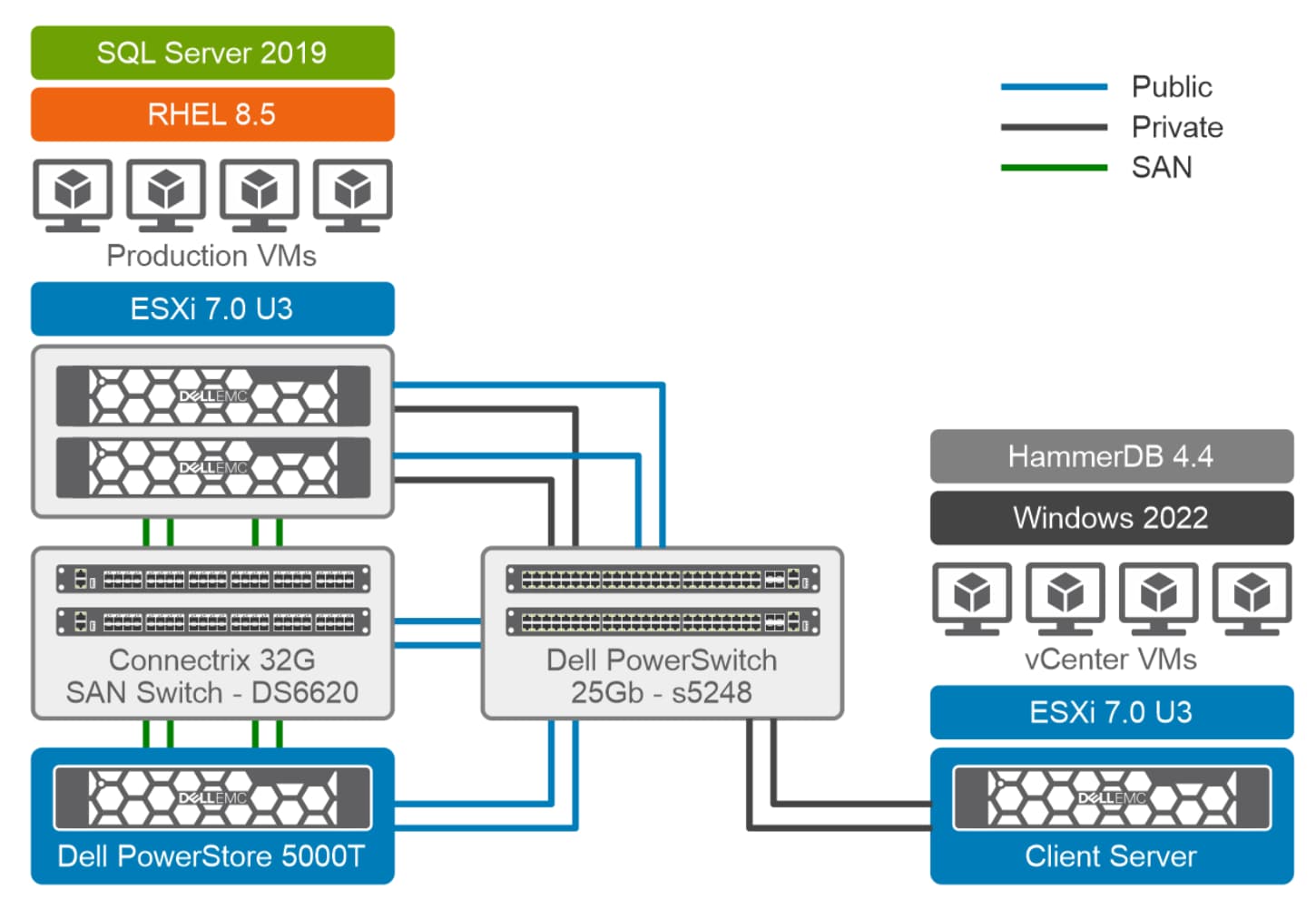
Figure 1. Architecture design
The server layer consists of:
Database ESXi servers: Two R750xs PowerEdge servers running ESXi 7.0.3 hypervisors for six VMs running Red Hat Enterprise Linux 8.5 guest operating system. Only one of the two servers is actively used for benchmarking and the second server is reserved for high availability.
Each ESXi server consists of:
- Two 25 GbE network interface cards (NICs): Two dual-port 25 GbE network interface controllers for SQL public and vMotion
- Two 32 Gbps host bus adapters (HBAs): Two dual-port 32 Gbps HBAs for SAN traffic in database servers
- One GbE management rNDC: At least one 1 GbE rNDC or LOM port for in-band management of the server from within the operating system
- One GbE integrated Dell Remote Access Controller (iDRAC): A dedicated iDRAC Ethernet port for out-of-band (OOB) management of servers
The R840 server runs VMware ESXi 7.0.3 as the hypervisor to host multiple VMs including VMware vCenter Server Appliance (VCSA) deployed as a VM and VM windows server 2022 guest operating system installed to run the HammerDB test tool.
The network layer consists of the following types of connectivity:
- Management network between vCenter and ESXi hosts. This network also connects the iDRAC Ethernet ports of all the servers
- vMotion network for VM migration using vMotion between ESXi hosts
- Public network that connects the database server and the SQL database instance to with the rest of the data center network
- SAN FC network that connects database servers and PowerStore SAN storage
The networks are implemented with the following switches:
- One 1 GbE switch for management switches
- Two 25 GbE ToR switches for the SQL public and vMotion network
- Two 32 Gbps FC switches for FC SAN connectivity
The storage layer consists of the PowerStore T array as the FC SAN storage for databases and the data stores for VM operating system volumes.
Hardware components
Server
The architecture was designed to broadly represent the infrastructure customers use for their SQL Server databases. Dell PowerEdge R750xs servers were used for the compute layer. Each PowerEdge R750xs was configured the same way to ensure consistency. Two Intel Xeon Gold 6338 processors with 32 physical cores each, for a total of 64 cores, were used. The default server configuration enables logical processors which means 128 cores were available at the hypervisor level. The following table shows the detailed configuration:
Table 2. Configuration details
|
Processors |
2 x Intel Xeon Gold 6338 32C CPU @ 2.00 GHz
|
|
Memory |
16 x 64 GB 3200MT/s memory, total of 1 TB |
|
Network adapters |
Embedded NIC: 1 x Broadcom BCM5720 1GbE DP Ethernet (mgmt.) Integrated NIC1: 1 x Broadcom Adv. Dual port 25Gb Ethernet NIC Slot 5: 1 x Mellanox ConnectX-5 EN 25 GbE Dual port Adapter |
|
HBA |
2 x Emulex LPe35002 32Gbps Dual Port Fibre Channel |
To learn more about the server, go to the PowerEdge R750xs page and download the specification sheet.
Fibre channel switch
We used Dell Connectrix switches to connect the servers to the PowerStore storage array. The Connectrix DS-6620B is designed to support medium to large-sized database deployments. The Connectrix configuration used in our tests included eight active 32Gbps ports to optimize the connection to the PowerStore storage.
Storage array
A PowerStore 5000T storage array was used to validate the best practices. The PowerStore storage array is cloud-enabled and offers enterprise-rich data services like snapshots, replication, and many other features in a small footprint. The PowerStore storage array is highly tuned and does not require much manual tuning. In the PowerStore 5000T configuration used, there were 21 NVMe drives, each 1.92TB in size. Full details of the PowerStore 5000T configuration are described in the following table:
Table 3. PowerStore 5000T configuration
|
Processors |
2 x Intel Xeon Gold 6130 CPU @ 2.10GHz per Node |
|
Cache size |
4 x 8.5GB NVMe NVRAM |
|
Drives |
21 x 1.92 TB NVMe SSD |
|
Total usable capacity |
28.3 TB |
|
Front-end I/O modules |
2 x Four-Port 32Gb FC |
Many production database systems use dedicated infrastructure. In validating the SQL Server best practices, all the Dell infrastructure was reserved for the database. No parallel workloads were running and competing for CPU, network, and storage resources. Validating best practices in a dedicated environment helped to eliminate variables that might impact test results. We understand that many environments have been consolidated and challenges can arise in tuning one database system on shared infrastructure.
The implementation of best practices might improve performance in consolidated systems, but the positive gains may not be as significant due to the shared resources. Using these best practices can mitigate some challenges by integrating Day 1, Highly Recommended configuration practices as part of provisioning an SQL Server database. As the database ecosystem is transformed by using best practices, the overall system performance may rise, and consolidated systems might perform more efficiently. Best practices offer the enterprise the ability to deploy a database with the optimal design and ecosystems with the capability to drive improved efficiencies.
Software components
SQL Server 2019
Microsoft offers one of the most popular databases in the world. The SQL Server used for our best practices tests is a version of the database that many customers are using. The SQL Server database has a vast array of features and capabilities. In our final validation tests the Engineering team tested changes to the database configuration to optimize performance.
VMware
Virtualization of databases has been gaining momentum over the years. There are many advantages to virtualizing databases, including consolidation, agility, and ease of management. We choose to virtualize the SQL Server database with VMware vSphere version 7.0.3. Virtualization adds another layer of configuration to the database. As virtualization impacts every part of the database infrastructure, our approach was to integrate VMware best practices to each physical layer, rather than having a dedicated section for virtualization. For example, storage best practices include recommendations for VMware ESXi Round Robin. This should simplify the program, as customers can review best practices as both physical and virtualization recommendations are presented for each part of the infrastructure.
Red Hat Enterprise Linux
The Linux operating system has been widely accepted for running SQL Server databases. We used Red Hat Enterprise Linux version 8.5 for the tests, as this Linux flavor provides the stability, reliability, and security required for databases. The same best practice approach was taken with Red Hat Linux, as used for VMware. Linux best practices are integrated into each physical layer of recommendations. It is easy for customers to review Linux recommendations by reading CPU best practices or another physical layer.
The following table summarizes the software architecture used in validating the best practices:
Table 4. Software architecture used
|
SQL Server |
2019 CU 16-15.0.4223.1 |
|
Operating system |
Red Hat Enterprise Edition 8.5 |
|
VMware vSphere |
VMware 7.0.3 with vCenter 7.0.3 |
There are many possible combinations for the software architecture. The goal for testing SQL Server, Red Hat Enterprise Linux 8.5, and VMware vSphere 7.0.3 was to have a design that applies to what database customers use today. In the future, the goal of the best practices programs will be to address new versions of the database and advances in both the operating system and virtualization.
Baseline configuration
This section covers details of the baseline configuration. A baseline configuration was used to determine the initial workload and provide a comparison for the first set of best practices. After each test the database was refreshed with the best practices retained. This test methodology allowed the team to compare results as best practices were progressively added to the database.
Server settings in BIOS
The baseline BIOS settings for the two PowerEdge R750xs servers are described in the following table.
Table 5. PowerEdge Server R750xs BIOS settings
|
BIOS subgroup |
Setting name |
Baseline Setting (Default) |
|
Processor Settings
|
Virtualization Technology |
Enabled |
|
Logical Processor |
Enabled |
|
|
Sub NUMA Cluster |
Disabled |
|
|
Turbo Boost |
Enabled |
|
|
X2APIC |
Enabled |
|
|
Dell Controlled Turbo |
Disabled |
|
|
Memory Setting
|
Node Interleave (NUMA) |
Disabled |
|
Memory Operating Mode |
Optimizer Mode |
|
|
NUMA Fault Resilient Memory (size) |
25 (not changeable) |
|
|
Security Setting |
TPM Security |
Off |
|
System Profile Settings |
Workload profile |
Not configured |
|
Trusted Platform Module Info |
No TPM present |
|
|
Turbo Boost |
Enabled |
|
|
System Profile |
Performance Per Watt Optimized (DPAC) |
To check or change these BIOS settings, login to iDRAC and perform the following steps:
Select Configuration > Process Setting
Select Configuration > Memory Setting
Select Configuration > System Security
Select Configuration > Process Setting
Select Configuration > System Profile Settings
System installation and configuration
ESXi system configuration
Use the following steps to configure the physical servers that host the database VMs:
- Use the BIOS settings for the PowerEdge servers described in Table 4.
- Create a single virtual disk in a RAID 1 configuration with two local disks (SSDs or HDDs) per server to install the bare-metal operating system (ESXi 7.0.3).
- Install ESXi 7.0.3 by using the Dell customized ISO image.
- Configure, monitor, and maintain the ESXi host, virtual networking, and the VM by using the VMware vSphere web client and VCSA, which is deployed as a VM on the management server.
- Zone two dual-port 32 Gb/s HBAs (four initiators in total) and configure these HBAs with the PowerStore front-end Fibre Channel ports for high bandwidth, load-balanced, and highly available SAN traffic.
ESXi host connectivity
Each ESXi host (R750xs server) has two dual-port Fibre Channel HBAs. The PowerStore 5000T under test has two Fibre Channel front-end I/O modules (one per node). Each I/O module has four 32Gbps ports with a total of eight 32Gbps front-end ports. There are two Connectrix Fibre Channel switches. Each Connectrix switch is its own fabric. For connectivity, each ESXi host was zoned to all eight front-end ports of the PowerStore across the two switches. This configuration should be the default setup. The following figure below shows the SAN zoning configuration.
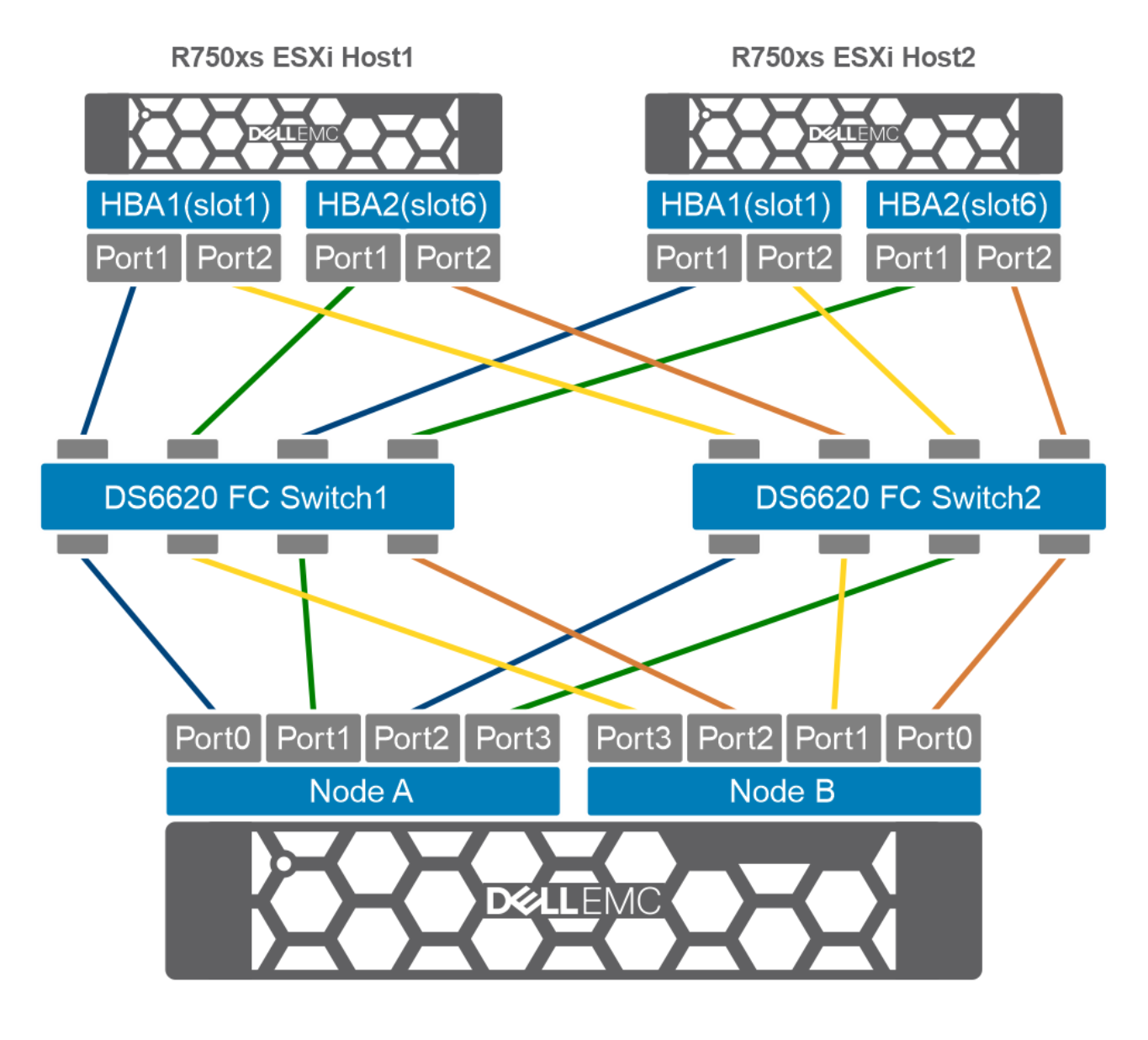
Figure 2. SAN Zoning Configuration
VM network: Distributed Network switches
We configured the following two distributed network switches: 1) ESXI-Mgmt DS ESXi server management that connects to the vCenter and ESXi hosts and 2) SQLPub-vMotion that supports the VM network for SQL database public network and vMotion.
The following table shows the details of these two distributed network switches.
Table 6. Distributed network switches
|
Distributed network switches |
Uplink ports |
Purpose |
VM port group |
|
ESXI-Mgmt DS |
On 2x 1GB network (rNDC) vmnic0 and vmnic 1 |
ESXi server host management |
|
|
SQLPub-vMotion |
2x25 GbE physical network: vmnic5 and vmnic7 |
SQL Database public network and vMotion network |
SQLpub |
Virtual machine setup and configuration
CPU reservation
To achieve a meaningful test result for a single R750xs server, we ran six virtualized databases in parallel. After several tests using HammerDB and an OLTP workload, we developed a baseline configuration. Table 5 shows the vCPU and memory allocation for each virtualized database:
Table 7. vCPU and memory allocation
|
Resource reservation |
Baseline configuration per virtual machine |
Total across six virtualized databases |
|
vCPU |
10 cores |
60 cores |
|
Memory |
112 GB |
672 GB |
A VMware reservation is a guaranteed allocation of CPU or memory for the virtual machine. In the case of vCPU, each virtual machine received a ten-core reservation. With six total virtualized databases, the total vCPU reservation was 60 cores on the server (six virtual machines each with ten cores). The PowerEdge R750xs servers are two-socket servers. In the configuration for our tests, we used two Intel® Xeon® Gold 6338 CPUs. Each Intel® CPU has 32 cores, thus there was a total of 64 physical cores. The total of 60 vCPU across the six virtual machines, resulted in a total of four unallocated physical cores which can be consumed by the hypervisor.
While the virtual machines used most of the physical cores by default, the PowerEdge R750xs servers enable logical processors. When logical processors are enabled, the hypervisor presents twice as many processor cores. In our configuration, the 64 physical processor cores are presented as 128 cores (64 x 2). Logical processors can boost performance by enabling more executions in parallel. In the case of our six virtual databases, we used nearly half of the available processor resources: 60 processor cores were reserved, and 128 cores were available.
Memory reservation
The memory configuration per virtual machine included a reservation of 112 GB. With a total of six virtual machines, a total of 672 GB of memory was reserved. The total memory available in the server was 1 TB, meaning the virtual machines used almost three-fourths of the available physical memory in the server. The goal in allocating memory to each virtual machine was to ensure each VM fit into a physical non-uniform memory access (NUMA) node. NUMA refers to a multiprocessor configuration in which each physical CPU has a dedicated memory bank. Information can be retrieved faster from the local memory bank than having to pull the data from another memory bank. When a virtual machine’s memory spans two memory banks, wait times are incurred, causing sub-optimal performance.
To prevent a sub-optimal NUMA design, each virtual machine was allocated 112 GB of memory, thus enabling the use of only the local memory bank. The VMware ESXi hypervisor is responsible for the placement of memory on a processor and has been designed to optimize performance. By reserving memory that enables the virtual machine to use a local memory bank we optimized performance for all the virtual machines on the server.
Datastore configuration
The PowerStore has the volume group feature, which enables the administrator to create a configuration that facilitates ease of management, efficient snapshots, and replication. For the baseline storage configuration, all six virtualized databases used the same design. Table 8 shows the configuration detail for the first virtualized SQL Server database.
Table 8. Virtualized SQL Server database configuration
|
Volume Group |
Volume Name |
Number of LUNs |
VMware Datastore |
Volume size (GB) |
Notes |
|
sql_vm1_os |
sql-vm1-os |
1 |
sql-vm1-os-ds |
300 |
Operating System |
|
sql_vm1_db1 |
sql-vm1-db1-data1 |
1 |
sql-vm1-db1-data1-ds |
512 |
Data |
|
sql-vm1-db1-log1 |
1 |
sql-vm1-db1-log1-ds |
256 |
Log |
|
|
sql_vm1_db1_temp |
sql-vm1-db1-temp-data1 |
1 |
sql-vm1-db1-temp-data1-ds |
256 |
TempData |
|
sql-vm1-db1-temp-log1 |
1 |
sql-vm1-db1-temp-log1-ds |
128 |
TempLog |
|
|
sql_vm1_db1_backup |
sql-vm1-db1-backup1 |
1 |
sql-vm1-backup1-ds |
1000 |
Backup |
A naming convention using VMn and DBn allowed the database administrators to increment the value to create volume groups for all the databases. For example, the second copy of the database had a volume group name of SQL_VM2_DB2. Using this naming convention allowed the administration team to repurpose copies to the database quickly. Note that each LUN was configured as a VMware datastore.
For detailed PowerStore best practices and features, see Dell PowerStore: Microsoft SQL Server Best Practices.
Red Hat Enterprise Linux minimal install
Use the following steps to install Red Hat Enterprise Linux:
- Download the latest Red Hat Enterprise Linux ISO file ,attach it to the VM, and start the VM.
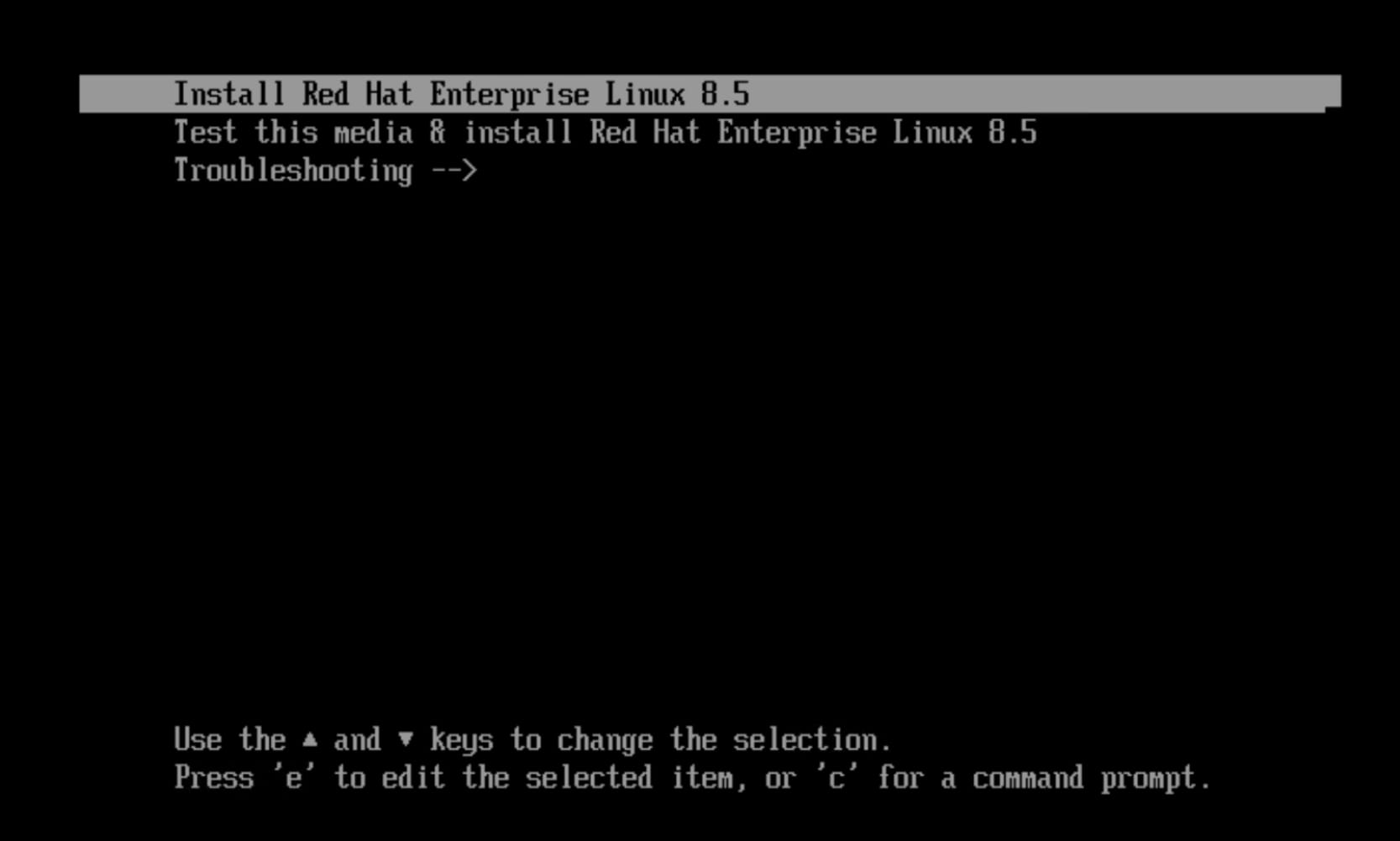
- Select Install Red Hat Enterprise Linux in the Red Hat Enterprise Linux installation menu and press ENTER.
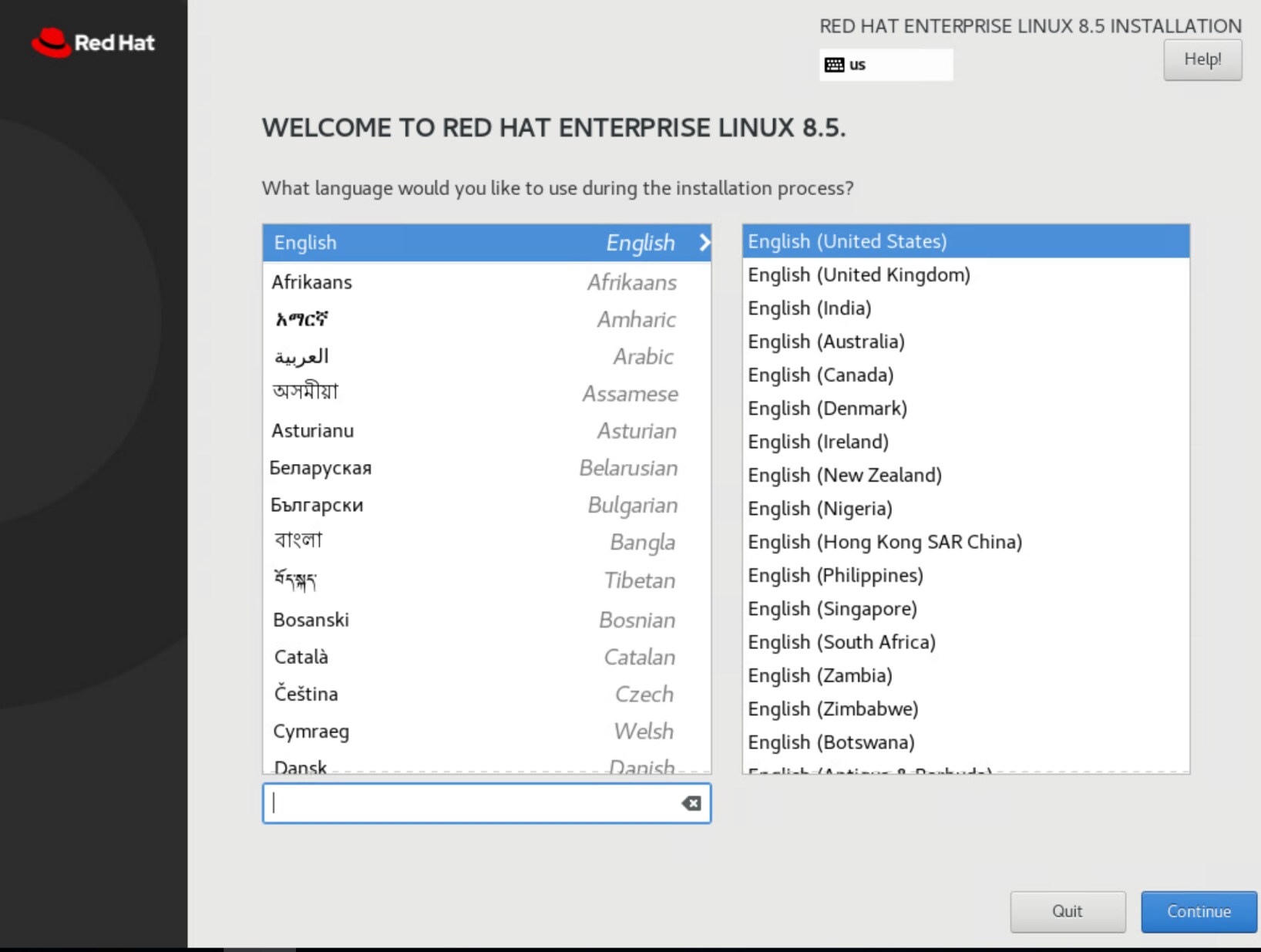
- Select the preferred language.
- Select the installation destination and set the root password.
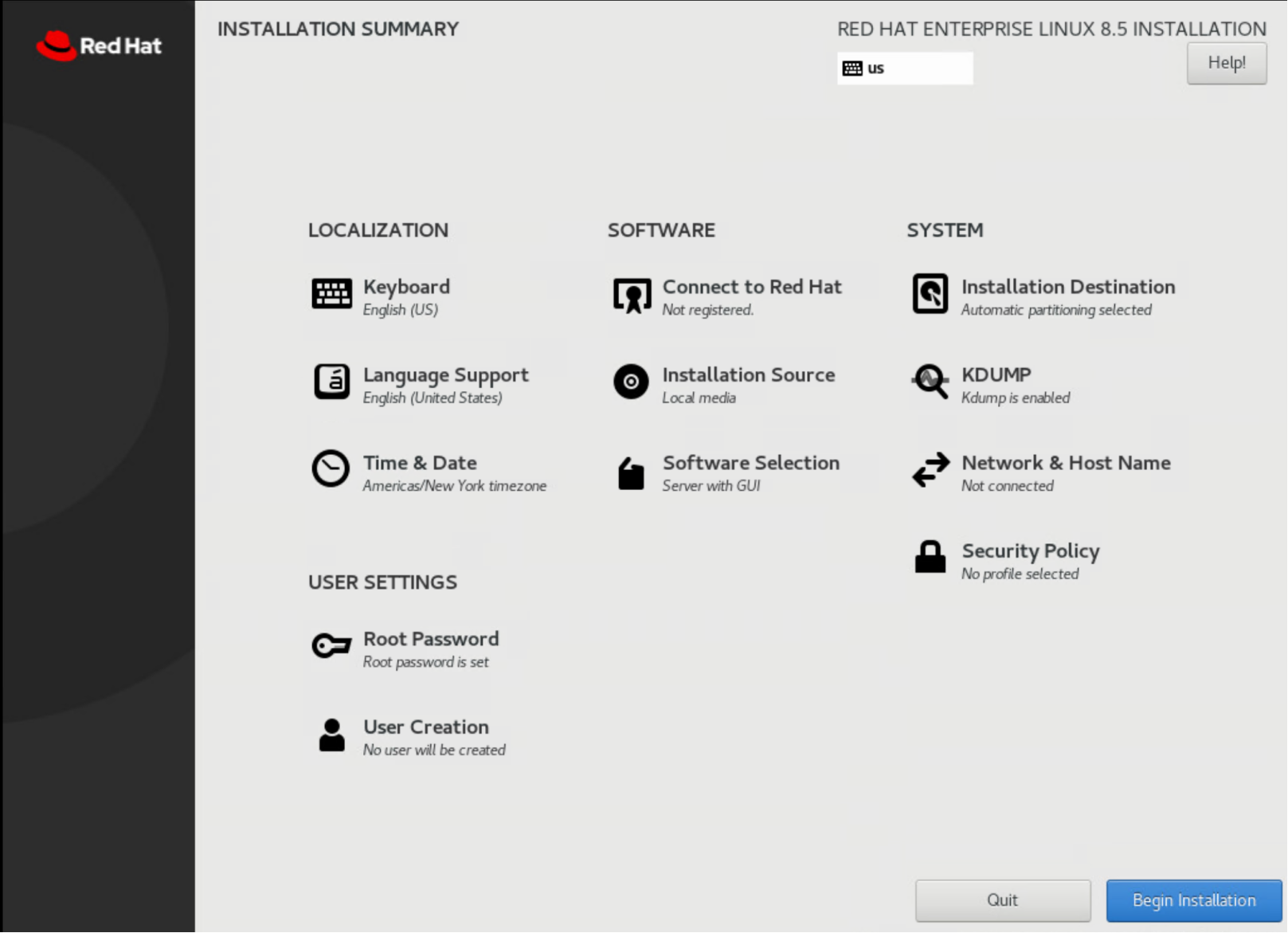
- Select the Software Selection and click Begin Installation.
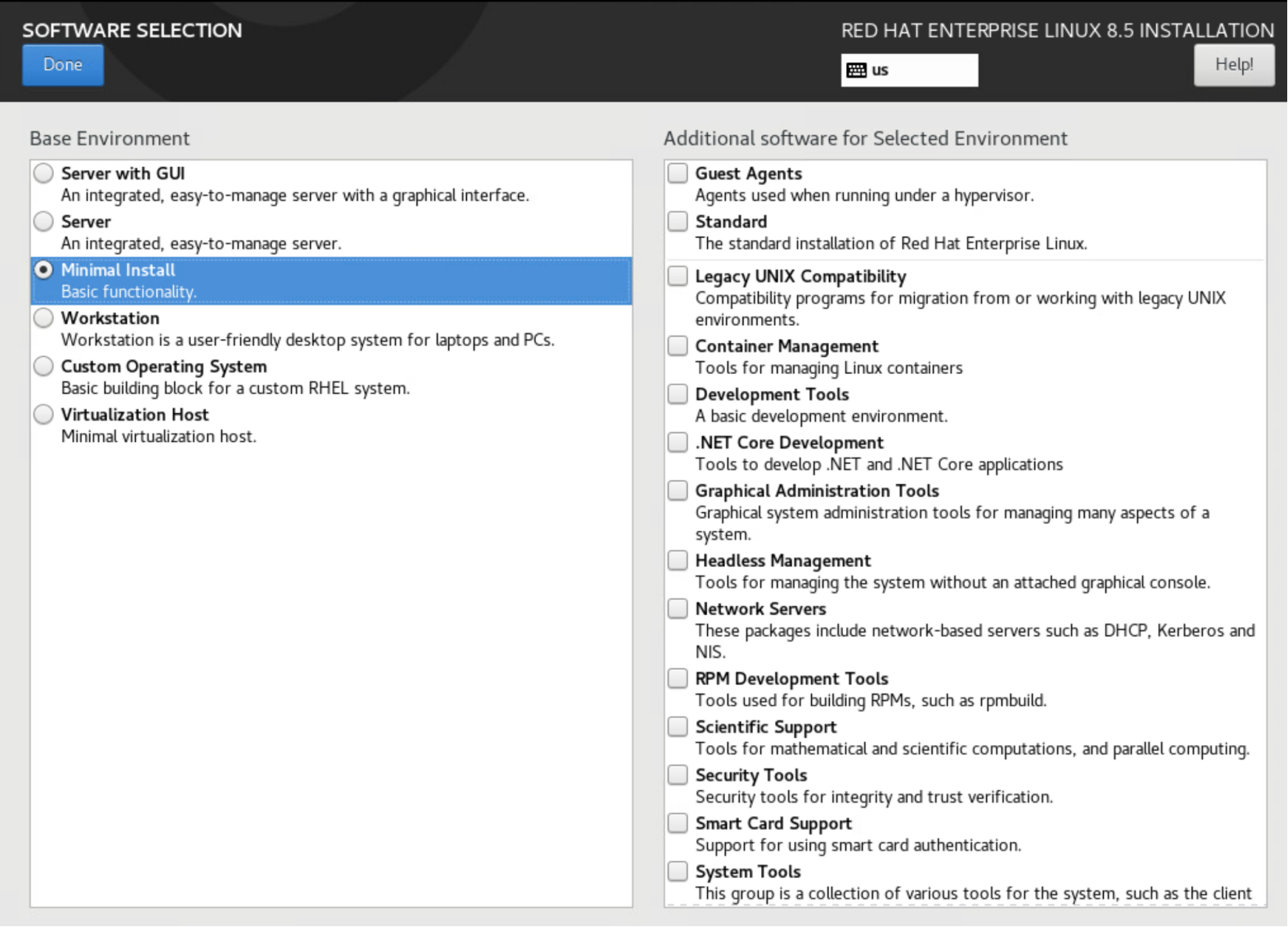
- Follow the next set of instructions and wait until the installation is complete.
SQL Server installtion and configuration
To configure SQL Server on Red Hat Enterprise Linux, run the following scripts in a terminal to install the mssql-server package:
- Download the SQL Server 2019 (15.x) Red Hat repository configuration file:
sudo curl -o /etc/yum.repos.d/mssql-server.repo https://packages.microsoft.com/config/rhel/8/mssql-server-2019.repo
- Run the following command to install SQL Server:
sudo yum install -y mssql-server
- After the package installation finishes, run mssql-conf setup using its full path, and follow the prompts to set the SA password and choose your edition.
sudo /opt/mssql/bin/mssql-conf setup
- Once the configuration is complete, verify that the service is running:
systemctl status mssql-server
- To allow remote connections, open the SQL Server port on the RHEL firewall. The default SQL Server port is TCP 1433. If you're using FirewallD for your firewall, you can use the following commands:
sudo firewall-cmd --zone=public --add-port=1433/tcp --permanent
sudo firewall-cmd –reload
Install the SQL Server command-line tools
- Download the Red Hat repository configuration file.
sudo curl -o /etc/yum.repos.d/msprod.repo https://packages.microsoft.com/config/rhel/8/prod.repo
- Run the following commands to install mssql-tools with the unixODBC developer package.
sudo yum install -y mssql-tools unixODBC-devel
- Add /opt/mssql-tools/bin/ to your PATH environment variable, to make sqlcmd or bcp accessible from the bash shell.
- For interactive sessions, modify the PATH environment variable in your ~/.bash_profile file with the following command:
echo 'export PATH="$PATH:/opt/mssql-tools/bin"' >> ~/.bash_profile
- For non-interactive sessions, modify the PATH environment variable in your ~/.bashrc file with the following command:
echo 'export PATH="$PATH:/opt/mssql-tools/bin"' >> ~/.bashrc
source ~/.bashrc
Configure the devices and partition
To configure the devices, run the following script:
#!/bin/bash -e
#
#
# Post install script for RHEL Server 7.6
# created by Maheh Reddy
##################################
# Start RHEL_DISK Configuration script #
##################################
#Current Partition list
echo current parttion list....
cat /proc/partitions
#Make partition and create ext4 filesystem using parted
echo creating parttion using parted....
for disk in /dev/sd{b,c,d,e,f} ; do
echo $disk
parted $disk mklabel gpt
parted $disk mkpart primary 2048s 100%
partprobe $disk
mkfs.xfs -f ${disk}1
done
#Create directories
echo creating all required directories....
rm -rf /opt/db/*
sudo mkdir -p /opt/db/{data,log,backup,tempdata,templog}
#Get the UUID number for each device
echo getting the all UUID numbers....
for disk in /dev/sd{b,c,d,e,f} ; do
if [[ "${disk: -1}" == "b" ]];then
mntp='/opt/db/backup'
elif [[ "${disk: -1}" == "c" ]];then
mntp='/opt/db/data'
elif [[ "${disk: -1}" == "d" ]];then
mntp='/opt/db/log'
elif [[ "${disk: -1}" == "e" ]];then
mntp='/opt/db/tempdata'
elif [[ "${disk: -1}" == "f" ]];then
mntp='/opt/db/templog'
else
echo "wrong disk"
exit
fi
UUID=`blkid ${disk}1 |awk '{print $2}'|sed 's/"//g'`
sed -i "/$UUID/d" /etc/fstab
echo "${UUID} $mntp xfs auto,user,rw 0 0" >>/etc/fstab
done
#change ownership to below directories
echo changing ownership to below directories as msssql...
chown mssql:mssql /opt/db/{data ,log,backup,tempdata,templog}
chgrp mssql /opt/db/{data, log,backup,tempdata,templog}
chown -R mssql:mssql /opt/db/
#Mount the all directories
echo mounting all directories....
mount -a
export PATH=/opt/mssql/bin:/opt/mssql-tools/bin:$PATH
#Check the SQL SERVER STATUS
systemctl status mssql-server.service
SQL Server configuration
The SQL Server instance configuration includes many default settings that reflect a new installation of the database. Table 9 includes a subset of the database configuration parameters to show the baseline settings.
Table 9. Instance configuration parameters
|
Parameters |
Values |
|
Maximum Degree of Parallelism (MAXDOP) |
0 |
|
Cost Threshold of Parallelism |
5 |
|
Recovery mode |
Full |
|
Query Optimizer fixes |
OFF |
|
Max worker threads |
0 |
|
Min server memory |
98304 MB |
|
Max server memory |
98304 MB |
The overall profile can be labeled as an entry-level database through a review of the configuration parameters. An entry-level database configuration provides a foundation to build upon best practices. Over the course of validating best practices the database configuration will change to optimize performance. Starting with a minimal configuration and adding best practices helps customers address database growth challenges using these validated recommendations.
Storage Best Practices
Storage best practices overview
This chapter focuses on storage configuration best practices. As part of the storage layer optimization, we recommend the following settings that can be applied as part of default configuration.
As part of the storage layer optimization, we tested the following parameters:
- PowerStore Multiple Volumes
- PowerStore Performance Policy
PowerStore: Adding Multiple Storage LUNs
Storage configuration can directly influence database performance. This best practice validates the number of storage LUNs configured for SQL Server that optimizes database performance.
|
Category |
PowerStore Storage |
|
Product |
PowerStore 5000T |
|
Type of best practice |
Performance Optimization |
|
Day and value |
Day 1, Highly recommended |
Overview
To determine if a best practice provides value, the metrics were compared to a baseline configuration of the database to validate performance. In the baseline configuration for the database volumes, the SQL Data, SQL Log, Temp Data, Temp Log, and SQL Backup file system each had one LUN. Table 10 shows the baseline PowerStore volume groups and LUNs configuration.
Table 10. Baseline storage group configuration
|
Volume Group |
Volume Name |
VMware Datastore |
Volume size (GB) |
Notes |
|
SQLVM1OS |
SQLVM1OS |
SQLVM1OS |
300 |
Operating System |
|
SQLVM1 |
SQLVM1Data1 |
SQLVM1Data1 |
160 |
SQL Data/Log |
|
SQLVM1Log1 |
SQLVM1Log1 |
160 |
||
|
SQLVM1Temp |
SQLVM1TempData1 |
SQLVM1TempData1 |
256 |
Temp Data/Log |
|
SQLVM1TempLog1 |
SQLVM1TempLog1 |
128 |
||
|
SQLVM1Backup |
SQLVM1Backup |
SQLVM1Backup |
1000 |
Backup |
The baseline storage configuration also includes separating database files into dedicated volume groups. This allows the database administrator (DBA) to only snapshot the database, without including the Temp files and backup files which are not necessary for a functional database snapshot. This configuration also provides space savings if replication is used.
Table 11. Baseline storage group configuration
|
Volume Group |
Volume Name |
VMware Datastore |
Volume size (GB) |
Notes |
|
SQLVM1OS |
SQLVM1OS |
SQLVM1OS |
300 |
Operating System |
|
SQLVM1 |
SQLVM1Data1 |
SQLVM1Data1 |
160 |
SQL Data/Log |
|
SQLVM1Log1 |
SQLVM1Log1 |
160 |
||
|
SQLVM1Temp |
SQLVM1TempData1 |
SQLVM1TempData1 |
256 |
Temp Data/Log |
|
SQLVM1TempLog1 |
SQLVM1TempLog1 |
128 |
||
|
SQLVM1Backup |
SQLVM1Backup |
SQLVM1Backup |
1000 |
Backup |
Table 11 shows the optimized PowerStore storage configuration. The volume groups remain intact, but additional LUNs were added for the SQL User DB Data area. Using multiple LUNs for the most active portion of a SQL Server database can improve performance. The primary benefit of using multiple LUNs is that the operating system creates an I/O queue path per LUN. The following table shows the optimized PowerStore storage configuration for the SQL Server database. In the optimized storage configuration, the SQL User DB Data area has four LUNs. Compared to the baseline configuration, there are four times the number of I/O queue paths.
Table 12. Optimized PowerStore storage configuration
|
Volume Group |
Volume Name |
VMware Datastore |
Volume size (GB) |
Notes |
|
SQLVM1OS |
SQLVM1OS |
SQLVM1OS |
300 |
Operating System |
|
SQLVM1 |
SQLVM1Data1 |
SQLVM1Data1 |
160 |
SQL Data/Log |
|
SQLVM1Data2 |
SQLVM1Data2 |
160 |
||
|
SQLVM1Data3 |
SQLVM1Data3 |
160 |
||
|
SQLVM1Data4 |
SQLVM1Data4 |
160 |
||
|
SQLVM1Log1 |
SQLVM1Log1 |
160 |
||
|
SQLVM1Temp |
SQLVM1TempData1 |
SQLVM1TempData1 |
256 |
Temp Data/Log |
|
SQLVM1TempLog1 |
SQLVM1TempLog1 |
128 |
||
|
SQLVM1Backup |
SQLVM1Backup |
SQLVM1Backup |
1000 |
Backup |
Once the additional LUNs are created, these LUNS can be formatted with a file system and mounted. Multiple SQL Server data files can now be spread across all four data mountpoints. For detailed PowerStore best practices for SQL Server, see Storage Best Practices.
Recommendation
Based on our test results, the overall database performance increased significantly by having multiple LUNs for the SQL Data file system. Therefore, the best practice of increasing the number of LUNs is highly recommended and should be considered as a Day 1 practice, as part of initial data provisioning. The below metrics showed increases in:
- New Order per Minute (NOPM)
- Transactions per Minute (TPM)
- PowerStore IOPS
- Server CPU utilization
Implementation steps
To create additional LUNs for the SQL Server database, use the PowerStore Manager and follow the instructions on how to create volumes from the PowerStore manual.
After the LUNs have been created, follow the below steps to create additional file systems for the SQL database.
- Present the LUNs to the ESXi host and create the corresponded datastores for each of the LUN on the vSphere client.
- Create the hard disks from these datastores using PVSCSI and present these hard disks to the guest VM RHEL OS as VMDKs. The instructions can be found here VMware Knowledge Base.
- Create these hard disks as a GPT partition using “parted” command.
- parted /dev/sdb mkpart primary 2048s 100%
- parted /dev/sdc mkpart primary 2048s 100%
- parted /dev/sdd mkpart primary 2048s 100%
- parted /dev/sde mkpart primary 2048s 100%
- partprobe /dev/sdb
- partprobe /dev/sdc
- partprobe /dev/sdd
- partprobe /dev/sde
- Create an XFS file system using “mkfs.xfs” command.
- mkfs.xfs /dev/sdb1
- mkfs.xfs /dev/sdc1
- mkfs.xfs /dev/sdd1
- mkfs.xfs /dev/sde1
- Mount the file system
- mount /dev/sdb1 /opt/db/data1
- mount /dev/sdc1 /opt/db/data2
- mount /dev/sdd1 /opt/db/data3
- mount /dev/sde1 /opt/db/data4
Change ownership of the mounted volume.
- chown mssql:mssql /opt/db/data1
- chown mssql:mssql /opt/db/data2
- chown mssql:mssql /opt/db/data3
- chown mssql:mssql /opt/db/data4
PowerStore: Volume Performance Policy
The volume performance can be managed in the PowerStore storage array by adjusting the performance policy. Selecting a performance policy sets a relative priority for the volume by using a share based QoS system that prioritizes the higher performance policy when resources are constrained. The performance policy does not impact on system behavior unless some volumes have a low performance policy setting while other volumes are set to medium or high.
|
Category |
PowerStore Storage |
|
Product |
PowerStore 5000T |
|
Type of best practice |
Performance Optimization |
|
Day and value |
Day 3, Fine Tuning |
Overview
A performance policy specifies I/O performance requirements for PowerStore storage resources. PowerStore provides three predefined performance policies:
- High
- Medium (default)
- Low
To determine if changing the volume performance policy provides value, it was tested against the baseline using the default value (medium). In the baseline configuration for the database volumes, the SQL Data, SQL Log, Temp Data, Temp Log, and SQL Backup volumes were configured with a medium performance policy. For this test case, the SQL Data volumes were configured with a high performance policy. Table 13 shows which volumes were configured with a high performance policy.
Additional resources
Dell EMC PowerStore Configuring Volumes
Dell PowerStore: Best Practices Guide
Table 13. Volume Performance Policy Settings
|
Volume Group |
Volume Name |
VMware Datastore |
Volume Performance Policy |
Notes |
|
SQLVM1 |
SQLVM1Data1 |
SQLVM1Data1 |
High |
SQL Data/Log |
|
SQLVM1Data2 |
SQLVM1Data2 |
High |
||
|
SQLVM1Data3 |
SQLVM1Data3 |
High |
||
|
SQLVM1Data4 |
SQLVM1Data4 |
High |
||
|
SQLVM1Log1 |
SQLVM1Log1 |
High |
||
|
SQLVM1Temp |
SQLVM1TempData1 |
SQLVM1TempData1 |
High |
Temp Data/Log |
|
SQLVM1TempLog1 |
SQLVM1TempLog1 |
High |
||
|
SQLVM1Backup |
SQLVM1Backup |
SQLVM1Backup |
Medium |
Backup |
Recommendation
Changing the performance policy to high for the SQL Data, SQL Log, SQL Temp DB, and SQL Temp Log volumes resulted in no performance gain. Considering these results, this best practice is considered as a Day 3, Fine Tuning practice and benefit only if there are volumes with mixed performance policy on the array.
Implementation steps
To change the volume performance policy for the volumes, use the PowerStore Manager and follow the instructions from the PowerStore manual.
Server best practices
Server best practices overview
This chapter focuses on server configuration best practices. A server configuration can be optimized by tuning the sub-components such as CPU, memory etc. Dell servers offers a wide range of sub- component parameters as part of the server BIOS which can be configured.
As part of Server layer optimization, we have tested multiple parameters that are available in server BIOS. The test cases and results are discussed in detail here.
PowerEdge R750xs: Database Optimized Performance Workload Profile
By default, the Database Optimized Performance (DOP) profile is not used on the PowerEdge R750XS server. In this best practice, we select the DOP profile in the BIOS to evaluate its impact on performance.
|
Category |
PowerEdge |
|
Product |
PowerEdge R750xs server |
|
Type of best practice |
Performance Optimization |
|
Day and value |
Day 3, Fine Tuning |
Overview
A BIOS profile is an easy way to apply firmware values that optimize the server. Below is a list of BIOS settings that are automatically changed by selecting the DOP Profile:
- Virtualization Technology: Default is enabled and changed to disabled with the DOP profile. When VT is enabled, firmware settings are configured for enhanced support of hypervisors, meaning VT leads to greater integration with virtualization. The DOP profile disables VT, as many databases are not virtualized. As the SQL Server databases were virtualized in our best practice, the VT setting was changed back to enabled after being disabled by the DOP profile.
- System Profile: Default is Performance per Watt (DAPC profile) and changed to Performance. The DAPC profile is Dell’s proprietary implementation of dynamic processor management. Changes to the DOP profile alters the system profile from the default to Performance. Instead of the server balancing performance to drive a cost savings, the system is configured for maximum performance.
- CPU Power Management: Default System Demand-Based Power Management (DBPM) was changed to maximum performance. CPU Power Management controls use of processor performance states. By default, CPU Power Management uses DBPM which enables processor operating frequency and voltage to be dynamically adjusted. The DOP profile changes CPU Power Management to a static state of maximum performance.
Other system profile changes include the following:
C1E: default Enabled changed to disabled. This change disables DIMM CKE power down and QPI power management.
C States: default Enabled changed to disabled. This change disables C-states and DIMM self-refresh.
Uncore Frequency: Default is Dynamic Uncore Frequency scaling (UFS) and changed to Maximum. Setting the frequency to Maximum enables best performance of the cores and uncore during runtime.
Energy Efficient Policy: We used the default balanced performance policy. This setting was changed to Performance and instructs the processors to operate at the highest performance level.
CPU Interconnect Bus Link Power Management: We changed the from the default of enabled to disabled.
PCI ASPM L1 Link Power Management: We changed the from the default enabled to disabled.
Overall, DOP benefits from setting several firmware settings to maximum performance. The only exception made in our validation tests was changing the VT setting back to the default value of enabled. However, for customers with physical (non-virtual) database deployments, we recommend keeping the DOP profile change for VT to disabled.
Recommendation
Our test finding from validating the DOP setting showed a slight improvement in performance for the database, therefore, it is considered as a Day 3, Fine Tuning recommendation. The below metrics showed a slight increase in:
New Order per Minute (NOPM)
Transaction per Minute (TPM)
PowerStore IOPS
Server CPU utilization
Implementation Steps
To set this DOP Workload Profile:
- Login to iDRAC console.
- Navigate to BIOS settings and then go to System Profile Settings and navigate to workload profile and select the Database Optimized Performance Profile in the pulldown list.
To enable the Virtualization Technology, on the iDRAC console, navigate to Processor Settings and select Enabled for Virtualization Technology.
Note: These changes require server reboot.
Additional resources
Setting up BIOS on 15th Generation (15G) Dell PowerEdge Server
PowerEdge R750xs: Enabling Processor x2APIC Support
By default, Intel’s Advanced Programmable Interrupt Controller (x2APIC) BIOS setting was disabled on the PowerEdge R750xs server. In this best practice, we enable the x2APIC setting to evaluate the impact on performance.
|
Category |
PowerEdge |
|
Product |
PowerEdge R750xs server |
|
Type of best practice |
Performance Optimization |
|
Day and value |
Day 3, Fine Tuning |
Overview
The x2APIC is designed to improve efficiency in multiprocessor systems. An interrupt is a request by the software for the processor to respond to an event. For example, if an operating system requests that the processor suspend current activities and this request is accepted by the processor, the state of the current activities are saved and the new request is processed.
The x2APIC is Intel’s most recent and advanced programmable interrupt controller. Enhancements to x2APIC include support for more processors and improved performance. The PowerEdge R750xs used for testing best practices had two Intel Xeon Gold 6338 processors each with 32 cores, for a total of 64 cores in the server. VMware vSphere 7.0.3 was used to virtualize the SQL Server databases. Enabling x2APIC should enable efficiencies for the PowerEdge multi-processor system and optimize interrupt management of virtual machines.
Recommendation
Overall, the best practice of enabling the x2APIC in BIOS can provide a slight improvement in the system performance. Enabling x2APIC considered as a Day 3, Fine Tuning recommendation with these considerations:
- For new PowerEdge servers, consider enabling the x2APIC BIOS setting if the virtualization and/or operating system supports the new interrupt controller.
- For existing PowerEdge servers, consult support documentation and consider enabling this BIOS setting at the next maintenance window.
Implementation steps
To enable the x2APIC BIOS setting, log in to iDRAC and do the following:
- Click the Configuration pulldown menu
- Click the BIOS Settings and Open Processor Settings tab
- Navigate to x2APIC Model and select the Enabled radio button
- At the bottom of the page, click Apply and Reboot
Additional Resources
Setting up BIOS on 15th Generation (15G) Dell PowerEdge Server
VMware vSphere: Power Management Policy
The ESXi Power Policy enables the VMware vSphere administrator to assign a power profile to the virtualized database. In this best practice, we select the high-performance power policy.
|
Category |
VMware vSphere |
|
Product |
VMware vSphere 7.0.3 |
|
Type of best practice |
Performance Optimization |
|
Day and value |
Day 3, Fine Tuning |
Overview
There are four CPU Power Management Polices that can be selected for a virtual machine:
- High Performance: maximize performance and disable power management features.
- Balanced (Default): use power management features that will minimally impact performance.
- Low Power: emphasis on power management features to minimize energy consumption over performance.
- Custom: user-defined power management policy.
Many databases support critical business functions where performance is an enterprise priority. In this best practice the CPU Power Management Policy was changed from its default of balanced to high performance to ensure the best possible performance.
Recommendation
The results from changing the CPU Power Management Policy from balanced to high performance showed a very slightly increase in performance for the database.
Although changing the CPU Power Management Policy to high performance did not lead to significant performance improvements, it is still a good practice for production databases and considered as a Day 3, Fine Tuning recommendation. By changing the power management policy to high-performance, the administrator ensures that no power management features will impact future performance.
Implementation steps
To set the ESXi Power Policy to High Performance, log in to the vSphere and do the following:
- Navigate to Host and cluster and select the Host
- Navigate to Configure and navigate to Hardware and Overview
- Navigate to Power Management and click Edit Power Policy and select High Performance
Additional resources
VMware vSphere Documentation: Select a CPU Power Management Policy
PowerEdge R750xs: Dell Controlled Turbo
The PowerEdge servers come with the Dell Controlled Turbo feature which controls the turbo engagement of the CPUs. This feature can increase performance in both single-threaded and multithreaded applications.
|
Category |
PowerEdge |
|
Product |
PowerEdge R750xs |
|
Type of best practice |
Performance Optimization |
|
Day and value |
Day 3, Fine Tuning |
Overview
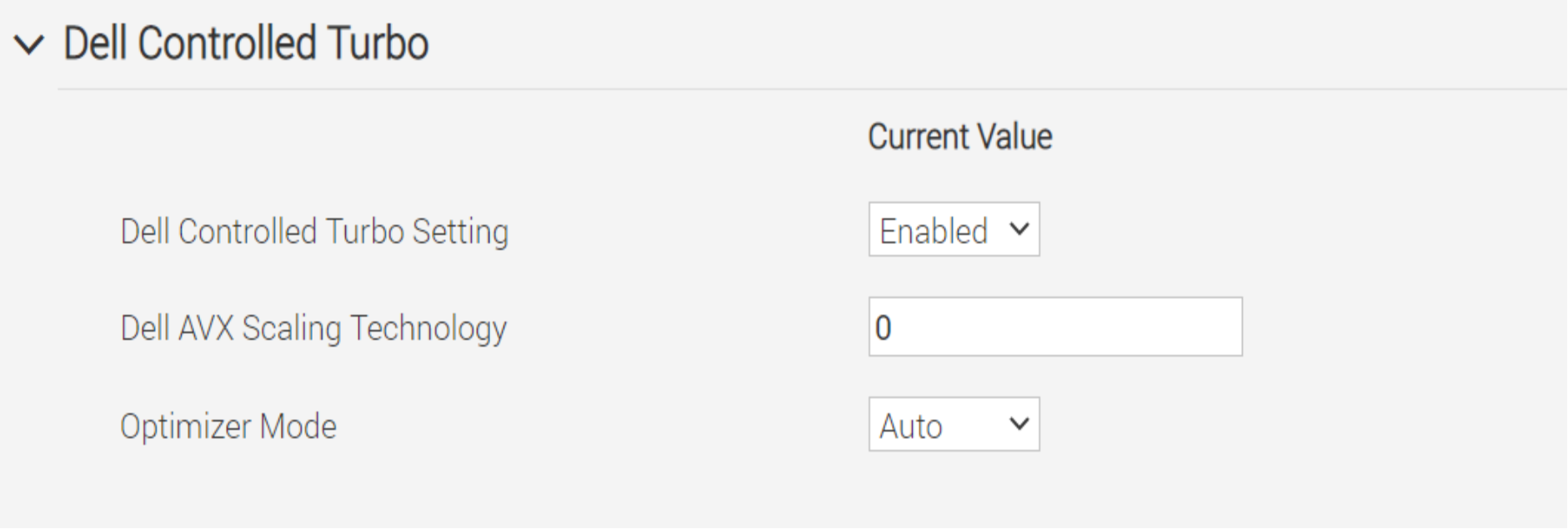
The Dell Controlled Turbo setting allows the CPUs to run at maximum speed. This option only works if the system profile is set to performance in the BIOS. In this best practice, we enabled the Dell Controlled Turbo with the Database Optimization Performance profile.
Recommendation
After enabling the Dell Controlled Turbo option, the following test metrics gained a slight increase in performance and considered as a Day 3, Fine Tuning best practice.
New Order per Minute (NOPM)
Transactions per Minute (TPM)
PowerStore IOPS
Server CPU utilization
Implementation steps
To enable Dell Controlled Turbo, log in to iDRAC and do the following:
- Click the Configuration pulldown menu
- Click the BIOS settings
- Navigate to Processors
- Select Dell Controlled Turbo
- Select “Enabled” in the dropdown list
Additional resources
Enable Dell Controlled Turbo on 15th Generation (15G) Dell PowerEdge Server
PowerEdge R750xs: Disable Unused Integrated Devices
By default, PowerEdge servers have USB and other ports enabled. In this best practice USB and serial ports are disabled because they can pose a security risk.
|
Category |
PowerEdge |
|
Product |
PowerEdge R750xs |
|
Type of best practice |
Performance Optimization |
|
Day and value |
Day 3, Fine Tuning |
Overview
Although we did not expect a significant performance improvement when we disabled USB ports and serial communication on the servers, it is still a good security practice. In this best practice the following ports were disabled in BIOS:
- User accessible USB ports
- Internal USB ports
- iDRAC Direct USB port
Recommendation
Disabling unused integrated devices did not improve any of the following metrics. It is considered as a Day 3, Fine Tuning best practice for security purposes.
- New Orders per Minute (NOPM)
- Transactions per Minute (TPM)
- Server CPU utilization
- PowerStore IOPS
Implementation steps
To perform these changes, log in to iDRAC and do the following:
- Click the Configuration pulldown menu
- Click the BIOS settings and Integrated Devices
- Go to User Accessible USB ports and select All Ports Off in the dropdown list
- Go to iDRAC Direct USB port and select Off in the dropdown list
Additional resources
Setting up BIOS on 15th Generation (15G) Dell PowerEdge Server
Consolidated best practices: Red Hat Enterprise Linux and SQL Server 2019
Red Hat Enterprise Linux and SQL Server 2019
This section discusses the combination of Linux best practices and SQL Server best practices. During our tests, we combined both the Linux and the SQL Server layer best practices and compared to the previous best practices test results. The following table lists the consolidated best practices for Linux and SQL Server.
Table 14. RHEL and SQL Server 2019 Best Practices
|
Best Practice |
Category |
Product |
Best Practice Type |
Day and Value |
|
SQL Server Tuned Profile |
Operating System |
RHEL 8.5 |
Performance Optimization |
Day 1, Highly Recommended |
|
Access Time |
Operating System |
RHEL 8.5 |
Performance Optimization |
Day 1, Highly Recommended |
|
CPU Affinity |
SQL Server |
SQL Server 2019 |
Performance Optimization |
Day 1, Highly Recommended |
|
Forced Unit Access |
SQL Server |
SQL Server 2019 |
Performance Optimization |
Day 1, Highly Recommended |
Red Hat Enterprise Linux: SQL Server Tuned Profile
The “tuned-adm” command line tool enables switching between different tuning profiles in Linux. In this best practice, we used the “tuned-adm” tool to switch to an optimized Linux profile for SQL Server.
Overview
The Linux operating system provides a system tuning tool called “tuned.” This tool is a profile-based tool that uses udev device manager. The “tuned-adm” tool enables the Linux administrator to switch between profiles for the operating system. Pre-defined profiles enable the application of Linux configuration settings in a downloadable package. In this best practice the TUNED-PROFILES-MSSQL was downloaded and installed in the Linux OS. This resulted in the following changes in the tuned SQL Server profile:
FORCE_LATENCY = 5
Certain configuration parameters that adjust the PM QoS CPU DA latency according to the CPU load. For example, the force latency parameter enables the user or in this case the SQL Server profile to force a specific value. For more information on this CPU configuration parameter and similar parameters, see the Red Hat Performance Tuning Guide.
VM.TRANSPARENT_HUGEPAGES set to ALWAYS
Transparent HugePage Support (THP) automates the promotion and demotion of memory pages. Promotion is the automation from small memory pages to larger memory page sizes and demotion is the automation from larger memory pages to smaller memory pages. SQL Server uses transparent HugePages to optimize performance thus, this parameter is set to ALWAYS.
VM.SWAPPINESS was set to 1
Swap space is used by the Linux kernel as virtual memory. The swappiness setting defines how aggressively the kernel will swap memory pages to disk. By changing VM.SWAPPINESS to 1, the kernel is instructed to swap as little as possible to disk and keep more memory pages in RAM.
VM.DIRTY_BACKGROUND_RATIO was set to 3
The DIRTY_BACKGROUND_RATIO is the percentage of memory that contains free pages and reclaimable pages, that can be filled with dirty pages before the pages are written to disk. Databases can aggressively use the kernel page cache which lowers the background ratio forcing the kernel to flush the dirty pages to disk more frequently.
VM.DIRTY_RATIO set to 80
The DIRTY_RATIO is the percentage of total system memory that contain dirty pages before the pages are written to disk. In setting dirty_ratio to 80, the kernel is instructed to use 80 percent of total system memory for dirty pages before having to flush the data to disk.
VM.DIRTY_EXPIRE_CENTISECS is set to 500
The DIRTY_EXPIRE_CENTISECS define in centisecs (one hundredth of a second) when data is old enough to be written to disk. By setting DIRTY_EXPIRE_CENTISECS to 500 a dirty page can stay in memory for 500 centisecs before it is written to disk.
VM.DIRTY_WRITEBACK_CENTISECS is set to 100
The DIRTY_WRITEBACK_CENTISECS parameter defines the frequency the kernel will check to write dirty pages to disk. In this case a value of 100 centisecs instructs the kernel to check every 100 centisecs to write dirty pages to disk.
VM.MAX_MAP_COUNT is set to 1600000
The MAX_MAP_COUNT defines the number of memory map areas a process may include. For example, databases use memory extensively which means increasing this value results in more memory map areas available for the database to use.
This best practice also included network and kernel settings updated by the MSSQL tuned profile. The following list describes the network and kernel settings that were updated by the MSSQL tuned profile:
NET.CORE.RMEM_DEFAULT = 262144
NET.CORE.RMEM_MAX = 4194304
NET.CORE.WMEM_DEFAULT = 262144
NET.CORE.WMEM_MAX = 1048576
KERNEL.NUMA_BALANCING = 0
The configuration changes made to the Linux operating system fine-tuned memory, network, and kernel configurations resulted in moderate performance improvements including more efficient use of system resources.
Implementation Steps
In this test case, we are going to create and enable Microsoft and Red Hat tuned-profiles-mssql profiles, which is recommended and offers finer Linux performance-related tunings for SQL Server workloads.
- To install the tuned-profiles-mssql profile, as root user, run the yum install command.
# yum install tuned-profiles-mssql -y
The tuned-profiles for MS SQL will be created under /usr/lib/tuned/mssql directory.
- Edit the tuned-profile and implement the settings provided in Step 3.
- Save the below settings in the tuned.conf file under the /usr/lib/tuned/mssql directory
#
# A Tuned configuration for SQL Server on Linux
#
[main]
summary=Optimize for Microsoft SQL Server
include=throughput-performance
[cpu]
force_latency=5
[sysctl]
vm.swappiness = 1
vm.dirty_background_ratio = 3
vm.dirty_ratio = 80
vm.dirty_expire_centisecs = 500
vm.dirty_writeback_centisecs = 100
vm.transparent_hugepages=always
# For multi-instance SQL deployments, use
# vm.transparent_hugepages=madvise
vm.max_map_count=1600000
net.core.rmem_default = 262144
net.core.rmem_max = 4194304
net.core.wmem_default = 262144
net.core.wmem_max = 1048576
kernel.numa_balancing=0
Note: If you are using Linux distributions with kernel version newer than 4.18, comment out the below kernel scheduler options, otherwise, uncomment them if you are using distributions with kernel version older than 4.18.
# kernel.sched_latency_ns = 60000000
# kernel.sched_migration_cost_ns = 500000
# kernel.sched_min_granularity_ns = 15000000
# kernel.sched_wakeup_granularity_ns = 2000000
- Enable the profile:
# chmod +x /usr/lib/tuned/mssql/tuned.conf
# tuned-adm profile mssql
- Verify the profile is active:
# tuned-adm active
Additional Resources
Performance best practices and configuration guidelines for SQL Server on Linux
Red Hat Enterprise Linux: Last Accessed Time (atime)
In this best practice we changed the default Linux XFS mount option per Red Hat guidelines.
Overview
The Linux operating system tracks the last time a file was accessed, a specification referred to as atime. For example, when the Linux operating system reads data from a data file, the access time is updated. Database frequently access data files and updating the access time with each access represents an overhead on the operating system possibly impacting performance.
It is possible to specify no access time (noatime), meaning the Linux operating system will not update the access time for files. The goal of this best practice was to reduce associated overhead and increase efficiency by setting the operating system to noatime.
Implementation Steps
To set noatime:
- Navigate to the /etc/fstab file and open it
- Replace “defaults” entry with “noatime” for the file system (ex. noatime,nodiratime)
Note: A remount of the file system is required.
Additional Resources
SQL Server 2019: CPU Affinity
In this best practice, we used processor affinity to optimize SQL Server performance. The goal is to define a range of processors for SQL Server to reduce thread migration and improve performance.
Overview
CPU affinity is the capability to define which processor cores the SQL Server engine will use for multitasking. By assigning processor cores, SQL Server only uses those processors for multitasking database operations. This can improve performance by reducing processor reloads and thread migration across processors.
The virtual machine supporting SQL Server has 10 allocated vCPUs. For this reason, we implemented the following configuration changes as part of this best practice:
- Configured SQL Server Processor Affinity to use processors 0 through 9, for a total of 10
- Validated that processor 0 through 9 belong to a single NUMA node
Implementation steps
Use the following command to set the affinity to CPU 0 through 9:
ALTER SERVER CONFIGURATION SET PROCESS AFFINITY CPU = 0 TO 9
Additional resources
SQL Server 2019: Forced Unit Access
In this best practice we implemented MS-SQL Forced Unit Access (FUA) to improve write performance of the SQL Server database.
Overview
FUA is a bit that is sent with writes to storage that improves database performance and durability. FUA was not supported prior to Linux kernel 4.18, which resulted in device level flushing that was inefficient and could impact storage I/O performance. SQL Server addressed storage inefficiency by minimizing flushes, but there was still room for improvement.
Starting with the Linux kernel 4.18, the XFS file systems support the FUA bit. The 4.18 Linux kernel allows the XFS file system and a device supporting FUA writes to avoid the additional block device flush requests. Using the Linux XFS file system and the FUA bit can significantly improve performance for write intensive workloads.
Implementation Steps
To set the trace flag for “writethrough” and “alternatewritethrough” option, perform the following steps:
$ /opt/mssql/bin/mssql-conf traceflag 3982 on
$ /opt/mssql/bin/mssql-conf set control.writethrough 1
- $ /opt/mssql/bin/mssql-conf set control.alternatewritethrough 1
Additional Resources
Recommendation
Results from validating the best practices of the Linux operating system and SQL Server 2019 showed a significant performance improvement. Results showed significant increase in:
- New Order per Minute (NOPM)
- Transaction per Minute (TPM)
- PowerStore IOPS
These best practices should be considered as Day 1 Highly Recommended in addition to other Day 1 best practices.
VMFS to vVols migration
VVols Overview
vVols is a new technology from VMware that offers a better way of provisioning, managing, and accessing virtual disks. vVols access and management are enabled by a software component called vStorage APIs for Storage Awareness (VASA) provider. VASA providers are developed by storage vendors. The vendor providers enable the creation of protocol end points which act as access points between the hosts and storage systems. vVols offer multiple benefits including the following:
- Storage policy-based management (SPBM) which allows to create and apply policies based on storage tier
- Improved datastore management
- Enhanced fine-grained storage operations and services
For more information about the benefit of vVols, see vSphere Virtual Volumes (vVols) and vVols Getting Started Guide.
Migration
Migrating to vVols can be achieved easily by implementing the steps outlined in this chapter.
vVols configuration and migration overview
The migration process can be achieved by using the following procedure:
- Time synchronization
- Storage provider registration
- Create storage container
- Create virtual datastore for vVols
- Migrate the datastore and disks from VMFS to vVols using storage vMotion
It is recommended to synchronize the time for all the hosts and vCenter Server instances.
Time synchronization
Perform the following steps for all the hosts that will use vVols.
- Select the host in the vSphere inventory.
- Click the configure tab.
- In the System section, select Time Configuration.
- Click Add service or Edit and set up the NTP server.
- Select Use Network Time Protocol (Enable NTP client).
- Enter the IP addresses of the NTP servers to synchronize with.
- Click OK. The host synchronizes with the NTP server.
- Stop/Start as required.
Storage provider registration procedure
To use vVols, The VASA provider must be registered with the vCenter. The storage capabilities are exported and presented to VMware based virtual infrastructure by using the protocol end points enabled by VASA.
Use the following steps to register the storage provider:
- Login to vSphere client.
- Go to vCenter Server in the vSphere Web Client navigator.
- Click the Configure tab and click Storage Providers.
- Click the + Add icon to register a storage provider.
- Enter the connection details for the new storage provider, including the name, URL, and credentials.
- Click OK to complete the registration
- Once the VASA is registered, create a vVol based datastore to utilize vVol based services.
Virtual datastore creation procedure
- Login to the vSphere Web Client.
- Select the host in the vSphere inventory.
- Right-click on the host and select the storage menu.
- Click New Datastore.
- Enter a unique datastore name.
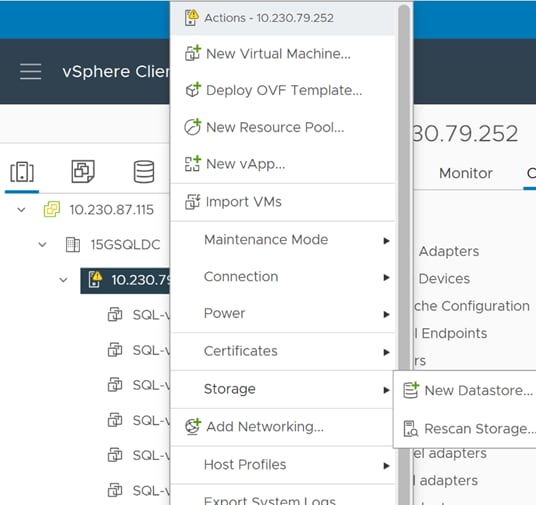
- Select vVol as the virtual datastore type.
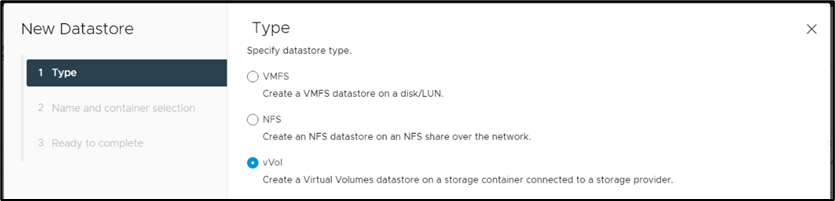
- Select the appropriate backing storage container which refers to the VASA that has been previously registered. This backing container will be used to host the virtual volumes.
- Click next to review the selections and click Finish.
- At the end of the procedure, the newly created datastore can be viewed on the host.
- To access the datastore on additional hosts, the datastore must be explicitly mounted on the required hosts as necessary.
Mounting the virtual datastore on additional hosts
- Perform this procedure from the Storage view of the vSphere Client.
- From the vSphere Client, go to the Storage view tab.
- Right-click on the preferred vVol virtual datastore and click Mount Datastore to Additional Hosts
- Select the available hosts to mount the Virtual Datastore and click OK.

Storage Policy Based Management
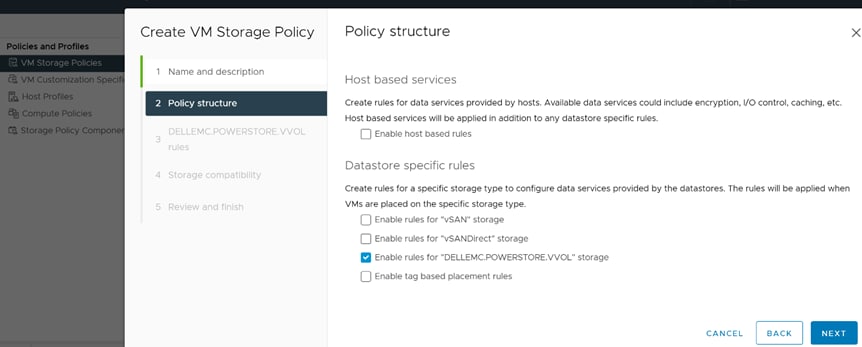
To create High IO priority/ High Qos Priority policy:
- Go to Policy and Profile
- Go to VM Storage Polices page in vSphere.
- Click CREATE and check Enable rules for “DELLEMC.POWERSTORE.VVOL” storage
Virtual Machine Migration with Storage vMotion
- Select the required virtual machine in the vSphere inventory and click Migrate.
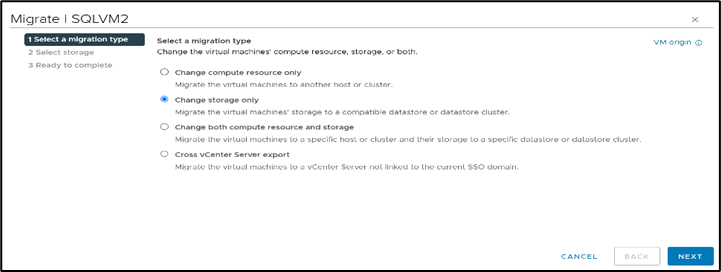
- Select Change storage only and click Next.
- Select the vVol datastore destination storage, virtual disk format (thick provisioning), select High Priority Policy and click Next.
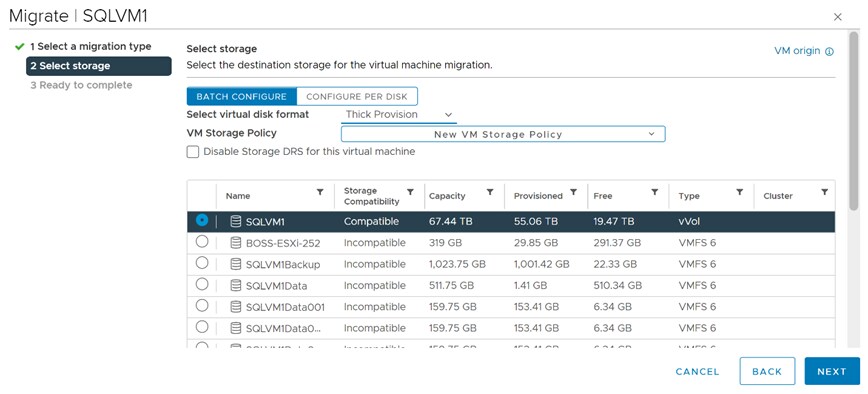
- Review the migration details including migration type, virtual datastore target, and disk format settings. Click Finish.
- Note: Depending on the number and size of the source virtual disks, it can take several minutes to complete the migration from VMFS to vVols.
- You can check the status of the migration under the recent tasks tab of the vSphere client.
- This migration process will create the necessary virtual volumes in the storage container of the storage system, as shown in the following screenshot.
- Confirm the availability and mapping of the new vVol datastore by browsing to the datastores tab of the VM.
See vSphere Virtual Volumes (vVols) and vVols Getting Started Guide for more information about implementing and migrating vVols.
Summary and conclusion
Summary
The Integrated Solutions team at Dell Technologies developed, validated, and consolidated SQL Server database best practices on 15G PowerEdge servers using Intel processors, PowerSwitches, and PowerStore 5000T storage. Improving customer outcomes continues to be a key tenet across all SQL solutions and the validated best practices demonstrate our commitment to ensuring customer success.
By grouping best practices by their return on performance, we streamline how customers can achieve the best results in the shortest time. This reduces complexity and risk by providing a plan that our customers can follow: Day 1, then Day 2 and, if needed, Day 3 best practices.
We value your feedback
Dell Technologies and the authors of this document welcome your feedback on the solution and the solution documentation. Contact the Dell Technologies Solutions team by email.