Intel-Based Oracle Server Day Three Best Practices
Performance Best Practices
PowerEdge R750xs: Enabling Processor x2APIC Support
The x2APIC BIOS setting is disabled on the PowerEdge R750xs server by default. In this best practice, we enabled the x2APIC setting to evaluate the impact on performance.
|
Category |
PowerEdge |
|
Product |
PowerEdge R750xs server |
|
Type of best practice |
Performance Optimization |
|
Day and value |
Day 3, Fine-Tuning |
Overview
The x2APIC is Intel’s Advanced Programmable Interrupt Controller design to improve efficiency in multiprocessor computer systems. An interrupt is a request by the software for the processor to respond to an event. For example, if an operating system requests that the processor suspend current activities and the processor accepts this request, the state of the current activities is saved, and the new request is processed.
The x2APIC is Intel’s most recent Advanced Programmable Interrupt Controller. Enhancements to x2APIC include support for more processors and improved performance. The PowerEdge R750xs used for testing best practices had two Intel Xeon Gold 6338 processors each with 32 cores for a total of 64 cores in the server. We also used VMware vSphere 7.3 to virtualize the Oracle database. Enabling x2APIC should create efficiencies for the PowerEdge multi-processor system and optimize the interrupt management of virtual machines.
Recommendation
Overall, the best practice of enabling x2APIC in BIOS can provide a minor improvement in the system performance. Enabling x2APIC is a Day 3, Fine-Tuning recommendation with these considerations:
- For new PowerEdge servers, consider enabling the x2APIC BIOS setting if the virtualization and/or operating system supports the new interrupt controller.
- For existing PowerEdge servers, consult support documentation and consider enabling this BIOS setting at the next maintenance window.
Implementation Steps
To enable the x2APIC BIOS setting, log in to iDRAC and perform the following:
- Click the Configuration pulldown menu
- Click the BIOS Settings and Open Processor Settings tab
- Navigate to x2APIC Model and select Enabled
- At the bottom of the page, click Apply and Reboot
Additional Resources
Setting up BIOS on 15th Generation (15G) Dell PowerEdge Servers
PowerEdge: Disable Unused Integrated Devices
By default, PowerEdge servers have USB and other ports enabled. In this best practice, USB and serial ports were disabled as both a security and performance best practice.
|
Category |
PowerEdge |
|
Product |
PowerEdge R750xs |
|
Type of best practice |
Performance Optimization |
|
Day and value |
Day 3, Fine-Tuning |
Overview
It is not expected that disabling USB ports on the servers will significantly improve performance, however, it is a good security practice. In this best practice the following ports were disabled in BIOS:
- User accessible USB ports
- Internal USB ports
- iDRAC Direct USB port
- Serial communication
Recommendation
Although disabling unused integrated devices showed no improvement, it is still considered as a Day 3, Fine Tuning best practice for security purposes.
Implementation Steps
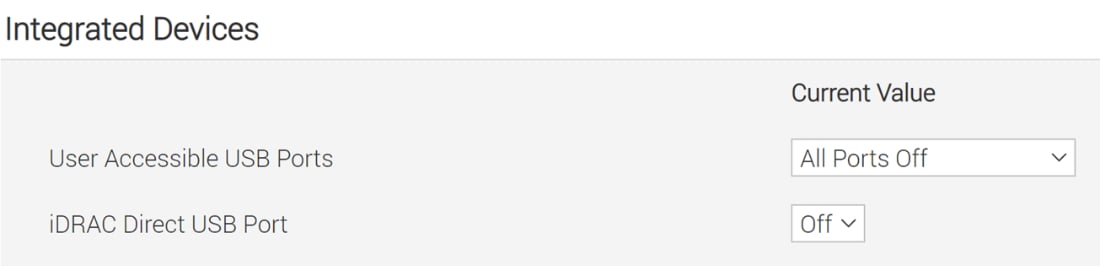
Go to IDRAC > Configuration > BIOS settings > Integrated Devices and make the following changes
- User Accessible USB Ports setting from All Ports On to All Ports Off
- iDRAC Direct USB Port setting from On to Off
Additional Resources
Setting up BIOS on 15th Generation (15G) Dell PowerEdge Servers