Microsoft SQL 2019 on Intel Optane Persistent Memory (PMem) Using Dell PowerEdge Servers
Introduction
Solution description
Document purpose
Audience
We value your feedback
Solution architecture
Solution architecture
This section describes the validated Dell EMC infrastructure along with the software components for this solution deployment.
We configured three bare metal servers using three different memory configurations, as shown in the following figure:
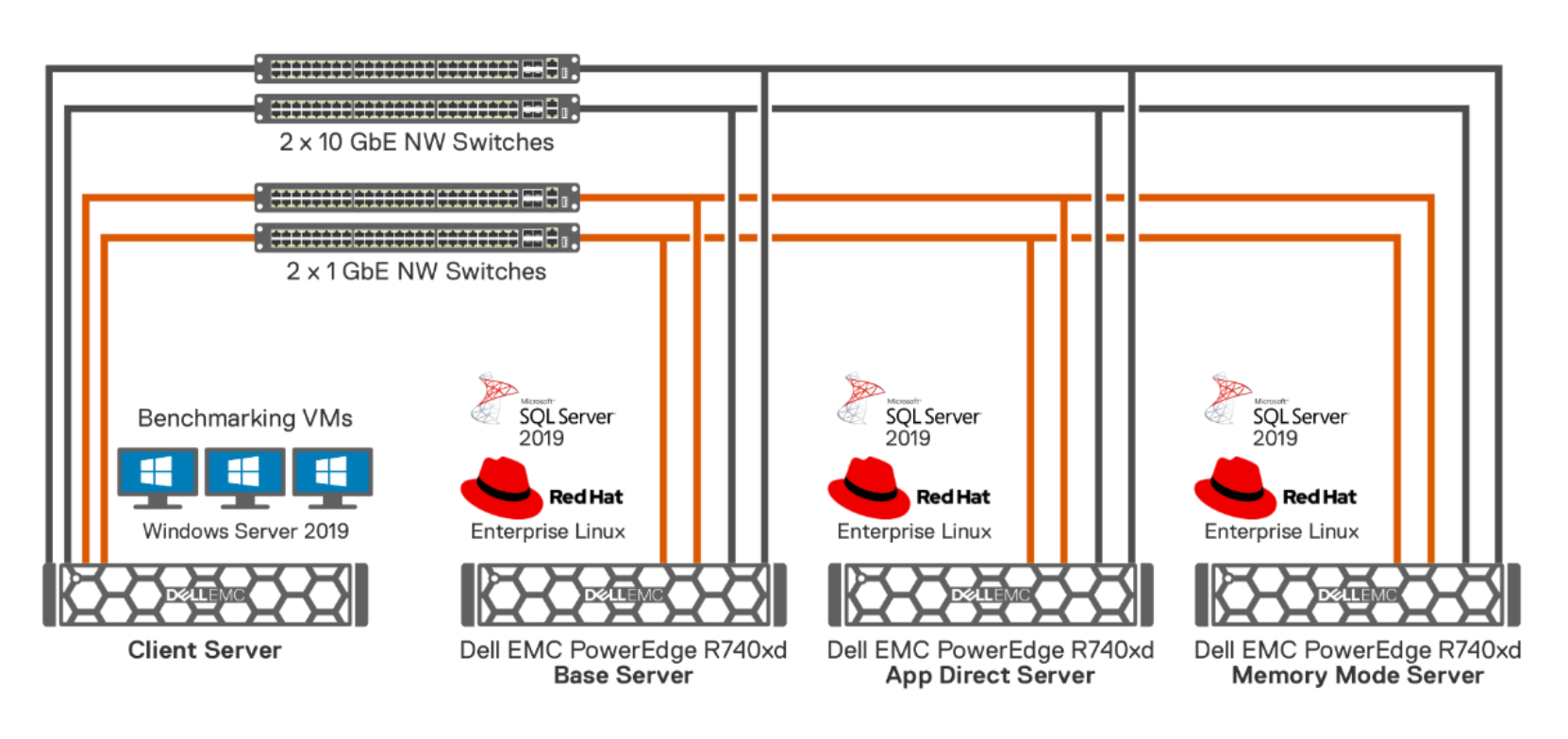
Figure 1. Solution architecture
Each node hosts the Red Hat Enterprise Linux 8.2 operating system along with SQL Server 2019 SP4.
Server layer
Network layer
Storage layer
Solution components
Intel Optane PMem module
The Intel Optane PMem module is an emerging technology in which nonvolatile media is placed on a dual inline memory module (DIMM). The DIMM is installed on the memory bus, which is traditionally used only for volatile memory.
This new persistent memory is designed to reside on the same bus along with volatile memory such as DRAM. It works with DRAM to achieve higher overall system memory capacity or to allow it to achieve better performance through DRAM caching.

Figure 2. Intel Optane PMem module
Unlike DRAM DIMMs, persistent memory DIMMS retain the data that is stored on them when the system shuts down or loses power. This feature allows the technology to be used as a form of permanent storage like HDDs or SSDs, except with memory-like latencies. Intel Optane PMem is based on the Intel Optane Memory technology and helps keep more data closer to the CPU for faster processing.
Intel Optane PMem comes in higher capacities than traditional DRAM. PMem modules come in 128 GB, 256 GB, and 512 GB capacities, which are vastly larger than DRAM flash drives that typically range from 4 GB to 128 GB. Persistent memory modules (PMMs) are on the same channel as DRAM and must be populated on the slot closest to the CPU on each channel. A recommended configuration uses a 4:1 or an 8:1 ratio. In our solution deployment, we used the following ratios:
- Memory mode server, we used an 8.1 ratio with 32 GB DRAM to 256 GB PMem
- App Direct server, we used a 4:1 ratio with 64 GB DRAM to 256 GB PMem
Intel Optane PMem operating modes
When deployed in a server, the persistent memory modules (PMMs) can be configured in various operating modes. The operating modes include Memory Mode and App Direct Mode, along with a sliding scale of in-between allocations called mixed mode. However, this guide addresses Memory Mode and App Direct Mode only.
Memory Mode
In Memory Mode, persistent memory modules are used similarly to DRAM, as shown in the following figure. There is no need for specific software or changes to existing applications. Persistent memory behaves like DRAM keeping the data “volatile”, though the volatile key is cleared after every power cycle.
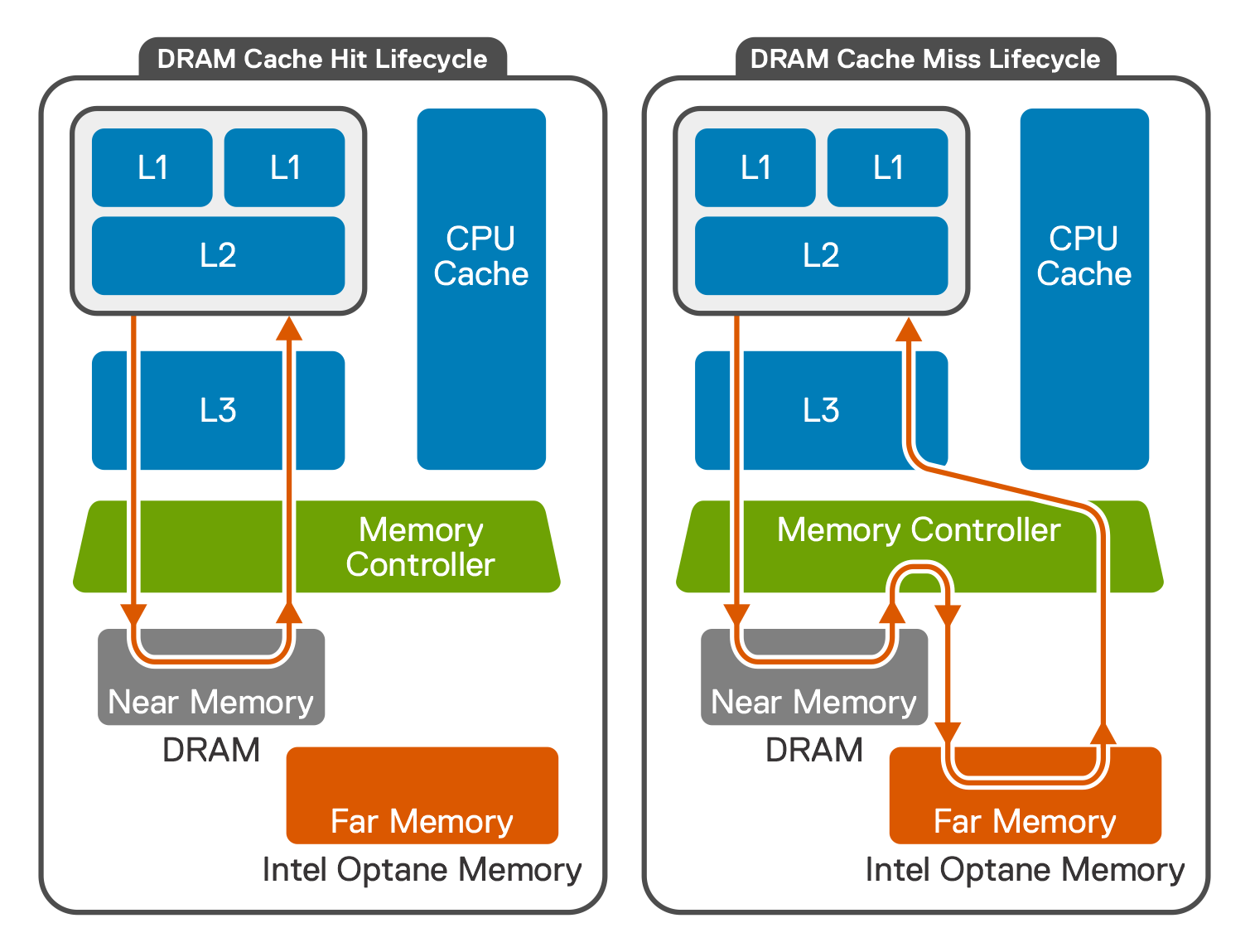
Figure 3. Memory Mode operation
In Memory Mode, persistent memory is used as an extension of DRAM and is managed by the host memory controller. There is no set ratio of persistent memory to DRAM; the mix depends on application needs. Regarding the latency profile, any hits to the DRAM cache (near memory) deliver with submicrosecond latency. However, any cache misses flow to the persistent memory (far memory), which delivers latency in the submicrosecond range.
App Direct Mode
App Direct Mode requires specific persistent memory-aware software and applications. This mode makes the persistent memory “in place persistent” but is still byte-addressable as is normal memory.
In App Direct Mode, persistent memory remains cache coherent. It also offers the ability to perform:
- Direct Memory Access (DMA)—The ability of a device to access host memory directly, without the intervention of the CPU
- Remote Direct Memory Access (RDMA)—The ability to access (read, write) memory on a remote machine without interrupting the processing of the CPUs on that system
The following figure shows the operation of App Direct Mode:
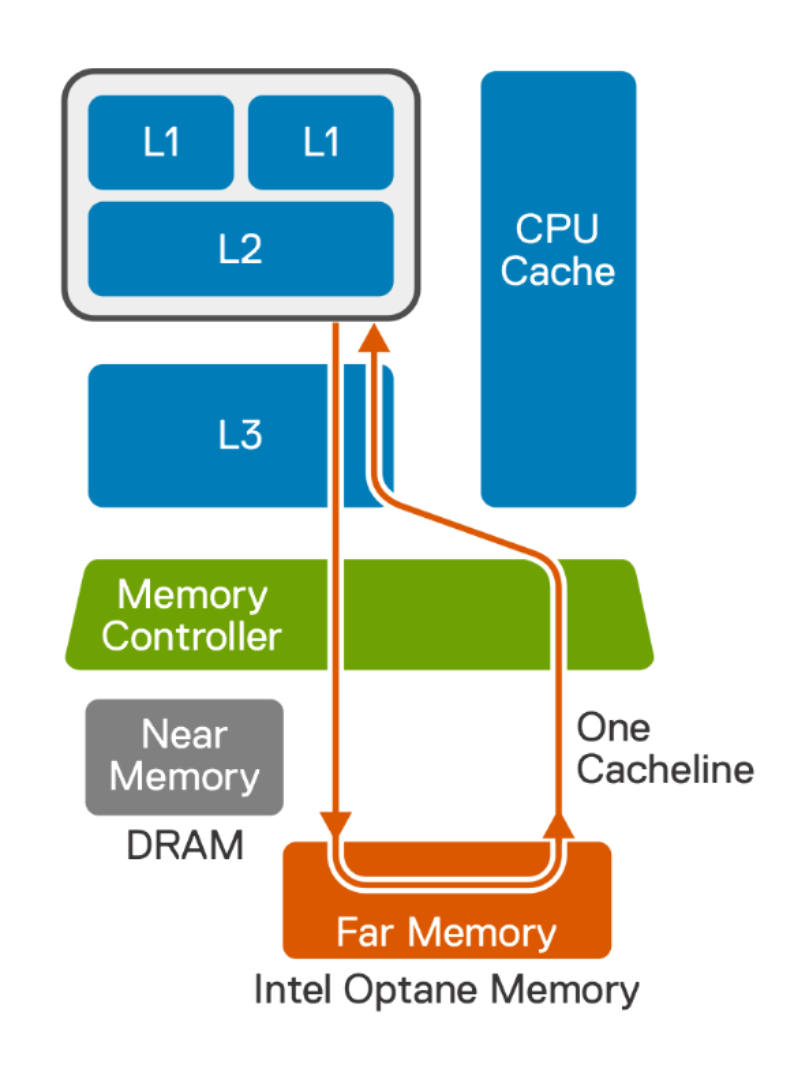
Figure 4. App Direct Mode operating mode
You can also configure persistent memory as storage over App Direct. Persistent memory acts in blocks like SSDs do, with traditional read/write instructions. This method works with existing file systems, offers atomicity at a block level, and is block-size configurable (4 K, 512 B). An NVDIMM driver is required to use storage over App Direct. This mode enables capacity scaling and better performance, lower latency, and higher endurance than traditional enterprise class SSDs.
Microsoft SQL Server 2019
To optimize the use of Intel Optane PMem capabilities, applications must be modified to handle underlying data in a non-traditional manner (using file system APIs). At the time of this publication, few applications have completed the required changes to their code base.
Application code modifications became necessary with SQL Server 2016 SP1. Microsoft has added significant features for placing “persisted log buffer” to persistent memory that is configured in App Direct Mode with Direct Access (DAX) formatting.
SQL Server 2019 adds significant features—Tail of Log, enlightenment, and the hybrid buffer pool—that enable better use of PMem modules in a more transparent and consistent way to meet the ever-increasing performance demand.
The following sections describe each of these features.
Tail of Log
During normal database transactions, at any given time, various log blocks are in the process of moving to stable media. This volatile portion of the log is considered the “Tail of Log”. Tail of Log (or log buffer) is a portion of the log (LDF) file that is still in log cache. This portion of the log is actively receiving transactions and has yet to be flushed to persistent media.
The following figure shows that the SQL Server Log Cache is in memory:
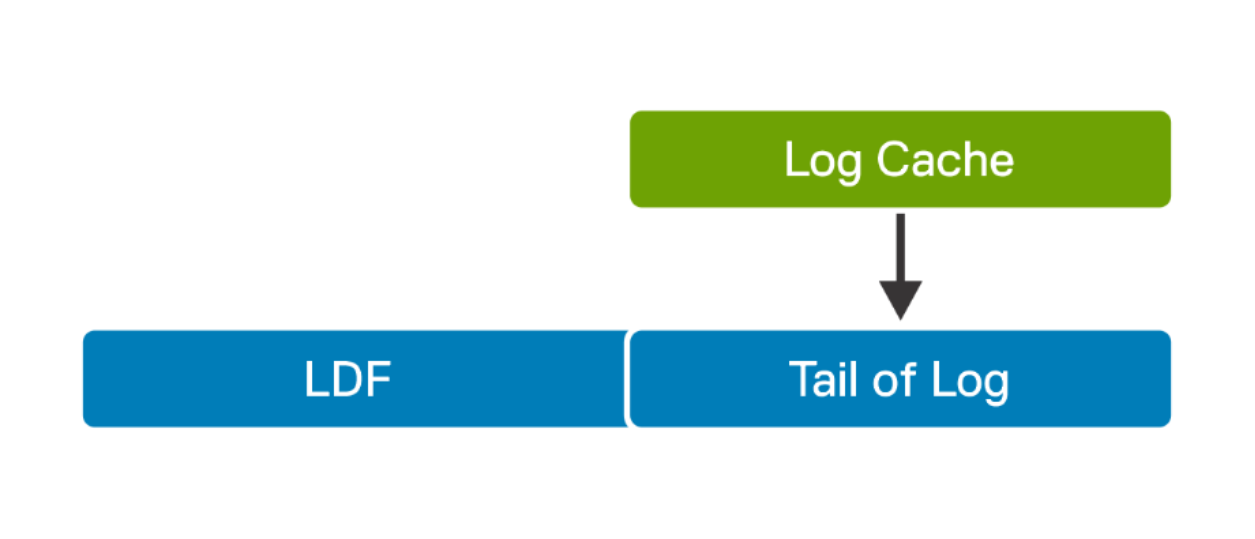
Figure 5. SQL Server log file
During crash recovery, SQL Server uses techniques such as parity bits to determine if the blocks in the Tail of Log have been successfully written.
Nonvolatile storage can be directly mapped into the process address space. This method means that SQL Server can use the memcpy function to copy the log record directly to nonvolatile storage at near DRAM speeds, avoiding the block storage stack (drivers, filter managers, anti-virus, and so on). The primary design behind the capabilities of SQL Server, Persistent Memory, and Direct Access is to use PMem as a stable cache for the Tail of Log write activities.
For more details, see the Microsoft blog about Tail of Log.
SQL Server enlightenment mode
When Intel Optane PMem devices are formatted with the DAX option in App Direct Mode, PMem offers byte-addressable storage that bypasses the Kernel I/O stack. SQL Server 2019 uses this feature (called enlightenment mode), which enables data and log file storage directly on the DAX-formatted volumes (see Create DAX volumes). Enlightenment mode enables placement of data and logs on faster PMEM storage. It accesses data and log files through direct memory access, which provides better transactional throughput.
The following figure shows the enlightenment mode architecture:
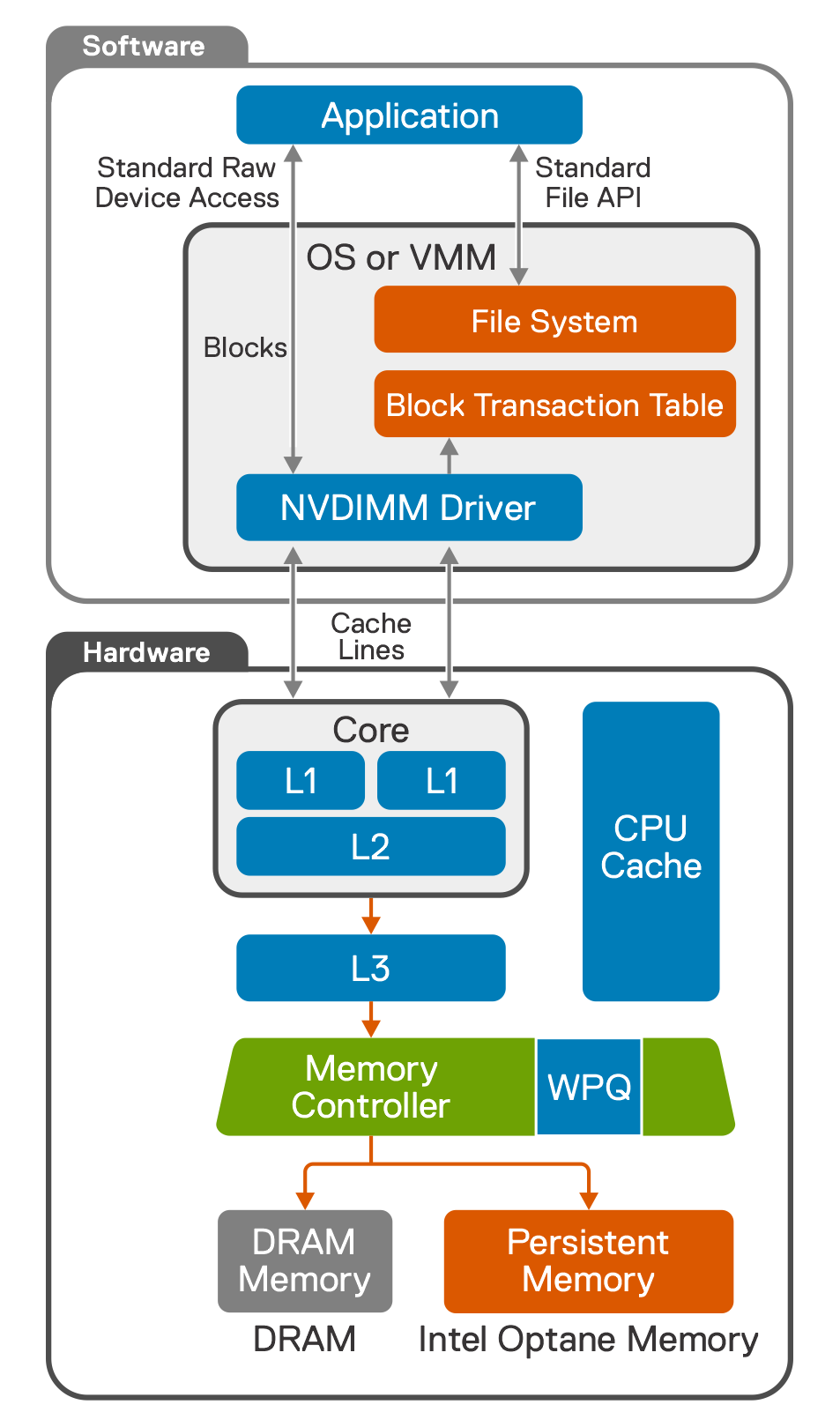
Figure 6. Enlightenment mode architecture
Enlightenment mode is fully supported only on Linux operating systems. Code backporting is not available on Windows Server. To use this feature, create a database on DAX-formatted volumes. The database is automatically enabled for enlightenment mode.
SQL Server hybrid buffer pool
SQL Server 2019 introduced the hybrid buffer pool feature, which requires PMem devices to be formatted with the DAX option. This feature is available for both Windows and Linux operating systems.
The hybrid buffer pool feature enables database engines to access data pages directly in database files that are stored on persistent memory devices, as shown in the following figure:
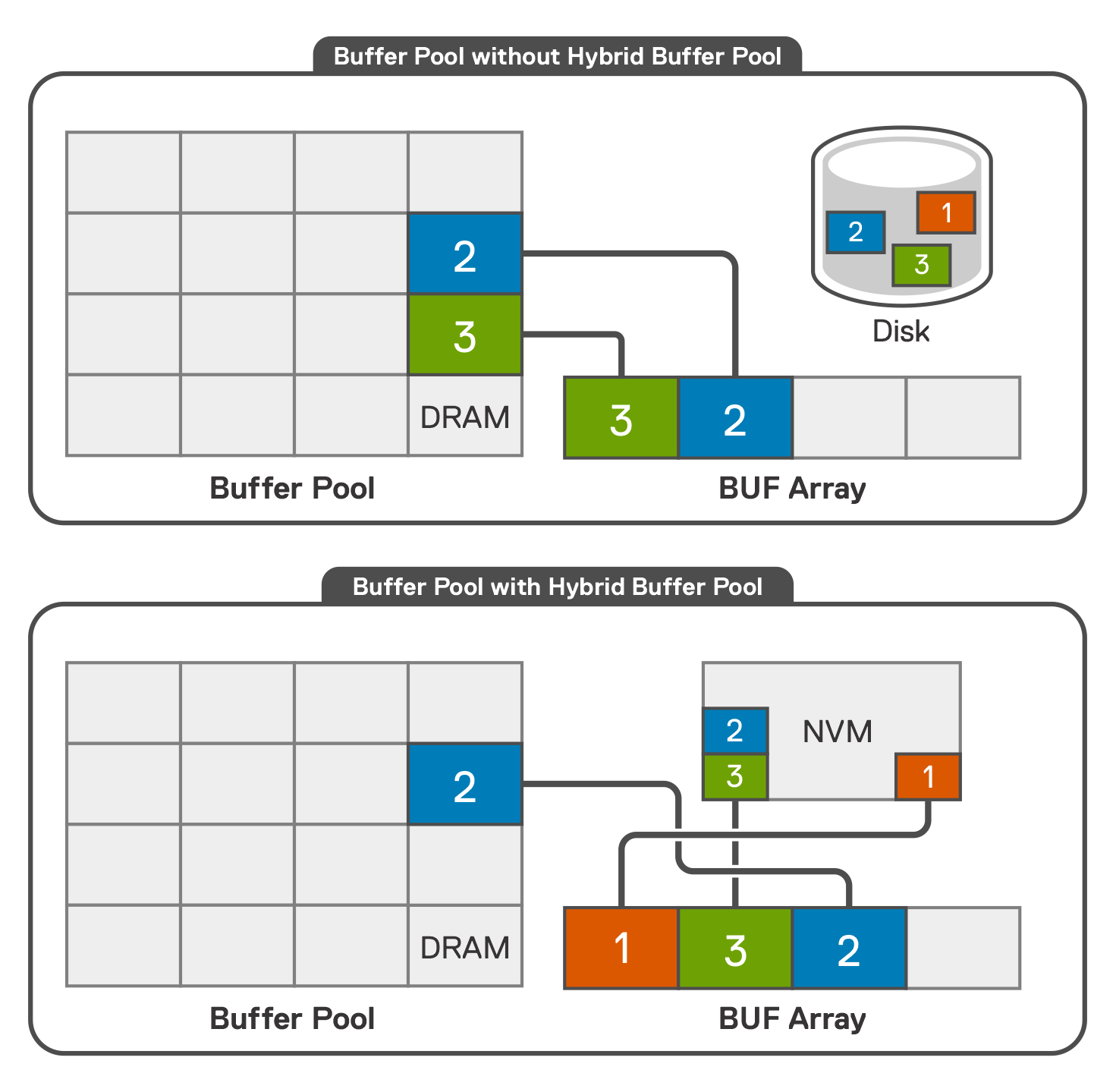
Figure 7. Hybrid buffer pool feature
NTFS, XFS, and EXT4 files systems support this feature.
When databases files are stored on PMem devices, SQL Server automatically detects if datafiles reside on an appropriately formatted PMem device and performs memory mapping in a user space. This mapping occurs during startup when a new database is attached, restored, or created, or when the hybrid buffer pool feature is enabled for a database.
In a traditional system without PMem, SQL Server caches data pages in the buffer pool. With hybrid buffer pool, SQL Server skips copying the page into the DRAM-based portion of the buffer pool. Instead, it accesses the page directly on the database file that resides on a PMem device. Read access to datafiles on PMem devices for hybrid buffer pool is performed directly by following a pointer to the data pages on the PMem device.
Only clean pages can be accessed directly on a PMem device. When a page is marked as dirty, it is copied to the DRAM buffer pool before eventually being written back to the PMem device and marked as clean again. This process occurs during regular checkpoint operations. Read-heavy workloads with a larger working set, which require more memory, often benefit from this feature.
Use cases and considerations
Use cases and considerations
App Direct Mode
For one use case, we configured PMem in App Direct (persistent storage) Mode, which keeps data and log files for our test database on the Optane volume. On the baseline server, we kept data and log files for the test database on NVMe volumes.
The following two figures show the storage layout of both the baseline and Optane servers:
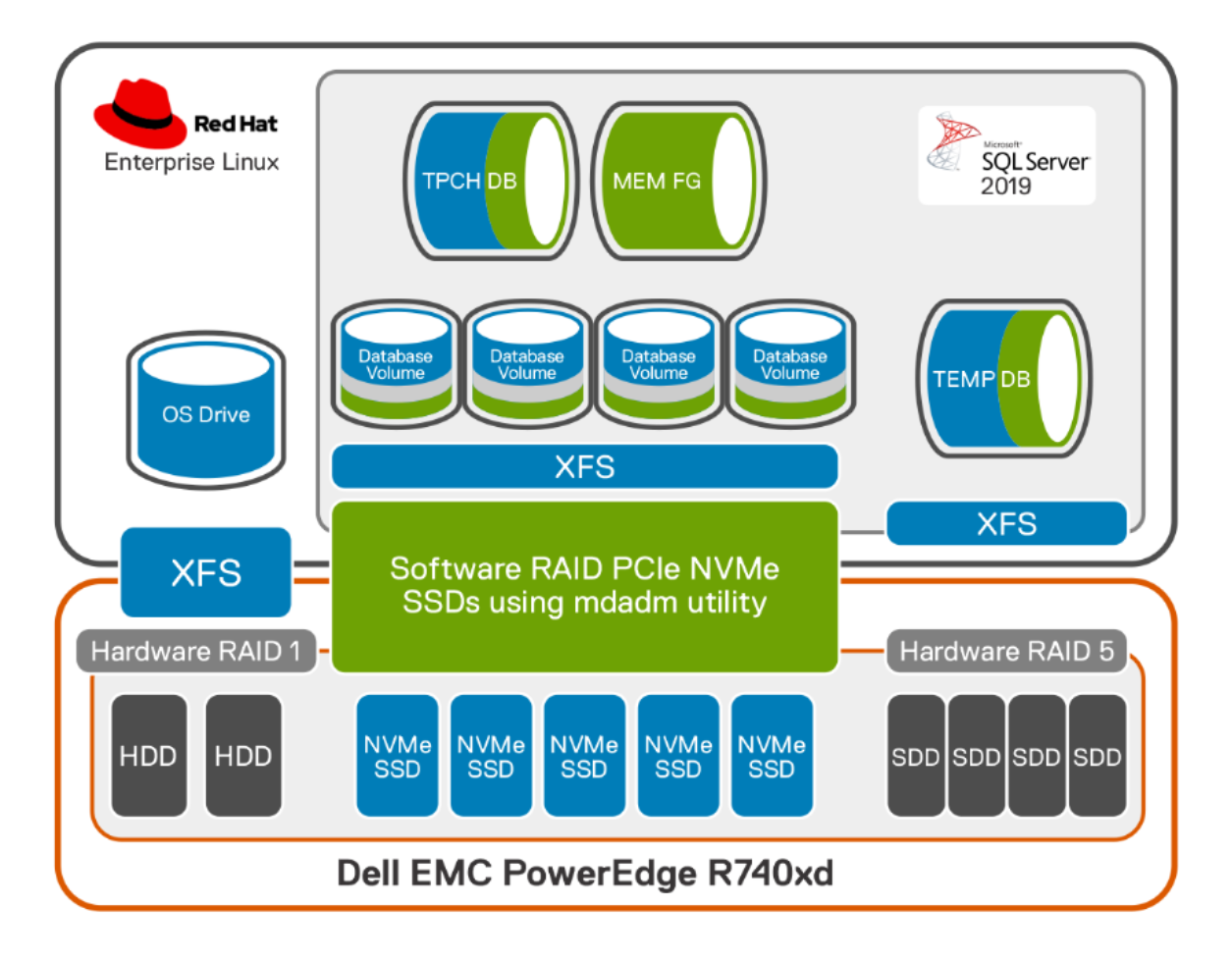
Figure 8. Baseline server storage layout
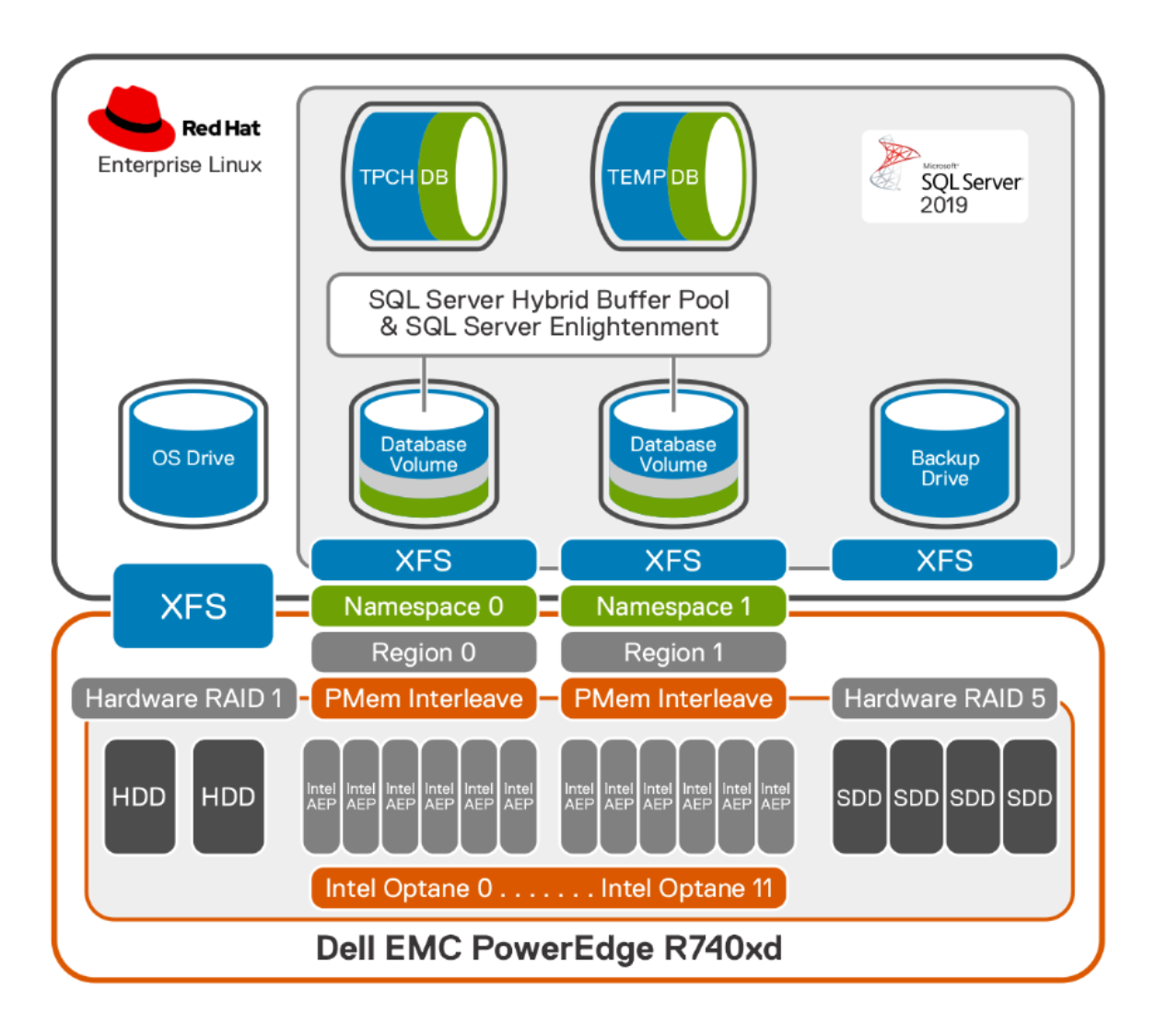
Figure 9. App Direct server storage layout
To conduct our study, we used the industry-standard HammerDB benchmarking tool to stress-test both the baseline and App Direct server storage. We used the TPC-H Decision Support System (DSS) workload with a scale factor of 1000.
Multiple settings can be modified and configured at different layers of the deployment. For detailed steps to configure these parameters, see Setting up and configuring the solution deployment.
The following table lists the parameter settings:
Table 3. Parameter settings for App Direct server storage
|
Parameter settings |
Options |
|
|
PMEM |
Performance Profile |
BW Optimized | Latency Optimized | Balanced |
|
Namespace mode |
FSDAX | DEVDAX |
|
|
Namespace mapping |
Mem | Dev |
|
|
Namespace Sector size |
512 | 4096 |
|
|
File System |
File System |
XFS | EXT4 |
|
File System Reflink |
0 | 1 |
|
|
File System Allocation Unit |
4k | 2m |
|
|
SQL Server |
Memory |
128 GB | 256 GB | 512 GB |
|
Trace flags |
834| 1810 | 3979 |
|
|
MAX DOP |
Default| 12 |
|
|
HBP ENABLED |
ON | OFF |
|
|
Memory Optimized tempdb metadata |
ON | OFF |
|
|
Dataset Indices |
rowstore | columnstore |
|
|
tempdb location |
On NVMe | On DAX |
|
Our study shows an improvement in performance for both single stream and multistream executions of the TPC-H workload. The performance improves when we include rowstore and columnstore indexes in the comparison.
Memory Mode
For the second use case, we configured PMem in Memory (nonpersistent) Mode where it is available as additional system memory. This configuration enables us to access additional memory at the operating system level to provide an effective alternative to traditional DRAM in SQL Server. This memory is an extension of the memory available for the SQL Server buffer pool and data cache, or extended portions for in-memory environments.
The following figure shows the storage layout of the Optane server:
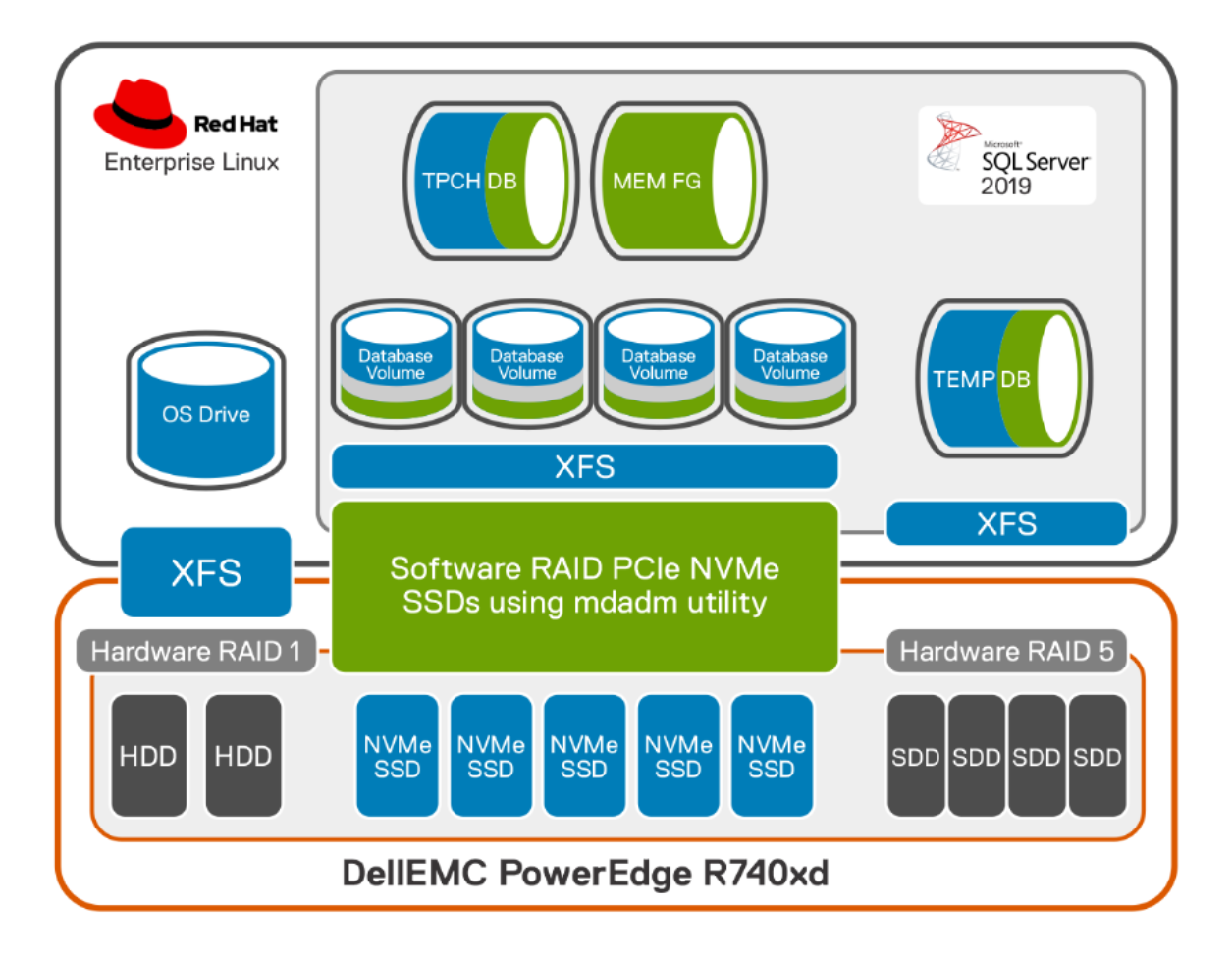
Figure 10. Memory mode server storage layout
The larger amount of memory available for the operating system offers two options for:
- More memory for a disk-based table for SQL Server to use as a larger buffer pool and data cache that is beneficial for OLAP workloads. For details about increasing memory assigned to SQL Server in Red Hat Enterprise Linux, see Configure SQL Server.
- More memory for memory-optimized tables in SQL Server databases. For best practices and considerations for creating memory-optimized tables and structures, see Configure SQL Server.
To assess the capabilities of PMem in these test cases, we used a 3 TB database generated by using HammerDB with columnstore indexes. For details about the configuration, see Benchmarking configuration.
With an increased amount of available memory, the system with PMem used a larger buffer pool and data cache performance increased, especially during the throughput run.
Setting up and configuring the solution deployment
Setting up and configuring the solution deployment
Configure the BIOS
At the BIOS level, we configured the following settings.
Set system profile settings
All PowerEdge servers have multiple system profiles that can be used to achieve an outcome that is based on users and workload requirements. There are predefined profiles that you can change.
We changed the following to obtain the best outcome:
- System profile to Performance on all the test servers:
BIOS configuration--> System Profile settings --> System profile = Performance
- Intel Persistent Memory Performance Setting to BW Optimized on all the test servers:
BIOS configuration--> System Profile settings --> Intel Persistent Memory Performance Setting = BW Optimized
Intel Optane PMem has a separate performance profile that can be changed to receive the required performance outcome for a specific workload. There are three values (BW Optimized, Latency Optimized, and Balanced Profile).
Set processor settings
We enabled Intel Hyperthreading technologies by enabling the Logical Processor settings:
BIOS configuration --> Processor settings --> Logical Processor = Enabled
Prepare Intel Optane PMem
To use Intel Optane PMem in our deployment (either in Memory or App Direct Mode), we prepared the PMem in our BIOS settings following our requirements.
Configuring the Intel Optane memory DIMMs consists of two steps:
- Creating a goal configuration from the BIOS environment
- Creating the namespaces with an installed operating system
Note: Configure the DIMMs after you install the operating system on the server.
Create a goal configuration
To access the memory DIMMs, create a goal configuration using the ndctl utility at the operating system level, using the system setup dialog, or using the Integrated Dell Remote Access Controller (iDRAC).
Note: You can perform this procedure without an operating system on the server.
To create a goal configuration using the iDRAC:
- Log in to the iDRAC of the PMem server and select Configuration --> BIOS Settings.
- Expand Memory Settings and then expand Persistent Memory, Region Configuration, and Create goal config (as shown in the following figure):
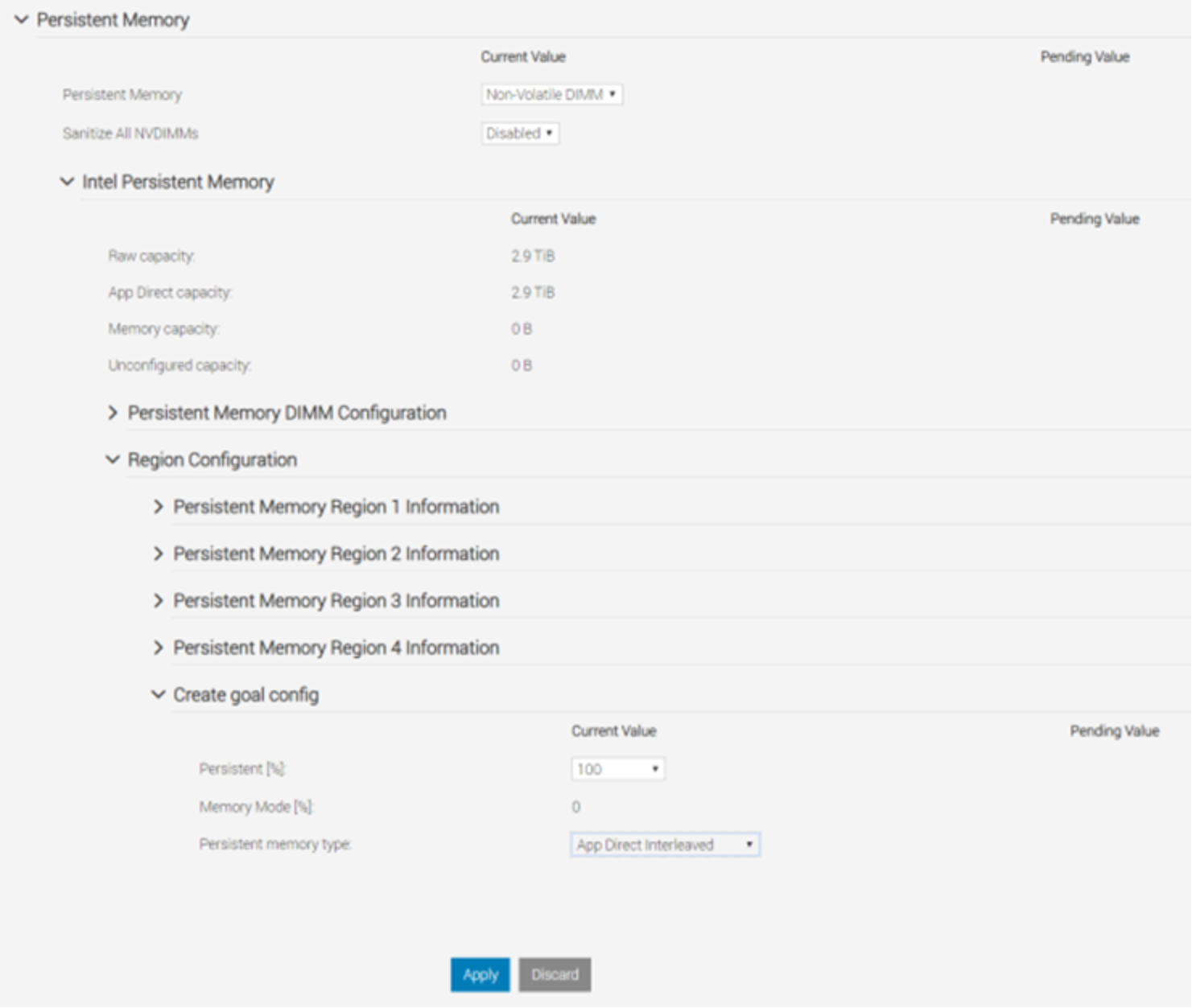
Figure 11. Persistent memory settings
- Do one of the following:
- To configure Intel Optane PMem in App Direct Mode:
i From the Persistent [%] drop-down list, select 100.
ii From the Persistent memory type drop-down list, select App Direct Interleaved to create a per-socket configuration.
- To configure Intel Optane PMem in Memory Mode, from the Persistent [%] drop-down list, select 0.
- Click Apply and then reboot the server.
Configure RAID groups and storage
Perform the following configuration procedures before you install the operating system.
Configure the hardware RAID group
Configure the following RAID groups for different purposes:
- RAID 1 with 2 x 1.2 TB 10K RPM SAS 12 Gbps Hard Disk Drive for operating system installation
- RAID 5 with 8 x 960 GB SSD SAS Mixed use 12 Gbps for backup and other files
For more information, see Configuring RAID for Dell PowerEdge R740xd.
Configure storage
This section describes how to configure different storage volumes (for example, SSDs, PCIe NVMe SSDs, and DAX).
Configure SSD volumes
We used the PERC H740P RAID Controller to create RAID groups for the SSD. Then, we created volumes on the RAID groups:
- View the storage device on Red Hat Enterprise Linux:
df -h
- Create the GUID Partition Table (GPT) on the specific storage device:
parted /dev/sdb -- sdb is a storage device example
mklabel gpt -- perform gpt partitioning
p -- look for any existing partition
rm 1 -- remove any existing partition by specifying its partition number
quit
- Create a single primary partition on each storage device:
fdisk /dev/sdb
p -- to list the partition
n -- to create new partition
p -- to select primary partition and provide the default values
w -- write newly created partition from memory to disk
- Create the file system (XFS in this case) on the same storage device:
mkfs.xfs /dev/sdb1
- Find the block ID and mount it on a directory of your choosing:
mkdir -p /localvolume/ssd
mount /dev/sdb1 /localvolume/ssd
- To obtain the UUID, run the following command:
blkid | grep sdb1
- Add an entry in /etc/fstab so that mounting is permanent:
UUID=<UUID> /localvolume/ssd2 xfs defaults 0 0
Where <UUID> is the UUID obtained in the previous step.
Configure NVMe volumes
We created an NVMe volume with a software RAID group configuration.
We configured a RAID 5 volume for all four NVME SSDs (4 x 3.2 TB Intel PCI NVMe SSDs P4610) using the software RAID utility (mdadm).
- On all the NVMe SSDs, initialize GPT partitioning:
parted /dev/nvme0n1
mklabel gpt
p
<if partition already exists, remove it using>rm 1
quit
- On all the NVMe SSDs, use the fdisk utility to initialize partitioning:
fdisk /dev/sdb
p
n
p
t
29 <for changing the file type to Linux RAID>
wq
- Create the software RAID array on Express Flash drives using the Linux mdadm utility:
mdadm --create /dev/md0 --level=5 --raid-devices=4 /dev/nvme[0123]n1p1
This example creates a RAID 1 array using four flash drives: /dev/nvme0n0, /dev/nvme0n1, /dev/nvme0n2, and /dev/nvme0n3.
- View the status of the md0 multidisk array:
mdadm --detail /dev/md0
- Make the array persistent across reboots. Add md0 to the configuration file so that it is recognized next time on boot:
mdadm -Es | grep md0
- If the previous command does not display the details of the md0 array, run the following command, otherwise go to step 7:
mdadm -Es | grep "md/0"
- To add information to the mdadm.conf file, do one of the following:
- If you followed step 5, run the following command:
mdadm -Es | grep md0 >> /etc/mdadm.conf
- If you followed step 6, run the following command:
mdadm -Es | grep "md/0" >> /etc/mdadm.conf
- Check that the resynchronization is complete by using the --detail option to ensure that the two SSDs in the array are not in the Resync Status
mdadm --detail /dev/md0
Wait until the resynchronization is complete before you run a test against the RAID volume on the NVMe SSDs.
- To delete the array:
- Stop the array:
mdadm --stop /dev/md0
- Delete the superblock from all drives in the array:
mdadm --zero-superblock /dev/sd[abc]1
- Delete any rows related to the deleted array or arrays from the /etc/mdadm.conf file.
Create DAX volumes
Create a DAX volume when Intel Optane PMem is configured in App Direct mode:
- Configure the BIOS, as described in BIOS configuration.
- List the unconfigured Optane devices on the system:
ndctl list -N
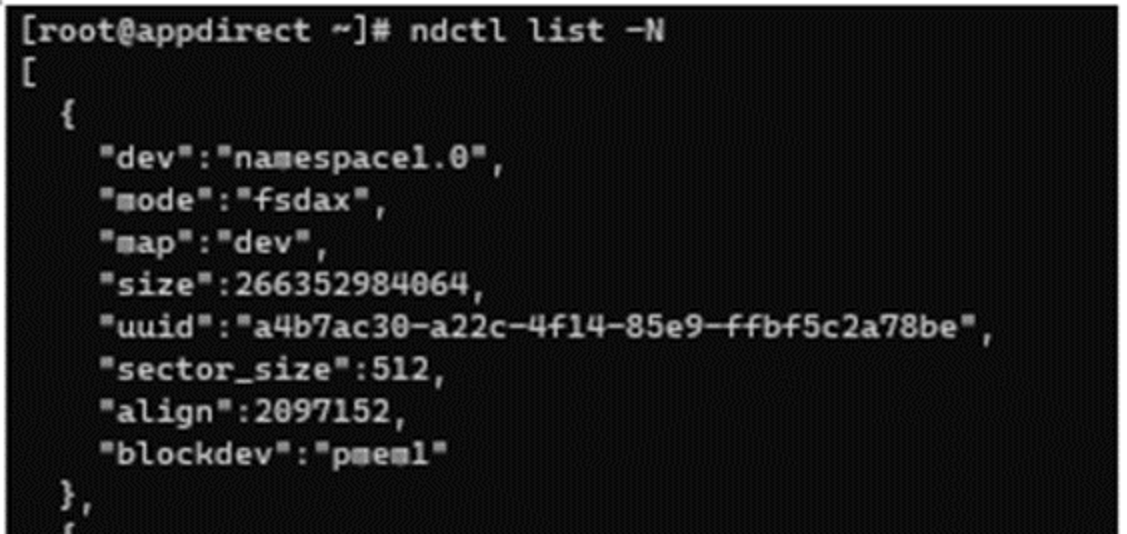
- Configure the namespace:
ndctl create-namespace --reconfig namespace0.0 --mode=fsdax --map=dev --size 270582939648 –verbose
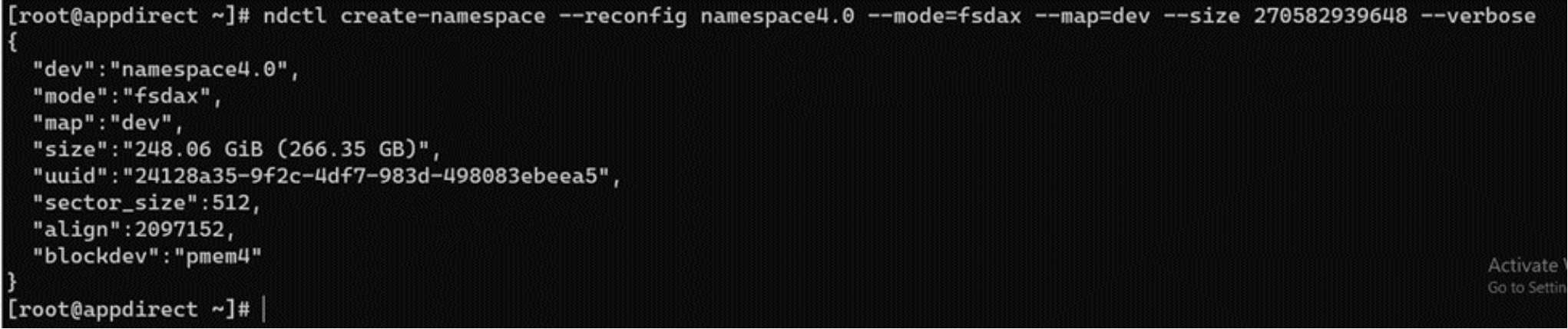
- Similarly, create additional namespaces for the remaining 11 Optane devices so that there is namespace0.0 to namespace11.0.
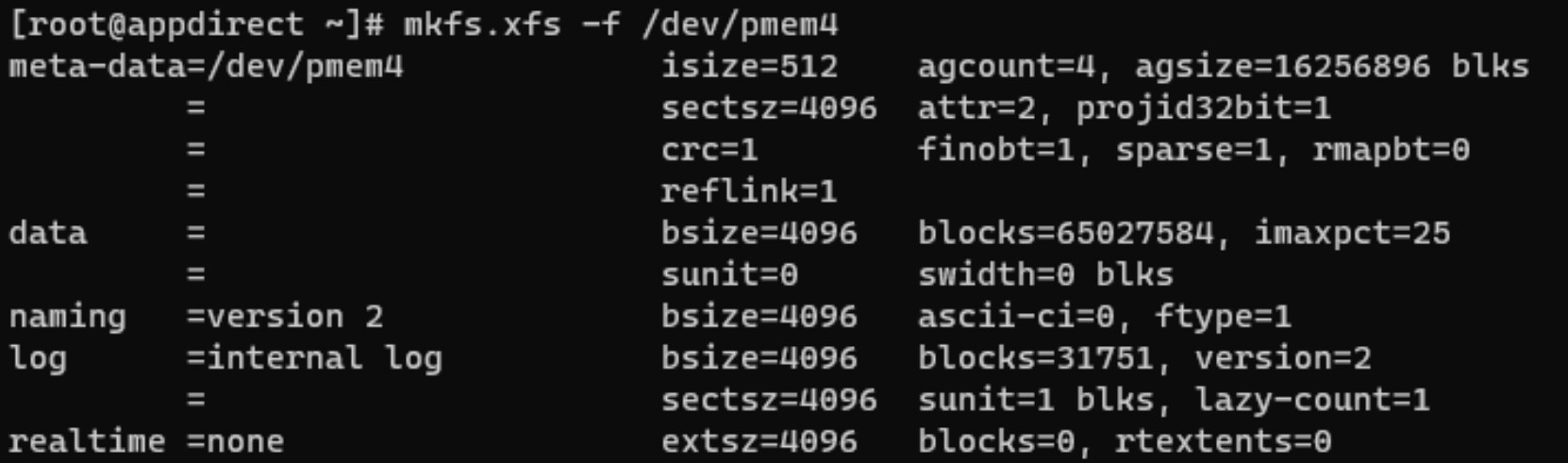
- Create the XFS file system on the Optane devices:
mkfs.xfs -f /dev/pmem4
- Find the block ID and mount on the directory of your choosing:
mkdir -p /pmemvol/dax0
mount /dev/pmem0 /pmemvol/dax0
- For the mounting to be permanent, add an entry in /etc/fstab:
/dev/pmem0 /pmemvol/dax0 xfs noatime,dax,x-systemd.device-timeout=1200 1 2
Make entries for the other DAX volumes, also.
- Mount all the DAX volumes:
mount -a -t xfs
- Verify the mounted devices:
df -h|egrep "File|pmem"
Filesystem Size Used Avail Use% Mounted on
/dev/pmem0 252G 792M 252G 1% /pmemvol/dax0
/dev/pmem1 252G 792M 252G 1% /pmemvol/dax1
/dev/pmem2 252G 792M 252G 1% /pmemvol/dax2
/dev/pmem3 252G 792M 252G 1% /pmemvol/dax2
…………………………………………………………
/dev/pmem11 252G 792M 252G 1% /pmemvol/dax11
Install the operating system
Configure the network
After Red Hat Enterprise Linux 8.2 is installed, configure the network. For our solution deployment, we configured static IPv4 addresses for all the hosts.
Note: If you have DHCP set up in your environment, you can omit these steps as DHCP automatically configures dynamic IP addresses for all the hosts when the installation is completed.
- List all the interfaces on the system and identify the interface to be modified by using the ip addr command, as shown in the following example:
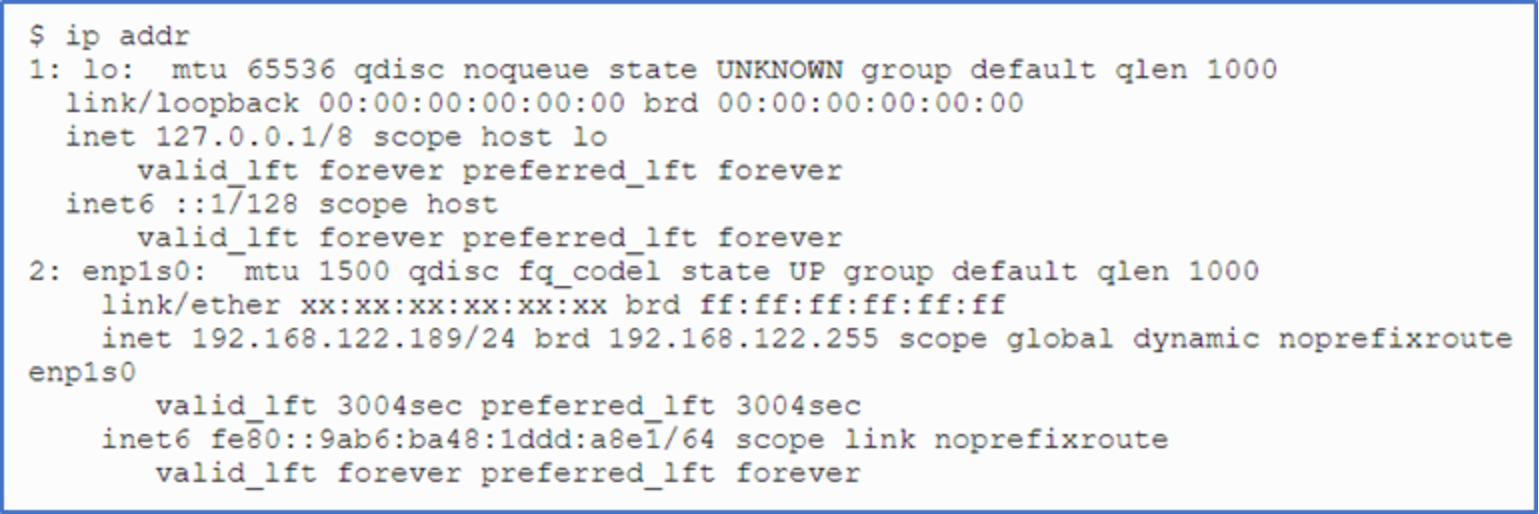
Figure 12. List of interfaces
- Change the IP address of the enp1s0 interface using a direct nmcli command:
sudo nmcli connection modify enp1s0 IPv4.address 192.168.122.66/24
where 192.168.122.66 is the IP address and /24 is the routing prefix in Classes Inter-Domain Routing (CIDR) notation.
- Change the gateway and DNS settings:
sudo nmcli connection modify enp1s0 IPv4.gateway 192.168.122.1
sudo nmcli connection modify enp1s0 IPv4.dns 192.168.122.1
- Set the method to manual to avoid using another boot protocol for the interface:
sudo nmcli connection modify enp1s0 IPv4.method manual
This command sets the BOOTPROTO option to none in the interface configuration file.