
Modernize Your Microsoft SQL Server Platform and Accelerate Deployments

Sep 25, 2026
Modernize Your Microsoft SQL Server Platform and Accelerate Deployments This white paper describes a solution for Microsoft SQL Server data platform based on three PowerEdge servers, two Top of Rack switches, and the PowerStore storage array. It also describes the components and best practices developed in our performance tests.

Introduction

Executive summary

Notice: Dell Technologies announced the availability of new PowerStore models in July 2022. The new PowerStore models offer greater performance, more features, and capacity compared to previous storage arrays. In this paper we optimized Microsoft SQL Server on the PowerStore 1000T. All the recommendations and best practices in this paper also apply to the new PowerStore arrays

As the number of applications and databases increase within businesses, infrastructure also increases. This creates database silos, management complexities, and increased costs, which can hinder businesses from accelerating their Microsoft SQL Server and IT modernization strategies.

Consolidation has historically answered many of the challenges that accompany database sprawl and data storage silos. Consolidation strategies must ensure the availability and performance of business-critical applications. The introduction of faster, more powerful systems and new storage technology has made it possible for businesses to consolidate databases with greater confidence.

However, IT staff may be unable to implement a consolidation strategy as quickly as management requires, as it can take months to plan, procure, deploy, integrate, test, and fine-tune the new consolidated architecture. A 2022 ESG study, Accelerate IT Modernization with Dell Technologies Validated Designs, revealed that 90% of the surveyed IT decision makers reported that their organizations must move faster when deploying applications, infrastructure, and services compared to three years ago. 

A solution that is pre-designed and tested to optimize SQL Server performance deployments and supports consolidation and upgrade modernization strategies can help reduce the burden on staff and strained budgets.

Document purpose

This document outlines the power of a Dell integrated infrastructure for SQL Server, inclusive of design concepts and validated configurations. The focus is to deploy an optimized environment through hardware, performance, and vetted best practices. This document focuses on all aspects of the underlying infrastructure, including database, server, VMware, storage, and network.

Audience

This document is intended for solution architects, data scientists, database administrators, VMware administrators, and storage administrators.

Business challenges

Market environment

Businesses are looking for avenues to accelerate the delivery of data services in today’s database market. The rapid delivery of databases combined with a cloud-like experience moves IT closer to the private cloud. This is an integrated and validated infrastructure for databases at the foundation of the private cloud.

A validated infrastructure for SQL Server incorporates all of the infrastructure components for database services, including servers, network, and storage. As part of designing a validated infrastructure engineering teams from all product teams collaborated on the optimal design. For example, the Dell PowerEdge team performed extensive work to identify the servers that could be positioned for database workloads. We designed an integrated system for SQL Server to help our customers save valuable time.

The second aspect of this integrated system is the validation work by a Dell engineering team that specializes in Microsoft SQL Server databases. This validation ensures that the system meets our customers’ business needs to support their databases. Validation testing involved:

  • Operational tests: These tests ensure that the infrastructure can run the database without errors or faults.
  • Performance tests: These tests determine how the database performs on the infrastructure by comparing best practices to the baseline configuration.

For both baseline and performance tests we used HammerDB, for more information, see Modernize Your Microsoft SQL Server Platform and Accelerate Deployments.

The engineering team used an incremental approach to optimize the system for database performance as part of operational and performance testing. For example, each layer in the infrastructure is configured for optimal database performance. If a configuration change is made, the system is tested to validate whether it performs better with or without the configuration change. This resulted in an extensively tested and optimized system design that provides our customers with greater value.

System integration and validation work also adds value in terms of customization. Not every business has the same requirements, so the ability to customize the system means that customers have the flexibility to design the system for their unique business needs. Customization options include the sizing of compute, network, and storage while retaining the benefits of an integrated and validated system.

The goal is to bypass the complexities that are associated with time-consuming custom-built systems and accelerate private cloud implementation. IT teams can respond faster and focus on providing value outside of delivering infrastructure.

Solution overview

Optimized Microsoft SQL Server Platform

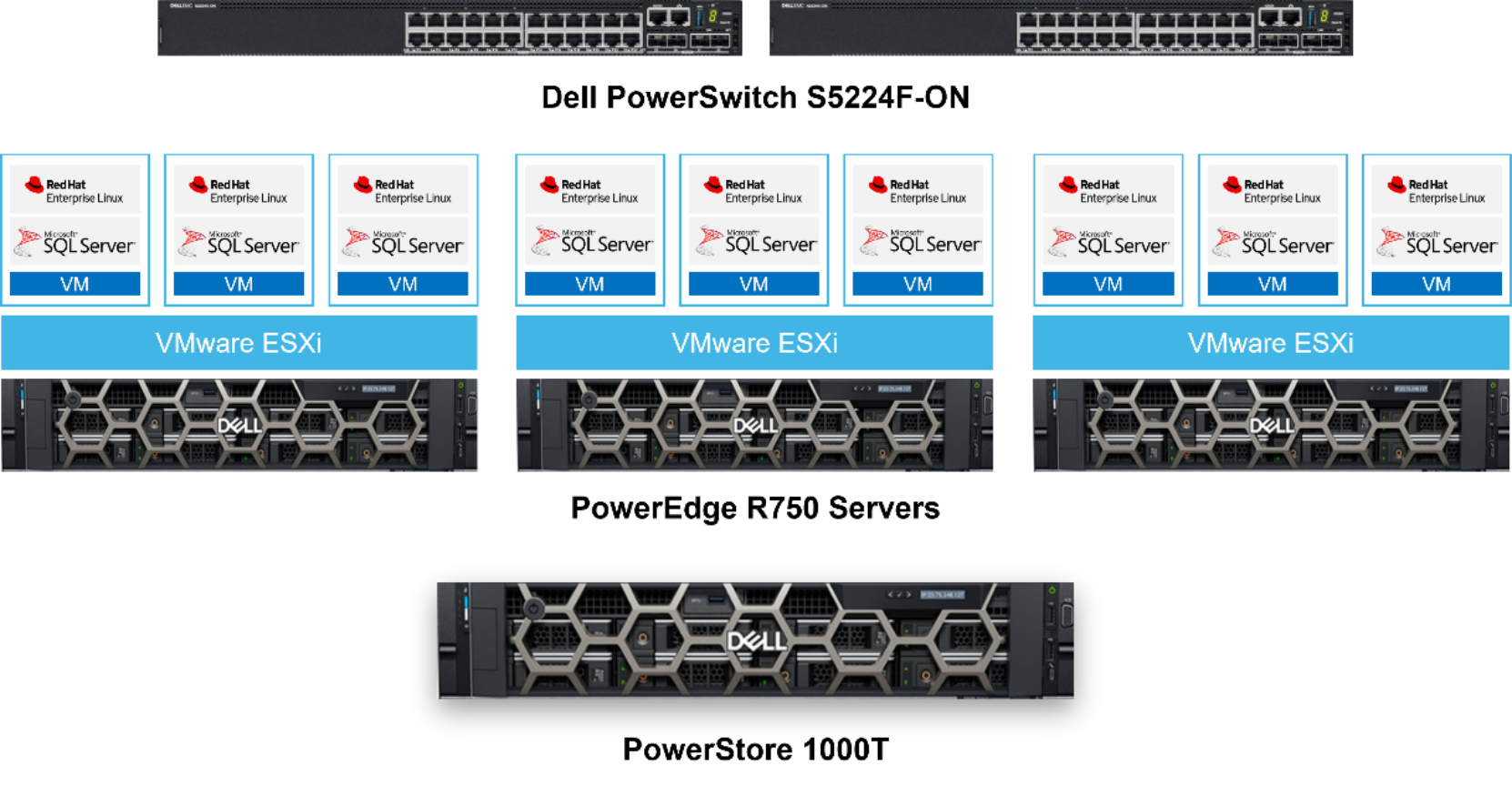
The optimized Microsoft SQL Server platform is a validated design that includes three PowerEdge servers, two Top-of-Rack (ToR) network switches, and a Dell PowerStore storage array. The optimized platform is a flexible database architecture that can serve various use cases. 

  • Consolidation – Compute, network, and storage resources are shared across databases. Consolidation helps businesses achieve better utilization of resources, which increases efficiency and value. 
  • High availability and disaster recovery – Businesses can create a SQL Server Always On group with two or three servers, which enable multiple replicas of a production database. 
  • Modernization – Databases tend to grow in size and increase in number over time. Businesses can modernize their data platforms to address performance and sizing requirements, which positions IT for future database delivery. 

These business drivers are ideal for the Microsoft SQL Server validated design. At the compute layer, PowerEdge servers accelerate the SQL Server database. Three PowerEdge R750 servers are part of the database infrastructure design. Each server is powered by a 3rd generation Intel Xeon scalable processors that is configured for your databases. For database consolidation, there are a broad range of high core CPUs like the Intel Xeon Platinum 8380 with 40 cores and with hyperthreading 80 threads. The PowerEdge R750 is a two-socket server and customers can use 80 cores and 160 threads due to hyper-threading.

A moderate sized consolidated database platform can use the Gold 6348 with 28 cores and 56 threads. With both sockets in use, the total number of physical cores totals 56 and 112 threads. These are two consolidation configurations to consider, but the strength of PowerEdge servers is the board number of CPUs available. 

In consolidated database environments, memory is as important as the number of CPU cores in the system. The PowerEdge R750 can support up to 8 TB LRDIMM memory or 2 TB of RDIMM memory. The ability to configure the PowerEdge R750 for consolidation by customizing the processor and memory maximizes design flexibility. The goal is to configure the servers in your optimized Microsoft SQL Server platform to match your performance requirements. 

Two Dell PowerSwitch S5224F-ON switches connect the PowerEdge servers to the network. Databases transfer significant volumes of information, which makes network switches a critical part of the design. PowerSwitches used in the integrated system are designed for high performance computing and databases that demand the highest bandwidth. In addition, the network switches support larger maximum transmission unit (MTU) packet sizes, which improves network performance. 

A PowerStore 1000T performance storage array was used for the Microsoft SQL Server databases. The PowerStore 1000T is a 2U, two-node dual socket Intel® Xeon® platform storage array. This PowerStore model was chosen for this validated design because it balances performance and capacity for a midrange storage array. Customers can choose the model that best matches their database demands. The PowerStore 9000T is at the top of the PowerStore model family and offers greater performance and capacity. 

Three PowerEdge R750 servers, two PowerSwitches S5224F-ON, and the PowerStore 1000T are the foundation of the validated design for Microsoft SQL Server databases. All components in this validated design have been tested to provide an optimized SQL Server platform for your databases. 
 Graphical user interface, websiteDescription automatically generated

Figure 1.   The optimized Microsoft SQL Server platform architecture

Solution architecture

Optimized Microsoft SQL Server platform

Extensive testing was part of database system validation for SQL Server. See the Solution Architecture section to review the validated design details along with best practices. This creates a database platform to help the business to:

  • Increase efficiency and value
  • Achieve greater consolidation and utilization
  • Maximize the use of technology
  • Improve quality and success of the database platform

PowerEdge Servers

PowerEdge R750 servers accelerate Microsoft SQL Server workloads through features like:

  • Two sockets that support 3rd generation IntelÒ XeonÒ scalable processors
  • 8 channels of memory per CPU, and up to 32 DDR DIMMs @ 3200 MT/s speeds
  • Up to 8 PCIe Gen 4 slots
  • Support for Windows Server with Hyper-V, Read Hat Enterprise Linux, SUSE Linux Enterprise Server, and VMware ESXi

The PowerEdge R750 server specification sheet provides the required technical information. An entry-level configuration was used to validate the optimized Microsoft SQL Server platform.

Table 1.      PowerEdge server configurations

Component

Description

Processors

2 x Intel Xeon Gold 6334 CPUs @ 3.6 GHz with 8 cores / 16 threads

Memory

1024 GB using 16 x 64 GB 3200 MT/s

NICs

Broadcom BCM5720 1 GbE DP Ethernet (management)

Broadcom BCM57504 25 GbE QP NetXtreme-E OCP (SQL Server Public and vMotion)

HBA

2 x QLogic QLE2772 32 Gbps Dual Port Fibre Channel Controller

Best Practices: Dell PowerEdge BIOS Settings

Database Optimized Performance Profile in BIOS

PowerEdge servers have various BIOS profiles that allow customers to configure the server quickly and easily for a workload. The following list includes the BIOS profiles that are included with the servers.

  • Virtualization Optimized Performance Profile
  • Virtualization Optimized Performance Per Watt Profile
  • Database Optimized Performance Profile
  • Database Optimized Performance Per Watt Profile
  • SDS Optimized Performance Profile

As part of our validation the Database Optimized Performance Profile was used to optimize the server configuration for Microsoft SQL Server. In our database workload tests, our results showed that the Database Optimized Performance Profile slightly improved performance. Therefore, we recommend this profile. If you run Microsoft SQL Server in a bare metal environment with no virtualization, this is the only recommended best practice.

If the database was virtualized with Hyper-V or VMware vSphere, two other changes are recommended.

  • Virtualization Technology: This setting is disabled when using the Database Optimized Performance Profile. Change this to Enabled for greater integration with virtualization.
  • X2APIC: This setting is disabled when using the Database Optimized Performance Profile. Enabling x2APIC enables efficiencies for the PowerEdge multi-processor system and optimizes interrupt management of virtual machines.

Disabling unused integrated devices

Disabling unused integrated devices is a security measure that can safeguard the physical server. No performance improvements are expected if you disable USB ports and serial communication ports on the servers. However, it is a good security practice. The following ports are disabled in BIOS:

  • User accessible USB ports
  • Internal USB ports
  • iDRAC Direct USB port
  • Serial communication

The Dell Technologies Info Hub has a broad range of information for SQL Server customers. For a detailed explanation of each BIOS profile, see the CPU Best Practices Guide.

The PowerStore is a data-centric, intelligent, and adaptable storage array designed for demanding workloads like SQL Server databases. It is an active/active configuration in which both nodes (controllers) can serve data to the volumes. Only one node can own a volume at a time. For this validation, we manually configured the volumes with node affinity to provide the best possible performance for running SQL Server database workloads. PowerStore node affinity provides the load balancing of the volumes that are created on the array to maximize performance. In later versions of the PowerStore operating system, the node affinity is automated during the volume creation process.

Table 2.      PowerEdge server configurations

Component

Description

Processors

2 x Intel Xeon Silver 4108 CPUs @ 1.8 GHz per node

Nodes

2 nodes (1 appliance with 2 nodes)

Cache size

192 GB per node

Drives

21 x 1.9 TB NVMe

Total usable capacity

28.35 TB

The following list describes PowerStore features that are commonly used with SQL Server databases:

  • Data reduction technologies: PowerStore data reduction technologies include pattern matching, deduplication, and compression that helps reduce the amount of data physically stored within the system.
  • Snapshots: PowerStore snapshots can quickly repurpose a Microsoft SQL Server database and locally protect a database. All snapshots are pointer-based objects that provide point-in-time copies of the database that take minimal space on the array.
  • Replication: PowerStore provides three replication solutions to protect data.
    • Native asynchronous block replication: Can replicate data to remote facilities to protect data from unplanned outages.
    • Dell RecoverPoint for Virtual Machines: This is an appliance that offers the ability to recover data to any point in time and replicating the data towards many other storage systems.
    • Dell metro node: Metro nodes offer continuous application availability and transparent mobility for block storage. Metro node is placed into data path between hosts and creates a flexible storage architecture.

Configuring the PowerStore storage array is a critical step that impacts database performance. We recommend working with Dell storage experts to analyze current workloads and design a PowerStore configuration that can accelerate and protect business data. To learn more about the PowerStore flash appliance, see the Dell PowerStore page.

Best Practices: Dell PowerStore

PowerStore Front-end I/O modules

There are four front-end I/O modules per node on the PowerStore 1000T used in our validation. Front-end I/O modules communicate with a Fibre Channel switch to the PowerEdge servers. An optimized configuration for databases is one where the number of front-end I/O modules is maximized. Maximizing the number of front-end I/O modules reduces the possibility of a bandwidth bottleneck and optimizes overall database storage performance.

The following two configurations were tested in validating the storage configuration:

  • 2 of the 4 front-end I/O ports were zoned from each PowerStore node to the PowerEdge servers with the databases
  • All 4 front-end I/O ports were zoned from each PowerStore node to the PowerEdge servers

Results showed improved database performance when all 4 front-end I/O ports from the two PowerStore nodes were zoned to the PowerEdge servers.

Database storage configuration

The baseline configuration of database files on PowerStore were located under the TarragonDB volume group. Table 3 shows the baseline storage configuration for two databases using the TarragonDB volume group.

Table 3.      Baseline storage group configuration for two databases

Volume Group

Volume Name

VMware Volumes

Volume Size (TB)

Description

TarragonDB

TarragonDB1

Tarragon_DB1

1.5

All database files

TarragonDB2

Tarragon_DB2

1.5

All database files

This storage configuration minimizes the number of PowerStore volumes groups. This helps management, but it is not an optimized configuration. Using multiple volumes for the most active portion of an SQL Server database has many benefits. The primary benefit is that the operating system creates an I/O queue path per storage group. The following table shows the optimized PowerStore configuration for the TarragonDB1 database.

Table 4.      Optimized storage group configuration for TarragonDB1 database

Volume Group

Volume Name

VMware Volumes

Volume Size (GB)

TarragonDB1

DB1_Data1

DB1_Data1

300

DB1_Data2

DB1_Data2

300

DB1_Data3

DB1_Data3

300

DB1_Data4

DB1_Data4

300


DB1_Log

DB1_Log1

300

TarragonTempDB

TempDB1

TempDB1_Data

300

TempDB1_Log

TempDB1_Log

250

The TarragonDB2 database uses the same storage group configuration. However, the volume names used “DB2” in the name. For example, DB2_Data 1 and TempDB2 are names used for the TarragonDB2 database.

The optimized storage configuration improves the number of I/O paths and benefits performance monitoring, storage snapshots, and replication. In terms of monitoring storage, the enterprise can view metrics for each part of the database with the optimized configuration. This provides the capacity to continually scale capacity and performance as the database grows.

Not all parts of the SQL Server database are needed for snapshots. Using this optimized configuration, the DBA can granularly select what to snapshot, which saves storage capacity. The same is true with replication, as the database administrator can select the part of the database that requires protection. By replicating only parts of the database, the enterprise benefits from using less network bandwidth.

PVSCSI controllers

Paravirtual SCSI (PVSCSI) controllers are high-performance storage adapters. Use PVSCSI controllers to provide greater throughput and overall lower CPU utilization. We tested adding multiple PVSCSI controllers to improve storage performance. Three additional PVSCSI controllers were added to each virtual machine for a total of four per VM.

PowerSwitch

The network stack consists of two of the PowerSwitch S5224F-ON, which has 24 x SFP28 ports that can be configured with 10 GbE or 25 GbE and 4 x 100 GbE QSFP28 ports.  Table 5 shows the details of the two PowerSwitches.

Table 5.      Dell PowerSwitch S5224F-ON details

Component

Description

Switch Ports

Two 200 GbE QSFP-DD ports

Twenty-Four 25 GbE SFP28 ports

Switching capacity

1.08 Tbps (2.16 Tbps full duplex)

Throughput

720 Mpps (1.42 Bpps full duplex)

Latency

881 nano seconds

OS version

10.4.3.6

Best Practices: Dell PowerSwitch

Maximum Transmission Unit size

We configured this switch with 25 GbE for the public network and the vMotion network during the tests. Recently, the best practice of increasing the default Maximum Transmission Unit (MTU) size of 1,500 to 9,000 (also called jumbo frames) was validated. Results showed that a larger MTU size of 9,000 reduced the time to vMotion the database. To learn more about this best practice, review Networking: Maximum Transmission Unity on the Dell Technologies InfoHub.

If Jumbo Frame is used, it is important to ensure that all devices on the same VLAN be configured with Jumbo Frames to function properly. In a SQL Server Cluster deployment, the private interconnect between nodes should be configured with Jumbo Frames. 

VMware vSphere

VMware vSphere 7.0.3d with vCenter 7.0 virtualization was used to create Microsoft SQL Server virtual machines. Dell Technologies and VMware have a strong partnership that can accelerate the journey to digital transformation. Using VMware templates, we could accelerate provisioning of the SQL Server VMs. In addition, to the time savings using VMware vSphere positions, Dell customers for joint cloud solutions like:

  • APEX Cloud Services with VMware Cloud: This hybrid cloud solution expands multi-cloud flexibility and powers new Infrastructure-as-a-Service capabilities.
  • APEX Cloud Services and Modern Apps: This single Infrastructure solution for customers connecting cloud native applications to SQL Server should be a consideration. For more information, see the Dell Technologies APEX Cloud Services page.

Best Practices: VMware vSphere Virtualization

Enable ESXi Power Policy

The ESXi Power Policy enables the VMware vSphere administrator to assign a power profile to the virtualized database. The high-performance power policy setting was selected. There are four CPU Power Management Polices that you can select for a virtual machine:

  • High Performance: maximizes performance and disable power management features.
  • Balanced (Default): uses power management features that will minimally impact performance.
  • Lower Power: emphasizes power management features to minimize energy consumption over performance.
  • Custom: user-defined power management policy.

Many databases support critical business functions where performance is an enterprise priority. The CPU Power Management Policy was changed from a default of balanced to high performance to ensure the best performance.

VMware ESXi: Round Robin Path Policy

The Round Robin path policy defines how to balance I/O load across active storage paths. We changed the Round Robin path policy to optimize performance. At the hypervisor layer, ESXi controls the flow of data to and from the server. There are several configuration choices, including Most Recently Used (MRU), Fixed, and Round Robin. 

Round Robin automatically rotates through all available paths to distribute the data flow. PowerMax has all active paths to storage, so Round Robin rotates data across those pathways. By default, Round Robin sends 1,000 I/O operations across one path before using the next path. We changed the default of 1,000 to 1. With a Round Robin IOPS limit of 1, the paths to storage are rotated more frequently and provide a positive impact on storage performance.

Red Hat Enterprise Linux

Dell Technologies and Red Hat have been partners for over 25 years. Through the partnership, the companies have jointly engineered and validated open-source solutions. Some joint programs include:

  • Containers – Dell Ready Stack for Red Hat OpenShift®
  • Software-defined storage
  • Network transformation

Note: For this validated design, Red Hat Enterprise Linux version 8.5 was the operating system.

SQL Server Database

SQL Server is the foundation of the Microsoft Data Platform and has the ability to extend its capabilities as a platform for data unification.

In 2017, Microsoft, introduced support for Linux, providing businesses with the flexibility to use Windows Enterprise Server or Linux operating systems. In January 2020, Microsoft certified its SQL Server 2019 release for use with Red Hat Enterprise Linux 8. A collaboration with Microsoft and Red Hat resulted in advancements that accelerated performance on version 8 of the Linux operating system:

  • Updates to the mssql-tuned profiles (used frequently by Dell engineers)
  • New TCP/IP stack enhancements that increase performance
  • Multi-queue scheduling that allows storage to make the best use of bandwidth available from NVMe solid state drives.
  • Enhancements to the XFS file system that allows SQL Server to avoid flushing FUA-capable enterprise storage.

For more information, see the blog SQL Server 2019 now available for Red Hat Enterprise Linux 8. Dell offers one of the largest infrastructure portfolios for Microsoft SQL Server. This validated design and other database solutions help reduce complexity and enable your business to accelerate the digital transformation. Learn how to future proof your SQL modernization journey by visiting The Microsoft Data Platform page on the Dell Technologies website.

Note: In this optimized Microsoft SQL Server solution, version 2019 CU15 was used for validation.

Best Practices: Microsoft SQL Server 2019

Resizing TempDB

The TempDB system database services temporary user objects and internal objects that the database engine creates. The TempDB system database is a global resource for database sizing and can improve performance. We increased the size of the TempDB database as part of our performance tests.

Autogrowth

For autogrowth, we modifed the default values for user database data and log files. TempDB data and log files, autogrowth was set to 1 GB. This optimizes how the database adds space and minimizes the impact on transactions. The autogrowth default values are:

  • Data files: 64 MB
  • TempDB files: i-8 MB

Database transactions that trigger the autogrowth of log space along with other transactions using the log space must wait for the log files to grow to the configured amount. Each database is different, and administrators must determine the proper autogrow value for their specific databases. To validate autogrowth best practices, we implemented the following changes to our SQL Server databases:

  • Data files set to FILEGROWTH = 1048576 MB (1 GB)
  • TempDB system set to FILEGROWTH = 1048576 MB (1 GB)

Max Worker Threads

The default value for worker threads is zero. A setting of zero directs the SQL Server to automatically configure the number of worker threads at database startup. In our baseline tests max worker threads had default value of 544. This default value was modified to 704. This is the recommended value for databases using eight CPUs and a 64-bit system starting with SQL Server 2016 (13.x) SP2 and SQL Server 2017 (14.x). For more information about Microsoft’s recommendations, see Configure the max worker threads Server Configuration Option.

After testing a few max worker thread configurations, we found that increasing the value to 864 provided a slight performance improvement.

CPU affinity

CPU affinity is the capability to define which processor cores the SQL Server engine uses for multitasking. By assigning processor cores, SQL Server only uses those processors for multitasking database operations. This can improve performance by reducing processor reloads and thread migration across processors.

The virtual machine supporting SQL Server has 6 allocated vCPUs. For this reason, we implemented the following configuration changes as part of this best practice:

  • Configured SQL Server Processor Affinity to use processors 0 through 5, for a total of six processors

Minimum and maximum server memory

Minimum server memory is the amount of allocated memory the SQL Server reserves for the database. This memory allocation setting helps the database administrator optimize performance. Analysis of memory usage from the operating system and other applications is required to accurately define the minimum server memory setting. If you set the minimum server memory value too high, operating system performance may be impacted leading to lower overall performance.

Before we modified the minimum server memory parameter, we used the default value setting of zero. A default of zero allows the SQL Server to dynamically manage the amount of memory.

The minimal server memory was changed from the default value to 360,448 MB (352 GB). 

Maximum server memory is the maximum amount of memory an SQL Server can use. Setting the maximum server value limits the amount of memory the database can use. The difference between minimum and maximum server values defines the amount of memory SQL Server can dynamically use. For example, if the minimum is set to 64 GB and the maximum to 128 GB, the SQL Server can dynamically use 64 GB (64 – 128 = 64). Dell highly recommends that you the operating system and other application memory usage to ensure that the database has no impact on the overall system.

The maximum server memory was set to a value of 360,448 MB (352 GB). By setting the maximum and minimum server memory values to 352 GB, the database allocates all the memory and exceeds the 352 GB memory configuration. Best practice recommends following the 80% rule for the SQL Server Max memory leaving 20 percent to the operating system, which is the default for SQL Server running on Linux.

Database Solution Optimizer (DSO)

Database Solution Optimizer (DSO)

The Database Solution Optimizer (DSO) is a free toolkit provided by Dell Engineering to collect, report, and automate the application of best practices. The DSO toolkit is not a supported product, but it is provided to customers to use and customize for their own database environments. Benefits include:

  • Reporting on the configuration of different layers in the Microsoft SQL Server stack. Administrators can quickly generate reports to evaluate if best practices have been implemented.
  • Automating best practices. The administrator can apply best practices using the toolkit and will save time.
  • The DSO toolkit works with Windows Server 2019 or 2022 Data-center Edition, Linux, and Mac OS operating systems.

The DSO toolkit is organized by functional models.

Reporting module

The reporting module enables the administrator to collect current configuration values within different layers of the infrastructure. For example, reports on the PowerEdge and storage configuration are useful for analyzing if best practices are implemented. The reporting module allows fast analysis of several configurations within your Microsoft SQL Server platform.

Log module (future functionality)

Debugging and logging are important functionality for any tools. This module will help capture each operation in the toolkit to a log file. The log module will also help format a report for the administrator to review toolkit usage and its actions. 

The optimized SQL Server platform is a validated design that integrates best practices and assists with automation of the platform configuration to deliver a consistently fast data environment.  

Server module

Server module reports are important to quickly evaluate if the server is optimized for the database. This server module uses IDRAC Redfish REST API to pull the BIOS configuration. With this report, an administrator can understate these settings:

  • System workload profile setting
  • System profile setting for performance
  • Status of Integrated Devices
  • X2APIC Support

The PowerEdge BIOS module can also update these settings.

Caution: Ensure there are no applications running on the server when changing BIOS settings.

Storage module (future functionality)

This module uses storage Rest API to interact with the storage system to gather information about the data path connectivity, volume groups, and LUNs details.  System Administrators can verify if the number of data paths, volume groups, and LUNs have been adequately configured based on best practices. In future releases, the same module can be used to applied recommended settings.

The storage module also provides functionality for reporting VMware configurations. Here is the full list of capabilities: 

  • Reports on storage director ports and interface emulations 
  • Reports and adds storage LUNs  
  • Applying different settings on LUNs as per the requirement

As of now this module is partially complete and provides minimal reporting capabilities only.

OS module

The OS module allows an administrator to report on the Huge Pages configuration. It also checks several operating system settings using a custom Microsoft SQL Server-tuned profile. This profile was created by the Dell engineering team to quickly apply operating system settings that improve database performance. The tuned profile is used by the Linux tuned-adm tool to:

  • Report on the differences between the current operating system configuration and the settings that are recommended in the custom Microsoft SQL Server-tuned profile
  • Apply the recommended operating system configuration changes from the custom tuned profile

Network module (future functionality)

The network module allows reporting on the Maximum Transmission Unit. If supported by the network switch, a maximum MTU of 9,000 will improve network performance and significantly improve actively moving a virtualized database from one server to another.

Database module

The Microsoft SQL Server module enables the database administrator to report and apply the different settings at database layer of the solution. These settings could be instance specific, database specific, or specific configuration settings. Examples include:

  • CPU affinity setting
  • Database file growth
  • Min and Max memory setting for SQL Server instance
  • Query optimizer hotfixes setting

Other settings will be added in this module in future releases of this tool.

Apart for the best practice reporting and its application, users also have option to generate general reports for the database layer for the inventory purposes.

Virtual module (Future Functionality)

The virtual module will help working with virtualization component by providing options to report and apply best practice settings. Initially this module will include VMware ESXi sub-module to work with vSphere and vCenter settings. Some of the examples for working with settings related to virtualization layer of the solution will include:   

VMware vSphere:

  • VMware ESXi: Round Robin Path Policy 
  • VMware vSphere: Power Management Policy 
  • VMware ESXi: HBA Queue Depth
  • VMware vSphere: Virtual Machine Latency Sensitivity
  • VMware Storage I/O Control: Threshold

Conclusion

Conclusion

The optimized SQL Server platform provides a validated solution for SQL Server customers that maximizes flexibility in design and robustness. Purposely built for SQL Server databases, this validated design was vigorously tested with simulated SQL Server OLTP workloads to ensure that all hardware and software are working according to best practices. This allows customers to speed up the deployment of an SQL Server database infrastructure in less time. Without a validated solution, customers are required to perform their own integration and tests to ensure that all layers are working together. This would consume significant time from the IT teams and DBAs and could delay a new business line rollout or could fail to meet deadlines.

This validated design provides a simple starting point for deploying SQL Server database workloads that otherwise would be complex and time-consuming.