OneFS Data Reduction and Efficiency Reporting
Among the objectives of OneFS reduction and efficiency reporting is to provide ‘industry standard’ statistics, allowing easier comprehension of cluster efficiency. It’s an ongoing process, and prior to OneFS 9.2 there was limited tracking of certain filesystem statistics – particularly application physical and filesystem logical – which meant that data reduction and storage efficiency ratios had to be estimated. This is no longer the case, and OneFS 9.2 and later provides accurate data reduction and efficiency metrics at a per-file, quota, and cluster-wide granularity.
The following table provides descriptions for the various OneFS reporting metrics, while also attempting to rationalize their naming conventions with other general industry terminology:
|
OneFS Metric |
Also Known As |
Description |
|
Protected logical |
Application logical |
Data size including sparse data, zero block eliminated data, and CloudPools data stubbed to a cloud tier. |
|
Logical data |
Effective
Filesystem logical |
Data size excluding protection overhead and sparse data, and including data efficiency savings (compression and deduplication). |
|
Zero-removal saved |
|
Capacity savings from zero removal. |
|
Dedupe saved |
|
Capacity savings from deduplication. |
|
Compression saved |
|
Capacity savings from in-line compression. |
|
Preprotected physical |
Usable
Application physical |
Data size excluding protection overhead and including storage efficiency savings. |
|
Protection overhead |
|
Size of erasure coding used to protect data. |
|
Protected physical |
Raw
Filesystem physical |
Total footprint of data including protection overhead FEC erasure coding) and excluding data efficiency savings (compression and deduplication). |
|
Dedupe ratio |
|
Deduplication ratio. Will be displayed as 1.0:1 if there are no deduplicated blocks on the cluster. |
|
Compression ratio |
|
Usable reduction ratio from compression, calculated by dividing ‘logical data’ by ‘preprotected physical’ and expressed as x:1. |
|
Inlined data ratio |
|
Efficiency ratio from storing small files’ data within their inodes, thereby not requiring any data or protection blocks for their storage. |
|
Data reduction ratio |
Effective to Usable |
Usable efficiency ratio from compression and deduplication. Will display the same value as the compression ratio if there is no deduplication on the cluster. |
|
Efficiency ratio |
Effective to Raw |
Overall raw efficiency ratio expressed as x:1 |
So let’s take these metrics and look at what they represent and how they’re calculated.
- Application logical, or protected logical, is the application data that can be written to the cluster, irrespective of where it’s stored.
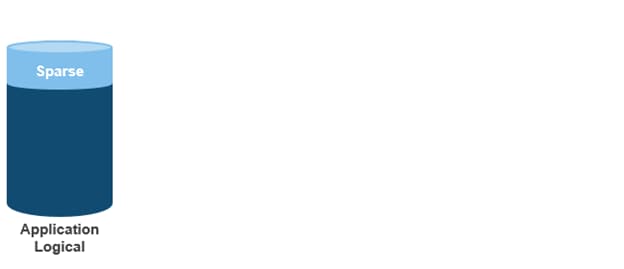
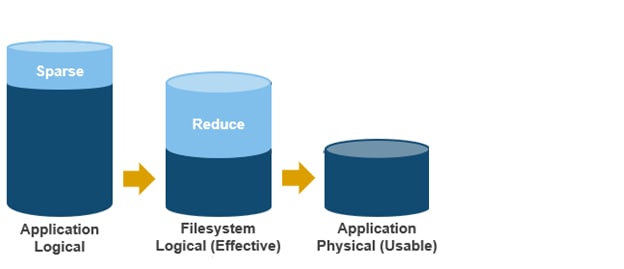
- Removing the sparse data from application logical results in filesystem logical, also known simply as logical data or effective. This can be data that was always sparse, was zero block eliminated, or data that has been tiered off-cluster by means of CloudPools, and so on.
(Note that filesystem logical was not accurately tracked in releases prior to OneFS 9.2, so metrics prior to this were somewhat estimated.)
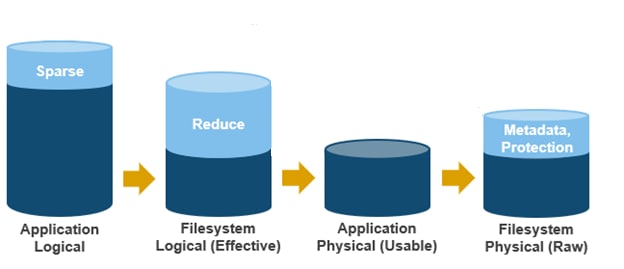
- Next, data reduction techniques such as compression and deduplication further reduce filesystem logical to application physical, or pre-protected physical. This is the physical size of the application data residing on the filesystem drives, and does not include metadata, protection overhead, or data moved to the cloud.
- Filesystem physical is application physical with data protection overhead added – including inode, mirroring, and FEC blocks. Filesystem physical is also referred to as protected physical.
- The data reduction ratio is the amount that’s been reduced from the filesystem logical down to the application physical.
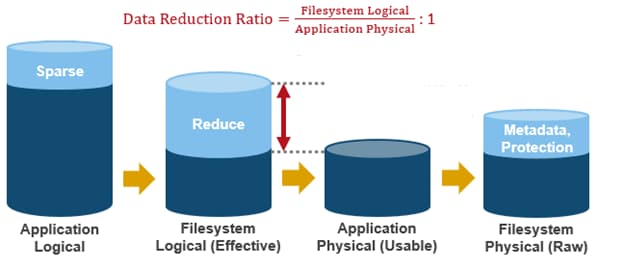
- Finally, the storage efficiency ratio is the filesystem logical divided by the filesystem physical.
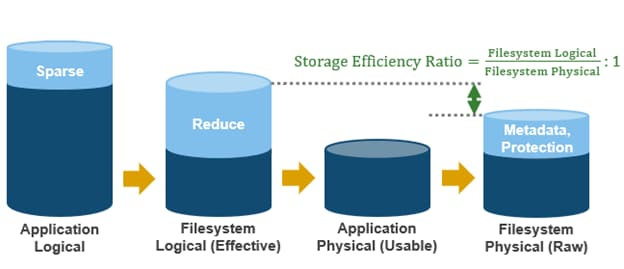
With the enhanced data reduction reporting in OneFS 9.2 and later, the actual statistics themselves are largely the same, just calculated more accurately.
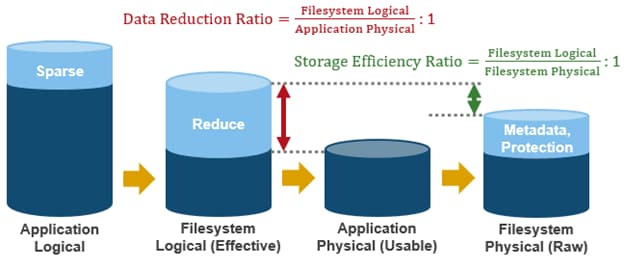
The storage efficiency data was available in releases prior to OneFS 9.2, albeit somewhat estimated, but the data reduction metrics were introduced with OneFS 9.2.
The following tools are available to query these reduction and efficiency metrics at file, quota, and cluster-wide granularity:
|
Realm |
OneFS Command |
OneFS Platform API |
|
File |
isi get -D |
|
|
Quota |
isi quota list -v |
12/quota/quotas |
|
Cluster-wide |
isi statistics data-reduction |
1/statistics/current?key=cluster.data.reduce.* |
|
Detailed Cluster-wide |
isi_cstats |
1/statistics/current?key=cluster.cstats.* |
Note that the ‘isi_cstats’ CLI command provides some additional, behind-the-scenes details. The interface goes through platform API to fetch these stats.
The ‘isi statistics data-reduction’ CLI command is the most comprehensive of the data reduction reporting CLI utilities. For example:
# isi statistics data-reduction
                      Recent Writes Cluster Data Reduction
                           (5 mins)
--------------------- ------------- ----------------------
Logical data                  6.18M                  6.02T
Zero-removal saved                0                      -
Deduplication saved          56.00k                  3.65T
Compression saved             4.16M                  1.96G
Preprotected physical         1.96M                  2.37T
Protection overhead           5.86M                910.76G
Protected physical            7.82M                  3.40T
Zero removal ratio         1.00 : 1                      -
Deduplication ratio        1.01 : 1               2.54 : 1
Compression ratio          3.12 : 1               1.02 : 1
Data reduction ratio       3.15 : 1               2.54 : 1
Inlined data ratio         1.04 : 1               1.00 : 1
Efficiency ratio           0.79 : 1               1.77 : 1
The ‘recent writes’ data in the first column provides precise statistics for the five-minute period prior to running the command. By contrast, the ‘cluster data reduction’ metrics in the second column are slightly less real-time but reflect the overall data and efficiencies across the cluster. Be aware that, in OneFS 9.1 and earlier, the right-hand column metrics are designated by the ‘Est’ prefix, denoting an estimated value. However, in OneFS 9.2 and later, the ‘logical data’ and ‘preprotected physical’ metrics are tracked and reported accurately, rather than estimated.
The ratio data in each column is calculated from the values above it. For instance, to calculate the data reduction ratio, the ‘logical data’ (effective) is divided by the ‘preprotected physical’ (usable) value. From the output above, this would be:
6.02 / 2.37 = 1.76 Or a Data Reduction ratio of 2.54:1
Similarly, the ‘efficiency ratio’ is calculated by dividing the ‘logical data’ (effective) by the ‘protected physical’ (raw) value. From the output above, this yields:
6.02 / 3.40 = 0.97 Or an Efficiency ratio of 1.77:1
OneFS SmartQuotas reports the capacity saving from in-line data reduction as a storage efficiency ratio. SmartQuotas reports efficiency as a ratio across the desired data set as specified in the quota path field. The efficiency ratio is for the full quota directory and its contents, including any overhead, and reflects the net efficiency of compression and deduplication. On a cluster with licensed and configured SmartQuotas, this efficiency ratio can be easily viewed from the WebUI by navigating to File System > SmartQuotas > Quotas and Usage. In OneFS 9.2 and later, in addition to the storage efficiency ratio, the data reduction ratio is also displayed.
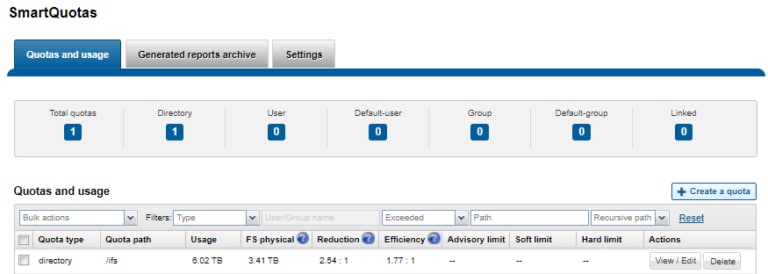
Similarly, the same data can be accessed from the OneFS command line by using the ‘isi quota quotas list’ CLI command. For example:
# isi quota quotas list
Type    AppliesTo   Path  Snap  Hard   Soft  Adv  Used   Reduction  Efficiency
----------------------------------------------------------------------------
directory DEFAULT    /ifs   No    -     -      -    6.02T 2.54 : 1   1.77 : 1
----------------------------------------------------------------------------
Total: 1
More detail, including both the physical (raw) and logical (effective) data capacities, is also available by using the ‘isi quota quotas view <path> <type>’ CLI command. For example:
# isi quota quotas view /ifs directory
                        Path: /ifs
                        Type: directory
                   Snapshots: No
                    Enforced: No
                   Container: No
                      Linked: No
                       Usage
                           Files: 5759676
         Physical(With Overhead): 6.93T
        FSPhysical(Deduplicated): 3.41T
         FSLogical(W/O Overhead): 6.02T
        AppLogical(ApparentSize): 6.01T
                   ShadowLogical: -
                    PhysicalData: 2.01T
                      Protection: 781.34G
     Reduction(Logical/Data): 2.54 : 1
Efficiency(Logical/Physical): 1.77 : 1
To configure SmartQuotas for in-line data efficiency reporting, create a directory quota at the top-level file system directory of interest, for example /ifs. Creating and configuring a directory quota is a simple procedure and can be performed from the WebUI by navigating to File System > SmartQuotas > Quotas and Usage and selecting Create a Quota. In the Create a quota dialog, set the Quota type to ‘Directory quota’, add the preferred top-level path to report on, select ’Application logical size’ for Quota Accounting, and set the Quota Limits to ‘Track storage without specifying a storage limit’. Finally, click the ‘Create Quota’ button to confirm the configuration and activate the new directory quota.
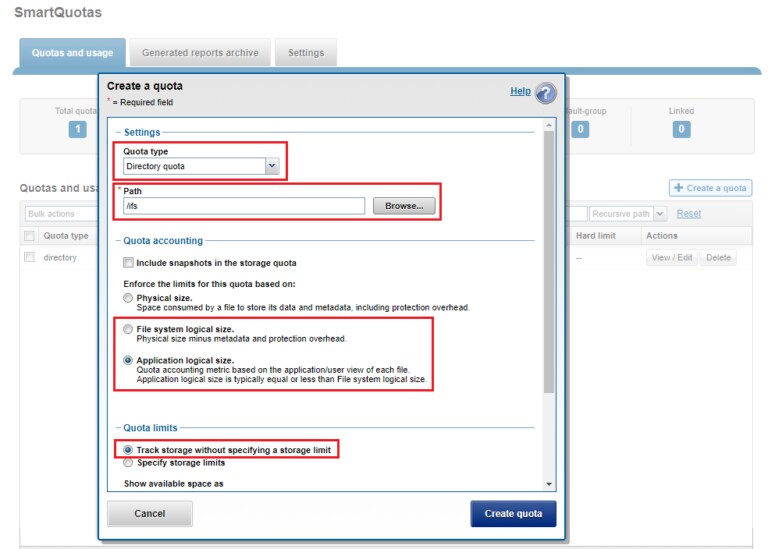
The efficiency ratio is a single, current-in time efficiency metric that is calculated per quota directory and includes the sum of in-line compression, zero block removal, in-line dedupe, and SmartDedupe. This is in contrast to a history of stats over time, as reported in the ‘isi statistics data-reduction’ CLI command output, described above. As such, the efficiency ratio for the entire quota directory will reflect what is actually there.
Author: Nick Trimbee