Performance Best Practices
Day Three Best Practices
SQL Server 2019: Autogrowth
In this best practice, the default setting for autogrow is modified for both data files and TempDB. The goal of this recommendation is to tune autogrow to address database space requirements while minimizing the impact on transactions when the database increases the size of a data file or TempDB.
|
Category |
SQL Server 2019 Enterprise |
|
Product |
SQL Server |
|
Type of best practice |
Performance Optimization |
|
Day and value |
Day 3, Fine Tuning |
Overview
In this best practice we modify the default values for both data file and TempDB log to optimize how the database adds space and minimize the impact on transactions. The autogrow default values are as follows:
- Data files is 1 MB
- TempDB is 10% of the total size of the log file
Database transactions that trigger the autogrowth of log space, along with other transactions using the log space, must wait until for the log files to grow to the configured amount. As each database is different, administrators must determine the proper autogrow value for their specific databases. To validate autogrow best practices, we implemented the following changes to our SQL Server databases:
- Data files set to FILEGROWTH = 1048576 MB (1 GB)
- TempDB system set to FILEGROWTH = 1048576 MB (1 GB)
Recommendation
Setting data files and TempDB autogrow to 1 GB did not significantly increase performance for the following metrics:
- New Orders per Minute (NOPM)
- Transactions per Minute (TPM)
- Batch Requests per Second (BRPS)
- PowerMax Average Read Response Time
- PowerMax Average Write Response Time
- PowerMax IOPS
- Server CPU Utilization
Although configuring autogrow to 1 GB did not significantly improve performance, this best practice is an important consideration for databases. We recommend that database administrators review the autogrow setting for databases as part of a Day 3, fine tuning exercise.
Implementation Steps
Perform the following command to modify data files and TempDB autogrow to 1.
USE master;
GO
ALTER DATABASE tempdb
MODIFY FILE (NAME = tempdev, FILENAME = '/mnt/temp_data/tempdb.mdf', SIZE = 8192MB, FILEGROWTH = 1048576KB);
Additional Resources
Considerations for autogrow and autoshrink settings in SQL Server
SQL Server 2019: Forced Unit Access
In this best practice, we implemented Forced Unit Access (FUA) to improve write performance of the SQL Server database.
|
Category |
SQL Server 2019 Enterprise |
|
Product |
SQL Server |
|
Type of best practice |
Performance Optimization |
|
Day and value |
Day 3, Fine Tuning |
Overview
FUA is a bit that is sent with writes to storage that improves database performance and durability. Kernel FUA was not supported prior to Linux 4.18, which resulted in device level flushing that was inefficient and could impact storage I/O performance. SQL Server addressed storage inefficiency by minimizing flushes, but there was still room for improvement.
The Linux 4.18 and later Linux XFS file systems support the FUA bit. The 4.18 Linux Kernel allows the XFS file system and a device supporting FUA writes to avoid the additional block device flush requests. Using the Linux XFS file system and the FUA bit can significantly improve performance of write intensive workloads.
Recommendation
Implementing FUA resulted in slight performance gains for the following metrics:
- New Orders per Minute (NOPM)
- Transactions per Minute (TPM)
- Batch Requests per Second (BRPS)
- PowerMax IOPS
Implementing FUA resulted in no changes to the following metrics:
- PowerMax Average Read Response Time
- PowerMax Average Write Response Time
- Server CPU Utilization
Given these results, we recommend implemented the FUA as a Day 3 fine tuning practice.
Implementation Steps
To set the trace flag and writethrough and alternatewritethrough option, perform the following steps:
- $ /opt/mssql/bin/mssql-conf traceflag 3982 on
- $ /opt/mssql/bin/mssql-conf set control.writethrough 1
- $ /opt/mssql/bin/mssql-conf set control.alternatewritethrough 1
Additional Resources
SQL Server 2019: Minimum and Maximum Server Memory
In this best practice, we increased the minimum and maximum server memory values for SQL Server to determine if database performance would also increase.
|
Category |
SQL Server 2019 Enterprise |
|
Product |
SQL Server |
|
Type of best practice |
Performance Optimization |
|
Day and value |
Day 3, Fine Tuning |
Overview
Database administrators can modify memory allocation for SQL Server using the minimum server memory and maximum server memory parameters.
Minimum server memory
Minimum server memory is the amount of allocated memory the SQL Server will reserve for the database. This setting is a memory allocation helps the database administrator optimize performance. Analysis of memory usage from the operating system and other applications is required to accurately define the minimum server memory setting. Setting the minimum server memory value to high can impact operating system performance thus, lowering overall performance.
Prior to modifying the minimum server memory parameter, we used the default value setting, which is zero. A default of zero allows the SQL Server to dynamically manage the amount of memory.
We set the minimal server memory to a value of 122880 MB (120 GB) for this best practice.
Maximum server memory
Maximum server memory is the maximum amount of memory an SQL Server can use. Setting the maximum server value limits the amount of memory the database can use. The difference between minimum and maximum server values defines the amount of memory SQL Server can dynamically use. For example, if the minimum is set to 64 GB and the maximum at 128 GB then the SQL Server can dynamically use 64 GB (64 – 128 = 64). Analysis of the operating system and other application memory usage is highly recommended to ensure that the database does not impact the overall system.
Prior to modifying the minimum server memory parameter, we used the default of 2,147,483,647 MB.
We set the maximum server memory to 122880 MB (120 GB). By setting the maximum and minimum server memory values to 120 GB the database allocates all the memory and does not exceed the 120 GB memory configuration.
Recommendation
Setting the minimal and maximum server memory values to 120 GB produced minor performance improvements for the following metrics:
- New Orders per Minute (NOPM)
- Transactions per Minute (TPM)
- Batch Requests per Second (BRPS)
- PowerMax IOPS
As a result of modifying the minimum and maximum server memory settings, there was a significant CPU utilization savings, of approximately 12 percent. We did not investigate the cause in the drop of CPU utilization however, the savings might be attributed to the database engine not having to dynamically manage memory allocation.
PowerMax average read and write times also showed minor increases. The minor increase in read and write times can be attributed to the slight increases in NOPM, TPM, BRPS, and storage IOPS.
These slight improvements were not significant enough to categorize the performance gains more than Day 3, fine tuning. SQL Server with the default memory settings efficiently optimizes memory allocation for the best possible performance. With detailed analysis, there is the opportunity to improve database performance by setting minimum and maximum server memory parameters. The database administrator should evaluate and test setting these parameters based upon the database workload.
Implementation Steps
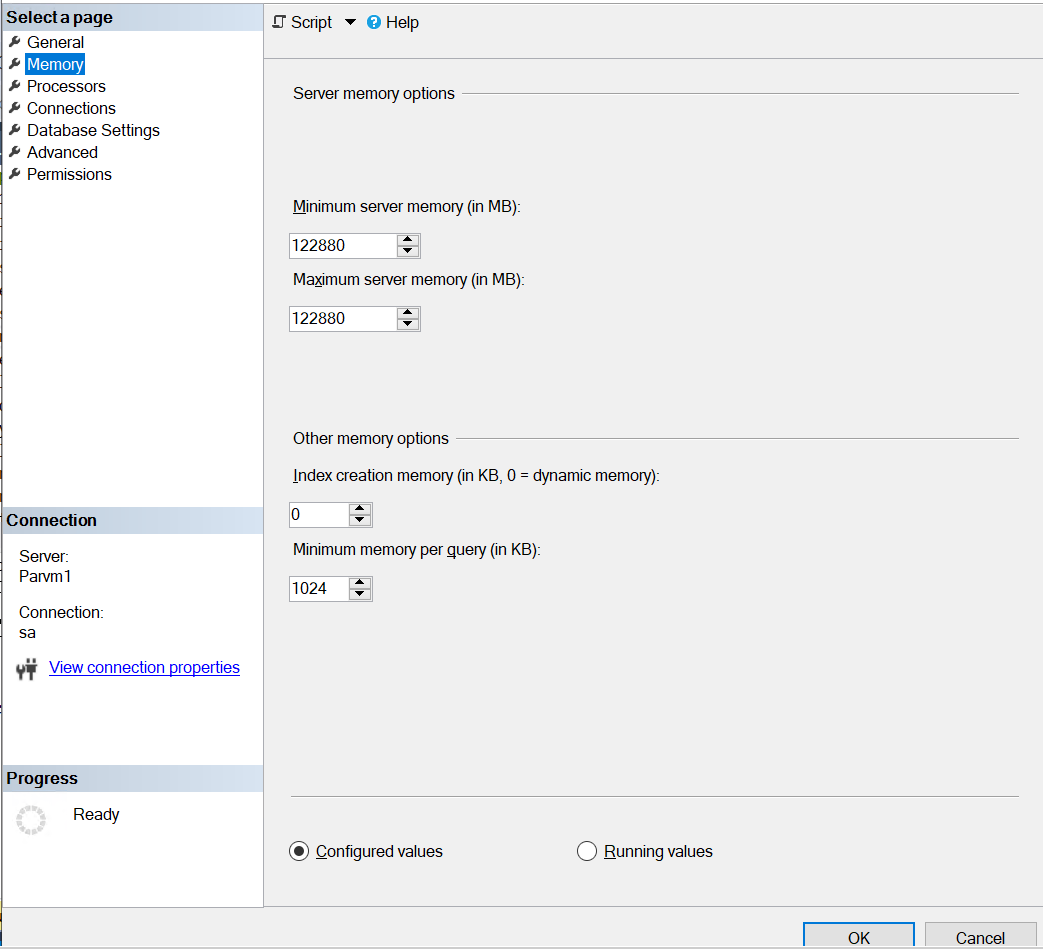
In the SQL Server Management Studio, we clicked the Properties tab and selected Memory, as shown in Figure 1. The minimum server memory field enables the administrator to define the minimal amount of allocated memory to SQL Server. We set both the minimum and maximum server memory values to 122880 MB (120 GB).
Figure 1: Memory page from SQL Server Management Studio.
We also recommend applying this setting through the mssql config file. Perform the following command to update the memory reserved for the SQL Server process to 120GB:
/opt/mssql/bin/mssql-conf set memory.memorylimitmb 122880
Additional Resources
SQL Server 2019: Query Optimizer Hotfixes
In this best practice, we configured the SQL Server database to use recent fixes to the query optimizer. The goal of enabling query optimizer hotfixes is to take advantage of updates that could improve database performance.
|
Category |
SQL Server 2019 Enterprise |
|
Product |
SQL Server |
|
Type of best practice |
Performance Optimization |
|
Day and value |
Day 3, Fine Tuning |
Overview
The default approach that SQL Server uses for the query optimizer enables any fixes for the latest database compatibility level for a given product release. This means any fixes for the query optimizer will be used up to the compatibility level of the database, but any hotfixes beyond that compatibility level will not be used. Microsoft provides an option to enable query optimizer hotfixes using the scoped configuration QUERY_OPTIMIZER_HOTFIXES.
Use the following command to enable optimizer hotfixes:
ALTER DATABASE SCOPED CONFIGURATION QUERY_OPTIMIZER_HOTFIXES = ON;
This command configures the database to use all query optimizer hotfixes. For example, optimizations that were included in a recent database cumulative update will apply if the administrator has altered the scope to include query optimizer hotfixes. Using QUERY_OPTIMIZER_HOTFIXES applies at the database level, meaning the change would have to be made for each database.
Recommendation
After implementing query optimizer hotfixes, the database showed a slight increase in the following metrics:
- New Orders per Minute (NOPM)
- Transactions per Minute (TPM)
- Batch Requests per Second (BRPS)
There were no changes to the following metrics:
- PowerMax Average Read Response Time
- PowerMax Average Write Response Time
- PowerMax IOPS
- Server CPU Utilization
As NOPM, TPM, and BRPS showed slight performance gains, we recommend this as a Day 3 fine tuning best practice. As every database is maintained at a various update levels, we recommended testing this best practice in a non-production database to validate performance.
Implementation Steps
Perform the following command to enable query optimizer hotfixes:
ALTER DATABASE SCOPED CONFIGURATION QUERY_OPTIMIZER_HOTFIXES = ON;
Additional resources
Configure the max worker threads Server Configuration Option
Day Two Best Practices
SQL Server 2019: CPU Affinity
In this best practice, we used processor affinity to optimize SQL Server performance. The goal is to define a range of processors for SQL Server to reduce thread migration and improve performance.
|
Category |
SQL Server 2019 Enterprise |
|
Product |
SQL Server |
|
Type of best practice |
Performance Optimization |
|
Day and value |
Day 2, Moderate Recommendation |
Overview
CPU affinity is the capability to define which processor cores the SQL Server engine will use for multitasking. By assigning processor cores, SQL Server only uses those processors for multitasking database operations. This can improve performance by reducing processor reloads and thread migration across processors.
The virtual machine supporting SQL Server has 8 allocated vCPUs. For this reason, we implemented the following configuration changes as part of this best practice:
- Configured SQL Server Processor Affinity to use processors 0 through 7, for a total of 8
- Validated that processors 0 through 7 belonged to a single NUMA node
Recommendation
The use of CPU affinity improved performance for the following metrics:
- New Orders per Minute (NOPM)
- Transactions per Minute (TPM)
- Batch Requests per Second (BRPS)
- PowerMax IOPS
NOPM, TPM, BRPS, and PowerMax IOPS all significantly increases. Reducing processor reloads and thread migration across processors was beneficial and resulted in a moderate database performance increase.
PowerMax average read and write response times increased as the database system was operating at a greater efficiency level. CPU utilization also increased with the additional workload.
Overall, CPU Affinity provided a significant boost to database performance and we consider it as a Day 2 moderate recommendation best practice.
Implementation Steps
Use the following command to set the affinity to CPU 0 through 7:
ALTER SERVER CONFIGURATION SET PROCESS AFFINITY CPU = 0 TO 7
Additional Resources