
Red Hat OpenStack Platform 17.1 with Dell PowerFlex

Sep 27, 2026
Red Hat OpenStack Platform 17.1 with Dell PowerFlex This white paper provides guidance on deploying Red Hat OpenStack Platform on Dell PowerFlex for customers who are looking to build a hybrid cloud platform, including guidance on integration and architecture to ensure performance and efficient infrastructure.

Executive summary

Overview

In today’s rapidly evolving business landscape, organizations must adapt swiftly to technological changes to remain competitive. Digital transformation is a key objective for enterprises seeking to harness the power of private, public, and hybrid cloud solutions. Many enterprise, commercial, and individual developers have embraced OpenStack as the leading open-source cloud platform to harness the innovation, efficiency and agility that are essential for digital business operations.

However, deploying OpenStack can be complex due to its extensive set of components and continuous evolution. To address these challenges, Dell and Red Hat have collaborated to offer a streamlined solution. This document provides guidance on how to successfully plan, deploy, and configure a Red Hat OpenStack Platform with a Dell PowerFlex storage system.

The PowerFlex family provides a range of benefits for traditional and cloud-native workloads, including deployment flexibility, predictable high performance, linear scalability, and enterprise-grade resilience. OpenStack Platform offers a robust foundation for building scalable Infrastructure-as-a-Service (IaaS) clouds, leveraging the stability and security of Red Hat Enterprise Linux. This document focuses on a two-layer architecture, where Red Hat OpenStack Platform is used for compute resources and PowerFlex handles storage. Thanks to the combination of these technologies, workloads running on OpenStack can seamlessly utilize storage provided by PowerFlex, ensuring high availability, scalability, and optimized performance. The collaboration between Dell and Red Hat ensures that organizations can navigate their digital transformation journey with a resilient, scalable, and high-performance solution.

This white paper provides detailed instructions for integrating Red Hat OpenStack Platform with PowerFlex, offering a comprehensive approach to building and managing private or public cloud infrastructures.

Key benefits of this integration include improved storage flexibility, faster deployment times, enhanced data resilience, and a simplified management interface. Additionally, the solution provides seamless scaling for organizations’ cloud environments, reducing costs while meeting the performance and availability demands of modern IT workloads.

Audience

The audience for this paper includes sales engineers, field consultants, IT administrators, customers, and anyone else interested who is in configuring and deploying OpenStack Platform with PowerFlex as the underlying software-defined storage.

Readers are expected to have an understanding and working knowledge of OpenStack, container technology, PowerFlex, and the Red Hat Enterprise Linux operating system.

Terminology

The following table provides definitions for some of the terms that are used in this document.

Table 1.      Terminology

Term

Definition

BIOS

Basic Input/Output System

DHCP

Dynamic Host Configuration Protocol

DNS

Domain Name System

HA

High Availability

iDRAC

Integrated Dell Remote Access Controller

IPMI

Intelligent Platform Management Interface

ITOM

IT Operations Management

LCM

Life Cycle Management

LIA

Light Installation Agent

MDM

Meta Data Manager

NIC

Network Interface Card

NTP

Network Time Protocol

OOB

Out of Band Network

OS

Operating System

PXE

Pre-boot Execution Environment

SDC

Storage Data Client

SDS

Storage Data Server

VLT

Virtual Link Trucking

VM

Virtual Machine

vPC

Virtual Port Channel

We value your feedback

Dell Technologies and the authors of this document welcome your feedback on the solution and the solution documentation. Contact the Dell Technologies Solutions team by email.

Author: Punitha HS

Note: For links to additional documentation for this solution, see Dell Technologies Solutions Info Hub for PowerFlex.

Product Overview

Product overview

PowerFlex family

PowerFlex software-defined infrastructure enables broad consolidation across the data center, encompassing almost any type of workload and architecture. The software-defined architecture offers automation and programmability of the complete infrastructure and provides scalability, performance, and resiliency to enable effortless adherence to stringent workload SLAs.

The PowerFlex family provides a foundation that combines compute and high-performance storage resources in a managed unified fabric. PowerFlex comes in flexible deployment options (rack, appliance, or custom nodes and in the public cloud) that enables independent (two-layer), HCI (single-layer), or mixed architectures. PowerFlex is ideal for high-performance applications and databases, building an agile private/hybrid cloud, or consolidating resources in heterogeneous environments.
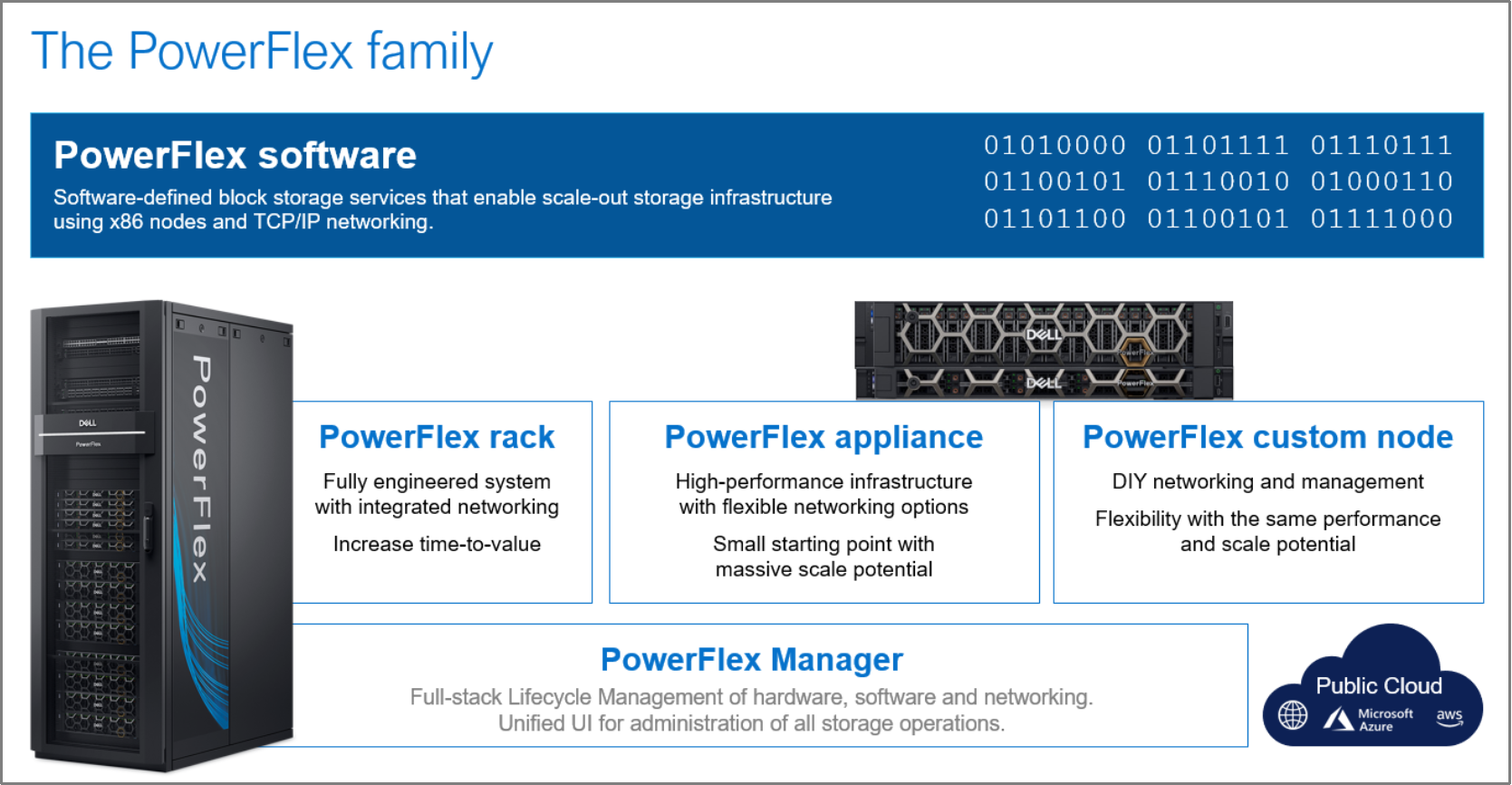
An image showing information about the PowerFlex family of products: PowerFlex Software, PowerFlex Rack, Powerflex Appliance, PowerFlex Custom Node, and PowerFlex Manager.

Figure 1.    PowerFlex family

PowerFlex software components

Software is the key differentiation in the PowerFlex offering. PowerFlex software components not only provide software-defined storage services, but also help simplify infrastructure management and orchestration. This software enables comprehensive IT Operational Management (ITOM) and Life Cycle Management (LCM) capabilities that span compute as well as storage infrastructure, from BIOS and firmware to nodes, software, and networking. 

PowerFlex

PowerFlex is the software foundation of PowerFlex software-defined infrastructure. It is a scale-out block storage service that is designed to deliver flexibility, elasticity, and simplicity with predictable high performance and resiliency at scale.

For more information, see PowerFlex specifications.

PowerFlex Manager 

PowerFlex Manager is the software component in the PowerFlex family that enables ITOM automation and LCM capabilities for PowerFlex systems. Starting with PowerFlex 4.0, the unified PowerFlex Manager brings together three separate components used in previous releases: PowerFlex Manager, the core PowerFlex UI, and the PowerFlex gateway. The new PowerFlex UI runs in Kubernetes and embraces a modern development framework.

PowerFlex with NVMe over TCP (NVMe/TCP)

NVMe is a family of open specifications that defines an industry standard for both a logical interface and a communication protocol for accessing block storage across an internal PCIe fabric or through external fabrics such as TCP/IP and FC. NVMe is designed to take advantage of the internal parallelism and low latency inherent in flash-based media SSDs.

NVMe/TCP is an extension of the NVMe base specification that defines the binding of the NVMe protocol to message-based fabrics using TCP. By binding the NVMe protocol to TCP, NVMe/TCP enables the efficient end-to-end transfer of commands and data between NVMe hosts and NVMe controller devices by any standard Ethernet-based TCP/IP networks.
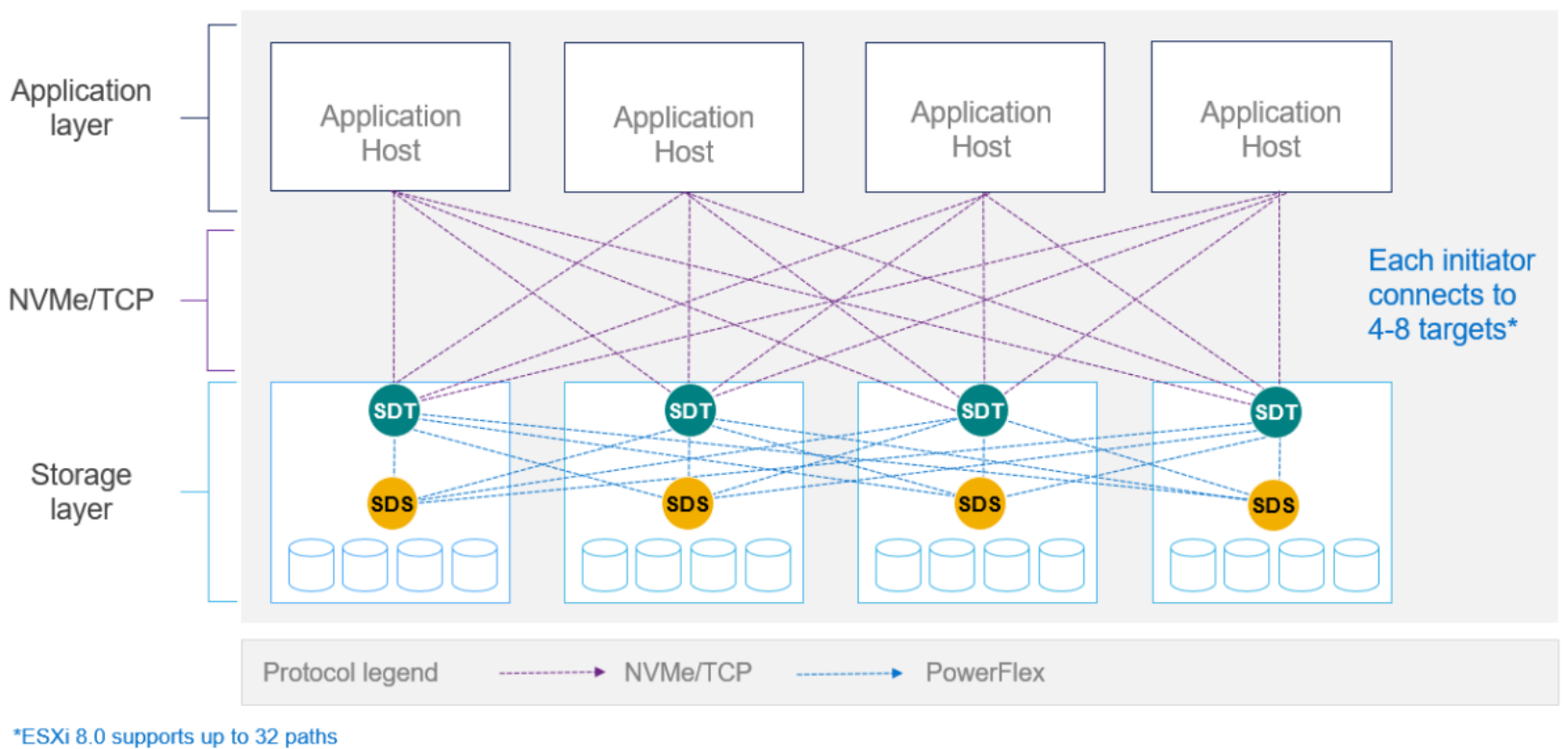
 This image explain the NVMe/TCP protocol connectivity/communication between application hosts and the PowerFlex storage layer.

Figure 2.   PowerFlex with NVMe/TCP

From PowerFlex release 4.x, support for NVMe/TCP has been added for on-premises deployment with the introduction of a new Storage Data Target (SDT) component installed in the storage layer. The NVMe initiator in the operating system or hypervisor communicates with the SDT, which then communicates with the Storage Data Server (SDS). The NVMe initiator is part of the kernel of the application host operating system or hypervisor.

For more information, see PowerFlex with NVMe over TCP.

PowerFlex deployment architectures

PowerFlex software-defined infrastructure excels in deployment flexibility. PowerFlex can be deployed in a two-layer (independent compute and storage layers), single-layer (hyperconverged Infrastructure, or HCI), or a mixture of the two architectures (mixed). 
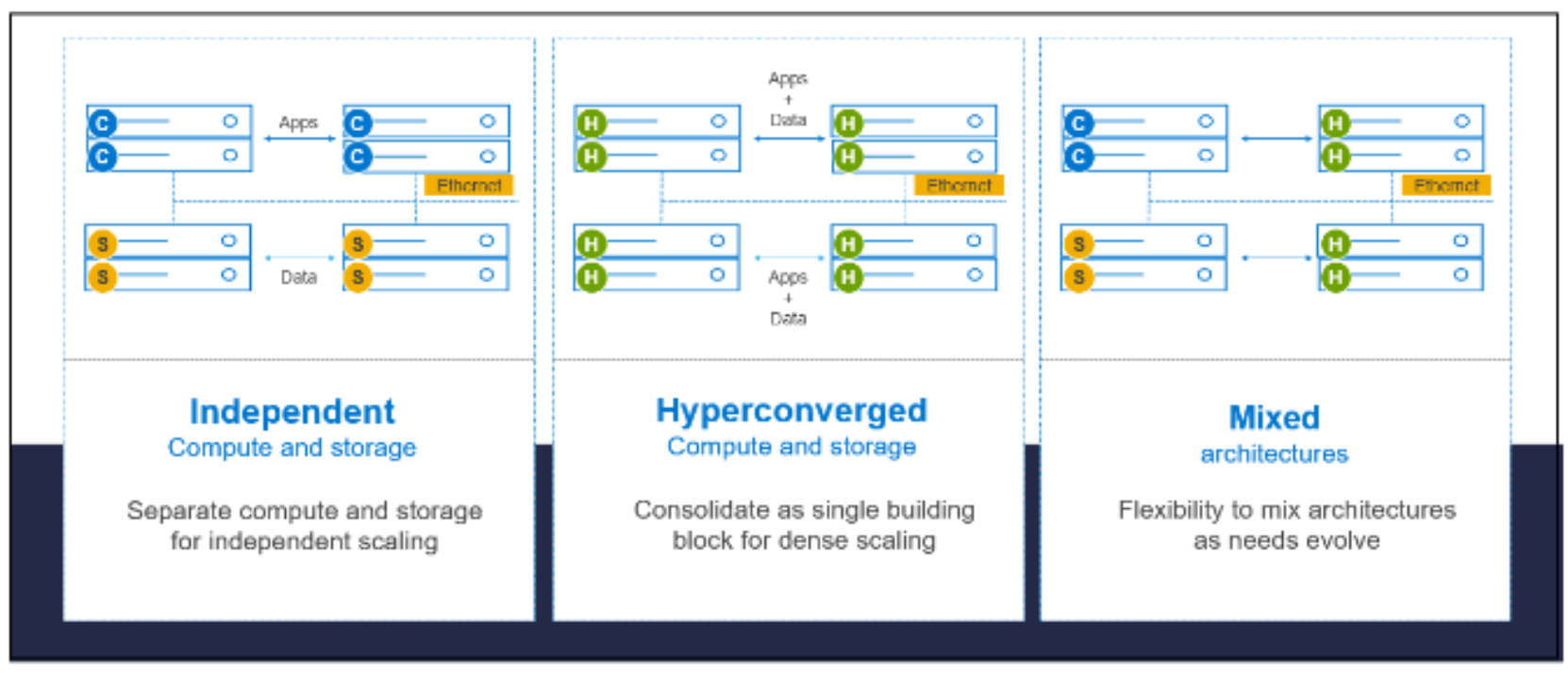
This diagram shows the different deployment architecture of PowerFlex.

Figure 3.    PowerFlex deployment architectures

Independent architecture

In an independent or two-layer architecture, some nodes provide storage capacity for data in applications, while other separate and independent nodes provide compute resources for applications and workloads. Compute and storage resources can be scaled independently by adding nodes to the cluster while it remains active. This separation of compute and storage resources helps to minimize software licensing costs in certain situations. This architecture can be ideal for high-performance databases and application workloads. 

Hyperconverged architecture

In an HCI architecture, each node in the cluster contributes storage and compute resources simultaneously to the applications and workloads. This architecture allows you to scale your infrastructure uniformly with building blocks that add both storage and compute resources. This architecture is appropriate for data center and workload consolidation. 

Mixed architecture

A mixed architecture is a combination of both the HCI and Independent architectures. As shown in Figure 3, some storage-only nodes, compute-only nodes, and HCI nodes are a part of the same PowerFlex cluster. This is a desirable architecture when working with an existing compute infrastructure and adding high-performance software-defined infrastructure. It can also be a starting point for a two-layer deployment design as external workloads are migrated to PowerFlex.

PowerFlex consumption options

PowerFlex rack

PowerFlex rack is a software-defined infrastructure platform that delivers flexibility, elasticity, and simplicity with predictable performance and resiliency at scale by combining compute and high-performance storage resources in a managed unified network. This rack-based engineered system, with integrated networking, enables customers to achieve the scalability and management requirements of a modern data center.  

PowerFlex appliance

PowerFlex appliance is a PowerEdge server which has been configured to be a node in a software-defined infrastructure deployment that runs PowerFlex software components. This offering gives customers the flexibility and savings to bring their own compatible networking. 

PowerFlex custom nodes

PowerFlex custom nodes are validated server building-blocks that are configured for use with PowerFlex. PowerFlex custom nodes come with thousands of configuration options and are available for customers who prefer to build their own environments.

Dell APEX Block Storage for Public Cloud

PowerFlex software is also available in the public cloud as Dell APEX Block Storage for Public Cloud. It offers the same on-premises benefits of high-performance, linear scalability, and high resilience as in the cloud and also adds cloud-specific benefits, such as large volume sizes, extreme performance based on NVMe drives, and predictable scalability. The APEX Block Storage self-healing architecture simplifies and increases the availability of infrastructure. It is designed to remain running even when it encounters failures. With fast rebuilds, APEX Block Storage recovers rapidly from failures and keeps operating, without degrading performance or compromising availability. You can also extend this availability and configure it to protect your application availability across multiple availability zones.

PowerFlex CSI/CSM 

An important component outside of PowerFlex that enables a flexible consumption model for Kubernetes is the PowerFlex CSI driver, developed as a part of the Dell Kubernetes strategy. After being loaded into Kubernetes, the CSI driver for PowerFlex can be used to provision persistent volumes from the underlying PowerFlex storage resource. If the Kubernetes deployment is running low on PowerFlex storage resources, you can add PowerFlex storage nodes to increase the system capacity and performance. 

The CSI driver connects the PowerFlex system and Kubernetes deployments. It is a storage broker that dynamically provisions volumes from PowerFlex through the PowerFlex API gateway to the Kubernetes cluster. Once the volume is available on PowerFlex, it is immediately mapped to the requesting pod. If a pod is destroyed or rescheduled, the CSI plug-in ensures that the volumes are remapped upon rescheduling of that pod.  

Customers running Kubernetes clusters on PowerFlex use the Dell Container Storage Modules (CSM), which extend the CSI driver capabilities. These modules: 

  • Provide enterprise storage capabilities to Kubernetes for cloud-native stateful applications. 
  • Reduce management complexity, so that developers can independently use enterprise storage with ease and automate daily operations. 
  • Extends storage functionality and capabilities beyond using the CSI driver alone.

These modules include snapshot, observability, authorization, application mobility, and resiliency.  

PowerFlex supports multiple operating systems and different deployment options on-premises and public cloud deployment model (available in AWS and Azure). PowerFlex is validated with the leading Kubernetes distributions, as shown in the following figure:

Kubernetes Distributions OS Public Cloud Private Cloud/ On Premises Bare Metal Virtual Machines Containers PowerFlex

Figure 4.   PowerFlex for different Kubernetes distributions

Red Hat Enterprise Linux

Red Hat Enterprise Linux is an open-source operating system that offers a scalable, fault-tolerant platform for the development of cloud-enabled workloads requiring high throughput. Red Hat Enterprise Linux is one of the best optimized operating systems for servers.

Red Hat OpenStack Platform 17.1

Red Hat OpenStack Platform (RHOSP) 17.1 is an enterprise-grade cloud computing platform designed to provide flexible, scalable, and cost-effective IaaS cloud on top of Red Hat Enterprise Linux. It is built using open-source technologies, and it enables businesses to deploy and manage private and hybrid clouds with the reliability, security, and support of Red Hat.

RHOSP 17.1 is based on the OpenStack “Wallaby” release and offers a containerized version that provides an open-source cloud platform for a wide variety of use cases, from development and testing to production-ready environments. It delivers a massively scalable, fault-tolerant platform for developing cloud-enabled workloads.

For more information, see Red Hat OpenStack Platform 17.1.

OpenStack components

RHOSP uses Red Hat OpenStack Platform Director as the toolset for installing and managing an OpenStack environment. The deployment includes the concept of undercloud and overcloud, which forms the entire OpenStack platform.

Undercloud (director)

The director node is installed as a RHEL VM and is the main management node that contains the RHOSP director toolset. The director is installed on the undercloud VM and acts as a single point for the installation, configuration, and management of the OpenStack environment (overcloud).
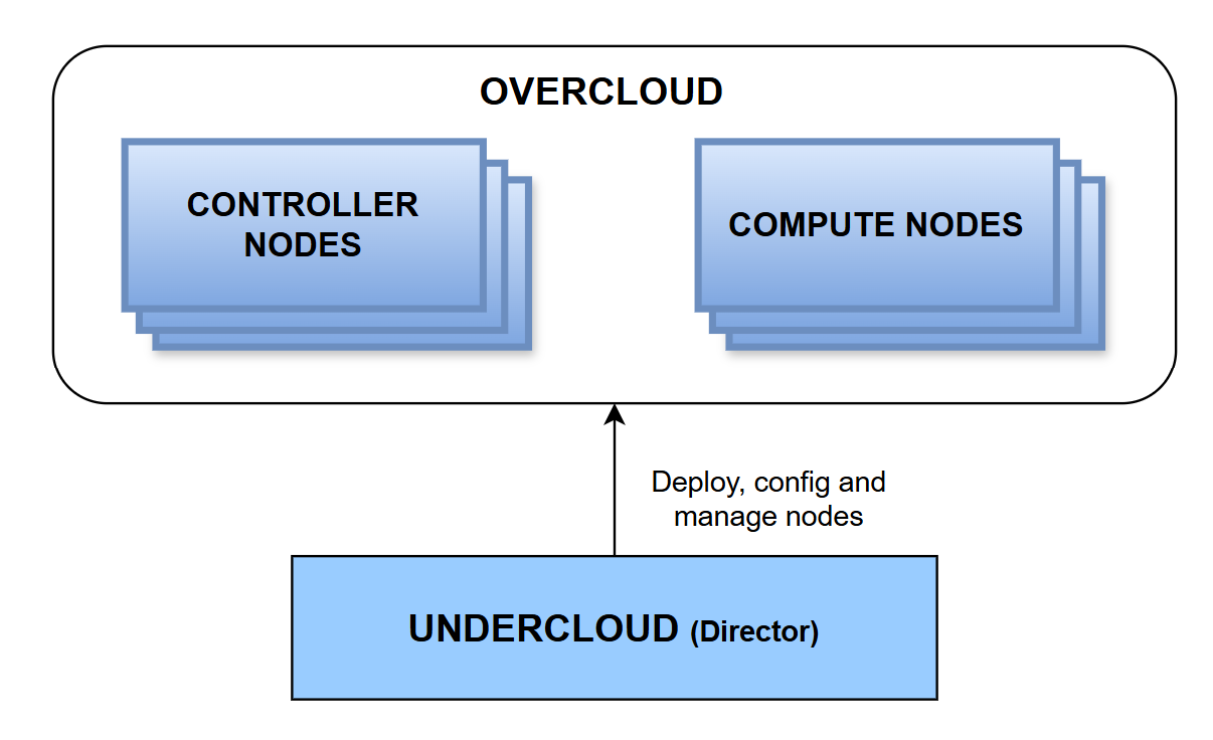
Block diagram representing how undercloud and overcloud are related in RedHat OpenStack Platform.

Figure 5.   Red Hat OpenStack Platform Block diagram

The key functions of the undercloud are:

  • RHOSP services: The undercloud uses RHOSP service components as its base tool set. Each service operates within a separate container on the undercloud.
  • Environment planning: The undercloud helps in planning your overcloud environment and tag nodes to appropriate clusters of controller and compute nodes, and allows custom roles.
  • Bare metal system control: The undercloud inspects each node and discovers its hardware attributes using an OOB network to communicate to IPMI and PXE controls.
  • Orchestration: The undercloud provides a set of yaml templates and allows customization by allowing us to pass environment files during overcloud deployment.

Overcloud

The overcloud is the resulting Red Hat OpenStack environment that is created by the undercloud. The solution described in this document deploys a cluster of controller and compute nodes. All customizations are passed as yaml files during the deployment to create the final overcloud environment. Pacemaker acts as the cluster resources manager and provides high availability (HA) to all the OpenStack controller nodes in the cluster. A Cinder container in the overcloud controller is responsible for communicating with the backend PowerFlex.

Controller node

A controller node is responsible for providing key services for administering, managing, and upgrading the RHOSP overcloud environment. This controller node provides various services, such as dashboard (Horizon), authentication (Keystone), image storage (Glance), networking (Neutron), orchestration (Heat), and HA.

Compute node
A compute node is a part of every OpenStack overcloud deployment, providing compute services (Nova) to host VM instances running on a Red Hat hypervisor. Each compute node runs KVM/QEMU, Open vSwitch, OpenStack Telemetry, and other services.

This chapter presents the following topics:

Overview

Network planning

Storage planning

Deployment considerations

Overview

This section describes the planning required for undercloud and overcloud deployment and the considerations involved. In this document, both overcloud controllers and compute nodes are bare metal nodes.

Node considerations

Choosing node roles for overcloud deployment and planning the correct network topology are some of the most crucial steps for successful deployment of RHOSP.

Table 2.      Node considerations

Role

Node description

Count

Description

Undercloud

RHEL 9.2 VM

1

Management VM that contains RHOSP director toolset.

Overcloud controller

RHEL 9.2 server

3

These nodes provide administration, networking, and HA for RHOSP. Nodes are configured with Cinder and installed with SDC to communicate with PowerFlex storage-only nodes.

Overcloud compute-only nodes

RHEL 9.2 server

3

These nodes provide computing resources and use SDC to communicate with PowerFlex.

PowerFlex storage-only node

PowerFlex embedded OS

4

These nodes provide storage to compute nodes using PowerFlex.

Network switch

Dell PowerFlex supported switches

2

vPC/VLT configured across the switches

Planning node deployment roles

Roles provide a way to define the functionality of individual nodes in the overcloud cluster. RHOSP provides many roles for tagging the nodes during the planning of the overcloud deployment. This white paper uses the following roles:

  •  Controller profile
  •  Compute profile

In a production environment, controller and compute nodes are always deployed in clusters of three or more nodes for HA. RHOSP environmental templates will automatically configure HA using pacemaker on all the nodes that are tagged with controller node profiles.

Network planning

Planning the network topology is important for a successful deployment and functioning of the overcloud environment.

At the physical layer, two top-of-rack (TOR) switches are deployed to provide redundancy and load balancing. Depending on the switch vendor, either Virtual Link Trunking or Virtual PortChannel is configured. The required VLANs are created on the switches to separate the different network traffic types on the physical interfaces.

RHOSP uses the networking service, which operates autonomously and manages software-based networks, static, floating, and DHCP IP addresses. The director deploys the service on each node in an overcloud environment.

The following networks can be used for your RHOSP deployment depending on the node role:

Table 3.      List of networks for RHOSP deployment

Network name

Purpose 

IPMI

Network used for power management of nodes. 

Provisioning

Director uses this network for deployment and management. Used by nodes when executing the PXE boot process.

Internal API

This network is used for communication between the RHOSP services using API communication, RPC messages, and database communication.

Tenant

The networking service (neutron) provides each tenant (project) with their own networks using either:

  • VLAN separation
  • Tunneling over VXLAN or GRE

Storage

Network used for block storage, NFS, iSCSI, and others. Ideally isolated for performance reasons.

Storage management

OpenStack Object Storage (swift) uses this network to synchronize data objects between participating replica nodes. 

External

Hosts the OpenStack Dashboard (horizon) for graphical system management; the public APIs for OpenStack services, and performs SNAT for incoming traffic destined for instances.

Ensure that this network is accessible from undercloud VM.

In a typical RHOSP deployment, the number of logical network traffic types always outnumbers the physical networking links available on the nodes. To connect all the different network traffic types that overcloud provides, VLAN tagging is used to transmit more than one type of traffic on each network interface.

Note: For overcloud bare metal nodes, define the VLAN selected for provisioning as the native VLAN on the switch port connected to the provision network port on the server. Also, define and map PXE boot to the interface where the provision network is configured.

The following table provides details of all the network mappings used in OpenStack deployment with number of interfaces and VLANs:

Table 4.      Network mapping details

Network Mapping

Used by

Total number of interfaces

Total VLANs

  • Network 1 – Provisioning
  • Network 2 – External Management

Undercloud VM

2

2 (one for each network)

  • Network 1 – Provisioning/Control plane (used for PXE)
  • Network 2 - Internal API
  • Network 3 - Tenant
  • Network 4 - Storage
  • Network 5 - Storage Management
  • Network 6 - OpenStack External, Floating IP (mapped after overcloud creation)

Overcloud controller nodes

3 (includes 2 bonded interfaces)

or

2 (one for network 1 and other for remaining network flows using internal virtual bridge)

6

(one for each network)

  • Network 7 - PowerFlex Data1
  • Network 8 - PowerFlex Data2

2 (one for each of data networks, carry individual traffic)

2

 (one for each network)

  • Network 1 – Provisioning/ Control plane (native VLAN, used for PXE)
  • Network 2 - Internal API
  • Network 3 - Tenant
  • Network 4 – Storage

Overcloud compute nodes


3 (includes 2 bonded interfaces)

or

2 (one for network 1 and other for remaining network flows using internal virtual bridge)

4

(one for each network)

  • Network 5 - PowerFlex Data1
  • Network 6 - PowerFlex Data2

2 (one for each of data networks, carry individual traffic)

2

 (one for each network)

For more information about planning networks, see Preparing your Undercloud networking and Overcloud networks.

Note: All networks mentioned in the preceding table are isolated networks. In addition, overcloud networks are created automatically during the overcloud deployment using network environment files.

Storage planning

A PowerFlex cluster is deployed on a minimum of four physical nodes. In RHOSP, the  Cinder driver is configured with PowerFlex details, as explained in Configuring and deploying overcloud. Cinder communicates with PowerFlex using the PowerFlex Manager IP provided in the custom Cinder configuration file, allowing the user to create and consume the PowerFlex volume.

For complete information about deployment and network configurations, see the following documents:

Architecture overview

Introduction

This section describes the logical and network architecture of Red Hat OpenStack 17.1 with Dell PowerFlex.

The architecture encompasses the RHOSP 17.1 controller and compute node clusters that consume PowerFlex as the back-end storage provider. The components of this solution are:

  • Undercloud VM
  • Three controller nodes
  • A minimum of three compute nodes
  • A PowerFlex storage-only cluster with a minimum of four nodes

Infrastructure VMs such as the Red Hat OpenStack director or undercloud VM, DNS, NTP, and so on are hosted on the management cluster where PowerFlex Manager is running.

Logical architecture

The following figure provides an overview of the logical architecture of RHOSP 17.1 on PowerFlex:
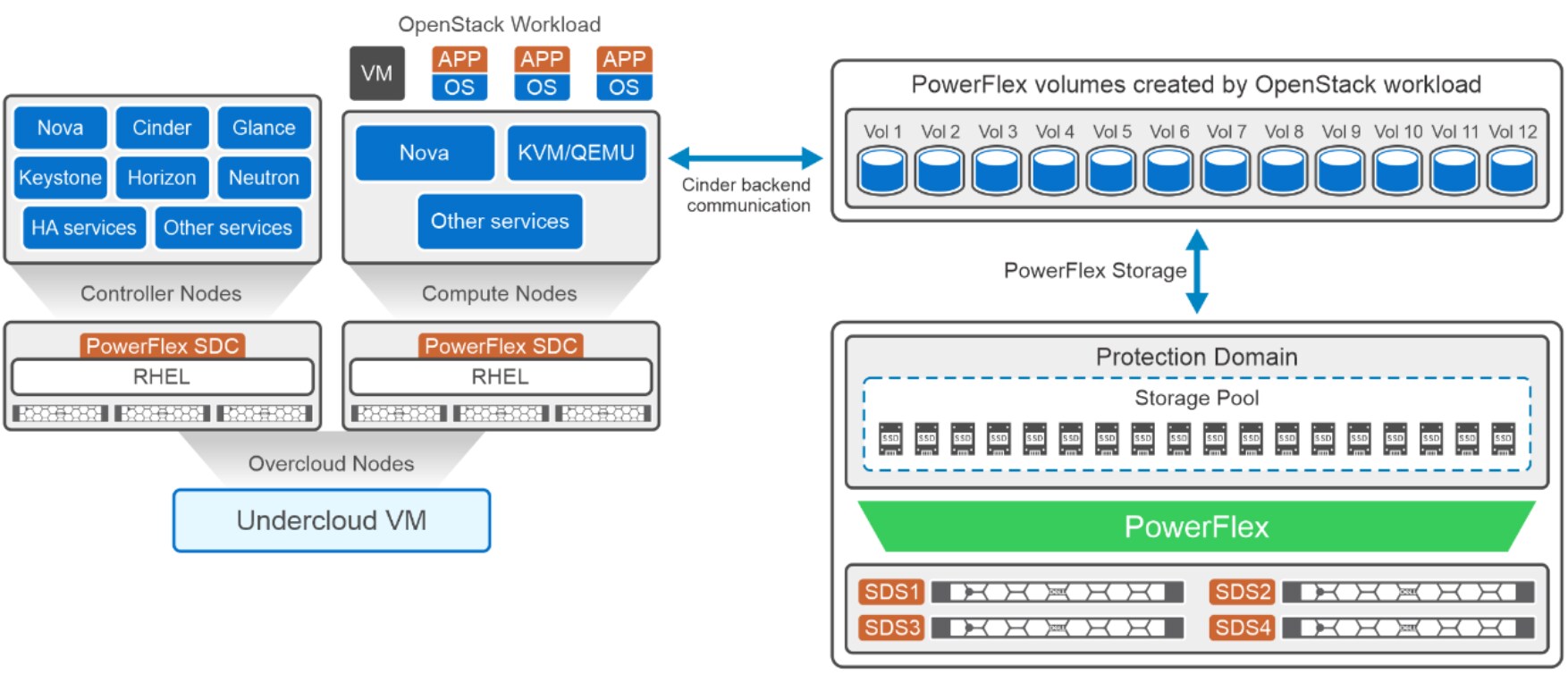
Logical architecture diagram of PowerFlex storage with RedHat OpenStack Platform 17.1.

Figure 6.   Logical architecture

The undercloud VM is the component that is used to deploy overcloud nodes. RHEL 9.2 is the base operating system for all the RHOSP components, including the undercloud and overcloud nodes. This solution deployed two different profiles for overcloud nodes:

  • Controller VMs: Three PowerEdge servers are configured with RHOSP controller profile. PowerFlex SDC is installed on each node, helping the cinder driver to communicate with PowerFlex.
  • Compute nodes: Three servers are configured with RHOSP compute profile and installed SDC on each node. These nodes are responsible for hosting the customer workloads.

In this solution, PowerFlex Manger acts as the REST API gateway that communicates with the MDM component in the PowerFlex cluster.

PowerFlex Manager deploys the PowerFlex storage-only (SO) cluster on four bare metal servers. The PowerFlex storage cluster consists of the MDM, SDS, and LIA components. A single PowerFlex protection domain with multiple storage pools is configured on PowerFlex. The PowerFlex storage pool topology consists of four SO nodes with 10 SSD disks in each of the four SO nodes in the PowerFlex system.

Cinder on the overcloud controller nodes communicates using the PowerFlex Manager IP address for storage operations. From OpenStack, volumes are created, deleted, or mounted to the VMs which are running on OpenStack compute nodes.

Network architecture

The following diagram shows the network architecture of this solution.
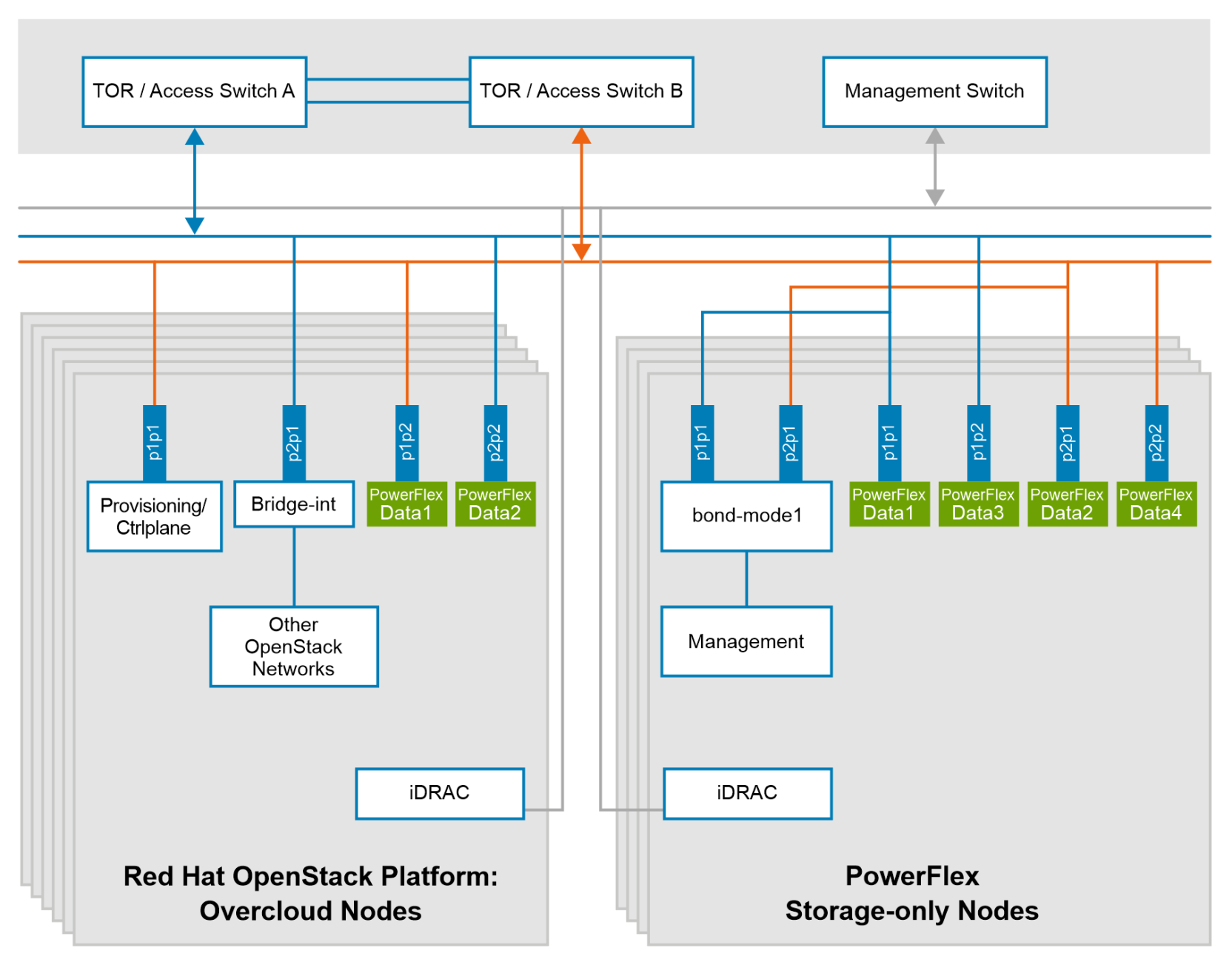
Image representing network configuration Power storage-only nodes and RedHat OpenStack Platform overcloud nodes.

Figure 7.   Network design of RHOSP with Dell PowerFlex

At the physical layer, two supported TOR switches are used for redundancy and load-balancing purposes. A peer link is configured on both the TOR switches.

Each PowerFlex storage-only node is connected to the TOR switches. The network ports are trunked with the TOR switches. The NICs handle management, data1, data2, data3, and data4 network traffic for PowerFlex. The management network operates in active-backup (mode1) bonding with the data1 and data2 networks, while the data3 and data4 networks are dedicated to the SDS network and are not bonded. This network configuration provides redundancy and fault tolerance, with two dedicated networks for PowerFlex data transfer. Dedicated VLANs are used to separate management and data network traffic.

The following table shows the different VLANs that are used for PowerFlex SO nodes and their purposes:

Table 5.      Network details for PowerFlex storage-only nodes

Network type

Configuration

Management

Mode1 bond - (interface1 port1 and interface2 port1)

PowerFlex Data 1  

interface1 port1  

PowerFlex Data 2

Interface2 port1  

PowerFlex Data 3  

Interface1 port2

PowerFlex Data 4  

Interface2 port2  

Each overcloud node is connected to the TOR switches. The OpenStack network is configured as follows in this solution:

  • Interface1 port1: Configured with an OpenStack provision/control plane network as a native VLAN. This network is used for pxe booting during provisioning and in deploying overcloud, as explained in Chapter 5 RHOSP Deployment.
  • Interface2 port2: OpenStack networks are separated with different VLANs and are trunked at the TOR switches. The virtual bridge network configuration environment file is used to allow all the networks.

Note: See the sample network configuration files YAML files for provisioning overcloud network resources and YAML files for provisioning bare metal nodes.

The following table shows the network details of the RHOSP used in this solution:

Table 6.      RHOSP network and its subnet

Network type

Subnet used

Configuration

Provisioning and Control plane (used for PXE)

192.168.105.0/24

Interface1 port1 (configured as native VLAN is for PXE booting).


This network is created automatically during the overcloud deployment, using network environment files

Other OpenStack networks:

  1. Internal API
  2. Storage
  3. Storage Management
  4. Tenant
  5. External


  1. 172.16.1.0/24
  2. 172.16.2.0/24
  3. 172.16.3.0/24
  4. 172.16.4.0/24
  5. 172.16.6.0/24


Bridge – interface2 port1

Associated with the virtual bridge which carries different VLANs for respective networks such as internal API, Tenant, Storage, External, and so on. This network is created automatically during the overcloud deployment using network environment files.

Note: The external network must have Internet connectivity and should be reachable for undercloud. 

  • The PowerFlex data1 network is configured on interface 1 port 2, while the data2 network is configured on interface 2 port 2 of the overcloud nodes. Data networks are not teamed, and they carry dedicated SDS-SDC traffic. Data networks are used for communication between PowerFlex compute and storage nodes.

For information about network configuration in an OpenStack environment, see Network planning.

RHOSP deployment

Overview

This section describes the deployment and configuration of RHOSP with PowerFlex as storage.

Before setting up RHOSP, ensure that the following prerequisites are met:

  • DNS and NTP are a part of the infrastructure.
  • The PowerFlex storage cluster to be used as primary storage is successfully deployed. For more information, see, PowerFlex deployment.
  • A RHEL 9.2 VM is used for undercloud. See Director (undercloud) installation for prerequisites and a deployment guide.

PowerFlex deployment

This solution recommends using PowerFlex Manager to deploy the PowerFlex storage-only cluster. For more information about PowerFlex deployment, see Dell PowerFlex Install and Upgrade Guide.

For PowerFlex storage-only cluster deployment using PowerFlex Manager, see Deploy PowerFlex storage.

Director (undercloud) installation

The first step in creating the RHOSP environment is to install the director on the undercloud VM.

Prerequisites

The prerequisite steps for enabling the necessary subscriptions, repositories, and configurations are:

  • Deploy a RHEL 9.2 VM and configure the network.
  • Ensure a minimum of 8 vCPUs, 24 GB memory and 100 GB disk space on the root directory.
  • Install a minimum of 2 NICs, and use one NIC for management (for downloading and SSH) and the other NIC for provisioning overcloud.

Preparing for director installation

Before installing the director, perform the following steps:

  1. Create a stack user service account.
    1. Create a new service account called stack and reset the stack password by running the following command:

[root@director ~]# useradd stack

[root@director ~]# passwd xxxxxx

  1. Enable password-free sudo access for the stack user by editing the /etc/sudoers.d/stack file:

[root@director ~]# echo "stack ALL=(root) NOPASSWD:ALL" | tee -a /etc/sudoers.d/stack

[root@director [root@director ~]# chmod 0440 /etc/sudoers.d/stack

  1. Switch to the stack user:

[root@director ~]# su – stack

Undercloud uses a set of images and heat templates for deploying the overcloud environment.

  1. Create the following directories respectively to store images:

[stack@director ~]$ mkdir ~/images

[stack@director ~]$ mkdir ~/templates

  1. Set the undercloud hostname:
    1. Add the hostname to the undercloud VM:

[stack@director ~]$ sudo hostnamectl set-hostname <undercloud.example.com>

[stack@director ~]$ sudo hostnamectl set-hostname –transient <undercloud.example.com>

  1. Add a host entry in the /etc/hosts file.

<host IP> undercloud.example.com undercloud

  1. Register and update the undercloud:
    1. Register the undercloud with Red Hat subscription manager.

stack@director ~]$ sudo subscription-manager register

Note: Registering the node with Red Hat requires a username, password, and a valid Red Hat subscription.

  1. Add RHOSP entitlement with the appropriate pool id:

[stack@director ~]$ sudo subscription-manager list --available --all --matches="Red Hat openstack"

[stack@director ~]$ sudo subscription-manager attach --pool=<Entitlement Pool ID>

  1. Lock the undercloud to RHEL 9.2 to avoid an operating system update to the latest RHEL 9.2 version, which is available on the Content Delivery Network (CDN):

[stack@director ~]$ sudo subscription-manager release --set=9.2

  1. Disable all default repositories, and then enable the required repositories for RHOSP:

[stack@director ~]$ sudo subscription-manager repos --disable=*

[stack@director ~]$ sudo subscription-manager repos \

--enable=rhel-9-for-x86_64-baseos-eus-rpms          \

--enable=rhel-9-for-x86_64-appstream-eus-rpms       \

--enable=rhel-9-for-x86_64-highavailability-eus-rpms \

--enable=openstack-17.1-for-rhel-9-x86_64-rpms \

--enable=fast-datapath-for-rhel-9-x86_64-rpms

  1. Perform an update on the system and then reboot it:

[stack@director ~]$ sudo dnf update -y

[stack@director ~]$ sudo reboot

  1. Install the director packages on the undercloud VM.

[stack@director ~]$ sudo dnf install -y python-tripleoclient

  1. Generate a container image preparation file. Container image preparation files help users determine where to obtain container images and how to store them.

[stack@director ~]$ openstack tripleo container image prepare default \

  --local-push-destination \

  --output-env-file containers-prepare-parameter.yaml

This command includes the following additional options:

  • local-push-destination sets the registry on the undercloud as the location for container images. To pull container images directly from the Red Hat Container Catalog, omit this option.
  • output-env-file specifies an environment file that includes parameters for preparing your container images.
  1. Customize this environment file in accordance with your environment requirements. For more information, see Preparing container images.

Install the director

The director installation process requires certain settings to determine your network configurations. The settings are stored in a template located in the stack user’s home directory as undercloud.conf. 

  1. Configure the director packages.
    1. Create a new copy of the undercloud.conf file and edit the parameters to suit your environment. If certain parameters are not defined, the default values will be used.

[stack@director ~]$ cp /usr/share/instack-undercloud/undercloud.conf.sample ~/undercloud.conf 

For a sample configuration file, see undercloud.conf in Appendix A.
For more information, see Undercloud configuration parameters.

  1. Install the director and perform some basic post installation tasks.
    1. Run the following command to install director on undercloud VM:

[stack@director ~]$ openstack undercloud install

After successful deployment, the director generates two important files:

    • tripleo-undercloud-passwords.yaml - A list of all passwords for the director’s services. 
    • stackrc - A set of initialization variables to access the director’s command-line tools. 
  1. Check the enabled containers:

[stack@director ~]$ sudo podman ps

  1. Initialize the stack user to use the command-line tools and prompt changes to undercloud:

[stack@director ~]$ source ~/stackrc 

    (undercloud) [stack@director ~]$ 

  1. Set the nameservers for the ctlplane-subnet subnet:

(undercloud) [stack@director ~]$ openstack subnet set --dns-nameserver [nameserver1-ip] --dns-nameserver [nameserver2-ip] ctlplane-subnet

  1. Verify the nameserver for ctlplane-subnet:

(undercloud) [stack@director ~]$openstack subnet show ctlplane-subnet

Note: If you need to change any undercloud configuration to suit new requirements after the installation, edit the configuration file and re-run openstack undercloud install. For more information, see Updating the undercloud configuration. 

  1. Obtain images for the overcloud node deployment. The director requires several disk images for provisioning of the overcloud nodes. The following images are downloaded by the director: 
  • Introspection kernel and ramdisk: Used for bare metal system introspection over PXE boot. 
  • Deployment kernel and ramdisk: Used for system provisioning and deployment. 
  • Overcloud kernel, ramdisk, and full image: Used as a base overcloud system that is written to the node’s hard disk. 

Steps:

  1. Initialize stackrc: 

[stack@director ~]$ source ~/stackrc 

  1. Install the rhosp-director-images-uefi-x86_64 and rhosp-director-images-ipa-x86_64 packages:

(undercloud) [stack@director ~]$ sudo dnf install rhosp-director-images-uefi-x86_64 rhosp-director-images-ipa-x86_64

  1. Extract the images archives to the image’s directory on the stack user’s home (/home/stack/images) :  

(undercloud) [stack@director ~]$ mkdir ~/images 

(undercloud) [stack@director ~]$ cd ~/images 

(undercloud) [stack@director images]$ for i in /usr/share/rhosp-director-images/ironic-python-agent-latest.tar /usr/share/rhosp-director-images/overcloud-hardened-uefi-full-latest.tar; do tar -xvf $i; done

  1. Import these images into the director:  

(undercloud) [stack@director images]$ openstack overcloud image upload --image-path /home/stack/images/ 

This command converts the image format from QCOW to RAW.

  1. Verify that images have been uploaded successfully:

(undercloud) [stack@director images]$ ls -l /var/lib/ironic/images/

  1. Verify that the director has copied the introspection PXE images to the /var/lib/ironic/httpboot location:

(undercloud) [stack@director images]$ ls -l /var/lib/ironic/httpboot

  1. RHEL 9.2 no longer includes the docker-distribution package, which installed the Docker Registry v2. The director installation creates an Apache web server with a vhost called image-serve to provide a registry. This registry also uses port 8787/TCP with SSL disabled. 

The Apache-based registry is not containerized, so run the following command to restart the registry:

$ sudo systemctl restart httpd

For more information, see undercloud container registry.

Provisioning overcloud

The overcloud is an operating environment that is available to run guest VMs and workloads.

Prerequisites

The prerequisites for provisioning overcloud are:

  • A minimum of three bare metal nodes for each overcloud controller and compute (required)
  • 64-bit x86 processors with support for the Intel 64 or AMD64 CPU extensions and a minimum of 4 cores per processor (recommended)
  • A minimum of 32 GB memory for the controller node (required). However, the amount of recommended memory depends on the number of vCPUs. For detailed information, see Controller node requirements.
  • A minimum of 6 GB memory for compute nodes (required). Add more memory based on the requirement and usage. For detailed information, see Compute node requirements.
  • A minimum of 50 GB of available disk space.
  • SELinux is enabled.
  • A minimum of 4 NICs for provisioning, the control plane network, overcloud networks, and PowerFlex data1 and data2 networks.

Perform some of the network configuration steps on the bare metal nodes (overcloud nodes) before continuing. For more information about the network and design, see Network planning.

To create an overcloud, you must:

  • Provision network resources for the physical network.
  • Provision bare metal nodes
  • Deploy the overcloud

Provisioning the overcloud networks

RHOSP provides isolated overcloud networks so that the user can host specific types of network traffic in isolation.

For more information about the networks, see Network planning. 

To configure the network resources for the RHOSP physical network environment, perform the following tasks:

  • Configure and provision the network resources for overcloud.
  • Configure and provision the network Virtual IPs for overcloud.


Configuring and provisioning overcloud network definitions

Configure the physical network for overcloud in a YAML-format network definition file. The provisioning process creates a heat environment file from the network definition file that contains network specifications. During overcloud deployment, this heat environment file is included in the deployment command.

Perform the following steps:

  1. Initialize stackrc. 

[stack@director ~] $ source ~/stackrc

  1. Copy the sample network definition template from /usr/share/openstack-tripleo-heat-templates/network-data-samples to the environment file directory: 

(undercloud) [stack@director ~] $ cp /usr/share/openstack-tripleo-heat-templates/network-data-samples/default-network-isolation.yaml /home/stack/templates/network-data.yaml

  1. Edit the network-data.yaml file according to the environment requirements. This file holds the information about the list of networks and its details. Here is a sample file for one network:

- name: External

  name_lower: external

  vip: true

  mtu: 1500

  subnets:

    external_subnet:

      ip_subnet: 10.x.x.x/x

      allocation_pools:

        - start: 10.x.x.x

          end: 10.x.x.x

      gateway_ip: 10.x.x.x

      vlan: xx

For examples of customized network environment files, see network-data.yaml.

  1. Configure any other networks and attributes to suit the environment. For more information about the properties used to configure network attributes in the network definition file, see creating the network definition file.
  2. To provision the overcloud network, run the following command:

(undercloud) [stack@director ~]$ openstack overcloud network provision \

 --output  <deployment_file> \

 /home/stack/templates/<networks_definition_file>

Where:

      • deployment_file  is the name of the heat environment file to generate for inclusion in the deployment command, for example, /home/stack/templates/overcloud-networks-deployed.yaml
      • networks_definition_file is the name of the networks definition file, for example, network-data.yaml
  1. When network provisioning is completed, run the following command to verify the created networks and subnets:

(undercloud) [stack@director ~]$ openstack network list

(undercloud) [stack@director ~]$ openstack subnet list
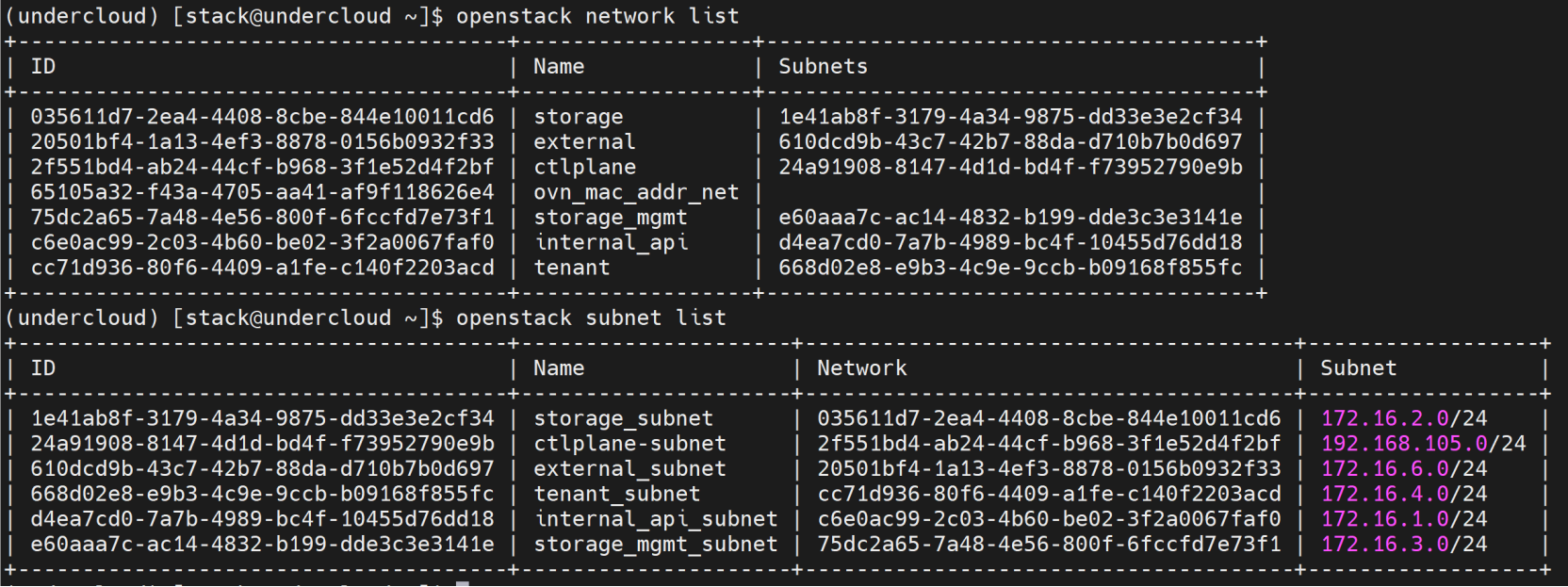
A screenshot of the commands "openstack network list" and "openstack subnet list". This is to verify the network data provision is successful.

Figure 8. Provisioned network and its subnet list

(undercloud) [stack@director ~]$ openstack network show <network>

(undercloud) [stack@director ~]$ openstack subnet show <subnet>

Configuring and provisioning network VIPs for the overcloud

Configure the network Virtual IPs (VIPs) for overcloud in a YAML-format network VIP definition file. The provisioning process creates a heat environment file from the VIP definition file that contains VIP specifications. This heat environment file is used in the deployment command for the overcloud.

Perform the following steps:

  1. Initialize stackrc:

[stack@director ~]$ source ~/stackrc

  1. Copy the sample network VIP definition template from /usr/share/openstack-tripleo-heat-templates/network-data-samples to the environment file directory: 

(undercloud) [stack@director ~]$ cp /usr/share/openstack-tripleo-heat-templates/network-data-samples/ vip-data-default-network-isolation.yaml /home/stack/templates/vip-data.yaml

  1. Edit the vip-data.yaml file in accordance to with the environment requirements, as shown in the following code snippet:

- network: <network>

  dns_name: <dns_name>

  name: <vip_name>

  ip_address: <vip_address>

  subnet: <subnet> 

 Where:

      • <network> is the name of the network where the IP address is allocated, for example, internal_api or storage.
      • <dns_name> is the optional FQDN ,for example, overcloud.
      • <vip_name> is the optional VIP name.
      • <vip_address>  is the optional virtual IP address for the network.
      • <subnet> is the optional name of the subnet to use when creating the virtual IP port. This name is required for routed networks.

For sample customized network environment files, see vip-data.yaml.

For more information about the properties that are used to configure network VIP attributes in the network VIP definition file, see creating the network VIP definition file.

  1. To provision the network VIP, run the following command:

(undercloud) [stack@director ~]$ openstack overcloud network vip provision \

 --stack <stack> \

 --output <deployment_file> \

 /home/stack/templates/<vip_definition_file>

Where-

      • <stack>  is the name of the stack for which the network VIPs are provisioned, for example, overcloud.
      • <deployment_file> is the name of the heat environment file to generate for inclusion in the deployment command, for example /home/stack/templates/overcloud-vip-deployed.yaml.
      • <vip_definition_file>  is the name of VIP definition file, for example, vip_data.yaml.
  1. When network VIP provisioning is completed, run the following command to verify created VIPs.

(undercloud) [stack@director ~]$ openstack port list

Screenshot of the command "openstack port list". This is to verify that the network vip is successful provisioned.

Figure 9. Provisioned network VIP list

  1. Run the following command to view details of a specific port:

(undercloud) [stack@director ~]$ openstack port show <port>

Provision bare metal overcloud nodes

This solution uses bare metal for the overcloud deployment. To configure an RHOSP environment, you must:

  • Register the bare metal nodes for overcloud.
  • Provide the director with a hardware inventory of the bare metal nodes.
  • Configure the quantity, attributes, and network layout of the bare metal nodes in a node definition file.
  • Assign an appropriate resource class to each bare metal node to match its designated role.

Registering bare metal nodes for the overcloud

The director requires a node definition template, which must be created in json or yaml format. This file contains the hardware and power management details of the overcloud nodes. See nodes.json for an example file. For information about creating a json file, see baremetal node json.

Perform the following steps:

  1. Initialize stackrc:

[stack@director ~]$ source ~/stackrc

  1. Create and save a template to stack the user’s home directory (/home/stack/<filename>.json) and verify the formatting and syntax:

(undercloud) [stack@director ~]$ openstack overcloud node import --validate-only ~/<filename>.json

  1. Import the bare metal node template into the director to register each node inthe director:

(undercloud) [stack@director ~]$ openstack overcloud node import ~/<filename>.json

  1. When the node registration and configuration are complete, verify that the director has successfully registered the nodes:

(undercloud) [stack@director ~]$ openstack baremetal node list

Screenshot of the command "openstack baremetal node list". This lists the registered overcloud nodes in the director.

Figure 10.    Registered bare metal node list

Prepare the hardware inventory of the bare metal nodes

The director needs the hardware inventory of the nodes in the RHOSP deployment for profile tagging, benchmarking, and manual root disk assignment. 

This solution uses an automatic introspection process to collect the hardware information of each node. This process causes each node to boot an introspection agent over PXE, which collects hardware data from the node and then sends it back to the director. The director stores the hardware data in the OpenStack internal database.

Perform the following steps:

  1. Initialize stackrc:

[stack@director ~]$ source ~/stackrc

  1. Run the pre-introspection validation group to check the introspection requirements: 

(undercloud) [stack@director ~]$ validation run --group pre-introspection --inventory <inventory_file>

Where: 

<inventory_file> is the name and location of the Ansible inventory file, for example, ~/tripleo-deploy/undercloud/tripleo-ansible-inventory.yaml.

  1. Review the results of the validation report:

(undercloud) [stack@director ~]$ validation history show

(undercloud) [stack@director ~]$ validation history get --full <UUID>

Note: A FAILED validation does not prevent deploying or running Red Hat OpenStack Platform, but it can indicate a potential issue with the environment.

  1. Run introspection on all the nodes together: 

(undercloud) [stack@director ~]$ openstack overcloud node introspect --all-manageable -–provide 

Where: 

    • The all-manageable option introspects only nodes in a managed state. 
    • The provide option resets all nodes to an available state after introspection
  1. Introspect one node at a time.
    1. Move the node into the manage state:

      (undercloud) [stack@director ~]$ openstack baremetal node manage [NODE UUID] 
      where the node UUID can be recorded using the OpenStack baremetal node list command

    2. Run the introspection process on the specific node: 
      (undercloud) [stack@director ~]$ openstack overcloud node introspect --provide [NODE UUID] 
  1. Monitor the progress of the introspection in a separate terminal window using the following commands. 
          • For the introspection process:
            (undercloud) [stack@director ~]$ sudo tail -f /var/log/containers/ironic-inspector/ironic-inspector.log
          • For information about low-level commands such as iDRAC operations:
            (undercloud) [stack@director ~]$ sudo tail -f /var/log/containers/ironic/ironic-conductor.log
          • For information about DHCPOFFER/DHCPREQUEST/DHCPACK requests
            (undercloud) [stack@director ~]$ sudo tail -f /var/log/containers/ironic-inspector/dnsmasq.log
  1. Review the introspection information about the node:
    (undercloud) [stack@director ~]$ openstack baremetal introspection data save <UUID> | jq . > <filename>
  1. Review the network interface details:

(undercloud) [stack@director ~]$ openstack baremetal introspection interface list [NODE UUID] 

(undercloud) [stack@director ~]$ openstack baremetal introspection interface show [NODE UUID] [INTERFACE]

  1. Retrieve RAM, CPU, and NIC information about the nodes: 

(undercloud) [stack@director ~]$ openstack baremetal introspection data save UUID | jq .numa_topology

Provisioning the bare metal nodes

The provisioning process creates a heat environment file from the node definition file. The heat environment file contains the node specifications that are configured in the node definition file, including node count, predictive node placement, custom images, and custom NICs. The process also provisions the port resources for all networks that are defined for each node or role in the node definition file. During overcloud deployment, this heat environment file is incorporated into the deployment command.

Perform the following steps:

  1. Initialize stackrc:

[stack@director ~]$ source ~/stackrc

  1. Create the overcloud-baremetal-deploy.yaml node definition file and define the node count and other attributes for each role to provision. This solution uses the following sample files:
    • The first NIC is responsible for PXE (for provisioning) and control plane and network access.
    • The second NIC will carry VLAN traffic for all networks.

For more information about network configuration, see Network planning.

Note: Use the template in /usr/share/ansible/roles/tripleo_network_config/templates to create your own NIC templates.

  1. Provision the overcloud nodes using the node definition file:

(undercloud) [stack@director ~]$ openstack overcloud node provision \

 --stack <stack> \

 --network-config \

 --output <deployment_file> \

 /home/stack/templates/<node_definition_file>

Where:

    • <stack>:is the name of the stack for which the bare-metal nodes are provisioned. If not specified, the default is overcloud.
    • The --network-config optional argument is included to provide the network definitions to the cli-overcloud-node-network-config.yaml Ansible playbook. If you do not use --network-config to provide the network definitions, you must configure the {{role.name}}NetworkConfigTemplate parameters in the network-environment.yaml file; otherwise the default network definitions are used.
    • <deployment_file> is the name of the heat environment file to generate the deployment command, for example, /home/stack/templates/overcloud-baremetal-deployed.yaml.
    • <node_definition_file> is the name of the node definition file, for example, overcloud-baremetal-deploy.yaml
  1. Monitor the provisioning progress in a separate terminal:

(undercloud) [stack@director ~]$ watch openstack baremetal node list

When provisioning is successful, the node state changes from available to active.

If the node provisioning fails because of a node hardware or network configuration failure, remove the failed node before running the provisioning step again. For more information, see Removing failed bare-metal nodes from the node definition file.

  1. View unified view of nodes including allocations and ports using the metalsmith tool:

(undercloud) [stack@director ~]$ metalsmith list

screenshot of the command "metalsmith list". This output shows the overcloud node with provisioned  network information.

Figure 11.    Provisioned node list

  1. Verify the association of hostnames in line with the node definition file:

(undercloud) [stack@director ~]$ openstack baremetal allocation list

Designate the overcloud nodes for specific roles by using custom resource classes or the profile capability. For more information, see the following documentation:

Configuring and deploying overcloud

After provisioning the network resources and bare-metal nodes for the overcloud, configure the overcloud using the default heat template files that are included with the director installation, along with any custom environment files that you created based on the specific needs of the environment. Once the configuration is finished, deploy the overcloud environment.

Note: Before you start the overcloud deployment, make sure to configure the BIOS of each node to first boot from the network and then the root disk.

Create an environment file for undercloud CA

Because the undercloud has been configured and deployed with a local certificate, you will be creating the certificate file for the overcloud, which can then be used in overcloud deployment. 

Perform the following steps:

  1. Locate the auto-generated certificate in /etc/pki/ca-trust/source/anchors/cm-local-ca.pem.
  1. Copy only the certificate portion without the key from the certificate file (location: vi/etc/pki/ca-trust/source/anchors/cm-local-ca.pem), specifically, the content between the BEGIN CERTIFICATE and END CERTIFICATE statement. For example: 

-----BEGIN CERTIFICATE----- 
MIIDlTCCAn2gAwIBAgIJAOnPtx2hHEhrMA0GCSqGSIb3DQEBCwUAMGExCzAJBgNV BAYTAlVTMQswCQYDVQQIDAJOQzEQMA4GA1UEBwwHUmFsZWlnaDEQMA4GA1UECgwH UmVkIEhhdDELMAkGA1UECwwCUUUxFDASBgNVBAMMCzE5Mi4xNjguMC4yMB4XDTE3 
-----END CERTIFICATE-----

  1. Create a new YAML file called /home/stack/inject-trust-anchor-hiera.yaml and include the certification you retrieved in the previous step. See the sample inject-trust-anchor-hiera.yaml file.
  2. Add the /home/stack/inject-trust-anchor-hiera.yaml file to the deployment command. 

The director copies the CA certificate to each overcloud node during the overcloud deployment. As a result, each node trusts the encryption that is presented by the undercloud’s SSL endpoints.

Validating the overcloud configuration files

The undercloud includes a set of heat templates and environment files that act as a plan for the overcloud creation. To customize the overcloud deployment, edit the YAML-format environment files to match the requirement. 

These customized YAML files will override parameters and resources in the core heat template collection. You can include as many environment files as necessary. 

Before performing the overcloud creation, validate all the heat templates and environment files for any errors. Any environment files added to the overcloud using the -e option become part of overcloud stack definition. 

Note: A FAILED validation does not prevent you from deploying or running Red Hat OpenStack Platform, but it can indicate a potential issue with the environment.

  1. Initialize stackrc:

[stack@director ~]$ source ~/stackrc

  1. Update the overcloud stack with all the environment files that the deployment requires. This solution uses the following example:

(undercloud) [stack@director]$ openstack overcloud deploy --templates \

-n /home/stack/templates/network-data.yaml \

-e /home/stack/templates/overcloud-baremetal-deployed.yaml \

-e /home/stack/containers-prepare-parameter.yaml \

-e /home/stack/templates/overcloud-vip-deployed.yaml \

-e /home/stack/templates/overcloud-networks-deployed.yaml \

-e /home/stack/templates/inject-trust-anchor-hiera.yaml \

--ntp-server 192.168.105.30 \

 --stack-only

  1. Validate the overcloud stack:

(undercloud) [stack@director ~]$ validation run --group pre-deployment

Note: The validation run --group pre-deployment command includes the node-disks validation. Due to a known issue, this validation currently fails. To avoid this issue, add the --skiplist argument with a yaml file containing the node-disks validation to the validation run --group pre-deployment command.

  1. Review the results of the validation report:

(undercloud) [stack@undercloud ~]$ validation history get [--full] [--validation-log-dir <log_dir>] <UUID>

Where:

    • Optional: Use the --full option to view detailed output from the validation run.
    • Optional: Use the --validation-log-dir option to write the output from the validation run to the validation logs.
    • Replace <uuid> with the UUID of the validation run.

Deploying overcloud

The final stage in creating RHOSP overcloud environment is to provision overcloud deployment. Deployment uses a collection of environment files and templates for the overcloud setup. For information about the available options to use with the openstack overcloud deploy command, see Deployment command options.

Perform the following steps:

  1. Collate the overcloud environment files and configuration files which are needed for overcloud setup, including both the unedited heat template files that are provided with director installation and the custom files:
  • Provisioned network and node definition files.
  • The location of the container images for containerized OpenStack services.
  • Any other custom environment files that are requirements.

All the yaml files are stored in the template folder under ‘stack’ user. See Appendix A for custom yaml files.

  1. Construct the openstack overcloud deploy command, specifying the configuration files and templates in the required order. The order is important, because the parameters and resources that are defined in subsequent environment files take precedence. For example:

(undercloud) $ openstack overcloud deploy --templates \

 -n /home/stack/templates/network_data.yaml \

 -e /home/stack/containers-prepare-parameter.yaml \

 -e /home/stack/templates/inject-trust-anchor-hiera.yaml \

 -e /home/stack/templates/overcloud-vip-deployed.yaml \

 -e /home/stack/templates/overcloud-networks-deployed.yaml \

 -e /home/stack/templates/overcloud-baremetal-deployed.yaml\

 -e /home/stack/templates/cinder-dellemc-powerflex-config.yaml

 -e /home/stack/templates/volume-mapping.yaml 

 --ntp-server <ntp_P>

The code sample includes the following files:

For more information about the cinder configuration file with respect to PowerFlex, see Dell PowerFlex Backend Deployment Guide. 

  • volume-mapping.yaml: Prepare custom volume mappings for connector configuration. See the volume-mapping yaml sample file.
  • NTP server IP details, because time synchronization must be maintained with the undercloud.

Note: Based on your setup, if you need more detailed information, see Customizing your Red Hat OpenStack Platform deployment, Configuring overcloud networking, Configuring and deploying the overcloud and Deploying a custom Block storage back end.

  1. The deployment process takes some time to complete. View the status of the overcloud creation in a separate terminal as the ‘stack’ user. 

(undercloud) [stack@director ~]$ source ~/stackrc 

(undercloud) [stack@director ~]$ openstack overcloud status

(undercloud) [stack@director ~]$ sudo tail -f /var/lib/mistral/overcloud/ansible.log

Note: If overcloud uses a different name, use --stack to specify the overcloud name. For example: openstack overcloud status --stack <overcloud_name>.

  1. When the overcloud creation completes, the director provides access information for overcloud:

Ansible execution success.

Overcloud configuration completed.

Overcloud Endpoint: http://<IP_address>:5000

Overcloud Horizon Dashboard URL: http://<IP_address:port>/dashboard

Overcloud rc file: /home/stack/overcloudrc

Overcloud Deployed successfully

  1. Record the horizon dashboard URL and the location of the overcloudrc file for future reference.


Post deployment operations

Overcloud deployment validation

Validation steps

Perform the following steps:

  1. Verify overcloud status: Run the deployment status command:

(undercloud) [stack@director ~]$ openstack overcloud status

Screenshot showing the overcloud deployment status.

Figure 12. Overcloud deployment status

  1. Access overcloud: The director generates a script to configure and help authenticate interactions with the overcloud from the director host. The director saves this file, overcloudrc, into the stack users’ home directory. 
  • Run the following command to source the overcloud RC file. 

(undercloud) [stack@director ~]$ source ~/overcloudrc 

(overcloud) [stack@director ~]$

This command loads the necessary environment variables to interact with the overcloud from the director host’s CLI.

  • List all the available endpoints:

(overcloud) [stack@director ~]$ openstack endpoint list
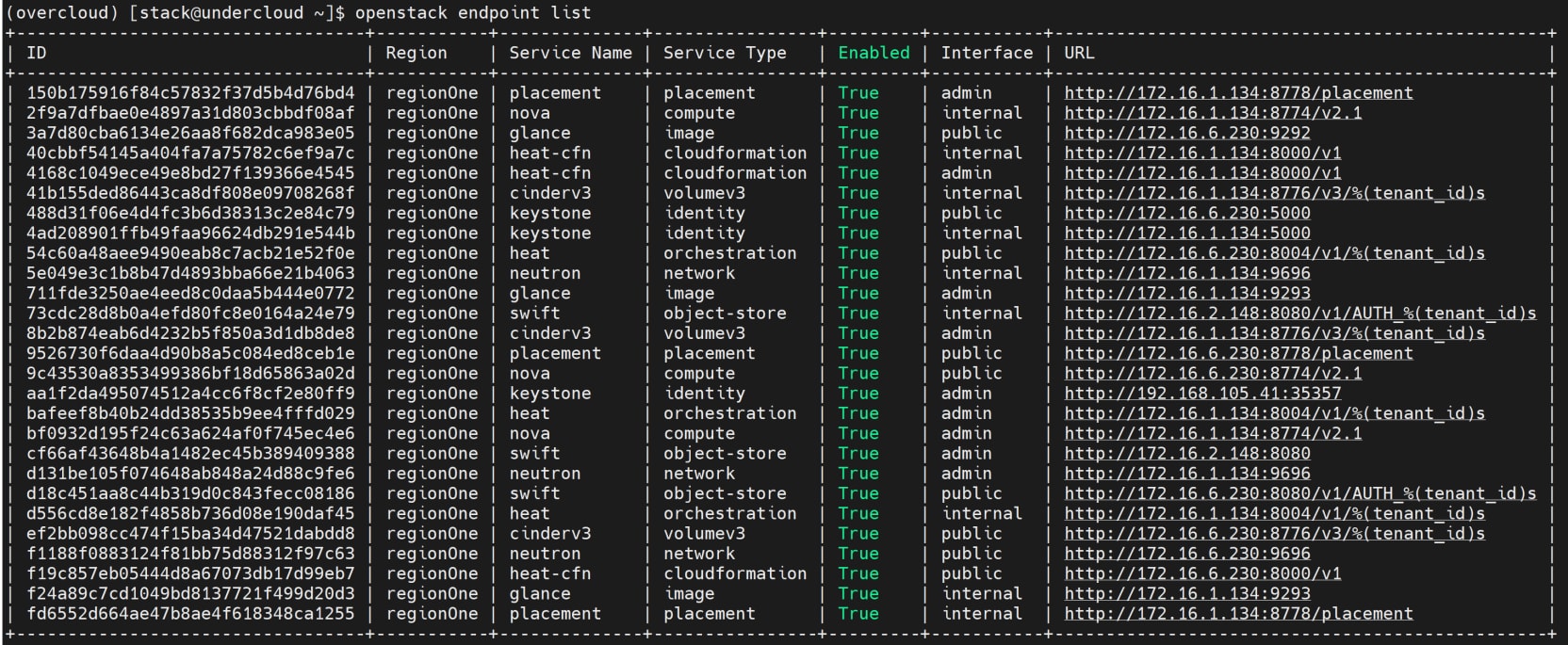
Screenshot showing the openstack endpoints list. This helps to communicate each of the services.

Figure 13. Endpoint list

  • Find the IP address of the overcloud node and make a note of it: 

(undercloud) [stack@director ~]$ openstack hypervisor list 
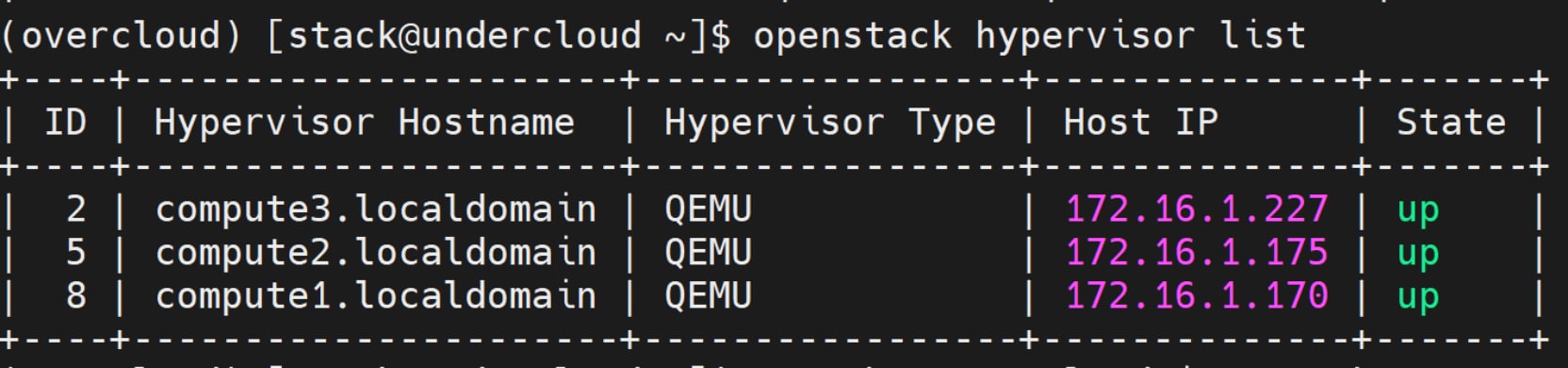
Screenshot showing the overcloud compute node list. This provides a compute resource for running the workload.

Figure 14. Compute server list

  1. Connect overcloud nodes: Each node in the overcloud also contains a user called tripleo-admin. The undercloud ‘stack’ user has SSH access to this user on each node. 
    1. Connect the node using the tripleo-admin user and the node’s IP address:

(undercloud) [stack@director ~]$ ssh tripleo-admin@<controller/compute-ip>

  1. Query the OpenStack cluster from the controller and ensure that the cluster is in good health:

[tripleo-admin@overcloud-controller-0 ~]$ sudo pcs status

  1. Verify cinder configuration: Verify that the cinder.conf file on the controller VM contains all the required PowerFlex information from cinder.yaml, or whether the user can verify the contents of /etc/cinder/cinder.conf in the controller VM: /var/lib/config-data/puppet-generated/cinder/etc/cinder/cinder.conf 

For example: 

 [DEFAULT]

enabled_backends = tripleo_dellemc_powerflex

[tripleo_dellemc_powerflex]

 Backend_host=hostgroup

Volume_driver=cinder.volume.drivers.dell_emc.powerflex.driver.PowerFlexDriver

san_login=<login>

san_password=<password>

san_ip=<Powerflex Manager IP>

powerflex_storage_pools=Domain1:Pool1,Domain2:Pool2

volume_backend_name= tripleo_dellemc_powerflex

san_thin_provision=True

……

  • If the cinder.conf file has not yet been updated, manually update it and then restart the cinder containers: 

Make changes in /var/lib/config-data/puppet-generated/cinder/etc/cinder/cinder.conf 


Restart the service: 

[tripleo-admin@overcloud-controller-0 ~]$ sudo podman ps | grep cinder

[tripleo-admin@overcloud-controller-0 ~]$ sudo podman restart <cinder_container_ID>

For more information about the cinder configuration file for PowerFlex, see Dell PowerFlex Backend Deployment Guide for RHOSP 17.1. 

Install the PowerFlex SDC package

Install and configure the SDC package on all controller and compute nodes. This is necessary for the Glance and Nova services to expose PowerFlex volumes as block devices to the application that resides on the SDC server.

Perform the following steps:

  1. Before proceeding with the SDC installation, ensure that the PowerFlex data1 and data2 networks have been configured.
  2. Copy the PowerFlex SDC and LIA packages onto both the controller and compute nodes and install them:

$ MDM_IP=<IPaddress> rpm -ivh EMC-ScaleIO-sdc-<build_version>.x86_64 

$ TOKEN=<password> rpm -ivh EMC-ScaleIO-lia-<build_version>.x86_64 

  1. Verify that the SDC is up and running. To do this:
  • Log in to the primary MDM and query all SDCs. The MDM lists all the overcloud nodes on which you have installed the SDC. Verify the connectivity and availability@ 

$ scli --login --management_system_ip <powerflex_manager_ip> --username admin  --password <password>

$ scli --query_all_sdc

Alternatively:

  • Log in to the PowerFlex Manager UI. Go to Block --> Hosts and verify that the overcloud nodes are listed.
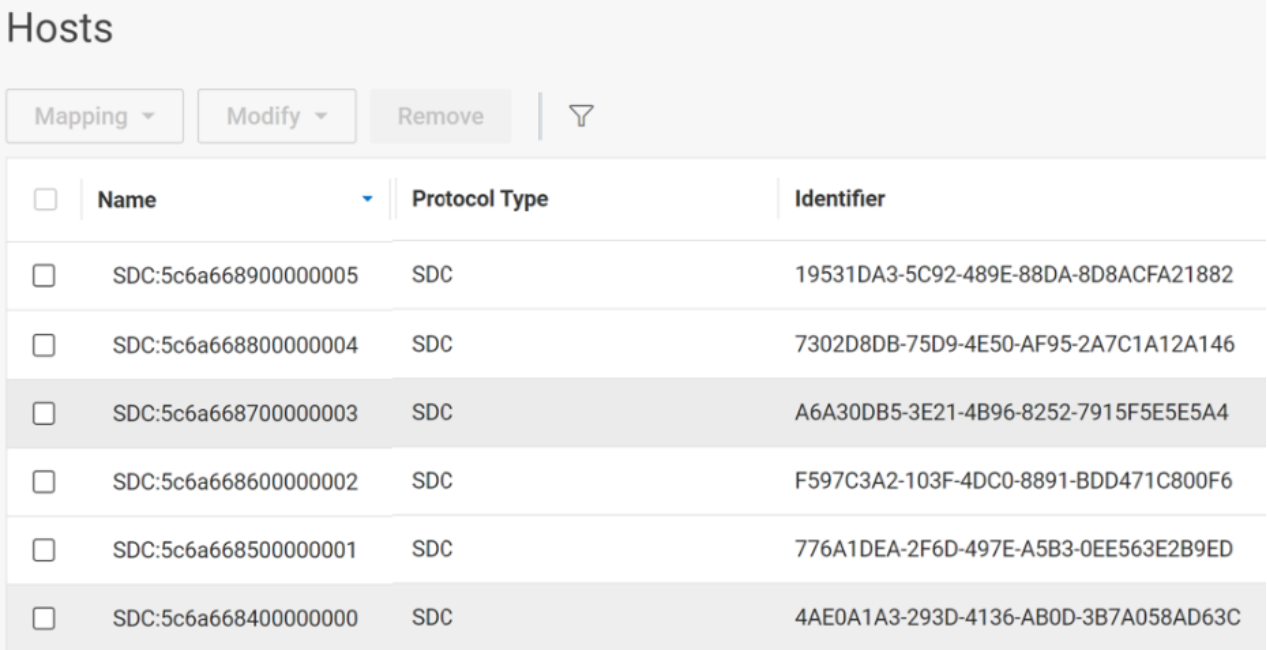
Screenshot showing the list of SD's from PowerFlex Manager UI. Here it lists all the nodes where SDC is installed, that is, OpenStack overcloud nodes.

Figure 15.    SDC list     

  1. Connector configuration: Before using attach/detach volume operations, ensure that the PowerFlex connector is configured. On each node where PowerFlex SDC is installed:
    1. Create /opt/emc/scaleio/openstack/connector.conf if it does not exist:

$ mkdir -p /opt/emc/scaleio/openstack

$ touch /opt/emc/scaleio/openstack/connector

  1. For each PowerFlex backend section in cinder.conf, create the same section in /opt/emc/scaleio/openstack/connector.conf and populate it with passwords. For example:

[tripleo_dellemc_powerflex]

san_password = POWERFLEX_PASSWD

replicating_san_password = REPLICATION_SYSTEM_POWERFLEX_PASSWD # if applicable

[tripleo_dellemc_powerflex]

san_password = POWERFLEX_PASSWD

replicating_san_password = REPLICATION_SYSTEM_POWERFLEX_PASSWD # if applicable

Note: To apply the changes, you will need to reboot each node on which the SDC kernel module (scini) runs.

Verify Horizon access

The RHOSP Dashboard (Horizon) is a web-based UI used to manage RHOSP services.

The access URL  for the Horizon dashboard, http://<IP_address:port>/dashboard, is available soon after the overcloud deployment is completed. The URL is also found in the overcloudrc file /home/stack/overcloudrc along with the access credentials. Save the URL to perform OpenStack operations from Horizon.

Perform the following steps:

  1. Run the following command in the undercloud and make a note of the credentials information for the Horizon dashboard:

(undercloud) [stack@director ~]$ cat overcloudrc

  1. Log in to the Horizon dashboard using http://<horizon_IP_address>/dashboard and the admin credentials.
  1. Select admin in the upper right corner  and click change password to reset the password.

For more information about the Horizon tab and dashboard, the see RHOSP Dashboard service.

For detailed information about Horizon, see the Horizon Administration Guide.

Creating a volume type

To configure OpenStack to point to the newly configured cinder backend:

  1. Create a new cinder volume type. These volumes will be mapped to the set of capabilities of the storage back-end driver. To do this:
    1. Log in to Horizon using the admin credentials you obtained in Verify Horizon access.
    2. Click the Admin tab on the top left side and select Volume Type from the Volume drop-down menu.
  2. Select Create Volume Type.
  3. Update the name and description details, and then click Create Volume Type.
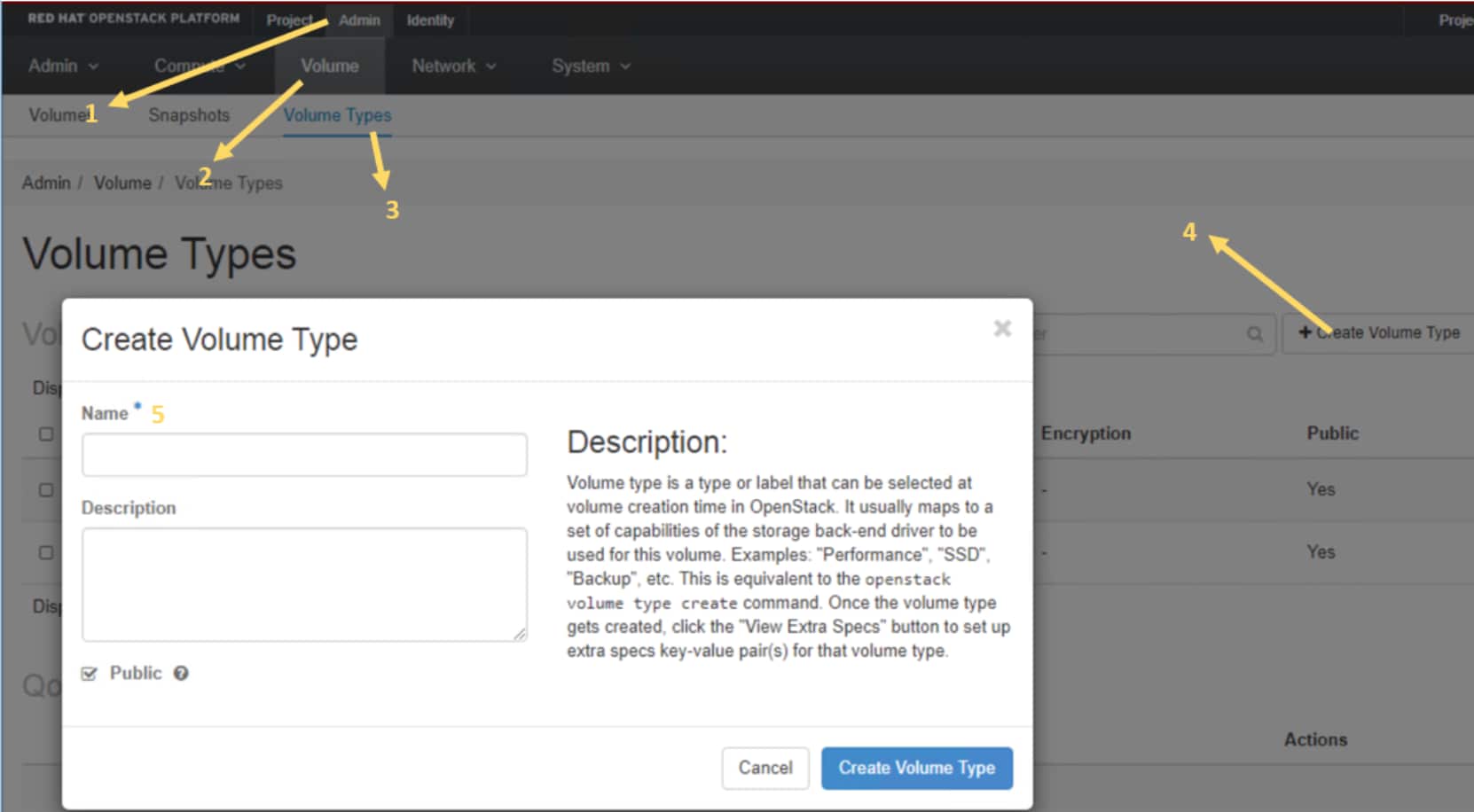
Screenshot of volume type creation from OpenStack horizon. This image also shows the sequence numbering for the navigation to create.

Figure 16.    Create volume type

  1. Create the extra specs parameter for newly created volumes. To do this:
    1. Select new volume type > View Extra Specs from the drop-down menu.
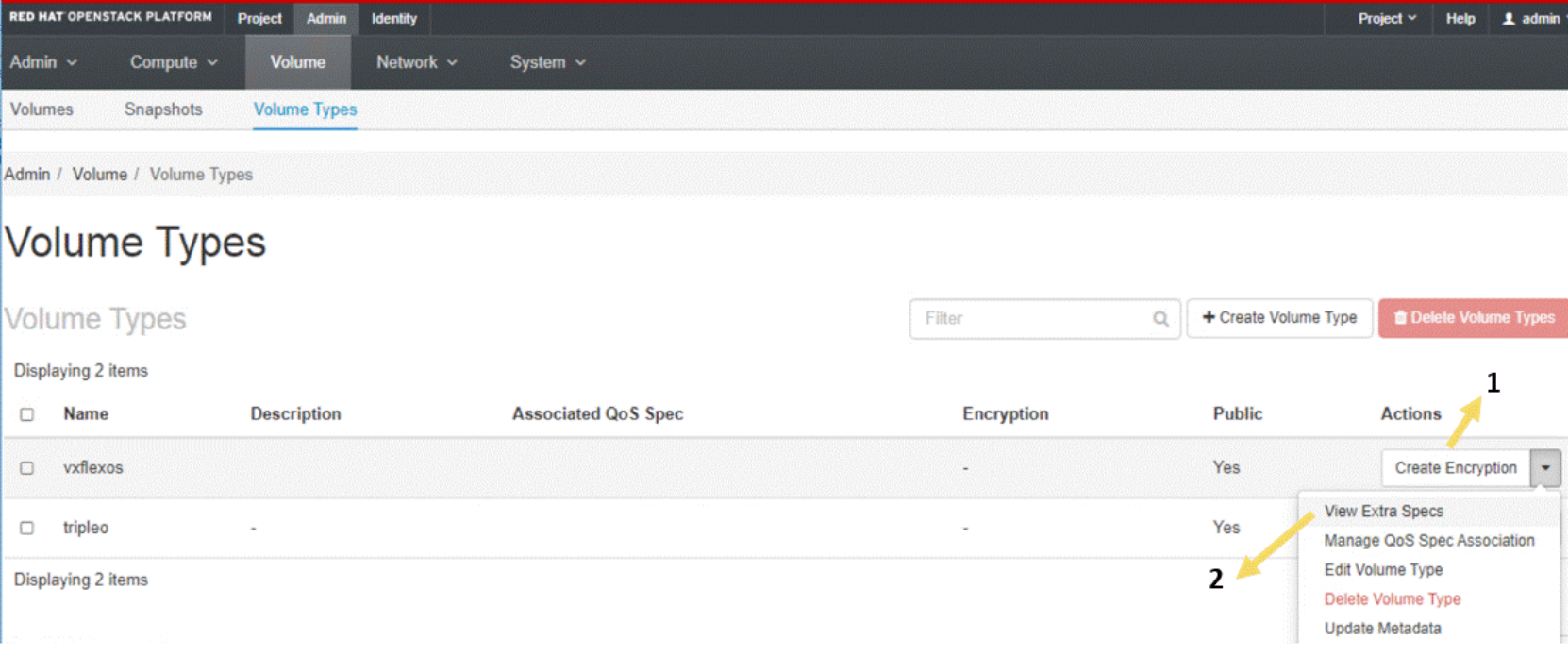
Screenshot shows options to select for adding extra specs such as volume backend, storage pool and others.

Figure 17.    Add extra specs

  1. Click Create and update the value of the volume_backend_name key. Ensure that this value is same as the volume backend name that is specified in the cinder configuration file.
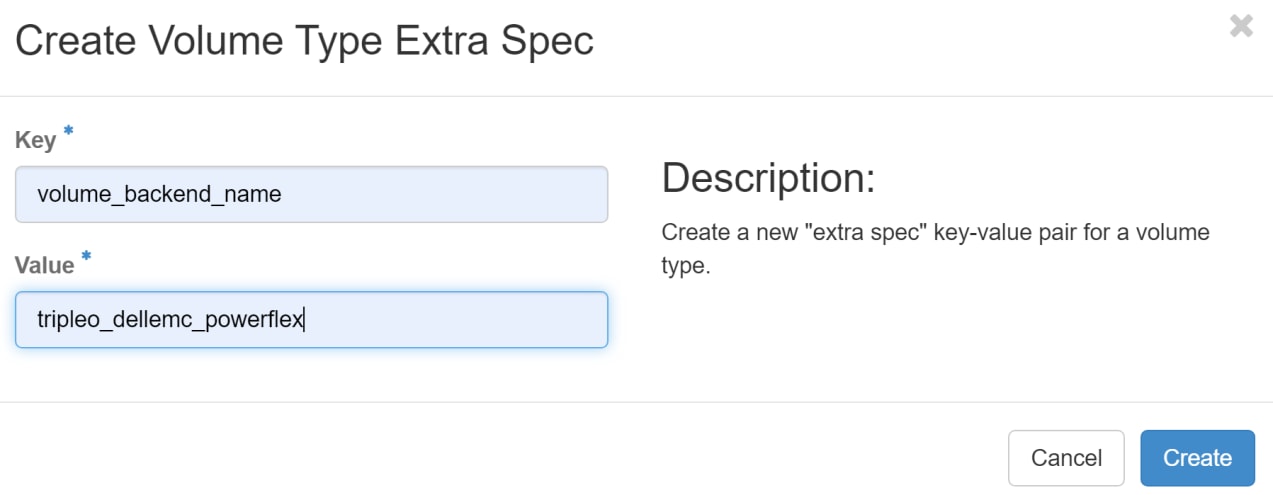
A screenshot of an interface for creating a volume type extra specification in a software application. There are two labeled input fields: "Key" with the value "volume_backend_name" and "Value" with "tripleo_dellemc_powerflex."

Figure 18.    Volume Type Extra Spec: volume backend

  1. Verify that the extra specs have been created properly.

Note: For information about command-line operations ,see RHOSP 17.1 Command line interface reference and Block Storage Service(cinder) CLI .

For overcloud post installation tasks, see Performing Overcloud Post-installation Tasks.

Solution validation

Solution validation

To perform any PowerFlex-related operation, ensure that PowerFlex Manager is running and connected. This is necessary because all storage requests from RHOSP communicate through the REST API using the PowerFlex Manager IP. Then perform the following checks to ensure that the solution deployment has been successfully completed:

  • Verify PowerFlex connectivity.
  • Verify Overcloud status.
  • Verify that the volume type is created to use the PowerFlex backend.

Testing Cinder operations

The Cinder driver is designed and tested to work with PowerFlex as storage backend. Perform the following steps for PowerFlex volume creation from OpenStack Horizon.

  1. Log in to Horizon using the admin credentials. 
  1. On the Project tab, click Volume. 
  2. Select Create Volume and update the following fields as required: Volume Name, Description, Volume Source, Type (select Creating Volume Type), Size (in multiples of 8 GB), and Availability Zone (select Nova). Click Create Volume. 
  1. Verify that the new volume is displayed in the PowerFlex presentation server UI under Volume and that:
  • Users can perform operations such as attach/detach volume to an instance.
  • User can create multiple volumes for different projects.
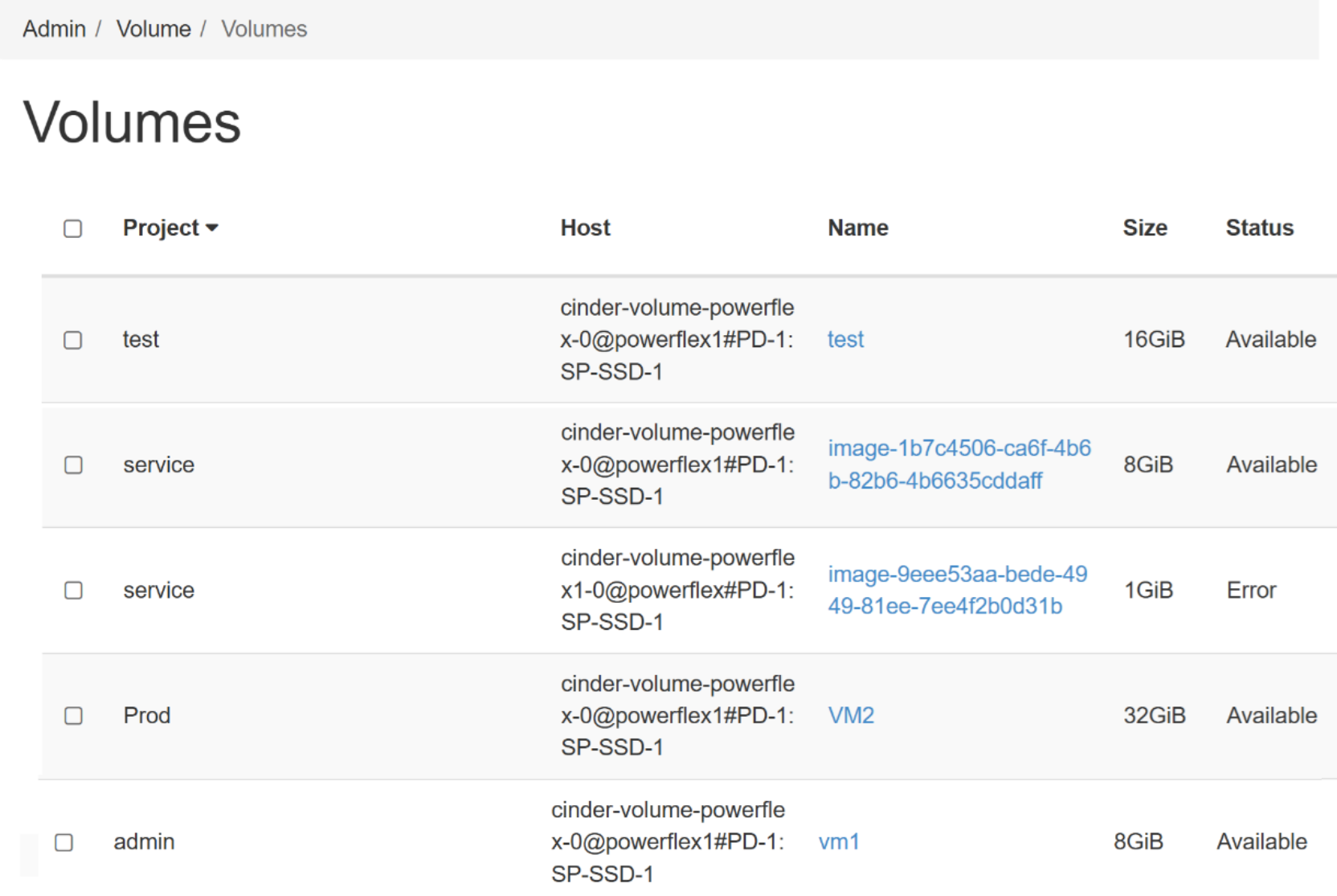
Screenshot showing the list of multiple volumes  created from different projects.

Figure 19.    List of volumes created from different projects.

For more information, see Cinder Administration.

Table 7.      Validated cinder functionality with PowerFlex

Features/Functions

Dell PowerFlex

Create/delete volume

Yes

attach/detach volume

Yes

Extend/resize volume

Yes

Create/delete & attach/detach snapshot

Yes

Create volume from snapshot

Yes

Create boot volume/snapshot from boot volume

Yes

Create volume from volume

Yes

Create image from volume

Yes

Extend an Attached Volume

Yes

Thin & thick provisioning

Yes

Volume migration

Yes

Multi-Attach Support

Yes

Note: To verify Nova, Glance, or operations related to any other OpenStack service using the Horizon dashboard, see OpenStack Dashboard User Documentation.

Conclusion

This white paper outlines the logical architecture and network guidelines that must be followed to successfully deploy Red Hat OpenStack Platform 17.1 using a PowerFlex cluster to provide the back-end storage.

This integration creates a powerful and dynamic solution for organizations seeking to enhance their private cloud environments. By combining the flexibility and scalability of Red Hat OpenStack with the high-performance, software-defined storage capabilities of Dell PowerFlex, organizations can achieve greater operational efficiency, resilience, and agility in managing both compute and storage resources.

Red Hat OpenStack with Dell PowerFlex provides a robust foundation for building and managing modern, enterprise-grade private clouds. This solution supports organizations in driving innovation and ensuring the performance and reliability necessary to meet the evolving needs of their business and IT operations.

References

Sample environment files

Overview

This appendix provides sample reference files for configuring the deployment.

Undercloud.conf

Here is a sample template for director installation:

[DEFAULT]

certificate_generation_ca = local

container_images_file = /home/stack/containers-prepare-parameter.yaml

enabled_hardware_types = ipmi,redfish,ilo,idrac,staging-ovirt

ipxe_enabled = true

enable_node_discovery = true

inspection_enable_uefi = True

local_interface = <provision_network>

local_ip = 192.168.105.5/24

undercloud_admin_host = 192.168.105.6

undercloud_hostname = undercloudvm.example.com

undercloud_ntp_servers = 192.168.105.1

undercloud_public_host = 192.168.105.7

[ctlplane-subnet]

cidr = 192.168.105.0/24

dhcp_end = 192.168.105.160

dhcp_start = 192.168.105.110

gateway = 192.168.105.5

inspection_iprange = 192.168.105.170,192.168.105.190

masquerade = true

masquerade_network = 192.168.105.0/24

YAML files for provisioning overcloud network resources

The following sample templates enable you to configure network resources for the overcloud nodes’ physical network:

vip-data.yaml

- network: storage_mgmt

  ip_address: 172.16.3.10

- network: internal_api

  ip_address: 172.16.1.10

- network: storage

  ip_address: 172.16.2.10

- network: external

  ip_address: 172.16.6.10

- network: ctlplane

  ip_address: 192.168.105.100

network-data.yaml

- name: Storage

  name_lower: storage

  vip: true

  mtu: 1500

  subnets:

    storage_subnet:

      ip_subnet: 172.16.2.0/24

      allocation_pools:

        - start: 172.16.2.100

          end: 172.16.2.250

      vlan: 320

- name: StorageMgmt

  name_lower: storage_mgmt

  vip: true

  mtu: 1500

  subnets:

    storage_mgmt_subnet:

      ip_subnet: 172.16.3.0/24

      allocation_pools:

        - start: 172.16.3.100

          end: 172.16.3.250

      vlan: 330

- name: InternalApi

  name_lower: internal_api

  vip: true

  mtu: 1500

  subnets:

    internal_api_subnet:

      ip_subnet: 172.16.1.0/24

      allocation_pools:

        - start: 172.16.1.100

          end: 172.16.1.250

      vlan: 310

- name: Tenant

  vip: false  # Tenant network does not use VIPs

  mtu: 1500

  name_lower: tenant

  subnets:

    tenant_subnet:

      ip_subnet: 172.16.4.0/24

      allocation_pools:

        - start: 172.16.4.100

          end: 172.16.4.250

      vlan: 340

- name: External

  name_lower: external

  vip: true

  mtu: 1500

  subnets:

    external_subnet:

      ip_subnet: 172.16.6.0/24

      allocation_pools:

        - start: 172.16.6.100

          end: 172.16.6.250

      gateway_ip: 172.16.6.1

      vlan: 360

YAML files for provisioning bare metal nodes

nodes.json

The following json file is a template for registering the overcloud node:

{

  "nodes": [

    {

      "name": "overcloud-controller1",

      "ports": [{

        "address": "xx:xx:xx:xx:xx:xx",

        "physical_network": "ctlplane"

      }],

      "pm_type": "idrac",

      "pm_user": "root",

      "pm_password": "password",

      "pm_addr": "x.x.x.x"

    },

    {

      "name": "overcloud-controller2",

      "ports": [{

        "address": "xx:xx:xx:xx:xx:xx",

        "physical_network": "ctlplane"

      }],

      "pm_type": "idrac",

      "pm_user": "root",

      "pm_password": "password",

      "pm_addr": "x.x.x.x"

    },

    {

      "name": "overcloud-controller3",

      "ports": [{

        "address": "xx:xx:xx:xx:xx:xx",

        "physical_network": "ctlplane"

      }],

      "pm_type": "idrac",

      "pm_user": "root",

      "pm_password": "password",

      "pm_addr": "x.x.x.x"

    },

    {

      "name": "overcloud-compute1",

      "ports": [{

        "address": "xx:xx:xx:xx:xx:xx",

        "physical_network": "ctlplane"

      }],

      "pm_type": "idrac",

      "pm_user": "root",

      "pm_password": "password",

      "pm_addr": "x.x.x.x"

    },

    {

      "name": "overcloud-compute2",

      "ports": [{

        "address": "xx:xx:xx:xx:xx:xx",

        "physical_network": "ctlplane"

      }],

      "pm_type": "idrac",

      "pm_user": "root",

      "pm_password": "password",

      "pm_addr": "x.x.x.x"

    },

    {

      "name": "overcloud-compute3",

      "ports": [{

        "address": "xx:xx:xx:xx:xx:xx",

        "physical_network": "ctlplane"

      }],

      "pm_type": "idrac",

      "pm_user": "root",

      "pm_password": "password",

      "pm_addr": "x.x.x.x"

    }

  ]

}

Overcloud-baremetal-deploy.yaml

#if interface names are different across the all the nodes map mac address, as shown in the following sample file:

- name: Controller

  count: 3

  defaults:

    networks:

    - network: ctlplane

      subnet: ctlplane-subnet

      vif: true

    - network: external

      subnet: external_subnet

    - network: internal_api

      subnet: internal_api_subnet

    - network: storage

      subnet: storage_subnet

    - network: storage_mgmt

      subnet: storage_mgmt_subnet

    - network: tenant

      subnet: tenant_subnet

    network_config:

      template: <path of the controller.j2>

      default_route_network:

        - external

  instances:

  - hostname: controller1

    name: overcloud-controller1

    network_config:

      net_config_data_lookup:

        overcloud-controller1:

          nic1: xx:xx:xx:xx:xx:xx 

          nic2: xx:xx:xx:xx:xx:xx

          nic3: xx:xx:xx:xx:xx:xx

          nic4: xx:xx:xx:xx:xx:xx

  - hostname: controller2

    name: overcloud-controller2

    network_config:

      net_config_data_lookup:

        overcloud-controller2:

          nic1: xx:xx:xx:xx:xx:xx 

          nic2: xx:xx:xx:xx:xx:xx

          nic3: xx:xx:xx:xx:xx:xx

          nic4: xx:xx:xx:xx:xx:xx

  - hostname: controller3

    name: overcloud-controller3

    network_config:

      net_config_data_lookup:

        overcloud-controller3:

          nic1: xx:xx:xx:xx:xx:xx 

          nic2: xx:xx:xx:xx:xx:xx

          nic3: xx:xx:xx:xx:xx:xx

          nic4: xx:xx:xx:xx:xx:xx

- name: Compute

  count: 3

  defaults:

    networks:

    - network: ctlplane

      subnet: ctlplane-subnet

      vif: true

    - network: internal_api

      subnet: internal_api_subnet

    - network: tenant

      subnet: tenant_subnet

    - network: storage

      subnet: storage_subnet

    network_config:

      template: <path of the compute.j2>

  instances:

  - hostname: compute1

    name: overcloud-compute1

    network_config:

      net_config_data_lookup:

        overcloud-compute1:

          nic1: xx:xx:xx:xx:xx:xx 

          nic2: xx:xx:xx:xx:xx:xx

          nic3: xx:xx:xx:xx:xx:xx

          nic4: xx:xx:xx:xx:xx:xx

  - hostname: compute2

    name: overcloud-compute2

    network_config:

      net_config_data_lookup:

        overcloud-compute2:

          nic1: xx:xx:xx:xx:xx:xx 

          nic2: xx:xx:xx:xx:xx:xx

          nic3: xx:xx:xx:xx:xx:xx

          nic4: xx:xx:xx:xx:xx:xx

  - hostname: compute3

    name: overcloud-compute3

    network_config:

      net_config_data_lookup:

        overcloud-compute3:

          nic1: xx:xx:xx:xx:xx:xx 

          nic2: xx:xx:xx:xx:xx:xx

          nic3: xx:xx:xx:xx:xx:xx

          nic4: xx:xx:xx:xx:xx:xx

controller.j2

---

{% set mtu_list = [ctlplane_mtu] %}

{% for network in role_networks %}

{{ mtu_list.append(lookup('vars', networks_lower[network] ~ '_mtu')) }}

{%- endfor %}

{% set min_viable_mtu = mtu_list | max %}

network_config:

- type: interface

  name: nic1

  mtu: {{ ctlplane_mtu }}

  use_dhcp: false

  addresses:

  - ip_netmask: {{ ctlplane_ip }}/{{ ctlplane_subnet_cidr }}

  routes: {{ [ctlplane_host_routes, [{'ip_netmask': '169.254.169.254/32', 'next_hop': "NEED MANUAL CONVERSION:

    {''get_param'': ''EC2MetadataIp''}"}]] | flatten | unique }}

- type: ovs_bridge

  name: br-ex

  dns_servers: {{ ctlplane_dns_nameservers }}

  domain: {{ dns_search_domains }}

  members:

  - type: interface

    name: nic3

    mtu: {{ min_viable_mtu }}

  - type: vlan

    vlan_id: {{ storage_vlan_id }}

    addresses:

    - ip_netmask: {{ storage_ip }}/{{ storage_cidr }}

    routes: {{ [storage_host_routes] | flatten | unique }}

  - type: vlan

    vlan_id: {{ storage_mgmt_vlan_id }}

    addresses:

    - ip_netmask: {{ storage_mgmt_ip }}/{{ storage_mgmt_cidr }}

    routes: {{ [storage_mgmt_host_routes] | flatten | unique }}

  - type: vlan

    vlan_id: {{ internal_api_vlan_id }}

    addresses:

    - ip_netmask: {{ internal_api_ip }}/{{ internal_api_cidr }}

    routes: {{ [internal_api_host_routes] | flatten | unique }}

  - type: vlan

    vlan_id: {{ tenant_vlan_id }}

    addresses:

    - ip_netmask: {{ tenant_ip }}/{{ tenant_cidr }}

    routes: {{ [tenant_host_routes] | flatten | unique }}

  - type: vlan

    vlan_id: {{ external_vlan_id }}

    addresses:

    - ip_netmask: {{ external_ip }}/{{ external_cidr }}

    routes: {{ [external_host_routes, [{'default': True, 'next_hop': external_gateway_ip}]] | flatten | unique }}

compute.j2

---

{% set mtu_list = [ctlplane_mtu] %}

{% for network in role_networks %}

{{ mtu_list.append(lookup('vars', networks_lower[network] ~ '_mtu')) }}

{%- endfor %}

{% set min_viable_mtu = mtu_list | max %}

network_config:

- type: interface

  name: nic2

  mtu: {{ ctlplane_mtu }}

  use_dhcp: false

  addresses:

  - ip_netmask: {{ ctlplane_ip }}/{{ ctlplane_subnet_cidr }}

  routes: {{ [ctlplane_host_routes, [{'ip_netmask': '169.254.169.254/32', 'next_hop': "NEED MANUAL CONVERSION:

    {''get_param'': ''EC2MetadataIp''}"}, {'default': True, 'next_hop': ctlplane_gateway_ip}]] | flatten | unique }}

- type: ovs_bridge

  name: br-ex

  dns_servers: {{ ctlplane_dns_nameservers }}

  domain: {{ dns_search_domains }}

  members:

  - type: interface

    name: nic4

    mtu: {{ min_viable_mtu }}

  - type: vlan

    mtu: {{ storage_mtu }}

    vlan_id: {{ storage_vlan_id }}

    addresses:

    - ip_netmask: {{ storage_ip }}/{{ storage_cidr }}

    routes: {{ [storage_host_routes] | flatten | unique }}

  - type: vlan

    vlan_id: {{ internal_api_vlan_id }}

    addresses:

    - ip_netmask: {{ internal_api_ip }}/{{ internal_api_cidr }}

    routes: {{ [internal_api_host_routes] | flatten | unique }}

  - type: vlan

    vlan_id: {{ tenant_vlan_id }}

    addresses:

    - ip_netmask: {{ tenant_ip }}/{{ tenant_cidr }}

    routes: {{ [tenant_host_routes] | flatten | unique }}

Other custom yaml files for overcloud deployment

inject-trust-anchor-hiera.yaml

parameter_defaults:

  CAMap:

    undercloud-ca:

      content: |

        -----BEGIN CERTIFICATE-----

        <Copy and Insert alpha numeric Certificate key for overcloud>

        -----END CERTIFICATE-----

cinder-powerflex-config.yaml

resource_registry:

  OS::TripleO::Services::CinderBackendDellEMCPowerFlex: /usr/share/openstack-tripleo-heat-templates/deployment/cinder/cinder-backend-dellemc-powerflex-puppet.yaml

parameter_defaults:

  CinderEnablePowerFlexBackend: true

  CinderPowerFlexBackendName: 'tripleo_dellemc_powerflex'

  CinderPowerFlexSanIp: '<PowerFlex_manager_IP>'

  CinderPowerFlexSanLogin: 'admin'

  CinderPowerFlexSanPassword: '<password>'

  CinderPowerFlexStoragePools: '<Protection-domain:Storage-pool>'

  CinderPowerFlexSanThinProvision: true

volume-mapping yaml

parameter_defaults:

  NovaComputeOptVolumes:

    - /opt/emc/scaleio/openstack:/opt/emc/scaleio/openstack

  CinderVolumeOptVolumes:

    - /opt/emc/scaleio/openstack:/opt/emc/scaleio/openstack

  CinderBackupOptVolumes:

    - /opt/emc/scaleio/openstack:/opt/emc/scaleio/openstack

  GlanceApiOptVolumes:

    - /opt/emc/scaleio/openstack:/opt/emc/scaleio/openstack