Server Configuration Profiles: Reference Guide
Oct 19, 2026
Executive summary
Executive summary
Overview
Managing all the various aspects of a server’s configuration can be complex. Changing a server’s configuration or firmware version, or even repurposing the server with a new operating system, usually requires multiple individual operations. Dell Server Configuration Profiles (SCP) simplifies these operations by providing a single machine-readable XML or JSON template that can be used to change configuration and firmware and redeploy the operating system with a single command. This one file can encapsulate configuration information including iDRAC, BIOS, NICs and local storage such as PERC. This single template can be reused to apply the same deployment across many servers.
The goal of this document is to address all aspects of SCP’s broad feature set and demonstrate how use of this tool helps streamline many system’s management deployment and configuration workflow. Examples are based on current firmware versions for iDRAC9 & iDRAC910 as of July 2026.
Revisions
| Date | Part number/ revision | Description |
| December 2020 | H19377 | Initial release |
| November 2022 | H19377.1 | Adds supported CA Certificates. Adds attribute ServerOS.1.InstallCompletedTime for monitoring operating system deployment |
| April 2023 | H19377.2 |
|
| June 2023 | H19377.3 |
|
| July 2026 | H19377.4 |
|
Note: This document may contain language from third-party content that is not under Dell Technologies’ control and is not consistent with current guidelines for Dell Technologies’ own content. When such third-party content is updated by the relevant third parties, this document will be revised accordingly.
Note: This document may contain language that is not consistent with Dell Technologies’ current guidelines. Dell Technologies plans to update the document over subsequent future releases to revise the language accordingly.
We value your feedback
Dell Technologies and the authors of this document welcome your feedback on this document. Contact the Dell Technologies team by email.
- Author
- Mark Maclean
- Contributors
- Texas Roemer, Anuj Bajaj, Rich Schnur, Doug Iler, and Josue Avila
Note: For links to other documentation for this topic, see the Servers > Systems Management Info Hub and iDRAC10 documentation.
Getting started
Getting started
What are server configuration profiles?
The Server Configuration Profiles (SCP) are XML or JSON templates that contain configuration settings for an individual server. Each configurable setting is a simplified name-value pair. In addition to configuration settings, the SCP template has attributes that can trigger specific workflows such as firmware updates and/or operating system deployment. The biggest benefit of SCP templates is that all these settings and options are available in a single, easily human readable and editable template that can be reapplied to any number of setups.
Typical workflow
For server deployment best practise recommends exporting a golden template containing all the preferred settings, then making any required updates and finally importing on the target hosts

Key terms and abbreviations
The following table provides definitions for some of the terms that are used in this document.
| Term or abbreviation | Definition |
| CLI | Command Line Interface; in the context of this document, common shorthand for racadm, or Redfish |
| CSIOR | Collect System Inventory on Restart |
| FQDD | Fully Qualified Device Descriptor |
| Golden template | The fully prepared singular template used to configure many servers |
| iDRAC | Integrated Dell Remote Access Controller |
| Interface | In the context of this document, the iDRAC GUI, racadm, or Redfish |
| JID | Job Identifier |
| LCL | Lifecycle Controller Log |
| OSD | Operating System deployment |
| SCP | Server Configuration Profiles |
| Template | The XML or JSON file generated by SCP Export and consumed by SCP Import, SCP Import Preview |
| Redfish | Industry standard RESTful API for out of band management |
CSIOR
Collect System Inventory on Restart (CSIOR) is the device inventory collection process that occurs just before the host has finished booting. CSIOR is enabled by default. To ensure that the SCP template has the latest configuration data, keep CSIOR enabled.
Racadm>>get LifecycleController.LCAattributes.CollectSystemInventoryOnRestartSCP Export
SCP Export is the process in which the XML or JSON template is generated. This template can be exported locally or to a network share.
For more information about the template format, see Template overview.
SCP Import
SCP Import is the process in which the XML or JSON template is applied to the server. Any configuration settings available in the template are applied. Any workflows (OSD and firmware update) triggered by the template are also performed during this operation. SCP Import might restart the host system multiple times to apply all requests but only restarts the host if required. You can find results and any potential errors by either exporting the Lifecycle Controller Log (LCL) or viewing the configuration results for the SCP Import job ID using the CLI.
Note: Supported network shares are NFS, CIFS, HTTP, and HTTPS.
SCP Import Preview
SCP Import Preview allows validation of the XML or JSON template against the host server without applying settings, firmware, or other workflows. Any errors detected during this operation are logged to the LCL. SCP Import Preview is useful for identifying issues with a template without the need for a full SCP Import operation or shutdown of the host.
Jobs
SCP operations create a “job” for tracking purposes that contains useful information about the status of the operation. The job is identified by a Job Identifier (JID) that is returned when the SCP operation is created.
You can find all iDRAC jobs in the iDRAC UI under Maintenance > Job Queue or through any iDRAC interface. See the following racadm example:
racadm jobqueue view ‐i JID_952589510966 Output :
‐‐‐‐‐‐‐‐‐‐‐‐‐‐‐‐‐‐‐‐‐‐‐‐‐‐‐‐ JOB ‐‐‐‐‐‐‐‐‐‐‐‐‐‐‐‐‐‐‐‐‐‐‐‐‐
[Job ID=JID_952589510966]
Job Name=Configure: Import Server Configuration Profile Status=Completed
Scheduled Start Time=[Not Applicable] Expiration Time=[Not Applicable]
Actual Start Time=[Mon, 15 June 2026 10:29:11]
Actual Completion Time=[Mon, 15 June 2026 10:29:13]
Message=[SYS053: Successfully imported and applied Server Configuration Profile.] Percent Complete=[100]
‐‐‐‐‐‐‐‐‐‐‐‐‐‐‐‐‐‐‐‐‐‐‐‐‐‐‐‐‐‐‐‐‐‐‐‐‐‐‐‐‐‐‐‐‐‐‐‐‐‐‐‐‐‐‐‐‐‐
Note: Only one SCP operation can be run at a time.
iDRAC Lifecycle Logs
The Lifecycle Logs contain a sequence of XML events posted by various iDRAC and host operations. SCP operations log all critical information to the LCL. You can review SCP job start, progress, and completion states in the LCL.
You can view or export the LCL under Maintenance > Lifecycle Log in the iDRAC UI. iDRAC CLIs also provide methods for exporting the LCL. For complete details, see the iDRAC User’s Guide.
SCP Import Preview configuration results
SCP Import generates LCL events as it progresses through the operation. When a configuration attribute is applied or failed to be applied, an LCL event is logged with details under a configuration results node.
These ConfigResult entries include critical information about settings that were applied or reasons why a setting might have failed to be applied. If an SCP Import operation ends with a status of Failed or Completed with Errors, the configuration results are the best place to begin to identify a solution.
You can view configuration results through most interfaces or by exporting the LCL. See the following racadm example:
racadm lclog viewconfigresult ‐j JID_nnnnnnnnnnOutput :
SeqNumber = 2058
FQDD = iDRAC.Embedded.1
Job Name = Import Configuration Operation Name = CHANGE
DisplayValue = Web Server Idle Timeout Name = WebServer.1#Timeout
OldValue = 1805
NewValue = 1801
Status = Success
ErrCode = 0
The following example uses an intentionally incorrect value to show an error condition.
racadm lclog viewconfigresult ‐j JID_nnnnnnnnnn Output :
SeqNumber = 5933
FQDD = iDRAC.Embedded.1
Job Name = Import Configuration Operation Name = CHANGE
DisplayValue = Web Server Idle Timeout Name = WebServer.1#Timeout
OldValue = 1800
NewValue = badvalue
MessageID = RAC015
Status = Failure
ErrCode = 9240
The RAC015 error message, according to the Event and Error Message Reference Guide, translates to “Unable to run the method because the input value is not one of the possible values for AttributeName Webserver.1#Timeout.” The value is expecting an integer but received a string, so the failure is expected.
SCP Import Preview logs only ConfigResult entries for any errors detected in its evaluation of the template. These errors are often dependency issues, invalid settings, differences in setup, and so on. The errors logged by SCP Import Preview trigger an error in SCP Import.
Available interfaces
Server Configuration Profiles are available through multiple iDRAC interfaces. This document provides examples for the iDRAC GUI, racadm, and Redfish. See the user interface guide for all available options.
You can view Server Configuration Profiles commands in the iDRAC GUI at Configuration > Server Configuration Profiles.
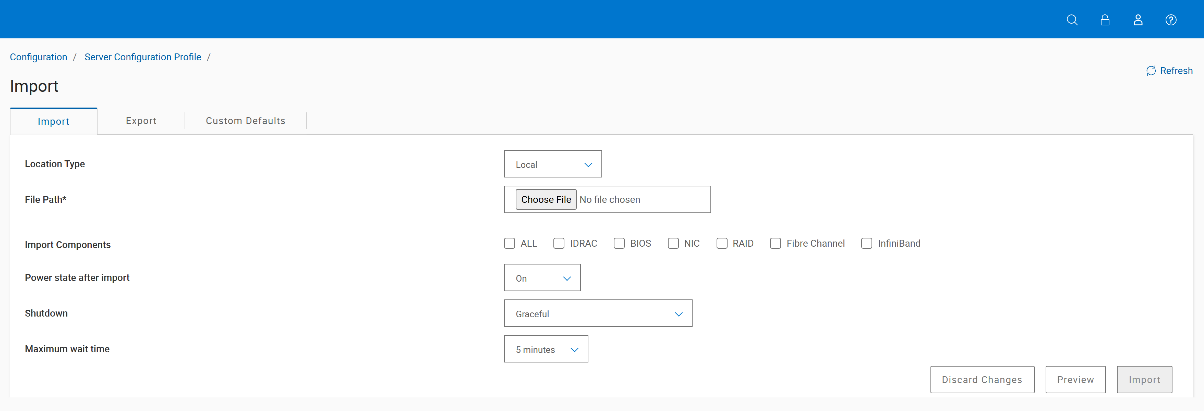
The CLI racadm get and set commands using the type (-t) of xml or json invoke the Server Configuration Profile workflows.
racadm get ‐t xml ‐f export.xml ‐u username ‐p password ‐l //192.168.0.130/scp Redfish API operations are described in each of the individual sections of this paper.
Template overview
Template overview
Introduction
The template is the XML or JSON file generated by an SCP Export. The following sections describe the difference between the two formats and the overall structure of the template.
Structure
At a high level, both formats follow a similar structure:
SystemConfiguration
‐ Components
‐ ‐ Attributes
SystemConfiguration
SystemConfiguration is the root node in both formats. It contains properties such as Model, ServiceTag, and Timestamp, which are populated based on the system information where the template was generated.
The template can also be generated with informational comment data that provides more details about how the template was generated.
Components
Components are children of SystemConfiguration and are uniquely identified by a Fully Qualified Device Descriptor (FQDD). The FQDD format is iDRAC.Embedded.1, BIOS.Setup.1-1, and so on. There can be numerous components per template, but each component is unique.
Example: <Component FQDD="NIC.Slot.4-1‐1">
The FQDD helps describe the device and, in some cases, the physical location of the device in the target server. When a template is applied to many servers, the slot devices must be in the same slot position in the target server. For example, if the template’s FQDD points to slot 3 but the target device is in slot 4, the configuration will not be applied. For more recommendations, see Golden template (one to many).
Note: In the case of storage devices, components can also be nested within components.
Attributes
Attributes are children of Components and are name-value pairs used to identify and set specific component configuration settings.
Example: <Attribute Name="BlnkLeds">0</Attribute>
The Attribute Registry drives the behavior of all attributes. This registry contains attribute information such as description, possible values, read-only status, dependency data, and much more.
If issues are encountered with a specific attribute, the iDRAC9 or iDRAC10 Attribute Registry is the best place to start.
The latest version of the Attribute Registry is available in iDRAC10 Attribute Registry.
JSON layout
JSON is an optional format that can be requested when generating a template. The overall template structure is like XML but there are some key differences. The most important difference is the layout of the individual attributes.
{ "Name": "IPMILan.1#Enable",
"Value": "Enabled",
"Set On Import": "True",
"Comment": "Read and Write" },
In XML, sets are determined by whether an attribute is commented out. The JSON data format does have a concept of comments. Attributes include a Set On Import item; when set to True, the attribute is applied during an SCP Import.
There is also an informational item Comment, which is either Read and Write or Read Only.
Golden template (one to many)
A golden template is a single template used to apply a unified configuration across many servers. SCP Export provides many of the details required for generating a template, but here are some general guidelines.
Recommendations
- Generate a template from a fully configured server.
- To include only specific components, see Selective export.
- Generally, use Clone or Replace. (See Export type—Clone and Replace.)
- Use the Include Password Hashes parameter in mirroring iDRAC user/BIOS password settings.
- Remove unwanted attributes or components from the template.
- Confirm that target servers have a similar physical device location setup.
- If you are not using Repository firmware updates, confirm that the target servers have similar iDRAC and device firmware levels.
Active Directory example
Configuring Active Directory on many iDRACs is a great example of how you can use a golden template. There are a significant number of Active Directory settings, so configuring them directly from the XML or JSON template could be difficult.
Instead, configure a single iDRAC’s Active Directory settings from the iDRAC GUI and confirm that the settings are working as intended. Once you confirm these settings, generate a template using SCP Export with the Clone option. The template will now contain populated values for Active Directory. You can then edit the template if needed and then apply it to an unlimited number of iDRACs to set up Active Directory on those systems.
That functionality is the true strength of SCP. It enables the transfer of configuration settings to many servers with a single template.
General compatibility
There are a few things to consider regarding the compatibility of the template. Server Configuration Profiles were originally introduced with iDRAC7. Over the lifespan of SCP, new features have been added that might not be compatible with older versions of iDRAC hardware.
Additionally, feature sets for individual devices can change over their lifetime. The possible values for attributes might be added or removed, or entire attributes might have been added or removed depending on the firmware version of a device.
Factors such as server model, platform capabilities, HBAs and license level can affect the presence of attributes in a generated template or result in potential errors when a conflicting template is applied.
SCP was designed to take all these factors into consideration. The template itself is backwards compatible throughout all generations of iDRAC.
SCP Import is also a “continue on error” operation, which means that if a setting fails to be applied, the remainder of the settings will still be attempted. Any errors encountered are clearly communicated in the configuration results of the job.
If possible, generate a template from a server that has a similar configuration to the target server or servers to reduce the chances of errors during SCP Import.
SCP Export
SCP Export
Introduction
Server Configuration Profile Export generates an XML or JSON template either locally or to a network share. The export operation creates a job, which can be monitored in the job queue. The template is made available once the job has been marked as Completed.
The following sections describe the available options used to customize the template generation.
Selective export
By default, SCP Export generates a template that includes most configurable devices on the host system, including iDRAC, Lifecycle Controller, System, EventFilters, BIOS, NIC, Fibre Channel, InfiniBand, and RAID/storage devices. All available interfaces offer the option to selectively export only requested devices or device types.
Example:
racadm get ‐t xml ‐f export.xml ‐u username ‐p password ‐l ‐c iDRAC,NIC.Integrated.1‐1‐1racadm provides the -c option for selective export. In the preceding example, export.xml will be exported to a network share and will contain the iDRAC.Embedded.1 component and the NIC.Integrated.1-1-1 component.
Most interfaces allow for both full FQDD or a shorthand version to export all components of a given type. The shorthand NIC would export NIC.Integrated.1-1-1, NIC.Integrated.2-1-1, and so on, but full FQDD NIC.Integrated.1-1-1 would only provide the component for that specific device.
Note: Shorthand values can be used for SCP Export or SCP Import
| Shorthand | FQDD |
| AHCI | AHCI.* |
| BIOS | BIOS.Setup.1-1 |
| Disk | Disk.* |
| EventFilters | EventFilters.*.1 |
| FC | FC.* |
| iDRAC | iDRAC.Embedded.1 |
| InfiniBand | InfiniBand.* |
| LifecycleController | LifecycleController.Embedded.1 |
| NIC | NIC.* |
| NonRAID | NonRAID.* |
| PCIeExtender | PCIeExtender.* |
| PCIeSSD | PCIeSSD.* |
| RAID | *** Exports/Imports all storage devices *** |
| SupportAssist | SupportAssist.Embedded.1 |
| System | System.Embedded.1 |
ReadOnly attributes
Certain device attributes are ReadOnly and, by default, are not in the template. These attributes can be requested by using the Include ReadOnly flag provided by the interface.
The following example shows the iDRAC firmware version under Info.1#Version.
In the XML format, these attributes are marked with ReadOnly in the comment section of the node.
<!‐‐ ReadOnly <Attribute Name="Info.1#Version">4.40.00.00</Attribute> ‐‐>
In the JSON format, the Comment item is set to Always Read Only.
{ "Name": "Info.1#Version",
"Value": "4.40.00.00",
"Set On Import": "False",
"Comment": "Always Read Only" },
These attributes cannot be set during an SCP Import and are only available for informational purposes.
Include Password Hashes parameter
Password attributes fields are in the template. However, they are commented out and obfuscated with ******. These fields can be manually supplied with a plaintext password, which can be set during SCP Import.
<!‐‐ <Attribute Name="Users.2#Password">******</Attribute> ‐‐> SCP Export also has the optional parameter Include Password Hashes.
iDRAC user passwords
This setting modifies the template to include new fields per iDRAC user, which allows the transfer of existing iDRAC user passwords between multiple hosts.
<!‐‐ <Attribute Name="Users.2#SHA256Password"> C91B36713D93B1555B6FEB8274A65BA2746446770AA227B6E11979EB24F18221</Attribute> ‐‐>
<!‐‐ <Attribute Name="Users.2#SHA1v3Key"> 0105AC0DCD4F022A89DCA47E9A56D340E85B7F38</Attribute> ‐‐>
<!‐‐ <Attribute Name="Users.2#MD5v3Key"> C9D52210AC9C127F517156A626F69FDE</Attribute> ‐‐>
<!‐‐ <Attribute Name="Users.2#SHA256PasswordSalt"> 6D5F9E1B410917BEB0788E230DFCDCCE</Attribute> ‐‐>
<!‐‐ <Attribute Name="Users.2#IPMIKey"> D722C920F0E78CB5161F01AEE7C6559005AA5A5A9E947ED38788031A43DCC99E</Attribute> ‐‐>
To transfer existing iDRAC user settings between systems, use the Include Password Hashes option when generating the template.
BIOS password SHAs
The BIOS System and Setup passwords can also be applied using the SHA/Salt attributes that are made available with the optional Include Password Hashes parameter. These attributes are empty by default.
<Attribute Name="SHA256SystemPassword"></Attribute>
<Attribute Name="SHA256SystemPasswordSalt"></Attribute>
<Attribute Name="SHA256SetupPassword"></Attribute>
<Attribute Name="SHA256SetupPasswordSalt"></Attribute>
Export type—Clone and Replace
SCP Export offers two optional modes that alter the template generation by adjusting the number of commented items and changing some values.
The default Normal export type leaves some attributes commented out and requires the user to uncomment (or change Set On Import to True) them before they can be applied during an SCP Import.
The Clone export type generates a template that is better suited to cloning a “golden” configuration from one server to one or many servers. Compared to a Normal export type, more attributes are uncommented, and some storage settings are adjusted to aid in the cloning process.
The Replace export type generates a template that is better suited for retiring or replacing the complete configuration for a server. Compared to a Clone export type, most attributes are uncommented, and some storage settings are adjusted to aid in the replace process.
For a list of settings and their commented state per mode, see Default, Clone, and Replace tables section of this white paper.
This section describes key features of Clone and Replace. For more information, see Server Cloning with Server Configuration Profiles whitepaper.
Clone and Replace with passwords
When the Clone or Replace mode is selected with SCP Export and the Include Password Hashes option is not provided, the iDRAC user passwords are generated in the template as Calvin#SCP#CloneReplace1.
In all versions of iDRAC before iDRAC9 release 4.40.00.00, the iDRAC user passwords are generated as calvin.
Note: If existing passwords need to be transferred between servers, use the Include Password Hashes option.
Normal export type example without Include Password Hashes:
<Attribute Name="Users.2#UserName">root</Attribute>
<!‐‐ <Attribute Name="Users.2#Password">******</Attribute> ‐‐>
Clone export type example without Include Password Hashes:
<Attribute Name="Users.2#UserName">root</Attribute>
<Attribute Name="Users.2#Password">Calvin#SCP#CloneReplace1</Attribute>
Clone and Replace with storage devices
Clone and Replace both alter the generated template and automatically populate some storage attributes. RAIDresetConfig is set to True, and RAIDforeignConfig is set to Clear.
<Attribute Name="RAIDresetConfig">True</Attribute>
<Attribute Name="RAIDforeignConfig">Clear</Attribute>
Virtual Disk RAIDaction is set to Create instead of Update, and all attributes needed for the create operation are uncommented.
<Component FQDD="Disk.Virtual.0:RAID.Integrated.1‐1">
<Attribute Name="RAIDaction">Create</Attribute>
<Attribute Name="LockStatus">Unlocked</Attribute>
<Attribute Name="BootVD">True</Attribute>
<Attribute Name="RAIDinitOperation">None</Attribute>
<Attribute Name="DiskCachePolicy">Default</Attribute>
<Attribute Name="RAIDdefaultWritePolicy">WriteBack</Attribute>
<Attribute Name="RAIDdefaultReadPolicy">ReadAhead</Attribute>
<Attribute Name="Name">Virtual Disk 0</Attribute>
<Attribute Name="Size">1199638052864</Attribute>
<Attribute Name="StripeSize">128</Attribute>
<Attribute Name="SpanDepth">1</Attribute>
<Attribute Name="SpanLength">2</Attribute>
<Attribute Name="RAIDTypes">RAID 1</Attribute>
<Attribute Name="IncludedPhysicalDiskID">Disk.Bay.0:Enclosure.Internal.0‐ 1:RAID.Integrated.1‐1</Attribute>
<Attribute Name="IncludedPhysicalDiskID">Disk.Bay.1:Enclosure.Internal.0‐ 1:RAID.Integrated.1‐1</Attribute>
</Component>
Note: If the template is generated from a system that does not have a virtual disk created, the template will not contain the Disk.Virtual component. The component can be manually added to the template and imported to create the virtual disk.
Disk attributes are uncommented.
<Component FQDD="Disk.Direct.1‐1:AHCI.Slot.2‐1">
<Attribute Name="RAIDHotSpareStatus">No</Attribute>
<Attribute Name="RAIDPDState">Ready</Attribute>
</Component>
Include Custom Telemetry parameter
The standard format of the SCP template can be expanded to include the Telemetry Custom Report Metric Definitions as an option. The format of this dataset is unique to Telemetry and therefore does not adhere to the same rules described in .
This dataset is not in the template by default but can be requested by using the Include Custom Telemetry optional parameter during SCP Export. Any template generated using this new parameter is not backwards compatible to older versions of iDRAC9 firmware during an SCP Import.
Available interfaces
iDRAC GUI
SCP Export is on the iDRAC UI under Configuration > Server Configuration Profiles > Export, where the previously detailed options are available.
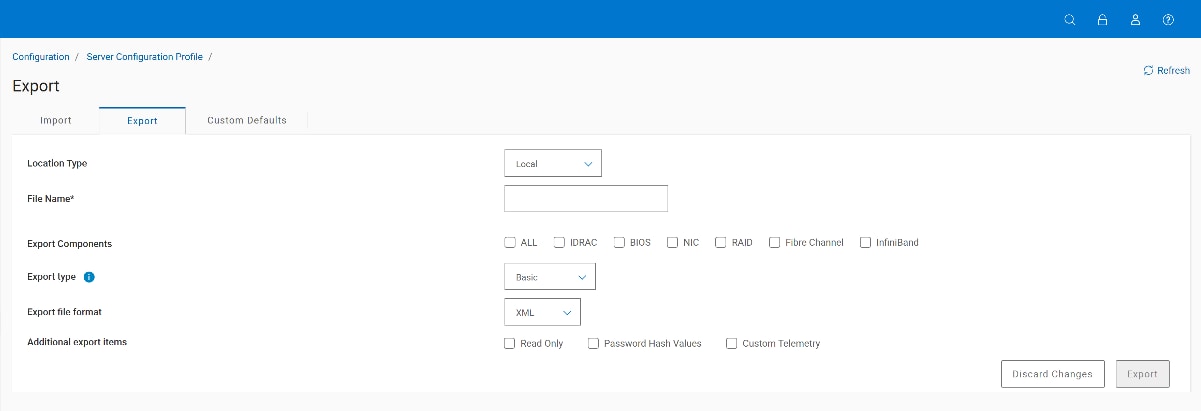
Racadm
The racadm get command using the -t xml or -t json parameters invoke an SCP Export operation. The following options are also available:
Racadm example to export SCP file to NFS share:
racadm ‐r 192.168.0.120 ‐u root ‐p calvin get ‐f R740_scp_file.xml ‐t xml ‐l 192.168.0.130:/nfsAvailable SCP related options:
‐c : FQDD or shorthand for selective Export.
‐t : “xml” or “json” to select your format.
‐‐clone : Export type of “Clone”.
‐‐replace : Export type of “Replace”.
‐‐includero : Include read only attributes in the template.
‐‐includeph : Include iDRAC user password hashes in the template.
‐‐includeCustomTelemetry : Include the Telemetry Custom Report Metric Definitions.
See the racadm help text or the RACADM User’s Guide for additional options and details about network settings. To review racadm’s help information enter the command:
racadm help getFor the RACADM CLI User’s Guide, see iDRAC RACADM CLI Guide or see iDRAC document collection in reference section.
Redfish
Redfish examples:
HTTP command method: POST
iDRAC10 URI:
https://<DRAC-IP>
/redfish/v1/Managers/iDRAC.Embedded.1/Actions/Oem/
OemManager.ExportSystemConfiguration
iDRAC9 URI:
https://<DRAC-IP>
/redfish/v1/Managers/iDRAC.Embedded.1/Actions/Oem/EID_674_Manager.ExportSystemConfiguration
iDRAC9 and iDRAC10 Body:
{"ExportFormat":"<Format>","ExportUse":"<export-Type>",
"IncludeInExport":[
   "IncludeReadOnly","IncludePasswordHashValues",
   "IncludeCustomTelemetry"]
"ShareParameters" :  {"Target":["All"],
"FileName":”<Filename>”,IPAddress":"<IPAddress>",
 "ShareType":"<Type>”, "ShareName":"<Name>",           "Username":”<shareuser>”, "Password": "sharepassword"
 }
}
Example body to export SCP in XML format to a windows CIFS share
{
  "ExportFormat": "XML",
  "ExportUse": "Clone",
  "IncludeInExport": [
       "IncludeReadOnly",
    "IncludePasswordHashValues"
  ],
  "ShareParameters": {
"Target":["ALL"],
 "FileName": "R450scp.xml",
 "IPAddress": "99.99.99.99",
"ShareType": "CIFS,
"ShareName": "scp",
"Username": "test1",
"Password": "password"
      }
Note: When submitted successfully API will return code 202 and JID to track export job. Example /redfish/v1/TaskService/Tasks/JID_811053545648
Note: The HTTP 202 Accepted successful response status code indicates that a request has been accepted for processing, but processing has not been completed. An import task may still fail when ran by iDRAC .
You can select Clone by adding the ExportUse : Clone. You can select Replace by adding ExportUse : Replace.
For more details of payload dictionary supported parameters, iDRAC Redfish documentation or refer to iDRAC schema, using the following command:
GET https://<iDRAC-IP>/redfish/v1/Managers/iDRAC.Embedded.1/For the latest version of the Redfish API Guide, see Dell Technologies APIs Redfish.
For examples of Redfish scripting using Python and PowerShell, see github for dell/iDRAC-Redfish-Scripting.
SCP Import
SCP Import
Overview
SCP Import is a streamlined configuration, firmware, and operating system deployment (OSD) workflow that consumes the template generated by the SCP Export process. Import validates the template and compares the current configuration to the requests made by the template. If changes are detected between the template and the current configuration, the SCP Import operation applies the new settings.
Note: After you run an Import operation, a job ID is returned. You can query the job ID to check the status and validate whether the process is completed or failed. If the process failed, check the iDRAC Lifecycle Logs for more details. For more information about how to check the job status, see Workflow.
Example of SCP import task from a CIFS share using iDRAC racadm reporting job number “JID” as part of the output
racadm set ‐t xml ‐f server.xml ‐u winuser1 ‐p p.ssword1 ‐l //99.99.99.99/scp Output:
iDRAC RAC977: Import configuration XML file operation initiated. Use the racadm jobqueue view -i JID_811043009284 command to view the status of the operation.
Run the racadm jobqueue view ‐i JID_nnnnnnnn command to view the status of the operation. Where nnnnnnnn is the job ID number.
The final job status for an SCP Import operation will always be Completed, Completed with Errors, No Change, or Failed.
- Completed means the operation successfully applied requested changes and performed all requested actions successfully.
- Completed with Errors means the operation was partially successful.
- No Change means that the operation was unable to detect any differences between the template and the current configuration.
- Failed means that all detected changes were unable to be applied.
Regardless of the end status of the operation, review the LCL and confirm that the requested actions were performed.
Viewing the job status example:
racadm jobqueue view ‐i JID_811043009284 Output:
‐‐‐‐‐‐‐‐‐‐‐‐‐‐‐‐‐‐‐‐‐‐‐‐‐‐‐‐ JOB ‐‐‐‐‐‐‐‐‐‐‐‐‐‐‐‐‐‐‐‐‐‐‐‐‐
[Job ID=JID_811043009284]
Job Name=Configure: Import Server Configuration Profile Status=Completed
Scheduled Start Time=[Not Applicable]
Expiration Time=[Not Applicable]
Actual Start Time=[Mon, 14 May 2001 04:16:32]
Actual Completion Time=[Mon, 14 May 2001 04:16:35]
Message=[SYS053: Successfully imported and applied Server Configuration Profile.] Percent Complete=[100]
‐‐‐‐‐‐‐‐‐‐‐‐‐‐‐‐‐‐‐‐‐‐‐‐‐‐‐‐‐‐‐‐‐‐‐‐‐‐‐‐‐‐‐‐‐‐‐‐‐‐‐‐‐‐‐‐‐‐
All changes applied are logged to the LCL with configuration results entries. If any change is attempted and fails to be applied, a configuration results event is logged to the LCL with an error message stating the reason for the failure.
Viewing the results example:
racadm lclog viewconfigresult ‐j JID_898317921405 Output:
SeqNumber = 5008
FQDD = iDRAC.Embedded.1
Job Name = Import Configuration Operation Name = CHANGE
DisplayValue = SSH Idle Timeout Name = SSH.1#Timeout
OldValue = 1800
NewValue = 1805
Status = Success
ErrCode = 0
To find the recommended response action for a specific error code, see the Event and Error Message Reference.
Host reboot
The SCP Import operation might automatically restart the host to apply all settings, but only if the template contains settings that require a host reboot. As an example, if an SCP Import was performed and only iDRAC settings changes were detected, the host reboot would not be performed.
Note: The SCP Import operation might reboot multiple times to apply all configuration settings and firmware.
What triggers a reboot?
The following components trigger a reboot:
- BIOS.Setup.1-1
- All network (NIC, FC, InfiniBand) components
- All storage components
The following components do not trigger a reboot:
- iDRAC.Embedded.1
- System.Embedded.1
- LifecycleController.Embedded.1 excluding BIOSRequestRTD
- EventFilters
- SupportAssist
The SCP Import Preview operation indicates if a template requires a host reboot in the configuration results without applying settings or triggering a reboot.
racadm lclog viewconfigresult ‐j JID_898317921405 Output :
SeqNumber = 10365
Job Name = Preview Configuration
Message ID = SYS087
Message = A system reboot is required to apply configuration changes. SeqNumber = 10364
Job Name = Preview Configuration
FQDD = BIOS.Setup.1‐1
Shutdown type
If a host shutdown is required, SCP Import issues a graceful shutdown request to the host operating system. The operating system could reject the graceful shutdown request, which would result in the SCP Import operation failing with SYS051 – “The system could not be shut down within the specified time.”
SCP Import provides options to help control this workflow in the way of three shutdown options; Graceful, Forced, and NoReboot.
Shutdown type: Graceful
Graceful shutdown is the default selection for Shutdown Type of SCP Import. It also has an additional optional parameter called Time to Wait, which is the amount of time SCP Import will wait for the host to shut down before timing out. The default is 5 minutes and the maximum in 1 hour.
Note: The operating system can potentially deny or ignore the graceful shutdown request.
If the SCP Import operation times out with an error stating that it was unable to shut down the host in time, consider the following options:
- Increase the optional
Time to Wait - Use the Forced shutdown option.
- Power off the host manually.
Shutdown type: Forced
The Forced shutdown type is an alternative to graceful shutdown. The host server is powered off immediately regardless of the state of the host. Use a forced shutdown only when it is safe to power down the host.
Shutdown type: NoReboot
The NoReboot shutdown type tells the SCP Import operation to ignore all automatic power control that SCP typically performs. The system is not powered down (gracefully or forced) automatically; instead, it waits for the user to reset or power on the host. Once either of these actions has occurred, the SCP Import operation begins applying settings.
This workflow affects all settings, even settings that do not necessarily require a reboot. As an example, a template that contains iDRAC only attributes will still wait for a host reboot if the shutdown type of NoReboot is provided.
Note: If NoReboot shutdown type is selected and the SCP file contains iDRAC, System, or Lifecycle Controller attribute changes, these changes are applied immediately. Changes that require a server reboot (for example, BIOS) are queued up but not applied until the next server reboot
Important: When the NoReboot shutdown type is provided, a typical SCP Import job is created but the job will stop at 20 percent with a message of Paused, Waiting for Reboot. The operation is signalling that it is done staging and will only apply settings after the host has been rebooted or powered on.
SCP Import is a blocking operation that prevents most other set configuration activities from being performed. This also applies to the NoReboot shutdown type. Because there are pending configuration changes gated behind a power cycle, no other configuration operations are permitted. Other configuration operations are permitted only after the host has been rebooted and the SCP operation is complete.
End Host Power State option
The End Host Power State optional flag can tell the host to power down after the SCP Import operation has been completed. The default power state is On.
The End Host Power State optional flag can tell the host to power down after the SCP Import operation has completed. The default power state is On.
Note: This flag is forced to On when SCP Import contains an OSD operation that boots to a networked ISO.
Dependencies
Some device settings depend on one another and cannot be set until their dependency has been resolved. SCP Import automatically attempts to resolve all dependencies detected within the template.
If a dependency cannot be resolved, an event is logged to the LCL. The associated configuration results entry for the failing attribute contains a message indicating the reason for the failure. A common example is that most iDRAC user settings cannot be set unless both a username and password have been set and the user is enabled. If the template addresses all those criteria, all settings will be applied, and no errors will occur.
For dependency data for individual attributes, see the Attribute Registry iDRAC10 Attribute Registry.
Backwards compatibility
The SCP schema was expanded in iDRAC9 release 4.40.00.00 to add support for Telemetry Custom Metric Report definitions, as described previously and discussed in more detail later in this paper. If this optional flag was used to generate the template, the template will not be compatible on older versions of the iDRAC.
In all other scenarios, the SCP template will be compatible across all supported versions of the iDRAC. However, differences in configurations between iDRAC or component versions might result in errors being logged during the Import. SCP Import is a “continue on error” operation, so it will attempt to apply all settings even if failures are detected along the way. Review the LCL or configuration results if an SCP Import job ends with Completed with Errors or Failed.
Selective import
By default, all components contained within the SCP template are processed and all detected changes are applied. SCP Import offers the option to selectively import specified components from a full template. The same options detailed in Selective export are available for selective import.
Example:
racadm set ‐t xml ‐f export.xml ‐u username ‐p password ‐l //ip/share/ ‐c iDRAC,NIC.Integrated.1‐1‐1racadm provides the -c option for selective import. In the preceding example, export.xml will be imported from a network share but only process the iDRAC.Embedded.1 and NIC.Integrated.1-1-1 components.
Most interfaces allow for both the full FQDD or a shorthand version to import all components of a given type. The shorthand NIC would import NIC.Integrated.1-1-1, NIC.Integrated.2-1-1, and so on, but the full FQDD NIC.Integrated.1-1-1 would only process the component for that specific device.
Shorthand values can be used for both SCP Export and SCP Import. For information about shorthand values, see the table Available shorthand options.
Available interfaces
iDRAC GUI
SCP Import is on the iDRAC GUI under Configuration > Server Configuration Profiles.
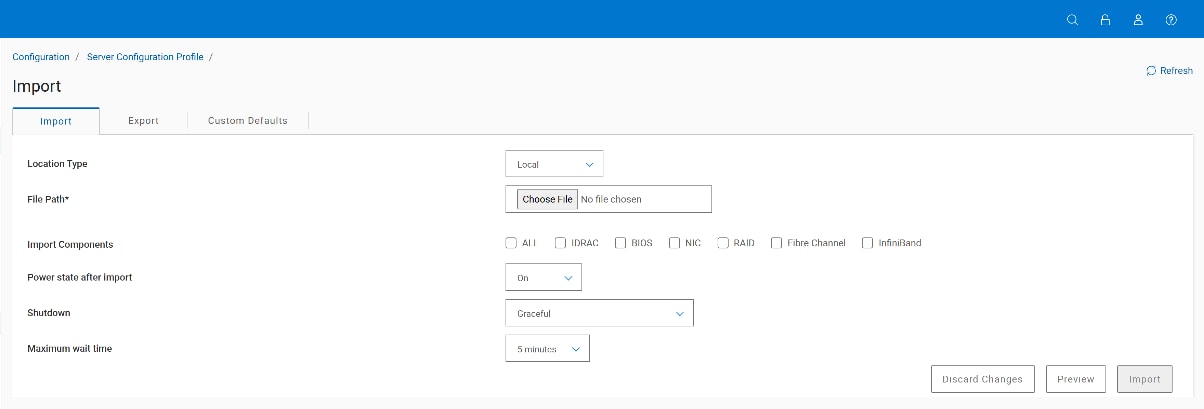
Racadm
The racadm set command using the -t xml or -t json parameter invokes an SCP Import operation.
Racadm example:
racadm ‐r 192.168.0.120 ‐u root ‐p calvin set ‐f R740scpfile.xml ‐t xml ‐l 99.99.99.99:/nfs Available SCP related options:
‐c : FQDD or shorthand for selective Import.
‐t : “xml” or “json” to select your format.
‐b : Shutdown type; Graceful, forced or NoReboot.
‐w : Time to Wait; Maximum wait time for graceful shutdown.
‐s : Set the host power to On or Off after Import completes.
See the racadm help text or the RACADM User’s Guide for additional options and details about network settings. To review racadm’s help information enter the command:
racadm help getFor the current version of the RACADM CLI User’s Guide, see iDRAC10 RACADM CLI Guide for firmware 1.30.xx
Redfish
To import SCP profile using Redfish
HTTP command method: POST
iDRAC10 URI:
https://<DRAC-IP>
/redfish/v1/Managers/iDRAC.Embedded.1/Actions/Oem/OemManager.ImportSystemConfiguration
iDRAC9 URI:
https://<DRAC-IP>
/redfish/v1/Managers/iDRAC.Embedded.1/Actions/Oem/EID_674_Manager.ImportSystemConfiguration
iDRAC9 and iDRAC10 Body:
{"ShareParameters" :
 {"Target":["All"},
  "FileName":”<Filename>”,IPAddress":"<IPAddress>",
  "ShareType":"<Type>”, "ShareName":"<Name>",
  "Username":”<shareuser>”, "Password": "sharepassword"
 }
}
Example body to import SCP in XML format to a windows CIFS share
{
  "ShareParameters": {
"Target":["ALL"],
 "FileName": "R450scp.xml",
 "IPAddress": "99.99.99.99",
"ShareType": "CIFS,
"ShareName": "scp",
"Username": "test1",
"Password": "password"
      }
}
Note: When submitted successfully API will return code 202 and JID to track import job. Example :
/redfish/v1/TaskService/Tasks/JID_811053545648
Note: The HTTP 202 Accepted successful response status code indicates that a request has been accepted for processing, but processing has not been completed. a import task may still fail when an iDRAC tries to process it.
To view the job run and to check for success or failure use the following API call
HTTP command method: GET
iDRAC10 URI:
https://<DRAC-IP>/redfish/v1/TaskService/Tasks/JID_nnnnnnnnnOutput body includes Successfully imported message
"JobState": "Completed",
"JobType": "ImportConfiguration",
"Message": "Successfully imported and applied SCP",
"MessageId": "IDRAC.2.8.SYS053",
"Name": "Configure: Import Server Configuration Profile",
"PercentComplete": 100,
For the latest version of the Redfish API Guide, see Dell Technologies APIs Redfish.
For examples of Redfish scripting using Python and PowerShell, see github for dell/iDRAC-Redfish-Scripting.
SCP Import Preview
SCP Import Preview
SCP Import Preview runs the validation portion of the SCP Import operation but does not apply any settings. Any errors detected during the validation process are logged to the LCL as configuration results. The preview operation does not reboot the host.
Before importing the SCP file, performing an Import Preview operation is recommended, though not required. By performing that operation first, you can identify any potential format issues or invalid attribute settings without affecting the state of the server.
Note: After performing an Import Preview operation, a job ID is returned. You can query the job ID to check the status and validate if the process was completed or failed. If the process failed, check the iDRAC Lifecycle Logs for more details. For more details about checking the job status, see Jobs.
Unlike Export and Import, the Import Preview operation does not provide the option to select individual components for validation. The entire template is validated.
Available interfaces
iDRAC GUI
SCP Import Preview, is on the iDRAC GUI under Configuration > Server Configuration Profiles > Import, and click Preview. The options available to Import do not apply to Import Preview.
racadm
The racadm set command has an additional --preview flag that converts an SCP Import into an SCP Import Preview operation.
Redfish
To import preview an SCP profile using Redfish, make a POST call on OEM action. ImportSystemConfigurationPreview.
HTTP command method: POST
iDRAC10 URI:
https://<DRAC-IP> /redfish/v1/Managers/iDRAC.Embedded.1/Actions/Oem/OemManager.ImportSystemConfigurationPreviewiDRAC9 URI:
https://<DRAC-IP> /redfish/v1/Managers/iDRAC.Embedded.1/Actions/Oem/EID_674_Manager. ImportSystemConfigurationPreviewiDRAC9 and iDRAC10 Body:
"ShareParameters" :
 {"Target":["All"],
 "FileName":”<Filename>”,IPAddress":"<IPAddress>",
 "ShareType":"<Type>”, "ShareName":"<Name>",
 "Username":”<shareuser>”, "Password": "sharepassword"
 }}
Example body to import SCP in XML format to a windows CIFS share
{
   "ShareParameters": {
      "Target":"ALL”,
      "FileName": "R450scp.xml",
      "IPAddress": "99.99.99.99",
      "ShareType": "CIFS,
      "ShareName": "scp",
      "Username": "test1",
      "Password": "password"
   }}
SCP licence requirements
SCP licence requirements
iDRAC9
iDRAC9 Express license is the minimum requirement to perform SCP import/export.
iDRAC10
iDRAC10 must have an Enterprise or Datacenter license to perform SCP import, core license can perform only SCP exports.
iDRAC configuration attributes
iDRAC configuration attributes
Introduction
This section of the guide focuses exclusively on the attributes found under the iDRAC.Embedded.1 component within the template. This document does not address all the iDRAC attributes. For information about features that are not discussed here, see the iDRAC User’s Guide.
Template example
The following example is of a snapshot of the iDRAC.Embedded.1 component generated by an SCP Export using the Include Password Hashes option.
<Component FQDD="iDRAC.Embedded.1">
<Attribute Name="Users.2#UserName">root</Attribute>
<!‐‐ <Attribute Name="Users.2#Password">******</Attribute> ‐‐>
<Attribute Name="Users.2#Privilege">511</Attribute>
<Attribute Name="Users.2#IpmiLanPrivilege">Administrator</Attribute>
<Attribute Name="Users.2#IpmiSerialPrivilege">Administrator</Attribute>
<Attribute Name="Users.2#Enable">Enabled</Attribute>
<Attribute Name="Users.2#SolEnable">Enabled</Attribute>
<Attribute Name="Users.2#ProtocolEnable">Disabled</Attribute>
<Attribute Name="Users.2#AuthenticationProtocol">SHA</Attribute>
<Attribute Name="Users.2#PrivacyProtocol">AES</Attribute>
<!‐‐ <Attribute Name="Users.2#SHA256Password">5522A153BF9E4AB5CE02DC51290A5A48E603B48FA3B611C67C675ACF4A183D6
F</Attribute> ‐‐>
<!‐‐ <Attribute Name="Users.2#SHA1v3Key">CB915933B669F8B8BE6D8C2F4395FF686AB05718</Attribute> ‐‐>
<!‐‐ <Attribute Name="Users.2#MD5v3Key">947F1A44E14757AF0712D5B51511365D</Attribute> ‐‐>
<!‐‐ <Attribute Name="Users.2#SHA256PasswordSalt">594B1509A26F10BEF69B5B0A97D01895</Attribute> ‐‐>
<!‐‐ <Attribute Name="Users.2#IPMIKey">EA4F150A02AE1970552D551AB73E43815514C57F9D9CEECEFFA20165DB18482C</Attribute> ‐‐>
<!‐‐ <Attribute Name="Users.2#SSHPublicKey1"></Attribute> ‐‐>
<!‐‐ <Attribute Name="Users.2#SSHPublicKey2"></Attribute> ‐‐>
<!‐‐ <Attribute Name="Users.2#SSHPublicKey3"></Attribute> ‐‐>
Creating and configuring an iDRAC user
iDRAC has from 2 through 16 users available for configuration. The attributes in Template example show an example of user 2, and all users are grouped in a similar manner—Users.3, Users.4, and so on.
When creating a user, you must set the user to Enabled and supply a username and password.
Note: Passwords in SCP templates are always commented out by default and populated with ****** as their value.
{ "Name": "Users.3#UserName", "Value": "guest",
"Set On Import": "True",
"Comment": "Read and Write" },
{ "Name": "Users.3#Password", "Value": "password123", "Set On Import": "True",
"Comment": "Read and Write" },
{ "Name": "Users.3#Enable",
"Value": "Enabled", "Set On Import": "True",
"Comment": "Read and Write" },
Additional settings for the user can be applied using the same template. The preceding example uses a “plaintext” password to configure the user, instead of the password hashes. The password must either be plaintext or hashes but cannot contain both.
Note: Commented attributes are ignored during SCP Import.
Clearing an iDRAC user
To remove a user and clear its settings, set the UserName to an empty value and set Enable to Disabled.
<Attribute Name="Users.3#UserName"></Attribute>
<Attribute Name="Users.3#Enable">Disabled</Attribute>
These settings remove the user and clear all associated settings. All other attributes for this user will be ignored if a reset was requested.
SSHPublicKey
SSHPublicKey is available on iDRAC9 release 4.00.00.00 and later.
An iDRAC user’s public SSH key can be set using SCP Import.
<Attribute Name="Users.4#SSHPublicKey1"></Attribute>
<Attribute Name="Users.4#SSHPublicKey2">ssh‐rsa AAAAB3NzaC1yc2EAAAABJQAAAQEA32CnKmqW5nHswuLrczixMxzaevolKbMsy/bNlZNvnAEQPWhYFK80ln+0U44h0Hqns F/cVQo3RLAfehFj/Xf7AcBwNXy38oB+IbkURQVdB/t0k/74IB5RAgwa3R0svu9VW8qinBS+Yi5bzKi/TvPZrOoWaA/RLn crI+cEI8EdSD5s+aoLic336eTltTEnAwP157GNz0IjSRWNYGL8kKAmDfjgrFOUOTfbC02VODHxN/FYRTNAJj8N+OCI/fS uR0TLoRXhZhtyP9TL+5Nmz80wM6l+MemR+GaJSUZolTFw3opmhnHdn1WNotoR7NprCcJZBwQgK8e8Ewo62mxDFMTfAQ== rsa‐key‐20190211</Attribute>
<Attribute Name="Users.4#SSHPublicKey3"></Attribute>
<!‐‐ <Attribute Name="Users.4#SSHPublicKey4"></Attribute> ‐‐>
To remove the public SSH key from an iDRAC user, leave the attribute’s value empty and run an SCP Import operation.
Certificates
Import of certificates is enabled using the CertType and CertData attributes under the iDRAC component. The header and footer tags are required for import.
<Attribute Name="SecurityCertificate.1#CertData">‐‐‐‐‐BEGIN CERTIFICATE‐‐‐‐‐ MIIDazCCAlOgAwIBAgIQd3Kt+V8JUYdGdoqfwI4pJDANBgkqhkiG9w0BAQsFADBI MRUwEwYKCZImiZPyLGQBGRYFbG9jYWwxFDASBgoJkiaJk/IsZAEZFgRla21zMRkw FwYDVQQDExBla21zLUVLTVMtUkNBLUNBMB4XDTE5MDMxMzE2NDAwNFoXDTI0MDMxMzE2NTAwNFowSDEVMBMGCgmSJomT8ixkARkWBWxvY2FsMRQwEgYKCZImiZPyLGQBGRYEZWttczEZMBcGA1UEAxMQZWttcy1FS01TLVJDQS1DQTCCASIwDQYJKoZIhvcNAQEBBQADggEPADCCAQoCggEBAKVcwkh6Iz8FIXBQXHK931SB0abutzsBjB/zdwoP zoYZUmsBUl16oNsD31/pLHi1rR9K4+VRLizkPmcdipc/u04VxrOeDTX8/1XlWc2V r4F9vngLKz6Uo0+BYaCKu3A0gCdfT9/sJYDv1T+PE64h2CnQqnspsRPvtbNgpOQG NnQy5wQuDYK/6Ri4h6xBF7VSwUsY/qiO/zBqRXlCLrPO1GtrHqG8aNzQpBjPAb13 tTwFrua9FgRL6xtr6ZpSaPMxGhkceAfT4s299915ehyrLvyRfYM05TPkgYkGlEif 8yvXVaoO2tEUkCAomFdpdXAraW1CuaosfMUfOk5Z49jr/LUCAwEAAaNRME8wCwYD VR0PBAQDAgGGMA8GA1UdEwEB/wQFMAMBAf8wHQYDVR0OBBYEFFdRsjlhMKU7cz0EI89BTtLtaPGOMBAGCSsGAQQBgjcVAQQDAgEAMA0GCSqGSIb3DQEBCwUAA4IBAQBn dzOBezSW0P01loC6S82sIIkT4Ls87Pp6VhTjVPc01ybTNVpYS6yKlWVbi7CCuh9j O7bZbvs45mpvCBmCCsRl4opUmwMJi57qCPjRRdOWqZCrHDh80LJDSR5EM2175fd2 yRarDwDsSUp4DDfYJFWWMqv3TiRQPGAizoidJokjXFjO6Y5ZKFSl9ps0+uiQPo3G ytUTam6xjBHO+eH2hpZiNMU4FR/c4pB4cnXYY+s28JTvBAhKtYmJhs1IPsz+s4iu N3m41Or+6qmIvsFl2FnQa8NEOqXO18H+Npp9gZwT1NNDn/ZhH3JAZm0Wi3QtKLhJ dvYaLy2hqa1PcWvQmS5G
‐‐‐‐‐END CERTIFICATE‐‐‐‐‐</Attribute>
<Attribute Name="SecurityCertificate.1#CertType">KMS_SERVER_CA</Attribute>
The preceding example indicates that the CertType is a Key Management System (KMS) Server Certificate Authority (CA). The CertData field contains the data for the certificate. The iDRAC uses the CertType attribute to determine how to interpret the data.
The available CertTypes are:
- KMS_SERVER_CA
- SEKM_SSL_CERT
- RSYSLOG_1
- RSYSLOG_2
- DEL_AUTH_HTTPS_1
- DEL_AUTH_HTTPS_2
And starting with iDRAC9 release 6.00.02.00 these additional certificates are now supported for importing:
- LDAP_CA
- SCEP_CA
- RSA_CA
- WEBSERVER_SSL
- BIOS_HTTPS_BOOT_CERT
Types ending with _1 or _2 refer to the instance of the certificate. There can be two instances of RSys Log and Delegated Authorization HTTPs certificates.
The configuration results confirm the successful installation of certificates by SCP:
racadm lclog viewconfigresult ‐j JID_581182121065 Output :
SeqNumber = 5963
FQDD = iDRAC.Embedded.1
Job Name = Import Configuration
DisplayValue = Certificate Data
Name = SecurityCertificate.1#CertData
OldValue = ******
NewValue = ******
Status = Success ErrCode = 0
DisplayValue = Certificate Type
Name = SecurityCertificate.1#CertType
OldValue = ""
NewValue = KMS_SERVER_CA
Status = Success
ErrCode = 0
Password settings
Since iDRAC9 release 4.40.00.00, new iDRAC user password security options are now available. The following settings can be Enabled or Disabled:
<Attribute Name="Security.1#PasswordRequireUpperCase">Enabled</Attribute>
<Attribute Name="Security.1#PasswordRequireNumbers">Enabled</Attribute>
<Attribute Name="Security.1#PasswordRequireSymbols">Enabled</Attribute>
A minimum password length can be set with PasswordMinimumLength.
<Attribute Name="Security.1#PasswordMinimumLength">10</Attribute>A password score can be enforced with either Weak, Moderate, Strong, or No Protection.
<Attribute Name="Security.1#MinimumPasswordScore">Strong Protection</Attribute> A regular expression can also be enforced on iDRAC user passwords.
<Attribute Name="Security.1#PasswordRequireRegex"/>AutoUpdate
The iDRAC can be configured to automatically perform firmware updates through a repository update using the AutoUpdate attributes. The iDRAC runs a repository update at the recurrence specified by the imported template. In the following scenario, it will check the network share at 4:00 a.m. daily for Catalog.xml and compare it against the existing server, applying any new firmware updates.
<Component FQDD="iDRAC.Embedded.1">
<Attribute Name="AutoUpdate.1#IPAddress">192.168.0.20</Attribute>
<Attribute Name="AutoUpdate.1#Domain">Home</Attribute>
<Attribute Name="AutoUpdate.1#ShareName">Share</Attribute>
<Attribute Name="AutoUpdate.1#ShareType">cifs</Attribute>
<Attribute Name="AutoUpdate.1#Username">user1</Attribute>
<Attribute Name="AutoUpdate.1#Password">******</Attribute>
<Attribute Name="AutoUpdate.1#ApplyReboot">0</Attribute>
<Attribute Name="AutoUpdate.1#Repeat">1</Attribute>
<Attribute Name="AutoUpdate.1#CatalogName">Catalog.xml</Attribute>
<Attribute Name="AutoUpdate.1#Time">4:00</Attribute>
<Attribute Name="AutoUpdate.1#DayofMonth">*</Attribute>
<Attribute Name="AutoUpdate.1#WeekofMonth">*</Attribute>
<Attribute Name="AutoUpdate.1#DayOfWeek">*</Attribute>
</Component>
The AutoUpdate functionality must be enabled under the LifecycleController component to activate these settings. This feature can be enabled and all associated settings applied in a single SCP Import operation.
<Component FQDD="LifecycleController.Embedded.1">
<Attribute Name="LCAttributes.1#AutoUpdate">Enabled</Attribute>
</Component>
LifecycleController configuration attributes
LifecycleController configuration attributes
The LifecycleController component contains LifecycleController settings and the attribute template for OSD operations. The OSD operations are discussed in more detail later in this paper. This section focuses on the LifecycleController specific settings.
<Component FQDD="LifecycleController.Embedded.1">
<Attribute Name="LCAttributes.1#CollectSystemInventoryOnRestart">Enabled</Attribute>
<Attribute Name="LCAttributes.1#PartConfigurationUpdate">Apply Always</Attribute>
<Attribute Name="LCAttributes.1#PartFirmwareUpdate">Match firmware of replaced part</Attribute>
<Attribute Name="LCAttributes.1#BIOSRTDRequested">False</Attribute>
<Attribute Name="LCAttributes.1#AutoUpdate">Disabled</Attribute>
</Component>
CollectSystemInventoryOnRestart – The inventory collection process that was described in CSIOR. Keep this feature Enabled so that the inventory data stored on the iDRAC is up to date.
PartConfigurationUpdate – The Part Replacement feature can automatically restore the last known configuration of a device if it is replaced with a similar device. The available options for this setting are:
- Disabled
- Apply Always
- Apply only if Firmware Match
PartFirmwareUpdate – The Part Replacement feature can automatically update to the last installed firmware if a device is replaced with a similar device. The available options for this setting are:
- Disable
- Allow version upgrade only
- Match firmware of replaced part
BIOSRTDRequested – This BIOS Reset to Defaults attribute triggers a full reset to default settings for the BIOS. Any attributes configured in the BIOS.Setup.1-1 component will be applied after the reset to defaults has occurred. This attribute is the only
LifecycleController attribute that requires a host reboot to apply the attribute. This value does not persist and resets to False after the host has been rebooted.
AutoUpdate – The AutoUpdate feature can be enabled or disabled under the LifecycleController component. The associated scheduling attributes are at the end of the iDRAC component.
EventFilters configuration attributes
EventFilters configuration attributes
EventFilters settings can be configured using SCP Import and are found under these six components:
<Component FQDD="EventFilters.SystemHealth.1">
<Component FQDD="EventFilters.Storage.1">
<Component FQDD="EventFilters.Updates.1">
<Component FQDD="EventFilters.Audit.1">
<Component FQDD="EventFilters.Configuration.1">
<Component FQDD="EventFilters.WorkNotes.1"/>
The SCP template contains many event filters. To help navigate this large array of settings, they are broken down into categories. The three major categories of each setting are Critical (1), Warning (2) and Informational (3). The settings that are available under each category vary depending on the event filter.
Following is an example of a power event filter under the Informational (3) category. Each grouping starts with a commented out DisplayName attribute stating the category. This attribute, which is used to assist in navigating the settings, cannot be set.
<!‐‐ <Attribute Name="PWR_5_3#DisplayName">PWR_5_3 (Informational)</Attribute> ‐‐>
<Attribute Name="PWR_5_3#Alert#Email">Disabled</Attribute>
<Attribute Name="PWR_5_3#Alert#SNMP">Disabled</Attribute>
<Attribute Name="PWR_5_3#Alert#IPMI">Disabled</Attribute>
<Attribute Name="PWR_5_3#Alert#SysLog">Disabled</Attribute>
<Attribute Name="PWR_5_3#Alert#WSEventing">Disabled</Attribute>
<Attribute Name="PWR_5_3#Alert#OSLog">Disabled</Attribute>
<Attribute Name="PWR_5_3#Alert#RedfishEventing">Enabled</Attribute>
<Attribute Name="PWR_5_3#Action">No Action</Attribute>
Each of the event filters settings can be switched, and an action can be set to perform when one of these events is triggered. The available Action settings are:
- No Action
- Reboot
- PowerOff
- PowerCycle
All action options might not be applicable to an event filter. For more information about event filters, see the iDRAC User’s Guide.
RAID/PERC storage configuration attributes and operations
RAID/PERC storage configuration attributes and operations
Introduction
SCP can be used to perform various RAID and storage operations.
Note: Basic HBA controllers are not supported for SCP export or import.
Creating and initializing a virtual disk
SCP can be used to create and initialize a virtual disk. The following XML example illustrates how this operation can be accomplished with a template. The virtual disk is a part of RAID.Slot.2-1 using disk 0 and 9. The RAIDaction attribute specifies the Create activity, and the RAIDinitOperation attribute specifies how the VD will be initialized.
Note: Storage Component elements can be nested inside their parent Components to show the hierarchy of these devices. In the following example, Disk.Virtual.0 is a subcomponent of RAID.Slot.2-1. This is also reflected in the Disk.Virtual.0:RAID.Slot.2-1 FQDD.
Note: On PERC 11 controllers only, if the server that you are importing the SCP file to has VDs already created (for example: VD ID 239, VD ID 238) and the SCP file is going to reset the controller and create VDs, the new VDs will be created but the VD index ID of the first VD will start at 237, not 239.
<Component FQDD="RAID.Slot.2‐1">
<Component FQDD="Disk.Virtual.0:RAID.Slot.2‐1">
<Attribute Name="IncludedPhysicalDiskID"> Disk.Bay.0:Enclosure.External.0‐0:RAID.Slot.2‐1
</Attribute>
<Attribute Name="IncludedPhysicalDiskID"> Disk.Bay.9:Enclosure.External.0‐0:RAID.Slot.2‐1
</Attribute>
<Attribute Name="RAIDaction">Create</Attribute>
<Attribute Name="RAIDinitOperation">Fast</Attribute>
<Attribute Name="DiskCachePolicy">Default</Attribute>
<Attribute Name="RAIDdefaultWritePolicy">WriteBack</Attribute>
<Attribute Name="RAIDdefaultReadPolicy">Adaptive</Attribute>
<Attribute Name="Name">xmlconfig</Attribute>
<Attribute Name="Size">146163105792</Attribute>
<Attribute Name="StripeSize">128</Attribute>
<Attribute Name="SpanDepth">1</Attribute>
<Attribute Name="SpanLength">2</Attribute>
<Attribute Name="RAIDTypes">RAID 1</Attribute>
</Component>
</Component>
This action can also be performed without specifying the physical disks. If no physical disks are included in the VD creation, they will be chosen automatically.
<Component FQDD="RAID.Slot.2‐1">
<Component FQDD="Disk.Virtual.0:RAID.Slot.2‐1">
<Attribute Name="RAIDaction">CreateAuto</Attribute>
<Attribute Name="RAIDinitOperation">Fast</Attribute>
<Attribute Name="Name">xmlconfig</Attribute>
<Attribute Name="Size">0</Attribute>
<Attribute Name="RAIDTypes">RAID 1</Attribute>
</Component>
Note: Because physical disk drives included in the VDs are selected automatically based on size and RAIDTypes, span parameters such as SpanLength and SpanDepth are also determined automatically. Hence, they also must not be specified in the input configuration XML file.
When Size value is specified as 0, the VD will be created with minimum number of disks required for the RAIDTypes.
Resetting controller
SCP Export includes the RAIDresetConfig attribute in the template, but the attribute is marked as False. If the attribute is changed to True and imported, the configuration for the associated RAID device will be reset. This reset includes the removal of VDs.
Note: Setting
RAIDresetConfig to True is destructive and will erase all virtual disks on the controller. Perform this action only if you intend to destroy all virtual disks on the controller.
This action always takes place before all other requested operations, so it can be stacked with create VD and initialization.
{ "FQDD": "RAID.Slot.6‐1",
"Attributes": [
{ "Name": "RAIDresetConfig",
"Value": "True",
"Set On Import": "True",
"Comment": "Read and Write" },
RAIDresetConfig is automatically set to True when exported with Clone or Replace mode.
Assigning dedicated hot spare
A dedicated hot spare can be defined using the RAIDdedicatedSpare attribute found under the VD component element. A specific disk can be defined by using the FQDD for the disk.
<Component FQDD="Disk.Virtual.0:RAID.Slot.2‐1">
<Attribute Name="RAIDdedicatedSpare"> Disk.Bay.5:Enclosure.External.0‐0:RAID.Slot.2‐1
</Attribute>
SCP file example showing create RAID 1 and assign dedicated hot spare:
<SystemConfiguration>
<Component FQDD="RAID.SL.3-1">
  <Component FQDD="Disk.Virtual.0:RAID.SL.3-1">
    <Attribute Name="RAIDaction">Create</Attribute>
    <Attribute Name="LockStatus">Unlocked</Attribute>
    <Attribute Name="BootVD">False</Attribute>
    <Attribute Name="RAIDinitOperation">None</Attribute>
    <Attribute Name="DiskCachePolicy">Default</Attribute>
    <Attribute Name="RAIDdefaultWritePolicy">WriteBack</Attribute>
    <Attribute Name="RAIDdefaultReadPolicy">ReadAhead</Attribute>
    <Attribute Name="Name">Virtual Disk 0</Attribute>
    <Attribute Name="Size">479559942144</Attribute>
    <Attribute Name="StripeSize">512</Attribute>
    <Attribute Name="SpanDepth">1</Attribute>
    <Attribute Name="SpanLength">2</Attribute>
    <Attribute Name="RAIDTypes">RAID 1</Attribute>
    <Attribute Name="IncludedPhysicalDiskID">Disk.Bay.1:Enclosure.Internal.0-1:RAID.SL.3-1</Attribute>
    <Attribute Name="IncludedPhysicalDiskID">Disk.Bay.2:Enclosure.Internal.0-1:RAID.SL.3-1</Attribute>
    <Attribute Name="RAIDdedicatedSpare">Disk.Bay.3:Enclosure.Internal.0-1:RAID.SL.3-1</Attribute>
  </Component>
</Component>
</SystemConfiguration>
The value AutoSelect can be provided to automatically assign a dedicated hot spare.
<Component FQDD="Disk.Virtual.0:RAID.Slot.2‐1">
<Attrbute Name="RAIDdedicatedSpare">AutoSelect</Attribute>
Note: The RAIDHotspareStatus attribute is a read-only value and cannot be used to assign a dedicated hot spare. To assign a dedicated hot spare to a volume, use the attribute RAIDdedicatedSpare.
Assigning global hot spare
Disk attribute RAIDHotSpareStatus can be used to assign a global hot spare.
<Component FQDD="Disk.Bay.0:Enclosure.Internal.0-0:RAID.SL.3-1">
<Attribute Name="RAIDHotSpareStatus">Global</Attribute>
Unassigning global hot spare
Disk attribute RAIDHotSpareStatus can be used to unassign a hot spare.
<Component FQDD="Disk.Bay.0:Enclosure.Internal.0-0:RAID.SL.3-1">
<Attribute Name="RAIDHotSpareStatus">No</Attribute>
Cryptographic erase
A cryptographic erase of PCIe SSD devices either controlled by bridge card or CPU can be performed by setting the PCIeSSDsecureErase attribute to True.
<Component FQDD="Disk.Bay.16:Enclosure.Internal.0‐1:PCIeExtender.Slot.4">
<Attribute Name="PCIeSSDsecureErase">True</Attribute>
</Component>
A cryptographic erase of NVMe or SAS/SATA drives attached to a PERC can be performed by setting the Cryptographic Erase attribute to True.
<Component FQDD="Disk.Bay.5:Enclosure.Internal.0‐1:RAID.Slot.1‐1">
<Attribute Name="Cryptographic Erase">True</Attribute>
</Component>
BIOS configuration attributes
BIOS configuration attributes
Workload profiles
Workload profiles are collections of BIOS settings. When workload profiles are combined with SCP Imports, the workload profile is applied first, and then the remaining attributes in the template are applied.
{ "FQDD": "BIOS.Setup.1‐1",
"Attributes": [
{ "Name": "WorkloadProfile",
"Value": “NotConfigured ",
"Set On Import": "True",
"Comment": "Read and Write" },
Note: If you only change the
WorkloadProfile attribute, and no child attributes are tied to this profile that you set, the WorkloadProfile attribute will report the profile for the current value (for example: HpcProfile). If you change WorkloadProfile and also change child attributes tied to this profile in the same SCP file, then WorkloadProfile will report the default value, NotConfigured (for example: Set WorkloadProfile to HpcProfile and ProcVirtualization to Enabled in same SCP file).
Note: If your server is using an older BIOS with the default value of
NotAvailable, the WorkloadProfile attribute will always report a current value of NotAvailable regardless of what was recently applied. This attribute is not persistent and only serves to trigger a workload profile swap.
Note: Depending on the server’s installed processor, certain possible values might not be available for this attribute.
F1 / F2 Error Prompt setting
The BIOS F1 / F2 Error Prompt setting is enabled by default. If BIOS detects an error during POST while this setting is enabled, the POST boot process is stopped at a Press F1/F2 to continue prompt.
This setting can be disabled in F2 during POST or by using SCP with this attribute:
{ "Name": "ErrPrompt",
"Value": "Disabled",
This error prompt can disrupt LifecycleController operations including Server Configuration Profile Imports. If an SCP Import operation appears to be stuck at 20 percent applying configuration changes, check the host to see if it is waiting at this error prompt.
Changing the boot order
SCP offers a few different options for updating the boot order and hard disk order for the host. Set the order by putting a single FQDD into each of SetBootOrderFqdd numbered attributes.
<Attribute Name="SetBootOrderFqdd1">NIC.Integrated.1‐1‐1</Attribute>
<Attribute Name="SetBootOrderFqdd2">HardDisk.List.1‐1</Attribute>
…
<Attribute Name="SetBootOrderFqdd16"></Attribute>
The same can be done for the hard disk order.
<Attribute Name="SetLegacyHddOrderFqdd1">RAID.Integrated.1‐1</Attribute>
<Attribute Name="SetLegacyHddOrderFqdd2">RAID.Slot.2‐1</Attribute>
…
<Attribute Name="SetLegacyHddOrderFqdd16"></Attribute>
Alternatively, the BiosBootSeq and UefiBootSeq attributes offer a comma-delimited option. BiosBootSeq is available in legacy boot mode. UefiBootSeq is available in UEFI boot mode.
<Attribute Name="BiosBootSeq">HardDisk.List.1‐1,NIC</Attribute> Hard drive disk can also be declared as a comma-delimited FQDD list.
<Attribute Name="HddSeq">RAID.Integrated.1‐1, RAID.Slot.2‐1</Attribute> One-time boot options are also available and only persist through a single boot.
<Attribute Name="OneTimeBiosBootSeq"></Attribute>
<Attribute Name="OneTimeUefiBootSeq"></Attribute>
<Attribute Name="OneTimeHddSeq"></Attribute>
Enabling or disabling a boot order entry
A boot device can be enabled in the boot order by using the SetBootOrderEn attribute. Any FQDD in the comma-delimited list is enabled in the boot order.
<Attribute Name="SetBootOrderEn">HardDisk.List.1‐1,NIC.Integrated.1‐1‐1</Attribute>Likewise, a boot device can be disabled in the boot order by using the SetBootOrderDis attribute in a similar manner.
<Attribute Name="SetBootOrderDis">HardDisk.List.1‐1</Attribute>System and setup passwords
BIOS system and setup passwords can be applied with the following attributes.
{ "Name": "OldSysPassword",
"Value": "oldpassword",
"Set On Import": "True",
"Comment": "Read and Write" },
{ "Name": "NewSysPassword",
"Value": "newpassword",
"Set On Import": "True",
"Comment": "Read and Write" },
{ "Name": "OldSetupPassword",
"Value": "oldpassword",
"Set On Import": "True",
"Comment": "Read and Write" },
{ "Name": "NewSetupPassword",
"Value": "newpassword",
"Set On Import": "True",
"Comment": "Read and Write" },
Each password requires the old password and the new password. The old password is validated; if validation is successful, the new password is applied.
Note: Passwords in SCP templates are commented out by default and populated with ****** as their value.
Preboot Execution Environment (PXE)
PXE attributes are available under the BIOS component while the BIOS is in Uefi BootMode.
When one of the PxeDevXEnDis (1,2,3,4) attributes is enabled, a new associated PXE device appears under the UefiBootSeq. The PxeDevXInterface attribute must be mapped to a bootable network device.
In the following example, PxeDev1EnDis is set to Enabled and PxeDev1Interface is assigned to NIC.Embedded.1-1-1.
<Component FQDD="BIOS.Setup.1‐1">
<Attribute Name="PxeDev1EnDis">Enabled</Attribute>
<Attribute Name="PxeDev1Interface">NIC.Integrated.1‐1‐1</Attribute>
<Attribute Name="PxeDev1Protocol">IPv4</Attribute>
<Attribute Name="PxeDev1VlanEnDis">Disabled</Attribute>
<Attribute Name="PxeDev1VlanId">1</Attribute>
<Attribute Name="PxeDev1VlanPriority">0</Attribute>
<Attribute Name="UefiBootSeq">NIC.PxeDevice.1‐1</Attribute>
</Component>
If PxeDev1EnDis is Disabled, this device (NIC.Embedded.1-1-1 or NIC.PxeDevice.1-1) would not appear as a bootable device.
Some PXE options are available in legacy (Bios) BootMode, as described in LegacyBootProto and PXE.
NIC, Fibre Channel, InfiniBand configuration attributes
NIC, Fibre Channel, InfiniBand configuration attributes
Introduction
SCP supports various network devices. The following sections focus on the unique behaviors available in SCP for these devices.
The full feature set for these devices is outside the scope of this document. For information about all available features, see the network device documentation.
LegacyBootProto and PXE
While the BIOS is in legacy (Bios) BootMode and a network device’s LegacyBootProto attribute is set to PXE, that component appears under the BiosBootSeq (BIOS.Setup.1-1). If the LegacyBootProto is changed to PXE in a template for import, the associated FQDD of the network device can be added to the BiosBootSeq in a specific position. Otherwise, it will be appended to the end of the boot sequence.
{ "FQDD": "NIC.Integrated.1‐1‐1",
"Attributes": [
{ "Name": "LegacyBootProto",
"Value": "PXE",
"Set On Import": "True",
"Comment": "Read and Write" },

{ "FQDD": "BIOS.Setup.1‐1",
"Attributes": [
{ "Name": "BiosBootSeq",
"Value": "HardDisk.List.1‐1, NIC.Integrated.1‐1‐1",
"Set On Import": "True",
"Comment": "Read and Write" },
Note: This setting does not affect the boot settings for the BIOS while in Uefi BootMode. See Preboot Execution Environment (PXE) for Uefi BootMode PXE operations.
Virtualization Mode
If a network device supports a VirtualizationMode of NPAR or NPAR+SRIOV, enabling this functionality causes new FQDDs to appear on the next host reboot.
<Component FQDD="NIC.Slot.2‐1‐1">
<Attribute Name="VirtualizationMode">NPAR</Attribute>
With NPAR settings enabled, new networked partitions appear as new FQDDs/Components after the next CSIOR operation.
<Component FQDD="NIC.Slot.2‐1‐2">
<Component FQDD="NIC.Slot.2‐1‐3">
<Component FQDD="NIC.Slot.2‐1‐4">
If a template is generated on a server with NPAR enabled and applied to a system with NPAR disabled, SCP Import will automatically resolve these dependencies. The settings will be applied in a single SCP Import operation. Confirm that your settings were applied by reviewing the configuration results and/or LCL.
InfiniBand modes
InfiniBand network devices can transition between Ethernet mode and IB (InfiniBand) mode using the NetworkLinkType attribute. While in Ethernet mode, the network device is presented with an FQDD starting with NIC (for example, NIC.Slot.4-1-1). While in IB mode, the network device is presented with an FQDD starting with InfiniBand (for example InfiniBand.Slot.4-1-1).
Example of a device in Ethernet mode:
<Component FQDD="NIC.Slot.4‐1‐1">
<Attribute Name="NetworkLinkType">Ethernet</Attribute>
Example of a device in IB mode:
<Component FQDD="InfiniBand.Slot.4‐1">
<Attribute Name="NetworkLinkType">IB</Attribute>
When you use SCP Import to transition between modes, two Part Replacement messages will appear in the LCL, as in the following example:
2026‐06‐26 09:29:58 PR8 Device not detected: Mellanox ConnectX‐6 Single Port VPI HDR QSFP Adapter ‐ 98:03:9B:9F:51:42(NIC in Slot 4 Port 1 Partition 1)
2026-06‐26 09:29:58 PR7 New device detected: Mellanox ConnectX‐6 Single Port VPI HDR QSFP Adapter ‐ 98:03:9B:9F:51:42(InfiniBand Controller in Slot 4)
These messages are expected because of the FQDD change in the device.
The configuration results for a NetworkLinkType change will use the FQDD of the original mode. In this example, the device is in Ethernet mode and switched to IB mode.
racadm lclog viewconfigresult ‐j JID_033767124177 Output :
SeqNumber = 2316
FQDD = NIC.Slot.4‐1‐1
Operation Name = CHANGE DisplayValue = BlnkLeds Name = BlnkLeds
OldValue = 15
NewValue = 0
Status = Success Operation Name = CHANGE DisplayValue = NetworkLinkType Name = NetworkLinkType
OldValue = Ethernet
NewValue = IB
Status = Success
Despite having different FQDDs, these devices are the same. The set of attributes available to these devices will be different depending on the mode. The feature sets available to these devices are outside of the scope of this document. Review the network devices user manual for full details.
Note: Switching modes and applying attributes on the new mode requires completion of two separate SCP Import operations.
SupportAssist operations
SupportAssist operations
Introduction
Dell’s SupportAssist is available on iDRAC9, SupportAssist feature can be registered and configured using SCP.
For more information about SupportAssist, see the Support Assist on Dell 14th generation of PowerEdge servers white paper.
Registration
Note: Starting in iDRAC 9 release 7.00.00, SupportAssist registration has been removed and is no longer supported.
An SCP Export generates empty attributes under the SupportAssist component for easier registration. These attributes are only used for the registration process and never export personal information.
<Component FQDD="SupportAssist.Embedded.1">
<!‐‐ <Attribute Name="SupportAssist.1#SupportAssistEULAAccepted"></Attribute> ‐‐>
<!‐‐<Attribute Name="SupportAssist.1#SupportAssistEULAAcceptedByiDRACUser"></Attribute>‐‐>
<!‐‐ <Attribute Name="SupportAssist.1#PrimaryContactFirstName"></Attribute> ‐‐>
<!‐‐ <Attribute Name="SupportAssist.1#PrimaryContactLastName"></Attribute> ‐‐>
<!‐‐ <Attribute Name="SupportAssist.1#PrimaryContactPhoneNumber"></Attribute> ‐‐>
<!‐‐ <Attribute Name="SupportAssist.1#PrimaryContactAlternatePhoneNumber"></Attribute> ‐‐>
<!‐‐ <Attribute Name="SupportAssist.1#PrimaryContactEmail"></Attribute> ‐‐>
<!‐‐ <Attribute Name="SupportAssist.1#SecondaryContactFirstName"></Attribute> ‐‐>
<!‐‐ <Attribute Name="SupportAssist.1#SecondaryContactLastName"></Attribute> ‐‐>
<!‐‐ <Attribute Name="SupportAssist.1#SecondaryContactPhoneNumber"></Attribute> ‐‐>
<!‐‐<Attribute Name="SupportAssist.1#SecondaryContactAlternatePhoneNumber"></Attribute>‐‐>
<!‐‐ <Attribute Name="SupportAssist.1#SecondaryContactEmail"></Attribute> ‐‐>
<!‐‐ <Attribute Name="SupportAssist.1#ShippingInfoCompanyName"></Attribute> ‐‐>
<!‐‐ <Attribute Name="SupportAssist.1#ShippingInfoStreet1"></Attribute> ‐‐>
<!‐‐ <Attribute Name="SupportAssist.1#ShippingInfoState"></Attribute> ‐‐>
<!‐‐ <Attribute Name="SupportAssist.1#ShippingInfoCountry"></Attribute> ‐‐>
<!‐‐ <Attribute Name="SupportAssist.1#ShippingInfoZip"></Attribute> ‐‐>
<!‐‐ <Attribute Name="SupportAssist.1#HostOSProxyConfigured"></Attribute> ‐‐>
<!‐‐ <Attribute Name="SupportAssist.1#HostOSProxyAddress"></Attribute> ‐‐>
<!‐‐ <Attribute Name="SupportAssist.1#HostOSProxyPort"></Attribute> ‐‐>
<!‐‐ <Attribute Name="SupportAssist.1#HostOSProxyUserName"></Attribute> ‐‐>
<!‐‐ <Attribute Name="SupportAssist.1#HostOSProxyPassword"></Attribute> ‐‐>
</Component>
Note: The mandatory fields that are required for registering SupportAssist are Primary First Name, Primary Last Name, Primary Phone Number, Primary Email, Company Name, and Service Address fields (Street1, City, State, Country, Zip).
<Component FQDD="SupportAssist.Embedded.1">
<Attribute Name="SupportAssist.1#SupportAssistEULAAccepted">True</Attribute>
<Attribute Name="SupportAssist.1#SupportAssistEULAAcceptedByiDRACUser">root</Attribute>
<Attribute Name="SupportAssist.1#PrimaryContactFirstName">John</Attribute>
<Attribute Name="SupportAssist.1#PrimaryContactLastName">Doe</Attribute>
<Attribute Name="SupportAssist.1#PrimaryContactPhoneNumber">123‐456‐7890</Attribute>
<Attribute Name="SupportAssist.1#PrimaryContactAlternatePhoneNumber"></Attribute>
<Attribute Name="SupportAssist.1#PrimaryContactEmail">John_Doe@Dell.com</Attribute>
<Attribute Name="SupportAssist.1#ShippingInfoCompanyName">Dell Inc.</Attribute>
<Attribute Name="SupportAssist.1#ShippingInfoStreet1">200 Dell Way</Attribute>
<Attribute Name="SupportAssist.1#ShippingInfoStreet2"></Attribute>
<Attribute Name="SupportAssist.1#ShippingInfoCity">Round Rock</Attribute>
<Attribute Name="SupportAssist.1#ShippingInfoState">Tx</Attribute>
<Attribute Name="SupportAssist.1#ShippingInfoCountry">USA</Attribute>
<Attribute Name="SupportAssist.1#ShippingInfoZip">78684</Attribute>
</Component>
Configuration
Configuration options for SupportAssist are found under the iDRAC.Embedded.1.
<Component FQDD="iDRAC.Embedded.1">
<Attribute Name="SupportAssist.1#SupportAssistEnableState">Enabled</Attribute>
<Attribute Name="SupportAssist.1#EventBasedAutoCollection">Enabled</Attribute>
<Attribute Name="SupportAssist.1#ProSupportPlusRecommendationsReport">Disabled</Attribute>
<Attribute Name="SupportAssist.1#FilterAutoCollections">Yes</Attribute>
<Attribute Name="SupportAssist.1#DefaultProtocol">CIFS</Attribute>
<Attribute Name="SupportAssist.1#DefaultIPAddress"/>
<Attribute Name="SupportAssist.1#DefaultShareName"/>
<Attribute Name="SupportAssist.1#DefaultWorkgroupName"/>
<Attribute Name="SupportAssist.1#DefaultUserName"/>
<!‐‐ <Attribute Name="SupportAssist.1#DefaultPassword">******</Attribute> ‐‐>
<Attribute Name="SupportAssist.1#EmailOptIn">Yes</Attribute>
<Attribute Name="SupportAssist.1#PreferredLanguage">English</Attribute>
<Attribute Name="SupportAssist.1#DefaultProtocolPort">0</Attribute>
<Attribute Name="SupportAssist.1#RequestTechnicianForPartsDispatch">No</Attribute>
</Component>
The options are as follows:
SupportAssist.1#EmailOptIn— Set to Yes to receive email notifications from Dell on case creation and collection upload.SupportAssist.1#PreferredLanguage— Select from the possible values of English, German, French, Japanese, Spanish, Simplified Chinese.SupportAssist.1#FilterAutoCollections—Set to Yest o filter the auto-generated collections for identification information.SupportAssist.1#ProSupportPlusRecommendationsReport—Set to Enabled to receive recommendations for the server in the ProSupport Plus Recommendations Report.SupportAssist.1#EventBasedAutoCollection—Set toEnabledfor SupportAssist to receive critical events and request collections from the server.SupportAssist.1#SupportAssistEnableState—Set toEnabledto permit the SupportAssist auto collection features on the server.
Repository updates configuration attributes for firmware updates
Repository updates configuration attributes for firmware updates
Introduction
SCP Import can also perform firmware updates using Dell’s Repository Update feature utilizing the SCP.1#RepositoryUpdate attribute.
Dell Repository Manager can be used to construct a firmware update repository. For the tool set and more information about the feature, see Dell Repository Manager (DRM) in the Dell Knowledge Base.
Note: This feature requires network connectivity and cannot be performed using SCP over USB.
Note: If the update repository has the iDRAC package, the job will be created and marked completed in the job queue, but the new iDRAC version will not be applied until all other updates and configuration changes are applied. This behavior is because an iDRAC reboot is needed to apply the new firmware image.
Note: If you are importing a SCP file (repository updates and configuration changes) to multiple servers that have different iDRAC versions, updating the iDRAC firmware version first before importing the SCP file is recommended. If this step is not performed, the SCP import job could complete with errors and be unable to apply attribute changes because the older iDRAC version may not support all attributes in the SCP file.
The RepositoryUpdate value should point to a Catalog.xml file in a path relative to the location of the SCP template on a network share. The exact name of the Catalog.xml file might vary upon new repository generation, so check the repository for the correct name.
<Component FQDD="System.Embedded.1">
<Attribute Name="SCP.1#RepositoryUpdate">repo/Catalog.xml</Attribute>
</Component>
Example of share layout:
network_share/template.xml <‐ The SCP template.
network_share/repo/Catalog.xml <‐ The Catalog.xml describing the updates repository.
network_share/repo/<repository files> <‐ The repository files needed for updates.
Older versions of iDRAC might generate the attribute as just RepositoryUpdate instead of SCP.1#RepositoryUpdate. The older format is supported on all versions of iDRAC.
Workflow
The RepositoryUpdates workflow is a little different from a traditional SCP Import. If the RepositoryUpdates attribute is populated with a valid path to a repository, the updates workflow will attempt to detect any devices that need to be updated when compared against the catalog. Any detected updates generate a new job (with JID) for that device. The Job Queue will contain a standard SCP Import job, Repository Update job, and, potentially, multiple device-specific update jobs.
racadm jobqueue view -i JID_033096641979Output :
‐‐‐‐‐‐‐‐‐‐‐‐‐‐‐‐‐‐‐‐‐‐‐‐‐JOB QUEUE‐‐‐‐‐‐‐‐‐‐‐‐‐‐‐‐‐‐‐‐‐‐‐‐
[Job ID=JID_033096641979]
Job Name=Configure: Import Server Configuration Profile Status=Downloading
Scheduled Start Time=[Not Applicable]
Expiration Time=[Not Applicable]
Actual Start Time=[Wed, 10 June 2026 14:47:44]
Actual Completion Time=[Not Applicable]
Message=[SYS191: Importing Server Configuration Profile.]
Percent Complete=[5]
‐‐‐‐‐‐‐‐‐‐‐‐‐‐‐‐‐‐‐‐‐‐‐‐‐‐‐‐‐‐‐‐‐‐‐‐‐‐‐‐‐‐‐‐‐‐‐‐‐‐‐‐‐‐‐‐‐‐
[Job ID=JID_033096656685]
Job Name=Repository Update Status=New
Scheduled Start Time=[Not Applicable]
Expiration Time=[Not Applicable]
Actual Start Time=[Not Applicable]
Actual Completion Time=[Not Applicable]
Message=[JCP000: New]
Percent Complete=[NA]
‐‐‐‐‐‐‐‐‐‐‐‐‐‐‐‐‐‐‐‐‐‐‐‐‐‐‐‐‐‐‐‐‐‐‐‐‐‐‐‐‐‐‐‐‐‐‐‐‐‐‐‐‐‐‐‐‐‐
The first stage of the update operation is to download the Dell Update Packages (DUP) to the iDRAC and prepare for updates. Once the downloads are completed, the SCP Import operation continues as normal.
If any update or configuration requires a host reboot, the host will reboot and begin applying all updates and settings. The update jobs are marked as Completed as they finish applying the changes. The SCP operation continues as normal.
Once all firmware and configuration settings have been applied, the host reboots and runs through a single CSIOR operation to collect inventory. If an iDRAC update is detected, the SCP operation is marked as Completed and restarts the iDRAC. If no iDRAC update is detected, the SCP operation is marked as Completed.
In the following example, the repository contains only NIC packages:
racadm jobqueue viewOutput :
‐‐‐‐‐‐‐‐‐‐‐‐‐‐‐‐‐‐‐‐‐‐‐‐‐JOB QUEUE‐‐‐‐‐‐‐‐‐‐‐‐‐‐‐‐‐‐‐‐‐‐‐‐
[Job ID=JID_033097888997]
Job Name=Configure: Import Server Configuration Profile Status=Completed
Scheduled Start Time=[Not Applicable]
Expiration Time=[Not Applicable]
Actual Start Time=[Wed, 10 June 2026 14:49:48]
Actual Completion Time=[Wed, 10 June 2026 15:10:14]
Message=[SYS053: Successfully imported and applied Server Configuration Profile.]
Percent Complete=[100]
‐‐‐‐‐‐‐‐‐‐‐‐‐‐‐‐‐‐‐‐‐‐‐‐‐‐‐‐‐‐‐‐‐‐‐‐‐‐‐‐‐‐‐‐‐‐‐‐‐‐‐‐‐‐‐‐‐‐
[Job ID=JID_033097907795]
Job Name=Repository Update Status=Completed
Scheduled Start Time=[Not Applicable]
Expiration Time=[Not Applicable]
Actual Start Time=[Not Applicable]
Actual Completion Time=[Not Applicable]
Message=[RED001: Job completed successfully.]
Percent Complete=[100]
‐‐‐‐‐‐‐‐‐‐‐‐‐‐‐‐‐‐‐‐‐‐‐‐‐‐‐‐‐‐‐‐‐‐‐‐‐‐‐‐‐‐‐‐‐‐‐‐‐‐‐‐‐‐‐‐‐‐
[Job ID=JID_408320785833]
Job Name=Firmware Update: NIC Status=Completed
Start Time=[Next Reboot]
Expiration Time=[Not Applicable]
Message=[PR19: Job completed successfully.]
Percent Complete=[NA]
‐‐‐‐‐‐‐‐‐‐‐‐‐‐‐‐‐‐‐‐‐‐‐‐‐‐‐‐‐‐‐‐‐‐‐‐‐‐‐‐‐‐‐‐‐‐‐‐‐‐‐‐‐‐‐‐‐‐
The SCP Import job status is a combination of all update jobs and configuration settings. A job status of Completed with Errors or Failed requires review of the configuration results or LCL for next steps.
SCP Import with RepositoryUpdates can also be paired with SCP OSD operations to create a full end-to-end updates, configuration, and deployment solution, all from a single template.
Note: Local SCP support (non-networked) using Redfish and racadm, and SCP using USB does not support RepositoryUpdates.
iDRAC Direct port operation (SCP using USB media)
iDRAC Direct port operation (SCP using USB media)
Introduction
On 14th/15th/16th generation servers, a dedicated micro-USB port is available to directly interface with the iDRAC. On 17th generation servers, an optional dedicated USB-C port is available to directly interface with the iDRAC. A server can be configured by using an SCP template stored on a USB drive inserted into this USB port.
Setup
Create a directory in root of the USB device called System_Configuration_XML that contains both the SCP template and control files:
- The SCP template must follow the following naming convention: <servicetag>-config.xml, <servicetag>-config.json, <modelnumber>-config.xml, <modelnumber>-config.json, config.xml or config.json.
- Control file (control.xml) – Includes parameters to control the SCP Import operation. The control file contains three parameters:
- ShutdownType – Graceful, Forced, No Reboot
- TimeToWait (in secs) – 300 minimum and 3600 maximum
- EndHostPowerState – on/off
Example of control.xml:
<InstructionTable>
<InstructionRow>
<InstructionType>Configuration XML import Host control Instruction</InstructionType>
<Instruction>ShutdownType</Instruction>
<Value>NoReboot</Value>
<ValuePossibilities>Graceful,Forced,NoReboot</ValuePossibilities>
</InstructionRow>
<InstructionRow>
<InstructionType>Configuration XML import Host control Instruction</InstructionType>
<Instruction>TimeToWait</Instruction>
<Value>300</Value>
<ValuePossibilities>Minimum value is 300 ‐Maximum value is 3600 seconds.</ValuePossibilities>
</InstructionRow>
<InstructionRow>
<InstructionType>XML import Host control Instruction</InstructionType>
<Instruction>EndHostPowerState</Instruction>
<Value>On</Value>
<ValuePossibilities>On,Off</ValuePossibilities>
</InstructionRow>
</InstructionTable>
Note: The Server Control privilege is required to perform this operation.
Import server configuration profile
To import the server configuration profile from the USB device to iDRAC:
- Configure the USB management port:
- Set USB Management Port Mode to Automatic or iDRAC.
- Set iDRAC Managed: USB XML Configuration to Enabled with default credentials or Enabled.
- Insert the USB key (that has the configuration.xml and the control.xml file) to the iDRAC USB port.
- The server configuration profile is discovered on the USB device in the System_Configuration_XML subdirectory under the USB device root directory. It is discovered in the following sequence:
- <servicetag>-config.xml / <servicetag>-config.json
- <modelnum>-config.xml / <modelnum>-config.json
- config.xml / config.json
- A server configuration profile import job starts. If the profile is not discovered, the operation stops. If iDRAC Managed: USB XML Configuration was set to Enabled with default credentials and the BIOS setup password is not null or if one of the iDRAC user accounts have been modified, an error message is displayed, and the operation stops.
- LCD panel and LED, if present, display the status that an import job has started.
- If there is a configuration that needs to be staged and the Shutdown Type is specified as No Reboot in the control file, the server must be manually rebooted for the settings to be applied. Otherwise, the server is rebooted, and the configuration is applied. Only when the server was already powered down is the staged configuration applied even if the No Reboot option is specified.
- After the import job is complete, the LCD/LED indicates that the job is complete. If a reboot is required, LCD displays the job status as
Paused waiting on reboot. - If the USB device is left inserted on the server, the result of the import operation is recorded in the results.xml file in the USB device.
Note: For more information about the workflow, logs, results, and error codes, see the iDRAC User’s Guide.
Operating system deployment operation
Operating system deployment operation
Introduction
SCP supports operating system deployment (OSD), this feature enables a SCP Import operation to perform a full server deployment using a single template.
Note: Monitor the progress of the OSD by querying attribute ServerOS.1.InstallCompletedTime. Once the installation is complete, iDRAC populates a timestamp for this attribute.
For more details about using SCP for OSD and workflows, see Using Server Configuration Profiles to Deploy Operating Systems to Dell PowerEdge Servers.
A SCP OSD operation usage an OS installation media ISO image via iDRAC virtual media.
Attributes
SCP Export automatically generates empty attributes for OSD in a template under the LifeycleController.Embedded.1 component.
The SupportedOSList attribute contains a list of supported operating system drivers. This attribute is read-only but is included by default for informational purposes. Providing one of these operating systems to the OSName attribute triggers the DriverPack attach operation.
Note: If the SupportedOSList attribute is empty, install the DriverPack DUP from the iDRAC user interface.
The ExposeDuration attribute determines how long the DriverPack partition will be exposed to the host operating system (in seconds). The default is 65,535 seconds or 18 hours.
The remainder of the attributes pertain to the BootToNetworkISO operation detailed in the following white paper: Using Server Configuration Profiles to Deploy Operating Systems to Dell PowerEdge Servers.
Example
<Component FQDD="LifecycleController.Embedded.1">
<!‐‐ <Attribute Name="OSD.1#SupportedOSList">Microsoft Windows Server 2016, Microsoft Windows Server 2012 R2, Red Hat Enterprise Linux 6.9 x64, Red Hat Enterprise Linux 7.5 x64, SuSE Enterprise Linux 12 SP3 x64</Attribute> ‐‐>
<Attribute Name="OSD.1#OSName"></Attribute>
<Attribute Name="OSD.1#OSMediaShareIP"></Attribute>
<Attribute Name="OSD.1#OSMediaShareName"></Attribute>
<Attribute Name="OSD.1#OSMediaShareUsername"></Attribute>
<Attribute Name="OSD.1#OSMediaSharePassword">******</Attribute>
<Attribute Name="OSD.1#OSMediaShareDomainName"></Attribute>
<Attribute Name="OSD.1#OSMediaShareType"></Attribute>
<Attribute Name="OSD.1#OSMediaName"></Attribute>
<Attribute Name="OSD.1#AnswerFileName"></Attribute>
<Attribute Name="OSD.1#ExposeDuration"></Attribute>
<Attribute Name="OSD.1#OSMediaHashType"></Attribute>
<Attribute Name="OSD.1#OSMediaHashValue"></Attribute>
</Component>
Using iDRAC direct & USB memory key
SCP OSD operations can be performed via iDRAC Direct using USB workflow assuming the iDRAC can access the network share containing the OS installation media ISO.
In the SCP template file on the USB memory key, configure the attributes shown in the following example to point to the networked ISO:
<SystemConfiguration>
<Component FQDD="LifecycleController.Embedded.1">
<!‐‐ <Attribute Name="OSD.1#SupportedOSList">Microsoft Windows Server 2016, Microsoft Windows Server 2012 R2, Microsoft Windows Server 2019, Red Hat Enterprise Linux 8.0 x64, Red Hat Enterprise Linux 7.6 x64, SuSE Enterprise Linux 15 x64</Attribute> ‐‐>
<Attribute Name="OSD.1#OSName">Microsoft Windows Server 2019</Attribute>
<Attribute Name="OSD.1#OSMediaShareIP">100.65.84.72</Attribute>
<Attribute Name="OSD.1#OSMediaShareName">cifs_share_vm</Attribute>
<Attribute Name="OSD.1#OSMediaShareUsername">administrator</Attribute>
<Attribute Name="OSD.1#OSMediaSharePassword">P@ssw0rd</Attribute>
<Attribute Name="OSD.1#OSMediaShareType">CIFS</Attribute>
<Attribute Name="OSD.1#OSMediaName">WindowsSvrs2019EnglishStd.iso</Attribute>
</Component>
</SystemConfiguration>
Note: An
OSMediaShareType value of local is not supported in this workflow.
Telemetry operations configuration attributes
Telemetry operations configuration attributes
Overview
Telemetry enables iDRAC to collect and stream real-time device metrics, events, and data logs from a PowerEdge server to a subscribed external client or server analytic application solution.
For more information about the Telemetry Streaming solution, see Telemetry Streaming with iDRAC9—What you Need to Get Started.
The Telemetry Streaming solution requires the iDRAC9 or iDRAC10 Datacenter license. Most options are viewable in the template regardless of license but can only be enabled and configured using SCP Import with the Datacenter license.
Example
Telemetry attributes are in the template under the iDRAC.Embedded.1 component.
<Component FQDD="iDRAC.Embedded.1">
<Attribute Name="Telemetry.1#EnableTelemetry">Enabled</Attribute>
<Attribute Name="Telemetry.1#RSyslogServer1">10.35.xxx.xxx</Attribute>
<Attribute Name="Telemetry.1#RSyslogServer1Port">xxxx</Attribute>
<Attribute Name="Telemetry.1#RSyslogServer2">10.35.xxx.xxx</Attribute>
<Attribute Name="Telemetry.1#RSyslogServer2Port">xxxx</Attribute>
<Attribute Name="TelemetryCPUSensor.1#EnableTelemetry">Enabled</Attribute>
<Attribute Name="TelemetryCPUSensor.1#ReportInterval">600</Attribute>
<Attribute Name="TelemetryCPUSensor.1#RsyslogTarget">TRUE</Attribute>
<Attribute Name="TelemetryCPUSensor.1#ReportTriggers">TMPCpuCriticalTrigger</Attribute>
</Component>
When SCP Import is successful, the configuration results contain an entry for each successfully applied attribute. The following example enables the Telemetry feature:
racadm lclog viewconfigresult ‐j JID_034846688291 Output :
SeqNumber = 8008
FQDD = iDRAC.Embedded.1
Job Name = Import Configuration Operation Name = CHANGE
DisplayValue = Enable Telemetry
Name = Telemetry.1#EnableTelemetry
OldValue = Disabled
NewValue = Enabled
Status = Success
ErrCode = 0
Custom Metric Report definitions
OSD operations can be performed over the iDRAC Direct/SCP using USB workflow assuming the iDRAC can access the network share containing the ISO.
SCP includes the ability to configure Telemetry’s custom Metric Report Definitions using the includeCustomTelemetry flag in SCP Export. This option is available with all interfaces. Below are racadm examples:
racadm get ‐t xml ‐f export.xml ‐u user ‐p password ‐l //ip/share/ ‐‐includeCustomTelemetry or
racadm get ‐t json ‐f export. json ‐u user ‐p password ‐l //ip/share/ ‐‐includeCustomTelemetry
Note: The IncludeCustomTelemetry option can be combined with any other optional parameters.
This flag adds an XML or JSON element to the template that is outside of the legacy schema. As a result, the schema has been updated in iDRAC9 4.40.00.00 to accommodate this feature. Templates generated with this optional flag are not backwards compatible with older versions of iDRAC.
The custom Metric Report Definitions are at the end of the template under the CustomComponents element in XML templates:
<SystemConfiguration>
<Component FQDD="iDRAC.Embedded.1">
<Attribute Name="Telemetry.1#EnableTelemetry">Enabled</Attribute>
</Component>
<CustomComponents>
<CustomMetricReportDefinitions>
…
</CustomMetricReportDefinitions>
</CustomComponents>
</SystemConfiguration>
Likewise, the CustomComponents block is near the end of a JSON template.
],
"CustomComponents": { "CustomMetricReportDefinitions": [
{
"@odata.type": "#MetricReportDefinition.v1_3_0.MetricReportDefinition",
To import Telemetry custom Metric Report Definitions, the Datacenter license must be installed on the iDRAC and the Telemetry feature must be enabled. The Telemetry feature can be enabled and configured, and custom Metric Report Definitions can be applied in a single SCP Import operation.
Troubleshooting Metric configurations
This section provides examples of possible error scenarios during configuration of Telemetry and custom Metric Report Definitions.
Missing license
If iDRAC Datacenter license is missing, the configuration results will show a SYS319 message ID for CustomComponents.
SYS319 - The operation cannot be completed because either the required license is missing or expired.
racadm lclog viewconfigresult ‐j JID_034847857859 Output :
SeqNumber = 8049
FQDD = iDRAC.Embedded.1
Job Name = Import Configuration Operation Name = CHANGE
DisplayValue = iDRAC.Embedded.1#CustomComponents Name = CustomComponents
OldValue = ""
NewValue = ""
Status = Failure
MessageID = SYS319
ErrCode = 12562
Telemetry not enabled
If the Telemetry feature is not enabled, the configuration results will show a SYS460 message ID for CustomComponents.
SYS460 - Unable to perform the necessary telemetry operation because the Telemetry feature is disabled.
racadm lclog viewconfigresult ‐j JID_034845831354Output :
SeqNumber = 8002
FQDD = iDRAC.Embedded.1
Job Name = Import Configuration Operation Name = CHANGE
DisplayValue = iDRAC.Embedded.1#CustomComponents Name = CustomComponents
OldValue = ""
NewValue = ""
Status = Failure
MessageID = SYS460
ErrCode = 10376
Schema validation error
If the CustomComponents element is in a template imported to any iDRAC version earlier than iDRAC9 release 4.40, the resulting job status will be Failed with a message ID of SYS047.
SYS047 - Input file for import configuration is not compliant with configuration schema.
racadm jobqueue view ‐i JID_035451979234Output :
‐‐‐‐‐‐‐‐‐‐‐‐‐‐‐‐‐‐‐‐‐‐‐‐‐‐‐‐ JOB ‐‐‐‐‐‐‐‐‐‐‐‐‐‐‐‐‐‐‐‐‐‐‐‐‐
[Job ID=JID_035451979234]
Job Name=Configure: Import Server Configuration Profile Status=Failed
Scheduled Start Time=[Not Applicable] Expiration Time=[Not Applicable]
Actual Start Time=[Sat, 20 June 2026 08:13:17]
Actual Completion Time=[Sat, 20 June 2026 08:13:18]
Message=[SYS047: Input file for import configuration is not compliant with configuration schema.]
Percent Complete=[100]
Secure Enterprise Key Management configuration attributes
Secure Enterprise Key Management configuration attributes
Introduction
iDRAC Secure Enterprise Key Manager (SEKM) is a Dell feature enabling automated, external encryption key management for Self-Encrypting Drives (SEDs) on PowerEdge servers. It protects data-at-rest by storing keys on a central Key Management Server (KMS), securing data even if servers are physically stolen.
For details about the SEKM solution, see Enable OpenManage Secure Enterprise Key Manager (SEKM) on Dell PowerEdge Servers.
Prerequisites
The following workflow example uses Gemalto KeySecure for the Key Management Server. Configuration of SEKM using SCP requires a CSR generated and signed from Gemalto and a Server CA from Gemalto. The contents of both can be imported using the CertType/CertData attributes (Certificates).
XML example
<Component FQDD="iDRAC.Embedded.1">
<Attribute Name="SEKM.1#IPAddressInCertificate">Disabled</Attribute>
<Attribute Name="SEKM.1#SEKMStatus">Enabled</Attribute>
<Attribute Name="SEKM.1#KeyAlgorithm">AES‐256</Attribute>
<Attribute Name="SEKM.1#Rekey">False</Attribute>
<Attribute Name="KMS.1#PrimaryServerAddress">192.168.0.130</Attribute>
<Attribute Name="KMS.1#KMIPPortNumber">5696</Attribute>
<Attribute Name="KMS.1#Timeout">10</Attribute>
<Attribute Name="KMS.1#iDRACUserName">idracuserG1FWHQ2</Attribute>
<Attribute Name="KMS.1#iDRACPassword">P@ssw0rd</Attribute>
<Attribute Name="KMS.1#RedundantKMIPPortNumber">5696</Attribute>
<Attribute Name="SEKMCert.1#CommonName">idracuserG1FWHQ2</Attribute>
<Attribute Name="SEKMCert.1#OrganizationName">Dell EMC</Attribute>
<Attribute Name="SEKMCert.1#OrganizationUnit">Test</Attribute>
<Attribute Name="SEKMCert.1#LocalityName">Round Rock</Attribute>
<Attribute Name="SEKMCert.1#StateName">Texas</Attribute>
<Attribute Name="SEKMCert.1#CountryCode">US</Attribute>
<Attribute Name="SEKMCert.1#EmailAddress">tester@dell.com</Attribute>
<Attribute Name="SEKMCert.1#SubjectAltName"/>
<Attribute Name="SEKMCert.1#UserId"/>
<Attribute Name="SecurityCertificate.1#CertData">‐‐‐‐‐BEGIN CERTIFICATE‐‐‐‐‐ MIIEvzCCA6egAwIBAgIBADANBgkqhkiG9w0BAQsFADCBoDELMAkGA1UEBhMCVVMx DjAMBgNVBAgTBVRleGFzMRMwEQYDVQQHEwpSb3VuZCBSb2NrMREwDwYDVQQKEwhE ZWxsIEVNQzEhMB8GA1UECxMYUHJvZHVjdCBHcm91cCBWYWxpZGF0aW9uMRAwDgYD
VQQDEwdEZWxsIENBMSQwIgYJKoZIhvcNAQkBFhV0ZXhhc19yb2VtZXJAZGVsbC5j b20wHhcNMTkwMjE0MjA1NjQ4WhcNMjkwMjEyMjA1NjQ4WjCBoDELMAkGA1UEBhMC VVMxDjAMBgNVBAgTBVRleGFzMRMwEQYDVQQHEwpSb3VuZCBSb2NrMREwDwYDVQQK EwhEZWxsIEVNQzEhMB8GA1UECxMYUHJvZHVjdCBHcm91cCBWYWxpZGF0aW9uMRAw
DgYDVQQDEwdEZWxsIENBMSQwIgYJKoZIhvcNAQkBFhV0ZXhhc19yb2VtZXJAZGVs bC5jb20wggEiMA0GCSqGSIb3DQEBAQUAA4IBDwAwggEKAoIBAQChyihz1suLIIzl K+XxI9nh59J+yCNXsMpKzneX0CSr1Aiay1Yyd1Uy2lcifJbmuocP2wLQUEWTnR19 K0zbRKTMNty0fr9NhnwiRFVfUzUPiEGPwTyqR7w2WmHqu5jCnOodC9n+6w8lGnV9 3LzKLaJYdJ9TPGn63ffVrDeprhQ376EK6QjR1xlrTG7kUH2Hu9D1thwxQCykS2eQ
50icshUAsy5sCo5quisNLZZmJefREPxlx7ih/NtMGe5lEiZGyHIf91Ucf5L2vP6J lYKLZL7AqvJioHSSxD8nvP7naxKmIL3d1zohV8V+8DMc1UabDLhgUek/UX+jqSQ3 cuCY6LhLAgMBAAGjggEAMIH9MB0GA1UdDgQWBBQEk+OPdA03pnzCGUBnUK5a2Z/v
hzCBzQYDVR0jBIHFMIHCgBQEk+OPdA03pnzCGUBnUK5a2Z/vh6GBpqSBozCBoDEL MAkGA1UEBhMCVVMxDjAMBgNVBAgTBVRleGFzMRMwEQYDVQQHEwpSb3VuZCBSb2Nr MREwDwYDVQQKEwhEZWxsIEVNQzEhMB8GA1UECxMYUHJvZHVjdCBHcm91cCBWYWxp
ZGF0aW9uMRAwDgYDVQQDEwdEZWxsIENBMSQwIgYJKoZIhvcNAQkBFhV0ZXhhc19y b2VtZXJAZGVsbC5jb22CAQAwDAYDVR0TBAUwAwEB/zANBgkqhkiG9w0BAQsFAAOC
AQEAgumRcKE3+dbYgNRNeYbvKH29B1NI0l/PIP2V6he4/rDLYgyBLqNmtvRCUvu9 DnZczchZoGIdWm0j/1gW21O8nptDM+R3olMEwNGdl+ZQNLUdMKdzKJbji8IaSxun B4Y21uLvykGm0Ts+X2/R84RAFHgDrRrentaM2WyJ7GCT470CDdUIg7NApxm8WoSA EQrt6RGJYQlRZTFTW12f9+2K7CifHvNnth0zLjaK+vK4bTwhaPhkbM/OO/qE1vaH zgwN+ZaVbl+amGabZdMvQbtDRgNoS+hQ7T91kbJjPJfza4frrxDzZyhxEN2H99pt zIto472w7hLB56tRjHfA6Vnh4w==
‐‐‐‐‐END CERTIFICATE‐‐‐‐‐</Attribute>
<Attribute Name="SecurityCertificate.1#CertType">KMS_SERVER_CA</Attribute>
<Attribute Name="SecurityCertificate.2#CertData">‐‐‐‐‐BEGIN CERTIFICATE‐‐‐‐‐ MIID2zCCAsOgAwIBAgIDAmNQMA0GCSqGSIb3DQEBCwUAMIGgMQswCQYDVQQGEwJV UzEOMAwGA1UECBMFVGV4YXMxEzARBgNVBAcTClJvdW5kIFJvY2sxETAPBgNVBAoT
CERlbGwgRU1DMSEwHwYDVQQLExhQcm9kdWN0IEdyb3VwIFZhbGlkYXRpb24xEDAO BgNVBAMTB0RlbGwgQ0ExJDAiBgkqhkiG9w0BCQEWFXRleGFzX3JvZW1lckBkZWxs LmNvbTAeFw0xOTA1MTYxODMyMzlaFw0yOTAyMTIxODMyMzlaMIGPMQswCQYDVQQG EwJVUzEOMAwGA1UECAwFVGV4YXMxEzARBgNVBAcMClJvdW5kIFJvY2sxETAPBgNV BAoMCERlbGwgRU1DMQ0wCwYDVQQLDARUZXN0MRkwFwYDVQQDDBBpZHJhY3VzZXJH MUZXSFEyMR4wHAYJKoZIhvcNAQkBFg90ZXN0ZXJAZGVsbC5jb20wggEiMA0GCSqG
SIb3DQEBAQUAA4IBDwAwggEKAoIBAQCl2WXSI3N9OEXmbCxwylhkk2g/OYyvupwg nL5uEF4TF8+BKjc3hw1PryzK+vPMPSv7J9fX4Ropy5bjsLXL7ZUdKTYMrhSlZ/13 v7qdZkBInHJfpHTiXbKQwvaMryPedToLNTWdG0Mr+ni05Ebzx/eG+x3LJQsbkxwX f5NQGVZNtZnYzdTCkQnwmfseBRfJSzbxTm8HpoT9KGchVsYZDpPSz54ZIRlbqRmz wJBlcyEPq63CjFp4RxfmZW0IPOGbmmcnGy3Rd4YFBmiC75pR3Wx+J1Xzr3inyRJ2
/XWpgm4XYfGSbyQ2in6Kzwf8CA3hTdsdx20FGJ0j3EUnj1PpOOq1AgMBAAGjLTAr MAkGA1UdEwQCMAAwEQYJYIZIAYb4QgEBBAQDAgeAMAsGA1UdDwQEAwIF4DANBgkq
hkiG9w0BAQsFAAOCAQEAVJdEgKMfmhjrRulC/f7SZjy6pDhLSGM5KwJjQm/8fSjm lfEyVTbD/eedWo6U6cah2uZrY0jD6SN17CAGMU/J6r4jkhZMrmB/cr3HXiCDQd/x ReqmjVWOCJDb/tStOkWAS3VFuRZzXfkO83Kp6Zzak4Ue3mwJywThklOsoyXx1XEs esNFxcsAGL9ABcuGUShpdKtYYwWo98og6P1w1aiWRnaZQ6HP4To3tfmnQ9QKUeZ1 i3QsZ5Q6l86dBZjaaoKSWp5y1fph2ciV//SoOtPhNHXYP5H/3AUQoEqNw7lSX2H/ w9TJtElsc2htmbp6bHudrVIlB80lehk6IE4UxAEO/w==
‐‐‐‐‐END CERTIFICATE‐‐‐‐‐</Attribute>
<Attribute Name="SecurityCertificate.2#CertType">SEKM_SSL_CERT</Attribute>
</Component>
Enabling SEKM settings on the iDRAC
The two prerequisites can be found in SecurityCertificate.1#CertType, SecurityCertificate.1#CertData for the Server CA (KMS_SERVER_CA), and SecurityCertificate.2#CertType, SecurityCertificate.2#CertData for the CSR (SEKM_SSL_CERT).
The configuration results for the SCP Import operation confirm the successful enablement of SEKM using the SEKM.1#SEKMStatus attribute.
racadm lclog viewconfigresult ‐j JID_581182121065Output :
SeqNumber = 5966
FQDD = iDRAC.Embedded.1
Job Name = Import Configuration DisplayValue = SEKM.1#SEKMStatus Name = SEKM.1#SEKMStatus OldValue = Disabled
NewValue = Enabled Status = Success ErrCode = 0
SeqNumber = 5963
The SEKM certificate installation can be confirmed using the same configuration results by checking the CertData and CertType attributes.
SeqNumber = 5963
FQDD = iDRAC.Embedded.1
Job Name = Import Configuration DisplayValue = Certificate Data
Name = SecurityCertificate.1#CertData OldValue = ******
NewValue = ****** Status = Success ErrCode = 0
DisplayValue = Certificate Type
Name = SecurityCertificate.1#CertType OldValue = ""
NewValue = KMS_SERVER_CA Status = Success
ErrCode = 0
DisplayValue = Certificate Data
Name = SecurityCertificate.2#CertData OldValue = ******
NewValue = ****** Status = Success ErrCode = 0
DisplayValue = Certificate Type
Name = SecurityCertificate.2#CertType OldValue = ""
NewValue = SEKM_SSL_CERT Status = Success
ErrCode = 0
Note: iDRAC SEKM attributes must be configured in a separate SCP Import operation (or another interface) before enabling SEKM on a PERC device and creating a locked virtual disk. These operations cannot be combined in a single SCP Import.
Enabling SEKM on a PERC device with a locked RAID volume
Virtual disk creation in this workflow is similar to the steps described in Creating and initializing a virtual disk. The two key differences are the EncryptionMode and LockStatus attributes.
<Component FQDD="RAID.Slot.3‐1">
<Attribute Name="RAIDresetConfig">True</Attribute>
<Attribute Name="EncryptionMode">Secure Enterprise Key Manager</Attribute>
<Component FQDD="Disk.Virtual.0:RAID.Slot.3‐1">
<Attribute Name="RAIDaction">Create</Attribute>
<Attribute Name="LockStatus">Locked</Attribute>
<Attribute Name="BootVD">True</Attribute>
<Attribute Name="RAIDinitOperation">None</Attribute>
<Attribute Name="DiskCachePolicy">Disabled</Attribute>
<Attribute Name="RAIDdefaultWritePolicy">WriteBack</Attribute>
<Attribute Name="RAIDdefaultReadPolicy">ReadAhead</Attribute>
<Attribute Name="Name">SCP VD</Attribute>
<Attribute Name="Size">0</Attribute>
<Attribute Name="StripeSize">512</Attribute>
<Attribute Name="SpanDepth">1</Attribute>
<Attribute Name="SpanLength">2</Attribute>
<Attribute Name="RAIDTypes">RAID 1</Attribute>
<Attribute Name="IncludedPhysicalDiskID">Disk.Bay.0:Enclosure.Internal.0‐1:RAID.Slot.3‐ 1</Attribute>
<Attribute Name="IncludedPhysicalDiskID">Disk.Bay.1:Enclosure.Internal.0‐1:RAID.Slot.3‐ 1</Attribute>
</Component>
</Component>
To enable SEKM on the PERC device, change the EncryptionMode on your PERC device to Secure Enterprise Key Manager. The virtual disk on the device can be locked by updating LockStatus to Locked. The configuration results for the SCP Import operation reflect the new settings after job completion.
racadm lclog viewconfigresult ‐j JID_581203847849 Ouput :
SeqNumber = 6094
FQDD = RAID.Slot.3‐1
DisplayValue = PERC H740P Adapter Name = PERC H740P Adapter
Status = Success
DisplayValue = PERC H740P Adapter Name = PERC H740P Adapter
Status = Success DisplayValue = SCP VD Name = SCP VD NewValue = RAID 1
NewValue = Physical Disk 0:1:0 NewValue = Physical Disk 0:1:1
NewValue = Virtual Disk Size in Bytes : 899527213056 NewValue = Virtual Disk Stripe Size : 256 Kb NewValue = Physical Disks per Span : 2
NewValue = VirtualDisk Lock status: Locked
Status = Success DisplayValue = RAIDbootVD Name = RAIDbootVD OldValue = None
NewValue = Disk.Virtual.0:RAID.Slot.3‐1 Status = Success
SeqNumber = 6091 FQDD = RAID.Slot.3‐1
DisplayValue = PERC H740P Adapter Name = PERC H740P Adapter
Status = Success
DisplayValue = PERC H740P Adapter Name = PERC H740P Adapter
Status = Success
For details about the SEKM solution, see Enable OpenManage Secure Enterprise Key Manager (SEKM) on Dell PowerEdge Servers.
Auto Config - DHCP provisioning configuration attributes
Auto Config - DHCP provisioning configuration attributes
Overview
You can deploy SCP templates by connecting a server to the network using the AutoConfig feature. With this feature, you can build an environment in which servers can automatically configure settings as part of the out-of-band network management. You can develop configuration profiles for classes of servers and apply those profiles without interacting with individual systems. The Auto config via DHPC flag can be set at the Dell factory for zero touch deployment.
For more details about the AutoConfig feature, see iDRAC10 Auto Config for Zero-Touch BareMetal Server DHCP Deployment.
Troubleshooting SCP Import operation
Troubleshooting SCP Import operation
Configuration results and LCL
The first step in troubleshooting issues with an SCP Import operation is to review the configuration results or the LCL, or both. When an attribute fails to be applied, the configuration results for the job provide a message ID that describes the reason for the error condition. Depending on the interface used, the full error message might be shown as well. The full message, recommended response action, and detailed description for each message can be found in the Event and Error Message Reference Guide.
Configuration results are a consolidated version of the information stored in the LCL. These results are not viewable in the iDRAC UI but are available through all CLIs and are in the Technical Support Report (TSR) generated by SupportAssist.
For information about the LCL, see iDRAC Lifecycle Logs.
For information about configuration results, see SCP Import.
Known limitations
SCP known limitations are as follows:
- SupportAssist cannot be deregistered or set to email-opt-out with an SCP Import operation.
- Creating a VD and adding it to a specific position in the BIOS.Setup.1-1#HddSeq requires two separate SCP Import operations.
- Creating a SWRAID virtual disk and changing the BIOS attribute EmbSata to RAID mode requires two separate SCP Import operations.
- On InfiniBand network devices, switching between Ethernet and IB NetworkLinkTypes and applying changes to attributes on the new mode requires two separate SCP Import operations.
- iDRAC SEKM settings and RAID VD locking actions require two separate SCP Import operations.
- Enabling a BIOS attribute HD place holder, setting it as the first device in the boot order and creating a RAID volume requires two separate SCP Import operations.
Common issues
If issues are detected while an SCP Import or SCP Import Preview operation is running, generally the first step is to check the job status and the configuration results. Most issues can be resolved by reviewing these two data points.
If the issue is still unclear, the next recommended step is to review the iDRAC Lifecycle Logs. The start of the SCP operation can be found in the LCL by searching for the Job ID (JID). Each SCP Import operation begins with a “SYS191: Importing Server Configuration Profile” message, which can be used as a starting point in the LCL for triaging issues.
SYS041 – Schema validation error
SYS041 - Unable to apply some component configuration values.
If an SCP Import operation fails with a SYS047: Input file for import configuration is not compliant with configuration schema message, the configuration results typically provide a line number for the failure.
racadm lclog viewconfigresult ‐j JID_035451979234 Output :
SeqNumber = 8304
Job Name = Import Configuration
Message ID = SYS064
Message = Input file for import configuration is invalid at line 2911
If the line number is unclear, run the template through an external XML or JSON validator to check for errors.
SYS051 – Unable to shut down in time
SYS051 - The system could not be shut down within the specified time.
The operating system can potentially deny or ignore the graceful shutdown request. If the SCP Import operation times out this error, consider the following options:
- Increase the optional
Time to Waitparameter. - Use the Forced shutdown option.
- Power down the host manually.
SYS055 – Completed with errors
SYS055 - Import of Server Configuration Profile operation completed with errors.
SCP Import operations use a “continue on error” policy. Detected errors are reported to the LCL, but the job continues to apply all settings. SCP Import has intelligent attribute dependency resolution and multiple layers of retries to resolve all possible conflicts. However, any unresolved errors are logged to the LCL.
Most issues are reported in the configuration results. These issues include schema validation issues and dependency issues that SCP Import was unable to resolve.
If the operation Completed with Errors and the reason is unclear from the configuration results, review the iDRAC Lifecycle Logs for more information.
racadm jobqueue view ‐i JID_041519610631 Output :
‐‐‐‐‐‐‐‐‐‐‐‐‐‐‐‐‐‐‐‐‐‐‐‐‐‐‐‐ JOB ‐‐‐‐‐‐‐‐‐‐‐‐‐‐‐‐‐‐‐‐‐‐‐‐‐
[Job ID=JID_041519610631]
Job Name=Configure: Import Server Configuration Profile Status=Completed with Errors
Scheduled Start Time=[Not Applicable] Expiration Time=[Not Applicable]
Actual Start Time=[Sat, 20 June 2026 08:46:01]
Actual Completion Time=[Sat, 20 June 2026 08:46:04]
Message=[SYS055: Import of Server Configuration Profile operation completed with errors.] Percent Complete=[100]
‐‐‐‐‐‐‐‐‐‐‐‐‐‐‐‐‐‐‐‐‐‐‐‐‐‐‐‐‐‐‐‐‐‐‐‐‐‐‐‐‐‐‐‐‐‐‐‐‐‐‐‐‐‐‐‐‐‐

racadm lclog viewconfigresult ‐j JID_041519610631
Output :
SeqNumber = 10430
FQDD = LifecycleController.Embedded.1
Job Name = Import Configuration Operation Name = CHANGE
DisplayValue = BIOS Reset To Defaults Requested Name = LCAttributes.1#BIOSRTDRequested
OldValue = False
NewValue = badvalue
MessageID = RAC015
Status = Failure
ErrCode = 9240 Operation Name = CHANGE
DisplayValue = Default Ignore Certificate warning Name = LCAttributes.1#IgnoreCertWarning
OldValue = On
NewValue = Off
Status = Success
ErrCode = 0
In the preceding example, the job resulted in Completed with Errors. The BIOSRTDRequested attribute only accepts True or False, but the template contained badvalue for this attribute. The error shows RAC015 for the attribute.
The error code lookup for RAC015 shows the message as Unable to run the method because the input value is not one of the possible values for AttributeName arg1.
The Attribute Registry shows that badvalue is not one of the possible values for BIOSRTDRequested.
A list of Attribute Registry are documented here :iDRAC10 Attribute Registry
SYS072 – Time Out
SYS072 - Server Configuration Profile import operation timed-out.
SCP Import maintains an internal timer for all operations. This timer scales based on the size of the configuration changes, firmware updates, and other operations being performed by SCP Import.
In the unlikely event that the SCP Import operation times out, check your host boot status. Confirm that the server completed POST successfully. The F1 / F2 Error Prompt setting might have been triggered and prevented the SCP Import operation from completing its tasks.
LC In Use
Perform a GetRemoteServicesStatus check before performing any SCP operation. This command provides a quick rollup of the server and LC (LifecycleController) status.
racadm getremoteservicesstatusOutput :
Server status: Out of POST
LC status : Ready
RT status : Ready
Status : Ready
If the LC status is In Use or Reloading, wait until it shows Ready to perform the operation.
If the Server status shows any error, such as Server has halted at F1/F2 error prompt because of a POST error, resolve that error before attempting an SCP operation.
References
References
Dell Technologies documentation
The following Dell Technologies documentation provides other information related to this document. Access to these documents depends on your login credentials. If you do not have access to a document, contact your Dell Technologies representative.
- iDRAC Error and Event Messages Reference Guide
- iDRAC10 Attribute Registry
- iDRAC9 Attribute Registry
- iDRAC Server Configuration Profiles Support Video
- Server Cloning with Server Configuration Profiles
- RACADM CLI Guide (local/remote/SSH)
- RACADM iDRAC CLI Utility for Linux v11.4
- RACADM iDRAC CLI utility for Microsoft Windows v11.4
- Dell Developer Interactive Portal iDRAC Redfish API Guide
- GitHub iDRAC Redfish Scripting collection
- iDRAC9 Documentation Collection
- iDRAC9 Product Support Page
- iDRAC10 Documentation Collection
- iDRAC10 Product Support Page
- OpenManage portfolio software licensing guide (including iDRAC10 & iDRAC9)
- Systems Management Customer Support Community
- Download trial iDRAC10 & iDRAC9 Enterprise / Datacenter licenses
Default, Clone, and Replace tables
This section addresses the expected XML commented state in Default, Clone, or Replace modes during an SCP Export. In the JSON format, it is equivalent to the SetOnImport flag being set to True (uncommented) or False (commented).
Note: Attributes that are not affected by Default, Clone, and Replace are not included in these tables
These values are based on the current implementation as of July 2026
- X—Commented
- Blank—Uncommented
| Attribute | Default | Clone | Replace |
| Users.X#Password | X | - | - |
| Users.X#SSHPublicKey1 | X | - | - |
| Users.X#SSHPublicKey2 | X | - | - |
| Users.X#SSHPublicKey3 | X | - | - |
| Users.X#SSHPublicKey4 | X | - | - |
| Users.X#SHA256Password | X | - | - |
| Users.X#SHA1v3Key | X | - | - |
| Users.X#MD5v3Key | X | - | - |
| Users.X#SHA256PasswordSalt | X | - | - |
| Users.X#IPMIKey | X | - | - |
| SCEP.1#ChallengePassword | X | - | - |
| LDAP.1#BindPassword | X | - | - |
| RemoteHosts.1#SMTPPassword | X | - | - |
| RFS.1#Password | X | - | - |
| NIC.1#DNSRacName | X | X | - |
| NICStatic.1#DNSDomainName | X | X | - |
| IPv4Static.1#Address | X | - | - |
| IPv6Static.1#Address1 | X | - | - |
| NTPConfigGroup.1#NTP1SecurityKey | X | - | - |
| NTPConfigGroup.1#NTP2SecurityKey | X | - | - |
| NTPConfigGroup.1#NTP3SecurityKey | X | - | - |
| IOIDOpt.1#VirtualAddressPersistencePolicyNon AuxPwrd | X | X | - |
| IOIDOpt.1#VirtualAddressPersistencePolicyAuxPwrd | X | X | - |
| IOIDOpt.1#InitiatorPersistencePolicy | X | X | - |
| IOIDOpt.1#StorageTargetPersistencePolicy | X | X | - |
| IOIDOpt.1#VirtualAddressPersistencePolicyNon AuxPwrd | X | - | - |
| IOIDOpt.1#VirtualAddressPersistencePolicyAuxPwrd | X | - | - |
| IOIDOpt.1#InitiatorPersistencePolicy | X | - | - |
| IOIDOpt.1#StorageTargetPersistencePolicy | X | - | - |
| IOIDOpt.1#VirtualAddressPersistencePolicyNon AuxPwrd | X | - | - |
| IOIDOpt.1#VirtualAddressPersistencePolicyAuxPwrd | X | - | - |
| AutoUpdate.1# - All attributes. | X | X | X |
| Attribute | Default | Clone | Replace |
| SHA256SystemPassword | X | - | - |
| SHA256SystemPasswordSalt | X | - | - |
| SHA256SetupPassword | X | - | - |
| SHA256SetupPasswordSalt | X | - | - |
| BiosBootSeq | X | - | - |
| UefiBootSeq | X | - | - |
| HddSeq | X | - | - |
| SHA256SystemPassword | X | - | - |
| SHA256SystemPasswordSalt | X | - | - |
| Attribute | Default | Clone | Replace |
| VirtFIPMacAddr | X | X | - |
| VirtIscsiMacAddr | X | X | - |
| VirtWWN / VirtualWWN | X | X | - |
| VirtWWPN / VirtualWWPN | X | X | - |
| VLanId | X | X | - |
| VirtPortGUID | X | X | - |
| VirtNodeGUID | X | X | - |
| IscsiInitiator* - All Attributes | X | X | - |
| ConnectFirstTgt | X | X | - |
| FirstTgt* - All Attributes | X | X | - |
| ConnectSecondTgt | X | X | - |
| SecondTgt | X | X | - |
| SecondaryDeviceMacAddr | X | X | - |
| UseIndTgtPortal | X | X | - |
| UseIndTgtName | X | X | - |
| ConnectFirstFCoETarget | X | X | - |
| FirstFCoEWWPNTarget | X | X | - |
| FirstFCoEBootTargetLUN | X | X | - |
| FirstFCoEFCFVLANID | X | X | - |
| Attribute | Default | Clone | Replace |
| VirtFIPMacAddr | X | X | - |
| VirtIscsiMacAddr | X | X | - |
| VirtWWN / VirtualWWN | X | X | - |
| VirtWWPN / VirtualWWPN | X | X | - |
| VLanId | X | X | - |
| VirtPortGUID | X | X | - |
| VirtNodeGUID | X | X | - |
| BootScanSelection | X | X | - |
| FirstFCTargetConnect | X | X | - |
| FirstFCTargetWWPN | X | X | - |
| FirstFCTargetLUN | X | X | - |
| SecondFCTargetConnect | X | X | - |
| SecondFCTargetWWPN | X | X | - |
| SecondFCTargetLUN | X | X | - |
| Attribute | Default | Clone | Replace |
| CurrentControllerMode | X | - | - |
| VD – Name | X | - | - |
| VD – Size | X | - | - |
| VD – StripeSize | X | - | - |
| VD – SpanDepth | X | - | - |
| VD – SpanLength | X | - | - |
| VD – RAIDTypes | X | - | - |
| VD – IncludePhysicalDiskID | X | - | - |
| VD – DiskCachePolicy | X | - | - |
| VD – RAIDdefaultWritePolicy | X | - | - |
| VD – RAIDdefaultReadPolicy | X | - | - |
| Disk – RAIDHostSpareStatus | X | - | - |
| Disk – RAIDPDState | X | - | - |
Tags: