Using Dell PowerFlex with VMware Cloud Foundation 9.0
Executive summary
Overview
Document purpose
Wizard walkthroughs
Audience
Terminology
Revisions
We value your feedback
Product overview
PowerFlex family
PowerFlex software-defined storage enables broad consolidation across the data center, encompassing most block storage workloads with ease. The software-first architecture enables automation and programmability of the complete infrastructure stack. PowerFlex provides scalability, performance, and resiliency to enable effortless adherence to stringent workload SLAs.
The PowerFlex family provides a foundation that combines compute and high-performance storage resources in a managed, unified fabric. PowerFlex comes in flexible consumption options (rack, appliance, and custom nodes) that enable various independent, disaggregated architectures. PowerFlex is ideal for high-performance applications and databases, building an agile private/hybrid cloud, or consolidating resources across heterogeneous environments.
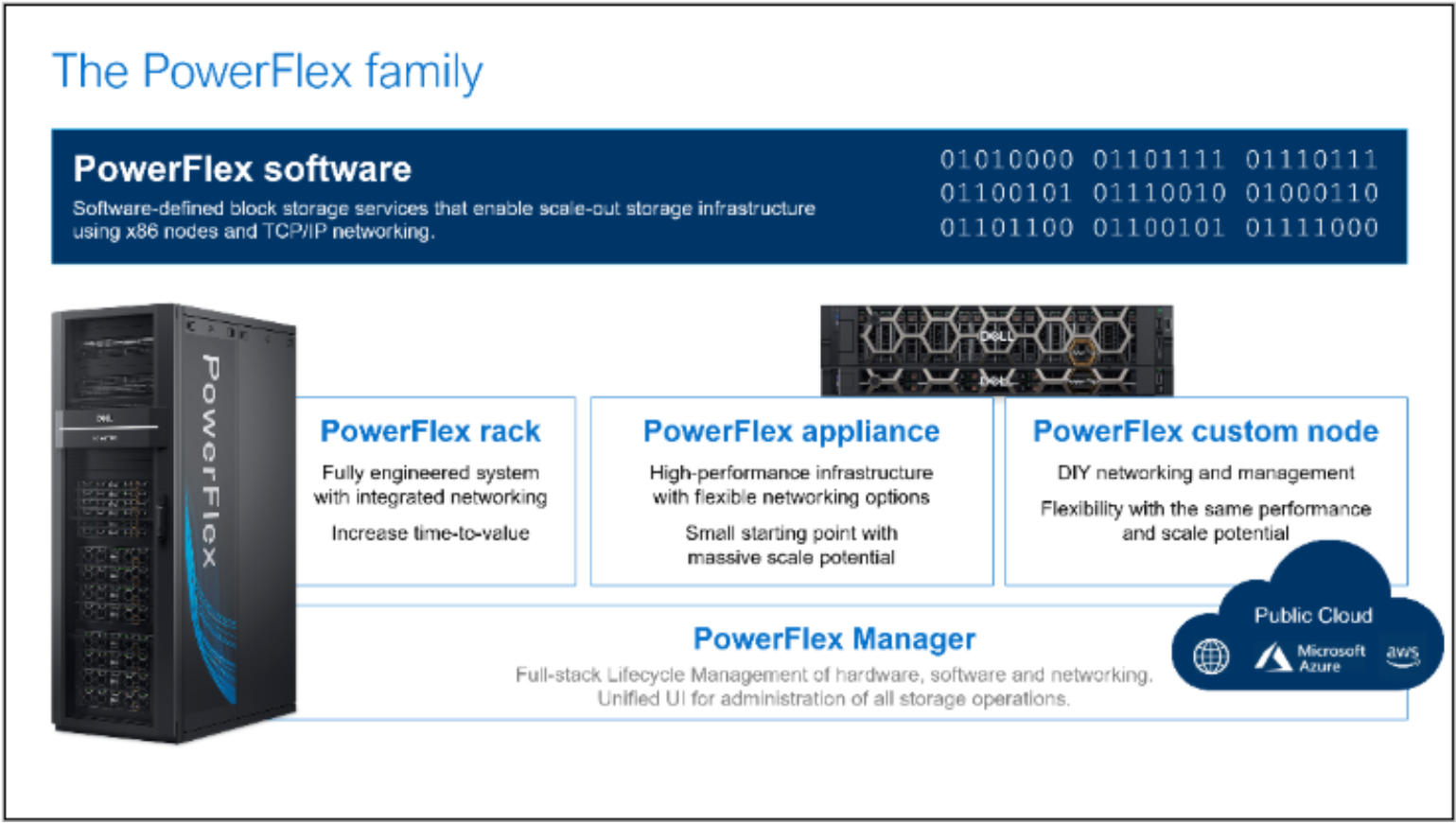
Figure 1. PowerFlex family
PowerFlex software components
PowerFlex core software
PowerFlex Manager
PowerFlex deployment architectures
Independent architecture
PowerFlex consumption options
PowerFlex CSI/CSM
VMware Cloud Foundation
VMware Cloud Foundation
VMware Cloud Foundation (VCF) is a complete software-defined management solution that consists of VMware vSphere, VMware NSX Manager, VMware vSAN, and VCF Automation and Operations. VMware Cloud Foundation Installer drives the installation of VCF. The various components serve the following roles:
- VMware Cloud Foundation Installer: A virtual appliance that the user deploys that automates the building of the management domain of VCF. You provision subsequent domains through VCF Operations.
- SDDC Manager: Automates the life cycle management of VCF. It enables updating and upgrades, firmware application, and the general day-to-day operation of VCF.
- VMware vSphere: Virtualizes the bare-metal servers using the ESXi software and aggregates them in the vCenter Server.
- VMware NSX Manager: Provides the networking for the VCF solution along with security and automation. The design of NSX is for both private and public clouds.
- VMware vSAN: An optional component that aggregates local or direct-attached storage in a single shared pool across all ESXi hosts in the VCF environment.
- VMware Cloud Foundation Automation: Empowers IT to deliver self-service cloud experience for AI, Kubernetes, and VM-based applications. It provides a platform for deploying and managing applications and services, enabling end-users to consume and manage resources in a self-service fashion.
- VMware Cloud Foundation Operations: Provides a unified interface and set of capabilities to help organizations build, operate, and secure their cloud infrastructures built on VCF.
VMware portrays the high-level VCF implementation as depicted below.
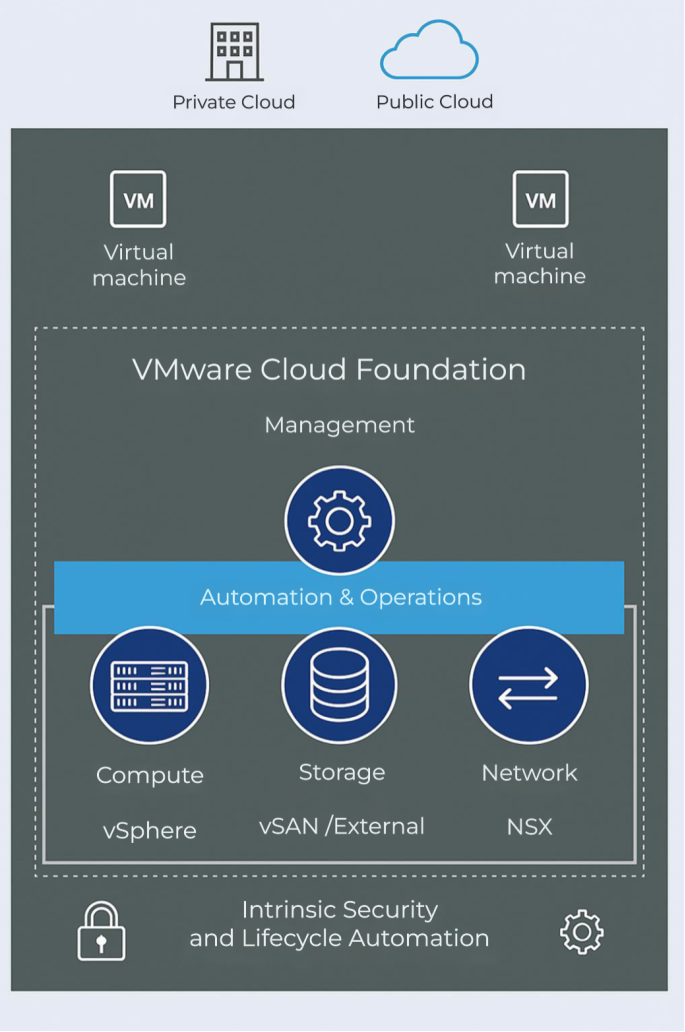
Figure 3. VMware Cloud Foundation
Environment and system requirements
Introduction
Prerequisites
VCF components
Network topology
PowerFlex topology
VCF nodes
VCF Fleet
A VCF fleet is a concept in version 9 that includes all the infrastructure components: VCF Operations, VCF Automation, vCenter, NSX Manager, vSphere Cluster, SDDC Manager, and management and workload domains. A fleet only has a single implementation of VCF Operations and Automation but can be comprised of multiple VCF instances. Figure 4 is a visual representation of a VCF fleet.
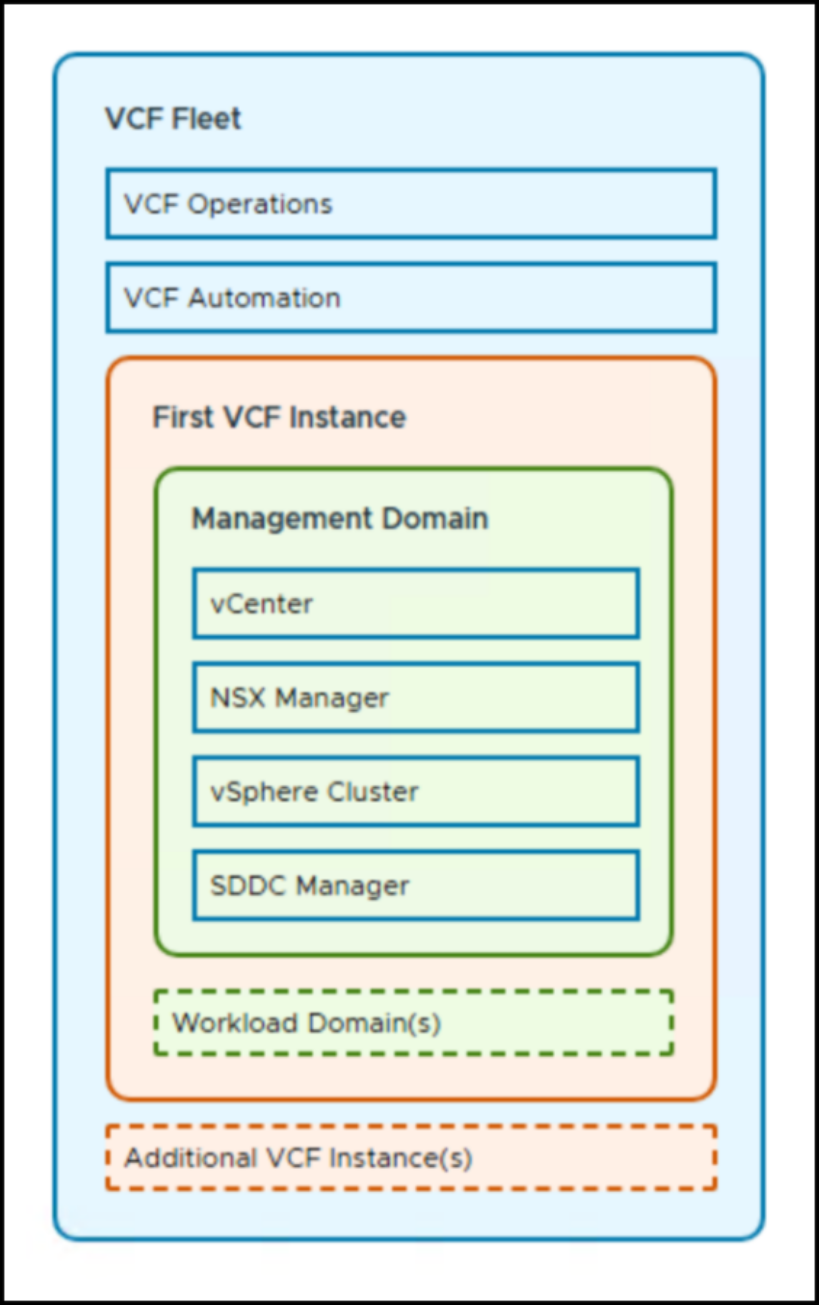
Figure 4. VCF Fleet
Domains
Storage
In VCF there are two distinct categories of storage, each serving a separate function in the solution. These categories are: principal and supplemental. You employ principal storage to deploy a management or workload domain or to deploy a new cluster into an existing workload. Supplemental storage, on the other hand, is storage you add to any existing management or workload domain post-deployment. For new installations (greenfield), Broadcom restricts principal storage to four types: vSAN, VMFS on FC, vVols, or NFS v3. The management domain only supports vSAN, VMFS on FC, or NFS v3; but you can utilize the fourth type, vVols, for workload domains, with Broadcom’s permission. Supplemental storage supports all principal storage types as well as iSCSI, NVMe/TCP, and NFS v4.1. Note that due to the unique way that the PowerFlex SDC presents devices through a virtual FC adapter, its storage falls under the VMFS on FC category. The following image represents the differences between the storage types.
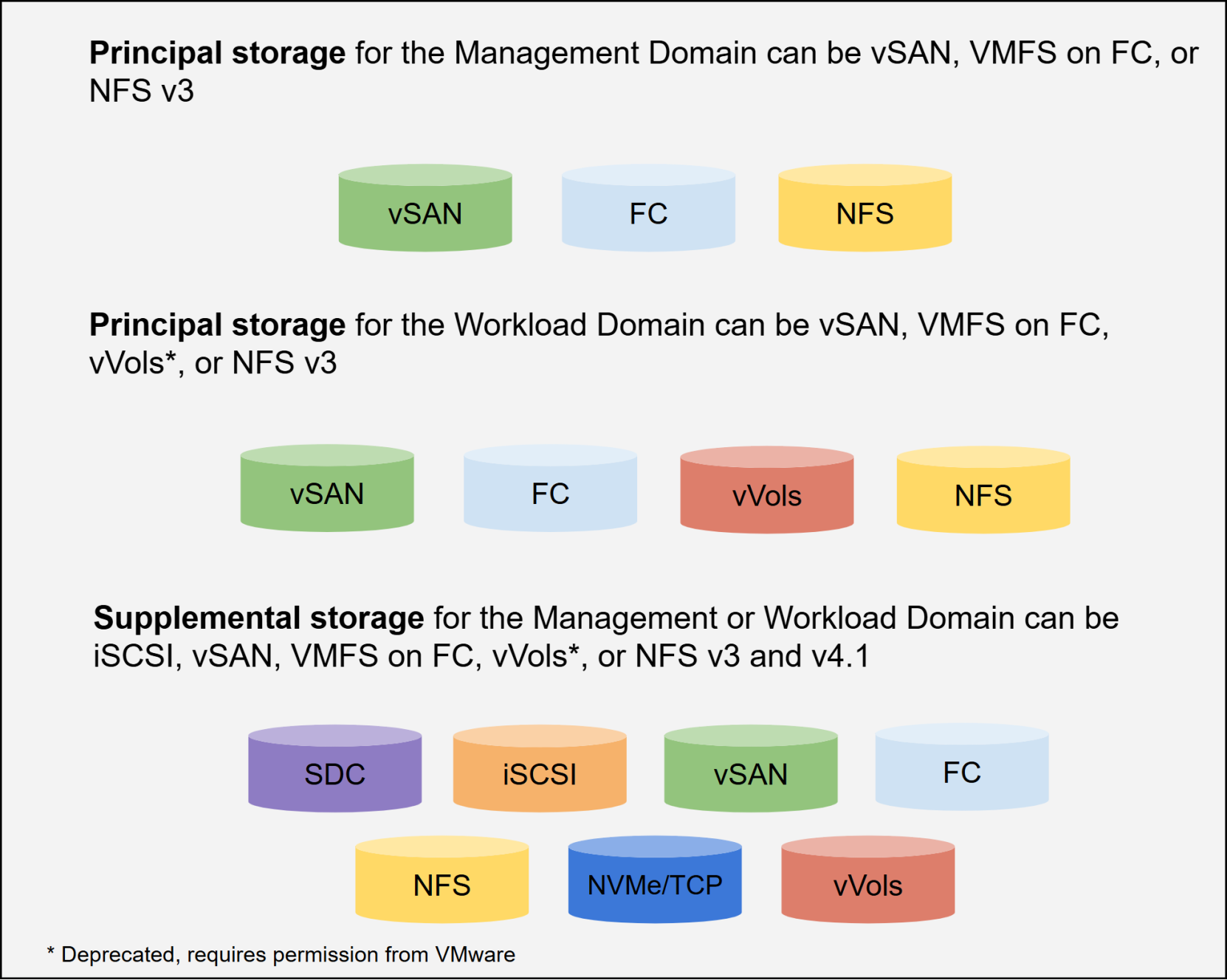
Figure 5. VCF 9.0 storage options
It is important to understand that vSAN is the only storage VCF can completely control as part of the lifecycle of an instance. If you present storage using another protocol from an array like Dell PowerFlex, the administrator has the responsibility of managing it. For example, if you need to expand a datastore on the PowerFlex, you will use PowerFlex Manager to expand the device and then manually expand the datastore in vCenter or the vSphere Client.
Vendor storage support
Lifecycle management
VCF has an integrated life cycle management function that facilitates the automation of upgrades to new versions. Because each version of VCF has a specific bill of materials, it is essential to use this function to maintain compliance. Figure 6 shows this interface in VCF Operations.
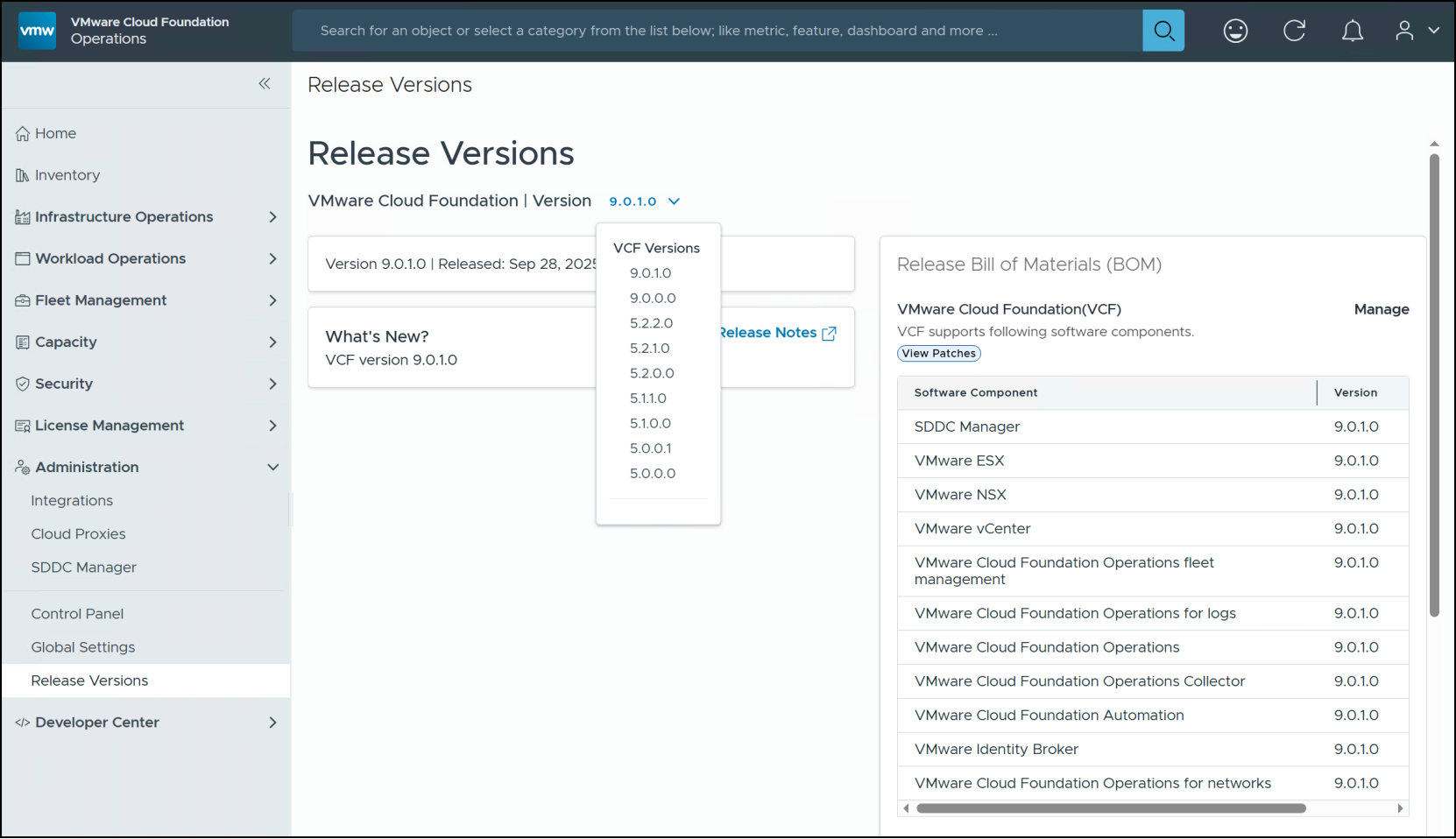
Figure 6. Lifecycle management
PowerFlex
Because VCF controls life cycle management, PowerFlex Manager cannot be used to manage the VCF software or SDC on the VCF nodes. It is possible, however, to add the VCF nodes in the Reserved Managed State as below.
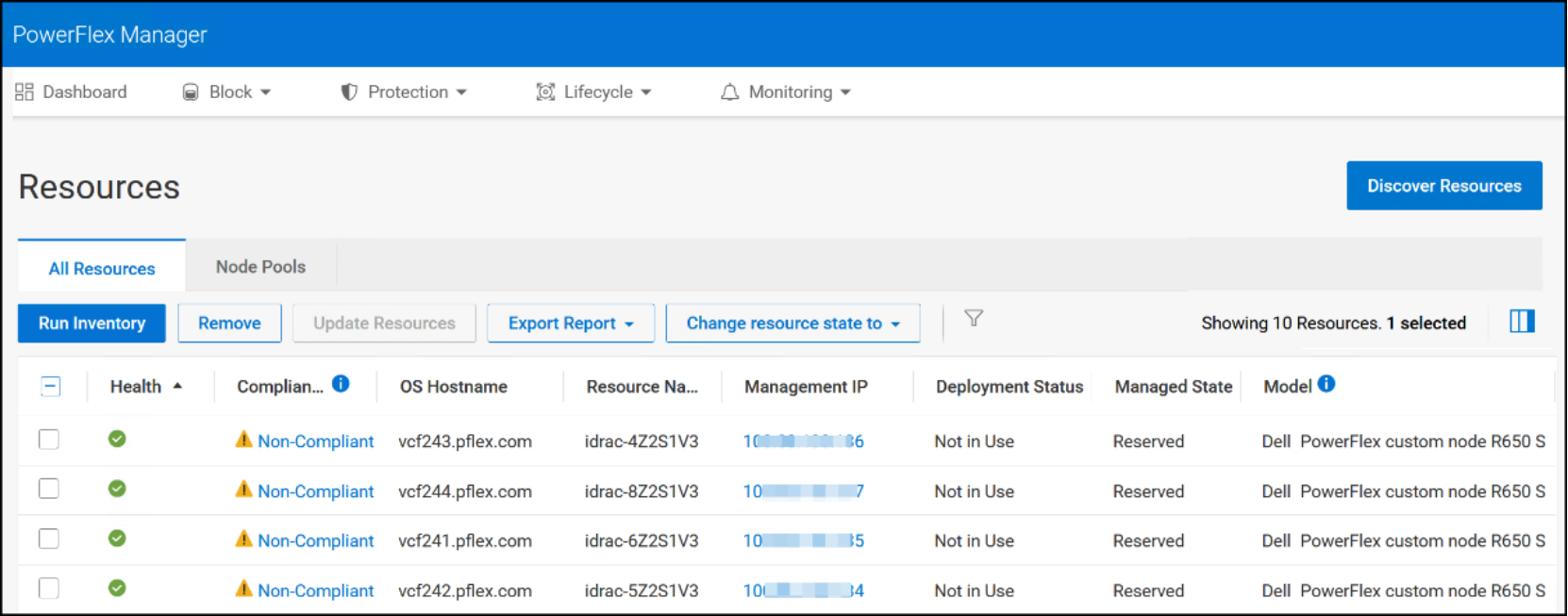
Figure 7. PowerFlex Manager with VCF nodes in Reserved Managed State
This permits updating the BIOS or firmware on the nodes. Be aware, however, that there is no integration between PowerFlex Manager and VCF. If you wish to update the BIOS or firmware you must manually put the VCF node into maintenance mode prior to updating any components and then remove maintenance mode after a presumed reboot of the node.
Upgrades
When upgrading, you start with the SDDC Manager. In Figure 6 an upgrade is in process to VCF 9.0.1. Once you upgrade the SDDC Manager to the chosen release, you can start with upgrading components of the management domain followed by the workload domains. It is not possible to run them concurrently. Note that when using the PowerFlex SDC, you need to follow a specific process outlined in the Appendix in VCF upgrades.
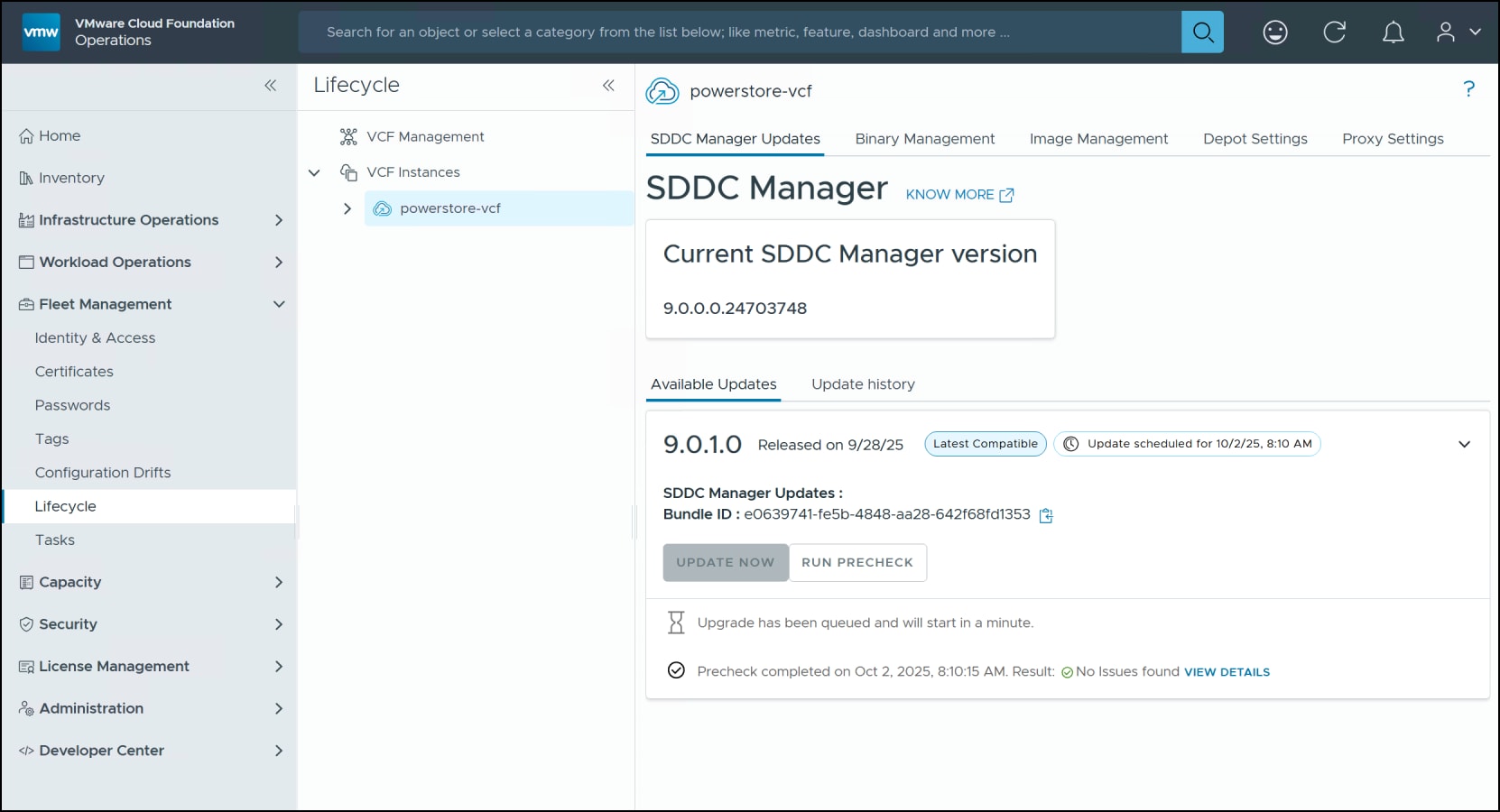
Figure 8. SDDC Manager upgrade
Deploying a VCF management domain on PowerFlex VMFS on FC
Introduction
VCF installation
ESXi installation
vCenter installation
After imaging the ESXi hosts, deploy a new vCenter for the management domain. A pre-configured vCenter is the only way to satisfy the network requirements of a PowerFlex implementation where there are separate physical management and data networks.
Note: If the PowerFlex shares a single physical network (i.e., flat) for management and data, you can utilize a VCF greenfield deployment which does not require a manually installed vCenter.
Download the vCenter ISO build recorded in Table 2 and mount on an appropriate jump host with access to the ESXi hosts. You must install the new vCenter on one of the newly imaged ESXi hosts. Though not best practice, the VCF installer requires this configuration, or the deployment will fail a check and will not proceed. In addition, be sure to follow VCF password guidelines for the vCenter. If your password does not meet the minimum requirements that VCF sets, you will be unable to ingest it during deployment and will have to modify it post-installation.
Once the vCenter is up, create a new datacenter and cluster in it. The naming is completely arbitrary. Add the ESXi hosts to the new cluster. Do not enable DRS or HA on the cluster as you will do this after the creation of datastores. Figure 9 is the vCenter used in this implementation.
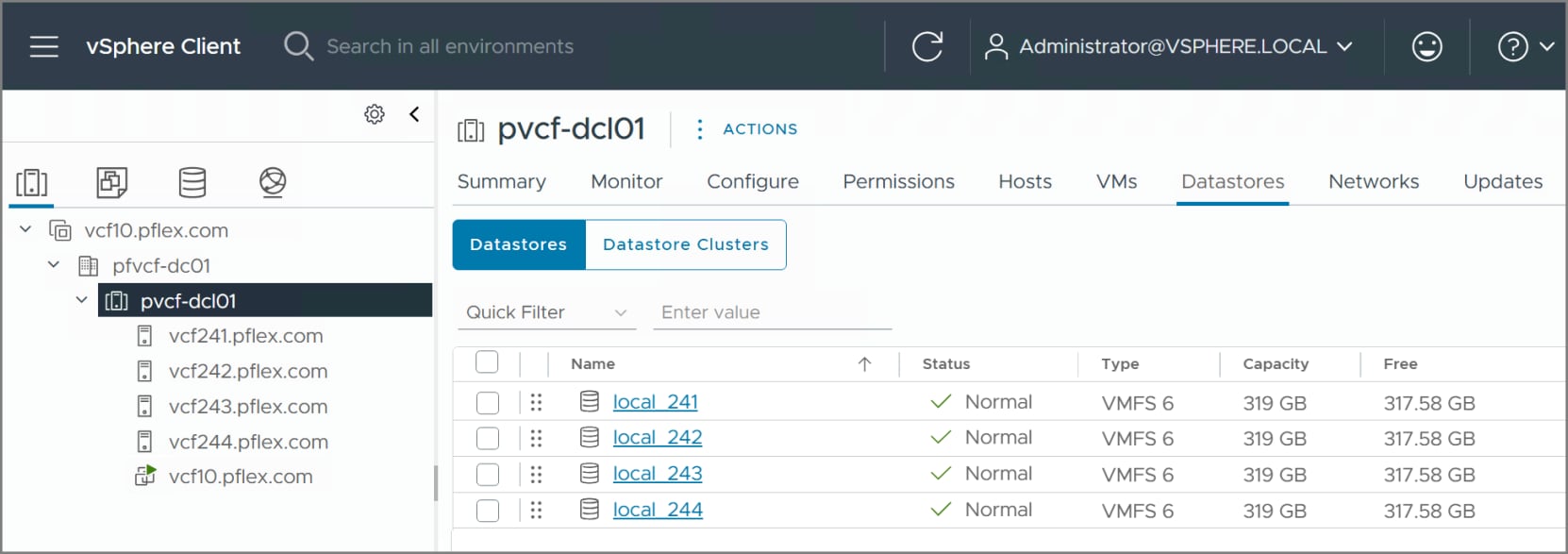
Figure 9. vCenter deployment
Virtual Distributed Switches (VDS)
After the initial vCenter configuration, you need to create the virtual distributed switches, or VDS, which permit access to the PowerFlex management and data networks. Each network should have a VMkernel adapter. While the data networks do not require any services, you should enable vMotion for the management network. Dell recommends at least four 10 GbE NICs for such a configuration which will offer redundancy for each of the two VDS.
Create each VDS, adding two physical NICs to each switch. PowerFlex recommends disabling Network I/O Control as a best practice. This environment has the following two VDS.
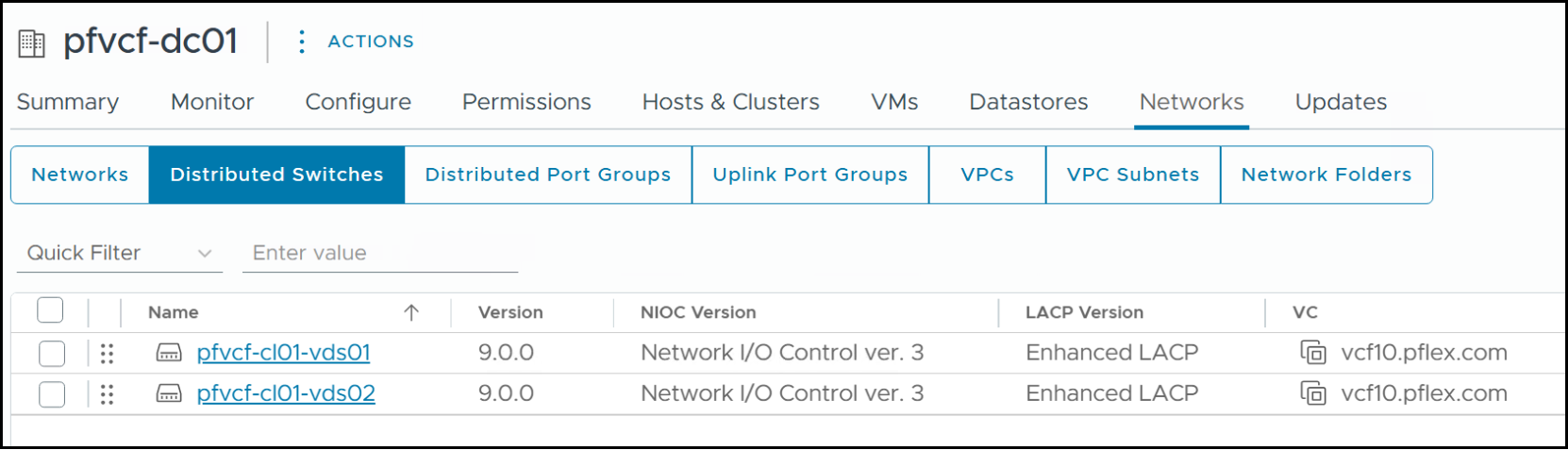
Figure 10. Distributed switches
Add distributed port groups as required to each VDS. There are three in this setup, VLAN16 for the management network on pfvcf-cl01-vds01 and VLAN1612 and VLAN1614 for the data networks on pfvcf-cl01-vds02.
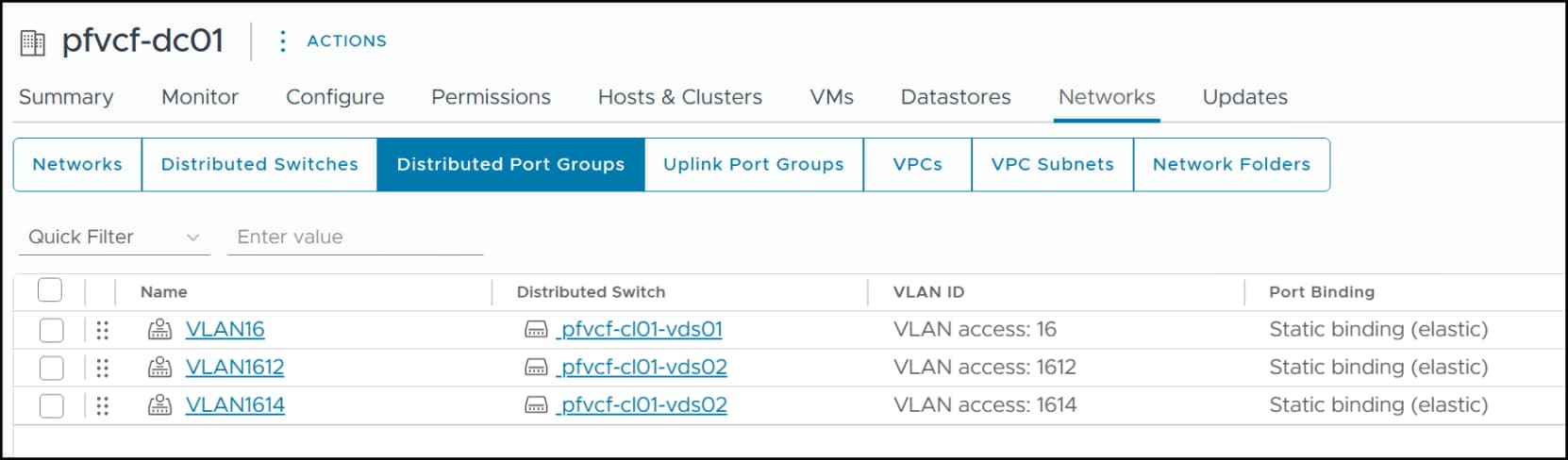
Figure 11. Distributed port groups
Test
When you complete the network configuration, log in to each ESXi host as root and execute vmkping to each PowerFlex management and data IP address. This will ensure that when you install the SDC it will be able to communicate with the PowerFlex storage and permit you to map volumes to the ESXi hosts.
[root@vcf241:~] vmkping 172.16.100.230
PING 172.16.100.230 (172.16.100.230): 56 data bytes
64 bytes from 172.16.100.230: icmp_seq=0 ttl=64 time=0.102 ms
64 bytes from 172.16.100.230: icmp_seq=1 ttl=64 time=0.105 ms
64 bytes from 172.16.100.230: icmp_seq=2 ttl=64 time=0.090 ms
--- 172.16.100.230 ping statistics ---
3 packets transmitted, 3 packets received, 0% packet loss
round-trip min/avg/max = 0.090/0.099/0.105 ms
[root@vcf241:~] vmkping 172.18.100.230
PING 172.18.100.230 (172.18.100.230): 56 data bytes
64 bytes from 172.18.100.230: icmp_seq=0 ttl=64 time=0.103 ms
64 bytes from 172.18.100.230: icmp_seq=1 ttl=64 time=0.085 ms
64 bytes from 172.18.100.230: icmp_seq=2 ttl=64 time=0.113 ms
--- 172.18.100.230 ping statistics ---
3 packets transmitted, 3 packets received, 0% packet loss
round-trip min/avg/max = 0.085/0.100/0.113 ms
[root@vcf241:~] vmkping 172.19.100.230
PING 172.19.100.230 (172.19.100.230): 56 data bytes
64 bytes from 172.19.100.230: icmp_seq=0 ttl=64 time=0.119 ms
64 bytes from 172.19.100.230: icmp_seq=1 ttl=64 time=0.101 ms
64 bytes from 172.19.100.230: icmp_seq=2 ttl=64 time=0.104 ms
--- 172.19.100.230 ping statistics ---
3 packets transmitted, 3 packets received, 0% packet loss
round-trip min/avg/max = 0.101/0.108/0.119 ms
[root@vcf241:~]
Cleanup
During the creation of the VDS you will migrate the management network from the default vSwitch. This will leave an empty vSwitch on each ESXi host. Be sure to remove it. Additionally, if there is a BMC vSwitch, remove it and the VMkernel adapter for it. If these remain they will cause errors during the VCF deployment. The distributed switches should be the only host switches in the vCenter prior to the VCF installation.
SDC installation
Each of the ESXi hosts in the management domain also serve as PowerFlex compute-only nodes. Because VCF dictates the ESXi version, you cannot use the template process in PowerFlex Manager to deploy the compute-only nodes. Therefore, after installation of ESXi and the vCenter, you must install the SDC component manually on each host. The installation requires three reboots of the host.
The following section details a manual installation of the SDC and daemon agent and the provisioning and mapping of a volume for creation of a VMFS datastore for the management domain.
Manual SDC installation
Locate the released version of the SDC and daemon agent for ESXi 9 and the 5.x PowerFlex release in use. Copy these zip files to a local datastore on each ESXi host. Then perform the following steps as root:
- Set the acceptance level for the .zip install: esxcli software acceptance set --level PartnerSupported
[root@vcf241:~] esxcli software acceptance set --level PartnerSupported
Host acceptance level changed to 'PartnerSupported'.
- Install the SDC zip: esxcli software component apply -d /vmfs/volumes/local_241/sdc-5.1.0.293-esx9.x.zip
[root@vcf241:~] esxcli software component apply -d /vmfs/volumes/local_241/sdc-5.1.0.293-esx9.x.zip
Installation Result
Message: The update completed successfully, but the system needs to be rebooted for the changes to be effective.
Components Installed: scaleio-sdc-esx9x_5.1.0.293-1OEM.900.0.24755229
Components Removed:
Components Skipped:
Reboot Required: true
DPU Results:
- Install the agent daemon zip: esxcli software component apply -d /vmfs/volumes/local_241/sdc-agent-5.1.0.234-esx9.x.zip
[root@vcf241:~] esxcli software component apply -d /vmfs/volumes/local_241/sdc-agent-5.1.0.234-esx9.x.zip
Installation Result
Message: The update completed successfully, but the system needs to be rebooted for the changes to be effective.
Components Installed: scaleio-daemon-esx_5.1.0.234-0
Components Removed:
Components Skipped:
Reboot Required: true
DPU Results:
- Reboot the host.
- Generate a unique GUID: GUID generation
- Set the MDM IPs (actual or virtual) and GUID for the ESXi host: esxcli system module parameters set -m scini -p "IoctlIniGuidStr=<GUID> IoctlMdmIPStr=<comma separated MDM IPs>"
[root@vcf241:~] esxcli system module parameters set -m scini -p "IoctlIniGuidStr=40b7f5f7-1f42-4c2f-9cb4-77a6ad56086d IoctlMdmIPStr=172.16.50.229,172.16.50.230,172.16.50.231"
- Reboot the host.
When the host comes back up, it should appear in the Block -> Hosts list in PowerFlex Manager. All four management domain hosts appear below post-installation.
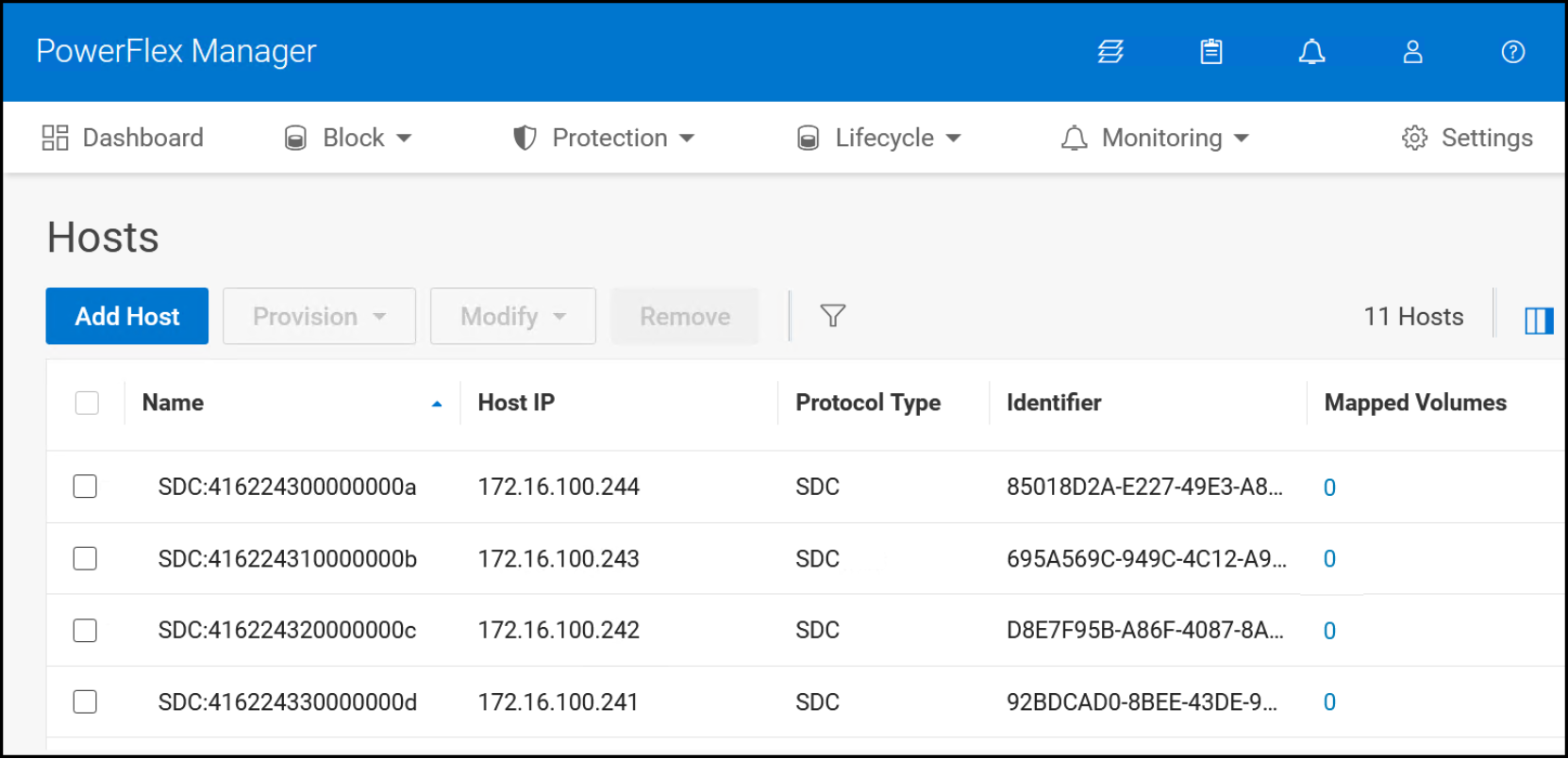
Figure 12. SDC hosts
SDC in VMware
To view how VMware represents the SDC, log in to an ESXI host as in Figure 13 and navigate in the left-menu pane to Storage and then the Adapters tab on the right panel. Locate the vmhba adapter that lists the Driver as scini, in this example it is vmhba64. Note the Model is empty. The SDC creates this faux HBA adapter in order to present IP-based PowerFlex storage. This adapter is what permits the use of PowerFlex storage as VMFS on FC since VMware assumes this is FC-attached storage. Note that in the vCenter in Figure 14, the Type is Fibre Channel.
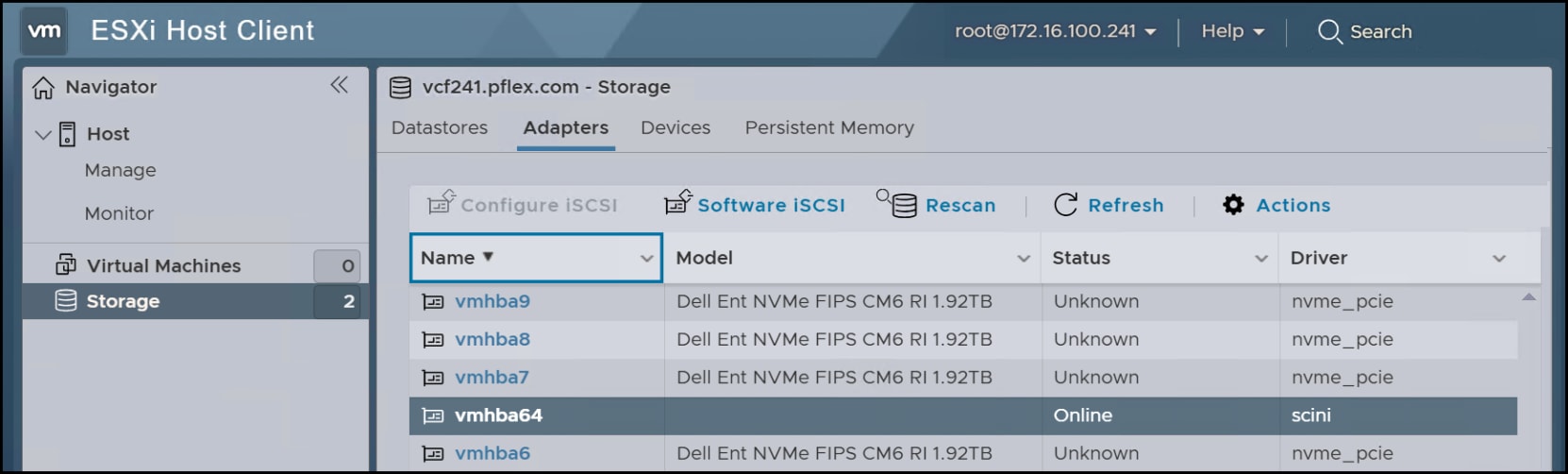
Figure 13. SDC representation in ESXi
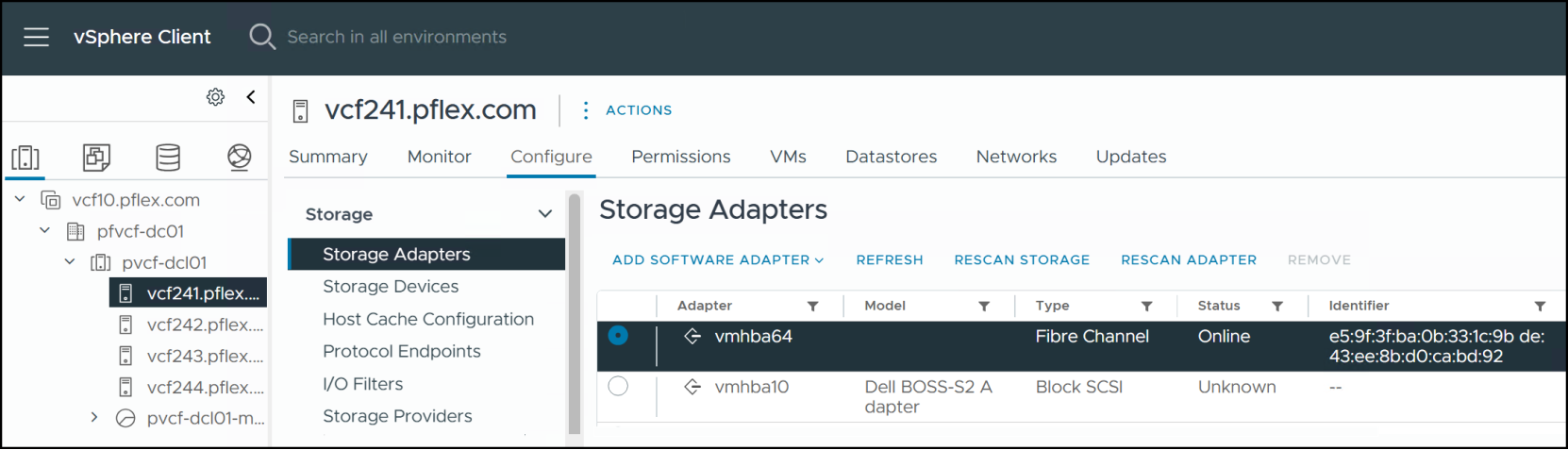
Figure 14. SDC representation in vCenter
Volume and VMFS datastore
After you install the SDC on each host, create a volume through PowerFlex Manager and map that volume to each of the hosts. This volume will serve as the VMFS datastore for the management domain deployment.
Step 1
Begin by navigating in PowerFlex Manager to Block -> Volumes. Click Create Volume in the left-hand corner, enter in the required information, and click Create in Figure 15. Dell recommends a minimum of 4 TB for the volume/datastore, though here we used 8 TB.
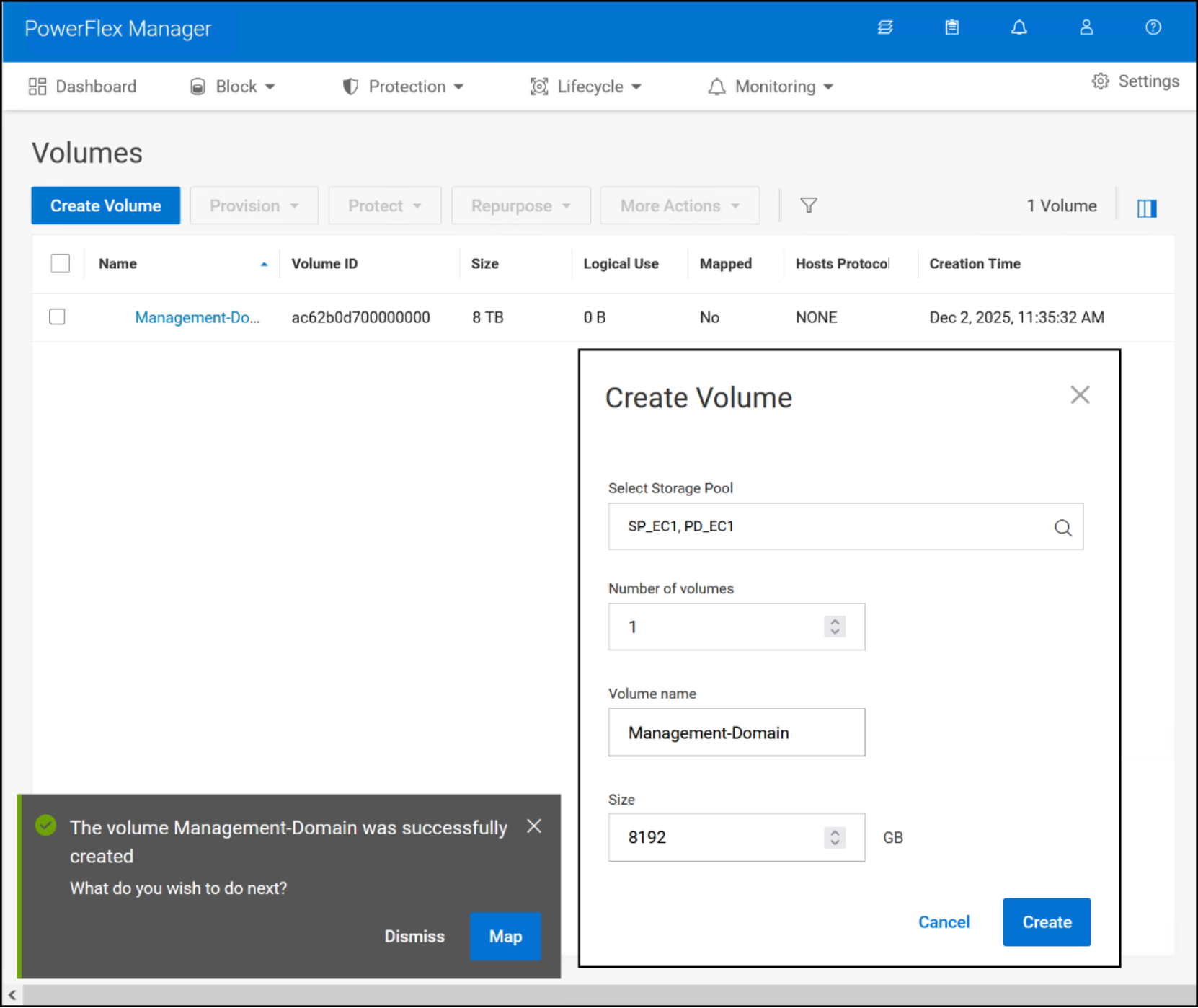
Figure 15. Step 1 – Volume and VMFS datastore
Step 2
When the grey pop-up box appears after volume creation in Figure 15, click Map. If the box disappears too quickly, simply check the box next to the new volume and navigate to Provision -> Map. In the mapping screen below, use the check boxes to select each new ESXi management node and click Map.
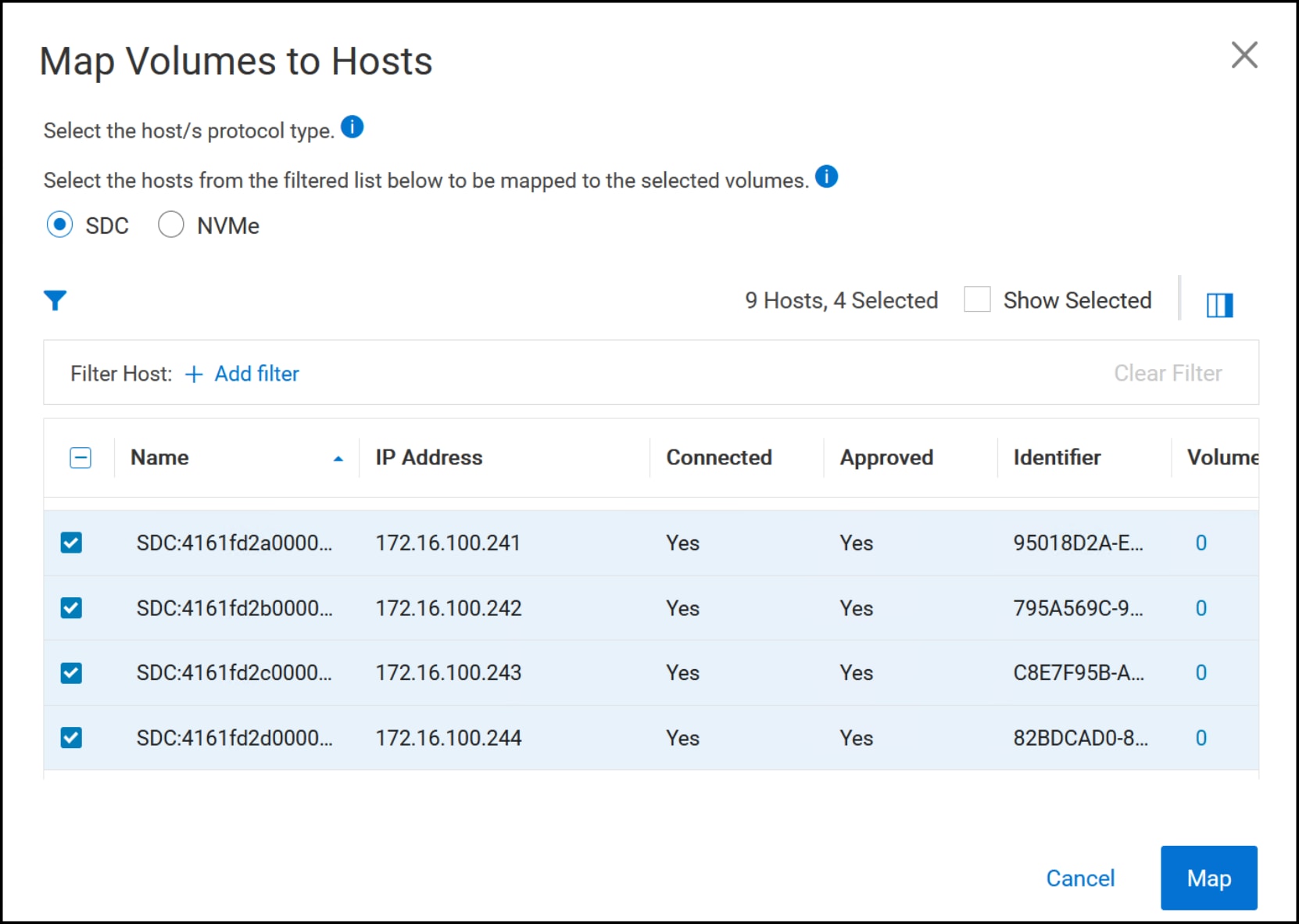
Figure 16. Step 2 – Volume and VMFS datastore
Step 3
You must create a new VMFS datastore on the volume after you map it to the hosts. Log in to the vCenter, right-click on the cluster and select Storage -> New Datastore to start the datastore wizard.
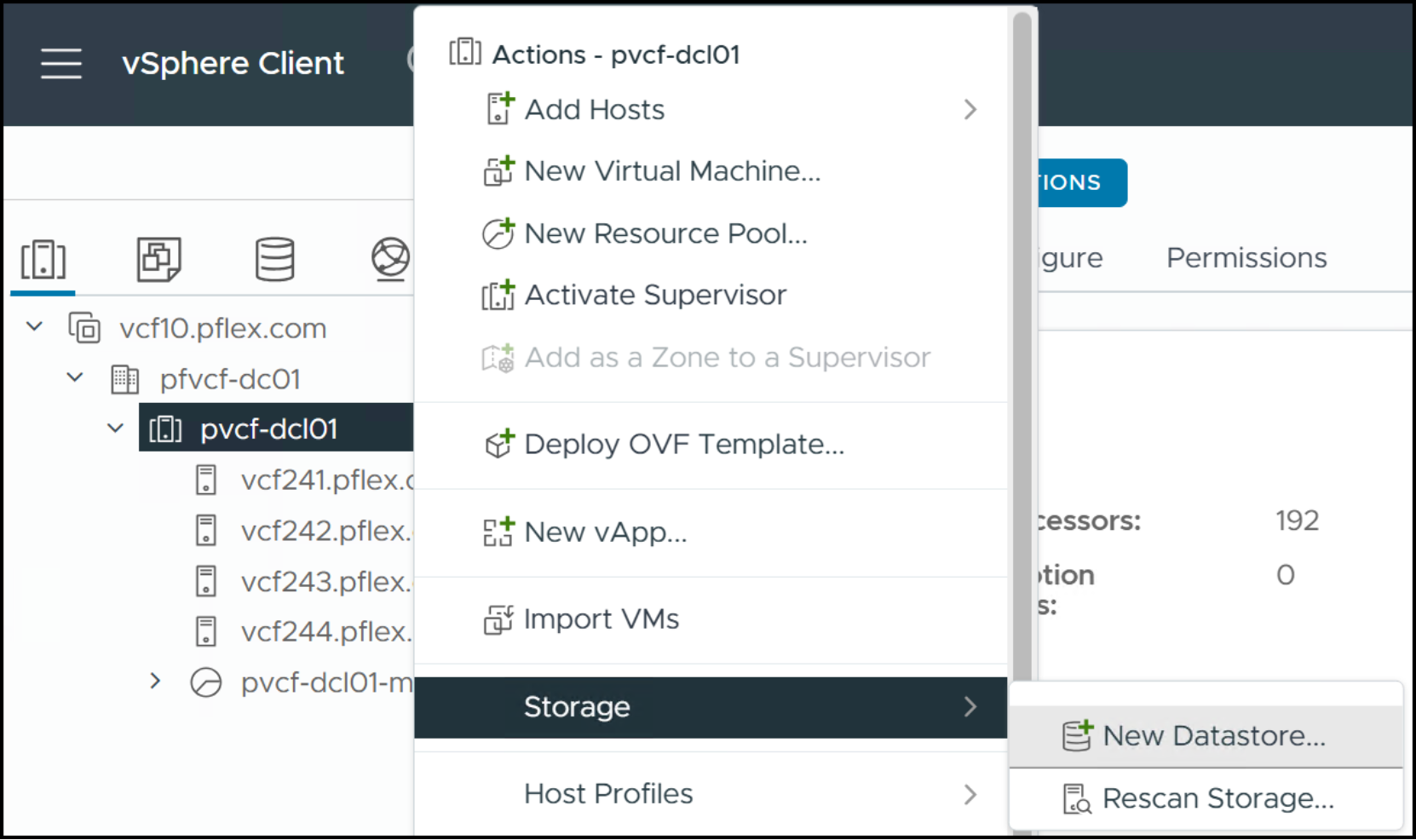
Figure 17. Step 3 – Volume and VMFS datastore
Step 4
Begin by selecting the datastore type. In this deployment we use VMFS. Click NEXT.
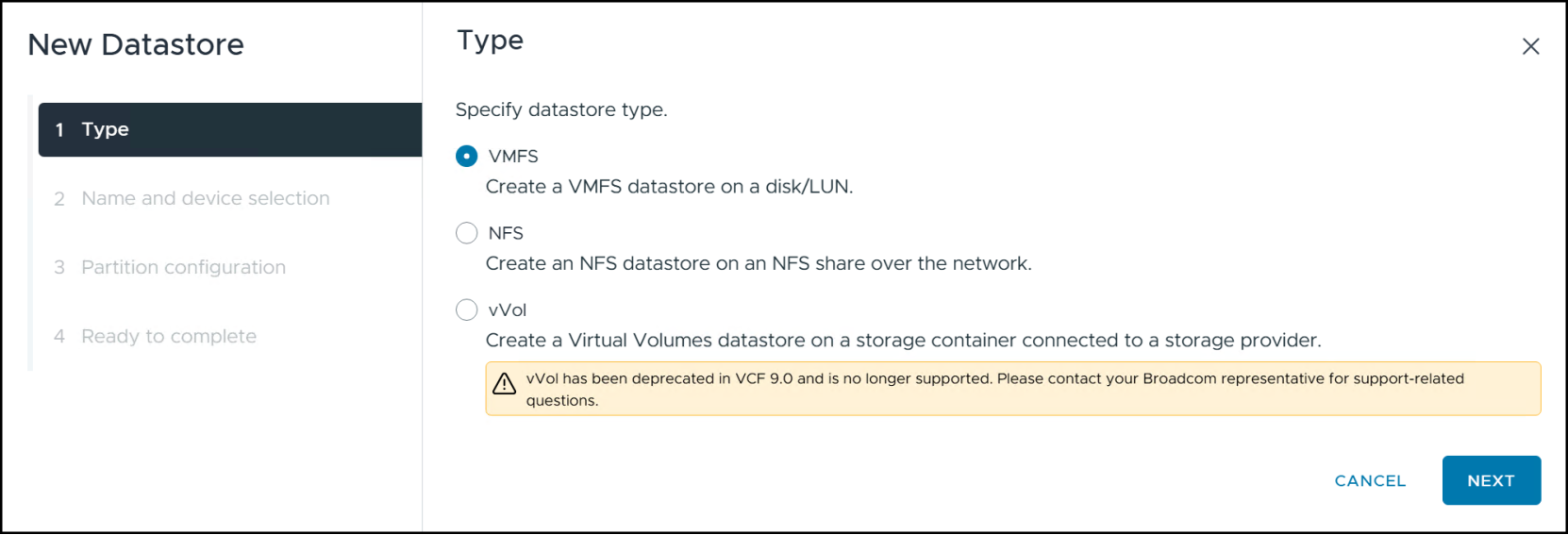
Figure 18. Step 4 – Volume and VMFS datastore
Step 5
Enter a Datastore name that identifies its purpose. In this implementation the name is MGMT_DOMAIN. Next select one of the ESXi hosts from the drop-down list. As we mapped the volume to all the hosts, any one will work. You will see a list of available volumes, among which will be the 8 TB (in this example) PowerFlex volume. Use the radio button to highlight it and click NEXT.
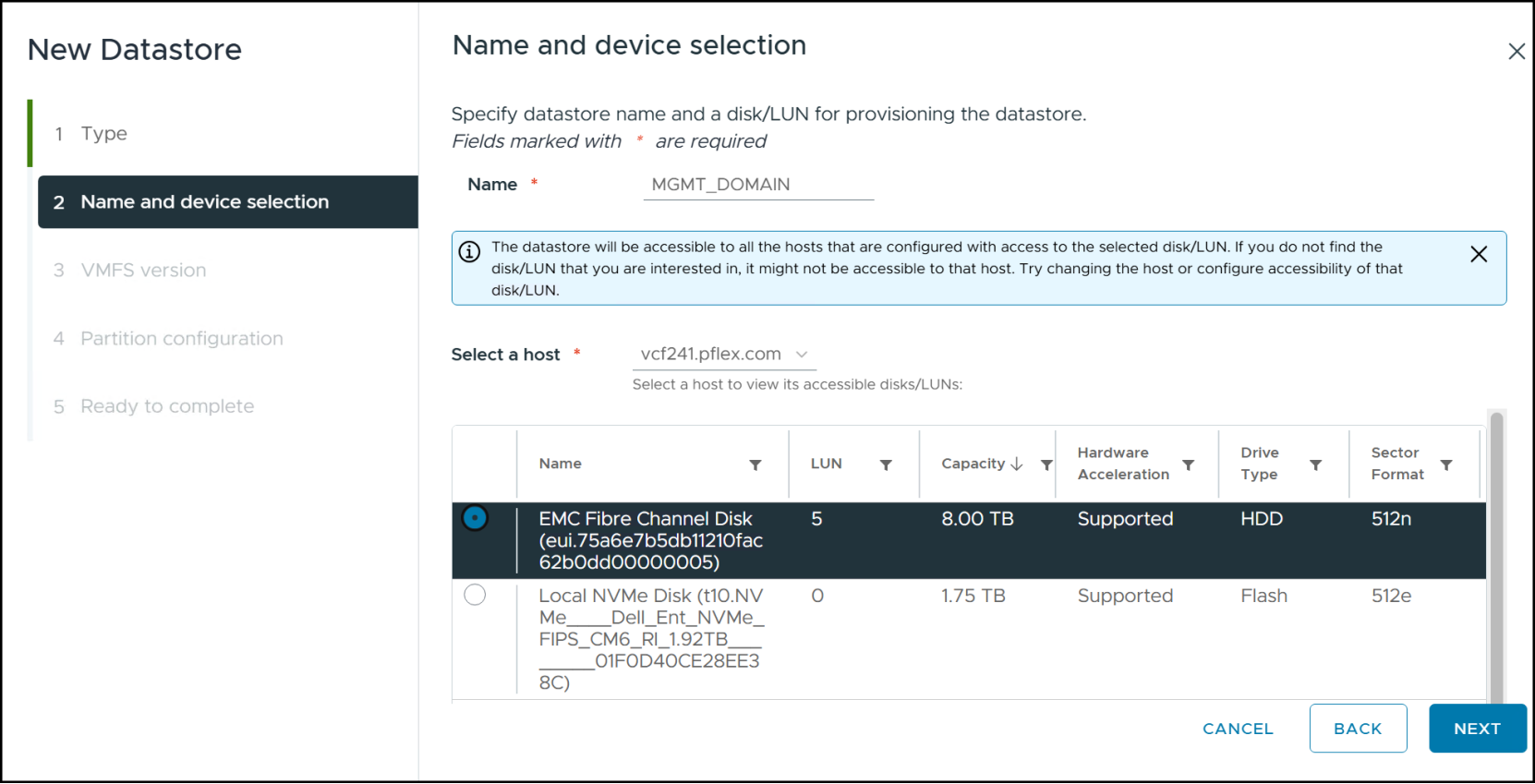
Figure 19. Step 5 – Volume and VMFS datastore
Step 6
When you choose VMFS as the type you must choose with which version to format the volume. Dell recommends using the default VMFS 6. Click NEXT after choosing.
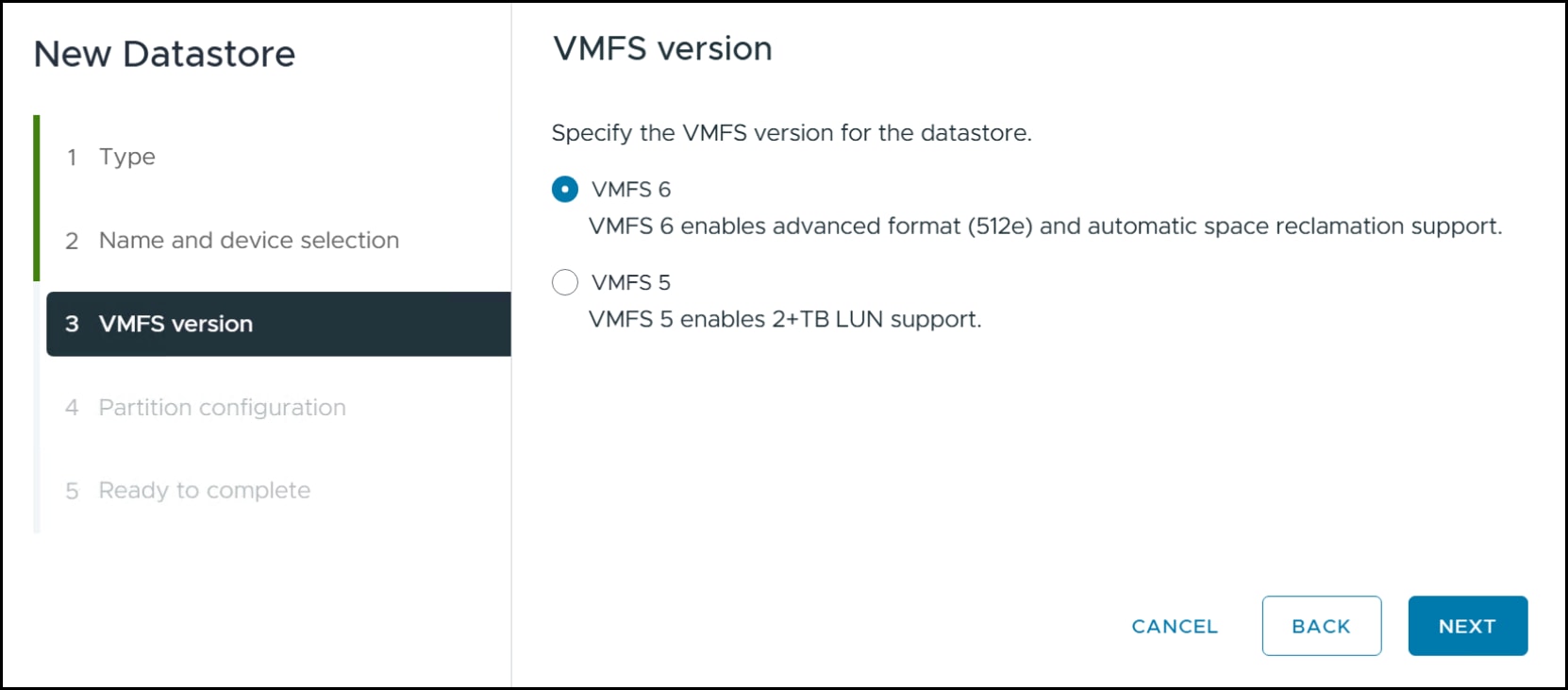
Figure 20. Step 6 – Volume and VMFS datastore
Step 7
In the Partition configuration screen do not change the defaults and click NEXT to review.
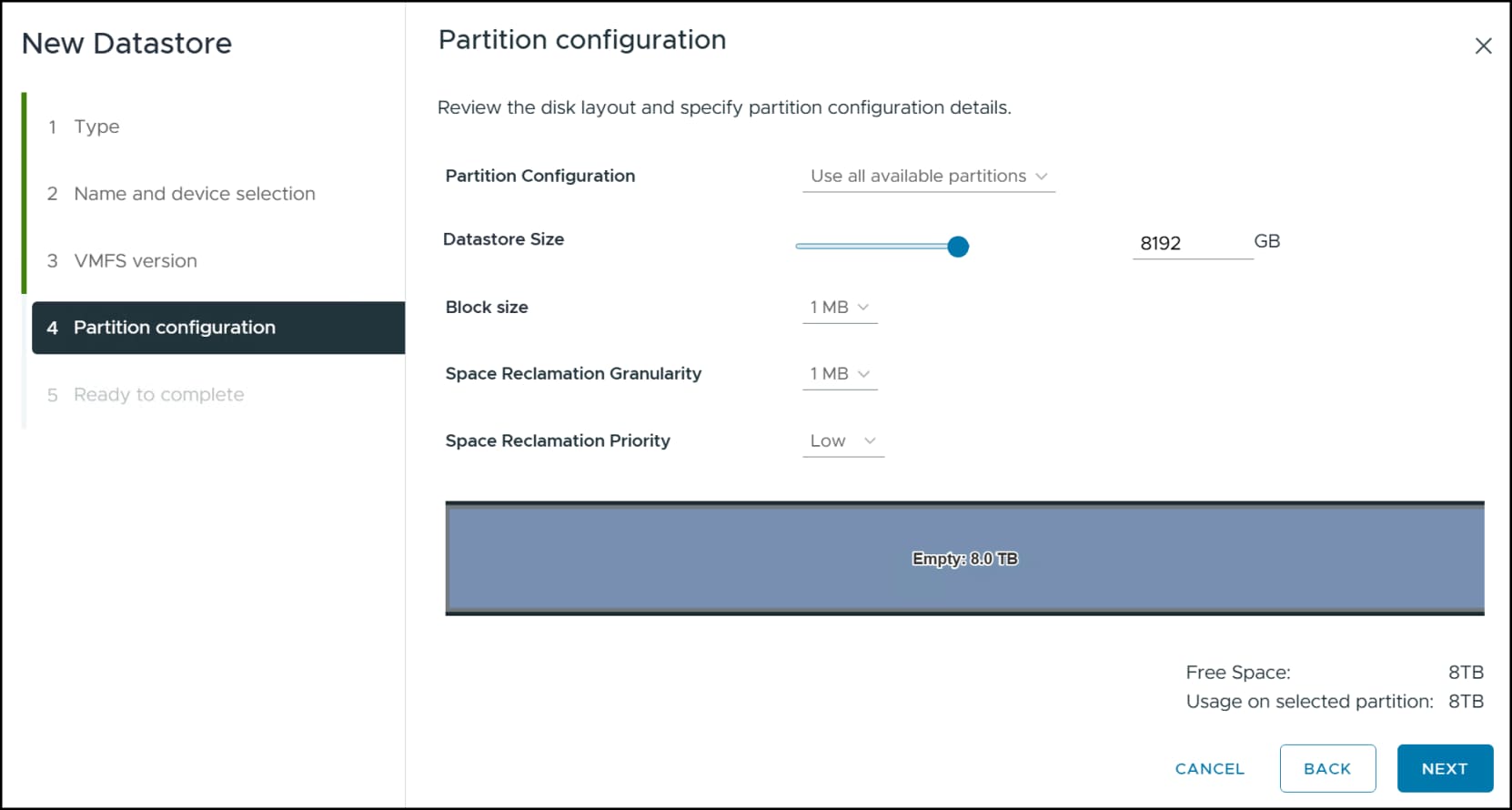
Figure 21. Step 7 – Volume and VMFS datastore
Step 8
In the last step, review and then click FINISH to create the datastore.
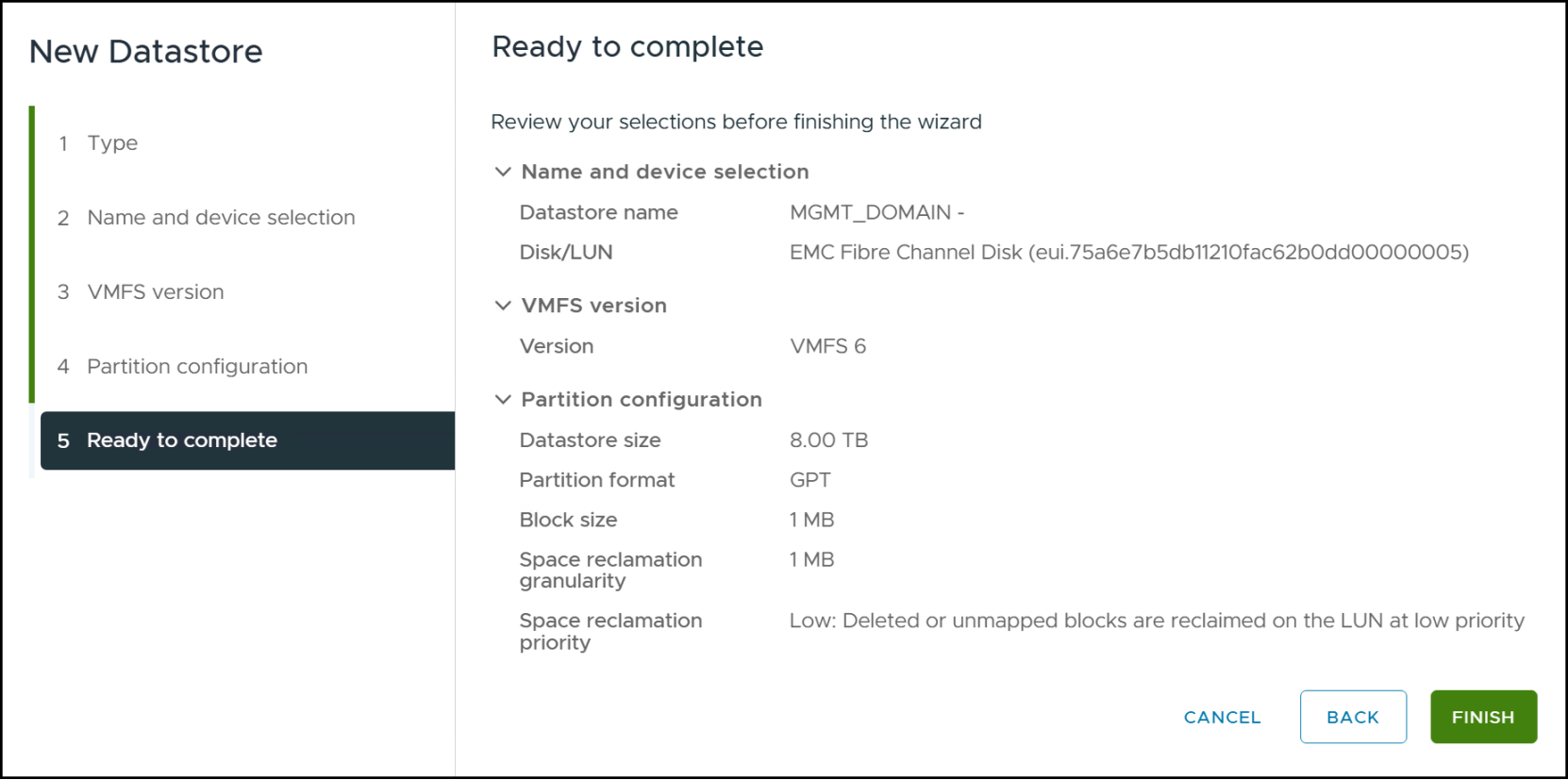
Figure 22. Step 8 – Volume and VMFS datastore
Once the datastore appears in the list of available datastores in Figure 23, be sure that each ESXi recognizes the new datastore before proceeding. This may require running a Rescan Storage… seen in Figure 17.
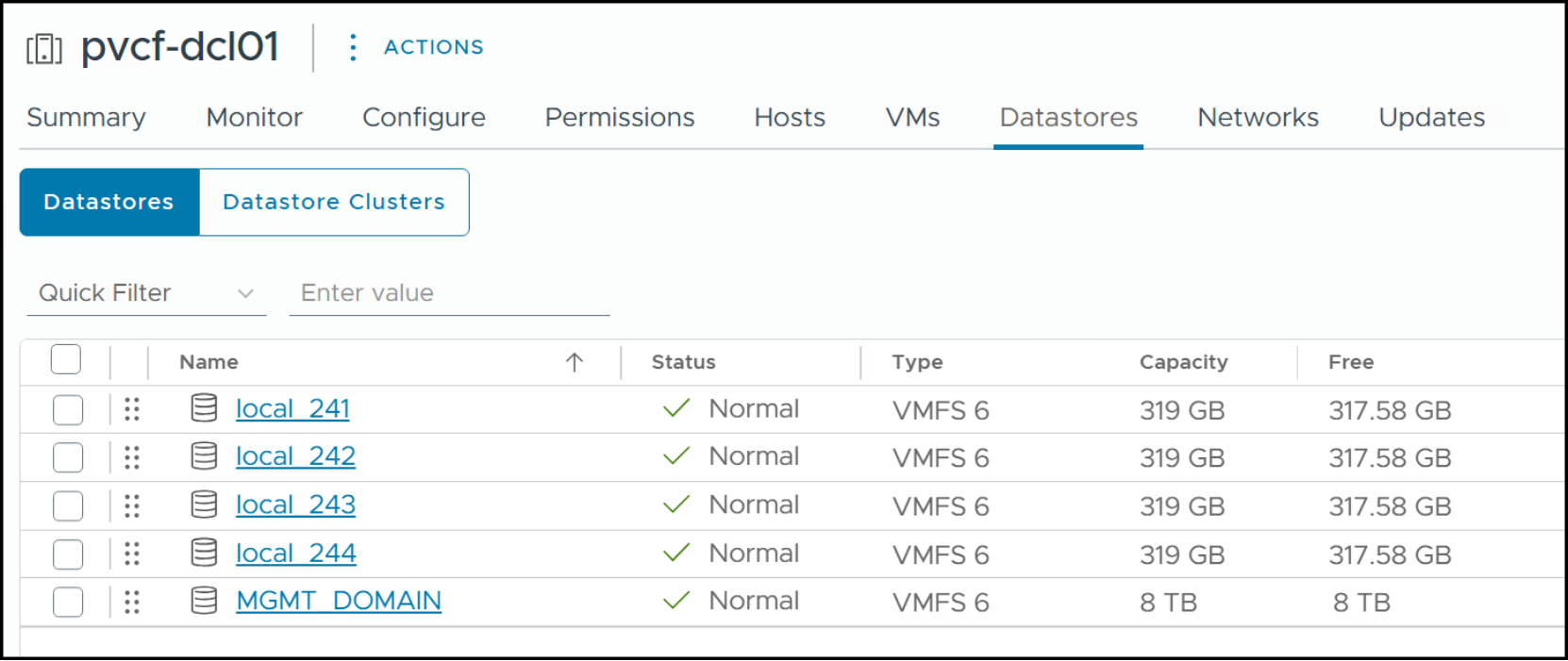
Figure 23. MGMT_DOMAIN datastore
Note: After creating the datastore for the management domain, Dell strongly recommends using Storage vMotion to relocate the vCenter VM to the new datastore. There is a known Broadcom issue in which the VMs the installer creates will deploy to the datastore where the vCenter resides, even if it is local. If the datastore is small, the installer will fail.
Heartbeat for vSphere HA
VMware uses a heartbeat mechanism to check on the health of ESXi hosts in a vCenter cluster with vSphere HA enabled. There are two heartbeat mechanisms, network and datastore. In a cluster, one of the ESXi hosts is primary and the others are secondary. Each secondary hosts communicates with the primary over the network first, but should that fail, the hosts use shared datastores where there are reserved heartbeat blocks. VMware recommends at least two shared datastores for heartbeating. Since heartbeating uses reserved blocks, you can utilize any shared datastores. Since the initial deployment of VCF only has a single shared datastore, Dell recommends creating two additional, small datastores on the PowerFlex and presenting them to all VCF hosts for heartbeating. Follow the same process in the section Volume and VMFS datastore.
Once available, enable vSphere HA on the new VCF cluster in vCenter and navigate to the Heartbeat Datastores tab in Cluster Settings in Figure 24. Use the radio button Use datastores from the specified list and complement automatically if needed and check the boxes next to the newly created datastores. Click OK to complete. Note that each domain should have its own heartbeat datastores.
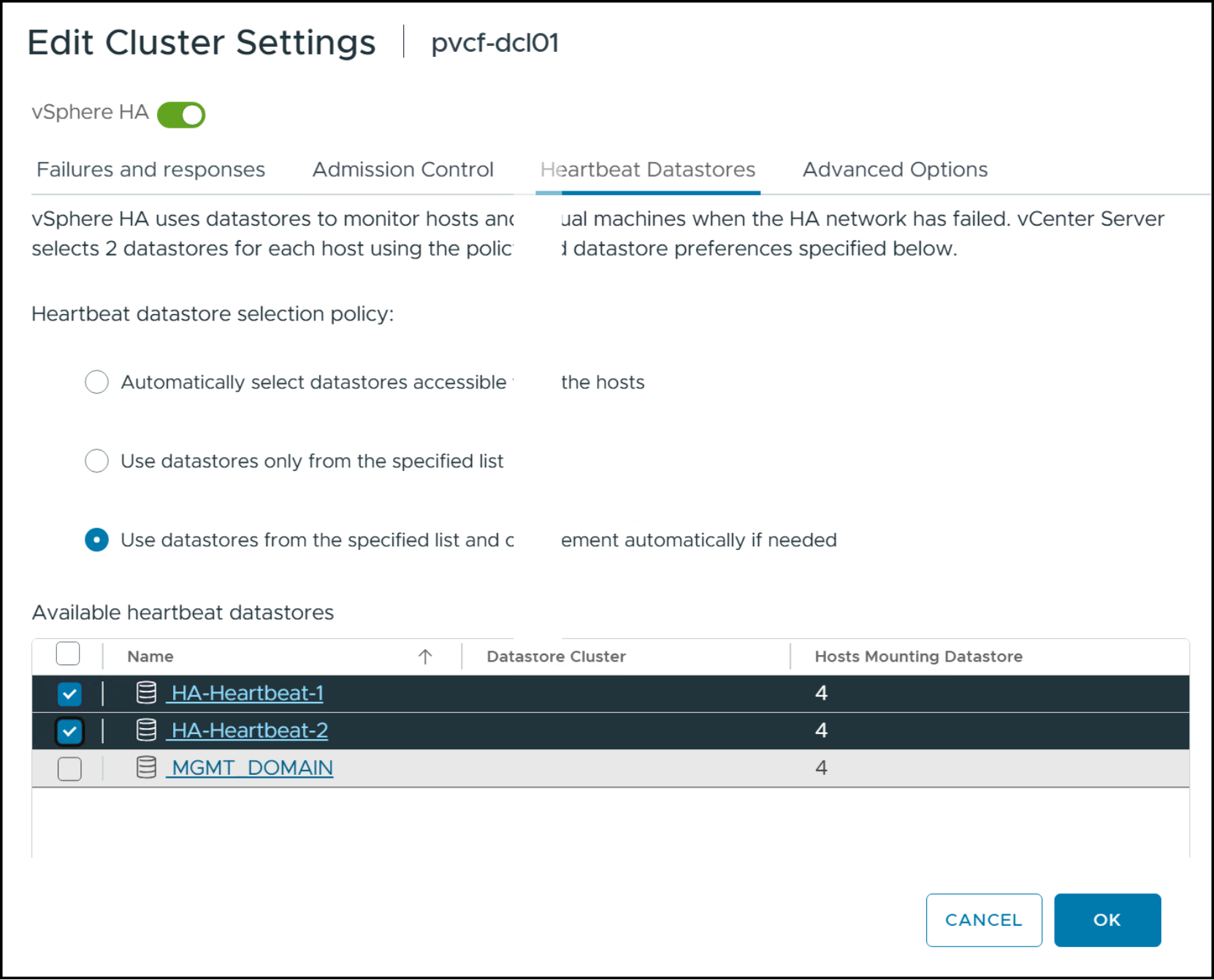
Figure 24. Heartbeat datastores
After enabling vSphere HA, enable vSphere DRS before proceeding.
Cluster remediation settings
You must make one final configuration change in vCenter after enabling vSphere HA and DRS. Navigate to Lifecycle Manager -> Settings -> Images and click EDIT in the right-hand corner in Figure 25.
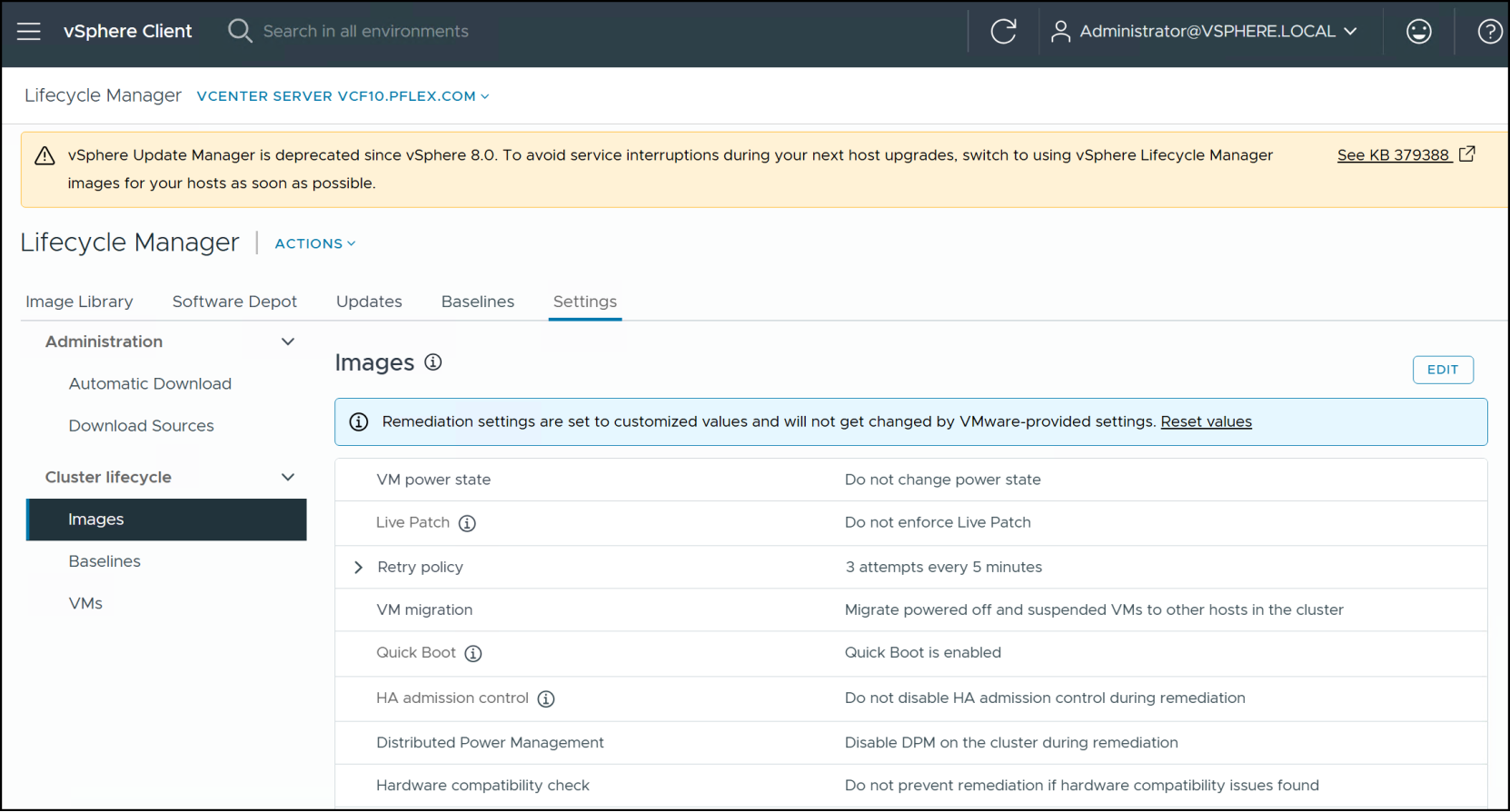
Figure 25. Lifecycle manager cluster images
In the pop-up window check the box next to Migrate powered off and suspended VMs to other hosts in the cluster, if a host must enter maintenance mode. During a greenfield implementation, the VCF installer sets this but in brownfield you do it manually as in Figure 26. Click SAVE. Setting this prevents the VCF installer from erroring during the validation step.
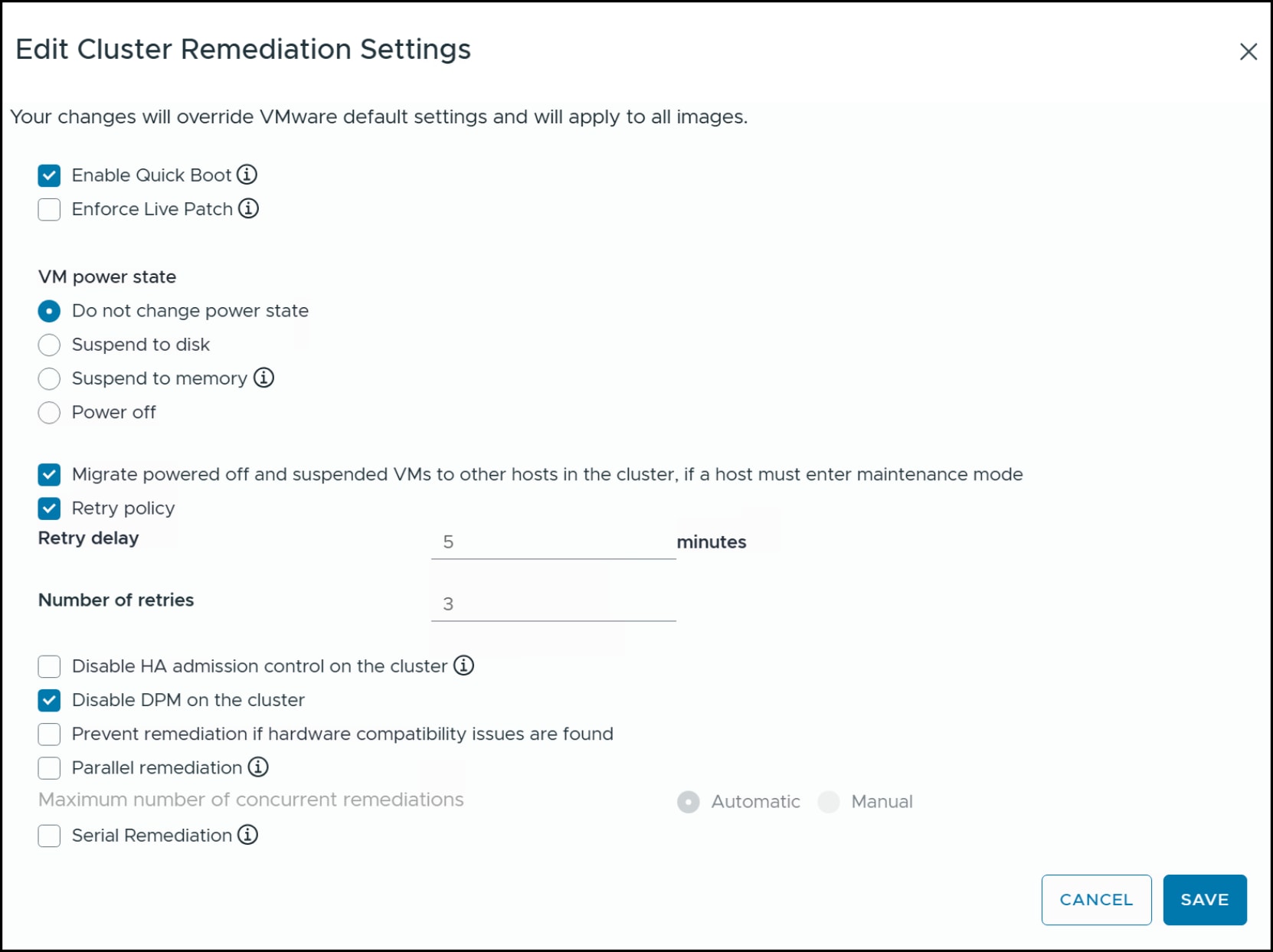
Figure 26. Cluster remediation settings
VMware Cloud Foundation Installer
The VMware Cloud Foundation Installer is a virtual appliance with a UI that guides the user through a VCF installation. Prior to this release, the installer (aka Cloud Builder) relied on the use of an Excel spreadsheet. The spreadsheet itself still exists for the purpose of planning the installation. It is the vcf-9.0-planning-and-preparation-workbook.xls and is at located at VCF Planning and Preparation Workbook. It is useful for recording all the information necessary to complete the wizard, though optional.
Note: While the VMware Cloud Foundation Installer is the preferred method for a VCF installation, there is a VCF CLI. The major difference between the UI and CLI is the ability to highly customize a CLI installation. Environments with unique networking requirements, for example, may require the use of the CLI, though the UI does permit changes to the standard network setup.
Deploy the appliance on an existing ESXi host or vCenter with access to the networking of the VCF environment. Once deployed, log in as the admin@local user. The screen in Figure 27 appears. Unlike the previous VCF installer, this one requires the user to either download (online depot) or upload (offline) the software products for the chosen deployment type. Note that the Download Binaries panel will always list the initial release 9.0.0, though in this example the binaries for 9.0.1 are available.
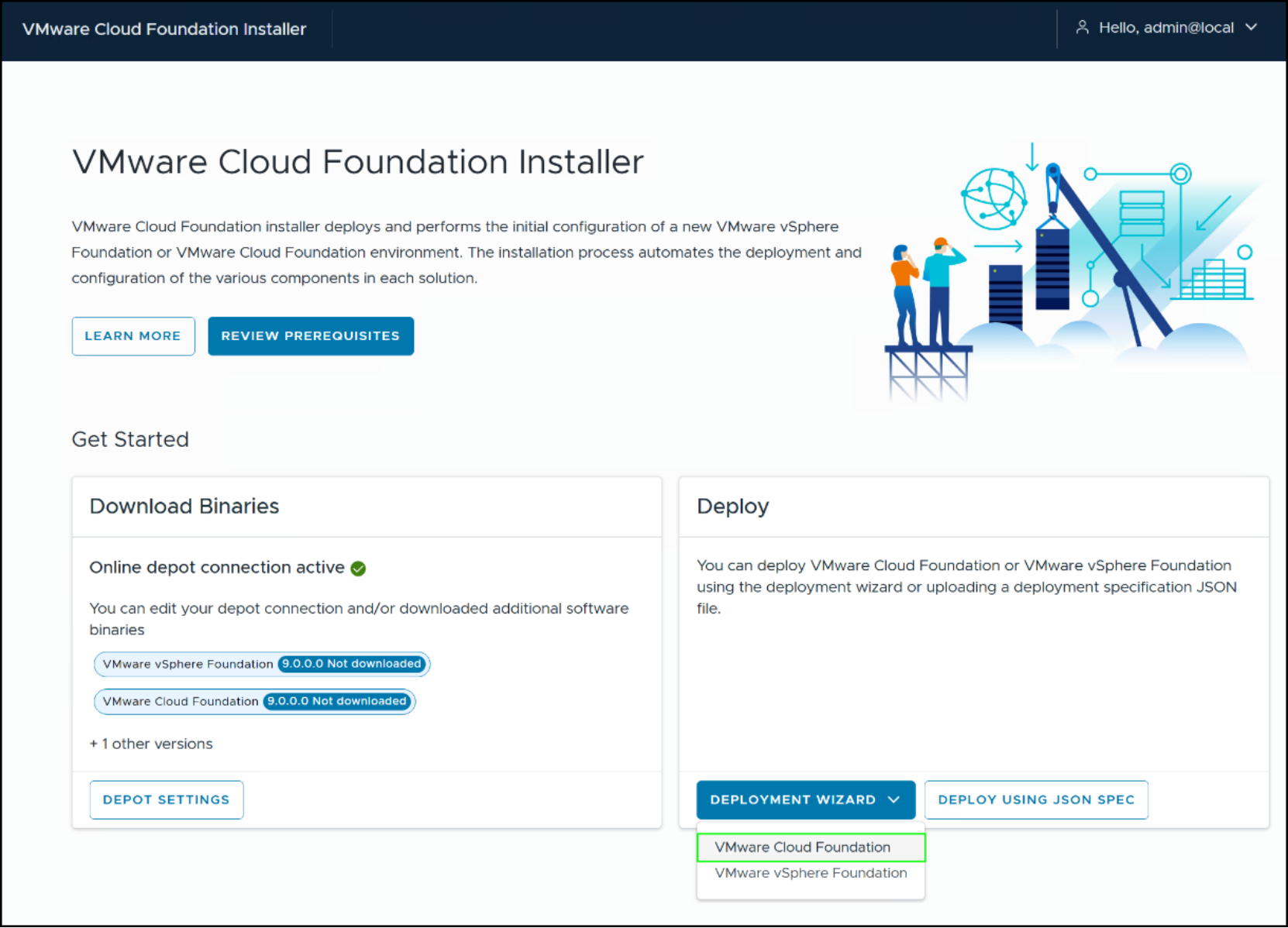
Figure 27. VMware Cloud Foundation Installer
Click on the DEPOT SETTINGS button in the Download Binaries box to configure the depot and download the components for the chosen install. Figure 28 shows we pulled the 9.0.1 VCF binaries from the depot. We did not download the vCenter because as this is a brownfield implementation the installer will not deploy the vCenter, rather we did so previously as a prerequisite. The Download Status of each component will show either a green circle with Success or a blue circle with Not downloaded. Note that Broadcom lists new versions or patches of VCF under Binary Management as below for 9.0.1.0.
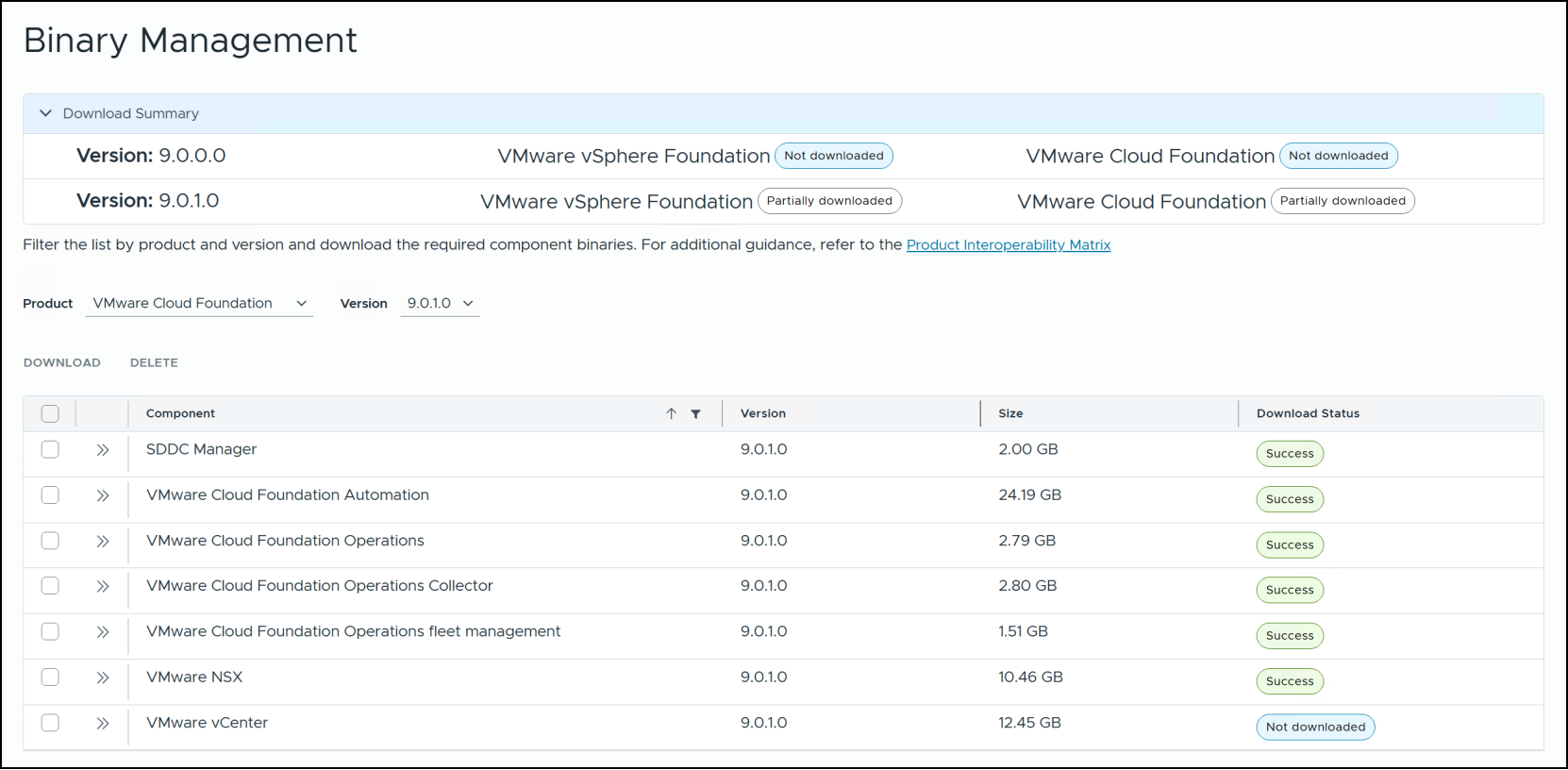
Figure 28. Binary Management
Once you successfully download all components, the deployment can begin. In the Deploy box on the right in Figure 21, use the drop-down menu of the DEPLOYMENT WIZARD and select VMware Cloud Foundation which we boxed in green.
Prior to starting the installation, you must select whether this is a new VCF Fleet or an installation into an existing VCF implementation. Figure 29 presents the two options. Use the radio buttons to choose the appropriate installation. Though this paper documents a brownfield installation, it still represents a new VCF Fleet. Click CONTINUE to start the wizard in earnest.
Note: Before starting the deployment, Dell strongly recommends that you take a VMware crash-consistent snapshot of the VCF installer and vCenter. This will allow you to re-deploy cleanly should the need arise.
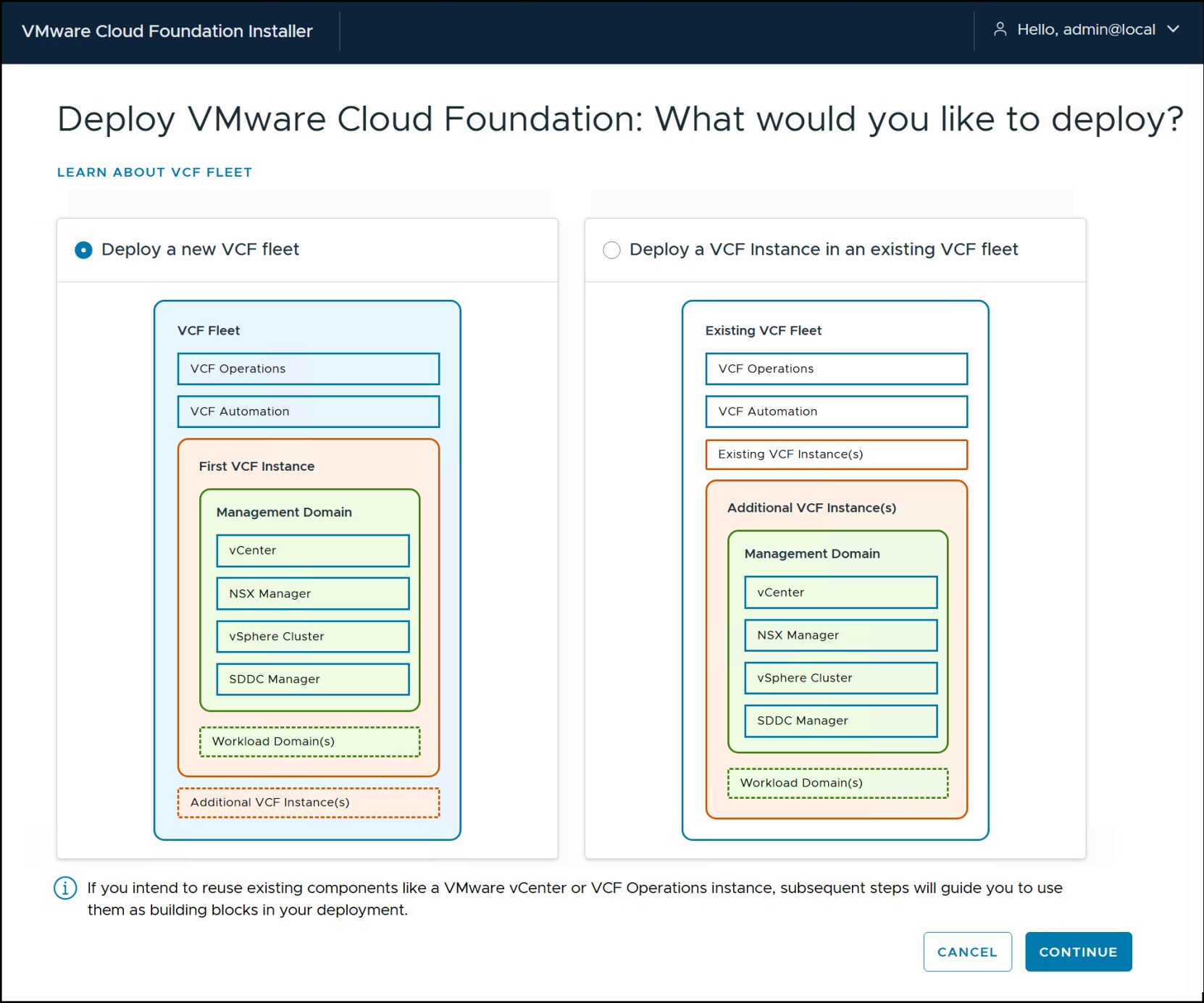
Figure 29. VCF fleet deployment options
The VCF wizard consists of steps which vary in number based on selections you make during implementation. The steps follow the order of the boxes in Figure 29, beginning with VCF Operations. Helpfully, the installer will save your steps as you proceed so you can leave the process at any point and return where you left off. This section will walk through those steps. We include the images as it is likely future releases of the installer will change.
Step 1 Existing Components
Even if you select to deploy a new VCF fleet, you can choose to incorporate existing software, specifically VCF Operations or VMware vCenter as we do in this example. When you select VMware vCenter you can also indicate to the installer whether NSX Manager is already part of the setup. It is not here, so this remains unchecked. Note that in Figure 24 when we select VMware vCenter, on the right-hand side an “Existing” blue box appears for vCenter and vSphere Cluster. This also reduces the number of steps to nine. Click NEXT to continue.
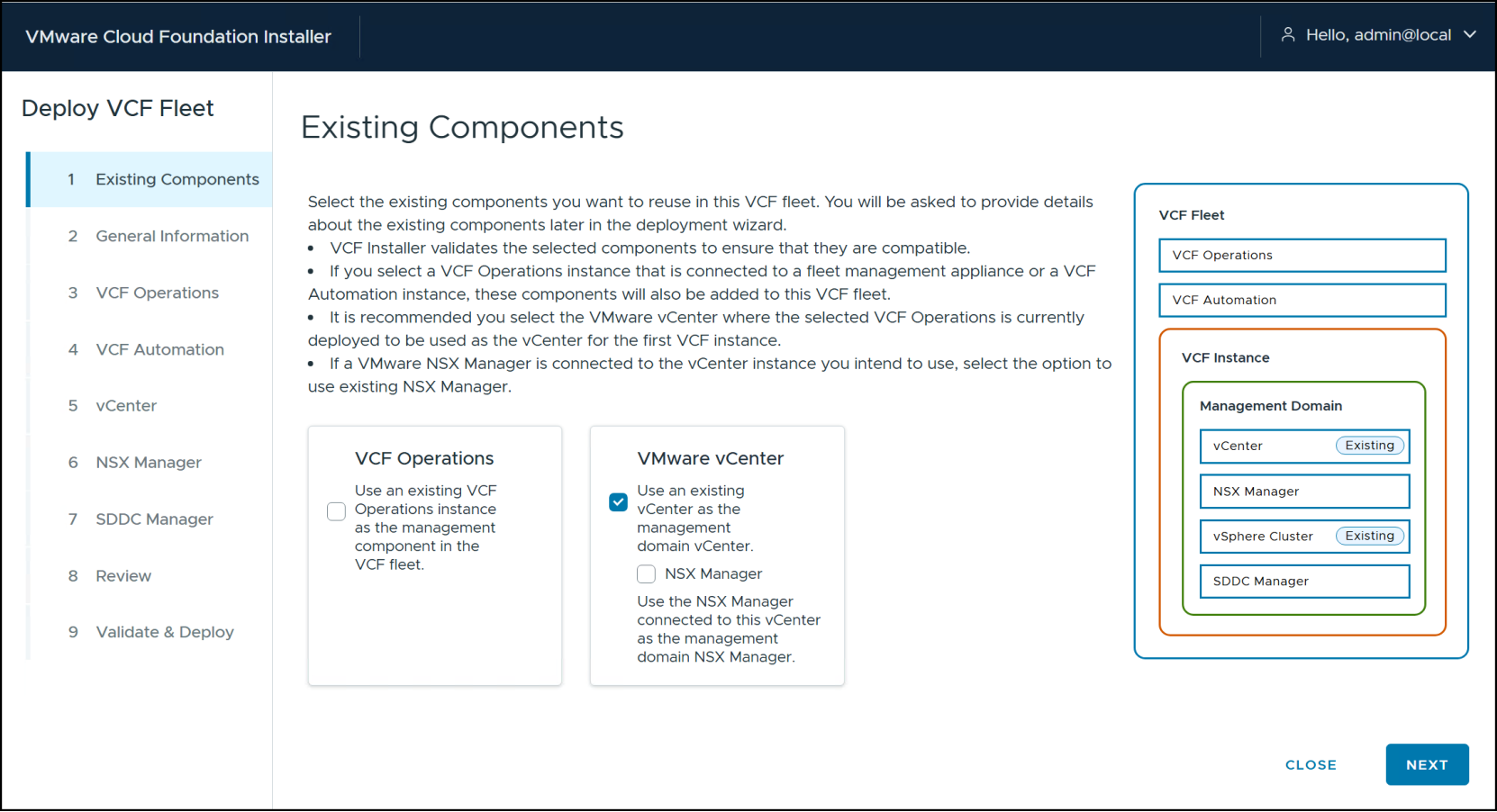
Figure 30. Step 1 – Deploy VCF Fleet
Step 2 General Information
In step 2 the version defaults to 9.0.1.0. Supply the VCF instance and management domain names. Choose whether you wish VCF Operations and Automation to use a different network than the rest of the install. If you plan on multiple VCF instances in your fleet, you may wish to do that. Next, select a deployment model. Unless this is a test environment, you should use the HA option. Depending on the selected deployment model, the screens for steps 3, 4, and 6 will appear differently. The HA option requires more host (FQDN) names since there are three nodes, not one, for VCF Operations, VCF Automation, and NSX Manager. Click NEXT.
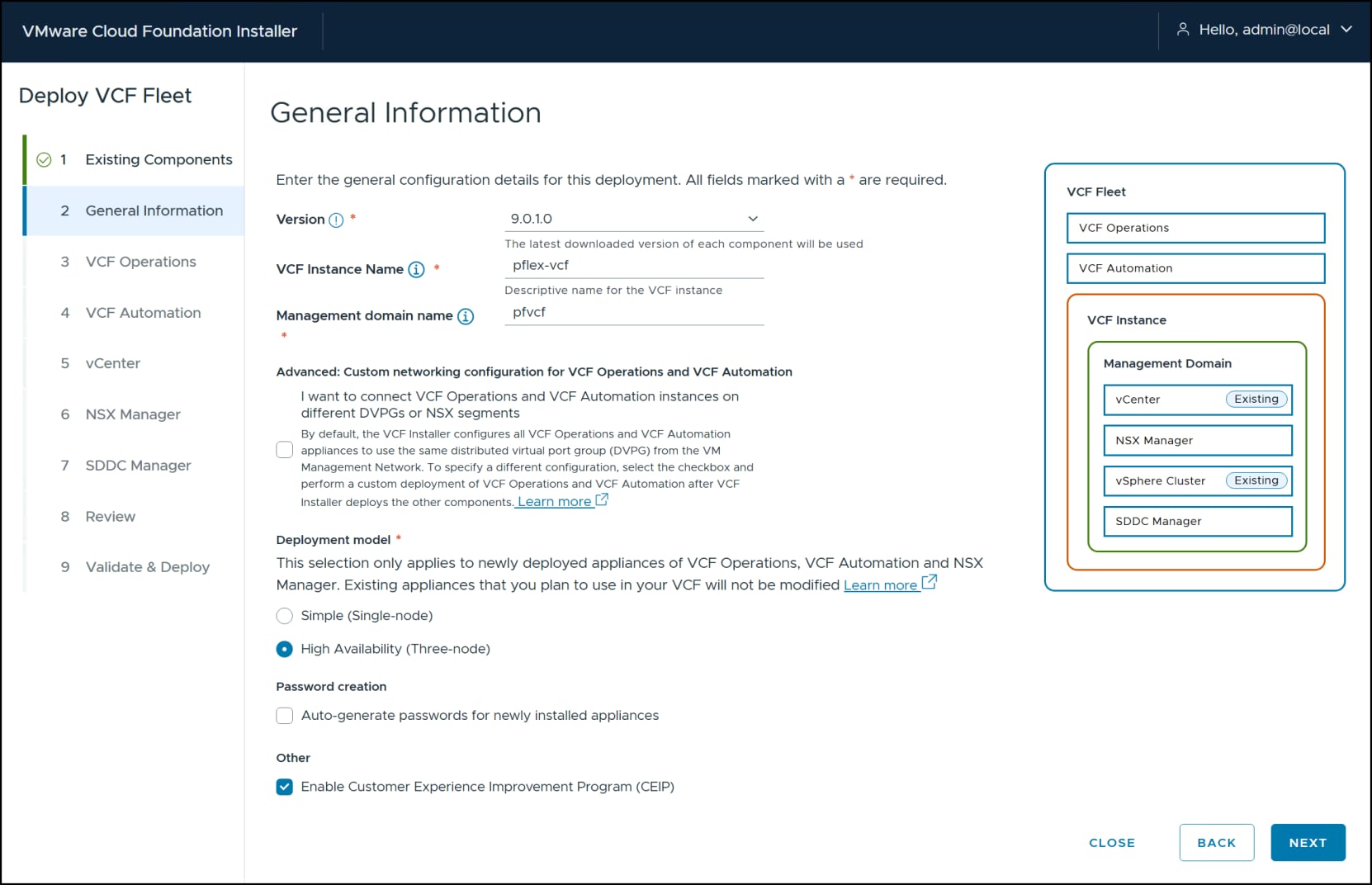
Figure 31. Step 2 – Deploy VCF Fleet
Step 3 VCF Operations
There are four sections requiring information in step 3: VCF Operations Appliance, Load Balancer (optional), Fleet Management Appliance, and Operations Collector Appliance. Use the checkbox in each section if desired, as here, to set an appliance to the same password as VCF Operations. Click NEXT.
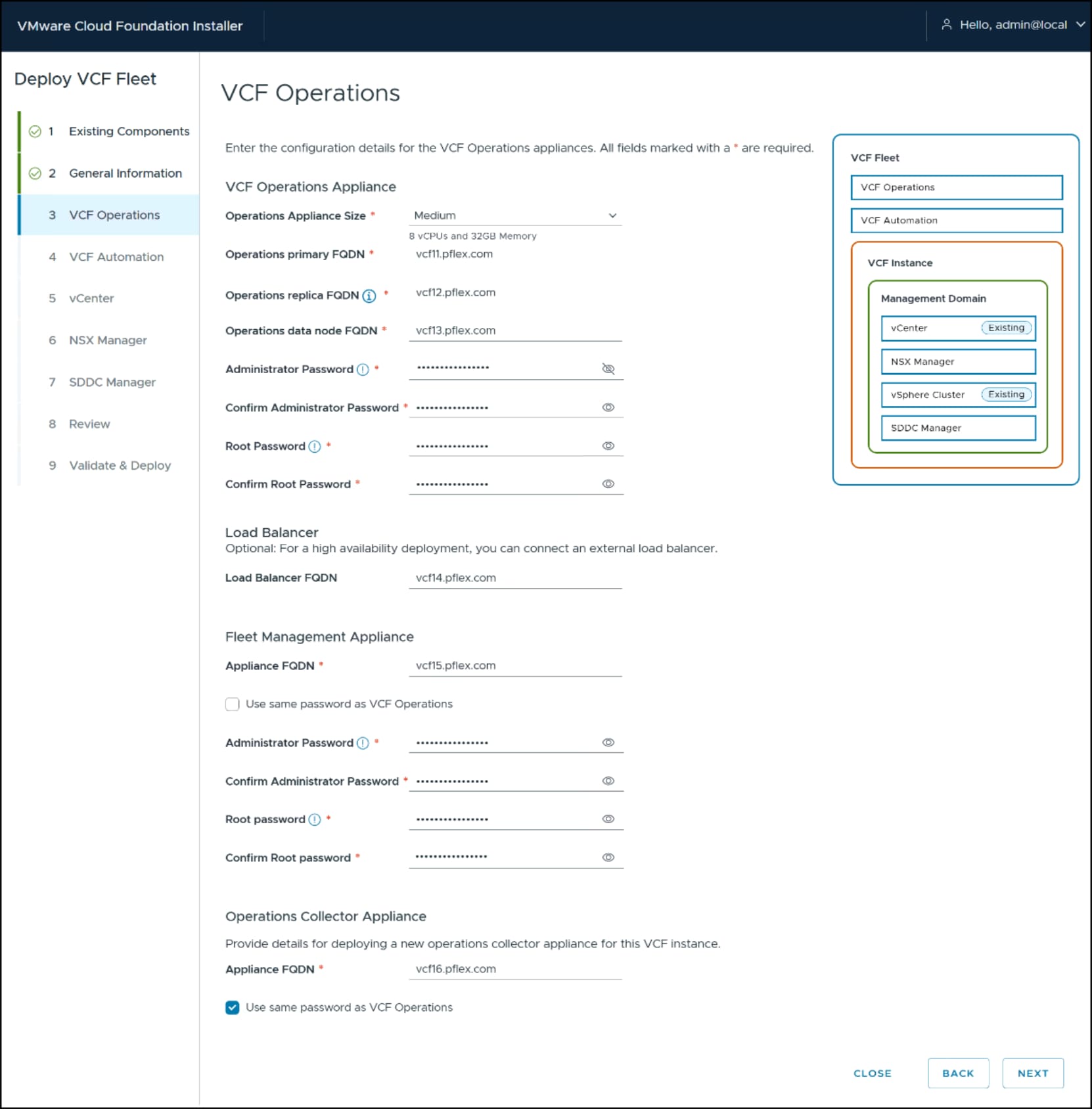
Figure 32. Step 3 – Deploy VCF Fleet
Step 4 VCF Automation
In step 1 you had the option to choose to use an existing VCF Operations instance. Similarly, in step 4 you can bypass installing VCF Automation and connect one later; otherwise, supply the necessary FQDN and IPs. Note that in the image on the right, a white checkmark in a green circle appears for each step as you move through the wizard. Click NEXT.
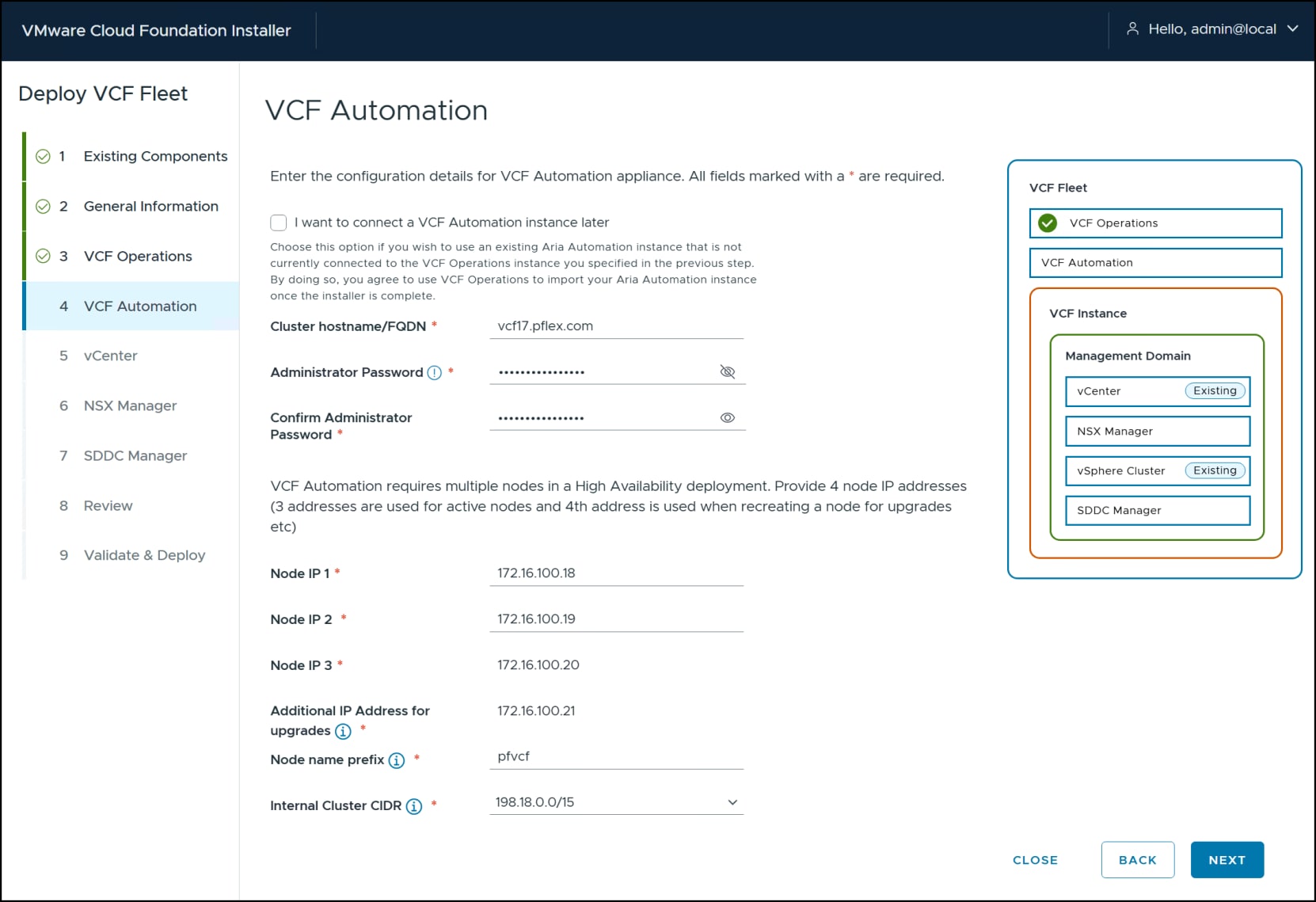
Figure 33. Step 4 – Deploy VCF Fleet
Step 5 vCenter
For the existing vCenter supply the FQDN, the root password, the SSO domain name, and the SSO password. A prompt will appear allowing you to confirm the Certificate Thumbprint. Because we already configured a datastore and the network in the vCenter, there are no additional steps in the installer for those components. Click NEXT to continue.
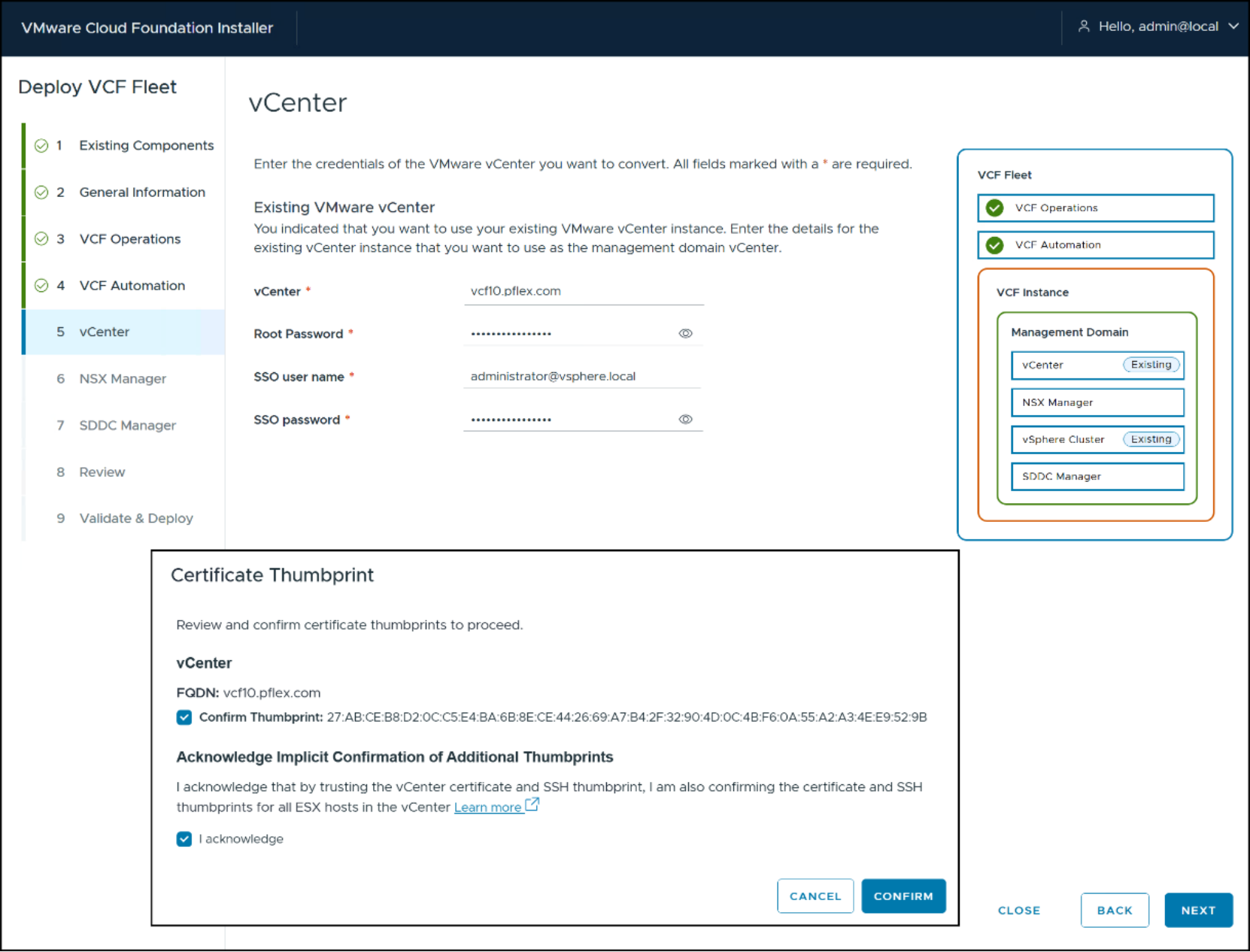
Figure 34. Step 5 - Deploy VCF Fleet
Step 6 NSX Manager
The NSX Manager requires an appliance size and four FQDNs. In the second half of the screen, VCF offers the ability to create an NSX Overlay without the need for a separate VLAN. Dell recommends using this option. Input all necessary passwords and click NEXT.
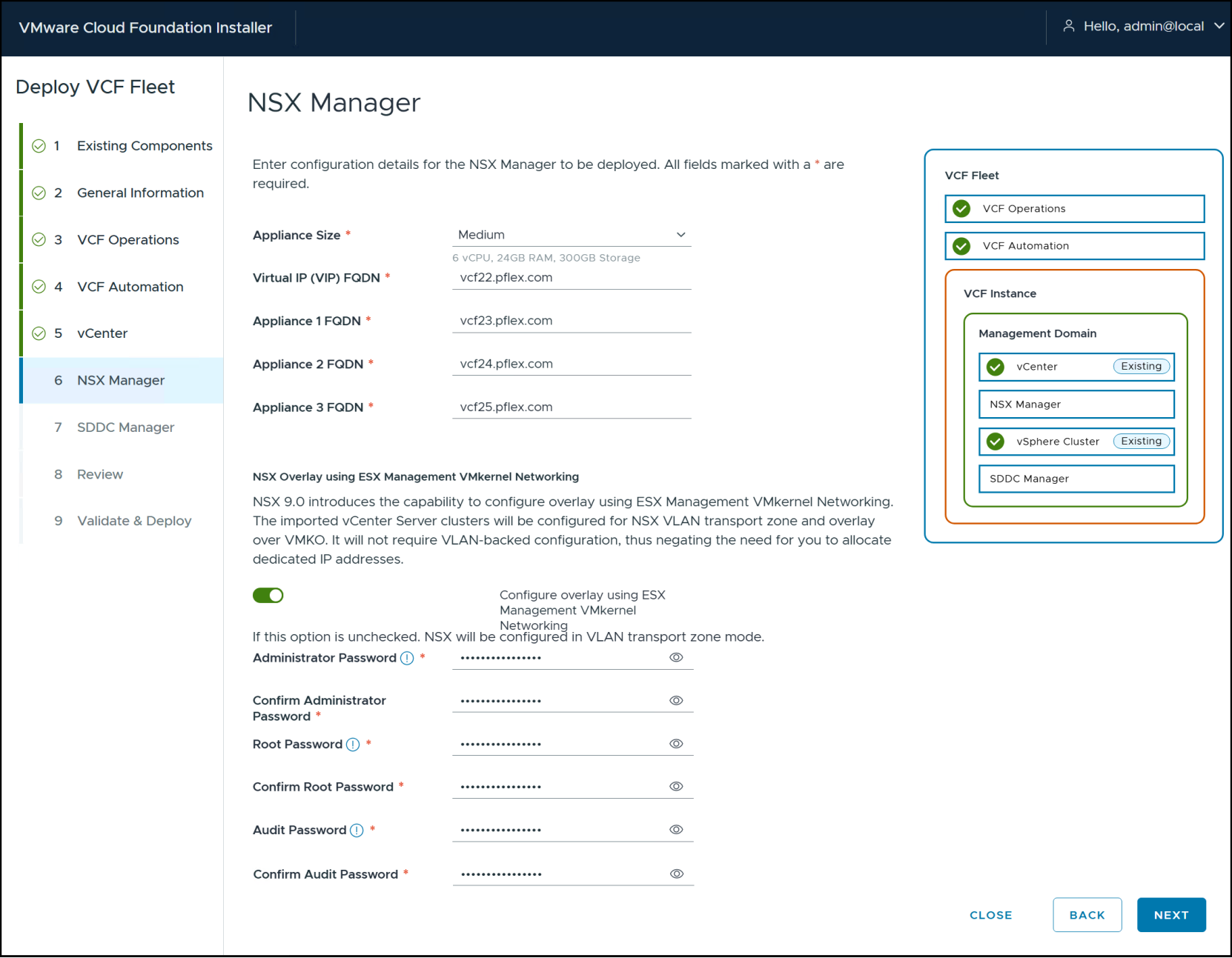
Figure 35. Step 6 – Deploy VCF Fleet
Step 7 SDDC Manager
For the SDDC Manager step provide an FQDN and the requested passwords. Click NEXT.
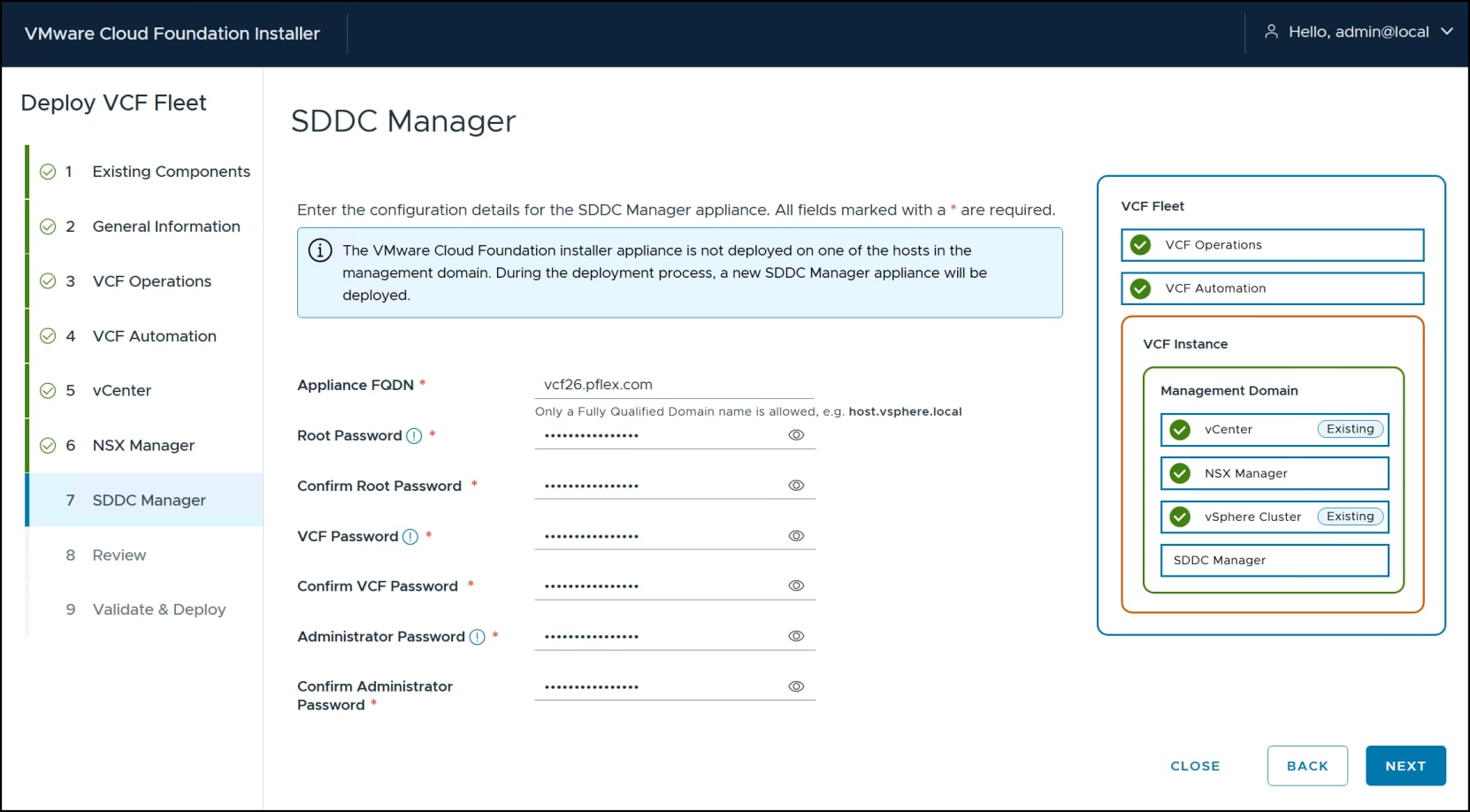
Figure 36. Step 7 - Deploy VCF Fleet
Step 8 Review
In step 12 in Figure 37 review your answers. If anything is incorrect, you can go back and change it in that step and return to this screen. You will not have to travel all the steps again. If you wish, download the JSON spec. This is highly recommended because if you must re-install or start over you can supply the JSON and then edit in the wizard without inputting again. When ready hit NEXT.
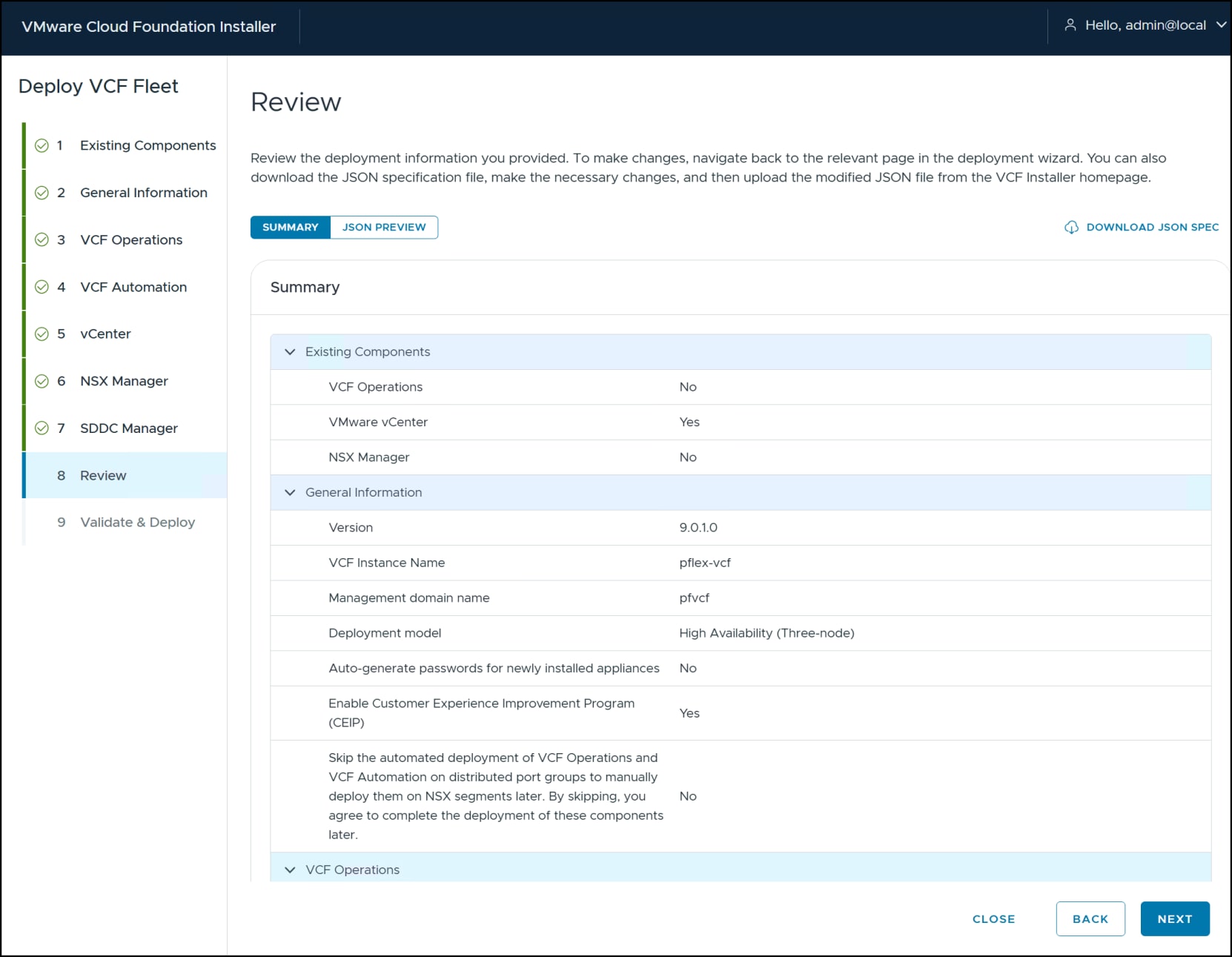
Figure 37. Step 8 - Deploy VCF Fleet
Step 9 Validate & Deploy
The final screen runs an automatic validation of the previous input values. You can acknowledge any warnings but must resolve any errors. Network errors are common such as an inability to reach the DNS or a gateway, though less so in a brownfield implementation where these components must already be operational. You can bypass any warning by acknowledging it after verifying. Here all checks pass so click DEPLOY.
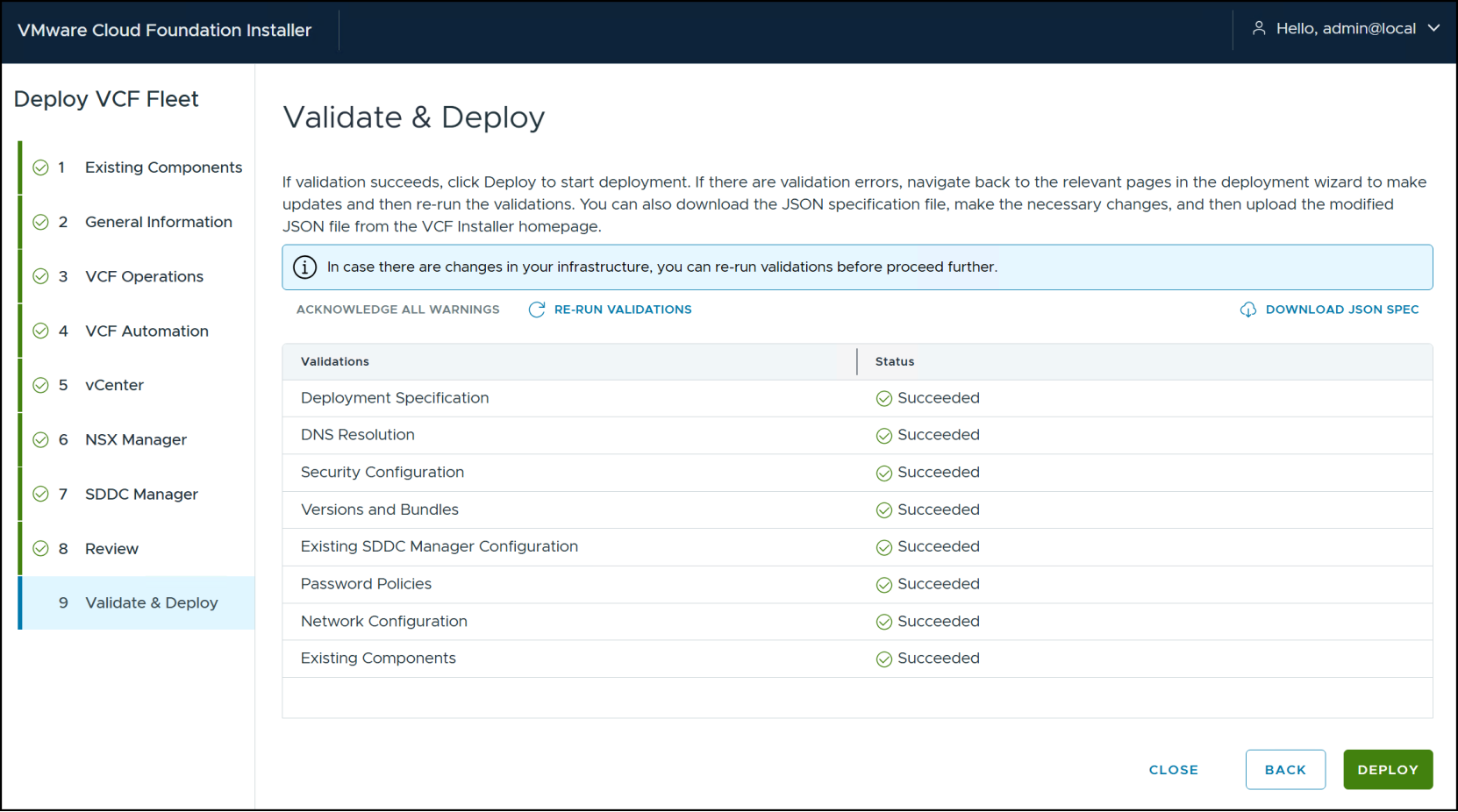
Figure 38. Step 9 - Deploy VCF Fleet
Once you click DEPLOY VMware will present the progress screen in Figure 39 where you can actively watch the installation and the current task.
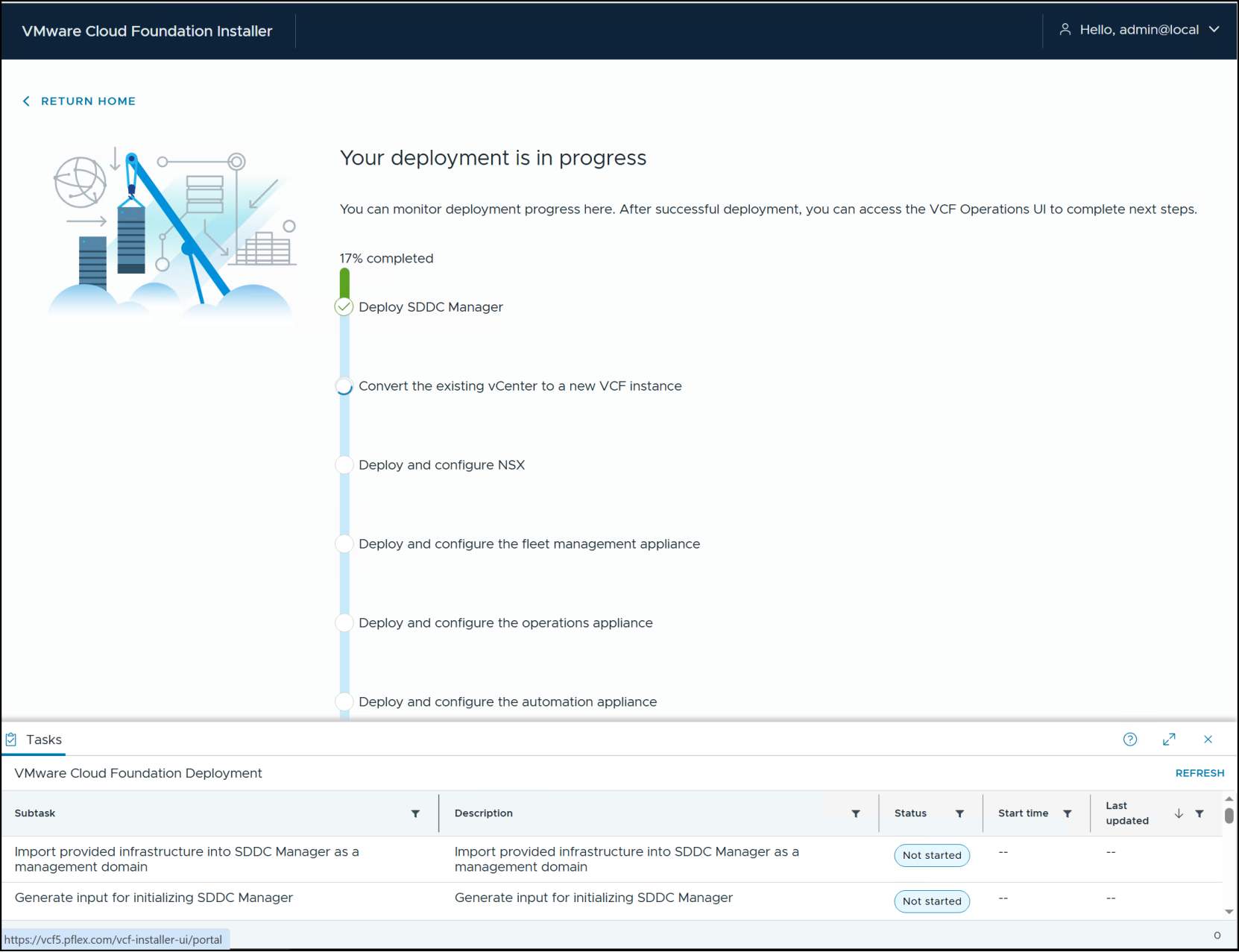
Figure 39. VCF installation progress screen
The deployment time varies according to the environment but can take hours. You must resolve any errors during the installation and attempt the deployment again. There is no cleanup or reset, though if you took snapshots of the VCF installer and vCenter you could restore them to start fresh with the JSON file. Troubleshooting information is available from Broadcom here.
When the deployment succeeds, the installer presents the screen in Figure 40. Click the OPEN VCF OPERATIONS UI button in the right-hand panel to log in to VCF Operations and add your licensing information. If you are just evaluating for 90 days, this is unnecessary.
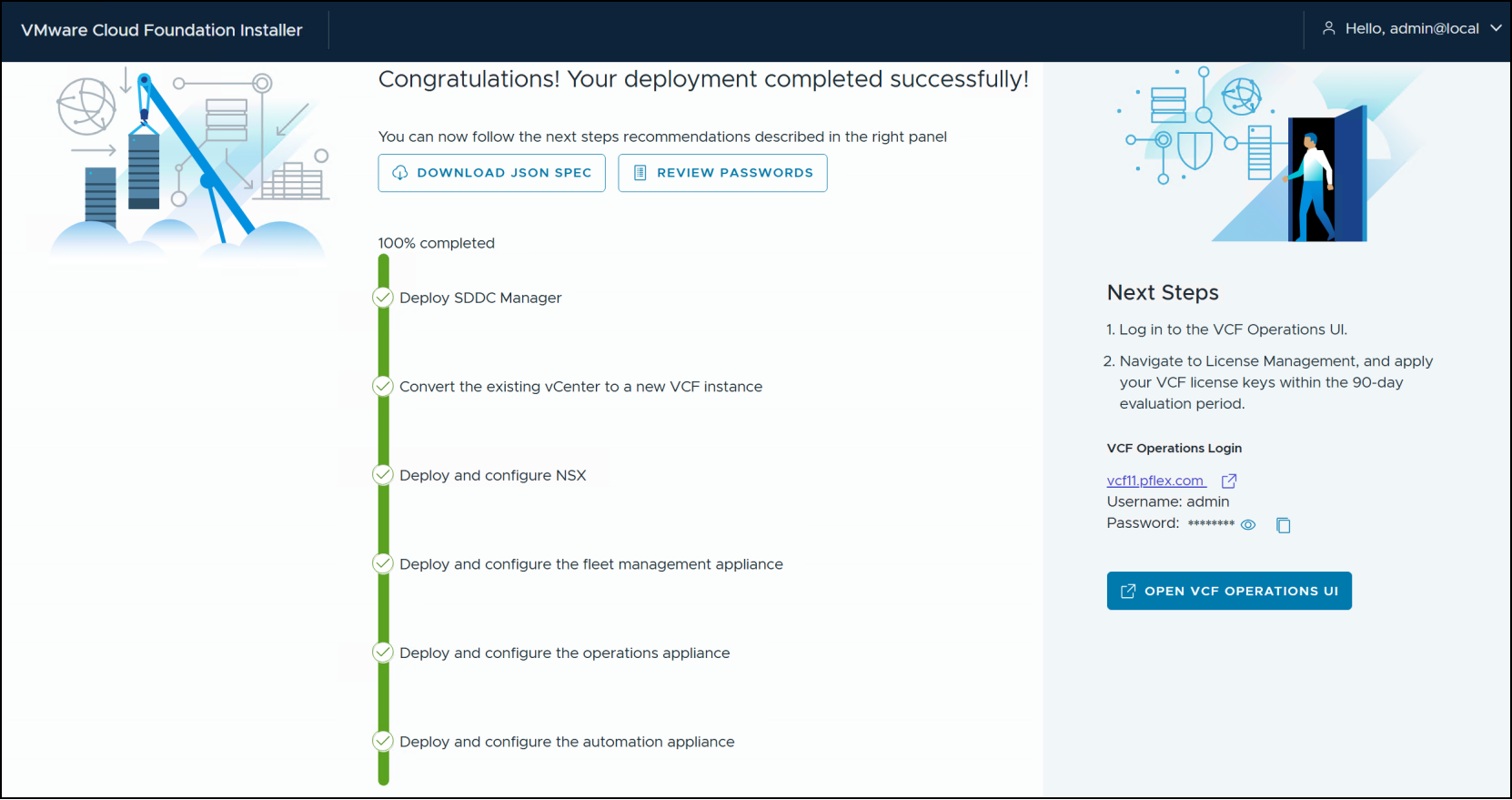
Figure 40. VCF successful deployment
VCF Operations
VCF Operations is the heart of VCF 9.0, taking the place of SDDC Manager as the primary management tool. The UI login is in Figure 41.
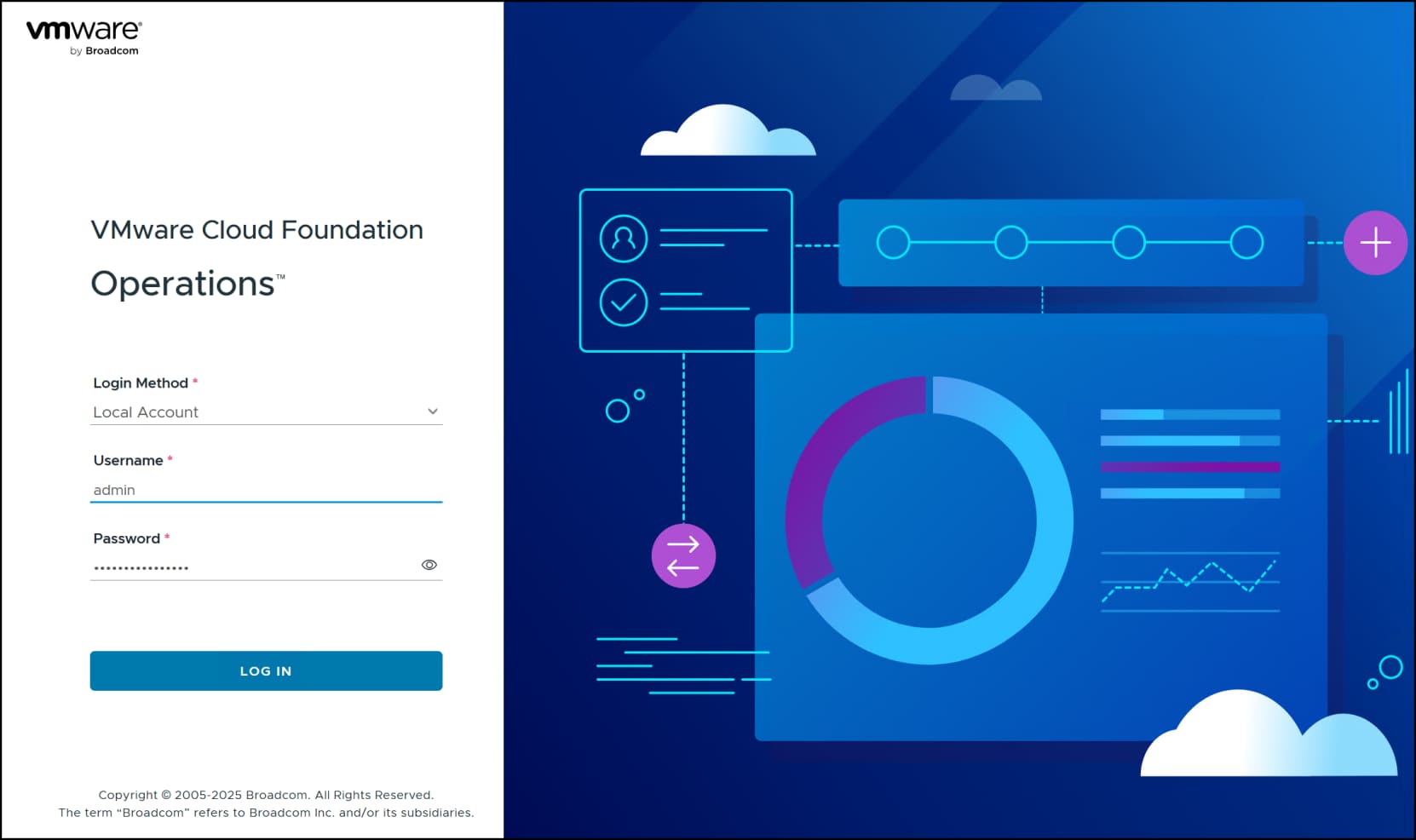
Figure 41. VCF Operations login
Once accessed, you can see the various screens and sub-screens in the left-hand menu in Figure 42. If you navigate to Infrastructure Operations -> VCF Health the screen provides an overall summary of the VCF instance. All aspects of the environment are available for monitoring, including the collection of metrics. When you deploy a workload domain, VCF will increase the number of ESX Hosts, vCenter Instances, and NSX Instances appropriately. There is an option to deploy the VCF log appliance if desired. Note that vSAN Cluster displays Not Configured for an array deployment such as this one.
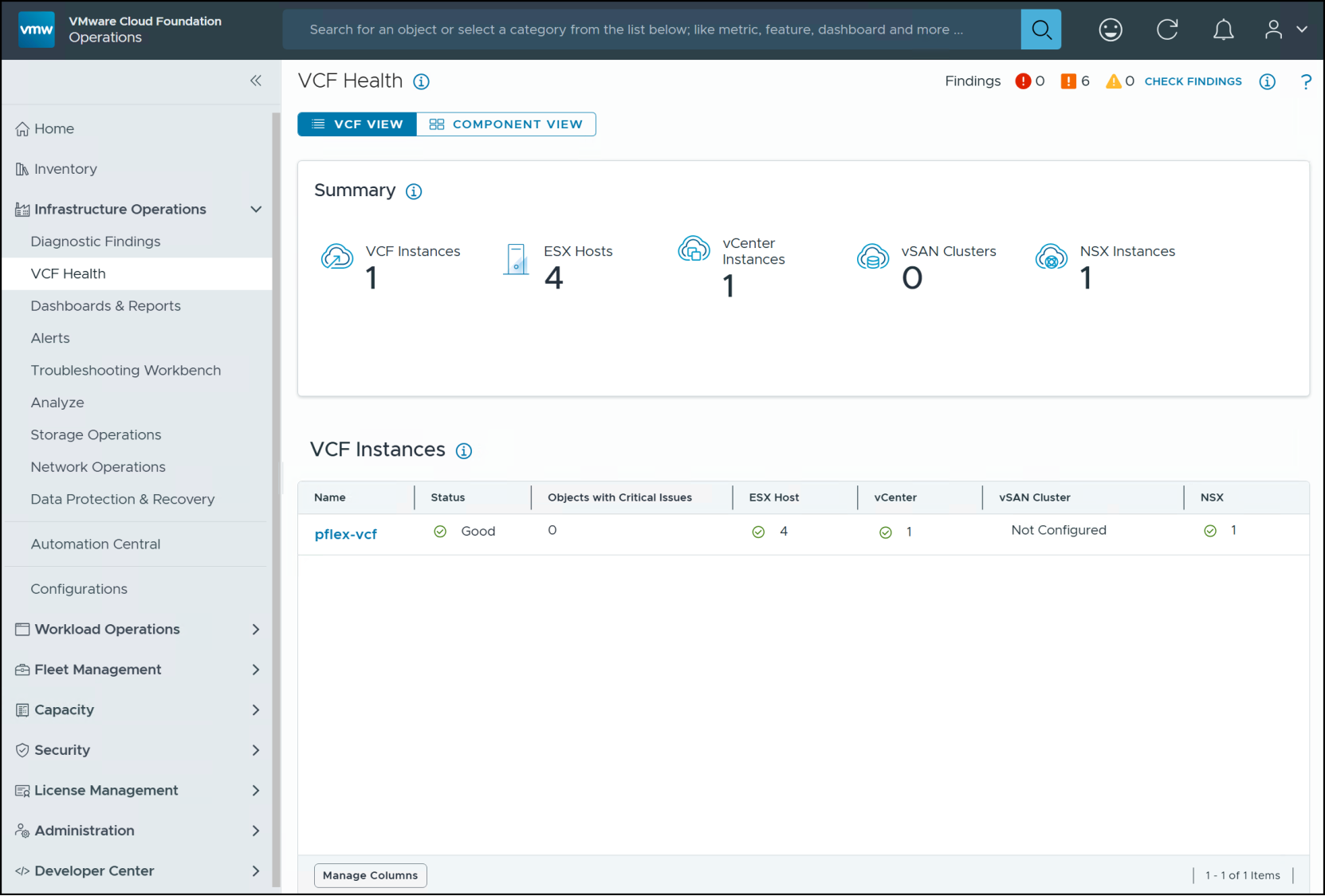
Figure 42. VCF health for the instance
This completes the management domain deployment. The next sections will cover adding a workload domain.
Deploying a VCF workload domain on PowerFlex VMFS on FC
Introduction
Workload prerequisites
Volume and VMFS datastore
After you install the SDC on each host, create a volume through PowerFlex Manager and map that volume to each of the hosts. This volume will serve as the VMFS datastore for the workload domain deployment.
Step 1
Begin by navigating in PowerFlex Manager to Block -> Volumes. Click Create Volume in the left-hand corner, enter in the required information, and click Create in Figure 43.
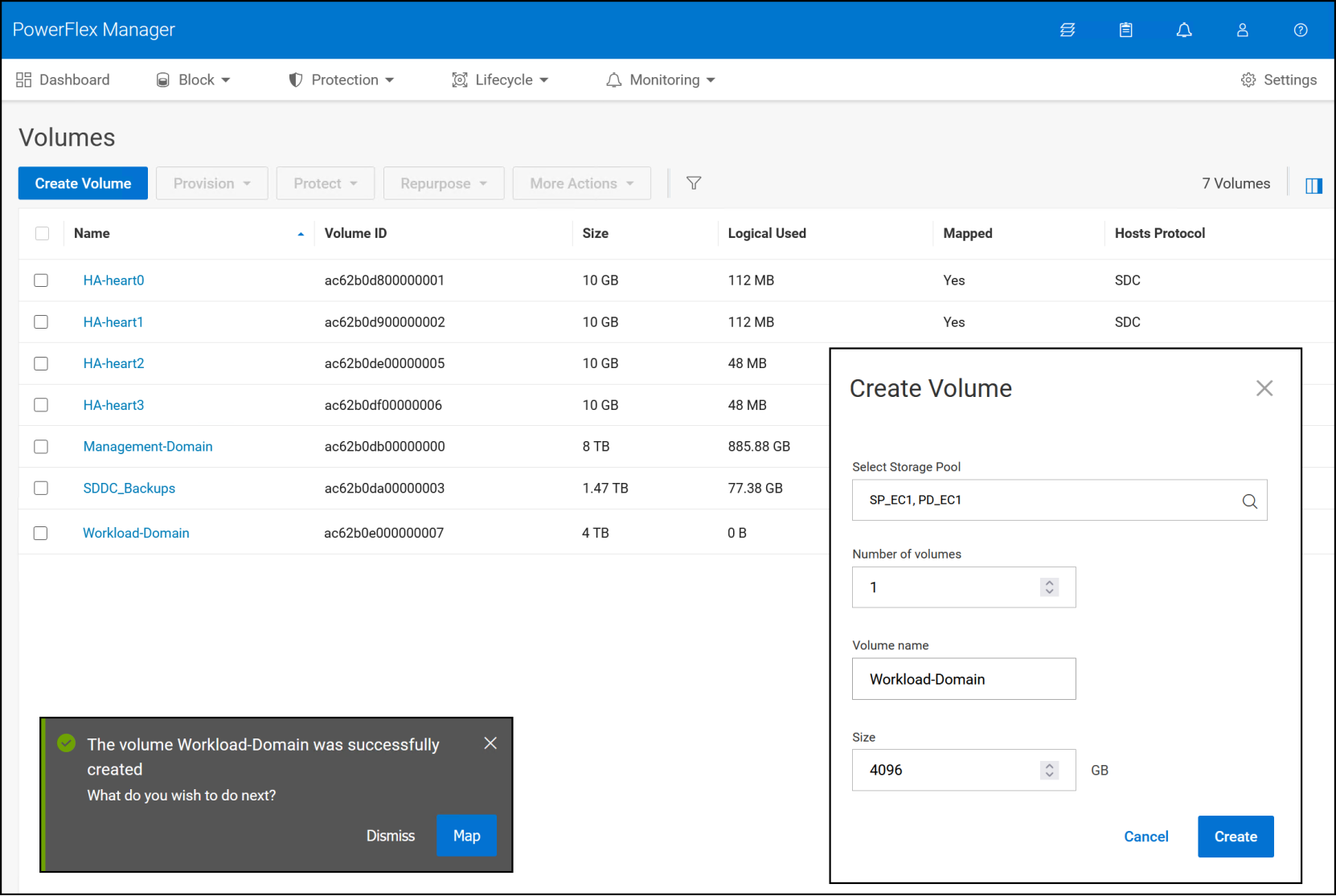
Figure 43. Step 1 – Volume and VMFS datastore
Step 2
When the grey pop-up box appears after volume creation in Figure 15, click Map. If the box disappears too quickly, simply check the box next to the new volume and navigate to Provision -> Map. In the mapping screen below, use the check boxes to select each new ESXi management node and click Map.
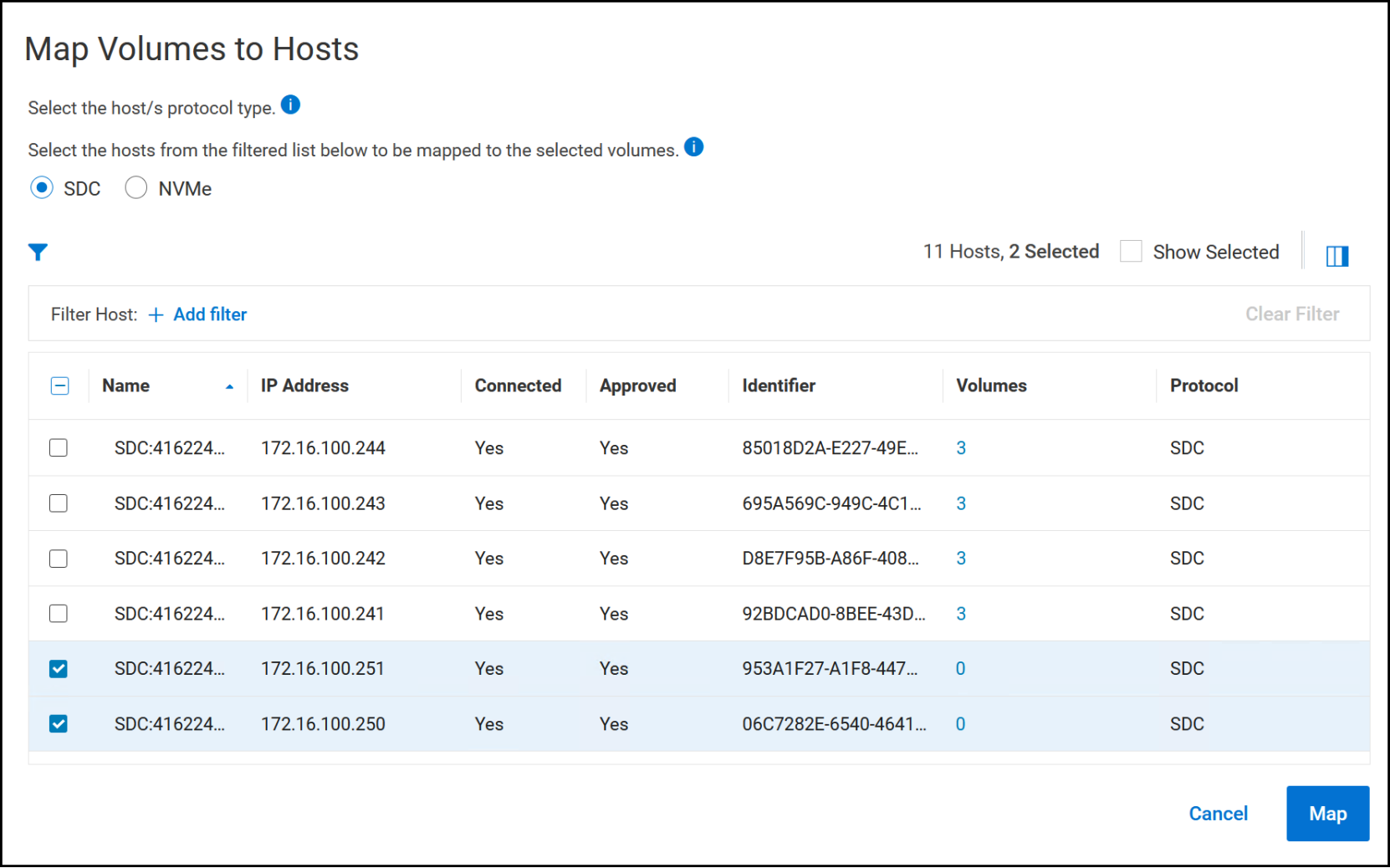
Figure 44. Step 2 – Volume and VMFS datastore
Step 3
You must create a new VMFS datastore on the volume after you map it to the workload hosts. Log in to the new vCenter, right-click on the cluster and select Storage -> New Datastore to start the datastore wizard.
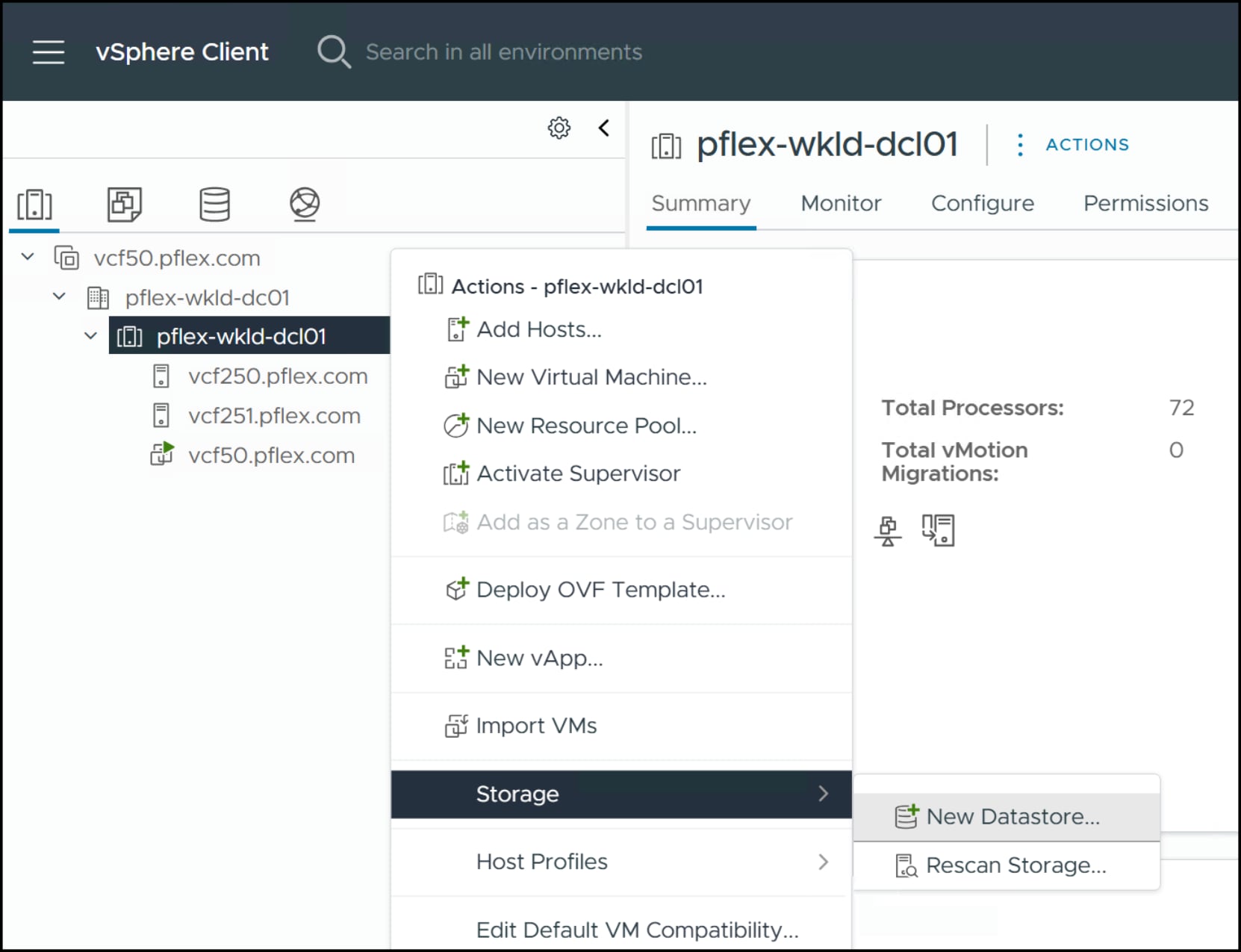
Figure 45. Step 3 – Volume and VMFS datastore
Step 4
Begin by selecting the datastore type. In this deployment we use VMFS. Click NEXT.
Figure 46. Step 4 – Volume and VMFS datastore
Step 5
Enter a Datastore name that identifies its purpose. In this implementation the name is WKLD_DOMAIN. Next select one of the ESXi hosts from the drop-down list. As we mapped the volume to all the workload hosts, any one will work. You will see a list of available volumes, among which will be the 4 TB (in this example) PowerFlex volume. Use the radio button to highlight it and click NEXT.
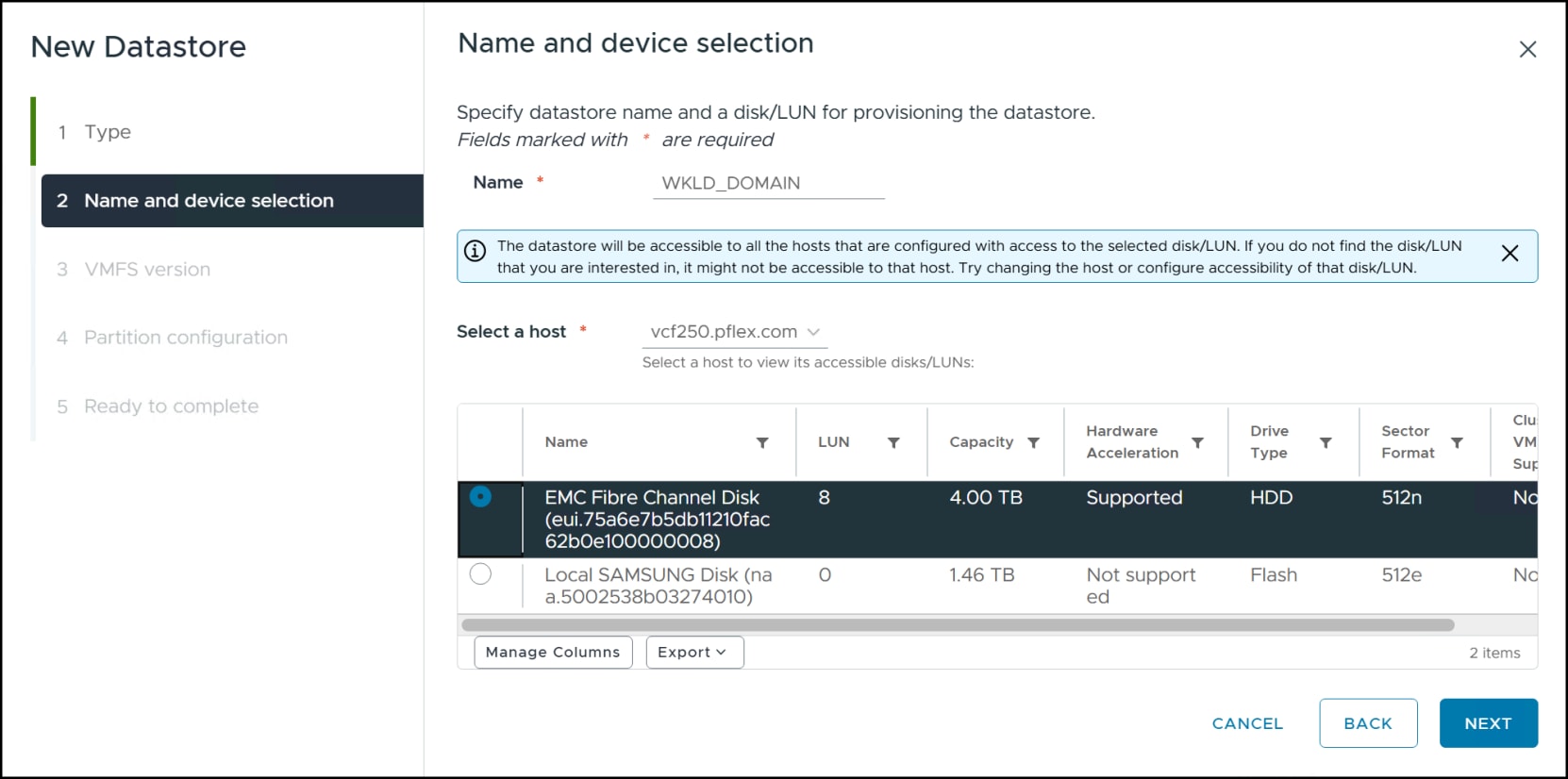
Figure 47. Step 5 – Volume and VMFS datastore
Step 6
When you choose VMFS as the type you must choose with which version to format the volume. Dell recommends using the default VMFS 6. Click NEXT after choosing.
Figure 48. Step 6 – Volume and VMFS datastore
Step 7
In the Partition configuration screen do not change the defaults and click NEXT to review.
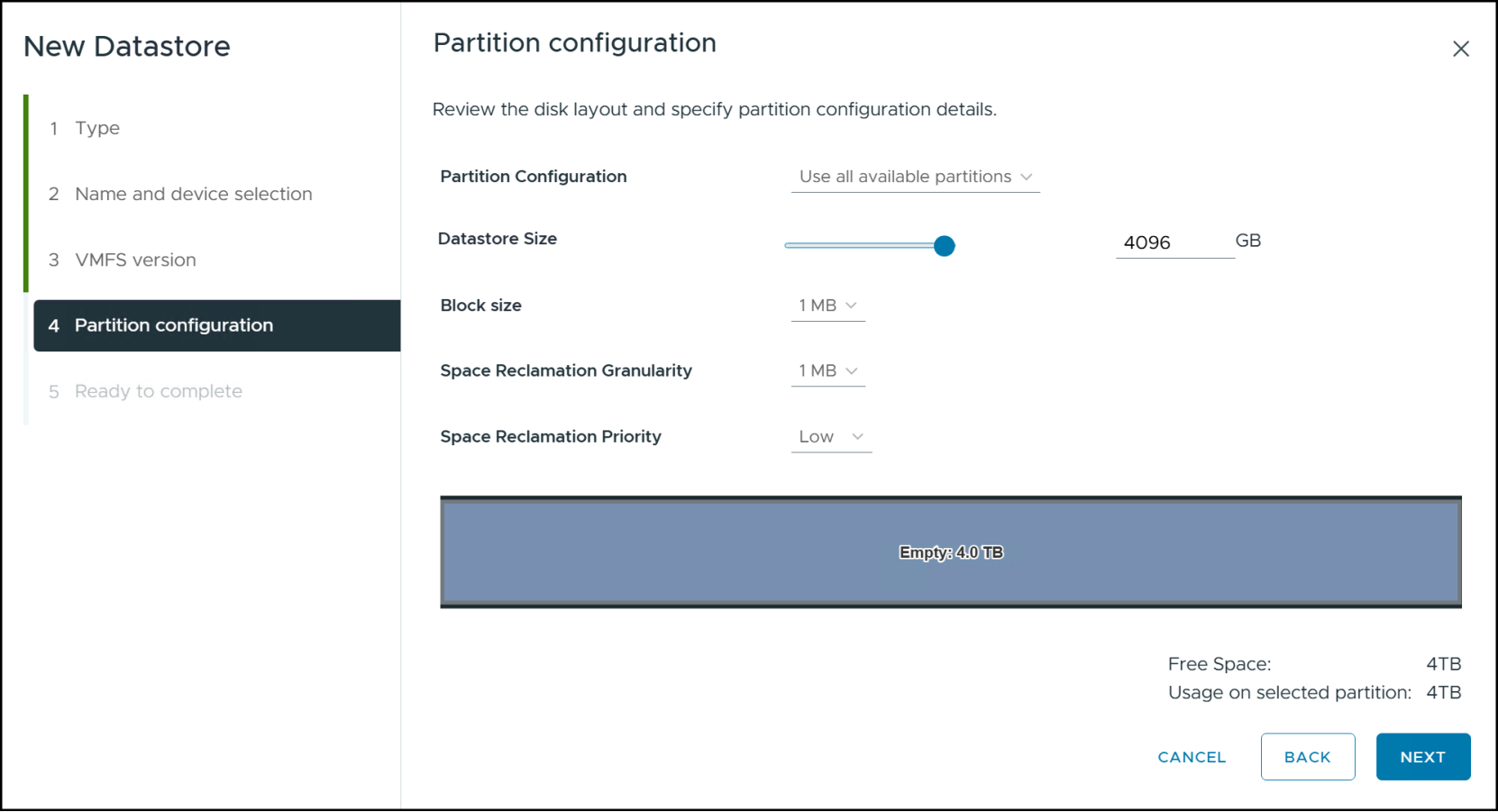
Figure 49. Step 7 – Volume and VMFS datastore
Step 8
In the last step, review and then click FINISH to create the datastore.
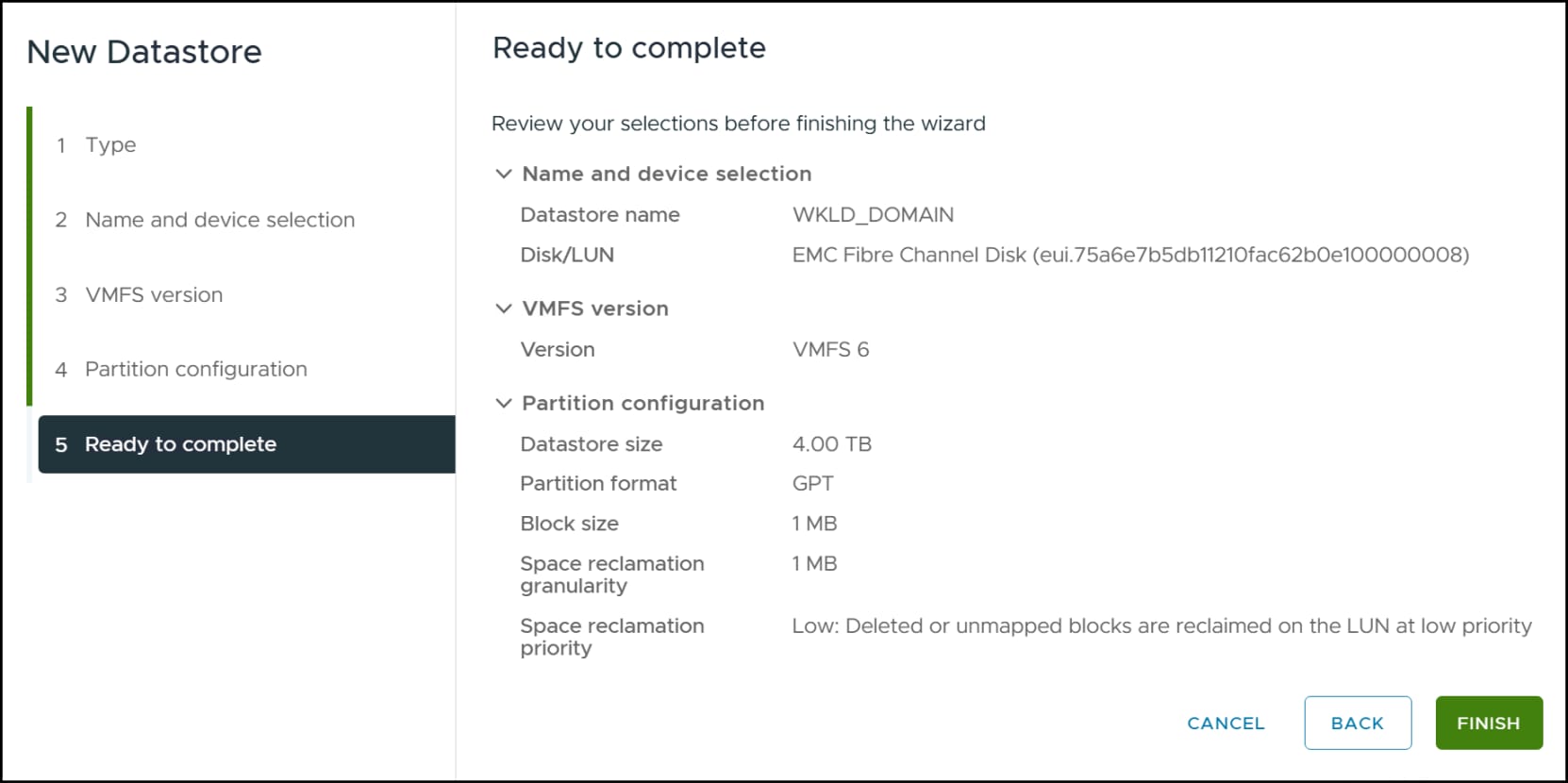
Figure 50. Step 8 – Volume and VMFS datastore
Once the datastore appears in the list of available datastores in Figure 23, be sure that each ESXi recognizes the new datastore before proceeding. This may require running a Rescan Storage… seen in Figure 45.
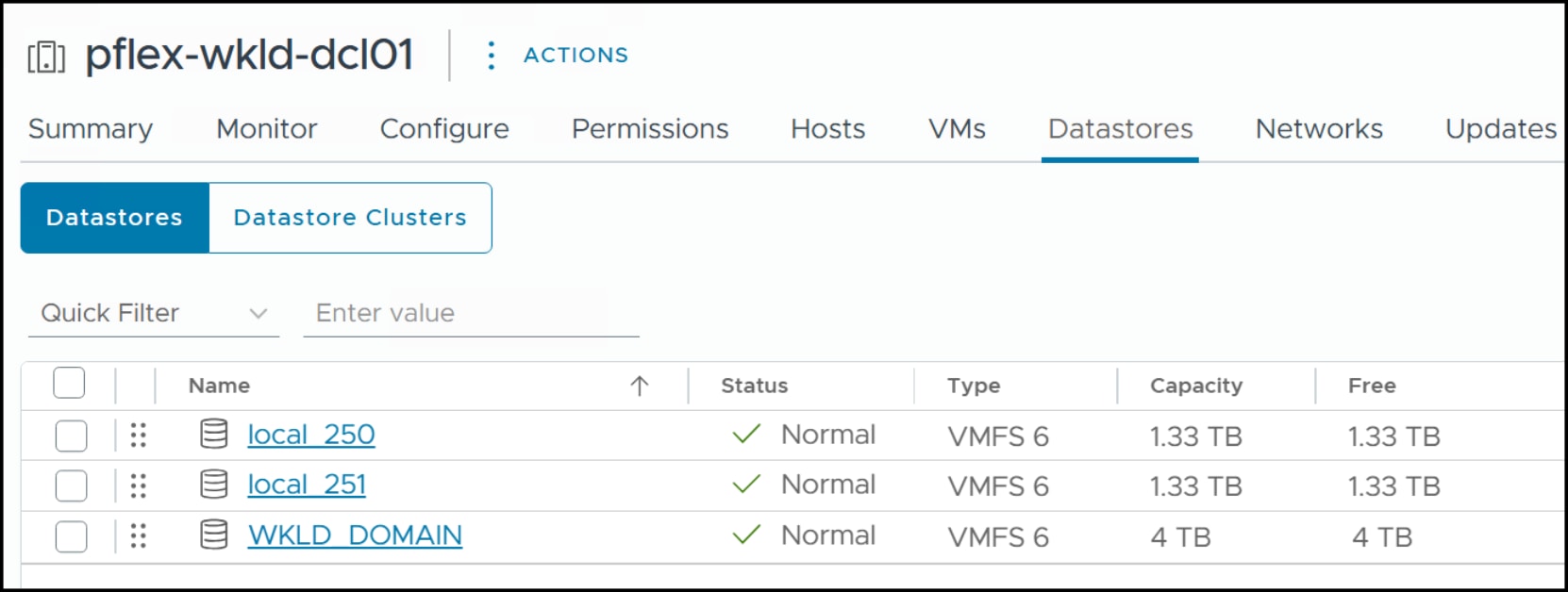
Figure 51. WKLD_DOMAIN datastore
Note: After creating the datastore for the workload domain, Dell strongly recommends using Storage vMotion to relocate the vCenter VM to the new datastore. There is a known Broadcom issue in which the VMs the installer creates will deploy to the datastore where the vCenter resides, even if it is local. If the datastore is small, the installer will fail.
Final task
Complete the final task below for vSphere HA and DRS. Be sure to create two new heartbeat datastores for the workload domain. Do not map the management domain heartbeat datastores to the workload domain servers.
Because the deployment of the workload domain is brownfield, there is no requirement for a vMotion pool nor to commission hosts. The wizard will ingest the new vCenter and deploy any additional components like NSX Manager.
Workload wizard
After completing the prerequisites, initiate the workload wizard by navigating in VCF Operations to Inventory -> VCF Instances -> <instance name>. After highlighting the instance, the ADD WORKLOAD DOMAIN menu appears in the right-hand panel. Use the drop-down box in Figure 52 and select Import a vCenter for the brownfield implementation.
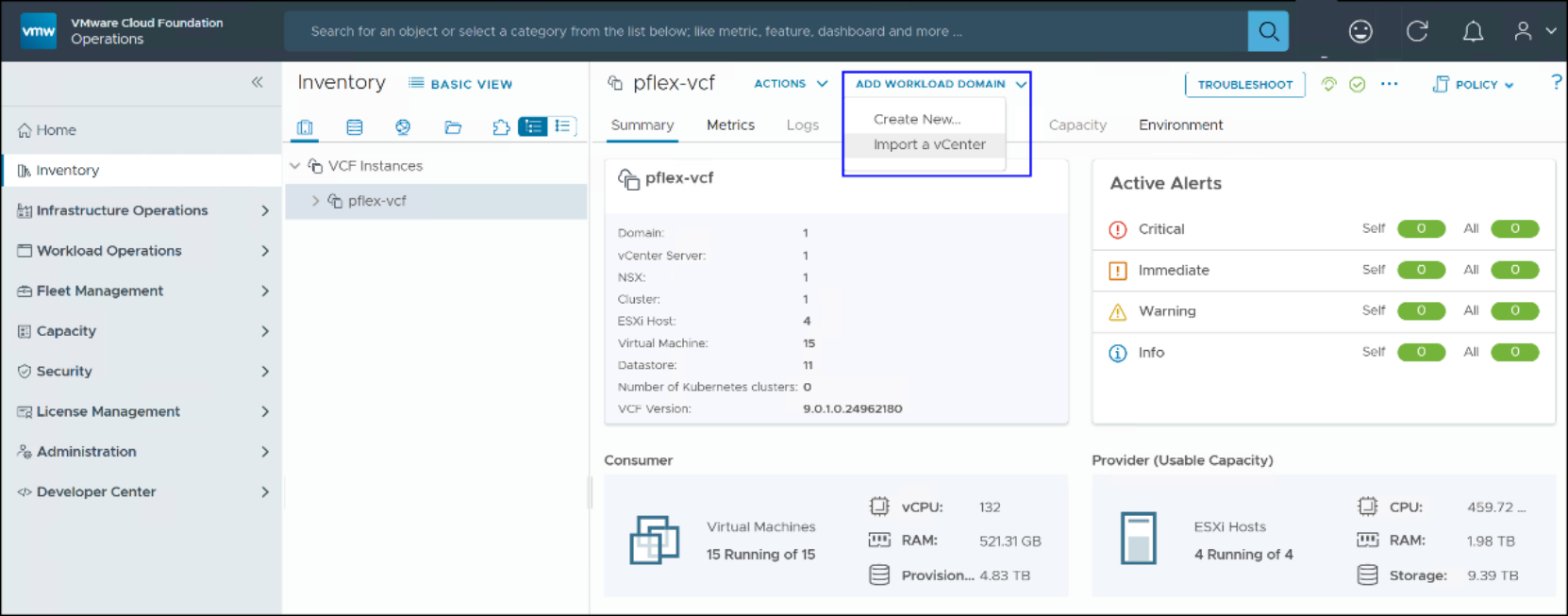
Figure 52. Add workload domain: Import a vCenter
This will initiate the wizard. There are a total of seven steps in the workload domain brownfield deployment for VMFS on FC. They follow here.
Step 1 General Information
Supply a workload Domain Name in step 1. Click NEXT.
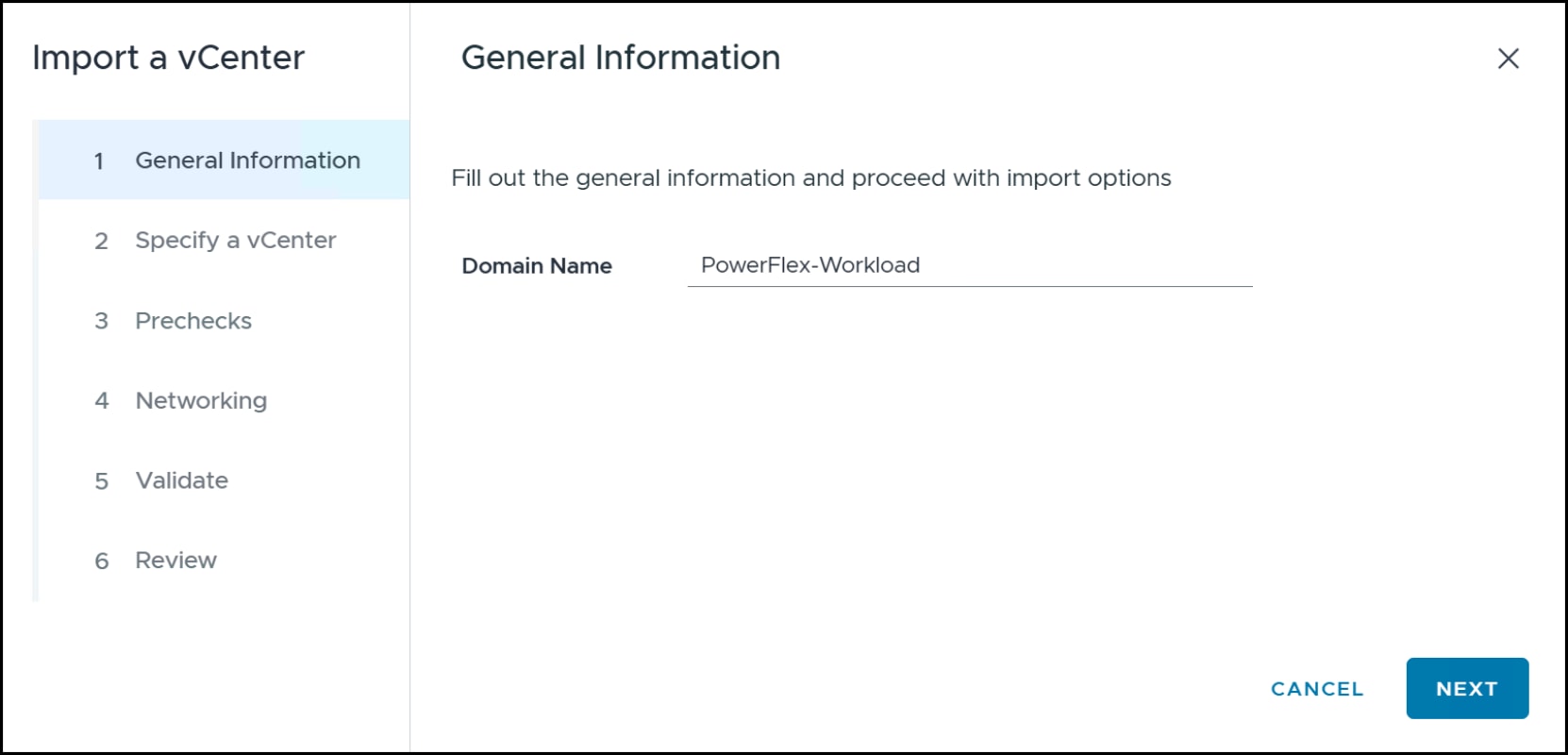
Figure 53. Step 1 – Deploy VCF workload domain
Step 2 vCenter
Next, enter in the vCenter server FQDN, vCenter Server Root Password, SSO username and SSO user password. If you integrated NSX into the vCenter prior to ingest, then toggle the switch This vCenter is connected to an NSX instance in Figure 54. Click NEXT to continue.
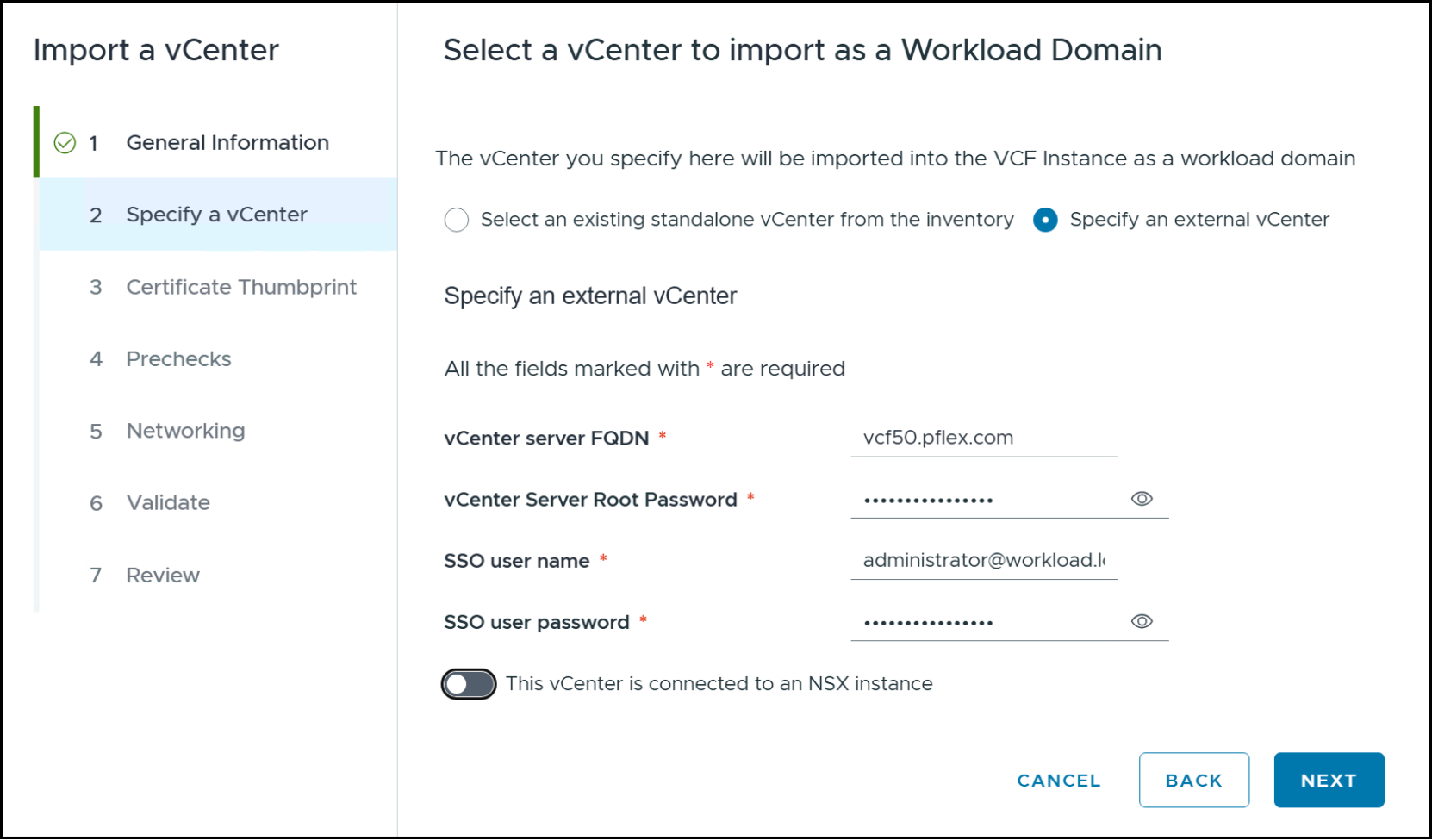
Figure 54. Step 2 – Deploy VCF workload domain
Step 3 Certificate Thumbprint
In step 3 you must confirm the thumbprint of the vCenter and acknowledge that you are inherently confirming VCF Operations thumbprints. Click NEXT to continue.
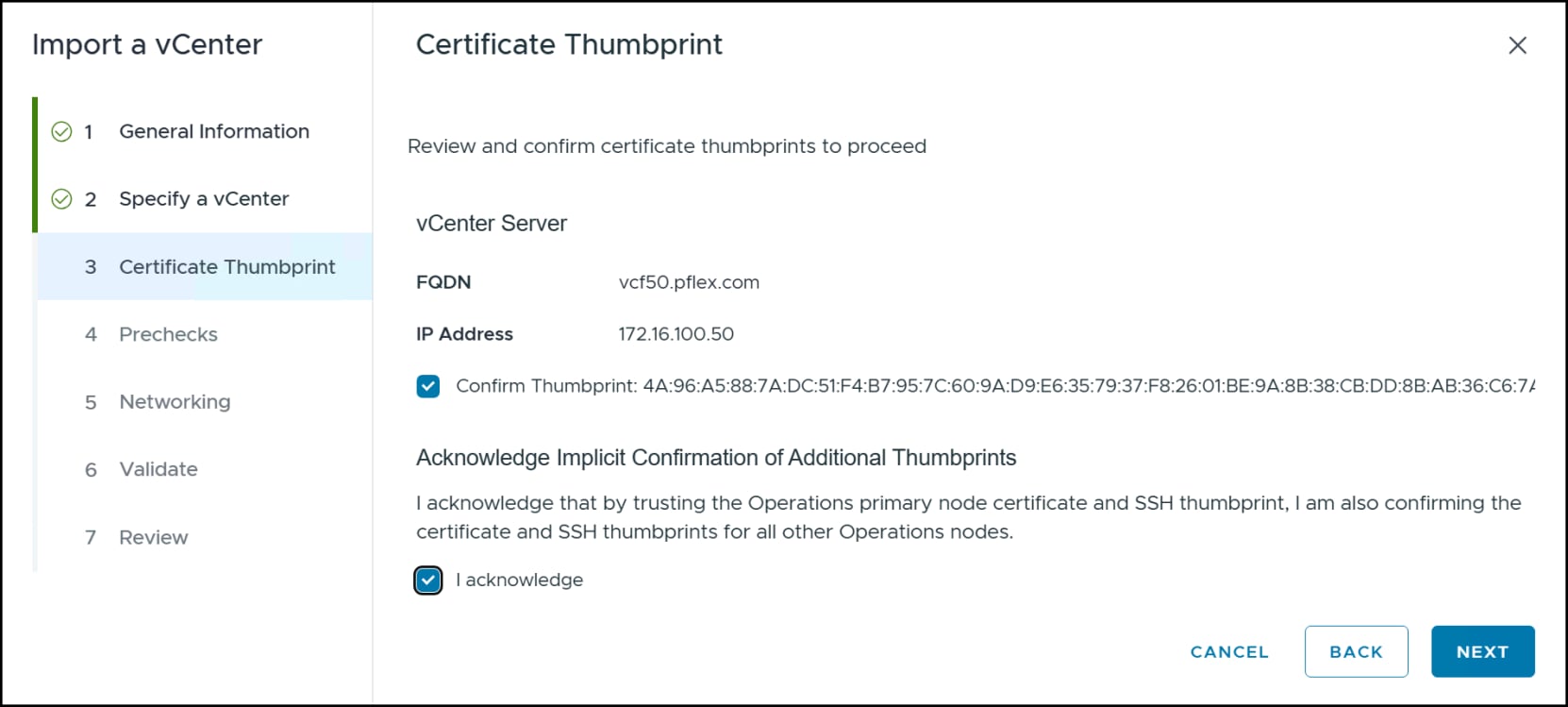
Figure 55. Step 3 – Deploy VCF workload domain
Step 4 Prechecks
This next step requires no input as VCF runs prechecks on the vCenter. You must resolve any failures to continue. Click NEXT when all validations succeed with or without acknowledged warnings.
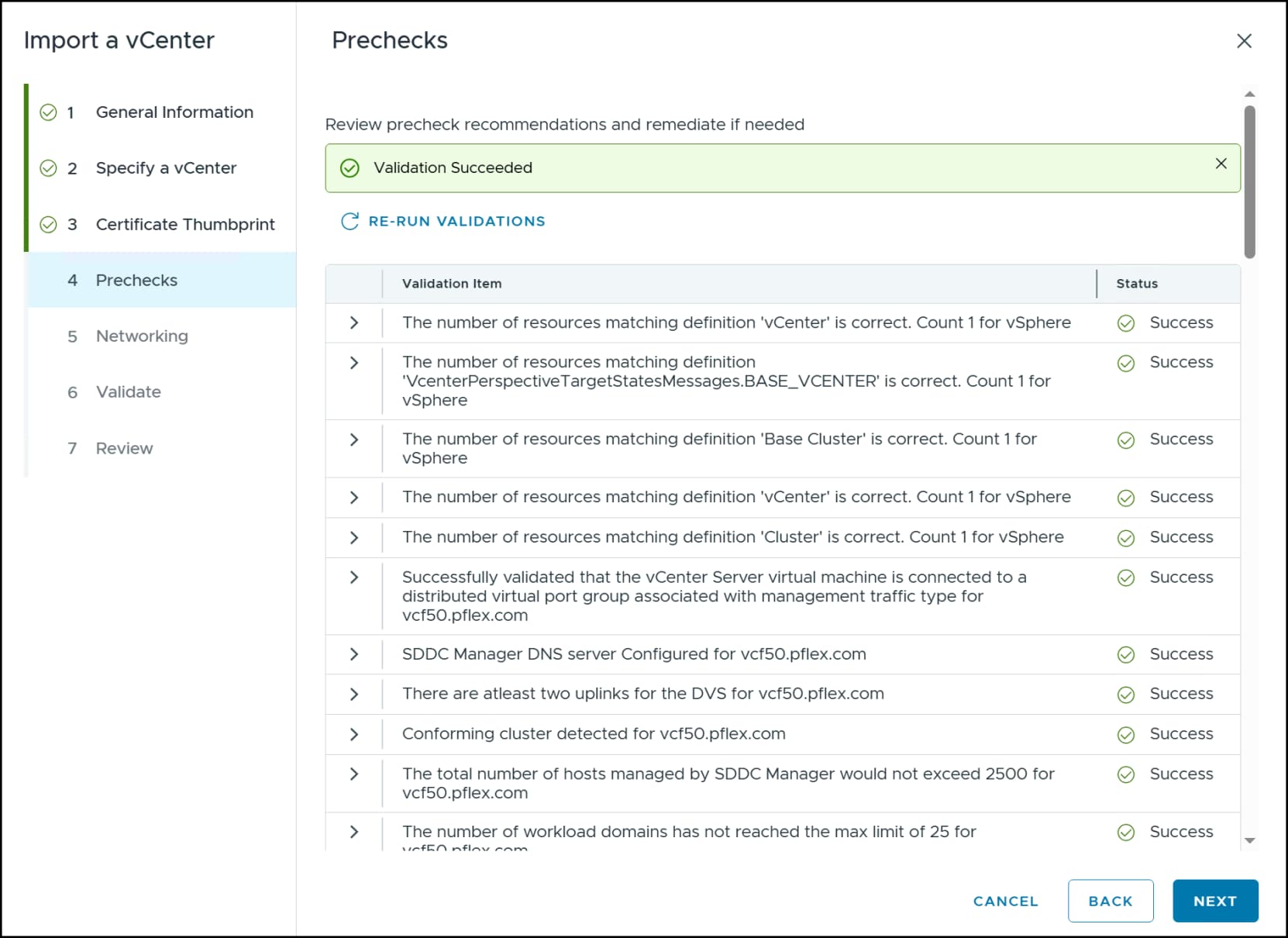
Figure 56. Step 4 – Deploy VCF workload domain
Step 5 Networking
In Figure 57 choose whether you want to join an existing NSX Manager setup or do a new deployment (default). If you create a new instance, choose a Deployment Size. VMware recommends three nodes, however you must have three ESXi hosts in your workload domain to deploy the high availability model. Here we only have two ESXi hosts and therefore select Single NSX Manager Appliance. Supply the following:
- Appliance Size
- Appliance 1 FQDN
- Appliance Cluster FQDN
- Administrator Password and confirmation
- Auditor Password and confirmation
Finally, as was the case for the management domain, check the box for Configure NSX Overlay using ESXi Management VMkernel Networking to avoid VLAN requirements. Click NEXT to continue.
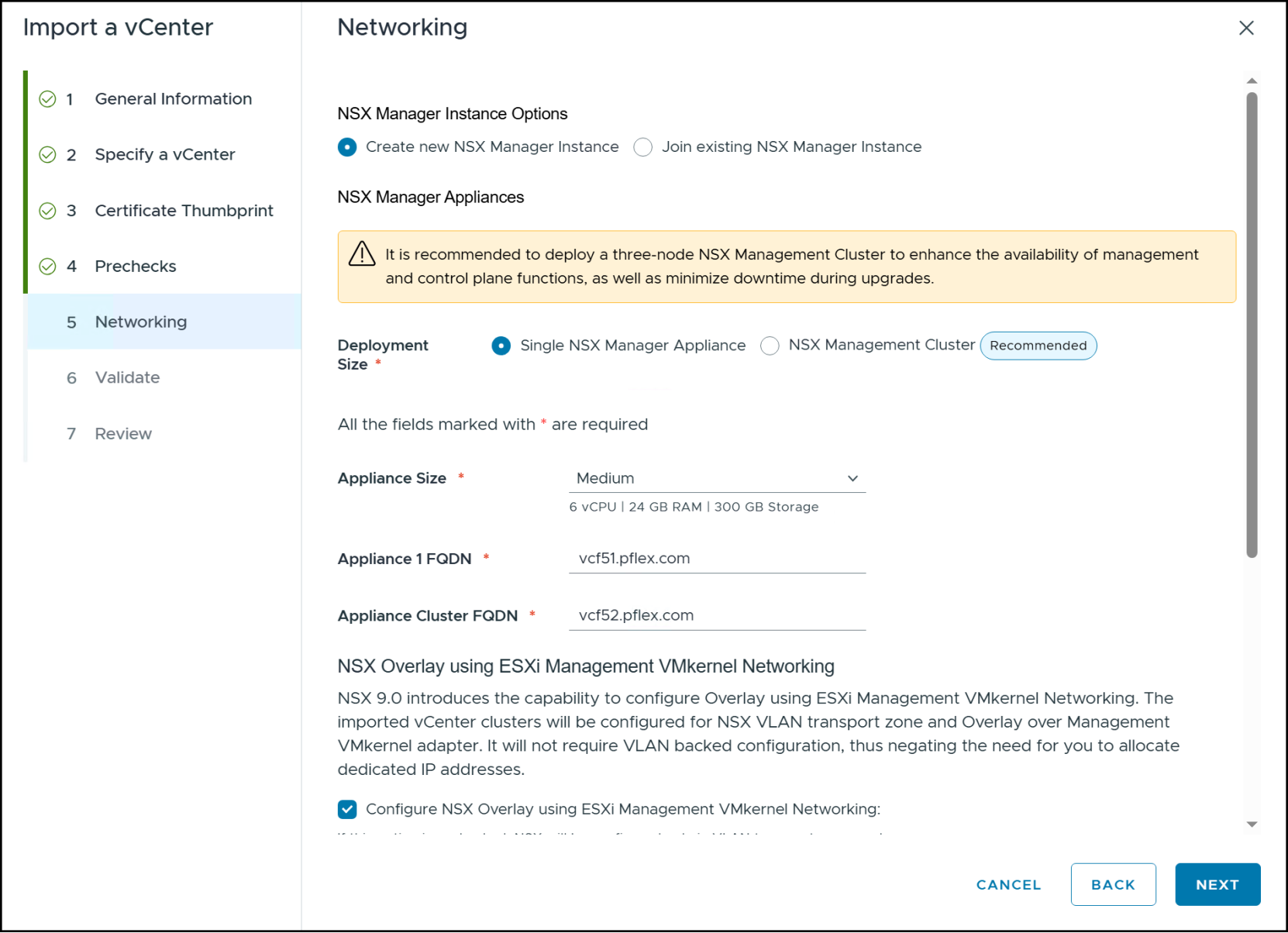
Figure 57. Step 5 – Deploy VCF workload domain
Step 6 Validate
The validations in step 6 mirror the prechecks. Once they succeed click NEXT.
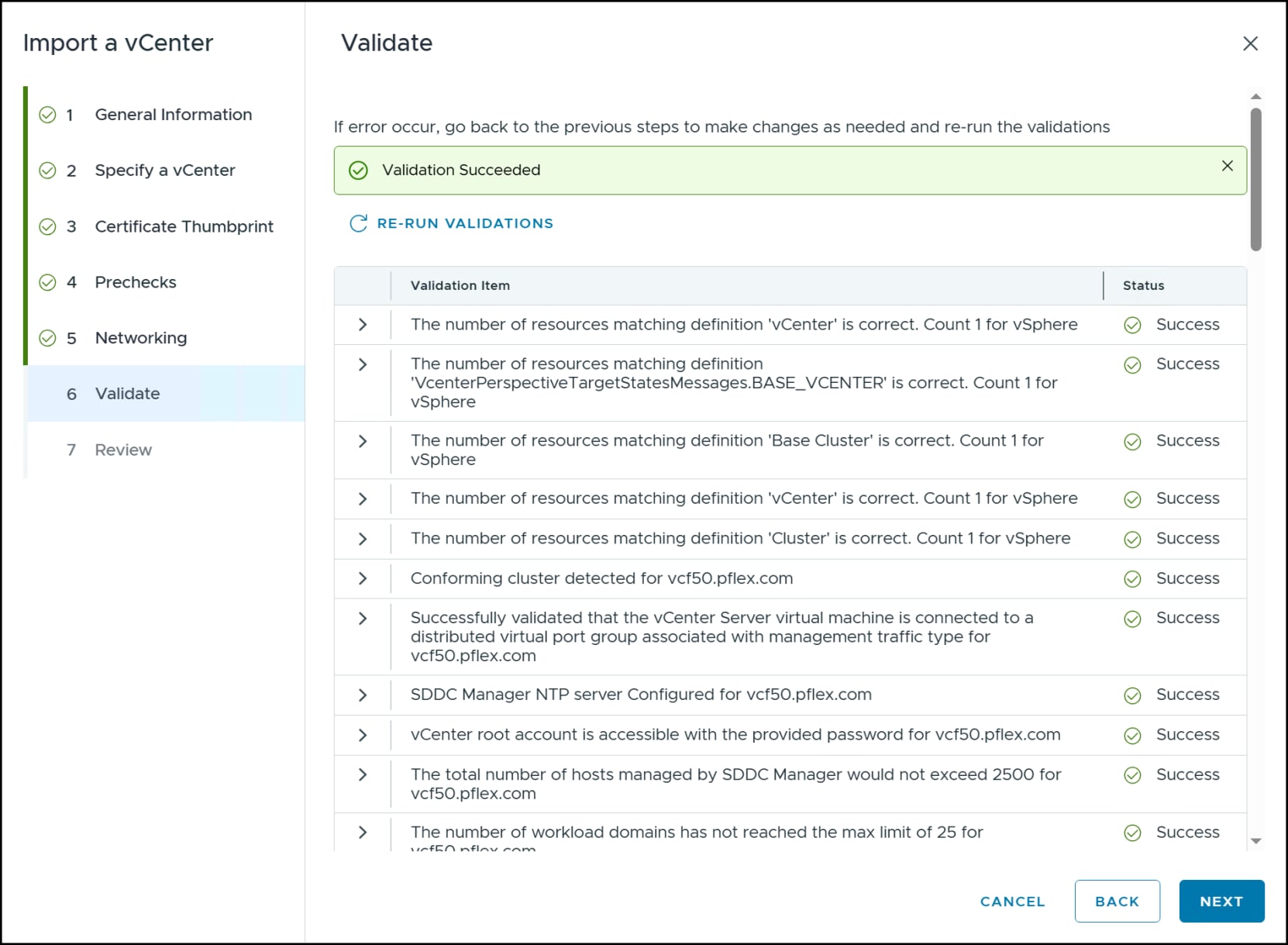
Figure 58. Step 6 – Deploy VCF workload domain
Step 7 Review
The last screen will show all the step information entered. Review carefully and if anything requires changing, you can toggle back to any step and fix it. When ready click FINISH in Figure 59.
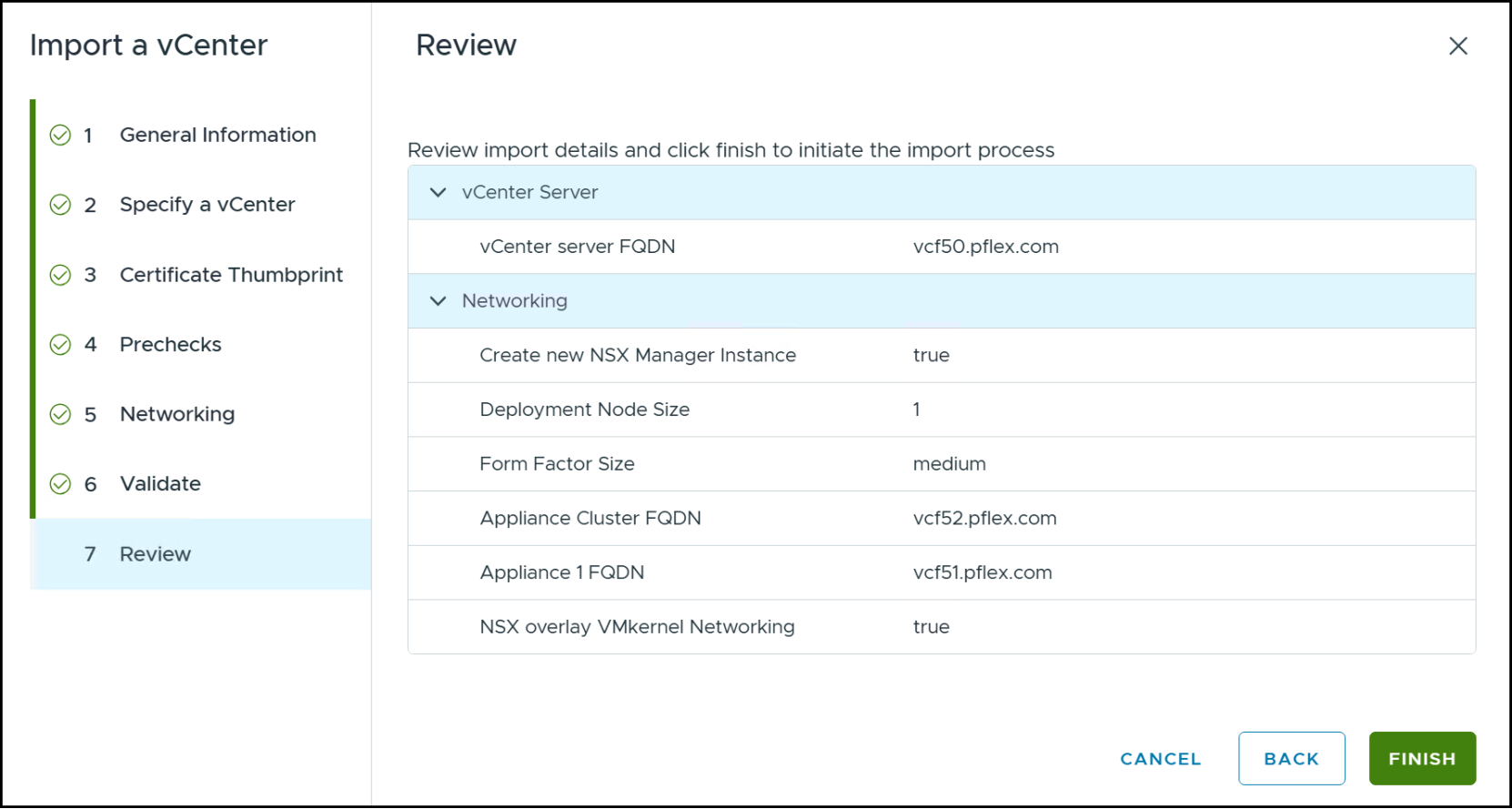
Figure 59. Step 7 – Deploy VCF workload domain
You can view the progress of the workload domain creation by navigating to Fleet Management -> Tasks -> VCF Instances -> <instance name> in VCF Operations as shown in Figure 60. The creation of the workload domain does not take as long as the management domain.
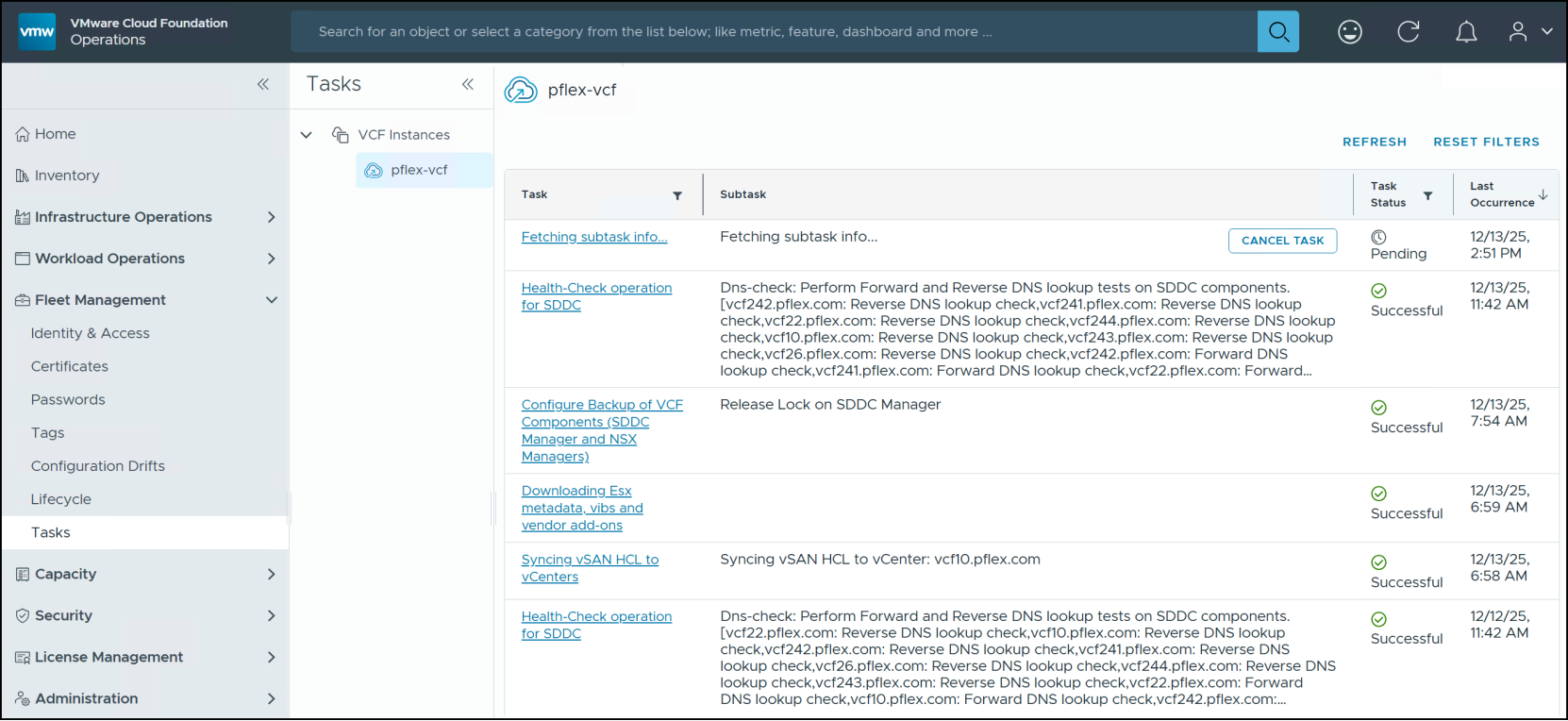
Figure 60. Tasks – workload domain creation
When the workload domain creation is complete, you can view it in VCF Operations in Inventory -> VCF Instances -> <workload domain> in Figure 61.
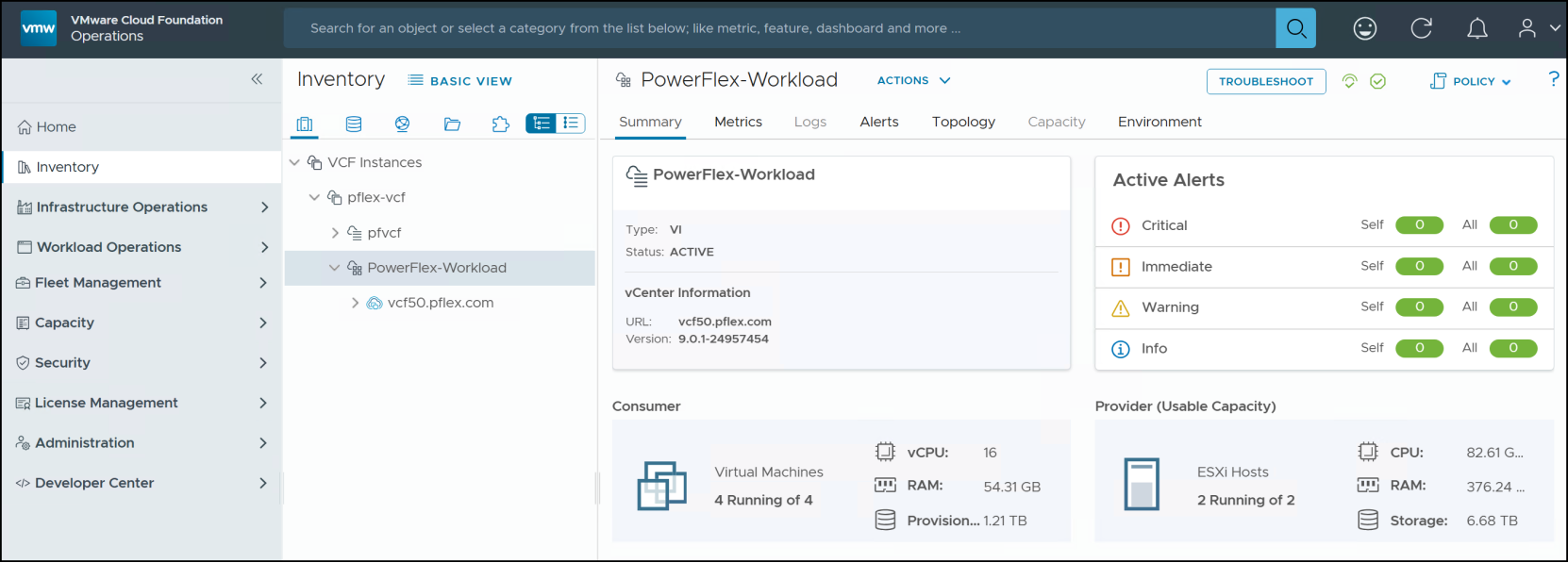
Figure 61. PowerFlex-Workload Domain
The domain is now ready for VM deployment of your chosen workloads.
Supplemental storage on NVMe/TCP
Introduction
Supplemental storage
NVMe/TCP
NVMe/TCP is a storage protocol that allows you to access NVMe-based flash storage over standard TCP/IP networks, offering high performance without the need for specialized hardware like Fibre Channel or RDMA. When used with SAN storage like the PowerFlex, NVMe/TCP provides a scalable, low-latency alternative to traditional protocols like iSCSI, making it well-suited for all-flash environments and software-defined infrastructure. In VCF environments, NVMe/TCP enables ESXi hosts to connect to NVMe-capable PowerFlex arrays over standard 10/25/100 GbE networks, combining the performance advantages of NVMe with the simplicity and flexibility of IP networking. It integrates with VMware’s native multipathing and supports VMFS.
NVMe/TCP PowerFlex
PowerFlex hosts can use standard NVMe/TCP operating system drivers to connect to PowerFlex. They do not require proprietary host agents. VMware includes these drivers in ESXi.
Dell supports NVMe/TCP in a disaggregated, two-layer PowerFlex deployment architecture such as that deployed in this VCF solution. The NVMe host (ESXi) communicates directly with the NVMe target, which is known as the storage data target (SDT), on the storage node. Each storage node in this VCF PowerFlex 5.x installation contains an SDT seen in Figure 62. There is no additional setup on the PowerFlex other than adding the NVMe/TCP hosts (ESXi) in PowerFlex Manager after configuring NVMe/TCP on each workload domain ESXi host.
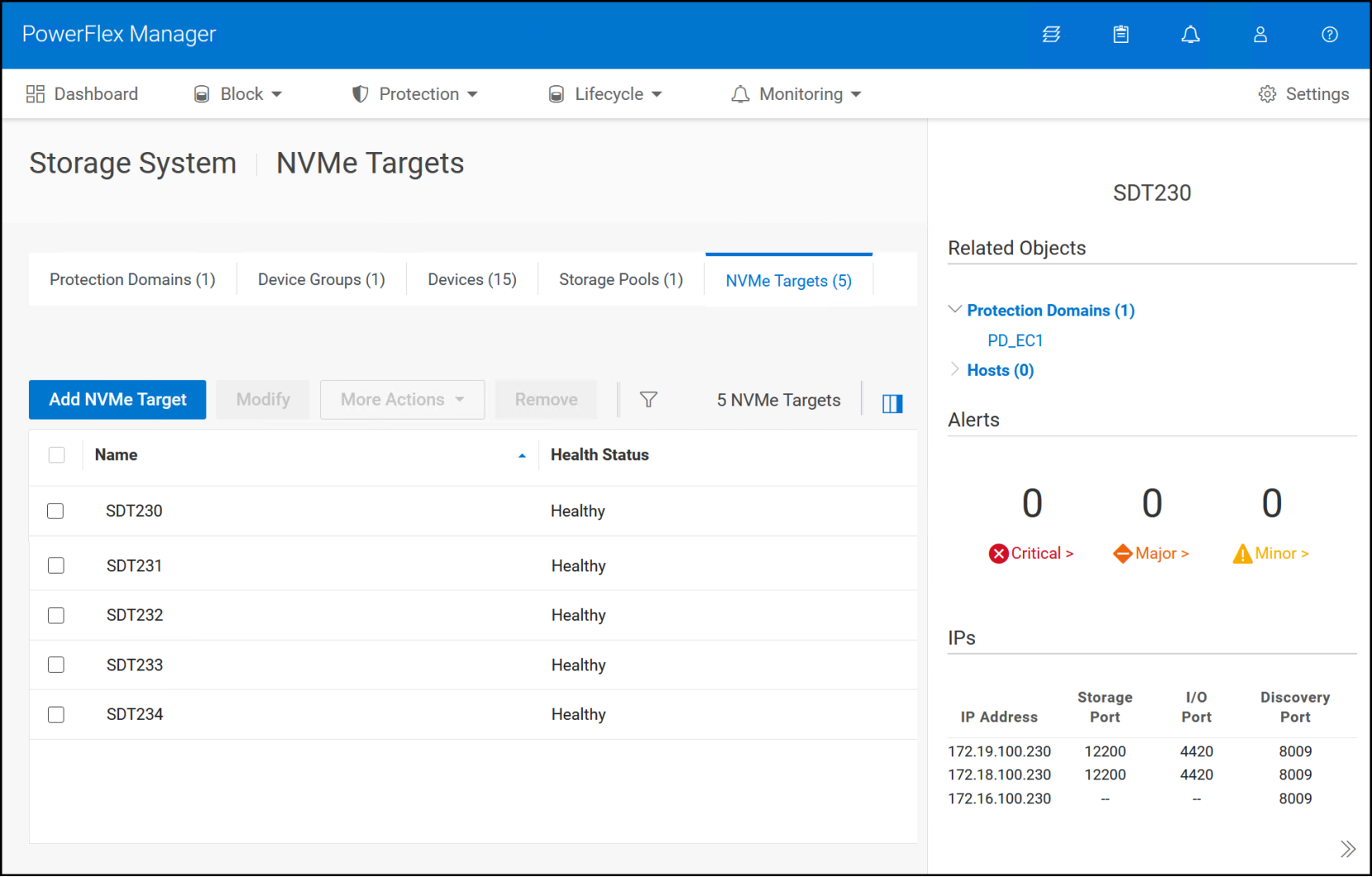
Figure 62. PowerFlex NVMe targets
vSphere network
If the NVMe/TCP storage network is physically separate from the other PowerFlex networks, you will need to create a new distributed switch in the workload domain vCenter. If the NVMe/TCP network uses the same VDS physical network on its own VLAN, create a new distributed port group. In this environment, although the NVMe/TCP storage network is the same as the SDC storage network, we need to create a new distributed port group for the same VLANs because NVMe/TCP does not support NIC teaming which is how we configured the existing distributed port group. We will create the distributed port groups and then modify the networking to adhere to VMware’s support.
NVMe/TCP distributed port group
To create a new distributed port group, you must log in directly to the vCenter. VCF Operations does not offer this capability.
Step 1
First, decide where you want to add supplemental storage – the management or workload domain. In this example we will use the workload domain. Log in to the workload domain vCenter as the administrator and navigate to the workload domain distributed network switch in the left-hand screen. In the right-hand screen click on ACTIONS -> Distributed Port Group -> New Distributed Port Group as below.
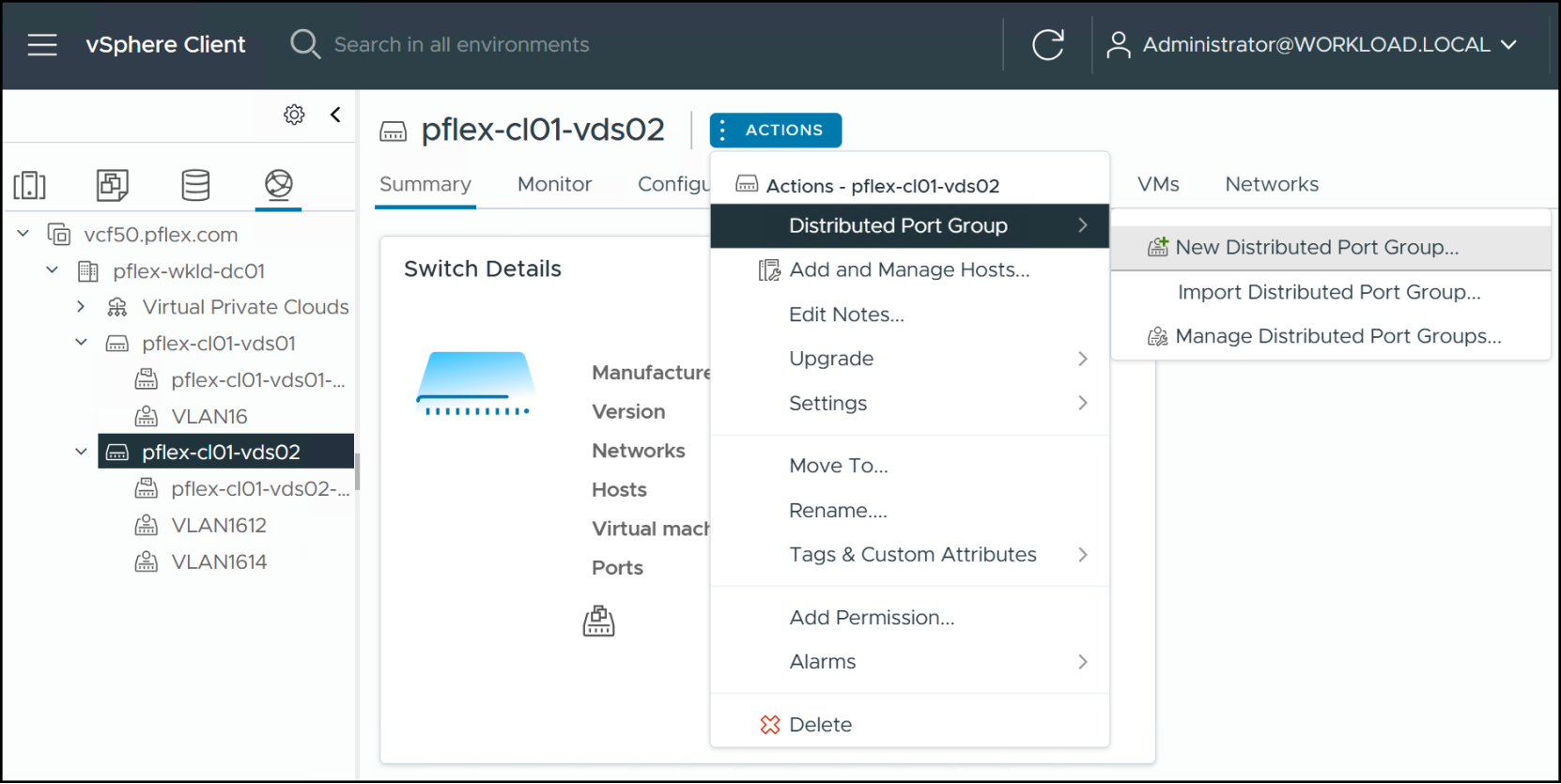
Figure 63. Step 1 – NVMe/TCP distributed port group
Step 2
Enter a new port group Name for NVMe/TCP. Dell recommends using a name that references the function. In this example in Figure 64 the name used is VLAN1612-TCP to distinguish it from the other port group with the same VLAN. Click NEXT.
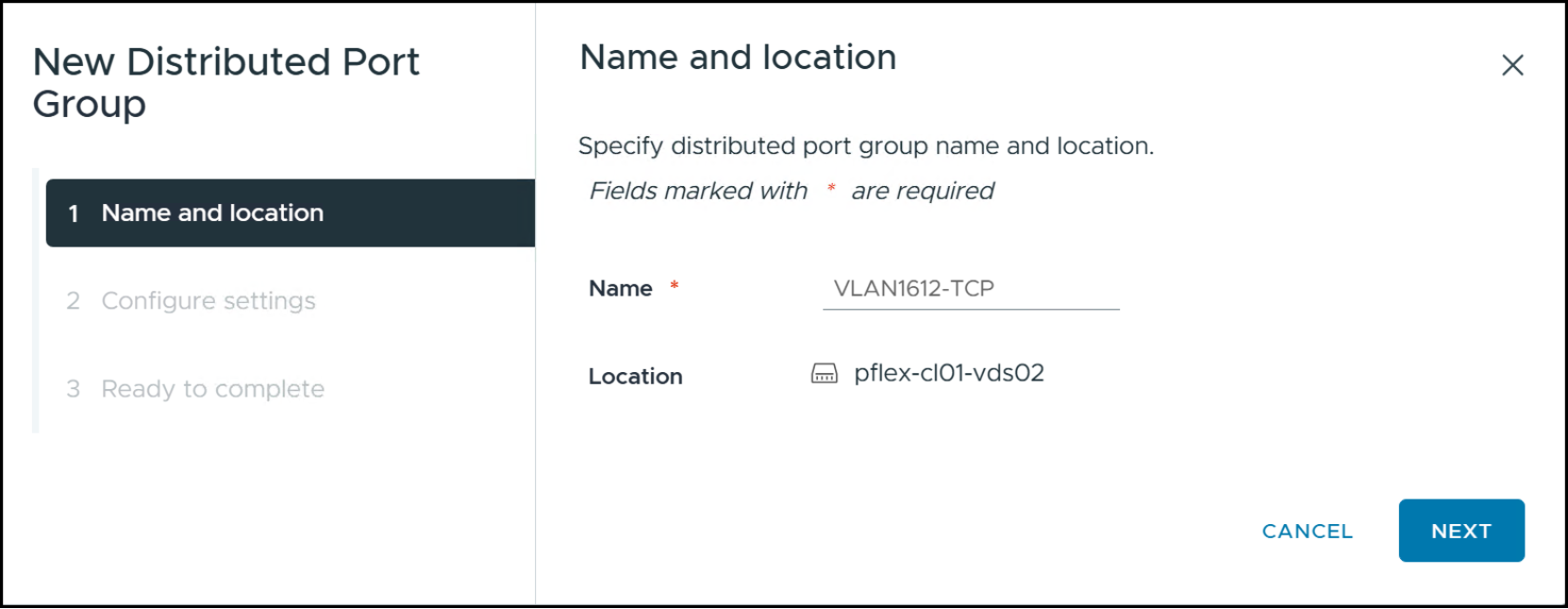
Figure 64. Step 2 – NVMe/TCP distributed port group
Step 3
In the Configure settings below use the drop-down for VLAN type and select VLAN. Then enter a VLAN ID. Click NEXT to continue.
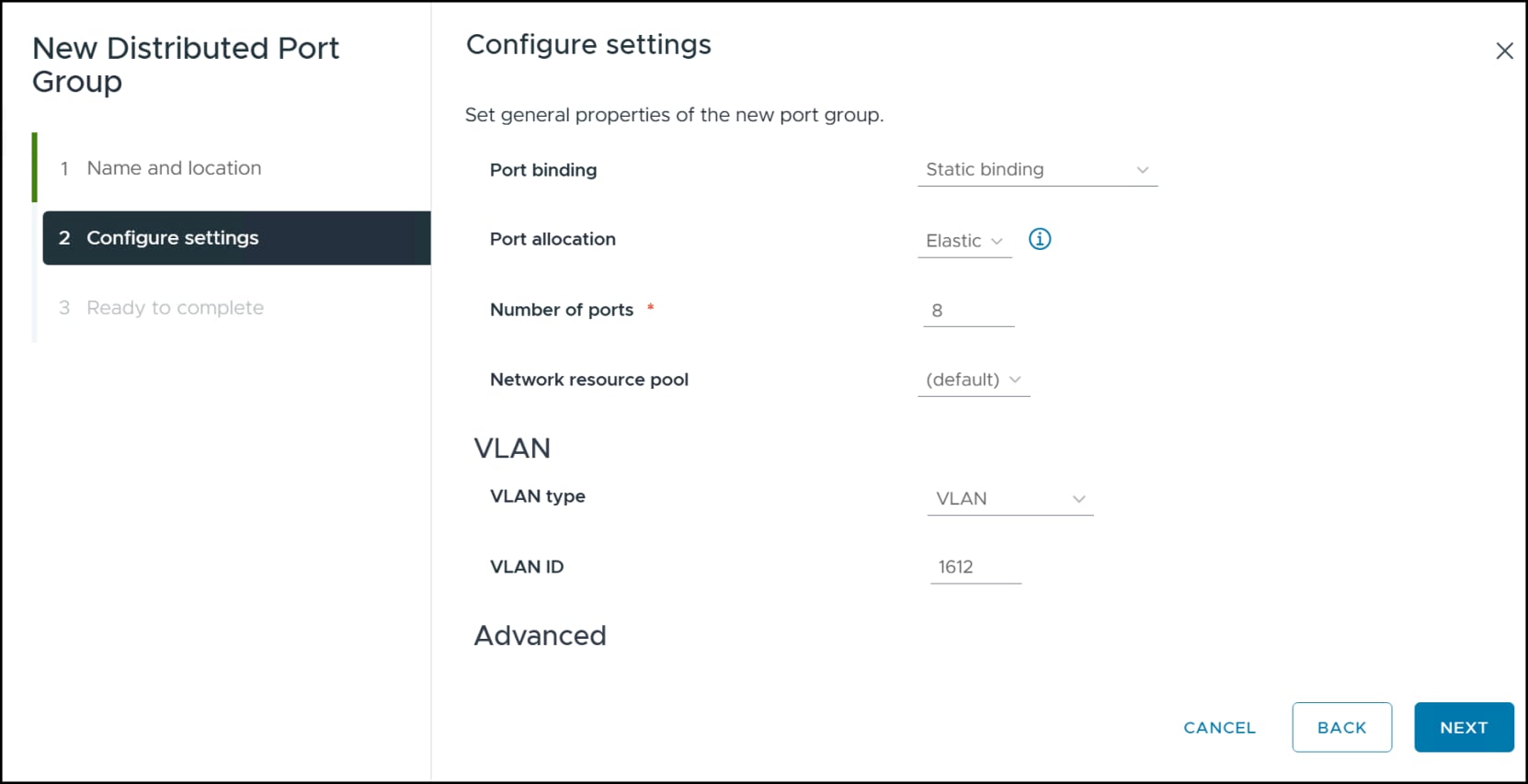
Figure 65. Step 3 – NVMe/TCP distributed port group
Step 4
Review the summary page and if correct, click FINISH.
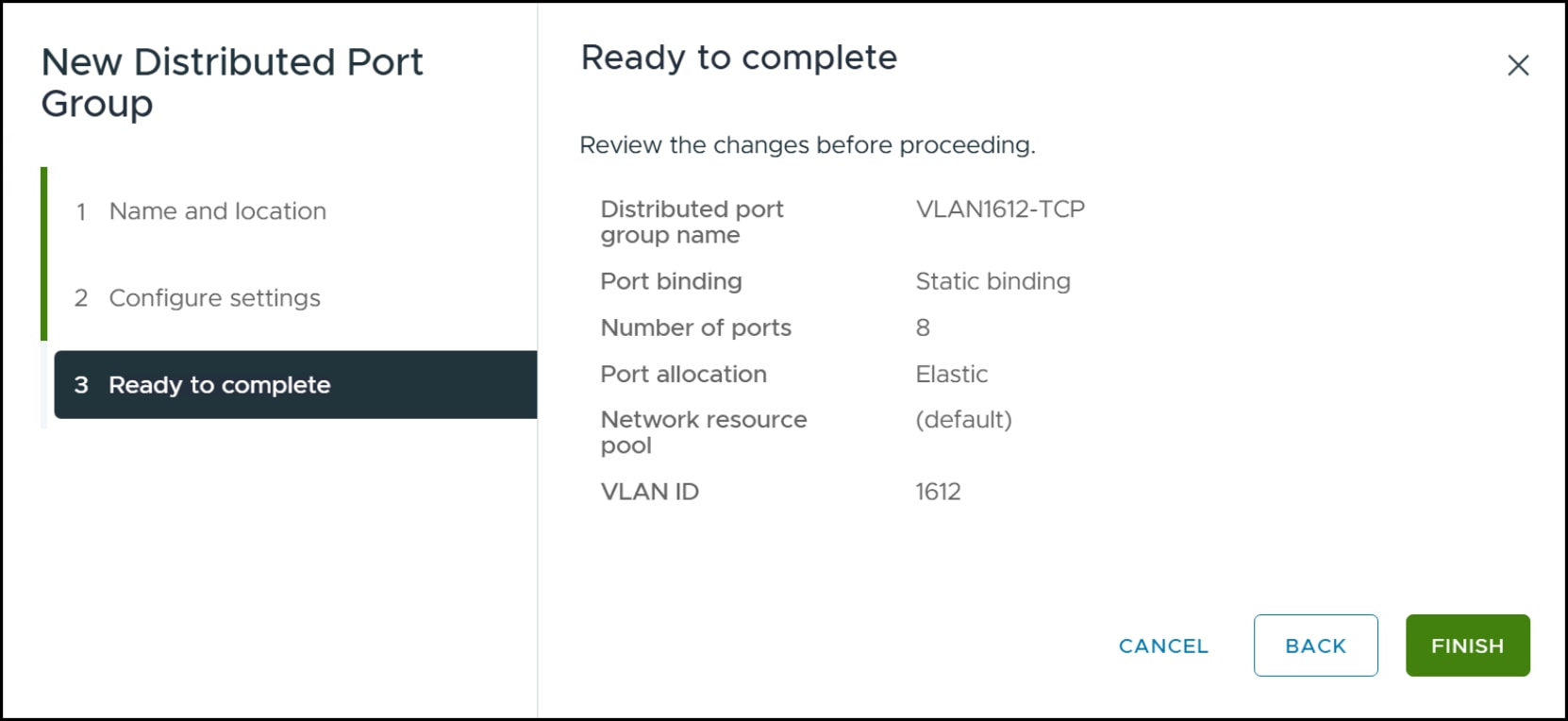
Figure 66. Step 4 – NVMe/TCP distributed port group
Load balancing and failover
The NVMe over TCP adapter does not support such NIC teaming features as failover and load balancing. Instead, it relies on storage multipathing for these functions. Because both NICs are active in the VCF VDS configuration, it is necessary to set one of the active uplinks to unused in the distributed port group.
Before editing the distributed port group, determine the association of physical NIC to uplink. This is critical because when you add the NVMe/TCP adapter to vSphere you must specify a physical NIC, and you must select the one with the active uplink and not the unused uplink.
Uplink NIC association
In vCenter, navigate to one of the ESXi hosts in the left-hand screen, then on the right-hand screen select Configure -> Networking -> Virtual switches. View the NSX VDS and on the right-hand side expand Uplink 1 and Uplink 2 to see the physical adapters, vmnic6 and vmnic7 respectively. Make note of this information.
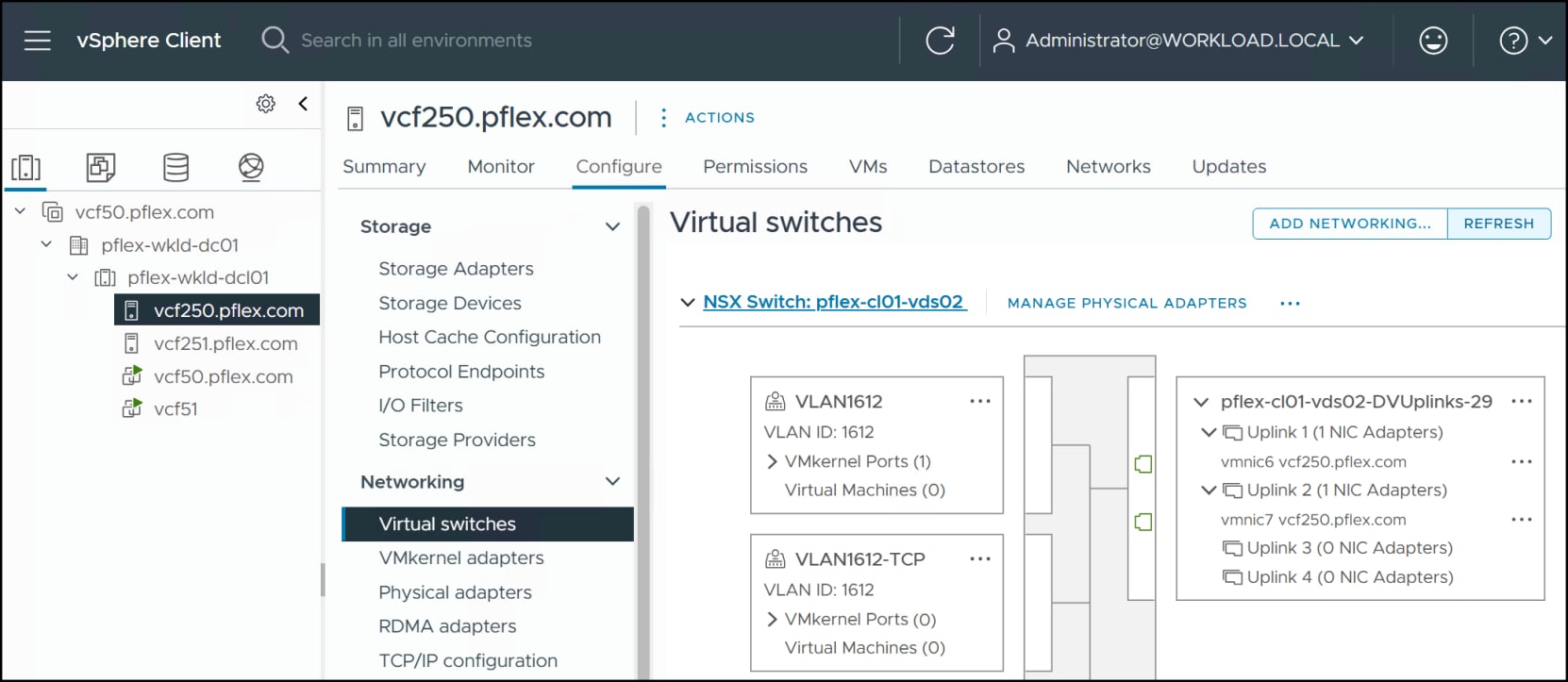
Figure 67. Uplinks and associated NICs
Modify distributed port group
In vCenter highlight the NVMe/TCP distributed port group in the left-hand screen. In the right-hand screen navigate to ACTIONS -> Edit Settings….
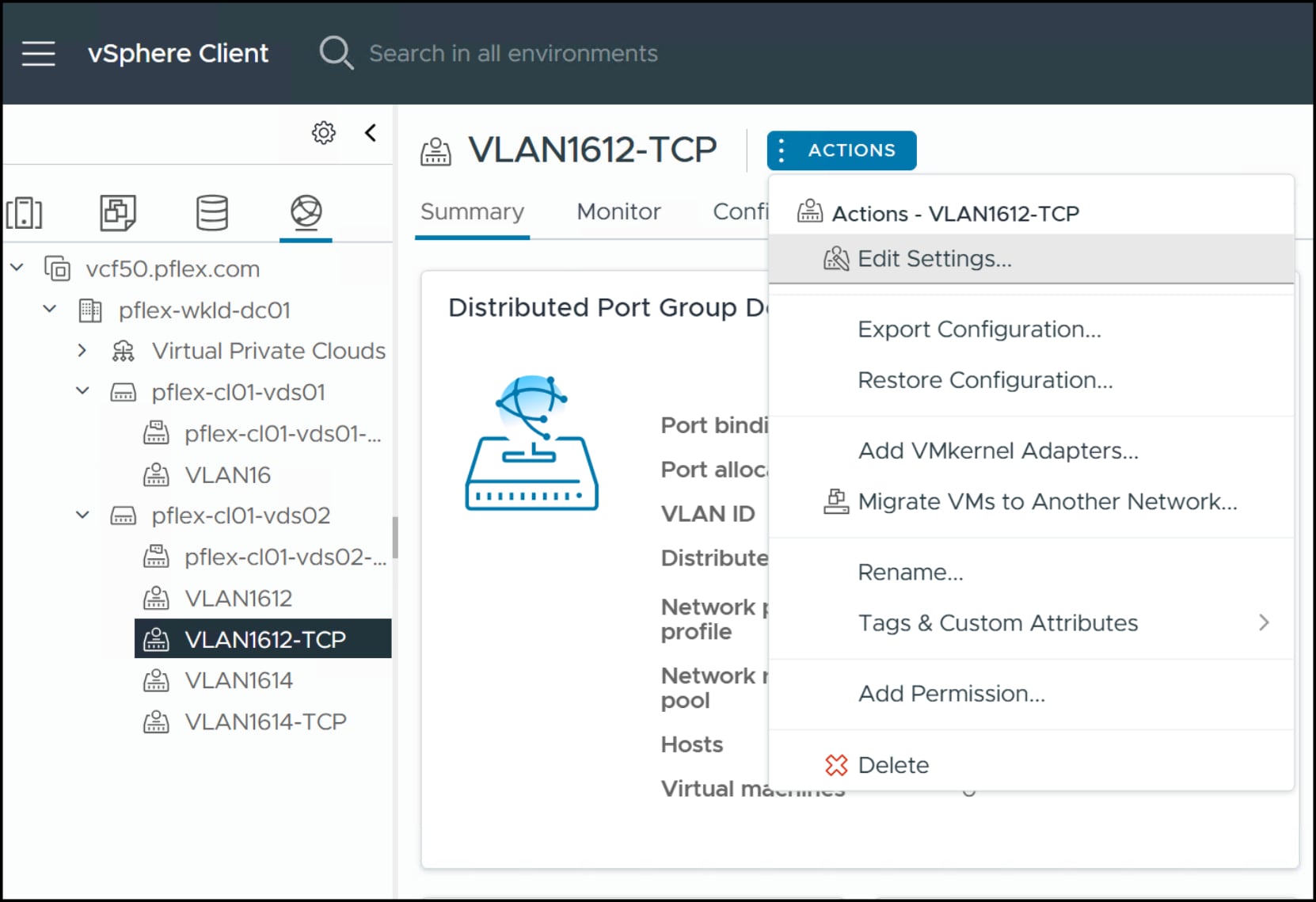
Figure 68. Edit settings in distributed port group
Select Teaming and failover in the left-hand menu in Figure 69. All uplinks will display under Active uplinks under Failover order in the right-hand screen. Highlight all uplinks but Uplink 1 and use the MOVE DOWN button to list them under the Unused uplinks. Recall that Uplink 1 is associated with vmnic6. Uplink 3 and Uplink 4 are idle, but it is best to move them also in case there is a new NIC association in the future. Click OK to complete.
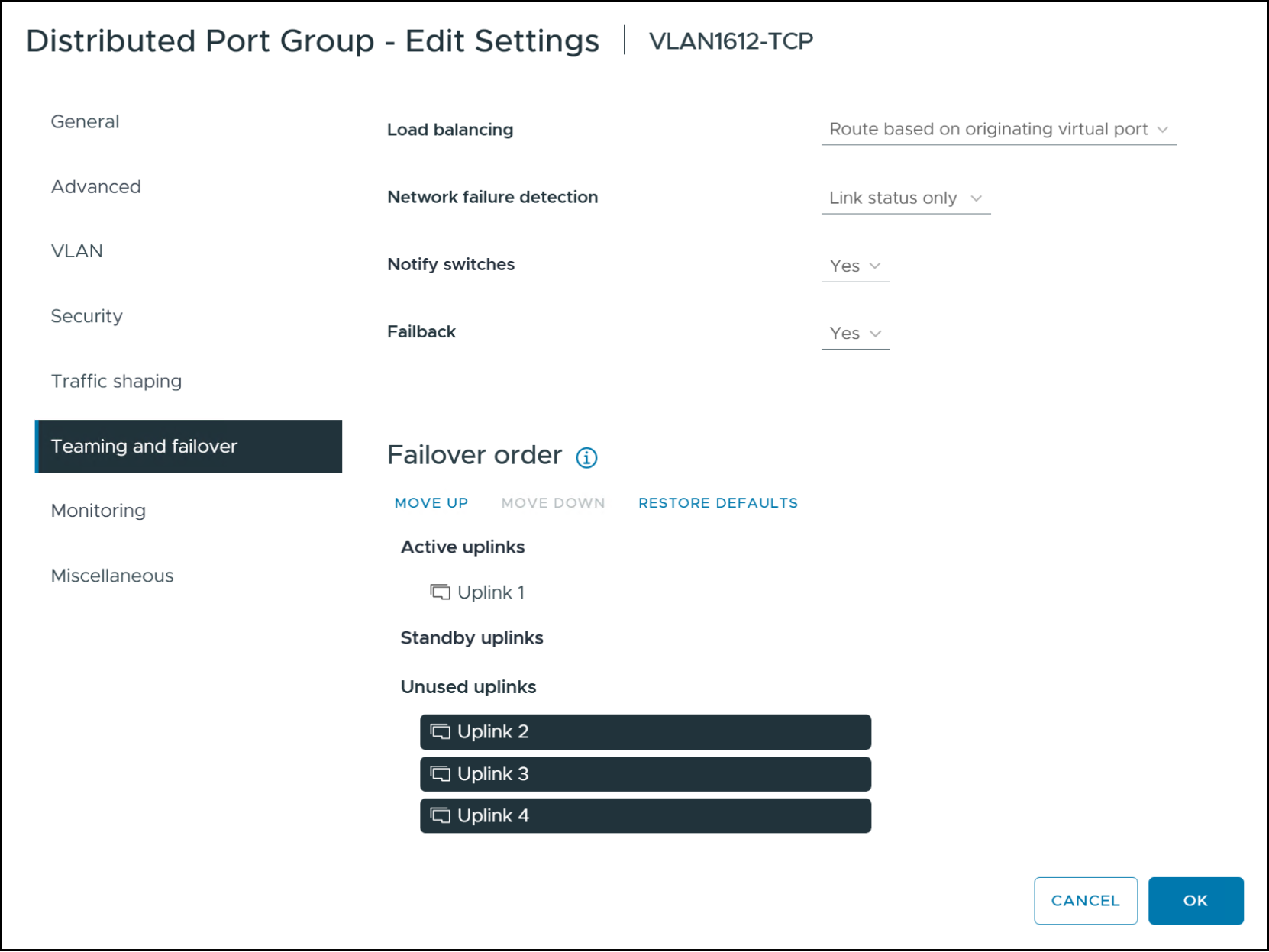
Figure 69. Modify uplinks in distributed port group
VMkernel adapters
After creating and modifying the distributed port group, add a VMkernel adapter for each ESXi host.
Step 1
In Figure 70 navigate to the new distributed port group in the left-hand screen and in the right-hand screen select ACTIONS -> Add VMkernel Adapters…
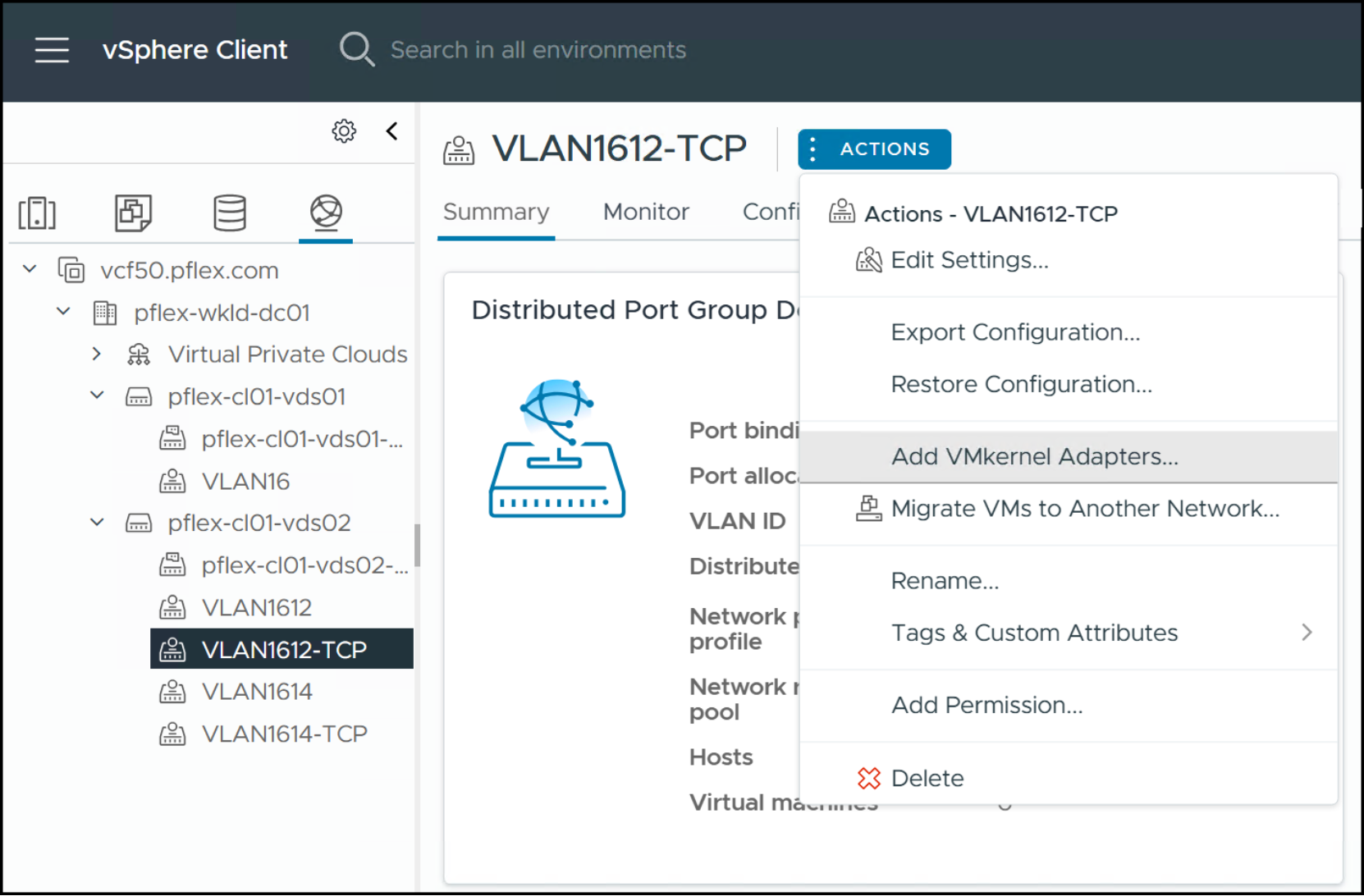
Figure 70. Step 1 – Add VMkernel adapters
Step 2
Use the checkboxes to select all ESXi hosts in the workload domain. Click NEXT.
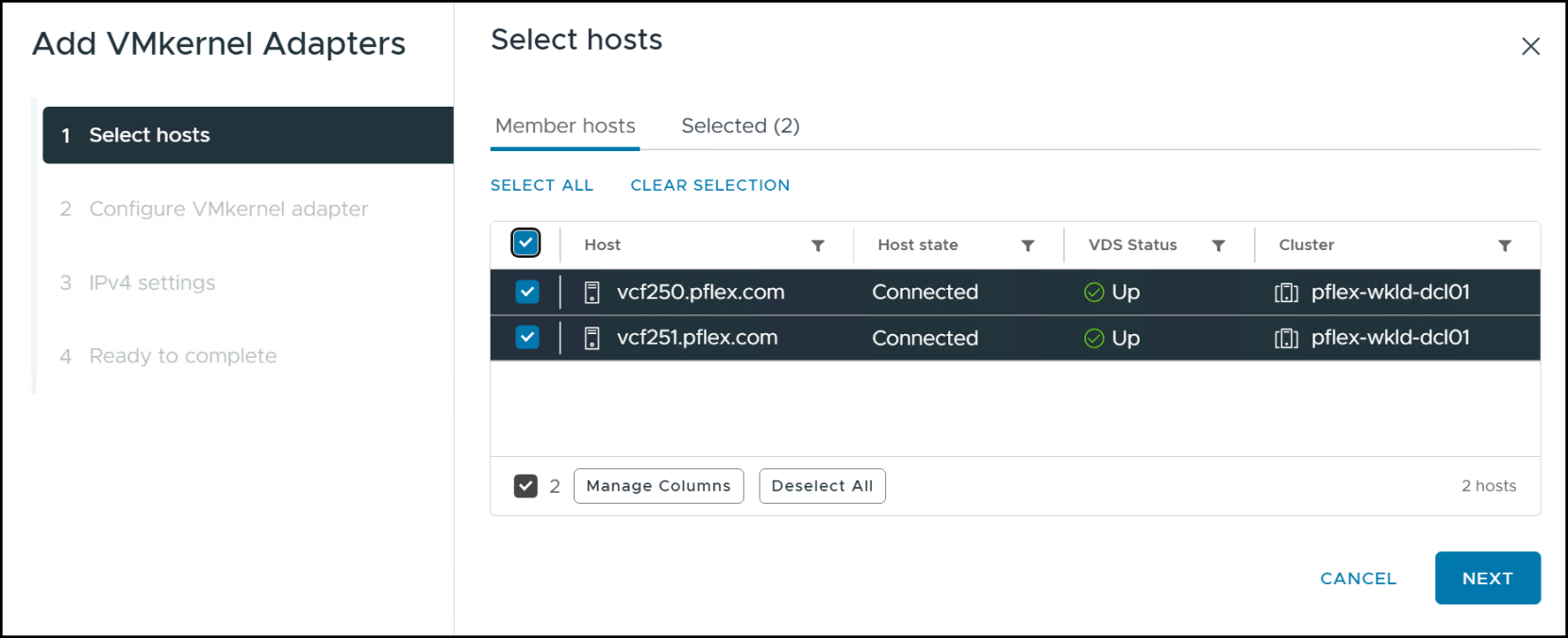
Figure 71. Step 2 – Add VMkernel adapters
Step 3
Select the Enabled services for the adapter which is NVMe over TCP. If you fail to check this box, it will not be possible to add the storage controllers in vSphere for NVMe/TCP even though the VMkernel adapters are there. Note you can check the box after creation if you forget. Click NEXT.
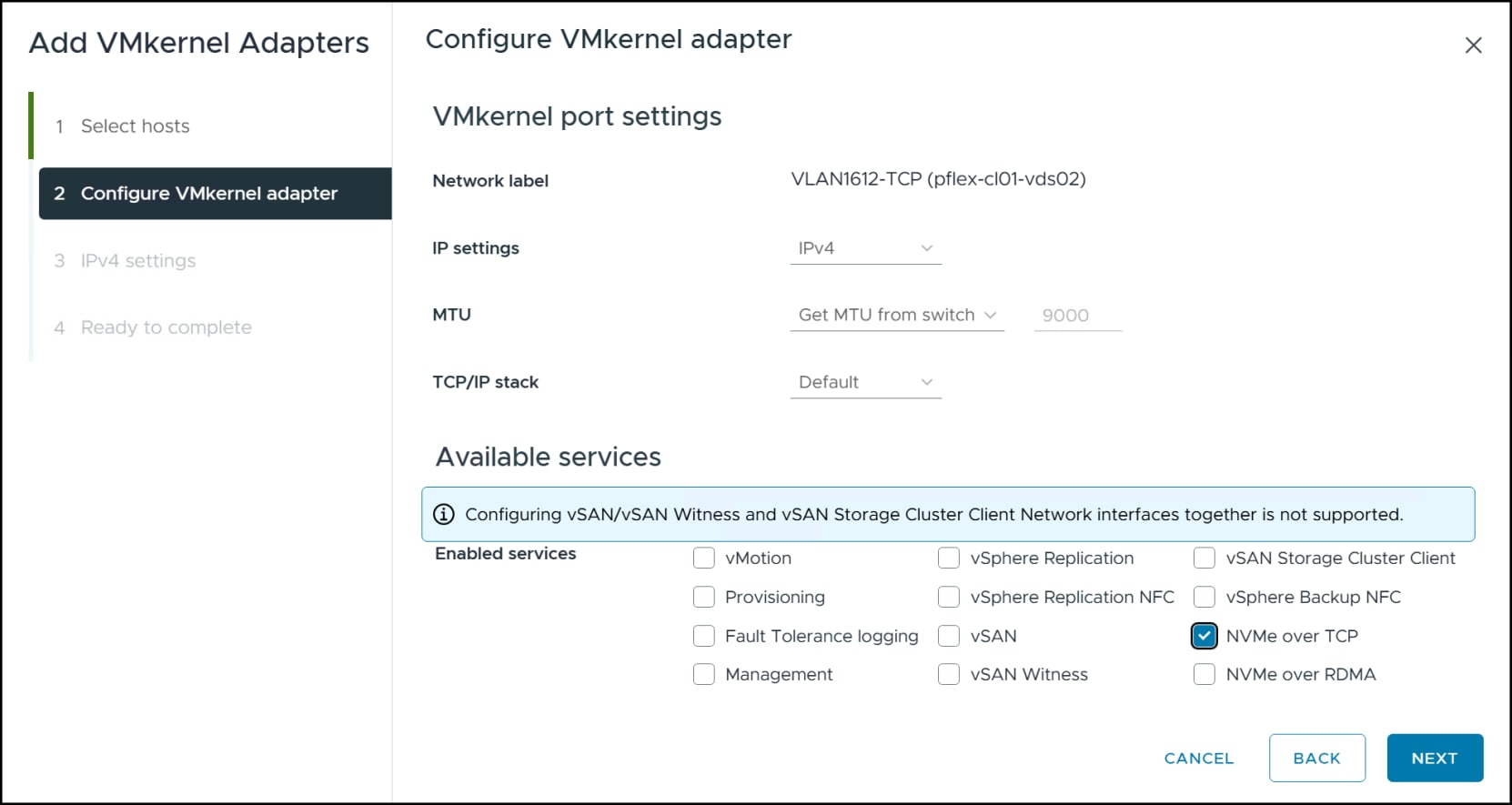
Figure 72. Step 3 – Add VMkernel adapters
Step 4
Next, either use DHCP or assign a static IP to each ESXi host. If you use static, once you enter the first IP, vSphere will offer to auto-fill the other IPs and subnets. The gateway is optional. Once complete click NEXT.
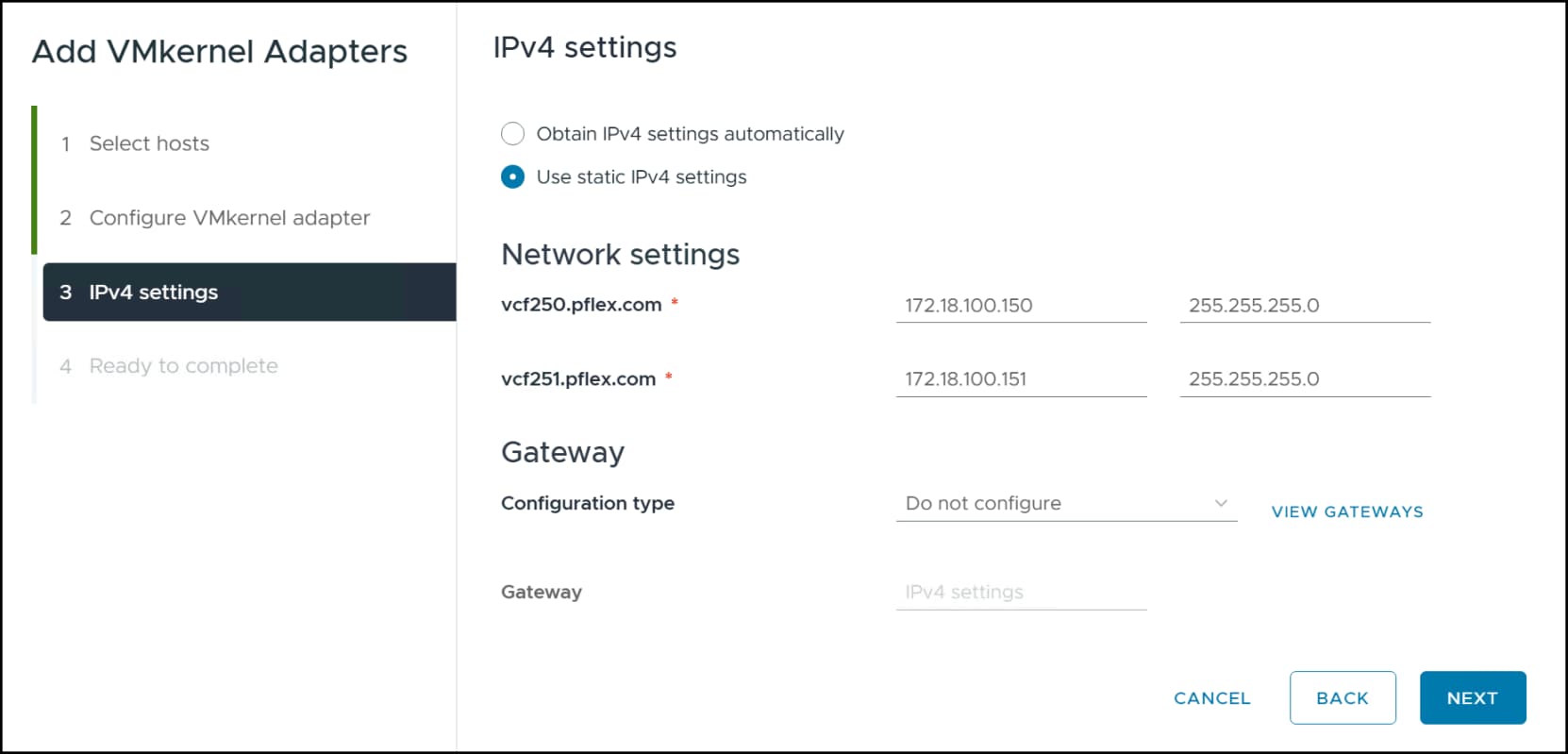
Figure 73. Step 4 – Add VMkernel adapters
Step 5
Finally, review the proposed changes and if acceptable click FINISH.
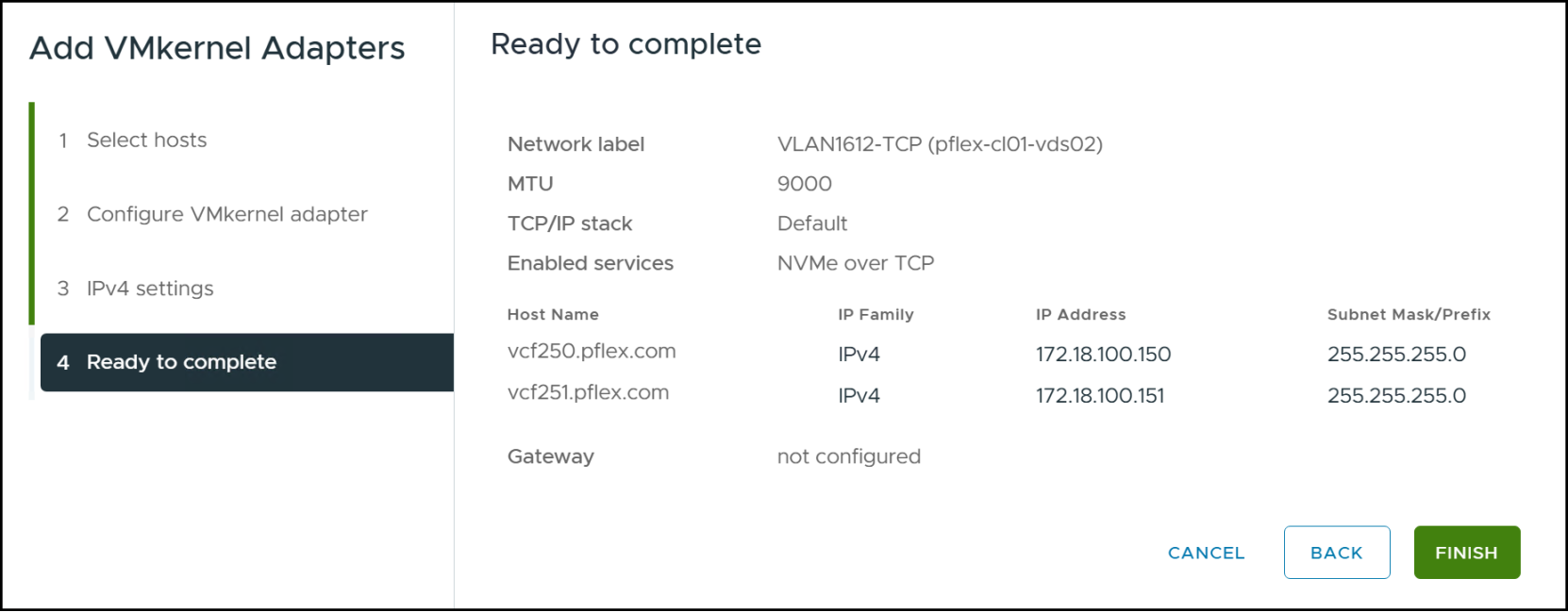
Figure 74. Step 5 – Add VMkernel adapters
After vSphere adds the VMkernel adapters, it is a best practice to SSH into each ESXi host as root and run a vmkping to the IP interfaces on the array to ensure connectivity. Note that you may have to enable SSH first. There is an example below where we pinged both the new VMkernel IPs as well as one of the SDTs on the PowerFlex array.
[root@vcf250:~] vmkping 172.18.100.150
PING 172.18.100.150 (172.18.100.150): 56 data bytes
64 bytes from 172.18.100.150: icmp_seq=0 ttl=64 time=0.043 ms
--- 172.18.100.150 ping statistics ---
1 packets transmitted, 1 packets received, 0% packet loss
round-trip min/avg/max = 0.043/0.043/0.043 ms
[root@vcf250:~] vmkping 172.19.100.150
PING 172.19.100.150 (172.19.100.150): 56 data bytes
64 bytes from 172.19.100.150: icmp_seq=0 ttl=64 time=0.046 ms
--- 172.19.100.150 ping statistics ---
1 packets transmitted, 1 packets received, 0% packet loss
round-trip min/avg/max = 0.046/0.046/0.046 ms
[root@vcf250:~] vmkping 172.18.100.230
PING 172.18.100.230 (172.18.100.230): 56 data bytes
64 bytes from 172.18.100.230: icmp_seq=0 ttl=64 time=0.111 ms
--- 172.18.100.230 ping statistics ---
1 packets transmitted, 1 packets received, 0% packet loss
round-trip min/avg/max = 0.111/0.111/0.111 ms
[root@vcf250:~] vmkping 172.19.100.230
PING 172.19.100.230 (172.19.100.230): 56 data bytes
64 bytes from 172.19.100.230: icmp_seq=0 ttl=64 time=0.113 ms
--- 172.19.100.230 ping statistics ---
1 packets transmitted, 1 packets received, 0% packet loss
round-trip min/avg/max = 0.113/0.113/0.113 ms
NVMe/TCP adapter
For each ESXi host add an NVMe/TCP adapter. Do this in vCenter by highlighting an ESXi host in the left-hand screen and navigating to Configure -> Storage -> Storage Adapters in the right-hand screen. Use the drop-down list under ADD SOFTWARE ADAPTER to select Add NVMe over TCP Adapter. Use the drop-down in Figure 75 to select the NIC that is associated with Uplink 1 you set in Modify distributed port group.
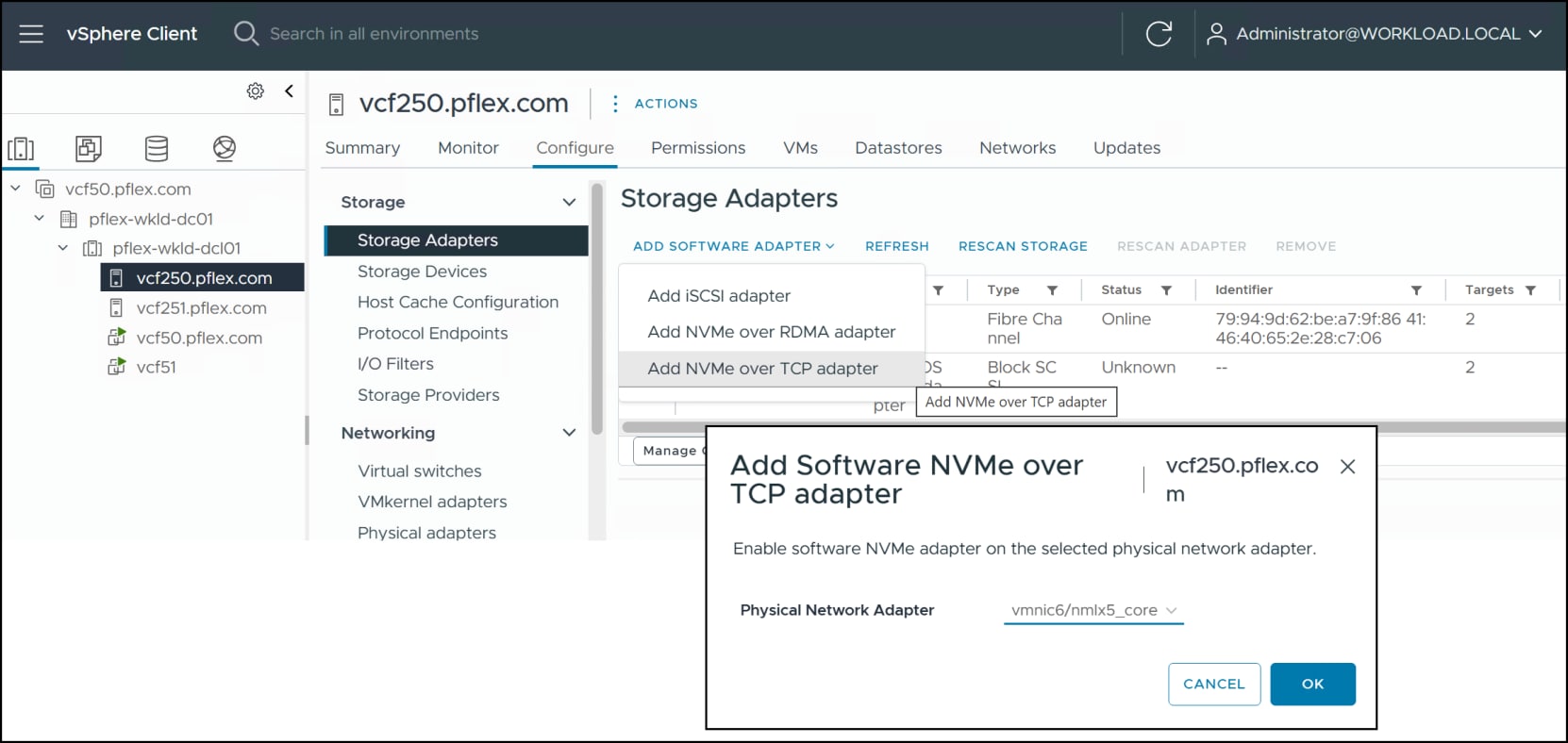
Figure 75. Adding an NVMe/TCP adapter
Repeat these steps for the other workload domain ESXi hosts.
Storage controller
It is now possible to add the PowerFlex array controllers to each ESXi host in the workload domain. You can add the controllers through either the vSphere UI or ESXi CLI. For PowerFlex, the CLI is more consistently successful than the UI and therefore we will use it here. We will start with the UI where it is important to check that the host NQN is set.
Step 1
In vCenter highlight an ESXi host in the left-hand screen and navigate to Configure -> Storage -> Storage Adapters in the right-hand screen. Scroll down the adapters to the bottom and use the radio button next to the newly added NVMe/TCP adapter. In the bottom panel select the Controllers tab and then click on ADD CONTROLLER in Figure 76.
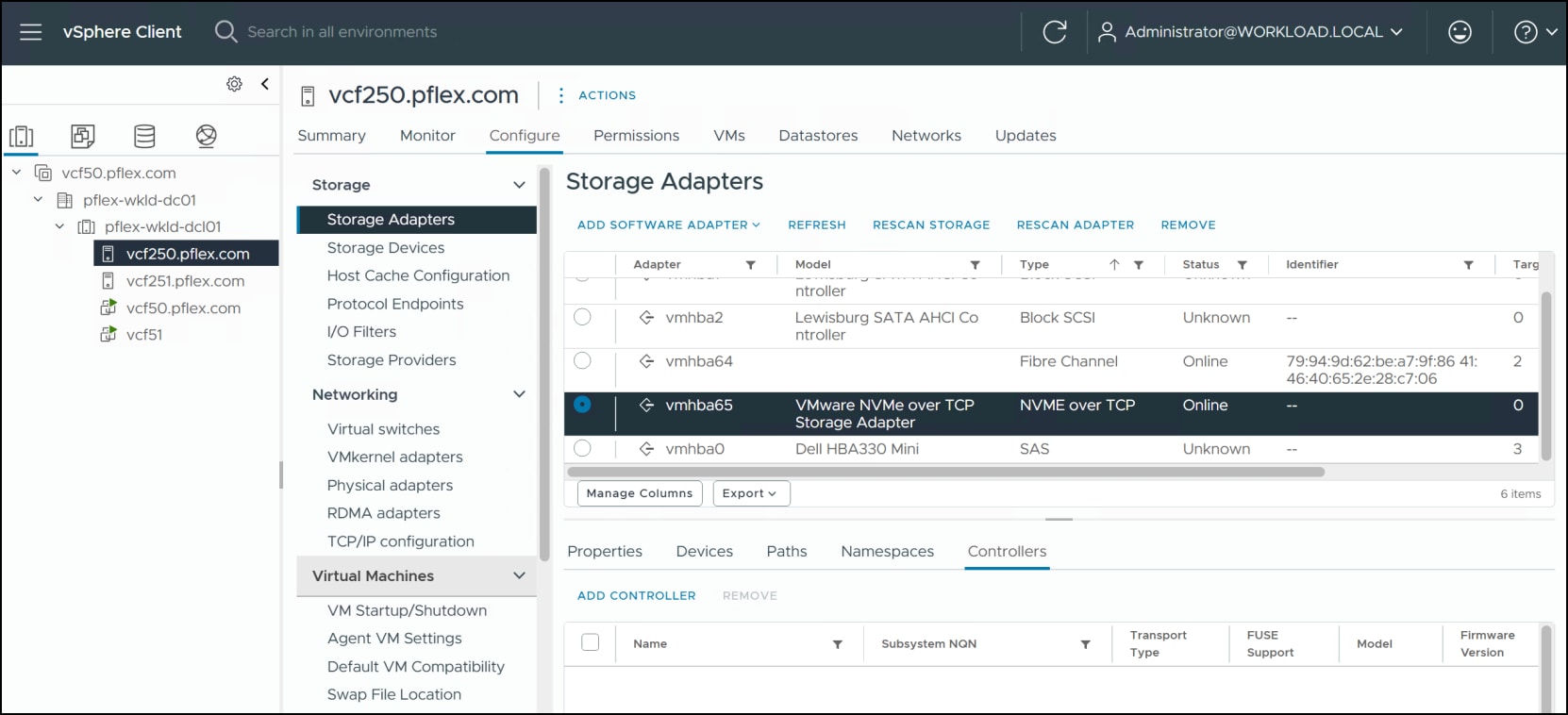
Figure 76. Step 1 – Add controller
Step 2
In the Add controller screen check that the Host NQN is set. In the unlikely event it is not set, you will either need to restart the management agents or reboot ESXi. Do not proceed with the next step until it the field displays. Hit CANCEL to close the screen.
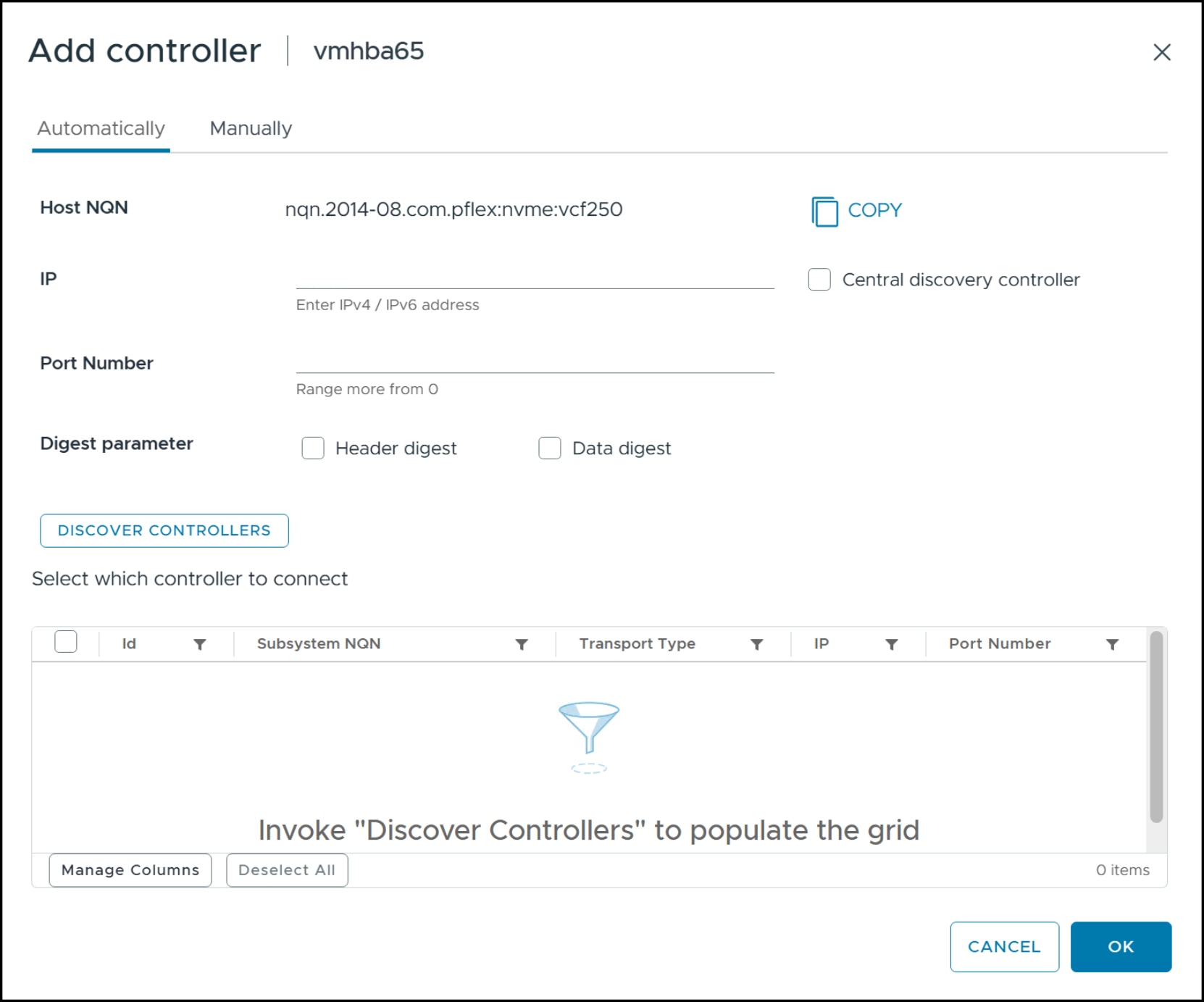
Figure 77. Step 2 – Add controller
Step 3
Log in to the ESXi host as root. For each SDT node run the following command to add the controllers. Provide the correct vmhba and IP address.
esxcli nvme fabrics discover -a vmhbaxx -i <SDT IP> -p 8009 -c
As noted, this PowerFlex system possess five SDT nodes, each with two IP addresses, resulting in the following ten commands:
esxcli nvme fabrics discover -a vmhba65 -i 172.18.100.230 -p 8009 -c
esxcli nvme fabrics discover -a vmhba65 -i 172.19.100.230 -p 8009 -c
esxcli nvme fabrics discover -a vmhba65 -i 172.18.100.231 -p 8009 -c
esxcli nvme fabrics discover -a vmhba65 -i 172.19.100.231 -p 8009 -c
esxcli nvme fabrics discover -a vmhba65 -i 172.18.100.232 -p 8009 -c
esxcli nvme fabrics discover -a vmhba65 -i 172.19.100.232 -p 8009 -c
esxcli nvme fabrics discover -a vmhba65 -i 172.18.100.233 -p 8009 -c
esxcli nvme fabrics discover -a vmhba65 -i 172.19.100.233 -p 8009 -c
esxcli nvme fabrics discover -a vmhba65 -i 172.18.100.234 -p 8009 -c
esxcli nvme fabrics discover -a vmhba65 -i 172.19.100.234 -p 8009 -c
To view the connected controllers, execute the following command in Figure 78.
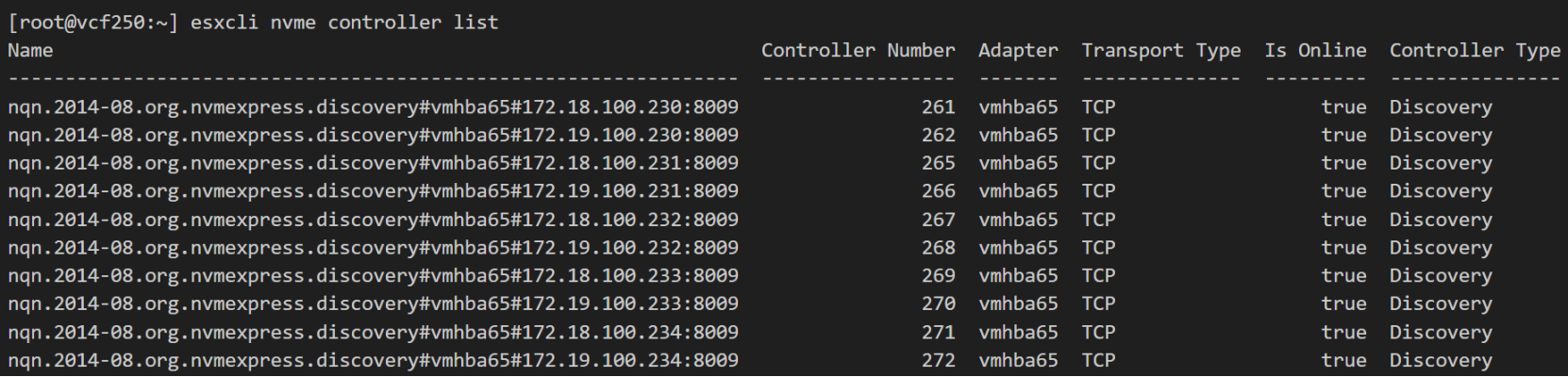
Figure 78. Step 3 – Add controller
Step 4
You can now return to the UI to see the controllers. Highlight the adapter and run RESCAN ADAPTER and the newly added controllers will show up.
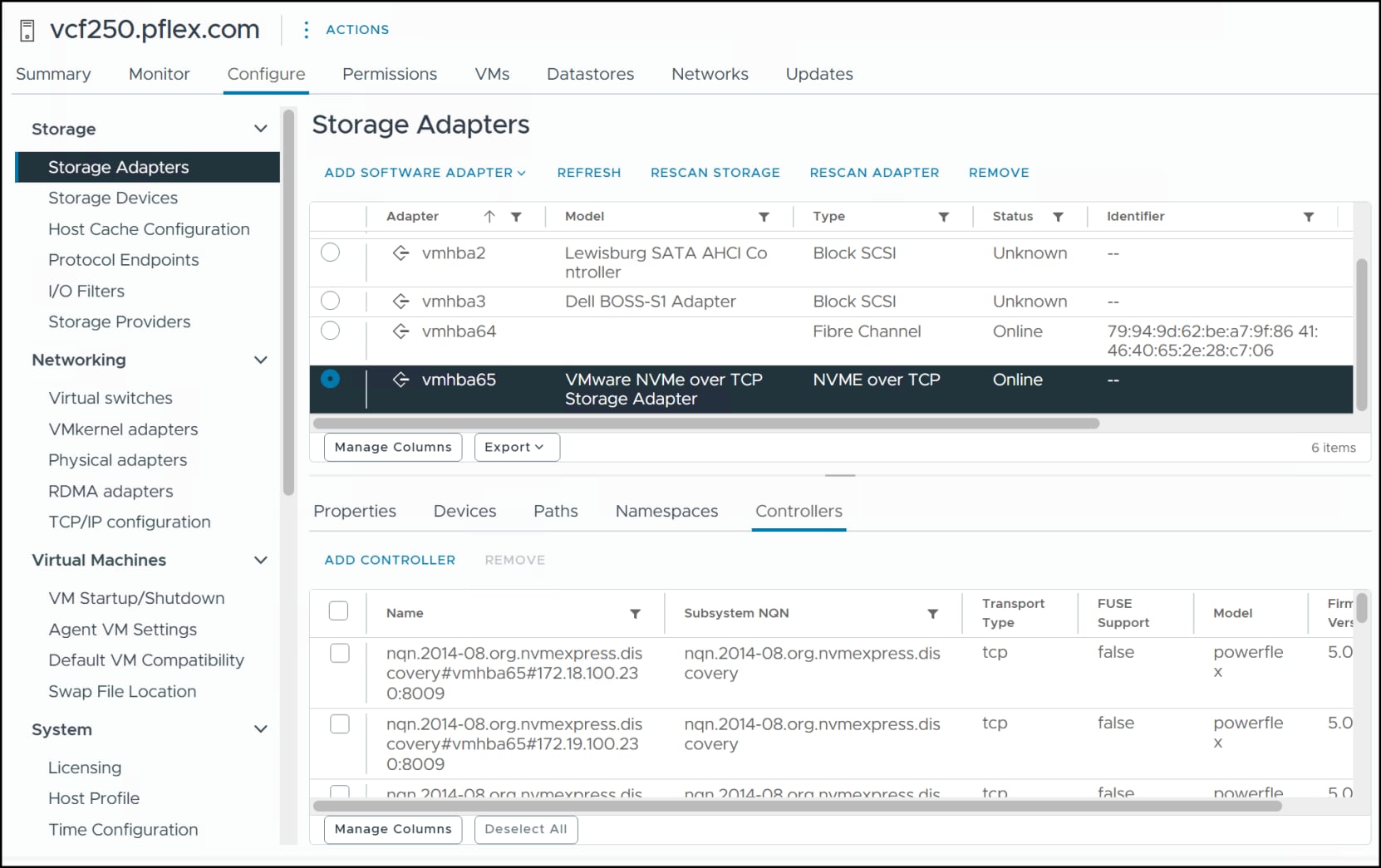
Figure 79. Step 4 – Add controller
Storage provisioning
With connectivity established, you can provision storage. First, add the new NVMe hosts and then create and map a volume.
Hosts
Start by obtaining the host NQNs for each workload ESXi domain host in the Add controller screen. Log in to PowerFlex Manager and navigate to Block -> Hosts. Click Add Host and fill in a chosen Host Name and supply the Host NQN in Figure 80. Click Add to complete. Repeat for other hosts.
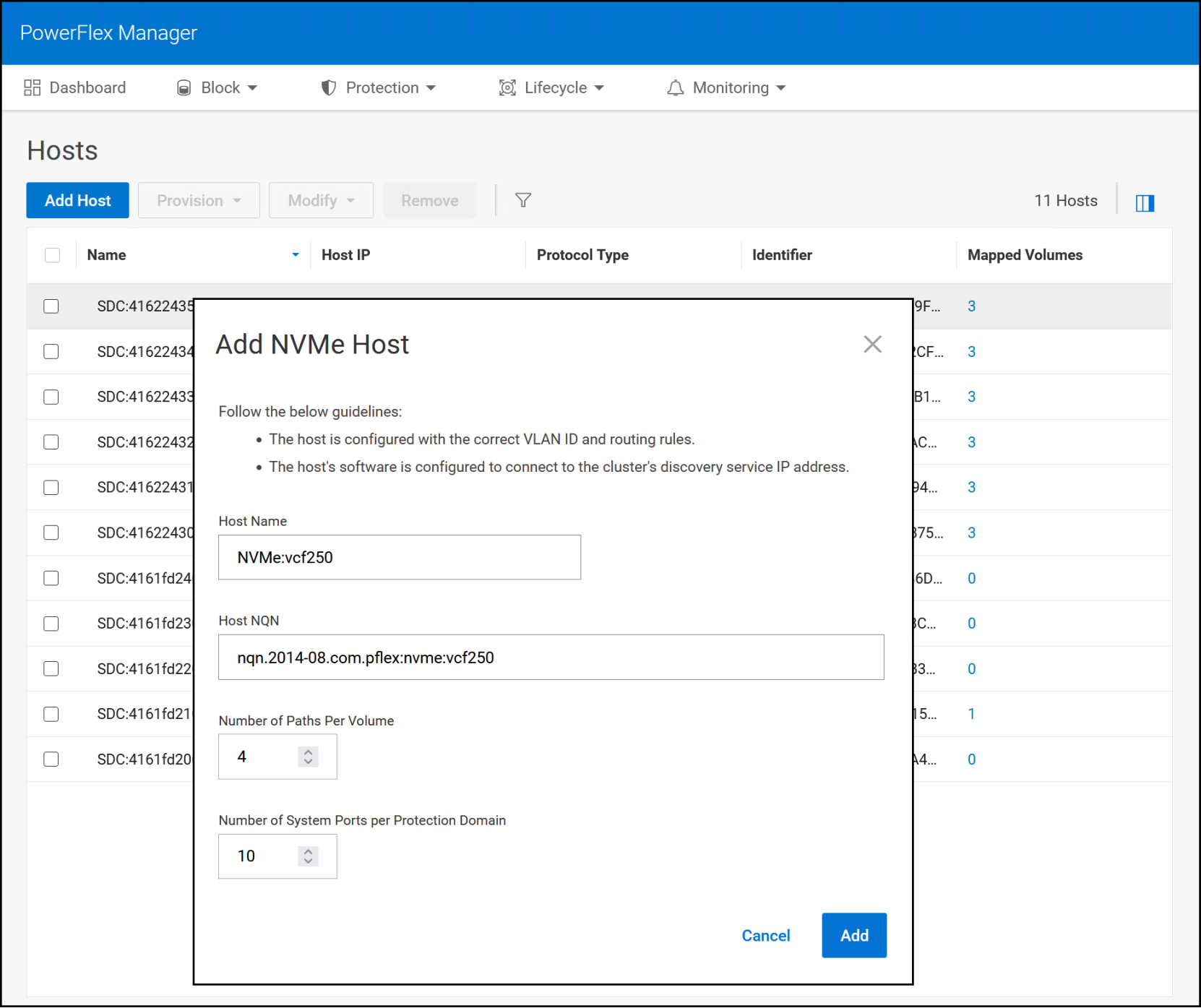
Figure 80. Add NVMe host
Volume provisioning
As we covered provisioning in Volume and VMFS datastore, it is unnecessary to repeat all steps. The volume detail is in Figure 81. We are using a 2 TB volume.
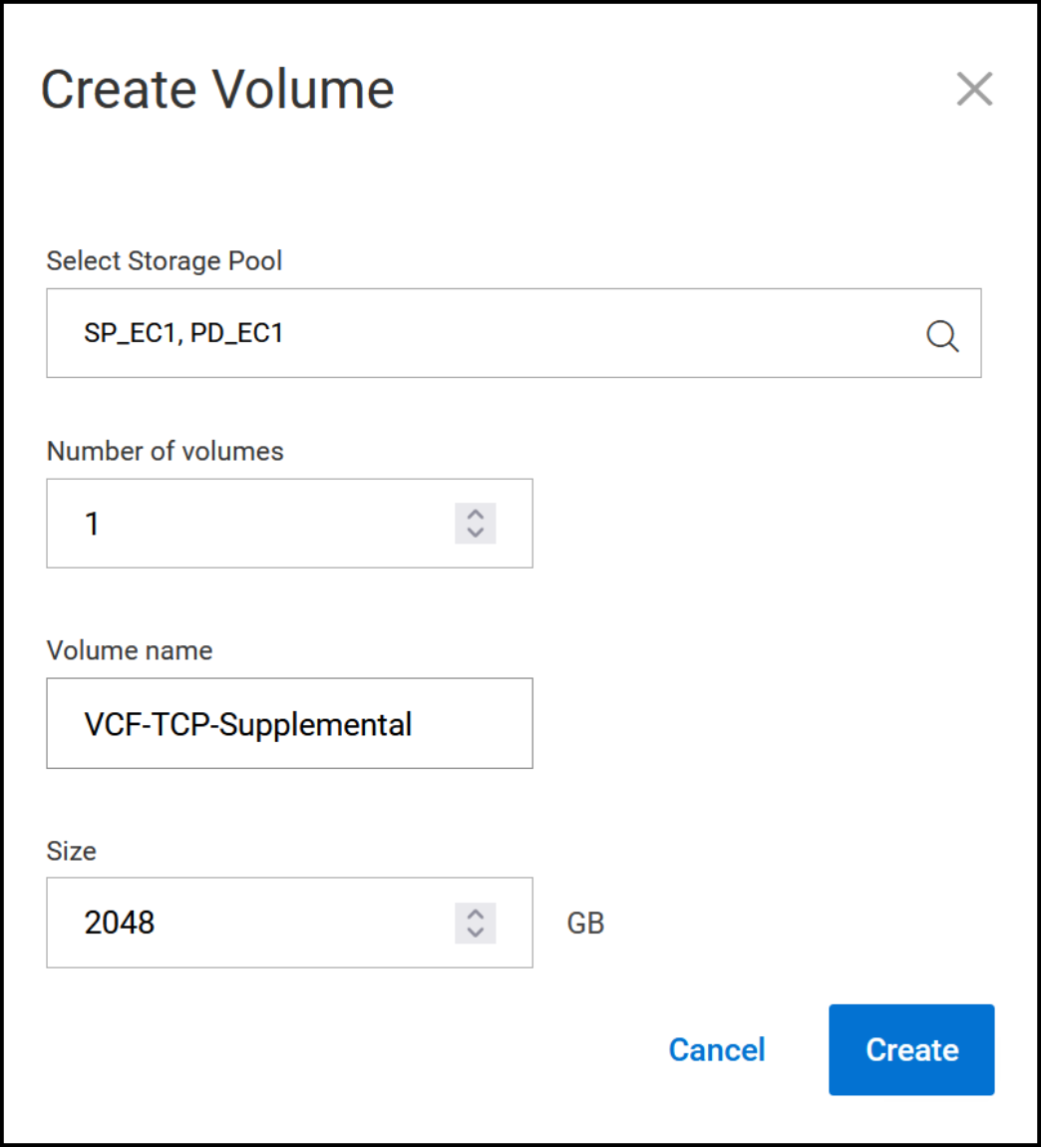
Figure 81. Supplemental volume
Map the volume to the new NVMe hosts.
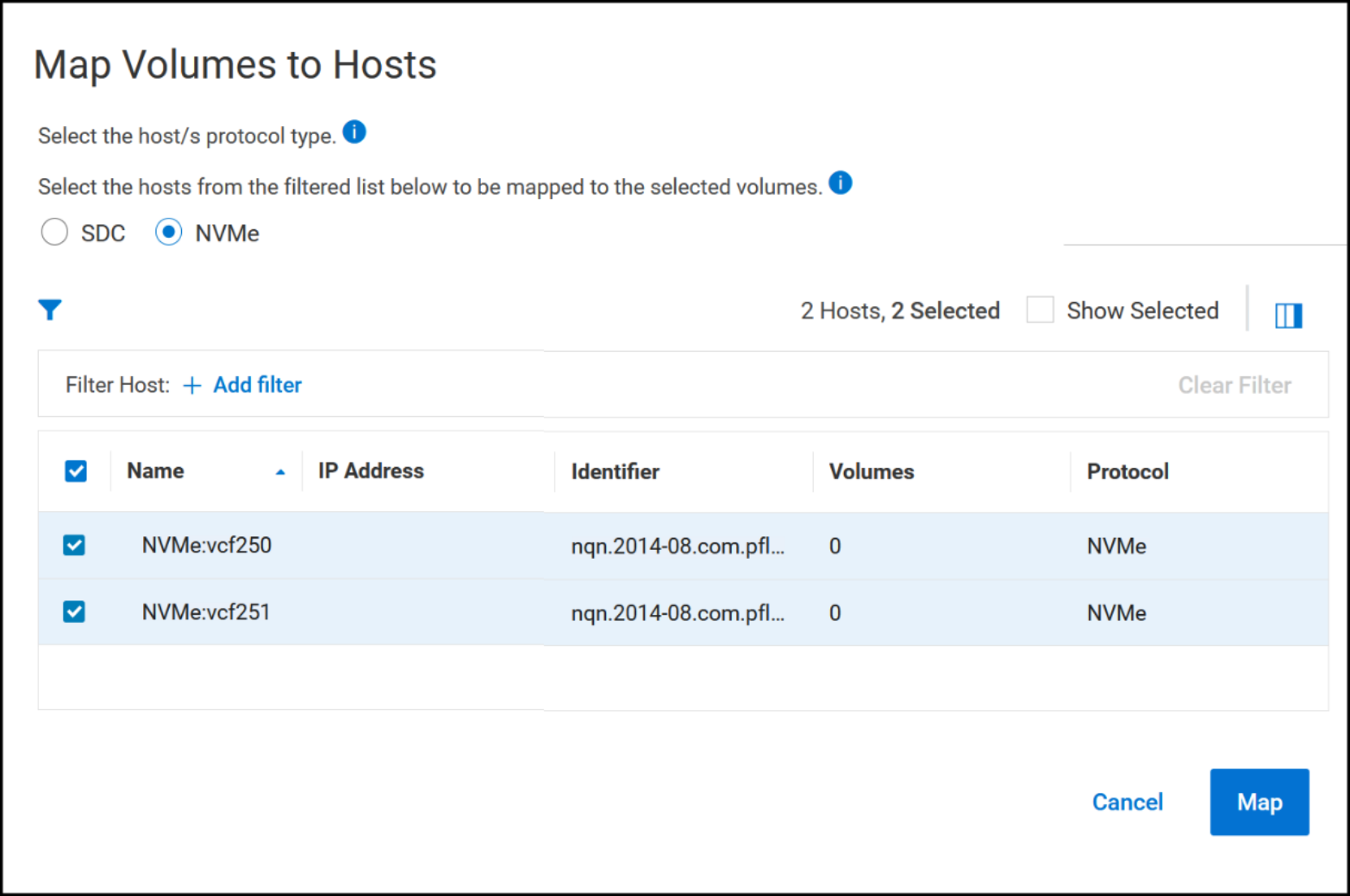
Figure 82. Map supplemental volume
View the new device in vCenter. NVMe/TCP adapters rarely require rescans for the storage to be visible.
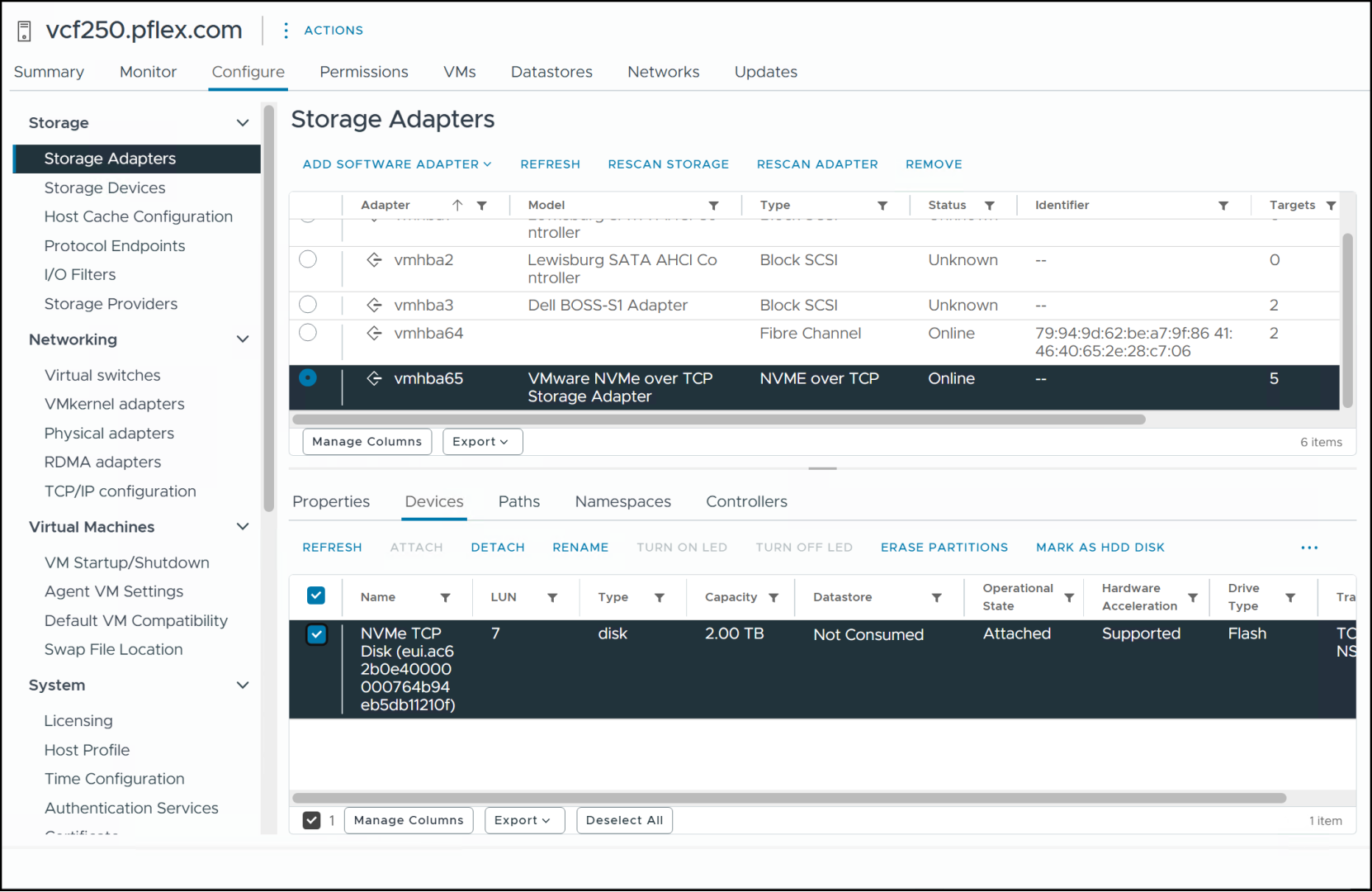
Figure 83. NVMe/TCP devices in vCenter
Datastores
Creating a datastore on a NVMe/TCP device does not differ in any way from those created on SCSI-based devices. Using the datastore wizard in Figure 84, the NVMe/TCP devices are available for use.
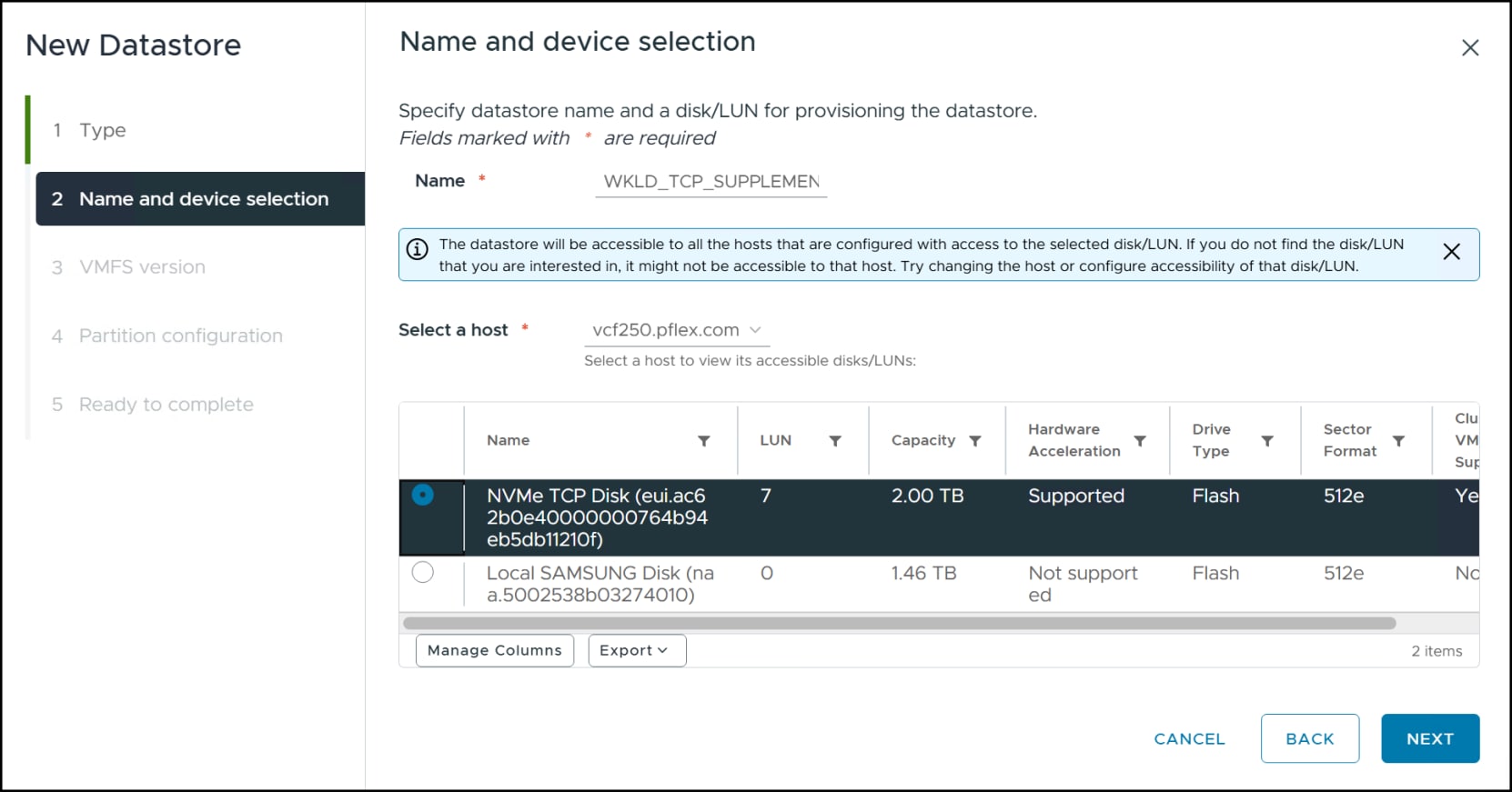
Figure 84. Using NVMe/TCP device for supplemental storage datastore
Complete the wizard and the NVMe/TCP datastore will display in vCenter in Figure 85 and in VCF Operations in Figure 86, alongside the workload domain FC datastore for the cluster.
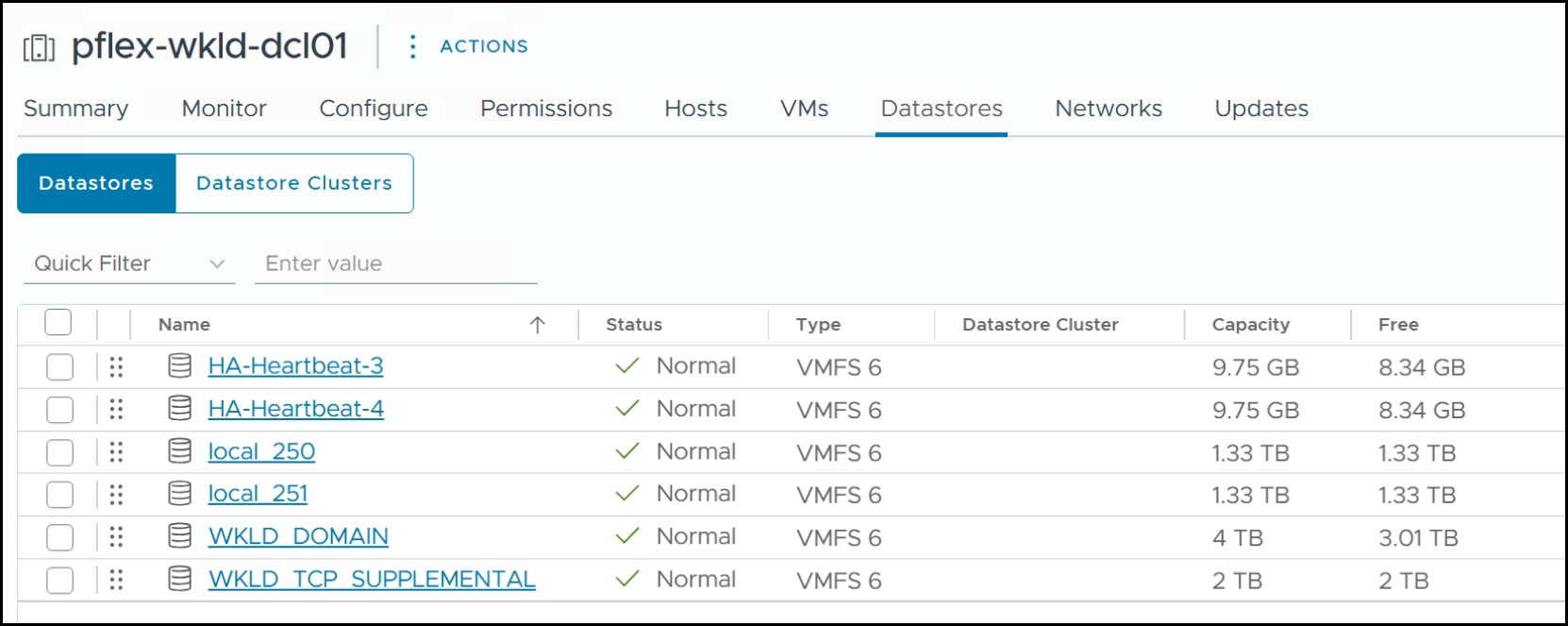
Figure 85. vCenter view of supplemental storage
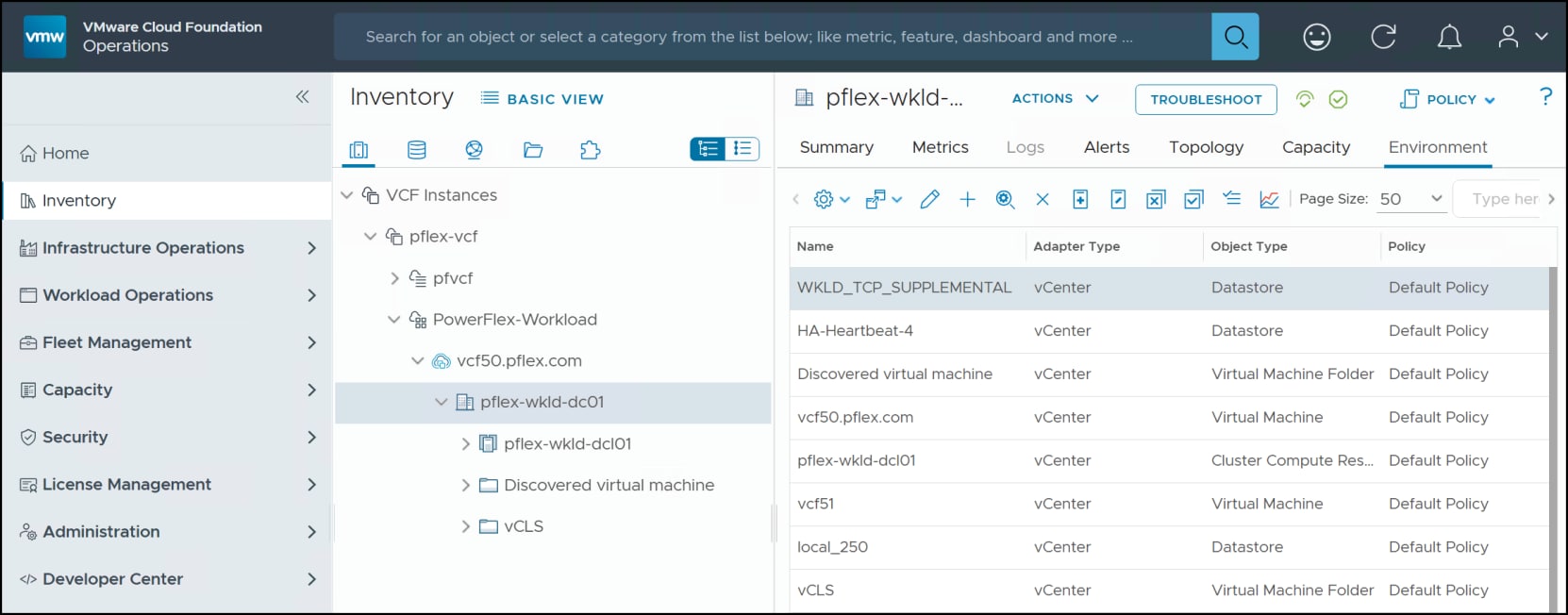
Figure 86. VCF Operations view of supplemental storage
The supplemental storage is now available for workload domain applications designated for NVMe/TCP.
Local protection
Introduction
One of the benefits of using array-based storage for VCF is the ability to use the features of the PowerFlex, such as local replication for backup and recovery of the management and workload domain volumes. Local copies can serve multiple purposes, from cloning, to restores and backups.
PowerFlex offers snapshot capability for block storage – SCSI or NVMe – through both the UI and CLI. The following section walks through creating a snapshot in PowerFlex Manager for the volume backing the management domain. In addition, we cover snapshot policies which enable automated backups.
Block snapshot
In PowerFlex Manager, log in and navigate to Block > Volumes. Using the check box, select the Management-Domain. From the Protect menu select Create Snapshot in Figure 87.
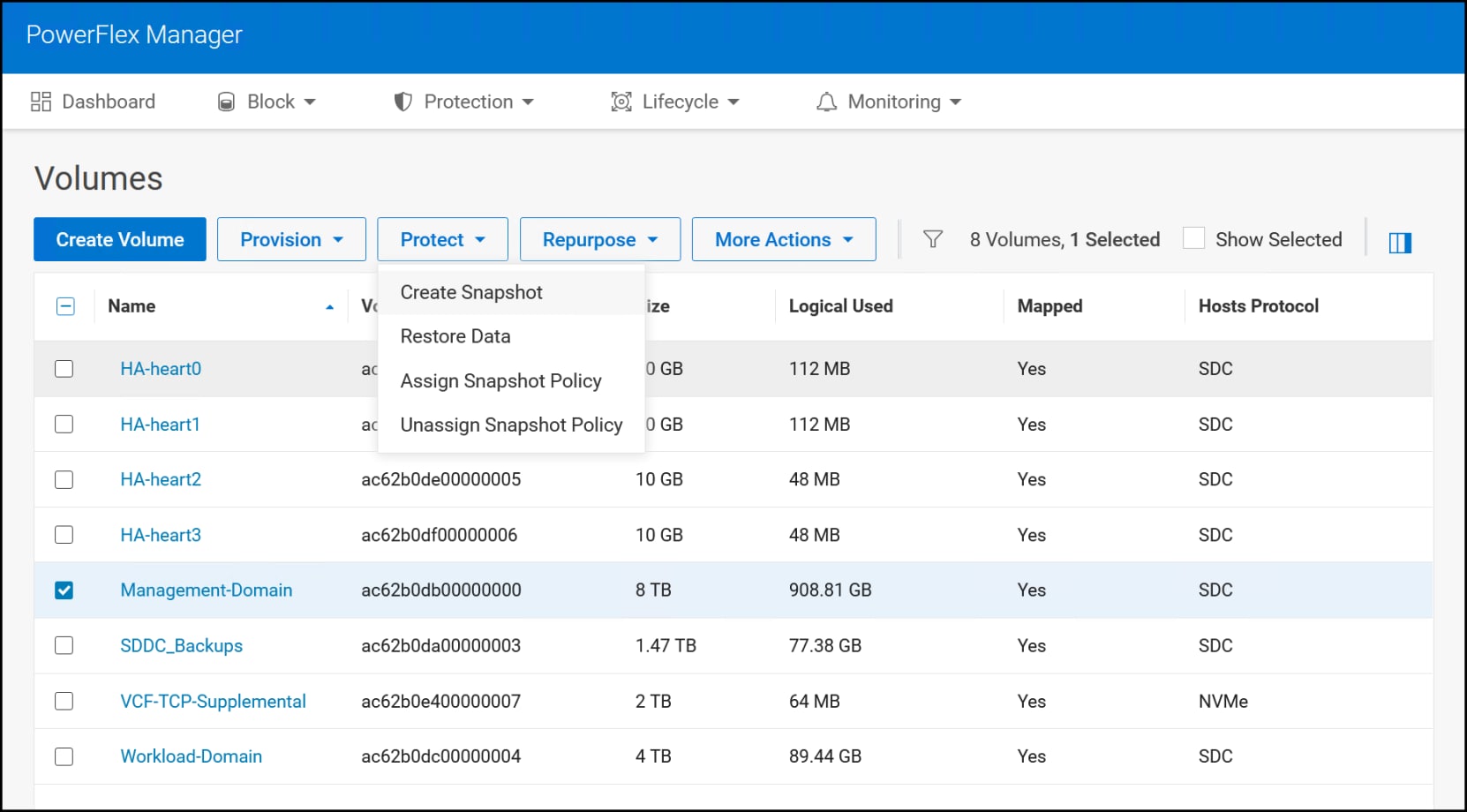
Figure 87. Select management domain volume for snapshot
PowerFlex presents the following dialog in Figure 88. The Snapshot name defaults to %vol%-snap-%i% which is <volume_name>-snap-<index_number> and will result in a name of Management-Domain-snap-1. The field accepts thirty-two characters if you wish to change it. The index number is simply a way to ensure unique names when you use the default naming. In addition, the Use secure snapshot option, checked here, prohibits deletion of the snapshot until the defined expiration period has elapsed. Click Create.
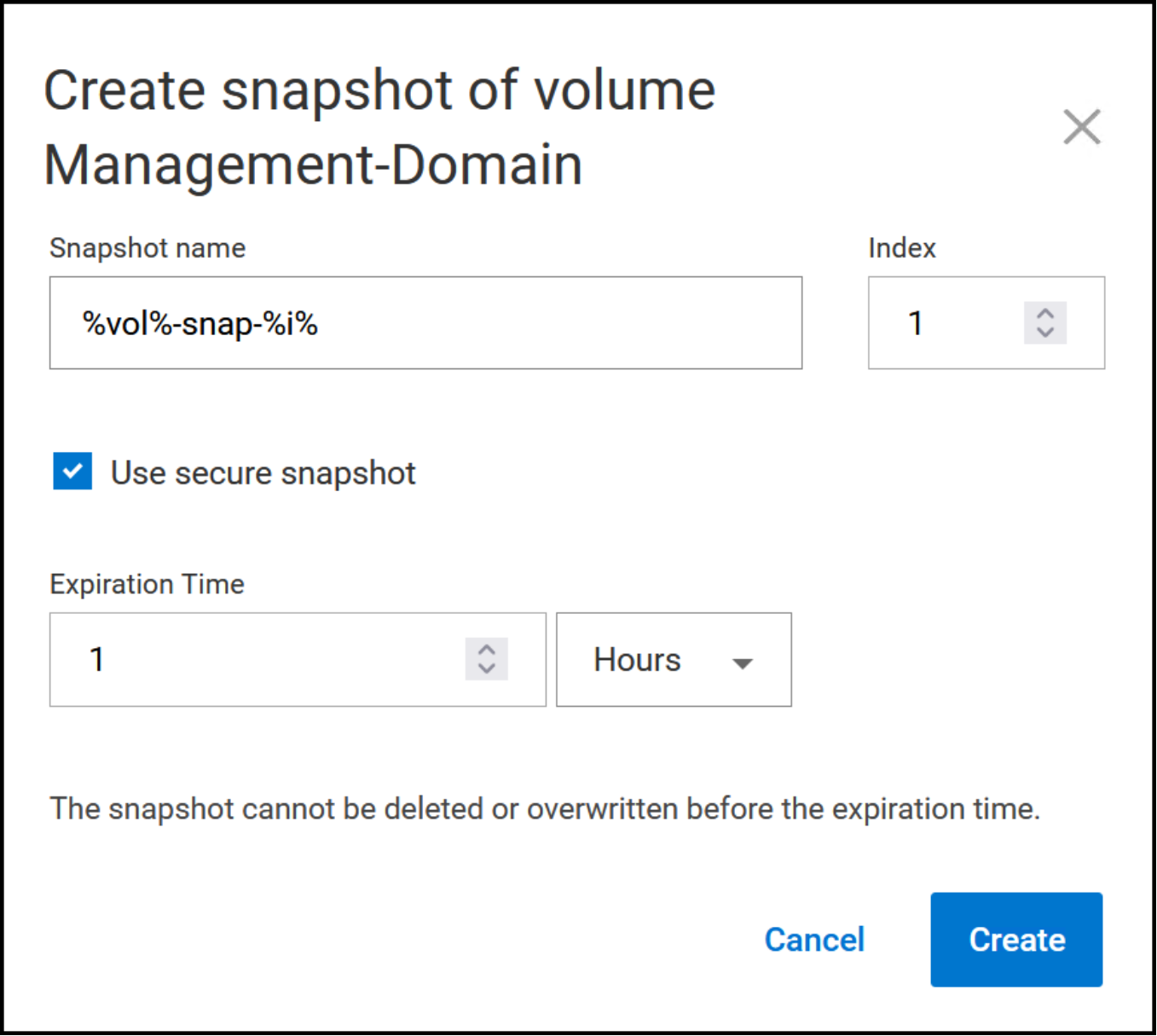
Figure 88. Snapshot options for block storage
Successful completion results in the message and the new snapshot in Figure 89.
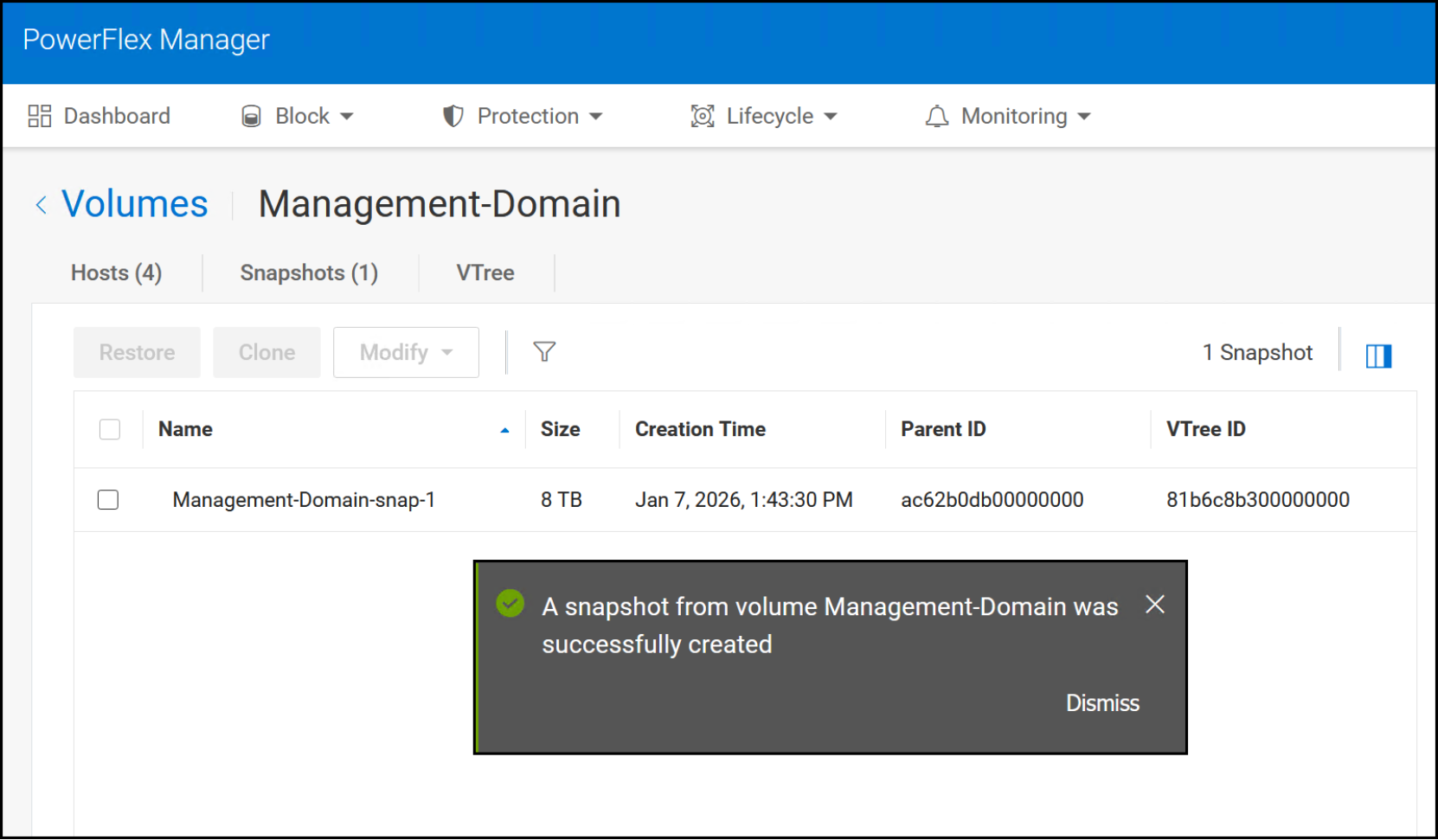
Figure 89. Successful snapshot
From the snapshot page of the volume in Figure 90, you can clone it or restore it.
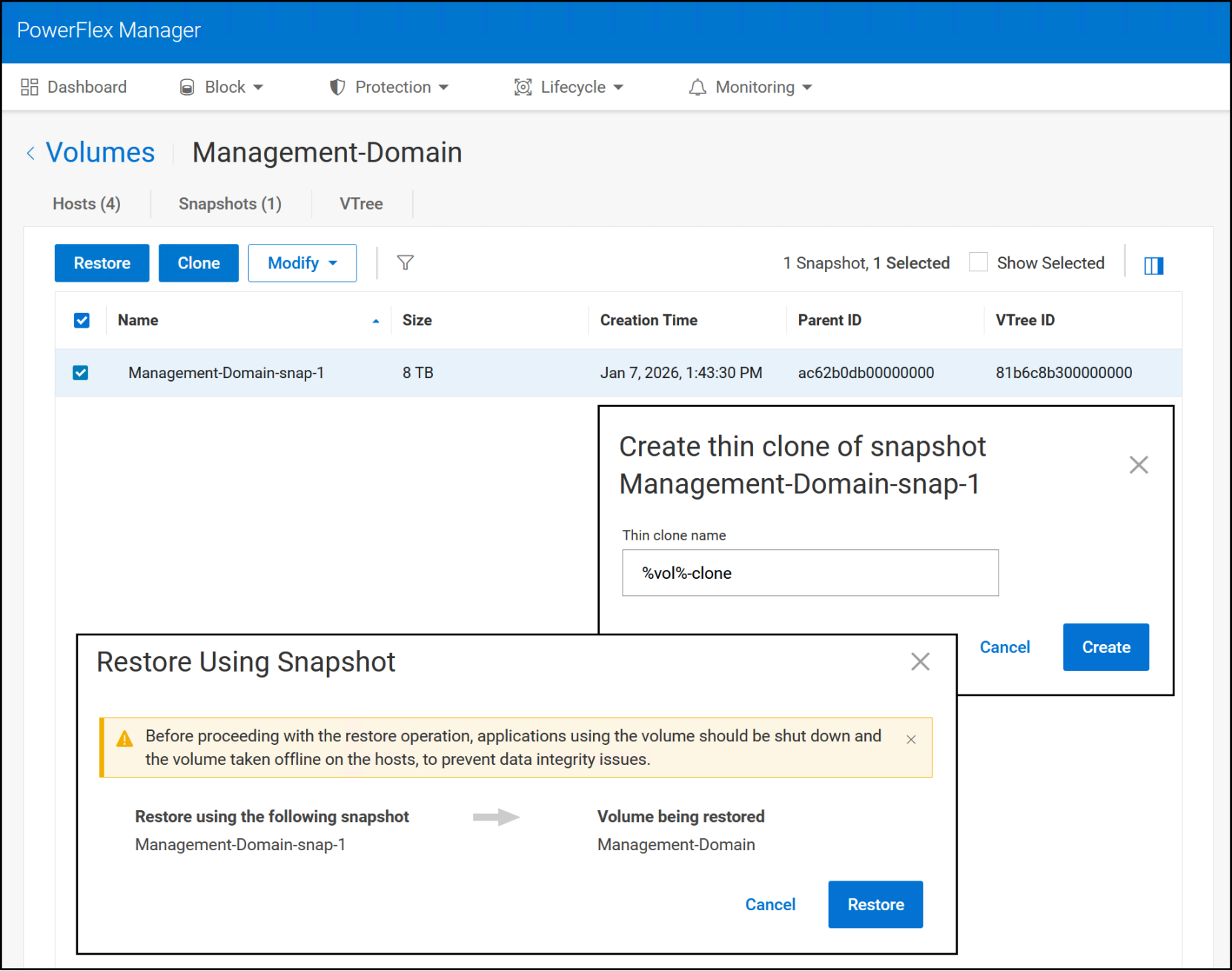
Figure 90. Snapshot – restore and clone
Snapshot policies
In additional to individual snapshots, PowerFlex provides the ability to setup snapshot policies which consist of snapshot and retention rules that automate how often to take a snapshot of a block volume and how long to retain them. You can only assign one snapshot policy to a volume. To create a snapshot policy log in to PowerFlex Manager and take the following steps:
- Navigate to Protection -> Snapshot Policies
- Click Create Snapshot Policy
- Enter the following information in Figure 91.
- Policy Name.
- Snapshot Rules – specify by Minute, Hour, Day, or Week.
- Retention Rules – this defaults to a single rule based on the measure specified in the base rule, but two additional rules are possible, each modifying the length of the previous. In this example, the system creates a snapshot every six hours and then retains 7 days’ worth continuously.
- Optionally you can secure the snapshots, however once you do you will be unable to modify the policy. You would have to create a new one.
- Click Create and Activate which allows you to assign the policy to a volume for immediate use. If you only Create, the policy enters a paused state. You can assign it to a volume but will be inoperable until activated.
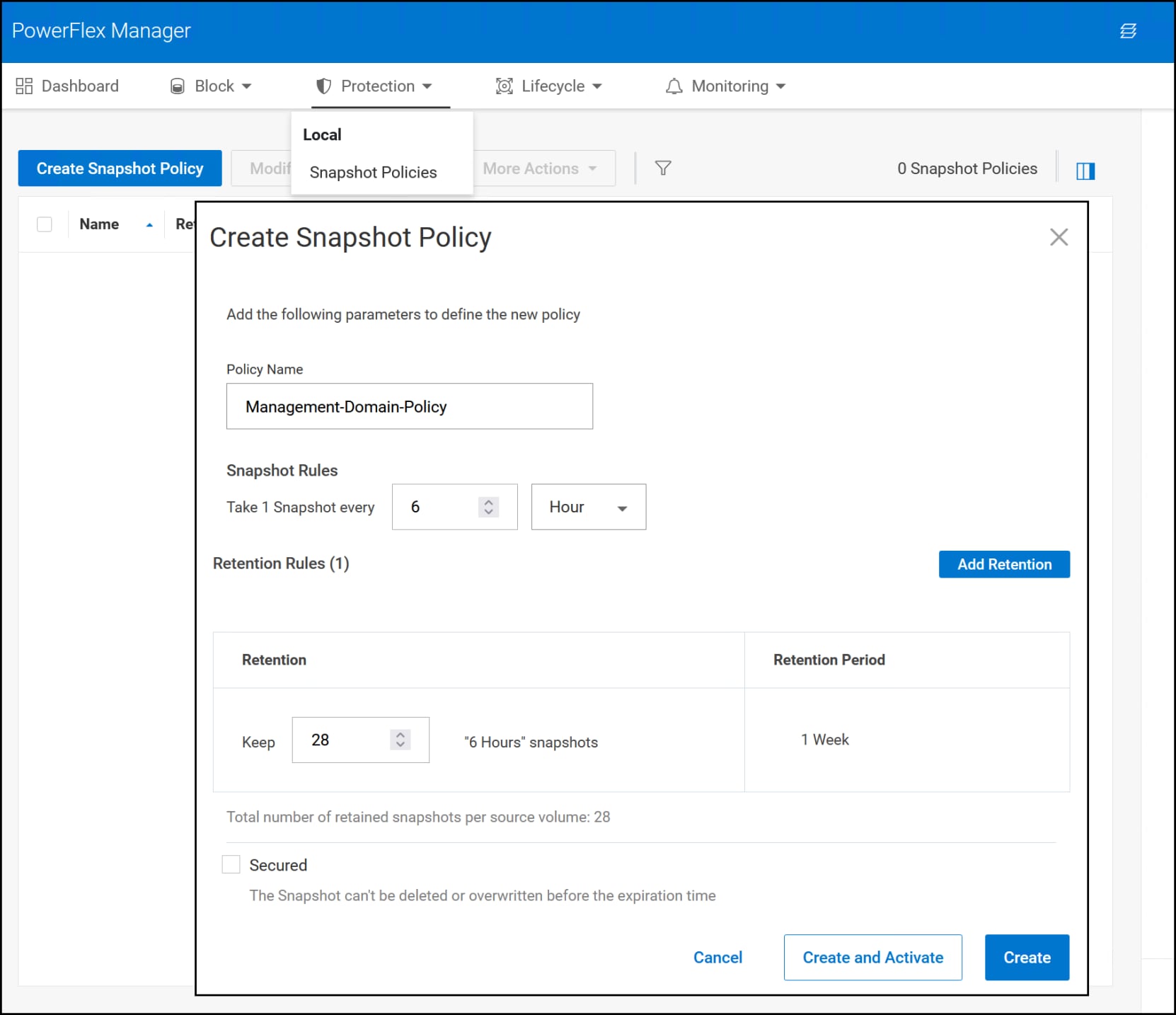
Figure 91. Create snapshot policy
Assign a volume to the policy by using the check box next to the policy and navigating to Protect -> Assign Volumes in Figure 92. Select the volume by checkbox and click Assign Policy.
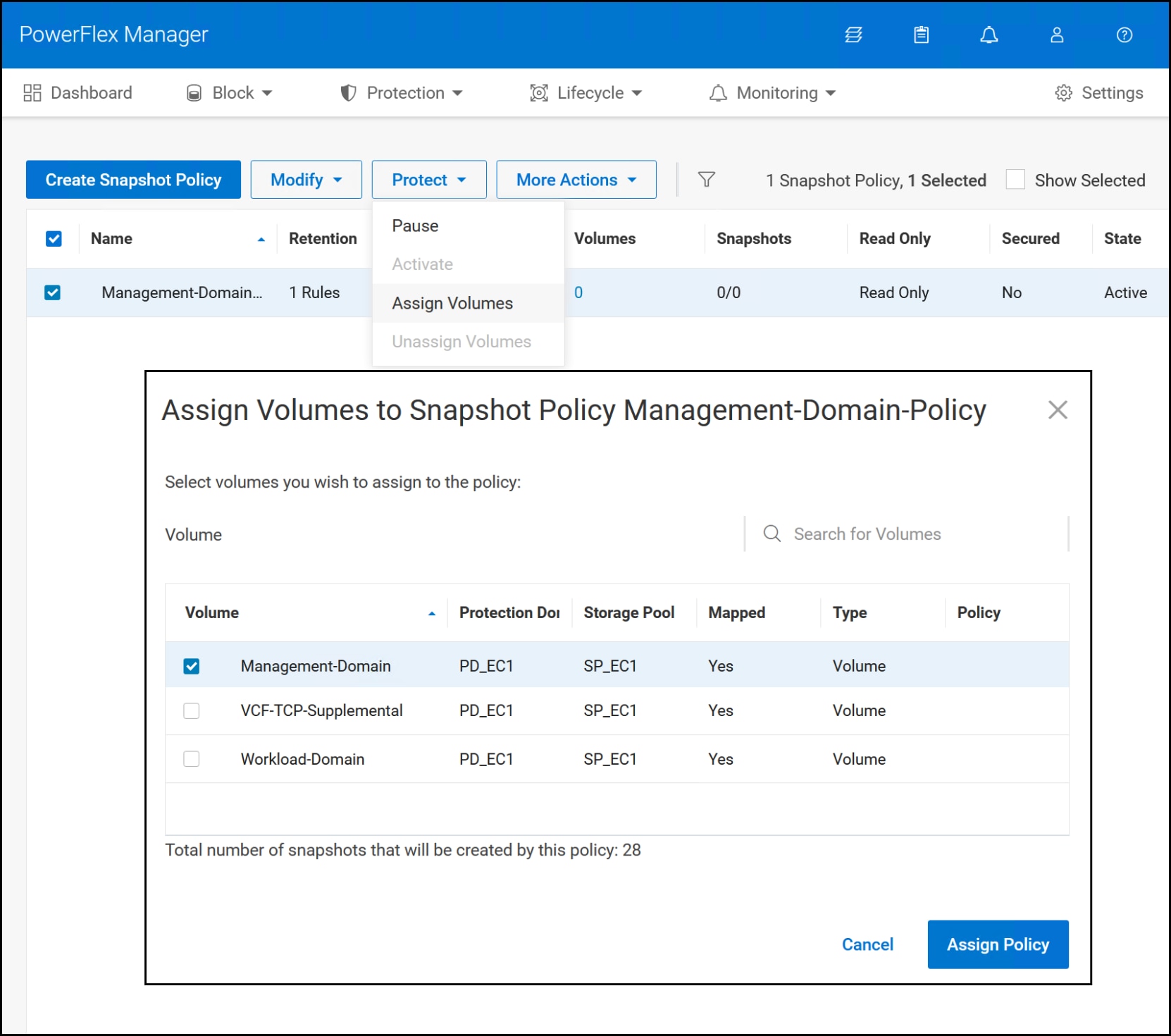
Figure 92. Assign volumes
The policy remains in effect for that volume unless you pause the policy or unassign the volume from it.
Conclusion
Summary
References
Dell Technologies documentation
VMware documentation
Appendix
Introduction
Installation troubleshooting
There are many known issues impacting the VCF installer that could cause a failure during deployment. During this brownfield deployment, the installer would fail consistently at 33% in Figure 93. The error message was “Failed to install VMCA Certificate on SDDC Manager.” Unfortunately there are many causes related to this message, mostly around DNS. In this case, however, the resolution was to reboot the vCenter appliance and then click RETRY AND PROCEED WITH DEPLOYMENT. The installation then succeeded. Broadcom did not recommend this, rather we discovered it through trial and error. Broadcom support was unable to pinpoint the cause. Dell recommends that if you do experience an unexpected error during the installation, you open an SR with Broadcom support.
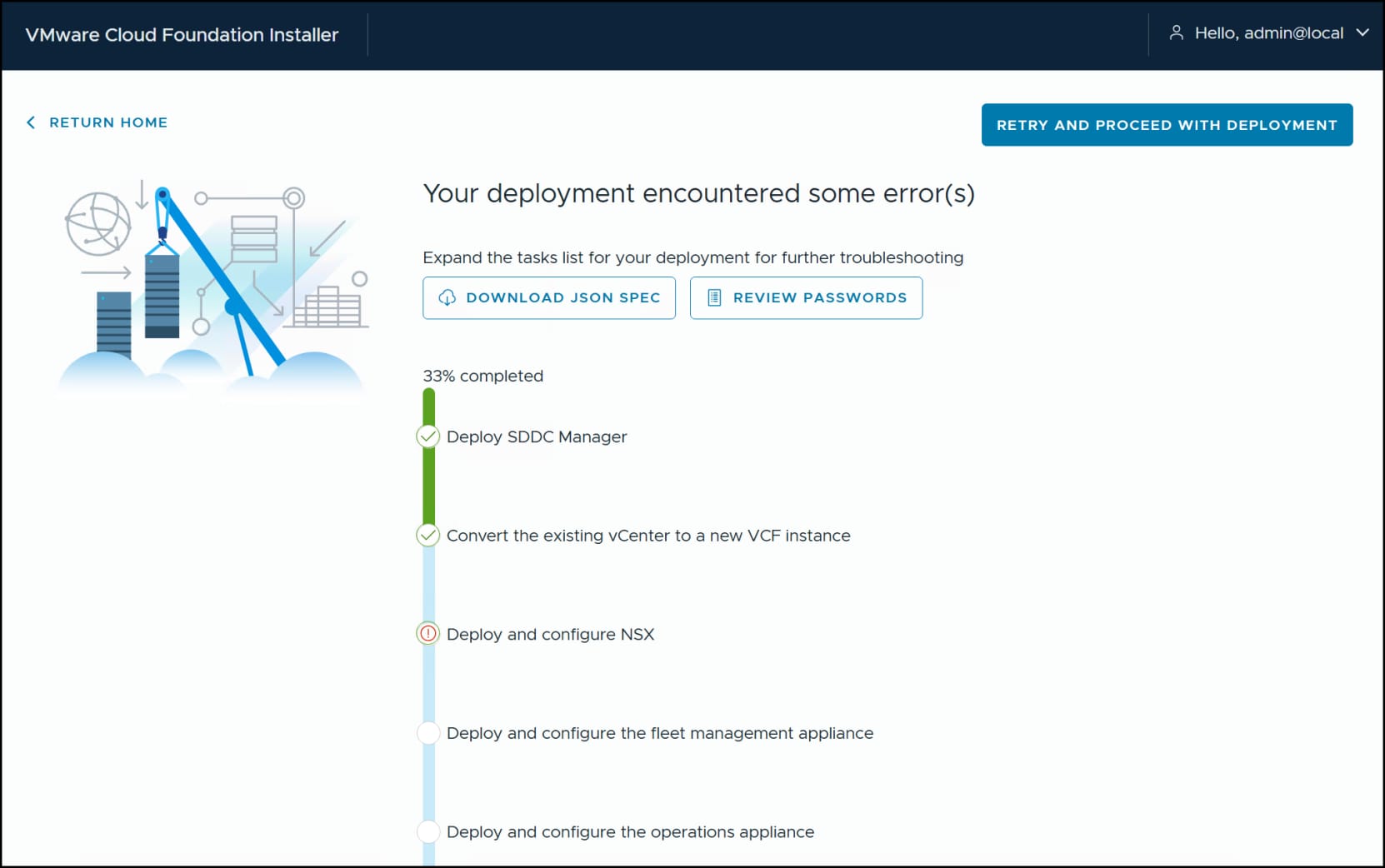
Figure 93. VCF installer failure
VCF upgrades
When the VCF domains are comprised of servers that are also compute-only nodes of a two-layer PowerFlex deployment, as in this paper, VCF must still control lifecycle management. This is because of the strict requirements of the BOM, and in particular the ESXi version. If you allow PowerFlex to upgrade ESXi outside of VCF, it will render the environment unsupported. Therefore, you must upgrade components like the SDC manually.
VCF will recognize the SDC as a third-party VIB in the Lifecycle screen of VCF Operations in Figure 94. For minor ESXi updates that do not change the base version, e.g., 9.x, the SDC will not require an update. If VCF releases a new ESXi major release in conjunction with VCF, for example VCF 10 with ESXi 10, you will have to manually upgrade the SDC. The upgrade is a remove and replace operation – remove the SDC prior to the lifecycle upgrade and then install the updated version post-upgrade. Dell recommends working with your Broadcom representative to plan the upgrade steps.
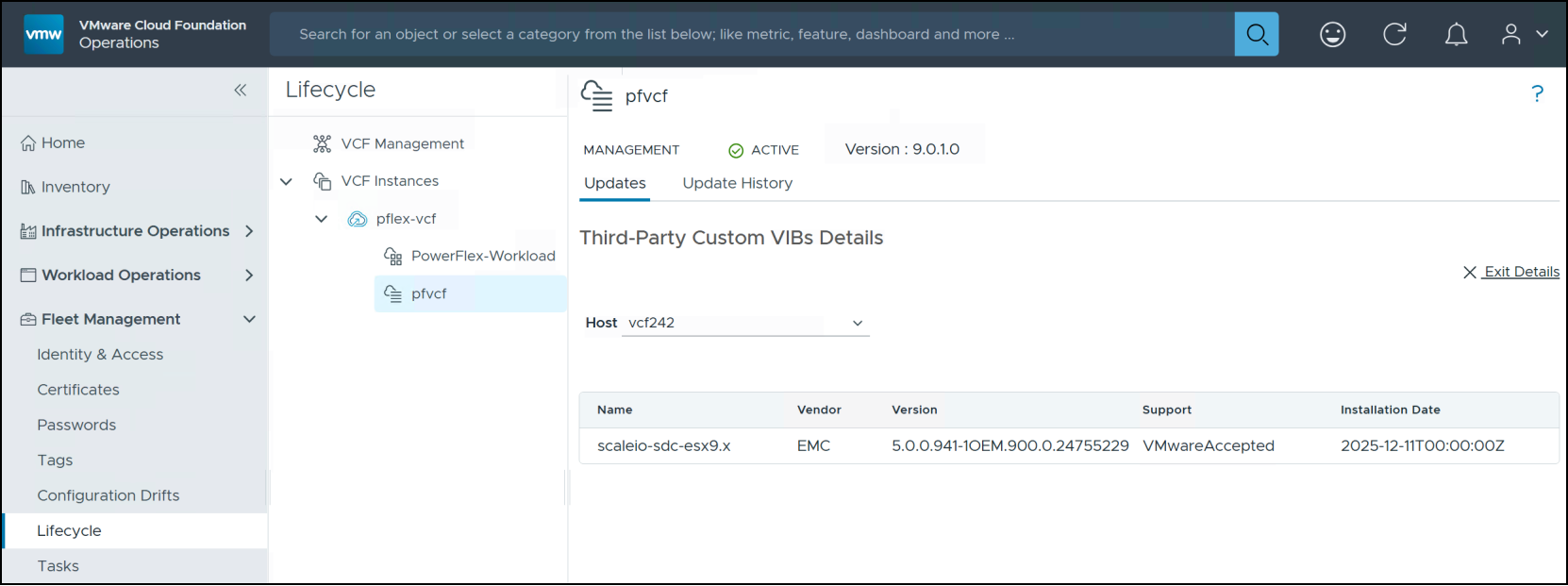
Figure 94. Third-Party Custom VIBs Details for the SDC