Connect to a Network
Need help with connecting to the Internet? Connect your device to your home, work, or a public hotspot wireless network, or using a network cable.
Connect to a wireless network
To connect to a wireless network at home, office, or a public hotspot, follow these steps.
- Select the Network, Sound, or Battery icons on the right side of the taskbar to open quick settings.

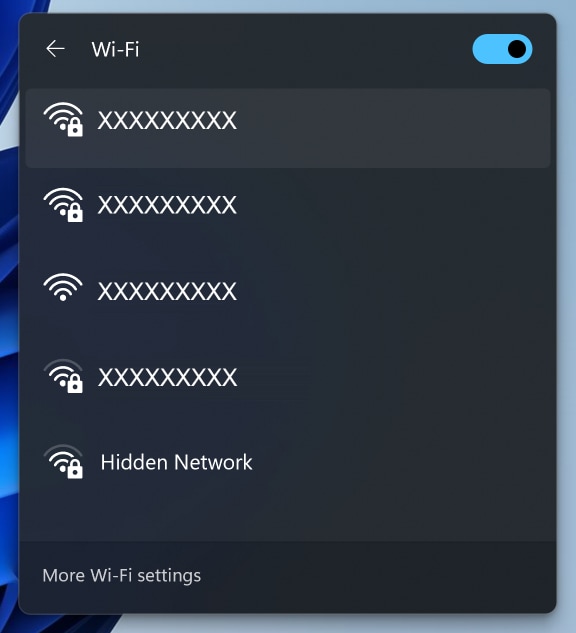
- On the Wi-Fi quick setting, select Manage Wi-Fi connections.
- Choose the Wi-Fi network that you want, then select Connect.
- Type the network password, and then select Next.
Having trouble connecting to Wi-Fi? Fix wireless network connection issues in Windows.
Connect to a wired network
A wired network connection lets you get a fast and stable Internet connection. Connect one end of the network (Ethernet) cable into your router at home, then plug the other end into the Ethernet port of your computer.

If you cannot connect to the Internet using an Ethernet connection, try these quick steps to fix the wired network problem and get connected.
Video Resources

Let us show you how to connect your new Windows PC to the internet using an ethernet or network cable, or to a
nearby Wi-Fi network.
Next, let us see which Dell apps come preinstalled on your new Dell PC.
Helpful links:
If you are having issues connecting to the internet using an ethernet or network cable, go to the Dell wired networking page.
If you are having issues connecting to the internet using Wi-Fi, go to the Dell wireless networking page. ...
Next, let us see which Dell apps come preinstalled on your new Dell PC.
Helpful links:
If you are having issues connecting to the internet using an ethernet or network cable, go to the Dell wired networking page.
If you are having issues connecting to the internet using Wi-Fi, go to the Dell wireless networking page. ...