PowerEdge: Recommended BIOS and iDRAC10 Upgrades for 17th Gen
Zhrnutie: This article provides a high-level explanation for updating the BIOS and iDRAC10 firmware versions for 17th generation PowerEdge servers.
Pokyny
Dell Technologies recommends updating your BIOS version to benefit from the bug fixes and improvements to the functionality, reliability, and stability of your Dell PowerEdge server. It may also include security fixes and other feature enhancements. The iDRAC10 firmware version update contains changes to maintain overall system health. It ensures that the system software remains current and compatible with other system modules (firmware, BIOS, drivers, and software) and may include other new features.
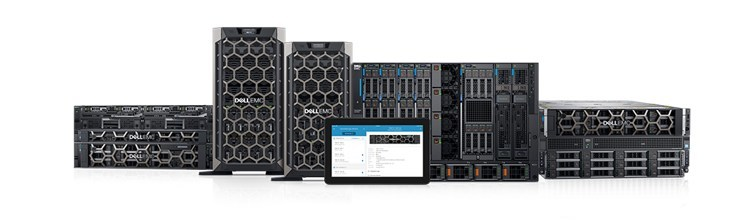
Benefits of updated BIOS and iDRAC10 for 17th generation PowerEdge servers with Intel processors
For Dell's 17th generation PowerEdge servers with Intel processors, updated BIOS versions include the following:
Fixes and Enhancements
-
Fixed the Processor Frequency display issue after configuring the Processor Settings to AVX P1 Level and then switching back to Normal.
-
Resolve the issue where UEFI Boot Sequence and Boot Option Enable/Disable cannot be modified simultaneously from the F2 (BIOS Settings) menu.
-
Intel processor and memory reference codes in the Maintenance Release 2 (UPLR1.5) v3544.P.80.
-
Includes several enhancements related to Intel processor microcode, Intel Trusted Execution Technology (TXT), and Intel Trusted Domain Extension (TDX).
-
Integrated Dell Remote Access Controller (iDRAC) HII settings engine to version 6.0.0.28.
- This product release contains security update DSA-2025-370, DSA-2026-012, DSA-2026-014.
For Dell's 17th generation PowerEdge servers with AMD processors, updated BIOS versions include the following:
Enhancements
-
The AMD Generic Encapsulated Software Architecture (AGESA) Interface Specification for Family 1Ah Models 00h-0Fh has been upgraded to version 1.0.0.7.
-
Support R7725, R6725 and R7725xd into one BIOS release.
For Dell's 17th generation PowerEdge servers with iDRAC10, updated iDRAC10 firmware versions include the following:
Fixes
-
Fixed the issue where iDRAC10 could not be configured to use Generic LDAP.
-
Fixed the issue where Directory Services user login was slow or failed in large LDAP/AD environments.
-
Fixed the issue where user authentication failed in multi-domain setups when the user domain differed from the group domain.
-
Fixed the issue where Active Directory authentication failed in iDRAC10 for users belonging to Nested AD Groups.
-
Fixed the issue where Active Directory users with parentheses () in their usernames were unable to log in due to improper handling of special characters during AD authentication.
-
Fixed the issue where Directory Service integration failed when the Common Name (CN) contained a comma.
-
Fixed the issue where Active Directory authentication fails when the AD Group name contained a period (.).
-
Fixed the issue where the Custom SMTP Sender Email input field did not accept special characters, preventing users from entering valid email addresses with symbols.
-
Fixed the issue where generating a Webserver CSR using the iDRAC UI or Redfish fails with error code RAC0508 when the email address contained more than one period (.).
-
Fixed the issue where the German translation of the "Cancel" button in iDRAC pop-ups was incorrectly displayed.
-
Fixed the issue where the iDRAC UI wizard did not accept colons (:) in the password field, preventing users from setting passwords that included this valid special character.
Check latest code versions in PowerEdge: Minimum, Recommended, and Latest Code Versions and upgrade BIOS & iDRAC10 versions to benefit from these improvements.
Step 1: Download the latest BIOS.
Dell Technologies recommends keeping your system up to date with the latest BIOS (UEFI firmware) available. This ensures critical bug fixes and changes to improve the functionality, reliability, and stability of your Dell system. It may also include security fixes and other feature enhancements. BIOS updates require a reboot of the host. The BIOS version can differ from one system to another, for downloading the BIOS available for your system, see Drivers & Downloads.
- Go to Drivers & Downloads
- Identify your Dell product
- Enter the service tag of the Dell product and click Search.
- Or click Browse all products and manually select your Dell product from the menu.
- Select your host Operating System and BIOS from the Category drop-down.
- Click Download to download the latest Dell BIOS Update Package directly.
- Or expand the BIOS release to choose from older versions and to view full driver details. The full driver details also provide all available download formats and release notes.
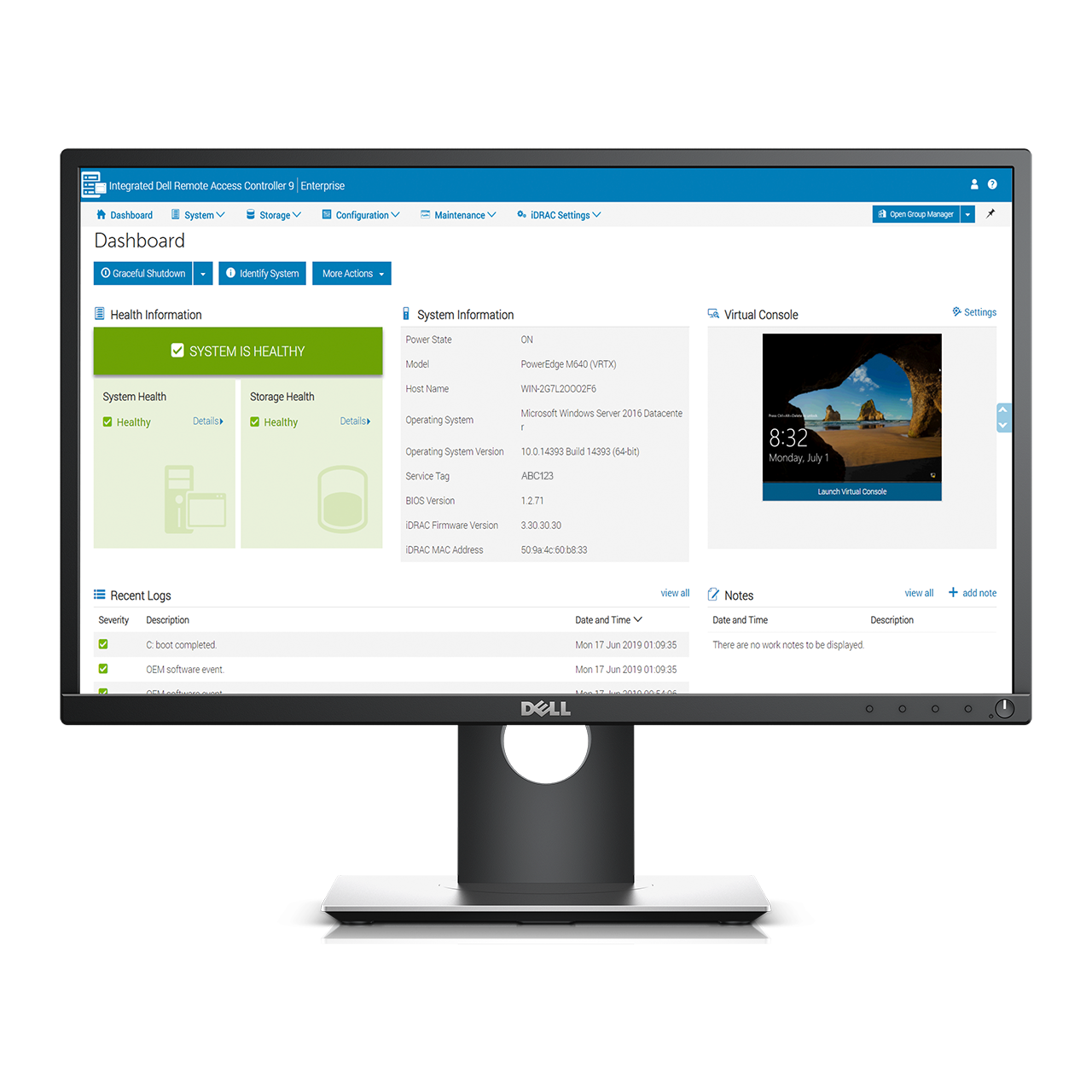
Step 2: Download the latest iDRAC Firmware.
Dell Technologies recommends keeping your system up to date with the latest iDRAC firmware available. This ensures the best performance and the latest security updates and bug fixes. iDRAC updates do not require a reboot of the host, allowing for in-place updates.
iDRAC firmware versions vary by system. For iDRAC10 versions, see Integrated Dell Remote Access Controller 10 Versions and Release Notes.
Step 3: Deploy the updated BIOS and iDRAC Firmware.
There are multiple methods to update the firmware for your PowerEdge server. These different methods are outlined in this section.
Manual method for updating individual components
Dell Update Packages (DUP)
Using the Dell Update Packages (DUP) is an and quick way to update the firmware or drivers of the entire system or individual system components. A DUP is an executable which contains firmware for a single component.
Updating all or selected system components
Platform Bootable ISOs are custom built using Dell Repository Manager.
Create a Platform Bootable ISO based on PowerEdge server using the latest enterprise catalog from the Dell support site without creating or using any repository. This is a way of updating all server firmware in one single step. An ISO can be transferred on a bootable USB storage device, accessed through iDRAC virtual media, or accessible over the network.
PowerEdge: Using the Dell SUU to Update Firmware and Drivers
The Dell Server Update Utility ISO (SUU) is a local one-to-one utility to update BIOS, firmware, drivers, and application on PowerEdge servers to the latest version. The SUU also allows comparison between the current versions that are installed on the server and the most up-to-date versions available. Select the components in need of updating and upon confirmation, SUU orchestrates the deployment of the selected updates.
LifeCycle Controller
Dell Lifecycle Controller is an advanced embedded systems management technology that enables remote server management. Using Lifecycle Controller, you can update the firmware using a local or Dell-based firmware repository.
Dell Repository Manager (DRM)
An update management tool used to assist with the identification, gathering, and packaging of Dell Update Packages (DUPs) into a format to be used for deployment.
DELL System Update (DSU)
Command-Line Interface optimized deployment tool that assists customers who prefer to manage the deployment of updates in a scripted manner.
Integrated Dell Remote Access Controller (iDRAC)
An embedded systems management tool that is available on PowerEdge servers. With iDRAC, you can remote into a system to perform many systems management tasks, including updating of firmware. *Some additional features may require the iDRAC Enterprise or DataCenter license.
Console-based methods for updating multiple components
OpenManage Enterprise (OpenManage Enterprise)
OpenManage Enterprise systems management console is designed to simplify, intelligently automate and unify IT infrastructure management tasks. One of these tasks is the update of multiple components.
VMware vCenter
Performing Firmware Updates for Clusters
Microsoft System Center (MSSC)

Microsoft System Center Configuration Manager (SCCM), or ConfigMgr, is software by Microsoft for managing large groups of systems running Windows NT, Windows Embedded, macOS, Linux, or UNIX.
Configuration Manager provides remote control, patch management, software distribution, operating system deployment, network access protection, and hardware and software inventory.
Ďalšie informácie
For other Server generations, see below:
PowerEdge: recommends upgrading BIOS and iDRAC9 for 14th Gen
PowerEdge: Upgrading BIOS and iDRAC9 for 15th Generation PowerEdge Servers
PowerEdge: Recommended BIOS and iDRAC9 Upgrades for 16th Gen