NetWorker: Unable to fetch data from vCenter: SSL_ERROR_SYSCALL Error observed by underlying SSL/TLS BIO
Summary: The NetWorker server's VMware inventory process reports "Unable to fetch data from vCenter: SSL_ERROR_SYSCALL Error observed by underlying SSL?TLS BIO: No Error."
This article applies to
This article does not apply to
This article is not tied to any specific product.
Not all product versions are identified in this article.
Symptoms
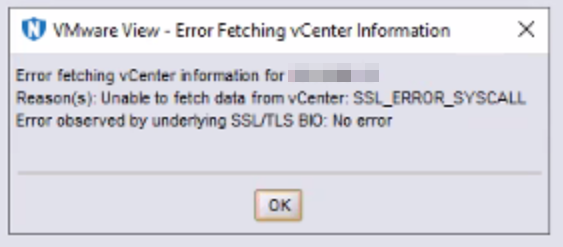
- The following error message is returned in the NetWorker Management Console (NMC) when performing a VMware View refresh:
- The NetWorker server and vCenter Server versions meet compatibility requirements. See the NetWorker compatibility matrix available through: https://elabnavigator.dell.com/eln/modernHomeAutomatedTiles?page=NetWorker
- The NetWorker server can resolve the vCenter's IP address, Fully Qualified Domain Name (FQDN), and shortname correctly.
nslookup ADDRESS
- The NetWorker server can reach port 443 on the vCenter server:
Linux:
curl -v vCenter_Address:443
Windows (PowerShell):
Test-NetConnection -ComputerName vCenter_Address -port 443
Cause
Firewall Configuration: Ensure that your firewall is not blocking SSL traffic. Even if port 443 is open, packet-level filtering might be preventing SSL traffic.
Network Issues: The error might be due to a network issue where the connection is being reset by the peer. This can happen if there is an intermediate device (like a firewall or router) that is interfering with the connection.
The SSL_ERROR_SYSCALL error happens when the TCP handshake completes, but a TCP reset (RST) packet is received, ending the connection during the SSL phase.
Network Issues: The error might be due to a network issue where the connection is being reset by the peer. This can happen if there is an intermediate device (like a firewall or router) that is interfering with the connection.
The SSL_ERROR_SYSCALL error happens when the TCP handshake completes, but a TCP reset (RST) packet is received, ending the connection during the SSL phase.
Resolution
The network or firewall admin must check for firewall rules blocking or interrupting SSL connections between the NetWorker server and vCenter server on port 443. If there are any rules in place, disable them temporarily to see if the issue is resolved in NetWorker. If disabling the rules allows VMware View to refresh and backups to complete, adjust firewall or routing rules to maintain connections between NetWorker server and vCenter.
Packet Capture Tools
The network administrator can also use packet capturing tools (tcpdump, Wireshark) from the NetWorker server and vCenter. When the issue is reproduced review the packet captures to see if the vCenter server is closing the inventory session.
tcpdump command example:
nohup tcpdump -i any -s 0 -C 500 -w /tmp/`hostname`_`date -I`.pcap &
nohupoption indicates that the command is run in the background until the process ID (PID) is terminated with thekillcommand.-ispecifies interface, you can useany, or specify a network interface name, such as eth0.-s0 specifies a snap length of 65535 (the entire frame is captured).-C 500option indicates a file size of 500,000,000 bytes.-woption indicates the output file location. The output file shown is automatically generated with the system hostname and YYYY-MM-DD that it was run. A .pcap file can be analyzed in Wireshark.
Linux NetWorker server and vCenter server: https://www.tcpdump.org/manpages/tcpdump.1.html 
Wireshark tshark command example:
NOTE: The Wireshark user interface can also be used (instead of tshark) to create the packet capture if a user interface is preferred.
1. Wireshark must be installed on the system including the tshark package.
2. Open an Administrator Command/PowerShell prompt.
3. Use the change directory (cd) command to go to the Wireshark installation path, (for example: C:\Program Files\Wireshark)
2. Open an Administrator Command/PowerShell prompt.
3. Use the change directory (cd) command to go to the Wireshark installation path, (for example: C:\Program Files\Wireshark)
cd "C:\Program Files\Wireshark"4. Get the network interface device ids by running:
.\tshark.exe -D5. Run tshark using the following syntax:
.\tshark.exe -i{Interface Number} -a files:{number of files} -b duration:{file duration in seconds} -f "dst host DST_IP_ADDRESS and src host SRC_IP_ADDRESS" -w tshark_capture.pcapng
DST_IP_ADDRESS: Replace this with the DNS resolvable IP address of the vCenter server. This should be the DNS resolvable IP address for the vCenter hostname used to add the vCenter server to NetWorker.
SRC_IP_ADDRESS: Replace this with the DNS resolvable IP address of the NetWorker server.
Example:
See: https://www.wireshark.org/docs/man-pages/tshark.html
Procedure:
The packet capture method used depends on the operating systems involved. For Windows NetWorker servers, use Wireshark or tshark as detailed above. For Linux NetWorker servers and the vCenter server appliance, use tcpdump as instructed above.
- Start a packet capture on both the NetWorker server and vCenter server. This must capture the communication attempt between the NetWorker server and vCenter server.
- From the NetWorker Management Console (NMC), perform a VMware View refresh.
- Go to Protection->VMware View
- Right-click the vCenter server.
- Click Refresh.
- When the SSL_ERROR_SYSCALL error appears. Make note of the time on the NetWorker server and vCenter server.
- Stop the packet captures.
- Review the packet captures for any TCP reset (RST) packets between the NetWorker server and vCenter server.
Make note of:
- The DNS resolvable IP address of the NetWorker server and vCenter server.
- The time zones of both the NetWorker server and vCenter server (in case different).
- The timestamp on the NetWorker server when the SSL_ERROR_SYSCALL appeared in the NMC.
- The rendered /nsr/logs/daemon.raw on the NetWorker server logs a nsrvim failure when this error appears. The daemon.raw must be rendered locally on the NetWorker server to render the timestamps in the server's time zone.
NetWorker: How to use nsr_render_log to render .raw log files
- The rendered /nsr/logs/daemon.raw on the NetWorker server logs a nsrvim failure when this error appears. The daemon.raw must be rendered locally on the NetWorker server to render the timestamps in the server's time zone.
NOTE: This must be reviewed by the site's network administrator or team.
Additional Information
NVP vProxy: Troubleshooting Network Connectivity For Backup and Restore Operations
NVP vProxy: VMware View Does Not Refresh and all VM Backups Fail
Affected Products
NetWorkerProducts
NetWorker FamilyArticle Properties
Article Number: 000272007
Article Type: Solution
Last Modified: 28 Jan 2025
Version: 1
Find answers to your questions from other Dell users
Support Services
Check if your device is covered by Support Services.