How to make storage managed in PowerPath for Windows
Summary: If the customer reports that disks are not visible and in Powermt display options if you notice that storage array as unmanaged, How to make it managed
This article applies to
This article does not apply to
This article is not tied to any specific product.
Not all product versions are identified in this article.
Instructions
In certain scenarios, When a customer reports that they are not able to notice any disks provided from storage array in PowerPath. When you run powermt display options, If you notice that storage array as "Unmanaged" Then In a windows Environment with PowerPath. Please follow the recommended action plan in this KB to make the same as "Managed".
Here is a Scenario, Where the customer has presented disks from Symmetrix Storage array and has reported that they are not able to discover any disks in PowerPath post the upgrade.
The output of the " powermt display options " shows :
*****************************
** POWERMT DISPLAY OPTIONS **
*****************************
Show CLARiiON LUN names: true
Path Latency Monitor: Off
Persist Path Information: On
Performance Monitor: disabled
Autostandby: IOs per Failure (iopf): enabled
iopf aging period : 1 d
iopf limit : 6000
Auto Host Registration: disabled
Storage
System Class Attributes
------------ ----------
Symmetrix periodic autorestore = on
reactive autorestore = on
status = unmanaged
proximity based autostandby = on
proximity based autostandby threshold = default
CLARiiON periodic autorestore = on
reactive autorestore = on
status = unmanaged
proximity based autostandby = N/A
Invista periodic autorestore = on
reactive autorestore = on
status = managed
proximity based autostandby = N/A
Hitachi periodic autorestore = on
reactive autorestore = on
status = unmanaged
proximity based autostandby = N/A
HP xp periodic autorestore = on
reactive autorestore = on
status = unmanaged
proximity based autostandby = N/A
Ess periodic autorestore = on
reactive autorestore = on
status = unmanaged
proximity based autostandby = N/A
Generic periodic autorestore = on
reactive autorestore = on
status = managed
proximity based autostandby = N/A
VPLEX periodic autorestore = on
reactive autorestore = on
status = managed
proximity based autostandby = on
proximity based autostandby threshold = default
VNX periodic autorestore = on
reactive autorestore = on
status = unmanaged
proximity based autostandby = N/A
NetApp periodic autorestore = on
reactive autorestore = on
status = unmanaged
proximity based autostandby = N/A
XtremIO periodic autorestore = on
reactive autorestore = on
status = managed
proximity based autostandby = N/A
Unity periodic autorestore = on
reactive autorestore = on
status = unmanaged
proximity based autostandby = N/A
SC periodic autorestore = on
reactive autorestore = on
status = managed
proximity based autostandby = off
Notice how some of the storage array and especially Symmetrix here is "unmanaged"
Here are the steps along with the screenshot from our lab server , how to make it "Managed"
Open Control Panel :
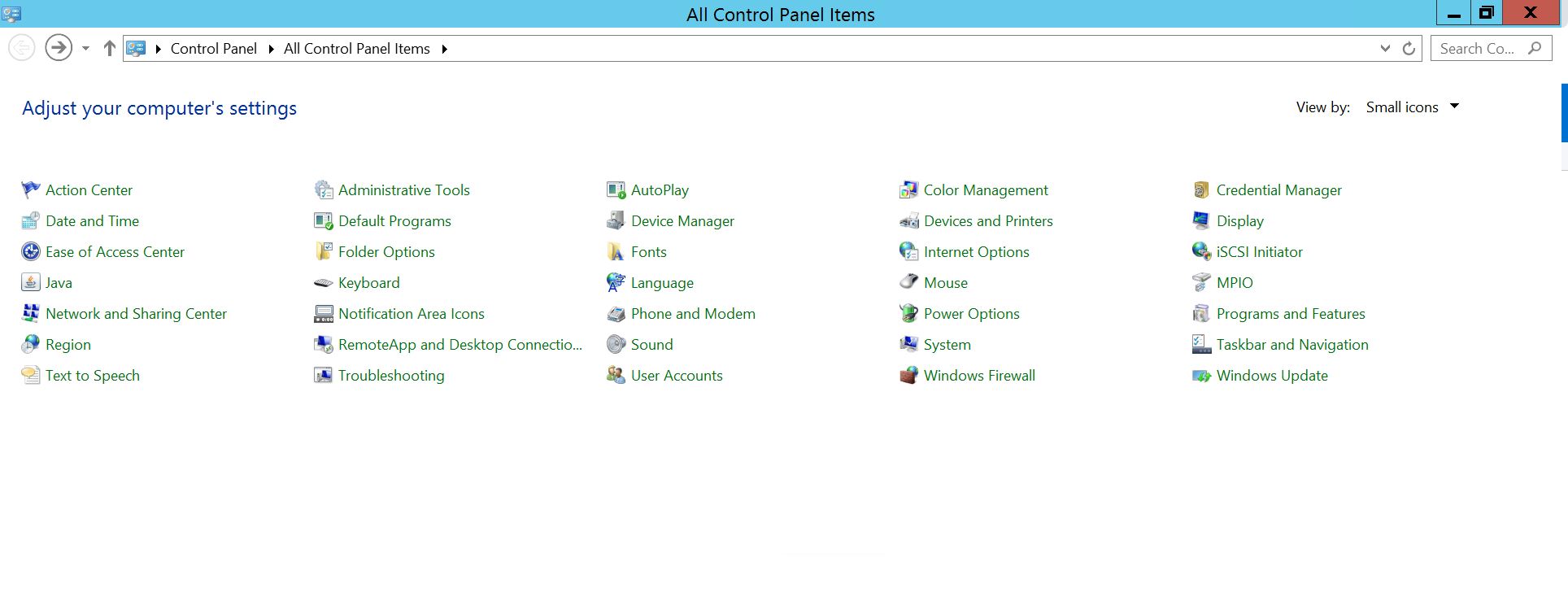
Select Program and Features
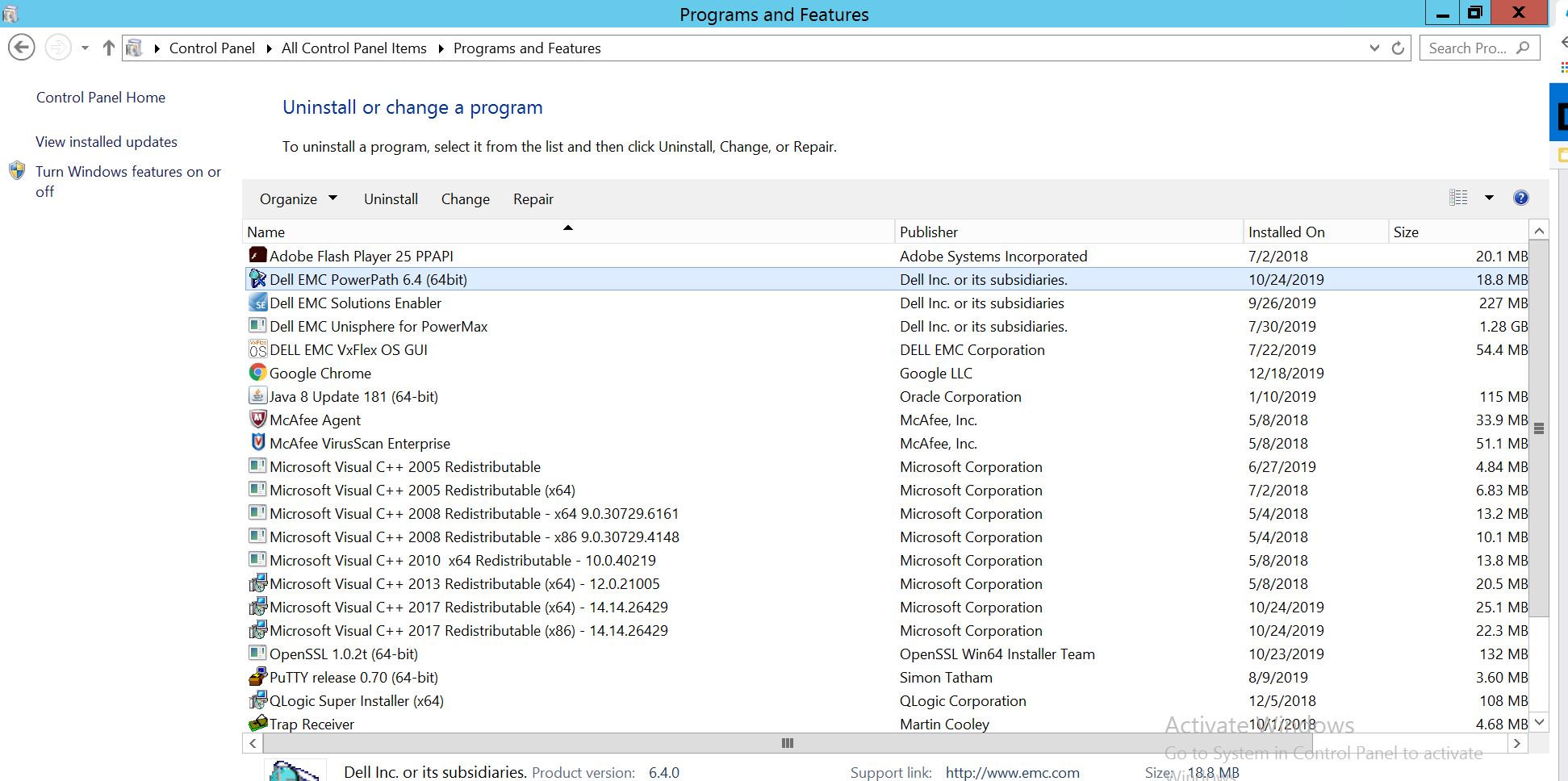
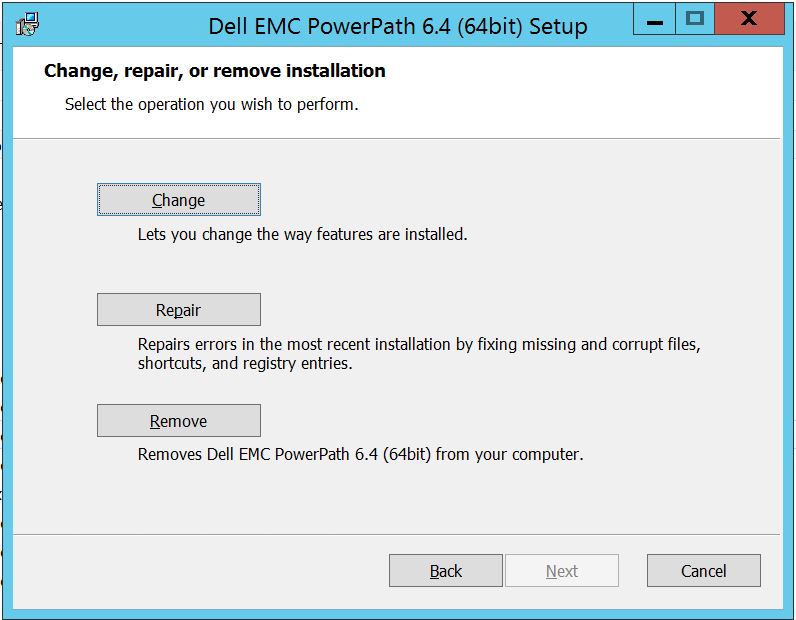
Select PowerPath and choose modify/Change which will open the installer prompt :

Click Next and follow the select change :
Which Will take you to Custom Setup :
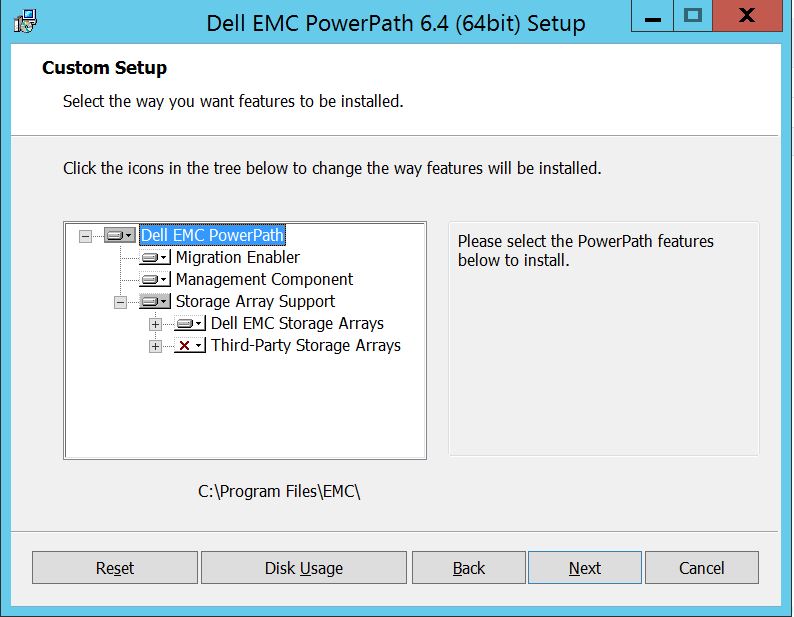
You can now Expand the Storage Array support, If not already and Also expand Dell EMC Storage Arrays which will display all the storage array that are supported under PowerPath :

Then you can further use the small downkey near any of the storage. For Example here let's take Symmetrix. It will further show 2 options :
1. Will be installed on local hard drive
2. Entire feature will be installed on local hard drive
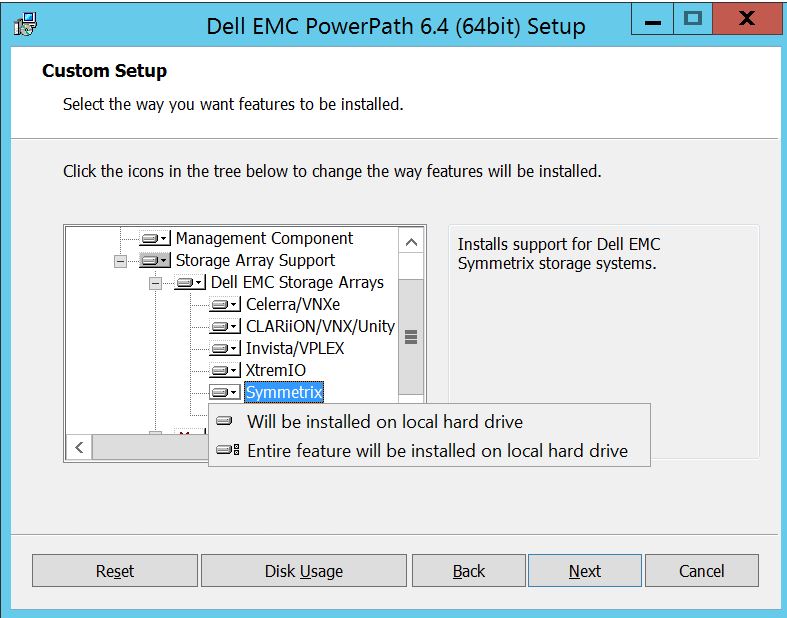
If you want all the Dell EMC Storage array to be managed ( Which essentially is the default )
You can do the same at the Dell EMC Storage Array drop down as well :

Once Completed Select next
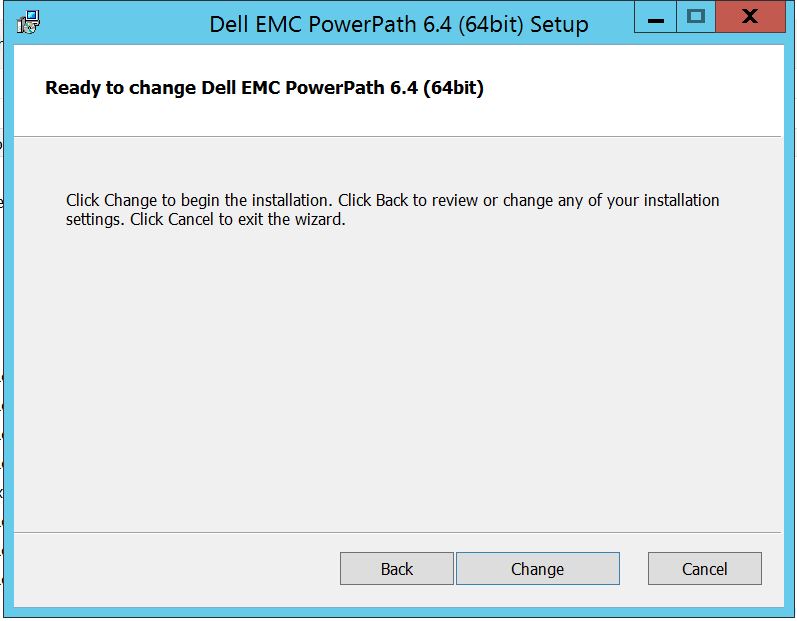
Click Change which will complete the necessary changes :

Post which you should see this where in you can select "Finish "

Post finish you will get a pop up asking for Reboot, Please Select to reboot the Server Since the Changes have to be implemented in the Server level which will then make the Storage array disks visible in PowerPath.
Post reboot when you run powermt display options, This is how the output will look :
*****************************
** POWERMT DISPLAY OPTIONS **
*****************************
Show CLARiiON LUN names: true
Path Latency Monitor: Off
Persist Path Information: On
Performance Monitor: disabled
Autostandby: IOs per Failure (iopf): enabled
iopf aging period : 1 d
iopf limit : 6000
Storage
System Class Attributes
------------ ----------
Symmetrix periodic autorestore = on
reactive autorestore = on
status = managed
proximity based autostandby = off
auto host registration = enabled
app finger printing = enabled
device to array performance report = enabled
device in use to array report = enabled
CLARiiON periodic autorestore = on
reactive autorestore = on
status = managed
proximity based autostandby = N/A
auto host registration = disabled
app finger printing = N/A
device to array performance report = N/A
device in use to array report = N/A
Invista periodic autorestore = on
reactive autorestore = on
status = managed
proximity based autostandby = N/A
auto host registration = N/A
app finger printing = N/A
device to array performance report = N/A
device in use to array report = N/A
Hitachi periodic autorestore = on
reactive autorestore = on
status = unmanaged
proximity based autostandby = N/A
auto host registration = N/A
app finger printing = N/A
device to array performance report = N/A
device in use to array report = N/A
HP xp periodic autorestore = on
reactive autorestore = on
status = unmanaged
proximity based autostandby = N/A
auto host registration = N/A
app finger printing = N/A
device to array performance report = N/A
device in use to array report = N/A
Ess periodic autorestore = on
reactive autorestore = on
status = unmanaged
proximity based autostandby = N/A
auto host registration = N/A
app finger printing = N/A
device to array performance report = N/A
device in use to array report = N/A
Generic periodic autorestore = on
reactive autorestore = on
status = managed
proximity based autostandby = N/A
auto host registration = N/A
app finger printing = N/A
device to array performance report = N/A
device in use to array report = N/A
VPLEX periodic autorestore = on
reactive autorestore = on
status = managed
proximity based autostandby = on
proximity based autostandby threshold = default
auto host registration = N/A
app finger printing = N/A
device to array performance report = N/A
device in use to array report = N/A
VNX periodic autorestore = on
reactive autorestore = on
status = managed
proximity based autostandby = N/A
auto host registration = disabled
app finger printing = N/A
device to array performance report = N/A
device in use to array report = N/A
NetApp periodic autorestore = on
reactive autorestore = on
status = unmanaged
proximity based autostandby = N/A
auto host registration = N/A
app finger printing = N/A
device to array performance report = N/A
device in use to array report = N/A
XtremIO periodic autorestore = on
reactive autorestore = on
status = managed
proximity based autostandby = N/A
auto host registration = N/A
app finger printing = N/A
device to array performance report = N/A
device in use to array report = N/A
Unity periodic autorestore = on
reactive autorestore = on
status = managed
proximity based autostandby = N/A
auto host registration = disabled
app finger printing = N/A
device to array performance report = N/A
device in use to array report = N/A
SC periodic autorestore = on
reactive autorestore = on
status = managed
proximity based autostandby = N/A
auto host registration = N/A
app finger printing = N/A
device to array performance report = N/A
device in use to array report = N/A
Here is a Scenario, Where the customer has presented disks from Symmetrix Storage array and has reported that they are not able to discover any disks in PowerPath post the upgrade.
The output of the " powermt display options " shows :
*****************************
** POWERMT DISPLAY OPTIONS **
*****************************
Show CLARiiON LUN names: true
Path Latency Monitor: Off
Persist Path Information: On
Performance Monitor: disabled
Autostandby: IOs per Failure (iopf): enabled
iopf aging period : 1 d
iopf limit : 6000
Auto Host Registration: disabled
Storage
System Class Attributes
------------ ----------
Symmetrix periodic autorestore = on
reactive autorestore = on
status = unmanaged
proximity based autostandby = on
proximity based autostandby threshold = default
CLARiiON periodic autorestore = on
reactive autorestore = on
status = unmanaged
proximity based autostandby = N/A
Invista periodic autorestore = on
reactive autorestore = on
status = managed
proximity based autostandby = N/A
Hitachi periodic autorestore = on
reactive autorestore = on
status = unmanaged
proximity based autostandby = N/A
HP xp periodic autorestore = on
reactive autorestore = on
status = unmanaged
proximity based autostandby = N/A
Ess periodic autorestore = on
reactive autorestore = on
status = unmanaged
proximity based autostandby = N/A
Generic periodic autorestore = on
reactive autorestore = on
status = managed
proximity based autostandby = N/A
VPLEX periodic autorestore = on
reactive autorestore = on
status = managed
proximity based autostandby = on
proximity based autostandby threshold = default
VNX periodic autorestore = on
reactive autorestore = on
status = unmanaged
proximity based autostandby = N/A
NetApp periodic autorestore = on
reactive autorestore = on
status = unmanaged
proximity based autostandby = N/A
XtremIO periodic autorestore = on
reactive autorestore = on
status = managed
proximity based autostandby = N/A
Unity periodic autorestore = on
reactive autorestore = on
status = unmanaged
proximity based autostandby = N/A
SC periodic autorestore = on
reactive autorestore = on
status = managed
proximity based autostandby = off
Notice how some of the storage array and especially Symmetrix here is "unmanaged"
Here are the steps along with the screenshot from our lab server , how to make it "Managed"
Open Control Panel :
Select Program and Features
Select PowerPath and choose modify/Change which will open the installer prompt :
Click Next and follow the select change :
Which Will take you to Custom Setup :
You can now Expand the Storage Array support, If not already and Also expand Dell EMC Storage Arrays which will display all the storage array that are supported under PowerPath :
Then you can further use the small downkey near any of the storage. For Example here let's take Symmetrix. It will further show 2 options :
1. Will be installed on local hard drive
2. Entire feature will be installed on local hard drive
If you want all the Dell EMC Storage array to be managed ( Which essentially is the default )
You can do the same at the Dell EMC Storage Array drop down as well :
Once Completed Select next
Click Change which will complete the necessary changes :
Post which you should see this where in you can select "Finish "
Post finish you will get a pop up asking for Reboot, Please Select to reboot the Server Since the Changes have to be implemented in the Server level which will then make the Storage array disks visible in PowerPath.
Post reboot when you run powermt display options, This is how the output will look :
*****************************
** POWERMT DISPLAY OPTIONS **
*****************************
Show CLARiiON LUN names: true
Path Latency Monitor: Off
Persist Path Information: On
Performance Monitor: disabled
Autostandby: IOs per Failure (iopf): enabled
iopf aging period : 1 d
iopf limit : 6000
Storage
System Class Attributes
------------ ----------
Symmetrix periodic autorestore = on
reactive autorestore = on
status = managed
proximity based autostandby = off
auto host registration = enabled
app finger printing = enabled
device to array performance report = enabled
device in use to array report = enabled
CLARiiON periodic autorestore = on
reactive autorestore = on
status = managed
proximity based autostandby = N/A
auto host registration = disabled
app finger printing = N/A
device to array performance report = N/A
device in use to array report = N/A
Invista periodic autorestore = on
reactive autorestore = on
status = managed
proximity based autostandby = N/A
auto host registration = N/A
app finger printing = N/A
device to array performance report = N/A
device in use to array report = N/A
Hitachi periodic autorestore = on
reactive autorestore = on
status = unmanaged
proximity based autostandby = N/A
auto host registration = N/A
app finger printing = N/A
device to array performance report = N/A
device in use to array report = N/A
HP xp periodic autorestore = on
reactive autorestore = on
status = unmanaged
proximity based autostandby = N/A
auto host registration = N/A
app finger printing = N/A
device to array performance report = N/A
device in use to array report = N/A
Ess periodic autorestore = on
reactive autorestore = on
status = unmanaged
proximity based autostandby = N/A
auto host registration = N/A
app finger printing = N/A
device to array performance report = N/A
device in use to array report = N/A
Generic periodic autorestore = on
reactive autorestore = on
status = managed
proximity based autostandby = N/A
auto host registration = N/A
app finger printing = N/A
device to array performance report = N/A
device in use to array report = N/A
VPLEX periodic autorestore = on
reactive autorestore = on
status = managed
proximity based autostandby = on
proximity based autostandby threshold = default
auto host registration = N/A
app finger printing = N/A
device to array performance report = N/A
device in use to array report = N/A
VNX periodic autorestore = on
reactive autorestore = on
status = managed
proximity based autostandby = N/A
auto host registration = disabled
app finger printing = N/A
device to array performance report = N/A
device in use to array report = N/A
NetApp periodic autorestore = on
reactive autorestore = on
status = unmanaged
proximity based autostandby = N/A
auto host registration = N/A
app finger printing = N/A
device to array performance report = N/A
device in use to array report = N/A
XtremIO periodic autorestore = on
reactive autorestore = on
status = managed
proximity based autostandby = N/A
auto host registration = N/A
app finger printing = N/A
device to array performance report = N/A
device in use to array report = N/A
Unity periodic autorestore = on
reactive autorestore = on
status = managed
proximity based autostandby = N/A
auto host registration = disabled
app finger printing = N/A
device to array performance report = N/A
device in use to array report = N/A
SC periodic autorestore = on
reactive autorestore = on
status = managed
proximity based autostandby = N/A
auto host registration = N/A
app finger printing = N/A
device to array performance report = N/A
device in use to array report = N/A
Affected Products
PowerPath for WindowsProducts
PowerPath for WindowsArticle Properties
Article Number: 000158477
Article Type: How To
Last Modified: 17 Oct 2025
Version: 4
Find answers to your questions from other Dell users
Support Services
Check if your device is covered by Support Services.