PowerVault ME4: A controller firmware update is available for your system
Summary: As part of a maintenance schedule, Dell recommends PowerVault ME administrators upgrade controller module firmware. These updates either add new features or resolve issues that affect availability or existing program features. For dual controller configurations this is a non disruptive update. Single controller configurations require an extended maintenance window as connected hosts must be shutdown. ...
This article applies to
This article does not apply to
This article is not tied to any specific product.
Not all product versions are identified in this article.
Instructions
- Overview to the controller firmware update process .
- Controller firmware update workflow
- Preparing to apply the controller update.
- Using PowerVault Manager to apply the update .
- Using Secure File Transfer Protocol (SFTP) to apply the update .
- Frequently asked questions .
Overview
When the controller firmware upgrade is applied to a dual controller configuration, the partner firmware upgrade (PFU) function when enabled will apply the update to one controller. This update file transfer will take a few minutes to complete afterwards this controller will reboot and take several minutes to come back online. When the first controller shuts down to reboot, the connected hosts continue to access their volumes via remaining controller.
It is important that connected hosts have a redundant path connection to that controller, the hosts have multi-pathing is installed and correctly configured, and finally that the host initiators are mapped correctly in PowerVault Manager to the volumes. Once the first controller has been updated, the firmware update is applied to the first controller, the controller will reboot to complete the update while the volumes continue to be accessed via the online controller.
Once complete hosts access to the volumes is over the original paths to the storage as PowerVault ME supports Asymmetrical Logical Unit Access (ALUA).
Applying firmware updates is described in the PowerVault ME4 Series Storage System Administrator’s Guide - About firmware updates and Updating firmware sections available at dell.com/support under the Documentation tab.
For ME4 systems with SupportAssist enabled AND can send telemetry data to Dell. Administrators may receive a proactive notice. WARNING event 649 that "A controller firmware update is available for your system."

New feature additions, fixes and security updates in the firmware update are listed in the Dell PowerVault ME4 Series Storage System Release Notes found at dell.com/support under the documentation tab for your PowerVault ME4 series model.
Controller firmware update workflow
- Download the controller firmware for your PowerVault ME system from dell.com/support
- Check the integrity of the file downloaded by comparing the checksum values advertised on the dell.com download site.
- Is your PowerVault ME a single controller or dual controller configuration?
-
a. For single controller configurations it is necessary to arrange a maintenance window to shutdown all connected hosts before applying the controller firmware update.
-
b. For dual controller configurations:
-
-
i. A redundant path is configured from your hosts to both controller modules. See Dell PowerVault ME4 Series Storage System Deployment Guide.
-
ii. Multipathing is installed and configured on connected host operating systems. See Dell technologies infohub
-
iii. All connected host initiators are mapped correctly to volumes in PowerVault Manager. See PowerVault ME4 Series Storage System Administrator’s Guide
-
- Open an SSH session to a controller module and check both the system health and firmware upgrade precheck. Resolve any faults before proceeding, if necessary engage Dell technical support.
- Apply the controller firmware upgrade using PowerVault Manager.
Preparing to apply the controller update
- Download the PowerVault ME4 Series Storage Controller Firmware. e.g. GT280R010-01-dellemc.zip
- On Microsoft Windows systems use the certutil command line tool to verify that the SHA256 checksum of the downloaded file matches the expected value.
C:\temp\Dell>certutil -hashfile GT280R010-01-dellemc.zip
SHA1 hash of GT280R010-01-dellemc.zip:
b42a789ae7d8baa78039ce54a63831f2417d63cd
CertUtil: -hashfile command completed successfully.
- Extract the bin file (e.g. GT280R010-01-dellemc.bin) from the zip archive to a folder.
- Using PuTTY or other SSH application. Open an SSH session to either PowerVault ME4 management IP address. Login as Admin or Manage level privilege and run the following commands:
-
Command Observation show systemIf the Health status is not OK Resolve these conditions before updating.
For dual controller configurations the management controller (MC) should be Operational.check firmware-upgrade-healthThis must pass or the controller firmware update will not succeed. Collect a support bundle and contact Dell technical support if unsure how to resolve this. show advanced-settingsIn dual controller configurations, partner firmware upgrade should be enabled. The command to enable PFU is set advanced-settings partner-firmware-upgrade enabled
-
Check system health
# show system
System Information
------------------
System Name: ME4DB01
System Contact: Mr. Sysadmin
System Location: Server room, Building 1
System Information:
Midplane Serial Number: 00C0FFF0123
Vendor Name: DELL EMC
Product ID: ME4024
Product Brand:
Enclosure Count: 1
Health: OK <--- health should be ok
Health Reason:
Other MC Status: Operational <--- Dual controller the management controller (MC) should be Operational.
PFU Status: Idle <--- Dual controller Partner Firmware Upgrade (PFU) no updates in progress.
Supported Locales: English (English), Spanish (español), French (français), German (Deutsch), Japanese (日本語), Korean (한국어), Chinese-Simplified (简体中文)
Success: Command completed successfully. (2022-08-03 10:51:10)
-
Pre-firmware upgrade health check
# check firmware-upgrade-health
Upgrade Health
---------------------------------
Pass
---------------------------------
Success: Command completed successfully. (2022-08-03 10:51:17)
-
Check that Partner Firmware Upgrade (PFU) is enabled in dual controller configurations.
# show advanced-settings
Disk Group Background Scrub: Enabled
Disk Group Background Scrub Interval: 360
Partner Firmware Upgrade: Enabled <--- PFU should be enabled in dual controller configurations.
<output snipped for brevity>
Success: Command completed successfully. (2022-08-03 10:56:28)
- If system health is OK and the firmware-upgrade-health check passes, proceed to apply the firmware updates using PowerVault Manager.
Using PowerVault Manager to apply the update
- Perform one of the following as a user with the manage role:
-
In the banner, click the system panel and select Update Firmware.
-
In the System topic, select Action > Update Firmware.
-
The Update Firmware panel opens. The Update Controller Modules tab displays versions of firmware that are currently installed for the components in each controller.

- Click Browse and select the firmware file to install.
- Optionally, select or clear the Partner Firmware Update (PFU) check box to enable or disable PFU, and confirm the action.

- Click OK. A Progress of Firmware Update panel displays the firmware-update progress.

Caution: Do not perform a power cycle or controller restart during a firmware update. If the update is interrupted or there is a power failure, the module might become inoperative. If this issue occurs, contact technical support. The module might need to be returned to the factory for reprogramming.
- When the update is applied to the second controller you may see a dialog with this message "Communication with the system has been lost. Connection will be restored once communication with the system has been established."
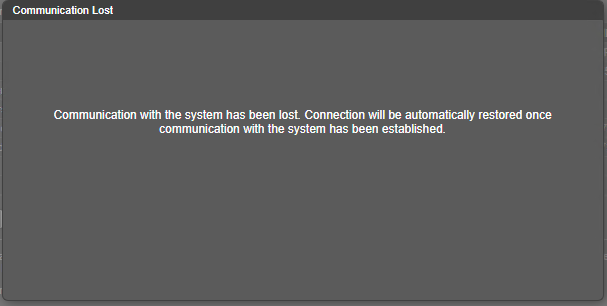
- Wait a few minutes. Clear your web browser cache, then sign in to the PowerVault Manager. If PFU is still running on the controller you sign in to, a panel shows PFU progress and prevents you from performing other tasks until PFU is complete.
Using Secure File Transfer Protocol (SFTP) to apply the update
Depending on circumstances administrators could optionally apply firmware updates to the PowerVault Me4 series using an SFTP client. If your Windows operating system does not have an SFTP client, use PSFTP. (PuTTY Secure FTP client.) The utility can be downloaded here.
Caution: Performing the firmware update by FTP/SFTP takes much longer to complete than using PowerVault Manager
-
Open an SFTP connection to a PowerVault Me4 controller management IP address on port 1022
-
Login as admin or manage level user.
-
Use the put command to transfer the controller firmware binary image.
Note: The P in -P 1022 is case sensitive and is used by PSFTP to specify the ME4 default secure FTP port number 1022
C:\temp\Dell> psftp <controller management IP address> -P 1022
The server's host key is not cached in the registry. You
have no guarantee that the server is the computer you
think it is.
The server's rsa2 key fingerprint is:
ssh-rsa 2048 11:5b:0e:77:23:a3:61:81:ef:70:05:ff:fe:f5:6a:d6
If you trust this host, enter "y" to add the key to
PuTTY's cache and carry on connecting.
If you want to carry on connecting just once, without
adding the key to the cache, enter "n".
If you do not trust this host, press Return to abandon the
connection.
Store key in cache? (y/n) n
login as: manage
Instructions for getting the cumulative I/O density data:
1. Log in with user name and password
2. Type 'get logs:heatmap <filename.csv> is a file to capture the cumulative
I/O density data
3. Example: 'get logs:heatmap IO_density.csv'
Instructions for updating firmware in controller modules:
1. Type 'put <filename> flash' where <filename> is the new firmware image to load.
2. For a single controller load, it will take approximately 10 minutes for
the new firmware to load and for the automatic restart to complete. For
a system load (dual controller, PFU enabled), allow an additional 15
minutes for the partner controller to be updated.
If using FTP, progress messages will be displayed in the FTP client
interface during that time.
If using SFTP, progress messages will *not* be displayed in the SFTP
client. Instead, progress may be monitored via the Management Port
(e.g., :8081) or by issuing a "get progress" command with a separate
FTP/SFTP connection.
Wait for the progress messages to indicate that the code load has
completed.
3. If PFU is not enabled and a system load was not performed, log into the
other controller and repeat steps 1-2.
4. WARNING! Do not power cycle or restart during the firmware update
as this can result in loss of capabilities for this unit.
5. If you attempt to load an incompatible firmware version (such as code
that is intended only for an iSCSI system on an FC system) the message
"*** Code Load Fail. Bad format image. ***" will be displayed and the FTP
prompt will come back in just a few seconds. The code will not be loaded.
<snipped - text removed for brevity>
Using keyboard-interactive authentication.
Password:
Remote working directory is /
psftp> put GT280R010-01-dellemc.bin flash
local:GT280R010-01-dellemc.bin => remote:/flash
Frequently asked questions
Q. How long does a controller firmware upgrade take to complete?
A. From start to finish on dual controller configurations approximately 20 to 30 minutes.
Q. What firmware version is the ME4 array currently running?
A. The firmware version is displayed in the PowerVault Manager GUI header. If using the ME4 command line interface (CLI) the command is: show versions

Q. If the controller firmware upgrade will not complete, what steps do I need to take?
A. If the reason for the failure is not clear gather a support bundle and contact technical support for assistance. Refer to KB 000120519: PowerVault: How to Collect support logs for ME4 models
Q. Where can I find the best practices documentation for connecting a host operating system? to the PowerVault ME4?
A. Refer to the documentation Dell PowerVault ME4 Series Storage System Deployment Guide and Dell technologies infohub for operating system configuration instructions. There are some host operating system configuration videos using PowerVault ME4 on youtube.com.
Q. How is SupportAssist and CloudIQ enabled on the PowerVault ME4
Videos
Video Link:
https://www.youtube.com/watch?v=-doAovj9_KM
Affected Products
ME Series, OEMR ME40XX and ME4XX, Dell EMC PowerVault ME4012, Dell EMC PowerVault ME4024, Dell EMC PowerVault ME4084, Dell EMC PowerVault ME412 Expansion, Dell EMC PowerVault ME424 Expansion, Dell EMC PowerVault ME484Article Properties
Article Number: 000120120
Article Type: How To
Last Modified: 16 Aug 2022
Version: 6
Find answers to your questions from other Dell users
Support Services
Check if your device is covered by Support Services.