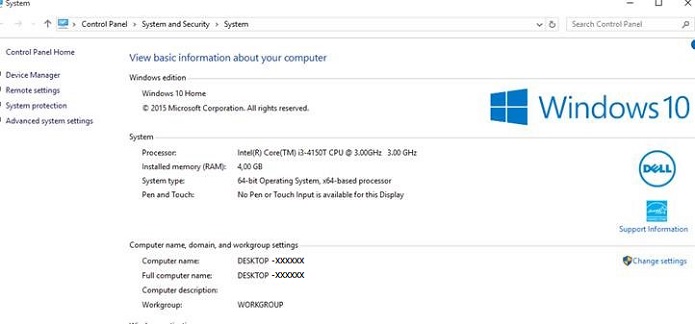
Windows 10과 함께 제공되는 Dell 시스템에서 컴퓨터 이름이 Desktop-XXXXXX로 표시됨
Summary: 이 문서에서는 Desktop-XXXXXX가 표시되는 경우 Dell 컴퓨터에서 컴퓨터 이름을 변경하는 단계를 제공합니다.
This article applies to
This article does not apply to
This article is not tied to any specific product.
Not all product versions are identified in this article.
Symptoms
컴퓨터 이름이 Desktop-XXXXXX로 표시됨
Windows 10 컴퓨터의 데스크탑과 노트북 모두에 컴퓨터 이름이 "Desktop-XXXXXX"인 것을 알 수 있습니다. (XXXXXX = 7개의 문자 또는 숫자의 조합)
Cause
사용 가능한 원인 정보가 없습니다.
Resolution
컴퓨터 이름을 변경하는 방법
Windows 10 컴퓨터의 컴퓨터 이름을 변경할 수 있는 몇 가지 옵션이 있습니다.
시작 메뉴에서
- 시작 메뉴에서 설정을 클릭하면 설정 창이 열립니다.
- 왼쪽 상단에 있는 시스템 아이콘을 클릭합니다.
- 왼쪽 메뉴 하단에서 정보를 클릭합니다.
- 그런 다음 PC 이름 바꾸기 버튼을 클릭합니다
- PC 이름 변경 창에서 상자에 새 이름을 입력한 후 다음을 클릭하고 지금 다시 시작 버튼을 클릭합니다.
데스크탑 모드 메뉴
- 검색 상자에sysdm.cpl 입력하고 Enter 키를 누르면 시스템 속성 창이 열립니다.
- Change를 클릭합니다.
- Computer Name/Domain Changes(컴퓨터 이름/도메인 변경) 창의 Computer Name(컴퓨터 이름) 상자에 새 컴퓨터 이름을 입력한 다음 OK(확인)를 클릭하고 Yes(예)를 클릭하여 시스템을 재시작합니다.
Affected Products
Alienware, Dell All-in-One, Dell Pro All-in-One, Dell Pro Max Micro, Dell Pro Max Slim, Dell Pro Max Tower, Dell Pro Micro, Dell Pro Slim, Dell Pro Tower, Dell Slim, Dell Tower, Inspiron, OptiPlex, Vostro, XPS, G Series, G Series, Alienware
, Dell Plus, Dell Pro, Dell Pro Max, Dell Pro Plus, Dell Pro Premium, Inspiron, Latitude, Dell Pro Rugged, Vostro, XPS, Fixed Workstations, Mobile Workstations, Dell Pro Max Micro XE FCM2250, Dell Pro Max Slim XE FCS1250, Dell Pro Max Tower T2 XE FCT2250, Dell Pro Max 16 XE MC16250, Dell Pro Micro Plus XE QBM1250, Dell Pro Slim Plus XE5 QBS1250, Dell Pro Tower Plus XE5 QBT1250
...
Article Properties
Article Number: 000137111
Article Type: Solution
Last Modified: 10 Jul 2025
Version: 7
Find answers to your questions from other Dell users
Support Services
Check if your device is covered by Support Services.