"Power surge on the USB port" Error in Windows 10
Summary: Follow these steps to resolve a "Power surge on the USB port - Unknown USB Device needs more power than the port can supply" error in Windows 10.
This article applies to
This article does not apply to
This article is not tied to any specific product.
Not all product versions are identified in this article.
Symptoms
A Dell laptop with Windows 10 Pro 64 installed may report the following error: "Power surge on the USB port - Unknown USB Device needs more power than the port can supply." If you expand the message, the following message appears: "Power surge on the USB port - A USB device has malfunctioned and exceeded the power limits of its hub port. You should disconnect the device."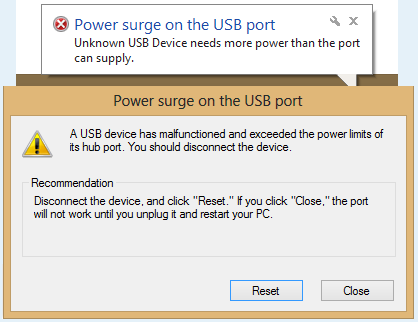
Cause
The USB device causes a power surge message when plugged into the USB port.
Resolution
- Initial troubleshooting should follow the on-screen directions:
- Disconnect all USB peripheral items, then click the Reset button on the screen using the touchpad and touchpad buttons.
- Once reset, reboot the computer, reconnect the USB device, and then see if the error persists.
- If the issue persists, follow the steps below to run the Hardware Troubleshooter and test the USB port:
- Type
cmdin the Windows search bar and press Enter to open a command prompt. - Type
msdt.exe -id DeviceDiagnosticand press Enter to open the Windows Troubleshooter. - Click Hardware and Devices and then select Next.
- Click Run the troubleshooter and choose to run the tool as an administrator.
- Click Next and then follow the on-screen instructions to complete the troubleshooting process.
- Type
- If no issues are found, uninstall and reinstall all the USB controllers following the steps below:
- Disconnect the USB device from the computer.
- Press the Windows Logo + R keys on the keyboard, type devmgmt.msc in the Run command box and then press Enter. This opens Device Manager.
- Expand Universal Serial Bus Controllers.
- Right-click every device under the Universal Serial Bus Controllers section, and then click Uninstall to remove them one at a time.
- Restart the computer so that Windows reinstalls the USB controller drivers automatically.
- Now, plug in the USB device, and then check if that resolves the issue.
- If this issue continues to occur with a specific device, it is possible that the device is requiring more voltage or power than is available from the USB port being used. In this case, a USB hub with its own dedicated power source is suggested. Connect the powered USB hub to the computer's USB port and then connect the device to the powered USB hub.
- Run the Diagnostic Test on your USB Ports.
- Browse to the Dell USB Diagnostics page and follow the prompts to help identify and fix issues with your computer.
Affected Products
G Series, Alienware, Dell Plus, Dell Pro, Dell Pro Max, Dell Pro Plus, Dell Pro Premium, Inspiron, Latitude, Dell Pro Rugged, Vostro, XPS, Mobile WorkstationsArticle Properties
Article Number: 000149584
Article Type: Solution
Last Modified: 22 Jul 2025
Version: 10
Find answers to your questions from other Dell users
Support Services
Check if your device is covered by Support Services.