How to Download and Install Dell Digital Delivery
Summary: Dell Digital Delivery has reached its end of life and is no longer supported. See the note below for details.
This article applies to
This article does not apply to
This article is not tied to any specific product.
Not all product versions are identified in this article.
Instructions
Note: Dell Digital Delivery has reached its end of life and is no longer supported. Refer to Dell Digital Delivery and Alienware Digital Delivery End of Life Announcement for more information and replacement options.
Dell Digital Delivery (DDD) enables a user to download and install software that was purchased with their Dell computer.
Dell Digital Delivery is already installed on any Dell Windows laptop or tower that is shipped from the factory. The software must be reinstalled if Windows 10 is reinstalled.
WARNING: Software that is purchased independently of a Dell platform is available through Dell Digital Locker and not through Dell Digital Delivery.
Before proceeding, ensure that you have:
- Administrator rights to the computer you are working on.
- An active Internet connection is needed.
Steps to download and install Dell Digital Delivery
-
In a web browser, go to https://www.dell.com/support/home.
-
Under Search Support, enter your Service Tag and then press Search (Figure.1 English Only.)
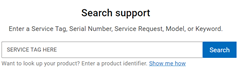
(Figure.1 Search support)
NOTE: See How to Locate your System Service Tag Using Command Prompt for more information.
-
Click Drivers & Downloads.
-
Expand Find Drivers (Figure.2 English Only.)

(Figure.2 Expand Find Drivers)
NOTE: The computer that is listed in the screenshot may differ from your equipment.
-
Under Keyword, type Dell Digital Delivery and then press Enter
-
Click Download to the right of Dell/Alienware Digital Delivery Application.
-
Go to the location of the download and then double-click Dell-Alienware-Digital-Delivery-Application-[VERSION].exe.
NOTE:
- [VERSION] is the version of the software bundle.
- The [VERSION] may differ in your environment.
-
Does a User Account Control (UAC) prompt appear?
-
If so, click Yes.
-
If it does not, go to the next step.
-
-
In the Dell Update Package, click INSTALL (Figure.3 English Only.)

(Figure.3 Software install)
-
After a successful install, click CLOSE (Figure.4 English Only.)

(Figure.4 Close install)
NOTE: If the installation fails, click View Installation Log to troubleshoot further, or contact Dell Technical Support for further assistance.
Affected Products
Alienware, Inspiron, Legacy Desktop Models, OptiPlex, Vostro, XPS, G Series, G Series, Alienware, Inspiron, Latitude, Vostro, XPS, Legacy Laptop Models, Latitude Tablets, Surface, XPS Tablets, Fixed Workstations, Mobile WorkstationsArticle Properties
Article Number: 000192053
Article Type: How To
Last Modified: 03 Nov 2025
Version: 11
Find answers to your questions from other Dell users
Support Services
Check if your device is covered by Support Services.