Dell EMC Unity: How to add local users to a Domain Joined CIFS server using MMC
Summary: Dell EMC Unity: How to add local users to a Domain Joined CIFS server using MMC.
This article applies to
This article does not apply to
This article is not tied to any specific product.
Not all product versions are identified in this article.
Instructions
This KB shows how to add local users to a Domain Joined CIFS server using MMC.
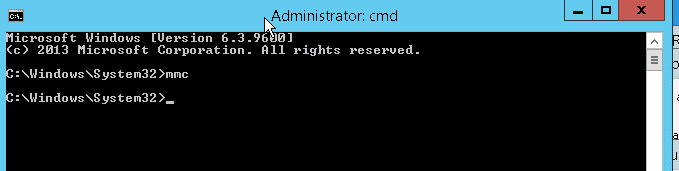
- From Windows client cmd: Type
mmc
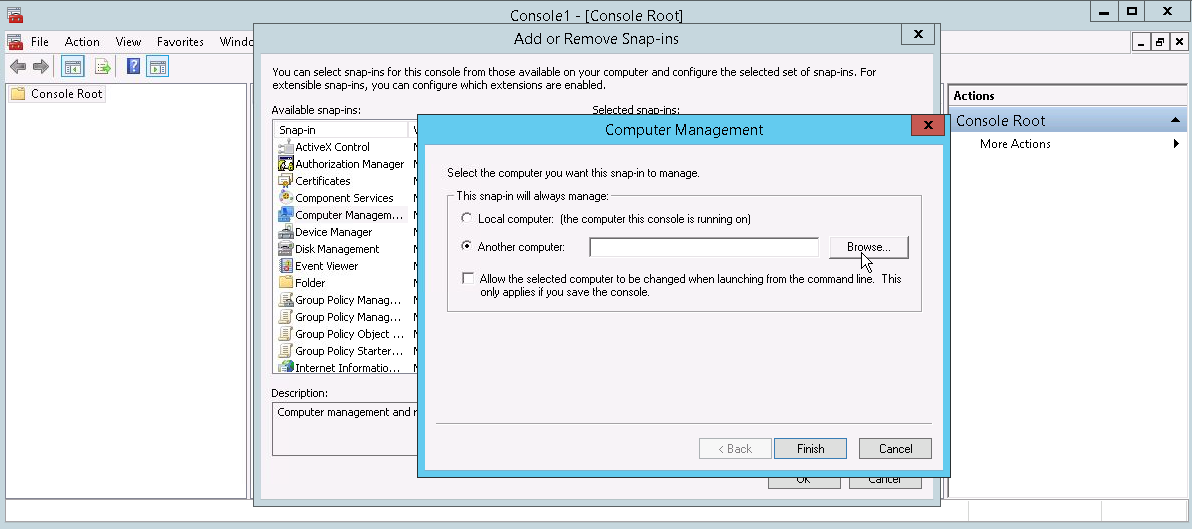
- From File >> Add/Remove Snap-in >> Choose Computer Management, then choose the remote CIFS server needed to manage, then click OK.
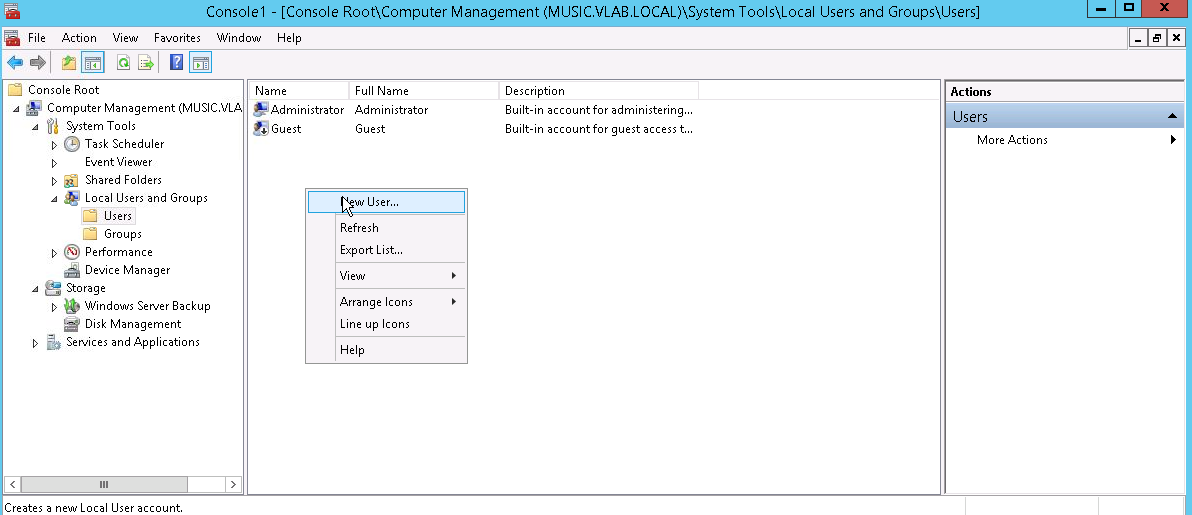
- After connecting to the needed CIFS server, from Local Users and Groups, Click Add new user
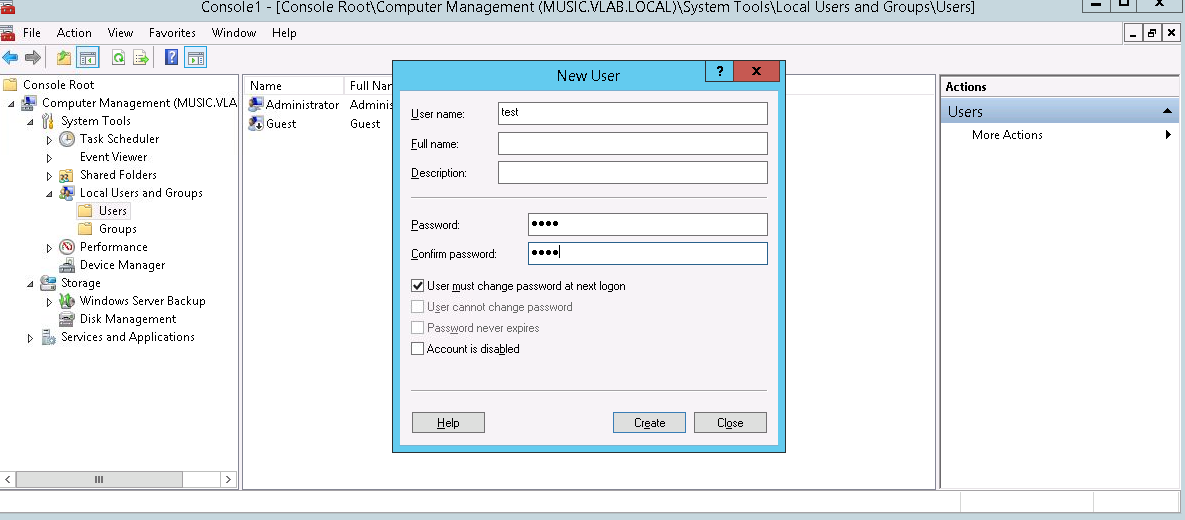
- From the new user panel, complete the username, description, password and whether this user must change the password on first login or not. Then Click Create. This will lead to a new user will be created locally on the CIFS server. (Please note that this user is not a domain user )
Additional Information
To access the resource on this cifs server use the <CIFS_server\Username> or <IP Address\User name >
And not <Domainname\Username> as this is a local user on the cifs server.
For example if this user is given FTP privilege using filezella or any ftp client,
the username will be CIFS_server\username
Affected Products
Dell EMC Unity FamilyProducts
Celerra, Dell EMC Unity Family, VNX/VNXeArticle Properties
Article Number: 000022823
Article Type: How To
Last Modified: 22 Oct 2025
Version: 7
Find answers to your questions from other Dell users
Support Services
Check if your device is covered by Support Services.