Dell Active Pen PN579X Not Working with Supported Inspiron Computers
Summary: Information about the Dell Active Pen PN579X and Inspiron computers.
This article applies to
This article does not apply to
This article is not tied to any specific product.
Not all product versions are identified in this article.
Symptoms
Dell Active Pen PN579X
When the Dell Active Pen PN579X is used out of box, it cannot write on the screen for the following systems:
- Inspiron 5378 2-in-1 (With Support Active Pen Sticker only)
- Inspiron 5379 2-in-1 (With Support Active Pen Sticker only)
- Inspiron 5482 2-in-1
- Inspiron 5578 2-in-1 (With Support Active Pen Sticker only)
- Inspiron 5579 2-in-1 (With Support Active Pen Sticker only)
- Inspiron 5582 2-in-1
- Inspiron 7370 (Touch Screen only)
- Inspiron 7373 2-in-1
- Inspiron 7378 2-in-1 (With Support Active Pen Sticker only)
- Inspiron 7386 2-in-1
- Inspiron 7390 2-in-1
- Inspiron 7391 2-in-1
- Inspiron 7570 (Touch Screen only)
- Inspiron 7573 2-in-1
- Inspiron 7579 2-in-1 (With Support Active Pen Sticker only)
- Inspiron 7586 2-in-1
- Inspiron 7590 2-in-1
- Inspiron 7591 2-in-1
Cause
Not Applicable
Resolution
The Dell Active Pen PN579X supports 2 inking modes: AES and MPP. The default inking mode of the pen is AES. Inspiron uses the MPP inking mode.
Follow these steps to switch the inking mode of the pen from AES to MPP.
- Press both the Bottom Barrel button and Top Barrel button briefly to indicate the current inking mode.
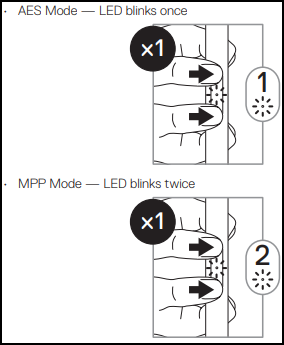
- If the current inking mode is AES, press and hold both Bottom Barrel button and Top Barrel button for 2 seconds to switch to MPP mode.
- Repeat step 1 to confirm that the inking mode has switched to MPP.
More troubleshooting and information about the Dell Active Pen PN579X can be found here.
Affected Products
Dell Active Pen - PN579X, Inspiron 13 5378 2-in-1, Inspiron 13 5379 2-in-1, Inspiron 7370, Inspiron 7373 2-in-1, Inspiron 13 7378 2-in-1, Inspiron 7386 2-in-1, Inspiron 5482 2-in-1, Inspiron 15 5578 2-in-1, Inspiron 15 5579 2-in-1
, Inspiron 15 5582 2-in-1, Inspiron 7570, Inspiron 7573 2-in-1, Inspiron 15 7579 2-in-1, Inspiron 7586 2-in-1, Latitude 7390 2-in-1
...
Article Properties
Article Number: 000134974
Article Type: Solution
Last Modified: 01 Oct 2025
Version: 4
Find answers to your questions from other Dell users
Support Services
Check if your device is covered by Support Services.