PowerVault: ML6000 License Key Replacement
Summary: PowerVault ML6000 missing tape slots due to a factory reset of change of the Control Module.
This article applies to
This article does not apply to
This article is not tied to any specific product.
Not all product versions are identified in this article.
Instructions
If you have reset your ML6000 to factory defaults, or Support has replaced the Command Module (CM) on an ML6000 you may not have access to your full tape slots or your encryption licenses.
The license key for Capacity on Demand (COD) or EKM must be replaced by Dell Support.
Information needed to generate the license key:
1. Customer Name
2. Service tag for new and original system
3. Serial number for new and original system
4. Case number
5. Reason for key replacement
6. Order number for any COD license purchased after the fact
You need a snapshot from the original Command Module and a snapshot from the replacement Command Module. If for some reason you are not able to get a snapshot from the original Command Module, have the EFD tech read the information off from the chassis.
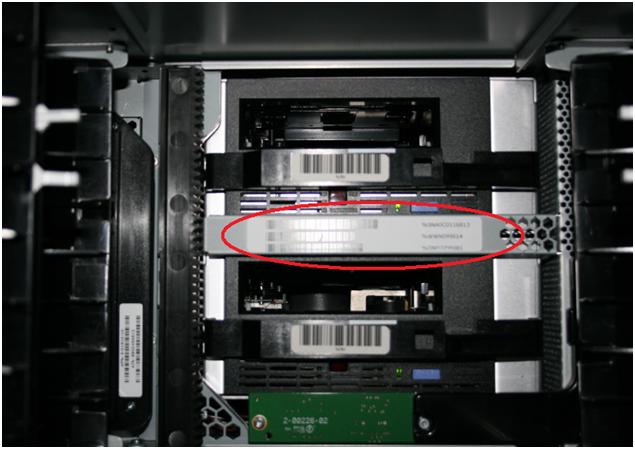
This is from the Command Module on the bracket inside the ML6000 between the drive bays.
Verify the information by going Here, click Capacity on Demand or Library-Managed Encryption and enter the Service Tag and Serial Number of the original chassis to verify the library is listed.
Have the EFD technician gather a snapshot from the replacement Command Module and upload to the case. Check the website to see if the new Service Tag and Serial Number have been updated.
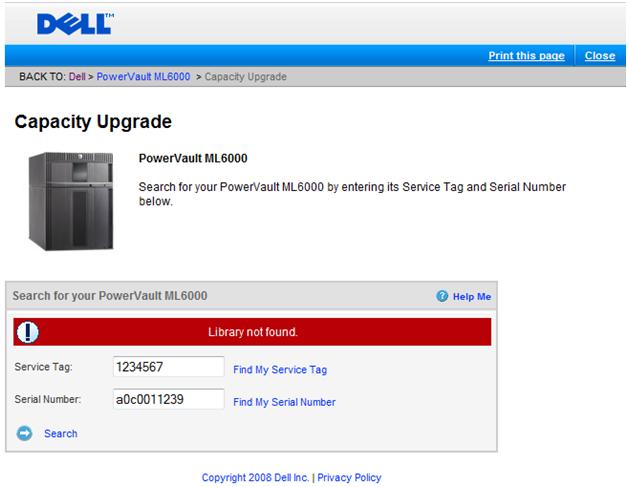
If you see that Library not found, an analyst must engage Quantum to update the database. During business hours, this is usually within one hour. If outside of business hours the process could take longer.
Once the database is updated and the ML6000 is listed, an analyst can generate the license key. Quantum does not generate license keys, they only update the database.
When the license keys are generated, you can add the license to the ML6000 using the web interface. This is located under > Setup > License.

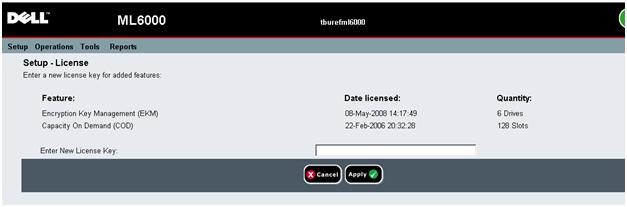
Once the license is entered, click apply.
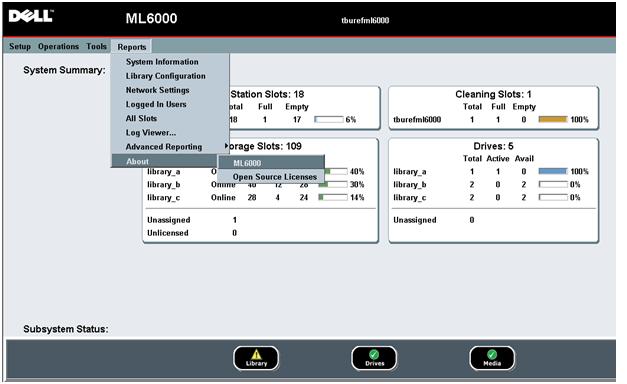
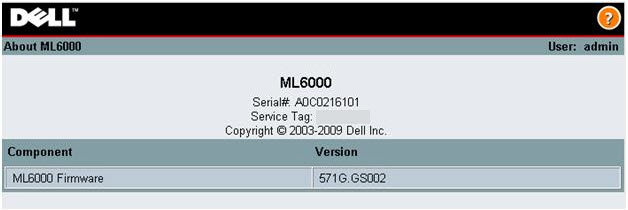
If for some reason you are not able to get a snapshot, have the EFD tech get a print screen from:
> Reports >About >ML6000 (This lists the Service Tag and Serial number)
Affected Products
PowerVault ML6000Article Properties
Article Number: 000140120
Article Type: How To
Last Modified: 28 Apr 2025
Version: 4
Find answers to your questions from other Dell users
Support Services
Check if your device is covered by Support Services.