如何收集 Secureworks Red Cloak Endpoint 代理程序的日志
Summary: 了解如何收集适用于 Windows 或 Linux 的 Secureworks Red Cloak Endpoint 代理程序日志的分步说明。
This article applies to
This article does not apply to
This article is not tied to any specific product.
Not all product versions are identified in this article.
Instructions
本文介绍收集 Secureworks Red Cloak Endpoint 代理程序日志的方法。
受影响的产品:
- Secureworks Red Cloak Endpoint
受影响的操作系统:
- Windows
- Linux
Windows
用户可以通过手动收集以下信息来对 Secureworks Red Cloak Endpoint 代理程序进行故障处理:
单击相应的日志记录类型以了解更多信息。
安装日志
- 右键单击 Windows 的“开始”菜单,然后单击运行。
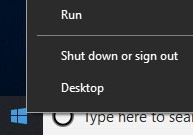
- 在 “运行 ”UI 中,键入
%temp%,然后单击 OK。 提醒:
提醒:%temp%是 的 Windows 变量C:\Users\[USERNAME]\AppData\Local\Temp。 - 捕获名为
MSI<XXXXX>.LOG。 提醒:
提醒:<XXXXX>表示随机生成的字母和数字。
代理程序日志
- 创建名为 Logs 的临时日志文件夹。
- 右键单击 Windows 的“开始”菜单,然后单击运行。

- 在 “运行 ”UI 中,键入
C:\Program Files (x86)\Dell SecureWorks\Red Cloak,然后单击 OK。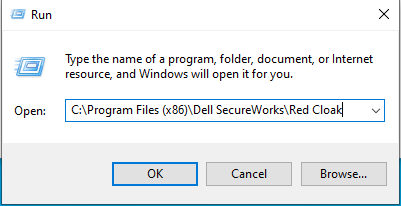
- 按类型排序以显示所有 .log 文件。

- 将所有 .log 和 .dmp 文件复制到 Logs 文件夹(步骤 1)。
- 右键单击 Windows 的“开始”菜单,然后单击运行。

- 在 “运行 ”UI 中,键入
C:\Program Files (x86)\Dell SecureWorks\Ignition\,然后单击 OK。
- 将所有.log文件复制到
Logs文件夹(步骤 1)。 - 右键单击
Logs文件夹,选择 发送到,然后单击 压缩 (zipped) 文件夹。
Linux
用户可以通过手动收集以下信息来对 Secureworks Red Cloak Endpoint 代理程序进行故障处理:
单击相应的日志记录类型以了解更多信息。
安装日志
在 Linux 端点上运行安装时,屏幕上的任何错误都显示为文本。没有要收集的日志文件。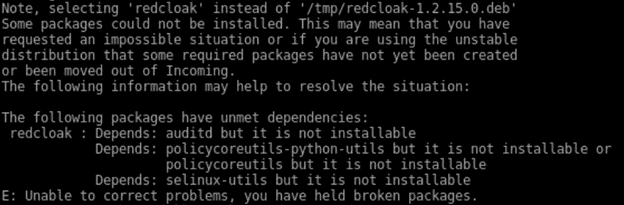
代理程序日志
要成功分载日志,Secureworks Red Cloak Endpoint 代理程序需要:
- 第三方 FTP(文件传输协议)客户端
- FTP 客户端的示例包括(但不限于):
- Filezilla
- WinSCP
- CuteFTP
- FTP 客户端的示例包括(但不限于):
- 存储设备(在 Linux 服务器之外)
- 在 FTP 客户端中,使用 FTP 用户登录到 Linux 服务器。

- 请转至
/opt/secureworks/redcloak/log然后将该文件夹中的所有文件保存在本地。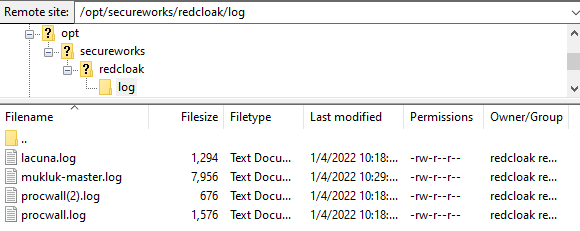
要联系支持部门,请参阅 Dell Data Security 国际支持电话号码。
转至 TechDirect,在线生成技术支持请求。
要获得更多见解和资源,请加入戴尔安全社区论坛。
Affected Products
SecureworksArticle Properties
Article Number: 000201786
Article Type: How To
Last Modified: 06 Aug 2025
Version: 4
Find answers to your questions from other Dell users
Support Services
Check if your device is covered by Support Services.