Operating System Recovery For Windows 11 SE Devices
Summary: This article describes operating system recovery options available in Windows 11 SE.
This article applies to
This article does not apply to
This article is not tied to any specific product.
Not all product versions are identified in this article.
Instructions
Affected Operating Systems:
- Windows 11 SE
Windows 11 SE is an edition of Windows that is designed for education. It runs on web-first devices, and operating system recovery is managed from the Intune console.
Operating System Recovery:
Windows 11 SE enables school administrators and teachers to refresh and reset the installed operating system from the Intune console.
| Option | Scope | Disk Wipe | When to use |
|---|---|---|---|
| Fresh Start | This removes any apps that are installed. | No | Troubleshooting |
| Autopilot Reset | This removes personal files, apps, and settings, and resets the device in a fully configured or known IT-approved state. | No | Troubleshooting, app and computer performance issues |
| Wipe | This is equivalent to a factory reset. It wipes all user accounts, data, MDM policies, and settings. It resets the operating system to its default state and settings. | Yes | Change the device owner. Lost or stolen device |
Reset and Wipe require that the Windows Recovery Environment (WinRE) on the device is intact.
Recovery Image:
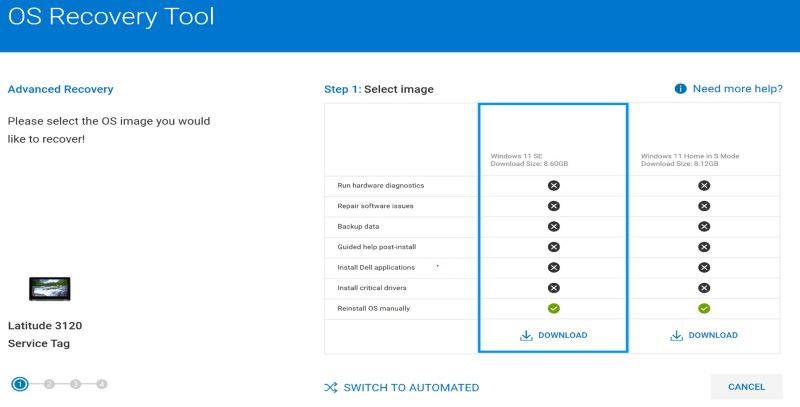
Dell SupportAssist OS Recovery allows customers to create a bootable USB recovery key.
Download and launch the Dell OS Recovery Tool on a device that runs Windows Home or Pro:
- Insert a USB Key (16GB or larger) that can be formatted.
- Click Advanced Recovery
- Select the Windows 11 SE image, and follow the prompts.
Note: SupportAssist OS Recovery does not support automated installation for Windows 11 SE devices.
How to Download and Use the Dell Operating System Recovery Image
FAQ:
- How can I restore Windows on the device?
- Windows 11 SE can be restored through Push Button Reset (PBR).
- From the Windows desktop: Click Start > Settings > System > Recovery > Reset PC > Keep my files > Local reinstall > Next > Reset.
- From the Windows login prompt: Press and hold SHIFT > Power > Restart.
- While the device is powered off: Press and hold the WINDOWS Key and then press and release the Power button. For more information, reference Reset or Reinstall Windows 11 on Your Dell Computer and Windows Recovery Environment (WinRE)
.
Note: To ensure the best end user experience, administrators should disable SupportAssist OS Recovery on computers with Windows 11 SE:- Reboot the computer.
- Tap F2 when the Dell logo appears to enter the BIOS.
- Go to SupportAssist System Resolution and expand the note.
- Select SupportAssist OS Recovery.
- Clear SupportAssist OS Recovery
- Click Apply, Save, and then Exit.

- Windows 11 SE can be restored through Push Button Reset (PBR).
- Can Push-Button Reset restore drivers and apps?
- Yes, the factory-installed apps and drivers are restored.
- How can I customize the image?
- Intune allows administrators to add apps and policy settings from the In-Tune console.
- Can I manage Windows 11 SE without In-Tune?
- No, Windows 11 SE requires In-Tune. Contact your account team if you have questions.
Additional Information
Article Properties
Article Number: 000203288
Article Type: How To
Last Modified: 21 Jul 2025
Version: 12
Find answers to your questions from other Dell users
Support Services
Check if your device is covered by Support Services.