VxRail: Encryption Recovery Key Error while communicating with daemon on VxRail 4.7.x 7.0.x and 8.0.x
Summary: When running the command "esxcli system settings encryption recovery list," an error message is seen: "Error while communicating with daemon."
This article applies to
This article does not apply to
This article is not tied to any specific product.
Not all product versions are identified in this article.
Symptoms
When running the bellow command you get the error:
[root@esxserver:~] esxcli system settings encryption recovery list
Error while communicating with daemon.
Cause
This occurs when the encryption mode is set to "None." It occurs despite the Trusted Platform Module (TPM) being in place when the ESXi node was installed.
Run the below command to check:
Run the below command to check:
[root@server:~] esxcli system settings encryption get
   Mode: NONE
   Require Executables Only From Installed VIBs: false
   Require Secure Boot: false
This error can also occur if the TPM is disabled in the BIOS.
Resolution
To resolve this issue:
Change the mode to TPM by running:
esxcli system settings encryption set --mode=TPM
This initializes the daemon.
To collect the recovery key:
[root@server:~] esxcli system settings encryption get
NOTE: If you receive the following error:
[root@server:~] esxcli system settings encryption set --mode=TPM
Unable to change the encryption mode and policy. Verify that the current host configuration can satisfy the new requirement.
Follow the steps below:
- Go to Cluster level > Monitor > Security
-
If you see TXT is disabled, you have to enable it.
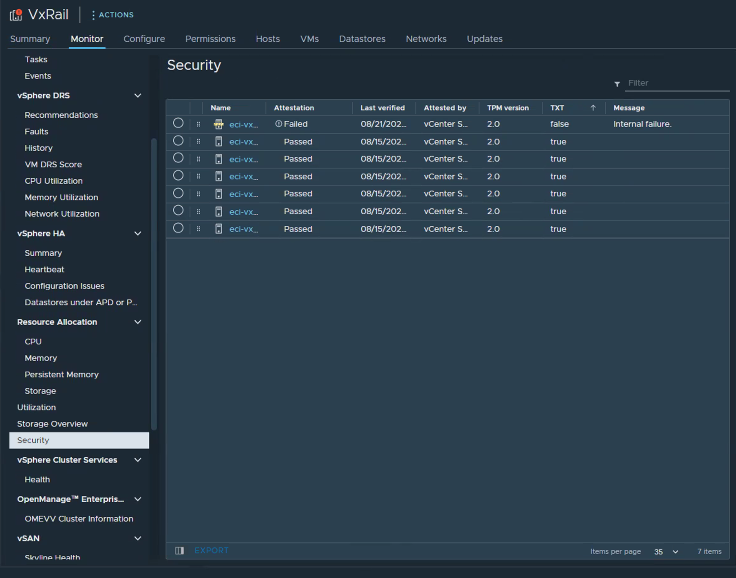
-
To do so, put the affected node in Maintenance Mode (MM) in vCenter using 'Ensure Accessibility'.
-
Using the iDRAC, reboot the node and enter the BIOS by pressing F2 for System Setup > System BIOS.
-
Go to System Security.
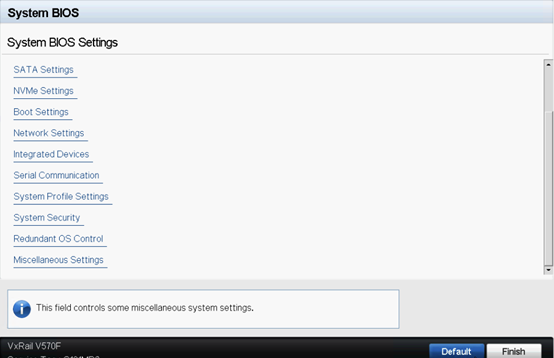
-
TPM Security should be ON, and you might see the TXT option disabled, to enable it, click TPM Advanced Settings.
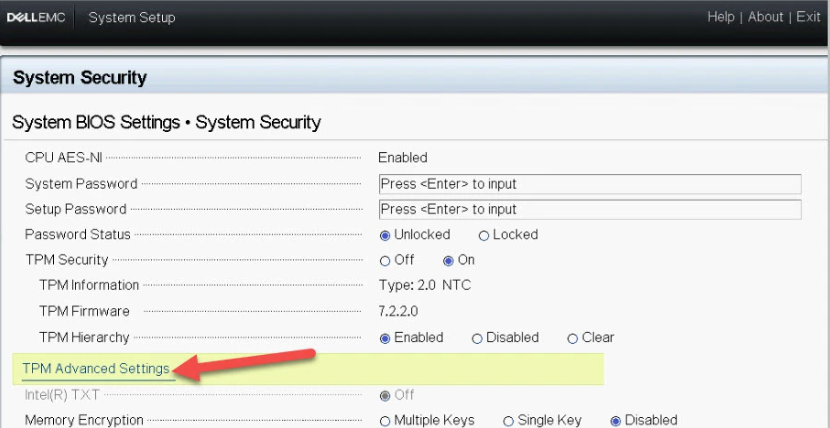
-
Change the 'TPM2 Algorithm Selection' to 'SHA256'.
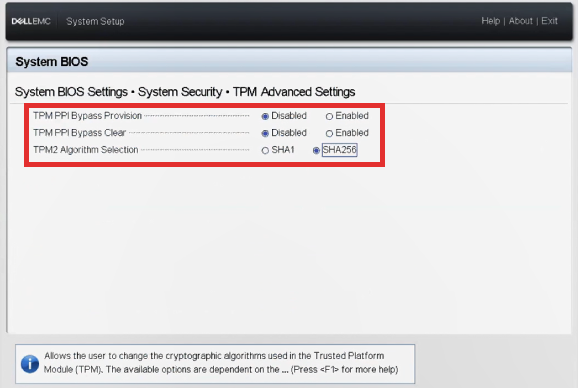
-
Verify that Secure Boot is set to enabled.
-
Apply the changes. The node reboots.
-
Once the node is fully up, right click the node and Disconnect it from vCenter.
-
Reconnect it again.
-
Take the node out of MM.
-
SSH to the node and change the encryption mode to TPM again:
esxcli system settings encryption set --mode=TPM -
The below command should run and you can collect the recovery key.
esxcli system settings encryption recovery list
Additional Information
See TPM device detected but cannot connect for more info.
Products
VxRail Appliance Family, VxRail SoftwareArticle Properties
Article Number: 000217354
Article Type: Solution
Last Modified: 05 Sept 2025
Version: 3
Find answers to your questions from other Dell users
Support Services
Check if your device is covered by Support Services.