Dell USB Type-C Docks May Encounter Error During Dock Firmware Update
Summary: This article provides information about an error encountered when updating the firmware on the Dell Thunderbolt Dock WD22TB4.
This article applies to
This article does not apply to
This article is not tied to any specific product.
Not all product versions are identified in this article.
Symptoms
End users of mobile devices such as laptops and tablets may encounter an error message when updating the firmware (FW) of the Dell Dock WD19S, Dell Performance Dock WD19DCS, or Dell Thunderbolt Dock WD22TB4.
"Error: Firmware update failed"
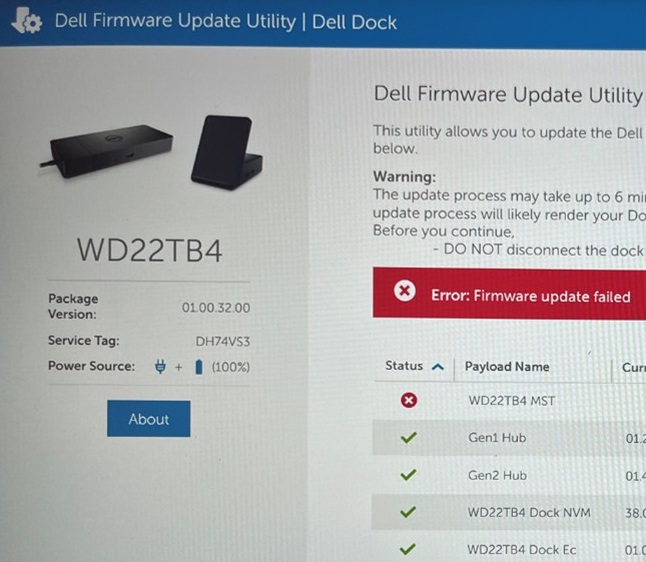
(Figure 1 - Error Message)
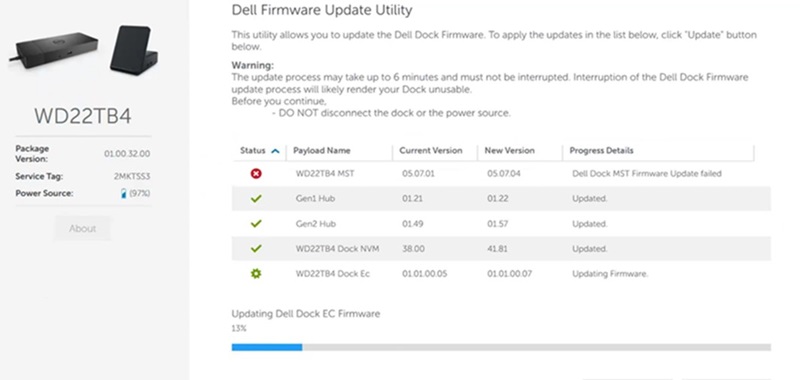
(Figure 2 - Dell Dock Windows Installer Setup Transform (MST) Firmware Update Failed Error Message)
Cause
The engineering team identified a programming process error with the Ethernet firmware. This error means it cannot enable USB3.
Resolution
Install the latest Realtek USB Ethernet firmware and the latest Dell Dock firmware updates on the laptop or tablet to resolve the issue. To download and install the driver, follow the steps listed below:
- Browse to:
- Select the Operating System that is running on the Dell laptop or tablet.
- Under Category, leave it as All.
- Locate the latest Realtek USB GBE Ethernet Controller Firmware Utility. (Version 1.2, A02 or later.)
- Click Download and save the file to your laptop or tablet.
- Open File Explorer and browse to the download folder where it saves the download file.
- The update is a .zip file that includes installation instructions in a .pdf file. Extract the download DellFW_UPGRADE_UTILITY_DockType_v1.2.zip setup file and follow the instructions in the downloaded LAN repair tool installation guide_v1.2.pdf file to complete the installation process. (Following the installation instructions are important to a successful result.)
- Go back to the docks Drivers & Downloads page.
- Locate the latest Dell Dock WD19, WD22TB4 Firmware Update Utility. (Version 01.00.36, 01.00.20, or later.)
- Click Download and save the file to your laptop or tablet.
- Open File Explorer and browse to the download folder where it saves the download file.
- Open and run the saved firmware update file.
Affected Products
Dell Performance Dock – WD19DCS, Dell Dock – WD19S, Dell Thunderbolt Dock – WD22TB4Article Properties
Article Number: 000223592
Article Type: Solution
Last Modified: 16 Apr 2025
Version: 5
Find answers to your questions from other Dell users
Support Services
Check if your device is covered by Support Services.