Dell Unity: How to identify which LUN/resource is growing faster (User Correctable)
Summary: In some scenarios, there is a sudden increase in Pool growth on a particular day. This KB helps to determine which LUNs/resources that growth came from.
This article applies to
This article does not apply to
This article is not tied to any specific product.
Not all product versions are identified in this article.
Instructions
Check LUN growth from CloudIQ by using following steps:
1. Go to CloudIQ and search with Unity Serial Number.
2. Click View system in CloudIQ
3. Go to the Reports tab on the left panel and click Create/View My Reports.
4. Click Create Report tab and then Add Content.
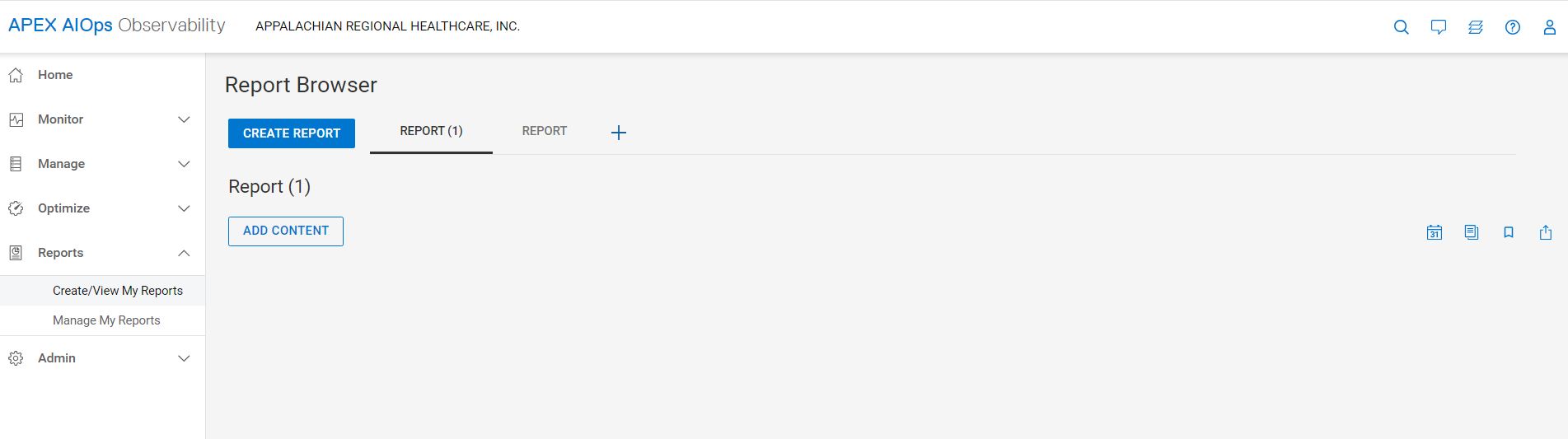
5. Choose a Title and a Format for your report. It is optional.
6. Select a format. It gives three options, Anomaly chart, Line chart, and Table. In this example, a Line chart is chosen. Click Next.
7. The next step is to select a Product and Category. Product selected is Unity and the Category could be any resource for which the report is being created. In this example, Block/LUN is selected.
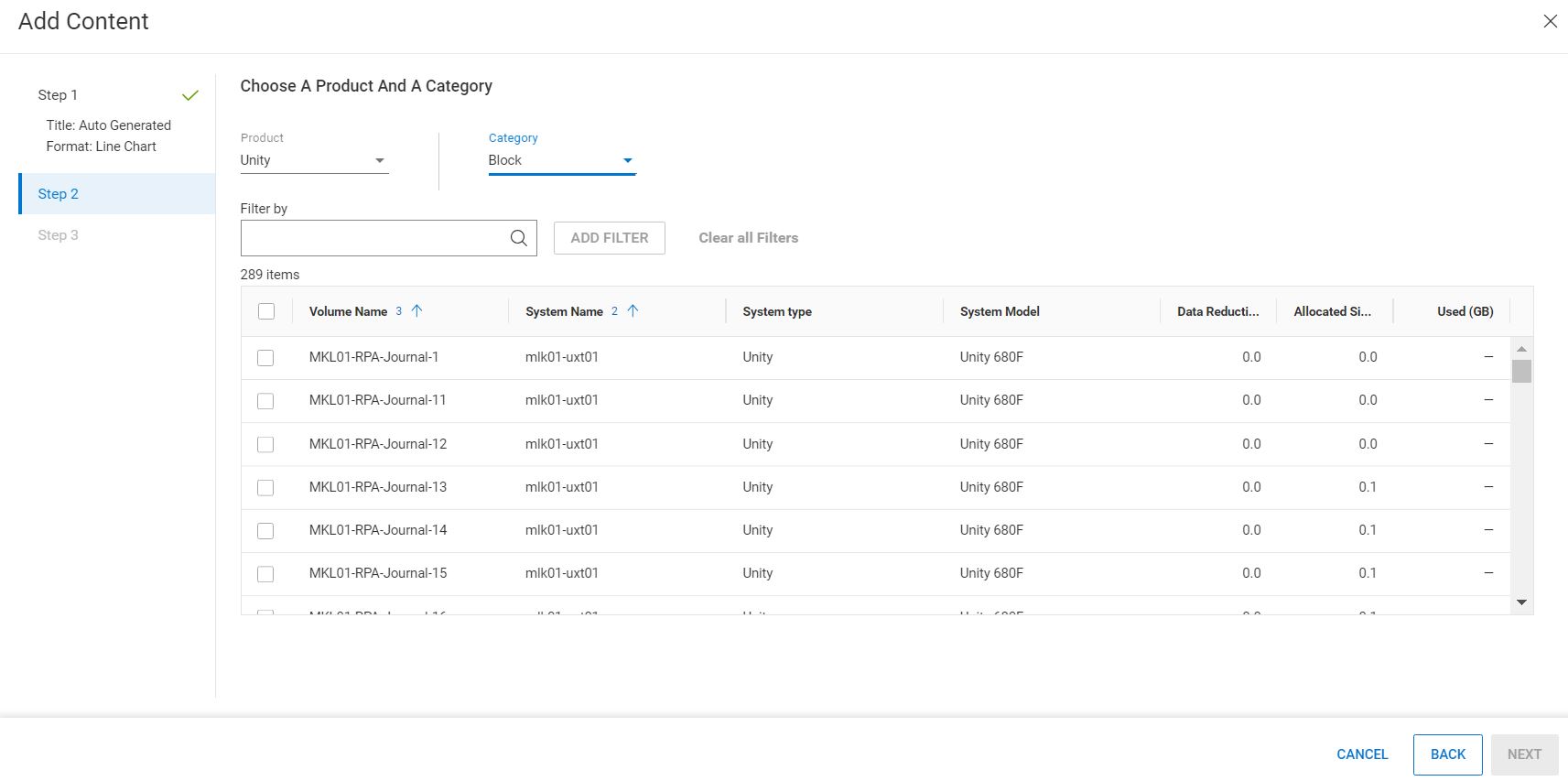
8. Select the volumes to check/create report. Click Next
9. Select Metrics to add in the report. In this example, select allocated size because the intention is to verify which LUN had more growth among all the LUNs. Click Add Content.
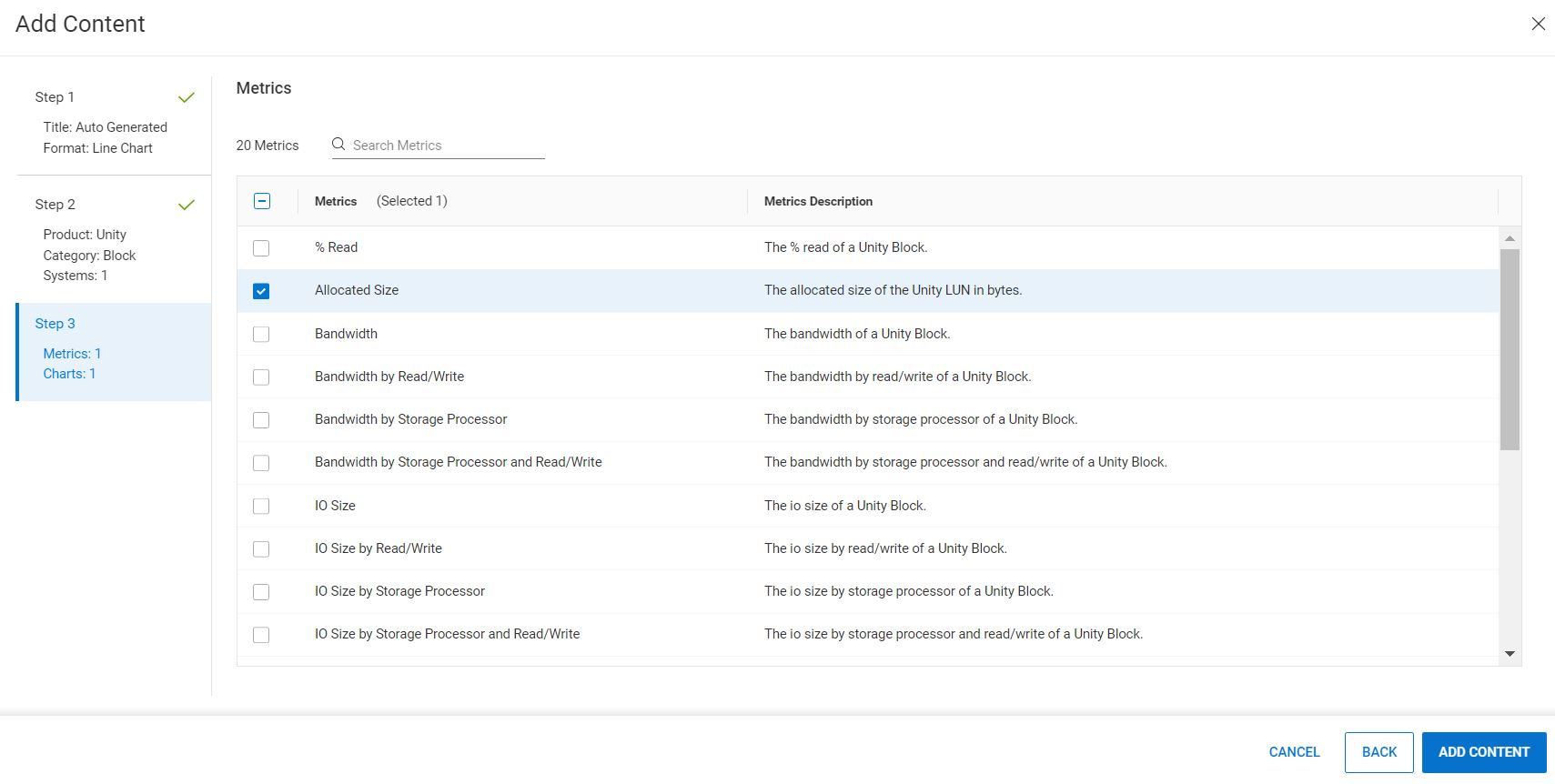
10. A Line chart is created for the last 24 hours. A report of the past days can be seen by clicking "Last 24 hours" drop-down. A report for the last 30 days or any particular day can be generated by clicking "Customer Range."
11. Select From and To Day and time respectively. Click Apply.
12. The report is ready. A line chart of all the LUNs is generated, showing which LUNs have growth in that particular time.
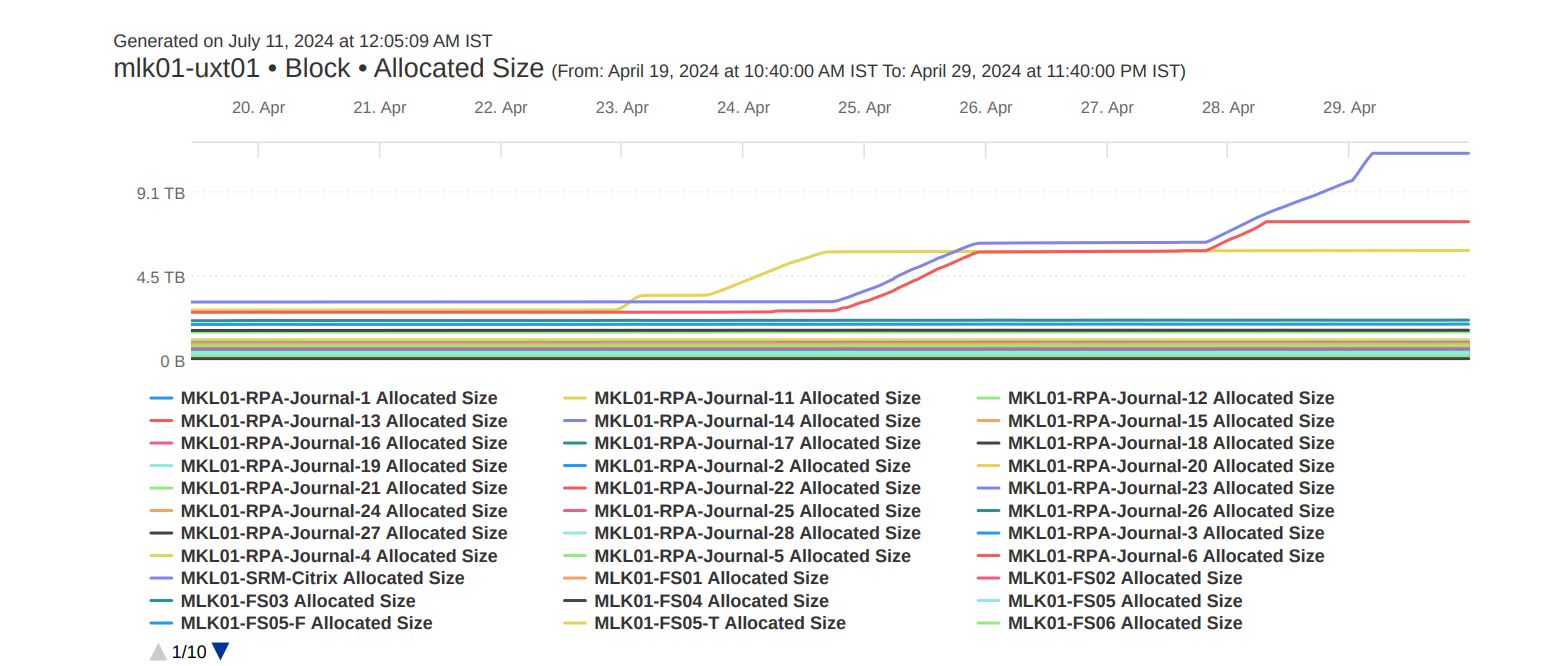
13. Once the report is generated, it can be saved in PDF format by clicking three dots on the upper left side. Click Export PDF. The report is downloaded in PDF format.
Similarly, a report can be generated for any resource and metrics such as IO, bandwidth, latency, IOPs etc.
Additional Information
The LUN or other resources details are provided. It is recommended to investigate any operations done from the host end as the array knows that data is written to it but not what data was written or why.
Affected Products
Dell EMC Unity Family |Dell EMC Unity All FlashArticle Properties
Article Number: 000228821
Article Type: How To
Last Modified: 02 Sept 2025
Version: 2
Find answers to your questions from other Dell users
Support Services
Check if your device is covered by Support Services.