Right-Click Unintentionally Occurs Using Touchpad on an XPS
Summary: Learn what to do when experiencing unintended right-clicking while using an XPS 14 9440 or XPS 16 9640 laptop touchpad.
This article applies to
This article does not apply to
This article is not tied to any specific product.
Not all product versions are identified in this article.
Symptoms
The right-click function may be caused accidentally during use of the touchpad of a Dell XPS 14 9440 or XPS 16 9640. The touchpad has a larger coverage area on these XPS laptops than normal. Resting the side of your palm on the touchpad coverage area may cause right-click actions to occur.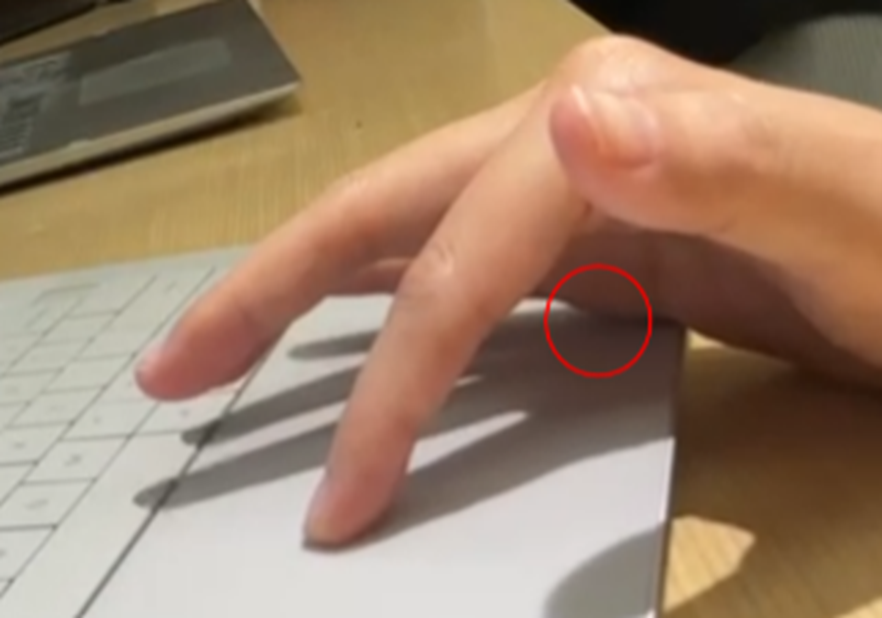
Affected Platforms:
- XPS 14 9440
- XPS 16 9640
Cause
This is the expected behavior from the touchpad. The touchpad is working as designed.
Resolution
Follow these steps to turn off the Windows default right-click function area. This prevents the palm from accidentally right-clicking. You can still use two-finger tap gestures to initiate the right-click function.
- Open the Windows Start menu.
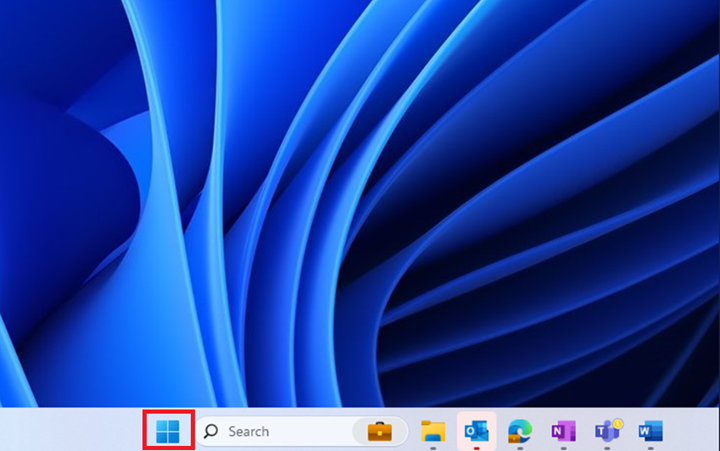
- Click Settings.
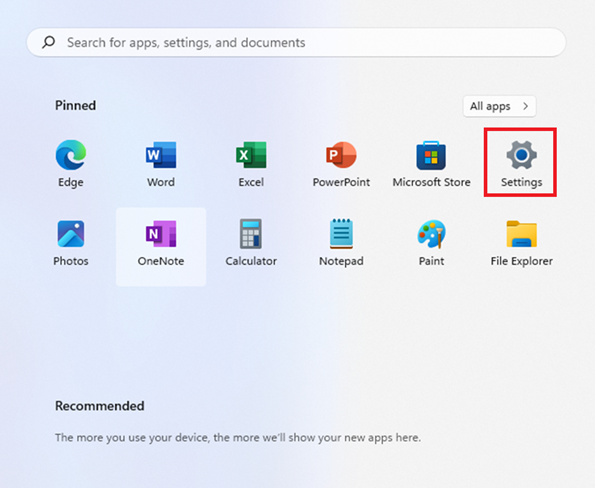
- Click Bluetooth & devices.
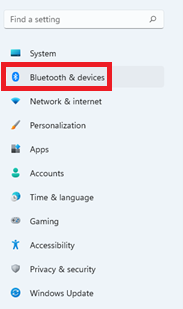
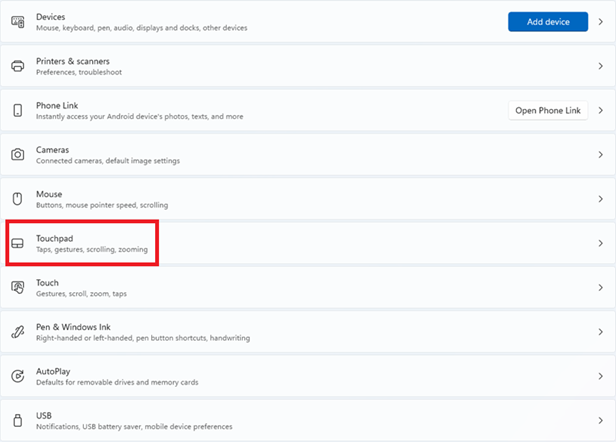
- Select Touchpad.
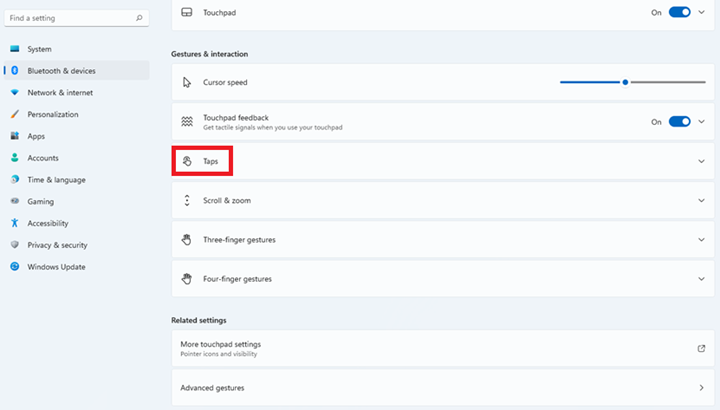
- Select Taps.
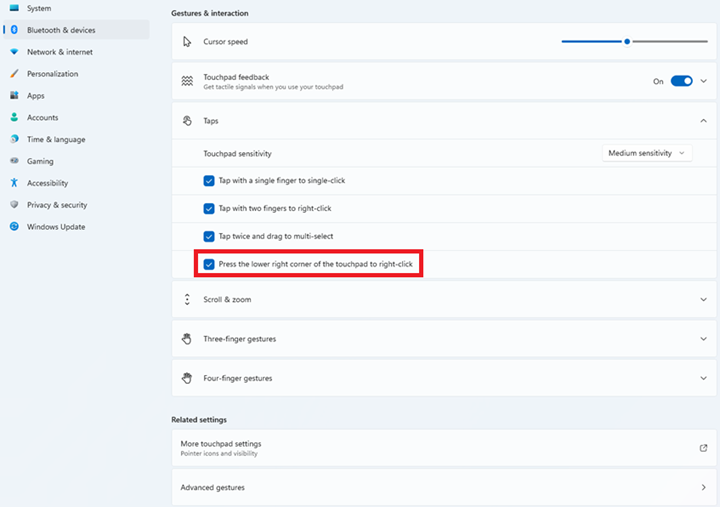
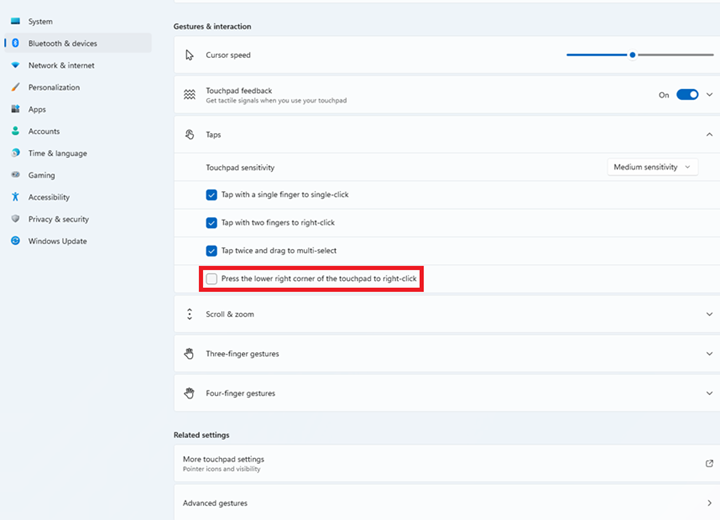
- Clear the check in the box for Press the lower right corner of the touchpad to right-click.
- Close the Settings window.
Affected Products
XPS 14 9440, XPS 16 9640Article Properties
Article Number: 000222813
Article Type: Solution
Last Modified: 17 Nov 2025
Version: 6
Find answers to your questions from other Dell users
Support Services
Check if your device is covered by Support Services.