PowerEdge: Windows Server 2022 Cannot create a Virtual switch with LBFO or Set team
Summary: Windows 2022 has not removed any features from Hyper-V or networking. However, they have forced LBFO Virtual switches to the Command line for creation. While nothing has changed, the Vmswitch fails to create, as normal. The Error is Failed while adding Virtual Ethernet Switch Connections. Attaching a virtual switch to an LBFO team is Deprecated. The only way around this error is to add "-AllowNetLbfoTeams $true" this will require PowerShell and may be a call generator. ...
Instructions
Windows 2022 has not removed
While nothing has changed, the Vmswitch fails to create, as normal. The Error is Failed while adding Virtual Ethernet Switch Connections. Attaching a virtual switch to an LBFO team is Deprecated.
The only way around this error is to add "-AllowNetLbfoTeams $true"
This requires PowerShell and may be a call generator.
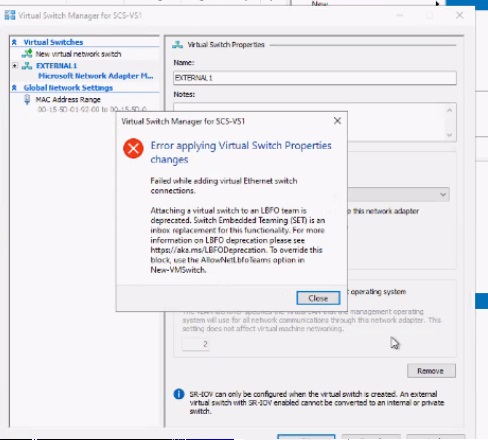
If you want to use the Hyper-V Multiplexor Vswitchs
Create LBFO Virtual Switch.
- Advise the customer to reconsider using a Set Team instead. Those steps at the end of the article
- Generally with a (set switch) new-vmswitch command, you can go into Hyper-v and the Virtual Switch will be there.
- Which Is to say, you do not create a team when you create a set switch.
- With an LBFO Vmswitch, you must create a team with Server manager and then Create VMSwitch command.
- The set is simpler and more flexible.
If the customer still wants to create the LBFO VM Switch:
- You can use Windows Server manager
- Once Created, You cannot create a
VMSwitchwith Hyper-v. You must use the command line
Get-Netadapter
Verify the creation of Teams
$Team1 = Get-NetAdapter -Name Team1
$Team2= Get-NetAdapter -Name Team2
New-VmSwitch -Name External1 -NetAdapterName $Team1.Name -AllowManagementOS $true -Notes 'External Network 1' -AllowNetLbfoTeams $true
New-VmSwitch -Name External2 -NetAdapterName $Team2.Name -AllowManagementOS $true -Notes 'External Network 2' -AllowNetLbfoTeams $true
To create a Set Team Instead:
Server 2022 Has Deprecated the Get-Netadapter Command. This means the commands below will work for earlier versions, but may or may not work, depending on the OS and Patch Version.
Primary Set Team Example on 22H2 Server 2022 and new OS versions.
Simple
New-VMSwitch -Name "SETswitch" -NetAdapterName "Ethernet 1", "Ethernet 2" -EnableEmbeddedTeaming $true

New-VMSwitch -Name "SetSwitch" -NetAdapterName "Ethernet1", "Ethernet2" -EnableEmbeddedTeaming:$True -AllowManagementOS:$True -MinimumBandwidthMode "Weight"
It is presumed you could add the word "name" to Get-NetAdapter to form Get-NetAdapterName in the commands below, but you may test in lab, or check ChatGPt for confirmation.
More complex
 $S2DSwitchName = "Mgmt_Vswitch"
New-VMSwitch -Name $S2DSwitchName -AllowManagementOS 0 -NetAdapterName $S2DpNIC1, $S2DpNIC2 -MinimumBandwidthMode Weight -Verbose

Add-VMNetworkAdapter -ManagementOS -Name $ManagementvNICName -SwitchName $S2DSwitchName -Passthru | Set-VMNetworkAdapterVlan -Access -VlanId $ManagementvNICVLAN –Verbose

Add-VMNetworkAdapter -ManagementOS -Name $S2DvNIC1Name -SwitchName $S2DSwitchName -Passthru | SetVMNetworkAdapterVlan -Access -VlanId $S2DvNIC1VLAN -Verbose
Add-VMNetworkAdapter -ManagementOS -Name $S2DvNIC2Name -SwitchName $S2DSwitchName -Passthru | SetVMNetworkAdapterVlan -Access -VlanId $S2DvNIC2VLAN –Verbose
Other Examples
New-VMSwitch -Name SETswitch -NetAdapterName "SLOT 2","SLOT 3" -EnableEmbeddedTeaming $true
#
# Add host vNICs and make them RDMA capable
#
Add-VMNetworkAdapter -SwitchName SETswitch -Name SMB_1 -managementOS
Add-VMNetworkAdapter -SwitchName SETswitch -Name SMB_2 -managementOS
Enable-NetAdapterRDMA "vEthernet (SMB_1)","vEthernet (SMB_2)"
I hope this helps if anyone gets a Call.