How to Reset Google Authenticator for Multi Factor Authentication in Dell Security Management Server
Summary: When Multi Factor Authentication with Google Authenticator is enabled, it may be necessary to reset a user’s Google Authenticator.
This article applies to
This article does not apply to
This article is not tied to any specific product.
Not all product versions are identified in this article.
Instructions
Affected Products:
- Dell Security Management Server
- Dell Security Management Server Virtual
Affected Versions:
- v11.4.0 and Later
If Multi Factor Authentication is enabled using Google Authenticator, there are times when a user must have their authenticator reset such as if they lose their phone. The following steps describe this process.
- Log in to the administration console with an account that has the account administrator role.
Note: For more information about administrator roles, reference the Administrator Roles section of the Security Management Server admin help document in the Manuals and Documents.
- Click Users under Populations.
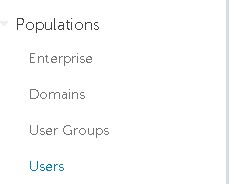
- Click the specific User that needs google authenticator reset.
Note: Reset is user specific because each user has their own Google Authenticator token.
- Click the Admin tab.

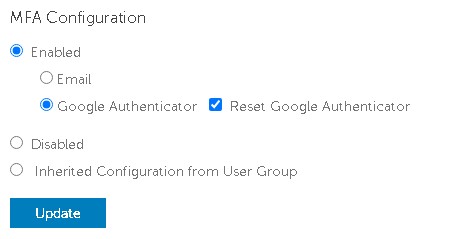
- Check Reset Google Authenticator.
- Click Update.
To contact support, reference Dell Data Security International Support Phone Numbers.
Go to TechDirect to generate a technical support request online.
For additional insights and resources, join the Dell Security Community Forum.
Affected Products
Dell EncryptionArticle Properties
Article Number: 000199488
Article Type: How To
Last Modified: 01 Jul 2024
Version: 5
Find answers to your questions from other Dell users
Support Services
Check if your device is covered by Support Services.