Installing NVIDIA Video Drivers with the Clean Installation Option
Summary: Steps for installing NVIDIA video drivers with the "Clean Install" option on your Dell computer.
This article applies to
This article does not apply to
This article is not tied to any specific product.
Not all product versions are identified in this article.
Symptoms
Low video frame rates (Frames Per Second = FPS), video frame drops, pixelated video, and discrete graphics processors (video card) not being detected
Cause
Previous video driver installation conflicts, outdated driver versions, or corrupt driver files
Resolution
Video Driver Installation
If your computer is having video issues, using the "Clean Install" option when installing NVIDIA drivers can help resolve these issues. This option is better than using a third-party solution or Dell SupportAssist.
- Download the latest version of the NVIDIA video card driver that is available from either: Dell Support or Nvidia.com
- The following article can be used to identify what NVIDIA card is installed in your computer.
- After you download the video driver, Double-Click it to start the installation.
- Follow the on-screen instructions until presented with the "Installation Options" window.
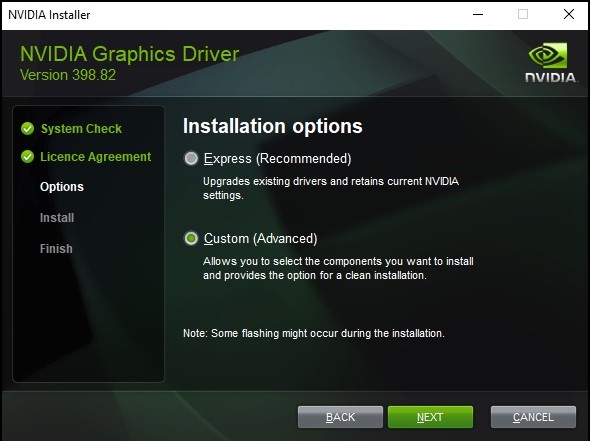
- Select Custom (Advanced) then click Next.
- On the next screen, you will be given a choice of components to install. These should all be checked by default, leave them all checked.
- Under the "Select Driver Component" table, check the box "Perform a Clean Installation," and click Next.
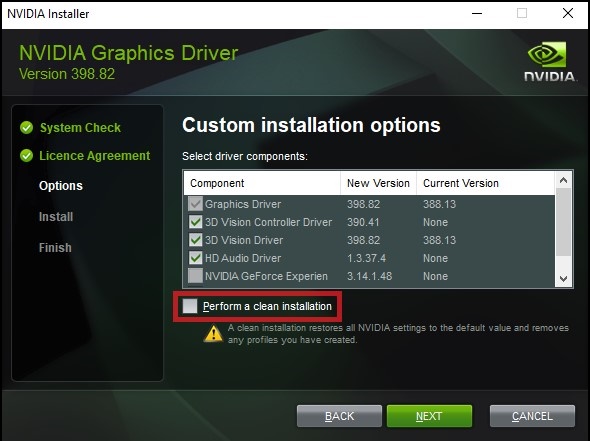
- Complete the installation and then restart your computer.

Article Properties
Article Number: 000190215
Article Type: Solution
Last Modified: 17 Sept 2025
Version: 6
Find answers to your questions from other Dell users
Support Services
Check if your device is covered by Support Services.