Avamar: Configuring plug-in type replication to extend jobs beyond 24hrs
Summary: This article, historically known as KB 335233, explains how to configure plug-in based replication to allow clients to run longer than 24 hours (overtime).
This article applies to
This article does not apply to
This article is not tied to any specific product.
Not all product versions are identified in this article.
Symptoms
By default, Avamar plug-in based replication jobs are set with timeouts according to two factors:
- MCS configuration defines Factor one through an mcserver.xml key with a default of 24 hours.
<entry key="repl_window_hours" value="24" />
- The replicate plug-in defines Factor two where the timeout is controlled by following:
<flag type="integer" pidnum="1008" value="72000" name="[replscript]timeout" />
If either timeout limit is breached, the replication job times out.
On a correctly configured system, 24 hours should be sufficient time for all replication jobs to complete. However, this may be an issue in circumstances where the time required may exceed this.
For example:
-
An initial replication job is running, and the target system is being 'seeded' with a large amount of source data.
-
Replication failed to run for some time and must catch up.
-
A large amount of data is added to the replication source, and the large amount of data requires longer than normal to replicate to the target.
It is advised that the limit of > 24 hours only be changed short-term.
If a replication job regularly fails to complete within the replication window, the root cause should be addressed. Create a service request to work with the support team.
Cause
This behavior is as designed.
Resolution
Multiple parameters must be updated to allow replication to run >24 hours without interruption.
- Update MCS Administrator UI to allow overtime.
From the Avamar Administrator, configure the MC_SYSTEM client to run with 'overtime' (in a similar way to regular Avamar clients). This allows the replication activity to run beyond the confines of the scheduled replication window:
NOTE: You must edit on the Avamar target server as well.
a. In the Avamar Administrator, open the Policy screen, "Clients" tab.

b. Select the Clients tab, select the "MC_SYSTEM" domain and select the Replication client (this should be the same name as local system name), and "Edit."

c. From the properties tab, select "Always allow overtime."
Note: Overtime until successful backup does NOT work for replication. For more information about overtime, see the Administration Guide.
-
MCS Administrator Replication group policy must be updated.
In the Avamar Administrator, open the Data Movement Policy screen.

For each replication group that must run longer than 24 hours:
a. Either double-click the replication group, or check the replication group and select Action > Edit Group > "7. Overview"

b. Select More Options. Scroll towards the bottom of the screen. Show Advanced Options is seen on the left, and More is seen on the right.

c. Select More.

d. Confirm that the Plug-in Type is Replicate.
e. Type [replscript]timeout in Enter Attribute.
f. Type 999999 in the Enter Attribute Value."
g. Click the + symbol, and the attribute or value moves to the lower screen.

h. Click "OK."
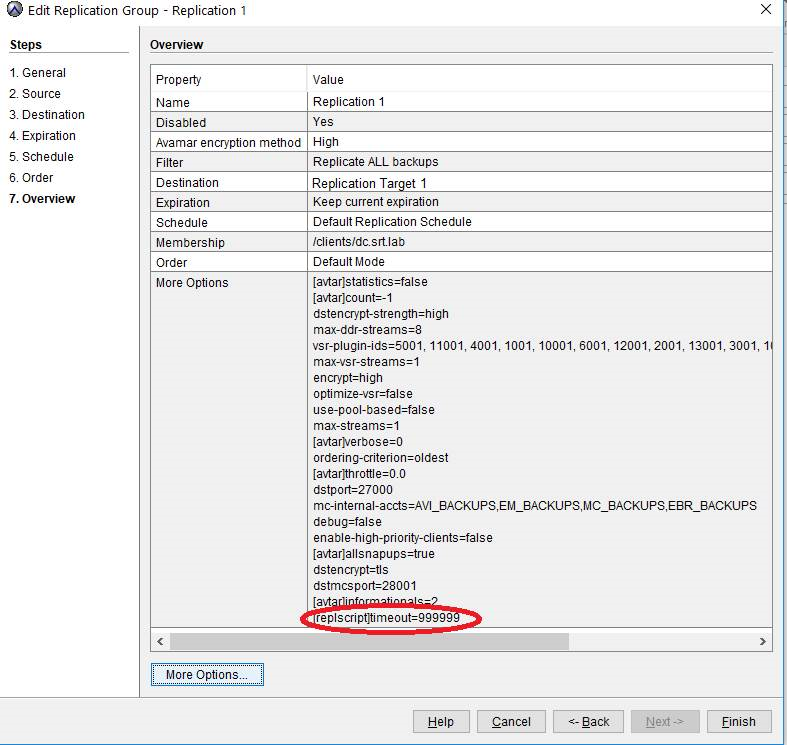
i. Verify that the setting appears in More Options (highlighted above).
j. Click Finish.
3. Update or Create avrepl.cmd (All versions before 7.5.1).
Due to a known issue, the avrepl.cmd command must be created or updated. The changes made here affect ALL of the plug-in replication activities.
a. Edit or create the replication configuration file /usr/local/avamar/var/client/avrepl.cmd.
b. Add the flag:
--timeout=999999
Additional Information
For more information about restarting MCS, review KB article 536729: Avamar: How to restart MCS (Management Console Server)
Please see this published video:
Affected Products
AvamarProducts
Avamar, Avamar ServerArticle Properties
Article Number: 000058188
Article Type: Solution
Last Modified: 29 Jul 2025
Version: 11
Find answers to your questions from other Dell users
Support Services
Check if your device is covered by Support Services.