Notification Missing When Disconnecting the Laptops Alienware Graphic Amplifier
Summary: The following article deals with a notification issue on Alienware laptops that use the Alienware graphic amplifier.
This article applies to
This article does not apply to
This article is not tied to any specific product.
Not all product versions are identified in this article.
Symptoms
Toast notification is not working on Windows 10 Alienware laptops with the Alienware graphic amplifier
The function key Fn + F1 shortcut is not showing the toast notification when it disconnects the Alienware graphic amplifier (AGA) from an Alienware laptop. This means it is not possible to disconnect the AGA.
This occurs when outputting to the external monitor in duplicate mode.
This is affecting the following Alienware products:(All Alienware laptops shipping with the AGA Port.)
- Alienware 13 R2 and R3
- Alienware 15 R2, R3, and R4
- Alienware 17 R3, R4, and R5
- Alienware Area-51m
- Alienware Area-51m R2
- Alienware m15 R1, R2, R3, and R4
- Alienware m17 R1, R2, R3, and R4
Cause
This is not a failure with the laptop. Windows Focus Assist blocks the shortcut, which is preventing most popups and notifications.
For more details on Windows 10 Focus Assist, see the Microsoft page linked below:

Resolution
Enable notifications by following these steps:
-
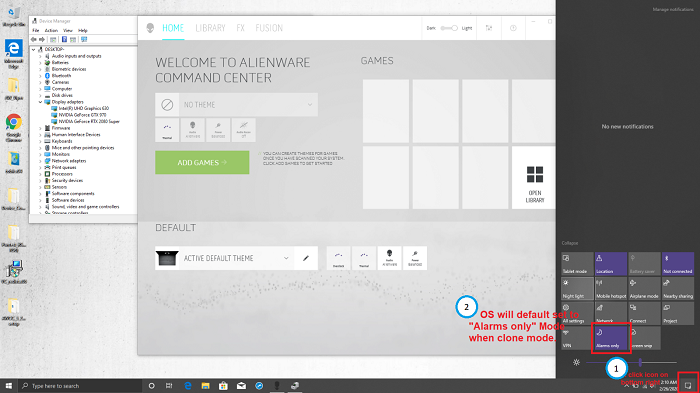
Click the action center icon in the bottom right corner of the Windows desktop.
Alternatively, go to: Settings > System > Focus assist
-
By default, the focus assist is set to Alarms Only when the laptop is in duplicate mode.
-
Change the notification to Off or Priority only. (Selecting Priority only means that the application must be added manually.)
-
Once the notification changes to OFF, press the function key Fn + F1 shortcut and disconnect the AGA.

-
Click YES to disconnect the Alienware graphic amplifier.
Affected Products
Alienware 13 R3, Alienware 13 R2, Alienware 15 R3, Alienware 15 R2, Alienware 15 R4, Alienware Area-51m, Alienware 17 R4, Alienware 17 R3, Alienware 17 R5, Alienware Area-51m R2Products
Alienware M15, Alienware M15 R2, Alienware M15 R3, Alienware m15 R4, Alienware M17, Alienware M17 R2, Alienware M17 R3, Alienware m17 R4Article Properties
Article Number: 000130700
Article Type: Solution
Last Modified: 02 Sept 2025
Version: 6
Find answers to your questions from other Dell users
Support Services
Check if your device is covered by Support Services.