How to Automatically Switch from Wireless to Wired Connections When Available by Hot Key or Intel Toolkit
Summary: How to configure the Intel wireless network adapter to disconnect when a wired Ethernet connection is detected by the system by enabling Adapter Switching using the Intel Proset/Wireless WiFi Software Administrator Toolkit. ...
This article applies to
This article does not apply to
This article is not tied to any specific product.
Not all product versions are identified in this article.
Instructions
Switching from Wireless to Ethernet
You may work in an environment where you must dock or undock a system frequently and desire to have the faster network connection available.
Latitude systems have a hot key switch for enable /Disable WiFi. FN/Print Screen - This turns the WiFi antenna off and on.
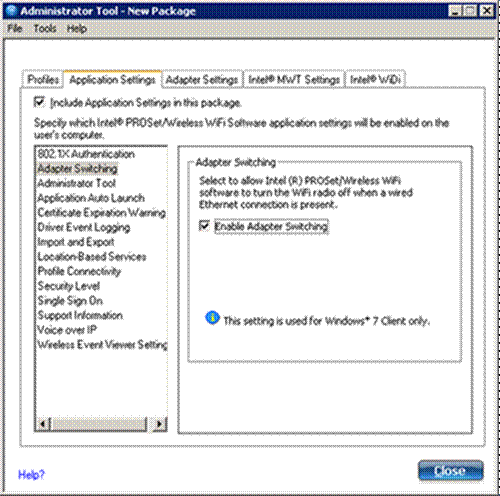
You may want to have the Intel wireless network automatically disconnected upon a wired connection to the system. The Dell supported process for this capability would be to enable Adapter Switching by using the Intel Proset/Wireless WiFi Software Administrator Toolkit. See the instructions below:
Enable Adapter Switching by using the Intel® PROSet Wireless Enterprise Software
Note: The following steps were developed using a Latitude E6410 with Windows 7 Ultimate 64-bit SP1 and an Intel WiFi 6200 with driver version TRWFW1355D, A01 (
INTEL_MULTI-DEVICE_A01_R277229.exe - Driver version is 13.3.0.24 and application version is 13.3), and BIOS version A07. The process should be similar for other Dell systems.
- Ensure the latest version of the Intel WiFi Link 6200 driver is installed. (Version TRWFW1355D, A01 from www.dell.com/support (driver version is 13.3.0.24 and application version is 13.3) for the Latitude E6410 and Windows 7 64-bit.)
- If you have Dell Control Point Connection Manager installed and want to use the Intel Prose/Wireless WLAN software you should uninstall Dell Control Point Connection manager.
- To enable Adapter Switching on the system, begin by going to the "Control Panel" and "Programs and Features."
- Right click "Intel(R) Prose/Wireless WiFi Software" and choose "Change."
- After a moment, click "Next" to continue the Install Shield Wizard for Intel(R) Prose/Wireless WiFi Software.
- Click the button for "Modify" and then click "Next."
- Click the dropdown for "Administrator Toolkit" and then "This feature, and all sub-features, will be installed on local hard drive." Then click "Next."
- Wait for the program features to be installed and then click "Finish" to exit the wizard.
- Close out all open windows
- From the Start menu in Windows, choose "All Programs," then open the folder for "Intel PROSet Wireless" and click "WiFi Administrator Tool."
- Create a new password (or use the password that was previously created) and click "OK."
- In the "Open Administrator Package" window, click the button for "Create a new package" and then click "OK."
- In the "Administrator Tool - New Package" window, click the tab for "Application Settings."
- Select "Adapter Switching" from the choices in the menu.
- Put a check in the checkbox for "Enable Adapter Switching" and click the "Close" button. This process should "allow Intel(R) PROSet/Wireless WiFi software to turn the WiFi radio off when a wired Ethernet connection is present."
- Select "Yes" for "The current package is changed. Would you like to save the changes?"
- Give the package a name and save it as an .exe file.
- When you see the indication "Package Saved," click "Finished."
- Put a check in the checkbox for "Apply this package to this computer" and click "OK."
- After this new package has been applied to the computer, the computer should disconnect from the wireless network when a valid wired IP address is pulled.
- As per the Intel(R) PROSet/Wireless WiFi Connection Utility User’s Guide for Enable Adapter Switching, "If enabled, then whenever a valid wired Ethernet connection is detected, the WiFi connection utility will automatically close any WiFi network connections. If the system loses its wired Ethernet connection, the WiFi connection utility will automatically attempt to connect to the last connected profile. If the last connected network is not available, the WiFi connection utility attempts to connect to the first available wireless network based on the preferred Profile List."
Note: This behavior is for the system as a whole and is not specific to any user.
Article Properties
Article Number: 000134705
Article Type: How To
Last Modified: 18 Sept 2025
Version: 5
Find answers to your questions from other Dell users
Support Services
Check if your device is covered by Support Services.