IDPA: Cloud Tiering Guide and Resolution Path
Summary: This article walks through the different steps involved with Cloud Tiering, including configuration, management, and troubleshooting steps.
This article applies to
This article does not apply to
This article is not tied to any specific product.
Not all product versions are identified in this article.
Instructions
This article is a resolution path for Cloud Tiering with Data Domain. It outlines the step-by-step approach while configuring and managing Cloud Tiering including the troubleshooting steps and other important information.
Installation and Configuration:
Step 1: Importing Cloud Unit Certificate on Data Domain.
See the chapter "Cloud Tier" in the User Guide to find the procedure and steps to integrate the Cloud Unit Certificate.
For a demonstration, review the video in the section "Adding a Cloud Unit"
Important KB Links for Different Cloud Providers regarding Cloud Unit Certificate Generation:
Google Cloud: Data Domain Deployment: Certificate requirement to Configure Cloud Tier feature using Google Cloud Storage.
Amazon AWS: Data Domain Cloud tier: Integrating Data Domain with amazon AWS S3.
Note: For AWS, In addition to the Baltimore Certificate add the newly released "Starfield Class 2" Certificate as well. See Article #000184415 for more information.
Azure Virtustream, ECS: Data Domain Cloud Tiering: Certificate Error while adding Cloud Unit
Note: For Azure, starting February 2022 additional certificates are now required apart from Baltimore certificate to be updated on Data Domain. Article # 000192537
Review the video below (or watch on YouTube) for details:
ECS:
Data Domain: Cannot import an F5 certificate with Elastic Cloud Storage (ECS) to Data Domain.
Notes:
For Data Domain Cloud Tier(DD CT) to ECS, a Load Balancer(LB) is a mandatory requirement. Either hardware or software load-balancing technology may be used.
For Data Domain Cloud Tier(DD CT) to ECS, a Load Balancer(LB) is a mandatory requirement. Either hardware or software load-balancing technology may be used.
The DD CT profile must be configured to point to either the configured LB hostname or IP address. The LB relays the connections coming from the DD to one of the ECS nodes according to the load balancing policy and configuration set.
Step 1 Procedure:
From the PowerProtect DD System Manager:
1. Select Data Management > File System > Cloud Units.
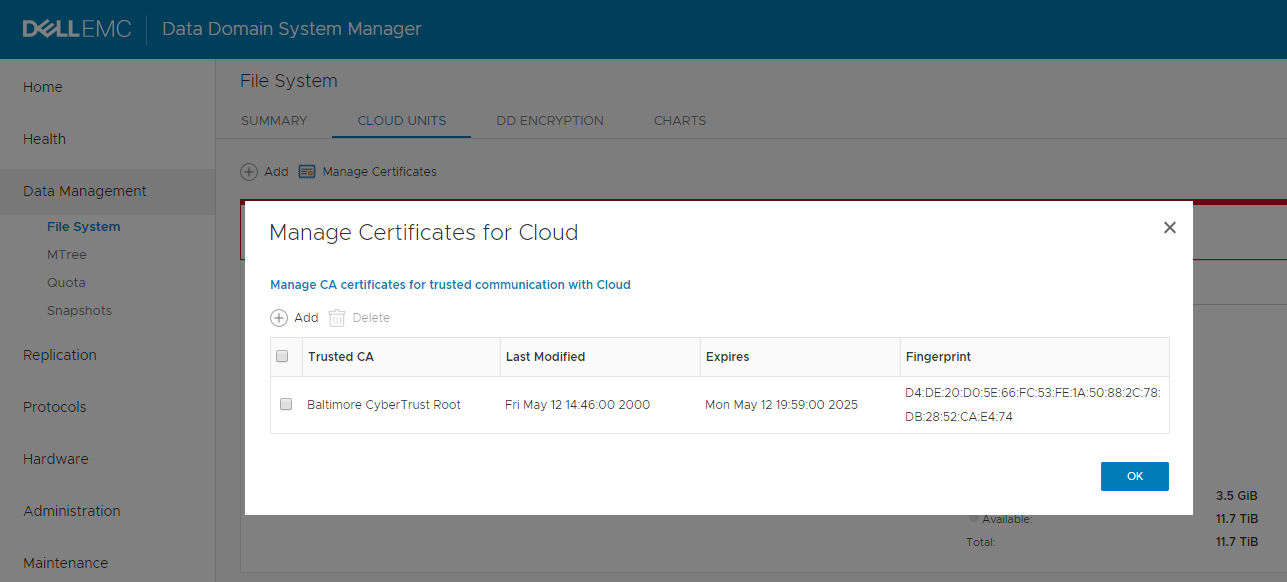
2. In the tool bar, click Manage Certificates. The "Manage Certificates for Cloud" dialog is displayed.
3. Click Add.
4. Select one of these options:
-
- I want to upload the certificate as a .pem file.
- Then: Browse to and select the certificate file.
- I want to copy and paste the certificate text
- Then: Copy the contents of the .pem file, and paste the contents into the dialog.
- I want to upload the certificate as a .pem file.
5. Click Add.
After completing this step, the "Cloud Unit Certificate" on the Data Domain UI should be seen:
(Data Management --> Cloud Units --> Certificates):
Step 2: Adding a Cloud Unit to a Data Domain
See the chapter "Cloud Tier" in the User Guide to find the procedure and steps to add or integrate the Cloud Unit to Data Domain.
For a demonstration, review the video below (or watch on YouTube):
Step 2 Procedure:
From the PowerProtect DD System Manager:
1. Select Data Management > File System > Cloud Units.
2. Click 'Add'.
3. In the 'Add Cloud Unit' Dialog box, provide the following details:
-
- Name: A friendly name to Cloud Unit.
- Cloud Provider: Cloud Provider (For example: AWS, Azure, ECS, and so on).
- Enter the other appropriate details such as Storage Class, Storage region, Access key, secret key, primary key, endpoint, and so on.
(The above input options depend on the cloud provider selected).
Note: If the error "Cloud Verification Failed at Connectivity Check: Validating Certificate" is displayed, Create a Service Request referencing this knowledge article.
Step 3: Enabling Cloud Tier on Avamar or Backup Server.
See the chapter "Cloud Tier" in the User Guide to find the procedure and steps to enable Cloud tiering on Avamar or Backup Server.
For a demonstration, review the video below (or watch on YouTube):
Known Issues and Articles:
Step 4: Creating and Scheduling Cloud Tiering policy on the Avamar Server.
See the chapter "Cloud Tier" in the User Guide to find the procedure and steps to create and schedule tiering policy.
For a demonstration, review the video below (or watch on YouTube):
Step 5: Scheduling data-movement on DD.
For more information, Review the User Guide sections "Moving data manually" and "Moving data automatically".
For a demonstration, review the video below (or watch on YouTube):
Step 5 Procedure:
Data can be started and stopped manually, or automatically using a schedule (daily, weekly, or monthly), and a throttle.
From the PowerProtect DD System Manager:
Manually:
1. Select Data Management > File System.
2. At the bottom of the page, click Show Status of File System Services.
These status items are displayed:
File System
Physical Capacity Measurement
Data Movement
Active Tier Cleaning
3. For Data Movement, click Start
Automatically:
1. Select Data Management > File System > Settings.
2. Click the Data Movement tab.
3. Set the throttle and schedule.
Management and Administration
Create a Tiering Policy on Avamar Server:
This step assists with creating a Cloud Tiering Policy on the Avamar Server.
The cloud tier policies dictate:
-
- Which clients are eligible for tiering
- Which backups for those client should be tiered
- The age of the backup when it should be tiered to the Cloud
- The expiration of those backups on Cloud.
Tier groups are used to configure the clients, backups, schedules, and other information that is related to cloud tier configuration.
See the chapter "Cloud Tier" in the User Guide to find the procedure and steps for creating and scheduling tiering policies.
For a demonstration, review the video from step 3, or watch on YouTube.
Recalling backups from Cloud Tier:
Recall operations move backups that have been tiered to the cloud back to the active tier of Data Domain.
See the chapter "Cloud Tier" in the User Guide to find the procedure, and follow the section for "Recall operation for cloud tier"
Restore operations for cloud tier:
The Cloud Disaster Recovery software recalls a copy of the backup from the cloud to the active tier of the Data Domain. A restore of the backup from the active tier to the client is then performed. The status appears as Cloud. The backup is stored on the Data Domain cloud tier after the restore. The copy of the backup on the Data Domain active tier is used for restore operation and is deleted after 10 days.
Note: In the AUI, only the filesystem and VMware plugins support restore operation. For other plugins, use Avamar Administrator for the restore operation.
To extend the lifetime of the temporary copy on active tier, on the Cloud Disaster Recovery server, use the following parameter in the /usr/local/avamar/var/ddrmaint.cmd command:
--cloud-copy-lifetime=days
Note: The timeframe for backup expiration must be a minimum of 14 days. The minimum expiration time depends on the Age Threshold value.
File or Granular Level Restore for cloud tier:
Avamar supports file, or granular level restores only from the ECS cloud unit.
File or Granular Level restore from backup that has been tiered to the ECS cloud unit is identical to normal File or Granular Level restore operations.
To restore a single file or a piece from backup that is in the ECS cloud unit, Avamar does not need to recall the whole backup from cloud to active tier of the Data Domain. The Avamar client directly reads the single file or the piece from the cloud.
Avamar does not support File or Granular Level restore from non-ECS cloud unit. To restore a single file or a piece from a backup that is in a non-ECS cloud unit, Avamar must first recall the whole backup from the cloud to the Data Domain active tier. The Avamar client then restores the single file or the piece from the active tier of Data Domain.
How to Identify Avamar Backups on Cloud Tier or Create a report for the same:
From Avamar AUI HTML Based UI:
1. In the AUI navigation pane on the left, click *, and then click Asset Management.
From the Avamar command line:
The Asset Management window appears.
2. In the domain tree, select the domain for the client.
3. From the list of clients, select the client with the backups to manage.
4. In the Client Summary pane on the right, click VIEW MORE.
5. Click the Backups tab. A list of completed backups for this client appears. Any backup in this list can be used to restore the client.
6. To locate backups by date:
a. Click the search button.
b. Specify the date range in the From and To fields.
c. Click RETRIEVE. The list of backups for the date range appears.
b. Specify the date range in the From and To fields.
c. Click RETRIEVE. The list of backups for the date range appears.
7. Verify the Tier Column to confirm the Tier of the backup.
- Active: Backup resides on Data Domain Active Tier (On-Premise Storage)
- Marked: Backup resides on Data Domain Active Tier (On-Premise Storage) and is ready for movement to Cloud Tier. DD Data movement moves these backups to the Cloud in the next cycle.
- Cloud: Backup resides on Data Domain Cloud Tier (Cloud Storage)
From the Avamar command line:
1. Download Avamar: How to Use the dump_root_hashes.rb Script to Generate a List of Clients and Backups script on the Avamar Server.
2. Run: ruby dump_root_hashes.rb --mode=backuplist --mc-retired=include --replicate=include --show-tier-info
This generates a gz file on the working directory which has a CSV file inside with backup tiering information in it.
Data Movement Process on Data Domain
(This Process moves backups on DD from Active Tier to Cloud Tier - Also explained in Step 5 - Installation and Configuration Section)
Q: How can data movement be started manually?
A: The command "data-movement start" can be used.
For example:
data-movement start
Data-movement started.
Q: How can data movement be monitored?
A: To check the status of data movement, the command "data-movement status" can be used.
For example:
data-movement status
----------------------------
Data-movement is initializing..
Data-movement recall:
---------------------
No recall operations found.
If data movement is running, the command "data-movement watch" can be used.
For example:
data-movement watch
Data-movement: phase 1 of 3 (copying)
 92% complete; time: phase  0:08:04, total  0:08:14       Copied (post-comp): 3.35 GiB, (pre-comp): 3.29 GiB,B,      Files copied: 7, Files verified: 3, Files installed: 3
Q: How can data movement be stopped?
A: The command "data-movement stop" can be used.
For example:
data-movement stop
Data-movement stop initiated. Run the status command to check its status.
See Data Domain Restorer and Long-Term Retention to the Cloud: Frequently Asked Questions to learn more.
Cloud Tier Cleaning Process
Q: How is a manual cloud tier clean started?
A1: Procedure - From PowerProtect DD System Manager:
a. Select Data Management > File System > Settings.
b. Click the Cleaning tab.
c. Set the throttle and schedule for Cloud Tier.
A2: The command "cloud clean start" can be used (or "cloud clean start " where multiple clouds are present).
For example:
cloud clean start cloudunit2
Cloud tier cleaning started for cloud unit "cloudunit2". Use 'cloud clean watch' to monitor progress.
Q: How can a cloud tier clean be monitored?
A: The command 'cloud clean status' can be used to check if cloud cleaning is running.
For example:
cloud clean status
Cloud tier cleaning finished on cloud unit "cloudunit2" at 2023/09/12 06:19:03.
Previous cloud tier cleaning attempt was unsuccessful.
 Failure reason:
cloud unit "cloudunit2" did not have sufficient cleanable data.
Cloud tier cleaning finished at 2023/09/15 12:16:06.
If cloud clean is currently running, it can be monitored by using the "cloud clean watch" command.
Q: Can active tier cleaning run concurrently with cloud tier cleaning?
A: No. Both active tier cleaning and cloud tier cleaning both use the same common internal shared data structures which require exclusive access.
Q: How can a cloud tier cleaning schedule be displayed or changed?
A: To display the current cloud cleaning schedule, the command "cloud clean frequency show" can be used.
For example:
cloud clean frequency show
Cloud tier cleaning frequency is set to run after every 4 active tier cleaning cycles.
Q: How to change a cloud clean schedule?
A: To change a schedule, the command "cloud clean frequency set" can be used.
For example:
cloud clean frequency set 3
Cloud tier cleaning frequency is set to run after every 3 active tier cleaning cycles.
Q: How can the cloud tier cleaning throttle be changed or displayed?
A: By default, the cloud tier cleaning throttle is set to 50%.
To display the current cloud cleaning throttle, the command "cloud clean throttle show" can be used.
For example:
cloud clean throttle show
Cloud tier cleaning throttle is set to 28 percent
To change the cleaning throttle, the command "cloud clean throttle set" can be used.
For example:
cloud clean throttle set 20
Cloud tier cleaning throttle set to 20 percent
To learn more about cloud cleaning, see Data Domain: An introduction to long-term retention/cloud tier cleaning/garbage collection on Data Domain Restorers
Additional Information
Appendix A
Knowledge Base and Known procedures and fixes for IDPA or Avamar - Data Domain Cloud Tiering:
- Avamar: Avamar Administrator UI displays Data Domain total Capacity if Cloud Tier configured
- Avamar: Cloud Tier: Marked backups are not going to the cloud due to unconfigured schedule
- Avamar: How to update backup metadata reference on Avamar when a backup is manually recalled from DD Cloud Tier to Active Tier
- Avamar: How to rename a Cloud Tier that is integrated with Avamar
- Avamar: The pop-up "Negative Age threshold values not allowed" is received while changing the age threshold in the data movement policy for cloud tier
- Avamar: Data Domain Integration: Hfscheck Errors Related to Cloud Tier File Migration Feature
- Avamar: Data Domain Integration: Cloud tier policy is not marking daily backups for the cloud due to identical expiration and age threshold settings
- Avamar: MCS reports that a cloud tier policy has completed successfully when the selected clients backups are stored on DD with no cloud tier enabled
- Avamar: Avtier Error 5062 Invalid flags "--reversed-operation" and "--unmark-only" with no option to disable.
- Avamar: Unable to enable Cloud DR when adding a VM folder as a member in Avamar Policy
- Avamar: How to recall backups that were migrated to Data Domain Cloud Tier
- Data Domain Restorer and Long-Term Retention to the Cloud: Frequently Asked Questions
- Data Domain: An introduction to long-term retention/cloud tier cleaning/garbage collection on Data Domain Restorers
For Data Domain Cloud Tiering with NetWorker:
Appendix B
Avamar uses an internal plugin called "avtier" to mark backups for tiering, recall backups from cloud tier and other cloud tiering tasks.
Troubleshooting Tips for Avamar:
Backups marked by Avamar Cloud Tiering Policy:
-
- The Avtier internal plugin uses the ddrmaint process on Avamar to mark backups for movement
- Using this process, it informs the Data Domain to mark a particular backup for movement to the cloud.
To confirm the backups were marked by tiering policy, run the following command as root:
grep -i mark-backup /usr/local/avamar/var/ddrmaintlogs/ddrmaint.log
Backups recalled by Avamar using Restore, manual recall or recall using Tiering policy:
-
- The avtier internal plugin uses the ddrmaint process on Avamar to inform data domain to recall backups from Cloud Tier to Active Tier.
To confirm the backups being recalled to active tier, run the following command as root:
grep -i "recall-backup" /usr/local/avamar/var/ddrmaintlogs/ddrmaint.log
Troubleshooting Tips for Data Domain
On the Data Domain, the same can be verified using the following command:
data-movement status
Review the Recall section for details.
The file location report on Data Domain shows where the the files are located on the Cloud or Active Tier:
filesys report generate file-location <File_path_with_file_name>
Structure of the cloud tier:
-
- The cloud tier is subdivided into 'cloud units'.
- The cloud tier can contain up to two cloud units
- Each cloud unit can be as large as the maximum supported active tier size for the given model of DDR
- Each cloud unit can be provisioned from a different object storage provider
For example:
cloud unit list
Name        Profile       Status   Reason
---------   -----------   ------   -------------------------------
ECS_Unit1   ECS_Profile   Active   Cloud unit connected and ready.
S3_Unit     S3_Profile    Active   Cloud unit connected and ready.
---------   -----------   ------   -------------------------------
Q: How can a recall operation be monitored?
A: A recall operation can be monitored by using the command 'data-movement status path all' or if a specific file is required ' data-movement status path /data/col1/<Avamar-xxxxx>/<Client_ID>/<Backup_ID>/<File_Name> ',
For example:
data-movement status path /data/col1/<Avamar-xxxxx>/<Client_ID>/<Backup_ID>/<File_Name>
Data-movement recall:
---------------------
Data-movement for  /data/col1/mtree1/file1 :
phase 2 of 3 (Verifying) 80% complete; time: phase XX:XX:XX total XX:XX:XX
Copied (post-comp): XX XX, (pre-comp) XX XX
Affected Products
Integrated Data Protection Appliance FamilyProducts
Avamar, Avamar Data Store, Avamar Data Transport, Avamar Server, Avamar Virtual Edition, Data Domain, Data Domain Boost – File System, PowerProtect DP4400, DD OS, PowerProtect DP5300, PowerProtect DP5800, PowerProtect DP8300, PowerProtect DP8800
, PowerProtect Data Protection Software, Integrated Data Protection Appliance Family, PowerProtect Data Protection Hardware, Integrated Data Protection Appliance Software
...
Article Properties
Article Number: 000157594
Article Type: How To
Last Modified: 23 Sept 2025
Version: 42
Find answers to your questions from other Dell users
Support Services
Check if your device is covered by Support Services.