Data Domain: Convert Directory Replication to MTree Replication using the UI
Summary: Explain changes required to directory replication context, and NAS shares, when converting to MTree replication from directory replication.
This article applies to
This article does not apply to
This article is not tied to any specific product.
Not all product versions are identified in this article.
Instructions
How to convert a directory replication context to MTree Replication using the UI.
PURPOSE: Explain changes required to directory replication context, and NAS shares, when converting to MTree replication from directory replication.
APPLIES TO:
-
All Data Domain systems
- Software Release 5.1 and later versions
SOLUTION:
The easiest way to convert a directory replication context to an MTree replication context is with the integrated conversion found in the Enterprise Manager. The Enterprise Manager converts the context and copies the existing data in the source directory to the new MTree. It initializes the new replication context. However, users are still required to change the mounting point from the old directory to the new MTree in the backup server. This is required so that new backup data is sent to the correct location.
MTree replication on release DDOS 5.1 only supports Common Internet File System (CIFS) and Network File System (NFS) data. For Virtual Tape Library (VTL) pools, continue to use directory replication.
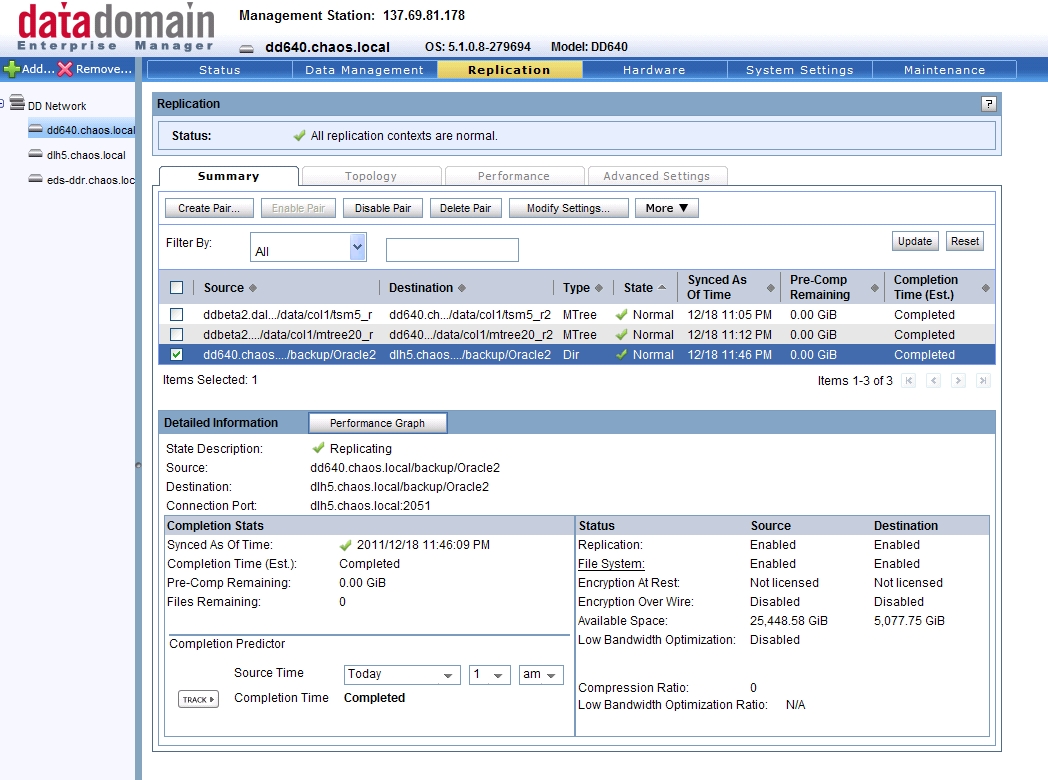
This example converts the existing directory replication context Oracle2 into a new MTree replication context, also named "Oracle2.
The source Data Domain system is: dd640.chaos.local/backup/col1/backup/Oracle2
The destination Data Domain system is: dlh5.chaos.local/data/col1/Oracle2
As, you can see that there is a directory replication context set up for this pair. Select the wanted replication pair:
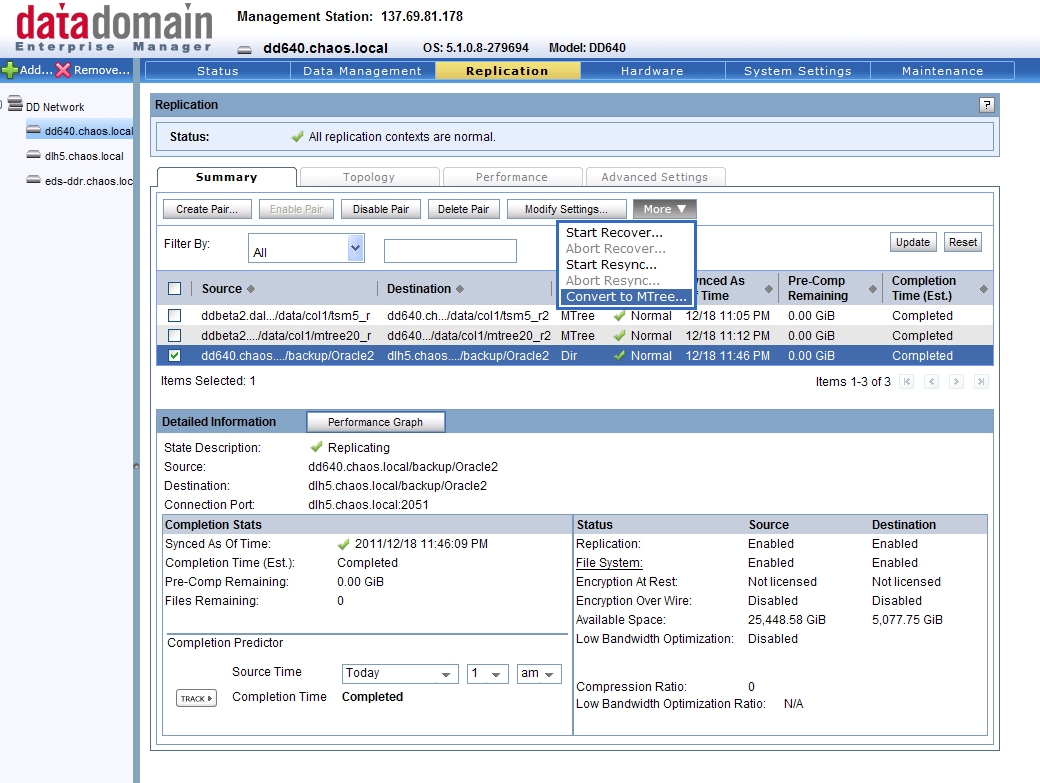
Now go to the More button and select Convert to MTree…
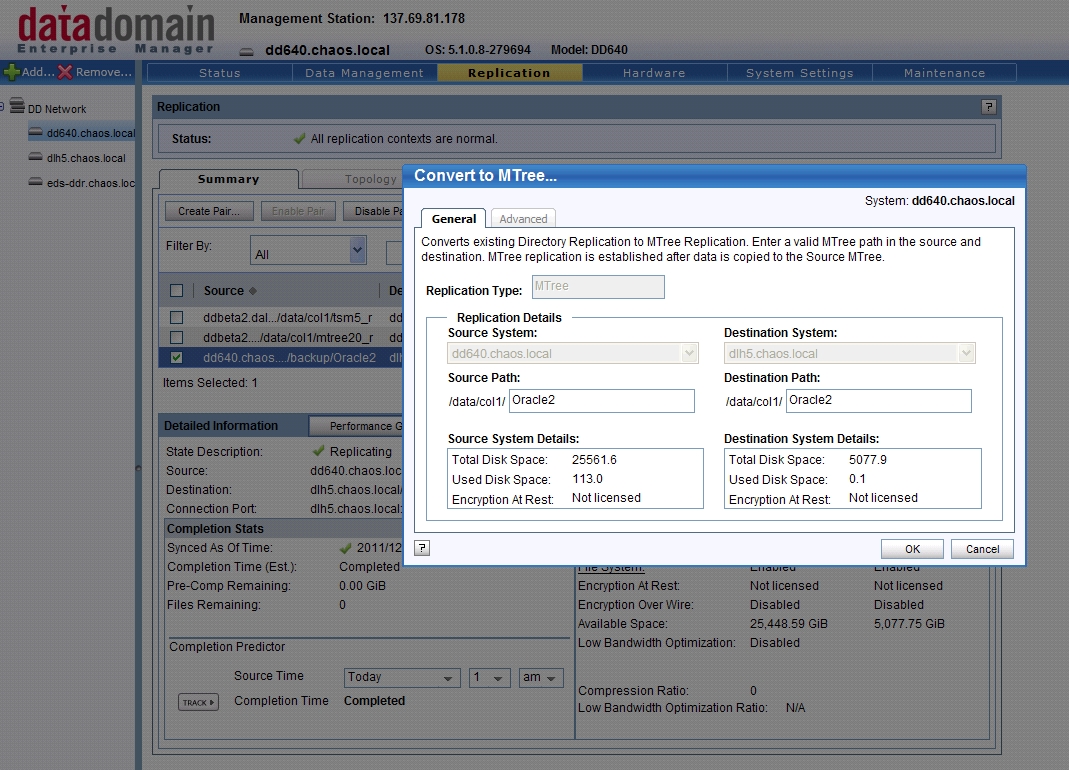
This brings up the Convert MTree menu. Verify that the information is correct and click the OK button.
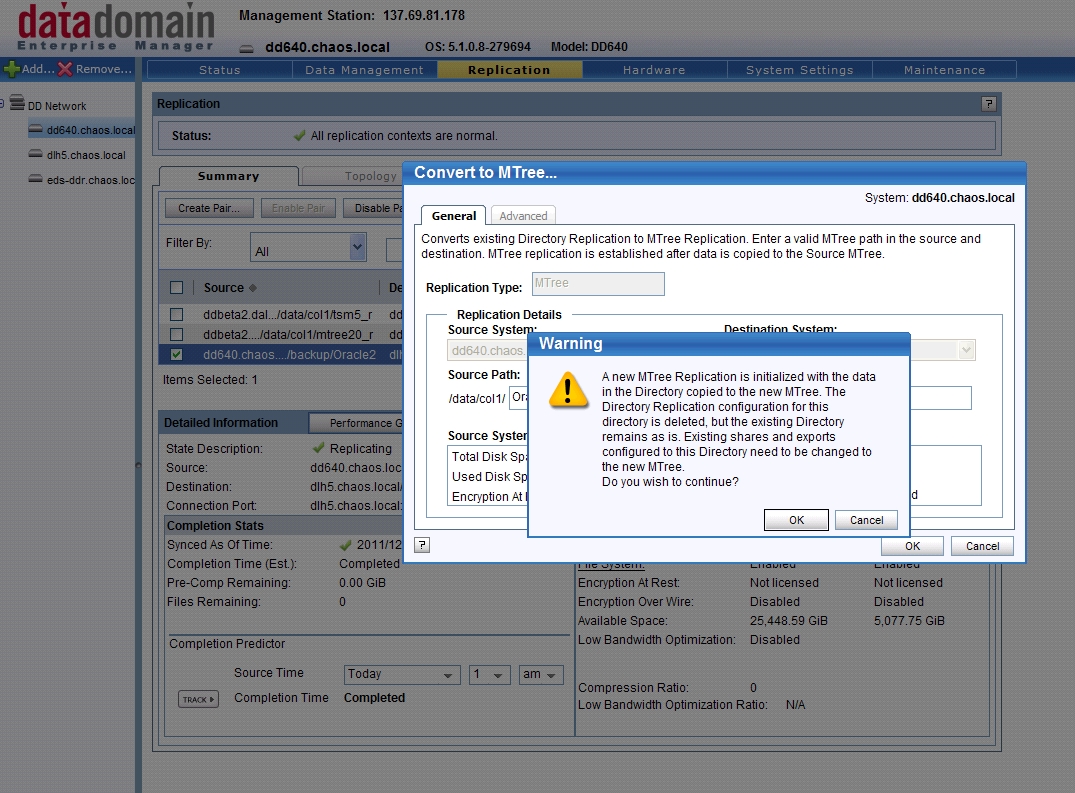
A Warning dialog appears, detailing the changes that are applied and listing additional steps required for the existing share. Click OK to proceed when ready.
The Convert to MTree…status menu appears. This allows you to track the progress of each step. After the process finishes, confirm that it was completed successfully.
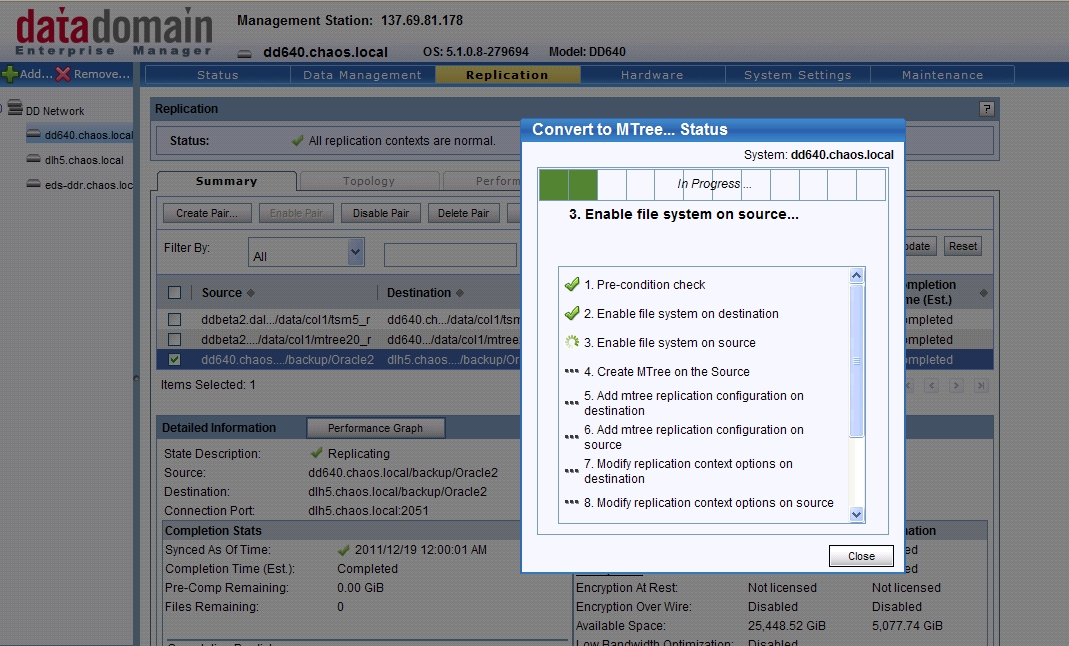
If the conversion process was successful, there is still one more task that must be performed. On the backup server, the existing shares and exports configured to the original directory (/data/col1/backup/Oracle2) must be changed to the new MTree (/data/col1/Oracle2).
After verification that new backup data is being successfully replicated, the user can clean up the old /data/col1/backup/Oracle2 share.
Additional Information
Affected Products
Data DomainProducts
Data DomainArticle Properties
Article Number: 000010876
Article Type: How To
Last Modified: 06 Jan 2026
Version: 6
Find answers to your questions from other Dell users
Support Services
Check if your device is covered by Support Services.