Deployment KB: How to validate vSan encryption for Cloudlink.
Summary: This article explains how to validate vSan encryption for Cloudlink.
This article applies to
This article does not apply to
This article is not tied to any specific product.
Not all product versions are identified in this article.
Instructions
How to monitor vSAN encryption using vCenter:
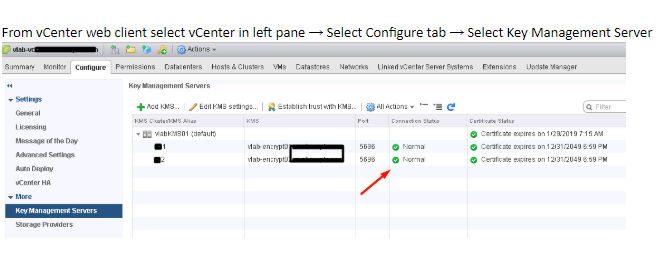
- Check vCenter and KMS server s connection status.
If connection statue is not Normal, make sure vCenter is connected to KMS and there are no trust related issues.
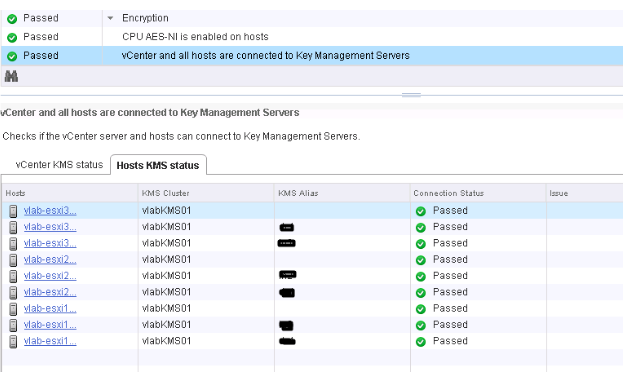
- Select ESXi Cluster where you have enabled vSAN Encryption. vSAN Health plugin see the KMS connectivity status and Disk Encryption status. If you have enabled Encryption then Encryption links are displayed in vSAN Health plugin.
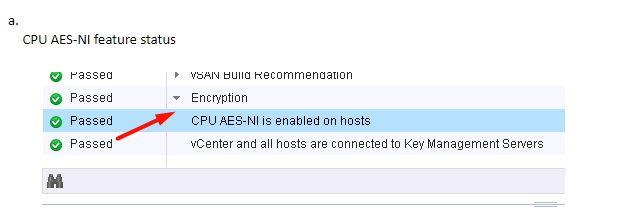
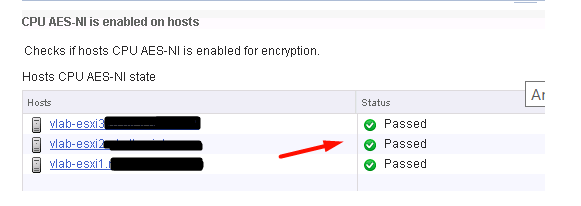
b. Check KMS and vCenter status
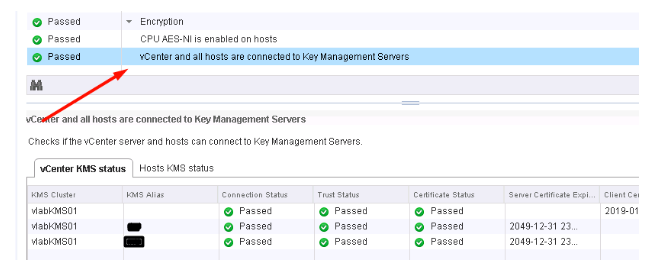
c. Check KMS and ESXi Host Connection Status
Additional Information
It is recommended to watch the VMworld session below if you are looking to Implement VM Encryption or vSAN Encryption:
VMworld 2017 - SER1392BU - Honey, Where Are My Keys? Understanding and Avoiding Common Issues with Virtual Machine Encryption
https://www.youtube.com/watch?v=I5gR_dVqfz0&feature=youtu.be
VMworld 2017 - SER1392BU - Honey, Where Are My Keys? Understanding and Avoiding Common Issues with Virtual Machine Encryption
https://www.youtube.com/watch?v=I5gR_dVqfz0&feature=youtu.be
Affected Products
CloudLinkProducts
CloudLinkArticle Properties
Article Number: 000022200
Article Type: How To
Last Modified: 17 Apr 2026
Version: 4
Find answers to your questions from other Dell users
Support Services
Check if your device is covered by Support Services.