How to Disable TLS 1.0 and TLS 1.1 on Dell Security Management Server and Dell Security Management Server Virtual
Summary: Learn how to disable TLS 1.0 and TLS 1.1 on Dell Security Management Server and Dell Security Management Server Virtual by following these instructions.
This article applies to
This article does not apply to
This article is not tied to any specific product.
Not all product versions are identified in this article.
Instructions
To ensure the security of communication to and from a Dell Security Management Server or Dell Security Management Server Virtual, it may be necessary to disable TLS 1.0 and TLS 1.1 for compliance with internal security requirements.
Affected Products:
- Dell Security Management Server
- Dell Security Management Server Virtual
Affected Versions:
- 9.10.0 and Later
Affected Operating Systems:
- Windows
- Linux
In order to disable TLS 1.0 and TLS 1.1, Dell Data Security products must meet a minimum version requirement:
| Product | Minimum Version to Disable TLS 1.0 and TLS 1.1 |
|---|---|
| Dell Security Management Server | 9.10 |
| Dell Security Management Server Virtual | 9.10 |
| Preboot Authentication | 8.16 |
| CMG Administrative Utilities | 8.16 |
| Windows Shield | 8.16 |
| Windows Advanced Threat Prevention | 1420 |
| Client Security Framework | 8.16 |
| Windows Dell Data Guardian | 1.3 |
| iOS Dell Data Guardian | 1.5 |
| Android Dell Data Guardian | 1.5 (1.6 for KitKat) |
| Dell Data Guardian Portal | 1.3 |
| Mac Dell Data Guardian | 1.5 |
| Mac Shield | 8.17 |
| Mac Advanced Threat Prevention | 1.5 |
| Linux Advanced Threat Prevention | 1.0 |
For more information about disabling TLS, select either Dell Security Management Server, Dell Security Management Server Virtual, or the Front-End Server.
Dell Security Management Server
The process to disable TLS differs between versions. Select either version 11.3.0 and Later or versions 9.10.0 to 11.2.0 for specific steps. For versioning information, reference How to Identify the Dell Data Security Server Version.
11.3.0 and Later
TLS must be disabled from the Security Server, Device Server, and Core Server. For more information, select the appropriate function.
Security Server
Dell Security Server is a Java-based service. Modifying these values requires a restart to the service before the changes take effect.
- Open
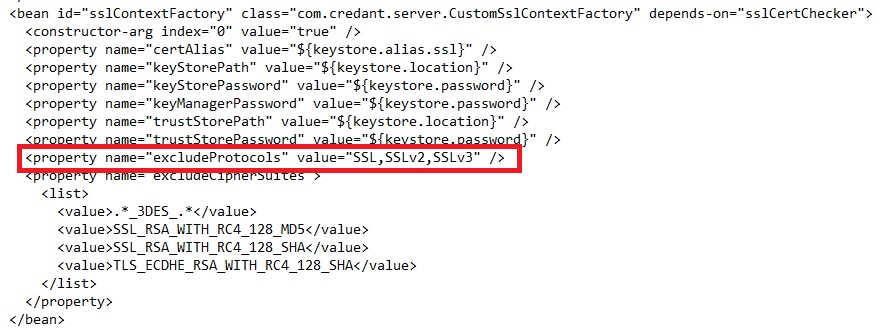
..\Dell\Enterprise Edition\Security Server\conf\spring-jetty.xmlwith a text editor and then go to<property name="excludeProtocols" value="SSL,SSLv2,SSLv3" />.
- Alter
<property name="excludeProtocols" value="SSL,SSLv2,SSLv3" />to<property name="excludeProtocols" value="SSL,SSLv2,SSLv3,TLSv1,TLSv1.1" />. - Go to
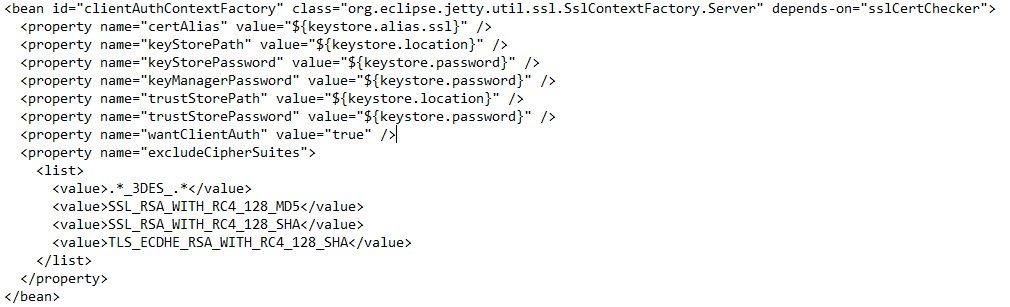
<bean id="clientAuthContextFactory"...>.
- Add
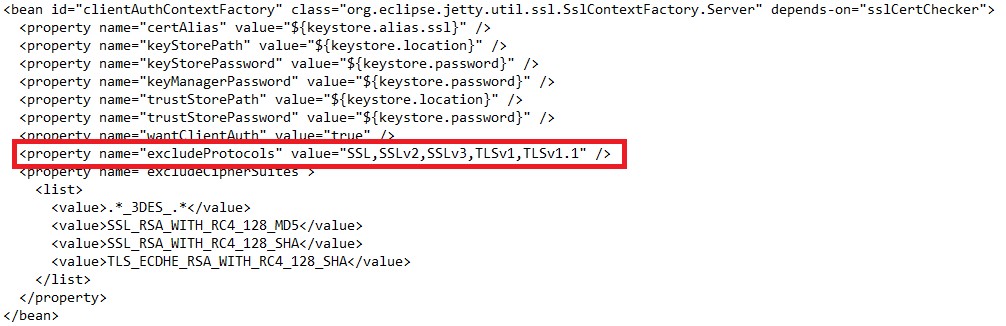
<property name="excludeProtocols" value="SSL,SSLv2,SSLv3,TLSv1,TLSv1.1" />between the<property name="wantClientAuth" value="true" />and<property name="excludeCipherSuites">lines.
- Save and exit.
- Restart all services.
Note: For more information, reference How to Stop and Start Services in Dell Security Management Server.
Device Server
Dell Device Server is a Java-based service. Modifying these values requires a restart to the service before the changes take effect.
- Open
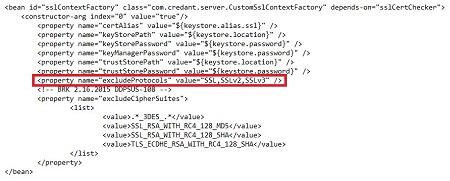
..\Dell\Enterprise Edition\Device Server\conf\spring-jetty.xmlwith a text editor and then go to<property name="excludeProtocols" value="SSL,SSLv2,SSLv3" />.
- Alter
<property name="excludeProtocols" value="SSL,SSLv2,SSLv3" />to<property name="excludeProtocols" value="SSL,SSLv2,SSLv3,TLSv1,TLSv1.1" />.
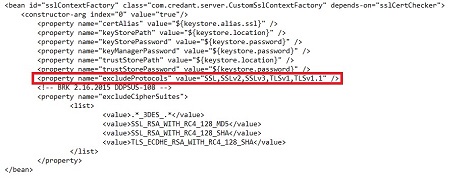
- Save and exit.
- Restart all services.
Note: For more information, reference How to Stop and Start Services in Dell Security Management Server.
Core Server
Dell Core Server service is a Microsoft .NET Framework based service. Modifying these settings also affects any other .NET Framework services that are hosted on this server and changes the core connectivity options for the operating system as a whole.
Note: For Core Server changes to take effect the host must be rebooted.
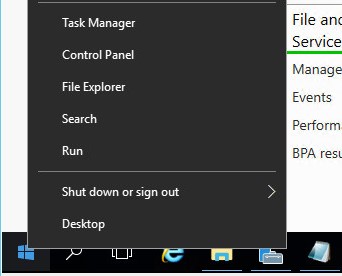
- Right-click the Windows Start Menu and then select Run.
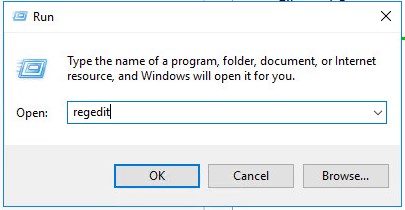
- In the Run UI, type
regeditand then press OK. This opens the Registry Editor.
- Go to
[HKEY_LOCAL_MACHINE\SYSTEM\CurrentControlSet\Control\SecurityProviders\SCHANNEL\Protocols].
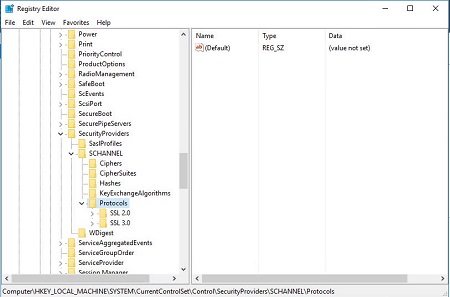
- Right-click
protocolsand then select New and then Key.
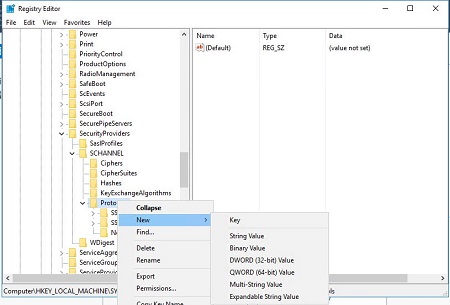
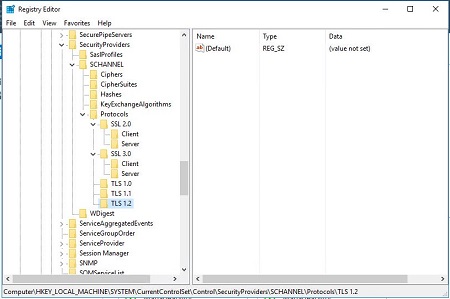
- Name the new key
TLS 1.0. Repeat the process to create a second key that is namedTLS 1.1and a third that is namedTLS 1.2.
- Right-click the
TLS 1.0key and then select New and then Key.
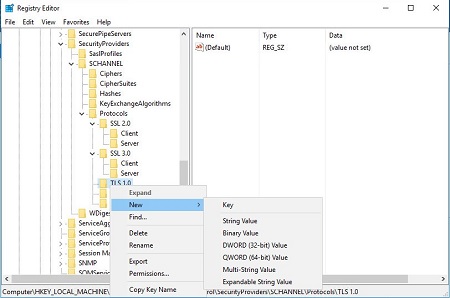
- Name the new key
Client.

- Repeat Steps 6 and 7 to create a
ClientandServerkey forTLS 1.0,TLS 1.1, andTLS 1.2.
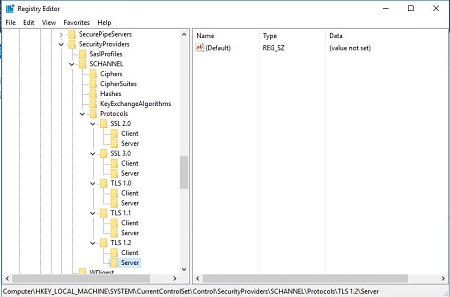
- Open
HKEY_LOCAL_MACHINE\SYSTEM\CurrentControlSet\Control\SecurityProviders\SCHANNEL\Protocols\TLS 1.0\Server. Right-click the right pane and then select New and then DWORD (32-bit) value.
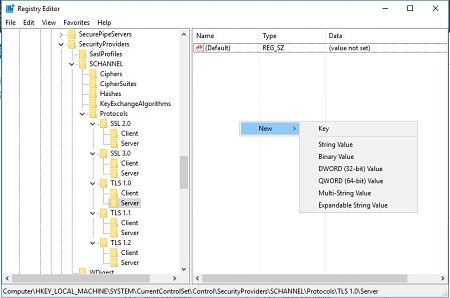
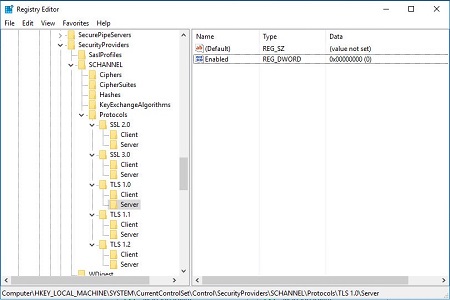
- Name the new DWORD
Enabledand then set the value to 0.
- Open
HKEY_LOCAL_MACHINE\SYSTEM\CurrentControlSet\Control\SecurityProviders\SCHANNEL\Protocols\TLS 1.1\Server. Right-click the right pane and then select New and then DWORD (32-bit) value.
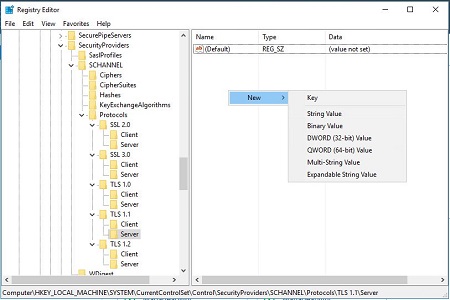
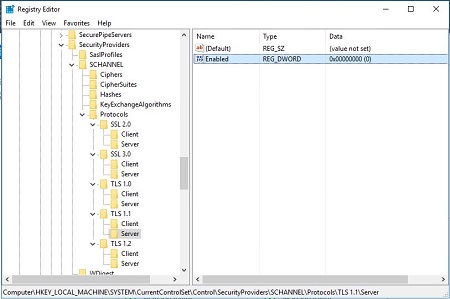
- Name the new DWORD
Enabledand then set the value to 0.
- Open
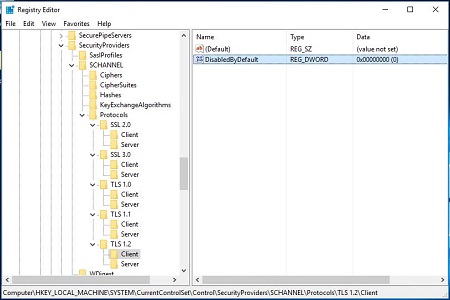
HKEY_LOCAL_MACHINE\SYSTEM\CurrentControlSet\Control\SecurityProviders\SCHANNEL\Protocols\TLS 1.2\Client. Right-click the right pane and then select New and then DWORD (32-bit) value.
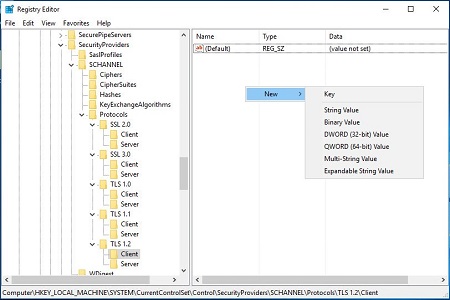
- Name the new DWORD
DisabledByDefaultand then set the value to 0.
- Open
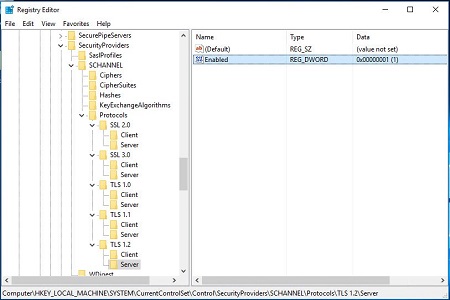
HKEY_LOCAL_MACHINE\SYSTEM\CurrentControlSet\Control\SecurityProviders\SCHANNEL\Protocols\TLS 1.2\Server. Right-click the right pane and then select New and then DWORD (32-bit) value.
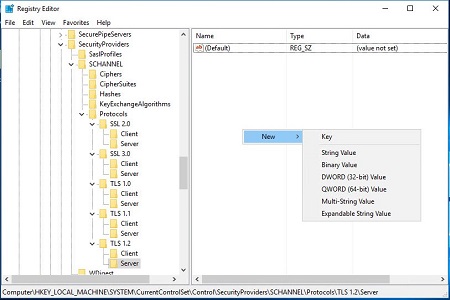
- Name the new DWORD
Enabledand then set the value to 1.
- Open
HKEY_LOCAL_MACHINE\SOFTWARE\Microsoft\.NETFramework\v4.0.30319. Right-click the right pane and then select New and then DWORD (32-bit) value.
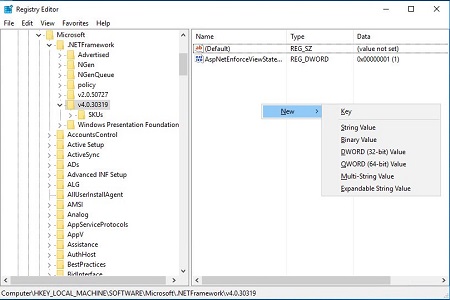
- Name the new DWORD
SchUseStrongCryptoand then set the value to 1.
 Note:
Note:SchUseStrongCryptoforces all .NET Framework applications to use strong cryptographic functions when they make TLS calls. For more information, reference SchUseStrongCrypto.
- Open
HKEY_LOCAL_MACHINE\SOFTWARE\Wow6432Node\Microsoft\.NETFramework\v4.0.30319. Right-click the right pane and then select New and then DWORD (32-bit) value.
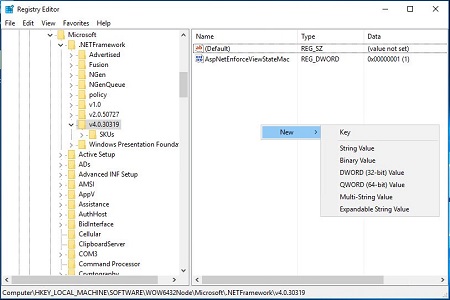
- Name the new DWORD
SchUseStrongCryptoand then set the value to 1.
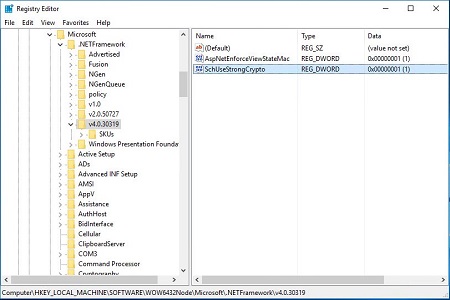
- Restart the server for the changes to take effect.
9.10.0 to 11.2.0
TLS must be disabled from the Security Server, Device Server, Compliance Reporter, and Core Server. For more information, select the appropriate function.
Security Server
Dell Security Server is a Java-based service. Modifying these values requires a restart to the service before the changes take effect.
- Open
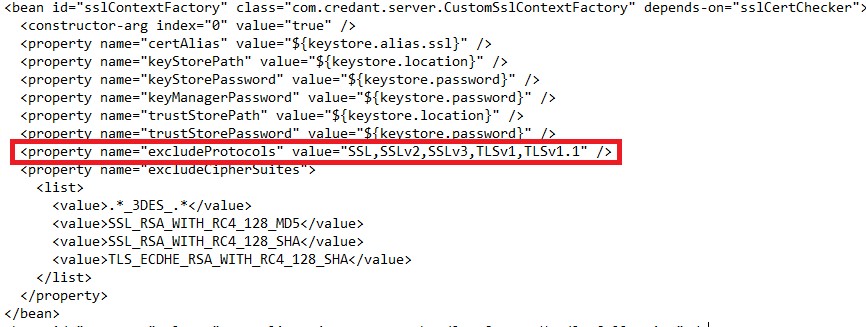
..\Dell\Enterprise Edition\Security Server\conf\spring-jetty.xmlwith a text editor and then go to<property name="excludeProtocols" value="SSL,SSLv2,SSLv3" />.
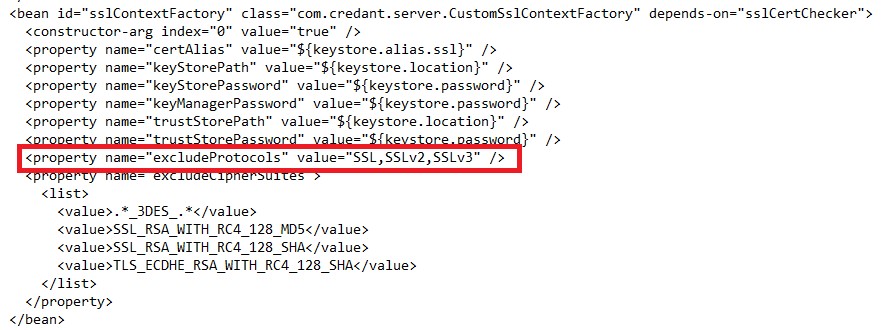
- Alter
<property name="excludeProtocols" value="SSL,SSLv2,SSLv3" />to<property name="excludeProtocols" value="SSL,SSLv2,SSLv3,TLSv1,TLSv1.1" />.
- Go to
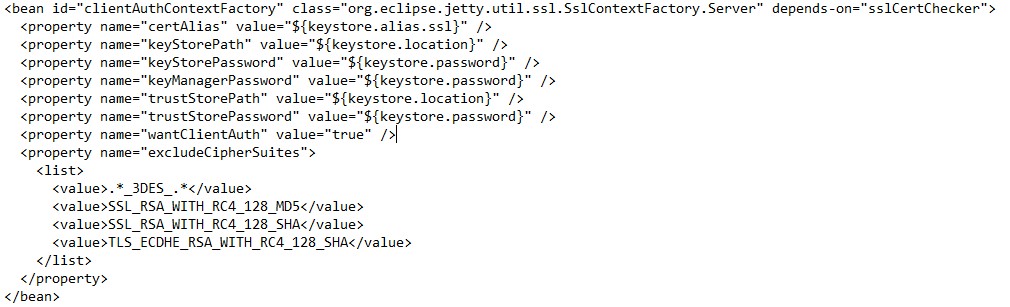
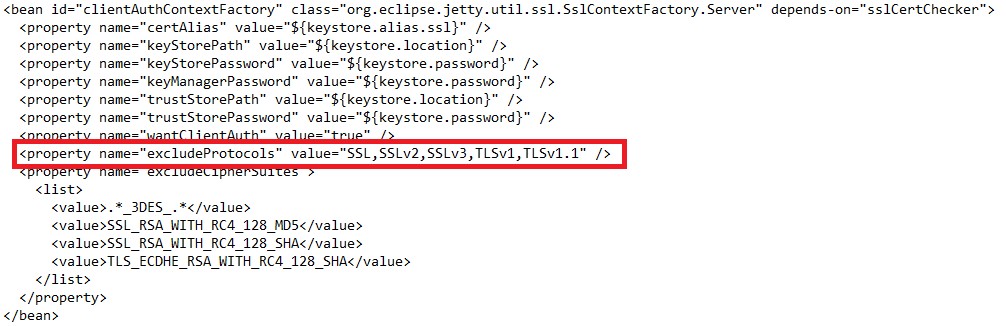
<bean id="clientAuthContextFactory"...>.
- Add
<property name="excludeProtocols" value="SSL,SSLv2,SSLv3,TLSv1,TLSv1.1" />between the<property name="wantClientAuth" value="true" />and<property name="excludeCipherSuites">lines.
- Save and exit.
- Restart all services.
Note: For more information, reference How to Stop and Start Services in Dell Security Management Server.
Device Server
Dell Device Server is a Java-based service. Modifying these values requires a restart to the service before the changes take effect.
- Open
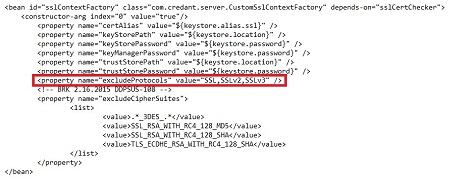
..\Dell\Enterprise Edition\Device Server\conf\spring-jetty.xmlwith a text editor and then go to<property name="excludeProtocols" value="SSL,SSLv2,SSLv3" />.
- Alter
<property name="excludeProtocols" value="SSL,SSLv2,SSLv3" />to<property name="excludeProtocols" value="SSL,SSLv2,SSLv3,TLSv1,TLSv1.1" />.

- Save and exit.
- Restart all services.
Note: For more information, reference How to Stop and Start Services in Dell Security Management Server.
Compliance Reporter
Dell Compliance Reporter is a Java-based service. Modifying these values requires a restart to the service before the changes take effect.
- Open
..\Dell\Enterprise Edition\Compliance Reporter\conf\eserver.propertieswith a text editor and then go toeserver.ssl.protocols=TLSv1, TLSv1.1, TLSv1.2.
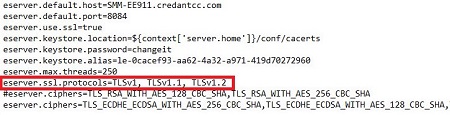
- Modify
eserver.ssl.protocols=TLSv1, TLSv1.1, TLSv1.2toeserver.ssl.protocols=TLSv1.2.
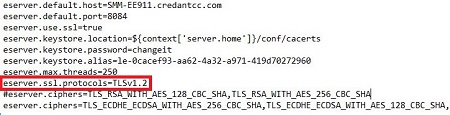
- Save and exit.
- Restart all services.
Note: For more information, reference How to Stop and Start Services in Dell Security Management Server.
Core Server
Dell Core Server service is a Microsoft .NET Framework based service. Modifying these settings also affects any other .NET Framework services that are hosted on this server and changes the core connectivity options for the operating system as a whole.
Note: The host must be rebooted for Core Server changes to take effect.
- Right-click the Windows Start Menu and then select Run.
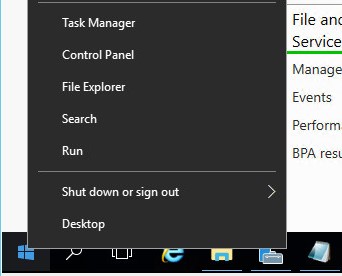
- In the Run UI, type
regeditand then press OK. This opens the Registry Editor.
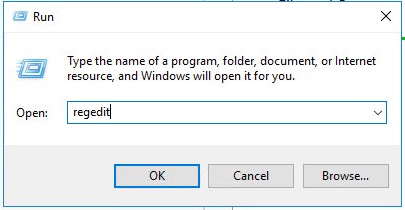
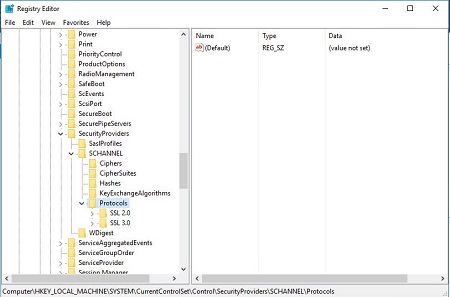
- Go to
[HKEY_LOCAL_MACHINE\SYSTEM\CurrentControlSet\Control\SecurityProviders\SCHANNEL\Protocols].
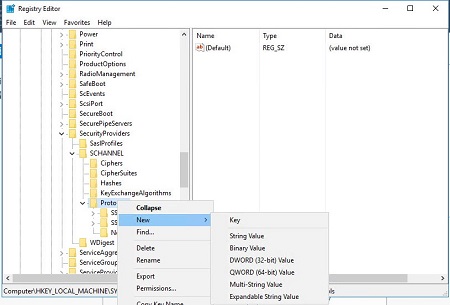
- Right-click
protocolsand then select New and then Key.
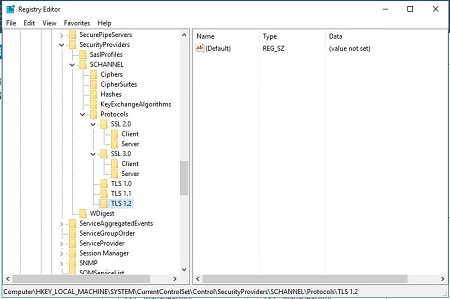
- Name the new key
TLS 1.0. Repeat the process to create a second key that is namedTLS 1.1and a third that is namedTLS 1.2.
- Right-click the
TLS 1.0key and then select New and then Key.
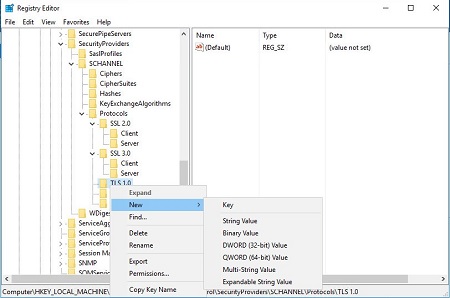
- Name the new key
Client.
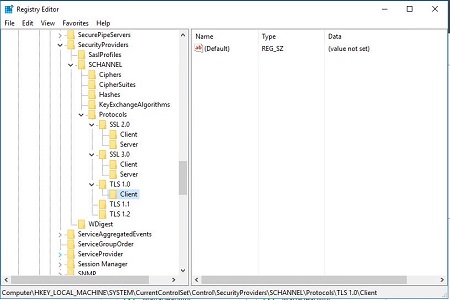
- Repeat Steps 6 and 7 to create a
ClientandServerkey forTLS 1.0,TLS 1.1, andTLS 1.2.
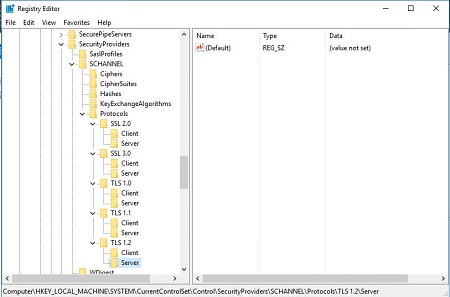
- Open
HKEY_LOCAL_MACHINE\SYSTEM\CurrentControlSet\Control\SecurityProviders\SCHANNEL\Protocols\TLS 1.0\Server. Right-click the right pane and then select New and then DWORD (32-bit) value.
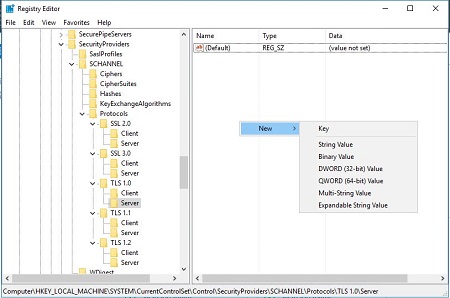
- Name the new DWORD
Enabledand then set the value to 0.
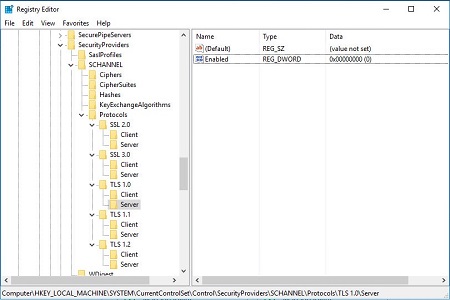
- Open
HKEY_LOCAL_MACHINE\SYSTEM\CurrentControlSet\Control\SecurityProviders\SCHANNEL\Protocols\TLS 1.1\Server. Right-click the right pane and then select New and then DWORD (32-bit) value.
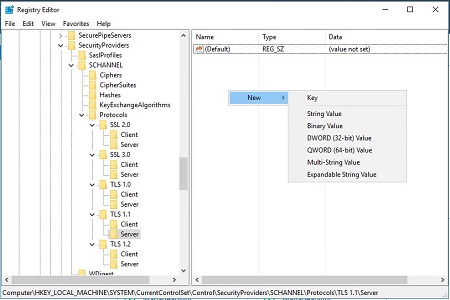
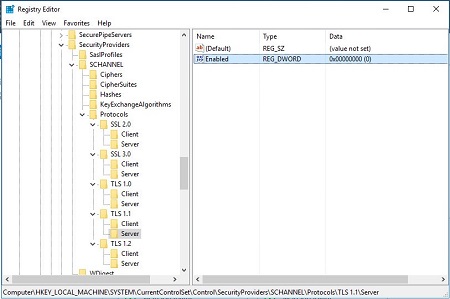
- Name the new DWORD
Enabledand then set the value to 0.
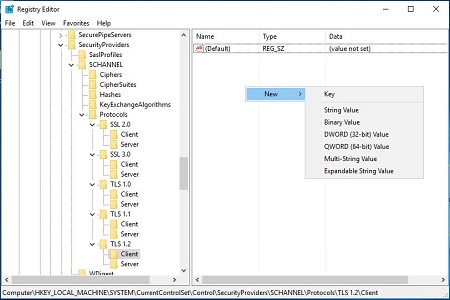
- Open
HKEY_LOCAL_MACHINE\SYSTEM\CurrentControlSet\Control\SecurityProviders\SCHANNEL\Protocols\TLS 1.2\Client. Right-click the right pane and then select New and then DWORD (32-bit) value.
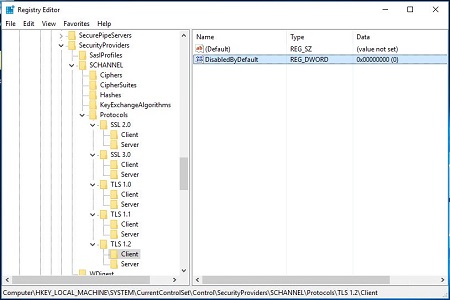
- Name the new DWORD
DisabledByDefaultand then set the value to 0.
- Open
HKEY_LOCAL_MACHINE\SYSTEM\CurrentControlSet\Control\SecurityProviders\SCHANNEL\Protocols\TLS 1.2\Server. Right-click the right pane and then select New and then DWORD (32-bit) value.
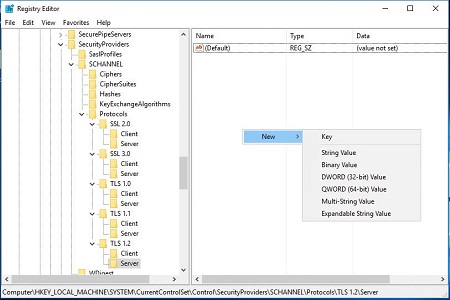
- Name the new DWORD
Enabledand then set the value to 1.
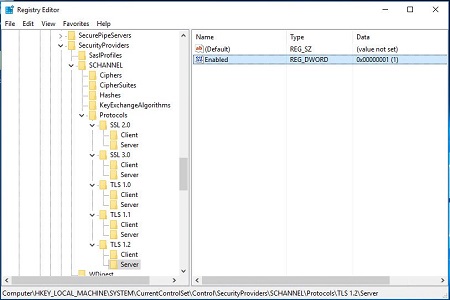
- Open
HKEY_LOCAL_MACHINE\SOFTWARE\Microsoft\.NETFramework\v4.0.30319. Right-click the right pane and then select New and then DWORD (32-bit) value.
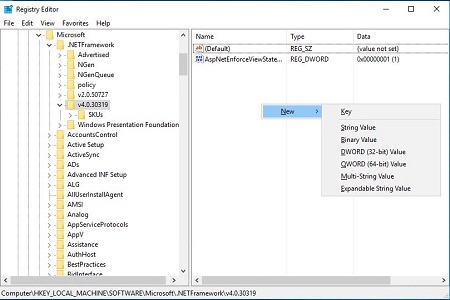
- Name the new DWORD
SchUseStrongCryptoand then set the value to 1.
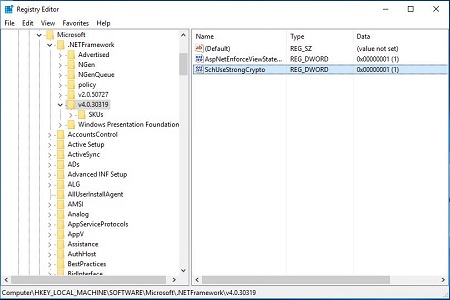 Note:
Note:SchUseStrongCryptoforces all .NET Framework applications to use strong cryptographic functions when they make TLS calls. For more information, reference SchUseStrongCrypto - Open
HKEY_LOCAL_MACHINE\SOFTWARE\Wow6432Node\Microsoft\.NETFramework\v4.0.30319. Right-click the right pane and then select New and then DWORD (32-bit) value.
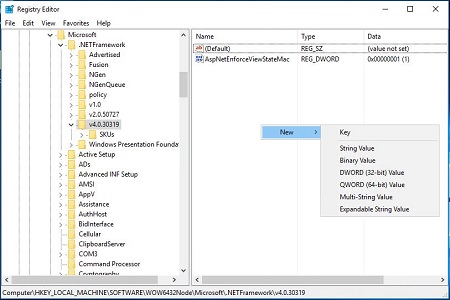
- Name the new DWORD
SchUseStrongCryptoand then set the value to 1.
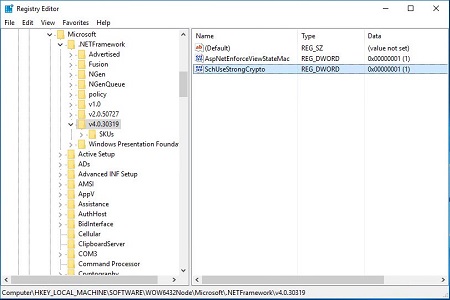
- Restart the server for the changes to take effect.
Dell Security Management Server Virtual
The process to disable TLS differs between versions. Select either version 11.3.0 and Later, versions 9.11.0 to 11.2.0, or versions 9.10.0 to 9.10.1 for specific steps. For versioning information, reference How to Identify the Dell Data Security Server Version.
11.3.0 and Later
TLS must be disabled from the Security Server, Identity Server, and Core Server Proxy. For more information, select the appropriate function.
Security Server
Dell Security Server is a Java-based service. Modifying these values requires a restart to the service before the changes take effect.
- Log in to the Dell Security Management Server Virtual administration console.
Note:
- The default credentials for Dell Security Management Server Virtual are:
- Username:
delluser - Password:
delluser
- Username:
- An administrator can change the default password within the product’s virtual appliance menu.
- The default credentials for Dell Security Management Server Virtual are:
- From the Main Menu, select Launch Shell and the press Enter.
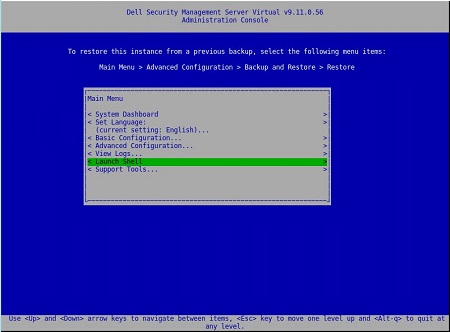
- Change the user to
dellsupportusing thesu dellsupportcommand.

- Confirm the password for the
dellsupportuser.

- Open
/opt/dell/server/security-server/conf/spring-jetty.xmlusing the commandsudo nano /opt/dell/server/security-server/conf/spring-jetty.xml.
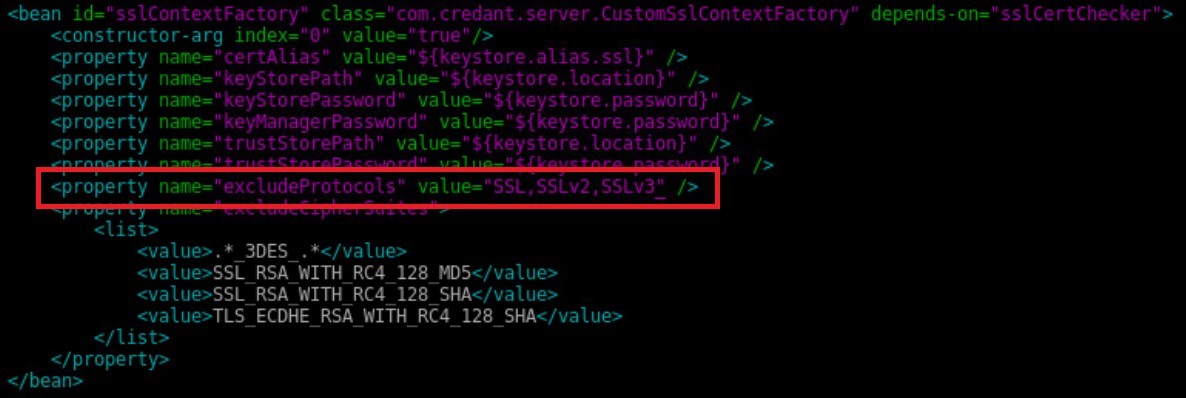
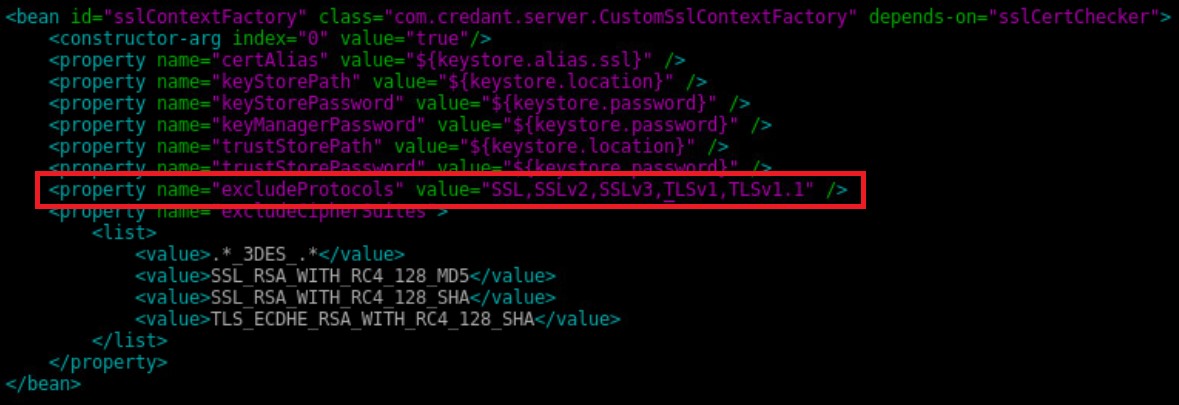
- Alter
<property name="excludeProtocols" value="SSL,SSLv2,SSLv3" />to<property name="excludeProtocols" value="SSL,SSLv2,SSLv3,TLSv1,TLSv1.1" />.
- Go to
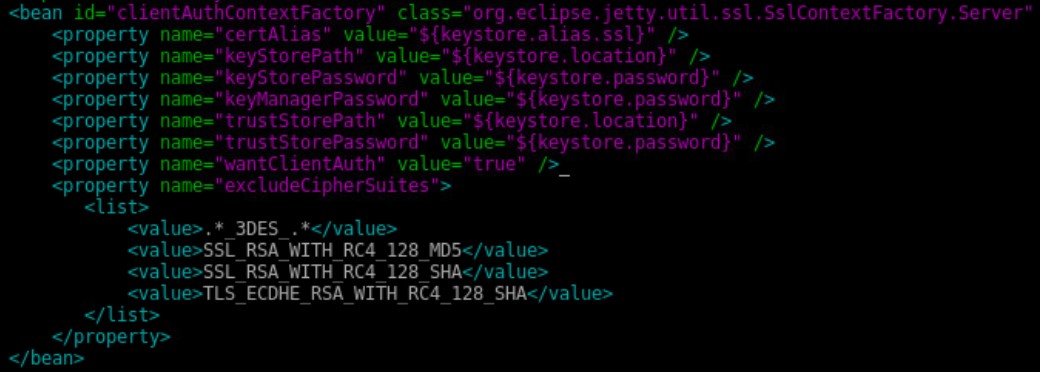
<bean id="clientAuthContextFactory"...>.
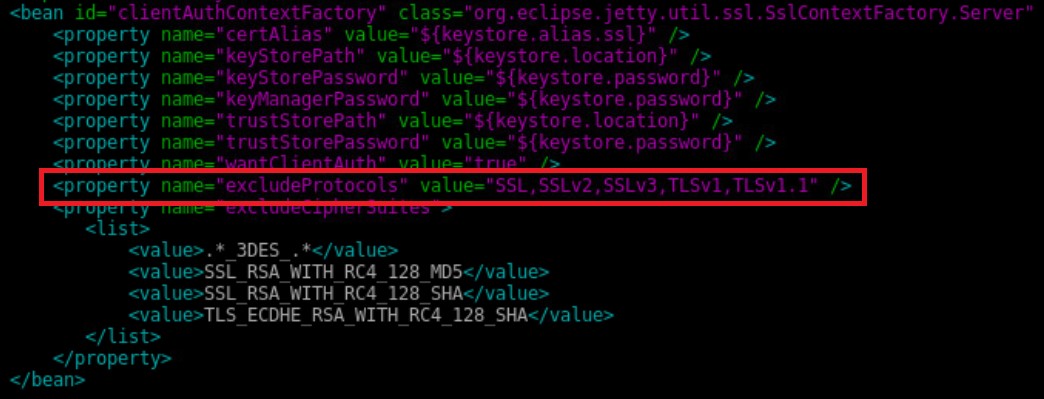
- Add
<property name="excludeProtocols" value="SSL,SSLv2,SSLv3,TLSv1,TLSv1.1" />between the<property name="wantClientAuth" value="true" />and<property name="excludeCipherSuites">lines.
- Press CTRL + X to exit.

- Press Y to save the changes and then press Enter to confirm the file name.

- Type
exitand press Enter to log out ofdellsupport.

- Type
exitand then press Enter to log out of the shell to the Main Menu.

- Restart all services.
Note: For more information, reference How to Stop and Start Services in Dell Security Management Server Virtual.
Identity Server
Dell Identity Server service is a mono-based service. Modifying these values requires a restart to the server before the changes take effect.
- Log in to the Dell Security Management Server Virtual administration console.
Note:
- The default credentials for Dell Security Management Server Virtual are:
- Username:
delluser - Password:
delluser
- Username:
- An administrator can change the default password within the product’s virtual appliance menu.
- The default credentials for Dell Security Management Server Virtual are:
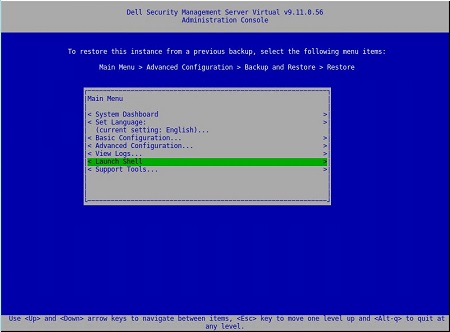
- From the Main Menu, select Launch Shell and then press Enter.
- Change the user to
dellsupportusing thesu dellsupportcommand.

- Confirm the password for the
dellsupportuser.

- Open
/opt/dell/server/local-server/conf/spring-jetty.xmlwith a text editor using the commandsudo nano /opt/dell/server/local-server/conf/spring-jetty.xml.

- Go to
<property name="excludeProtocols" value="SSL,SSLv2,SSLv3" />.
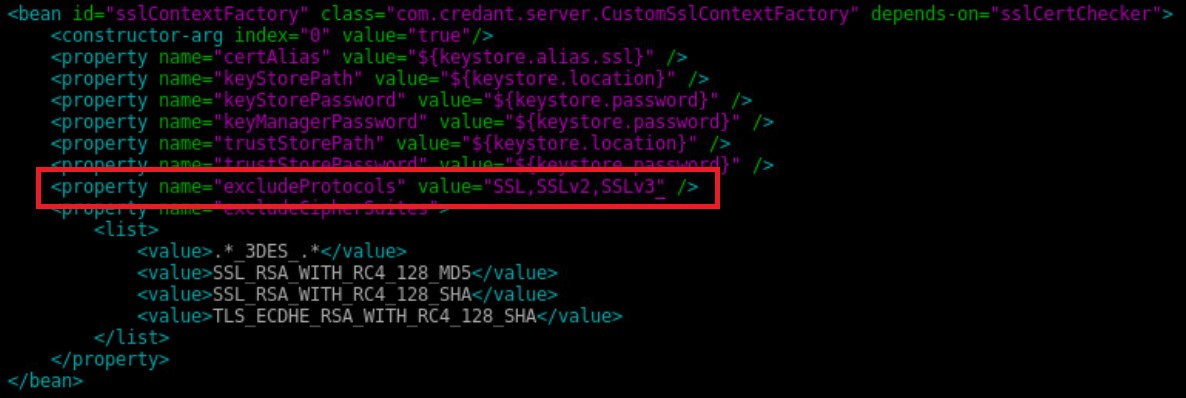
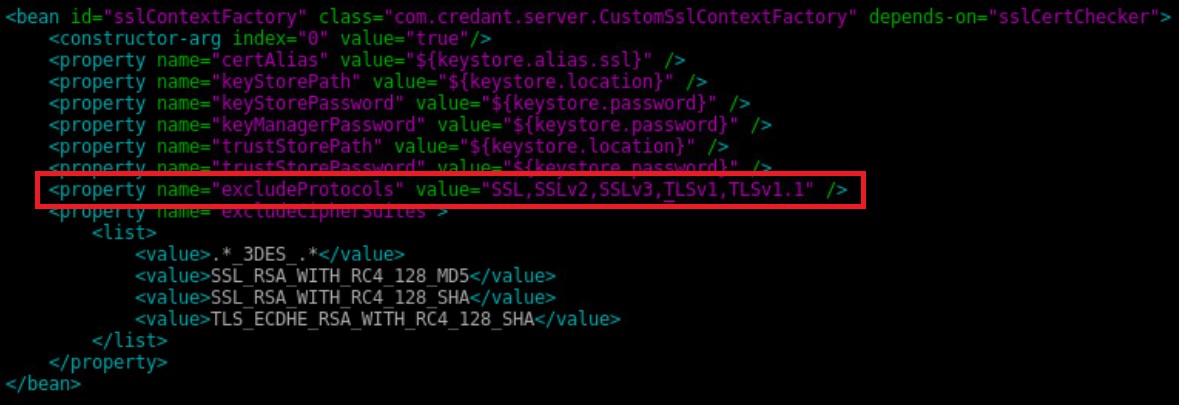
- Alter
<property name="excludeProtocols" value="SSL,SSLv2,SSLv3" />to<property name="excludeProtocols" value="SSL,SSLv2,SSLv3,TLSv1,TLSv1.1" />.
- Press CTRL + X to exit.

- Press Y to save the changes and then press Enter to confirm the file name.

- Type
exitand then press Enter to log out ofdellsupport.

- Type
exitand then press Enter to log out of the shell to the Main Menu.

- Restart the server for the changes to take effect.
Core Server Proxy
Dell Core Server Proxy service is a Java-based service. Modifying these values requires a restart to the service before the changes take effect.
- Log in to the Dell Security Management Server Virtual administration console.
Note:
- The default credentials for Dell Security Management Server Virtual are:
- Username:
delluser - Password:
delluser
- Username:
- An administrator can change the default password within the product’s virtual appliance menu.
- The default credentials for Dell Security Management Server Virtual are:
- From the Main Menu, select Launch Shell and then press Enter.
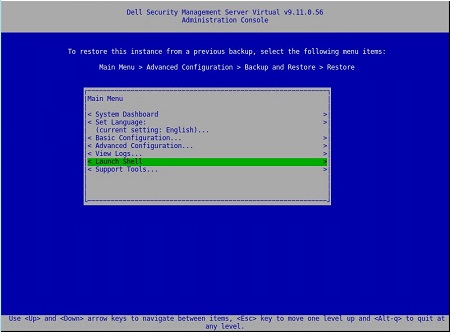
- Change the user to
dellsupportusing thesu dellsupportcommand.

- Confirm the password for the
dellsupportuser.

- Open
/opt/dell/server/core-server-proxy/conf/spring-jetty.xmlwith a text editor using the commandsudo nano /opt/dell/server/core-server-proxy/conf/spring-jetty.xml.

- Go to
<property name="excludeProtocols" value="SSL,SSLv2,SSLv3" />.
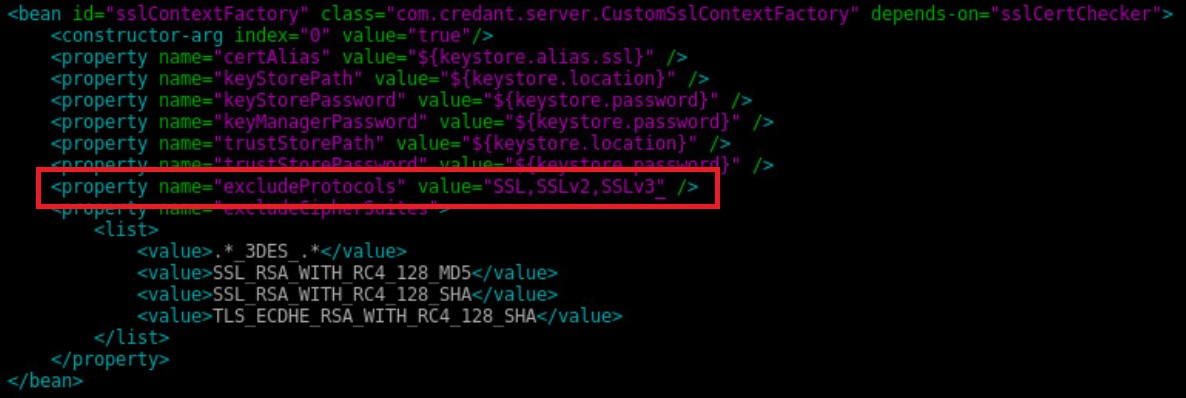
- Alter
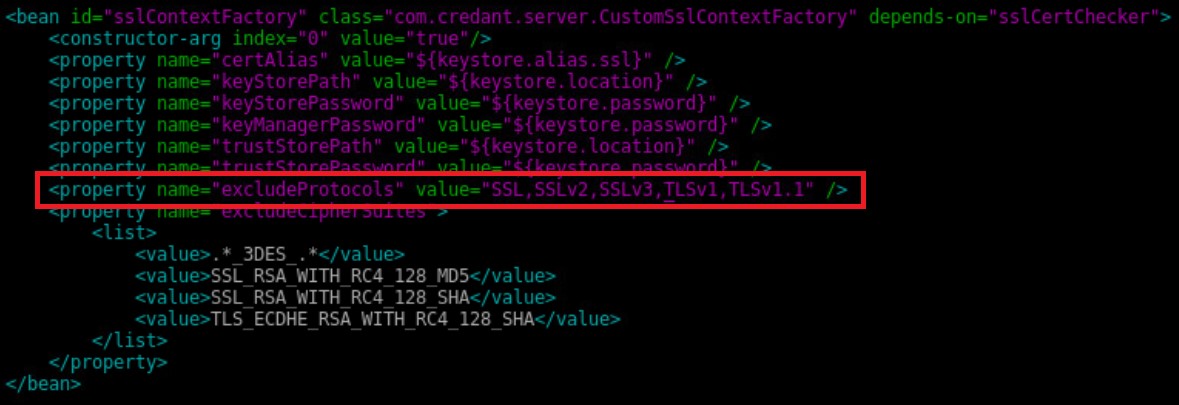
<property name="excludeProtocols" value="SSL,SSLv2,SSLv3" />to<property name="excludeProtocols" value="SSL,SSLv2,SSLv3,TLSv1,TLSv1.1" />.
- Press CTRL + X to exit.

- Press Y to save the changes and then press Enter to confirm the file name.

- Type
exitand then press Enter to return to log out ofdellsupport.

- Type
exitand then press Enter to log out of the shell to the Main Menu.

- Restart all services.
9.11.0 to 11.2.0
TLS must be disabled from the Security Server, Identity Server, Compliance Reporter, and Core Server Proxy. For more information, select the appropriate function.
Security Server
Dell Security Server is a Java-based service. Modifying these values requires a restart to the service before the changes take effect.
- Log in to the Dell Security Management Server Virtual administration console.
Note:
- The default credentials for Dell Security Management Server Virtual are:
- Username:
delluser - Password:
delluser
- Username:
- An administrator can change the default password within the product’s virtual appliance menu.
- The default credentials for Dell Security Management Server Virtual are:
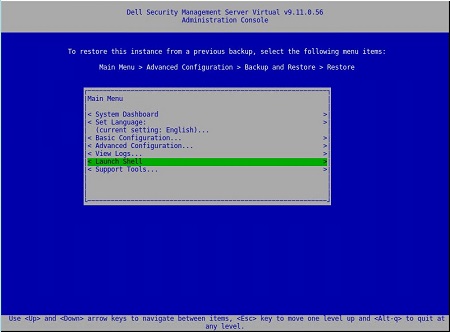
- From the Main Menu, select Launch Shell and the press Enter.
- Change the user to
dellsupportusing thesu dellsupportcommand.

- Confirm the password for the
dellsupportuser.

- Open
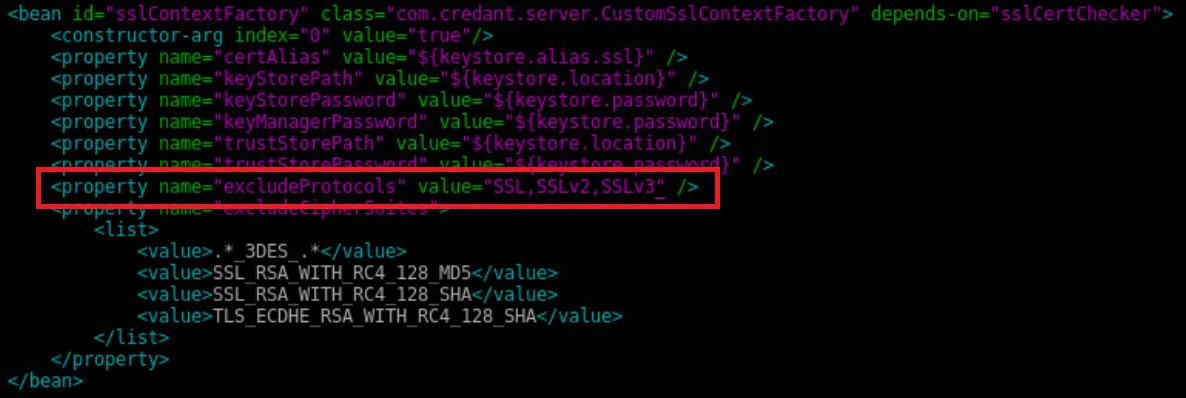
/opt/dell/server/security-server/conf/spring-jetty.xmlusing the commandsudo nano /opt/dell/server/security-server/conf/spring-jetty.xml.
- Alter
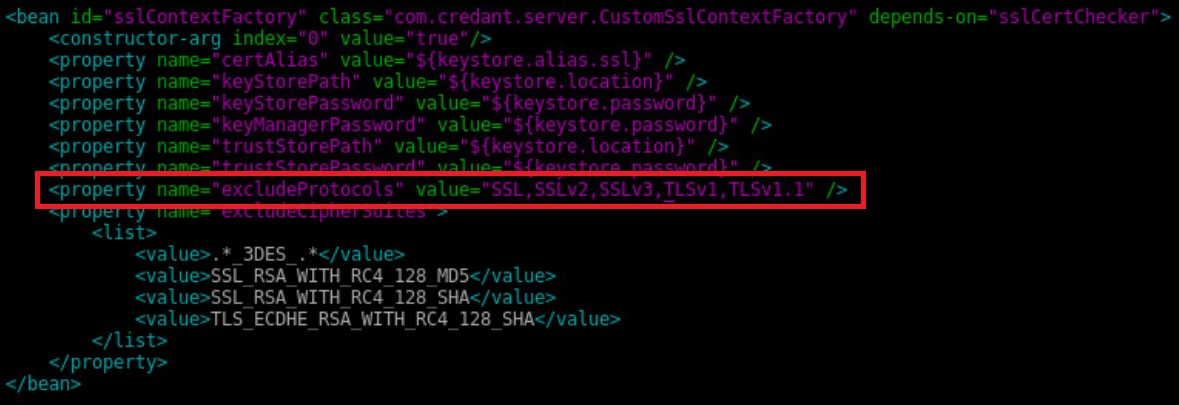
<property name="excludeProtocols" value="SSL,SSLv2,SSLv3" />to<property name="excludeProtocols" value="SSL,SSLv2,SSLv3,TLSv1,TLSv1.1" />.
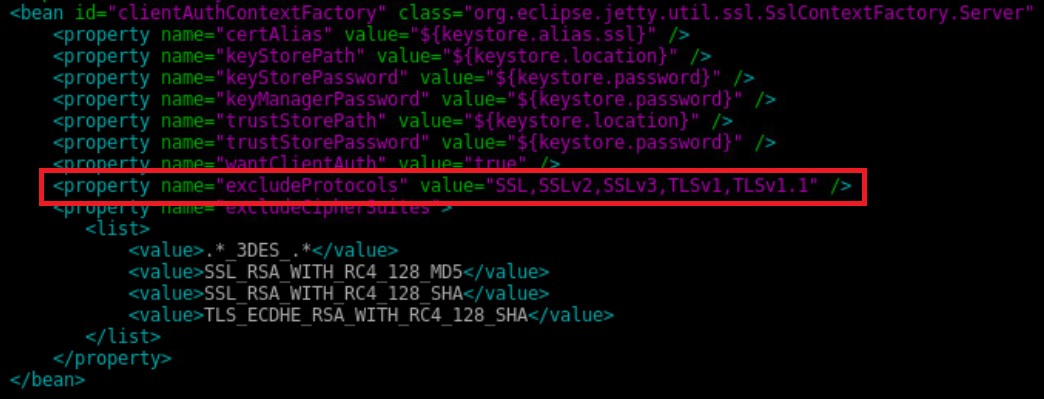
- Go to
<bean id="clientAuthContextFactory"...>.

- Add
<property name="excludeProtocols" value="SSL,SSLv2,SSLv3,TLSv1,TLSv1.1" />between the<property name="wantClientAuth" value="true" />and<property name="excludeCipherSuites">lines.
- Press CTRL + X to exit.

- Press Y to save the changes and then press Enter to confirm the file name.

- Type
exitand press Enter to log out ofdellsupport.

- Type
exitand then press Enter to log out of the shell to the Main Menu.

- Restart all services.
Note: For more information, reference How to Stop and Start Services in Dell Security Management Server Virtual.
Identity Server
Dell Identity Server service is a mono-based service. Modifying these values requires a restart to the server before the changes take effect.
- Log in to the Dell Security Management Server Virtual administration console.
Note:
- The default credentials for Dell Security Management Server Virtual are:
- Username:
delluser - Password:
delluser
- Username:
- An administrator can change the default password within the product’s virtual appliance menu.
- The default credentials for Dell Security Management Server Virtual are:
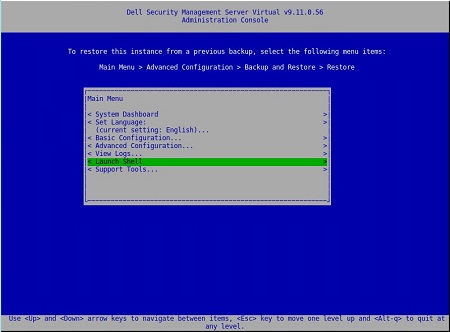
- From the Main Menu, select Launch Shell and then press Enter.
- Change the user to
dellsupportusing thesu dellsupportcommand.

- Confirm the password for the
dellsupportuser.

- Open
/opt/dell/server/local-server/conf/spring-jetty.xmlwith a text editor using the commandsudo nano /opt/dell/server/local-server/conf/spring-jetty.xml.

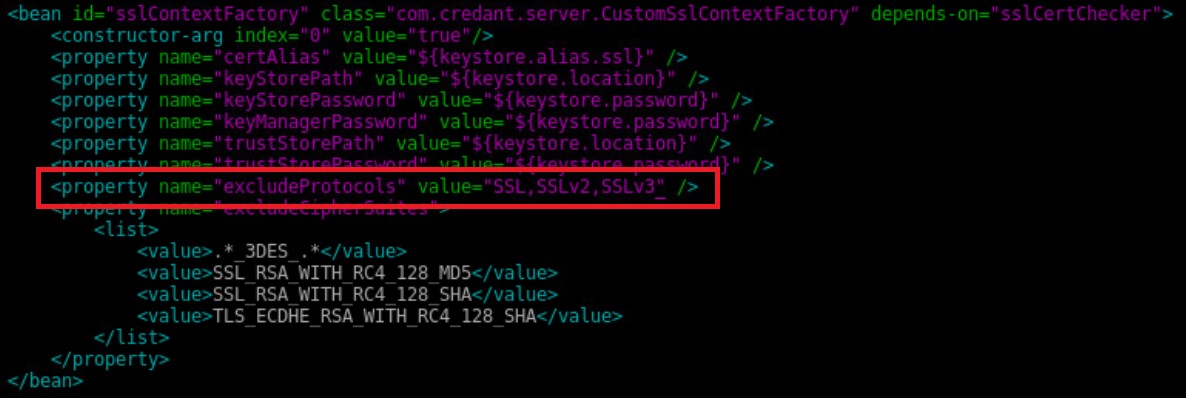
- Go to
<property name="excludeProtocols" value="SSL,SSLv2,SSLv3" />.
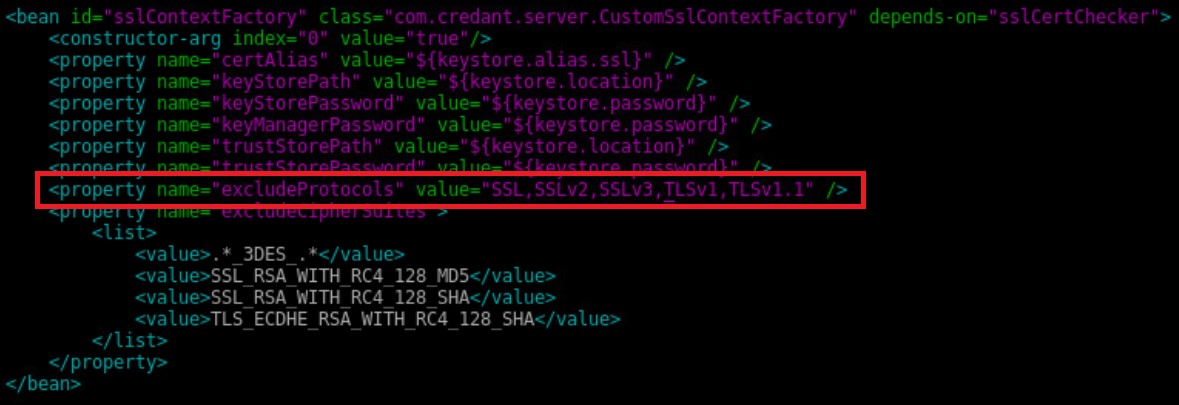
- Alter
<property name="excludeProtocols" value="SSL,SSLv2,SSLv3" />to<property name="excludeProtocols" value="SSL,SSLv2,SSLv3,TLSv1,TLSv1.1" />.
- Press CTRL + X to exit.

- Press Y to save the changes and then press Enter to confirm the file name.

- Type
exitand then press Enter to log out ofdellsupport.

- Type
exitand then press Enter to log out of the shell to the Main Menu.

- Restart the server for the changes to take effect.
Compliance Reporter
Dell Compliance Reporter service is a Java-based service. Modifying these values requires a restart to the service before the changes take effect.
- Log in to the Dell Security Management Server Virtual administration console.
Note:
- The default credentials for Dell Security Management Server Virtual are:
- Username:
delluser - Password:
delluser
- Username:
- An administrator can change the default password within the product’s virtual appliance menu.
- The default credentials for Dell Security Management Server Virtual are:
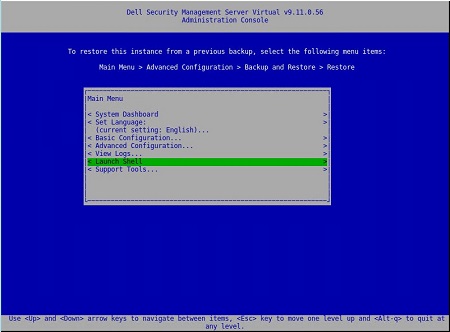
- From the Main Menu, select Launch Shell and then press Enter.
- Change the user to
dellsupportusing thesu dellsupportcommand.

- Confirm the password for the
dellsupportuser.

- Open
/opt/dell/server/reporter/conf/eserver.propertieswith a text editor using the command:sudo nano /opt/dell/server/reporter/conf/eserver.properties. - Go to
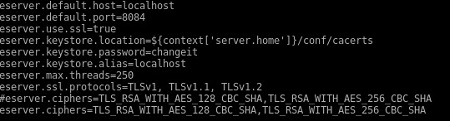
eserver.ssl.protocols=TLSv1, TLSv1.1, TLSv1.2.
- Modify
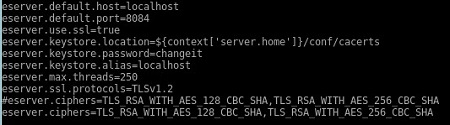
eserver.ssl.protocols=TLSv1, TLSv1.1, TLSv1.2to readeserver.ssl.protocols=TLSv1.2.
- Press CTRL + X to exit.

- Press Y to save the changes and then press Enter to confirm the file name.

- Type
exitand then press Enter to log out ofdellsupport.

- Type
exitand then press Enter to log out of the shell to the Main Menu.

- Restart all services.
Note: For more information, reference How to Stop and Start Services in Dell Security Management Server Virtual.
Core Server Proxy
Dell Core Server Proxy service is a Java-based service. Modifying these values requires a restart to the service before the changes take effect.
- Log in to the Dell Security Management Server Virtual administration console.
Note:
- The default credentials for Dell Security Management Server Virtual are:
- Username:
delluser - Password:
delluser
- Username:
- An administrator can change the default password within the product’s virtual appliance menu.
- The default credentials for Dell Security Management Server Virtual are:
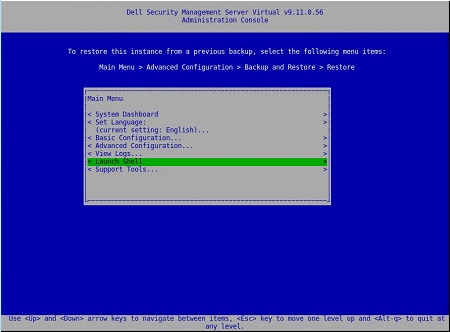
- From the Main Menu, select Launch Shell and then press Enter.
- Change the user to
dellsupportusing thesu dellsupportcommand.

- Confirm the password for the
dellsupportuser.

- Open
/opt/dell/server/core-server-proxy/conf/spring-jetty.xmlwith a text editor using the commandsudo nano /opt/dell/server/core-server-proxy/conf/spring-jetty.xml.

- Go to
<property name="excludeProtocols" value="SSL,SSLv2,SSLv3" />.

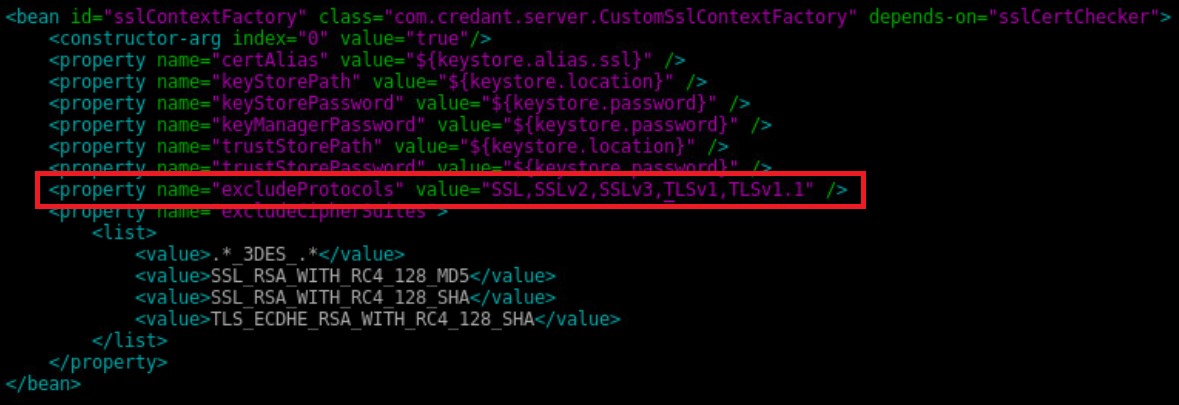
- Alter
<property name="excludeProtocols" value="SSL,SSLv2,SSLv3" />to<property name="excludeProtocols" value="SSL,SSLv2,SSLv3,TLSv1,TLSv1.1" />.
- Press CTRL + X to exit.

- Press Y to save the changes and then press Enter to confirm the file name.

- Type
exitand then press Enter to return to log out ofdellsupport.

- Type
exitand then press Enter to log out of the shell to the Main Menu.

- Restart all services.
Note: For more information, reference How to Stop and Start Services in Dell Security Management Server Virtual.
9.10.0 to 9.10.1
TLS must be disabled from the Security Server, Identity Server, Compliance Reporter, and Core Server Proxy. For more information, select the appropriate function.
Security Server
Dell Security Server service is a Java-based service. Modifying these values requires a restart to the service before the changes take effect.
- Log in to the Dell Security Management Server Virtual administration console.
Note:
- The default credentials for Dell Security Management Server Virtual are:
- Username:
delluser - Password:
delluser
- Username:
- An administrator can change the default password within the product’s virtual appliance menu.
- The default credentials for Dell Security Management Server Virtual are:
- From the Main Menu, select Launch Shell and then press Enter.
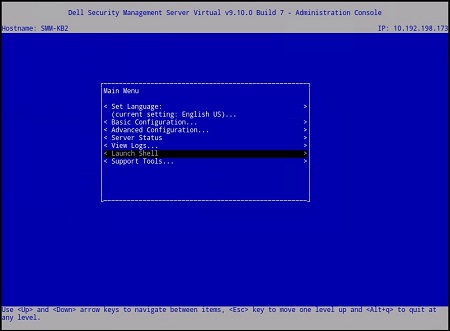
- Change the user to
ddpsupportusing thesu ddpsupportcommand.

- Confirm the password for the
ddpsupportuser.

- Open
/opt/dell/server/security-server/conf/spring-jetty.xmlusing the commandsudo nano /opt/dell/server/security-server/conf/spring-jetty.xml.

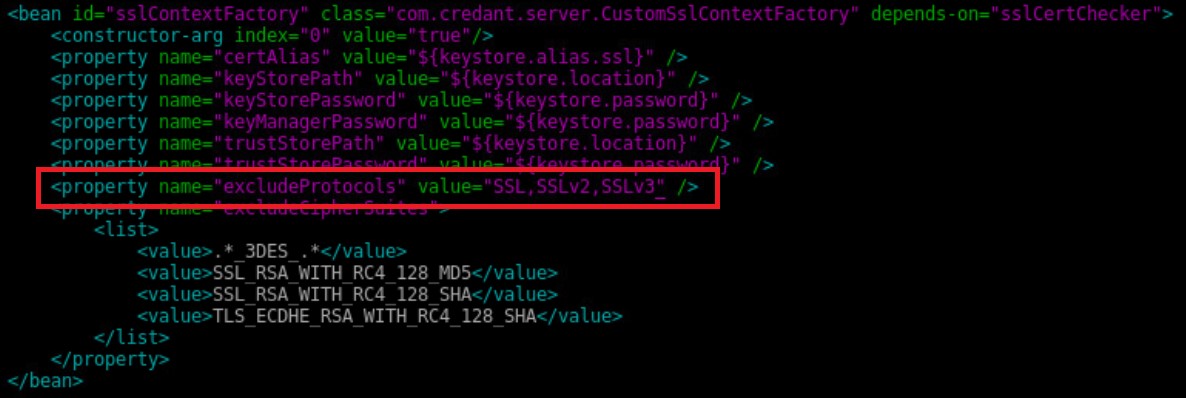
- Go to
<property name="excludeProtocols" value="SSL,SSLv2,SSLv3">.
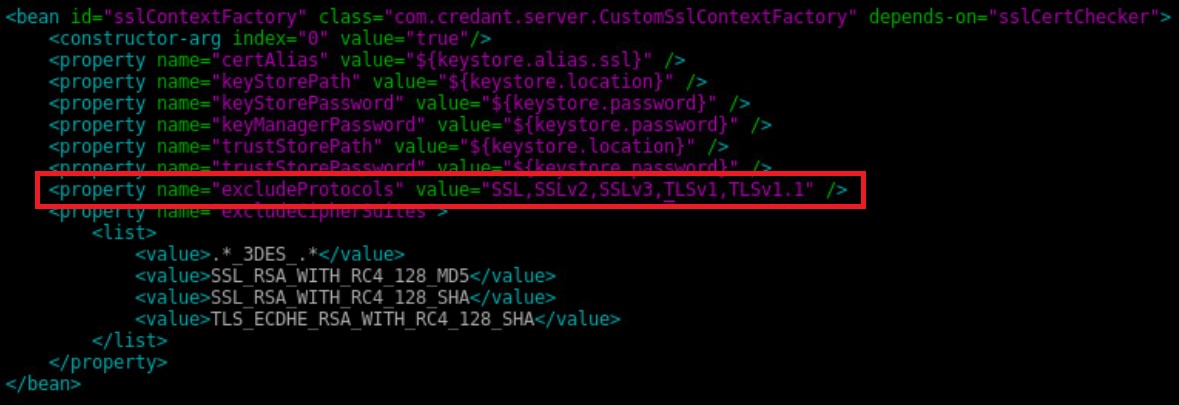
- Alter
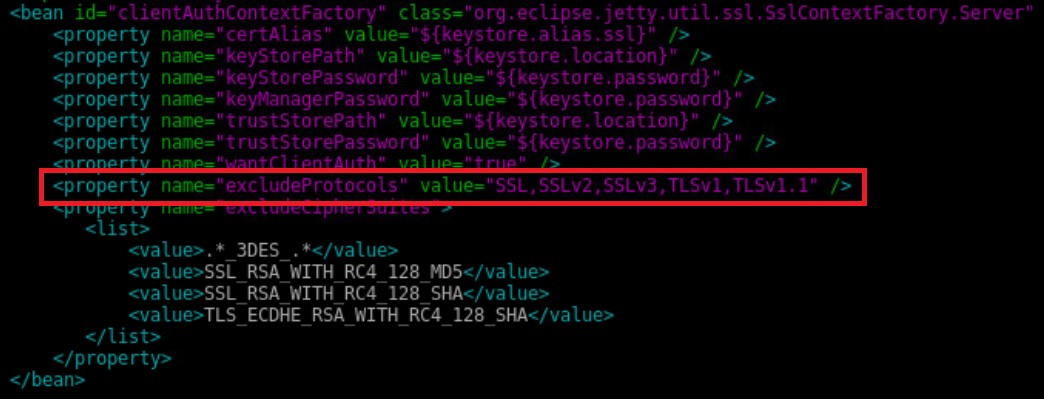
<property name="excludeProtocols" value="SSL,SSLv2,SSLv3" />to<property name="excludeProtocols" value="SSL,SSLv2,SSLv3,TLSv1,TLSv1.1" />.
- Go to
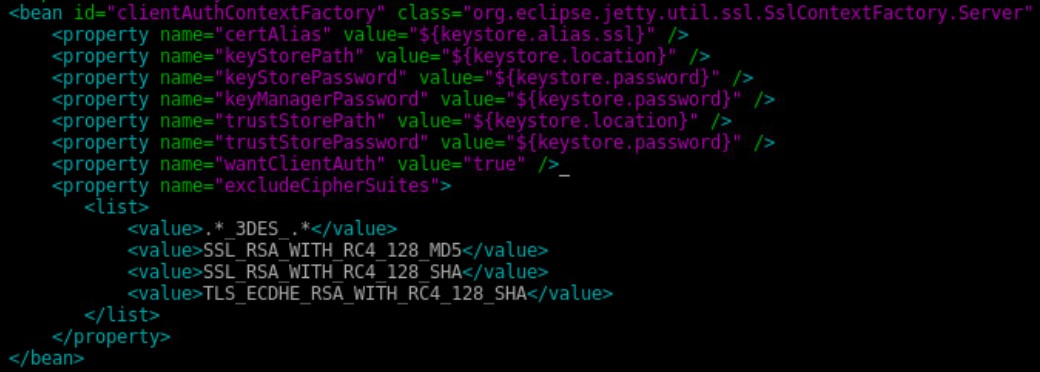
<bean id="clientAuthContextFactory"...>.
- Add
<property name="excludeProtocols" value="SSL,SSLv2,SSLv3,TLSv1,TLSv1.1" />between the<property name="wantClientAuth" value="true" />and<property name="excludeCipherSuites">lines.
- Press CTRL + X to exit.

- Press Y to save the changes and then press Enter to confirm the file name.

- Type
exitand then press Enter to log out ofddpsupport.

- Type
exitand then press Enter to log out of the shell to the Main Menu.

- Restart all services.
Note: For more information, reference How to Stop and Start Services in Dell Security Management Server Virtual.
Identity Server
Dell Identity Server service is a mono-based service. Modifying these values requires a restart to the server before the changes take effect.
- Log in to the Dell Security Management Server Virtual administration console.
Note:
- The default credentials for Dell Security Management Server Virtual are:
- Username:
delluser - Password:
delluser
- Username:
- An administrator can change the default password within the product’s virtual appliance menu.
- The default credentials for Dell Security Management Server Virtual are:
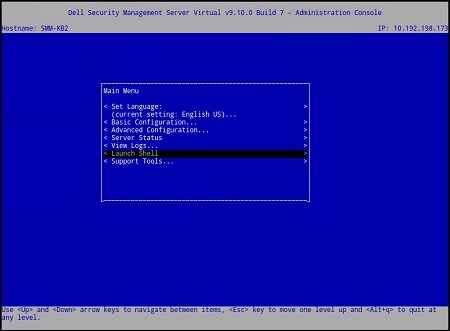
- From the Main Menu, select Launch Shell and then press Enter.
- Change the user to
ddpsupportusing thesu ddpsupportcommand.

- Confirm the password for the
ddpsupportuser.

- Open
/opt/dell/server/local-server/conf/spring-jetty.xmlwith a text editor using the commandsudo nano /opt/dell/server/local-server/conf/spring-jetty.xml.

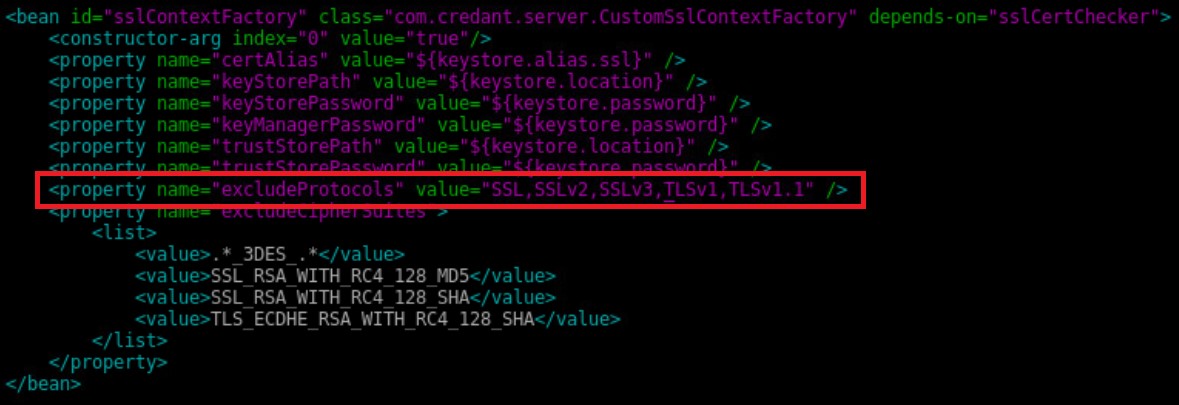
- Go to
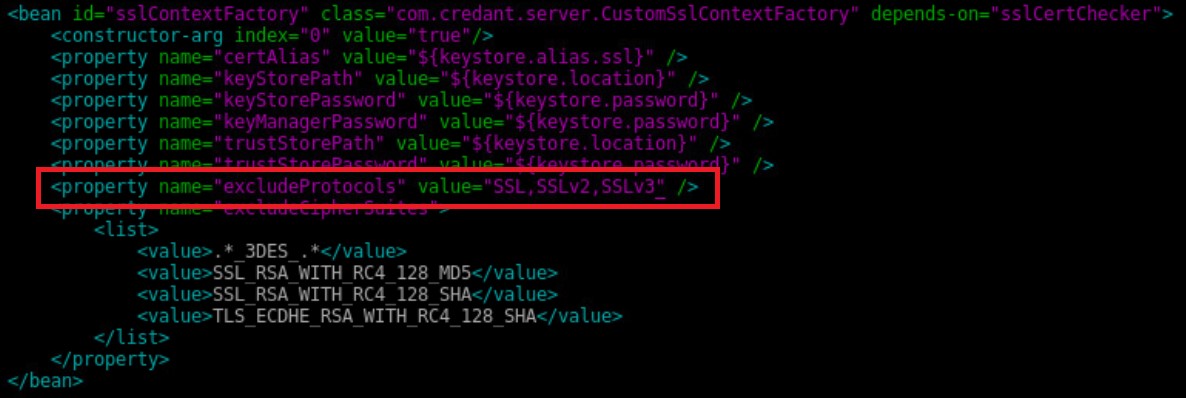
<property name="excludeProtocols" value="SSL,SSLv2,SSLv3" />.
- Alter
<property name="excludeProtocols" value="SSL,SSLv2,SSLv3" />to<property name="excludeProtocols" value="SSL,SSLv2,SSLv3,TLSv1,TLSv1.1" />.
- Press CTRL + X to exit.

- Press Y to save the changes and then press Enter to confirm the file name.

- Type
exitand then press Enter to log out ofddpsupport.

- Type
exitand then press Enter to log out of the shell to the Main Menu.

- Restart the server for the changes to take effect.
Compliance Reporter
Dell Compliance Reporter service is a Java-based service. Modifying these values requires a restart to the service before the changes take effect.
- Log in to the Dell Security Management Server Virtual administration console.
Note:
- The default credentials for Dell Security Management Server Virtual are:
- Username:
delluser - Password:
delluser
- Username:
- An administrator can change the default password within the product’s virtual appliance menu.
- The default credentials for Dell Security Management Server Virtual are:
- From the Main Menu, select Launch Shell and then press Enter.
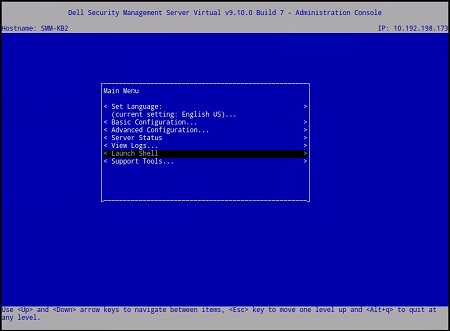
- Change the user to
ddpsupportusing thesu ddpsupportcommand.

- Confirm the password for the
ddpsupportuser.

- Open
/opt/dell/server/reporter/conf/eserver.propertieswith a text editor using the commandsudo nano /opt/dell/server/reporter/conf/eserver.properties.

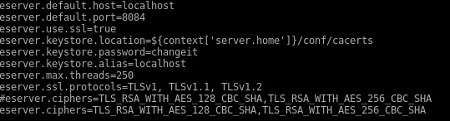
- Go to
eserver.ssl.protocols=TLSv1, TLSv1.1, TLSv1.2.
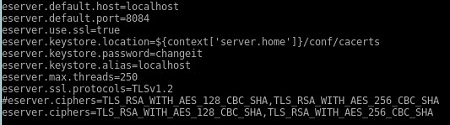
- Modify
eserver.ssl.protocols=TLSv1, TLSv1.1, TLSv1.2to readeserver.ssl.protocols=TLSv1.2.
- Press CTRL + X to exit.

- Press Y to save the changes and then press Enter to confirm the file name.

- Type
exitand then press Enter to log out ofddpsupport.

- Type
exitand then press Enter to log out of the shell to the Main Menu.

- Restart all services.
Note: For more information, reference How to Stop and Start Services in Dell Security Management Server Virtual.
Core Server Proxy
Dell Core Server Proxy service is a Java-based service. Modifying these values requires a restart to the service before the changes take effect.
- Log in to the Dell Security Management Server Virtual administration console.
Note:
- The default credentials for Dell Security Management Server Virtual are:
- Username:
delluser - Password:
delluser
- Username:
- An administrator can change the default password within the product’s virtual appliance menu.
- The default credentials for Dell Security Management Server Virtual are:
- From the Main Menu, select Launch Shell and then press Enter.
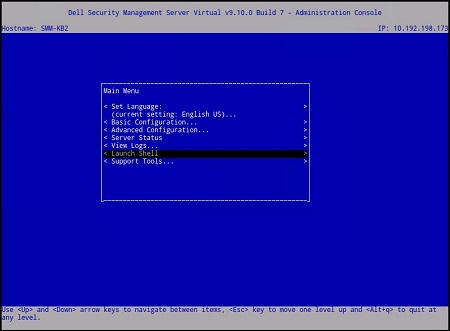
- Change the user to
ddpsupportusing thesu ddpsupportcommand.

- Confirm the password for the
ddpsupportuser.

- Open
/opt/dell/server/core-server-proxy/conf/spring-jetty.xmlwith a text editor using the commandsudo nano /opt/dell/server/core-server-proxy/conf/spring-jetty.xml.

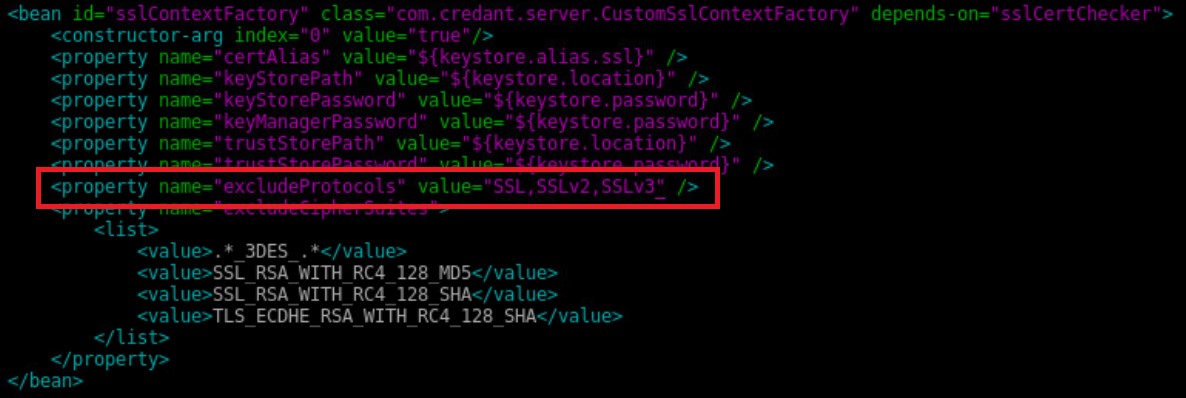
- Go to
<property name="excludeProtocols" value="SSL,SSLv2,SSLv3" />.
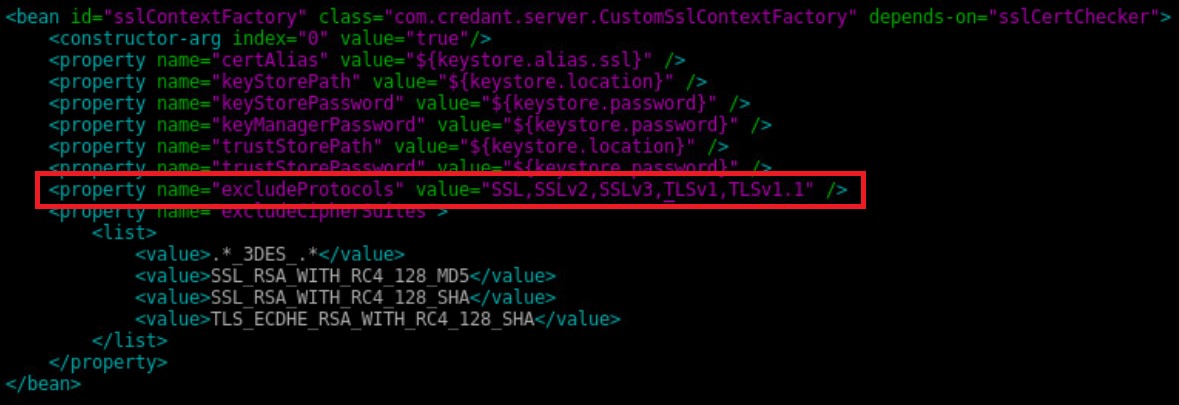
- Alter
<property name="excludeProtocols" value="SSL,SSLv2,SSLv3" />to<property name="excludeProtocols" value="SSL,SSLv2,SSLv3,TLSv1,TLSv1.1" />.
- Press CTRL + X to exit.

- Press Y to save the changes and then press Enter to confirm the file name.

- Type
exitand then press Enter to log out ofddpsupport.

- Type
exitand then press Enter to log out of the shell to the Main Menu.

- Restart all services.
Note: For more information, reference How to Stop and Start Services in Dell Security Management Server Virtual.
Front-End Server
TLS must be disabled from the Security Server Proxy, Device Server, and Core Server Proxy. For more information, select the appropriate function.
Security Server Proxy
Dell Security Server Proxy service is a Java-based service. Modifying these values requires a restart to the service before the changes take effect.
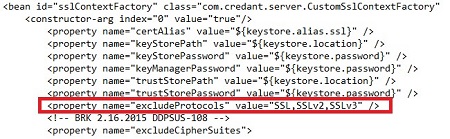
- Open
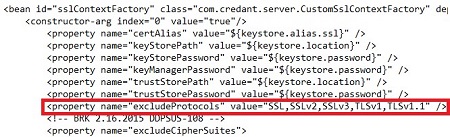
..\Dell\Enterprise Edition\Security Server Proxy\conf\spring-jetty.xmlwith a text editor and then go to<property name="excludeProtocols" value="SSL,SSLv2,SSLv3" />.
- Alter
<property name="excludeProtocols" value="SSL,SSLv2,SSLv3" />to<property name="excludeProtocols" value="SSL,SSLv2,SSLv3,TLSv1,TLSv1.1" />.
- Save and exit.
- Restart all services.
Note: For more information, reference How to Stop and Start Services in Dell Security Management Server.
Device Server
Dell Device Server service is a Java-based service. Modifying these values requires a restart to the service before the changes take effect.
- Open
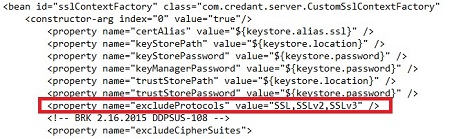
..\Dell\Enterprise Edition\Device Server\conf\spring-Jetty.xmlwith a text editor and then go to<property name="excludeProtocols" value="SSL,SSLv2,SSLv3" />.
- Alter
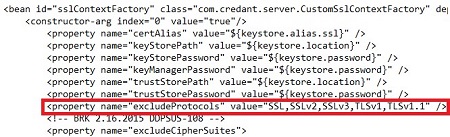
<property name="excludeProtocols" value="SSL,SSLv2,SSLv3" />to<property name="excludeProtocols" value="SSL,SSLv2,SSLv3,TLSv1,TLSv1.1" />.
- Save and exit.
- Restart all services.
Note: For more information, reference How to Stop and Start Services in Dell Security Management Server.
Core Server Proxy
Dell Core Server Proxy service is a Java-based service. Modifying these values requires a restart to the service before the changes take effect.
- Open
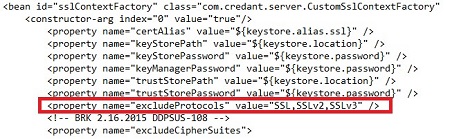
..\Dell\Enterprise Edition\Core Server Proxy\conf\spring-jetty.xmlwith a text editor and then go to<property name="excludeProtocols" value="SSL,SSLv2,SSLv3" />.
- Alter
<property name="excludeProtocols" value="SSL,SSLv2,SSLv3" />to<property name="excludeProtocols" value="SSL,SSLv2,SSLv3,TLSv1,TLSv1.1" />.
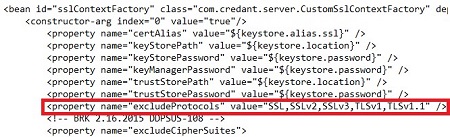
- Save and exit.
- Restart all services.
Note: For more information, reference How to Stop and Start Services in Dell Security Management Server.
Affected Products
Dell EncryptionArticle Properties
Article Number: 000124196
Article Type: How To
Last Modified: 17 Jul 2026
Version: 20
Find answers to your questions from other Dell users
Support Services
Check if your device is covered by Support Services.