Dell Security Management Server Syslog and SIEM guide
Summary: This article describes the Security Information and Event Management integration process.
This article applies to
This article does not apply to
This article is not tied to any specific product.
Not all product versions are identified in this article.
Instructions
Affected Products:
- Dell Security Management Server
- Dell Security Management Server Virtual
- Dell Endpoint Security Suite Enterprise
What is a Security Information and Event Management (SIEM) server or appliance?
SIEM can import data and run rules or reports that are based on the data. The goal is to aggregate data from various sources, identify anomalies in the data, and take appropriate action based on the data.
What options do I have to send to a SIEM or Syslog application
The Dell Security Management Server and Dell Security Management Server Virtual each offer two different ways to consume data into a SIEM or Syslog application.
In the 9.2 server, the ability to communicate with the Advanced Threat Prevention cloud was introduced, which allowed the ability to configure Advanced Threat Event data to be sent to a SIEM application.
To configure this data within the Dell Security Management Server or Dell Security Management Server Virtual's WebUI, go to Populations > Enterprise > Advanced Threats (this tab is only visible if Advanced Threat Prevention has been enabled through the Management > Services Management task) > Options.
The Options page has a checkbox for Syslog/SIEM which allows us to configure where the data is sent. This data comes from the Advanced Threat Prevention servers that are hosted within Amazon Web Services.
If the Advanced Threat Prevention Syslog Integration cannot successfully deliver syslog messages to your server, an email notification is sent to any Administrators with a confirmed email address in the organization, alerting them to the syslog issue.
If the issue is resolved before the 20 minute time period has ended, then syslog messages continue to be delivered. If the issue is resolved after the 20 minute time period, an Administrator must reenable syslog messaging.
Here is an example configuration that of an external fully qualified domain name (FQDN) of extsiem.domain.org over port 5514. This configuration would assume that extsiem.domain.com has an external DNS entry that resolves to the server within the environment running the SIEM or Syslog application, and port 5514 has been forwarded from the environment's gateway to the destination SIEM or Syslog application.
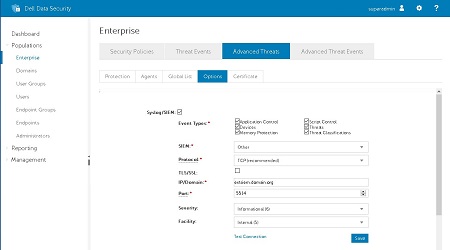
Figure 1: (English Only) Dell Data Security console
Events coming through this functionality are branded as they come from our vendor, Cylance.
IP and Hostname information for firewall and access purposes
The SaaS for Advanced Threat Prevention has several IP addresses for each region. This allows for expansion without interrupting any syslog service. Allow all IP addresses that are based on your region when configuring your rules. Logs from Cylance source from one of these IPs and can change randomly.
Note: These IP addresses should remain static; however, it is possible that Cylance will update this list in the future. Changes are communicated using an email to Cylance console administrators. It is the responsibility of the network administrator to update their rules in response to changes.
US (my.cylance.com and my-vs2.cylance.com)
52.2.154.63
52.20.244.157
52.71.59.248
52.72.144.44
54.88.241.49
AU (my-au.cylance.com)
52.63.15.218
52.65.4.232
EU (my-vs0-euc1.cylance.com and my-vs1-euc1.cylance.com)
52.28.219.170
52.29.102.181
52.29.213.11
Dell Security Management Server and Dell Security Management Server Virtual introduced the ability to send events received from agents in 9.7. This includes the raw, unfiltered events from Dell Endpoint Security Suite Enterprise, and events from Dell Secure Lifecycle and Dell Data Guardian.
Server Configuration
You can configure Security Management Server to send Agent Event Data within Management > Services Management > Event Management. This data can be exported to a local file or Syslog. Two options are here: Export to Local File, and Export to Syslog
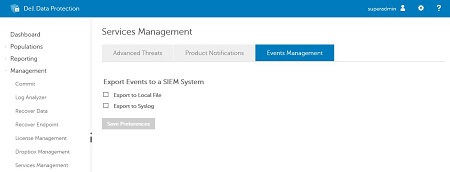
Figure 2: (English Only) Events Management
Export to Local File, updates the audit-export.log file so a universal forwarder consumes it. This file's default location is C:\Program Files\Dell\Enterprise Edition\Security Server\logs\siem\.
This file is updated every two hours with data. This file can be picked up and consumed by a forwarder. For more information about forwarders, see the specific Syslog or SIEM application that you are leveraging to consume this data, as forwarders differ based on application.
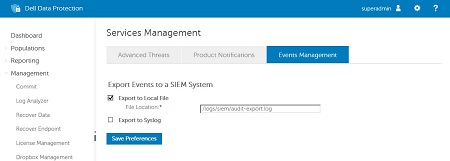
Figure 3: (English Only) Export to local file
Export to Syslog allows for the direct connection to an internal SIEM or Syslog server within the environment. These logs are formatted in a simple format that is based on RFC-3164 in a json bundle. This data comes from the Dell Security Management Server and is sent directly to the SIEM or Syslog server. This data is collected and sent every two hours using a job.
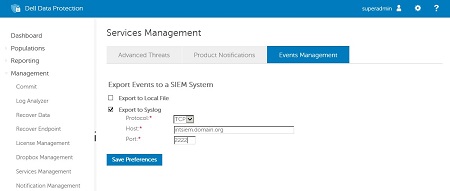
Figure 4: (English Only) Export to Syslog
The Dell Endpoint Security Suite Enterprise event data that is sent through is listed above. Typically, SaaS sends this data, allowing the Dell Security Management Server to be able to collect this data from the agents as they check in with inventories and forward this to the configured SIEM or Syslog application.
Agent event data contain both the previously mentioned Dell Endpoint Security Suite Enterprise event data, and Dell Secure Lifecycle and Dell Data Guardian data. This data comes in events as well.
Application Control
This option is only visible to users who have the Application Control feature enabled. Application Control events represent actions occurring when the device is in Application Control mode. Selecting this option sends a message to the Syslog server whenever an attempt is made to modify, copy an executable file, or when an attempt is made to run a file from a device or network location.

Figure 5: (English Only) Example message for deny PE file change

Figure 6: (English Only) Example message for deny execution from an external drive
Audit Log
Selecting this option sends the audit log of user actions that are performed in the SaaS to the Syslog server. Audit log events appear in the Audit Log screen, even when this option is cleared.

Figure 7: (English Only) Example message for audit log being forwarded to Syslog
Devices
Selecting this option sends device events to the Syslog server.
- When a new device is registered, you receive two messages for this event: Registration and SystemSecurity
Note: SystemSecurity messages are also generated when a user logs in to a device. This message may occur at various times, not just during registration.
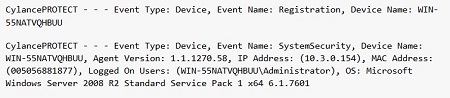
Figure 8: (English Only) Example message for device registered event
- When a device is removed

Figure 9: (English Only) Example message for device removed event
- When a device’s policy, zone, name, or logging level has changed.

Figure 10: (English Only) Example message for device updated event
Memory Protection
Selecting this option logs any Memory Exploit Attempts that might be considered an attack from any of the Tenant’s devices to the Syslog server. There are four types of Memory Exploit actions:
- None: Allowed because no policy has been defined for this violation.
- Allowed: Allowed by policy
- Blocked: Blocked from running by policy
- Terminated: The process has been terminated.

Figure 11: (English Only) Example message of memory protection event
Script Control
Selecting this option logs any newly found scripts to the Syslog server that Advanced Threat prevention convicts.
Syslog Script Control events contain the following properties:
- Alert: The script is allowed to run. A script control event is sent to the Console.
- Block: The script is not allowed to run. A script control event is sent to the Console.
Reporting Frequency
The first time a Script Control event is detected, a message is sent using syslog with full event information. Each subsequent event that is deemed a duplicate is not sent using syslog for the remainder of the day (based on the SaaS's server time).
If the counter for a specific Script Control event is greater than one, an event is sent using syslog with the count of all duplicate events that have transpired that day. If the counter equals one, no additional message is sent using syslog.
Determining if a Script Control event is a duplicate uses the following logic:
- Look at key information: Device, Hash, Username, Block, and Alert
- For the first event received in a day, set a counter value to 1. There are separate counters for Block and Alert.
- All subsequent events with the same key increment the counter
- The counter resets each calendar day, according to the SaaS's server time.
Note: If Script A runs on a Device 1 at 11:59PM on 09-20-2016 and then again at 12:05AM and 12:15AM on 09-21-2016, the following is the result:
- One syslog message is sent on 09-20-2016 for the Script Control event for that day.
- One syslog message is sent on 09-21-2016 for the two duplicate Script Control events for that day.
Note: Only one syslog message is sent on 09-21-2016 because the events are duplicates of the event that occurred on 09-20-2016.

Figure 12: (English Only) Example message of script control
Threats
Selecting this option logs any newly found threats, or changes observed for any existing threat, to the Syslog server. Changes include a threat being removed, quarantined, waived, or run.
There are five Threat Event types:
- threat_found: A new threat has been found in an Unsafe status.
- threat_removed: An existing threat has been removed.
- threat_quarantined: A new threat has been found in the Quarantine status.
- threat_waived: A new threat has been found in the Waived status.
- threat_changed: The behavior of an existing threat has changed (examples: Score, quarantine status, running status)
There are six Threat Classification types:
- File Unavailable: Due to an upload constraint (for example, file is too large to upload), the file is unavailable for analysis.
- Malware: The file is classified as malware.
- Possible PUP: The file might be a potentially unwanted program (PUP).
- PUP: The file is considered a potentially unwanted program (PUP).
- Trusted: The file is considered trusted.
- Unclassified: ATP has not analyzed this file.
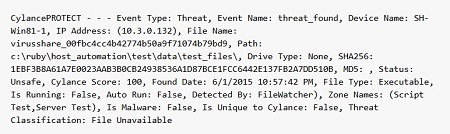
Figure 13: (English Only) Example message of threat event
Threat Classifications
Each day, Dell's Advanced Threat Prevention classifies hundreds of threats as either Malware or Potentially Unwanted Programs (PUPs).
By selecting this option, you are notified when these events occur.

Figure 14: (English Only) Example message of threat classification
Security Information and Event Management (SIEM)
Specifies the type of Syslog server or SIEM that events are to be sent to.
Protocol
This must match what you have configured on your Syslog server. The choices are UDP or TCP. TCP is the default, and we encourage customers to use it. UDP is not recommended as it does not guarantee message delivery.
TLS/SSL
Only available if the Protocol specified is TCP. TLS/SSL ensures that the Syslog message is encrypted in transit to the Syslog server. We encourage customers to select this option. Be sure that your Syslog server is configured to listen for TLS/SSL messages.
IP/Domain
Specifies the IP address or fully qualified domain name of the Syslog server that the customer has setup. Consult with your internal network experts to ensure that firewall and domain settings are properly configured.
Port
Specifies the port number on the machines that the Syslog server listens for messages. It must be a number between 1 and 65535. Typical values are: 512 for UDP, 1235 or 1468 for TCP, and 6514 for Secured TCP (for example: TCP with TLS/SSL enabled)
Severity
Specifies the severity of the messages that should appear in the Syslog server (this is a subjective field, and you may set it to whatever level you like). The value of severity does not change the messages that are forwarded to Syslog.
Facility
Specifies what type of application is logging the message. The default is Internal (or Syslog). This is used to categorize the messages when the Syslog server receives them.
Custom Token
Some log management services, like SumoLogic, might need a custom token that is included with syslog messages to help identify where those messages should go. The custom token provides your log management service.
4uOHzVv+ZKBheckRJouU3+XojMn02Yb0DOKlYwTZuDU1K+PsY27+ew==
Note: The Custom Token field is available with all SIEM or Syslog options, not just SumoLogic. It is possible to type any information as a custom tag to the syslog information.
Testing the Connection
Click Test Connection to test the IP/Domain, Port, and Protocol settings. If valid values are entered, a success confirmation is displayed.

Figure 15: (English Only) Successful connection banner
On the Syslog server console, you receive the following Test Connection Message:

Figure 16: (English Only) Test connection message
sl_file_upload
Event that tells an admin when a file has been uploaded to a cloud provider.
The agent that generates the event may be one or more of the following:
- Mac
- Windows
- Android
- IOS
| Payload | |
|---|---|
| Provider | Process that is doing the upload. |
| File | Information about the file being uploaded includes, keyid, path, filename, and size. |
| Geometry | The location where this event took place. |
| Loggedinuser | User that is logged into the device. |
Example:
{
"source": {
"agent": "c4b28f9b-0fe8-4f40-b8de-705753492d46",
"user": "test@domain.org",
"device": "A5474602085.domain.org",
"plugin": "ae69b049-602d-4f10-81f8-f0f126cb10f3"
},
"timestamp": 1456328219437,
"payload": {
"provider":"Sync Provider",
"file": {
"keyid": "Test Key Id",
"path": "Test Path",
"filename": "Original Name",
"size": 1234
}
""loggedinuser"":""test@domain.org""
},
"geometry": {
"type": "Point",
"coordinates": [115.24631773614618,
41.082960184314317]
},
"moniker": " sl_file_upload",
"version":1
}
sl_folder_override
Event that happens when a User changes the folder policy through the folder management console.
The agent that generates the event may be one or more of the following:
- Mac
- Windows
- Android
- IOS
| Payload | |
|---|---|
| Folderpath | Folder in which the protection level was changed |
| Folderprotection | A string that defines a protection level: UsePolicy, ForceAllow, ForceProtect, PreExisting_ForceAllow, PreExisting_ForceAllow_Confirmed |
| Geometry | The location where this event took place. |
| Loggedinuser | User that is logged into the device. |
Example:
{
"source": {
"agent": "c4b28f9b-0fe8-4f40-b8de-705753492d46",
"user": "test@domain.org",
"device": "A5474602085.domain.org",
"plugin": "ae69b049-602d-4f10-81f8-f0f126cb10f3"
},
"timestamp": 1456328219437,
"payload": {
"folderpath":"Folder Path",
"folderprotection:"ForceProtect"
""loggedinuser"":""test@domain.org""
},
"geometry": {
"type": "Point",
"coordinates": [115.24631773614618,
41.082960184314317]
},
"moniker": " sl_file_overrride",
"version":1
}
sl_net_info
Event that tells an admin when access to a cloud provider has been blocked.
The agent that generates the event may be one or more of the following:
- Mac
- Windows
- Android
- IOS
| Payload | |
|---|---|
| Address | Process that is doing the upload. |
| Process | Information about the file being uploaded includes, keyid, path, filename, and size. |
| Application | Type of process trying to access a blocked cloud provider. App, Proxy, or Browser |
| Netaction | Type of action happening. (only one value Blocked) |
| Geometry | The location where this event took place. |
| Loggedinuser | User that is logged into the device. |
Example:
{
"source": {
"agent": "c4b28f9b-0fe8-4f40-b8de-705753492d46",
"user": "test@domain.org",
"device": "A5474602085.domain.org",
"plugin": "ae69b049-602d-4f10-81f8-f0f126cb10f3"
},
"timestamp": 1456328219437,
"payload": {
"address":"www.yahoo.com",
"process":"process.exe",
"application":"Proxy",
"netaction":"Blocked",
""loggedinuser"":""test@domain.org""
},
"geometry": {
"type": "Point",
"coordinates": [115.24631773614618,
41.082960184314317]
},
"moniker": " sl_net_info",
"version":1
}
sl_protected_email
Events that deal with the actions that are associated with Dell Data Guardian protected email messages.
The agent that generates the event may be one or more of the following:
- Mac
- Windows
- Android
- IOS
| Payload | |
|---|---|
| Email messages | Array of email objects |
| keyId | Key id used to protect the email. |
| Subject | Subject line from email |
| To | Email addresses that the email was sent to. |
| cc | Email addresses that the email was copied to. |
| Bcc | Email addresses that the email was blind copied to. |
| From | Email address of the person that sent the email. |
| Attachments | Names of attachments that were added to the email |
| Action | "Opened," "Created," "Responded,"Sent" |
| Loggedinuser | User that is logged into the device. |
Example:
{
"source": {
"agent": "c4b28f9b-0fe8-4f40-b8de-705753492d46",
"user": "test@domain.org",
"device": "A5474602085.domain.org",
"plugin": "ae69b049-602d-4f10-81f8-f0f126cb10f3"
},
"timestamp": 1456328219437,
"payload": {
""emails": [{
"keyid": "c4b28f9b-0fe8-4f40-b8de-705753492d46",
"subject": "Test Subject",
"from":"dvader@empire.net",
"to": ["myemail@yahoo.com", "anotheremail@gmail.com"],
"cc": ["myemail@yahoo.com", "anotheremail@gmail.com"],
"bcc": ["myemail@yahoo.com", "anotheremail@gmail.com"],
"attachments": ["myDocx.docx", "HelloWorld.txt"],
"action": "Open"
}],
""loggedinuser"":""test@domain.org""
},
"geometry": {
"type": "Point",
"coordinates": [115.24631773614618,
41.082960184314317]
},
"moniker": "sl_protected_email",
"version":1
}
sl_protected_file
Events that deal with the actions that are associated with Dell Data Guardian protected office documents.
The agent that generates the event may be one or more of the following:
- Mac
- Windows
- Android
- IOS
| Payload | |
|---|---|
| File | File Information about that was Encrypted, Decrypted, or Deleted. |
| clientType | Client type that has been installed. External or Internal |
| Action | Created, Accessed, Modified, Unprotected, AttemptAccess |
| Slaction | New, Open, Updated, Swept, Watermarked, BlockCopy, RepairedTampering,
DetectedTampering, Unprotected, Deleted, RequestAccess, GeoBlocked, RightClickProtected, PrintBlocked |
| Geometry | The location where this event took place. |
| From | Timestamp for summary event when it began. |
| To | Timestamp for summary event when the event ended. |
| Loggedinuser | User that is logged into the device. |
| Appinfo | Information about the application using the Protected Office Document |
Example:
{
"source": {
"agent": "c4b28f9b-0fe8-4f40-b8de-705753492d46",
"user": "test@domain.org",
"device": "A5474602085.domain.org",
"plugin": "ae69b049-602d-4f10-81f8-f0f126cb10f3"
},
"timestamp": 1456328219437,
"payload": {
"from":1234567
"to":1234567
"file": {
"keyid": "Test Key Id",
"path": "Test Path",
"filename": "Original Name",
"size": 1234
},
"clientType": "internal",
"action": "Accessed",
"slaction":"Open"
},
"geometry": {
"type": "Point",
"coordinates": [115.24631773614618,
41.082960184314317]
},
"moniker": "sl_protected_file",
"version":1
}

""payload"":{""from"":12345678"",""to"":12345678,""file"":{""keyid"":""Test Key
Id"",""path"":""TestPath"",""filename"":""Original
Name"",""size"":1234},""clientType"":""external"",""action"":""Created""
""slaction"":""New"",""loggedinuser"":""test@domain.org""}

""payload"":{""from"":12345678"",""to"":12345678,""file"":{""keyid"":""Test Key
Id"",""path"":""Test Path"",""filename"":""Original
Name"",""size"":1234},""clientType"":""external"",""action"":""Accessed"",
""slaction"":""Open"",""loggedinuser"":""test@domain.org""}

""payload"":{""from"":12345678"",""to"":12345678,""file"":{""keyid"":""Test Key
Id"",""path"":""Test Path"",""filename"":""Original
Name"",""size"":1234},""clientType"":""external"",""action"":""Modified"" ,
""slaction"":""Updated"",""loggedinuser"":""test@domain.org""}

""payload"":{""from"":12345678"",""to"":12345678,""file"":{""keyid"":""Test Key
Id"",""path"":""Test Path"",""filename"":""Original
Name"",""size"":1234},""clientType"":""external"",""action"":""Modified"",
""slaction"":""Swept"",""loggedinuser"":""test@domain.org""}

""payload"":{""from"":12345678"",""to"":12345678,""file"":{""keyid"":""Test Key
Id"",""path"":""Test Path"",""filename"":""Original
Name"",""size"":1234},""clientType"":""external"",""action"":""Modified"",
""slaction"":""Watermarked"",""loggedinuser"":""test@domain.org""}

""payload"":{""from"":12345678"",""to"":12345678,""file"":{""keyid"":""Test Key
Id"",""path"":""Test Path"",""filename"":""Original
Name"",""size"":1234},""clientType"":""external"",""action"":""Accessed"",
""slaction"":""BlockedCopy"",""loggedinuser"":""test@domain.org""}

""payload"":{""from"":12345678"",""to"":12345678,""file"":{""keyid"":""Test Key
Id"",""path"":""Test Path"",""filename"":""Original
Name"",""size"":1234},""clientType"":""external"",""action"":""Accessed"",
""slaction"":""DetectedTampering"",""loggedinuser"":""test@domain.org""}

""payload"":{""from"":12345678"",""to"":12345678,""file"":{""keyid"":""Test Key
Id"",""path"":""Test Path"",""filename"":""Original
Name"",""size"":1234},""clientType"":""external"",""action"":""Modified"",
""slaction"":""RightClickProtected"",""loggedinuser"":""test@domain.org""}

""payload"":{""from"":12345678"",""to"":12345678,""file"":{""keyid"":""Test Key
Id"",""path"":""Test Path"",""filename"":""Original
Name"",""size"":1234},""clientType"":""external"",""action"":""Accessed"",
""slaction"":""PrintBlocked"",""appinfo"":{ ""app"":""Word"", ""information"":
""Print blocked protected office document open."" },""loggedinuser"":""test@domain.org""}

""payload"":{""from"":12345678"",""to"":12345678,""clientType"":""external"",""action"":""Accessed"",
""slaction"":""PrintBlocked"","appinfo":{ ""app"":""Reader"", ""information"":""Print blocked
while protected PDF open."" },""loggedinuser"":""test@domain.org""}
sl_system
Event that happens when the computer issues an event.
The agent that generates the event may be one or more of the following:
- Mac
- Windows
- Android
- IOS
| Payload | |
|---|---|
| Action | What the computer is doing examples - Login, Logout, PrintScreenBlocked, ProcessBlocked |
| Geometry | The location where this event took place. |
| clientType | Client type that has been installed. External or internal |
| Loggedinuser | User that logged in to the device. |
| processInfo | Information about the process |
| Disposition | How the process was blocked - Terminated, Blocked, None. |
| Name | Name of the process |
Example:
{
"source": {
"agent": "c4b28f9b-0fe8-4f40-b8de-705753492d46",
"user": "test@domain.org",
"device": "A5474602085.domain.org",
"plugin": "ae69b049-602d-4f10-81f8-f0f126cb10f3"
},
"timestamp": 1456328219437,
"payload": {
"action":"login","clientType":"external","loggedinuser":"test@domain.org",
},
"geometry": {
"type": "Point",
"coordinates": [115.24631773614618,
41.082960184314317]
},
"moniker": "sl_system",
"version":1
}

"payload":
{"action":"PrintScreenBlocked","clientType":"external","loggedinuser":"test@domain.org"}

"payload": { "action": "processblocked","clientType": "external","loggedinuser":
"test@domain.org","processinfo": {"name": "winword.exe","disposition": "Terminated"}
sl_xen_file
Cloud Edition Events that specify when a file is encrypted, decrypted, or deleted from a supported cloud provider.
The agent that generates the event may be one or more of the following:
- Mac
- Windows
- Android
- IOS
| Payload | |
|---|---|
| File | File Information about that was Encrypted, Decrypted, or Deleted. |
| clientType | Client type that has been installed. External or Internal |
| Action | Created, Accessed, Modified, Deleted |
| Cloudname | The name of the file in the cloud maybe different than the one in the file tag above |
| Xenaction | Description of what the DG service is trying to do. Values - Encrypt, Decrypt, Deleted. |
| Geometry | The location where this event took place. |
| Loggedinuser | User that is logged into the device. |
Example:
{
"source": {
"agent": "c4b28f9b-0fe8-4f40-b8de-705753492d46",
"user": "test@domain.org",
"device": "A5474602085.domain.org",
"plugin": "ae69b049-602d-4f10-81f8-f0f126cb10f3"
},
"timestamp": 1456328219437,
"payload": {
"file": {
"keyid": "Test Key Id",
"path": "Test Path",
"filename": "Original Name",
"size": 1234
},
"clientType": "internal",
"action": "Created",
"cloudname":"Cloud Name",
"xenaction":"Encrypt",
""loggedinuser"":""test@domain.org""
},
"geometry": {
"type": "Point",
"coordinates": [115.24631773614618,
41.082960184314317]
},
"moniker": "sl_xen_file",
"version":1
}
To contact support, reference Dell Data Security International Support Phone Numbers.
Go to TechDirect to generate a technical support request online.
For additional insights and resources, join the Dell Security Community Forum.
Affected Products
Dell EncryptionArticle Properties
Article Number: 000124929
Article Type: How To
Last Modified: 19 Apr 2026
Version: 11
Find answers to your questions from other Dell users
Support Services
Check if your device is covered by Support Services.