如何將 Dell Security Management Server 的 SQL 資料庫移至不同的 SQL Server
Summary: 本文說明如何將 Dell Security Management Server (先前稱為 Dell Data Protection | Enterprise Edition Server) 結構化查詢語言 (SQL) 資料庫移動到另一個 SQL Server。
This article applies to
This article does not apply to
This article is not tied to any specific product.
Not all product versions are identified in this article.
Instructions
受影響的產品:
- Dell Security Management Server
- Dell Data Protection | Enterprise Edition Server
受影響的版本:
- v8.0.X 及更新版本
按一下適當的 Dell Security Management Server 版本。如需版本控制資訊,請參閱 如何識別 Dell Data Security 伺服器版本。
警告: 將 SQL Server 資料庫移至新版 SQL Server 時,請先確認您的 Dell Security Management Server 版本支援 SQL Server 版本,然後再繼續。如需相容版本的詳細資訊,請參閱 Dell Security Management Server 系統需求。
v8.0.0 及更新版本
- 停止所有 [Product] 服務。
註:
- [Product] =
- v8.15 及更早版本 = Dell
- v8.14.1 及更早版本 = Dell Data Protection
- 如需更多資訊,請參閱如何在 Dell Security Management Server 中停止與啟動服務。
- [Product] =
- 從現有 SQL Server 建立完整的 SQL 資料庫備份。
注意: 如需更多資訊,請參閱 建立完整資料庫備份 (SQL Server)
。
- 從新的 SQL Server 中還原 SQL 資料庫。
注意: 有關詳細資訊,請參閱 將資料庫還原到新位置 (SQL Server)
- 確認所有預期的存取權限都已套用至 SQL Server 和資料庫。
注意: 如需更多資訊,請參閱 如何為 Dell Security Management Server 配置 SQL。
- 從 Dell Security Management Server,前往
%ENV:SYSTEMDRIVE%\Program Files\Dell\Enterprise Edition\Server Configuration Tool\Credant.Configuration.exe。

- 或者,您也可以在開始功能表中搜尋伺服器組態工具,或可在標題為執行伺服器組態工具的 Dell 資料夾下手動找到。
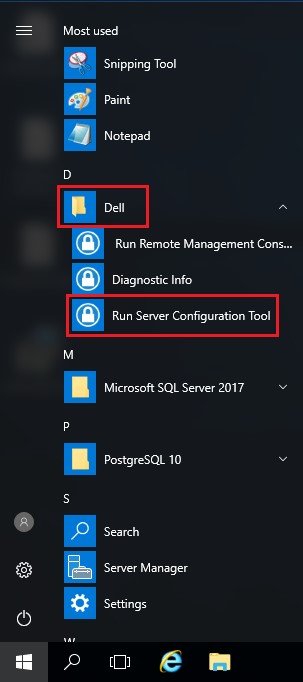
- 或者,您也可以在開始功能表中搜尋伺服器組態工具,或可在標題為執行伺服器組態工具的 Dell 資料夾下手動找到。
- 按一下資料庫標籤。

- 從資料庫標籤中:
- 填入新的 SQL Server 名稱。
- 填入 SQL Server 連接埠。
- 填入 SQL 資料庫名稱。
- 選取驗證方法。
- 如果選取 SQL 驗證:
- 填入使用者名稱。
- 填入使用者名稱密碼。
- 前往步驟 8。
- 如果選取 Windows 驗證,請前往步驟 8。
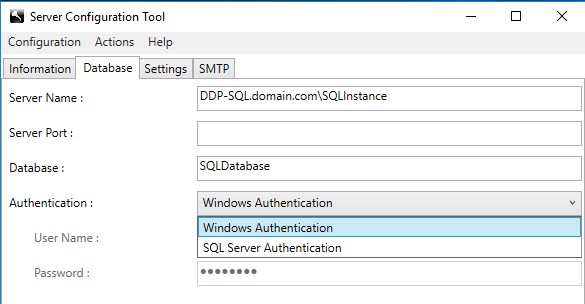 註:
註:- 伺服器名稱可填入完整網域名稱 (FQDN) 或 IP 位址。
- 如果例項正在使用中,則可能會在伺服器名稱之後,以 \ 為開頭填入。
- 如果伺服器連接埠保留空白,則預設為 1433,或者系統會嘗試與 SQL Server 瀏覽器 (如果可用且已啟用) 通訊,其可定義自訂或動態 SQL 連接埠。
- 如果選取 Windows 驗證,則會採用使用中的 Windows 帳戶連線至 Dell Data Protection 資料庫。
- 伺服器名稱、伺服器連接埠、資料庫、驗證、使用者名稱和密碼所使用的範例在您的環境中可能會有所不同。
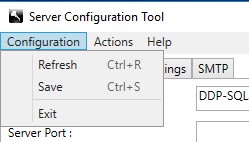
- 選取組態,然後按一下儲存。
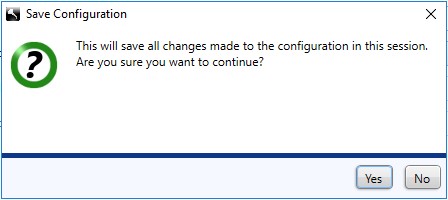
- 按一下是。
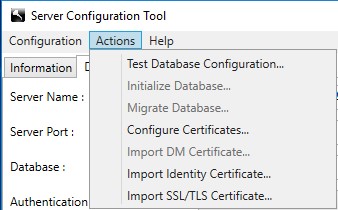
- 按一下動作功能表,然後按一下測試資料庫組態。
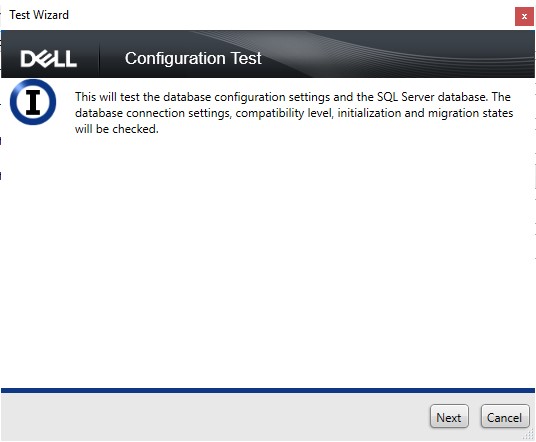
- 按一下下一步。
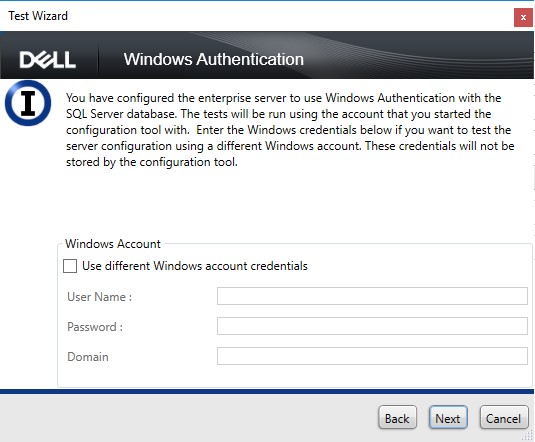
- 如果使用 Windows 驗證,請選擇:
- 檢查使用不同的 Windows 帳戶登入資料。
- 填入使用者名稱。
- 填入密碼。
- 填入網域。
- 按 一下下一步。
如果使用 SQL 驗證,請按一下下一步,然後前往步驟 13。
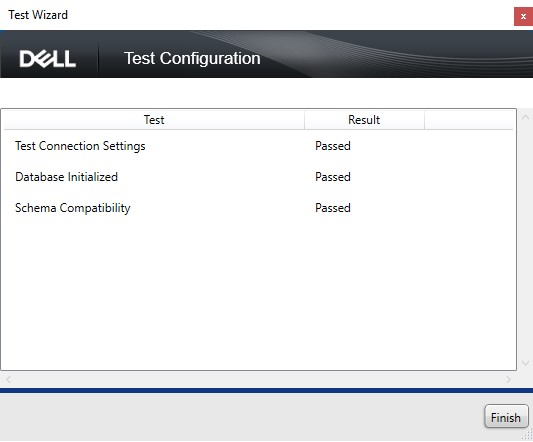
- 測試連線設定必須顯示通過才能繼續。如果沒有,請返回步驟 7 或使用不同的 Windows 帳戶登入資料 (步驟 12)。按一下完成。
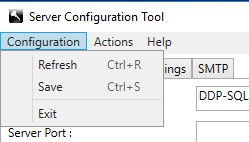
- 選取組態功能表,然後按一下儲存。
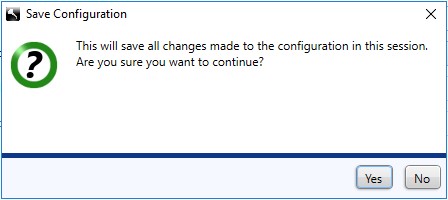
- 按一下是。
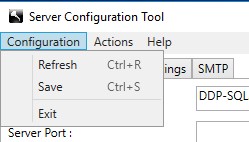
- 選取組態功能表,然後按一下結束。
- 啟動所有 [Product] 服務。
註:
- [Product] =
- v8.15 及更早版本 = Dell
- v8.14.1 及更早版本 = Dell Data Protection
- 如需更多資訊,請參閱如何在 Dell Security Management Server 中停止與啟動服務。
- [Product] =
Affected Products
Dell EncryptionArticle Properties
Article Number: 000126174
Article Type: How To
Last Modified: 16 Jul 2026
Version: 10
Find answers to your questions from other Dell users
Support Services
Check if your device is covered by Support Services.